Category: Tips

  • How to Import Primary Contacts

    The Import Wizard in Dynamics CRM can do a lot more than what may initially seem possible. I’ve covered some of these features in a previous article called CRM 2011 Data Import Wizard in Practice. Among these capabilities is the possibility of importing records to different entities that have multiple relationships connecting them in both directions, not just the simple parent-child relationship pointing from one entity to the other.

    A typical example of such a relationship would be the Primary Contact of an account. The account is a parental record to all the child contacts, but one of these contacts may however have a 1:N relationship back to the account and be presented in the Primary Contact lookup field on an account form. If you are importing both the account and contact columns in a single file (such as an Outlook contacts export) then mapping these relationships should only be a matter of mapping the right fields. If you have two separate files, then simply zipping them up into a single file will allow you to map both entities in the same import process.

    Primary_contacts_account_formOne of the problems that you may encounter during such an import process is that there are multiple matching records for the mapping fields. If you have more than one account record called “Litware, Inc”, to for example represent different regional offices of the company, mapping the primary contact by account name won’t work. Similar problems will arise if several people have the same first and last names. Therefore it’s a good practice to always generate a unique ID for each record before importing it. You can construct the identifier field in Excel with the Concatenate function and combine several fields into a single Import ID string (account name + address 1 city, for example) which you then map into a temporary field in CRM. You can use this field as the lookup reference to the related entity instead of the standard primary field when importing data.

    Appending Existing Records

    In a recent import task I was once again faced with the Primary Contact issue. Only this time the account data that I needed to map the contacts into was already in the CRM database. As these were new contact records being imported, my first thought was to create a workflow rule to be triggered from the create event of a contact record. Using some temporary contact field to store the primary contact flag into, like “governmentid = PrimaryContact”, and then searching for this value in the workflow rule would have allowed me to start a record update step for the parent account of the newly imported contact. In the update step I could just state that the account’s primary contact would be the contact that the workflow process instance has been initiated on.

    Fortunately I looked through the source data once again before proceeding any further, as that revealed a flaw in the assumptions behind the above workflow rule logic. A single contact was sometimes the primary contact for more than one account. Also, there were occurrences where the contact wasn’t the primary contact of its own parent account. The relationships were therefore more complex than what a single workflow rule could cover.

    This doesn’t mean that leveraging workflows was out of the question, though. To enable the creation of multiple relationships from a single imported contact record I just needed to have an intermediate stage in my process, to store the data in CRM. What this requires in practice is that you first import the data into a different entity, then trigger the update step from that record into the actual record you want to append with new information.

    One option would have been to create a new temporary entity just for the sake of getting the data imported correctly. However, since these were account and contact records for which we wanted to link the imported data, there was already a logical place available in the default data model of Dynamics CRM: connections. It’s in fact the perfect entity for importing any relationship data into, as the two parties of the connection can be references to any entity type that has connections enabled for it, meaning several default entities and any custom entity you’ve created. Therefore we could cover several different import scenarios with connections and not have to go into system customizations to add relationships to other entities.

    The Import Process

    First I had to add a new connection role for “Primary Contact” (step 1) to identify the connection records that I want to run my workflow process on. As this role will be used exclusively between account and contact records, I specified them as the available record types for the role (step 2). Also, I always tend to put the same role value on the “other side” of the relationship to keep the data consistent and simple to view/search for, so I set this new role to be its own matching connection role (step 3).

    Primary_contacts_connection_role

    Then I proceeded to creating a new workflow process that would be triggered on the create event of a new connection record. In the workflow rule I specified it to run only on connections that have the Primary Contact connection role. I also wanted to validate that the Connected From and Connected To entities are mapped the right way around in the connection record, so I simply check that the account and contact records behind each relationship contain data. Without these conditions being met, the update step wouldn’t produce any meaningful results anyway.

    Primary_contacts_workflow_rule

    In the update step I mapped the Connected To contact record into the Primary Contact field of the Connected From account record.

    Primary_contacts_workflow_update

    Now we were ready to start the actual import work. Since the primary contact relationship data was handled with a separate entity, I first imported the contact records through the normal process. (more…)
  • No-code Customizations with North52 Formula Manager, Part 3: Case Resolutions

    In the previous articles (part 1 and part 2) we’ve explored how the North52 Formula Manager can be utilized in automating steps related to the sales process. This time we’ll be looking at a scenario related to service management, in an effort to make it easier to share knowledge and report on the resolutions of cases recorded in the Microsoft Dynamics CRM database.

    Cases vs. Case Resolutions

    Case_resolve_cancelIn theory it should be pretty straightforward how you work with a case record: they are support tickets that are initially open (active) when you create them and eventually they end up getting closed as either resolved (service was provided) or cancelled (duplicate ticket, customer never replied etc.).
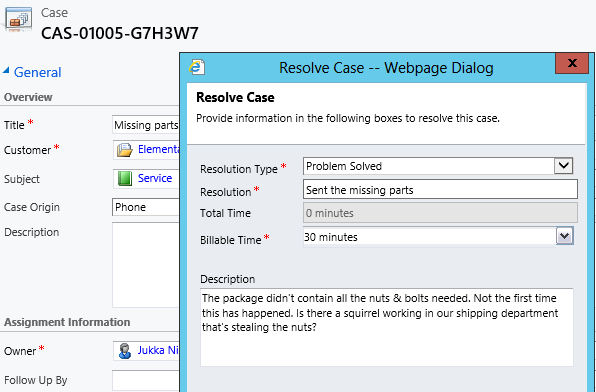
    The point where complexity raises its ugly head is how the resolution process works: instead of entering the case resolution details onto the case record itself, the user is presented with a window that creates a Case Resolution activity underneath the parent case. While this is a perfectly valid design in terms of the nature of the interactions, as there could be situations where the case gets re-opened and resolved again (thus being a 1:N relationship with the case), it does make it more complicated to work with the resolution data later on.

    Resolve_case_dialog

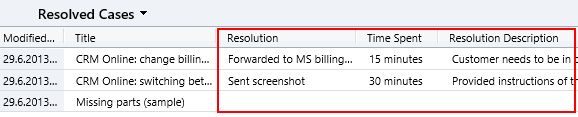
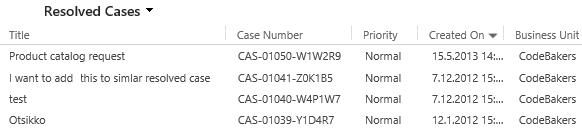
    For example, say you’d want to study the resolved cases by using a view of the case records. In that view you can see the case subject, owner, status and other standard fields, but there’s no information visible on what the actual resolution to the case was. “Ok, so I’ll need to customize the view and show columns from a related record. That’s not too difficult, now is it?” Unfortunately that’s not going to work, because the information we’re interested in resides on the N side of the relationship. Since there can be several case resolutions for a single case, no columns from this entity can be displayed in a case view. So, we can’t construct a nice Q&A list that the service reps could leverage in scanning for similar cases on a new question from a customer. We can only see the problem, not the resolution.

    Resolved_cases_view

    You could build a view of case resolutions, the child entity in this relationship, but that’s not very convenient either. Although case resolution is an entity of its own, it’s not actually available in Advanced Find to directly build queries on. It is possible to access a list of case resolutions by crafting a view of activities with that specific type, but you’ll still be limited to only the generic activity fields. As an example, the field Billable Time (Time Spent) cannot be accessed in a view, which makes it rather difficult to report on this data entered as a part of the service process.

    Activities_Advanced_Find_case_resolution

    Using a Formula to Replicate the Case Resolution Fields on the Case Form

    Luckily Dynamics CRM is a flexible platform that allows you to develop new business logic to fulfill the requirements for your service process. In this situation, if we could simply have the Resolve Case dialog fields copied over to the parent case, this would solve the aforementioned problems. So, how to proceed then?

    If we want to alter the default behavior or the service entities, we should first have a look at the workflow process capabilities of Dynamics CRM to see if can  configure a workflow rule that is triggered when the case resolution is created. This time we won’t get very far with that idea, though, as neither the case resolution nor the activity entity can be used as a workflow trigger. Fair enough, we’ll then need to come up with a lower level solution to meet this requirement. Assuming we have access to a .NET developer who knows the Dynamics CRM SDK, creating a custom plug-in to copy the fields to the case record would be a worthy option to consider. Since the title of this post promised “no-code customizations”, let’s instead look at how we could achieve the same functionality with the Formula Manager.

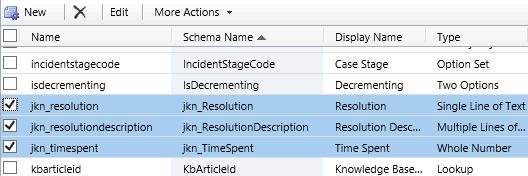
    First we need a place to host the case resolution data of course, so let’s add three custom fields on the case entity: Resolution (text field), Resolution Description (multiple lines) and Time Spent (whole number with duration format). On the case form they can be put into a section of their own and set as disabled, since the user shouldn’t directly update them.  Then we’ll create the three formulas that will populate these fields with corresponding values from the case resolution entity.

    Case_custom_fields

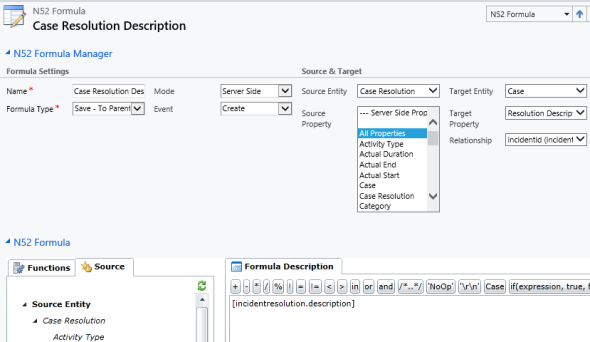
    We’ll be using a formula of the type “Save – To Parent” and attach it to the create event of the case resolution entity. As our target (parent) entity we can select case, but notice that you’ll actually need to specify the relationship field value first before you’re able switch the value in the target entity field. Let’s take the Resolution Description field we just created as the target property. The formula itself in this case will be very simple, since all we need is a value directly from the source entity. We can use the source entity tree visible in the bottom left corner of the screen to browse through the available fields or just type in directly the value [incidentresolution.description].

    Formula_case_description

    The other two fields will get an identical treatment, which means we can click on the Clone Formula button on the ribbon and create two copies of the original formula. Just update the target property field and select a new source field value into the formula description window accordingly. After we’re done, we can publish the formulas and try them out by resolving an existing case.

    Resolve_case_formula_1

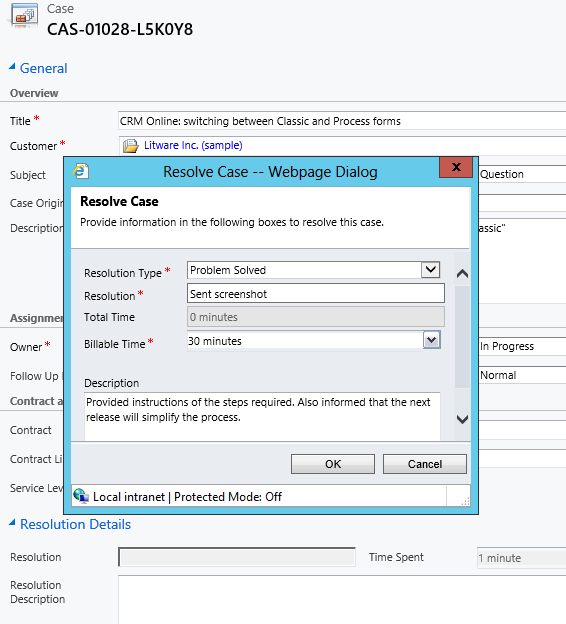
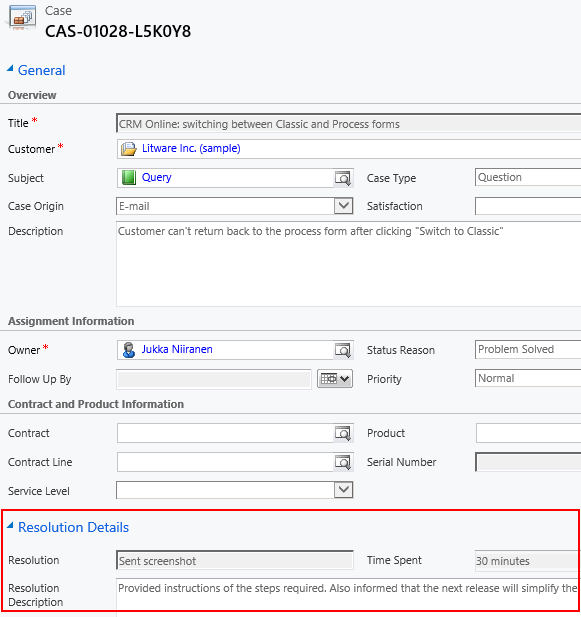
    After we’ve entered the details into the Resolve Case dialog fields and clicked OK, our formula will update the underlying case form in real time to reflect the same values presented directly on the resolved case record. Unlike asynchronous workflow processes, the formulas can perform their tasks right in front of the user, which makes the user experience more consistent.

    Resolve_case_formula_2

    Making Use of the Resolution Data

    Now that the fields are available on the case entity, we still need to ensure that the user actually has access to them through all the necessary routes. First we should of course include them into the Resolved Cases view we talked about earlier.

    Resolved_cases_view_updated

    Seeing the resolution field contents directly in the view is a great improvement, but an even more important feature is to enable the users to search for this information. You see, one of the peculiar default settings of Dynamics CRM is that the Quick Find view for case entities only covers active (open) cases. (more…)

  • No-code Customizations with North52 Formula Manager, Part 2: Line Items

    In a previous post I wrote about how the North52 Formula Manager solution can help you build some common customizations that would otherwise require writing Javascript for Dynamics CRM entity forms. The scenarios included:

    • Setting default values for lookup fields
    • Dynamically changing the field requirement level
    • Displaying popup warnings
    • Launching dialog process windows

    This time I will show a few examples of the Formula Manager capabilities that would typically fall into the domain of writing C# plugin code to enhance the business logic of Dynamics CRM. Being a functional CRM consultant that doesn’t normally deliver a single line of code (at least for production environments), these scenarios would traditionally require me to hand over the task to a CRM developer. What we’re about to see is an alternative method of creating just formulas with the graphical tools available in the solution package to get the same job done.

    Updating Opportunity, Quote, Order or Invoice Products

    In Microsoft Dynamics CRM 2011 you can trigger workflow processes on the line items of Opportunities, Quotes, Orders or Invoices. This allows you to execute custom logic when, for example, new Quote Product rows are added for a Quote record. Unfortunately what you cannot do with standard workflows is to actually update the line item record itself.

    Workflow_update_quote_product

    Well, this surely looks like a dead-end for most of the use cases you could think of for triggering the workflow process in the first place. If I wanted to, for example, pull information from the selected Product record and save it on the Quote Product’s fields, such as product description, vendor details or a line item number to sort the quote rows, this apparently cannot be achieved with CRM’s workflow functionality.

    Let’s look at how we can solve the problem with Formula Manager instead. In our scenario we would like the description field of the Quote Product record to be updated with the description field contents of the selected Product record. What we therefore need is a “Save – To Current Record” type of formula that is triggered on the Create & Update events of the Quote Product entity. We can limit the update events only to the Existing Product field by setting the Source Property value. The Target Property of our formula should be the Description field.

    Finally, we need the actual formula that will feed the values from the related Product record into the Quote Product’s description field. To retrieve the description field contents we’ll use the FindValue function and tell it to search for a Product record that has the same productid as the existing product selected on the Quote Product record. While we’re at it, let’s also ensure that the Quote Product actually has an existing product instead of a write-in product by verifying the productid field contents with the ContainsData function. The end result will look like this:

    if(ContainsData([quotedetail.productid]), FindValue(‘product’, ‘productid’, [quotedetail.productid], ‘description’),’NoOp’)

    FormulaManager_update_quote_product_description

    Now when we navigate onto a Quote and add a new Quote Product record underneath it, the description field will inherit the value from the related Product and display it directly on the Quote Product form (assuming you’ve made this default field visible on the form in the first place).

    Quote_product_description

    Not that much more complicated than building a workflow rule, just as long as you familiarize yourself with how the formulas work and how to format the parameters required by the functions.

    Creating Line Items

    Let’s proceed with exploring the world of line item records in the sales process. Updating existing records automatically is a nice capability to have for sure, but what about automating the complete process of creating the line items for an Opportunity, Quote, Order or Invoice? For example, if we wanted to ensure that there is always a standard Delivery Fee or other persistent item included whenever we’re creating an Order of a specific type (or for a specific customer group), then this is another area where the out-of-the-box functionality of Dynamics CRM workflows can’t be used, since new Order Product records cannot be created through a workflow rule.

    With Formula Manager we have no such limitations in place, rather we are free to create any type of records we want with the CreateRecord function. The example formula below was actually provided to me by North52’s John Grace to demonstrate the solution’s functionality. The Save – Perform Action formula is attached to the Create event of an Order record, which in turn triggers the creation of a new Order Product record. The contents of this auto-created line item can be defined either directly in the formula or alternatively queried with the FindValue function familiar to us from the previous example.

    CreateRecord(‘salesorderdetail’,
    1,
    ‘salesorderid.salesorder.’ + [salesorder.salesorderid],
    ‘productid.product.’ + FindValue(‘product’, ‘name’, ‘Bike’, ‘productid’),
    ‘uomid.uom.’ + FindValue(‘uom’, ‘name’, ‘Primary Unit’, ‘uomid’),
    ‘quantity.10’
    )

    FormulaManager_create_order_product

    Now, as a limited time special offer, any new Order that we create (or a Quote that we convert) will get 10 Bike products added onto it with their unit price dynamically retrieved from the Price List selected on the Order. What a sweet deal!

    Order_Products

    Cloning Records

    For a Dynamics CRM administrator these type of automated steps can be really handy in enforcing business rules and ensuring correct entry of data onto sales records. If we’d show them to your typical salesman, though, he might not be so impressed with this type of detailed process automation functionality.

    “Sure, it looks like we could save a few clicks with these formulas. But here’s the deal: many of the quotations I make are practically identical. They contain the same line items every time, with only some variations in quantity and discounts given. What I’d really want to do is simply select a quote I’ve created for another customer and create a copy of it. You know, the “Save As” button that’s found in all the other Office applications. Why couldn’t CRM also have that? It would be a huge time saver for me.”

    Ever had this kind of a discussion with your CRM users? If you have, then you’ll surely appreciate the fact that Formula Manager provides a Clone function that allows you to create a new copy of any existing record. Not only that, but the function also clones all the related 1:N & N:N records, which means you can create a copy of both the Quote and Quote Product line items with a single function!

    To get an understanding of how the function could be leveraged in delivering the “Save As” functionality your sales users have been asking for so long, watch this video that demonstrates not only the formula in action but also how you can use the Ribbon Workbench to build a custom Clone button for the required entities.

    Clone_Quote

    Think these type of features would be useful to have in your Dynamics CRM organization? Then go ahead and grab the fully functional Standard Edition of Formula Manager that allows you to have 10 active formulas at a time, for test or production use.

  • Dynamics CRM Data Visualization with Excel 2013 GeoFlow

    Excel_2013There are some great new features available in Excel 2013 that can take your Dynamics CRM data visualization onto a whole new level without the need to invest in new server infrastructure or build traditional OLAP cubes on your SQL Server. With the recent announcement of the GeoFlow Preview for Excel 2013, I decided to see what I could make of this tool when combined with some data pulled from CRM.
    Working with Cloud Data

    Although the feature parity of CRM Online and Dynamics CRM on-premises is on quite a high level these days in terms of the application platform capabilities, one unfortunate limitation has been that you can’t easily tap into the CRM Online data with analytical applications like Excel PowerPivot. Naturally the direct SQL database table connection is unavailable, but also the OData feeds that would be such a neat way for performing some pivot magic have been off limits, as PowerPivot doesn’t support the claims based authentication of CRM Online. Oh, and as far as I know, this also applies to an IFD configured on-premises server  (if anyone knows how to connect to the OData feed with AD authentication while using an IFD CRM, do leave a comment below).

    With the new capabilities of Excel 2013, there is now a workaround available that allows you to access OData feeds from CRM that require Windows Live ID / Microsoft Account / Office 365 authentication. You’ll also need the CRM Outlook client on your workstation to facilitate the initial connection, although with another workaround for the sign-in prompt on the Excel sheet you might be able to do without one.

    Here’s a great video from former Dynamics CRM Team member Ed Martinez that walks you through the steps needed in order to connect your Excel 2013 (note: Excel 2010 is not supported AFAIK) to a Dynamics CRM Online OData feed:

    (For all the Finnish speaking CRM folks out there, you can also check out this video clip by Sulava’s Markku Suominen.)

    As a summary, what you need to do is:

    • Copy the OData feed address from the developer resources menu of your CRM
    • Export any set of data from CRM to a dynamic Excel sheet
    • Open the file and refresh the data (thus establishing the authenticated connection), the save it in .xlsx format
    • Add a new data source by clicking on “Get External Data, From OData Data Feed”
    • Paste in the address you previously copied from CRM

    That’s it. Now you can connect an Excel sheet to a CRM Online (or IFD) data source through OData and refresh the content to reflect the live data as your CRM source system gets updated.

    Power View in Action

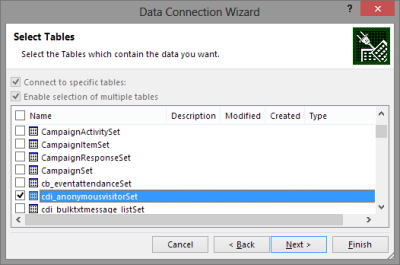
    For my own lil’ “Big Data” scenario I decided to point my OData enabled Excel 2013 towards a Dynamics CRM instance where ClickDimensions is storing the website visitor data from this blog (sorry, you’re being tracked, but it’s all for a noble cause, trust me). I proceeded by following the instructions above, adding a new OData data source into a dynamic Excel sheet, selecting the entities (“sets”) that I wanted to use in my analysis. Then I waited… and waited… and waited some more.

    OData_data_feed_connection_wizard_CRM

    A word of warning: OData data feeds can be slow. It’s nothing like using a direct database connection, and not even the type of performance you get with a dynamic Excel in an IFD environment that uses an Excel Web Query to “screen scrape” the data over http. My data set was retrieving around 100,000 records and I saw the counter ticking on the bottom right corner of the Excel sheet at a rate of roughly 200 rows per second, which translates into some 10 minutes of waiting before the download from CRM is complete. Oh well, it’s not like we’re in a rush to create a real life report for the boss who wants to have it in his inbox within 15 minutes. Let’s be grateful that we can at least retrieve more rows in one go than the default MaxRecordsForExportToExcel setting for this CRM organization would otherwise allow (which is 10,000). (more…)

  • Advanced Queries with Advanced Find

    Advanced Queries with Advanced Find

    Dynamics_CRM_Advanced_FindOne of the more powerful features of Microsoft Dynamics CRM has to be the Advanced Find tool. What may initially seem like an intimidating maze of menus to a new Dynamics CRM user unfamiliar with the underlying data model, Advanced Find may quickly turn into an invaluable tool for anyone who needs to be able to retrieve specific sets of data from CRM, be it for marketing campaign target groups, ad-hoc data analysis or simply streamlining the usage of the system with saved views for surfacing frequently needed information from the database.


    Here are a couple of examples that show you how Advanced Find can go beyond the typical queries and deliver results that you might have not initially thought of being possible with the tool.

    Referencing the Current User

    Suppose you have a Business Unit structure set up in Dynamics CRM to reflect organizational units where the users generally work together on the same accounts. However, you’ve not restricted their visibility to records from other BU’s, so their view of all active accounts displays the complete contents of the database in a long list. While the users can easily filter their own records by using the My Accounts view, you’d like to offer them an option to see just the accounts owned by any user from their own Business Unit.

    Sure, you could create a long list of system views that are dedicated to a particular business unit (“Accounts from Finland”, “Accounts from Sweden”, “Accounts from Cayman Islands” etc.). The problem with this approach, apart from the number of view variations you need to create and present in the view list, is that it’s not dynamic by nature. Since you can’t centrally set different default views for different user groups in Dynamics CRM, all the users would have to know how to navigate to the “View” tab and click on the “Set As Default View” button to select the view specific to their business unit.

    Instead of all that manual labor, why don’t we build a query criteria with Advanced Find that says “show all accounts where the related owner is in a business unit that has a user that is me. Yes, it’s not exactly the way you would formulate the sentence when communicating with human beings, but this is the language that works with Advanced Find. If you don’t believe me, just try the query below for yourself:

    Advanced_Find_Acocunts_from_My_Business_Unit

    How about if you’re using Teams and would like to create a “my team’s records” type of a view? No problem, you can use the exact same method as with Business Units. Just reference the Team record under the Owning User entity and then add the same “user equals current user” criteria under the related user entity.

    In fact, since starting from CRM 2011 all business units also have a default team where the BU’s users are automatically added to as members, the team approach actually covers both the “my business unit” and “my team” scenarios. If, on the other hand, you’d like to only reference custom teams and not BU teams, include a criteria for the team records that says “Is Default equals No” to exclude the default business unit teams from your view results.

    Ok, so we get the results we were after, but what is the underlying logic that makes this query work? What we are doing in the Advanced Find query criteria definition in the above examples is referencing the relationships through this type of a pattern:

    Advanced_Find_Current_User_Relationships

    The key takeaway here is that there’s no need to limit your queries to only traditional one-to-many (1:N) type of hierarchies. In this example you start from the N side, then go through a “1” and spread out back into the N. Due to the flexible nature of the Advanced Find query designer in presenting all the available relationships, we are free to explore multiple different types of connections between the same entity in a single query. We pass through the user entity more than once but approach it from different relationships in order to define the final filter for the query.

    Multiple Conditions for Related Child Record

    Taking the exploration further, here’s a query method that may seem even less intuitive but is actually a more common requirement than the team/BU membership example. Sometimes you need to search for parent records that have two or more specific child records underneath them, meaning that the single query will have to find several different matches from the child records in order to qualify the parent record into the query results. Examples of such a scenario could be:

    • Accounts that have child contacts with the roles Decision Maker and Influencer
    • Customers who have bought both product A and B
    • Contacts that have attended events in the years 2011, 2012 and 2013
    • Orders that included line items for both Sales Inventory and Services

    When building such queries the problem you may face is that the results include parent record that meet any single criteria, when what you’re interested in is only the records that meet all the different conditions. Taking the last example of searching for line items of several different product types and using the Opportunity and Opportunity Product entities, if we’re including the Sales Inventory and Services values into a single condition for the Product Type field, any opportunity that has either Sales Inventory or Service products will be retrieved. (more…)

  • No-code Customizations with North52 Formula Manager

    North52North52 Formula Manager is a very interesting solution that promises to simplify the process of customizing and extending Dynamics CRM by offering a graphical toolkit to implement custom business logic that would otherwise require developing plug-ins in C# or adding Javascripts on the forms. Instead of writing custom code, the business logic can be configured through the N52 entities inside CRM, with the help of a Silverlight based editor to write formulas that check conditions, perform validations, update fields etc.

    In this article I’ll show you a few simple examples of how a person with no coding skills can perform some customizations that go beyond the GUI tools that Dynamics CRM offers. I’ll use the opportunity entity to add some client side actions to make the sales process a more guided experience for the end user. You can grab the free Standard edition of Formula Manager and use it’s 10 available formulas to try out these examples in your own CRM environment, or watch some of the training videos from North52 that cover several other scenarios.

    Default values

    The sales records in Dynamics CRM contain a few fields that sometimes don’t deliver any added value to the user, but they still need to be filled for each record. One common example is the usage of the price list. If your organization only has a single valid price list at any given time, the CRM users would surely appreciate it if the system could automatically populate the lookup field with the default price list when creating a new opportunity.

    Opportunity_default_price_list

    This is a very simple formula where all we basically need to do is populate a lookup field with a static value. To get the GUID of the price list, open it’s form in a new IE window by pressing Ctrl+N and find the string like “3F2504E0-4F89-11D3-9A0C-0305E82C3301” from it. Then create a new N52 Formula record and define the formula type as Save – To Current Record. We’ll set the mode as Client Side Classic and set it to run on the Create event, as we want the price list field to be populated with the default value only once – when the user creates a new opportunity record. The source and target entities should both be set to opportunity, as we’re updating the current record. The source property in this case is the event that triggers the formula, so let’s select OnLoad to fill the field immediately when the form is opened. Finally, the target property should be the field that will be updated with the results of the formula, in this case Price List.

    Different field types on the CRM form require different kinds of update procedures. Since we’re dealing with a lookup field and populating it as a client side event, let’s pick the SetClientSideLookup function from the N52 Formula menu and give it the required parameters of the entity name, record GUID and record display name:

    SetClientSideLookup(‘pricelevel’, ‘5EF541AA-67B6-E211-93F7-08002719F2F4’, ‘Default List’)

    FormulaManager_opportunity_default_pricelist

    Now we’ll just need to publish the formula and go test it out by creating a new opportunity record and verifying that the price list gets set to the record we wanted. In case you get an error prompt from N52 Formula Manager while opening the form, please revisit the formula record and verify that you’ve selected the correct options.

    Required fields

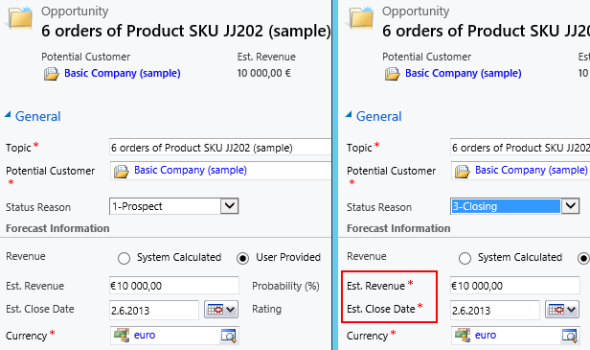
    Changing the requirement level of a field based on another field on the form is another common requirement. Let’s assume we have a simple sales process with three stages (picked up from the default CRM sample opportunity data): 1) Prospect, 2) Qualify, 3) Closing. We’ll use the Status Reason field’s (customized) values to drive the process and we want to enforce the following business rules:

    • If stage = 2) Qualify then make Estimated Close Date field required
    • If stage = 3) Closing then make Estimated Close Date and Estimated Revenue fields required

    In the UI the user would see the requirement level change dynamically when he or she changes the Status Reason field value and clicks elsewhere or tabs out of it.

    Opportunity_required_fields

    To achieve this feature with Formula Manager, we would build a formula that references the statuscode ID values and the schema names of the fields we want to set as required. Something like the following if-statements:

    if(([opportunity.statuscode]=’2′), SetRequiredFields(‘estimatedvalue’), if(([opportunity.statuscode]=’3′), SetRequiredFields(‘estimatedvalue’, ‘estimatedclosedate’), SetNotRequiredFields(‘estimatedvalue’, ‘estimatedclosedate’)))

    Basically what we do in the formula is first check for the stage 2, then stage 3 and finally use a default action for stage 1 to return the fields into not required status (so we also support moving backward in the stages). We’ll set the formula to run on the opportunity entity as a Client Side – Perform Action formula, tied to the source property of the Status Reason field, which effectively means it’s triggered with the OnChange event of that field as the user manipulates the form values. (more…)

  • Dynamics CRM 2011 on Windows Server 2012

    In addition to the shared development and test CRM servers at the office, I like to run my own personal CRM sandbox that allows me to test any applications, configurations and updates without having to worry about affecting any of my colleagues’ work. I’ve been running a VirtualBox server image on my desktop PC and standard hard drives, but even in a single user test environment, you can never have too much performance for your own needs.

    SanDisk_ExtremeAfter reading this blog post from Jeff Atwood, I couldn’t help but to shop around for an “SSD in your pocket”, meaning a super fast USB flash drive that would have sufficient storage space for hosting a CRM 2011 development server image. I decided to grab the SanDisk SDCZ80-064G-X46 64GB Extreme USB 3.0 Flash Drive from Amazon.co.uk for €60 and test it out as a portable CRM sandbox. 190 MB/s read and 170 MB/s write should provide a nice performance boost compared to my old spinning HDD’s.

    Since shrinking my existing VirtualBox image down to the 60Gb available on the flash drive would have meant giving up on a lot of things I had installed there, I decided this was a good moment for building a brand new virtual server. During the fall I had already attempted a few times to deploy CRM 2011 on Windows Server 2012, even though it has been unsupported. Unfortunately none of the workarounds published by Daniel Cai had done the trick for me, so I decided to wait for the official support.

    With Update Rollup 13 Microsoft Dynamics CRM 2011 Server finally became officially supported to be run on Windows Server 2012. However, there was one catch: you could only upgrade an existing Windows Server 2008 deployment with CRM 2011 onto Windows Server 2012. For a brand new deployment there was a disclaimer included with UR13 release notes:

    The Self-Healing Setup (SHS) that is required to install Update Rollup 13 for Microsoft Dynamics CRM 2011 on Windows Server 2012 will be published on Microsoft Update alongside the update rollup in mid-to-late April, 2013.

    Ok, it’s 1st of May now, so where are these SHS files? Well, they are available, but not quite in the kind of format you would expect. You can’t simply download an updated version of the Dynamics CRM Server installer, as the one available on Microsoft Download is still the old version with Update Rollup 6 that was released in January 2012.

    There’s a thread over at Dynamics Community CRM Forum that discusses the Windows Server 2012 installation procedure, but I’ll summarize how I managed to get CRM installed on such an environment. There were a few puzzling gotchas that no one else should spend their time on pondering.

    Get the update files

    The KB article 2434455, “How to obtain the setup updates for Microsoft Dynamics CRM 2011”, gives you the steps you need to follow. Instead of heading to Microsoft Download, you’ll need to visit the Microsoft Update catalog website (which only supports IE, by the way, so don’t click the link on Chrome or anything). From there you’ll be able to obtain a file called Setup Update for Microsoft Dynamics CRM Server 2011. The fun part about this is that the size of the file is 1.5 GB.

    Setup_update_for_CRM_2011_server

    Why is the file so huge, with the actual CRM 2011 Server installer being only 120 MB? The reason is that this file contains all 25 language versions for the update file. If you’re installing the English version, you’ll only need the en-server_kb2434455_amd64_1033 cab file. Oh well, the Internet is fast nowadays and hard drives are infinite, so let’s get on with it.

    Prepare for installation

    The cab file won’t be the installer itself, rather it’s a collection of updates that needs to be references while running the actual server installer. How do you do that then? By creating a config.xml file following the example given in the KB article above and dropping it into the same folder as installer and the cab file.

    Then we can proceed with starting the installation. Only there’s one more catch which isn’t included in the KB article: you’ll need to start the installation process from the command line in order to be able to tell that there’s a config file pointing to a cab file that contains the updates necessary for CRM 2011 to run on Windows Server 2012. You can read through the TechNet article “Use the Command Prompt to Install Microsoft Dynamics CRM 2011” if you’re interested in the finer details of parameterizing your CRM server deployments, but if you’re like me, you’ll just want to copy-paste the required bits onto the prompt to move on with the process.

    1. Put the cab and config.xml in C:\Temp
    2. Download the UR6 version of CRM 2011 Server installer and put the CRM2011-Server-ENU-amd64.exe file in the same folder
    3. Run the file, point it to extract the files onto the very same C:\Temp directory
    4. Cancel any further setup screens that may be launched, as you’ll still need to provide the pointer to the cab file
    5. Open the command prompt, go to C:\Temp directory and type: setupserver.exe /config C:\Temp\config.xml

    This process will make the installer skip the question of “do you want to download updates from Microsoft Update” and use the SHS cab file directly. This is the whole point of our exercise, as Microsoft Update for one reason or another cannot provide the necessary updates for Windows Server 2012 compatibility for the CRM 2011 Server installer.

    After this part, you can follow the standard steps for installing CRM. You may get an error screen saying “Action Microsoft.Crm.Setup.Common.InstallWindowsSearchAction failed. Class not registered (Exception from HRESULT: 0x80040154 (REGDB_E_CLASSNOTREG))”, but just click Ignore on it as that issue is most likely just about the indexing service for the CRM help files.

    Validate and update once more

    Once you’re done and have rebooted the server, you’ll be able to launch CRM. From those oldskool icons in the Wunderbar area you’ll quickly notice that this deployment is still running a pre-cross-browser era version of Dynamics CRM. The build numbers 5.0.9690.2015 and 5.0.9690.1992 indicate that it is in fact a UR6 organization still. (Hmm, was there ever any need for UR13 to support installation on Windows Server 2012 then?) Before you start working on your environment, download and install Update Rollup 13 to make CRM support the IE10 running on your Windows Server 2012, unless you enjoy using the IE7 Compatibility View.

    Windows_Server_2012_CRM_2011_small

    There we have it. A nice and fast CRM 2011 sandbox image running Windows Server 2012 and SQL Server 2012 in a 36 GB image stored on a very fast thumb drive. I’m sure I’ll be struggling with keeping the image small enough with all the updates, service packs, Office, Visual Studio and other bloat that’s bound to end up there. On the plus side I’ll be able to carry the sandbox on my keychain and plug it into any PC with sufficient memory to run the environment (3.5 GB & 2 CPU reserved for it currently) and enjoy SSD level disk I/O performance. We’ll see if it was worth all the trouble at the end, but hey – don’t we all just enjoy fiddling with the latest software and fastest hardware?

    Edit 2013-05-04: For anyone looking to move completely towards developing for Dynamics CRM on top of Windows Server 2012, please note that the Dynamics CRM Outlook client does not support Windows Server 2012 yet. If you try to run the setup, all you will get is the following message: “Cannot install Microsoft Dynamics CRM for Outlook. Install Windows Server 2008 Service Pack 2, and then try again.”

    Edit 2013-05-04, Part 2: If you’re interested in the detailed steps for building a Dynamics CRM sandbox, please refer to articles like Creating a MS CRM 2011 VM by Mark Kovalcson or Setting up a CRM demo environment in Windows Azure Virtual Machines by Shan McArthur (unfortunately the images on this post no longer work). It doesn’t really matter on which virtualization platform you’re building your sandbox on. I’m using VirtualBox simply because I have other existing virtual machines on it, but with Windows 8 built-in Hyper-V support you don’t necessarily need any additional software. Also, as you can see from Shan’s post, running these environments in Azure is also a perfectly viable option.

  • Creating recurring goals with some workflow magic

    Goal management is one of those features in Microsoft Dynamics CRM 2011 that has a relatively high barrier for utilization. The initial thought of measuring the business results of your organization through a built-in mechanism in your CRM system resonates with almost any customer that you tell about goal management, yet the excitement tends to wear out quickly once they discover the effort required in configuring and maintaining the goals. Sure, if you’ve only got a small organization and set goals on annual or quarterly level, it’s not such a big burden to key in the goal records with metrics and targets. But what if you’d like to measure something on a more real-time basis, like monthly or weekly? Even daily? Not such a fun thought anymore, now is it?

    There are creative workarounds available for generating goals for a larger number of data points. The most practical tip I’ve come across has involved copying goal records by creating a dialog process to streamline the steps required for reproducing existing goals. I originally read about it from a presentation by Richard Knudson on Scalable Goal Management in Dynamics CRM 2011. You can view the slides from eXtreme CRM 2011 Las Vegas in PowerPoint Online or alternatively read this blog post by PowerObjects that walks you through the dialog creation process.

    A different way to define goal time periods

    Sometimes what you need in terms of process measurement isn’t down to the detailed level of setting individual target values for each week or each user. Maybe you have a steady weekly target of X records in a particular state and you’d just want to easily see how you’re currently performing against this target. Here’s were a more recent article by Richard comes in handy: Goal Criteria and Dynamic Goals. The big message here is that you’re not actually forced to use the From and To dates of a goal record to determine the measurement period. You can basically set a goal to be running for 20 years and instead limit the number of records evaluated by the goals Rollup Query through a dynamic date criteria like “last 7 days”.

    Whit this little trick, setting up a dashboard that shows the current performance is super easy, no matter how short your goal time period is. The charts will update once per day based on the default roll-up recurrence  frequency, so displaying the difference between the target and the actual value for metrics like leads qualified or calls made requires you to only set up the goal once per each variant (owner, status, type…) but not the different dates. Just stretch the goal period to be as long as you like and control the dates in the Rollup Query definition.

    The downside of this approach is that the goal measurement is completely dynamic, meaning past values will leave no trace. Sure, you could enable audit on the goal entity to keep some form of results history, but since the audit data is not available for views, charts or even custom SQL reports (without some hacking), it’s not quite as easy as with the traditional method of creating goals for each time period separately.

    Tracking historical results without manually creating goals

    Another recent Dynamics CRM blog post favorite of mine comes from Yaniv Arditi. In his three part series (part 1, part 2 and part 3) Yaniv presents a model of how to implement an asynchronous batch process in Microsoft Dynamics CRM. Best of all, in his final post he provides a solution file that you can download and apply in your CRM organization.

    What does the solution do then? Basically it is a way to implement a much needed but currently missing feature of Dynamics CRM: easily scheduling recurring workflows on a group of records. With this solution you can specify a batch process that runs every X days, performs a query of the required CRM records and then initiates a workflow process for each of those records found. You schedule it once, leave it running and the related process will always create a new waiting instance of itself once it stars at the defined intervals.

    What’s the Fetch XML in there? It’s the Target Records Definition that determines for which records the workflow process selected in the Action Workflow lookup field will be executed. Where do you get the Fetch XML then? That’s easy: from any Advanced Find view, just by clicking the “Download Fetch XML” button on the ribbon.

    To put this solution into work together with the concept of dynamic goals, I’ve got the following sample use case: track the number of active cases on a daily basis and compare it with a target value. This is an example of a status metric that’s not so simple to directly calculate from the records in CRM. To produce a figure like helpdesk queue length you would need to not only retrieve the number of cases created on any given day but also compare it with the closure dates of cases. It would be much easier if we could just take a snapshot of the currently open records on a set interval and store the information into CRM. So, why don’t we do just that?

    First, let’s set up a custom entity called “Snapshot” to hold the data for us. We’ll establish relationships to both Goal and Goal Metric, then add the necessary fields for holding the types of data we want to track, in this case integer values for target and actual.

    Next we need an on-demand workflow process that will create these Snapshot records for us from the goal data.

    The batch process record shown previously has already been configured to perform the task we want: based on a daily schedule, retrieve all the goal records for which we want to be tracking the snapshots. All we need to do is set its Status Reason field to Scheduled, save the record and the process kicks off. The Asynchronous Batch Process Pattern solution will run every day (unless residing on a shut down virtual machine, like in my example image below), triggering the Take Goal Snapshot workflow, which in turn will create a daily snapshot of the actual and target number of active cases in the system. You can naturally visualize the history data with a chart, too. If you have different goal owners or several different goals to take snapshots of, just create the necessary views to filter the data shown.

    To summarize, in this solution we use the Goal record as merely a “calculation machine” that produces the Actual Integer value we need. It also holds the data for the Target Integer, with the ability to update this figure if the targets should ever change. The scheduling is managed by the Batch Process record. It takes care of initiating the Take Goal Snapshot process for the selected Goal on a daily basis, which results in the creation of the Snapshot records you see above. All we had to do was to create each record once and we can leave this solution running for as long as we need.

    I think this is quite a wonderful example of how you can mix’n match the different functionality of the Dynamics CRM platform to come up with a new feature that doesn’t exist in the product right out of the box, yet it can be implemented by using the platform components and supported extensions developed on top of it. Thanks again to both Richard and Yaniv in providing me with the building blocks for implementing the recurring goal solution.

  • Dynamics Marketplace vs. Microsoft Pinpoint: where are all the CRM apps?

    When Microsoft released the 2011 version of Dynamics CRM and introduced the solution management functionality they also introduced the Dynamics Marketplace: an app store for CRM solutions, integrated right into the CRM user interface. Here’s an excerpt from the blog post Driving Success with the New Microsoft Dynamics Marketplace:

    The Microsoft Dynamics Marketplace is a new online service – based on Microsoft Pinpoint — that helps our customers maximize the relevancy and value of their Microsoft Dynamics investments by connecting them with valuable, high-quality applications and professional services from our worldwide Microsoft Partner Network (MPN).   At launch, the Marketplace has more than 1,400 solution listings, including over 700 application listings and over 700 professional services listing forboth CRM and ERP

    So, if you want to find the best listing of CRM solutions and other related applications, Dynamics Marketplace must be the place to go, right? Umm, actually not. You’re better of going to Microsoft Pinpoint to perform your search. Let me demonstrate this to you through a real life example.

    Today I saw an announcement from Sonoma Partners, one of the most high profile companies in Dynamics CRM consulting business, about a new, free solution called Universal Search. As I followed the link on the press release onto “Microsoft Dynamics Marketplace”, I actually found myself at Pinpoint instead. It’s not a huge difference in the user experience, as Dynamics Marketplace is a subset of the Pinpoint platform. However, on this occasion I paid attention to the fact that the solution had actually already been published there on August 30th. Hmm, how come I didn’t notice it when scanning the Marketplace listings just last week?

    I decided to do a little side-by-side test and opened up the US versions of both Dynamics Marketplace and Microsoft Pinpoint, narrowed down my search to applications only, selected Microsoft Dynamics CRM 2011 and sorted the list by release date. Here are the results:

    • Dynamics Marketplace: 197 applications
    • Microsoft Pinpoint: 584 applications

    Wow! A search on the generic Pinpoint site gives you three times more CRM 2011 apps than the dedicated Marketplace. Click the image below to see an example of search results that you’d be missing out on if you only use Dynamics Marketplace. 4 out of the 6 latest CRM applications listed on Pinpoint are not available on the Marketplace search.

    Why is this happening? Ignoring the chance of technical errors in the search indexing, the difference is caused by the more strict requirements imposed on submissions to the Dynamics Marketplace. If you read the blog post I mentioned earlier, you’ll find the following summary information:

    A Microsoft partner needs to have either the CRM or ERP competency in order to get listed on the marketplace.  For solution listings, partners must be an authorized reseller of Microsoft Dynamics solution or have a solution that is verified as Microsoft Platform-Ready. Additionally, there is an optional Certified for Microsoft Dynamics (CfMD) designation available for an additional fee.

    That’s a perfectly valid explanation to the difference and the intentions behind the verification processes are surely good. Some customers may well decide to minimize the risk of causing harm to the operation of their business critical CRM systems by only choosing add-ons that are CfMD. Of course, if even solution vendors like Sonoma Partners are releasing products outside of the Marketplace criteria, one might ask if that is a sensible guideline for customer organizations to follow or not.

    For anyone who wants to keep track of the useful ISV add-ons released for Microsoft Dynamics CRM, they’ll get a much better experience browsing Microsoft Pinpoint rather than Dynamics Marketplace. I myself fall into this category and also try to do my share in promoting the ISV offerings by maintaining a list of Dynamics CRM Links to interesting apps I come across. Another result of the Marketplace limitations is that the majority of the valuable, free tools for CRM developers and customizers are published on CodePlex. So, in effect, we have three separate “app stores” from Microsoft. Or perhaps the term store is inaccurate in this case, as none of these three have cashiers in place, so maybe they should rather be called “app galleries”.

    We haven’t seen much development on the Marketplace front since its release, which is quite a shame as we could really use some help from Microsoft in building a more vibrant ISV ecosystem around the Dynamics CRM product. There’s just so much more potential in the app store model, as illustrated by this awesome vision of a better Dynamics Marketplace that Neil Benson & Matt Wittemann. With the nearing commercial launch of Windows 8 and the accompanying Windows Store, the expectation levels of customers and developers alike have surely grown beyond the basic application listing that Dynamics Marketplace currently offers.

  • Country lists and multi-language lookup fields

    Country lists and multi-language lookup fields

    One of the most common customizations almost any organization working with customers from multiple countries will want to have in their Microsoft Dynamics CRM data model is the addition of a structured list of country names, to ensure they are stored in a consistent format. Yes, by default the Country/Region fields on the account, contact and lead entities are free text fields that a user must manually fill every time. This can result in some serious issues with data quality that make it difficult to perform a common task such as searching for accounts from specific countries. The field may contain values like “United States of America”, “United States”, “USA”, “Estados Unidos de América”, not to mention different conventions for upper/lowercase letters, hyphens etc.

    Why doesn’t Dynamics CRM come with a pre-configured list of countries? There are probably several reasons for the choice of this design, some of them which date back to the early days when CRM wasn’t a multi-language platform (before version 4.0 came along). Anyway, there’s absolutely nothing stopping us from fixing this gap by using the basic customization tools, so let’s get right to it!

    Picking the right Country field option

    There are two alternative approaches to implementing a controlled list of values for country names. You can either create a new option set (preferably a global one) or a new entity to hold the country name values. There are pros and cons to each method, which means the right choice depends on the use cases of the organization in question. In a simple scenario the option set may well be sufficient, if there are no other requirements for country data in CRM. For implementation guidance, look no further than this excellent post by Pedro Innecco: Dynamics CRM: Adding a Country/Region option set using ISO 3166-1.

    Sometimes the country data management requirements may be somewhat more complex, which may lead you into choosing to create a custom Country entity. This approach has the benefit of allowing you to store other variables than just the name of the country on the same record. For example, there may be parameters related to reporting that are country specific and would therefore be logically placed on the same record as the official name of the country. Other regional variables such as states or languages spoken are also a natural fit to be stored on the country entity.

    One interesting scenario to explore is the possibility of using the Country records as a central location for posting updates specific to a particular region, by using Activity Feeds on the Country record’s wall. Let’s say you have a multi-region Dynamics CRM implementation and you want to target auto-posts to users working with customers from specific countries. By generating posts like “New campaign Big Fair 2012 launched in @Finland” or “Major opportunity closed in @Sweden for account Contoso” that mention the country record you can easily push updates to any user who’s following that particular country. For a more detailed explanation please see my earlier post on how to make CRM Activity Feeds easier to follow by creating custom groups.

    There’s a catch with the custom entity approach, though, and that is the lack of native support for multiple languages. While the option set labels are a part of Dynamics CRM solution files and support translations just like your regular form fields, a custom entity is just data stored into the CRM database, no matter if you use it in a metadata like manner. As a result, if your CRM organization has different languages enabled and the user switches from English to Spanish, the value on the Country field on the account form won’t change from “United States of America” to “Estados Unidos de América”. If you had used an option set, all you’d need to do is export the labels for translation, enter values for the Spanish language column for the option set values, import it back and publish the results. However, with the custom Country entity we’ve ended up choosing, the value stored in the name field of the Country record will display the same way, regardless of the UI language of the logged in user.

    Nothing a little Jscript can’t fix

    Lucky for us, Pedro has come up with a solution that can also handle the multi-language support requirement when using a custom entity to hold the country labels. In the image below, you can see an account record viewed first in English, then in Finnish. Even though we’re using a lookup field to the Country entity on the account form, the label of the selected Country record has magically been translated from one language to another. As if that wasn’t enough, also the Look Up Record dialog window shows a list of values that has been tailored to the language of the user. Well, that looks like the best of both worlds, doesn’t it?

    How can you switch the label in the lookup field then? All you need to do is to download the Country/Region for Dynamics CRM solution created by Pedro Innecco and configure your CRM organization to take advantage of the scripts included. The solution also provides the ability to add more languages, so I’ll list out the steps I followed to add the Finnish language support for this Country lookup field.

    (more…)