Category: Tips

  • To update or not to Update Rollup? That is the question

    Some time ago I wrote a parody about Dynamics CRM blogs that mainly seem to post news about the latest Update Rollups being released. Now I find myself writing an Update Rollup blog post myself. Is that a sign that I’ve run out of topics and slipped into the autopilot blogging mode? I hope not, but after reading quite a lot about the latest Update Rollup 10 for Dynamics CRM 2011 I decided to contribute a bit into the discussion.

    It’s always great to receive improvements to the software you spend all your days working with, isn’t it? Compared to a product like Java which Oracle promises to patch only four times a year, even if it’s about critical security updates (did you remember to uninstall your Java 7 yet?), Microsoft is doing quite an OK job with their update process and we see a steady stream of releases to make Dynamics CRM better one bit at a time. Even though Update Rollup 9 was cancelled after the beta program, MS is now back on track with their release schedule in the form of UR10 that came out two weeks ago.

    We have once again a great in-depth article from Dynamics CRM in the Field about all things Update Rollup 10. It tells all the details of the story from Microsoft’s perspective, but let’s evaluate the ups & downs of this latest release from the Dynamics CRM community perspective to get a complete picture, shall we? OK, here goes:

    The Ups

    There was quite a number of fixes promised for the CRM Outlook client in Update Rollup 10 that would potentially solve some of the stability issues many users have encountered when trying to use the CRM Outlook client for actual work in their environment. It’s now 2 years since the first beta of the completely rewritten Dynamics CRM Outlook client came out and many of us are certainly hoping that it would have reached a mature enough level where you don’t have to be afraid of if causing a flood of tickets to your helpdesk. Yes, some users may be quite happy with it as it is, but you’d be foolish not to prepare for potential issues when planning a large scale deployment of the Outlook client. Reaching that good ol’ Service Pack 2 type of confidence level would be just great.

    Another promising deliverable from UR10 is the improvements to query performance on large data sets. A new version of the performance optimization whitepaper has been released alongside the update, which describes the new options made available to tune the Quick Find performance. If you read the results of these tests by Chris Cognetta where the query time was decreased by over 80% in an environment with 1.5 million rows, it’s obvious this is an update worth paying attention to if you have or expect to have some “big data” in your CRM system.

    Finally, as many MSDN subscribers are now eagerly updating their PC’s to run Windows 8, Internet Explorer and even the Office 2013 Preview, the added support for all of these in CRM 2011 Update Rollup 10 is reason enough to grab the very latest CRM bits. Just don’t forget that UR10 alone is not enough, there’s some things you should know about Windows 8 RTM & CRM 2011.

    The Downs

    So, we now have a Quick Find that is working faster, which means it must be doing something differently, right? It is, and unfortunately in some cases this will result in a Generic SQL Error message being shown to the user. It appears that the new update is not quite comfortable dealing with a set of Quick Find columns that contains address fields. As some of you may remember, the address 1 & address 2 fields on the account & contact forms are actually not stored in the same database table as the rest of the default fields, rather they reside in the CustomerAddressBase table. The UR10 version of Quick Find may therefore not work properly if you try to search for records based on address fields like city or zip code. Yes, Microsoft says using these as search fields is against best practices, but the users will very often want to narrow down the customer data based on geographic variables, so taking it away from them can only act as a workaround until we have a new hotfix from MS.

    CRM developers might not be too concerned with performing actual queries on live customer data, but they will certainly be annoyed when encountering the following prompt after editing a JavaScript web resource: You have exceeded the maximum number of 200 characters in this field; it will be truncated. Doh! Making small changes to script files just became very tedious until Update Rollup 11 rolls along in 2 months time. Again, there’s a workaround to it (don’t use the editor, instead upload the file or use some helpful web resource tool from CodePlex), but it doesn’t really make anyone want to rush UR10 onto all their servers.

    Then we have stories of people applying UR10 and finding they can’t access any of their CRM organizations, due to an unhandled exceptionMethod not found: ‘Void Microsoft.Xrm.Sdk.Query.FilterExpression.set_IsQuickFindFilter(Boolean)’. Uninstalling UR10 appears to be the only known cure for this show stopper, which obviously is related to the aforementioned Quick Find changes on some level.

    Alternatively, if you’ve updated your CRM server from 4.0 to 2011, you may experience errors when trying to import a solution file: The element ‘savedquery’ has incomplete content. List of possible elements expected: ‘LocalizedNames’. Manually editing the XML to remove a view prior to importing the file is the available workaround, but again it can make the life of a system customizer quite difficult until there’s a fix available.

    OMG, what should we do with these UR’s?!

    The short answer is: always test first, then evaluate the ups & downs for your particular case. If you are struggling with the Outlook client, face performance issues with your huge CRM database or simply want to run CRM 2011 on Windows 8, going for Update Rollup 10 may be perfectly sensible for you. For someone who doesn’t have a compelling need to update, you may well decide to wait a bit longer and no one should blame you for it.

    That’s pretty much how it is with any Update Rollup. In reality there’s never going to be the perfect time to update. Knowing ahead what hotfixes will deliver the biggest gains for you or potentially break your CRM deployment would be a great skill to have. Instead of dreaming about it, here’s a few guiding principles I would recommend you to follow:

    • Always test the updates in your own test environment before planning live deployment. A virtual machine with your solutions & data is a good compromise, identical hardware is for people with enterprise level budgets (and problems).
    • Never be the first to update, always wait a couple of weeks from the release and read the CRM forums for experiences from others. Trust the wisdom of the crowds.
    • Coordinate the server and client update schedules to limit possible issues and maximize the benefits from the updates. While mixed environments tend to be supported, why risk it?
    • Do update your CRM. Staying too far behind in this “cloud first” era can soon turn out to be an expensive strategy, so reserve adequate time and resources for keeping your CRM up to date – on a regular schedule.

    Do you have any words of advise for people who are struggling with the “should I update to Update Rollup X” question? What’s your survival strategy?

    Edit 2012-09-09: Based on the discussions on the Dynamics CRM Forum, I’ve created a new wiki page for Microsoft Dynamics CRM 2011 Update Rollup 10 on the CRM Wiki on Technet. The purpose is to provide a single place where the Dynamics CRM community members could share their information on potential issues and known problems that they encounter when applying the latest Update Rollups, as well as naturally links to any solutions or workarounds that can help others who are struggling with the same problem. I’ve initially added links to 10 suspected issues with UR10, but you are very welcome to contribute by adding new links or additional information to the wiki page. In an ideal world, we could have similar pages for each new rollup that gets released and be able to more easily identify both the benefits and the dangers or applying the updates into our CRM environments. Let’s see if the wiki can serve us as a platform for such information sharing.
  • Creating a copy of your production CRM database

    If you have an on-premises CRM server and you’re running Dynamics CRM 2011, then you’re eligible to having more than one database in your CRM environment. Back when the multi-tenancy concept was introduced in CRM 4.0, there was a distinction between Workgroup, Professional and Enterprise editions. Only the Enterprise version granted you the right to run several CRM databases on a single server. With CRM 2011 the Professional and Enterprise editions were merged, which means that almost all Dynamics CRM customers can now enjoy the benefits of multi-tenancy. (The Workgroup edition still has a limitation of max 5 users, which in this age of cloud computing means hardly anyone would choose that version and put up a server for it, so let’s ignore that one.)

    Why would you need more than one CRM database? One possible reason could be the XRM approach: for no additional license or hardware costs you could be using your Dynamics CRM environment for also managing other processes than sales, marketing and service that traditionally are the focus area of CRM systems, while keeping it separate from your main customer database (HR, IT service desk, project management etc.). In case you’re happy with focusing on customer relationship management for now, then a typical reason for needing another database is that you want to test some customizations in an environment that won’t mess with your live system settings.

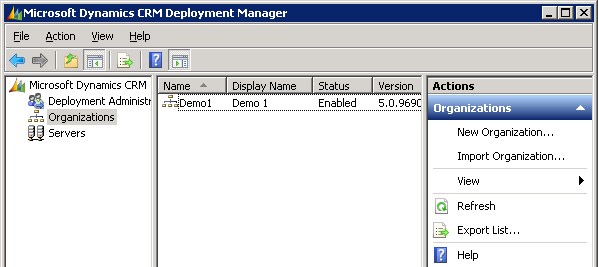
    How would you go about managing multiple databases then? In Dynamics CRM terminology, each database represents a distinct organization in CRM. Adding new organizations into your CRM server can be easily achieved through the CRM Deployment Manager. If all you need is a blank new test organization, then just start the New Organization wizard and click through the process, which will create a new database, configure language and currency settings etc. Click Finish and you’re all set!

    Oh, you wanted your production system entities, fields and other customizations in there, too? No problem, just go into your production CRM settings area, pick a solution that contains the elements you need and export it. If you don’t have such a solution, then simply create a new one, as it’s not going to affect how your live environment operates in any way. After all, solutions are just pointers to the components like entities, processes or plugins, until you export them, at which time they become physical containers to all those bits that make your CRM environment different from the plain vanilla Dynamics CRM organization. Don’t export your transport solution as managed, unless you have a good reason for it (you’ll know once you do). Just take the unmanaged solution zip file from your current CRM organization, open the new one, import it there and publish all customizations. Now we’re done!

    Huh? What’s that you say about data? Would you prefer to have not just the schema of the database but also the contents of your CRM database in that new test organization of yours? In that case, let’s forget the previous steps and use another approach, shall we? Instead of the New Organization wizard you’ll want to use the Import Organization option. Before you click on it, though, we’re going to need to create a copy of your database, because the CRM Deployment Manager does not have a “Copy Organization” feature.

    Typically the Import Organization functionality is used when taking a database from some other environment, like when establishing a whole separate development box or test server. Also the actual upgrade process for turning a CRM 4.0 database into a CRM 2011 database is handled through the same import wizard. When you’re in the process of planning your Dynamics CRM upgrade, this is a handy way to update the old CRM 4.0 customizations into new CRM 2011 solutions. In these scenarios you’d first take a backup of the original database on your old SQL Server, then copy it over to the new environment, import it into SQL and finally into CRM. However, as we’re simply creating a replica of the database inside the same environment, we don’t need to necessarily go through the backup stage.

    On your SQL Server machine, open up SQL Server Management Studio, right click on the database which has the name ending with “_MSCRM”, then select Tasks – Copy Database. This helpful Copy Database Wizard will step you through the process of creating an exact copy of your CRM organization database. Just give it a different name than the original database and point it to the same server. You don’t even necessarily need to schedule a maintenance break for your production CRM environment, since the wizard can create the copy without the need to detach and attach the original database. This wizard actually builds an SSIS (SQL Server Integration Services) package that takes care of the copy operation.

    Before returning to the CRM Deployment Manager we’ll need to pause for a while and think about how the Dynamics CRM server operates. Just like records in CRM, also the actual organization itself has a unique ID in addition to the name and display name visible in Deployment Manager. Although the Import Organization wizard does attempt to handle this, it doesn’t perform it in the most graceful way. The two known side effects from from having overlapping organization ID’s prior to the import are that: A) the import will fail if you’ve customized the business unit entity and B) email router will not work for the new organizations. There might even be other nasty surprises hiding deep inside the database, so ultimately we’d like to have a situation where the organization ID’s are 100% unique.

    There are no official tools for this operation, but luckily the Microsoft Dynamics community has come up with a solution. In the CRM Forum thread “CRM 2011 Import Organization on the same server (or how do you create a development sandboxes)” you can find a script that you can execute on your new database copy. This script will generate a new ID and update it to all the relevant tables, including the PrincipalObjectAccess table where the OrganizationID goes by the name PrincipalID. If you’re not familiar with working on SQL Server then it may look scary, but the process itself is quite simple. Select your new database (not the old one!), right click, New Query. Copy the script created by Frenkie Smart found in the CRM Forum post and paste it into the query window. Pause for a minute amd check that you have fresh backup copies of anything that’s valuable to you on that SQL Server. Got it? Good, then just click the Execute button to run the script. You’ll see in the message window below the query how many records the script has changed in each table it processes.


    Now we’ve got the new database in such a condition that we can proceed to the Import Organization wizard in the CRM Deployment Manager. Select the new database as the one you want to import, give the organization a unique display name and database name, accept the user mappings, and off you go (see detailed process instructions in this Technet article). The Deployment Manager will build a new organization for you from the copy of the existing database, which you can then access by replacing the organization name in your existing CRM URL (in my case from http://server/demo1 to http://server/demo2). If you want to use friendly URL’s or IFD for accessing CRM then you’ll need to know which DNS entries and settings to modify for the new organization to be available.

    That’s it, for real. Here’s a quick recap of the process steps:

    1. Copy your production database
    2. Take backups!
    3. Run the script on the new database
    4. Import the database as a new CRM Organization with a unique name

    The typical scenario for performing this process would be the need to generate several development organizations that contain identical data and customizations as a starting point. If you just want to maintain your own test organization alongside your production CRM environment then there’s a few things you should take into consideration. First of all, the chance for human error. If you have two identical CRM organizations that are separated only by a few characters in the URL, the chances of mixing them up can be high. Second, you won’t be able to test anything related to Update Rollups and other components that are shared by all the organizations on the server. Third, if you’re unsure about what you’re doing, then don’t do it on your live CRM server!

    With all this in mind, it might be a good idea to investigate the possibility of having a separate test server after all, don’t you think? If you don’t have any suitable hardware lying around, then signing up for a virtual machine straight from the cloud is a valid option these days. With its latest improvements, Windows Azure offers a convenient service for provisioning persistent virtual machines as needed. Building a VHD image with CRM 2011 is not a very difficult process if you follow the instructions (and know the few gotchas about SQL or VM size settings). Also, if you don’t need to keep the server up & running on a continuous basis, you can always delete the Azure virtual machine and still keep a copy of the VHD image, available for booting it back up again when the time comes.

  • CRM adventures in Azure: changing the virtual machine size

    CRM adventures in Azure: changing the virtual machine size

    After having managed to overcome my previous challenges of deploying SQL Server 2012 Reporting Services on a virtual machine running in Windows Azure, I was well underway in configuring my Dynamics CRM environment to contain the tools and data needed for developing, testing and even demonstrating custom solutions right in the Microsoft cloud.

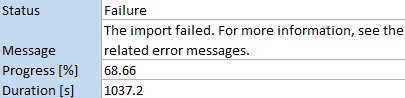
    I had started off with a medium size virtual machine that had 2 CPU cores and 3.5 GB memory. While I’ve been able to successfully use CRM 2011 + SQL 2012 on such a setup as a personal development box, I have to say it’s not exactly the fastest thing around. With me being the only person working with the environment currently, it wouldn’t have been such a big issue, but upon trying to import one 5 MB solution file into a CRM organization I started running into timeout issues, leading to the following message:

    It’s not very uncommon to experience timeouts with CRM when working with large solution files. There are various settings that you can modify to overcome this issue, including the OLEDBTimeout, Web.Config parameters etc. However, I wasn’t having success with the solution import regardless of having applied the registry and settings changes, so I thought why not crank it up a bit and give my virtual machine some more resources. After all, isn’t that one of the selling points of on-demand cloud computing? If you need more power, just adjust the lever and consume the resources as you see fit.

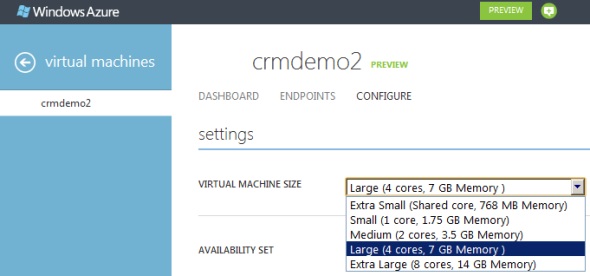
    I proceeded with shutting down my virtual machine from Windows and going to the Azure management portal. After finally getting the portal to confirm that the machine was in a stopped state, I changed the virtual machine size from medium to large (4 cores, 7 GB). Great, now let’s fire it up once again by clicking on Restart and… it doesn’t start. Trying it again and still the only result I get is the following notification in hte Azure portal:

    The virtual machine cannot restart. The current virtual machine state is RoleStateUnknown.

    Ok, I’ll wait a while, I thought to myself. After a few minutes and some more clicks on the Restart button I was starting to get a bit anxious on why my server wasn’t booting up. I started googling for the error message and discovered a discussion thread that indicated I wasn’t the only person in the world suffering from this problem. The RoleStateUnknown message appears to be a known issue that the Windows Azure team will be fixing by the time the Preview phase is over, but for the time being, this is something you can expect to happen if you power off a virtual machine in Azure on a bad day. If the error message does not go away, the only workaround you have is to create a new copy of your virtual machine.

    While there are ways to do the process through PowerShell to export & import the virtual machine, I decided to take the GUI route and just click on the Delete button on my virtual machine. I must admit that particular action doesn’t feel quite right, deleting the very server you’re trying to get back up, but in this context it’s actually not as catastrophic or irreversible as it sounds at first. You see, the server really is just a VHD disk that has been assigned the hardware, IP and other pieces that make it operational. It’s also worth noting that this is the way how you can stop incurring costs from your virtual machine. If you just shut down your VM, you will still be charged for it, but if you delete the server, you’ll have an image available that you can later on use for creating a new server.

    After deleting the server, I created a new one with the same configuration. OK, not exactly the same, as both the [servername].cloudapp.net DNS entry and the IP address will change in the process. Also do note that the remote desktop port will be different, so only updating the server name in your RDP settings won’t allow you to connect, as I quickly discovered after clicking on Restart.

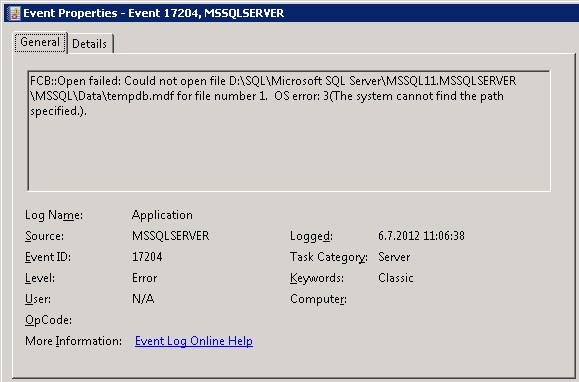
    Oh yeah, I had that extra F-drive on my machine, too! Better remember to attach that disk as well, since that’s where my CRM databases are located. I hit a restart on the SQL Server service, but noticed that the databases still weren’t available. Then I remembered what Shan McArthur had accidentally demonstrated in his Windows Azure 2012 Spring Wave webinar session on XRMvirtual earlier this week. Although the D-drive on an Azure virtual machine is great for storing temporary data that doesn’t need to be consuming that precious C-drive, the fact that the D-drive is only a temporary storage means also that any directory which you create on that disk will not be available once you spin up a new virtual machine from the same VHD. A quick peek into the Windows application log confirmed that this was what was keeping my SQL Server from starting up, as it wasn’t able to locate or create Temp DB and log it needed.

    “FCB::Open failed: Could not open file D:\SQL\Microsoft SQL Server\MSSQL11.MSSQLSERVER\MSSQL\Data\tempdb.mdf for file number 1.  OS error: 3(The system cannot find the path specified.).” There we go, that was the path that was missing from my D-drive. In a default configuration the temporary database would have been under C:\Program Files, but I had put it on D:\SQL instead, so I needed to manually go and create the folder. After this my virtual machine was again able to run CRM the way that is was meant to be. I’m sure there’s a PowerShell script sample out there somewhere for those who wish to automate the directory existence verification and creation upon restart of their servers, but this shouldn’t be a too frequent problem unless you go deleting your Azure virtual machines on a regular basis, so I didn’t bother looking up one right now. The main thing for me was I had my CRM test server running now on double the capacity.

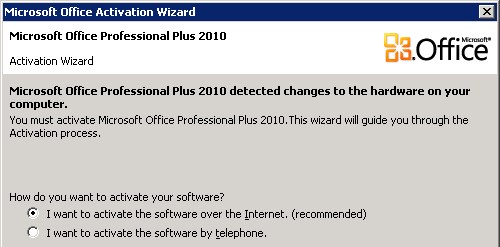
    As a side note, once I opened up Excel, I was greeted by this Microsoft Office Activation Wizard. I guess that proves that it’s now really a whole different machine I’m working on, even though I booted up from the same VHD that I had already activated on the previous day. Hardware based license management feels a bit funny when operating in such an intangible environment as Azure, but that’s how it is…

    Finally, let’s get back to the topic mentioned in the title of this blog post: What is the right way to change the size of your Windows Azure virtual machine? It turns out that you can actually do this right from the Azure management portal without shutting down your server. That’s what it says on the Azure community pages:

    NOTE: If you are attempting to just change the size of your Virtual Machine, you can do this without stopping the Virtual Machine. You can go into the “Configure” tab on the virtual machine in the management portal and select the Virtual Machine size. This will change the size without first stopping, which will allow you to avoid this issue in this scenario.

    Will be interesting to see how the Windows server will cope with disappearing CPU cores and memory if I decide to go back from Large to Medium, but I’ll leave that experiment to the next time. Now let’s see if I could get that solution file imported first…

  • File storage and CRM: what you should know

    File storage and CRM: what you should know

    Dynamics CRM is a great system for managing your customer data. “Alright, so can you tell me how do I upload all my customer document folders in here?” Well, you don’t. Or more precisely, you better not do it. You see, while it’s more than likely that you have lots of files regarding your existing and potential customers, putting these into your customer relationship management system is rarely a sensible approach. Let me illustrate a few issues that you will encounter if trying to use file attachments in Dynamics CRM as document management solution.

    Storage cost

    Due to some recent announcements on pricing & functionality related updates in Microsoft’s cloud based services in April 2012, I decided to do a little comparison of storage costs between three services. SkyDrive, a consumer focused product that has very recently acquired Dropbpx-like skills of synchronizing content from one or more client PC’s (or mobile devices) into the cloud. SharePoint Online, the SaaS edition of Microsoft’s collaboration / content management platform that’s currently licensed to around 125 million business users around the world in all it’s editions. Finally, CRM Online, the Microsoft hosted version of Dynamics CRM. All of these products include some base level quota for storage, but since the subscription prices per user are not really comparable due to the application functionality included in each, I’ve instead chosen to compare what is the cost of an additional 50 GB storage on each service.

    See the percentage difference in the table when compared to SkyDrive? While a pure file system storage service in the cloud for consumers is practically free these days, as we move towards more structured databases with metadata and workflow related functionality wrapped around the file, things tend to get more expensive. SharePoint Online has just recently cut it’s storage prices by a whopping 92%, yet it remains almost five times as expensive as SkyDrive. Since the price per GB on Dynamics CRM Online has not changed (at least yet), CRM in turn is 50 times as expensive as SharePoint Online. (Note: storage space ain’t cheap on other cloud based CRM systems either, including Salesforce.com).

    Ok, so maybe you’re managing your own servers and SAN’s, which means the direct cost per GB isn’t dramatically different between file shares and database blobs. Let’s look at some application level features that will affect your CRM users nonetheless.

    Search experience

    If we put our files into a structured database that has lots of customer information already, surely that makes them easier to discover when needed? Well, to some extent it does, but not necessarily the way you’d expect. “Did I attach that document to an account, opportunity or contract?” When it comes to Dynamics CRM, you’ll need to be able to answer this question before performing your search, as there is no out-of-the-box way to perform search across multiple entities. Also, instead of entering a natural search phrase like “online migration scribe”, you’ll need to build your query one parameter at a time in Advanced Find, specifying which values should be found in which field or related entity.

    Chances are you found this blog post through Google. That’s the way us humans tend to find what we’re looking for nowadays: free text searches on whichever keywords we have in our minds, rather than selecting a combination of attribute values that correspond to the parent object of the file we are after. Oh, and in case you wanted to search for text from inside the document, forget about it. Attachment contents is not indexed in Dynamics CRM, only fields on the entities directly are available for the search tools.

    Editing experience

    Do you ever need to revise the documents you’ve once created? Having the file as an attachment on a CRM record doesn’t quite give you the same kind of flexibility as a network drive or a document management system. You can’t directly open a document from the system into your MS Word, start editing it and save the changes. Rather you’ll need to store it temporarily on your local hard drive, then upload it back to CRM. The number of clicks and dialog windows involved in the process will not exactly encourage your end users to share information through CRM if they need to go through these steps repeatedly.

    How about archiving different revisions of the document? Let’s not even go there, at least with CRM alone.

    What should we do with our files then?

    While it’s certainly not the end all, be all solution for document management, you should definitely give SharePoint a go and see if it delivers the type of functionality your CRM users would benefit from. The built-in integration between Dynamics CRM 2011 and SharePoint 2010/Online removes much of the pain points mentioned above. Even though it may not cover all the customer document management scenarios directly (access rights, custom folder/site structures etc.), storing files in SharePoint document libraries instead of Dynamics CRM will automatically help you address many of the aforementioned issues related to content search, storage and editing. Also, the CRM SDK provides further extension points for SharePoint document management functionality development, combination with SharePoint’s extension points. You can see an example of such a scenario in this post on the CRM Consultancy blog.

    Thanks to the cloud version of SharePoint Online supporting Dynamics CRM integration starting from November last year, you can easily test the document management functionality in your existing Dynamics CRM 2011 / Online environment by signing up for an Office 365 trial account. With Office 365 E package subscriptions starting at € 7.25 per user per month, even if you’d use the whole subscription for nothing more than complementing the functionality of your CRM system, the cost wouldn’t be all that high, just 18% of a CRM Online subscription price.

    Better yet, if you sign up for Office 365 first and then later on purchase CRM Online, you’ll gain the luxury of using a single Microsoft Online login across both systems (see this post for the steps). Others will need to keep using Windows Live ID for Dynamics CRM until the transition to a single platform on Microsoft’s end has been completed sometime in the future.

  • Top Dynamics CRM links in Q1 2012

    In addition to Surviving CRM, I also maintain a blog called Microsoft Dynamics CRM Links. However, it’s not an actual blog but rather my public bookmarking service for collecting interesting tools, solutions, add-ons, services and other sites that are related to Dynamics CRM. If I discover a useful new tool on, say, CodePlex, I simply create a new blog post using the tool’s name as the title, the URL as the body text and add a few tags for link categorization. I keep the list on WordPress.com because it provides a great cloud based app for managing any content, not just blog posts.

    Even though the primary purpose of the site is for me to personally keep track of interesting links that I may need to come back to later on, there are also other people who have discovered the site, most likely through a search engine. One day I was looking at the statistics that WordPress.com collects and thought that this actually provides an interesting view to what the Dynamics CRM online community is currently searching for. In the spirit of open data, I decided to publish a snapshot of the website visit stats to show what’s hot in CRM right now and also promote some of the most useful tools and apps out there, to help more people discover them. So, without further ado, here’s the list of…

    Most popular Microsoft Dynamics CRM links, Q1 2012

    1. Auto Number for Microsoft Dynamics CRM 2011
    2. Hierarchical Treeview for Dynamics CRM 2011
    3. CRM 2011 User Settings Utility
    4. Ribbon Workbench for Dynamics CRM 2011
    5. MS CRM 2011 Twitter Integration by Pragmasys
    6. MS CRM 2011 Pragma Toolkit: Ribbon, Sitemap Editor
    7. CRM 2011 TreeView for Dependent Picklist
    8. Silverlight CRM Attachment Image
    9. KingswaySoft SSIS Integration Toolkit for Microsoft Dynamics CRM
    10. CRM 2011 Visio add-in: Business Unit Org Chart
    11. Ribbon Editor for Microsoft Dynamics CRM 2011
    12. Dynamics CRM Dashboard for Microsoft Lync by Orbit One
    13. Powertrak In-line Editable Grids for Microsoft Dynamics CRM 2011
    14. Metadata Document Generator for Microsoft Dynamics CRM 2011
    15. CRM 2011 Attribute Mapping
    16. CozyRoc SSIS+ with Dynamics CRM Connection Manager
    17. CRM 2011 Attachment Image Browser HTML Web Resource
    18. Skype Connector Tool for Microsoft Dynamics CRM 2011
    19. Bing Maps Browser for Microsoft Dynamics CRM 2011
    20. Dynamics CRM 2011 Script# Xrm.Page library
    21. Web Resources Manager for Microsoft Dynamics CRM 2011

    There we have it, the most in-demand apps or tools for Dynamics CRM! Just don’t take the list ranking too seriously, as this isn’t a very scientific way to analyze the true popularity of the links. Some of them have been published earlier, some during Q1. Some have better keywords for search engine optimization. The page view volumes are quite limited, as the top page received 145 hits during three months. Nevertheless, I think the data still gives a fairly realistic view of the functionality people working with Microsoft Dynamics CRM are typically searching for, such as:

    • Auto-numbering
    • Hierarchical data visualization
    • Ribbon & sitemap editing tools
    • Displaying images on forms
    • VoIP integration (Lync & Skype)
    • Customization documentation generator

    One way to look at it would be that these are all features/areas where Microsoft could improve the out-of-the-box functionality that Dynamics CRM 2011 delivers. Luckily there’s an active ecosystem around the platform that is creating either commercial or free solutions to address these areas. Especially the open source tools on CodePlex or free code samples published on various CRM expert blogs are highly valuable resources that I’m thankful for, which is why I attempt to do my own little part by sharing the best links with others. I encourage you all to do the same.

  • Did you just disable duplicate detection in CRM by accident?

    Duplicate detection rules in Dynamics CRM are an example of a configuration item that may often be active only in production environments. Since you don’t actively enter data into development or test environments, why bother thinking too much about them? Well, the one place where you need to be thinking about them is when you are importing new solutions and publishing changes to customizations.

    Life would be easy if you could just set up and publish your duplicate detection rules once during the initial configuration of your Dynamics CRM production environment, thus stopping the unintentional entry of duplicate records into the customer database. However, you may run into a situation where a rule that you’ve once published has later on returned to an unpublished state. “What? Who touched my duplicate detection settings?”

    The likely answer to the question is “You did, but unintentionally”. You see, the duplicate detection rules are sensitive to changes in your entity customizations. As noted in the Madrona Solutions Group blog article, whenever any entity metadata is changed, all duplicate detection rules associated with that entity are unpublished.

    If you look at this from the system’s perspective, the process does make sense. After all, you might have set up a duplicate detection rule that is comparing records based on a criteria that that references fields you’ve changed or removed as a part of your CRM customization actions. Still, the fact that a publish event on a CRM 2011 solution triggers an unpublish event somewhere else is not very intuitive and most system administrators are likely to be unaware of the impact. As a result, there are certainly several production CRM environments out there where the once carefully planned duplicate detection rules have been deactivated because of this dependency between solutions and duplicate detection. In fact, you might want to check your own Dynamics CRM environment right now and check if you see duplicate detection rules with the status reason “unpublished” which should in fact be published.

    What this means in practice is that anyone who’s deploying solution updates to an environment that is using duplicate detection rules needs to instructed to always re-enable the rules after they’ve updated customizations that reference an entity which is being monitored for duplicates. In my opinion, it would be very practical to have the system notify you about this task, for example by asking “would you like to re-publish the affected duplicate detection rules?” when publishing a solution. If you would like to see this functionality changed in a future version of Dynamics CRM, please sign in to Microsoft Connect with your Windows Live ID and vote for the item “Automatically re-publish duplicate detection rules after deploying a solution”. Thanks for your contribution.


    Edit 2013-05-02: There’s a post on Magnetism blog that shows you how to write a plugin that will automatically publish unpublished duplication detection rules after the “publish all customizations” event, in case you want to automate this procedure in your production environment.

  • Using hashtags in Activity Feed posts to automate processes

    Improving internal collaboration has been the driving idea behind Dynamics CRM Activity Feeds. Even though the efficient usage of stream-like notifications may not be immediately obvious to users who’ve come to think of CRM data as permanent records presented in views, they provide a great enhancement on top of the existing customer data that focuses on answering the “what’s going on right now?” question, rather than the “what/who/how much” types of  queries that CRM systems typically have focused on. Joel Lindstrom wrote a great article on the Customer Effective blog about how Activity Feeds are different from RSS feeds, which I recommend everyone to read.

    Originally launched in the Q4 2011 Service Update (R7), the Activity Feeds solution is about to receive some enhancements in the upcoming R8 release that will allow users to better filter the content of their wall and also click “like” on posts. (Note: contrary to some comments, the “unlike” feature will most likely be simply the undo action of “like”, rather than a real “thumbs down” reaction.) Compared to other social business applications like Yammer, there still doesn’t seem to be built-in support for features such as groups or hashtags that we’ve come accustomed to use on many platforms. I’ve already written about a DIY approach for leveraging custom groups to follow posts on specific topics. Next, I thought I’d see how we could make use of the hashtag concept in Dynamics CRM.

    What’s a #hashtag & what’s it good for?

    Whether you’re an active Twitter user or not, it’s likely you’ve come across a person using the # sign in his or her online writing. What started out as a user driven policy of grouping tweets has later turned into a whole movement that’s gotten both users as well as commercial entities get very interested on following, measuring and encouraging the use of #hashtags on social media channels.

    Twitter allows the users to click on hashtags turned into hyperlinks, thus enabling them to view all recent posts containing the same hashtag. Although Dynamics CRM is a flexible platform for LoB application development, tweaking the default Activity Feeds solution web resources to support this kind of filter functionality wouldn’t be exactly a walk in the park. However, we can certainly explore the concept and see what else the platform might have available for us that could make the Activity Feeds more intelligent. Hmm, how about workflows?

    While the post box on a wall doesn’t currently allow us to include any other “magic characters” apart from the @ symbol used for performing mentions, the pound sign does have one clear advantage: it’s rarely used for other purposes than a hashtag (you might have the occasional shouts of “we are #1!” by excited sales reps appear on the wall after they close a deal, but that’s about it). This means we can quite safely use the # symbol as an identifier for our own little magic words.

    Triggering processes from wall posts

    Suppose you’re browsing through your personal wall on a Windows Phone 7.5 mobile while sipping on a Venti Latte at Starbucks, utilizing the free Microsoft Dynamics CRM Mobile app. You spot an item in your feed that you want to take note for further action once you’re back at your office desk. How are you going to do that?

    While an email inbox is hardly a good way to manage a list of open tasks, Activity Feeds are even worse as action items, because they’re not even meant to be persistent records with read/unread status or flags/categories. The stream flows on as other CRM users perform actions such as winning opportunities and solving support incidents, which means that the item you spotted while enjoying your coffee may well be buried into the depths of history the next time you glance at your wall. Posts are merely notifications about something, not the object itself.

    Instead of resorting to disconnected manual notes, what you could do is track the regarding record of the interesting wall post as a new task on your own list of CRM activities. All we need is the creation of a very simple workflow rule to achieve this. Create a new workflow process on the Post entity and mark it to be started whenever a new Post record is created.

    What the hashtag concept will be used for is evaluating the content of a Post and seeing if the workflow process should be run or not. In our example, let’s use the hashtag #task to identify a Post which we would like to trigger the creation of a new task record. You might also want to check that the Post source is Manual Post instead of Auto Post (more about that later).

    In your workflow rule definition, create a new task record and insert the contents of your post in the subject line. Set the regarding field to be the RegardingObjectId of the Post, owner as the person who created the Post, and a due date of 1 Day After Created On. Save your process, activate it and you’re all set.

    Just type #task and let the system take care of the rest

    In our example, we’ve spotted a Post regarding a new opportunity record. (Ok, so we’re doing this from the web client and not the mobile one, since believe it or not, screen capture on WP7 requires an unlocked device!) We want to mark an action item on the record for us, so we post a new item on the record wall, using the hashtag we defined: “#task Ask Chris for customer references”. Please note that simply commenting a Post will not trigger a workflow, since the PostComment entity is not available for workflows (bummer), so make sure to type a completely new Post on the item of interest.

    After the Post is submitted to CRM database, the workflow is triggered and a new task will have been created on you My Activities view in a matter of seconds. Should you ignore your CRM list once you return to the office (shame on you!), the due date reminder we set on the task will cause your Outlook (and probably also your mobile phone) to alert you about the action item you created for yourself.

    Drive any process with #hashtags

    As you might know, the free mobile client does not allow you to create or update any CRM records, you can only read them on your mobile phone (unless you want to open the somewhat less pretty Mobile Express client). The only exception is Activity Feed Posts, which you can type on your Windows Mobile device and get the data updated into CRM in real time. Together with the creative use of hashtags and workflow processes, we can actually trigger also some other data entry and updates while on the road, as you saw from the #task example.

    While you can’t create a workflow that would update the parent object of the Post, you can create new child items for it. In the example below, we’re creating a new case by using the #case hashtag.

    The steps of the workflow process configuration are as follows:

    • Check if the Post contains the text #case
    • Create a new case record, set the title to post text, set customer as the RegardingObjectId(Post)
    • Create a queue item for the new case and move it to the Support queue for CSR’s to start working on
    • Wait for the case status to change from active to something else
    • Create a new post on the customer wall, containing a summary of the information recorded on the case after its creation
    • To finish the process with confidence on both sides, also send a direct email to the person who initiated the case creation with his/her wall post
    All this process data neatly managed inside Dynamics CRM, just because you typed “#case Send an evaluation license of Product X to customer” on a record wall, with a mobile phone on your one hand and the latte on the other. You might as well have used a similar process to open a new opportunity and start your sales process automation tasks, with a predefined product specific hashtag like #opp_prodX_3m, if you really wanted to impress your colleagues that haven’t yet figured out why Activity Feeds and Auto Posts are a true productivity boost rather than just another new inbox to process.

    A final word of warning: since you probably don’t want a workflow generated Post to trigger any new workflows accidentally, it’s a good idea to always set the right Post Source value (Auto Post, Manual Post) and also filter these in your workflow conditions. As an example, if you post “#case Customer asks for refund” and then later on use it as the case title that gets inserted into a new Post, you’ll soon be stuck in a loop of each case resolution creating a new case…

  • Activity view default filter, missing due dates and how to modify the filter

    Certain entities that contain the activity roll-up feature, namely accounts, contacts and opportunities, are also equipped with a date filter that allows you to choose whether you want to see all the activities related to the record or just a selected subset. By default this is “Next 30 days”, but you also can choose between “Overdue” or “Next 12 months”, or just go for “All”. That’s the good news.

    The bad news is that this piece of helpful functionality has remained uncustomizable throughout different Dynamics CRM versions. A lot of users were annoyed with especially the same filter in the associated history view, nowadays known as Closed Activities view in CRM 2011, which used to default to “Last 30 days” and hide away all but the most recent email threads, appointments and other information that you might have been searching for. You always had to change the filter manually to “All” to uncover the historical information about the relationship with the account or contact. However, this has changed now in the latest version and “All” has become the default filter (or should I say the filter is off by default).

    That’s definitely a step towards the right direction. It’s not exactly what the response on Microsoft Connect suggests, which claims that “we’ve allowed a user to change the default filter for associated views in CRM 2011”. I’ve yet run into such a setting and neither has The Great Internet, unless Google is hiding such instructions or blog posts. It would be useful to be able to configure or remove filters that the end users don’t want to deal with, without having to resort to unsupported customizations.

    Open vs. closed activities

    History is one thing but it’s the future actions that matter the most. Until very recently, I’d say up until Update Rollup 2 of CRM 2011 the filter functionality in the open activities associated views used to be such that the default “Next 30 days” would also show any activity that was missing a due date. By default the due dates are not a required field and sometimes they are not that practical for the CRM users, as many things in the daily life of a modern information worker don’t have strict deadlines. Also, there’s no out-of-the-box functionality in Dynamics CRM to set default values for date fields either, so setting the exact due date for every task or phone call you enter on your task list may feel too bureaucratic. An activity with a missing date should be considered as “do this as soon as you can, given all the surrounding factors”, in my personal opinion.

    In the current version of Update Rollup 5 the “Filter on” value is applied in such a way that it by default hides away all activities that don’t meet the “Next 30 days” criteria. If the due date is blank, the activities won’t show under the account/contact/opportunity. This may seem quite confusing to the user, since any new activity that he or she creates for the record will appear to “vanish” into thin air after clicking “Save and close”. In the My Activities view they will still appear on the top of the list, as null values in the Due Date column are sorted on top.

    What’s even more confusing is that CRM 2011 introduces two different ways for users to navigate to related activities on the account form: the familiar associated view and the new subgrid. If you’ve been reading my blog, you’ll know that subgrids ain’t exactly what associated views used to be. They don’t contain the activity roll-up feature, so you won’t see those activities that are set regarding a child record of an account (for example, opportunities) instead of the account record directly. Just like another filter, except you can’t even change it.

    How to change the default filter value

    There’s been numerous blog posts written on the topic of setting the filter defaults on CRM 4.0, but I was initially a bit surprised I couldn’t find a working piece of Javascript to achieve this on CRM 2011. Examples like this, this or this didn’t seem to be working for me, but luckily I ran into this post on the Microsoft Dynamics CRM German forum by Andreas Buchinger. To save you the trouble of Google Translate (well, it’s not much trouble at all when using Chrome’s built-in translation toolbar), here’s a walk through of the steps needed.

    (more…)

  • CRM 2011 Data Import Wizard in practice

    CRM 2011 Data Import Wizard in practice

    Data migration typically isn’t the most joyful part of a CRM implementation, but you really need to pay attention to carefully importing all the relevant customer data it if you want the users to adopt the CRM system as an integral part of their day to day activities, rather than yet another business application searching for its purpose. When implementing Microsoft Dynamics CRM, the logical place to start planning the import process is having a look at what tools are available in the application itself.

    The Data Import Wizard used to be a curse word among the Dynamics CRM crowd for a long time, but you shouldn’t ignore this option right away, just because of its bad reputation. Sure, there are many limitations with the built-in tool, but it has come a long way since the previous versions. Having recently spent some hands-on time with the CRM 2011 Import Wizard, I decided to put together some of the useful links and pieces of information I discovered during the process. There’s plenty of great blog posts out there on individual data import features, but perhaps this can serve as a “getting started” tookit for planning on how to import data into Microsoft Dynamics CRM 2011.

    Mapping related records based on custom ID fields

    The CRM database by definition is primarily a place for storing information about how different objects relate with one another. This means you will almost always be dealing with source data that needs to reference another set of data once imported into the system. In Dynamics CRM these relationships manifest themselves as lookup fields that point from a child record to its parent.

    When you are mapping the lookup fields from a child entity into a parent entity that’s already in the system, you always need to consider the possibility of duplicate values in the list of parent entities. Contact names are not unique, and neither are account names in many cases. Yes, you could import lookup references by using a CRM GUID instead of the primary field (most often the name attribute) of the parent entity, but how often would you have that available in your source data to be imported? Exactly.

    The first and in my opinion the best improvement with the Import Wizard in CRM 2011 is the possibility to reference the parent entity with an alternative field. Yes, if you have a reliable unique value available in your data, such as customer number or contact email address, you’re free to use that to link your records together. Alternatively, you can construct specific import ID’s out of your data that you first import into a hidden field, then later on use that as the reference which connects your related child records into exactly the correct parent record without the risk of import row failure.

    For step by step instructions, check out this blog post by MVP Leon Tribe: Changing the Lookup Reference When Importing Related Data.

    Importing data for multiple entities in one go

    A common format for customer data coming from non-relational systems is a flat file that contains both account and contact data on the same “table”. In these cases you will have multiple instances of the account’s information repeated on each line where there is an individual contact related to that account. You first reaction might be “oh well, guess I’ll have to split that into an accounts file and a contacts file, then remove the duplicates. Well, good news: you don’t have to anymore!

    Nowadays CRM comes with a built-in data map called  “For Generic Contact and Account Data”, which will allow you to import a file that has data intended for both account and contact records. First of all, you can map some of the source fields into both the target entities. Address information is a good example, as it’s typically stored separately on both accounts and contacts (yeah, data redundancy, but often it’s just more convenient for your everyday CRM usage).

    Secondly, you will not get duplicate account records from each of the rows, as the Import Wizard is smart enough to detect the distinct parent accounts needed for the child contacts. Now, in order to get the expected results, it’s also up to you to be smart with your source data and field mapping. If any of the fields you’ve mapped to the parent account have any variation in their contents (such as phone numbers with different spacing formats), you will get duplicates, simply because the system will not throw away any unique data rows. Additionally, your child record imports to those accounts will result in failures, as the parent account lookup field will point to a non-unique value in the database (unless you used the aforementioned method to specify an alternative lookup reference). You should also take into consideration if the source data actually has intentional duplicate values for account names, such as branch offices with only a different address.

    Check out this article for step-by-step instructions on how to import accounts and contacts from a single file. But what if you need to perform the same type of import, only you’re not dealing with accounts and contacts? Say, importing data to custom entities with a parent-child relationship, like “event” and “event attendee”? No problem, you can build a data map just like the “For Generic Contact and Account Data” one, by leveraging the multi-entity data file import mapping feature.

    How much data is too much?

    Even if you are importing only into a single target entity, there’s a good chance that you’ll cross the line of allowed maximum size of the import file for the Import Wizard, which is 8 MB. While the XML data import templates available for download from the CRM UI provide very nice features for ensuring the input data is in the correct format, they have the downside of increasing the file size considerably. Compared to an Excel file (xls, xlsx) the size of a file saved in the Office 2003 XML file format can easily be tenfold.

    One potential way to get around this limitation is to zip up your import files. You can read the requirements for the zip file contents here, but in general your everyday import files should be zip compatible without any extra tricks. This is actually how the multi-entity data file imports are also handled, as there will only be the possibility of uploading a single file into the Import Wizard to be processed, so you’ll need to package your import files into a zip archive.

    In addition to the source data files, you can also include attachments into a zipped import file. Yes, the Import Wizard does support attachment import as well. You’ll need to be careful with the data structure, so have a look at this article for specifications on how to Import attachments with notes. Keep in mind that the 8 MB file size limit does still apply here, so a large number of big file attachments may not be a fun task to perform throug the Import Wizard.

    Field and value mapping made easier

    If you are working with a data set that contains several picklists with lots and lots of values, mapping them could potentially consume a lot of your time. The first thing you want to make sure is that there are matching values in the CRM picklist fields (nowadays known as option sets) for all the distinct values available in your source columns. Auto mapping will do the heavy lifting for you and match the source and target values as long as they are identical in both. One thing you may not initially notice while mapping the data, though, is that the Import Wizard will also automatically append the list of values in the option sets if it encounters new source values. While it sounds like a neat feature, this may mean you end up with an unexpected set of values, duplicates with slight differences in spelling, breaking workflows or plugins due to mismatch of value ID’s etc. In my opinion, it’s much better to plan ahead and be in the driver’s seat of how your CRM is customized, even if the Wizard offers powerful but dangerous new features that can extend the schema with new fields or even entities.

    When you’re working with development, test/QA and production environments, performing the same data mapping procedures time and time again could quickly become a very tedious task. Not only that, but the chances of making a mistake in the process of mapping the fields and values becomes ever more likely if you have to repeat a manual task like that. Luckily Dynamics CRM allows you to save your data maps after you create them (and before you start the actual import job), so be sure to take advantage of this feature. Of course, saving your data map into a test server won’t provide you with that data once you move to production. That’s where the export/import feature of data maps comes in handy. Just create your field mapping once and then take it with you to the next organization you’re working on.

    More handy improvements in the Wizard

    There used to be limitations on some of the entity fields which you weren’t allowed to update in previous versions. A common pain point was the inability to directly set the record owner, so you had to import this information in a temporary field and perform bulk updates on the records after the import. This limitation has now been removed and you’re free to assign the records directly to users or even teams.

    Another caveat of the Import Wizard was that you weren’t allowed to set the state of the imported records, meaning you couldn’t easily import inactive records for historical purposes. Well, now you can, so no more need to leave out information on past activities with your customers, just because you don’t want to re-send all your emails to get them appear as closed activities. Just set your activity status as completed, import opportunities as won/lost or whatever status it is you require.

    One thing to note while importing records is that the status change will actually take place after record creation. Why is this important? Well, the closing event will trigger workflows you may have in the target system. Also with the new Activity Feeds functionality introduced in the Q4 2011 update, there’s a chance you may have activity feeds rules in place that will spam your import actions all over the personal wall of your CRM users. Since no one wants to see hundreds of “activity X closed” notifications in their activity feed, be sure to remember to deactivate all rules which could wreak havoc on your brand new internal collaboration channel.

    How about update existing?

    While creating new records with the CRM 2011 Import Wizard is supported, updating existing records isn’t. In case you would like to only import some new fields for existing customers, by using an identifier field like email address or customer number to locate the records to be updated inside the CRM database, you’ll need to look for alternatives to the Wizard.

    It is supported to perform an “export for import” extraction of data from Advanced Find that provides you an Excel sheet you can import back to update records (by selecting “make this data available for re-importing by including required column headings” option). However, unless you’re willing to dump all your records into this Excel and then match them against your import file with your custom ID field by using a tool like Access, to get the corresponding GUID’s, this won’t be the tool you are looking for.

    I guess you could also create a temporary child entity for the target entity, then import new records here with the required lookup reference linking them to the parent, followed by a set of workflow magic that would transfer the required values from child to parent. It all depends on how much effort you’re willing to put in working with the out-of-the-box data import tool.

    Beyond the Import Wizard: ISV solutions

    There will always be many data migration needs that simply cannot be covered with a wizard like application, no matter how much Microsoft would improve the feature set of the Dynamics CRM Import Wizard. At some point it would have so many parameters and options that it would no longer resemble a wizard at all. Since the out-of-the-box functionality has to remain approachable for the “normal” user who just wants to get a simple Excel list uploaded into the system, I’m pretty certain that the market for 3rd party solutions is not going to go away anytime soon.

    Instead of rooting for one particular vendor, I’m going to provide a list of the data import solutions that I’m aware of and let you evaluate which one best fits your needs.

    As further reading, I recommend everyone to have a look at this awesome article by Joel Lindstrom on Lessons Learned Migrating Data to Microsoft Dynamics CRM 2011. In it Joel lists the most important gotchas to be aware of before starting a data migration to Dynamics CRM, even when using a 3rd party tool like Scribe, such as activityparty data handling, record status, removed users etc.

  • Activity Feeds are here, so “What’s New” in CRM then?

    Microsoft Dynamics CRM Q4 2011 Service UpdateIt’s been nine months since Microsoft Dynamics CRM 2011 was released. Given the large number of new features and functionality included in the new version, I’m sure many organizations have been able to keep themselves busy with thinking about how to leverage all of them. Anyway, the time is now upon us when we see the first true deliverable from the new agile development path that the Dynamics CRM product development team has adopted. The “Q4 2011 Service Update”, “November Service Update” or “CRM Online R7”, however you like to call it, gives a taste of things to come, as new features and improvements are now introduced bi-annually instead of a big bang release every 2-3 years.

    There’s lots of neat things included in the update, such as multi-category charts, user access auditing, lookup and date fields for dialogs, ignoring null values and inactive records in duplicate detection rules etc. Have no doubt, though, this release will be remembered from the Activity Feeds, so let’s proceed straight to them.

    More than just an accelerator for CRM

    Microsoft has split the delivery method of the Activity Feeds functionality into two tiers. The platform level changes are delivered with Update Rollup 4, which brings us a selection of new default entities, such as the feed Post. These will provide the building blocks not only for the visible Activity Feeds released now but also web services API enhancements, which are covered in the 5.0.7 update of the SDK.

    The Update Rollups can nowadays be considered pretty much as “business as usual” hotfixes like the ones released for other Microsoft products, both on server and client side, as they are delivered through the common Microsoft Update mechanism. Testing and planning for the Rollups is of course very much recommended still, as significant changes can be included in them, and yes, they do occasionally break compatibility between versions. Furthermore, the Update Rollup 5 required for Activity Feeds to function cannot be uninstalled if things go wrong.

    Anyway, unlike the hotfixes that can be expected to be installed on almost all CRM environments, the Activity Feeds user interface components will probably remain missing from many instances. Why? Because there is no automatic delivery method for them, unless you are using a CRM Online environment that has been provisioned after the R7 release became available. You see, Activity Feeds still are kind of like an accelerator package, as the solution file will need to be downloaded from the Dynamics Marketplace and installed by the system administrator.

    Download the Activity Feeds solution for Microsoft Dynamics CRM 2011 from the Dynamics Marketplace

    Not even installing the solution file and publishing the customizations is enough – you still need to configure them. The menu item for “What’s New” will appear in the UI after the solution installation, but none of the entities in your CRM have yet been enabled for Activity Feed posts. To do this, you’ll need to navigate to Settings and go to Activity Feeds Configuration menu. Create a new Post Configuration record for each entity that you wish to relate posts to. The configuration UI of the solution is not too nice, as you’ll actually need to use the logical name of the entity rather than the display name. So, to enable the new functionality for the user entity (which is the very first thing you must do!) is enter the value “systemuser” and click save. Make sure you check the box for “enable walls for this type of record form” and don’t forget to publish the entity’s customizations after clicking on save.

    Activity Feed Post Configuration

    What’s a “wall”? If you’re on Facebook (and who isn’t), you’ll know this refers to the place where the posts related to a user will be displayed in a descending chronological order. Now, in CRM it’s not only users that can have walls, but any entity for which you have created a Post Configuration entry for. Even your custom entities, like “project” or “event” can be set to have their own Wall. However, bare in mind that not all the system entities are supported for the Activity Feeds functionality, so you can’t have a discussion related to, say, competitor or product records (which kind of sucks, as those are some very common topics for employee discussion around the water cooler, but guess you’ll still need to get away from your desk every now & then). For a complete list of supported system entities, see this page on the SDK.

    Account record wall

    As you can see from the image above, the wall is actually a web part that is presented on a new tab, that is located before the first default tab (general). The tab will be collapsed by default and the form actually scrolls to the general tab right after the form script is loaded, so a user may not notice anything new on the form. However, if you click on the anchor on the left side navigation, the Record Wall will be revealed in all its glory. Here the user will have the option of adding the record into his list of followed CRM records, see who else is following it, and of course post an update on the wall. (By the way: if you have multiple forms per entity, you’ll need to add the Record Wall web parts manually, by following these instructions.)

    There’s also a Personal Wall that shows the user all the content from followed records, and that’s the first entry visible on the updated sitemap for Workplace. What’s really nice is that you have a link right after the “What’s New” header, which will allow you to pop up the wall in a new window. This way you can have the feed view quickly available for you at any time, no matter with which CRM entities you are currently working on in the main application window.

    Activity Feeds personal wall

    Furthermore, every user has a User Record Wall, which would be identical to the concept of a Facebook profile page. Sorry, no timeline design available here yet!

    Not just for mindless chatter: business logic for Auto Posts

    If all that Activity Feeds provided was the ability to chat with your colleagues or manually post updates related to records, then it would have a tough time competing with established enterprise microblogging apps like Yammer. Luckily the Dynamics CRM platform can offer much more than that. By allowing certain events related to CRM records to generate content for the Activity Feeds the system can actually serve as a tool that removes the need for you to email information about business events or type updates into a microblogging app. A traditional way to demonstrate the CRM workflows has been to create email alerts on closed opportunities, but now you can reduce the clutter in your inbox by moving these into the right context (opportunity form) with the ability for users to comment and see others’ comments. (more…)