Category: Features

  • What’s New in Microsoft Dynamics CRM Polaris Release: The Slides

    On January 21st, 2013 the official announcement on “broader availability” of the Microsoft Dynamics CRM December 2012 Service Update (formerly known by codename Polaris) was made on the CRM Connection blog. Even though not all the CRM Online organizations have yet been updated, new trials in US and shortly in EMEA & APAC will get the latest functionality installed upon provisioning.

    The absolutely best way to get familiar with the future UI of Dynamics CRM is to get a 30 day trial organization for yourself and play around with the demo data. In fact for a large share of the existing customers this will be the only possible way, since there will be no on-premise version of Polaris. You’ll get the cross-browser support, API updates, and, contrary to previous information, the updated Activity Feeds solution when installing Update Rollup 12 for your CRM server (currently not yet available for download after having been pulled). Sorry, you’ll have to wait for the Orion release that’s coming out sometime later in the year 2013.

    Since I know many of you must be busy with deploying, supporting, developing and actually using  the current on-prem version of CRM 2011, I’ve created a summary of the new features  in the December 2012 Service Update just for you. No, not just a list of the bullet points that Microsoft has already communicated, but rather a hands-on exploration of how the new version works differently from the old CRM 2011. You’ll find it on SlideShare available for download or you can view it below (although the image quality in the streamed version is a bit crappy).

    The 34 slides cover those features I personally found noteworthy when getting to know the Polaris release. It’s not an exhaustive list by any means, but I’ve tried to highlight the changes and gotchas that a system customizer or administrator familiar with the previous versions should be aware of. The topics include:

    • Sitemap changes
    • Activity Feeds filters (see this earlier post for more details)
    • New process form structure and components (previously known as the “Flow UI”)
    • Swithing between new and Classic forms
    • Updated subgrids and limitations on working with related records in general
    • Extended case management functionality
    • Support for creating leads for existing accounts
    • + Many more!

    With this release Microsoft has done an excellent job with publishing a plethora of training videos on the Dynamics CRM December 2012 Service Update on the Microsoft Dynamics YouTube channel for anyone to watch, with no login required to access the materials on Customer/PartnerSource, so do take advantage of them. Unfortunately I haven’t yet found an official MS index page to these videos, so I suggest you refer to this post by Donna Edwards with the video links, because the video titles are impractically long when browsed on YouTube (hmm, wonder if this says anything about Microsoft’s product naming convention… probably not 😉 )

    And that’s not all, folks! By browsing through the updated Resource Center content online you can access detailed help articles on topics such as installing product updates, turn on the new sales and service process forms or customizing the forms in the new sales process. There’s so much more to this release than just the cross-browser support (although that’s bound to keep people busy as CRM 4.0 scripts start to break) that I urge you to have a look, even if you’re not working on a CRM Online environment. By starting early you’ll have a better understanding of how to prepare for the next on-premise release, what comes out of the box in Polaris and what type of customizations are sensible to make when knowing the upcoming form architecture and user experience that will arrive in the Orion release.

  • Creating recurring goals with some workflow magic

    Goal management is one of those features in Microsoft Dynamics CRM 2011 that has a relatively high barrier for utilization. The initial thought of measuring the business results of your organization through a built-in mechanism in your CRM system resonates with almost any customer that you tell about goal management, yet the excitement tends to wear out quickly once they discover the effort required in configuring and maintaining the goals. Sure, if you’ve only got a small organization and set goals on annual or quarterly level, it’s not such a big burden to key in the goal records with metrics and targets. But what if you’d like to measure something on a more real-time basis, like monthly or weekly? Even daily? Not such a fun thought anymore, now is it?

    There are creative workarounds available for generating goals for a larger number of data points. The most practical tip I’ve come across has involved copying goal records by creating a dialog process to streamline the steps required for reproducing existing goals. I originally read about it from a presentation by Richard Knudson on Scalable Goal Management in Dynamics CRM 2011. You can view the slides from eXtreme CRM 2011 Las Vegas in PowerPoint Online or alternatively read this blog post by PowerObjects that walks you through the dialog creation process.

    A different way to define goal time periods

    Sometimes what you need in terms of process measurement isn’t down to the detailed level of setting individual target values for each week or each user. Maybe you have a steady weekly target of X records in a particular state and you’d just want to easily see how you’re currently performing against this target. Here’s were a more recent article by Richard comes in handy: Goal Criteria and Dynamic Goals. The big message here is that you’re not actually forced to use the From and To dates of a goal record to determine the measurement period. You can basically set a goal to be running for 20 years and instead limit the number of records evaluated by the goals Rollup Query through a dynamic date criteria like “last 7 days”.

    Whit this little trick, setting up a dashboard that shows the current performance is super easy, no matter how short your goal time period is. The charts will update once per day based on the default roll-up recurrence  frequency, so displaying the difference between the target and the actual value for metrics like leads qualified or calls made requires you to only set up the goal once per each variant (owner, status, type…) but not the different dates. Just stretch the goal period to be as long as you like and control the dates in the Rollup Query definition.

    The downside of this approach is that the goal measurement is completely dynamic, meaning past values will leave no trace. Sure, you could enable audit on the goal entity to keep some form of results history, but since the audit data is not available for views, charts or even custom SQL reports (without some hacking), it’s not quite as easy as with the traditional method of creating goals for each time period separately.

    Tracking historical results without manually creating goals

    Another recent Dynamics CRM blog post favorite of mine comes from Yaniv Arditi. In his three part series (part 1, part 2 and part 3) Yaniv presents a model of how to implement an asynchronous batch process in Microsoft Dynamics CRM. Best of all, in his final post he provides a solution file that you can download and apply in your CRM organization.

    What does the solution do then? Basically it is a way to implement a much needed but currently missing feature of Dynamics CRM: easily scheduling recurring workflows on a group of records. With this solution you can specify a batch process that runs every X days, performs a query of the required CRM records and then initiates a workflow process for each of those records found. You schedule it once, leave it running and the related process will always create a new waiting instance of itself once it stars at the defined intervals.

    What’s the Fetch XML in there? It’s the Target Records Definition that determines for which records the workflow process selected in the Action Workflow lookup field will be executed. Where do you get the Fetch XML then? That’s easy: from any Advanced Find view, just by clicking the “Download Fetch XML” button on the ribbon.

    To put this solution into work together with the concept of dynamic goals, I’ve got the following sample use case: track the number of active cases on a daily basis and compare it with a target value. This is an example of a status metric that’s not so simple to directly calculate from the records in CRM. To produce a figure like helpdesk queue length you would need to not only retrieve the number of cases created on any given day but also compare it with the closure dates of cases. It would be much easier if we could just take a snapshot of the currently open records on a set interval and store the information into CRM. So, why don’t we do just that?

    First, let’s set up a custom entity called “Snapshot” to hold the data for us. We’ll establish relationships to both Goal and Goal Metric, then add the necessary fields for holding the types of data we want to track, in this case integer values for target and actual.

    Next we need an on-demand workflow process that will create these Snapshot records for us from the goal data.

    The batch process record shown previously has already been configured to perform the task we want: based on a daily schedule, retrieve all the goal records for which we want to be tracking the snapshots. All we need to do is set its Status Reason field to Scheduled, save the record and the process kicks off. The Asynchronous Batch Process Pattern solution will run every day (unless residing on a shut down virtual machine, like in my example image below), triggering the Take Goal Snapshot workflow, which in turn will create a daily snapshot of the actual and target number of active cases in the system. You can naturally visualize the history data with a chart, too. If you have different goal owners or several different goals to take snapshots of, just create the necessary views to filter the data shown.

    To summarize, in this solution we use the Goal record as merely a “calculation machine” that produces the Actual Integer value we need. It also holds the data for the Target Integer, with the ability to update this figure if the targets should ever change. The scheduling is managed by the Batch Process record. It takes care of initiating the Take Goal Snapshot process for the selected Goal on a daily basis, which results in the creation of the Snapshot records you see above. All we had to do was to create each record once and we can leave this solution running for as long as we need.

    I think this is quite a wonderful example of how you can mix’n match the different functionality of the Dynamics CRM platform to come up with a new feature that doesn’t exist in the product right out of the box, yet it can be implemented by using the platform components and supported extensions developed on top of it. Thanks again to both Richard and Yaniv in providing me with the building blocks for implementing the recurring goal solution.

  • Activity Feeds and user rights: who can see what?

    Activity Feeds are a channel that’s much like Twitter: creating posts that are visible for other users who are following you. On the surface they share many of the same concepts (mentions, following, replies/comments), but there are some notable differences that may come as a surprise to a user who’s accustomed to the open communication taking place on the external social networks. This is especially apparent in a CRM organization that has a hierarchical structure of business units and is limiting the visibility of core records such as accounts across the BU’s.

    Let’s assume that we have a CRM deployment with multiple BU’s that form a hierarchy of a single parent (the top level BU) and multiple child business units. In our example the child level is represented by two country specific BU’s: Finland and France. There’s a user called Jukka in Finland and another user by the name of Teppo in France (OK, not exactly a typical French name, but we’re actually dealing with a Finnish expat here in this case). They are both using CRM to manage accounts and opportunities in their own business units but do not have visibility to any other BU’s data. Nevertheless, we’d like to leverage the Dynamics CRM Activity Feeds as a channel for sharing insights and connecting across BU borders, to make the most of the human capital and knowledge available within our global organization.

    If Teppo from France is looking for new users to follow, he will need to fire up Advanced Find and perform a search of the user records available in the CRM organization (this is the first thing you need to provide clear instructions on, as it’s not quite as intuitive as on Twitter). Unless the default security roles have been adjusted in terms of the User entity, he will be able to see a list of users from all business units. Also the follow buttons on the ribbon of the results view will be active, so Teppo selects a few users from outside his own business unit, as he’s eager to learn about what information they might be sharing on the common CRM platform. However, if he’s paying close attention to the dialog that CRM presents to him he’ll actually notice that he wasn’t able to follow Jukka from Finland.

    “You might have tried to follow some recently deleted records. Newly following: 0” Hmm, what does that mean exactly? It means that the user wasn’t able to follow any users, even though he was not greeted with the familiar big, red X. The reason for this error message was most likely that the user didn’t have sufficient rights to append the Follow records to the selected User records. Assuming that we want to enable such cross-BU following of users, what we need to do is to modify one of the user’s security roles to grant a global right to the Append To function on the User entity.

    After we’ve granted the new rights, Teppo from France is able to follow Jukka from Finland. When Jukka posts a message on his personal wall, Teppo is able to see the post and jump in on the conversation. Social Business in action!

    OK, now how about if Jukka from Finland is writing a post on the wall of an account owned by a user from the Finland business unit? If Teppo is following Jukka’s posts, he will probably see this update from him as well? No, actually he won’t see anything on his wall. If we look at the same post from Jukka’s own Activity Feed wall we can spot the difference to the previous post:

    Here we see the importance of the regarding object of an Activity Feed post. Teppo will not see any of these posts written by a user he is following, because they are set as regarding an account record he himself is not following. These are not just independent posts on the Personal Wall of the user, rather they are updates that are posted on the wall of a specific account (Nokia). In our case, since Teppo does not have visibility to the accounts from another business unit, he has no way to access the conversation going on there or to go and follow the account record.

    (more…)

  • Dynamics CRM Fall 2012 “Refresh” UI first impressions

    Last year the Microsoft Word Partner Conference gave us a first look at the Activity Feeds solution and other R7 feature enhancements. This year in WPC 2012 we got a taste of things to come in Dynamics CRM on not just one but two client UI’s. Although the Metro CRM app is surely a more significant step in the long run, the updated browser UI will initially have an impact on a much wider user base. That’s why I decided to blog about these news first before jumping into the world of Windows 8.

    The screenshots in this post are taken from the recording of the WPC session titled Microsoft Dynamics CRM — Now and in the Future, in which Bill Patterson presented the future roadmap of Dynamics CRM. We’ll be getting an updated Release Preview Guide soon which hopefully goes into more detail about the changes and new features, so consider this just a sneak peak into what’s coming in the next Dynamics CRM update.

    After the R8 / Q2 2012 release contents on the browser front were rescheduled, we’ll now be getting visible changes also on the Internet Explorer user experience in the Fall 2012 release (in practice the Q4 2012 Service Update). The new “Refresh” UI will take the classic browser experience closer to the Metro look & feel, but it is not the same thing as the Metro app. Point & click mouse interaction is still the focus here, although with cross-browser support you will at least theoretically be able to run this on a tablet with a touch UI.

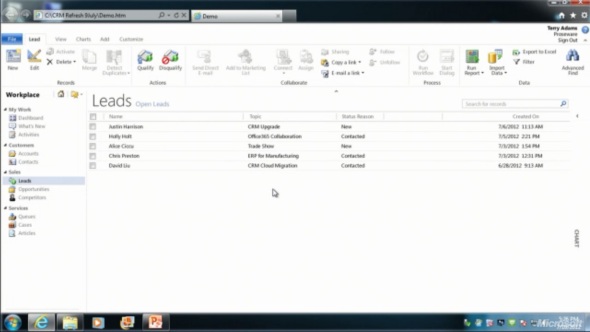
    The changes in the main screen of Dynamics CRM browser client do not appear to be functionally significant, rather just small tweaks in the colors, fonts and other details. We’re moving from the Vista style Aero UI into a simplified, flat Metro UI, which will be visible in all Microsoft products very shortly.
    The entity form windows will experience a much more significant update. Please note that one of the focus areas in the Dynamics CRM roadmap for Fall 2012 is developing the application functionality specifically for opportunity and case management, so I expect these changes will not initially impact all the entities. The demo at WPC covered lead and opportunity forms, below is a screenshot of how the lead form appears in the “Refresh” UI:
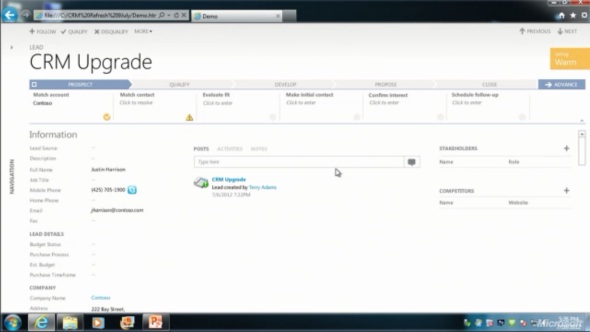
    Wow! We’ve come a long way from the CRM 2011 UI. Where should we start with going through the changes?

    Let’s take the ribbon first, or more specifically the lack of it. Although the main window of CRM will still present the full application ribbon, at least on the lead & opportunity forms the ribbon will be minimized by default. Clicking the “More” button will presumably reveal the ribbon, but we didn’t see this in the demo, because the intention of Microsoft is to hide it away as much as possible.

    “Hey, didn’t we just get the ribbon 1.5 years ago?” Yes, we did, but it doesn’t fit with the Metro design principles anymore, which state: only deliver the right information to the user at the right time, don’t overwhelm them. Touch UI on tablets and phones makes this even more important, which is quite easy to understand. For the power users (most of the readers of this blog, I’d imagine), the wealth of functionality presented on the ribbon must have felt like a welcome addition back in Office 2007 or CRM 2011, but this doesn’t necessarily mean it’s the right design choice for a CRM application. Results of the usability research Microsoft has conducted can be summarized in the following quote from Patterson:

    “Ribbon is great for the power user, but the everyday user just wants the file menu back.”

    Well, that’s it then. RIP ribbon 2011-2012, it was nice to know you. While the reality may not be quite as black & white, anyone designing solutions on top of the XRM platform should definitely take the inevitable fate of the ribbon into consideration.
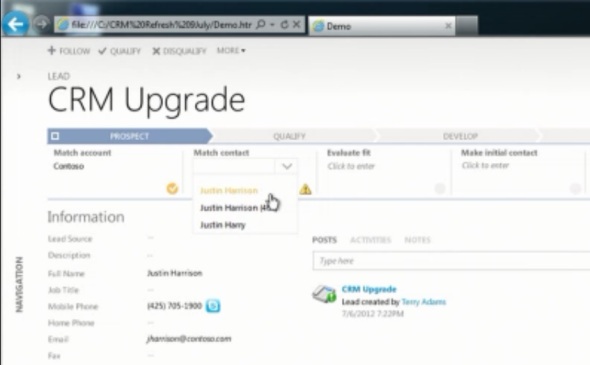
    If we don’t have the ribbon there to guide the user anymore, then what can we use instead? The answer is: processes. What is called the Process Driven UI in the development roadmap will in practice manifest itself as a graphical, interactive process stage indicator on the top section of the entity form.

    According to Patterson, the new UI is built on the Dialog Process foundation established in the original CRM 2011 release. Presumably the arrow titles will then come from process stage names. Each stage can contain multiple steps that the user needs to complete (although they don’t appear to be mandatory, at least in the lead qualification demo). Logically these would then be created with the Prompt and Response pairs available in current dialogs. The user can progress from one stage to another manually by clicking arrows on the far right corner of the process graph, but presumably there will also be support for creating conditions for automatic rules to update the stage of a record.

    Without knowing much about the features and initial limitations yet, the Process Driven UI looks like an excellent addition to the Dynamics CRM application. Workflow and dialog processes have so far been almost invisible to the user, which has made CRM look like just a static place for entering, reading and updating fields on a form. By bringing the process thinking into the foreground, the barrier for using CRM to really automate business processes will become significantly lower, which in turn can make the application a much more valuable tool for the organization using it.

    Moving on with the UI review, into the main form sections, we can see another welcome addition: the built-in follow-up activity functionality is back! When the form assistant was deprecated in CRM 2011 we lost the ability to quickly create follow-up actions from the previous activity form (unless you built a custom process for this, as I’m sure many organizations have), but now it returns into the  core Dynamics CRM application.

    These follow-ups, like any other related record presented on the form, are fully editable directly on the parent entity form instead of a separate pop-up window, which has been a paint point that Microsoft is working hard on trying to eliminate. Modern web apps don’t have popups and modern devices (tablets and smartphones) don’t support them, so inline editing is the only sensible way going forward.

    Notice how the traditional form fields of a lead are all stacked up on the left side. With the related entities navigation collapsed by default, this single column approach actually looks pretty good. Must be because the iPad and Metro apps are teaching us that fields don’t exist side by side but on top of each other. But what do you then fill the rest of the screen with?

    The answer: related records. In the opportunity form example there are subgrids of stakeholders (Connections), Competitors and pursuit team (possibly new team management related entity, or just a Connection type?), although they barely look like subgrids at all since the Metro style form design blends these seamlessly into the entity form. In the middle there’s a combined list that shows Activity Feed Posts, Activities or Notes, depending on the selected tab. Another design choice that sure feels better than spreading these records into a wall web resource, subgrid and a notes/attachments list as they are in the current CRM 2011 UI.

    Also pay attention to the top right corner of the form, where there is a highlighted section of entity fields, in this case the opportunity probability, rating, estimated close date and estimated revenue. Whether these are business required or business recommended fields that get automatically promoted into this section of the UI remains to be seen. It’s like a form header section that is actually editable, which could be another possible implementation method. As you may or may not have noticed yet, the header and footer section of the lead and opportunity forms are now history, with no apparent way of bringing them back, unlike the ribbon with the “More” menu.

    All in all, what the WPC 2012 demo showed us is almost like a whole new application. The way in which the lead-to-opportunity process now flows within the same window, without a single pop-up window is nothing short of revolutionary, if you compare it to the current Dynamics CRM UI logic. The navigation paths in the application have remained fairly static from v3.0 to 2011, with the latest major version adding a large amount of new UI components (ribbons, charts, subgrids, filters) into the mixture but not really changing the core concepts. Now with the Fall 2012 browser client update and the Metro CRM app looming in the horizon, all of a sudden the  Dynamics CRM user experience is about to get redesigned in a major way.

  • Activity Feeds in R8: from follow to filter

    One of the functional areas to receive an update in the Dynamics CRM R8 release in Q2 2012 will be the Activity Feeds, which were originally introduced as an optional solution in the previous R7 release. In R8 we’ll get the ability to filter the content of the feed, but what are the implications of this enhancement in practice? Bigger than you might imagine at first.

    While the concept of a wall with an activity feed fits well within a modern business application that must not only provide a method to enter  & query data but also allow users to discover relevant information and comment on it, there was a slight handicap in the initial version of the Dynamics CRM Activity Feeds. This was the requirement that you had to explicitly tag the records you wanted to follow, before anything would show up on your wall. What may initially appear as a convenient way to select the updates you’re interested in seeing on your personal feed can soon become difficult for the users to actively manage.

    Let’s imagine a scenario where a user is interested in regularly monitoring the activity feed posts around prospect accounts that have open opportunities. How would the Activity Feeds functionality meet this requirement? Before R8 you would have needed to perform Advanced Find queries on the records that match a certain criteria, then select all (max 250 at a time) and click the “Follow” button on the ribbon. Of course if any new records were created or modified after your search, you wouldn’t have seen updates related to them unless you performed the query again and again. The most advanced users could of course have created a workflow rule that adds the follows based on new events in the database, but a process like that would hardly be obvious for the majority of CRM users. Automating this with a centrally managed workflow or plugin to automatically generate follow records for the appropriate audience on the other hand requires the type of top-down information system planning that doesn’t fit well with the whole idea of social business and its empowered end users.

    In R8 all this will change. The system now allows you to define dynamic filters for retrieving posts regarding records that meet the filter criteria. Rather than individually cherry picking records on your follow list, you can now look at the available Activity Feed posts which reference records of a particular type, such as the aforementioned “prospects with open opportunities”.

    In short, you don’t need to follow records anymore. It’s now optional.

    Ok, so anyone can then go and create a filter for exactly the types of records that they want to see posts from, set that as their default posts view and just enjoy the feed, right? Well, unfortunately not quite. Only the system administrator or system customizer can create new system views and promote them to become available filters for Activity Feed posts. So, how do you create a new filter for Activity Feeds then? Here are the steps:

    1. Go to the Customizations menu, open a suitable solution with the entity you wish to create filters for.
    2. Build a new system view and set the filter criteria of the view to match the filter you want to apply on records from which the related Activity Feed posts should be available. Publish your customizations.
    3. Go to the Activity Feeds Configuration menu and open the Post Configuration record for the corresponding entity (if one doesn’t exist, create a new one with the schema name of the entity).
    4. From the Filters subgrid, select your new view and click Show on the ribbon. No need to publish anything, as this is configuration data (not metadata) and the changes will take place  right away.

    It looks like any new Activity Feed filters published will become visible in the selector menu on the wall by default. The user has the option to click “modify this list” and access a view called My Filters. If any of the filters made available to the whole organization are not relevant to them, this is where the users can set to hide them from their Activity Feeds menu. As a little extra touch, the sort order of the filters can be also adjusted.

    While this means that the users have some level of control over the filters visible to them, the same will not be true for the actual system views that need to be created and published for the whole organization to see, in order to make the filters available to the users who may need them. Personal views will not appear as Activity Feed filters, at least not in the R8 release.

    All in all, it may not be the most elegant solution for the problem of filtering Activity Feed posts, but it definitely does make the whole feature considerably more useful. The pain of getting users to go and follow records in CRM is reduced, as is the need for creating workflows or writing plugins that add the follow records automatically based on some business logic. Also, the benefits of the Activity Feed will be much more apparent for a user who is simply browsing the system contents, as he or she will be able to access a list of account related posts with the simple selection of one filter.

    Looking at the rest of the Activity Feed functionality, there is no further automation regarding the creation of auto posts in the R8 update as far as I know. Default entities have Activity Feed Rules available but for custom entities or events not included in the out-of-the-box rules, you’ll need a workflow or plugin to create the post. One thing that’s important to understand is that the Activity Feeds are not about showing all the updates taking place regarding a record. That’s what auditing is for. Unless you have configured yourself an auto post to be added whenever a record X of entity Y is created, nothing will show up on your wall, regardless of the new filtering capabilities.

    In R8 the follow limit in CRM Online will be increased in R8, but there’s still a hard limit of maximum 1000 follows per user. On-premises servers will have the possibility of increasing this limit, but performance impact is to be expected at some point due to the complex nature of the underlying Fetch XML queries used in constructing the result views for the walls. A very welcome new feature is the ability to enable also organization owned entities for Activity Feeds. This means you can add a wall on a competitor entity form, for example, which was previously not possible.

    What we’re still lacking is the ability to perform searches on the content of Activity Feed posts. Even though the underlying data is in a way structured by containing references to the related records, we’re not able to use any keyword in the actual post text content to perform searches on posts. OK, in theory we are able to perform Quick Find searches on the data if we manually add the post entity into the sitemap, but we’re unable to open the post and comments from there, as the post entity does not have any form that could be used for viewing the content outside of the wall (“the walled garden of activity feeds…”).

    Click to vote for the feature enhancement suggestion on Microsoft Connect

    I find the lack of a search feature on the social content stream quite a strange oversight from Microsoft’s part, considering this is already a v2 release of the solution. If any ISV’s are looking for a new product to develop, then how about creating an Activity Feeds Search solution that offers a custom UI to browse the content of the posts? For the others, why not log in to Microsoft Connect and vote for my product suggestion to Allow Activity Feeds post content to be searched. Thanks for your contribution.

    (For any of you wondering where to get the new, updated version of Activity Feeds, you’ll need to wait for the R8 to be officially released, as described in my previous post. The post here is written based on the R8 beta functionality.)

    Update 2012-07-30: even though the updated Activity Feeds functionality in R8 seemed quite polished, it now looks like these new features have also been postponed by 6 months until the Q4 2012 release, alongside cross-browser and mobile support. I find this decision particularly hard to understand, since the only thing you would need for the new Activity Feeds solution to work in an Update Rollup 8 environment would be a few expansions to the database schema, as far as I can see. Could there be some implications from the recent Yammer acquisition that have forced the Dynamics CRM team to halt any updates to their home brew feed functionality, that’s something we’ll probably never know for sure.

  • Connections don’t merge, so be careful with duplicate records

    Update 22.3.2012: this has now been fixed in Update Rollup 7 for Microsoft Dynamics CRM 2011 (KB 2600643). Go and get the file here, unless you’re using CRM Online.

    Connections are a nice new feature in Dynamics CRM 2011 that allow you to create ad-hoc relationships between two records of almost any entity type. Additionally, you can specify roles for both the Connected To and Connected From parties, to describe the connection in more detail, as well as provide start and end dates for the connection. These are very handy for recording non-hierarchical relationships between contacts and accounts that tend to exist in the real world. As an example, a person working as the CEO of Company A might be a member of the board in Company B, which means they should be visible under both accounts. Company A would then be the parent account of the contact, whereas there would be a connection between the contact and Company B.

    Another common real life phenomena is that duplicate records find their way into the CRM database. This can be due to data imports from external databases, web forms feeding in new contacts, or simply two users being unaware of each other’s records and entering data with slightly different spelling or email address variations. Luckily Dynamics CRM has a built-in functionality that allows you to merge duplicates from the database. This process will move all the child records from the subordinate record to the master record, thus ensuring that everything remains linked to the active record and not the deactivated duplicate.

    Except that for connections this doesn’t happen! Once the merge is done, all the connections will still be referencing the inactive record, not the master record. In the aforementioned example, you would have effectively lost the information about the contact’s relationship with Company B. Even though you could still see it by opening up Company B’s record and seeing the connection there, how would you ever have known where to look?

    There is an existing feedback item 683301 on Microsoft Connect regarding this functionality:

    Here’s a quote of the comment I’ve posted on the item:

    I think this is a serious flaw that undermines the perceived reliability of the Merge Duplicates feature in the eyes of the end users. The merge screen indicates that all child records related to the subordinate record to be deactivated would be transferred to the master record, but it doesn’t warn that connections would need to be manually checked.

    The merge process works just fine for custom entities, activities and pretty much everything except connections. Why would the user ever want to leave behind some non-duplicate information to the deactivated record? By merging two accounts or contacts the user is effectively declaring that these represent the same object in the real world. If something in the database has a relationship with either of these records, it should be carried over to the active record, as the inactive record no longer serves any other purpose than indicating the prior existence of a duplicate entry and the possible differences in attribute values compared to the current active record.

    If you think connections should be transferred over to the master record when merging duplicates, be sure to log in to Microsoft Connect with your Windows Live ID and cast your vote on this item. In the meantime, if you’re planning to use the connections entity for recording any data related to accounts, contacts, or leads, my suggested options are:

    • Don’t do it. Create a new custom entity for recording this data, as they will merge over to the master record just fine.
    • Develop you own plugin for capturing any merge events and updating the related connection records accordingly.
    While we’re on the topic, I also tested what happens to the old Relationship records that were used for connecting account, contact and opportunity records in versions prior to CRM 2011 (and are still visible in an upgraded organization). The result? When merging two contacts, any relationships referencing the subordinate record are deleted! Yeah, crazy, I know. If you’ve got any insight on what is the reason behind this perplexing system behavior for either connections or relationships when dealing with duplicate records merging, please leave a comment in the box below.
  • Activity Feeds are here, so “What’s New” in CRM then?

    Microsoft Dynamics CRM Q4 2011 Service UpdateIt’s been nine months since Microsoft Dynamics CRM 2011 was released. Given the large number of new features and functionality included in the new version, I’m sure many organizations have been able to keep themselves busy with thinking about how to leverage all of them. Anyway, the time is now upon us when we see the first true deliverable from the new agile development path that the Dynamics CRM product development team has adopted. The “Q4 2011 Service Update”, “November Service Update” or “CRM Online R7”, however you like to call it, gives a taste of things to come, as new features and improvements are now introduced bi-annually instead of a big bang release every 2-3 years.

    There’s lots of neat things included in the update, such as multi-category charts, user access auditing, lookup and date fields for dialogs, ignoring null values and inactive records in duplicate detection rules etc. Have no doubt, though, this release will be remembered from the Activity Feeds, so let’s proceed straight to them.

    More than just an accelerator for CRM

    Microsoft has split the delivery method of the Activity Feeds functionality into two tiers. The platform level changes are delivered with Update Rollup 4, which brings us a selection of new default entities, such as the feed Post. These will provide the building blocks not only for the visible Activity Feeds released now but also web services API enhancements, which are covered in the 5.0.7 update of the SDK.

    The Update Rollups can nowadays be considered pretty much as “business as usual” hotfixes like the ones released for other Microsoft products, both on server and client side, as they are delivered through the common Microsoft Update mechanism. Testing and planning for the Rollups is of course very much recommended still, as significant changes can be included in them, and yes, they do occasionally break compatibility between versions. Furthermore, the Update Rollup 5 required for Activity Feeds to function cannot be uninstalled if things go wrong.

    Anyway, unlike the hotfixes that can be expected to be installed on almost all CRM environments, the Activity Feeds user interface components will probably remain missing from many instances. Why? Because there is no automatic delivery method for them, unless you are using a CRM Online environment that has been provisioned after the R7 release became available. You see, Activity Feeds still are kind of like an accelerator package, as the solution file will need to be downloaded from the Dynamics Marketplace and installed by the system administrator.

    Download the Activity Feeds solution for Microsoft Dynamics CRM 2011 from the Dynamics Marketplace

    Not even installing the solution file and publishing the customizations is enough – you still need to configure them. The menu item for “What’s New” will appear in the UI after the solution installation, but none of the entities in your CRM have yet been enabled for Activity Feed posts. To do this, you’ll need to navigate to Settings and go to Activity Feeds Configuration menu. Create a new Post Configuration record for each entity that you wish to relate posts to. The configuration UI of the solution is not too nice, as you’ll actually need to use the logical name of the entity rather than the display name. So, to enable the new functionality for the user entity (which is the very first thing you must do!) is enter the value “systemuser” and click save. Make sure you check the box for “enable walls for this type of record form” and don’t forget to publish the entity’s customizations after clicking on save.

    Activity Feed Post Configuration

    What’s a “wall”? If you’re on Facebook (and who isn’t), you’ll know this refers to the place where the posts related to a user will be displayed in a descending chronological order. Now, in CRM it’s not only users that can have walls, but any entity for which you have created a Post Configuration entry for. Even your custom entities, like “project” or “event” can be set to have their own Wall. However, bare in mind that not all the system entities are supported for the Activity Feeds functionality, so you can’t have a discussion related to, say, competitor or product records (which kind of sucks, as those are some very common topics for employee discussion around the water cooler, but guess you’ll still need to get away from your desk every now & then). For a complete list of supported system entities, see this page on the SDK.

    Account record wall

    As you can see from the image above, the wall is actually a web part that is presented on a new tab, that is located before the first default tab (general). The tab will be collapsed by default and the form actually scrolls to the general tab right after the form script is loaded, so a user may not notice anything new on the form. However, if you click on the anchor on the left side navigation, the Record Wall will be revealed in all its glory. Here the user will have the option of adding the record into his list of followed CRM records, see who else is following it, and of course post an update on the wall. (By the way: if you have multiple forms per entity, you’ll need to add the Record Wall web parts manually, by following these instructions.)

    There’s also a Personal Wall that shows the user all the content from followed records, and that’s the first entry visible on the updated sitemap for Workplace. What’s really nice is that you have a link right after the “What’s New” header, which will allow you to pop up the wall in a new window. This way you can have the feed view quickly available for you at any time, no matter with which CRM entities you are currently working on in the main application window.

    Activity Feeds personal wall

    Furthermore, every user has a User Record Wall, which would be identical to the concept of a Facebook profile page. Sorry, no timeline design available here yet!

    Not just for mindless chatter: business logic for Auto Posts

    If all that Activity Feeds provided was the ability to chat with your colleagues or manually post updates related to records, then it would have a tough time competing with established enterprise microblogging apps like Yammer. Luckily the Dynamics CRM platform can offer much more than that. By allowing certain events related to CRM records to generate content for the Activity Feeds the system can actually serve as a tool that removes the need for you to email information about business events or type updates into a microblogging app. A traditional way to demonstrate the CRM workflows has been to create email alerts on closed opportunities, but now you can reduce the clutter in your inbox by moving these into the right context (opportunity form) with the ability for users to comment and see others’ comments. (more…)

  • CRM 2011 subgrids ain’t what associated views used to be

    Back in the days before we had Microsoft Dynamics CRM 2011 available, it was a commonplace customization to show entities related to the parent entity directly on the parent’s form by utilizing an iFrame. Making information such as latest history items (nowadays called closed activities) quickly visible to any user opening the form is often justified, as one key functions of a CRM system is to share information about what interaction has taken place with the customer. Referencing the URL of the related view on the iFrame was not exactly supported, but it was a relatively safe customization to apply nonetheless.

    Due to popular demand, Microsoft introduced an official method for achieving this UI customization in CRM 2011 through the use of the form sub-grid element. As a part of the entity forms redesign, the subgrids have now become an out-of-the-box feature on several default entities, such as accounts, contacts and opportunities.

    Different navigation points, different views

    It’s important to note that subgrids don’t use the entity associated view definition, which is applied when traditionally navigating to the view by using left side menu items on an entity form. Instead they allow you to separately choose a filter to “view only related records”, in combination with any of the system views available for the entity in question (but not the associated views, as those are “special” views). 9 times out of 10 you’ll want to keep the filter on, as showing non-related records on the entity’s form would under normal circumstances defy the standard UI logic of how Dynamics CRM presents records in different windows.

    OK, fair enough, so that’s why the columns in a subgrid aren’t updated after you edit the entity related view, like you used to do in CRM 4.0 and previous versions. We can live with that. In order to provide a consistent user experience, I would recommend that these two views are set up so that they have identical contents. This is because an “oldskool” CRM user may navigate through the left side menu by habbit, whereas a person new to Dynamics CRM will probably prefer to just scroll through the form. Sadly there’s no “save as” functionality available on the entity related view, and you can’t promote a normal view to become a related view (since there’s only one of them). This means you have to manually configure the two views to be indentical in terms of attributes, column order, width, sorting and (in some cases) filters.

    Rolling up the records

    Another thing that may surprise a seasoned Dynamics CRM consultant until he learns the tricks of the latest version is that the aforementioned feature has further implications specific to accounts and opportunities in particular. As we’ve come to know, these entities have special capabilities enabled in the activity views: the roll-up functionality. Instead of being restricted to only activities directly related to a record, we can actually see a bit further. Let’s take a simple example of an account and it’s open activity associated view:

    It’s that “Include Related Regarding Records” selection above the grid which allows us to view activities not only related to the account itself but also the ones regarding a contact of the account and an opportunity related to it. Pretty neat, as it’s often the people working at an account that we associate communication and activities to, such as emails and appointments.

    Now, let’s take advatage of the new CRM 2011 functionalities and look at the activity subgrid that’s conveniently available in the out-of-the-box configuration of an account form:

    Huh? Where did my activities go? They’re still there, but this particular navigation path will not allow you to view them, since you’re on a subgrid and, as we previously concluded, subgrids can’t show the entity associated view. This means there’s no way for you to apply the “Including Related Regarding Records” functionality over here.

    I’ll be the first to admit I’ve fallen for this trap in customer demos more than once. The menu anchor for accessing the Notes & Activities subgrid is just too tempting to click, when what you really intended to do was to view the fully featured activity associated view and access a complete list of the related activities. If the difference between view columns was a minor inconvenience, then this is downright misleading to many users I’m sure.

    The quick solution for this would be to just remove the activity subgrids from the account and opportunity entity forms where the results can be contradicting, thus forcing the user to navigate through the old fashioned menus into the related activities views. Another option would be to perform the old iFrame trick and just embed this view onto a form iFrame, which does sound a bit 4.0-ish. The last option is to go and vote on Dynamics 365 Ideas site, requesting MS to include the full roll-up functionality for subgrid views in a future version of Dynamics CRM. (more…)

  • Dynamics CRM 2011 Walkthrough Part 2: another 100+ slides of new features

    Four weeks ago I released the Part 1 of my Microsoft Dynamics CRM 2011 Walkthrough slides and now it’s time for Part 2: Solution & System Management. Thank you all for the positive feedback from the first part, much appreciated. 🙂

    While the first slide deck was focused on how the new CRM 2011 features look like from the system end-user perspective, this time I have taken a look at the toolset available for system customizer, administrator or solution developer. Since I’m not a programmer, I’ll gladly skip the detailed discussion about CRM 2011 platform SDK enhancements (like WCF, OData, REST, LINQ and other hot acronyms) and leave them to the experts. Instead I’ve tried to cover featues that will have an effect on how to design and plan your CRM implementation or custom solution. Just like before, there are plenty of screenshots included, so that also users without access to a CRM 2011 Beta environment can preview how the features appear in the UI.

    The topics included in my presentation are as follows:

    • Customization menus
    • UI customization options
    • Solution management
    • Web resources
    • Processes (workflows and Dialogs)
    • Custom activities
    • Queue enhancements
    • Multiple forms per entity
    • Security features
    • Cloud services (CRM Online, Dynamics Marketplace, Azure AppFabric)
    • Upgrading from CRM 4.0
    • What’s not there in CRM 2011

    To summarize my core message after giving this presentation, the following would be my key takeaways from the slides:

    • Solutions and web resources will challenge both how you’ve built your CRM enhancements and how you have managed them, so invest time in planning your own processes before rushing into the operational tasks
    • Process automation / work management functionality is becoming an increasingly integrated part of the Dynamics CRM story and 2011 offers great improvements on that front, but remember that it’s still a work in progress area in many ways
    • You can’t escape the cloud, no matter which deployment model you or your customers are currently using, so at least familiarise yourself with what’s out there
    • Despite of the 500 new features in CRM 2011, there’s still plenty of room for add-ons and tweaks. The more the platform expands, the more we’ll demand from it

    That’s all the slides I have for now, but I’m sure there will continue to be lots of interesting features discovered and news items to discuss before Dynamics CRM 2011 comes out in January (RTW) / March (RTM) next year. I recommend you to keep an eye on the #CRM2011 hashtag on Twitter to follow the community buzz around the upcoming release.