Category: Features

  • How Would You Change the Dynamics CRM Navigation?

    How Would You Change the Dynamics CRM Navigation?

    CRM 2013 introduced the first big change in the navigation logic of Dynamics CRM since version 3.0 in 2005. We went from a hierarchical, popup window driven UI with many ERP-ish menus to a more modern experience of a single window app with touch optimized navigation bars and a reduced number of menu options visible to the user at any given time. Hopefully many of you have already had the chance to try out the new flow UI, in a CRM Online trial instance, for example.

    Dynamics_CRM_menu_sales

    When big changes are introduced to the user interface of an application, it always takes a while for the existing users familiar with the previous interface to get adjusted to the new ways to perform the same underlying actions in the application. There was a very interesting piece published a while ago where a UX designer having worked with the Windows 8 Modern UI (formerly known as Metro) shared his opinions on the impact to the users and one possible rationale behind Microsoft’s decisions on revamping the world’s most popular OS:

    “Familiarity will always trump good design. Even if something is vastly better, if it is unfamiliar it will be worse. That’s why people act like a unicorn was murdered every time Facebook releases a new redesign. The Windows 7 start menu IS better because it is familiar. We’ve used that design paradigm for the last 20 years. Metro is going to take some getting used to.”

    Just like Windows 8’s new UI probably wasn’t perfect in the initial release, there are some areas in the CRM 2013 navigation features that might work better with a little fine-tuning and enhancements to the functionality. For example, one feature that I’ve always promoted to the CRM Outlook client users is leveraging the favorite folders (Shortcuts in newer versions unless you’ve disabled the solutions module in Outlook). No amount of role tailoring can replace the convenience of allowing users to select exactly the 5 menus that they most frequently require during the day. Wouldn’t it be awesome if there would be a similar feature available in the more modern web client UI of Dynamics CRM 2013? Something a bit like this:

    Dynamics_CRM_menu_favorites_small

    “Cool! I want it, how can I get it?” Easy: all you need to do is sign in at Microsoft Connect with your Microsoft Account (what used to be Windows Live ID), navigate to the Dynamics CRM Suggestions site and vote for the feature suggestion on having a Personal Navigation Bar.

    Will this guarantee that the feature will be included in the next Dynamics CRM version? Of course not. Will it make any difference to vote on the items on Connect then? Yes, it will. While only a fraction of the feature suggestions posted on Connect can ever get the chance to become a release item in the actual product, the suggestions that gain more than a couple of upvotes will most certainly have a far higher likelihood of being raised up onto the list that the Dynamics CRM product team will use when evaluating the priority of possible future features.

    Microsoft_ConnectWhile you’re logged in, don’t forget to use the search feature on the site to look up other suggestions that touch areas of the product which you’ve thought to be in need of minor adjustments or features that are currently lacking from Dynamics CRM. Since we’re discussing the new navigation in CRM 2013, here’s a few items I’d recommend you to take a look at and vote for, if you consider them to add value into the Dynamics CRM product for a significant enough share of customers:

    Well, for the last one there’s actually a nice workaround you can apply already today. Still, since the vast majority of users will never now about these power users tips and an unfortunately large share of CRM organizations will likely not have the top Navigation Bar items nor Command Bar items customized due to the system admin’s lack of knowledge on great free tools available for Dynamics CRM customizers, the importance of the default settings and out-of-the-box functionality of a software product like Dynamics CRM cannot be overemphasized.

    If you’ve got any CRM 2013 navigation related ideas that you’d like to see implemented in the next release, then please do the following: 1) perform a search on MS Connect to see if anyone else has already logged in the suggestion, 2) if not, create a new suggestion describing the “what”,”why” and “to whom” behind your idea, then 3) leave a comment on this blog post with a link to the suggestion, so others interested in the topic of improving the CRM user experience can also easily find them and vote them up on the list.

  • Auto-Numbering with CRM Workflows: Real-Time vs. Asynchronous

    One of the missing features that is often requested for Dynamics CRM is the ability to automatically assign numeric identifiers to records (see the feature suggestion on MS Connect). Sure, we’ve had the Auto-Numering feature for a limited set of default entities (contracts, cases, articles, quotes, orders, invoices, campaigns) since the early days of CRM 3.0, but generating numbers on a standard entity like account or any custom entity has not been possible out of the box.

    As if often the case, workflows offer a way for the creative user to overcome such limitations and enhance the CRM functionality with some custom business logic. The usage of workflows to generate automatic numbers for records has been described in several blog posts, of which I’d like to point out the ones written by Karel Iuel and Leon Tribe. The high level concept of this process is as follows:

    • Create a custom entity to hold the current counter value of the number
    • Link your business entity to this custom counter entity through a N:1 relationship (meaning the single counter record will be the parent for all the intended child business records)
    • Trigger a workflow rule from the business entity record creation that performs the following actions:
      • Links the new business entity record to the existing counter entity record
      • Increments the counter value
      • Assigns this value as the number for the child business entity record

    With the recent enhancements to workflows in the CRM 2013 release I thought I’d take this scenario and use it to compare the different outcomes with the new real-time workflows and a traditional asynchronous workflow process.

    Number assignment with a Real-Time Workflow

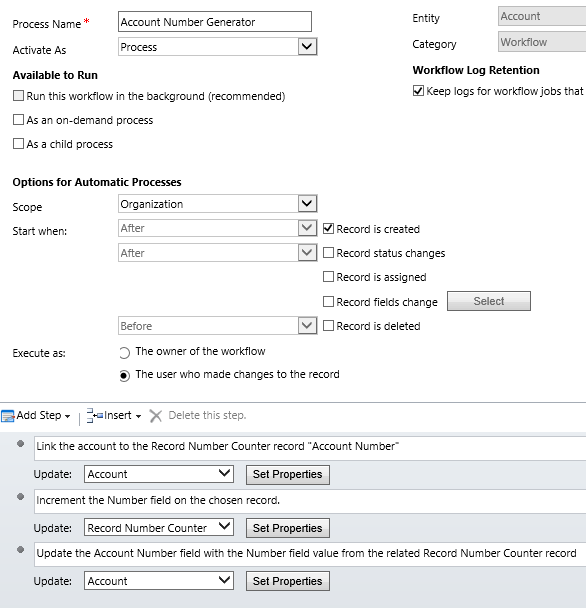
    Let’s first see how the aforementioned methods work in a CRM 2013 environment. I’ve created a new custom entity called Record Number Counter and added a 1:N relationship to the account entity, with the intention of assigning an automatic number to any new account record that gets added into the CRM database. To actually make this happen, we need to have a workflow process in place that performs the three steps outlined above. Note that the box for “run this workflow in the background (recommended)” is unchecked, meaning this will be a synchronous, real-time workflow process that starts immediately after the specified event, which in this case is “record is created”.

    CRM_2013_auto_numbering_real-time_workflow

    Let’s do some account data importing next to test the results of this workflow. I’ve created an Account Number record of the Record Number Counter entity with its Number value set to 100 500, which means the next account record to get created should be numbered 100 501. With a set of 500 test records to import in my csv file, I’m expecting the counter to hit 101 000 by the time the job is done.

    So, off we go with the import job and then we start to anxiously click on the Refresh icon on the account entity view to see which values get assigned in the Account Number column.

    CRM_2013_auto_numbering_test_1

    Looks like everything is as we wanted it to be! All the 500 account records have been assigned a unique number and the counter value is incremented by one after each assignment. Sure, we’re getting the local number formatting setting from our integer field applied into the target text field on the account (in my case it’s the empty space as the thousands separator), but that’s not a huge issue for our home grown auto-numbering solution. The concept itself appears to be working, which is the main outcome we were after.

    Why this won’t work in CRM 2011

    If you’ve been reading any discussions on the workflow driven method of auto-numbering, you may have come across issues with the numbers not always being unique. If you create a single record, then wait for the workflow process to complete and check the results before the next record, everything will most likely look ok. But when there’s a bigger volume of database inserts taking place in a bulk operation, the results may not be as expected. (more…)

  • Enforcing Business Process Flow Fields with Real-time Workflows

    Enforcing Business Process Flow Fields with Real-time Workflows

    Earlier I demonstrated the new capabilities that Microsoft Dynamics CRM 2013 has introduced for workflow processes: showing error messages with real-time workflows. I covered examples of record assignment, merging duplicate accounts and stopping unwanted updates in the Mobile Express client. This time I’ll take a look at how the error message feature can be leveraged in managing the sales process on opportunity records.

    The new Business Process Flows in CRM 2013 provide the possibility of setting fields in a stage as required. This is a nice advancement over the previous platform functionality that only allowed you to set fields as business required per entity, since now we can dynamically control the stage at which we will require the user to input the information onto a form. It’s very typical that a user wouldn’t yet have much details available about a sales opportunity when first entering the information into the CRM system, so it makes total sense to not ask too many questions initially. After all, you can make a field required, but if the user simply doesn’t possess the information asked in it, he or she may just enter dummy data into the field to meet the technical minimum requirements.

    CRM_2013_business_process_flow_editor

    Looking at the default opportunity sales process that comes with Dynamics CRM, we have a number of bit fields in the Close stage that indicate tasks the opportunity owner should complete before closing the opportunity. In the Business Process Flow editor we can tick a box and set these fields to be required. What does a required field in the Business Process Flow then mean exactly? It simply means that you can’t move the record forward from that stage until a value is entered in the field. In the case of bit fields (two options) the value should be set to Yes (ID 1) to meet the criteria.

    OK, sounds logical, but what about if we’re already in the last stage of the process? How is the requirement level enforced if there are no more stages to move to? The answer is: it’s not. Since the actual closure of an opportunity as Won or Lost is not a stage in the process but rather a change of the record status, Business Process Flow has nothing to do with it. We can observe this behavior by setting a field required in a process stage and then navigating to a test opportunity and attempting to close it as Won. In our example, the File Debrief field has been set as required in the Opportunity Sales Process, but the system still allows the user to close the opportunity without entering data into this field.

    CRM_2013_business_process_flow_opportunity_close

    “That sounds like an unfortunate gap in the business logic, I guess we’ll need to get a developer to write a plug-in for us to stop the status change operation if required data is missing.” Hold it right there, mister! We’re dealing with Dynamics CRM 2013 here, which means we can build the equivalent feature with a real-time workflow process! No custom code needed for such a simple task, as long as you know how to leverage the new interactive nature of synchronous workflows.

    Let’s create a new workflow on the opportunity record and set it to start when the record status changes. We’ll configure it to be run as “after” the event, since we’re interested in capturing the new status value of the record. In the workflow criteria we’ll define that we want our business logic to apply if the opportunity is being set as Won but the File Debrief field has not bee set to Completed. Since this is a real-time workflow, we can add a step where we set the process to be stopped as Cancelled and then define an error message in that step’s properties. This will then be presented to the end user who is triggering the status change event if the workflow criteria is met.

    CRM_2013_workflow_opportunity_close

    Now, let’s go to our test opportunity, re-open it and attempt to close it without marking the File Debrief field as Completed. When clicking the Close as Won button on the opportunity form command bar we’re presented with the standard, non-customizable Close Opportunity dialog window asking us about the Actual Revenue, Close Date and so on. Since we’re so excited about having won the opportunity we’ve completely forgotten that there were still tasks we needed to complete before we’re allowed to close it off from the sales pipeline.

    CRM_2013_business_process_flow_opportunity_close_2

    Once we click OK, a new dialog window is presented: the Business Process Error prompt, along with the error message that we defined in the Stop stage of our workflow process. The opportunity close event is rolled back and we can return to the opportunity form to see what steps of the process we had neglected.

    CRM_2013_business_process_flow_opportunity_close_3

    As I mentioned in my previous article about the new business process automation capabilities of CRM 2013, Business Process Flows are essentially a process map that is meant to guide the user through the stages. It cannot actually perform any automated tasks by itself, nor enforce any rules apart from the changing of the stage through the visual business process control at the top of the form. To implement this type of functionality you should look into Business Rules and Real-Time Workflows instead.

  • Using Real-Time Workflows to Show Error Messages

    Using Real-Time Workflows to Show Error Messages

    In CRM 2013 we now have the option of setting a workflow to be run synchronously, also known as a real-time workflow. This opens up great new possibilities to leverage workflows in designing automated processes and providing immediate feedback to the end user when CRM data is created or updated. Having the workflow process executed in real-time also provides one additional capability that traditional, asynchronous workflows can’t handle: stopping the transaction from taking place.

    Configuring Custom Error Messages

    Similar to synchronous plug-ins, real-time workflows can present a Business Process Error dialog to the user when the operation being performed is breaking the rules of the configured business logic. As the real-time workflows execute in the current transaction, they have the power to roll back the changes that the user is trying to perform, whereas an asynchronous workflow could only observe what had already taken place.

    How does this work in practice? Let’s explore the feature by setting up a very simple workflow rule to verify the owner of a record, in this case the Project Manager (owner) of a custom Project entity. When creating the workflow we’ve unchecked the “run this workflow in the background (recommended)” checkbox and thus defined it to run in real time. (If you forgot to do this, just reach for the “Convert to a real-time workflow” button on the toolbar, as the form checkbox can’t be edited directly). We’ll attach the workflow to the assign event of the entity.

    Real-Time_Workflow_rule

    In the workflow rule criteria we’ll perform a check that the Project Manager has the necessary qualifications for the job. If not, we will  stop the workflow and set its status to be Canceled. What’s new compared to CRM 2011 workflows is that we can set a Status Message for the workflow cancellation. Rather than just being a behind the scenes log entry, this text field’s contents will actually be presented to the user if the real-time workflow process is cancelled. This is therefore the place where you should provide instructions on why the cancellation took place and how the user can avoid it.

    Let’s activate our workflow, go to an existing project record and attempt to assign it to a less competent CRM project manager, like Teppo:

    Real-Time_Workflow_error_1

    After we click OK on the assign dialog, a Business Process Error dialog is presented, along with our status message text that explains why the operation cannot be allowed.

    Real-Time_Workflow_error_2

    The transaction is rolled back, which means the assignment never takes place and our project remains in the hands of a certified professional. CRM workflows save the day!

    Here’s a couple of considerations to keep in mind with the above example:

    • If I had set the workflow to run Before the assign event, I wouldn’t have received an error. That’s because we would have had a pre-image of the record to work with, in which the change of ownership would not yet have taken place. Having these options available in the workflow editor UI gives more flexibility for defining the business logic, but you should know at least a bit about the underlying Dynamics CRM event execution pipeline to make the most of them.
    • If I had simply clicked on the Project Manager (owner) lookup and changed the value, I wouldn’t have received an error in either case. That’s because from the platform’s perspective the assign event is different from the event of updating the owner lookup field. Also note that creating a new record for another user is not an assign event either, so you’ll want to expand the criteria of when the workflow rule is triggered to catch these.

    Stopping Unwanted Data Updates

    What kind of real life scenarios would then require the system to throw a Business Process Error at the user? Let’s think about a typical CRM implementation where the customer data is integrated with an ERP system. As long as you’re working with prospects that haven’t placed an order yet, there shouldn’t be too many limitations in place in CRM on how you can update the data. Once the account information is transferred to the ERP system for the purpose of order and invoice processing, the need for restricting certain operations on the account records will likely arise.

    Let’s assume that we’re identifying the ERP integrated accounts through the Account Number field on the CRM account entity. If the field contains data, then this is a record where updates need to be restricted. By leveraging the new CRM 2013 Business Rules we can configure the fields on the form to be disabled if an account number exist. But what about updates that are not performed as changes of form field values? This is an area the Business Rules can’t touch, but with real-time workflows we may be able to add custom business logic into CRM that would have traditionally required a .NET developer to write plug-ins for us.

    As an example, we’d like to ensure that no account records can be deactivated in CRM if they exist in the ERP system. The deactivation might take place through a data management operation like merging duplicate records, in which the master record is left in active status and the child record gets deactivated. We can’t directly trigger the workflow process from the clicking of the Merge button on the account view Command Bar, but we can set our business logic to be run on the status change event. Let us therefore build a new “Stop account merge” real-time workflow rule with the following criteria:

    CRM_2013_workflow_stop_account_merge

    We’re actually performing this after the deactivation has already taken place, but that doesn’t matter, because we’ll still be able to cancel the whole operation. We’ll look for any accounts that have gone through a status change event and are now in an Inactive state. If the account record has an account number, we’ll stop the workflow with status of Canceled and provide a message to the user explaining what are the proper steps to take in getting everything updated correctly both in the CRM and ERP systems.

    Let’s try this first on a single account record. When we click on the Deactivate button on the account form’s Command Bar, the Business Process Error dialog is presented to us, along with the message we defined in the workflow. No deactivation can take place, so the account is returned back to active status. More precisely, the account record status never changes, as can be verified from the audit history log (if enabled).

    CRM_2013_account_deactivate

    Great, now let’s move on to the Merge scenario and try to combine two active accounts with account numbers into a single account. We’ll select the accounts, click Merge, go through the Merge Records dialog, defy all the instructions given to us by the CRM key user of our organization and attempt to merge two separate ERP accounts in CRM. Once we hit the OK button for the merge to be performed, the Business Process Error dialog jumps to the rescue and stops the operation.

    CRM_2013_account_merge

    Hey, wait a second, why’s the text in the Business Process Error window different now? “ISV code aborted the operation”, what does that mean? Well, it seems that because we’re not actually performing the status change action directly on the record but rather leverage the built-in Merge Records dialog and its associated business logic for record deactivation, our status message text doesn’t  reach that screen. The event itself does “bubble up”, though, so stopping the status change also rolls back the entire transaction and none of the fields on the records being the targets of the merge operation change. That’s the important part, after all.

    Complementing Business Rules

    Let’s have a look at one more use case for the real-time workflow error messages before I let you get on with your browsing. The previous example covered an event that Business Rules weren’t able to control, due to the fact that they execute only on the entity form. In a CRM & ERP integration scenario you may however need to have the account record fields locked on more places than just the form. Remember that any updates the user would perform through other means, such as Excel export/re-import or a custom client app would not trigger the Business Rules that are essentially just client side scripts on the form. If you build this logic onto the server side as plug-ins or workflows, though, no one can perform an operation that would violate the rules (just ensure there’s always some supported way for performing the necessary updates & don’t block you integrations while creating these gatekeeper workflows).

    One built-in form where the Business Rules don’t run is the mobile form. Utilized in both the Mobile Express browser version as well as the mobile apps for Windows Phone, iPhone and Android, these forms offer a limited set of capabilities for reading, creating and updating records. While you can set a field on the mobile forms to be read-only, you can’t build any conditional logic to determine when the field should be locked.

    CRM_2013_account_name_edit

    CRM_2013_Mobile_Express_acount_editLet’s assume you want to allow people to quickly create and edit accounts through their mobile device, but you also want to lock down the account names on records that have been synchronized to the ERP system. To meet the first requirement you’ll need to leave the field on the form in an editable mode. To stop someone from accidentally overwriting the name of your biggest customer account with “Aasd,abhoignldfiiiiii” or other gibberish when fumbling around with CRM on their tiny little iPhone screens, you could create a real-time workflow to guard these fields from unwanted input. Have it run on the field change events, check whether it’s an ERP account with an account number and then cancel the event if necessary.

    Opening up the Mobile Express UI (just append the CRM organization URL with /m/ to access this version) and trying to edit the account name field now gives the same kind of notification as the full browser client. The Business Process Error dialog window doesn’t seem to have any mobile optimized version, but again it gets the basic job done by stopping the update. I didn’t test this on the Dynamics CRM mobile apps, but seeing how at least on Android the app is almost identical to the Mobile Express browser version I’d imagine the experience is similar there as well.

    OK, that’s the end of my experiments with real-time workflow process error messages for now. I’m sure that there will continue to be a need for more advanced solutions for controlling user data input that will involve hiding UI components through scripts or enforcing business logic through plug-ins, especially if the transaction volumes are expected to be high. The new workflow capabilities do however provide a quick way to configure custom error prompts and stop unwanted events when experimenting with the design options of your solutions and iterating your way towards the final production system.


  • Getting Your Head Around Dynamics CRM 2013 Processes – Part 2

    In the first part of this series we looked at the two new process categories introduced in Dynamics CRM 2013: Business Process Flows and Actions. Now it’s time to dig deeper into new CRM 2013 functionality that will allow you to achieve process automation results in areas where custom code was previously required.

    Business Rules: Processes In Disguise

    You may have already heard about the new feature in CRM 2013 that promises to free us from writing Javascript to manipulate form fields, called Business Rules. If you’re looking to find them from under the Process Center, though, you’re in the wrong place. Business Rules are a property of the entity and you’ll see them alongside other such components like Charts and Views in the Solution explorer. From this we can already gather that it won’t be possible to move Business Rules across different CRM organizations as individual components like you can do with processes, instead they always travel with their parent entity in the solution files.

    CRM_2013_Business_Rule

    Business Rules have the nickname of Portable Business Logic (PBL), so there must be something else that makes them particularly easy to carry around then? The portability actually refers to the way in which the rules can be applied to all the different forms of the entity and also to how they will be carried over to the mobile client application (MoCA) on Windows 8 and iOS tablets. They are however form specific in the sense that you must define what the scope of the Business Rule is: either tied to a particular form of the entity or simply set to run on “all forms”.

    What can you use Business Rules for from a process automation perspective? Similar to the Business Process Flow (BPF) process type, Business Rules can be used for guiding the data entry and update tasks by dynamically changing the UI presented to the user, based on the values of other fields on the form. Typically CRM entities end up having far more fields available than what a user is really expected to fill or even view in a particular stage of a business process. Whereas the Business Process Flow can only touch the Process Control shown on the top of the entity form, Business Rules can manipulate any field on the form, setting it either as visible/not visible, required/not required and disabled/enabled. They also have the ability of presenting field specific error messages if a user tries to deviate from the intended process.

    Business Rules have a similar type of conditional statement setting as workflow processes do (if/then), but it is quite a lot more limited currently than the workflow editor options. For instance, you can only reference fields from the same entity you’re working on, so setting the requirement level of a contact form field based on the parent account record’s values won’t work. You are also limited to only specifying a single set of conditions that must all be true for the action to run. In order to build an “or” rule to cover multiple alternative conditions you’ll need to save your first Business Rule, then create a copy of it with Save As and have as many concurrent rules as there are options in your “or” statement.

    Unlike the Business Process Flow processes that are only able to present fields from the entity, Business Rules can actually update the record as well. The “Set field value” action allows you to input either a static value, copy the value of another field (on the same record) or perform a simple +/-/* calculation with two fields. For an in-depth list of Business Rule capabilities and considerations, look no further than this excellent article by Jesper Osgaard on Understanding Portable Business Logic.

    This first release of Business Rules for Dynamics CRM 2013 addresses many of the common scenarios where Javascript has previously been applied on entity forms to make them dynamically adapt to the business logic of an organization. However, there remain some frequently requested features that will still require form scripts to be developed, such as:

    • Create dependent optionset fields (filtering available values based on another field)
    • Set dynamic default values (“task deadline today+3 days”)
    • Show/hide form components other than fields (tabs, sections, subgrids, iFrames, Quick View Forms etc.)

    Based on the fact that Business Process Flows are categorized as a process record in CRM 2o13 whereas Business Rules are “only” a component of an entity, should you spend more time designing the Business Process Flow and resort to Business Rules only when you need to tweak some details on the forms? I personally don’t think that the BPF Process Control is necessarily the only right way for implementing guided processes in CRM 2013. For a transactional record with a linear process consisting of several stages with clear boundaries (the sales opportunity scenario) it is surely a natural fit, but in many situations the flexibility provided by the field level configuration of Business Rules can prove to be a more practical approach. At least ask yourself these question before committing to a BPF based design: 1) does it offer some required functionality that Business Rules could not replicate, and 2) can the process data naturally fit into the stages that the Process Control will display?

    Real-Time Workflows: Plug-ins For The Analysts

    For the past 10 years the Dynamics CRM workflows have been tirelessly performed their tasks behind the scenes, driven by the time slots that the asynchronous service on the CRM server has kindly allocated for them. Originally designed for executing workloads that didn’t have a need to present the results immediately to the same end user who triggered the event, they’ve since been frequently leveraged also in process automation tasks that would have performed much more smoothly with a synchronous execution (also known as “poor man’s plug-ins”). The powerful process automation capabilities presented in the workflow editor would have often been enough to meet the business logic customization requirements, had it not been for that delay in the logic’s execution that demanded the same logic to be replicated in custom code instead.

    In CRM 2013 workflows have now been promoted to a 1st class citizen status by adding one tiny switch: “Run this workflow in the background [yes/no]”.

    CRM_2013_Real-Time_Workflow

    Why is this option of running workflows synchronously so important then? Well, if you’re just using your workflow to send an email notification to someone, there’s precious little difference in whether the action takes place immediately or after one minute. However, if you are updating the current record that the user is currently viewing through the entity form, the fact that you can present the changes right away opens up a whole new world of opportunities for leveraging workflows to guide the business process.

    Nowadays when the new CRM 2013 entity form design leans towards a dashboard style of summary views presenting a number of subgrids of child entities, activities or activity feed posts, the need for immediate feedback on the UI applies also to the creation of related records through workflows. If your business process relies on the assignment of tasks to users rather than the “mark completed” checkbox driven style introduced by the new Business Process Flows, the fact that the user will see the process automation in action as he updates the records in CRM will surely help to build confidence in the system’s ability to manage the business process and distribute information to all relevant parties, without the need for manual emails or phone calls to coordinate the work.

    From a development perspective, Real-Time Workflows have a similar but likely far more significant impact on the division of labor between the business analyst and the .NET developer than the new CRM 2013 Action processes that we covered in part 1. Synchronous workflow processes can cover many of the common CRM customization scenarios that would have previously required developing a plug-in. While a custom plug-in will naturally still remain far more flexible in terms of its ability to query and manipulate data, the Real-Time Workflows will drive more and more custom code to be developed as Custom Workflow Activities rather than plug-ins.

    This is because of the fact that if you can isolate your code into a component that the business analyst can call from a standard workflow process, the configurability of the business process automation functionality will be greatly enhanced as future adjustments to the process can be performed through the CRM UI without touching any code. The development of re-usable components that extend the default capabilities of workflows also lowers the barrier of applying the same custom logic into new processes as the needs of the customer organization evolve.

    The less people it takes to solve a business problem through CRM and the shorter the lead time from identifying the problem to deploying the solution is, the more likely it is for the problem to get solved. This is the main reason why increasing the share of configuration tasks over development tasks is so critical for any business information system that needs to adapt to changing business processes and not just fulfill a static set of requirements. If you’ve worked with CRM systems beyond their initial implementation projects, you’ll surely know into which category these systems fall into.

    The Growing Business Process Automation Toolkit

    If we compare the old and the new world of process automation in Dynamics CRM, we can see that the tools available for no-code configuration of business process management functionality have grown considerably over the past few years:

    • CRM 4.0: workflows
    • CRM 2011: workflows, dialogs
    • CRM 2013: asynchronous workflows, real-time workflows, dialogs, business process flows, business rules, actions

    What this means from a system administrator, customizer or business analyst perspective is that if you haven’t yet started to take advantage of the process automation capabilities of Dynamics CRM, you’re really missing out on a significant share of the platform’s potential value to your business. At the same time the growing number of options in CRM can make it seem like an increasingly difficult topic to approach. How do you know which one of the six tools to pick for building a solution to a business problem you’ve identified?

    As discussed in part 1 of this article, Business Process Flows are essentially just a map of the process that you present to the end user, but they don’t perform any actions on the data on their own. Since the Action processes are currently only valid for scenarios that involve a developer resource, we can also leave those our when exploring the right tools of how to get started with CRM process automation. That leaves us with four tools to evaluate for their fit to get the job done. I’ve compiled some of the main characteristics of each of them into the following table to help you in the selection process:

    CRM_2013_Process_Automation_small

    You should pay attention to the following constraints of each tool when analyzing their fit for the task at hand:

    • Business Rules are the only way to perform actions right after the user updates a field. Workflows will not fire until the save event (which can be 30 seconds away in the new auto-save CRM 2013 organizations).
    • Workflows will run even when the records are created or updated through other means than the form (data import, integrated systems). Business Rules are only executed on the form.
    • Due to the aforementioned limitation, Business Rules also only ever apply to a single record at a time.
    • Workflows can reference data from related entities for read/update. Business Rules can only work with data available directly on the form.
    • The special capability of Business Rules includes manipulating the UI (hide/show fields, set requirement level, show alerts). Workflows only deal with the data.
    • Dialogs are a manually initiated subset of workflow functionality with a specific Wizard style UI. They also have one special skill: querying data from any entity, not just the directly related ones.

    I hope that this article has managed to highlight the new features in Microsoft Dynamics CRM 2013 that can help you build solutions for guiding the user through a business process and automate the related tasks. There is a lot to explore in the latest CRM release in this area and I’m sure we’ll discover many creative ways for applying these new tools in practice as more and more customers move onto the CRM 2013 / Fall ’13 platform.

  • Getting Your Head Around Dynamics CRM 2013 Processes – Part 1

    Workflows have always been a central part of the Dynamics CRM product. The typical need for having workflow functionality available in a CRM application has revolved around the sales force automation (SFA) requirements of implementing a sales process with predefined activities to be completed in different stages. As the Dynamics CRM product has evolved and expanded over the years (see this article for the complete timeline of MS CRM history if you’re interested), new capabilities have been added into the workflow engine, expanding the realm of possible use cases where workflows can act as the tool for automating data entry tasks, notifying users of important events or enforcing custom business logic in the various processes that CRM has been put in place to manage in customer organizations.

    Initially workflows were purely background processes not intended to be visible to the end users, but in CRM 2011 a new feature called Dialogs was introduced. This enhancement gave us the possibility of building “interactive workflows” with a user interface for both presenting output as well as collecting input from the user. As a result, the terminology in Dynamics CRM was adjusted slightly in the 2011 release, with the new Process concept being used to cover the two subcategories of Workflow Processes and Dialog Processes.

    The latest CRM 2013 release takes things even further on the process automation front and introduces several new features that greatly expand the platform capabilities. We’re increasingly moving away from the separation between interactive data entry forms and asynchronous background processes, towards a new reality where the core CRM product offers configuration tools for building applications that adapt to the actions of the users in real time and guide them through the business processes interactively.

    Due to this expansion in functionality, the concept of a “Process” in Dynamics CRM has gotten a bit more complex than what it used to be, since a process can nowadays mean so many things. Looking at the Process Center in CRM 2013, when you click the “New” button you’ll now be presented with a selection of 4 different process categories: Action, Business Process Flow, Dialog, Workflow.

    CRM_2013_Process_Center

    While this categorization may be perfectly valid from the platform’s perspective, I’d don’t think this is actually the most logical way to approach the available process automation capabilities of Dynamics CRM 2013. The UI presentation of the process categories ends up grouping together functionalities that are conceptually quite far apart and also leaves out some notable new possibilities that should be considered when building solutions for Dynamics CRM 2013.

    In this series of posts I will try to describe how I see the current process management toolkit of Dynamics CRM and provide some guidance on which particular tool to pick up in various customization scenarios. I’ll start off by covering the two new process categories of Business Process Flows and Actions.

    Business Process Flows: The Visual Process Map

    The one feature that immediately stands out when launching a CRM 2013 environment and navigating to a transactional record like a sales opportunity or a service case is the new Process Control shown on top of the entity forms. This graphical representation of the business process related to the record in question is an awesome way to visualize the stages of a linear process to the end user and it will surely be the single most important feature to increase the utilization of Dynamics CRM 2013 business process automation capabilities in customer environments.

    CRM_2013_Business_Process_Flow

    What’s really important to keep in mind, though, is that the Business Process Flow (BPF) process doesn’t provide any process automation functionality in itself. It only allows you to define the stages of the process and the fields to be populated during the stage, but the BPF won’t perform any actions on its own based on the user’s inputs. You can specify that certain fields in a stage are mandatory before the process can move onto the next stage, but you can’t enforce any other consequences. For this you will need the help of other process automation tools in CRM 2013.

    CRM_2013_Business_Process_Flow_2

    Another key consideration for Business Process Flows is that moving between process stages is something the user needs to perform manually. There is nothing in the BPF editor that would allow you set conditional logic like “when fields A, B and C are filled, move the record to Stage 2 of the process”. You can leverage the Dynamics CRM platform for building such automated stage changes, but you’ll need a bit of custom code to achieve it. Refer to this blog post by CRM MVP Scott Durow for more details on how to programmatically manipulate the process and process stage fields.

    Business Process Flows are essentially the way how you map out your processes to be presented to the end user. On the customization side they bare more resemblance to the entity form designer rather than the traditional workflow process editor, since you’re mainly configuring what fields to present in which stage, rather than building conditions or defining automatic actions that should take place when the conditions are met. In most scenarios you will find yourself leveraging BPF’s alongside other process types to bring in the automation part of process management.

    Actions: Components of Custom Processes

    While BPF’s are highly a highly visual component and therefore easy to grasp, the new Actions introduced by CRM 2013 will surely be competing for the most difficult feature for a system customizer to understand in terms of how and when to leverage them. Simply creating a new Action process in CRM won’t give you too many clues on how they are different from the traditional processes and after saving the process you’re left wondering how exactly you would trigger the Action.

    In my mind the new CRM 2013 Actions bear a resemblance to a business logic extensibility feature that has been with us since CRM 4.0: Custom Workflow Activities. Rather than being a replacement, Actions are more like the other side of the same coin. Let’s compare the two:

    • Custom Workflow Activities can’t be built within CRM but you can leverage them inside a workflow process through the graphical process editor UI.
    • Actions are exactly the opposite: you can build them within the CRM process editor but you can’t use them anywhere without custom code.

    What this means in practice that in a simple no-code CRM environment the Actions process category won’t be a relevant feature for the system customizer (at least in their current form). In a more complex environment they can provide a new practical method of keeping the organization’s business process logic outside the custom code that is being developed for UI customization and integrations with external applications.

    CRM_2013_Action

    Thinking of a real world scenario for Custom Workflow Activities, if a business analyst is using Dynamics CRM workflow processes to automate a service case SLA management process and wants to configure notifications based on the number of business days that a case record has been open, he won’t be able to achieve this with the built-in workflow date calculation tools. However, he can request a .NET developer to write a Custom Workflow Activity that will perform the required date calculation and then include this as a component in his workflow process. This will allow the actual business logic around SLA management to remain configurable in the workflow process, which means any future changes to how the case record needs to be updated, which person is notified of SLA violations etc. can all be implemented without touching the custom code that’s used only for calculating the number of business days between two dates. Also, since the custom code is isolated inside a Custom Workflow Activity, it can be referenced in any number of workflow processes.

    Looking at this scenario from the Actions perspective, let’s say that we have integrated the Dynamics CRM case records into a portal or other custom application that consumes and updates the data in a similar way as the native CRM web client does. All of the entity metadata will be already be available through CRM web services, but with the help of Actions in CRM 2013 we can also expose a piece of our custom business logic to the integrated applications and manage it in one place through the CRM UI. The example that Microsoft has used while explaining Actions is service case escalation, in which the business analyst could configure all of the steps included in the escalation event (activities, case routing, service contract updates etc.) through a single “Escalate” process and the other applications could then call this message defined inside the Action. Input and output parameters can be defined for Actions to allow them to reference the correct CRM records and also provide CRM data back to the original caller.

    As we can see from this scenario, just like the Business Process Flows, Actions alone won’t perform any automated tasks inside CRM. They can be used as components in defining automated tasks that are triggered based on an event that came from somewhere else, through the CRM web service. If you’d like to see how Actions might be called from a custom button in CRM through Javascript, have a look at Gareth Tucker’s great blog post on this topic.

    The Real Process Automation Tools in CRM 2013

    Now that we’ve gotten the two new process categories of Business Process Flow and Actions covered, it’s time for my favorite new features in CRM 2013: Business Rules and Real-Time Workflows. Even though Business Rules aren’t formally categorized as processes in CRM, and Real-Time Workflows are presented as just an extension of the existing workflow processes, in practice these are the features that deliver exactly what a CRM end user would consider as “process automation”, due to the immediate feedback that they can provide.

    In the next part of this post I will explore how these new tools compare to the existing Workflow & Dialog features and how they can be combined to deliver a configurable process automation experience that goes beyond what the previous versions of Dynamics CRM had to offer.

  • CRM Rocks Podcast: Discussing the New CRM 2013 Features and User Experience

    CRM_rocks_podcastThere’s a large number of great CRM blogs out there, but how many Dynamics CRM podcasts do you know of? Well, here’s one website you should definitely take a look at: CRM Rocks! Markus Erlandsson has started a new podcast series that focuses purely on Microsoft Dynamics CRM topics.

    In the first episode Markus interviewed CRM MVP Gustaf Westerlund on the available tools and best  practices that any Dynamics CRM developer should be aware of. I had the honor of being guest nr. 2 on CRM Rocks and got to share my thoughts and observations on the latest and so far the greatest release, CRM 2013. Click here to access the podcast recording in MP3 format.

    Some of the topics that Markus and me discuss during the podcast include:

    • The new UI: how will the new form design impact the user experience and what requirements does it impose on system customizers.
    • Business Process Flows: how are they different from the other process types and what do they mean in practice for the management of tasks related to business processes such as sales opportunity management.
    • Business Rules and Actions: what are the new options for code-free CRM configuration and where do we still need .NET developer resources.
    • No more ribbon: are we missing out on past functionality or are we actually better off in the end.
    • A world without popup windows: why is CRM now easier to learn for new users.
    • One CRM platform, many CRM applications: what the extended client support for mobile devices means for CRM usage scenarios.
    • Auto save = no more “post buttons”: why you need to be careful when upgrading your custom business logic stored in scripts and plugins.

    I personally enjoyed the discussion a lot and if anyone has 55 minutes to spare on listening to my ramblings on CRM 2013 then I hope you manage to get something out of it, too!

  • Dynamics CRM Data Visualization with Excel 2013 GeoFlow

    Excel_2013There are some great new features available in Excel 2013 that can take your Dynamics CRM data visualization onto a whole new level without the need to invest in new server infrastructure or build traditional OLAP cubes on your SQL Server. With the recent announcement of the GeoFlow Preview for Excel 2013, I decided to see what I could make of this tool when combined with some data pulled from CRM.
    Working with Cloud Data

    Although the feature parity of CRM Online and Dynamics CRM on-premises is on quite a high level these days in terms of the application platform capabilities, one unfortunate limitation has been that you can’t easily tap into the CRM Online data with analytical applications like Excel PowerPivot. Naturally the direct SQL database table connection is unavailable, but also the OData feeds that would be such a neat way for performing some pivot magic have been off limits, as PowerPivot doesn’t support the claims based authentication of CRM Online. Oh, and as far as I know, this also applies to an IFD configured on-premises server  (if anyone knows how to connect to the OData feed with AD authentication while using an IFD CRM, do leave a comment below).

    With the new capabilities of Excel 2013, there is now a workaround available that allows you to access OData feeds from CRM that require Windows Live ID / Microsoft Account / Office 365 authentication. You’ll also need the CRM Outlook client on your workstation to facilitate the initial connection, although with another workaround for the sign-in prompt on the Excel sheet you might be able to do without one.

    Here’s a great video from former Dynamics CRM Team member Ed Martinez that walks you through the steps needed in order to connect your Excel 2013 (note: Excel 2010 is not supported AFAIK) to a Dynamics CRM Online OData feed:

    (For all the Finnish speaking CRM folks out there, you can also check out this video clip by Sulava’s Markku Suominen.)

    As a summary, what you need to do is:

    • Copy the OData feed address from the developer resources menu of your CRM
    • Export any set of data from CRM to a dynamic Excel sheet
    • Open the file and refresh the data (thus establishing the authenticated connection), the save it in .xlsx format
    • Add a new data source by clicking on “Get External Data, From OData Data Feed”
    • Paste in the address you previously copied from CRM

    That’s it. Now you can connect an Excel sheet to a CRM Online (or IFD) data source through OData and refresh the content to reflect the live data as your CRM source system gets updated.

    Power View in Action

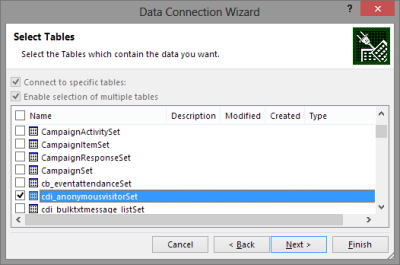
    For my own lil’ “Big Data” scenario I decided to point my OData enabled Excel 2013 towards a Dynamics CRM instance where ClickDimensions is storing the website visitor data from this blog (sorry, you’re being tracked, but it’s all for a noble cause, trust me). I proceeded by following the instructions above, adding a new OData data source into a dynamic Excel sheet, selecting the entities (“sets”) that I wanted to use in my analysis. Then I waited… and waited… and waited some more.

    OData_data_feed_connection_wizard_CRM

    A word of warning: OData data feeds can be slow. It’s nothing like using a direct database connection, and not even the type of performance you get with a dynamic Excel in an IFD environment that uses an Excel Web Query to “screen scrape” the data over http. My data set was retrieving around 100,000 records and I saw the counter ticking on the bottom right corner of the Excel sheet at a rate of roughly 200 rows per second, which translates into some 10 minutes of waiting before the download from CRM is complete. Oh well, it’s not like we’re in a rush to create a real life report for the boss who wants to have it in his inbox within 15 minutes. Let’s be grateful that we can at least retrieve more rows in one go than the default MaxRecordsForExportToExcel setting for this CRM organization would otherwise allow (which is 10,000). (more…)

  • LinkedIn, Dynamics CRM and Social Selling

    LinkedIn, Dynamics CRM and Social Selling

    LinkedInA significant share of Dynamics CRM systems tend to be implemented for B2B sales scenarios. In the age of social selling, digging up information about the person you’re about to call will quite often involve looking up his or her LinkedIn profile. With this in mind, surely everyone’s running a tight integration between their customer relationship management system and the LinkedIn network, right? Well, based on my personal experience, quite often it tends to be one of those requirements that come up during the sales phase but then get phased out from the actual go-live of a new CRM system.

    The question of “how to integrate Microsoft Dynamics CRM with LinkedIn” has been making the rounds in various forums for as long as I’ve been involved with the product. Now that you’ve potentially arrived here in search for an answer (thanks, Google!), I thought I’d collect a few pieces of information and personal thoughts on the subject. If you have any experiences to share regarding using Dynamics CRM in the social selling scenarios, please do leave a comment in the box below.

    The Quick Way

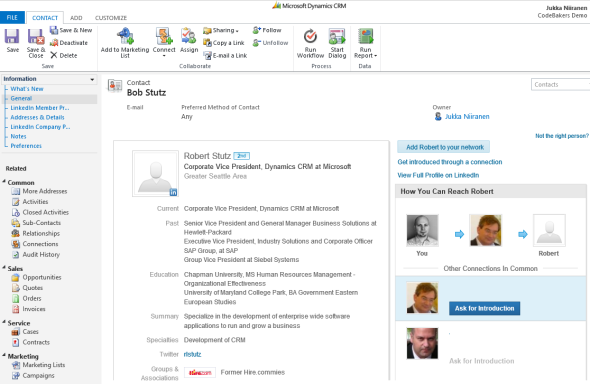
    As always with information systems, there’s integration and then there’s “integration”. If you can meet the requirement by just surfacing a bit of content from LinkedIn inside a Dynamics CRM form, then here’s a great article from Salesmetrix that shows you the steps to integrate the LinkedIn Member Profile badge onto a CRM contact form. By adding a simple web resource and signing up for a LinkedIn API key you can show the contact’s job title and picture from LinkedIn alongside your CRM data, like this:

    CRM_contact_LinkedIn_profile_widget_small

    Why is this not the perfect solution? Well, did you notice the step require for copy-pasting the URL to the contact’s LinkedIn profile field before the profile badge is shown? Yeah, that’s the bit that your sales people are most likely not going to perform. Getting them to even enter the minimum required details on their leads and opportunities into a CRM system can be a major struggle, so introducing a complex operation like this into the process is going to require plenty of sales skills from the implementation consultant to convince the users that there’s a tangible benefit for them in filling in all the blanks on the contact form.

    That’s of course not anything that couldn’t be overcome with a little bit of further development. One example for performing the profile search dynamically based on name fields on the CRM records can be found from Nicolae Tarla’s blog. Coincidentally, Nicolae has also recently released the Microsoft Dynamics CRM 2011 Scripting Cookbook that contains a few examples of lightweight social network integrations in the final chapter. Building proper social profile discovery services will require more than mere Javascript, but for showing LinkedIn Member Profile Plugin and Company Insider Plugin in the CRM UI you probably don’t need to invest a whole lot of time in developing a working solution.

    You could choose an even more simplified approach and just add a button on the contact form’s ribbon to open LinkedIn search page with pre-filled values. A URL like http://www.linkedin.com/vsearch/p?firstName=Jukka&lastName=Niiranen&company=CodeBakers will get you onto my LinkedIn profile faster than manually entering the same search terms. You can study the LinkedIn URL Query Parameters to see the kinds of variables that could be used. There’s also a post on the old CRM Online Team blog that shows you how the button would have been added back in the CRM 4.0 days. (While building your URL’s, do remember to handle special characters and spaces in contact and account names.)

    The problem with all these type of solutions is that if you’re not paying for them (on a continuous basis), you can’t expect them to remain working forever. Several variations of the LinkedIn and Dynamics CRM integration techniques have come and gone, such as Marco Amoedo’s CRM 4.0 LinkedIn Company Insider Widget hover link and Leon Tribe’s & Matt Wittemann’s Five-Minute Integration Between Dynamics CRM and LinkedIn. All fine solutions in their time, but as the API’s and applications keep changing, the need for re-developing solutions to the same problem remains.

    The Official Way

    A company like LinkedIn surely wouldn’t have missed the chance for monetizing the data they’ve accumulated into their network by selling it to B2B sales people who are using a system like Microsoft Dynamics CRM, now would they? Of course not, which means “there’s an app for that”LinkedIn for Microsoft Dynamics CRM.

    The product requires a Sales Plus or Sales Executive subscription for LinkedIn, which start from €28.95 per user per month. If you’re like me, you probably receive frequent “special offers” for a free month of LinkedIn Premium. This time I decided to activate the offer and use it for test driving the Dynamics CRM solution. The deployment process was quite straightforward for a CRM Online environment as no further configuration was needed apart from installing the solution file. After that, this is how you’ll see LinkedIn company profile and people data on the account form:

    LinkedIn_DynamicsCRM_company_profile_small

    On the contact form we have tabs for both Company Profile and individual Member Profile.

    LinkedIn_DynamicsCRM_member_profile_small

    For some reason the lead form doesn’t get any LinkedIn components added on it, so you’ll need to qualify the lead to an account and contact before being able to leverage the integration.

    Not every CRM user needs to have the subscription, but unless they do, they’ll not be able to see the premium content on the account or contact forms. Therefore you’ll probably need to manage role based forms for different user groups by creating a specific LinkedIn security role for those who have the Sales Plus subscription.

    Unfortunately the solution from LinkedIn hasn’t yet been updated to be compatible with the cross-browser world of Polaris / Update Rollup 12, so using it on Chrome, Firefox or Safari isn’t supported. Also Internet Explorer 10 fails to render any content in the iFrame and LinkedIn recommends downgrading to IE9, so if you’re running Windows 8 you’ll need to run Dynamics CRM in IE7 Compatibility View to make use of the solution. No release schedules for an updated solutions were available when I asked about this from LinkedIn support. Needless to say, running CRM Online with the new Polaris process forms isn’t supported with the LinkedIn add-on.

    The Ultimate Way?

    What if we are really determined to get the most out of this wonderful source of “free” information that is LinkedIn? Wouldn’t we want to pour all the data into our own CRM database and preferably also synchronize it with the latest updates available from different online directories?

    (more…)

  • Using the updated Activity Feeds to monitor Queues

    As a part of the CRM Online Polaris update and the on-premise Update Rollup 12, new functionality has been added to the Activity Feeds solution. In fact, it’s no longer a separate solution but rather converted into a part of the Default Solution during the upgrade to Polaris / UR12 (see this YouTube video for details). Yeah, I know you were thinking that Activity Feeds are on their way out as the Yammer integration arrives, but the reality is that the auto posts functionality will still remain a CRM platform component, although the data itself may be presented through the common Yammer UI.

    We’ll see how it goes in practice once the Yammer integration arrives in February (hopefully for on-prem, too, although no official info on that yet), but we’re already free to explore the enhancements of the updated Activity Feeds. In addition to the great new feature of being able to filter the records from where posts are shown in your feed instead of having to go and follow each and every interesting record, there’s also another important addition: the support for organization owned entities. Previously you couldn’t add the Record Wall onto entities like competitor but now such limitations have been lifted.

    Another interesting entity that could well benefit from the Activity Feeds style of presenting the latest updates is the queue entity. Although queues themselves are a useful feature for process automation and routing tasks between users, their usability in the out-of-the-box configuration of Dynamics CRM is fairly poor. Unless you’re a full time service rep working on queues, it’s not a very intuitive way for monitoring work to be done and who’s working on what, let alone getting notified of something added into a queue that you should do something about.

    UR12_ActivityFeeds_Queue1

    Enter Activity Feeds. With the ability of having the actions in queue item updates being reflected in a timeline that allows people to also comment on the progress of these items, all of a sudden the whole queue concept can become a lot more accessible to casual CRM users. Following the relevant queues you want to receive updates from is as easy as following your teams’ accounts, and with the new filters in Polaris/UR12 update there’s even more possibilities for creating views of only specific types of queue items.

    There are no standard post configuration rules available for the queue or queue item entity, so you’ll have to build the auto post rules by using workflow processes. Although the users will prefer to follow queues and not queue items, what you as a system administrator or customizer will want to do is create workflow rules for queue items and reference the related queue as a regarding object. This will allow users to see Activity Feed posts when new items are added into queues they are following, when their “worked by” information changes etc.

    UR12_ActivityFeeds_Queue2

    With the new social dashboards introduced in Polaris, it’s ever more likely that users will encounter the What’s New section when logging into CRM. Why not make the most of this and configure a few new rules for creating auto posts that surface relevant and interesting information to the users on what’s happening with the various processes that Dynamics CRM is used for managing?

    UR12_ActivityFeeds_Queue3