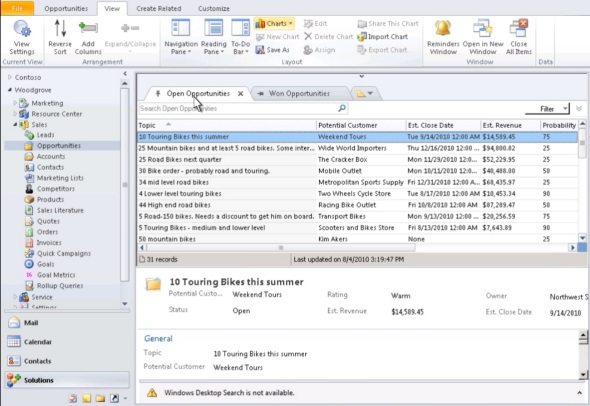
“We’ve got charts and dashboards!” Yes, ok, so that’s the common initial reaction to one of the most visible new features of Microsoft Dynamics CRM 2011. After playing around with the OOB charts in CRM 2011 Beta and building a few of your own personal charts with the simplified editor that’s available right in the end-user UI, the next reaction is likely to be “I wish I could do more with these charts“.

The good news is: you absolutely can! The bad news? It requires a bit of XML editing. Now don’t go running away all scared, because it doesn’t take a .NET developer to perform some basic tweaks into the CRM 2011 charts. Heck, even I was able to figure it out after an hour of surfing around the documentation and blog posts on Microsoft Chart Controls for .NET 4.
In this quick example I will take the a custom chart I built in the solution customization UI for CRM 2011 and inject some more parameters into it to enhance the presentation. The first thing we’ll need to do is select the chart you want to modify in CRM and click Export Chart to grab the XML definition for the chart.

Open the XML file in the editor of your choice and have a look at the structure. Inside the <presentationdescription> tag you’ll find details about the <Chart> in question. What we’ll want to do in this example is insert more attributes inside the <ChartArea> tags. From MSDN Library we can find the following piece of information:
The Chart control supports 3D charts. To use 3D charts, set the respective chart area’s Area3DStyle.Enable3D property to True.
So, we know we’ll want to have the <Area3DStyle> tag in there with some parameters. In my chart we can apply the following addition into the chart definition XML:
<ChartAreas>
<ChartArea BorderColor=”White” BorderDashStyle=”Solid”>
<AxisY IsLabelAutoFit=”False” TitleForeColor=”59, 59, 59″ TitleFont=”{0}, 10.5px” LineColor=”165, 172, 181″ IsReversed=”False”>
<MajorGrid LineColor=”239, 242, 246″ />
<LabelStyle Font=”{0}, 10.5px” ForeColor=”59, 59, 59″ />
</AxisY>
<AxisX IsLabelAutoFit=”False” TitleForeColor=”59, 59, 59″ TitleFont=”{0}, 10.5px” LineColor=”165, 172, 181″ IsReversed=”False”>
<MajorGrid Enabled=”False” />
<MajorTickMark Enabled=”False” />
<LabelStyle Font=”{0}, 10.5px” ForeColor=”59, 59, 59″ />
</AxisX>
<Area3DStyle Enable3D=”True” LightStyle=”Realistic” WallWidth=”5″ IsRightAngleAxes=”true” />
</ChartArea>
Once we save the XML file and import it into a new CRM chart, the results will be the following:

There you go, that’s all there’s to it. Or more specifically, that’s just the beginning of what the visualizations in Dynamics CRM 2011 are capable of. Have a look at the MSDN Library for Visual Studio 2010 on articles about using Chart Controls or browse the Chart Controls for .NET Framework forum for questions and answers on how to work with the charts available in CRM 2011. Downloading the Sample Environment for Microsoft Chart Controls might also be a good place to start.