Category: Features

  • Dataverse results inside Microsoft Search in Office, SharePoint, Bing

    Dataverse results inside Microsoft Search in Office, SharePoint, Bing

    Whether you are configuring Dynamics 365 Customer Engagement apps from Microsoft or building custom applications with Power Apps, often the solution design and implementation focuses too much on the data entry experience and not enough on data discovery. Yet it’s the process of searching for information rather than entering new records that consumes far more time in the lives of information workers.

    Throughout the history of my blog (originally “Surviving CRM”), topics such as the Advanced Find feature or configuration of views in XRM/CDS/Dataverse have been the most popular ones. To put it another way: a lot of people search for information on how to make search better in Microsoft business apps.

    While they are nothing like Google, Microsoft still has a wealth of R&D budget spent on search related services. Just because Bing isn’t what you’re likely using in your private life, that doesn’t mean you couldn’t benefit from the Microsoft Search infrastructure. Today we’ll explore how data from Dataverse environments can now be exposed in Microsoft Search.

    Enabling Dynamics 365 results in Microsoft Search

    The feature for showing Dataverse results in Microsoft Search was originally promised at Ignite 2021 in November, but on the release plans it has been postponed a few times. Now the ability for enabling search federation has appeared and the roadmap item for it says “GA in June 2022”. The feature appeared in a couple of tenants, so it’s time for a test drive.

    First you should ensure that these prerequisites for configuration are met. The modern Dataverse search needs to be enabled for the environment you want to target. Second, the search admin user account that you’re using to run the configuration must have both admin access and a valid Dynamics 365 license for the environment.

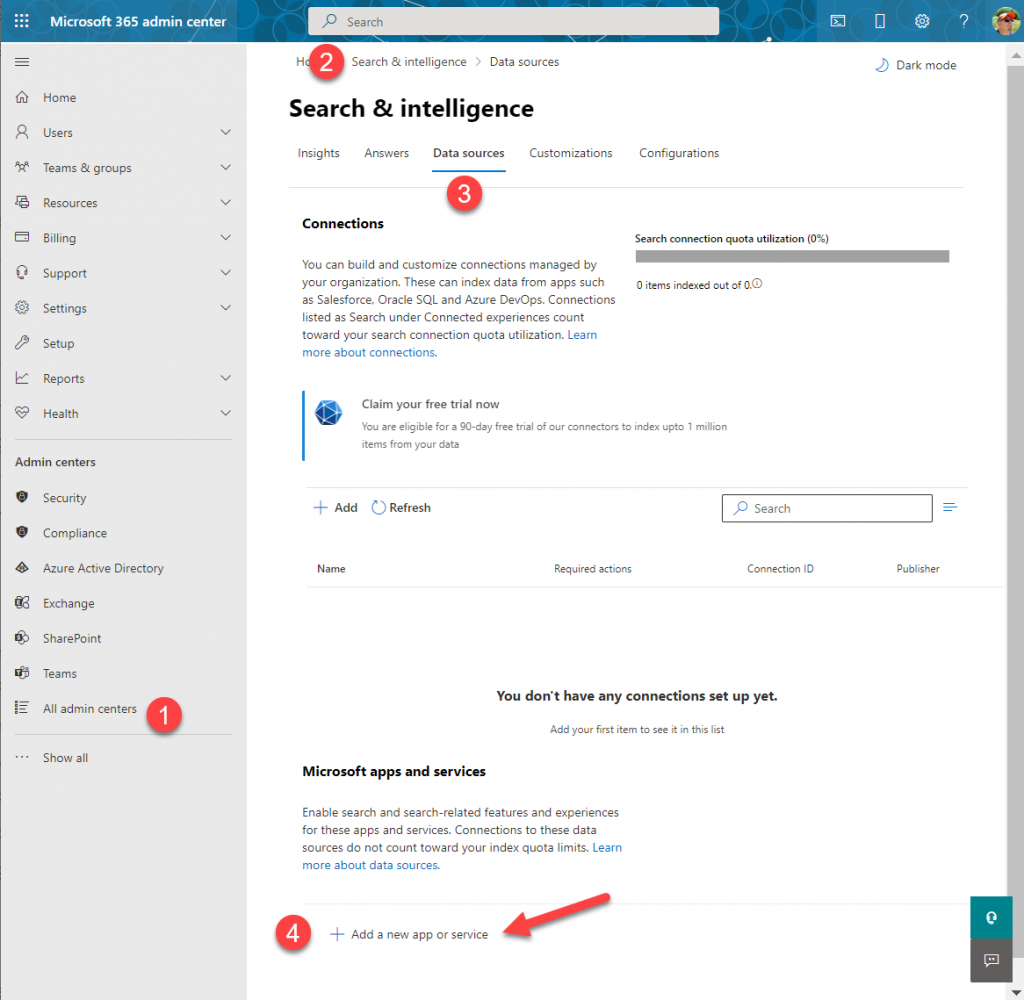
    Next you can proceed to Microsoft 365 Admin center. Go to “All admin centers”, choose “Search & Intelligence” and select the “Data sources” tab. You should see the section “Microsoft apps and services” that allows you to add a new app for search federation.

    What if that section does not appear? It may be that you don’t have a paid Dynamics 365 subscription in the tenant. The detailed requirements haven’t been documented by Microsoft yet, but based on my experiments, having just Dataverse with Power Apps premium licensing is not enough. Neither is a trial subscription for Dynamics 365.

    In the configuration section for Microsoft apps and services, it says that “connections to these data sources do not count toward your index quota limits.” If you’re not familiar with Microsoft Search, then the data sources accessible via Microsoft Graph connectors are indeed a paid service. With Dynamics 365 we’re seeing the search capability bundled into the product, but for things like Azure Data Lake, Azure DevOps or third party services like Salesforce or ServiceNow, you’ll need a Microsoft Search paid license.

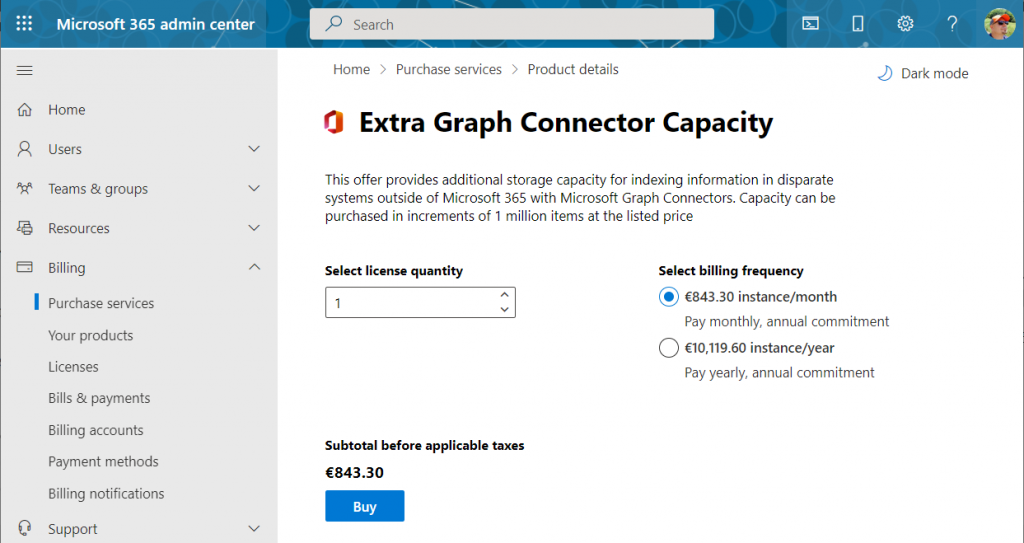
    If we were to use the paid features, how much would it cost? The required product can be found under “purchase services” in the M365 admin center – although not with any generic term like “search”, of course. You’ll need to know that SKU name is “Extra Graph Connector Capacity”. The minimum purchase is 1 million items and that would be around $1.000 per month, or in euro prices these sums below:

    If you had Microsoft 365 E5 or Office 365 E5 licenses, those would also accrue some index quota per each licensed seat, as shown here.

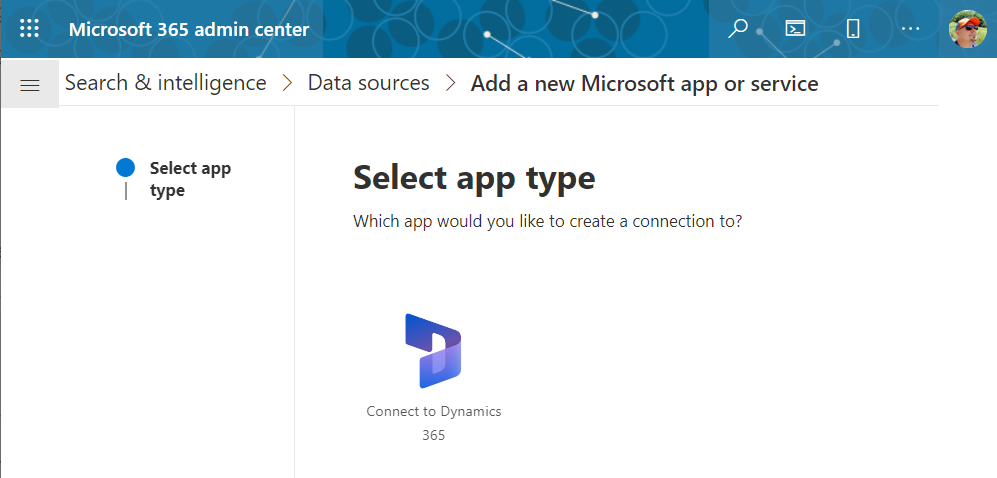
    Luckily we don’t need to make purchases since our tenant has Dynamics 365 Customer Engagement licenses in place. We can proceed to adding a new app under the Search & Intelligence data sources, by selecting the only supported MS app at this time: Dynamics 365.

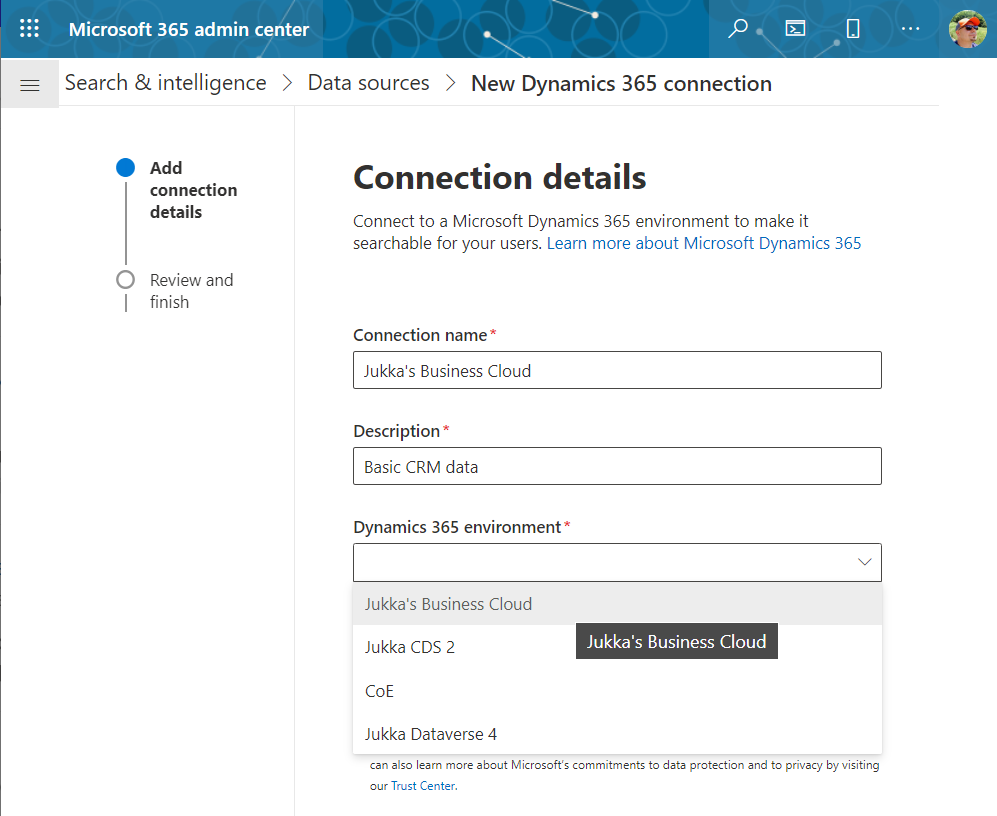
    Next we get to choose the Dataverse environment. Except not all your environments may be listed here. Why? I did not discover a valid explanation for it in my initial tests. Neither the environment type (sandbox/production) nor existence of Dynamics 365 apps was the reason why environments didn’t always show up. Oh well, let’s proceed with what we’ve got and pick “Jukka’s Business Cloud” that contains the core CRM data in this tenant.

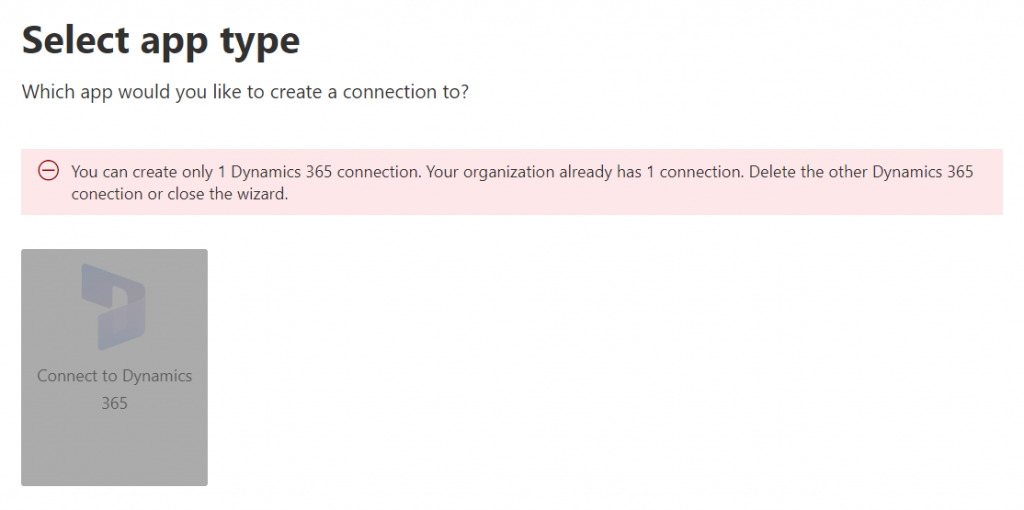
    If you’re wondering whether you could configure data from multiple Dataverse environments from your tenant to show up in the Microsoft Search results, the answer currently is: no.

    Once you’ve added the data source, it can take a while before the results will appear in the search experience. In our production tenant this took less than 30 minutes, in my personal tenant it’s been ~2h and nothing yet. MS says it can take 24 hours before the indexing is complete. Patience is a virtue – if you’ve got some to spare. I’ll just hop over to the production tenant now and explore the end user experience.

    How Dataverse records show up in Microsoft Search

    The users will discover the results from the previously configured Dynamics 365 connection when they access search either in Office.com, SharePoint Online or Bing. The UI to get to those results varies slightly, but the listed results from the Microsoft Graph connector seem to be identical.

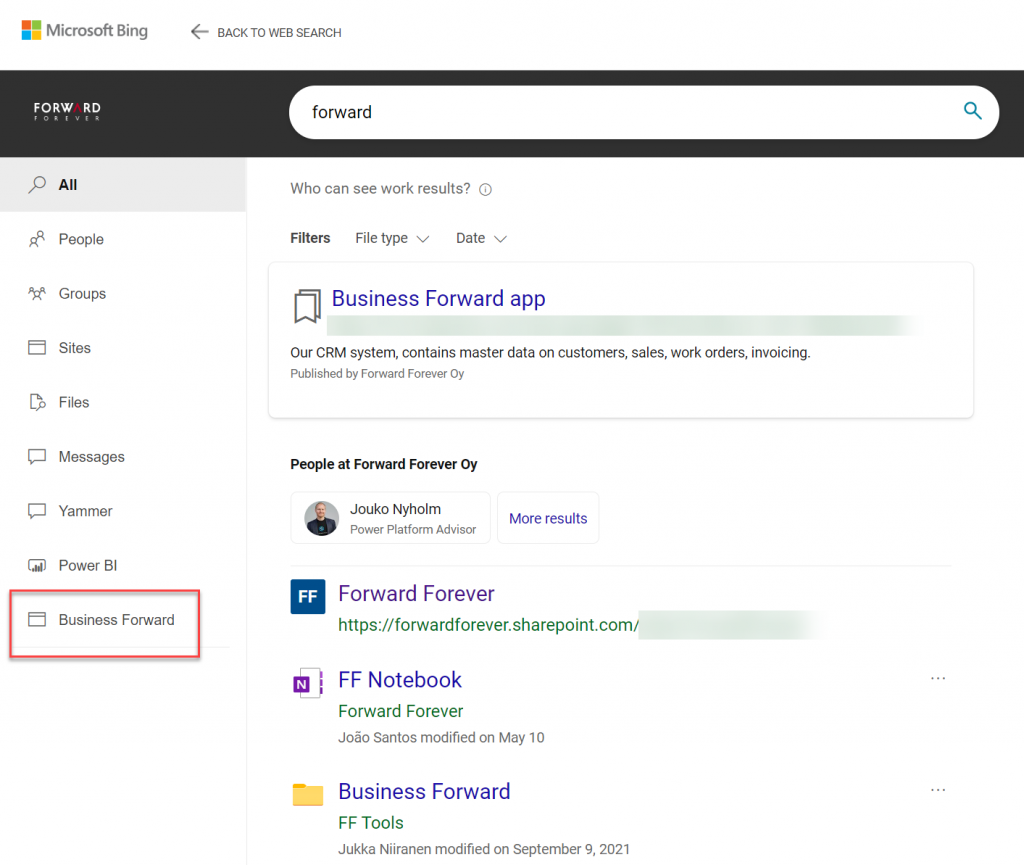
    Obviously in Bing you need to be signed in and access the Work tab that switches you from the public web search to the internal results from your work tenant. In addition to all the regular results, plus custom search bookmarks like the one you see below, there will be a new tab to represent the “search vertical”. In the case of our production tenant, I named it “Business Forward” as it is the primary app used in our production Dataverse environment.

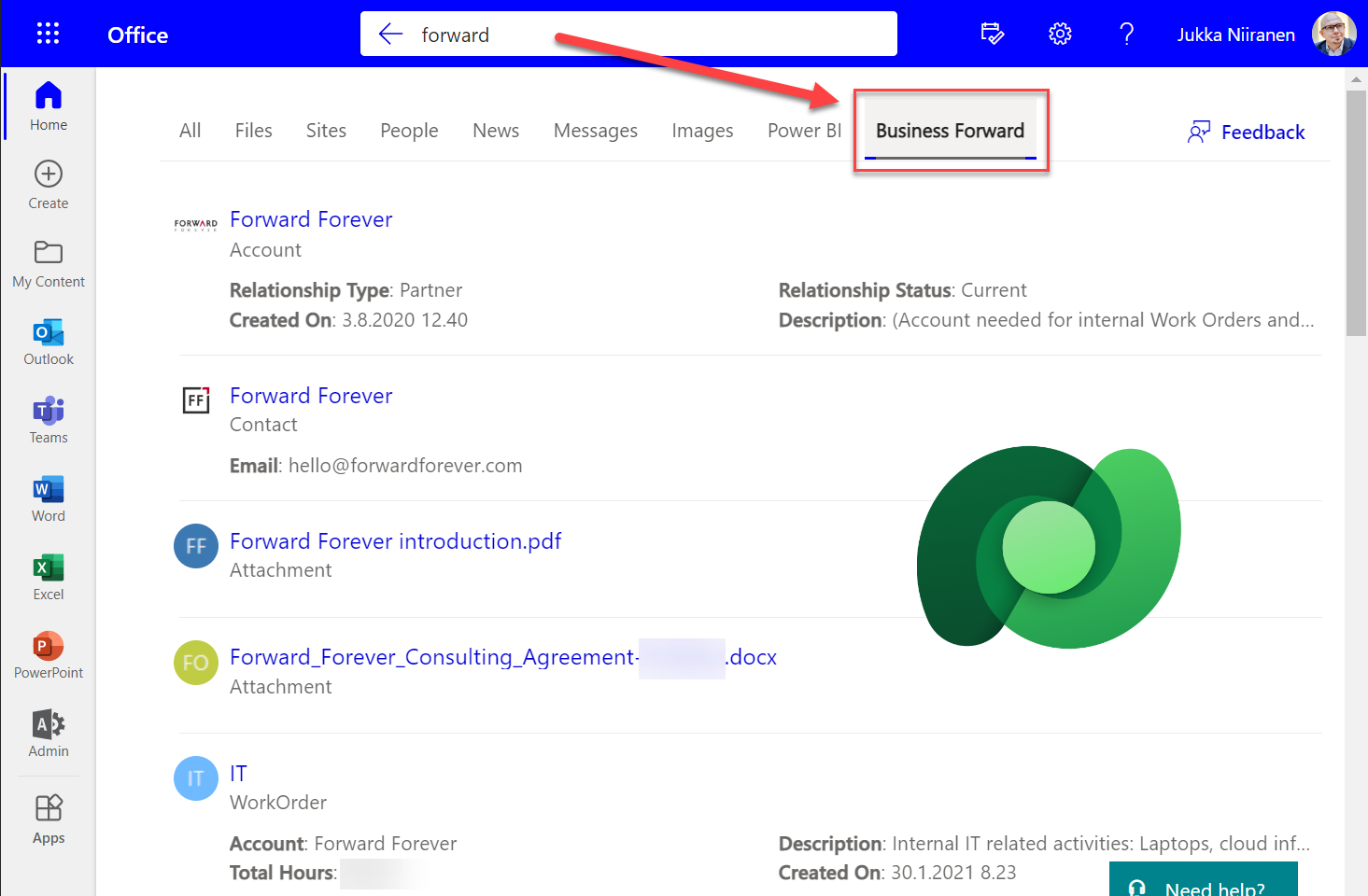
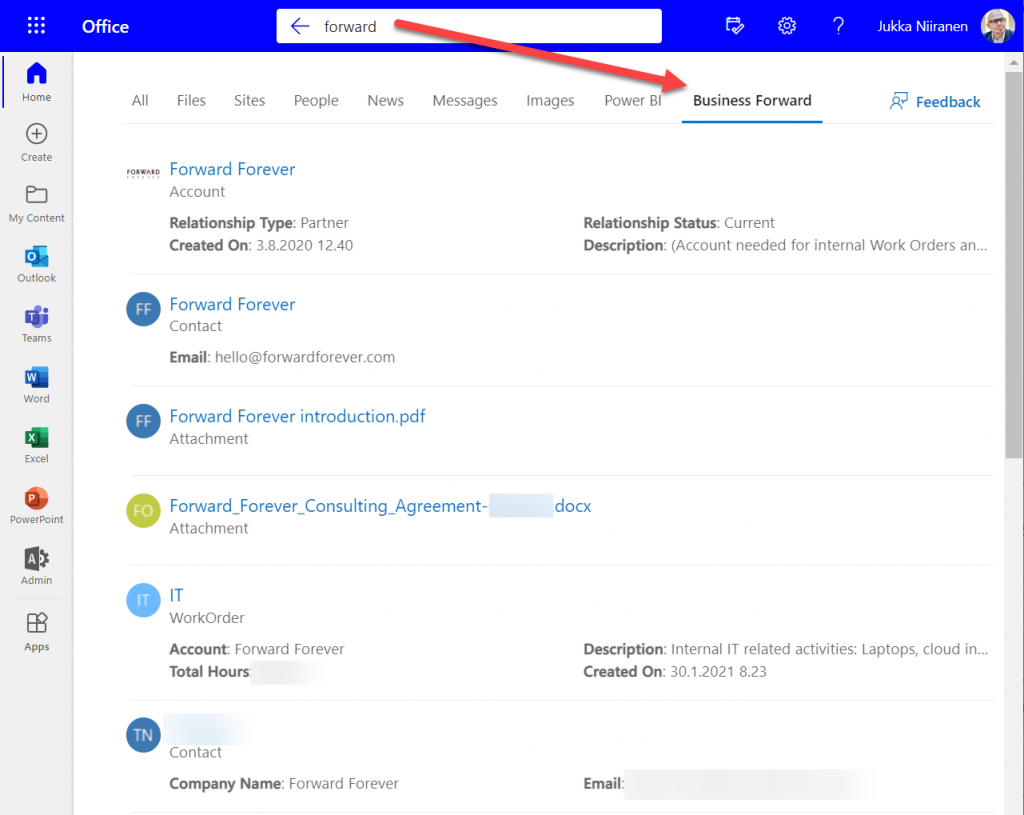
    I personally am more likely to leverage these search results from under Office.com. Here’s an example of what data is pulled from the Dataverse environment for a basic query term “forward”:

    We immediately see that the results cover both standard tables from CDM like accounts and contacts, but also custom tables like our work orders that are managed in Dataverse. We see a preview of fields from the matching records, which varies based on what columns are non-empty for each row in the corresponding Quick Find View.

    Configuration of the searchable fields is done in the Dataverse search settings, which the Microsoft Graph connector for Dynamics 365 then respects for each table. This means there’s very little to be configured on the Microsoft Search experience specifically. You really only decide A) which 1 environment to point it at, and B) what name do you want to show in the search vertical in Office.com, SharePoint, Bing.

    Dataverse in-app search vs. Microsoft Search experience

    Now that we have enabled the discovery of Dataverse data from within Microsoft Search, should that become the recommended entry point for all your business data searching needs? The answer to this is: through Microsoft Search you’ll only get a subset of search features that are available in a full model-driven Power App. Whereas with Microsoft Search you may well get close enough results, the detailed search capabilities are better within Power Apps native Dataverse search.

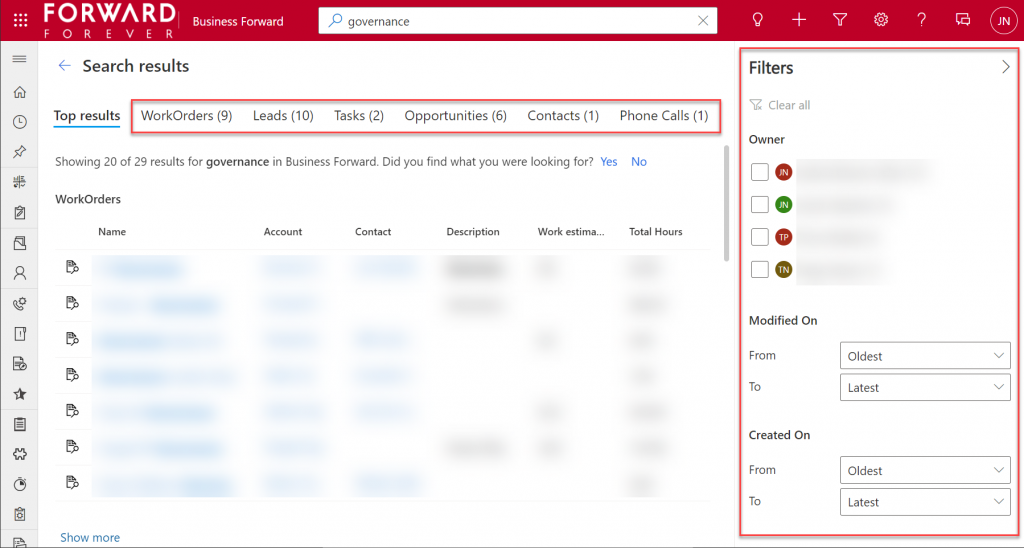
    If I enter a search term like “governance” into Office.com search bar, I’ll get a long list of results that I can not filter nor sort in any way. When I do the same search inside our Business Forward app (a model-driven Power App on Dataverse), I get the results tabbed per specific tables that allow me to narrow the query by record type. Also the filter pane gives access to owner and date filters, which get even more detailed as I select one specific table from the results.

    Another feature that can be a welcome addition is that the Dataverse search within the app UI covers only the tables included in that app. This can lead to search challenges in a larger Dynamics 365 environment that covers multiple different processes.

    For example, our production environment covers not only our CRM info on customers, sales etc. but it also hosts our internal IT Asset Management solution and its data. Now, if I search for “Nokia”, the results could include both the account management data related to Nokia Corporation as well as Nokia smartphones (from HMD Global) that our team members have registered as their IT assets. Sure, all results are filtered based on security roles and won’t reveal any data to unauthorized users, but anyone with broader access to Dataverse will also get broader, nonfilterable results with Microsoft Search.

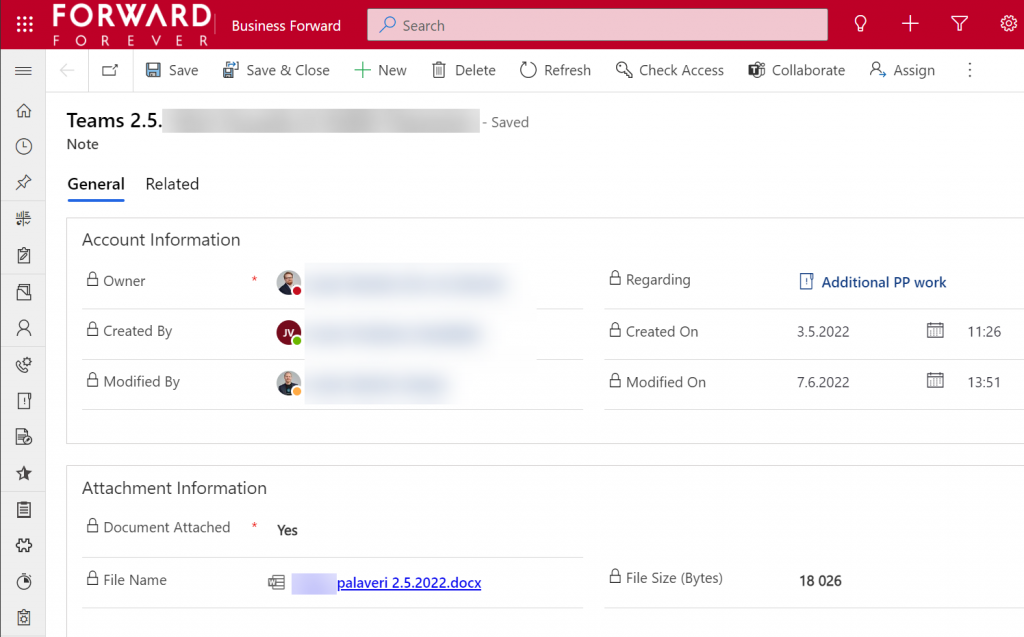
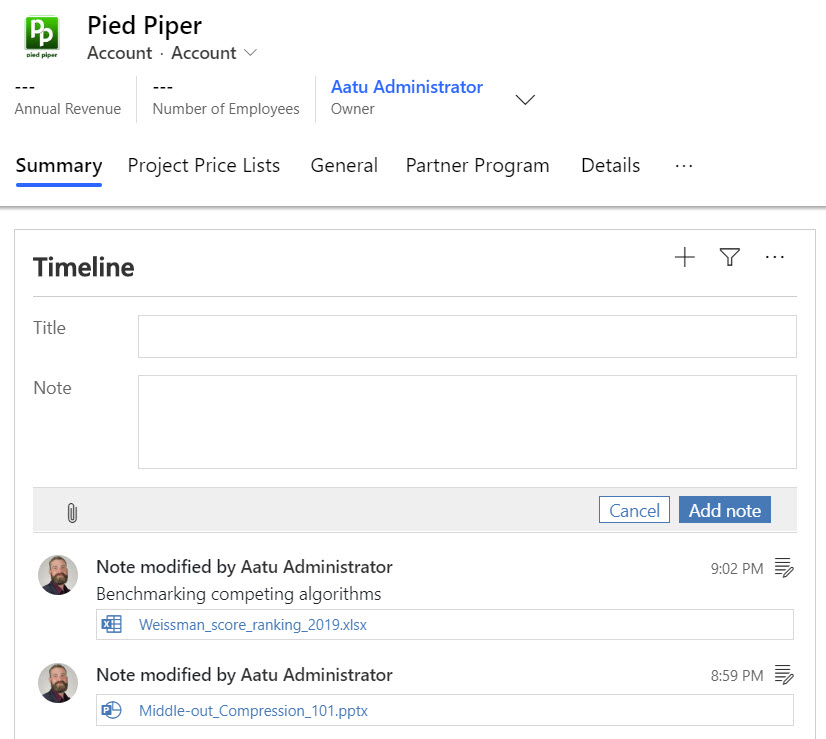
    Sometimes you may get more results from Microsoft Search than from within Power Apps, because of the way documents stored in notes and attachments get indexed. I even discovered that the note record (annotation) which traditionally hasn’t had any user accessible table form in the native UI can actually be opened independent of the parent record. The form of a note is very nice and readable, providing a link to the related document:

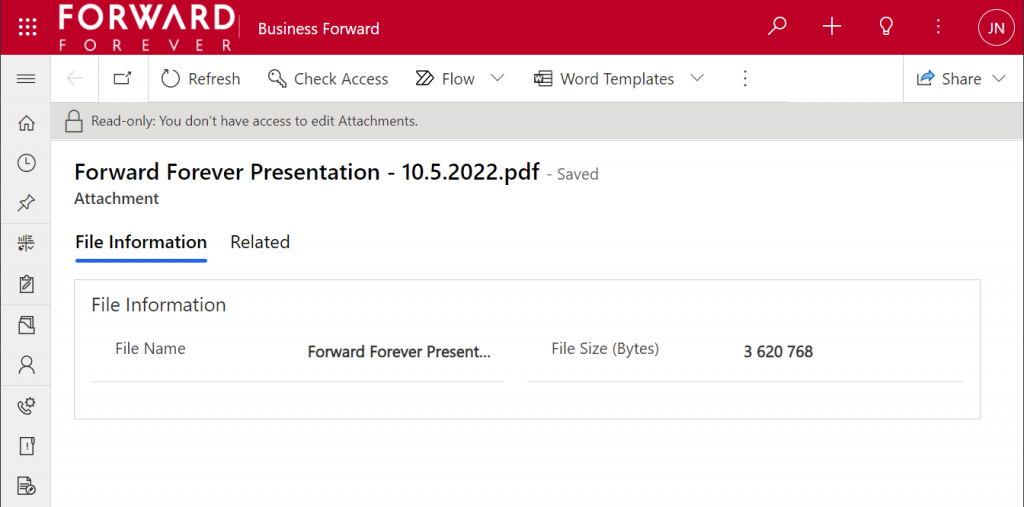
    Things aren’t quite as awesome when it comes to attachments of email records. While these also open a form within a model-driven app, the attachment table form doesn’t offer any link to either the document or the related email message from where the file could be opened.

    The many faces of Dataverse search experiences

    It’s really awesome that we’re now seeing the mainstream search capabilities in Microsoft cloud services reaching into the domain of business applications with these out-of-the-box capabilities. The investments that Microsoft has made into Dataverse Search as a service that isn’t just for doing freetext search inside your CRM system is starting to pay off. Just like makers can tap into Dataverse Search from within Power Automate actions, now information workers can do simple queries into enterprise systems from within Office experiences.

    In its current state, with support only for Dynamics 365 customers and only a single environment per tenant, the Microsoft Search experience isn’t yet as powerful as it could become. Covering the Power Platform use cases where business data is managed in various environments and via specific custom apps would be a logical direction to broaden Microsoft Search with a true low-code platform story.

    The way I see it, the search experiences for business data managed within Dataverse are being developed in three separate areas:

    1. Free text search: building search indexes that cover several sources/tables, with multiple entry points (in-app, Office, flow, APIs), evolving into support for natural language queries and supporting conversational UIs (Teams chatbots etc.). This is the area where Dataverse Search and Microsoft Search are operating.
    2. Structured queries: building complex query criteria to filter the rows in a specific Dataverse table. “Show accounts with orders in last X months and no activities from members of sales team Y”. The Advanced Find feature and the FetchXML query language have traditionally covered this front. The modern advanced find experience is making these filters easier for casual app users to approach, while FetchXML is still alive (now available for download in the UI) and can help flow makers design complex queries more efficiently, for example.
    3. References: the next generation of “set regarding” features are aiming to broaden the traditional scenario of associating emails in Outlook with records from CRM. If the MS vision for Context IQ comes to life, we should be able to at-mention basically any record from a Dataverse environment and collaborate interactively on it via Loop components. Similar to the Microsoft Search initial limitations, it will be interesting to see how the lookup field experience can be optimized with machine learning algorithms when all records in a large tenant are behind a single @ symbol…

    Returning back to what I mentioned at the start of this blog post, as a solution designer it’s very important to understand all these different means through which users can search for your business application’s data. There’s a lot you can do by configuring the settings in Dataverse views to make the experience enjoyable for the user.

    Studying the Dataverse search documentation is a good start. However, it’s all just theory until you have some actual data and real user interfaces to test the usability of your search configuration with. What this means is that you’re unlikely to ever get all the settings right in the V1 release of your app. In practice the user experience for business data search requires attention throughout the lifecycle of your app. Microsoft will continue to change and expand the ways in which search queries and results are handled, so you better keep up with these new features and explore what configuration options are being introduced in the future, too.

  • Share links with access to records in Model-driven Power Apps

    Share links with access to records in Model-driven Power Apps

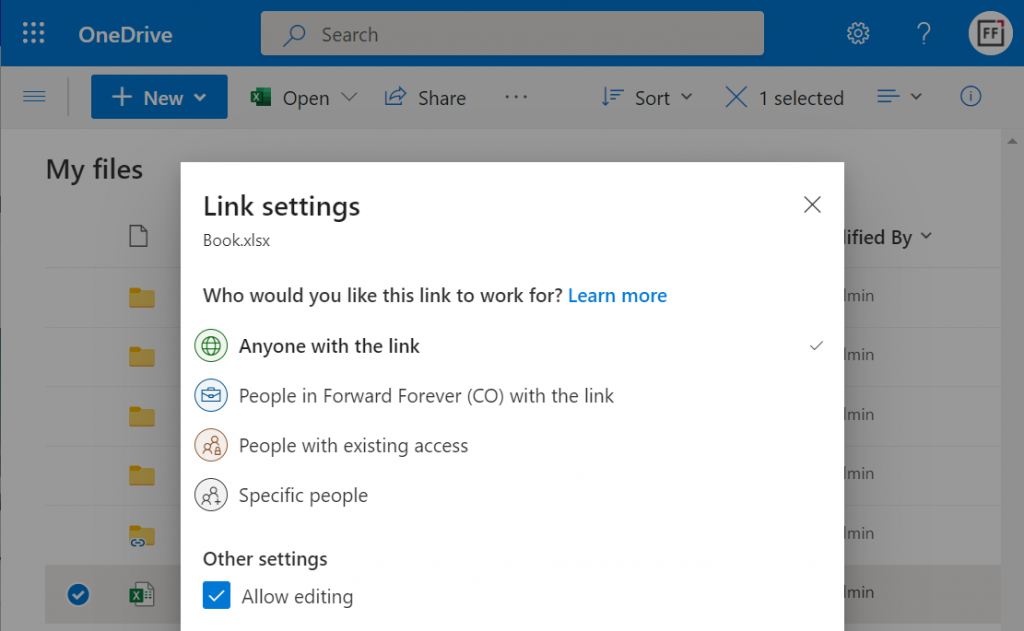
    Microsoft has been working towards a unified sharing experience across their cloud products. The dialogs that many are using today in Microsoft 365 services like SharePoint and OneDrive for sharing access to files is also finding its way to Power Platform.

    The visible UI in a sharing dialog is only one part of the experience. Knowing what the traditional sharing experience for Dataverse records has been in Dynamics 365 and what the underlying security model consists of, the new direction can present a few surprises for app makers and admins.

    For example: did you know that a user without any visible security role may be able to read the data of certain Dataverse records? Wow! That goes against everything we’ve learned about security modelling in the good ol’ XRM era. Sounds like something worth investigating a bit deeper then.

    Enabling the sharing links

    Since the new sharing functionality can have a big impact on the security model of your business apps, this capability needs to be consciously enabled by the administrator. I haven’t yet come across the official Docs materials for the feature. Presumably this page is where the details will eventually be published. For now, this blog post is based on my experiments of what you need to have in place (by minimum).

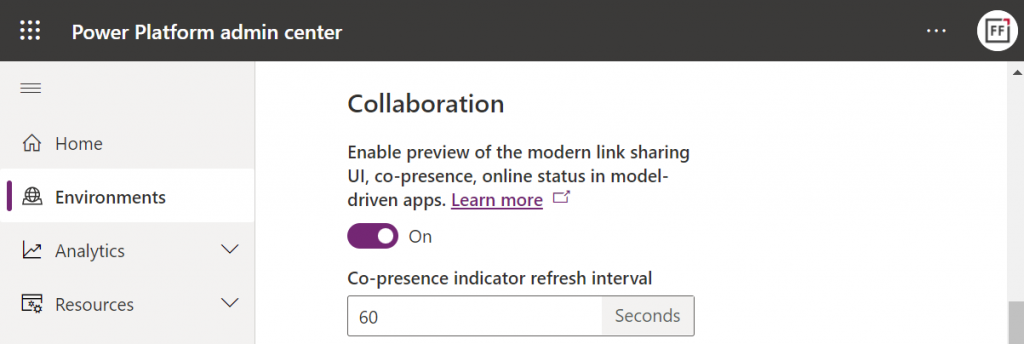
    First, you need to enable the collaboration feature in the environment settings via Power Platform Admin Center (PPAC):

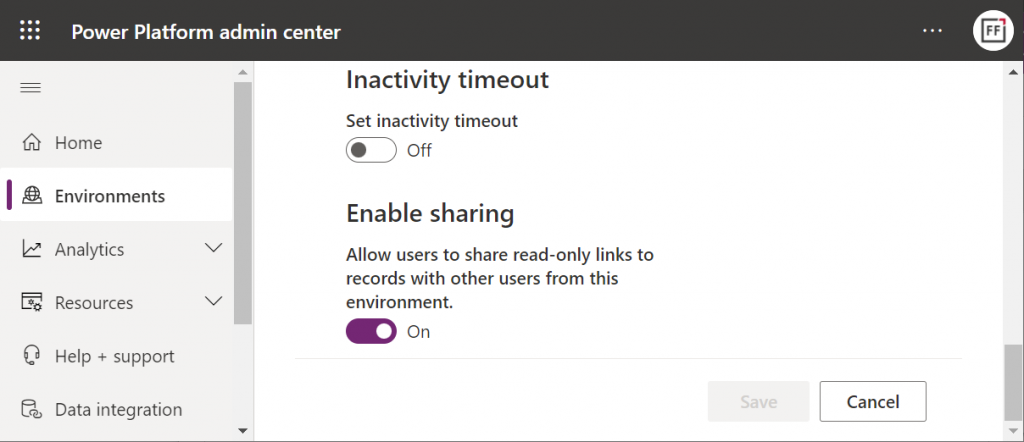
    Next, you should go to the Privacy + Security page of the same environment and switch “enable sharing” to on:

    As the message says, this should “allow users to share read-only links to records with other users from this environment.” I managed to get this working in a couple of different environments in our tenants, yet another demo tenant in the same European geo refused to co-operate. So, don’t be surprised if you see different results in your environments at this point.

    The link sharing experience

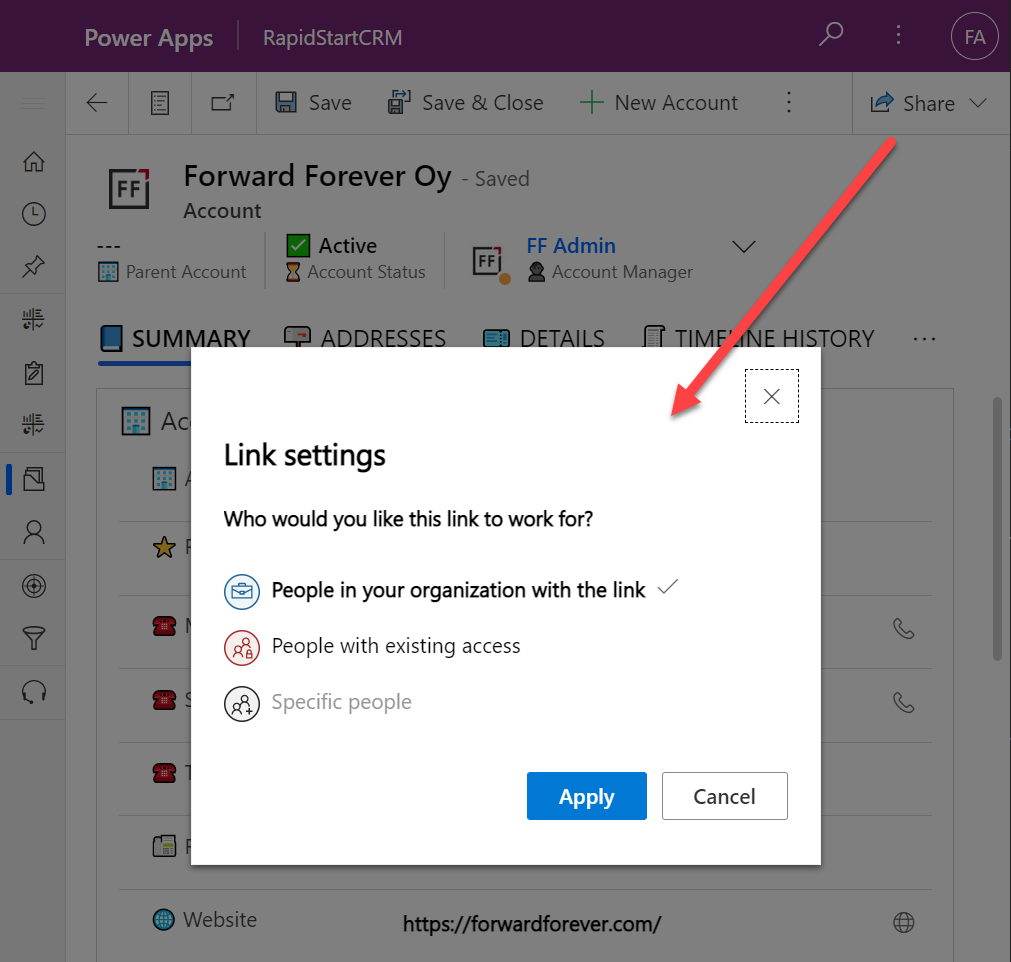
    Now that the features are turned on via PPAC, you should be able to go to a record like an account in a model-driven Power App and discover the new sharing menu in the top right corner of the form. Selecting “copy link” will give you a standard link that is the exact same URL as you’d get from the browser’s address bar. That’s because it’s meant for “people with existing access”.

    Once you click on the chevron and explore the link settings, there should be more options available (assuming the environment settings applied earlier have taken effect). Let’s select the “people in your organization with the link” option this time:

    Now we get a URL that is appended with parameters “shareLink” and “sig”. These are the magic keys to authorize someone who does NOT have existing access to the record in Dataverse.

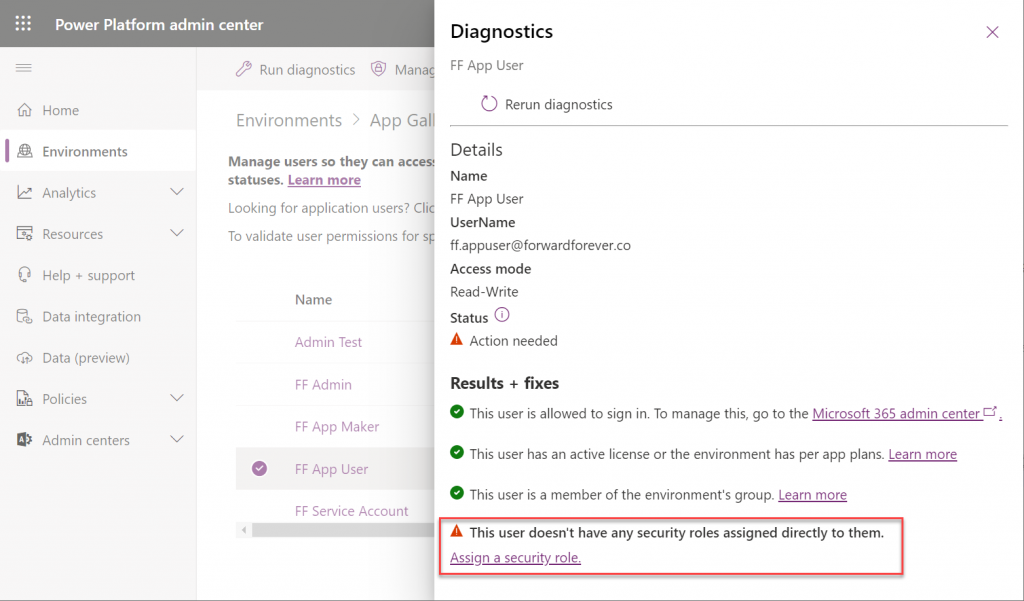
    To validate how the feature actually works, I used our sandbox tenant’s user account FF App User as the guinea pig. First, as an administrator I went and removed any existing security roles for this user from the environment. Then I ran the diagnostics test from the user list in PPAC. A warning was displayed, saying “this user doesn’t have any security roles assigned directly to them”. Looks perfect for our testing purposes.

    (I actually also removed the license, yet that didn’t get flagged in the diagnostics test. Oh well, we all know how mysterious the license assignment and validation in Power Platform can be, so let’s ignore it this time.)

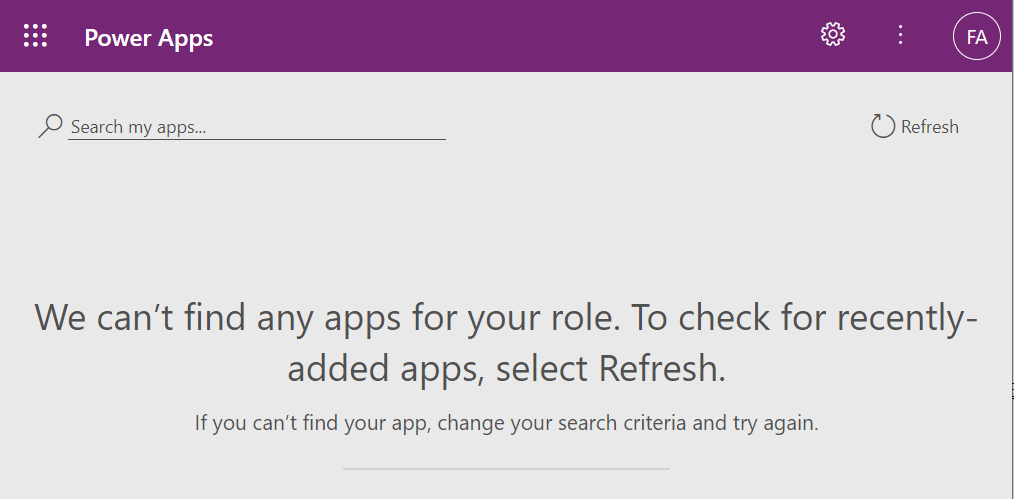
    Opening the naked URL of the Power Platform environment with this user account resulted in a screen saying “we can’t find any apps for your role”. Under normal circumstances, this would be the end of the road for a user.

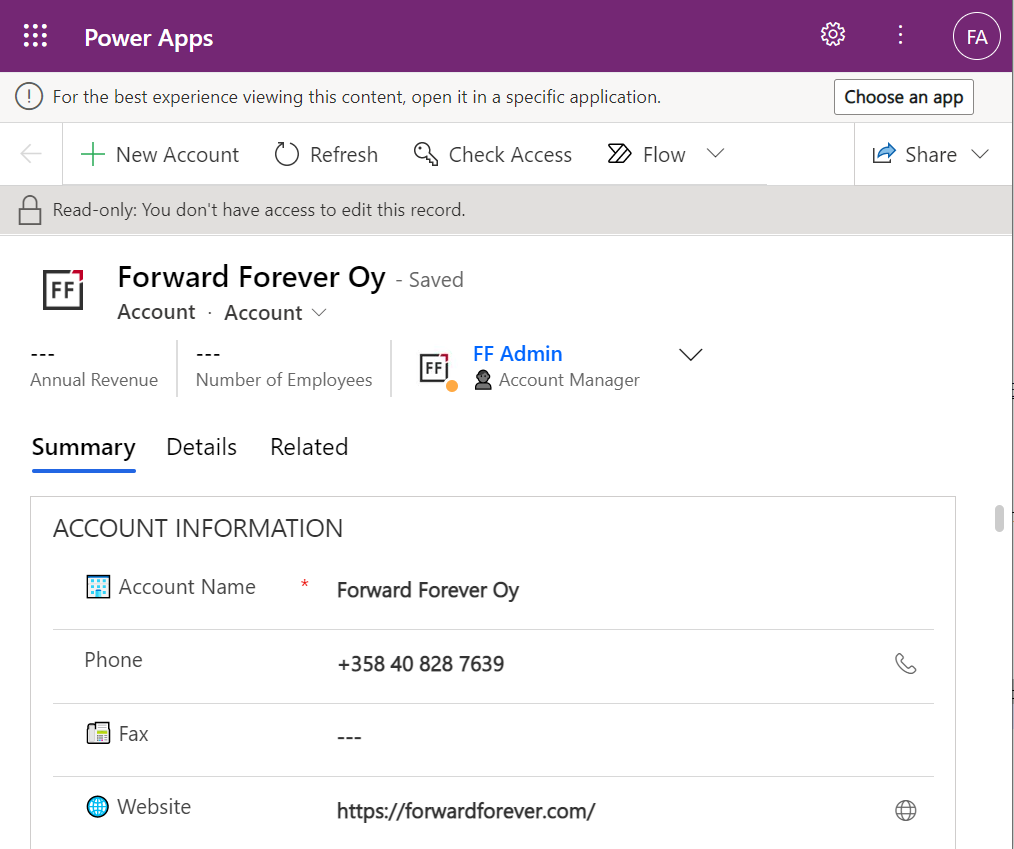
    This user has a special trick up his sleeve, though: the sharing link with the secret access code parameters. Using it allows us to open the account form outside any Model-driven app module. Yes, it’s read-only as the feature’s description text suggested, but from a viewing perspective this record form seems fully functional.

    How far do the sharing rights go?

    If we’d go back to our admin user’s profile and re-run the user diagnostics in PPAC, we’d see that there still aren’t any security roles assigned for the FF App User. Let’s visit the sharing dialog of the single record instead and go to “manage access”.

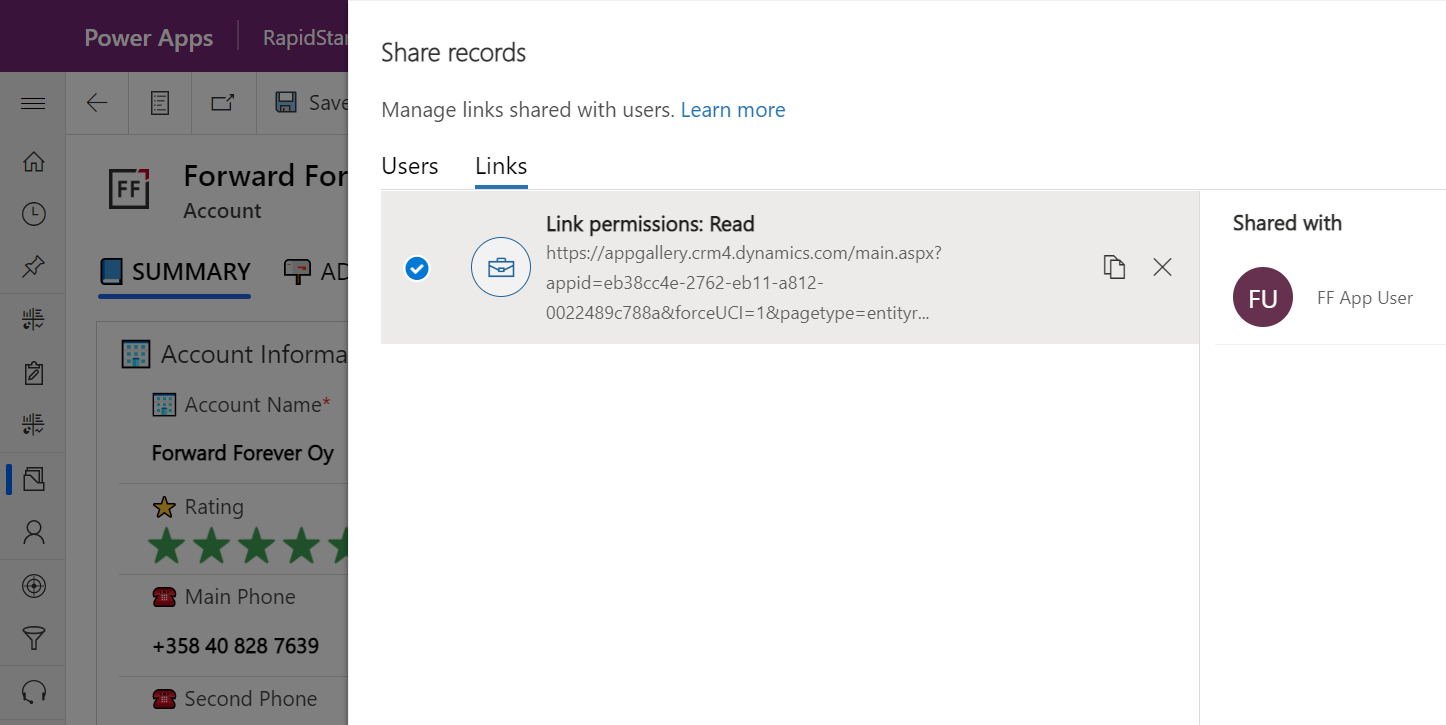
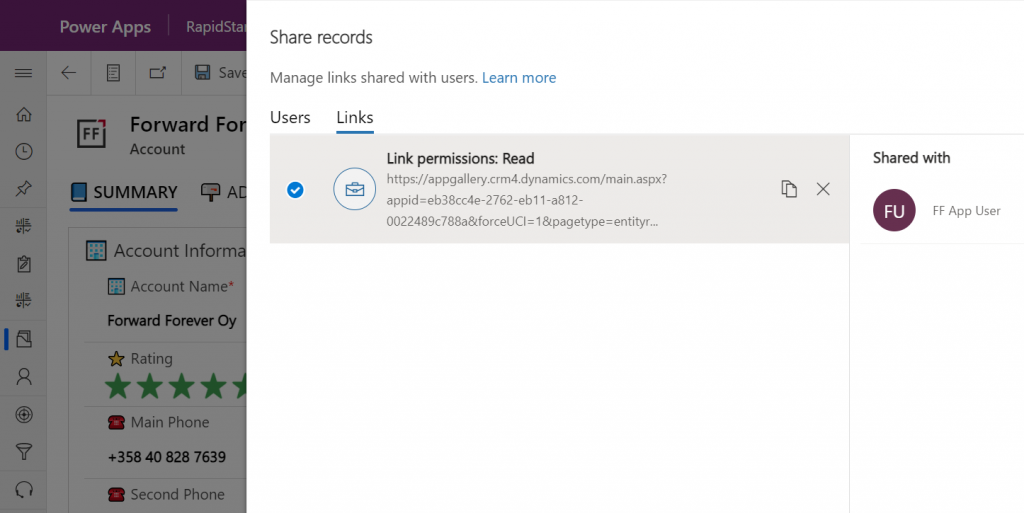
    This screen shows us that we have one sharing link generated for the account in question, with read permissions. Also, since FF App User has accessed the record via the link, the user account is listed under “shared with”.

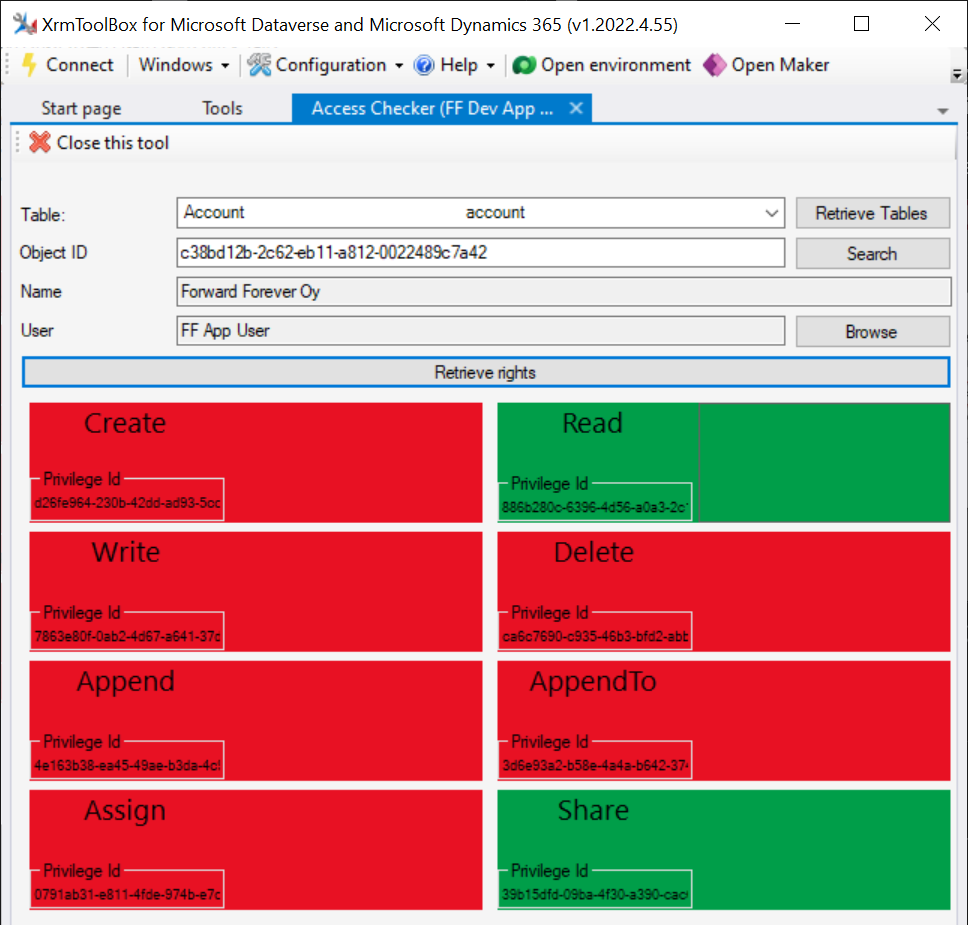
    Time to go deeper still, so let’s open XrmToolBox. Using the Access Checker plugin, we can run a test for the specific account record and the specific user account. We do indeed see that when called via the API, the user has both read and share privileges for this record:

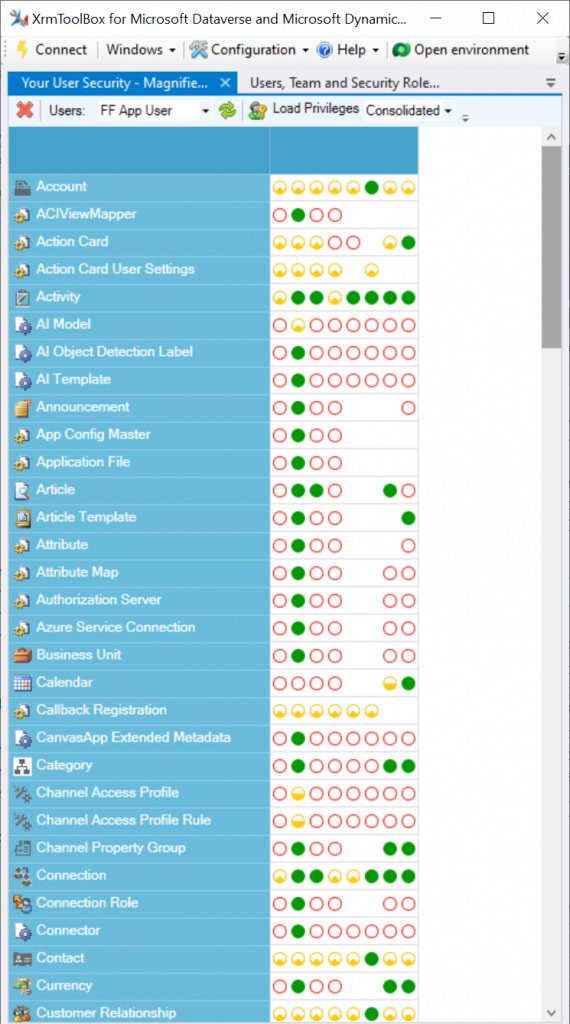
    Could we find out even more about how the privileges are applied? Sure! Another plugin in XrmToolBox, “Your User Security – Magnified”, gives us a very interesting output for the FF App User account:

    As many of you know, there are plenty of system metadata tables (entities) that the user must be able to read for the application to function properly. Things like “attribute” or “user” are therefore understandably opened up for the FF App User account upon sharing the record.

    There are plenty of real business tables listed in that output, too. Contact and activity, for example. While the privileges are granted only in the user’s scope (meaning only records that the user is an owner of), this made me go back and think: what else did we see on the account form when we opened that one record?

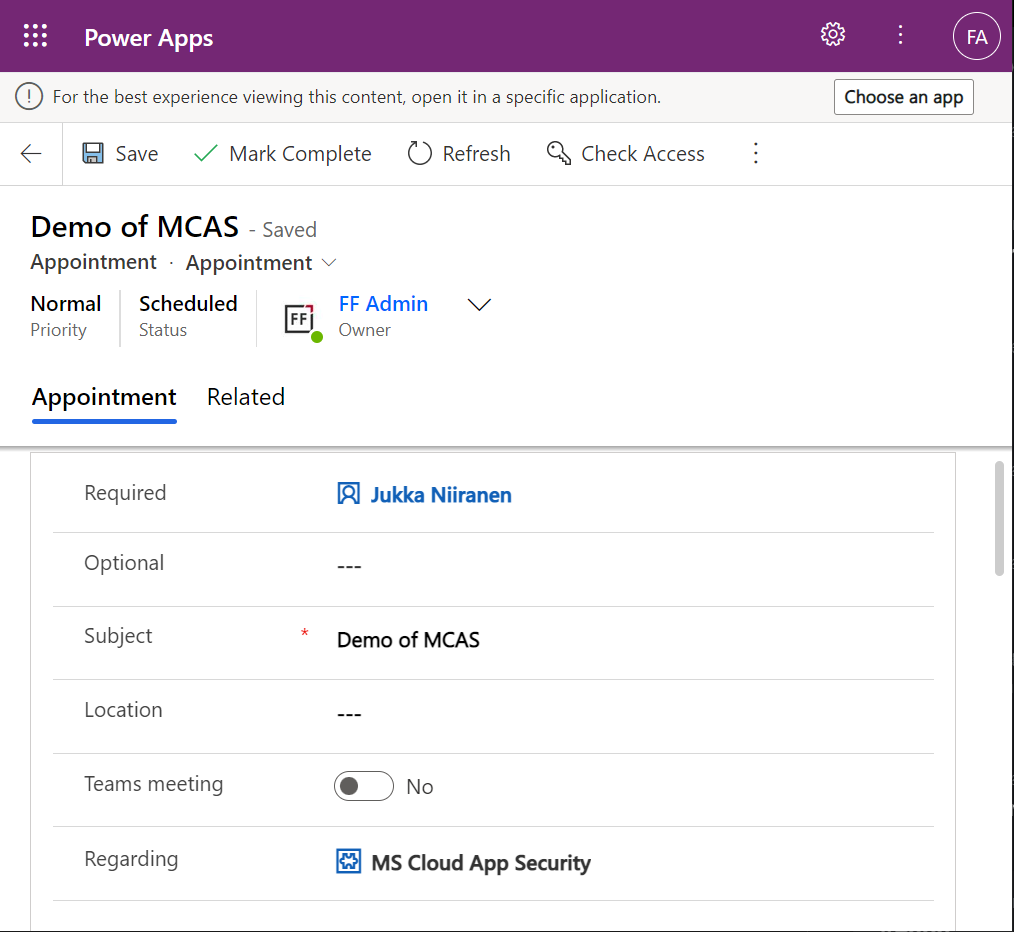
    Activities related to the account show up on the timeline. In addition, we’re able to navigate to their forms. We do also see the primary field values of anything that’s in a lookup, such as the regarding opportunity name.

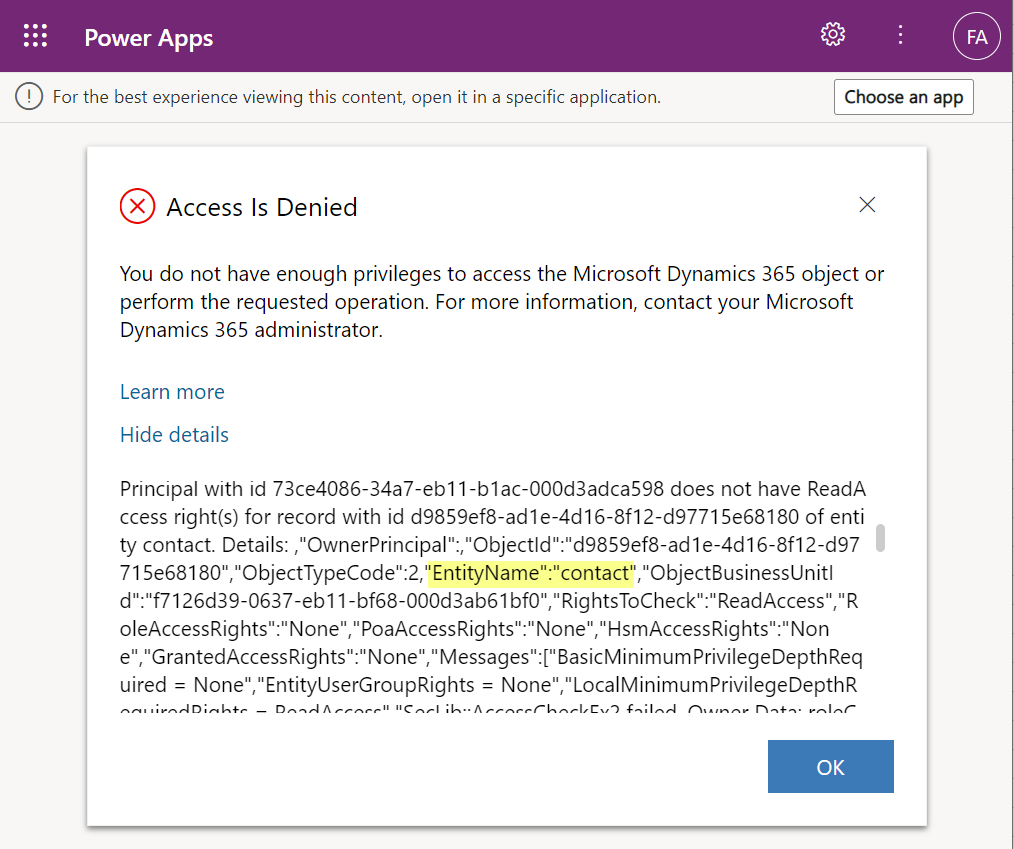
    Clicking on lookups, such as the contacts that are activity parties, will show an error message on missing read access rights. So, the security model is still enforced as expected, meaning we couldn’t just navigate via links to other records. It’s not just the lack of a surrounding app and its navigation that is missing from this user, there’s access checks also on the server side of course.

    It’s good to keep in mind that the modern collaboration features are currently enabled only for certain tables: account, contact, opportunity, case. There may be more configuration options ahead for how the sharing links work once the feature reaches general availability.

    Sharing within Microsoft Teams

    The primary scenario that these internal sharing links have surely been designed for is collaboration within Teams. Already back in July 2021 it was announced by Satya Nadella that “Teams customers will receive access to Dynamics 365 data within Teams at no extra cost.” We’ve been waiting for that possibility to arrive ever since.

    Given how the concept of sharing access to data has been radically different between a document world like SharePoint and a business record world like Dynamics 365, there has understandably been a lot of work needed to be done on the platform side. Now that the share links infrastructure appears to be in place, are we ready for the collaborative apps story to come to life?

    Although the sharing capabilities are a Power Apps feature, there doesn’t yet appear to be the needed pieces in place on the Teams side for any low-code apps to take advantage of record sharing. However, if we test the sharing links in a Dynamics 365 enabled environment and with the Dynamics 365 Teams app deployed for the user, things start to light up:

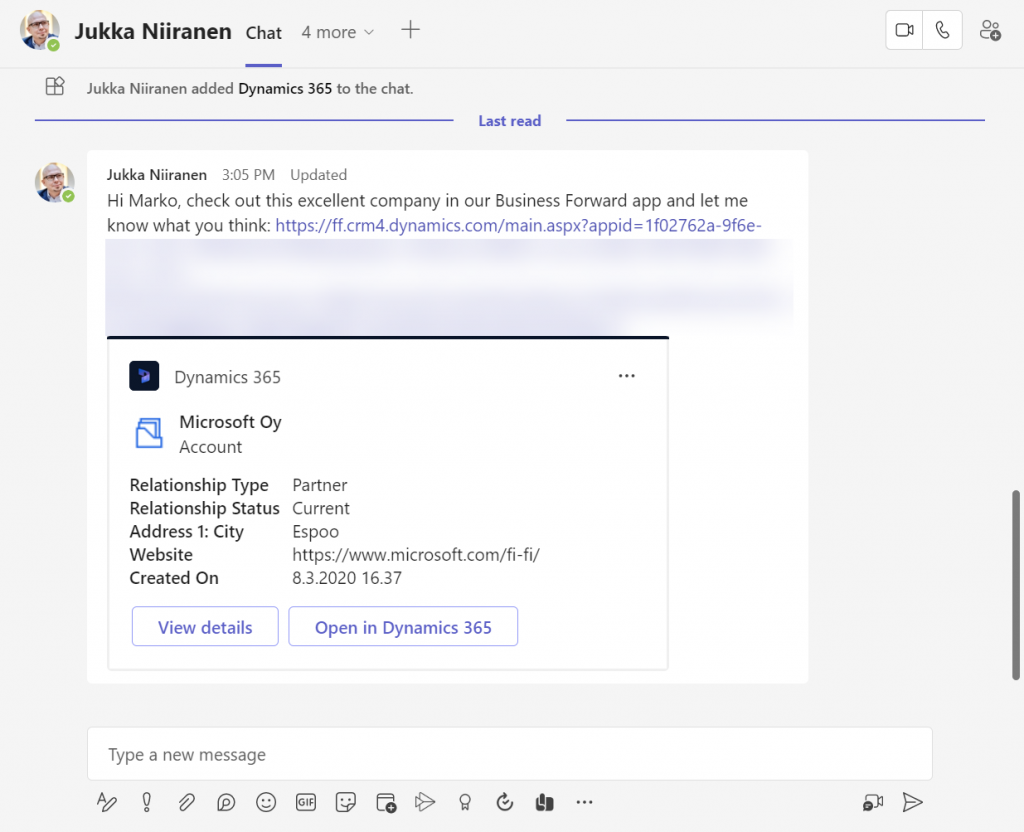
    Pasting the link into a Teams chat will now unfurl the contents and show an information card preview of the record. We also get the option to view the full record in the context of Teams, via the “view details” button. These are small yet important steps in allowing people to get work done within the platform that is Microsoft Teams, without needing to look for the details in another browser window.

    We’re still missing some of the elements showed by Microsoft as part of their collaborative apps story, like Context IQ for at-mentioning a Dataverse record or Loop components to embed live data into messages in Teams or Outlook. While we wait for a delivery timeline on those elements, at least this easy record sharing feature in Power Apps model-driven apps has a target GA date for September 2022.

  • Dataverse for Teams as your CoE platform

    Dataverse for Teams as your CoE platform

    If you’re serious about leveraging Power Platform low-code tools in your organization, then you definitely should be using the Power Platform Center of Excellence Starter Kit (CoE) from Microsoft. This is the best way to get an understanding of what happens in all the environments across your tenant – ranging from small experiments by citizen developers to enterprise wide systems running on Dataverse, like Dynamics 365 Customer Engagement apps.

    The latest CoE update is a big milestone, since it enables the installation of these tools into any Dataverse for Teams environment (DV4T). Why is this a big deal? Because it removes a few licensing blockers that might have previously stopped organizations from deploying the CoE or making the most of its capabilities.

    The first upside is you no longer need to consume Dataverse storage capacity for the CoE deployment. That isn’t actually such a big of a deal, since the CoE Starter Kit data usually doesn’t really take much storage space at all (unless you’ve got a huge enterprise tenant). A nice bonus from this is that you can now deploy CoE in a demo / trial environment with no paid capacity available.

    You still need some actual Power Platform licenses to run CoE, though. Remember: Microsoft 365 does not contain Power Platform licenses – not even at E5 level. From the CoE setup prerequisites, we can find the following statement about Power Automate licenses:

    If you are using the CoE Starter Kit in a Dataverse for Teams environment, a Power Automate per user license will be required for the admin running the sync flows. No additional licenses will be required for users interacting with any of the canvas apps.

    CoE setup prerequisites

    Now, the really big thing is that by using Dataverse for Teams as opposed to the full Microsoft Dataverse, every user with a Microsoft Teams license is allowed to interact with the CoE data and processes. This means that you can actually invite all citizen developers in your organization to participate in the governance practices and automations directly – regardless of whether they already have a premium Power Apps license assigned to them.

    If you only perceive Power Platform governance to be about restrictions and enforcement of policies by IT admins, then the differences between the old & the new model aren’t that big. If, on the other hand, you believe in the power that low-code has to democratize technology and make it accessible to every developer, be it a pro or a citizen one, then this Teams based deployment option is something you’ll definitely want to explore.

    Installation

    Let’s try things out in a new DV4T environment, to see how the deployment process differs from the traditional set up of CoE core components. There’s a different solution package aimed at the Teams deployment option. We’ll need to have an environment provisioned in our chosen team before the installation, so just create one dummy app if you’re using a new team for CoE purposes.

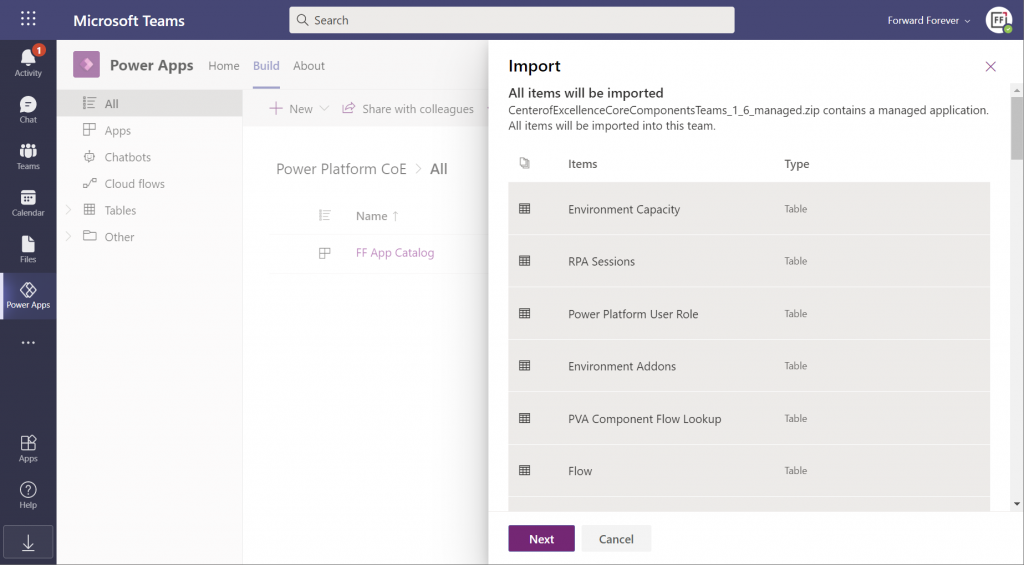
    The import (and export) options within the Power Apps app in Microsoft Teams have only recently been enabled. Importing the managed solution zip file into DV4T gives you a bit different experience than what we’ve been accustomed to in the Dataverse side, by listing all the items that are part of the import:

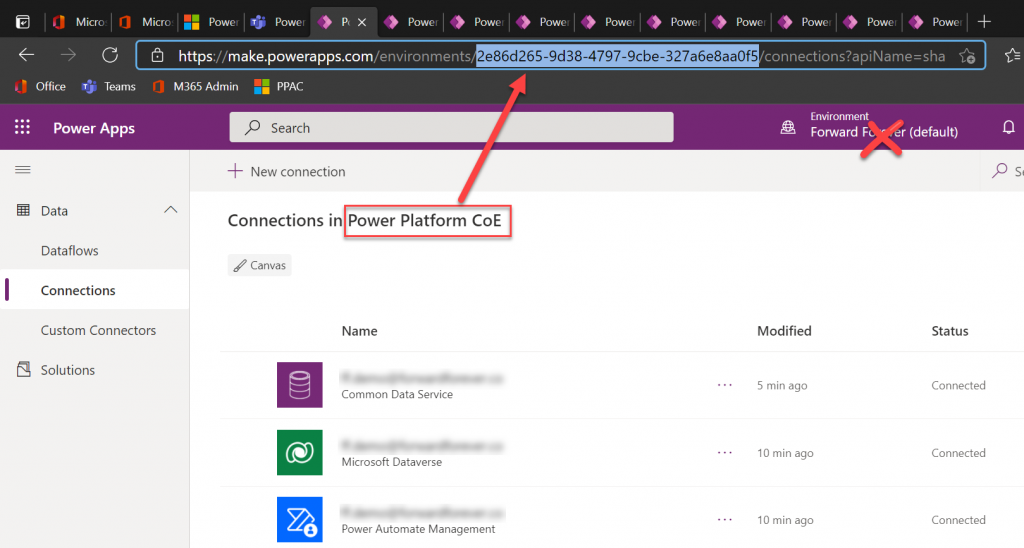
    Next we need to create a bunch of connections before proceeding further with the installation, to allow CoE to perform the necessary data retrieval through a wealth of APIs. This process will give you ~10 new browser tabs that show the traditional non-Teams version of the Maker Portal. A bit of a click show – but luckily there’s one upside to it.

    While you can’t open the DV4T environment directly in the Power Apps Maker Portal (as of now), you can hack the URL to get access to this full maker UI. So, as you’re adding all the required connections, grab the environment GUID from the address bar in one of the aforementioned tabs. Use that GUID to replace the zeros in the following URL:

    https://make.preview.powerapps.com/environments/00000000-0000-0000-0000-000000000000/home

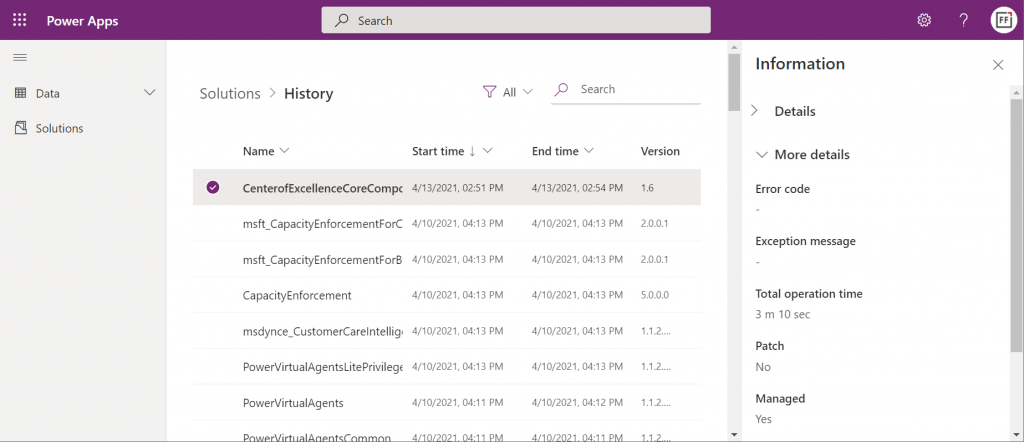
    Now you have a proper Power Apps browser tab that’s independent from Teams yet lets you browse through the environment’s components. For instance, we can go and check the solution history view, to verify that the Center of Excellence Core Components solution imported successfully in 3 minutes 10 seconds:

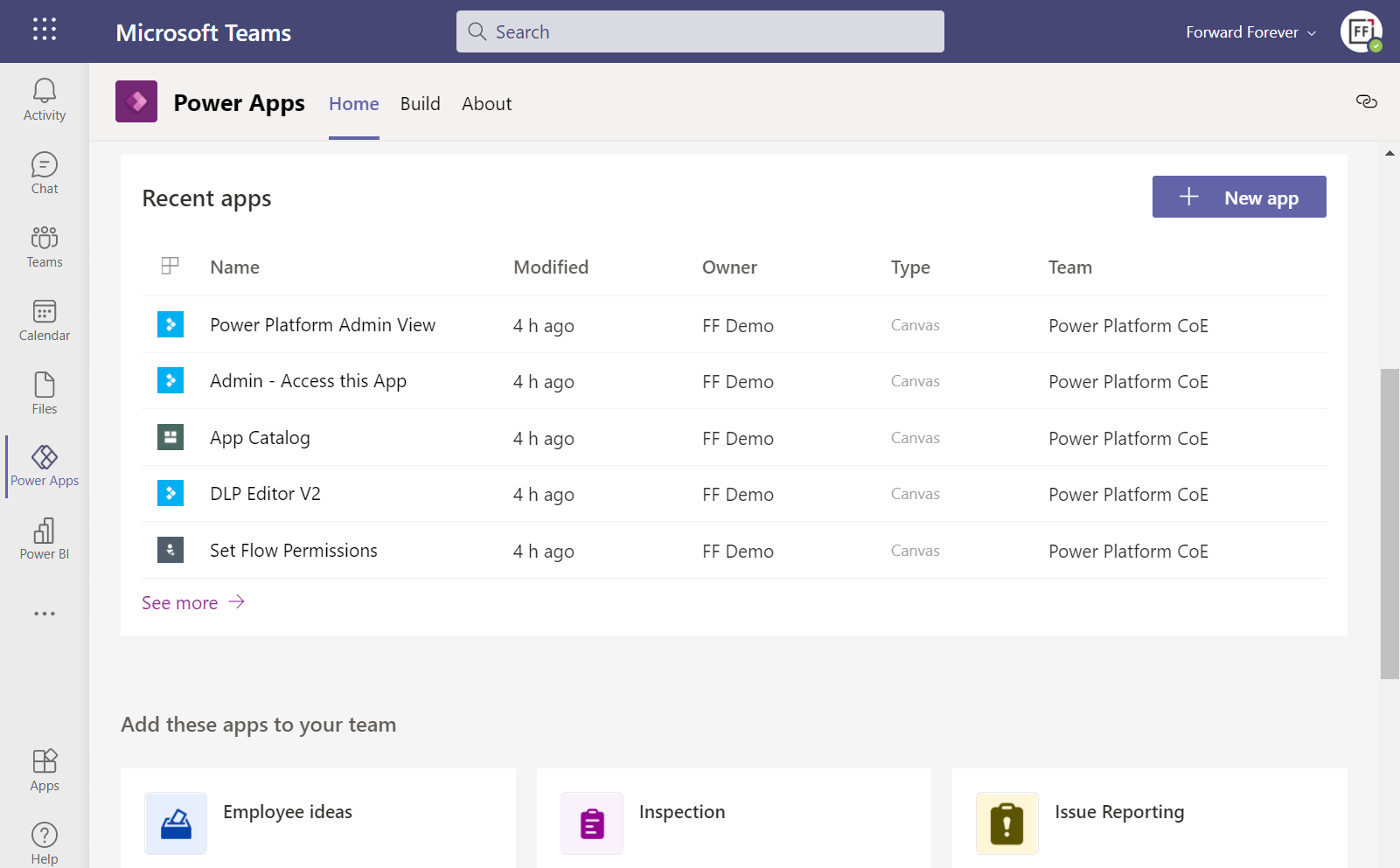
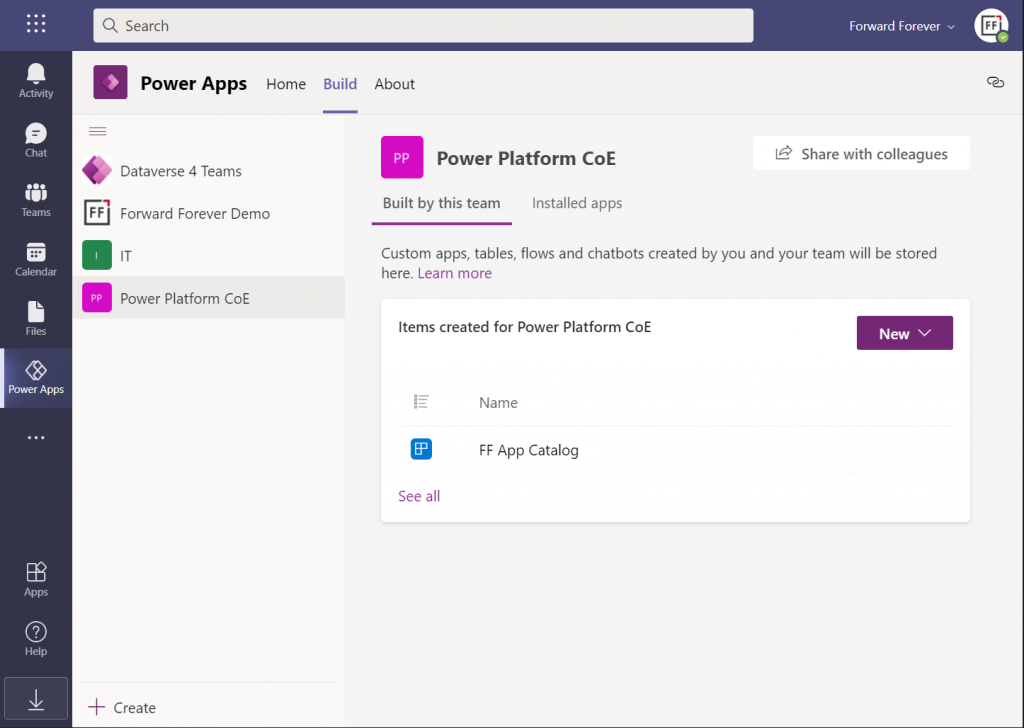
    Hmm, but why can’t I see anything yet on the Power Apps Teams UI? Even if I click “See all” then I only see that one dummy app I added earlier, to get the DV4T environment provisioned.

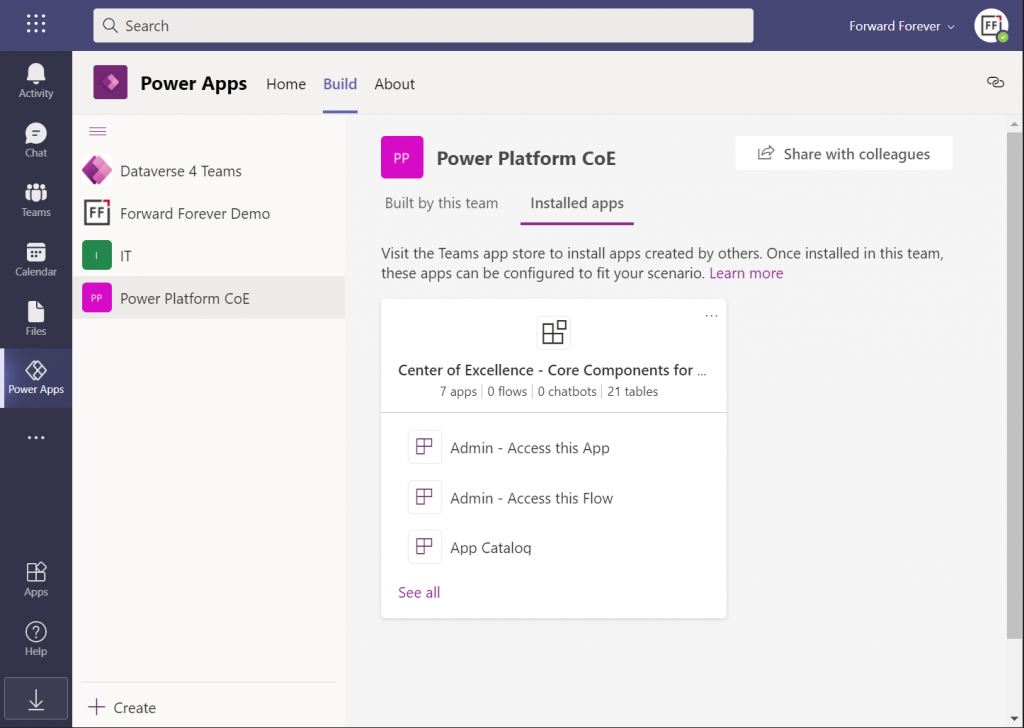
    The secret is in you choice of tabs within the Power Apps app. Specifically, instead of the “built by this team” tab you need to have a look at the “installed apps” tab. Ah! So, it looks like the managed solutions that you import into a DV4T environment are actually treated like Teams apps here – rather than just a list of components like we know them from the XRM era.

    In fact, while we can import solutions into DV4T, the whole concept of a solution package isn’t actually visible when viewing the world from a Microsoft Teams perspective. Also during the import process, we’re importing “a managed application” rather than a managed solution. Make of that what you will.

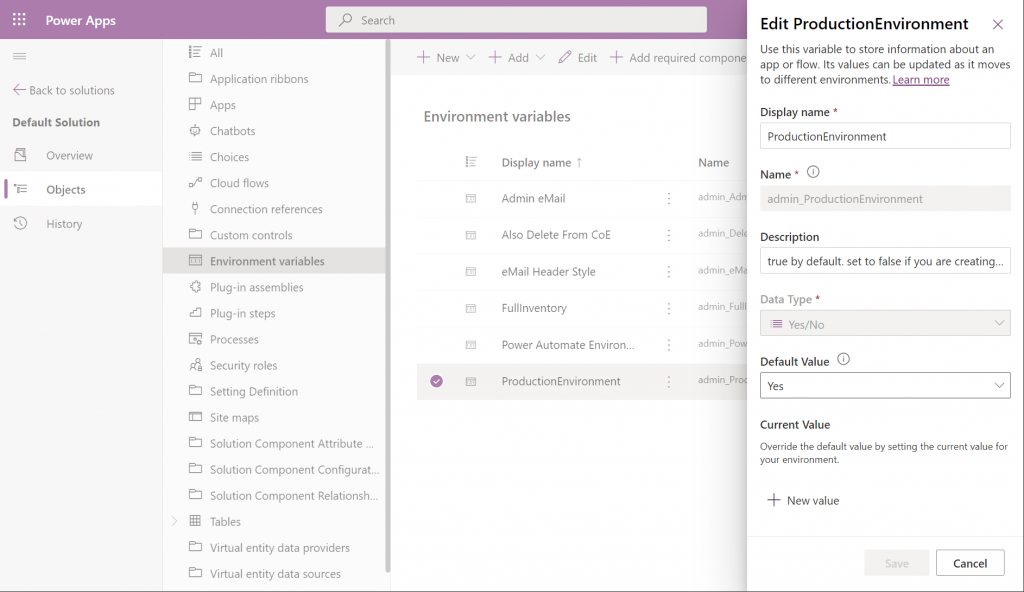
    By using the full Power Apps Maker portal we have access to not just individual solutions in the DV4T environment but all the components when accessing them via the Default Solution. For example, managing things like Environment Variables can easily be achieved here:

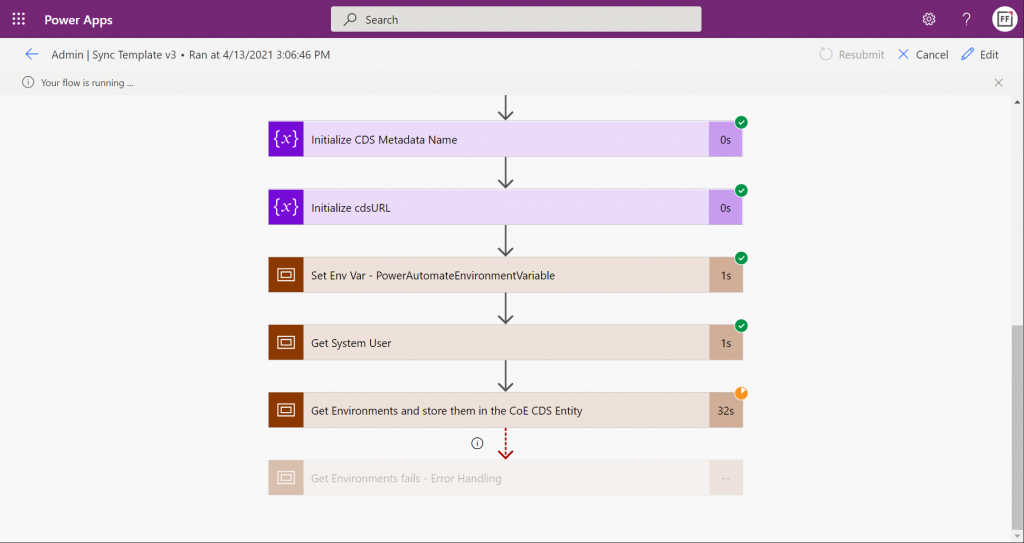
    Let’s get everything configured and move into the CoE core components deployment step that’s common to all environments: sync template flows activation. This will populate the tables in our CoE Dataverse environment with information about environments (how recursive…), apps, flows, makers and so on:

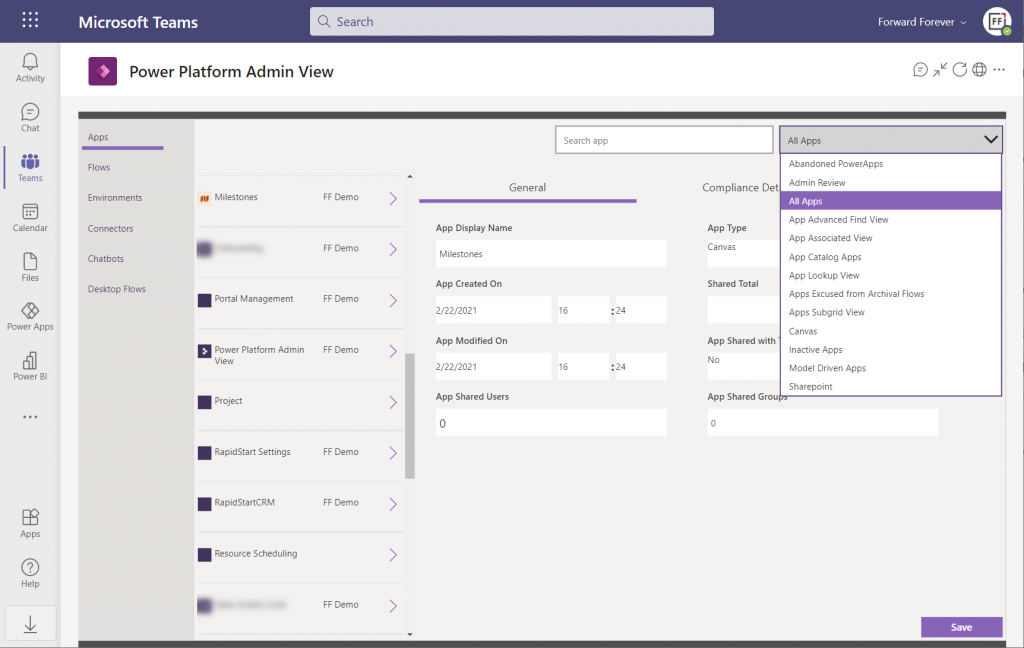
    Once the data is in, we can admire it via the Power Platform Admin View app. Oh, but wasn’t that a Model-driven app? And Dataverse for Teams doesn’t currently have support for those, right?

    Luckily there’s a new Canvas version of the Admin View available instead. Compared to the full Model-driven version, it’s… Well, how should I say this? “You get what you pay for.” Still, it gives a UI for browsing and editing the contents of your CoE environment’s tables. For those admins with little or no exposure to all goodies that the Model-driven apps and Dynamics 365 products offer, this may be perfectly sufficient for basic data management needs.

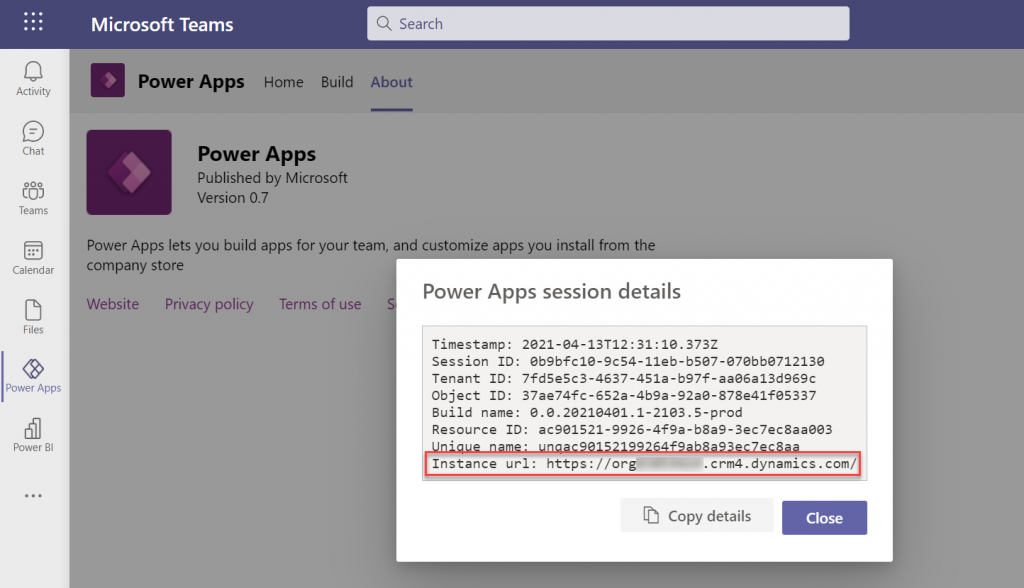
    How about the Power BI dashboard then? That has always been a nice tool in the CoE Starter Kit to demonstrate the wealth of different elements and data points of the platform. The good news is, the same version that’s used for the full Dataverse based CoE deployments is applicable also to CoE in Dataverse for Teams. The one trick you need to know, though, is how to find the Org URL for DV4T:

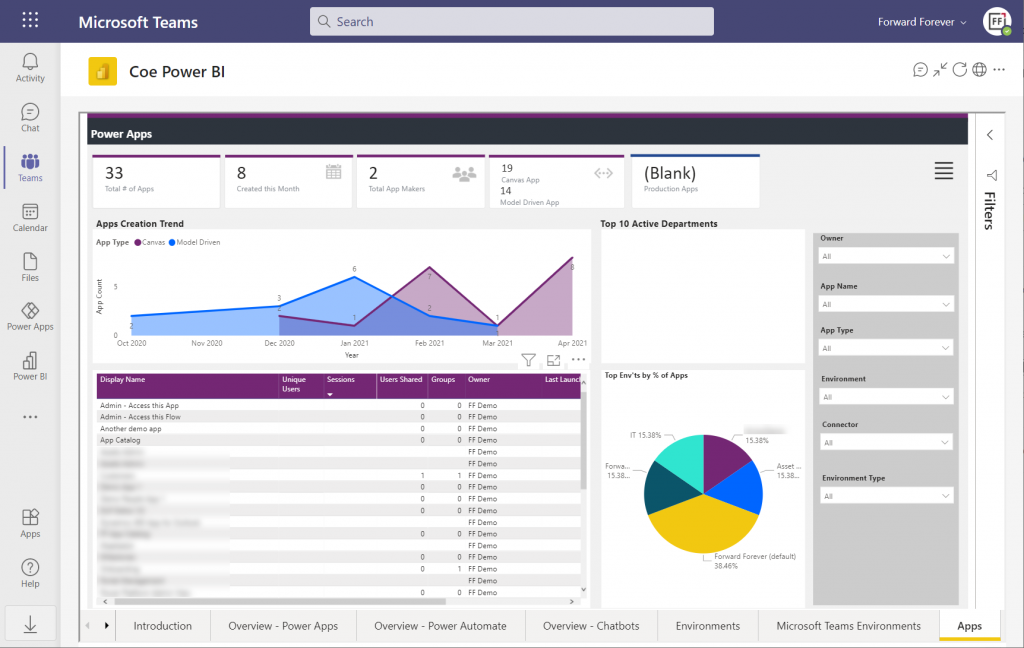
    Paste the instance URL without “https://” and trailing “/” into the parameter field when configuring the Power BI dashboard for CoE. Import the .pbix into a new workspace, create a Power BI app from it and publish it to the end users. After pinning it into a Teams channel tab, we now have a lot more visual method for exploring the apps, flows and other elements in our tenant’s Power Platform environments:
    There’s of course plenty of other useful apps in the CoE Starter Kit, both in the Core Components solution and further packages. In fact, when you look at the comparison table of what’s supported in Microsoft Dataverse vs. Dataverse for Teams, the differences boil down to the lack of a Model-driven admin app.
    Conclusions

    Despite of some of the new hoops you need to jump through to work with the simplified maker UI within Teams, the installation process of the Center of Excellence Starter Kit works pretty well in this deployment option, too. I’m actually surprised how well the CoE team has managed to “retrofit” the earlier solutions to work within the limits of DV4T.

    This highlights an important question which I’m sure many people in the Power Platform community have been wondering about: how far will Dataverse for Teams actually go? Sure, if we analyze the detailed feature comparison between Dataverse editions, it’s easy to identify limitations in existing business applications that wouldn’t really fit within the Teams edition. At least yet.

    While I don’t believe we’ll see the full feature set of Microsoft Dataverse unlocked for usage with Teams licenses alone, I also don’t think it’s going to be severely handicapped – intentionally at least. There’s a lot for MS to gain in pursuing the Teams as a platform story when competing against tools like Zoom or platforms like Salesforce + Slack. By attracting as many app makers and users onto the platform and then upselling them on premium Power Apps & Power Automate licenses when things like 3rd party connectivity or enterprise data platform features are needed, the revenue stream can be pretty darn nice still.

    One final thing to keep in mind about CoE is that it’s actually a great showcase in itself of what Microsoft’s low-code tools can do. It’s built with the very same Power Platform tools that it is used for managing. All the APIs, automations, reports and apps use publicly available technology that the customers also could apply for their own scenarios. Put into a different business context, these are the kinds of big systems that could evolve on top of the platform over time, to guide pretty much any digital process.

  • Make your Power Apps search experience more Relevant

    Make your Power Apps search experience more Relevant

    Microsoft recently launched a brand new search experience for Model-driven Power Apps and therefore also first-party Dynamics 365 apps operating on top of CDS. This is a significant step forward in the “non-structured” search capabilities in Power Apps. The structured queries one can construct via Advanced Find were always one of the most powerful features that the XRM platform could offer on top of relational data (and remain one of my most read posts on this blog). Now also the free text based search experience is catching up nicely:

    Being a low-code application platform, there are several configuration options related to how the search features in Power Apps behave. This can also result in people missing out on how they could ensure that the search really works the way that the users would expect. In this blog post I’ll go through some common challenges that the Dynamics 365 professionals may have already learned to overcome but which can be surprising to new Power Apps makers.

    Challenge 1: Relevance Search is not enabled

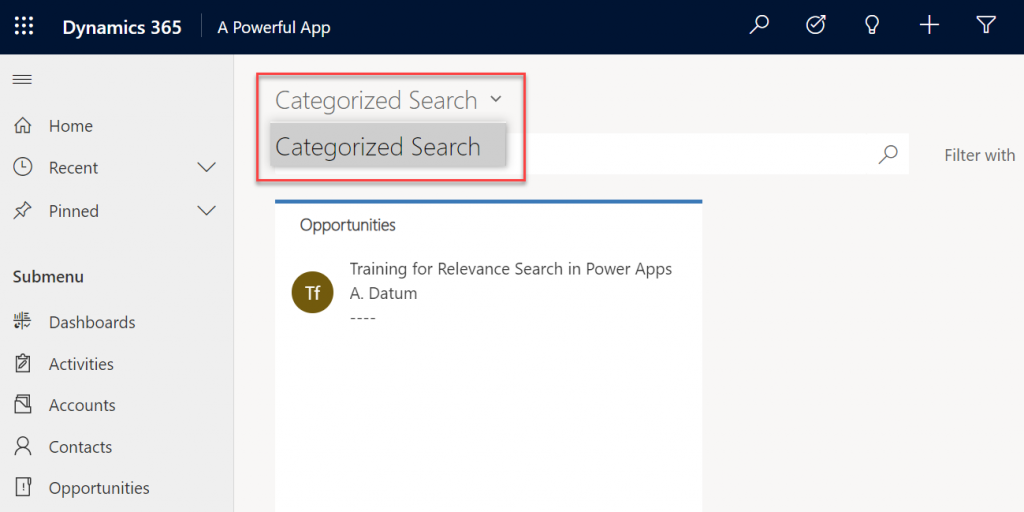
    If you’re not seeing anything even remotely like the MS blog posts when performing a search in a Model-driven app, then you may well be using the limited Categorized Search instead of the fancier Relevance Search. When attempting to change the search type, you might discover that the dropdown actually doesn’t give you any choices, i.e. it’s a dead end with Categorized Search as the only option:

    Why does this Categorized Search option even exist, and why do we need to specifically enable Relevance Search? It all comes down to the on-premises legacy of the platform, where the single CRM server had to be capable of offering a standalone search option. In the cloud era we can leverage Azure Search as the external search index database to where CDS data is syncrhonized to, thus offering a far richer search experience.

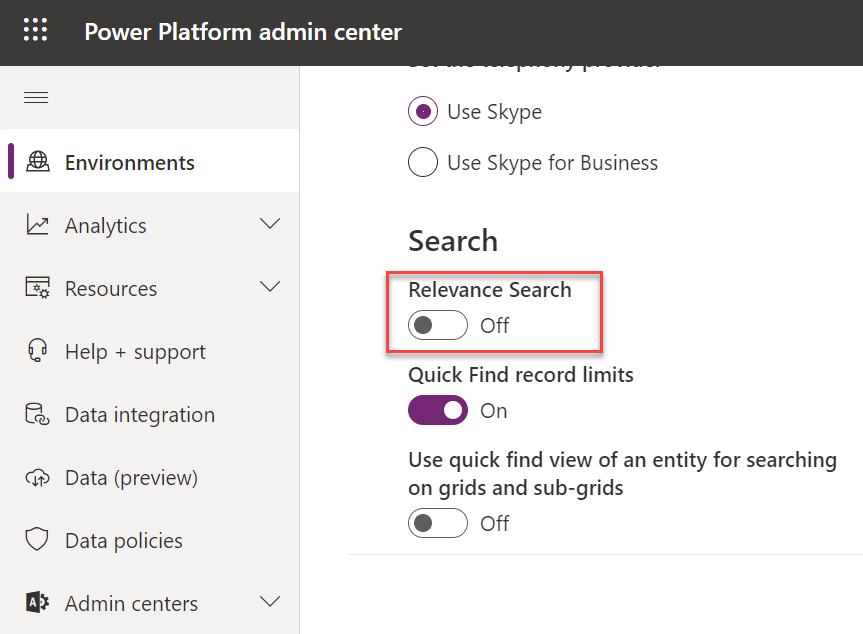
    Now, Azure Search being a separate service and possibly having different types of SLAs and other legal variables than the core Power Apps or Dynamics 365 services follow, it’s not on by default even in the MS cloud. An administrator will need to navigate to the Power Platform Admin Center, choose the environment, then go under Settings / Features / Search to flip on the swith that turns on Relevance Search.

    Once it’s enabled, only then will you see the option to also turn on the new search experience (which probably will become the default option in the future). It won’t show up there immediately, so give it a lil’ time.

    Challenge 2: Relevance Seach doesn’t search my entities

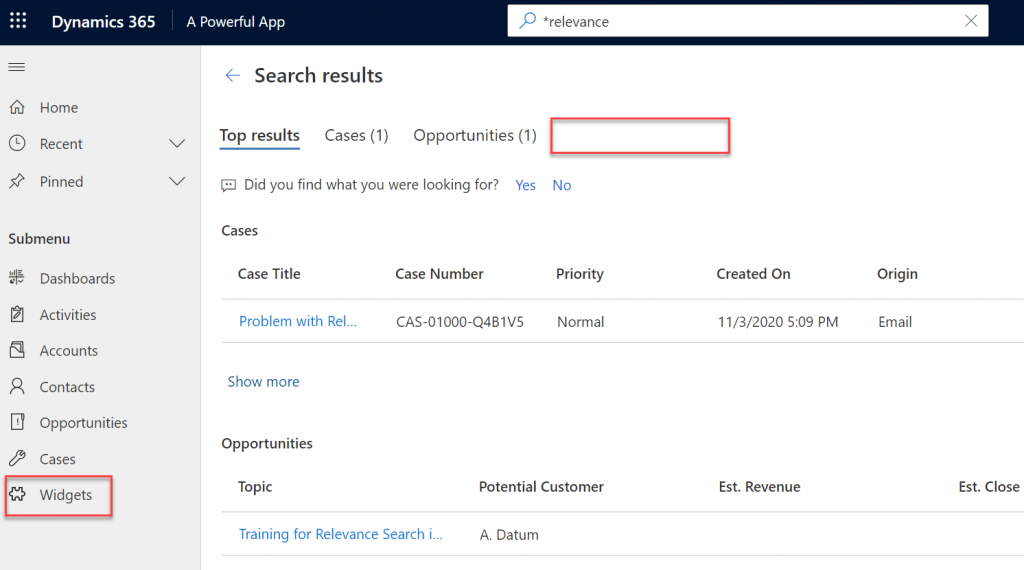
    Cool, we’ve now got the new UI up & running. When we do a search from the new prominent search bar always visible at the top, the results are returned for some of the entites. But why aren’t we getting any hits for Widgets, for example? In this scenario we know there are records in there that contain matches to our search string.

    Even though Azure Search provides a richer search index for your Model-driven Power Apps, it doesn’t directly copy each and every table from CDS into it’s database automatically. When working with a Dynamics 365 environment there are some default entites covered (like accounts, contacts, opportunities). For any custom entities and especially with custom apps, you’re gonna have to explicitly tell which entities should be enabled for Relevance Search.

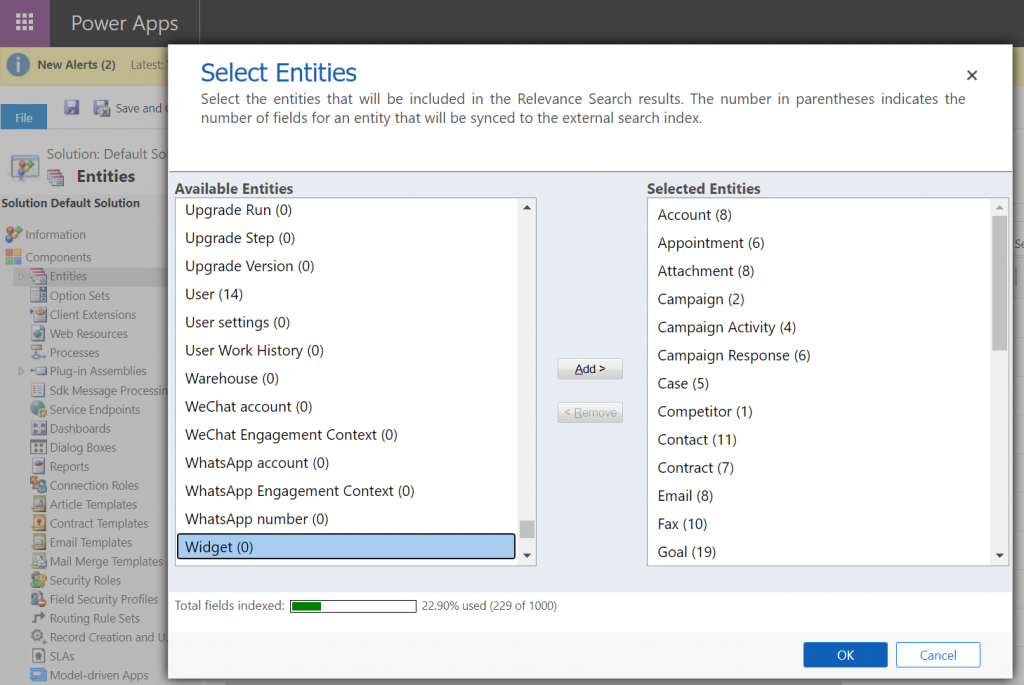
    To access this configuration option you’ll need to leave behind the modern Power Platform Admin Center and venture into the land of the legacy web client and Dynamics CRM era customization UI. You can either add “/main.aspx?settingsonly=true” to your environment URL or find another path into the land of more advanced options. Once there, find Settings / Customizations / Customize The System and open up the Entities menu in the Default Solution window. Now you’ll see what entities are included in your Relevance Search Index and which are not, i.e. they are in the Available Entities list:

    Select the entities you want, click OK, then Publish All Customizations and now they are enabled for the modern Relevance Search experience.

    Challenge 3: Relevance Search doesn’t search the right fields

    Hmm, why aren’t we still getting the full search results for our Widgets entity, even though we added it into Relevance Search? Well, technically you didn’t add the whole entity into the search index. By default a custom entity seems to pick up only the primary field (usually “name”) into the search scope, but it’s likely that you’ll have plenty of other important field that should also get indexed. The same goes for default entities: only a subset of the standard fields are included, and none of the custom ones are, unless you configure them to be included in Relevance Search.

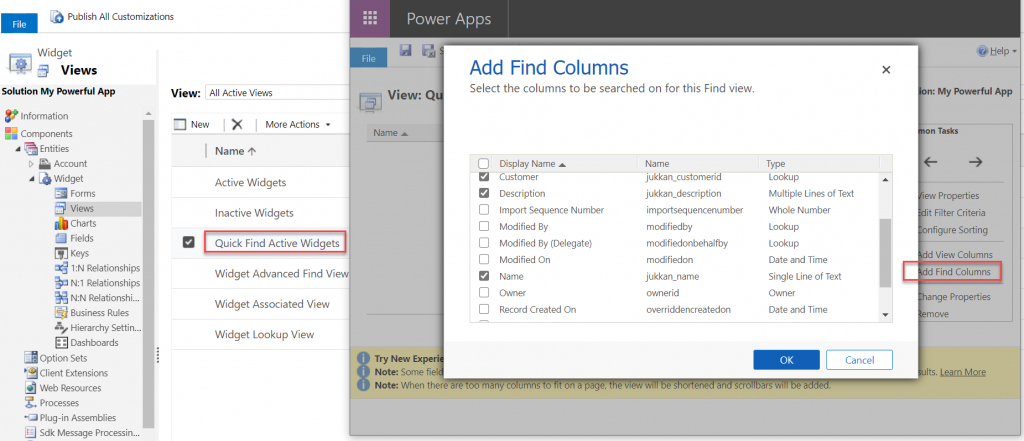
    If finding the menu from where the entities list for Relevance Search is maintained was a bit tricky, then figuring out the place for specifying the field level search settings ain’t that obvious either. You see, it’s not a property of the field in the entity itself. It’s the inclusion of that field in the entity’s specific view called Quick Find View that determines what gets pushed to Azure Search database and back to Power Apps UI.

    Even though the entity view editor can already be found in the modern Maker Portal for Power Apps, these settings aren’t there yet, so I hope you didn’t close that legacy customization UI just yet!

    From the legacy Solution Explorer, open the Quick Find View for your entity, select Add Find Columns from the right and check the boxes for the fields you consider to be potentially useful for Relevance Search. Save & publish your changes, then verify that the search results match with your expectations.

    Challenge 4: Relevance Search doesn’t cover inactive records

    Sometimes the information you’re looking for isn’t found on records that are actively edited anymore, as you may be digging further into the history of your business data to check up on past transactions. In the typical CRM scenarios where Model-driven apps are leveraged this could mean searching through historical sales opportunities that are either won or lost, to find examples of what offers have been made to which clients on what specific terms.

    With the out-of-the-box configuration of Dynamics 365 or Power Apps, you won’t find them via Relevance Seach. Yes, the vast majority of records that you’re storing in CDS may well be excluded from the search index by default. This is because of the same Quick Find View we visited earlier. Not only does it control the fields being indexed, as well as the column layout of the search results page. It also controls the static filters which are applied to the search results before they are shown.

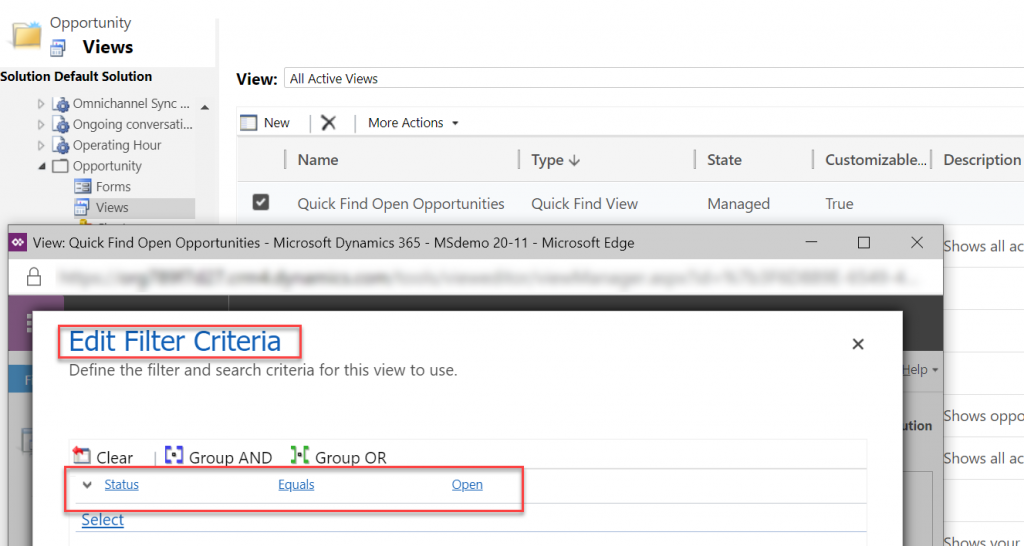
    Using the OoB opportunity entity as an example, you’ll find a system view called “Quick Find Open Opportunities” under the entity. Click on Edit Filter Criteria to reveal the fact that it indeed does only include open opportunities. While we can’t create additional Quick Find Views for entities, luckily we have the freedom to modify or delete the existing filters. So, just remove that status field filter criteria, save & publish. Now your Relevance Search will also return results from the inactive records for this entity.

    Challenge 5: Relevance Search suggestions aren’t found in the search results page

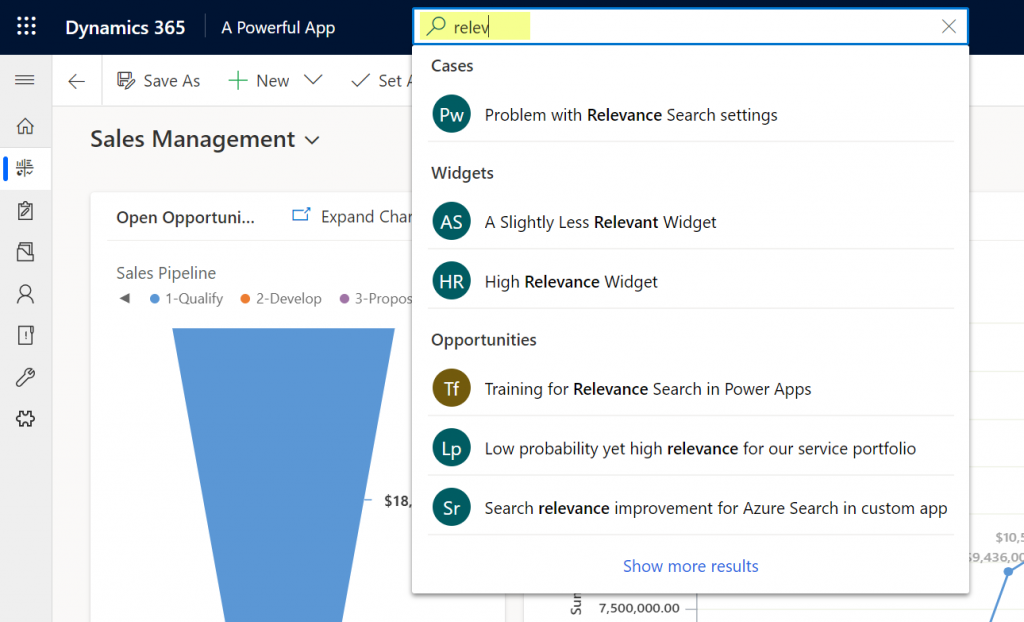
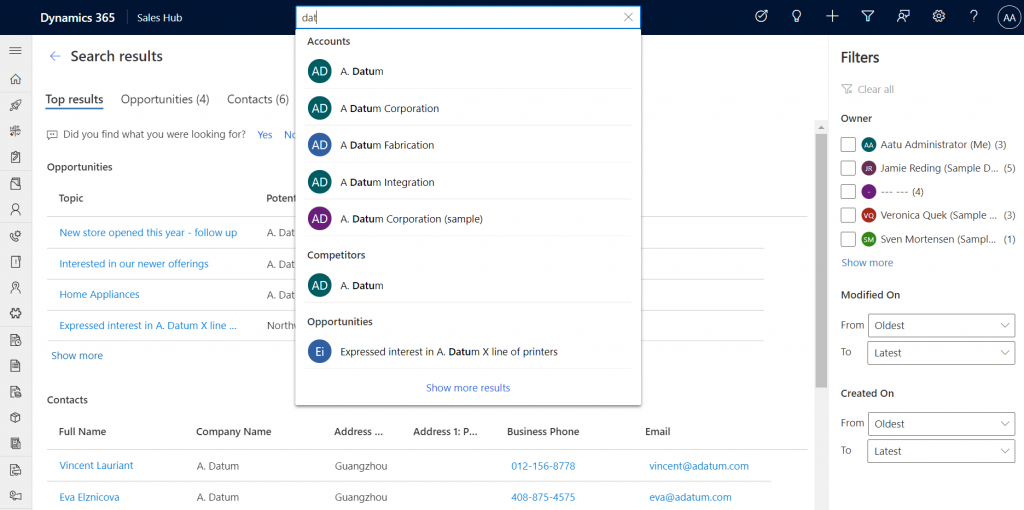
    The new search experience has a nice UX for suggesting matching records immediately as you type the letters in your the search term. Let’s say that we’re interested in the search term “relevance”. By the time we’ve entered “relev” into the search bar there’s already a number of matches in the suggestions box:

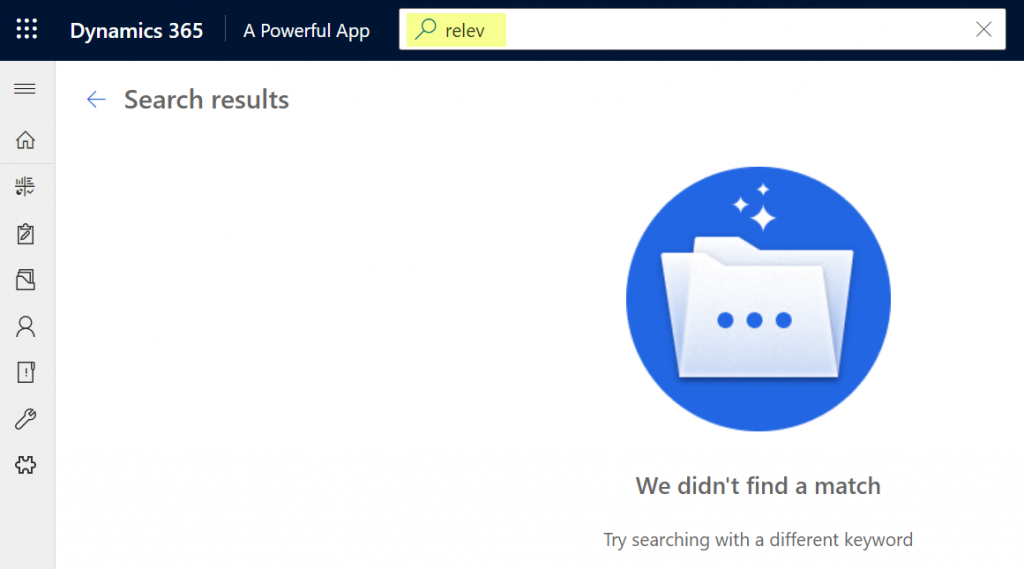
    Looks great, but I think I want to see more details, so I’ll click on “show more results” at the end of the search suggestions. Hey, where did all those matching records go?!?

    Unfortunately this is a challenge where you can’t configure way around it (at least yet). For the time being, this actually is by design. Taken from the documentation, Microsoft lists the suggestion feature separately from the actual search requests:

    Suggestions provide a list of matches to the specified search parameter value, based on an entity record’s primary field. This is different from a regular search request because a suggestion search only searches through an entity record’s primary field, while search requests search through all relevance search-enabled entity fields.

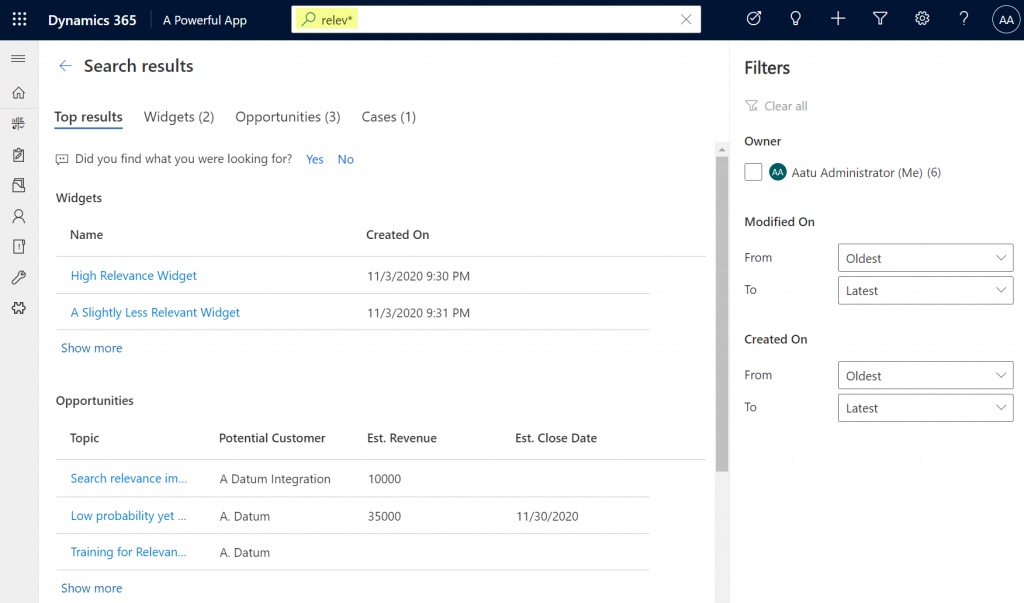
    So, the search box and the search results page follow different logic, which is why it is expected that they will show different matches. This may be seem quite complex to explain to the app end users on a detailed technical level, so it’s better to just instruct them to always apply the wildcard character * at the end of their search term. The results are likely to be closer to what they expected to see:

    Hopefully these 5 tips will help you in setting up the basis for more relevant search results and a better user experience in your Model-driven apps. For more comprehensive guidance, check out these three different levels of documentation that Microsoft provides on the Power Apps seach features:

  • First impressions on Power Platform 2020 Release Wave 1

    First impressions on Power Platform 2020 Release Wave 1

    It’s that time of the year again when all us Microsoft Business Applications geeks are blessed with two huge documents to consume: the Release Plans for both Power Platform and Dynamics 365. While I gotta say that it’s awesome to have this level of transparency on what specifically is in the next 6 month release cycle, the amount information does feel overwhelming – at least if you’re trying to cover more than a few specific products within the stack.

    Ultimately we should at least aim to have a general idea of how each piece of the BizApps puzzle is evolving. Especially the Power Platform side is very relevant for anyone who’s not strictly focused on training/delivering/administering just a single app from the Dynamics 365 portfolio, because this is your low-code toolkit for making those applications meet the real life needs of customers. Unlike with past CRM projects, the customization tools are not part of single server installation, rather they can be discovered from all around the Microsoft cloud.

    To make the Release Plan easier to digest, I’ve picked out the new/improved features that jumped out when I went through it for the first time. Instead of the PDF versions (which are coming a bit later anyway), I prefer the online documentation, so below are links to each of those items for you to drill deeper into – and also keep track of possible changes to the original plan.

    I’ve added my comments on why I consider these to be the most important items in the Release Plan. Time will tell how they actually land and what the impact will be. It’s going to be fun to review this list October 2020 when Wave 1 is over!

    Power Apps

    Single mobile app player for Canvas & Model: very much needed in order to break free from the assumption that Model-driven apps are only for Dynamics 365 customers.

    Offline improvements: the need for accessing data without a live connection is still very real in mobile scenarios. What is somewhat of a bummer is that the efforts here are targeting Model-driven apps only for now.

    Modern solution explorer makeover: Yes! There are a lot of areas where app maker productivity could be improved, so it’s great to see investments are being made here.

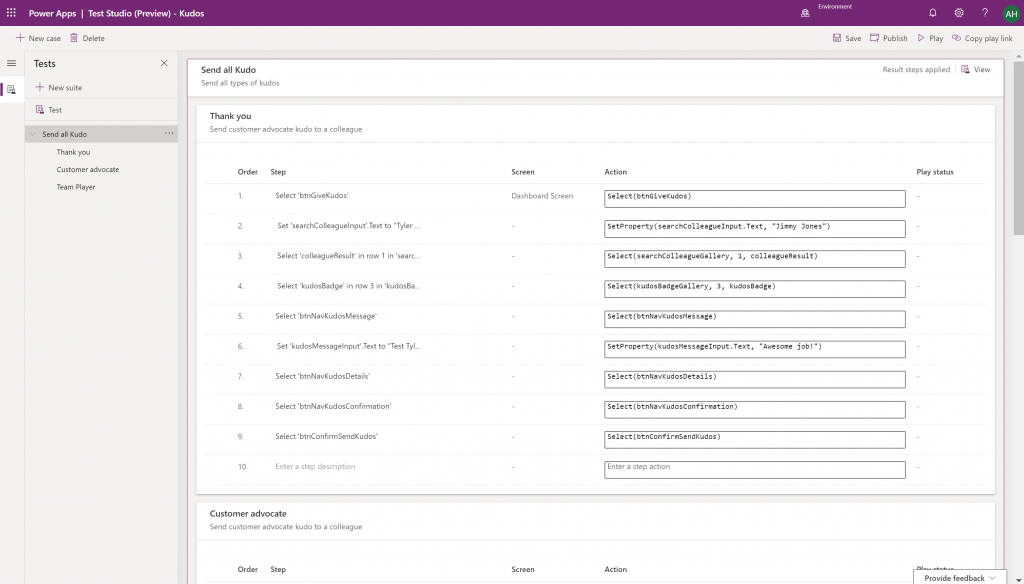
    Canvas app Monitor tool & Test studio GA: the wave of the future. Low-code app development isn’t going to be restricted to personal productivity scenarios, we’ll have much of the same needs as in the pro dev side.

    Azure Application Insights telemetry in Canvas: a great example of how the existing tools from Azure should be harnessed to offer shortcuts for Power Apps makers.

    Generate app from data with responsive layout for phone and tablet: it’s been an awkward limitation before to only support phone layouts. The bigger story is in bringing out these templates for how to actually make Canvas apps responsive, as it has been quite a mountain to climb for citizen developers. In 2020 Wave 1 we’ll also see a preview of the awaited responsive Canvas app pages.

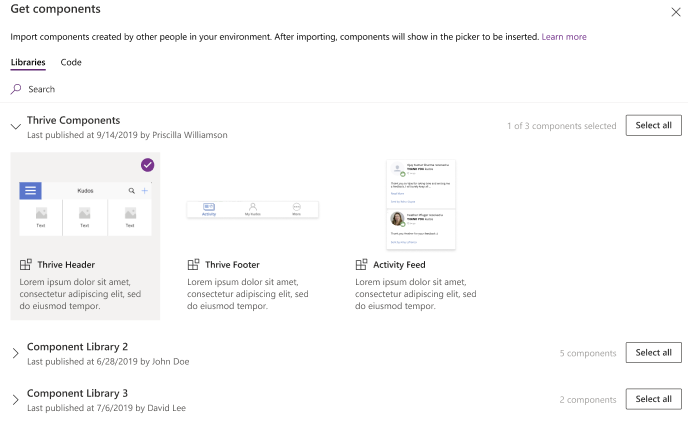
    Canvas Components GA: very impactful stuff here. Component libraries, solution awareness, support for galleries and forms, using collections and media files. These are big steps in bringing the two app types of Canvas and Model-driven closer together.

    Power BI embed component in Portals: oh yeah, there’s that third app type, too… Definitely looks a lot more approachable than the current embed experience. As for Portals extensibility for pro devs, the CRUD Web API sure made Nick Doelman excited, so keep an eye on that one.

    Unified Interface enhancements: important for many Dynamics 365 experiences. Forms as modal dialogs in particular looks useful, better filters are about closing the gaps to legacy web client, search in this view is an age old requirement.

    Improved themes reflecting modern Microsoft Fluent themes: UI matters, the power of the Apps is not just in the logic, data and automation. MS should be more aggressive here when competing against other low-code development platforms.

    Power Automate

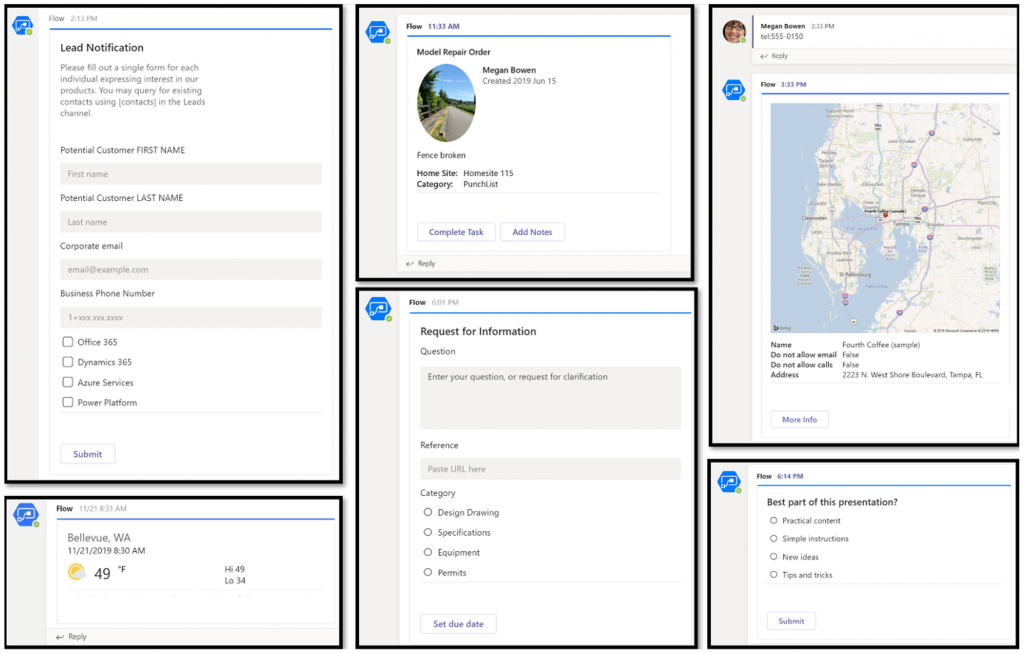
    Interactive adaptive cards: we’ve surely been waiting for this. Very important for bridging the user experiences across different tools in different MS clouds (Office, Dynamics, Power Apps). Could 2020 be the year of the Adaptive Cards? Potentially yes, if you look at how Teams & Power Automate can make use of this feature.

    UI Flows solution awareness: aligning RPA with the common shipping vehicle of Power Platform. Being a new preview feature, there’s of course a lot of other parts moving around still, but the important bit from a platform play perspective is getting everything to play nice with solutions (including non-UI Flows…)

    Use business process flows in Office 365 apps: interesting yet logical step. From a process automation perspective there’s no reason to keep BPF functionality tied too closely with the familiar CRM sales process stages mentality. Again, it’s the platform that counts.

    Power Platform governance and administration

    Environment life cycle support: much needed in the real world implementations. To be able to test new standard and custom features in complex business systems, copying and deleting environments needs to be compatible with all the platform components used. Power Automate, Canvas apps etc. have to support healthy ALM patterns for enterprise development scenarios.

    User access diagnostic experience: again, very much needed for keeping larger environments operating the way IT would want them to. The process of managing access to applications should be isolated from the actual app maker tools or features specific for Dynamics 365 admins, to ensure there’s help available on a broad enough level when users encounter problems.

    Admin connectors & PowerShell cmdlets Generally Available: because they need to be. Low-code Application Platforms for enterprise customers will have to provide automation tools for not just app creation but app governance and administration. If the number of business apps within an organization will explode thanks to these tools, trying to scale the old admin practices isn’t going to be the answer.

    Bring your own data lake: allowing customers to control their own adoption metrics for Power Apps. Just like the GUI for admin tools might not meet the requirements of all organizations, it makes sense for Microsoft to allow customers to also take the telemetry data from apps and use Azure services to put it into their own reporting context.

    Power BI

    Paginated reports enhancements: the next generation SSRS has been a long time coming. The new features like API to render a paginated report to any format (e.g., PDF, Excel) and subreport support will bring the cloud reporting powers of Power BI close to what you could do in on-prem 15 years ago. They might not be the coolest of features, but for many CRM scenarios these “pixel perfect” A4 outputs are still a very practical solution.

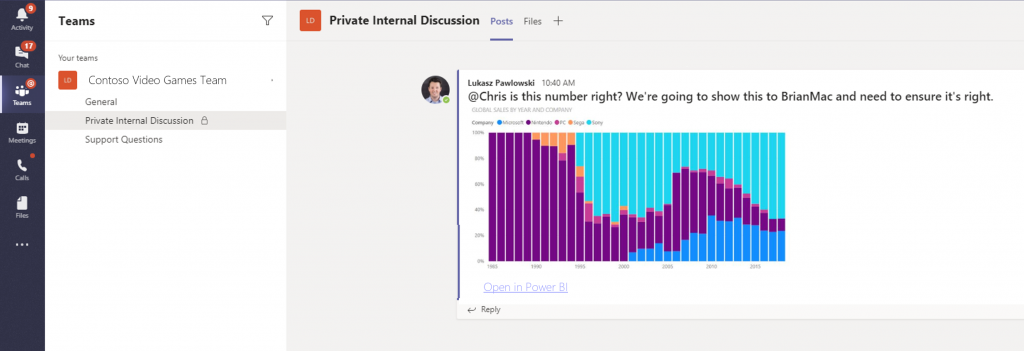
    Copy and paste visuals into other applications: supporting the modern flow of information. If the paginated reports represent the PC era way of working, then being able to grab a part of your analysis and quickly paste it to a conversation in Teams with a link back to the full report is the way today’s information workers expect these cloud apps to work with one another.

    Data lineage GA & enhancements: when cross-referencing data from anywhere is a breeze, how can you tell if the analysis is actually accurate? The lineage visualization is an effective way to illustrate how this modern world of self-service BI operates and bring tools to do meta-analysis on what’s the actual source of the truth being presented to you.

    Power Virtual Agent

    Add a Power Virtual Agents bot into Power Apps canvas app: because bots are not just for customer service. Internal scenarios for app users would be very interesting, although the starting price for using bots is probably going to scare most customers away.

    Adaptive Cards: see my comment in Power Automate section.

    Single Sign-On: if attempting to go beyond generic website chat popups, strong identity management features are a must.

    Pass context to a bot from the calling site: “Hi, how may I help you?” That’s not how a smart agent would initiate the chat, so after identity comes context management. Bridging the gaps between apps is where I see bots being particularly powerful, so URL query string support is a good start for making this happen.

    AI Builder

    Power Automate integration: building the Cognitive Service for citizen developers. The patterns from Azure need to become more accessible in the BizApps frame of reference.

    New models like anomaly detection and receipt scanning: making AI Builder ready for business. Training AI for unique data sets is one thing, but where I believe wider adoption will start is through these more “ready to go” scenarios.

    Common Data Model

    Empower out-of-the-box analytics: delivering on the promise of CDM. It’s all just theory until we see Microsoft deliver on those promises about making it easier to integrate data sources and analytics/AI via a common semantic model.

    CDM visualization and management experience: making CDM more than a GitHub repo. “Increased focus on growing the Common Data Model ecosystem requires enabling users to work with Common Data Model in their native data environments, such as Power Query, Insights Apps, Synapse, and Power BI.” Yes, it certainly does.

  • Why would you store images and files in CDS?

    Why would you store images and files in CDS?

    The Common Data Service is often though as a relational data store that resembles the former XRM database. While there is backward compatibility in the sense that you can do everything with CDS that you could in XRM (Online), the real power of the cloud platform comes from going beyond those limits. Earlier I’ve talked about how The Real Common Data Emerges as we start to work with a variety of different data types and even reaching out into the Azure Data Lake as part of leveraging the Dynamics 365 first-party apps. This time I want to drill deeper into the specifics of images and files as new field types available in CDS.

    Feature announcements from Microsoft

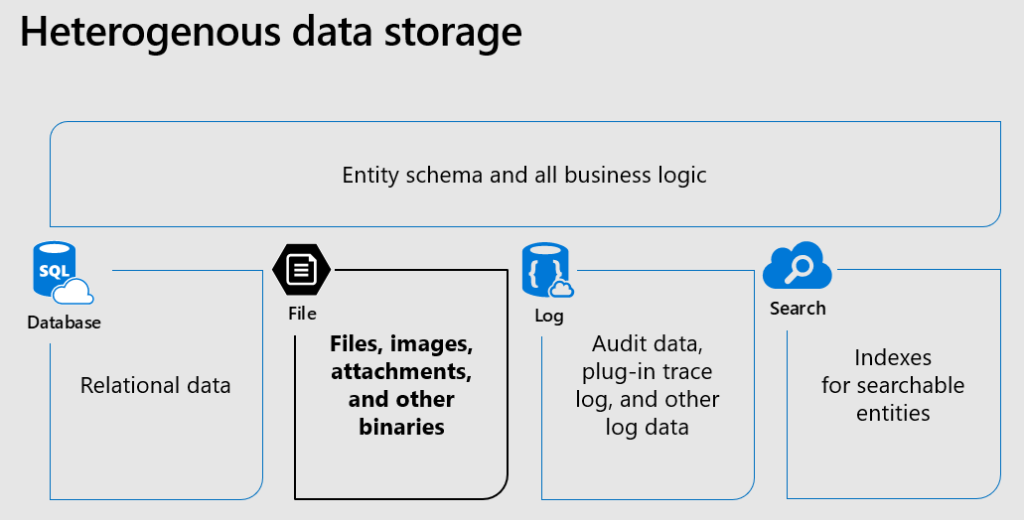
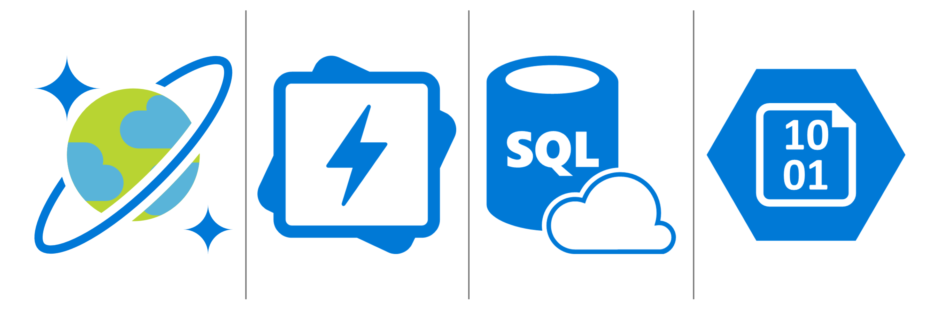
    The concept of CDS heterogenous data storage was demonstrated back in Business Application Summit 2019 in June. As illustrated below, alongside the traditional SQL database for relational data, CDS now offers also the option for binary (file) data stored in Azure Blob Storage and log data in CosmosDB, as well as search indexes offered via Azure Search. All of these are are available under the common entity schema and business logic defined in CDS, without requiring the app makers to think about what data goes into which specific service and how. This is how the Power Platform provides a higher level of abstraction compared to code based app development on top of the raw Azure services.

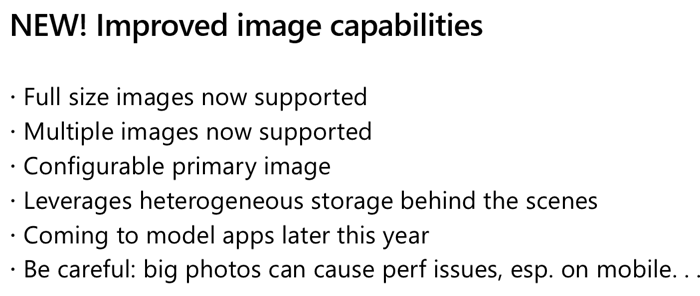
    Fast forward a few months to Ignite 2019 in November, where Ryan Jones presented a session on “Connecting Power Apps, Power Automate, Power BI and the Common Data Service with data”. The capabilities promised for the new image data type were as follows:

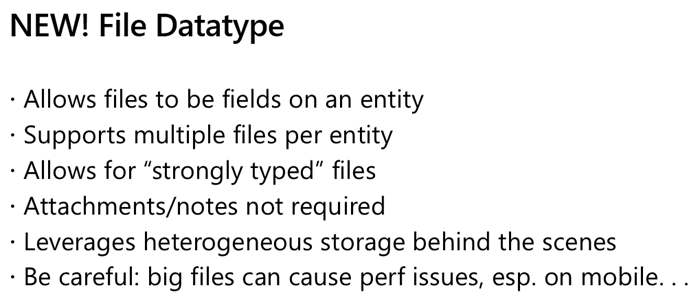
    And here’s the equivalent slide for file data type:

    In December 2019 there have now been announcements made on the Power Apps blog about Introducing File and Image datatype, as well as the availability of the public preview of file attributes on Power Apps Canvas apps. Things are still in the process of rolling out and support for Model-driven apps hasn’t yet even been demonstrated anywhere, so this isn’t something you can jump into using right away.

    Scenarios for files in CDS

    Traditionally in the world of CRM projects we’ve always advised against putting files into the database. “Keep ’em in SharePoint” has been the standard answer, which still makes a lot of sense for any collaboration on content creation, document versioning and so on. The SharePoint document management integration in CDS offers an out-of-the-box experience that generates document locations linked to specific records in CDS and allows working with them through the Model-driven app UI. If you’re happy with auto-generated folders under a single document library on a single SharePoint site for all the records of a particular CDS entity (like accounts), there’s no need to look any further. In real world customer environments the OoB integration is often not sufficient, and I’m really glad that things are improving with the Microsoft Teams based document management integration offering a more practical security and data location model. (Note that currently the Teams integration can’t be enabled for pure CDS environments without Dynamics 365 apps.)

    The problem that still remains is that both the direct SharePoint-CDS integration as well as the Teams-SharePoint-CDS combo don’t offer much business process context for the files. It’s more of a helpful tip like “hey, if you’re looking for documents related to this account/project/order/inspection, try searching from this folder”, rather than a very specific instruction about which particular file contains information on what step of a business process managed in CDS. You also can’t really verify whether a required document exists in the system before proceeding further in the process, since all you have is links to a folder which might or might not contain that file – or multiple copies and various different file types when what you’d really need is a single required PDF, like a signed agreement document.

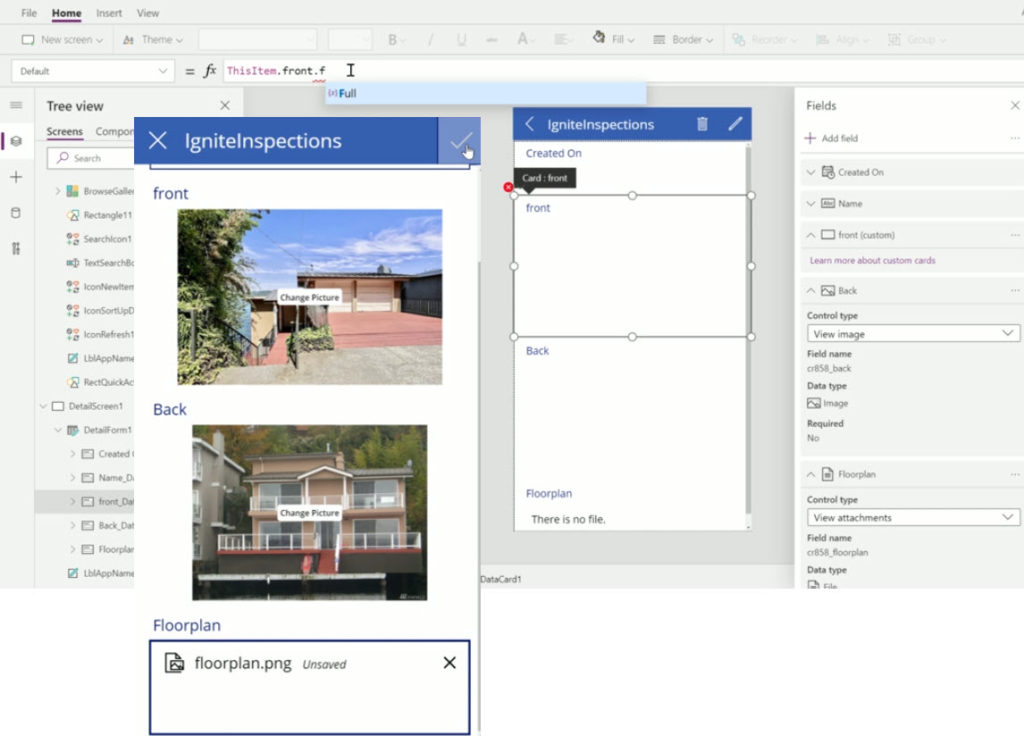
    With the new file and image datatypes, you can actually define a specific field to store a specific type of document or image. This will let you know exactly what the business purpose of a particular piece of binary data is, which means you can develop app functionality like user interface and business logic around it. It’s no longer just 0…N files linked from another system (like SharePoint), it becomes an integral part of your business process. The demo that Ryan Jones did at Ignite about an inspections app is a good example of what the “strongly typed” image and file data could be in practice:

    Having rich metadata about what a particular document represents in the real world is great, but what’s an even bigger benefit is the security model around it. As anyone with an XRM background knows, the ways in which you can configure the security model in CDS is very advanced, offering granular control of who can create, read, update and delete data. You have security roles, business unit hierarchies, position hierarchies, owner teams, access teams, sharing, even field level security. Any security logic that you apply on the entity that’s hosting the file or image field will also guard access to the binary content. If you’ve ever tried to sync the security information between a Dynamics 365 based CRM system storing customer records and the SharePoint environment storing the related documents, you’ll know how difficult and error prone this attempt is. The security concepts of those two systems are inherently different and even Microsoft is unlikely ever offer anything close to 1:1 integration (Teams is about as close as you can get.) For access control of sensitive documents and images, these new datatypes in CDS are therefore a very attractive option.

    Attachments (annotations) vs. file/image datatype

    Let’s not forget that it has always been possible to store binary data in CDS, even in the on-premises days. All your tracked Dynamics 365 emails will have automatically uploaded their every attachment into the Note entity. Additionally the users have been able to add notes with attachments on the Timeline of any entity where the attachment feature has been enabled.

    As part of the new storage capacity model launched in April 2019, Microsoft will have already migrated all of the attachments previously stored in the SQL database to Azure Blob Storage behind the scenes for any Online environment. However, this doesn’t make the attachments feature any more modern and you should seriously consider not using it in the future (where possible). While there is a somewhat better security story with the data all being behind CDS APIs, you won’t find any customization options here to align the data in Notes entity with your business requirements nor the desired application UI. It’s a fixed way of representing file data alongside the customizable relational business data model, inherited from the Dynamics CRM days rather than a feature designed for the Power Platform era.

    In the meantime, with the lack of better support for image handling, many of us have surely explored the capabilities of building a Power Apps Canvas App that could perform what the above Ignite inspection demo app does. Dropping a camera control on the Canvas App is so easy, yet storing the captured image into CDS alongside the other inspection data has been next to impossible. Yes, attachments as a separate control has been available for Power Apps makers for quite some time, but patching the image data from somewhere else into a new CDS attachment record is the tricky part. Complex record references like the Regarding field on the Note entity in CDS have long been a stumbling block for Canvas Apps, and as of today you still can’t write data to that field. Jumping through hoops made of Flows and Custom Connectors is hardly the kind of seamless experience you’d expect from a low-code application platform when working with camera images, so there definitely has been a big demand for the image datatype to come and replace the clunky attachment feature.

    Back when CDS was just the storage place for structured data that was accessed via the metadata driven UI of Model-driven apps for CRM scenarios, there weren’t that many places where visually pleasing stuff like images could have been used. The entity image with its glorious 144×144 resolution has been cool for demo data, but how many customers have actually ended up populating logos, profile pics, product images or other visuals in there? With the rise of citizen developers armed with Canvas apps that offer pixel perfect UI development, the situation is now quite different and there’s an expectation to be able to work with full-size images as well as showing thumbnails for visualizing the business records.

    Things to keep an eye on

    As mentioned earlier, we haven’t yet been able to truly validate in real life Power Apps what functionality files and images support. I’m expecting there will be further chapters in the story of how heterogenous storage in Common Data Service evolves over time, so the first release for Canvas Apps and later Model-driven apps may not yet be feature complete. How the data will work with PCF controls/components and other features of Power Platform (automation, offline, search, AI…) is going to be a big factor in deciding whether storing files and images into the dedicated CDS datatypes is the right call for your app. Of course you’ll also need to examine the options from the other Microsoft clouds: Azure and Office.

    If you’re doing custom code development and expect to deal with a large amount of binary data in your app, doing the math on storage cost between the configuration friendly CDS and raw Azure Blob Storage is probably going to be an item on your solution design agenda. Just like with relational data, CDS is always going to be priced as a premium service compared to things like Azure SQL, because it provides you so many layers of additional features you’d otherwise have to build and maintain. Storage is only one part of the equation, but of course you’ll need to ensure the business case is valid when consuming Power Platform storage capacity with its associated services.

    If the applications you build are aiming to support the collaboration of information workers over unstructured data like Word documents with co-authoring and several versions, then that data clearly doesn’t belong into CDS. Use MS Teams as the security mechanism where possible and allow the users to work with the documents through SharePoint, offline synced OneDrive folders, Office applications on any device etc. If there is an end product that comes from this collaborative process and needs to be carried along in a structured business process, then that file could well be stored into a CDS file attribute.

    It will be interesting to see how Microsoft will align these file & image attribute features with the existing attachments feature. Having a predefined number of fields per entity where you can drop a single file is obviously quite a different experience than an open “folder” that could accept as many files as needed. Although on the schema level, also the Notes (annotation) collection only accepts just one attachment per each note and the rest is just UI. Whether we’ll receive a true customizable Notes feature from MS with metadata support and a modern control to complement the standard Timeline visualization on the Model-driven app as well as the attachments control on the Canvas side is something that remains to be seen. I’m also expecting to see some community contributed PCF controls in the near future around the new datatypes.

  • Sharing Apps Is Caring

    Sharing Apps Is Caring

    A while ago there was an announcement made on the PowerApps team blog about “Share canvas apps with guests in your organization”. Launched in public preview, this feature makes it (almost) as simple to share apps with a guest user as it is with internal users from your company. Basically all you need to do is invite them as guests into your tenant, by leveraging the Azure AD B2B collaboration:

    Once they’re in, providing access in the PowerApps Canvas app sharing menu works the way you should already be familiar with. Guests will appear as users that appear in the search and you can do all the usual stuff, apart from making guests co-owners of your app.

    The fact that you can Bring Your Own Identity in this app sharing scenario is already a big benefit. Forget about trying to create user accounts for your partners & customers, let alone manage password renewals, people leaving the partner company and all that tedious admin work. When there are no separate credentials for the different applications, you can focus your efforts on configuring the appropriate security model on your side and then automating as many steps in the Azure AD driven process as you can via group memberships etc.

    (Side note: Technically BYOI probably refers only to scenarios where you log into Azure AD with something completely external like a Google account, instead of just an identity from a neighboring tenant. )

    Providing application access to third parties via Azure AD B2B Collaboration has been possible for Model-driven apps for a while now, or Dynamics 365 CE like it is more commonly referenced. If you have partners that are performing telemarketing or support services that link closely to your core customer data, providing them access to your CRM directly is usually far more efficient than shipping data via Excels or handling task assignments via email.

    Licensing a shared app

    The one negative side about this external user scenario has been that you will always need to purchase a license for these guests before they can access your apps. It doesn’t matter if they’ve got Dynamics 365 licenses back at their home tenant, since that can’t grant them access to another tenant’s environment. Boo! No one likes to pay twice for the same service, but sometimes the costs can of course be absorbed while keeping the business case valid. Especially now when there’s the $10 Per App Plan for PowerApps.

    It doesn’t have to be that way, though. With the nearing GA of Canvas apps sharing across different organizations, there is now the possibility to “Bring Your Own License” (BYOL). Have a look at what the documentation says about the prerequisites for Canvas apps sharing with guests:

    The guest user must have a PowerApps license assigned through one of the following tenants:

    * The tenant hosting the app being shared.
    * The home tenant of the guest user.

    This is awesome! What this essentially means that any user that has either PowerApps or applicable Dynamics 365 licenses assigned to them in their own organization can use the powers granted by that license to operate apps in any other tenant in which he or she has been granted the rights via the respective security model of the app.

    Let’s try this out. I’ve got a user account with Dynamics 365 Customer Engagement Plan license (R.I.P.) assigned to it in my production tenant. What I will do in a test tenant that represents a partner organization in this demo is to 1) provision a CDS environment, 2) install sample account data into it, 3) generate a quick Canvas app from data to work with these account entity records, 4) invite my production user as a guest into the demo tenant, and finally 5) share the Canvas app from the demo to my production user.

    Steps 1-2 are just the configuration work familiar to any Dynamics 365 professional, so we can skip talking about those. Also step 3 is a matter of selecting “create new app, Canvas” and then going with the Common Data Service option with the account entity as the target table.

    After saving the app, we need to make sure that our guest user is found in the Azure AD user list, pretty much like an actual local user of the tenant would:

    Back in PowerApps, the sharing menu should now show us the guest user as a possible share target. Since this Canvas app is using CDS as the data source, we’re also presented with the options to set the security roles for the guest.

    Click “Share” and the guest will have an invite email in a few seconds, with a link to the Canvas app:

    Click the link & off we go! By the power invested in me via a Dynamics 365 license purchase by a completely different organization, I’m now fully capable to work with the CDS data via a PowerApp offered to me by a partner in their tenant.

    App strategies for the Power Platform era

    To an outsider this whole app sharing thing might seem a bit underwhelming. “What’s the big deal? Isn’t that exactly how it should work?” YES. It should, but it hasn’t – until now. Being originally born into the internal networks of organizations, the business user software from Microsoft has suffered from the boundaries set by an invisible firewall that no longer physically exists in the era of public cloud applications. While the application platforms from MS have gradually acquired better skills to work with the outside world, the licensing model hasn’t been all too friendly for many cross-tenant scenarios.

    For now, when you purchase the Per User license to Microsoft’s low-code application platform, you get a “1:N pass” for one user to access an unlimited number of PowerApps Canvas or Model-driven applications within the home tenant:

    The more business scenarios you can cover with PowerApps, the cheaper the relative price you pay for the platform capabilities. The result within an organization that goes all-in on Power Platform to digitally transform themselves can be quite a high number of apps already. Now, imagine that it wouldn’t be limited just to the types of digital processes that operate within your organization’s firewall. What if there was a multi-tenant model where the Per User license could unlock collaboration scenarios with your partners or customers? This network effect could grow the number of apps even faster, as it represents a “1:N:N pass”:

    Pretty exciting, don’t you think? We’re not quite yet on the level where B2C app scenarios would be within the scope of PowerApps, but this expansion into B2B collaboration area is surely a part of the strategy how Microsoft plans to grow their Power Platform business. The ability to use Canvas apps without a license in the app’s home tenant directly is an important variable to consider when planning your app strategy in the MS Cloud.

    One thing to keep in mind here is that Canvas app sharing doesn’t replace the use of PowerApps Portals for external audiences, as those have different pros and cons from a feature and cost perspective. Also the usage of Model-driven apps for collaborating with external parties in complex business processes will probably still have a place in the greater Power Platform puzzle, even if this new license portability doesn’t cover them (at least not yet).

  • The Real Common Data Service Emerges

    The Real Common Data Service Emerges

    When Microsoft announced one year ago that XRM would become CDS v2.0 (officially Common Data Service for Apps), there wasn’t yet any big system redesign implemented to make this a physical reality. Today we are much further down that road where CDS truly becomes a Service that has less and less to do with the familiar XRM databases that we’ve previously been working with. In this blog post I’ll explore the three data related dimensions that give us an indication of where CDS is heading as a part of the Microsoft Power Platform.

    CDS is now Dataverse!

    While reading this article, you can translate the term “Common Data Service” to now refer to its new name, Microsoft Dataverse. See this post for comparison between CDS vs. Dataverse.

    Dynamics 365 Storage Model Changes

    As a part of the April 2019 release train, MS is changing the way how data storage is managed for both Dynamics 365 and PowerApps customers. It hasn’t been an official feature bullet on the release notes document, but that doesn’t mean its significance would be any less than what the shiny apps demonstrated in the April 2nd Virtual Launch event have.

    A new version of licensing guides for Dynamics 365 and also for PowerApps and Flow (for the first time ever!) was released in April. This outlines the commercial impact of the new model to customers, which is probably what most of us will have first paid attention to. Yeah, whenever the pricing mechanism of a widely used MS cloud service changes, it will be a big deal. What makes it even trickier is that MS considers storage as a “subscription add-on” for which they don’t publicly disclose any per GB list prices. I’m not entirely sure this model is beneficial for their ambitions of turning Power Platform into an actual foundation for building third party and customer specific apps, but I guess the shadow of the old CRM and ERP world still looms above this world when it comes to licensing and pricing practices.

    Let’s forget licensing for a moment and focus on the technical changes for Dynamics 365 online environments. All of the existing data that used to be stored in the Azure SQL relational database will in the future be divided into three specific storage types: database, file, log. This should have no immediate impact to customers, as the migration will be taken care of by MS. Their promise is that nothing should change in the way how users and developers work with data, since the APIs that govern access to this data will remain unaffected.

    File data will be in Azure blob storage, as this is the most efficient way to handle miscellaneous documents, images and other “stuff” that may end up inside a typical Dynamics 365 system via features like email tracking that carries over the attachments. Why would you ever store this in a relational SQL database to begin with? Well, the simple reason is that the original on-prem architecture of XRM had no other secure place to put these items, so it was all lumped up there. Now when CDS is a native cloud service, there are much more options available.

    Log data will be in Cosmos DB. This will probably offer a more suitable architecture for managing things like plugin trace logs, audit data and other items of similar nature. What should be noted is that Microsoft’s plans don’t just stop at this IT admin activities level. In a recent podcast by MVP Mark Smith, we heard the General Manager of Power Platform, Charles Lamanna, describe this storage type to be designed as the future place for other types of observational data, too. Charles referred to things like IoT device sensor data, which should give you an idea of how this again is data that is A) relevant to many CRM use cases and B) in no way optimal to be stored inside that relational XRM database.

    One significant and very welcome change that is introduced as a part of this new model is that there will no longer be any license cost tied to the number of instances you have in the cloud. Previously you had to buy add-on licenses for acquiring production and non-production (sandbox) instances for developing, testing, training and in general managing your complex Dynamics 365 online environment. Once the new subscription terms kick in, you’ll have the ability to create as many instances as you like, provided that you have sufficient database capacity available. A major driver behind this change is surely the PowerApps side, in which the licensing terms already granted any user with PowerApps P2 license to create 2 CDS environments for their applications. (For more details, see my presentation on Demystifying Dynamics 365 & Power Platform licensing.)

    In the short term, this storage model change should not result in much functional changes for the Dynamics 365 customers. Depending on when your current subscription renewal date is, the new terms will be applied either at that point in time or the renewal after that (if you choose to hold on to the old model for one more subscription period). Any new customer will likely be leveraging the new pricing model starting from April 2019.

    It’s important to understand that the actual data storage technology change and the commercial terms that are applied are not tied to one another. Migration of your Dynamics 365 data to the new database/file/log model will probably take place much sooner than what you’ll see in your subscription fees. Refer to the admin documentation on Common Data Service storage capacity for details on how you’ll be able to analyze and manage your storage consumption in this new model.

    Diving Into The Data Lake

    When looked at purely from the storage license model changes for Dynamics 365 customers, the story would end here, with the three storage types. However, the bigger picture of how data is used as a part of the Customer Engagement systems that cover various digital touchpoints is much broader. Or should I say “bigger” as in Big Data? As much as I dislike the casual use of tech marketing hype terms like Big Data and Artificial Intelligence, there’s no escaping the fact that the familiar world of CRM systems founded on SQL databases is being disrupted by what machine learning models and big data systems can offer today.

    (more…)
  • Playbooks for Dynamics 365 Activity Templates

    Playbooks for Dynamics 365 Activity Templates

    In my previous post I explored the current Dynamics 365 Customer Engagement solution update practices and used the Playbooks feature as an example. Here’s a quick overview of what the actual Playbooks offer.

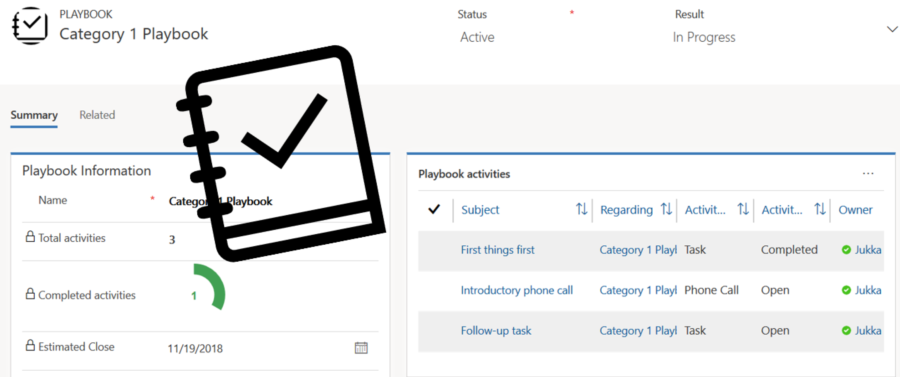
    The official MS documentation, “enforce best practices with playbooks”, gives you a list of what the initial October ’18 release of Playbooks contains. The feature is essentially a way for a sales manager to determine a set of activities that sales users should perform when a real life event takes place that the playbook contents has been designed for. A checklist, if you will.

    To get started, you’ll need to have the Sales app upgraded to a recent enough version, so that the Sales Hub UCI app displays Playbook Templates under the App Settings:

    Notice that you won’t find these anywhere in the legacy web client (“classic UI”). One thing you might want to do first via that legacy client, though, is to ensure that the associated roles for Playbook Manager and Playbook User are assigned to the required user accounts.

    To kick things off, you could create examples of Playbook Categories for grouping your playbooks, since that’s a compulsory lookup on the Playbook Template form. The actual configuration work will all take place on the template, where you’ll first of all specify the record types that the playbook applies for. Right now it’s only lead, opportunity, quote, order, invoice, so don’t plan on using playbooks for any custom entities or other Dynamics 365 Apps than Sales.

    The template shows a subgrid of Playbook Activities, which look pretty much like your regular activities on the surface. They are a separate entity, however, as this is how you define the parameters for an activity (task, phone call or appointment). You have the usual subject, description, duration etc. fields you’d find on a normal activity, but instead of fixed dates you give them relative due dates, calculated from when the playbook is launched.

    (more…)