Category: Tips

  • Using CSS color names for SVG icons in Power Apps Canvas app

    Using CSS color names for SVG icons in Power Apps Canvas app

    In my previous post we took the contents of an open source SVG icon library from GitHub and imported that into a Canvas app as a static Excel table, with the help of Power Query. This time we’ll explore how working with the icon colors can be expanded compared to the standard functionality offered by Power Apps Maker Studio.

    Standard color picker

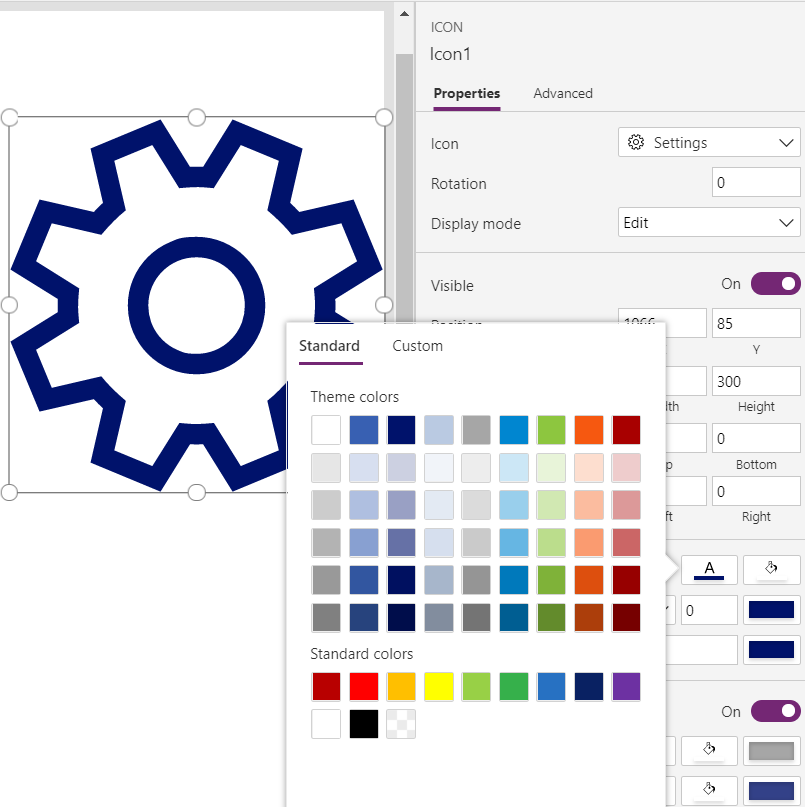
    If we are inserting any of the out-of-the-box icons into our app screen, Power Apps offers a color picker that works the same as when defining the color of a text font. The first option is the standard palette with theme colors and, um, “standard” colors:
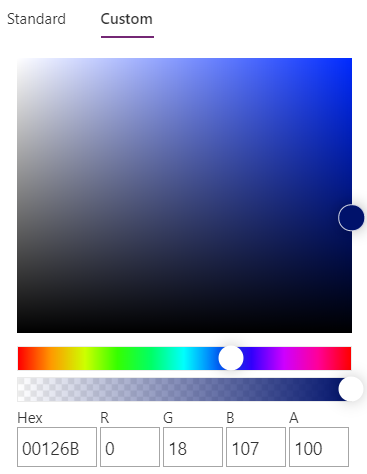
    Then there’s the “any color you could imagine” option where you can either pick the color from the sliders, type in the hex code or use the RGBA code:
    The third option is a bit more hidden, so you’ll only find it when using the formula bar. You see, Power Apps actually supports also the CSS color names, so you could type in the value as “DarkBlue” and get exactly that for your icons:
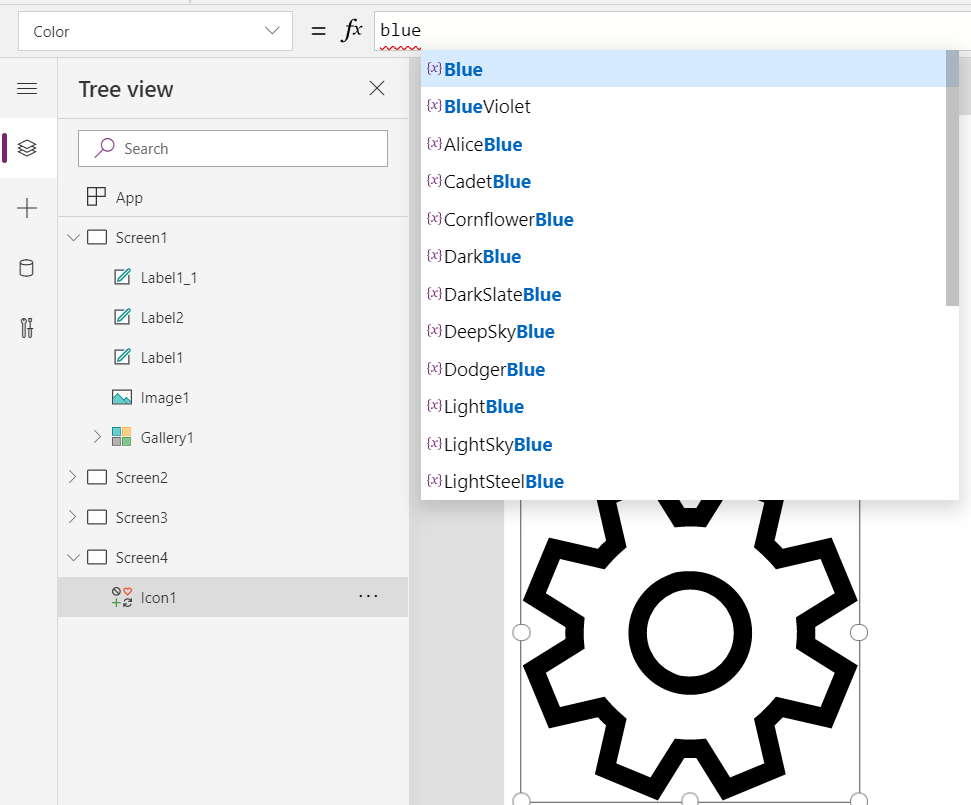
    The Power Apps documentation contains a list of built-in colors supported and their CSS color names. Now, the idea of having the standard CSS palette with its easy to understand color names instead of cryptic Hex codes or RGB values sounds attractive for a low-code citizen developer like me. However, there isn’t really any convenient way to browse through these colors and see the results in the Canvas app UI. Unless we build one for ourselves!

    Custom color picker

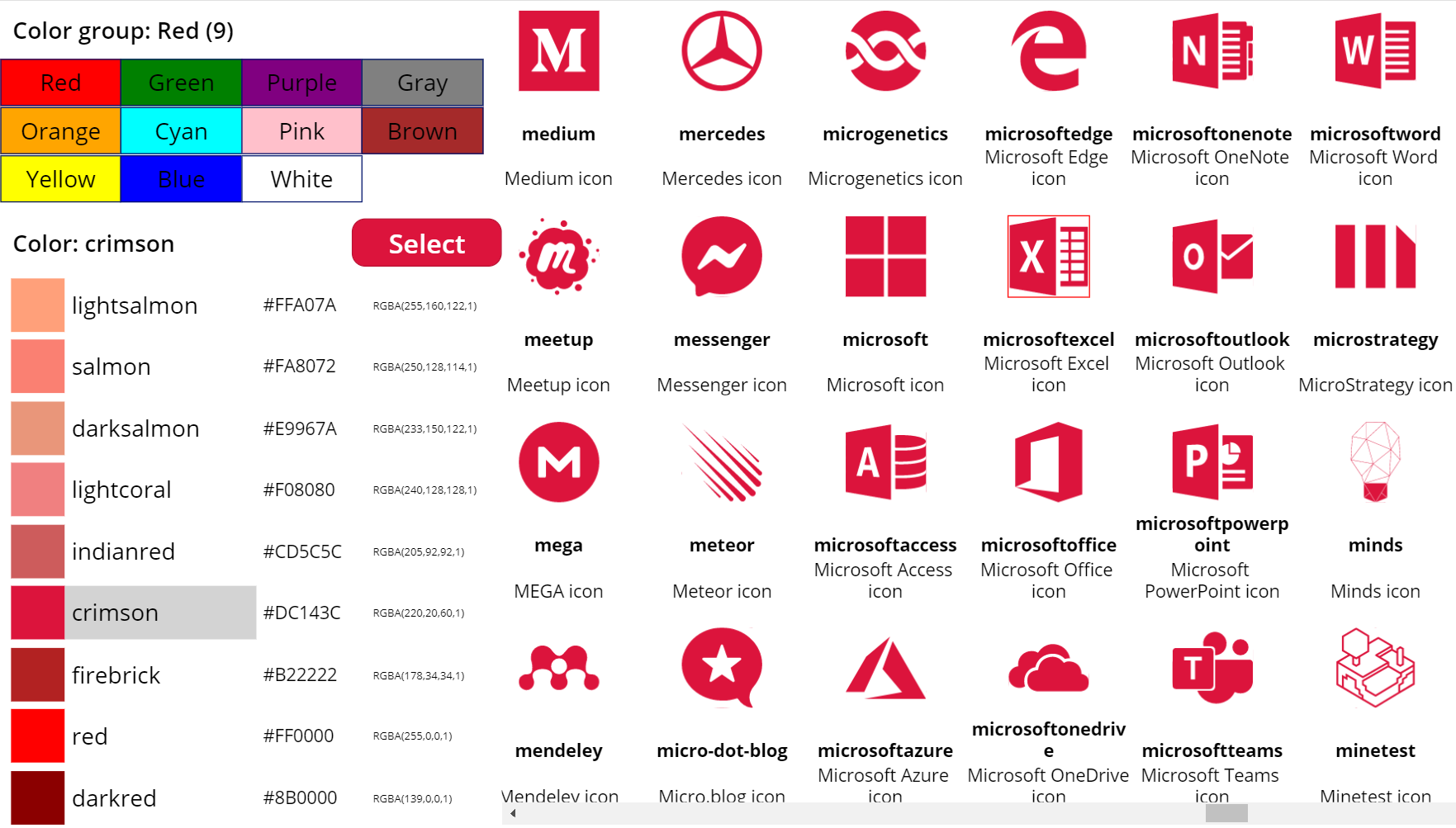
    Just like with the SVG icon definitions, we can use the option for importing static reference data from an Excel table to enhance the app maker experience. What we’d need first is a suitable list of the CSS color names, alongside their attributes. Rather than searching for the perfect table online, I just grabbed the data from this CSS Color Codes page on RapidTables. What I especially liked about this page was that the colors were grouped based on the color “family”, meaning different tables for red colors, orange colors, yellow colors and so on. That’s the way I’d really want the colors to be organized, rather than the alphabetic list over on docs.microsoft.com. With some copy & paste, I ended up with an Excel table like this:

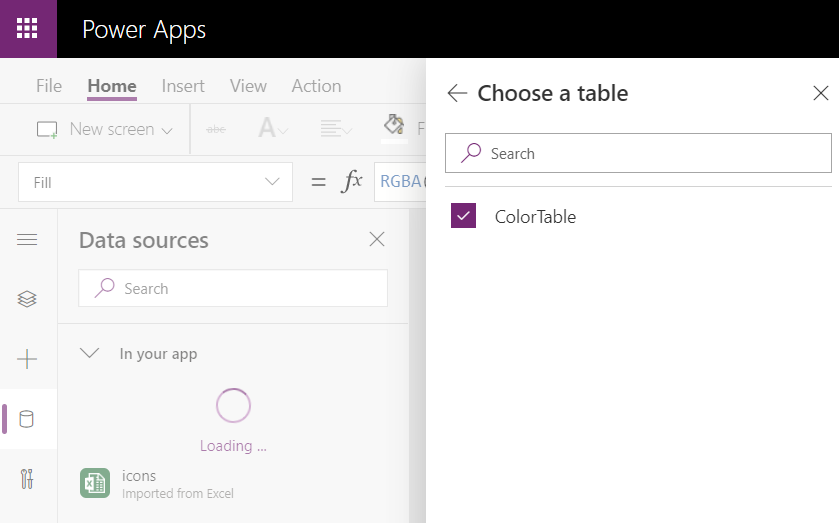
    You can grab my .xlsx file here. Let’s import that into our app via the Excel static data connector, as a table called ColorTable:
    We can now add a gallery control into our app and use the columns from our ColorTable as values for the fields in this palette browsing gallery:
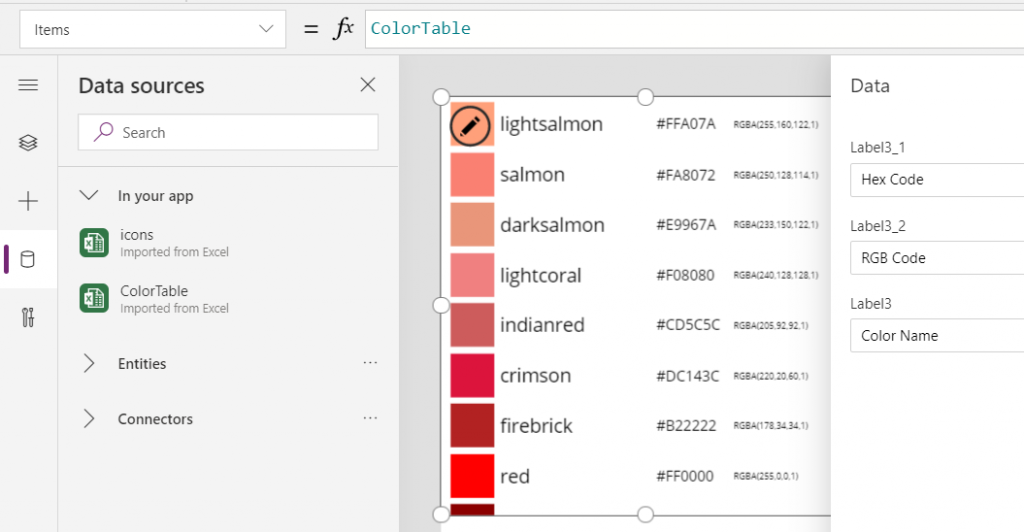
    “Wait, how did that visual color indicator get there?” Oh, that’s easy! We just added a rectangle into the gallery and used the ColorValue function to reference the Color Name column from the table that we imported from Excel:

    What I didn’t add there into our gallery yet was the Color Group information. That’s because I want to have this as a separate parameter that I can use to narrow down the list of CSS color names presented in the list. Let’s name the first gallery to “galColors” and create a second horizontal gallery called “galColorGroup”, which will contain a list of all the group names included in our Excel table.

    How do we get just a single “Green” and not all of the 19 different instances of that same text string in the source table’s “Color Group” column? We use the Distinct function and tell it we’re looking for data in the ColorTable data source and the distinct values should come from this particular column:

    The Distinct function returns a table with the single column “Result” as seen from the formula bar preview. We’ll add label into our gallery and populate the text value with this Result directly. To set the fill of the label’s rectangle area we’ll use the same ColorValue function as in our first gallery and point that to the Result column. Now we’ve got ourselves a galColorGroup gallery with 11 distinct values visualized:
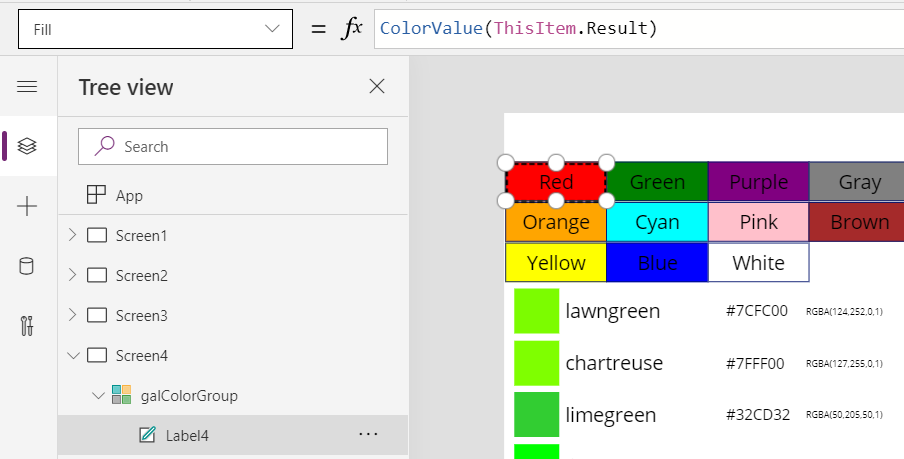
    Let’s use the selected Color Group now as a filter to list only that group’s CSS color names in the other gallery. For galColor the Items parameter should read:

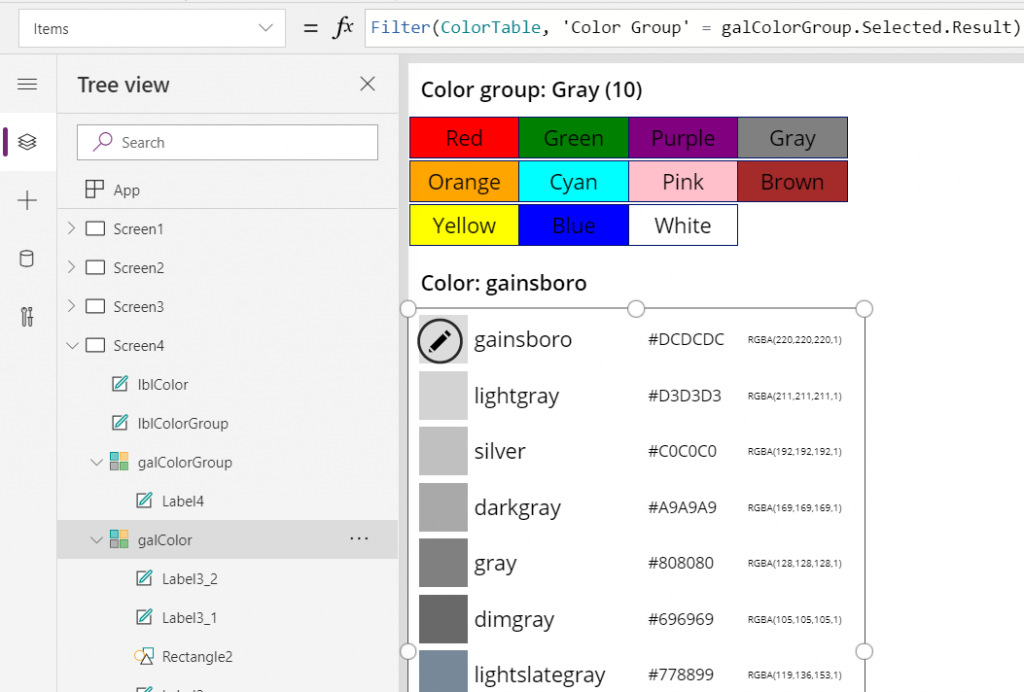
    Filter(ColorTable, 'Color Group' = galColorGroup.Selected.Result)

    While we’re at it, let’s also add labels on top of each gallery to state the currently selected value. For galColorGroup, we’ll want both the group’s name as well as the number of items returned after the Filter has been applied in the galColor gallery. We’ll concatenate the selected item’s name plus the CountRows result from the galColor gallery into a single text string like this:

    "Color group: " & galColorGroup.Selected.Result & " (" & CountRows(galColor.AllItems) & ")"

    For the second label, the selected color’s CSS name is enough for us:

    "Color: " & galColor.Selected.'Color Name'

    Now we can click on a value in the Color Group gallery like “Gray” and be presented with a filtered list of the 10 available shades of grey:
    Using selected CSS color name as SVG icon color

    The last bit is connecting the color with the icon library we imported in my earlier blog post. As a quick recap, the SVG icon shapes can be defined in the image property of a Power Apps image control by constructing the XML in the following way:

    "data:image/svg+xml;utf8, " & EncodeUrl(
        "<svg version='1.1' id='Layer_1' xmlns='http://www.w3.org/2000/svg' xmlns:xlink='http://www.w3.org/1999/xlink' x='0px' y='0px'
    	 viewBox='0 0 24 24' style='enable-background:new 0 0 24 24;' xml:space='preserve'>
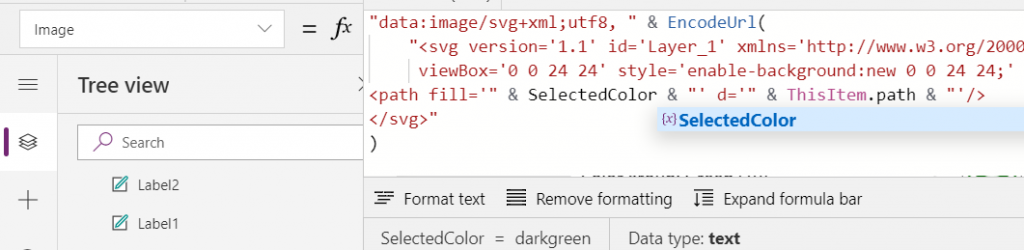
    <path fill='" & "Black" & "' d='" & ThisItem.path & "'/>
    </svg>"
    )

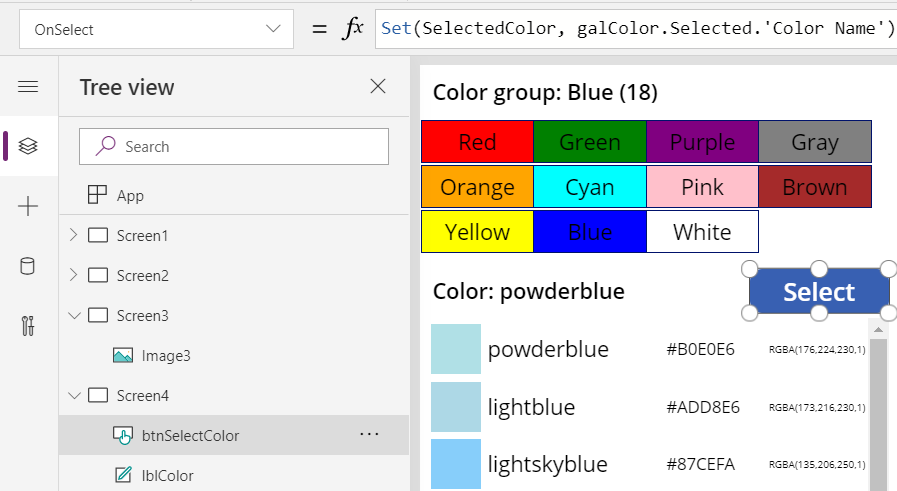
    You’ll notice that while we pulled the path’s attribute “d” from the dynamic value of ThisItem.path, we had left the path’s fill attribute hardocded as “Black”. Changing this to a dynamic value will allow us to render the SVG icons in any color we’ve chosen elsewhere. To make this work in conjunction with the CSS color name picker functionality we’ve built into our app, let’s add a button above galColor and use the OnSelect event to set a variable called SelectedColor to be the CSS color name of our choice:
    Now we’ll just change the SVG icon’s XML definition to reference this variable’s value as the fill color:
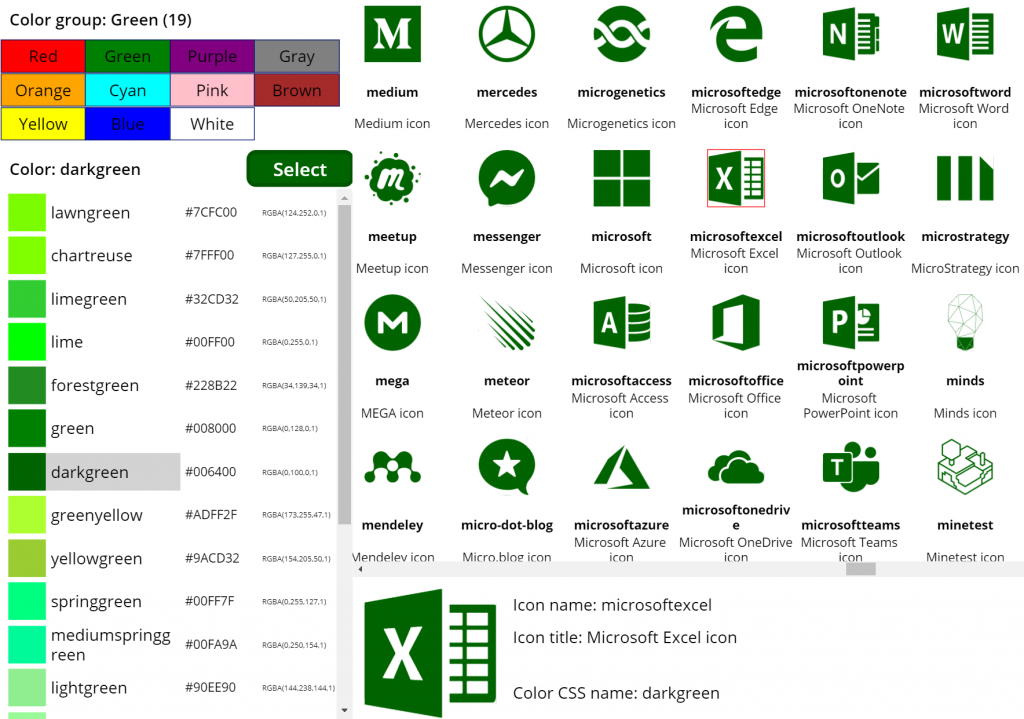
    This allows us to combine the earlier SVG icon gallery with our CSS color name gallery and make the color choice reflected visually immediately on all the visible icons:
    The visual part is what I love about this example of working with icons and colors in Power Apps. It’s a great exercise for learning how to work with data sources from the outside world and seeing how the Power Apps Canvas app UI changes as you modify your formulas and shape your galleries. Being able to inject dynamic values into XML that the app then renders in real time is a demonstration of how the low-code app development tools available in Power Platform can serve to unlock your creative powers, even if you have no skills on actual “pro code” development. Understanding how different color values can be passed on from one place to another and transformed via functions along the way also teaches you a lot more than using the standard color picker to set the static fill value of a single control.

    For me personally, it’s also an exploration of how to leverage configuration data when building Canvas apps. Coming from the Model-driven app customization world of XRM, my mind is still somewhat fixed on thinking via metadata, even though I’m trying to make the leap into UX first Canvas apps building (see this presentation for some of my tips on surviving that leap from Dynamics 365 to Power Apps). The possibility of importing static tables from Excel that are then preserved within the app is an interesting option to try and make the app building process a bit more structured than what the maker tools in Power Apps offer. I’m going to continue my experimentation and try to turn this example app into something that could offer reusable logic and configuration data when generating brand new apps.
  • Using SVG icons in Power Apps Canvas apps

    Using SVG icons in Power Apps Canvas apps

    When creating business applications on Microsoft Power Platform, a major difference between the traditional “CRM style” Model-driven apps and the modern “mobile first” Canvas apps is the possibility of visualizing data and available features in the app. Yes, having well-structured data to begin with is of course a fundamental requirement of being able to construct a meaningful business app. The freedom of pixel perfect visuals that Power Apps can deliver in the Canvas style apps is, however, an important factor when it comes to the perceived value that the end users can get from accessing the app.

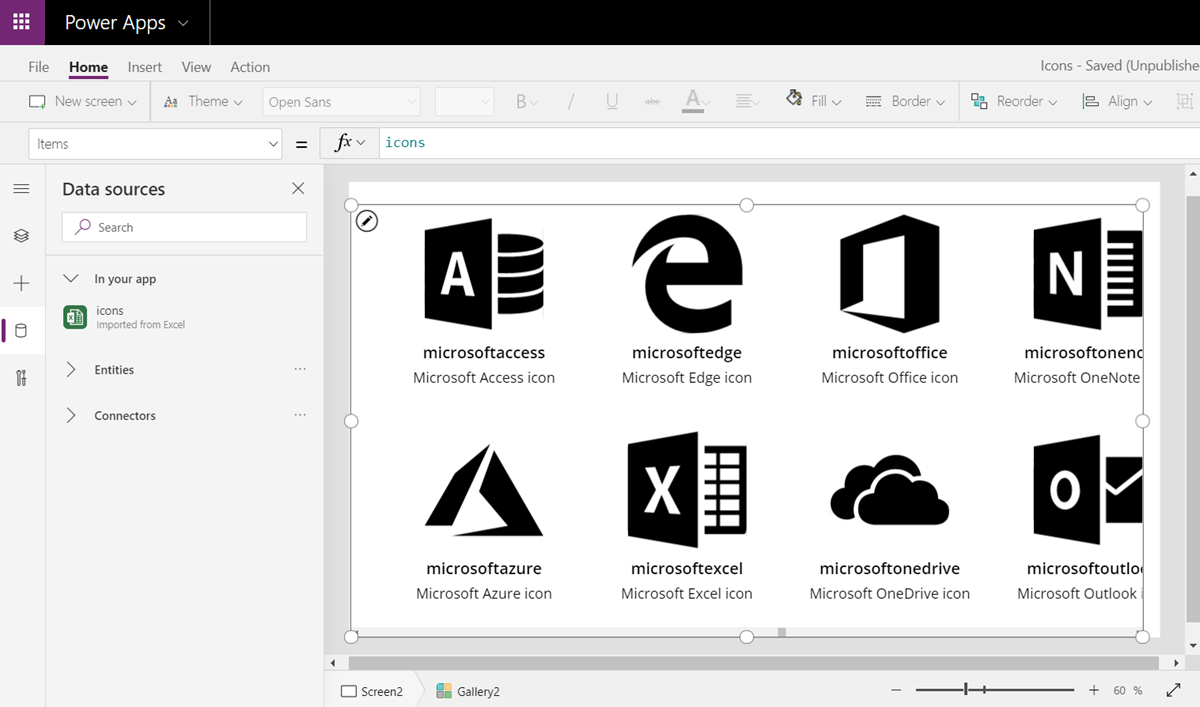
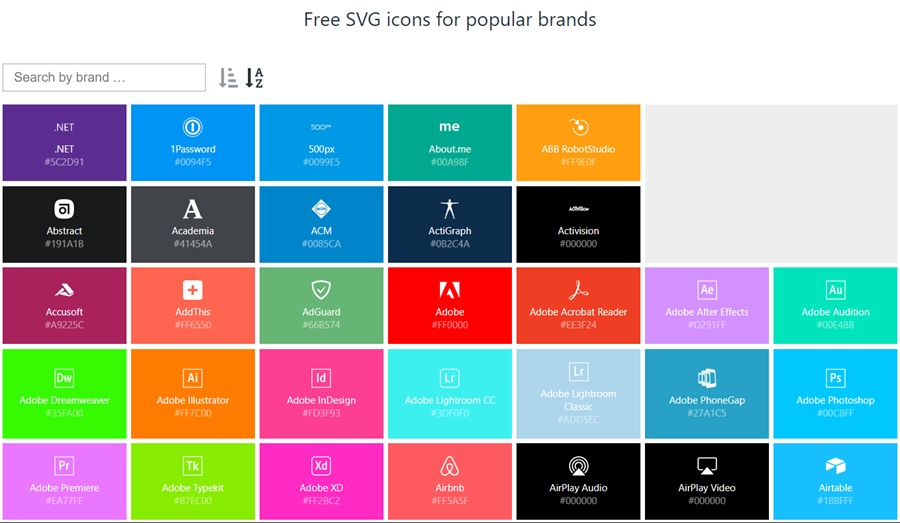
    If you’re willing to spend time in generating static images for all the different areas of your app UI and, more importantly, to reflect the state of your app in relation to the data that the user is viewing, then the sky’s the limit for what you could achieve with Power Apps. Now, considering that these low-code/no-code tools aren’t exactly targeted for professional app development teams that would have designers equipped with the tools & skills to create amazing graphics on demand, we often need to explore more frugal ways to make the app visuals serve their purpose. For those of us with next to zero skills in graphic design, sources of free / open source digital illustrations like IconFinder are like a gift from above. There are also a number of awesome icon libraries available on GitHub. Here’s an example of Simple Icons:

    Static graphics like PNG files can already do wonders to your Power App UI, but wouldn’t it be nice if you could also leverage the more scalable and adaptable SVG’s (Scalable Vector Graphics)? Especially for monochrome line drawings like the ones you’ll see a lot in today’s flat app UI, an SVG with transparent background and also a configurable color would be highly useful. Unfortunately, Power Apps today doesn’t support SVG file manipulation when imported as images. There’s a built-in set of icons that come with the Maker studio, which most probably are vector graphics, but you cannot add your own icons into that list. What this means is that if you import an SVG image into your app, there’s not going to be any more parameters available for you to adjust than if you had brought in a JPEG. Doh!

    A Canvas app that I’m currently building requires a large number of icons that should be dynamically changed based on a variable. For the purpose of mapping the suitable icon with a specific value and testing the UI, I wanted to bring in a whole library of icons and play around with it in Power Apps Maker Studio. In order to have better control over the icon appearance, I wanted to be able to modify the actual XML definition that makes up the SVG icon. Here are the steps how I managed to get the data inside the app and also how to render the SVG icons from the XML that I dynamically modify with formulas.

    Combining your SVG files into an Excel table

    Excel is a data source in Power Apps that allows you to import a static table of data into the app and store it there for all the app users to consume, without having to work with connections to external data sources. This type of resource file was quite convenient for my purposes, so the first thing I had to figure out was how to get a folder full of SVG files imported into an Excel table where each icon’s definition is represented on one row. In the above example of Simple Icon library, this would be the contents of the folder “\simple-icons-develop\icons”.

    Power Query in Excel has the “From Folder” option available when using “Get Data / From File”, which brings in not just a single file but rather all the files inside a specific folder. Great, that’s what I needed! Oh, but the source files I have are SVG which Excel doesn’t understand. No problem, let’s just change the file type to XML by renaming the files with by running this in the Command Prompt after navigating to that folder:

    ren *.svg *.xml

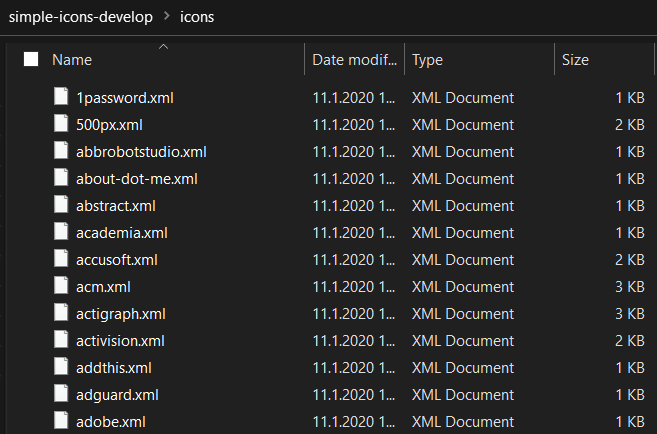
    This is what we should now have:

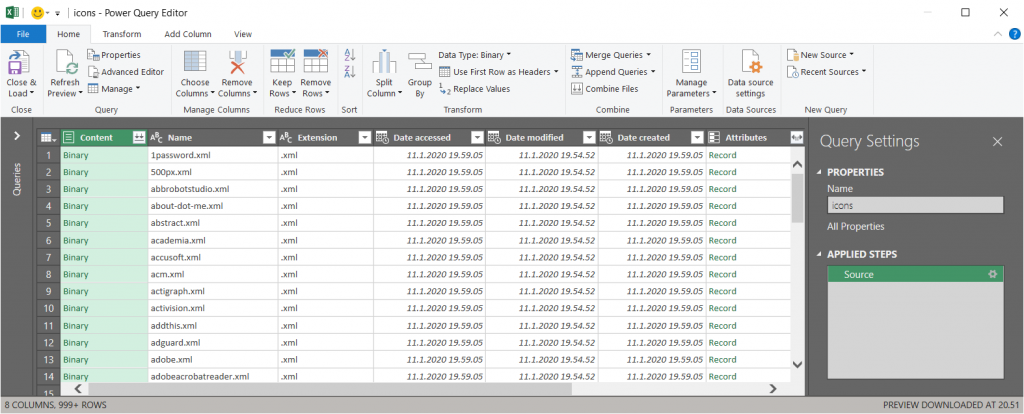
    Now we’re ready to consume the folder contents in Excel. Using “From Folder” and selecting “Transform Data” in the import prompt, we see a view like this:

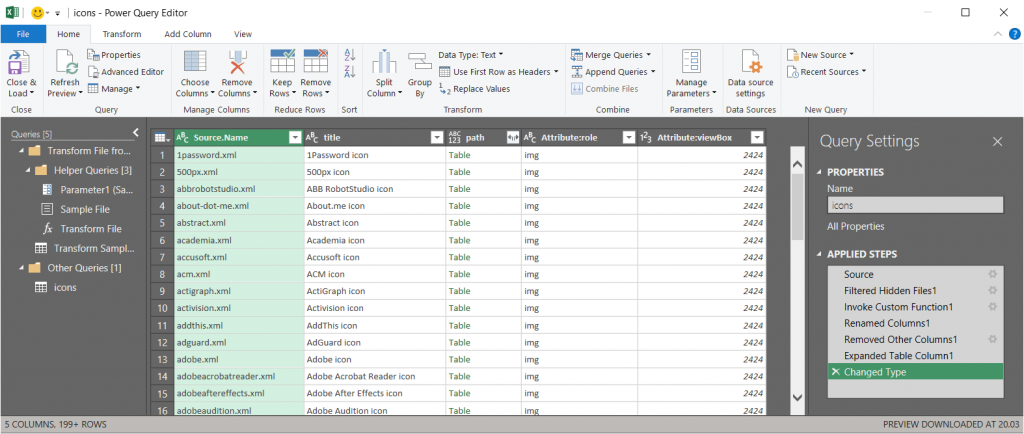
    A good start, but we need to do some transformations to this data. First, in the Content column, click on the two downward arrows for “Combine Files” and see the results:

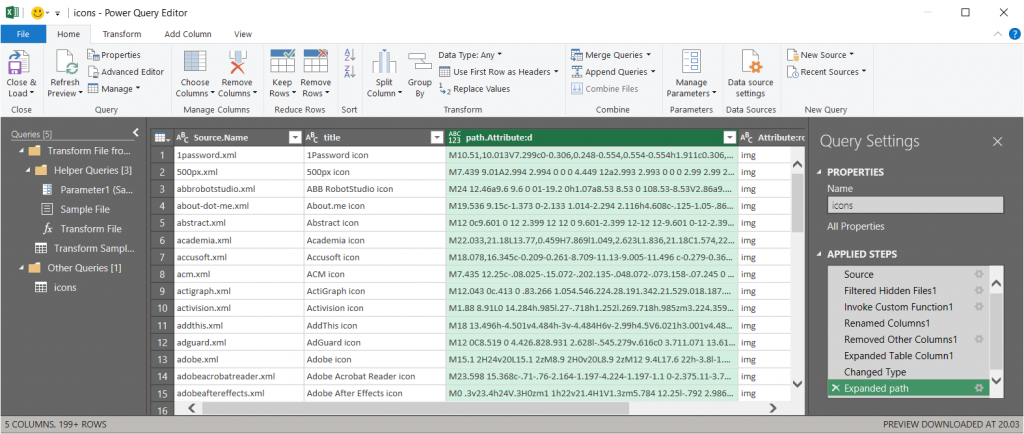
    Awesome, now we’re actually inside the XML file structure! What we’re really after is the <path> element in SVG , which is the ultimate drawing that creates the lines, curves and shapes. We don’t have to understand anything about its syntax (well, at least I don’t) but we need this data to get Power Apps to render the SVG shape inside an image control. Since it’s currently a table in the Power Query Editor, we click on the two parting arrows to expand its contents, which consists of a single attribute called “d”.

    We’ve now got everything we need, so the last steps are in removing unnecessary columns and renaming the existing ones. The first three ones are what we want to save into our Excel table, so let’s simplify the column names to “name”, “title” and “path”, then click Close & Load. You should have a beautiful Excel file with as many rows as you had files in the source folder. Before saving and closing the .xlsx, give the table a sensible name that you want to have showing up as the data source name in Power Apps.

    Visualizing SVG data from Excel inside Power Apps

    How does one actually turn the XML definition data into a visible image in Power Apps? There’s a great blog post from Laura GB titled PowerApps – SVG Introduction, which gives us all the details needed to make the Image control render our SVG data. To see how it works in practice, let’s first bring in our Simple Icons Excel table into Power Apps as a data source:

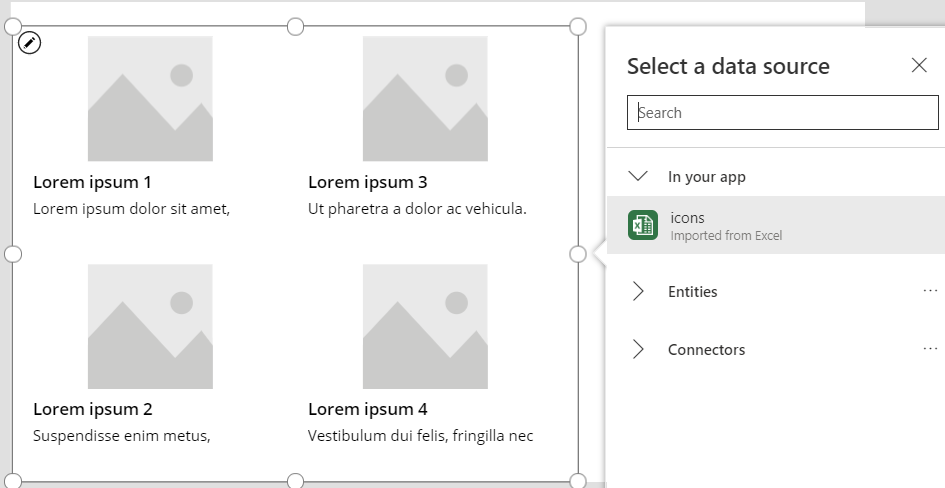
    Next we can add a horizontal gallery onto our screen an choose to use the imported table “icons” as our data source:

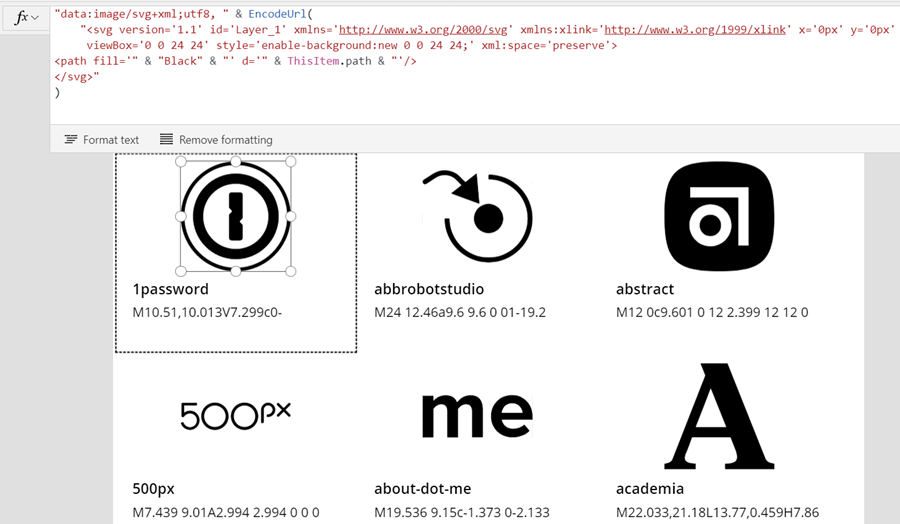
    Our table has the three columns we left in there when working with Power Query. From the default mapping we can see that the gallery item’s Subtitle1 label has “ThisItem.path” as the Text value. This is the data we’ll want to use in the image control of the gallery item, but first we’ll need to wrap it into something that gives Power Apps the context around it needed to render the SVG image, since we only imported the one attribute and not the complete XML. However, since this XML part will be exactly the same for any icons that we want to display from this Excel table, it can consist of static text, inside which we’ll inject a few dynamic values with the Power Apps formulas. Adapted from Laura’s post, this is how the Image property of the Image control inside the Gallery item should look like:

    "data:image/svg+xml;utf8, " & EncodeUrl(
        "<svg version='1.1' id='Layer_1' xmlns='http://www.w3.org/2000/svg' xmlns:xlink='http://www.w3.org/1999/xlink' x='0px' y='0px'
    	 viewBox='0 0 24 24' style='enable-background:new 0 0 24 24;' xml:space='preserve'>
    <path fill='" & "Black" & "' d='" & ThisItem.path & "'/>
    </svg>"
    )

    The important part is how we construct the “d” attribute from ThisItem.path on line 4, as that will be the only dynamic value in our SVG for now. Here’s what the result will look like:

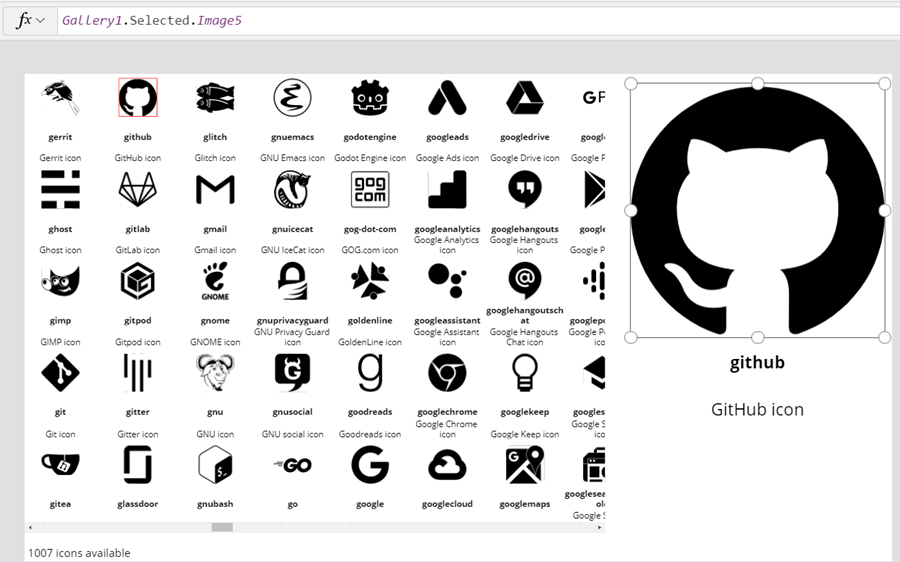
    It works! We can now design a gallery that will allow us to conveniently browser through the complete collection of 1007 icons in the library, by having a live “thumbnail” of the icon in a smaller 100*100 image control. To then view the selected icon in a larger format, let’s add a new image control outside the gallery and set it’s Image property to reference the Image of the selected item from Gallery1. Since these are vector graphics, there should be no loss of quality, no matter how large we set the image size to be:

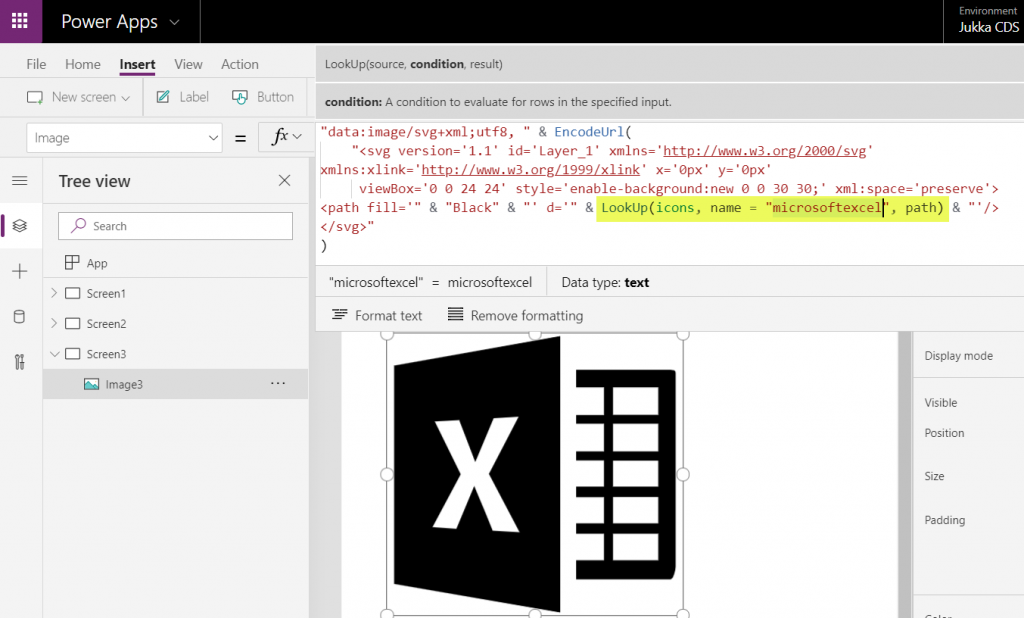
    If we now want to use these imported SVG icons from anywhere else in our app, we can just do a LookUp to the data source with the icon name and return its path, like this:

    LookUp(icons, name = "microsoftexcel", path)

    Using this when wrapped within the same formula we used earlier for showing the gallery’s selected item’s path will now give us a rendering of the SVG icon that matches our LookUp function:

    “Hmm, wont this kind of library of a thousand icons make our app size huge?” Not really. Since we are only storing the shapes instead of the pixels, the payload will actually be very compact for each icon. In this example with the Simple Icons library, here’s how much storage the different parts consumed:

    • Icons folder from the GitHub project: 1.5 MB
    • Excel file with icon XML imported via Power Query: 661 KB
    • .msapp file of the example app with static Excel data imported: 592 KB

    By taking just what we need (the shape information) and leaving out the static XML file’s overhead we’ve actually managed to shrink the 1007 icons into a much smaller space with our Power App. The other benefit is that further adjustment like icon color can now be set in our own formulas. In a follow-up post I’ll continue adding features into this icon library browser app to make use of exactly this capability.

  • Canvas Apps for the Model-driven mind: how to make that leap

    Canvas Apps for the Model-driven mind: how to make that leap

    Business applications come in all shapes and sizes. In the Microsoft ecosystem, we now have a broader set of tools to choose from, compared to the past strategies of Build vs. Buy, i.e. writing code to develop a custom application vs. using an application platform to configure the desired functionality. The birth of Power Platform and especially PowerApps as the underlying platform technology for creating business apps brought together two very different methods of configuration: Canvas Apps and Model-driven Apps.

    It’s safe to say that hardly anyone in the world is currently a master of both application types. If you’ve been introduced into world of business applications via Dynamics CRM, XRM and Dynamics 365 Customer Engagement, then you will by default solve the customers’ problems with a Model-driven approach. For those that have been working with tools like SharePoint, InfoPath and the Office 365 suite of information worker productivity apps, the solution is very likely to be envisioned as a Canvas App. Persons with less professional history from either of these MS clouds will probably gravitate towards the mobile-first experience of Canvas Apps when getting to know the capabilities of PowerApps today.

    There is very real value in being able to identify the logical objects involved in the functionalities required from a business app and turning that into a sensible, scalable data model. This is the XRM mindset of starting from the back end data and processes when designing solutions. If you have been developing these skills in the classic CRM style projects for several years, then you possess superpowers that few Citizen Developers could ever match. Congratulations! However, now you need to start practicing the exact opposite approach for how to solve problems: forget the data and start from the user experience.

    You may already be aware of how massively Microsoft is investing in the new business models that Power Platform unlocks. Hopefully this has lead you to at least experiment with creating Canvas Apps based on existing data sources like CDS (if you still call it Dynamics [something], then hey: that’s perfectly alright!). While exploring these tools, perhaps you’ve also noticed how parts of the old XRM admin and customization features have started appearing in the PowerApps (and Flow) maker experiences. This level of awareness is a great start, but it’s not taking you very far yet in the process of changing how you think about solving business problems. You need to go much deeper, to unlearn the limits our model based world and embrace the possibilities of a modern Enterprise Low-Code Application Platform.

    At 365 Saturday Kyiv and more recently at Power Platform Saturday Oslo I’ve done sessions on this transformation process, aimed at the XRM professionals. These include setting the scene on how & why the different app types are merging together, what are the key differences in solution design process for Canvas vs. Model, and how to get started in being part of this new #PowerAddicts movement. The slide deck includes a “Top 10 tips for starting Canvas App development on top of CDS” section, which should hopefully make the journey a bit easier than it has been for me, back when I started on it around one year ago. See below for the presentation or go directly to SlideShare my Slides archive to enjoy it in full fidelity.

    Now the question is: have YOU already started your journey into the UX driven Canvas App world? If yes, what have been the biggest revelations or obstacles that you have encountered? If not, what are some of the roadblocks that have kept you from making that leap from the familiar Model-driven business applications into the expanding opportunities that PowerApps Canvas apps have to offer? Please do share your experiences in the blog comments, as I’m quite sure this an area where many professionals are searching for guidance and peer support.

  • Why You Should Become a #PowerAddict

    Why You Should Become a #PowerAddict

    Recently I was tagged to do a “confession” in the #WeArePowerAddicts challenge, started by MVP Vivek Bavishi. There’s been a massive amount of support for this over on Twitter, where many of the finest members of the community are enforcing the message that is bringing all of us together. In this post I’ll cover three aspects that I find so intriguing with this movement that is forming around Microsoft Power Platform and why professionals with a Dynamics 365 Customer Engagement / XRM background should seriously consider getting involved with it.

    The Return of the Community

    Community was the biggest single reason why Dynamics CRM became such a defining part of my professional life, starting way back in 2005. Sure, I had already earlier enjoyed the business/marketing side of customer relationship management, but it wasn’t until I had to dive deep into a specific technology that I realized the massive value of an active, global user community. The growing blogosphere around Dynamics CRM and especially the social layer of #MSDynCRM Twitter on top of it first empowered me to turbocharge my own speed of learning, then later presented me a medium for expressing my own thoughts. And here we are now.

    Lately I’ve been having this feeling of premonition combined with dejavu. Like being special agent Dale Cooper, investigating the events that are taking place in a strange town in Pacific Northwest, far away from your normal surroundings, encountering The Giant in a dream sequence and being told that “it is happening again”. Only this time the Giant is Power Platform and the place isn’t Twin Peaks but rather Redmond. Big things are happening and it’s still difficult to see exactly how the story line will play out, but you just can’t wait to see what the next episode will reveal.

    The cast of this show isn’t just made up of Microsofties. Just like in Season 1 that brought us Dynamics CRM (and XRM), the biggest stars are actually the community members who keep you engaged with exploring the many wonders of this new world of Power Platform that Community Season 2 has introduced. They eagerly demonstrate their skills with the cloud toolkit of PowerApps, Flow, Power BI, CDS, Connectors, Azure services, in combination with the more familiar Office and Dynamics products, infecting you with their enthusiasm. Some would call them PowerAddicts.

    Be a Maker, Not a Customizer

    When implementing a CRM system based on Dynamics 365, you’re always more or less adjusting the functionality of an existing application to meet the specific needs of the customer’s business processes. The starting point is always the same, and the end result depends on how much budget you’ve got for customizing the OoB experience. In general, the CRM systems deployed for various different organizations resemble one another far more than you might have initially expected, considering the great amount of effort invested in the projects to build them. It’s not a bad thing – especially since many customization requirements may not end up delivering a positive ROI anyway.

    Switch from the preconfigured first party Dynamics 365 apps into the pure platform play of PowerApps and it’s a completely different ball game. PowerApps Canvas apps start with a blank canvas, just like the name suggests. There is nothing in the tool itself that would dictate how exactly your app is supposed to look like and what features it should contain. With this massive power comes a great deal of responsibility, as you truly are the maker of the application that needs to have a vision of what you’re building as well as the capabilities to make it all come alive.

    To come up with a vision of your own, the most important ingredient is exposure to the work of others. You need to see what the #PowerAddicts community has built, get inspired by it, and then take a shot at building something new from those pieces + the ideas and requirements that are unique to your project. You may well need to have a number of hobby projects, too, since delivering a made-to-order application without first practicing how to work with your tools is going to be tough. The concept of Maker Culture describes the community’s approach to Power Platform quite accurately:

    “Maker culture emphasizes learning-through-doing in a social environment. It emphasizes informal, networked, peer-led, and shared learning motivated by fun and self-fulfillment. Maker culture encourages novel applications of technologies, and the exploration of intersections between traditionally separate domains and ways of working.”


    Wikipedia

    Sure, it’s not like you didn’t need the forums and search engines as a basic survival kit in Dynamics 365 projects, too. That’s still more of a unidirectional way of using the community to get the job done, whereas how this new generation of Power Platform Makers seems to have an intrinsic motivation to build things together.

    Escape from Planet CRM

    Dynamics 365 as a product family is constantly evolving and the number of different applications in it is growing like never before. Despite of all these exciting new opportunities that the technology stack and Microsoft’s commercial offering seem to be opening up, in the everyday life of a consulting organization it’s still frighteningly easy to fall back into doing “just CRM”. What I mean by this is the process of repeatedly solving the same problems for different organizations, through pretty much the same methods as before, just with an updated version of the tools you’ve been using for years. While it may sound like a lucrative business area, in the long run such repeated problem solving via manual labor (i.e. burning your cognitive fuel reserves) really ought to be taken over by machines – be it an app, an “AI”, or simply an innovative, repeatable service offering delivered by a commercial machine instead of a project team.

    After 13 years of Dynamics CRM experience under my belt, I often find myself torn between the value of my accumulated knowledge and the burden that it imposes on me. I pretty much know in advance what challenges a customer will have with Dynamics 365 Customer Engagement when hearing about their expectations for a CRM system and how it should fit with their organization’s existing tools and practices. I’m painfully aware of the ever expanding solution areas I don’t know well enough to give the right answer immediately when presented with a specific problem. Sure, there are the many small victories to celebrate when I can use my prior knowledge to solve problems – be it a blog article by myself on the very topic, or the ability to quickly find the right link where someone else has presented the solution. Still, with the scope of work included in a typical CRM projects it feels like I’m at a saturation point where it’s no longer possible to gain new generalist skills without starting to lose my grip on the skills I’ve gained earlier. This is of course the point where a common sense advise would be to go specialize on a more narrow area to further advance your skills – but what if you just find the role of a generalist more fulfilling in the grand scheme of things?

    What Power Platform offers to people like me is a fresh new start. Here we have a toolkit that comes with zero hard dependencies on doing things the way they’re done in the CRM business. You can take PowerApps and build a solution to pretty much any business problem that revolves around improving the processes between the employees of an organization and the data sources they have access to (or should have). There are no assumptions here about the right way to solve such problems, unlike with CRM where you are in a way competing against the long legacy of prior systems, processes, best practices. It’s not a vacuum of course, as there are always alternative solutions out there.

    The important difference here is that the boundaries of your work are truly undefined at this moment. No one knows how far these things will go, but if you have faith in the competitiveness of Microsoft cloud and its ability to attract both the right kind of commercial players to form an ecosystem as well as those inspired professionals that build up the community around it (hello #PowerAddicts!) then you know it’s going to be far bigger than CRM ever could have reached.

    Power Platform allows the seasoned CRM professionals to return back to the role of a student. With new tools like PowerApps and Flow you are pretty much starting from scratch and you need to ramp up your skills in the same way as you might have done with MSCRM vX.0 back in the days. If you just can mentally position this work the right way and approach it primarily as a learning experience instead of a ToDo item in a project backlog, then OH MY GOD how much fun it is! Seriously, these tools can give a motivated citizen developer the kinds of superpowers that I couldn’t have even imagined just a couple of years ago. It ain’t all just marketing – it’s the real deal.

    Now’s Your Turn

    If what I’ve said here resonates with you and you’ve been hoping to find a way to get back into the game 100%, then you owe it to yourself to get truly involved with the Power Platform. Become an Addict.

  • PowerApps “Starter” Plans Capabilities Demystified

    PowerApps “Starter” Plans Capabilities Demystified

    There are many ways to get started with PowerApps on the cheap. What I mean by cheap here is the types of licenses that have certain limitations on what you’re allowed to do with the PowerApps platform and apps, in exchange for their lower cost. In other words, “less than PowerApps P2 capabilities.” In this article I’ll try to illustrate what these limitations are, especially when working with data in the Common Data Service (CDS).

    As was announced already one year ago, PowerApps Plan 2 at $40/user/month is the official platform SKU that allows you to build and run highly complex custom applications, on top of the same platform that also powers Dynamics 365 Customer Engagement (CE) applications. If you have a license for any CE Enterprise App or Plan, you’ve also got the full power of PowerApps P2 at your disposal. As long as you can afford to fork out at least $95/user/month, then you’ll get both the first party Dynamics 365 App plus the unlimited platform usage, which of course is the best scenario in terms of how to digitally transform your business processes with the help of MS Cloud.

    When building custom PowerApps, often times the audience that would need to have access to these apps is much larger than your team of sales people who would use the CRM application manage customer interactions and sales pipeline, for example. The apps may be replacements of legacy Excel sheets or even paper forms, which are not all that complex when compared to full Enterprise Sales applications, and they might not even be used that often per single user. However, you may still need to enable each and every employee in the organization to use the application to complete the task it’s designed to manage.

    For these kind of scenarios the licenses should preferably fall more into the Office 365 (or Microsoft 365) territory, so that they can be standardized as the tools that all information workers in the company have at their disposal. Luckily there is a plan called “PowerApps for Office 365” that already provides the basic capabilities for app building and usage bundled into the license that almost everyone has these days. The limitations are that it’s really meant only for working within the Office 365 stack of services. The next level up from there, PowerApps Plan 1, is also priced at $7/user/month which is only a fraction of the price of Enterprise Sales App, for example. Here you get access to CDS and various types of connectors to other systems where your business data may reside.

    Up until this point, the PowerApps plans and capabilities line up nicely into a stacked Venn diagram with these layers:

    Where it starts to get more complex is the Dynamics 365 CE licenses that are below the Enterprise Apps and Plans. These do NOT include the PowerApps P2 capabilities but a different plan called “PowerApps for Dynamics 365 Applications”. In the CE product portfolio, this plan is included with the following licenses:

    • Dynamics 365 for Team Members ($8)
    • Dynamics 365 for Customer Service Professional ($50)
    • Dynamics 365 for Sales Professional ($65)

    You should look into the PowerApps & Flow Licensing Guide to get the full details about what the limitations for different plans are. Now, since these type of long documents aren’t great at highlighting what the “gotchas” in the licensing model are, here’s my attempt at drawing a picture around these lower end PowerApps plans and key capabilities. Please note that I’m only covering the Team Member license here when referencing the “PowerApps for Dynamics 365 Applications” plan, as it’s more in line with the price range of the aforementioned “starter” plans.

    Let’s start from the left, meaning the one capability that is included even in the “PowerApps for Office 365” plan: run standalone Canvas apps. For some peculiar reason, this is not allowed for users with the “PowerApps for Dynamics 365 Applications” plan. The only thing that they can do is “run extended first-party Dynamics 365 (Model-driven) apps within the context of the application use rights”. So, an embedded Canvas app on the account entity form is allowed, but launching any app directly from either web.powerapps.com or the PowerApps mobile app is forbidden.
    This leads to an interesting scenario, because essentially the “PowerApps for Dynamics 365 Applications” plan doesn’t give the users the right to run any type of app that says “PowerApps” in the header bar. Only the applications with “Dynamics 365” branding are within the boundaries of this plan, which makes you wonder why it even need to be a plan in the PowerApps licensing model when the Dynamics 365 licensing should in theory cover it.

    (more…)
  • New Courses for Learning Power Platform & Dynamics 365

    New Courses for Learning Power Platform & Dynamics 365

    Microsoft announced in December 2018 that they were retiring many of the Dynamics 365 exams that previously were part of the MCSA and MCSE Business Applications certifications.

    Shortly after that, there was a brand new set of certifications and their associated exams announced. The exams are:

    • Microsoft Dynamics 365 Customer Engagement Core (MB-200)
    • Microsoft Dynamics 365 for Sales (MB-210)
    • Microsoft Dynamics 365 for Customer Service (MB-230)

    By passing the exams you can claim the following certifications:

    • Dynamics 365 for Sales Functional Consultant Associate (MB-200 + MB-210)
    • Dynamics 365 for Customer Service Functional Consultant Associate (MB-200 + MB-230)

    Just today I took the new MB-200 Core exam as beta and I have to say the content has evolved nicely into a much more rich format than what the previous “pick 1/2 out of 4” questions types were. There’s a lot to cover in one exam, as this new MB-200 essentially combines the earlier Online Deployment and Customization & Configuration exams into one. Still, these are all essential skills for anyone who’s working on this ever evolving business application platform from Microsoft.

    So, where does one go to learn these skills for passing the brand new exams? While Microsoft did release the list of new courses that link to these exams, there wasn’t an online learning option made available initially. Traditionally the content would have been published via the Dynamics Learning Portal (DLP) that has been limited only to Microsoft partners (and notoriously difficult for gaining access to). However, going forward the DLP course catalog will not be updated, based on the notification shown on the portal:

    Great, lets head to Microsoft Learn then! Except that this isn’t where the course material for the Dynamics 365 certification exams seems to be landing. You see, Microsoft has also been publishing newer online learning materials on an open platform called edX, like this Power BI course.

    Oh, but that’s actually a different edX than the one we’re talking about here. While edX.org is a platform common to many training content providers, there’s a dedicated Microsoft site at openedx.microsoft.com which served as the hosting platform for the first non-DLP Dynamics 365 course one year ago:

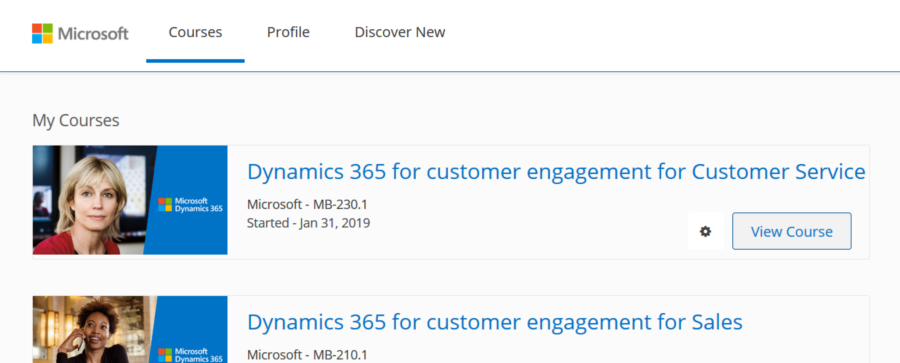
    At the moment there isn’t a visible catalog of the new Dynamics 365 and Power Platform courses on that site yet, but it is fully possible to sign up for the courses via direct links. Here’s what my dashboard at openedx.microsoft.com looks like after picking all the new courses:

    Here are links that should work for accessing the online courses:

    • MB-200T01: Dynamics 365: Power Platform applications
    • MB-200T02: Dynamics 365: Power Platform automation
    • MB-200T03: Dynamics 365: Power Platform integrations
    • MB-200T04: Dynamics 365: Power Platform test and deploy
    • MB-210T01: Dynamics 365 for Customer Engagement for Sales
    • MB-230T01: Dynamics 365 for Customer Engagement for Customer Service

    What’s interesting is that due to the open nature of Open edX, there appears to be a whole network of training service providers that have partnered with Microsoft and distribute these same courses on their portals. As an example, the Finnish IT training company Sovelto has these courses available for free on their SoveltoX portal:

    We may get more clarity on the roles of each channel in the future, but since so many Dynamics 365 professionals are eagerly looking to start preparing for the latest exams, here’s at least a way for everyone to quickly get started on their learning journey. Refer to this post by Mark Smith for a more comprehensive list of links regarding the Dynamics 365 & Power Platform training and exams in 2019.

  • Demystifying Dynamics 365 & Power Platform Licensing: Part 2

    Demystifying Dynamics 365 & Power Platform Licensing: Part 2

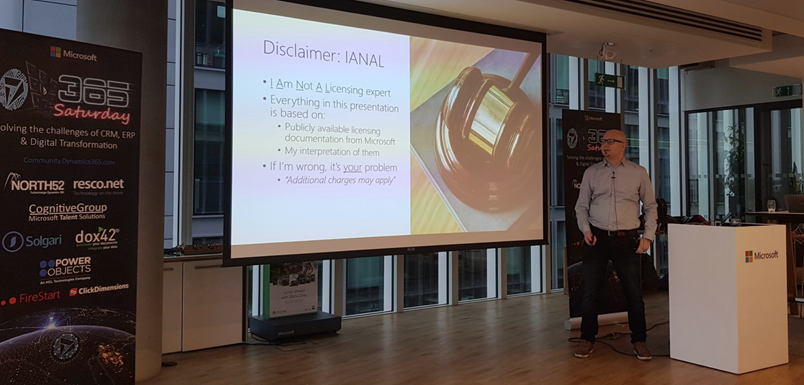
    In the previous post I highlighted some of the recent updates on Dynamics 365 licensing. Now let’s have a look at how the birth of Power Platform has further expanded the licensing options for delivering business applications to customers. Just like before, the content is taken from my session at Dynamics Power 365 Saturday London 2019 and you’ll find the complete slide deck on SlideShare my Slides archive:

    PowerApps vs. Dynamics 365 CE licensing

    Common Data Service for Apps (CDS) environment is essentially the same as a Dynamics 365 Customer Engagement instance, just without the first party apps from Microsoft. If you can get CDS both via PowerApps license as well as Dynamics 365, then it’s important to understand what the subtle differences there may be. Currently at least these features are missing from a pure CDS environment when you provision it for PowerApps and not Dynamics 365:

    There are interesting differences in how the licenses grant you resources when comparing Dynamics 365 CE and PowerApps. On the storage side you get the same starting 10 GB per tenant and as you purchase more user licenses they give you more storage quota. As for the actual instance/environment count, on the Dynamics 365 side you need to pay for additional sandbox and production instances (roughly €125 & €460 per month). PowerApps is far more generous in this sense, as each P2 user license gives you 2 environments. With 100 users you could therefore have 200 environments for your organization, which sound like a ludicrous amount if you’d think of them as CRM instances. That’s where the broader business application scope of Power Platform and the citizen developer mindset clearly differs from the Dynamics way of doing things in a controlled, centralized manner.

    One area which Microsoft has left very unclear in their licensing documentation is what level of PowerApps user rights are included in the non-Enterprise Dynamics 365 licenses. A recent presentation finally listed the restrictions that licenses like Team Member, Sales Professional and Customer Service Professional face in their ability to leverage PowerApps. With the new feature that allows embedding canvas apps into model-driven app forms, the rights of all Dynamics 365 licenses now do include access to these embedded experiences. However, running any standalone PowerApps canvas app is NOT included in these cheaper licenses, so you’ll need a separate license for those scenarios (like PowerApps P1, or the rights bundled in Office 365).

    Looking at it the other way around, what Dynamics 365 style of functionality you get access to with a PowerApps license, the differences between P1 and P2 can be a bit tricky to understand in real world scenarios. Sure, P1 is limited to canvas apps usage only, but also on that side we have exclusions for restricted entities and complex entities. The concept of “complex business logic” is the real gotcha, though, as enabling real-time workflows or plug-ins for an entity will instantly switch the requirement level to P2 license. Here’s how you might fall into this trap:

    For anyone who’s either been building more advanced apps or has planned to do this and has stayed within the PowerApps & Flow licenses bundled in with Office 365 subscriptions, you’ll need to pay close attention to the updated license terms that came into effect on February 1st. In short, usage of custom connectors, HTTP custom actions and on-premises data gateway were moved to PowerApps P1 level and are no longer “free” with Office 365 plans. For a deeper dive into the practical implications of this change, be sure to check out this comprehensive licensing guide to Microsoft Flow and PowerApps by MVP Jussi Roine.

    The push for getting organizations to adopt CDS environments as the basis for their PowerApps canvas apps and therefore upgrading their license package to the paid tier of PowerApps P1 will be a milestone Microsoft undoubtedly wants to reach. This can initially be a hard sell if there aren’t that many apps in production use and the cost of these advanced features would have to be absorbed into their business case calculations. However, if this can be viewed as a proper platform story that is about acquiring licenses for the common foundation of hundreds of apps to come, then the math is far more favorable.

    Model-driven apps and P2 of course represent another big jump in the relative cost of a single license vs. P1 and “free” Office 365 license. Then again, when viewed from a Dynamics 365 perspective, the ~€34 price of P2 is so much cheaper than a Sales Enterprise app license at €80 (and with none of the Sales Professional limitations) that even building your custom Sales app on top of the platform becomes an interesting scenario. That’s one of the changes that has take place with the Dynamics 365 licensing guide wording, as the earlier restrictions about replicating existing 1st party app features have been removed:

    That’s it for the licensing mysteries that I had the pleasure of covering in my 365 Saturday session. Grab the full deck from SlideShare and keep in mind that by the time you read it these licensing terms may well have changed already! For example, the PowerApps licensing page on docs.microsoft.com was updated on Feb 1st and there was a new January 2019 version of the Dynamics 365 Licensing Guide published already.

  • Demystifying Dynamics 365 & Power Platform Licensing: Part 1

    Demystifying Dynamics 365 & Power Platform Licensing: Part 1

    At Dynamics Power 365 Saturday London 2019 I presented on a topic that I had never attempted to cover in any public forum earlier: licensing. In fact, I bet it’s an area most members of the Dynamics 365 community would want to avoid touching at all cost in their sessions. It’s even worse if you’re a technical specialist working for Microsoft, because then you’re under strict guidance on not to make your own statements on an area as delicate as licensing (let alone pricing) and instead direct the customers to talk with a department focusing on these commercial matters.

    Yes, it might feel like explaining quantum physics as you travel deeper into the maze of a software product licensing matrix built from license types and feature bullets, accompanied by pages of text full of phrases that feel as if they’re intentionally designed to make you trip over a detail you failed to notice. Then again, this isn’t really that much different from the attention to detail that is required when designing a technical solution made of software bits that must work together. A proper solution needs to be viable both from a technical and commercial perspective, so there’s no point in closing your eyes and hoping that the client forgets to ask about the license requirements.

    As with the technical side, you don’t need to memorize all the details that are found in the official licensing documentation. You just need to be aware of how the big picture looks like, what factors may affect the type of license needed and where to search for the exact answer. Like with the product itself, also the licensing model is constantly being updated and you’ll need to keep up with the changes to stay on top of the licensing game. Now when the Dynamics 365 and Power Platform product lines are being united not only on technical level but also commercial, it’s particularly interesting to see how Microsoft will align these two license models.

    You’ll find my full deck from the London event already on SlideShare my Slides archive, so feel free to browse through the story. I’ve divided the blog post into two parts where I highlight some of the more interesting graphs, in an attempt to grab your attention before throwing 54 slides of PowerPoint at ya! In part 1 I’ll cover the Dynamics 365 side and the next post talks about Power Platform.

    Dynamics 365 recent licensing updates

    Licensing enterprise software has never been too simple. As the product suites grow, they tend to accumulate all sorts of weird exceptions to the general rules that used to define the basic licensing model. Whenever a brand new model is introduced, the promise tends to be “we’ve simplified our licensing!” and yet you end up with documentation twice the length of the earlier model. Such is life, and Dynamics 365 Customer Engagement is one part of it. Here are the main concepts you need to understand in order to grasp the details of how the product’s licensing works today:

    Even though the anticipated split between Enterprise Edition and Business Edition never materialized for Dynamics 365, we did get some alternatives to the “real” Enterprise plans and apps with the introduction of Sales Professional and Customer Service Professional licenses in 2018. To compensate for the cheaper price, there are a number of limitations imposed on the Professional apps. Some of the features you may have come to take for granted as an XRM core capability are stripped away if you opt for the cheaper license:

    There is of course an even cheaper and much more widely used license type: Team Member. Back at the time when Dynamics 365 brand was announced, Microsoft still appeared to be in denial about the business potential of this cloud service as a true application platform and neglected this aspect in their licensing model. As a result, Team Members were granted unlimited rights to custom entities, thus opening a back door for XRM scenarios. Now when the winds have changed with the Power Platform revolution and platform licensing is a thing with PowerApps P2, that door had to be slammed shut with changes to the licensing terms. First, the access to the most central entity of most CRM systems, the account, was limited to read only for Team Members. Second, the use of custom entities was restricted and the following guidance is now given for choosing the right license type:

    An important aspect for both Professional and Team Member license holders is that there will soon be more technical enforcement of the limitations for customized scenarios. Specifically, the App Module concept will be used to determine what the user can access. You can have 15 editable custom entities per app and grant Team Member users access to all of these (+ global read rights to all Dynamics 365 entities). However, configuring your own App Module will be off limits, as Microsoft wants to ensure you are really just using the 1st party apps with extensions and not something completely custom – unless you pay for Enterprise apps or PowerApps P2.

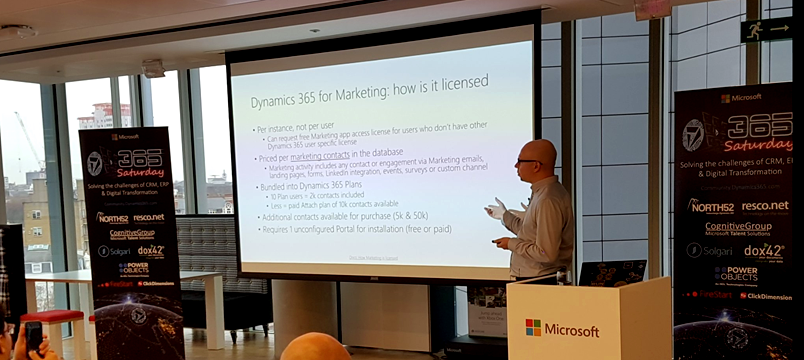
    The more recent the apps in Dynamics 365 product family, the more interesting their licensing models appear to get. Dynamics 365 for Marketing launch was of course a big event in 2018 and the per instance licensing model combined with the per contact pricing is a story you’re better off reading from the blog of a fellow MVP. Recently we’ve seen the AI apps march onto the stage and Dynamics 365 AI for Sales already getting a license type available for purchase. Who gets what where isn’t all too clear when these AI powered features are offered via two different application UI’s for both those with an AI license and those with just the Sales Enterprise one:

    Stay tuned for part 2 where I’ll dive deeper into the PowerApps side of the licensing pool.

  • Getting Your MCSE Certification for Microsoft Business Applications

    Getting Your MCSE Certification for Microsoft Business Applications

    No matter if you’ve been in the Dynamics business for over a decade, there inevitably comes a time when you’re unqualified for your job. Not necessarily from a real life competence perspective, but by not having any valid certifications for the Microsoft product you’re working with. This was the fate that I was facing as the year was coming to an end and my CRM 2016 era certificates were about to become worthless in the eyes of MSFT.

    Not that there’s anything wrong with a fine product like Dynamics CRM 2016 yet, but if you’re working for a partner organization then the exams for that particular version no longer count towards your company’s competency eligibility. It’s Dynamics 365 all the way now, no more CRM. It shall be interesting to see how the validity of these certifications will be defined in the new world without any year numbers in the product name, but let’s not worry about that just yet. If like me you are in risk of becoming uncertified, then here’s a bit of information on how to turn things around.

    Welcome to Cloud Business Applications

    Since CRM isn’t a thing for Microsoft anymore, also the competency that MS partners now need to target is called Cloud Business Applications competency. Compared to the earlier and soon retiring Cloud CRM competency the requirements for number of certifications as well as certified professionals have gone up significantly. Silver requires 5 individuals with in total 15 exams passed, whereas Gold is a whopping 15 & 45.

    Alongside this change there has also been a formal MCSE certification introduced for Business Applications. The way this works is that you’re supposed to first take the two required exams for MCSA: Microsoft Dynamics 365 certification: Online Deployment (MB2-715) and Customization & Configuration (MB2-716). Then you have a choice of completing one of the application exams, either Sales (MB2-717) or Customer Service (MB2-718). Now, this conveniently aligns with the Cloud Business Applications competency requirement, so you could simplify them by stating you need 5 (Silver) or 15 (Gold) MCSE’s working for your organization to qualify.

    I chose to complete the first three exams and was automatically awarded both the MCSA and MCSE during the process. Compared to the last time when I did Dynamics CRM exams, there’s now an integration between Microsoft’s exam records and the Acclaim badging platform (yes, that’s an actual thing in today’s world). This means you can easily set up a public profile page displaying all those Microsoft certifications you’ve earned. For example, if you for a second doubt that I might have Photoshopped the above image of my MCSE then HAH! There’s the proof!

    (It’s nice to discover that I now have bonus skills I didn’t even know about, like Dynamics AX.)

    Find Your Way Around DLP

    We now know the why (attain competency) and what (MCSE Business Applications) so let’s talk about how. Dynamics Learning Portal should be familiar to anyone who’s done any homework about how the Dynamics 365 training courses are offered these days. If not, read the friendly FAQ. Now, once your organization has arranged you to have access to DLP, the next hurdle will be how to find the relevant material from this ever growing maze of training content.

    Searching with the exam code like MB2-715 is one convenient way of finding what you’re after. Another nice shortcut is to use a Learning Plan that someone has built and shared with you. Here’s an example of a Sales based Learning Plan that contains the courses for achieving MCSE: click here to add it to your plans.

    Another route to MCSE would be to complete the MCSA foundation courses and choose the Customer Service track instead. That is also available as a shared Learning Plan built by me, which you can access via this link.

    One nice thing about those Learning Plans is that they also show the total duration of all the videos in all the courses that prepare you for the MCSE. In these examples the Sales track contains the Introduction to Microsoft Dynamics 365 course, the Service track doesn’t. The net weight of these packages are 34 and 37 hours. One week’s worth of just watching the course video materials. No practice included.

    Passing The Exams

    That’s probably what you’d really want to learn from this post, right? Unfortunately, no one can be told what the right path to MCSE is. You have to see it for yourself.
    Obviously if this is the first time you’re studying for the exam area there’s going to be a lot more to digest compared to just refreshing your certification to the latest version. If you haven’t even touched the features in an actual Dynamics 365 / CRM environment before, then be sure to reserve a lot of time for poking around the application UI, entering dummy data, changing configuration options and examining their impact, building brand new areas into the application via customization tools, managing user and environment settings, installing solutions, browsing through the documentation, and so on. That’s how you actually learn the skills, not via memorizing the course material contents.

    Even people who have extensive experience on working with the XRM platform are unlikely to do well in the exams just based on the customer projects they’ve worked on. There’s going to be questions about features so ancient and so rarely used that you may not have touched them for 10 years, like discount lists. Then there’s the new stuff that’s still in Preview mode but included in the exam area anyway, so you’ll also have fairly little experience on using it in real life projects, like Relationship Insights. Those are the areas where even an experienced consultant will have no choice but to spend time studying how the product actually works.

    I’ll admit that I didn’t watch the videos while studying for my MCSE, since the areas in my chosen path (that include the Sales certification) were something I’ve spent quite a lot of time with – both in Preview programs exploring and testing the new features as well as designing and implementing solutions to meet customer needs. This meant that I was able to collect the information I needed from reading through the slide decks of each course, as well as glancing over the companion guides providing the text from the videos. These documents can serve as a “refresh pill” for your mind to help you recollect the things you’ve already encountered earlier, but they are obviously not designed to be a full user guide. You cannot replace a healthy learning diet with these pills alone.

    There’s The Exams – Then There’s The Real World

    The application exams are always the ones where I find myself drifting furthest away from my everyday work tasks. The reason is that they sometimes describe an alternate reality where customers actually use the built-in CRM features in a very deep way, with no mention of the customizability limitations and user experience challenges that in reality will steer many organizations away from them. Well, actually it’s the implementation consultants that get burned by an OoB feature and then THEY steer the users away from ever even knowing it exists.

    Making these two worlds collide is actually a positive thing in the end. In the midst of busy project work you rarely get to explore the way that Microsoft designed the application to be used, so you’re likely to focus a lot more on the limitations and differences to the customer’s specifications, not so much on the opportunities hiding within the product. I bet if you never study for the certification exams with the DLP materials then you’re going to miss out many areas where standard features could be applied to solve a real life problem – even if a bit of creativity would be needed in crafting the end solution.

    With multiple choice questions to measure the amount of knowledge crammed into your head, there’s unfortunately going to be some questions in the exams that focus on details you’d normally have very little need to memorize. With a customizable platform it’s not very essential to know a list of default views included or the specific terms used in the (English language) UI – unless you want to get your MCSE certification. In that case you’ll be partially evaluated by how well you recall theses type of details, not only based on what’s your understanding of the big picture and the context in which these details appear in the XRM platform. Oh well, such is life. You’re only going to need a score of 700/1000 to pass the exam anyway, so perfect memory is not a requirement.

    Probably the biggest challenge with the certification system is the pace at which the cloud platform is evolving. There’s just no way that the exam content could target the very latest release available for Dynamics 365 with the way new functionality is rolled out. As the platform and the applications on top of it are further separated from one another (App/Plat separation), potentially leading to an ever more agile delivery practices for new features, this will very quickly make the DLP course content details in conflict with what’s the actual product functionality that (new) customers have available to them. Solving this dilemma would require Microsoft to also move to a more agile process in delivering training materials as well as measuring the skills of the MCSE candidates, since regardless of the DLP delivery channel the exam format still remains very much founded in the era of on-prem software. It remains to be seen if new innovations in this area could eventually transform the certification process in a more profound way than merely making existing the classrooms and test centers virtual via tools like DLP and online proctored exams.

    Imagine All The People, Sharing All The World ?

    If you’re working on the customer’s side of the business, then Dynamics Learning Portal won’t be accessible for you. Sorry, this is a private school that doesn’t accept just anyone interested in Dynamics 365. One reason behind this must be that DLP is also the primary portal these days for Microsoft to deliver partner presales training courses and product announcements.

    There is another way to get to many of the Dynamics 365 training courses, though. Not many people might have heard of the Microsoft Imagine Academy, but now that it’s been featured on the prestigious CRM Tip Of The Day blog, I’m sure eager students are lining up behind their login page door already.

  • Configuring Custom Controls for Views in Dynamics 365 CE V9

    Configuring Custom Controls for Views in Dynamics 365 CE V9

    The new Unified Interface that launched in v9.0 of Microsoft Dynamics 365 Customer Engagement gave us all the possibility to try out the next generation CRM user experience in new trial orgs or sandboxes. While the CDU process for upgrading existing customer environments to V9 has not yet been made available by Microsoft (which gives them some time to iron out the remaining wrinkles with a steady stream of Service Updates), now’s a good time to explore what’s new and what’s changing with the imminent arrival of Unified Interface.

    One of the most exciting platform enhancements from a developer perspective is surely the arrival of the Custom Control Framework. Known as CCF for short (no, not that Microsoft CCF you senior members of the community might recall), this is essentially the mechanism through which all of the data visualization in the XRM platform will be handled in the Unified Interface. Not just the custom developed UI components from partners but also everything that Microsoft builds. Take a look at the default solution of a V9 org and you’ll already see a wealth of these components listed in there:

    The bad news is that as of now there’s no documentation nor API available for developers to build new or extend existing controls via CCF. It’s coming, but it just ain’t ready quite yet. In the meantime, us system customizers can get familiar with the concept by tinkering with the configuration options that ship with V9.

    Custom Controls for Views

    Back when the Editable Grid first launched, the feature was rolled out in an “all or nothing” style. What this meant was that you were able to enable it on the entity level, but then it was the only view type that any user would see in the UI (at least in the specified client type). Sure, they were given the option to switch from editable to classic read-only grid if they spotted the option, but the system customizer wasn’t able to target the powers of Editable Grid to only views that actually benefited from this feature.

    V9 has taken this a step further and introduced a Custom Control setting for each individual entity view. This gives us the option to set that only a specific view like “Edit Account Details” would only present the grid in the editable format with all the pros and UX cons that this particular control introduces over a read-only view. This doesn’t apply in the classic web UI (or the “Refreshed UI” as the V9 release refers to it) but on the Unified Interface side we can now see the power that this granular control over controls has on the user experience.

    New View Controls in V9

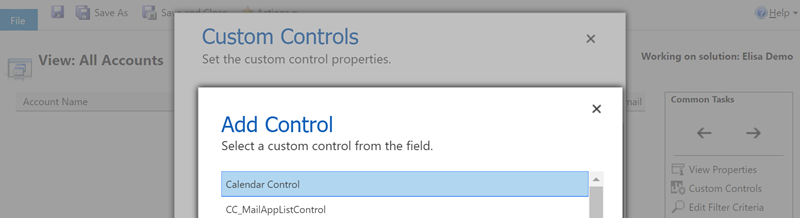
    In addition to the Editable Grid, there are a number of other grid types that a V9 org presents as options for the system customizer. In the screenshot above you’ll see the Calendar Control having been chosen as the data visualization type for the view. This opens up a number of configuration options that can be set right in the UI, like the date field data sources, description label, colors and so on. What we see here is essentially an example of the point & click configurability that a CCF based control can offer when used in the Dynamics 365 CE solution.

    The Calendar Control is also responsive to the client type. When access via a browser app using the Unified Interface style (in this case a custom Subscription Management app), you’ll see a somewhat ugly legacy calendar with the week days presented horizontally. When viewed via the Dynamics 365 for Phones app it will render in a the above format of vertically stacked records per day. (Yes, those day of the week and month texts are presented in Finnish regardless of the app language setting being English, because that’s how Microsoft prefers things to be).

    There are also other control types available for views in V9 currently, such as Timeline Control. That specific control appears to require quite a specific format of source data that fits the scenario of the Company News Timeline solution, so you might not find it useful in your own customization work. What might be worth noticing is that there are in fact two separate read-only grids available in the current release: the default one and the Read Only Grid with settings to control the entity card form and data reflow behavior.