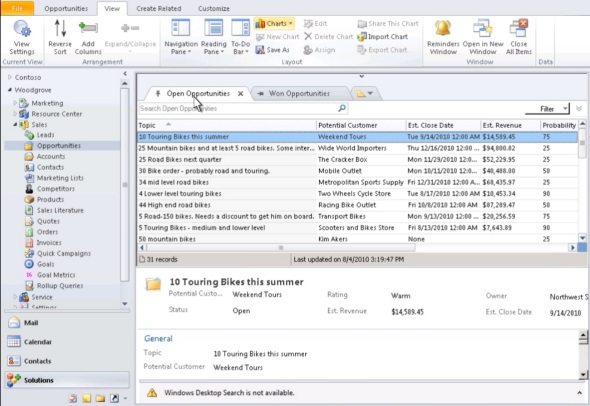
Last year the Microsoft Word Partner Conference gave us a first look at the Activity Feeds solution and other R7 feature enhancements. This year in WPC 2012 we got a taste of things to come in Dynamics CRM on not just one but two client UI’s. Although the Metro CRM app is surely a more significant step in the long run, the updated browser UI will initially have an impact on a much wider user base. That’s why I decided to blog about these news first before jumping into the world of Windows 8.
The screenshots in this post are taken from the recording of the WPC session titled Microsoft Dynamics CRM — Now and in the Future, in which Bill Patterson presented the future roadmap of Dynamics CRM. We’ll be getting an updated Release Preview Guide soon which hopefully goes into more detail about the changes and new features, so consider this just a sneak peak into what’s coming in the next Dynamics CRM update.
After the R8 / Q2 2012 release contents on the browser front were rescheduled, we’ll now be getting visible changes also on the Internet Explorer user experience in the Fall 2012 release (in practice the Q4 2012 Service Update). The new “Refresh” UI will take the classic browser experience closer to the Metro look & feel, but it is not the same thing as the Metro app. Point & click mouse interaction is still the focus here, although with cross-browser support you will at least theoretically be able to run this on a tablet with a touch UI.
The changes in the main screen of Dynamics CRM browser client do not appear to be functionally significant, rather just small tweaks in the colors, fonts and other details. We’re moving from the Vista style Aero UI into a simplified, flat Metro UI, which will be visible in all Microsoft products very shortly.
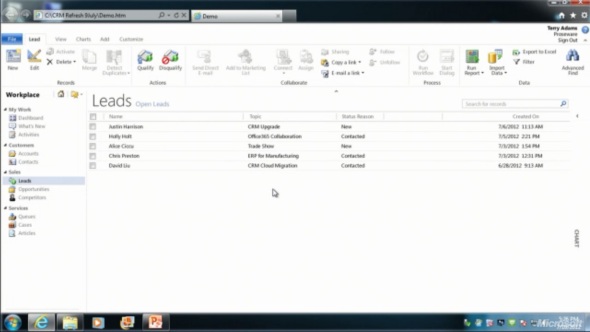
The entity form windows will experience a much more significant update. Please note that one of the focus areas in the Dynamics CRM roadmap for Fall 2012 is developing the application functionality specifically for opportunity and case management, so I expect these changes will not initially impact all the entities. The demo at WPC covered lead and opportunity forms, below is a screenshot of how the lead form appears in the “Refresh” UI:
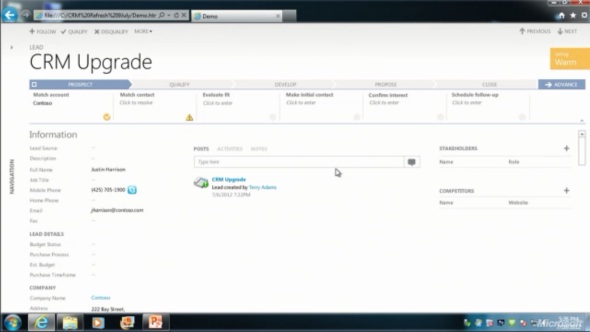
Wow! We’ve come a long way from the CRM 2011 UI. Where should we start with going through the changes?
Let’s take the ribbon first, or more specifically the lack of it. Although the main window of CRM will still present the full application ribbon, at least on the lead & opportunity forms the ribbon will be minimized by default. Clicking the “More” button will presumably reveal the ribbon, but we didn’t see this in the demo, because the intention of Microsoft is to hide it away as much as possible.
“Hey, didn’t we just get the ribbon 1.5 years ago?” Yes, we did, but it doesn’t fit with the Metro design principles anymore, which state: only deliver the right information to the user at the right time, don’t overwhelm them. Touch UI on tablets and phones makes this even more important, which is quite easy to understand. For the power users (most of the readers of this blog, I’d imagine), the wealth of functionality presented on the ribbon must have felt like a welcome addition back in Office 2007 or CRM 2011, but this doesn’t necessarily mean it’s the right design choice for a CRM application. Results of the usability research Microsoft has conducted can be summarized in the following quote from Patterson:
“Ribbon is great for the power user, but the everyday user just wants the file menu back.”
Well, that’s it then. RIP ribbon 2011-2012, it was nice to know you. While the reality may not be quite as black & white, anyone designing solutions on top of the XRM platform should definitely take the inevitable fate of the ribbon into consideration.
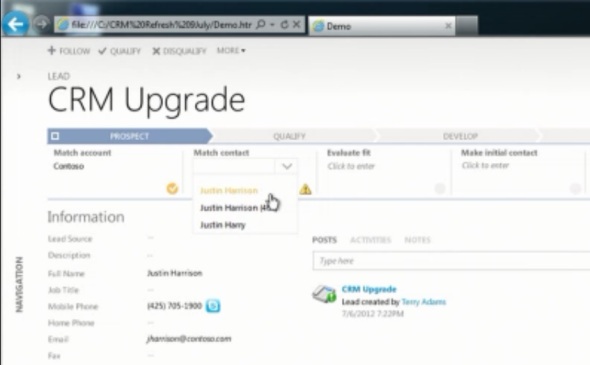
If we don’t have the ribbon there to guide the user anymore, then what can we use instead? The answer is: processes. What is called the Process Driven UI in the development roadmap will in practice manifest itself as a graphical, interactive process stage indicator on the top section of the entity form.
According to Patterson, the new UI is built on the Dialog Process foundation established in the original CRM 2011 release. Presumably the arrow titles will then come from process stage names. Each stage can contain multiple steps that the user needs to complete (although they don’t appear to be mandatory, at least in the lead qualification demo). Logically these would then be created with the Prompt and Response pairs available in current dialogs. The user can progress from one stage to another manually by clicking arrows on the far right corner of the process graph, but presumably there will also be support for creating conditions for automatic rules to update the stage of a record.
Without knowing much about the features and initial limitations yet, the Process Driven UI looks like an excellent addition to the Dynamics CRM application. Workflow and dialog processes have so far been almost invisible to the user, which has made CRM look like just a static place for entering, reading and updating fields on a form. By bringing the process thinking into the foreground, the barrier for using CRM to really automate business processes will become significantly lower, which in turn can make the application a much more valuable tool for the organization using it.

Moving on with the UI review, into the main form sections, we can see another welcome addition: the built-in follow-up activity functionality is back! When the form assistant was deprecated in CRM 2011 we lost the ability to quickly create follow-up actions from the previous activity form (unless you built a custom process for this, as I’m sure many organizations have), but now it returns into the core Dynamics CRM application.
These follow-ups, like any other related record presented on the form, are fully editable directly on the parent entity form instead of a separate pop-up window, which has been a paint point that Microsoft is working hard on trying to eliminate. Modern web apps don’t have popups and modern devices (tablets and smartphones) don’t support them, so inline editing is the only sensible way going forward.
Notice how the traditional form fields of a lead are all stacked up on the left side. With the related entities navigation collapsed by default, this single column approach actually looks pretty good. Must be because the iPad and Metro apps are teaching us that fields don’t exist side by side but on top of each other. But what do you then fill the rest of the screen with?

The answer: related records. In the opportunity form example there are subgrids of stakeholders (Connections), Competitors and pursuit team (possibly new team management related entity, or just a Connection type?), although they barely look like subgrids at all since the Metro style form design blends these seamlessly into the entity form. In the middle there’s a combined list that shows Activity Feed Posts, Activities or Notes, depending on the selected tab. Another design choice that sure feels better than spreading these records into a wall web resource, subgrid and a notes/attachments list as they are in the current CRM 2011 UI.
Also pay attention to the top right corner of the form, where there is a highlighted section of entity fields, in this case the opportunity probability, rating, estimated close date and estimated revenue. Whether these are business required or business recommended fields that get automatically promoted into this section of the UI remains to be seen. It’s like a form header section that is actually editable, which could be another possible implementation method. As you may or may not have noticed yet, the header and footer section of the lead and opportunity forms are now history, with no apparent way of bringing them back, unlike the ribbon with the “More” menu.
All in all, what the WPC 2012 demo showed us is almost like a whole new application. The way in which the lead-to-opportunity process now flows within the same window, without a single pop-up window is nothing short of revolutionary, if you compare it to the current Dynamics CRM UI logic. The navigation paths in the application have remained fairly static from v3.0 to 2011, with the latest major version adding a large amount of new UI components (ribbons, charts, subgrids, filters) into the mixture but not really changing the core concepts. Now with the Fall 2012 browser client update and the Metro CRM app looming in the horizon, all of a sudden the Dynamics CRM user experience is about to get redesigned in a major way.