Tag: UI

  • A few notes on the Timeline: model-driven Power Apps form tweaks

    A few notes on the Timeline: model-driven Power Apps form tweaks

    In the default form components arrangement for tables in model-driven Power Apps or Dynamics 365 CE apps, the Timeline is usually front and center. This makes perfecet sense. Scenarios that revolve around accounts and contacts typically include the need to show activities and notes related to these records.
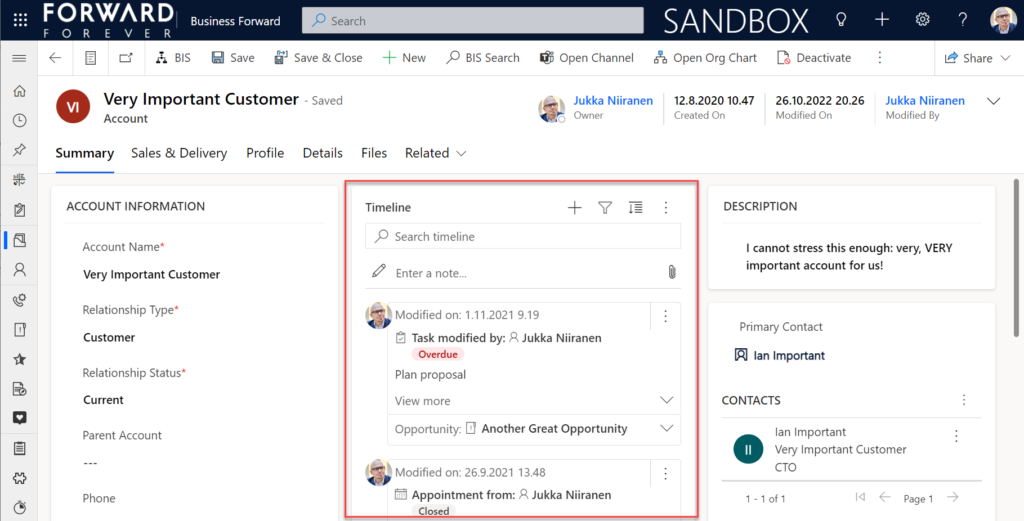
    Compared to how things used to be just a few years ago, meaning mostly hard coded, we now have an amazing amount of configuration options for the Timeline control. This is reflected in the MS Learn article “set up the Timeline control” which has an estimated reading time of 32 minutes! And that’s just the “how” part of official documentation, not the “why” that you’ll learn as the settings are applied in real world business application context.

    This blog post is my attempt to highlight the recent, most useful features that the modern Timeline form component enables for improving the user experience of your model-driven apps.

    Rolling up the notes

    The one huge feature that 2022 Release Wave 2 has delivered for model-driven Power Apps has been buried deep into the release plan. It seems almost like an intentional “let’s hope no one notices this” move since the feature is listed under Dynamics 365 Customer Service and called “Improve agent productivity with timeline enhancements”:

    Notes that work like other activities and roll up on contact, account, and opportunity form timelines.

    Woohoo! We’ve been waiting for this feature close to 2 decades already! If you haven’t experienced the Dynamics CRM era, then the significance of the rollup capability in the platform may not be immediately obvious. I won’t go deep into it now, instead I’ll dig up an illustration that I created 11 years ago for a blog post I wrote about the native activities associated views vs. form subgrids:
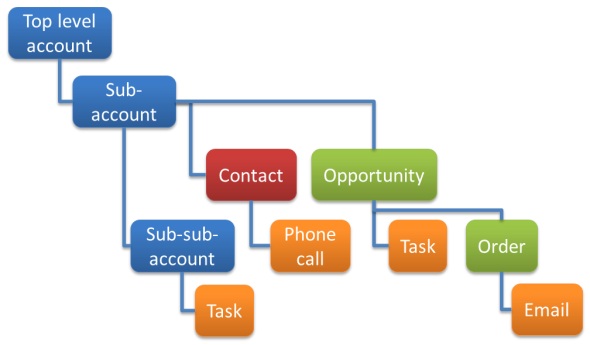
    Unlike other standard or custom tables in Dataverse, activities have one superpower: they can be shown not just from the directly related child records but also rolled up from deeper in the hierarchy across many different record types (tables, entities, you pick the terminology). This means that in the account Timeline you’re able to see tasks, phone calls, emails, appointments that are set regarding a child record, like an opportunity where that account is the potential customer.

    While the same form component has been used to display both activities and notes (and activity feed posts, in case someone’s still using them), the rollup functionality has been exclusive to activity data. This has lead to a classic CRM functional gap where a note record added onto a lead will not be carried over once the lead is qualified and becomes an account/contact/opportunity. Notes have been “sticky” in the sense that you slap them on a specific record and that’s where they’ll forever stay.

    Well not anymore! While the official docs on Learn are still pending to be updated to describe the feature in more detail, the “Notes rollup type” setting already appears on the Timeline component properties:
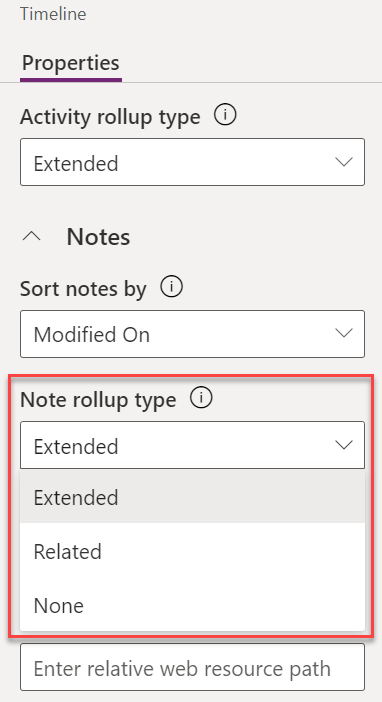
    Setting this to “Extended” for the Timeline control on the account means that we’ll now see notes that have been added to the originating lead, any of the account’s contacts or opportunities. Here’s an example where there are zero notes on the account itself, yet we can see 3 notes on the Timeline:
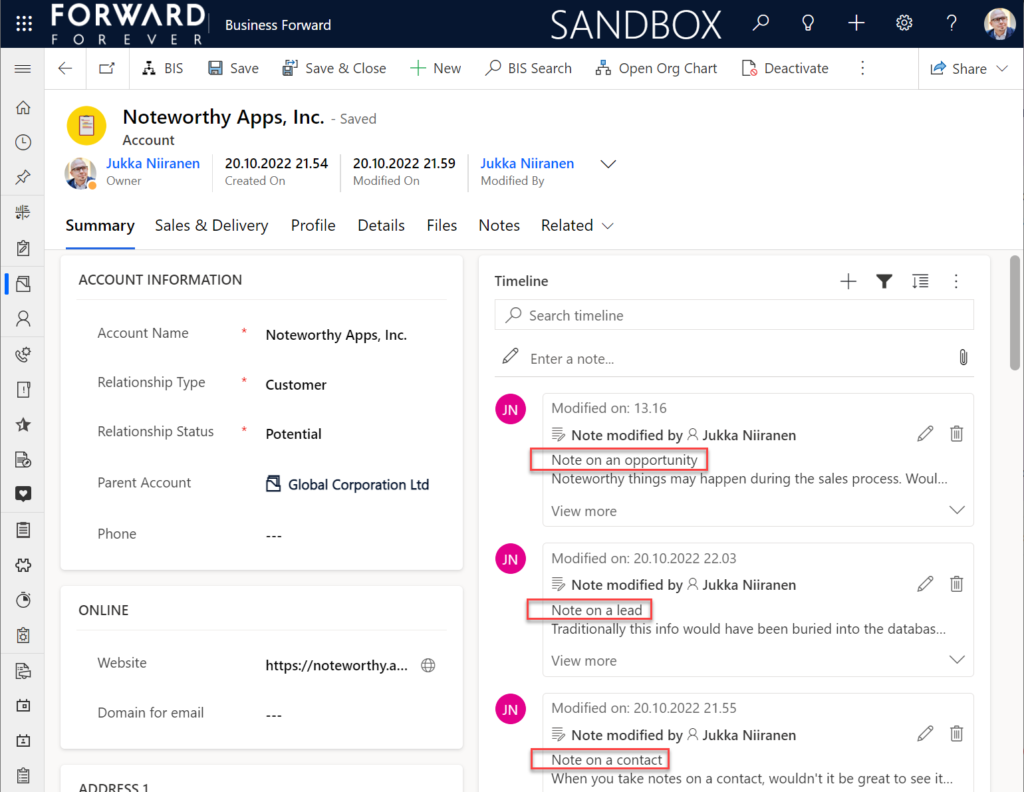
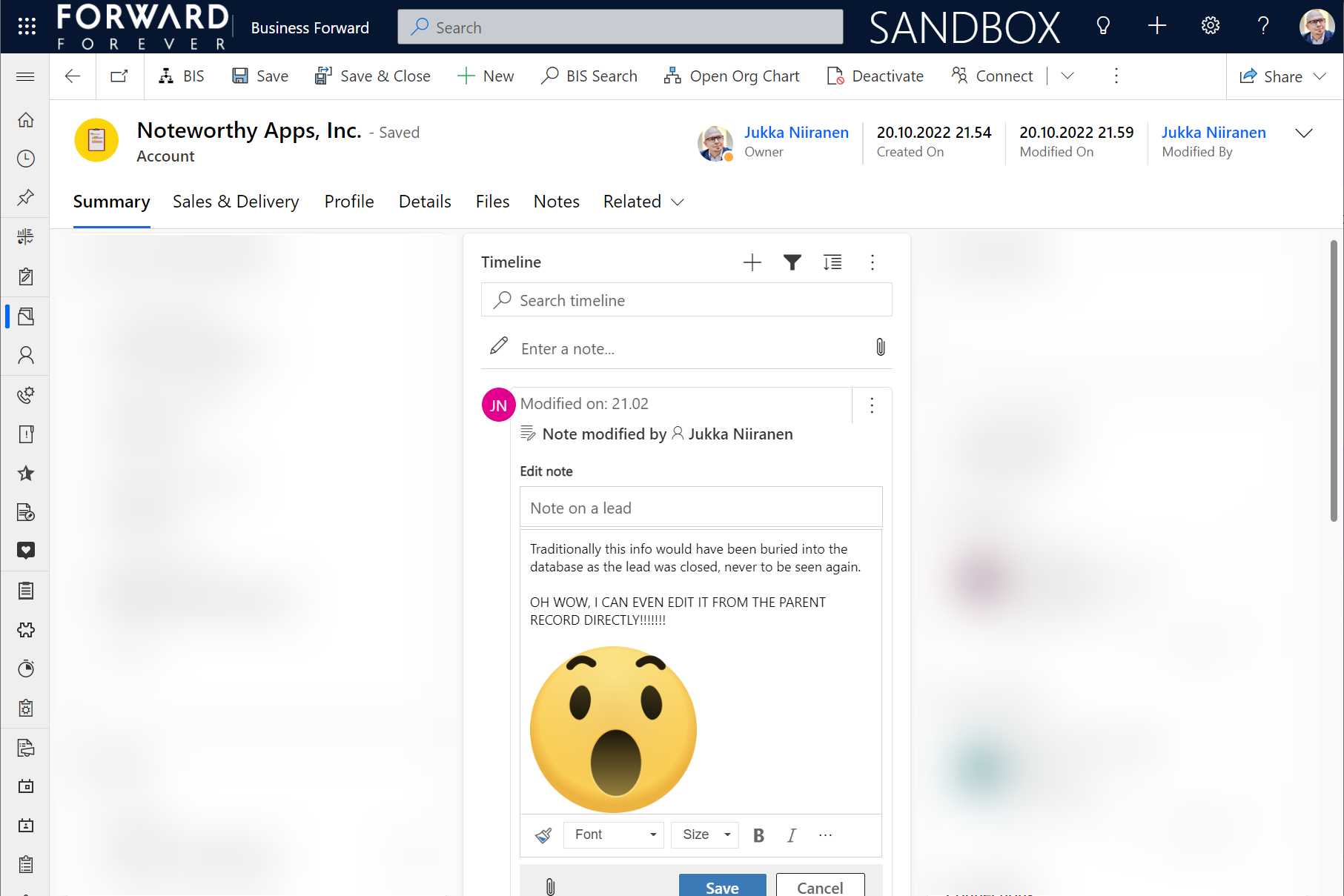
    All the notes from these child records appear just as like they were the traditional notes on the account record itself. In fact, you can simply click the pen icon to start editing a note on the account form Timeline, even if it has originally been added via a different record:
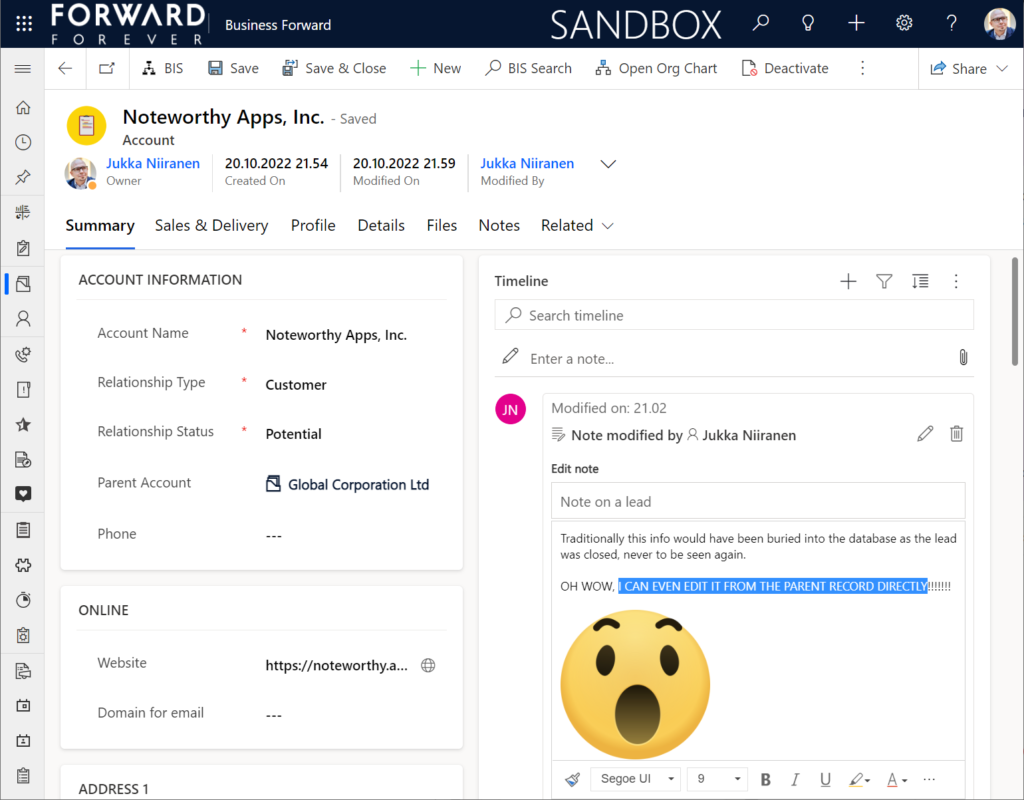
    This can be a bit confusing for the user, since there’s no visual indication on the Timeline card on which exactly is the original hosting record of that note. Which probably is due to the Dataverse data model that doesn’t treat the notes (annotation) table as something where the users could freely set the Regarding record information. With such a non-standard implementation it might be tricky even for the team developing the Timeline to surface this information in the UI.

    You need to keep in mind that this notes rollup isn’t applicable to custom tables, nor across all system tables either. Just like the activity rollup, this is feature of showing relational data from beyond a single relationship “hop” is not a generic platform capability in Dataverse. It works in these basic CRM style scenarios using predefined record types. And when it does, it can be hugely beneficial to end users.

    Alternative Timelines

    There are more goodies in 2022 Release Wave 2 under the release item “Try enhancements to timeline maker experience”. One of them is the support for having multiple Timelines on a single form. This means you could add a dedicated “Notes” tab on the account form and configure it to include only notes data, not activities or posts. The benefit from this would be to tailor the display settings in the main Timeline differently than in the Timeline dedicated for notes only.
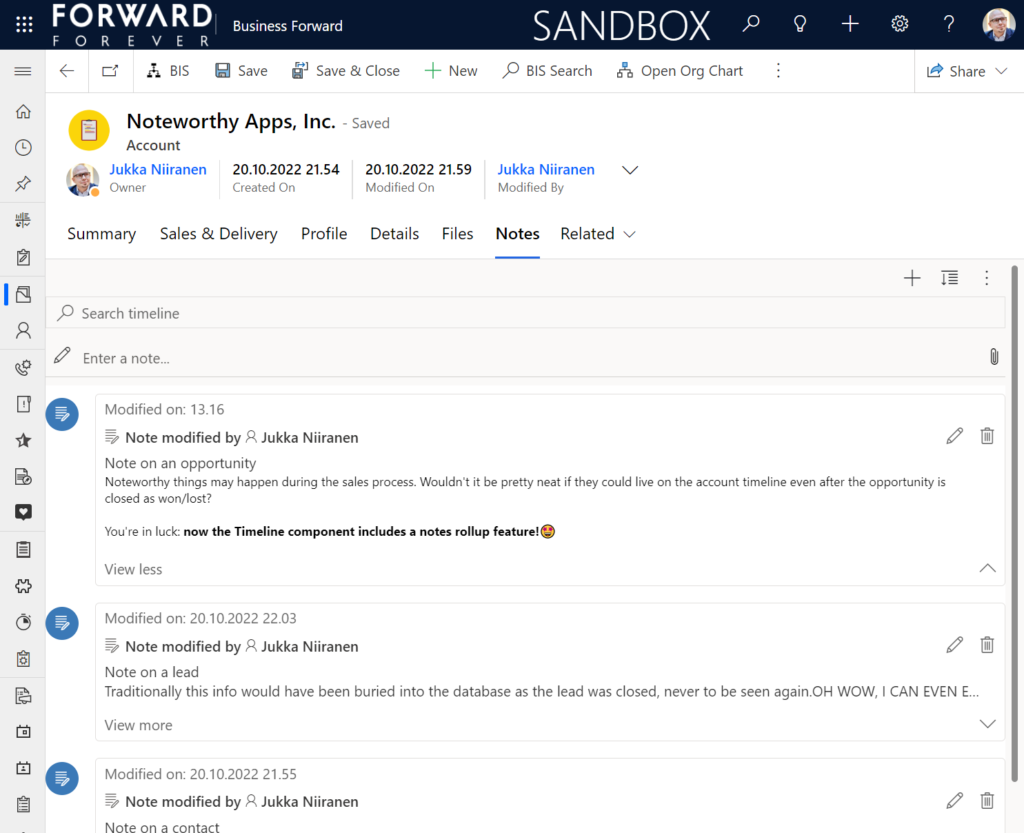
    In the example above I’ve ticked the box “expand first component to full tab” in the tab settings. This removes all the whitespace and labels around the Timeline, giving it maximum space. Yeah, it’s not the prettiest tab in the world when applying this technique to the Timeline. Yet from a purely functional perspective it’s an option worth trying out.

    One common question from customers who want to customize their CRM system’s terminology has been “can we rename the Timeline to something else”? The answer is still: no. However, now that you can have multiple Timelines on a form, the workaround you can apply is this: 1) under Timeline – Properties – Advanced – Additional Settings, check the box “Hide Timeline label”, 2) set your form column label to show the string you want.

    Now the custom text will appear and the place where it used to read “Timeline” is blank:
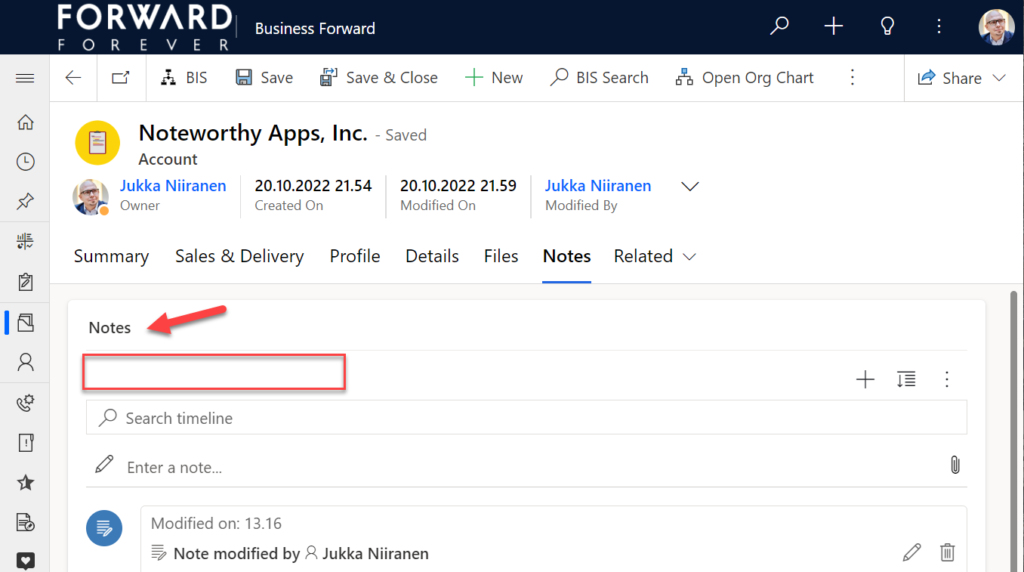
    Native controls like search or options menu will still use the timeline terminology, though. It’s always worth asking a few times whether it’s absolutely necessary to try and change such native features of a SaaS product like Dynamics 365. (The argument “because we had it like that in our previous system” is always the wrong answer.)

    Timeline forms and actions

    An area of the Timeline that has really exploded in terms of configuration options is the forms used for interacting with records shown on or created from the Timeline. Let’s look at one example of how the default functionality for tasks could be optimized on the opportunity form Timeline. Without any customizations, it looks like this:
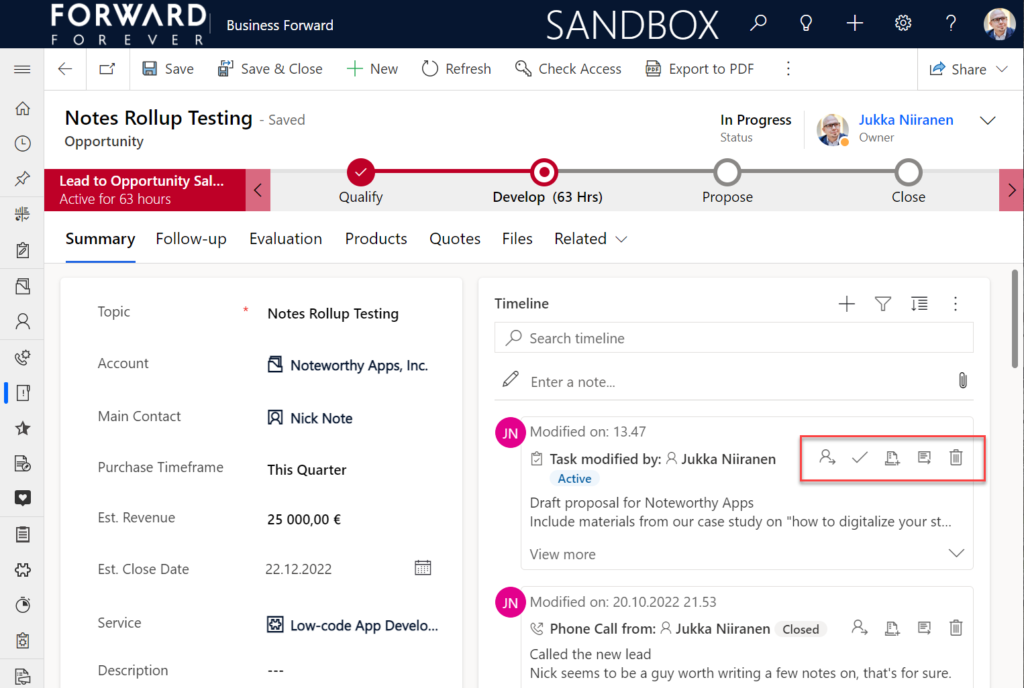
    Looking at the standard Timeline, there’s a bunch of command buttons available for every activity. Problem 1 is: it’s not easy to spot which icon opens the task’s detail form (at least I’ve never learned to immediately pick the right one). Problem 2: when we open the task, it takes us to a whole different web page, thus we lose the context of the original business record (opportunity).

    The Timeline allows us to fix both these problems by changing the settings just a bit. By going to Record settings – Activities and clicking on Task, we get a flyout pane with options specific to that activity type in this specific Timeline instance. Problem 1 can be fixed by disabling rarely needed actions like “Assign”, “Add to queue” (who uses queues anyway?) and “Delete” (deletion of data in CRM does not need to be easy!).
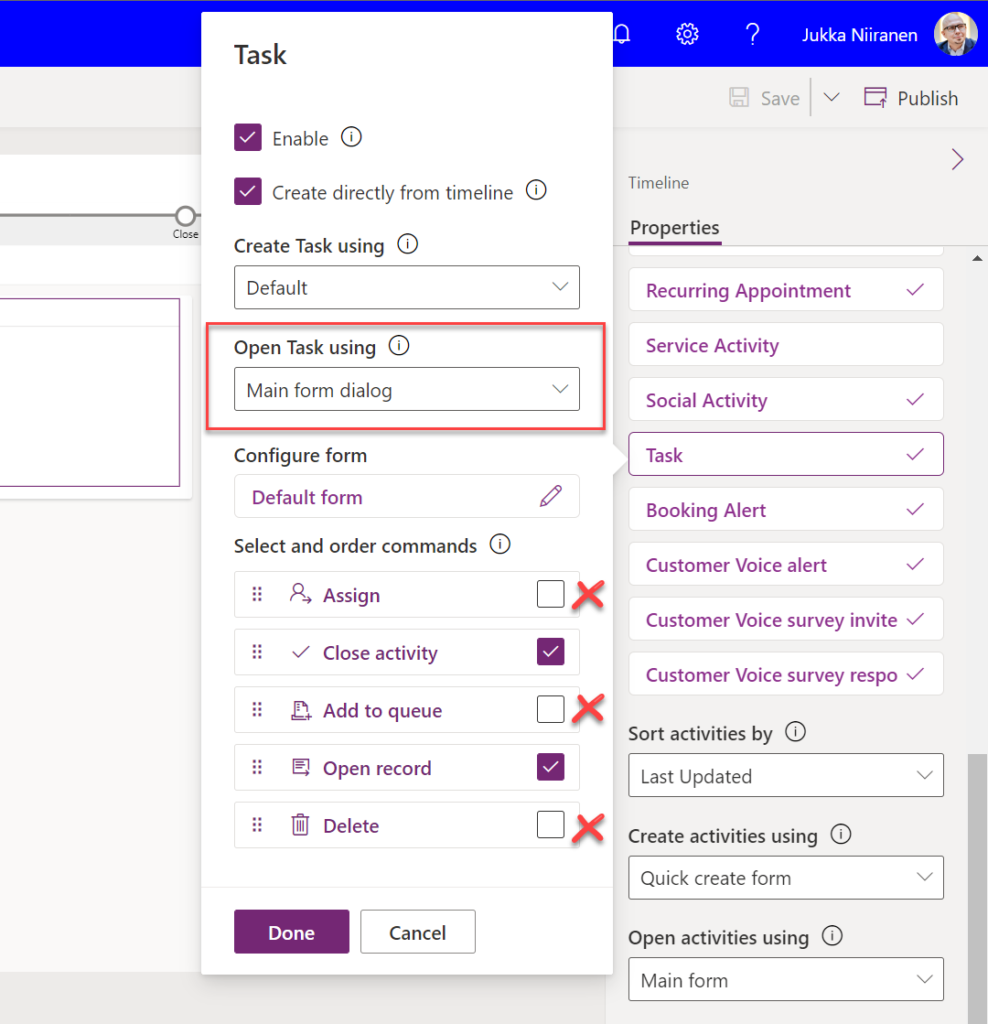
    Problem 2 is resolved by changing the “Open Task using” setting to “Main form dialog”. What does that do exactly? It gives you a modal window on top of the current record, which is a much less jarring experience than bouncing between full forms. Closing it from the X icon will allow you to keep working on the opportunity without forcing any page refresh.
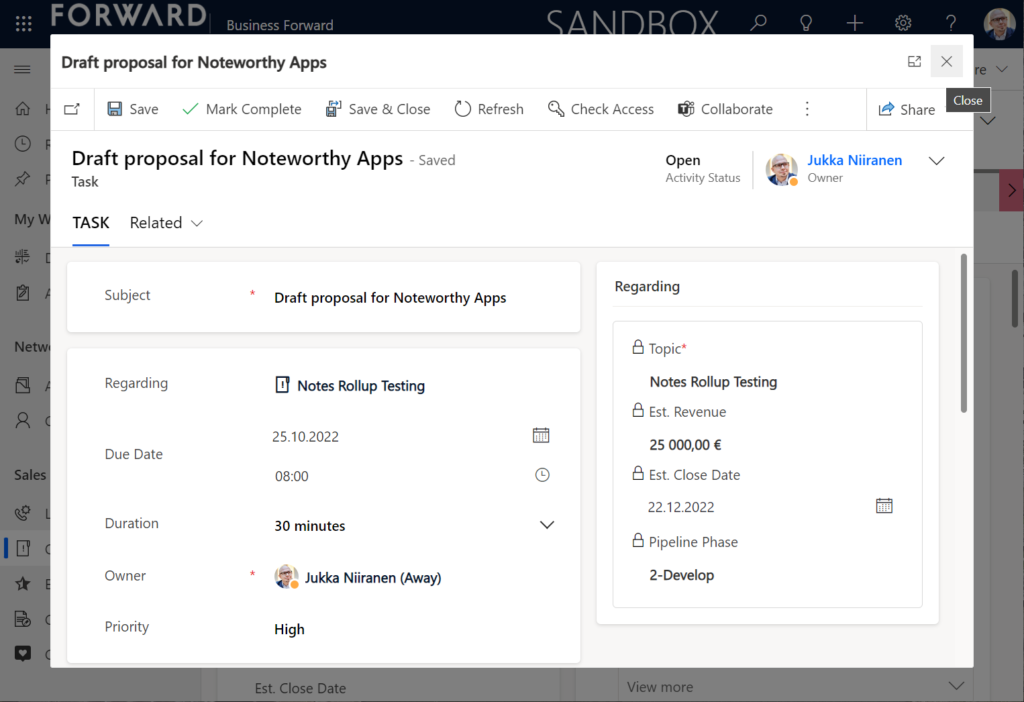
    Want to learn about the Power Apps main form dialog? Read my earlier blog post on how to leverage MFDs for making it easier to work with relational data.

    Timeline configuration sprawl

    The one caveat of all this configurability that we’ve received via the modern Timeline control is that we now have a huge number of different settings we must remember to change. Performing any of the above mentioned changes is relatively easy as an isolated task, but we need to do it for all the tables and their forms where the Timeline control is used. There is no global system setting or “apply to all” option to help us. With any larger business application you’ll quickly need your own Excel sheet just to keep track of all the N settings and N forms that you must manually harmonize.

    Where things can potentially get really laborious is modifications to the card forms used for displaying activity and note data on the Timeline. If the standard date fields aren’t what we want to show, for example (created on vs. modified on vs. due date etc.), there’s a way to change most of them. However, as you can quickly see after browsing through the documentation, the card form editor from the CRM 2011 era and the modern Timeline control have nothing in common when it comes to rendering the visible UI:
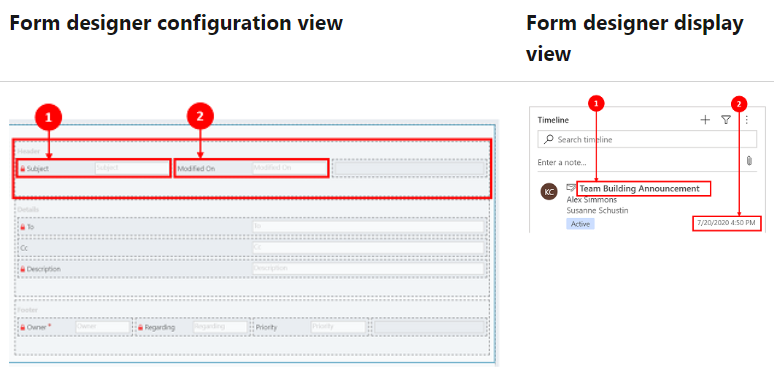
    If you want to include some custom columns from your activity tables into the Timeline cards, the good news is that it’s supported. The bad news is, you’ll likely need to keep the documentation on one screen as a reference, the form editor one the second screen, and the card form legacy editor on the third one. Good luck doing these tweaks from only your laptop screen while working away from the office!
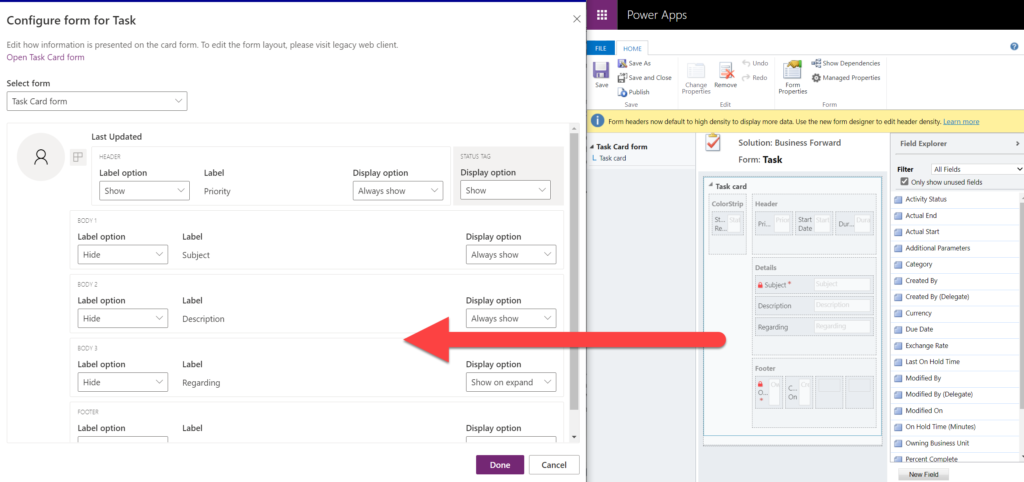
    These configuration tasks start to quickly add up. Let’s say we need to change one date field on the task card and configure its display options and label options. Perhaps our application has 20 tables where the Timeline is used for showing this activity type. Maybe we’ve also created role based forms and targeted them via different model-driven app modules, like “Sales” and “Admin”. That single requirement could mean updating the settings on maybe 30 different forms. With all the loading, saving and navigating in the Maker portal – it could easily take more than an hour to complete.

    Now, let’s say that in a Dynamics 365 project you’ve been assigned the responsibility to take care of all the details for activity and notes management features on every Timeline in the system. Sorting, filtering, control display options, supported activity types, form types per activity, actions per activity… Planning, configuring and validating all these changes will quickly consume many days, even in an SMB level CRM system. And because it’s so easy to miss a few clicks in performing this repetitive work over & over again, you’ll also need to reserve time for fixing the things that were missed.

    Achieving a consistent user experience requires plenty of work – this simple truth has not changed from the early days of Dynamics CRM projects. As Microsoft invests money in modernizing their client controls and introducing more no-code configuration options, the customers must also do their part in ensuring the changes and new possibilities in the evergreen cloud platform are taken into use in a controlled manner. Striking a balance between what can be customized and what should be customized – this remains the eternal question.

  • Modern advanced find test drive

    Modern advanced find test drive

    The single most powerful end user feature of Dynamics CRM, XRM, CDS and Dataverse was always Advanced Find. Period.

    There, now that we’ve settled that argument, it’s time to move forward and see what life is going to look like when Dataverse no longer includes Advanced Find. Yes, there will still be the broad capabilities of advanced find, but I will refer to it without capitalization. This is in line with the fresh new documentation on a very important feature that aims to take the place of Advanced Find: modern advanced find.

    So modern you can barely see it

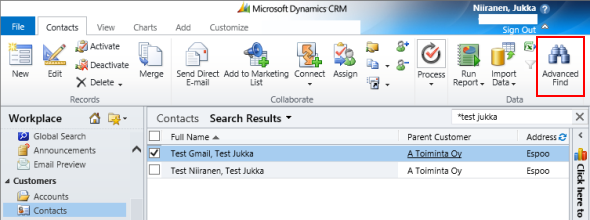
    Advanced Find was always its own UI in a separate popup window. This was perfectly in line with the Dynamics CRM 2011 UI – which was the last time there were any material changes to the visible features. Let’s have one last look at Advanced Find’s glorious Ribbon icon before we move on:

    OK, so this wasn’t actually the last time Microsoft touched the user experience for this feature. The CRM 2013 release did a complete overhaul of the application UI (I’d say a more visible change than Unified Interface even), which lead to the Advanced Find buttons getting either hidden or missing from parts of the app navigation. I had to write a blog post called “Finding Advanced Find in CRM 2013” to help out users who were worried that the feature had been removed from the product entirely.

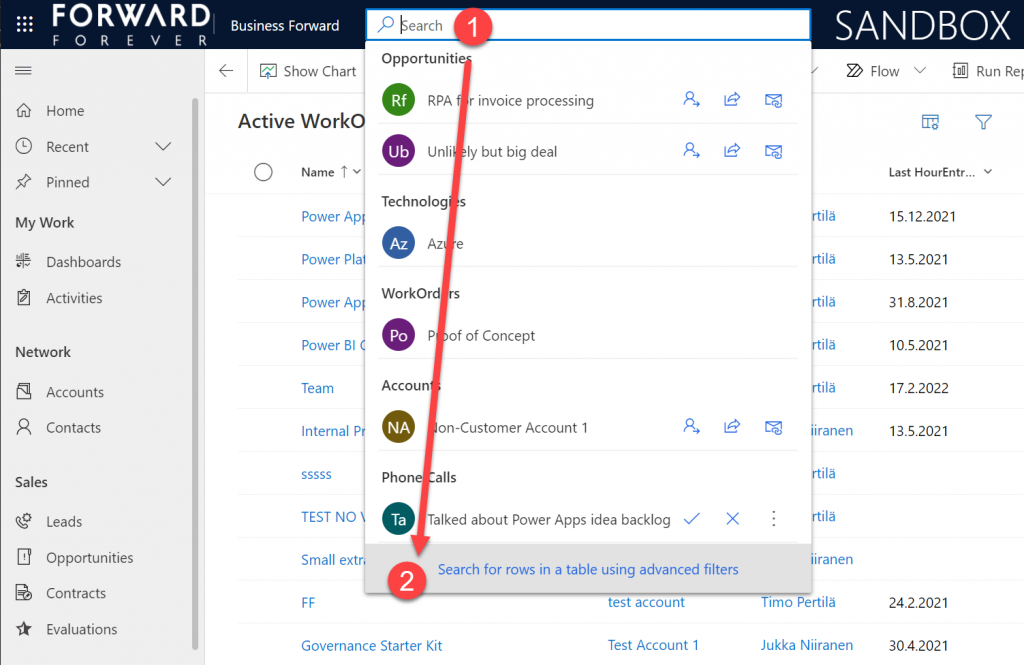
    The modern advanced find that has been introduced as a preview feature in February 2022 takes the hiding game to a whole new level. You see, the entry point to modern advanced find is hidden within the global search bar. You have to 1) click the bar and then 2) click “search for rows in a table using advanced filters”.

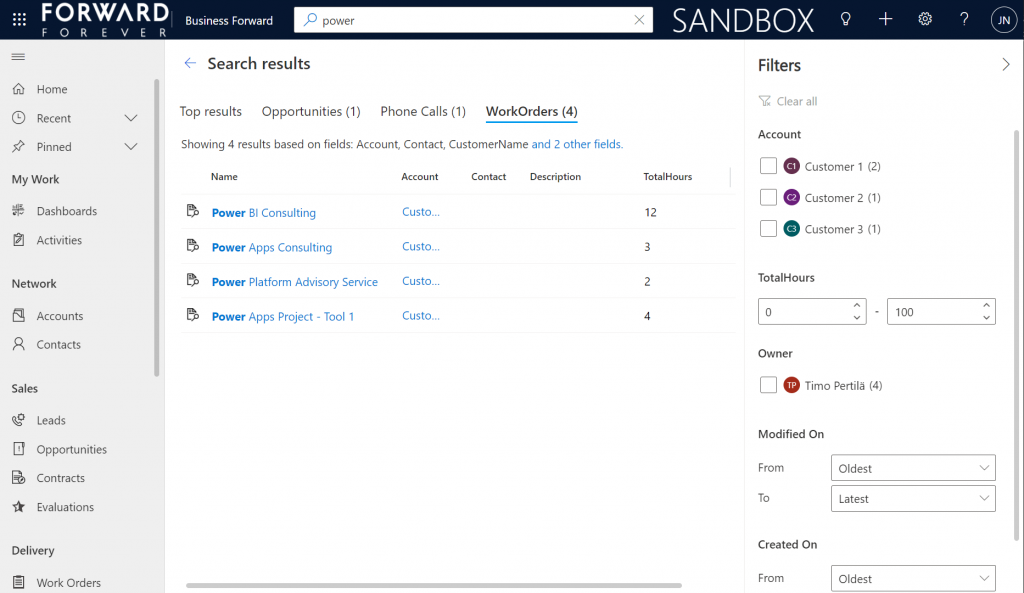
    Be sure to not enter any search text into the bar, because that will hide this new option. Also, whatever you do, do not press enter after this text – otherwise you’ll be taken to the global search results page. There’s no way to “go advanced” from here, it’s a completely different search experience.

    Search “any” table

    A big new feature in the modern advanced find is what happens after you click on the new button within the search bar. (I already forgot the name of that button since it wasn’t anything as nearly catchy as “advanced find”, so I’ll refrain from scrolling up this post to see what it was and just move on instead.)

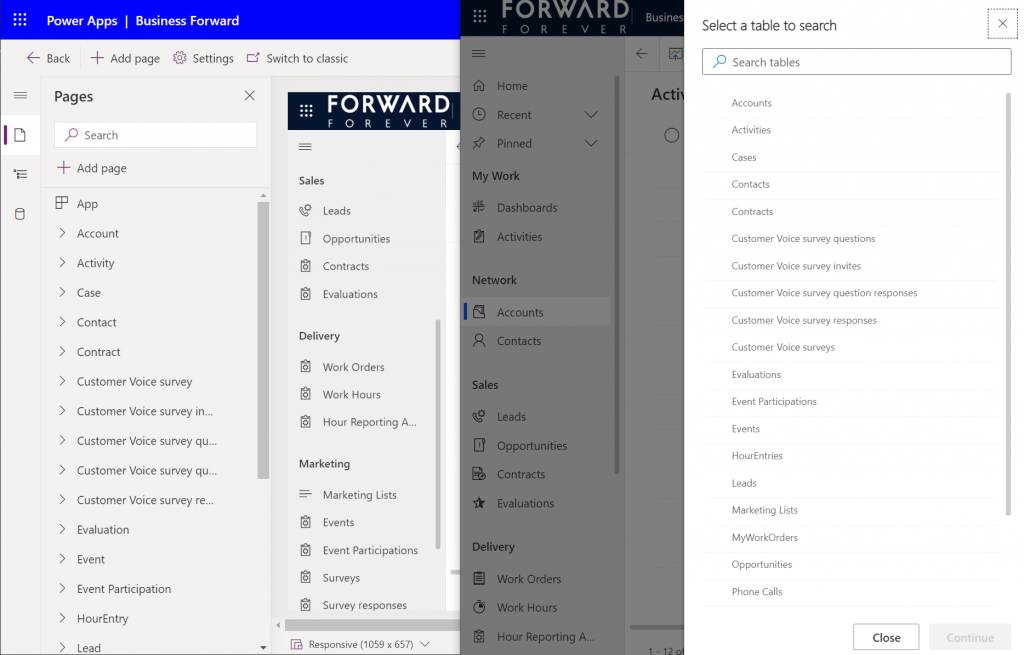
    You will see a sidebar saying “select a table to search”. Cool, just like in good ol’ Advanced Find! The difference you need to understand, though, is that it’s not a list of all the tables in the environment. Yes, it will likely be a longer list that what your Model-driven app’s sitemap navigation contains. This is because modern advanced find covers all the table’s that your app’s maker has chosen to include in the app module when working with the Model-driven app designer.

    There are pros and cons to this approach. The obvious upside is the ease of use for the casual data finder. He/she doesn’t need to confront the ever growing list of both standard and custom tables in a Dataverse environment (especially those with many Dynamics 365 apps installed in them). Things are quite different now compared to back when Advanced Find was originally designed for a simple CRM systems. Showing hundreds of cryptic tables isn’t a great UX to most users, so cutting down the noise of the underlying data model is understandable.

    How about those users who DO understand the data model, or even work in configuring and extending it? The advanced app makers, consultants and developers will most likely be frustrated by this limitation whenever they need to examine the detailed contents of an environment. Quite often I myself need to build new views and filters just to understand what data has been entered into the system (that has been designed by someone else).

    Sounds to me like there will be a growing demand for a “Super Advanced Find” type of a tool to be introduced in XrmToolBox. If you’ve already got a favorite tool for ad-hoc data exploration needs, be sure to leave a comment below.

    Query criteria remains the key criteria

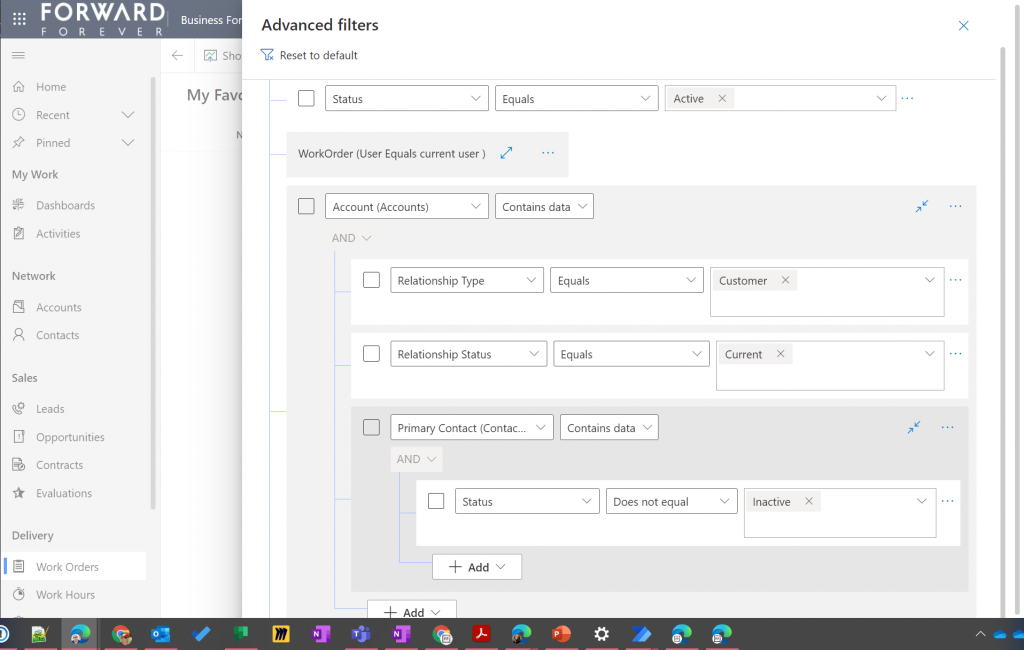
    The one area where an advanced search feature in Dataverse simply has to perform well is the creation of complex query criteria across the relational data model of the environment. One of the most read articles on my blog has been Advanced Queries with Advanced Find, which illustrates both the possibilities of the tool as well as the demand for such advanced query criteria in real-life business scenarios.

    Luckily this is already included in the non-preview feature set of Model-driven Power Apps. The filter editor that you can find in any table view today is a very worthy replacement for what Advanced Find used to offer. Although I haven’t done a detailed comparison, I couldn’t easily spot any missing capability from the tools available for defining the view filters in modern advanced find vs. the classic pop-up query editor for Advanced Find.

    Just imagine if it was this easy to define the filter criteria for Dataverse tables on the modern automation side, too – not just views? Perhaps one day something similar will be made available for Power Automate cloud flows, based on what is being planned for SharePoint data sources in 2022 wave 1 (because priorities). Until then, luckily we have great articles and reference guides created by the community to copy-paste our “flow code” from while we wait for a GUI to arrive.

    Actually viewing the data

    Far too often I’ve seen people put all their effort in defining the correct query criteria and then being lazy when it comes to actually showing the results of that query. You could say I wrote the book on the importance of Dynamics CRM view design back in the 2013 era, so you can image how such user experience oversights have irritated me over the years.

    Smart choice of view columns and sort order are what defines the user experience outcome. Query filters are merely table stakes.

    Jukka Niiranen, in this blog post right here.

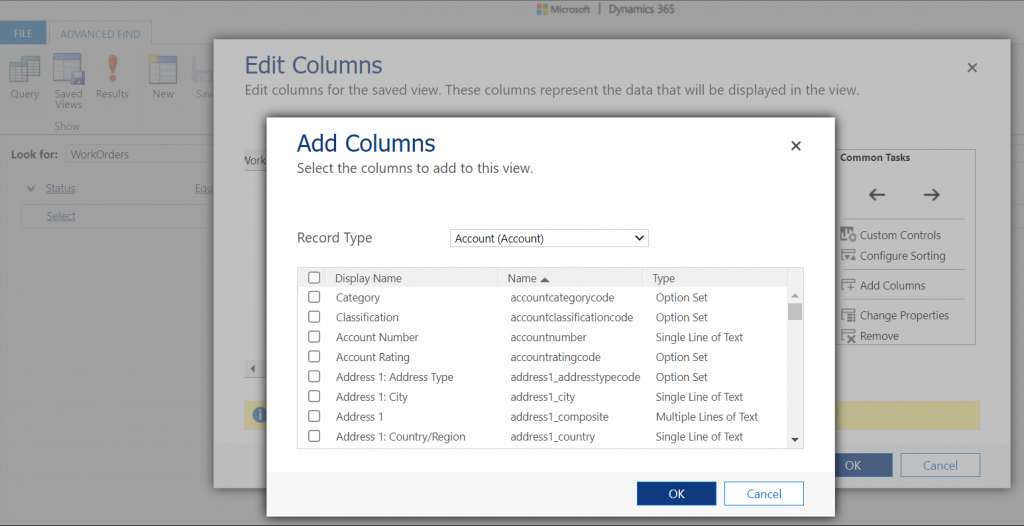
    As a data exploration tool, Advanced Find wasn’t always perfect, but us consultants learned to make the most of it. When needing to dig up data from columns that weren’t readily available in the system views, it was easy to just go and add all columns into an exploration view. Whereas when building more targeted we had two useful features in the “add columns” screen of Advanced Find: sort by name, sort by data type.

    Unfortunately this is where the modern advanced find is a little behind on the classic Advanced Find. Let’s look at what the column editor experience is like.

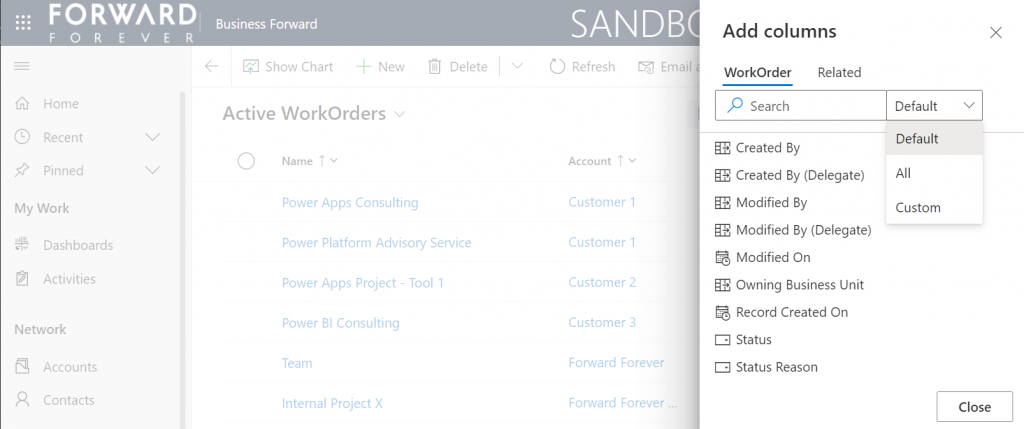
    First of all, the editor includes the very same modern stumbling block that you might have noticed when working in the Power Apps Maker portal and searching for table columns. When you open the “add columns” side pane, the list of available columns doesn’t cover everything that the table contains. Instead you are defaulted to a “Default” filter that’s easy to miss. Switch to “All” and you’ll finally see that field you wanted to include in your view.

    What exactly does “Default” mean in this context and how is it defined? No one can tell, not even Microsoft. It appears to be one of those good intentions in tidying up the menus of what should be a citizen developer friendly platform yet also serves huge enterprise CRM systems. A tough balance to get right, that’s for sure.

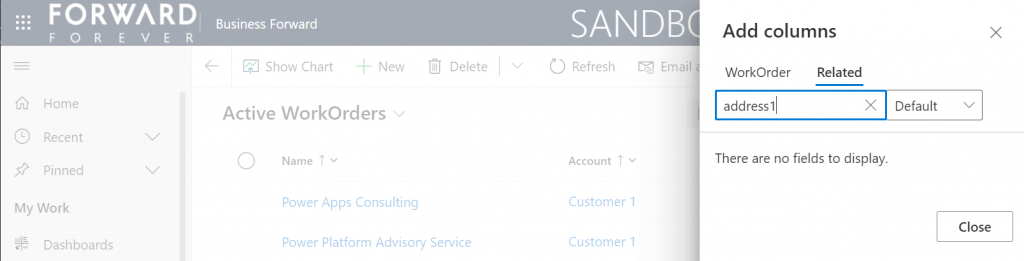
    One very nice improvement in the modern advanced find (as well as the Maker portal) is the ability to search for things while you are configuring those very things. Narrowing down the long list of available columns with a free text search term could be especially handy when you’re looking for information stored on a related parental ent… table.

    What could make such a feature even better? I’ve got one idea: extend the search index to include also the schema names. Believe it or not, the display names of f… columns can become quite misleading when you eventually need to adjust them for the places in the app UI where they can’t be customized (which just happens to mainly be: VIEWS!).

    Anyway, often the schema name may have a pattern that makes it easier to logically group columns, which in turn makes the app maker more productive as he/she finds them more easily when defining the views. Right now that’s something the modern advanced find doesn’t yet support. If you think it should, then go and vote for it.

    So, you’ve created a hundred and one views…

    If there was something that the classic Advanced Find feature really didn’t handle well at all, it was the process of managing the views created with it. The way how the Ribbon UI managed to both hide the feature and yet make it highly misleading at the same time was something… special.

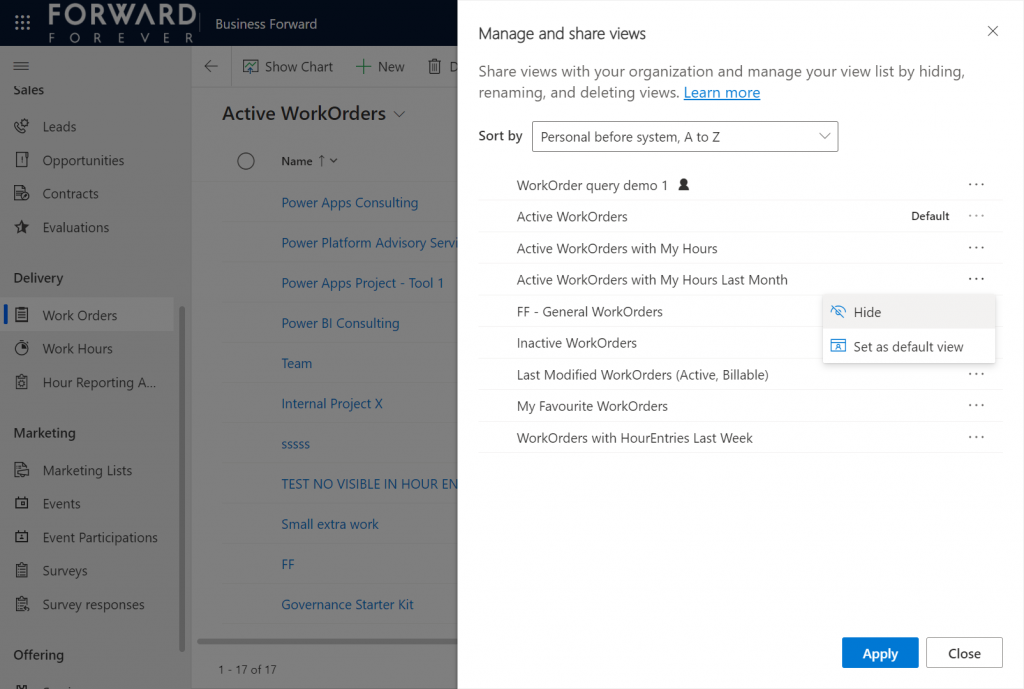
    Compared to what we used to have in Advanced Find, the enanced personal view management now launched in preview is a thing of beauty. Changing the sort order and hiding unnecessary views are very welcome additions to how the power users will be able to take control of their business app UI details.

    The new view hiding feature is something to pay attention to:

    “Hiding a view is a way to personalize the view list and reduce clutter by making views not be visible in the view selector. A view may be needed for a specific purpose periodically or a view could be shared with you that you may not need it anymore. In such instances, hiding enables you to manage your view list by seeing only the views that are most important for you.”

    This probably won’t solve all the pain associated with view management as their number grows in “busy” tables used for different kinds of analysis, both via system and personal views. Yet it’s a simple, user-driven concept to offer personalization within Model-driven apps.

    Closing the Advanced Find popup

    We’ve known for quite some time that eventually the legacy web client popup with Advanced Find will not be supported anymore. This modern advanced find feature in 2022 release wave 1 aims to include the necessary features to allow deprecating a very central part of the product. It does a pretty good job and the general principles in modern advanced find are quite justified.

    Will I miss the good ol’ Advanced Find once the new feature is enabled and the icon to the classic experience is gone? Of course I will. Like with many of the modernization efforts around Power Apps as a business app platform, the new experiences always take away something that used to allow XRM veterans like myself to be productive. Often we get less information density in the screens, blocking the use of multiple tabs, slower loading times due to new API dependencies, more options hidden/missing due to simplification efforts…

    Enough with the complaining already! Things weren’t better before, they were just different. What used to be a single app in a single service is now a cloud where traditional boundaries are vanishing at an astonishing rate. Now everyone really can make apps, and there can be a thousand “XRMs” in an organization. Both the audience and the purpose of these tools is forever evolving – and so must their features.

    Update 2022-06-08: Microsoft has started to roll out an enhancement to the view filter editing screen. There will be a button to download the FetchXML definition of the view filters. Also, export to Excel will now honor the filter modifications done, without requiring the view to be saved. Just like in the good ol’ Advanced Find days then.😊

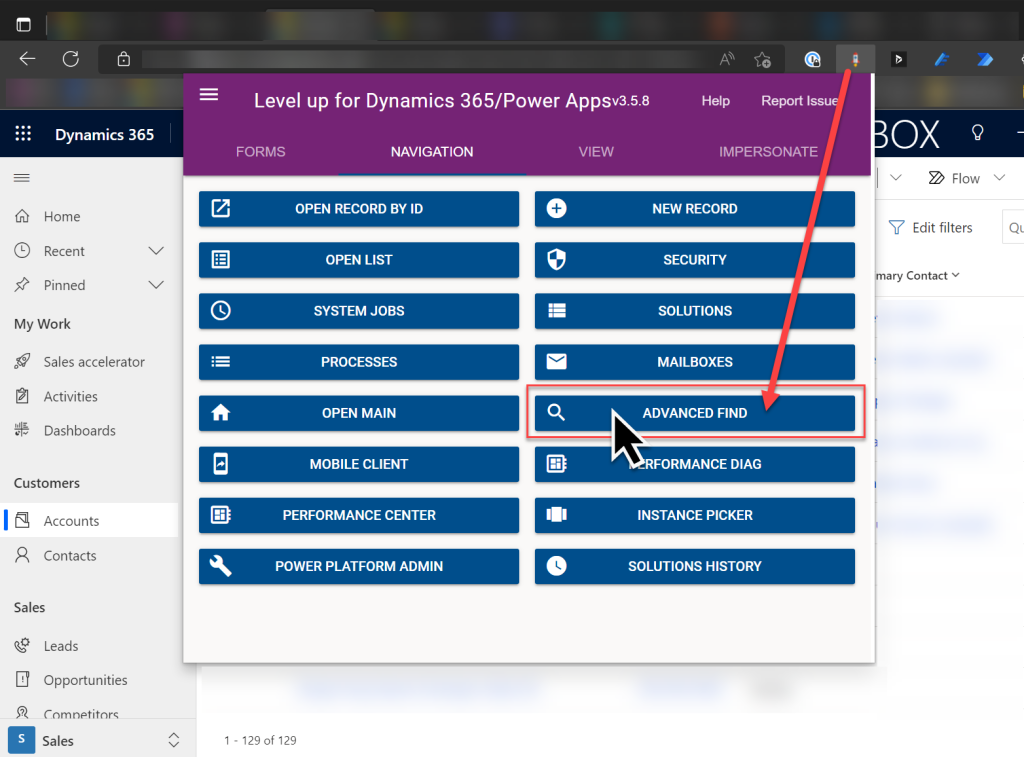
    Update 2022-08-02: As we get closer to 2022 Release Wave 2 when the classic Advanced Find button will be hidden from the UI for everyone (see Modern advanced find turned on by default), you should keep in mind that there is still a way to open the Advance Find page with the direct URL. You can (and should) install the LevelUp extension for Chrome/Edge/Firefox to have access to this dynamic URL. This will hopefully work for as long as Microsoft keeps the legacy web client page infrastructure alive.

  • How to control the lookup view columns for a customer field

    How to control the lookup view columns for a customer field

    It’s the little things in a user interface that can drive me nuts – at least when I keep running into them repeatedly.

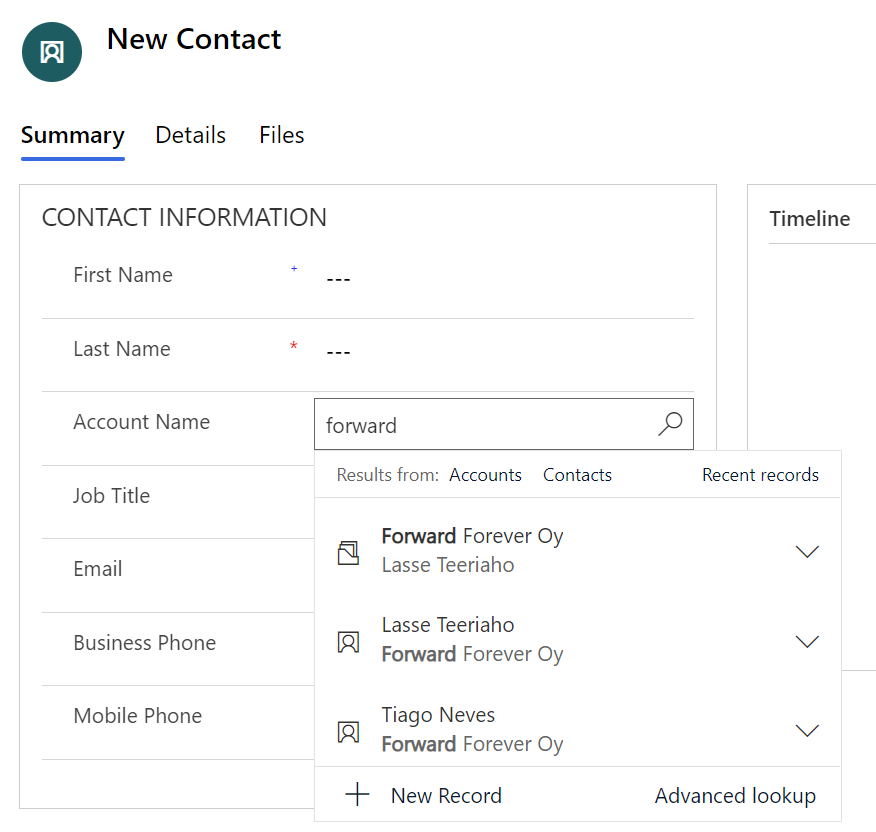
    One such detail in Dynamics 365 CE apps / Model-driven Power Apps is the scenario where you’re creating a new contact record and linking it to a parent account. Filling in the lookup field gives a nice little preview of the matching records. Like this:

    Now, look at the first two results: aren’t they actually saying the same thing, but in different order?

    At least I have a hard time distinquishing which record I should pick when I want to link this new contact under the account Forward Forever Oy. So, why is row nr. 1 the right answer and row nr. 2 the absolutely wrong choice to pick here?

    The underlying dilemma is that this lookup field is a customer field (column). It can reference either an account or a contact record (row). It’s one of those non-simple types of lookups that Dataverse has contained since forever, thanks to it being originally designed for the purpose of being a CRM database.

    Now, in a B2B CRM scenario you would almost never want anyone to link child contacts under other contacts. Unfortunately, even after 2 decades of shipping a mighty fine CRM product, Microsoft still hasn’t considered it worthwhile to offer customer organizations a configuration option to force contacts to be linked only to parent accounts.

    Being an extensible enterprise business application platform, you can of course get a developer to write some JavaScript to change the default behaviour of the lookups that bother you. As for me personally, I always like to explore if there are no-code ways that would allow me to achieve a similar result without adding even a few lines of script into the environment for the future me / someone else to manage.

    In this case what I want to do is this: don’t show the Primary Contact field in the lookup view of an account. As we’ve seen, it can be highly confusing, since this very same contact itself can also show up in the list of results. For a contact, it’s very logical that the parent account should be shown in the lookup preview results. (and used as a search field). For accounts, the Primary Contact value would likely be irrelevant in 99% cases when looking up records.

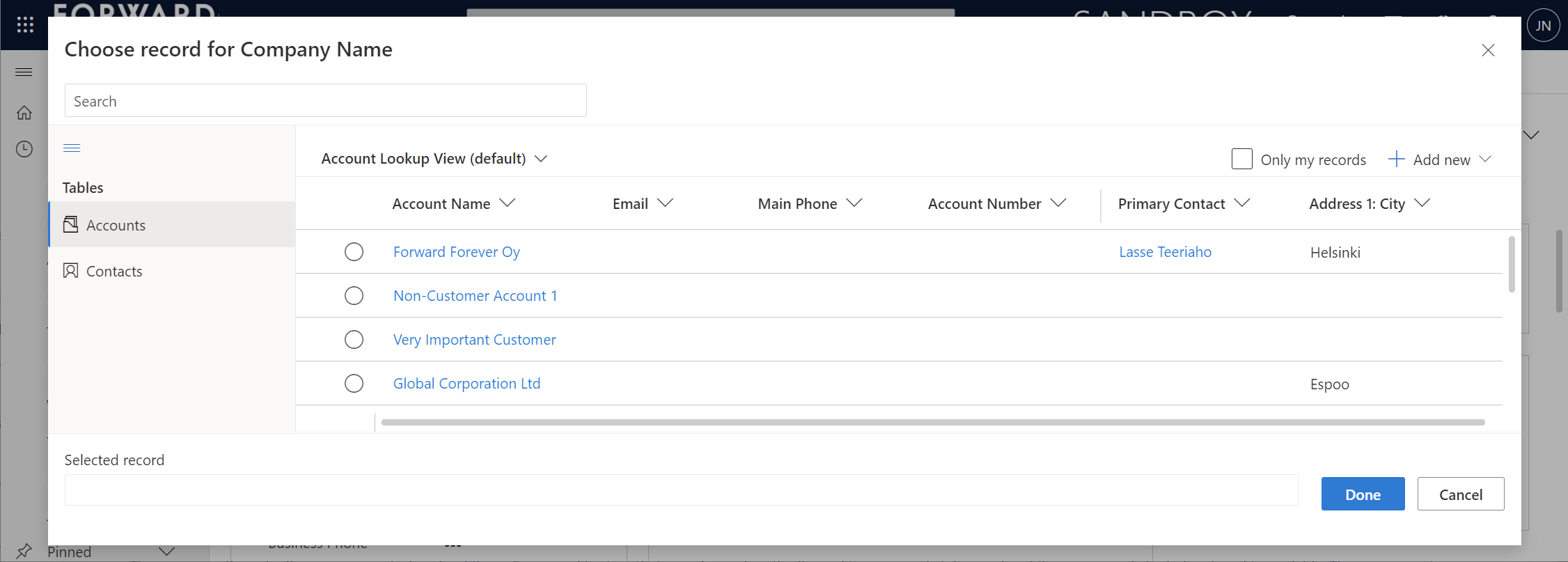
    To give Microsoft some credit on the UX front, they have invested in developing a new Advanced Lookup feature that gives the end-users more filtering options to find the right record to link to. Opening up this modal dialog also gives us a way to examine why the previews behave the way they do.

    Initially this lead me to scratch my bald head even more. Based on what the documentation says about lookup field behavior, I shouldn’t see the Primary Contact field value in the dropdown preview of the lookup, as there are columns like Account Number before it in the view.

    “For system lookups that allow for multiple table types, the first two columns of the table lookup view are shown.”

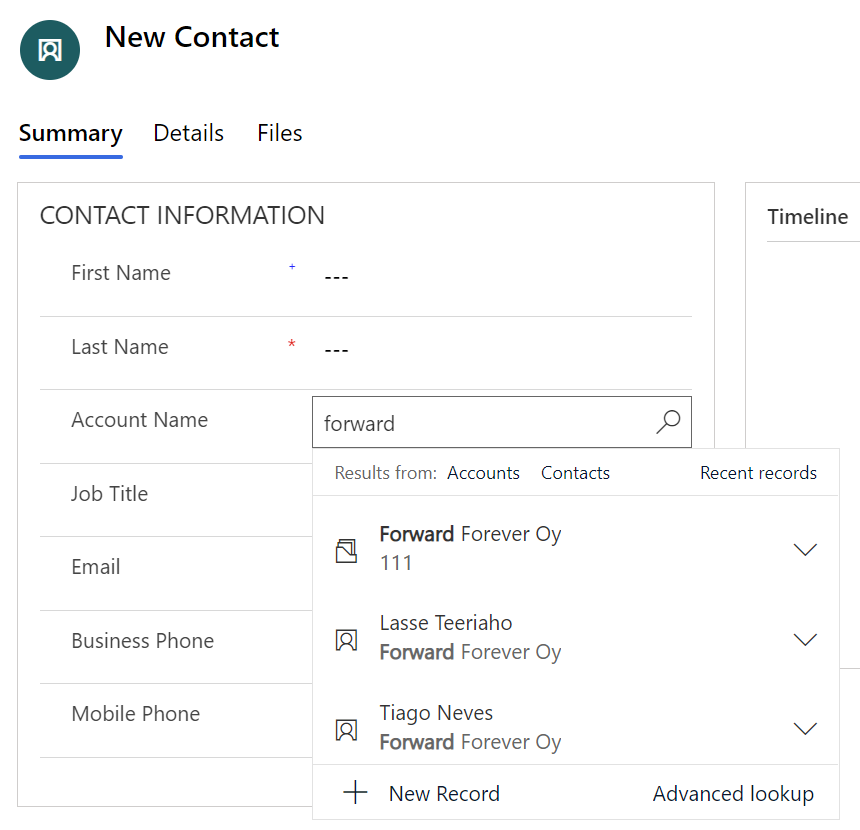
    It turns out this is not true anymore. To demonsrate the real behavior, l added an Account Number “111” for Forward Forever Oy account record. This is what happens with the lookup preview:

    Ah. The current lookup in the modern Unified Interface is so darn clever that it shows the first non-empty column from the lookup view.

    The solution is simple then. You can just add columns at the beginning of the table’s lookup view that are always going to have data. These will then push further left the lookup fields that aren’t relevant in the dropdown preview. This means you can still keep the other fields visible by default when opening the Advanced Lookup dialog. Even that confusing Primary Contact field can be left there, just in case we need it.

  • 2 become 1 UI: PowerApps Roadmap from MBAS

    2 become 1 UI: PowerApps Roadmap from MBAS

    Have you looked at the MBAS Gallery yet? Microsoft Business Applications Summit 2019 was last week and already the majority of sessions have been published online for also non-attendees to enjoy. Even if you attended the conference in Atlanta, there’s a chance that you may have missed a few sessions, with there being 200+ of them in 2+1 days.

    Live recordings of sessions are nice – if you have ~200 hours to sit through them, that is. As is the case with podcasts, I rarely come across a moment in my life where there would be empty space just waiting to be filled with a 1h chunk of audio/video of people talking about something that might or might not be valuable to me. On the other hand, I’m very comfortable with skimming through endless amounts of text & pictures, in search of something that warrants my real attention and further processing. That’s where PowerPoint slides are just awesome. Bullets, tables, charts, diagrams, screenshots, OH YES!

    Last week I started going through the MBAS session catalog and downloading the slide decks for interesting sessions. (I’m not the only one who hoards PPTXs from MS events, check out MVP Jussi Roine’s blog for his tips on learning quick as a consultant.) Now I’ve got a folder with 115 PowerPoint files weighing in at 4.5 Gigabytes. Hmm, looks like some further prioritization is still needed to narrow these down. Well, one thing’s for sure: I know where I want to start diving into the content. The future of business apps awaits in this session:

    Run One UI – the future of canvas, model-driven, and Unified Interface in PowerApps (BRK2073)

    For those with Dynamics 365 Customer Engagement background, the topic of user interface unification might lead your thoughts to Unified Interface. Originally announced 2 years ago, this new client infrastructure aims to do away with the earlier divide between web client, phone, tablet and Outlook. More importantly, it’s a foundation for unbundling the application specific UI controls from the platform and opening up the road for everyone to build the kinds of controls that Sales, Service, Marketing and all the other 1st party apps contain. That story is called PCF and it’s a big deal for sure, but something even bigger is on its way.

    This  “One UI” does not simply look at the Dynamics side of the house, rather it encompasses the whole app story in Power Platform. Ever since XRM merged with PowerApps, we’ve had this somewhat awkward divide between Canvas apps and Model-driven apps. These terms don’t mean much anything to customers when explaining them the platform capabilities. For the Dynamics professionals the concept of a “Model-driven PowerApp” sounds artificial. While on the back end the CDS, admin and developer story is coming together quite nicely, on the front end we see two experiences with not too much in common – today.

    We’ve already heard Charles Lamanna make a statement that Microsoft has no intentions of keeping the app types in PowerApps separate:

    “Artificial limitations in app features will be removed, so that choosing [File – New App] will give you model or canvas experiences and everything will work across both.”

    Power 365 Show: Power Platform Changes and Answering Community Questions with Charles Lamanna

    Sounds cool! But how exactly are they going to pull off this merging of the two client frameworks with a very different history? On the platform side it was fairly simple as XRM probably offered a lot of what CDS v1 was capable of and turning it into CDS v2 was not a big issue due to low adoption rate of the less mature technology of the two. PowerApps Canvas apps on the other hand have a huge momentum going on and the number of apps in production is exploding. Dynamics 365 CE ain’t doing too bad either when it comes to growth figures in the cloud, so messing too much with it sound very risky. After all, we’re still waiting for many existing customers to even move from the classic web client to Unified Interface, so do we really need more confusion in this space?

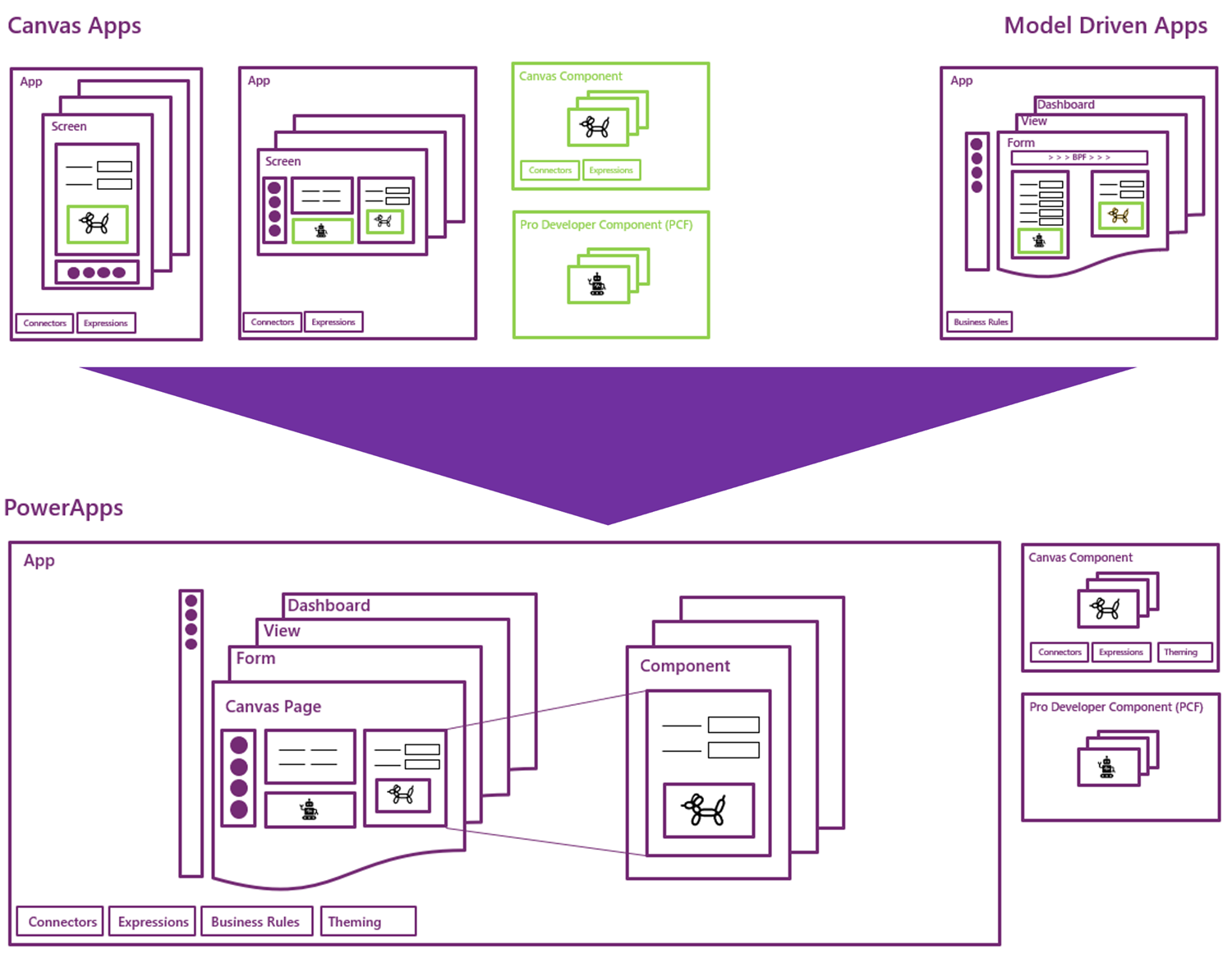
    In the Run One UI session at MBAS we heard Clay Wesener present the master plan of how the two different app types will gradually turn into one PowerApp. Here it is:

    This is really just mashing together the start and end state from Clay’s presentation, so this time you really should reserve an hour of your time and watch the recording, to understand the finer details. And grab the slides for reference, naturally.

    A key part of the plan is that this won’t happen in a big bang. There won’t be an “Even MORE Unified Interface” launched at some grandiose marketing event, rather Microsoft will introduce capabilities from one app type to the other in a gradual fashion. PCF just arrived on Model-driven Apps as a public preview, soon it will start showing up on the Canvas side, too. Canvas Components are bringing the more structured way to define the UI into the previously blank canvas where each pixel used to run free, making it more like the grown up version familiar from enterprise business applications. These new parts are all about blurring the lines between Canvas and Model.

    (more…)
  • Unified Experiences in October 2018 Release

    Unified Experiences in October 2018 Release

    The October ’18 of Microsoft Business Applications is going to bring a whole bunch of exciting features, spread across the huge stack of products and apps that either make up or operate on the Power Platform. Much of them will be specific to an area that only some of the users or developers work with in their specific customer scenarios, but there are also going to be updates that will be visible to practically everyone. Here are some of those new experiences that we can expect to see within the next few months as the features are gradually released.

    App Navigation

    On the Model-driven App client side, there will be some changes to the navigation features in Unified Interface. Here’s what October ’18 update is going to look like for the end user:

    The product team has communicated the following changes:

    • Sitemap will now be expanded by default, so users don’t need to remember what icon stands for what entity/feature.
    • Recent and Pinned items will be more prominently displayed at the top. MRU (most recently used items) will now be a single list instead of the earlier entity specific MRU list.
    • Sitemap areas will be displayed at the bottom, with a more visible icon and area switcher feature instead of the tabbed area list on top in current version.
    • Command Bar icons will have more color and hover effects to highlight their interactive nature.
    • Both Sitemap and Command Bar color scheme will be changed to dark text on light grey background.

    These are great enhancements that are aimed at making the Unified Interface work more smoothly on the desktop browser specifically. They will not affect the mobile or Mail app, but only the screens that will have a width of 480 or more pixels. It’s awesome to see that even though the clients share the same infrastructure, not everything is forced to work exactly the same way on a big monitor vs. small phone screen.

    Hybrid Experiences on Unified Interface

    For existing Dynamics 365 CE customers who are working in the “classic” web client, the question of “can we do this in Unified Interface?” is a critical factor in deciding on the strategy of how to migrate users to the latest experiences available in the cloud. There’s a list of capabilities not yet on Unified Interface over on docs.microsoft.com that should serve as the starting point for any such planning. For a more forward looking list, the Unified Interface roadmap presented at MS Business Applications Summit 2018 is currently the best summary of what to expect:

    While there will be more and more entities and features natively supported on UCI, not everything from good ol’ Dynamics CRM is going to be rebuilt for the new client infrastructure – at least not yet. When you look at what’s happening on the broader Power Platform side, this prioritization makes a lot of sense, as porting over old UI controls as-is probably doesn’t fit with the long term platform vision. Still, you can’t just pretend that a few missing features like Advanced Find would NOT be critical to business users who’ve built their work processes around these core capabilities of Dynamics 365 CE.

    The short term solution will be to offer a “hybrid UI”, in which the controls not yet ported to UCI will be opened up in windows that render the classic web client UI. So, things like merge dialogs, personal settings, SSRS reports and Advanced Find will be accessible to users from within Unified Interface, with the existing feature set that they’ve come to expect in earlier versions. Of course they won’t be mobile friendly like the responsive UCI controls, but desktop users aren’t probably going to care all that much about this anyway.

    As we can see in the roadmap presentation, Microsoft aims to make Unified Interface the default experience first for new customers and shortly also to existing environments. There’s no need to panic over this change, though, as the plan is to introduce a “Side by Side” (SxS) option for administrators to define whether the classic web client is visible to users or not. If you have a good reason to not yet push everyone over to Unified Interface, you don’t have to – at least not with the Oct ’18 release.

    Power Platform Admin Center

    While the aforementioned changes are mostly relevant to customers who have bought Dynamics 365 Customer Engagement and are using it for either traditional CRM scenarios or more XRM style applications, it’s good to keep in mind that all these investments are actually done in the context of the greater platform. Starting from the July 2018 announcements, Power Platform is now an actual thing that Microsoft sells. To the developers and administrators it has seemed like a collection of separate product boxes of different shapes, but that experience is also about to get unified as the new Power Platform Admin Center is introduced:

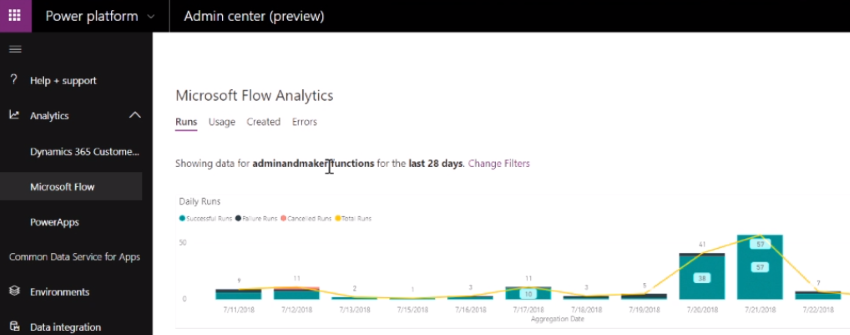
    You can already access this UI from either the short URL admin.dynamics.com or the longer (official) version admin.powerplatform.microsoft.com. Today you don’t yet see too many actual admin screens of individual applications within the Power Platform Admin Center, as the menu items will mostly redirect you to existing admin centers for PowerApps, Flow, Power BI and Dynamics 365 CE. Things are going to change soon, though, as a brand new admin UI will reveal the various Dynamics 365 CE settings that you’ve earlier been able to only access from the classic web client:

    These images are taken from another Business Applications Summit presentation, “Key features coming to Microsoft PowerApps and Dynamics 365 admins”. Just like in the UCI session, there’s a great roadmap slide included that shows the stages via which the new features are planned to be rolled out:

    Now, you may not want to look at the detailed dates, since both roadmaps are already ancient history from over a month ago and things aren’t necessarily quite where the initial targets were set. Nevertheless, these are the features and experiences that will soon be out there. If you compare this to the traditional Dynamics CRM world in which many current on-prem customers with their v8.2 (at best) environments are operating in, then it’s in many ways like a whole new application platform to work with. MVP Scott Durow has drawn a great diagram of the new admin experiences in Power Platform that also helps in illustrating the huge shift that is taking place here. We’ve seen architecture diagrams like the one below for a long time now, but once the actual user experience for solution designers also starts to reflect this, I believe that will have a “powerful” impact indeed!

  • Card Forms and List Views in Unified Interface

    Card Forms and List Views in Unified Interface

    Since the beginning of time, meaning early days of MS CRM, we’ve grown accustomed to the fact that record fields in Dynamics 365 Customer Engagement can be presented either via entity forms or entity views. The entity form shows the editable fields of a single record, whereas the entity view gives us a list of many records from the same entity. Views used to be read only, but as Microsoft finally provided a first-party editable grid feature in December 2016 update for Dynamics 365, that blurred the lines between a view and a form to some extent.

    Showing views on a form has been possible since already 2011 when subgrids were introduced. Now with the expanding feature set of CDS for Apps and their Model-driven Apps (formerly XRM), it’s actually possible to also show forms within a view. No, not just any random form, as that wouldn’t really make all that much sense. After all, if you want to look at an actual entity form with several tabs and sections worth of data, you’re going to want to click away from the view and show the entity form in full screen mode. In Unified Interface there’s even a nice shortcut for you to keep browsing the other records in the source view without having to navigate away from the entity form you’ve opened:

    The scenario for showing form style content within a view is for a different type of a need: presenting several fields from one record in a view when there is no space available for showing columns side by side. This is of course related mostly to the vertical layout of a phone app that has more pixels available from top down than left to right. You could however encounter this type of a layout need when embedding views onto either forms or dashboards, with a narrow space available for any single record from the view to identify itself with its fields.

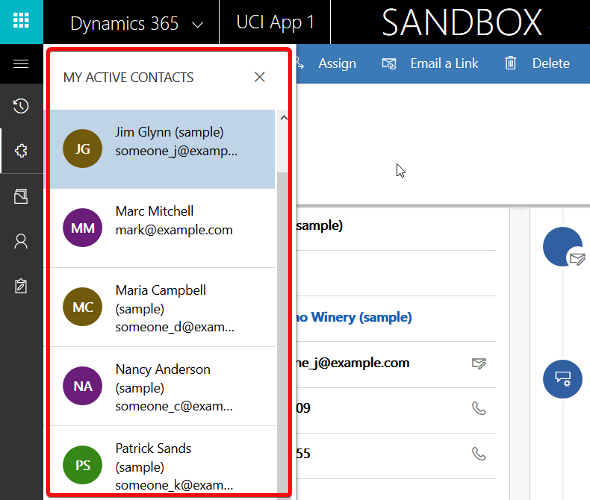
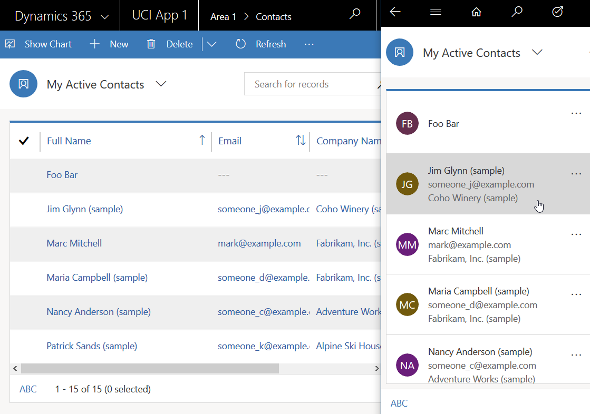
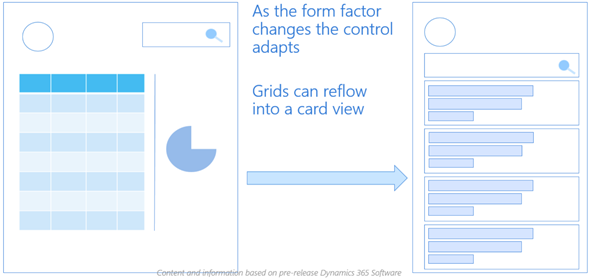
    The Unified Interface already has a built-in capability to address this scenario with its automatic reflow. If you take the “My Active Contacts” view as an example, when in the web client on a wider screen you’ll see the view columns in the traditional format. However, if you start making the screen (or “viewport” as the developers like to call it) more and more narrow, you’ll eventually reach a point where the presentation mode changes to remove all the columns & sideways scrolling bar, replaced with a card like UI. It will by default show the entity icon and the first three columns available in the original view definition.

    If you want to have more control over how the information would be presented in its compact, mobile friendly format, then the entity Card Form is a tool that you should take a look at. Available as one form type alongside the more familiar Main Form, Quick View Form and Quick Create Form, the Card Form was introduced originally with the Interactive Service Hub (ISH) client. Since this was a very limited client type that predated the Unified Interface, most customers and many consultants probably haven’t worked with it in the past. Now that Unified Interface is set to take over the world from the legacy web client sometime in the future, it’s about time to get familiar with these features.

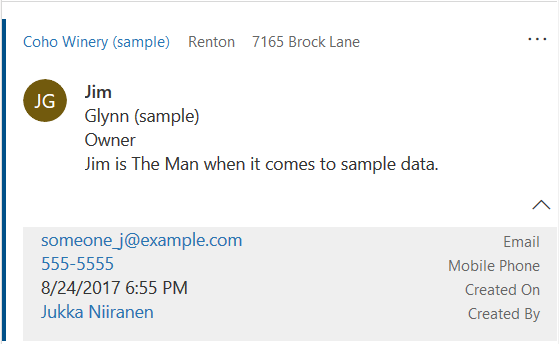
    Unfortunately Microsoft doesn’t yet provide much documentation about the use of Card Forms. The references in the current documentation are also somewhat misleading, since the term “card form” is also used in reference to what is actually a Quick View Form. Many people will surely have an image in their minds about the Card Form being something like the example shown below. It is not.

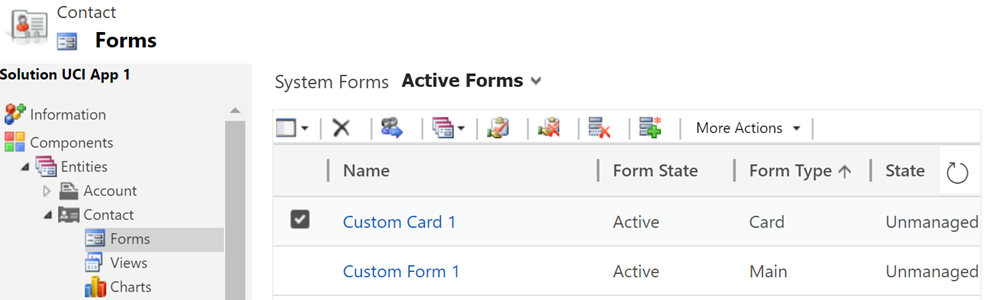
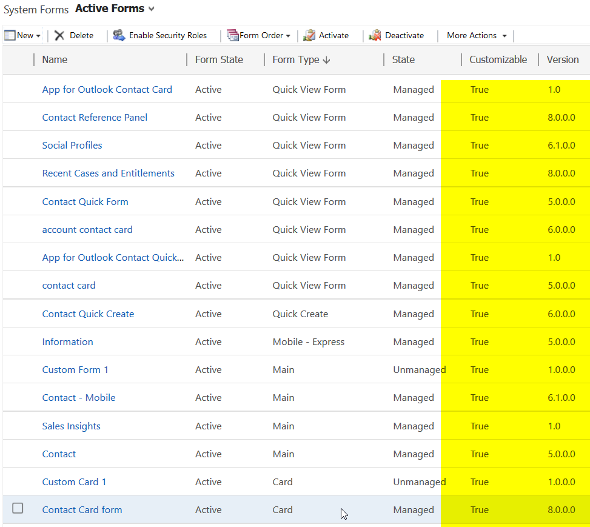
    The customization UI in the application itself isn’t that helpful either. Out of the ~14 default forms that the contact entity currently has in a sales focused Dynamics 365 Customer Engagement instance, 4 forms contain the word “card” in their name, but only one is actually of the type Card Form!

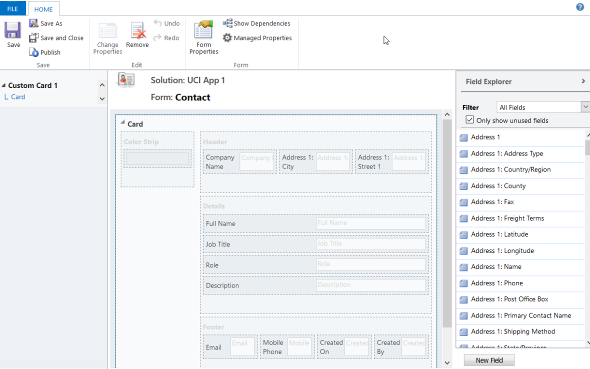
    Ignore the false cards and head straight to either the default “Contact Card form”, or alternatively create a brand new one. You’ll land on the classic form editor experience that will present to you the fixed layout and available features of a Card Form:

    It looks like there are familiar elements from the Main Form available here: header, details, footer. What’s different is that there aren’t much properties you could play around with when it comes to the sections, meaning any labels or layout options that a traditional form would have. The maximum number of fields you can drag from the field explorer and drop onto the Card Form are:

    • Header: 3
    • Details: 4
    • Footer: 4

    Given that the intention is to provide just the key attributes of a record in a view, these numbers should be plenty. In fact, you might want to be cautious about not including too many fields onto the Card Form to keep it visually pleasing to the eye. As you’ll see from the example of how the form renders, there will be no form labels provided for any of the fields in the header or details sections, so be sure to only include the kind of fields that will be obvious to the user based on just the data of the field or the context in which the view is available (not just a bunch of date fields, for example). Also note that the footer currently appears to be expanded by default when the view renders, although there’s an upward arrow for you to collapse it for an individual record (you’d think this would be the other way around). You can control whether the footer is expanded by default or not by going to System Settings – General – Set the default card state for Interactive Dashboards.

    How will you then determine where this card form layout will appear? This is where the Custom Control Framework comes into play. We now have a control type in standard Dynamics 365 Customer Engagement called “Read Only Grid” that is different from the “Read-only Grid (default)” control. When you switch one of the clients (web, phone, tablet) to utilize this new control instead, you’ll get the option to link your default or custom Card Forms as the way how the view contents should be rendered. (more…)

  • Configuring Custom Controls for Views in Dynamics 365 CE V9

    Configuring Custom Controls for Views in Dynamics 365 CE V9

    The new Unified Interface that launched in v9.0 of Microsoft Dynamics 365 Customer Engagement gave us all the possibility to try out the next generation CRM user experience in new trial orgs or sandboxes. While the CDU process for upgrading existing customer environments to V9 has not yet been made available by Microsoft (which gives them some time to iron out the remaining wrinkles with a steady stream of Service Updates), now’s a good time to explore what’s new and what’s changing with the imminent arrival of Unified Interface.

    One of the most exciting platform enhancements from a developer perspective is surely the arrival of the Custom Control Framework. Known as CCF for short (no, not that Microsoft CCF you senior members of the community might recall), this is essentially the mechanism through which all of the data visualization in the XRM platform will be handled in the Unified Interface. Not just the custom developed UI components from partners but also everything that Microsoft builds. Take a look at the default solution of a V9 org and you’ll already see a wealth of these components listed in there:

    The bad news is that as of now there’s no documentation nor API available for developers to build new or extend existing controls via CCF. It’s coming, but it just ain’t ready quite yet. In the meantime, us system customizers can get familiar with the concept by tinkering with the configuration options that ship with V9.

    Custom Controls for Views

    Back when the Editable Grid first launched, the feature was rolled out in an “all or nothing” style. What this meant was that you were able to enable it on the entity level, but then it was the only view type that any user would see in the UI (at least in the specified client type). Sure, they were given the option to switch from editable to classic read-only grid if they spotted the option, but the system customizer wasn’t able to target the powers of Editable Grid to only views that actually benefited from this feature.

    V9 has taken this a step further and introduced a Custom Control setting for each individual entity view. This gives us the option to set that only a specific view like “Edit Account Details” would only present the grid in the editable format with all the pros and UX cons that this particular control introduces over a read-only view. This doesn’t apply in the classic web UI (or the “Refreshed UI” as the V9 release refers to it) but on the Unified Interface side we can now see the power that this granular control over controls has on the user experience.

    New View Controls in V9

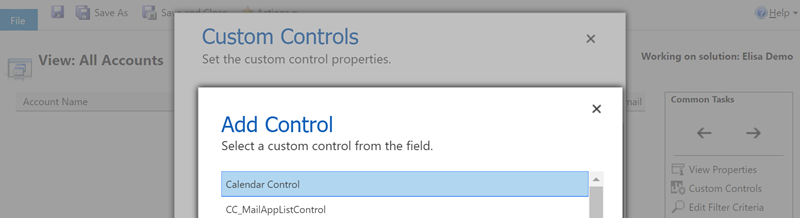
    In addition to the Editable Grid, there are a number of other grid types that a V9 org presents as options for the system customizer. In the screenshot above you’ll see the Calendar Control having been chosen as the data visualization type for the view. This opens up a number of configuration options that can be set right in the UI, like the date field data sources, description label, colors and so on. What we see here is essentially an example of the point & click configurability that a CCF based control can offer when used in the Dynamics 365 CE solution.

    The Calendar Control is also responsive to the client type. When access via a browser app using the Unified Interface style (in this case a custom Subscription Management app), you’ll see a somewhat ugly legacy calendar with the week days presented horizontally. When viewed via the Dynamics 365 for Phones app it will render in a the above format of vertically stacked records per day. (Yes, those day of the week and month texts are presented in Finnish regardless of the app language setting being English, because that’s how Microsoft prefers things to be).

    There are also other control types available for views in V9 currently, such as Timeline Control. That specific control appears to require quite a specific format of source data that fits the scenario of the Company News Timeline solution, so you might not find it useful in your own customization work. What might be worth noticing is that there are in fact two separate read-only grids available in the current release: the default one and the Read Only Grid with settings to control the entity card form and data reflow behavior.

  • The Long Road to Unified Interface in Dynamics 365

    The Long Road to Unified Interface in Dynamics 365

    On June 20th Microsoft started taking the cover off its next major release of Dynamics 365 Customer Engagement (formerly known as CRM): v9.0. The biggest announcements in the first day of the Dynamics 365 Preview Executive Briefing were around the client story. With the new Unified Interface (sometimes also referred to as “UCI” for Unified Client Interface/Infrastructure) the plan is to bring a single client technology to cover all the different UI’s across devices. Web, Outlook, Mobile, Tablet.

    This is very exciting news, but there’s a lot of details and footnotes that people in the Dynamics ecosystem need to be aware of. Let’s dive right in!

    The Client Fragmentation of Dynamics CRM

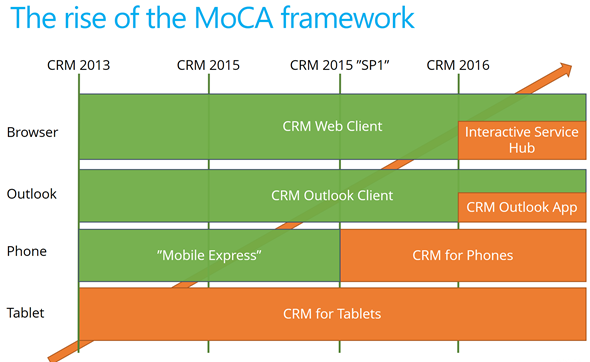
    Most of you will have probably been around when the previous big UX refresh took place with CRM 2013. We then received the MoCA Framework based tablet app with Windows 8 style tile UI and later saw this framework being used in many other places. We even received a brand new client to be used on the (desktop) web, the Interactive Service Hub (ISH). In fact, one year ago it almost looked like MoCA would be eating the world:

    The only problem with this strategy seemed to be that all of these individual parts never formed a sensible whole. Instead, there were so many “seams” visible everywhere you looked in the Dynamics CRM client landscape that many times you just wanted to keep your focus on the traditional web client and wait for things to clear up in these newer areas of the platform. A few examples:

    • Knowledge Articles were introduced only on ISH, but at the same time ISH was too limited/buggy to be used in most of the existing customer service scenarios with customizations in place.
    • Visual Controls were introduced in the phone and tablet, but the main web app forms just kept getting more and more white with nothing but text fields.
    • Dashboards with filters were made available on ISH, but much of the entities (i.e. sales) that typically are analyzed with dashboards were not allowed on the ISH side.

    MoCA was born for the mobile first era of touch UI and understandably it didn’t have all of the traditional capabilities from the web client. However, there were plenty of gaps that didn’t make it ideal for mobile use either. One of the biggest issues I had with MoCA was the “configure once, deploy everywhere” principle, which tried to force the same full CRM configuration onto the mobile device screens. MoCA brought the CRM into your pocket, but most of the time what a user would need in their pocket is a simplified app focused on a limited set of tasks. The limitations with MoCA meant that Microsoft had to rely on a Resco based client for their Field Service app in which the use cases are primarily mobile only.

    This Time It’s Different

    The promise of Unified Interface is that the era of web vs. mobile is over and now we’ll see a UI that’ll both adapt to the device or screen in use, as well as offer the same customization options in each of them. Content will be presented in a way that will reflow into different states of the control as the space available to it changes.

    Unlike with MoCA, this time there can be multiple different apps also accessed on a mobile device. Also web-only features like form switching are now available on all devices which makes it far less challenging for the system customizer to design a solution when all the exceptions and limitations of specific client types are (in theory) no longer in the way. It’s important to set the expectations on a realistic level, though, since I’m quite sure we’ll need to make some more compromises on the web side of the house with this new Unified Interface, but hopefully it’ll be a price worth paying for true mobility of Dynamics 365 business apps.

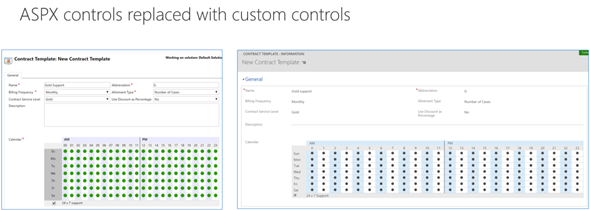
    For an even more customized experience, the Custom Control Framework that has been gradually introduced as part of the application (like the Editable Grid, for example) is going to introduce a design surface for developers to extend Dynamics 365 Customer Engagement apps in exciting new ways. Not only that, the existing ASPX based UI controls that have been in the core CRM application since forever are now also being transformed into Custom Controls. This is a part of the larger application/platform separation initiative that’s a whole topic of its own. On a high level, the developers should soon have access to basically the same tools for building new UI controls as what Microsoft is using to build their business apps.

    All of this should help in removing many of the gaps that have currently stopped the rolling out of the individual application features in earlier releases for real life business scenarios. There are plenty of promises that MS is making on performance improvements of this new client technology, too. That’s an important aspect to keep in mind and realistically evaluate as the Unified Interface becomes available, since all of the eye candy in the world won’t be of much value if the actual user experience of working with the application isn’t meeting the ever growing expectations of fluid interaction with the data stored in and managed via Dynamics 365.

    Are We There Yet?

    So, all of this looks great – now can we have it by tomorrow, please? The short answer is “no” and the expanded one is “it depends”. As mentioned in my earlier blog post, much of the new features in Dynamics 365 will now be rolled out via Private Previews and Preview programs before general availability. Hopping on to the preview train will shorten the time it takes for gaining hands on experience with the new UI. However, there’s more to it.

    Earlier I mentioned the previous UI refresh of CRM 2013 release (“Orion”), but some of you might still remember the intermediate release of “Polaris” (whereas the official name December 2012 Service Update isn’t something even I remembered anymore). That was perhaps the first Online-only release that Microsoft developed, with a target of not even trying to upgrade all of the application features into the new UI concept but instead just a selected few entities (“COLAC”) received the refreshed forms and Business Process Flow. You could build a simple CRM demo for a new customer with it, but trying to upgrade existing systems into Polaris or building anything with more customization requirements was a no-no. They had to wait until the full CRM 2013 release became available.

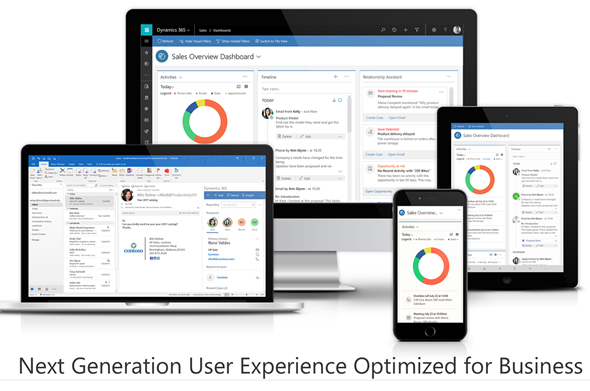
    The reason I’m bringing up this is that initially the Unified Interface is likely to be a bit like Polaris. It’s going to be made available only to brand new instances with the Business Edition licensing, or for new Apps that are either built by Microsoft (Customer Service Hub, a.k.a. ISH v2) or by the customer. It will also be available on the Phone and Tablet apps as well as in the lightweight Dynamics 365 App for Outlook (which officially replaces Outlook Client that’s now deprecated). Everywhere else, though, it’s not going to be the time for Unified Interface yet, but instead a refresh of the web client that’ll look something like this:

    Starting to get confused? I don’t blame you! There’s a hint of irony in the fact that the “Unified” Interface will initially be yet another interface variation for the Dynamics 365 application. I’m sure it’s not the way Microsoft would prefer to have these things introduced but reality is usually a bit more messy than PowerPoint presentations. The new client technology simply represents such a major shift in how Dynamics 365 works that upgrading all the complex customizations of existing Enterprise customers into it in one go would not be a smart move. Remember that “everyone’s an enterprise customer” until the Business Edition finally is out the door.

    To truly understand the client strategy that Microsoft is pursuing, you simply have to look at the Business Edition now, regardless of your deployment’s size. It is the dreamy wonderland in which MS can cut back on unnecessary complexity of application features and not worry about breaking any existing deployments, since there is hardly any legacy there. A fresh start that doesn’t need to carry all of the overlapping functionality (like Contracts vs. Entitlements) or provide all the admin options necessary for hybrid environments. It’s not all pure bliss in the sense that all of this will eventually have to live in harmony with the more complex custom UI’s and business logic of big corporations with “non-simplified” CRM systems running on the Dynamics platform. Still, right now we’re seeing a move from “cloud first” to “Business Edition first” when it comes to client innovation.

    Just because the Business Edition is targeting the lower end of the product licensing fees doesn’t mean you should dismiss the functionality that is being introduced in it. If the Sales app mainly streamlines many of the unnecessary complexities of current opportunity management in Dynamics 365 Enterprise, then the Marketing app will bring advanced logic like Customer Journey management that many existing larger customers would surely love to get their hands on. Unified Interface is the big story here that’s driving the release policy. I suspect that it’s the primary reason why the new XRM based Marketing app is only available for Business Edition customers initially, since features like integration with Customer Insights based segmentation and scoring mechanisms are not a feature anyone would build solely with the SMB segment in mind.

    It will all make sense in the end (hopefully), but in the near future both the customers as well as Microsoft will have some work ahead of them before the new promised land of Unification is reached. This is of course not all that different from what other business application platforms with a long market presence must go through every once in a while. Some may claim that Microsoft is following the Salesforce Lightning UI concept here with their Unified Interface and the similarities are surely there to be found. In fact, what I wrote about this the last time when Salesforce was following Microsoft’s lead is still pretty relevant when it comes to user experience evolution, so why not revisit that blog post for some perspective: The Irresistible Force of Great User Experience in CRM Applications.

  • The Irresistible Force of Great User Experience in CRM Applications

    The Irresistible Force of Great User Experience in CRM Applications

    Those who have worked with Dynamics CRM for a longer period of time will remember how the user experience delivered by the platform has evolved over time: from an Office style, data entry focused, Internet Explorer popup window application into the clean and modern Dynamics CRM 2015 application that works on any device and aims to present the maximum amount of relevant information to the user with the minimum amount of clicks. There was a time when CRM didn’t exactly seem like something that was designed with the needs of the end user in mind, but this direction changed quite drastically from the CRM Online December 2012 Service Update onwards, as Microsoft started to redesign the experiences they wanted to deliver for the users of their business applications in the new era where mobile, social and cloud were quickly becoming the most dominating forces in the world of enterprise software. Not forgetting the consumerization of IT, which had shown people that not every app used in a work context needed to look like a 90’s ERP system.

    I have covered this transition in quite a bit of detail in my four part article series titled “Dynamics CRM Platform Evolution”, which I’d recommend you to read through for understanding the practical impact of moving from the “first era” of MS CRM v1-v5 onto the current era of largely CRM Online focused rapid product iterations. One of the points I raised in the article was that not all the CRM software providers in the market had chosen to follow a similar path of introducing a big bang revolution to their application. Unlike Microsoft, Salesforce.com had instead opted for an evolutionary path that had seen their application UI remain almost unchanged for the main components and layout, as depicted in the image below.

    CRM_Platform_Evolution_2_small

    While being wildly successful in becoming the “next CRM application” after the 90’s generation of Siebel style, on-premises enterprise CRM suites had began to slide out of the limelight, Salesforce also began to receive a growing amount of criticism over the legacy that its user interface had accumulated over its history. The question of “Why doesn’t Salesforce upgrade the UI/UX of its core CRM web app?” did seem more and more valid, especially when competing products like Dynamics CRM were transforming the user experience that one could expect from a customer relationship management application. Well, finally in late August 2015, Salesforce announced that their next era of CRM UX would arrive in the form of the new Salesforce Lightning UI.

    Welcome to the Future of CRM, Salesforce!

    First of all, congratulations to the product team behind the Lightning UI on the launch! Pulling off a major redesign like this is bound to be a massive task and I’m sure in many ways the work has only begun now, but it’s still definitely an achievement worth celebrating. As many of you may have noticed, in my day job I work exclusively with Microsoft Dynamics CRM, so whatever I write here about a competing CRM solution is not going to be 100% objective. For that I apologize, but the point of my post isn’t to bash Salesforce but rather to analyze some of the trends in CRM software in general and also reflect back a bit on what has taken place in the world of Dynamics CRM during the past few years.

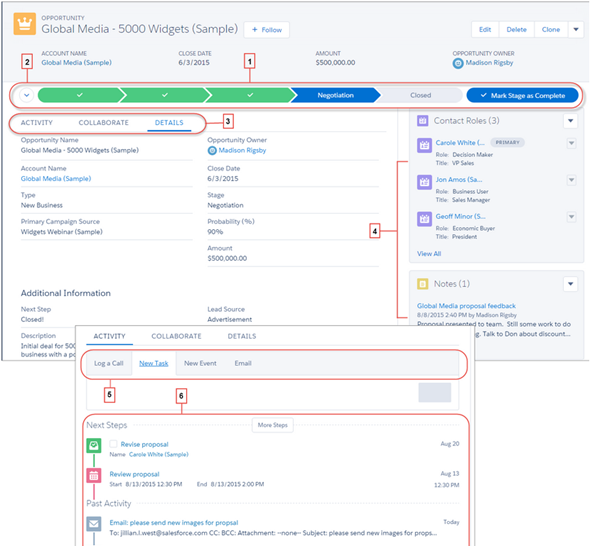
    But first, I need to just get something out of the way. Damn how these two apps look alike! Here’s the brand new opportunity form on Salesforce Lightning UI, a.k.a. Opportunity Workspace:

    Salesforce_Lightning_Opportunity_small

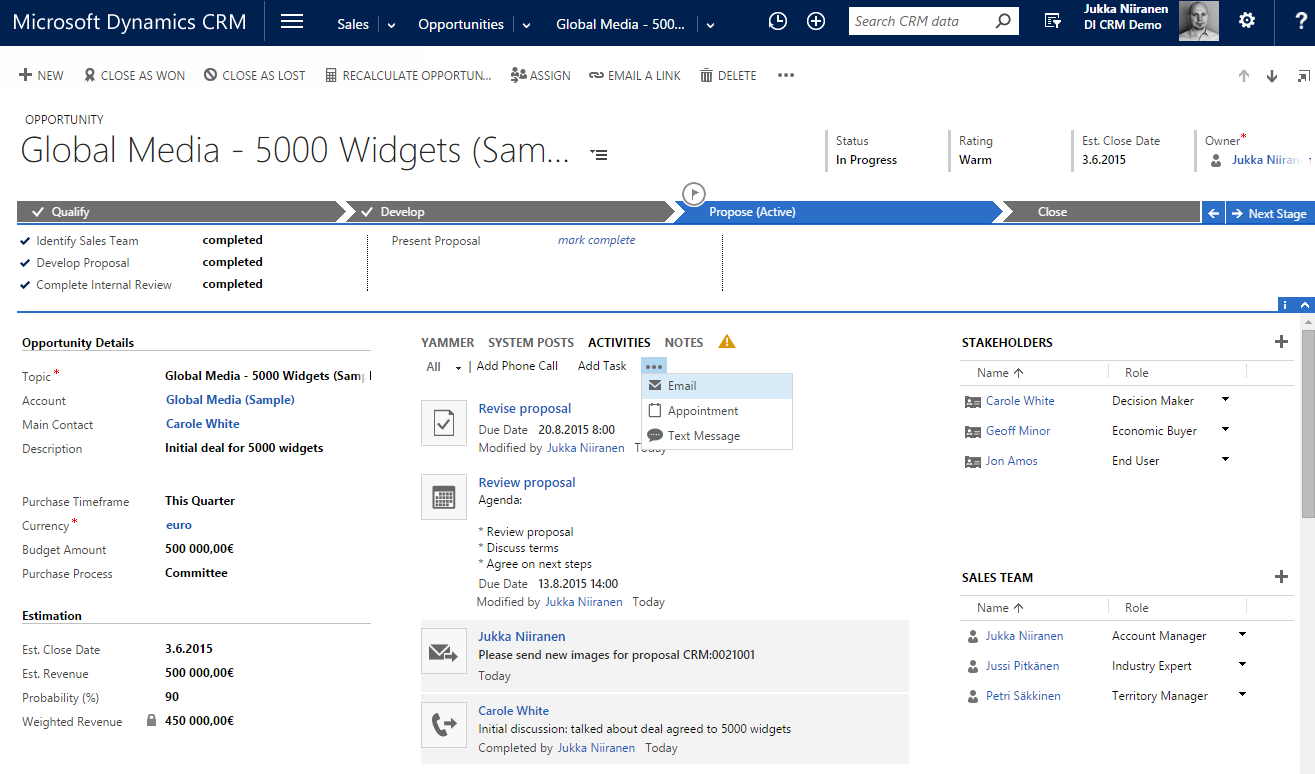
    …And here’s how the opportunity form on Dynamics CRM has looked like pretty much since the 2013 version:

    Dynamics_CRM_2015_Opportunity_small

    Notice any resemblance? Let me help you out a bit by listing the first five things that come to my mind from the Salesforce screenshot:

    • Sales Path for visualizing the sales process stages and related fields, known as Business Process Flow in Dynamics CRM
    • Tabs for switching between related activities and social posts, known as the Social Pane in Dynamics CRM
    • Composer for adding new tasks, phone calls and events to the opportunity, which simply is an inline activity quick create form in Dynamics CRM
    • Related information on Contact Roles, essentially the Stakeholders editable grid in Dynamics CRM
    • Persistent four header fields at the top of the form, ditto for Dynamics CRM

    Yeah, of course these both are applications for managing your typical sales opportunity information with activities and contacts, so its understandable that the concepts used in the default screens would be unlikely to radically differ from one another. Still, contrasting Lighting UI with the traditional Salesforce UI and looking at how close to the now familiar Dynamics CRM form layout, UI controls and especially the Business Process Flow feature the Salesforce product team has ended up with their design is, well… Quite remarkable in my opinion. Not a bad choice by any means, and also serves in validating the direction that Microsoft’s team took when overhauling their application’s UI a couple of years ago.

    Aside from the similarity to Dynamics CRM, there are plenty of nice looking designs and features included in the Salesforce Winter ’16 release notes. Some of them are about filling the functional gaps to Dynamics CRM (list view charts known from CRM 2011 make an appearance here), others are borrowing concepts from the more recent CRM apps out there (Kanban style opportunity board used in Pipedrive, Pipeliner et al., as well as SalesFlow for Dynamics CRM), but many of the release items seem to be focused on fine tuning the application usability and removing unnecessary friction from common tasks that sales people need to perform on a daily basis. Rather than just slapping on a new field layout and updating the icons, it does seem like the user experience of Salesforce will change quite dramatically with Lightning. Of course the true UX can only be evaluated once a live version of the application is available for testing how it truly feels like to use the app, but at this point it looks like a major step forward.

    The Price of Revolution

    Introducing a new application user experience to new users who don’t have prior experience of the product will always be far easier than forcing it upon the existing user base. While few people would say that they don’t want a nice & easy UI, the reality is that resistance to change is always a factor when dealing with human beings. When it comes to business software especially, disruptive changes are at the very bottom of the want list for the majority of people who are responsible for ensuring that information systems deployed for managing the core business processes of their organization keep on churning out the expected results. What’s going to happen when a CRM system jumps from evolutionary releases to revolutionary changes instead?

    The one important thing to keep in mind is that changes like this never take place overnight. Migrating over all the functionality that vast application platforms like Salesforce of Dynamics CRM have accumulated over time isn’t something you can get away with a single big bang release. With Microsoft there was a preview version of the new UX introduced with the Online only Polaris release, launched almost one year ahead of the actual major release of CRM 2013 (v6.0). Initially only five core entities were updated to the new “refreshed” forms, and even today the latest v7.1 still contains lots and lots of entities and menus that follow the old Ribbon based user experience. So, three years later the work isn’t even done for the Dynamics CRM product team in renewing the platform, which means that the end users and system customizers need to cope with a somewhat mixed application environment. The platform legacy becomes most apparent with the new mobile client applications that don’t support the old product architecture, resulting in features like marketing lists or connections not being available on the modern client versions. Sure, life is much, much better with the new UX, but it has also introduced some new complexities into the product.

    In the case of Salesforce, the story sounds to be somewhat similar, as not every area of their platform will be Lightning enabled right from the start. The Service Cloud will not yet be updated, nor will features like forecasting, orders or person accounts. In moments like these it’s always interesting to see how companies prioritize their development efforts, as they are likely to indicate either the observed level of usage for certain features of their products, or alternatively possible future plans to scrap something old and rebuild it from the ground up. If you’re working as a consultant that advises customers on what features they should take into use or invest in developing for their CRM systems, the messages conveyed by the application vendors via the frequency of updates to certain functional areas of their products are signals you’ll most certainly take into consideration when deciding on what strategy to recommend to your client base.

    With 150k customers and millions of users, it’s going to take a while before Salesforce will have safely moved each and every one into the Lightning world. In fact, based on the statement by Sara Varni, senior VP of marketing for SFDC Sales Cloud,  this milestone may never even be reached, since Salesforce will support the classic experience “indefinitely”. In the oldskool settings of on-premises servers, the way this could have been handled would be for the customers just sticking to an older version of the software and not deploying any updates. When you’re the grandaddy of SaaS platforms, things are obviously a bit different and supporting older versions will require more than just accepting support tickets for ancients releases of your software. With CRM Online, Microsoft has previously been pretty strict on getting every customer to move on to the latest version via the CDU (Customer Driven Update) program, but lately they’ve also changed their update policy to allow skipping the bi-annual releases and updating only once per year. As SaaS products become a more mature market, I bet we’ll be seeing a growing number of options for customers to choose which versions to use, which features to activate and when to schedule these changes to take place.

    Universal Experiences

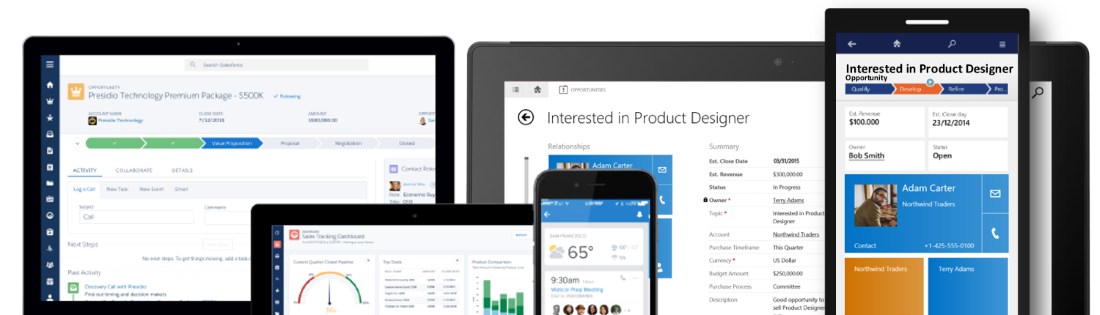
    The way Salesforce chose to build their next generation UI is different from the path that Microsoft took. While Dynamics CRM 2013 introduced both the new web client experience as well as the “MoCA” tablet client application as separate experiences (followed by the refreshed mobile app in CRM 2015 Update 1), Salesforce decided to first build the Lightning framework for their Salesforce1 mobile app and then scale it out to the PC screens. As a result, the screenshots that we see in the Winter ’16 release notes look very much like a mobile app placed onto the screen of an iMac. While you could in theory also use the Dynamics CRM for Tablets app on a Windows 8/10 laptop, the users will certainly almost always end up choosing the Dynamics CRM web client designed for interaction with mouse & keyboard rather than touch optimized “Metro” experience.

    Salesforce_Dynamics_clients

    I think this will be one of the most interesting design choices to keep an eye on when it comes to user reactions to the new Salesforce Lightning UI. Regardless of all the recent Universal Apps hype that Microsoft has been building up alongside the Windows 10 release, I’m personally not quite convinced yet that you can deliver a great UX with a single app that needs to scale from 5″ touch screens to 27″ desktop monitors. As a result, I’m also not a big proponent of the “configure once, deploy everywhere” slogan used in reference to the Dynamics CRM mobile apps, since I’d rather see CRM applications truly optimized for the device and use case in question. However, if Salesforce can pull this off with Lightning, then perhaps Microsoft has been right all along with their OS strategy and the application teams should now move faster towards unifying the client side of things.

    Applification of Platforms?

    When it comes to products like Dynamics CRM or Salesforce, one of the key reasons why they are being so widely deployed across enterprises today is the ability to customize them to align with the business processes specific to the customer organization. They are not only replacing legacy CRM suites but also capturing an ever larger share of the market that used to belong to custom developed business software, since using a customizable application platform delivered from the public cloud can really drive down the TCO quite significantly. But if the CRM applications are now reaching towards an even more polished user experience in performing common tasks with sales, marketing and service records, what will happen to supporting the business specific scenarios that are more unique than what pre-built application features can cover?

    When Microsoft launched the Dynamics CRM 2013 version with the refreshed UI, they didn’t only add more features into the already crammed product, but rather they took away some configuration options that had been previously expected from the platform. As the saying goes about the goal of design work, “perfection is achieved not when there is nothing more to add, but when there is nothing left to take away.” That may very well be true when designing a product to serve a specific set of tasks, but it may not resonate so well with a toolkit used for crafting these end products. Limiting the options shown to an end users is different from limiting the options available to the designer of the final solution that the user will be exposed to.

    How do such limitations show up in everyday life with the latest Dynamics CRM version? Today we have inline quick create forms for effortlessly adding activities for records, but we can no longer choose if we want to record a future phone call activity instead of a completed one. We can use an editable grid for adding line items into opportunities, quotes and orders, but we can’t configure these grids to contain those fields that the business logic would require to be recorded onto these line items. The price of added convenience for some is therefore resulting in the reduced usefulness to others. Looking at the Salesforce Winter ’16 release, it’s apparent that also here the polished UX will be come at the cost of reduced options. For example, there will be a brand new, great looking Home screen offered for sales users, but the components shown in it cannot be customized at this time.

    Salesforce_Lightning_Home

    Is there an inherent conflict between the needs of the application end user and the platform customizer? I don’t believe this is necessarily the case, but it is obvious that there are trade offs in building something that works great and building something configurable when it comes to the allocation of development resources for these software products. As the release cycles get faster and faster, the pressure for getting a new feature out there can mean there’s no time to perfect the first version into something that will meet the needs of all user groups and align with the rest of the platform functionality. The real question is, will the features be made more customizable in the subsequent releases, or will the requirements be pushed down in the backlog when the demand for more new features arises?

    When discussing the user experience of applications that are not commodity services like email but highly business specific process management tools (at least when properly deployed), it’s very important to understand what the final UX really consists of. It’s not only about having the slickest UI controls for working with the data, the flashiest graphics for visualizing the sales pipeline or most creative layouts for presenting different data sources on one screen. At the end of the day, the users need to feel like they can easily accomplish the tasks they are responsible for, with the help of the application – not despite of it. Understanding what exactly those tasks are and what pieces of information are relevant to the process of their completion is something that requires careful analysis conducted at the organization deploying a new CRM solution. Failure to do this will quickly wash away any value that the software features could have potentially delivered to the organization.

    As today’s CRM platforms become more and more sophisticated with the functionality and data presentation options available, the design work of those who configure the customer specific solutions also needs to be aligned with the increasing expectation levels for application usability. It’s still not rocket science, but it does require a greater attention to detail than the earlier, more primitive business applications where the UI was essentially a reflection of the data model. I’ve illustrated some of these design aspects in my 10 Tips for Designing A Great User Experience presentation, which hopefully can give an idea of how the system customizers can do their part in building CRM systems that the business users will find great value in – a Useful Experience, if you will.

  • CRM Navigation Hacking with Bookmarks

    CRM Navigation Hacking with Bookmarks

    When you spend your days working closely with an application like Dynamics CRM, such as when customizing or developing solutions for your customers, your mind will often times be working much faster than the application. You know exactly which feature you want to access, but if you need to navigate through several levels of menu hierarchies to get there, the process may be too slow to keep up with your train of thought, making it hard to concentrate on the actual task at hand.
    My personal strategy for reducing the cognitive burden involved with navigating inside Dynamics CRM has been the use of smart bookmarks. Here’s some tips on how I’ve set up my current working environment. If you have any similar CRM productivity tips of your own, please do share them in the comments section below.

    Launching New Tabs from “Quick Nav”

    While piling up a mountain of open browser tabs may not be great for your productivity either, the cost of moving between tabs is still lower than constant in-app navigation between menus. When working with CRM customizations, I always tend to have the end user content in one tab (views or record detail forms) and the Solutions view on the other one, so that I can quickly access the component I want to modify and validate the results with an F5 on the other tab.

    Dynamics CRM 2013 and beyond unfortunately don’t support the standard convention of right-clicking on menus and opening them up in a new browser window. Nothing stops you from opening CRM in a second tab and working with the settings via it, but this means you always have to start from the first page and navigate back to where you wanted to go. To speed things up a bit, I keep a “Quick Nav” available menu in all my browsers, created as a folder in the favorites/bookmarks bar that I also keep open at all times.

    CRM_QuickNav_menu

    So where exactly do those bookmarks lead to? A specific menu in a certain CRM organization? Nope, those are generic bookmarks that apply to the currently open CRM organization. They work in any CRM 2013 or CRM 2015 environment, on-prem or Online. You see, they are not actual bookmarks with a static URL pointing to a resource somewhere, rather they are bookmarklets that contain a short piece of JavaScript. (more…)