Tag: PowerApps

  • Don’t trust the Microsoft 365 admin center product information

    Don’t trust the Microsoft 365 admin center product information

    In this age of online commerce, and especially when selling digital subscription services, one might think that the online storefronts of large corporations would contain accurate product descriptions. Or that at least it wouldn’t take many years for incorrect information to get fixed.

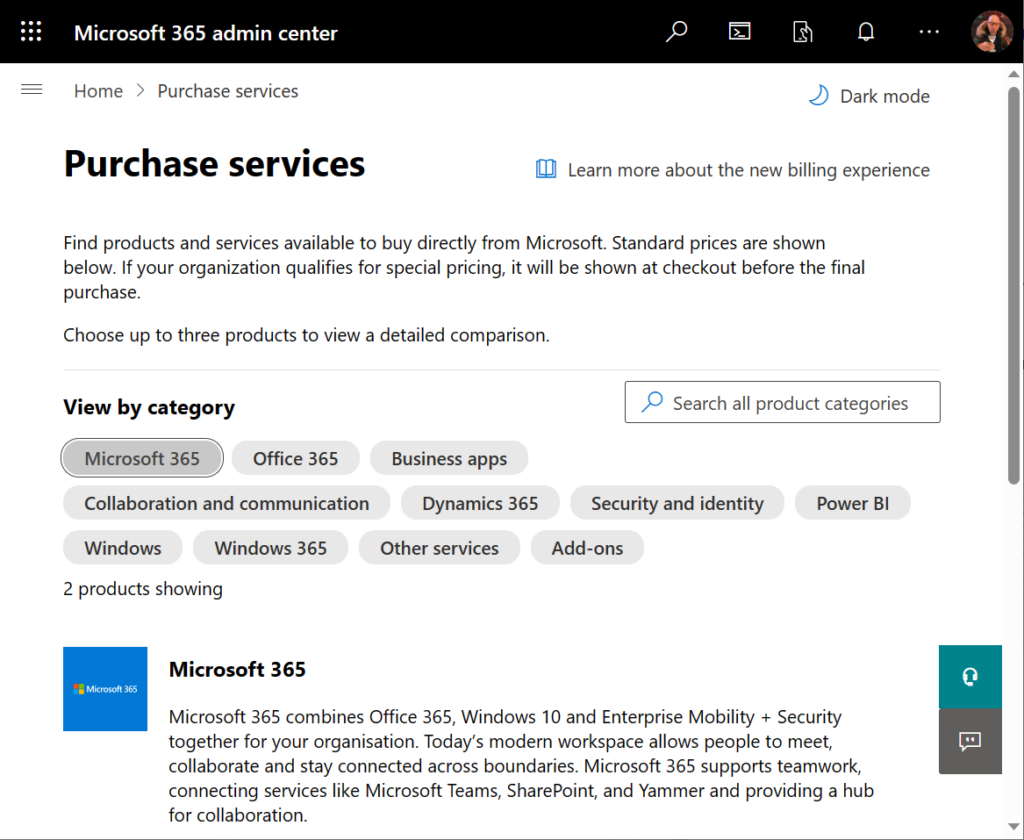
    Neither of these assumptions are correct when dealing with Microsoft 365 admin center’s online store, a.k.a. the “purchase services” tab. The detailed information that is shown to customers who are looking to purchase Power Apps licenses is not valid in this portal. It hasn’t been valid for close to 4 years now.
    During the past couple of years, I’ve tried every imaginable channel for contacting Microsoft about this. I’ve reached out to MS partner forums dedicated to licensing information. I’ve posted into Microsoft MVP program related forums dedicated to MS Business Applications licensing information. I’ve reached out directly to the product team who owns Power Apps.

    Nothing has helped in getting this information fixed. Which means that I must assume it will never get fixed. The only way to communicate about this to the people who suffer from it (customers, partners) seems to be in writing a blog post like this.

    Let’s take a look at the online commerce experience for someone who’s got a Microsoft 365 tenant and wants to purchase Power Apps licenses directly from Microsoft. In this scenario we want to specifically understand the options provided in the subscriptions called “Power Apps per user plan” and “Power Apps per app plan”.

    Finding Power Apps products from Microsoft 365 admin center

    The first hurdle will be in finding the products. One might think that Power Apps would be listed under the “Business apps” category (since there isn’t a category called “Power Platform”). However, we only find the Power Apps per user plan from that category.

    Let’s try a text search. Searching for “Power Apps” (or the old name variation “powerapps”) gives us the results we were after, yet in a surprising place:
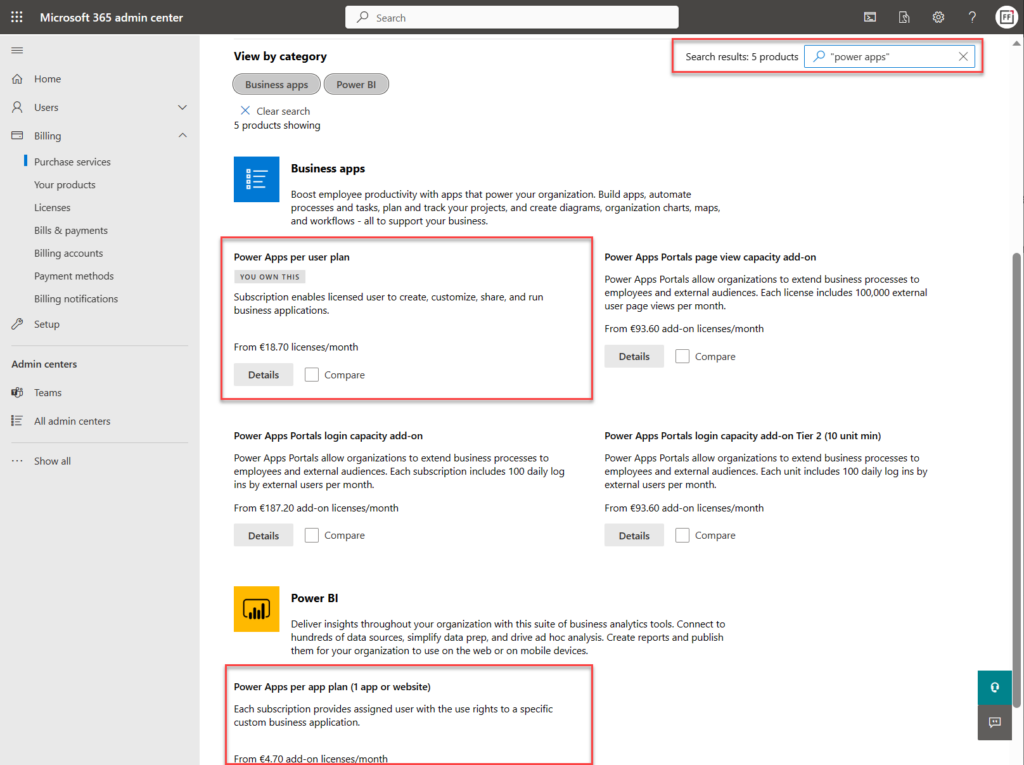
    Why on earth would the per app plan be categorized under “Power BI”? Well, for the same reason I need to write this blog post. The product information under Microsoft 365 admin center is simply wrong in many cases. This specific miscategorization has been in place for several months now, as an example.

    Comparing Power Apps product features in Microsoft 365 admin center

    Now what we’ve got the 2 Power Apps SKUs (“stock keeping units”) on the same results page, we can tick the “compare” box on them. Upon opening the comparison page, this is the result we get:
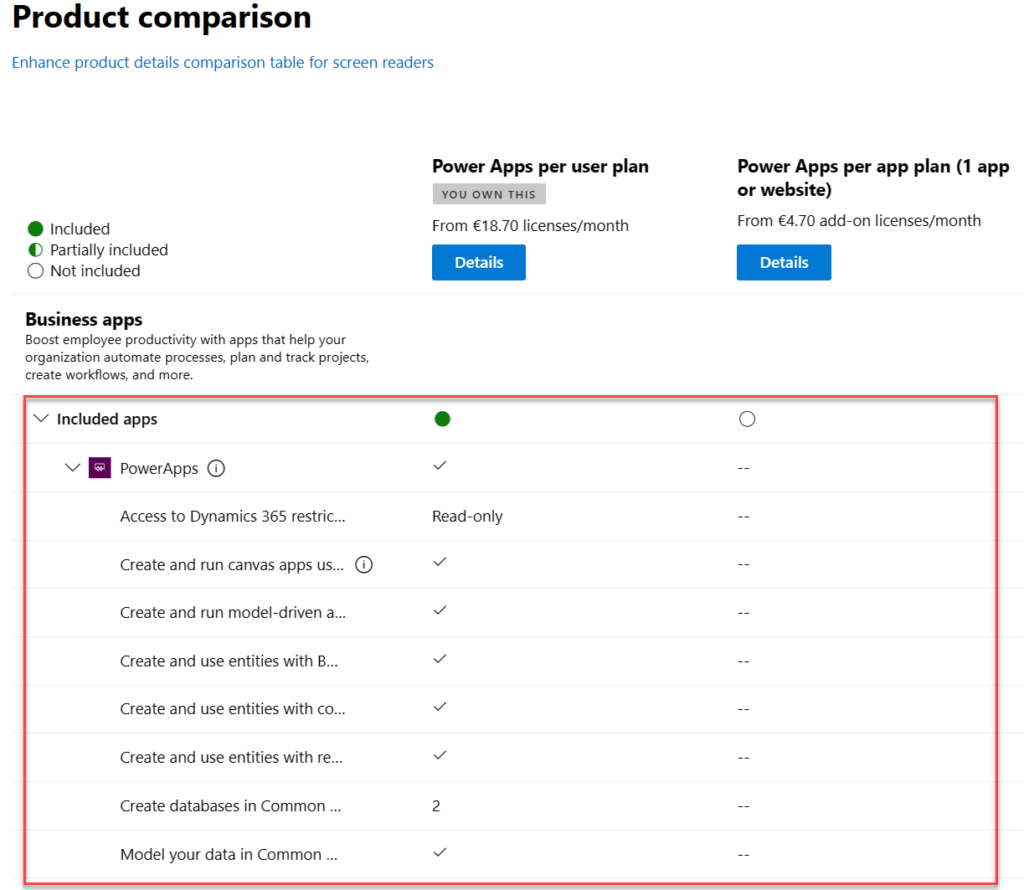
    There is absolutely nothing right about these product features. Even the product name and icon in the comparison section are outdated. They refer to the old SKUs of PowerApps Plan 1 and PowerApps Plan 2, which were replaced by the Power Apps per app plan and Power Apps per user plan on October 1st, 2019.

    The problem is, someone responsible for the commercial information managed in the Office 365 / Microsoft 365 online store didn’t understand this change was not simply a rebranding. You can’t just replace “Plan 1” with “Per App” and get away with it. Someone truly missed the memo of Charles Lamanna when he announced the change on July 25th, 2019.

    “We are also removing feature and capability differentiation across the paid, standalone PowerApps and Flow user-based plans. All customers will be able to benefit from the full features of the services, regardless of which plans they purchase. Key concepts like complex entities, or model-driven applications, will no longer be available in only some of the licenses.”

    Taken from “New licensing options for PowerApps and Microsoft Flow standalone paid plans” on Power Apps product team blog

    Let’s look at the list of features that are presented in Microsoft 365 admin center ~4 years later and see what errors we can spot:

    “Access to Dynamics 365 restricted entities.” It used to be read-only for Plan 2 and no access for Plan 1. Today, the entities (nowadays renamed “tables”) categorized as restricted are read-only for any Power Apps license. Also, everything else has full CRUD rights.

    “Create and run canvas apps using common data service for apps”. First of all, “Common Data Service (CDS) for Apps” as a term was replaced with Dataflex …sorry, Dataverse, quite some time ago already. Both Per App and Per User today have identical right to using this, unlike what the comparison table claims.

    “Create and run model-driven apps using Common Data Service for Apps”. Showing this as not available in Per App is entirely false. As anyone reading the memo from Charles would have spotted: “Key concepts like complex entities, or model-driven applications, will no longer be available in only some of the licenses.”

    “Create and use entities with Business Rules and async workflows”. Available in both Per User and Per App licenses, unlike what the product comparison table says.

    “Create and use entities with code add-ins”. Sigh… See above.

    “Create and use entities with real-time workflows”. Oh come ON! See above.

    “Create databases in Common Data Service for Apps (per user)”. Ooh, what an ancient relic this line is! Saying that Power Apps per user plan allows you to only create 2 databases has no basis whatsoever in the current licensing model. Customers can create as many Dataverse environments (meaning CDS / XRM databases) as their available storage capacity permits. Furthermore, today anyone can create up to 3 Developer environments for themselves, without having any premium Power Apps license.

    “Model your data in Common Data Service for Apps”. Does anyone still want me to explain to them that there’s no difference between Per User and Per App entitlements here? No? Good. You got the memo then.

    Closing thoughts

    For those of use who have been tracking the platform evolution of MS Business Applications over the years, it’s pretty much business as usual to encounter MS materials and information that reference outdated versions of products. The names change, the icons change, the licensing models change – this happens all the time and we’ve come to expect it already.

    If you don’t have prior experience on the commercial aspects of Microsoft’s product stack, though – this can be highly confusing. Imagine that you’re trying to compare different low-code application platform vendors and the information provided by the online store is like what we’ve seen above. Not the best way to build trust and convince customers that the pricing model is transparent.

    Why does this happen then? Why aren’t the product details updated in customer facing portals? Well, I don’t think anyone intentionally wants to mislead the audience here. I believe it’s simply a reflection of how inside a huge corporation like MSFT it can be very difficult to coordinate such updates. Every time some product gets “reimagined” there must be a million places that would need attention internally at Microsoft (us partners surely feel the impact, too). Sometimes the friction in the systems may just be too great to overcome, such as in commerce engines like Microsoft 365 or technical dashboards like the Azure portal.

    Power Platform products and pricing

    If you’re interested in seeing the Power Platform product prices on a single page, take a look at a summary that I’ve created for my own reference: Price points of Power Platform. I can’t promise it to be always up to date either, but at least I have a lot less bureaucracy to overcome than the official channels.😁

  • A few notes on the Timeline: model-driven Power Apps form tweaks

    A few notes on the Timeline: model-driven Power Apps form tweaks

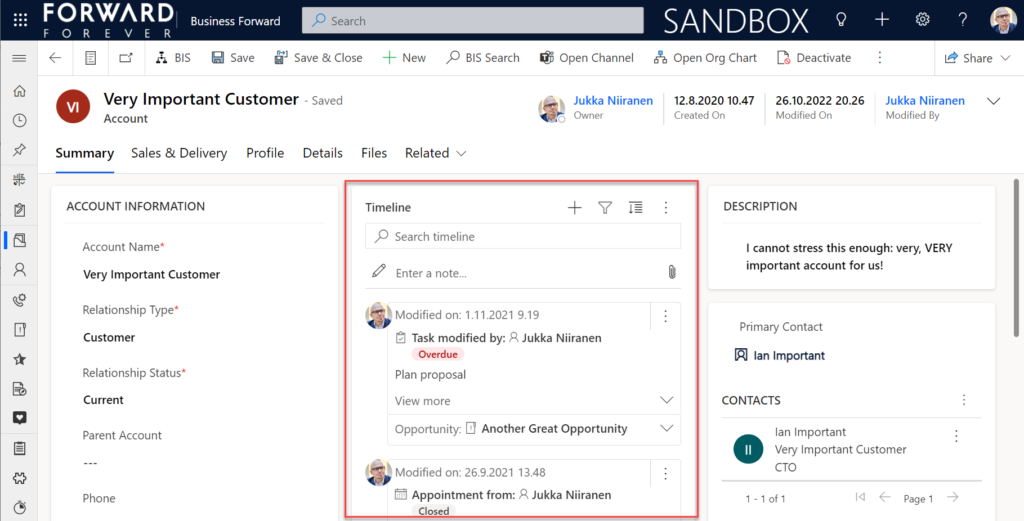
    In the default form components arrangement for tables in model-driven Power Apps or Dynamics 365 CE apps, the Timeline is usually front and center. This makes perfecet sense. Scenarios that revolve around accounts and contacts typically include the need to show activities and notes related to these records.

    Compared to how things used to be just a few years ago, meaning mostly hard coded, we now have an amazing amount of configuration options for the Timeline control. This is reflected in the MS Learn article “set up the Timeline control” which has an estimated reading time of 32 minutes! And that’s just the “how” part of official documentation, not the “why” that you’ll learn as the settings are applied in real world business application context.

    This blog post is my attempt to highlight the recent, most useful features that the modern Timeline form component enables for improving the user experience of your model-driven apps.

    Rolling up the notes

    The one huge feature that 2022 Release Wave 2 has delivered for model-driven Power Apps has been buried deep into the release plan. It seems almost like an intentional “let’s hope no one notices this” move since the feature is listed under Dynamics 365 Customer Service and called “Improve agent productivity with timeline enhancements”:

    Notes that work like other activities and roll up on contact, account, and opportunity form timelines.

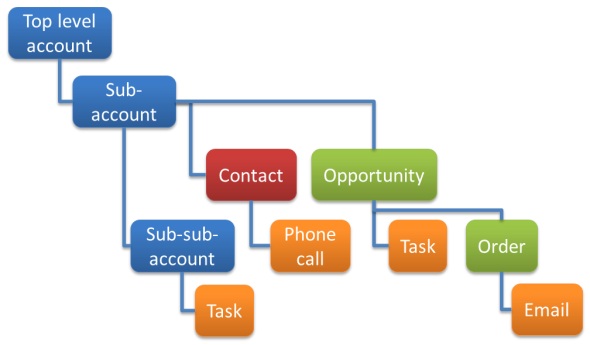
    Woohoo! We’ve been waiting for this feature close to 2 decades already! If you haven’t experienced the Dynamics CRM era, then the significance of the rollup capability in the platform may not be immediately obvious. I won’t go deep into it now, instead I’ll dig up an illustration that I created 11 years ago for a blog post I wrote about the native activities associated views vs. form subgrids:

    Unlike other standard or custom tables in Dataverse, activities have one superpower: they can be shown not just from the directly related child records but also rolled up from deeper in the hierarchy across many different record types (tables, entities, you pick the terminology). This means that in the account Timeline you’re able to see tasks, phone calls, emails, appointments that are set regarding a child record, like an opportunity where that account is the potential customer.

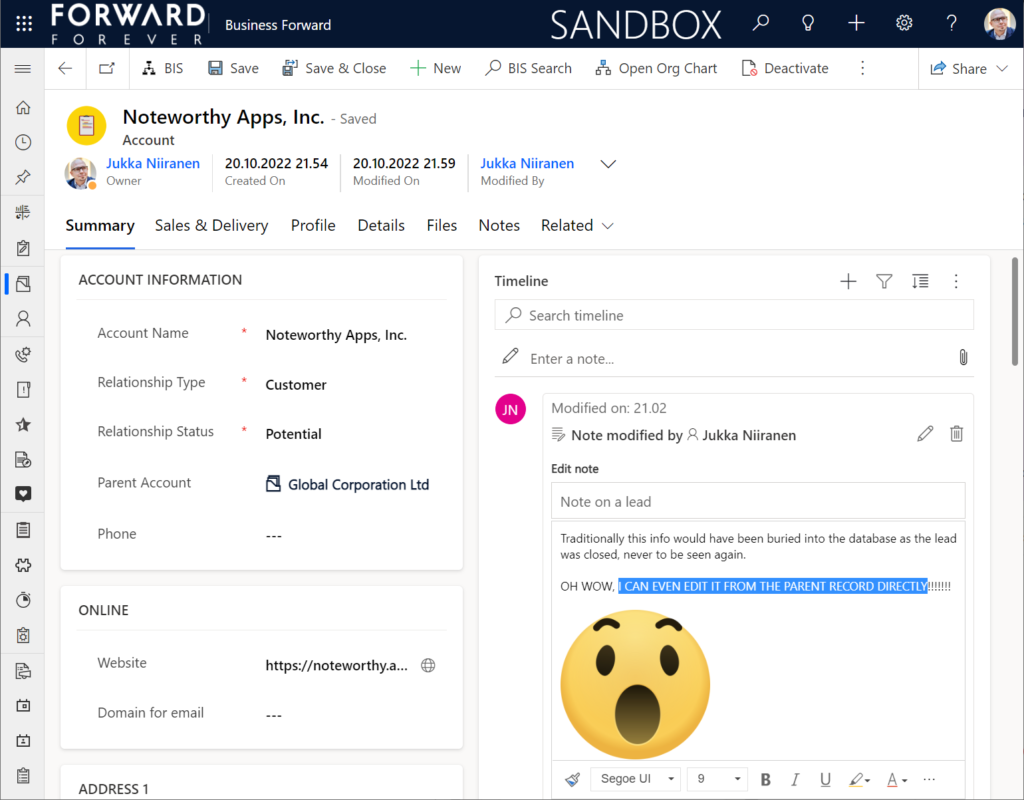
    While the same form component has been used to display both activities and notes (and activity feed posts, in case someone’s still using them), the rollup functionality has been exclusive to activity data. This has lead to a classic CRM functional gap where a note record added onto a lead will not be carried over once the lead is qualified and becomes an account/contact/opportunity. Notes have been “sticky” in the sense that you slap them on a specific record and that’s where they’ll forever stay.

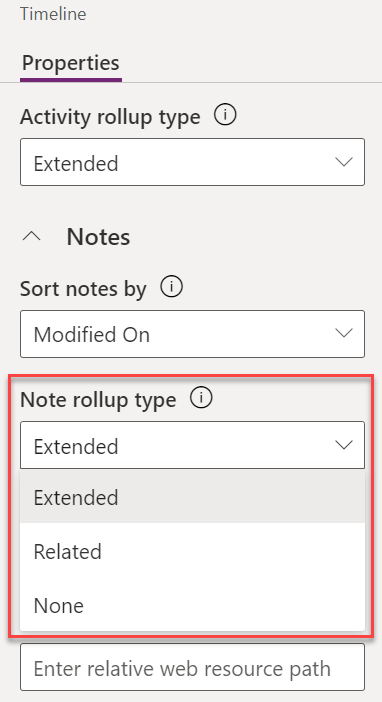
    Well not anymore! While the official docs on Learn are still pending to be updated to describe the feature in more detail, the “Notes rollup type” setting already appears on the Timeline component properties:

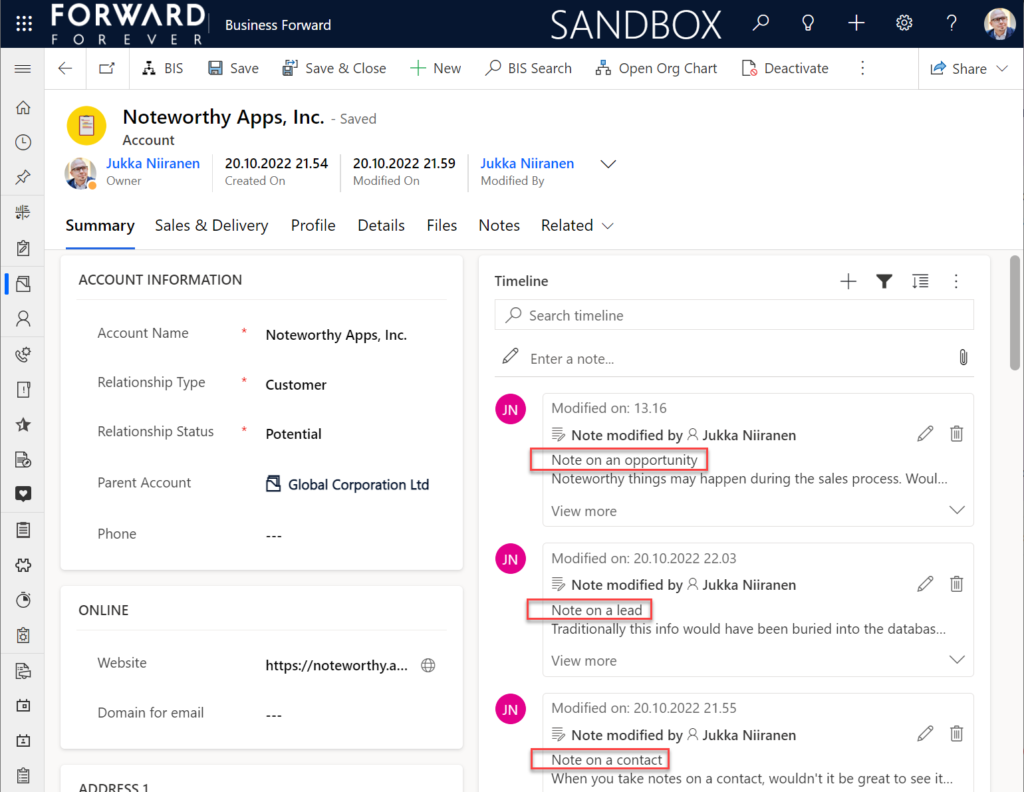
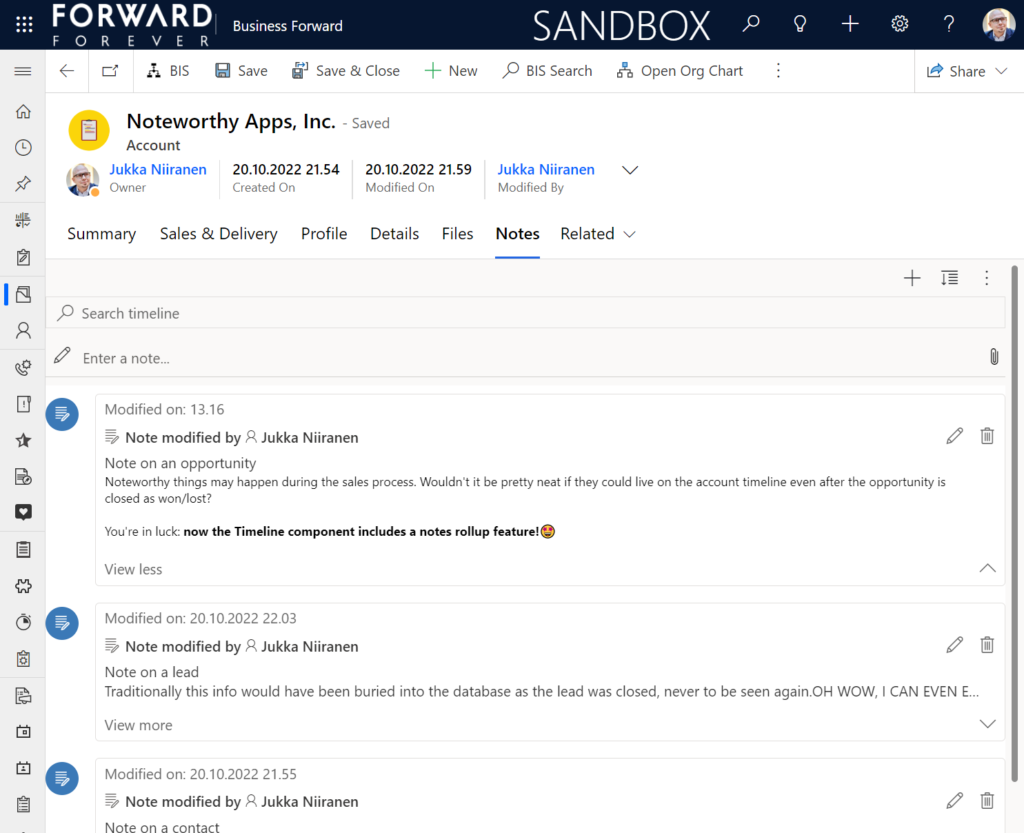
    Setting this to “Extended” for the Timeline control on the account means that we’ll now see notes that have been added to the originating lead, any of the account’s contacts or opportunities. Here’s an example where there are zero notes on the account itself, yet we can see 3 notes on the Timeline:

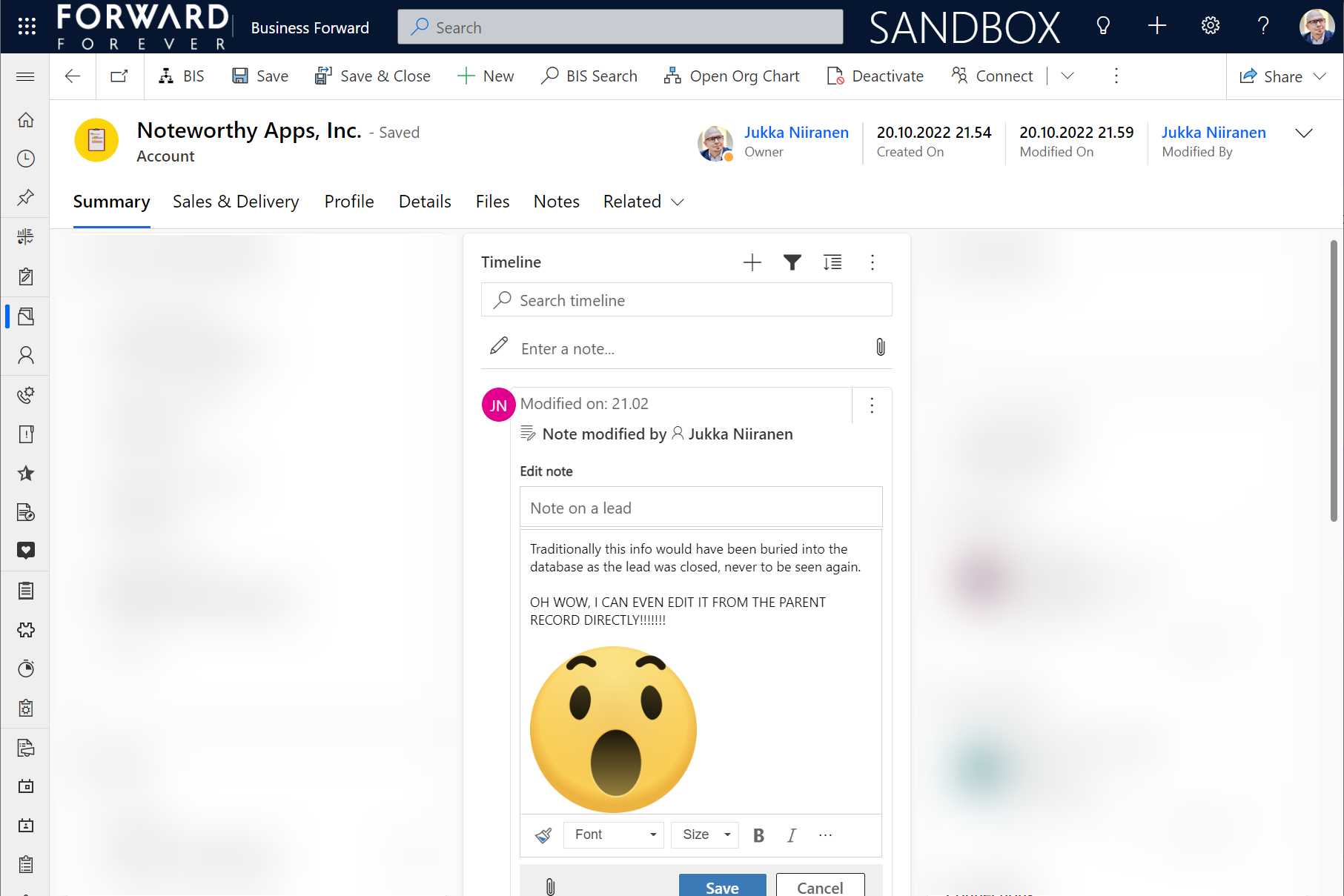
    All the notes from these child records appear just as like they were the traditional notes on the account record itself. In fact, you can simply click the pen icon to start editing a note on the account form Timeline, even if it has originally been added via a different record:

    This can be a bit confusing for the user, since there’s no visual indication on the Timeline card on which exactly is the original hosting record of that note. Which probably is due to the Dataverse data model that doesn’t treat the notes (annotation) table as something where the users could freely set the Regarding record information. With such a non-standard implementation it might be tricky even for the team developing the Timeline to surface this information in the UI.

    You need to keep in mind that this notes rollup isn’t applicable to custom tables, nor across all system tables either. Just like the activity rollup, this is feature of showing relational data from beyond a single relationship “hop” is not a generic platform capability in Dataverse. It works in these basic CRM style scenarios using predefined record types. And when it does, it can be hugely beneficial to end users.

    Alternative Timelines

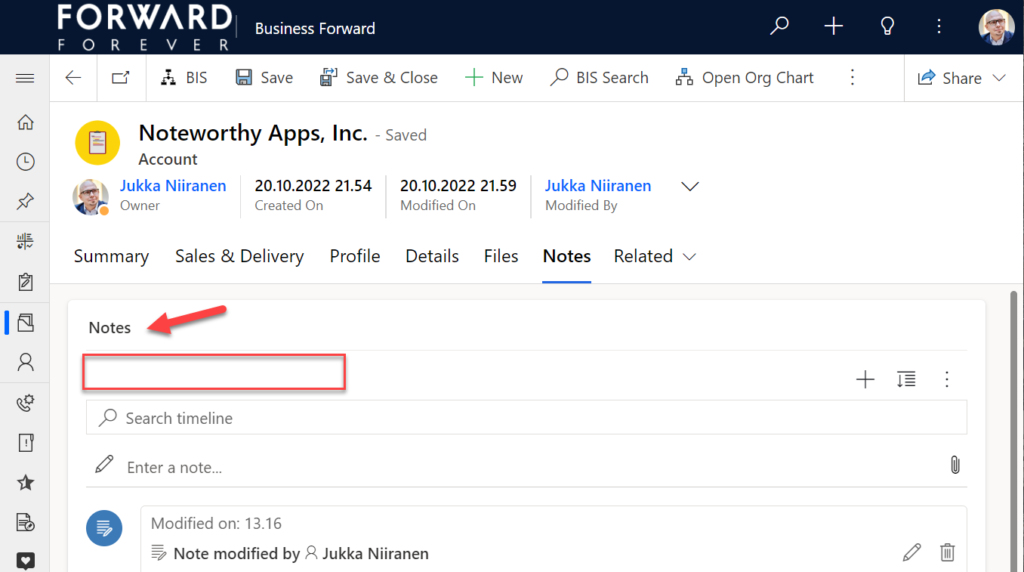
    There are more goodies in 2022 Release Wave 2 under the release item “Try enhancements to timeline maker experience”. One of them is the support for having multiple Timelines on a single form. This means you could add a dedicated “Notes” tab on the account form and configure it to include only notes data, not activities or posts. The benefit from this would be to tailor the display settings in the main Timeline differently than in the Timeline dedicated for notes only.

    In the example above I’ve ticked the box “expand first component to full tab” in the tab settings. This removes all the whitespace and labels around the Timeline, giving it maximum space. Yeah, it’s not the prettiest tab in the world when applying this technique to the Timeline. Yet from a purely functional perspective it’s an option worth trying out.

    One common question from customers who want to customize their CRM system’s terminology has been “can we rename the Timeline to something else”? The answer is still: no. However, now that you can have multiple Timelines on a form, the workaround you can apply is this: 1) under Timeline – Properties – Advanced – Additional Settings, check the box “Hide Timeline label”, 2) set your form column label to show the string you want.

    Now the custom text will appear and the place where it used to read “Timeline” is blank:

    Native controls like search or options menu will still use the timeline terminology, though. It’s always worth asking a few times whether it’s absolutely necessary to try and change such native features of a SaaS product like Dynamics 365. (The argument “because we had it like that in our previous system” is always the wrong answer.)

    Timeline forms and actions

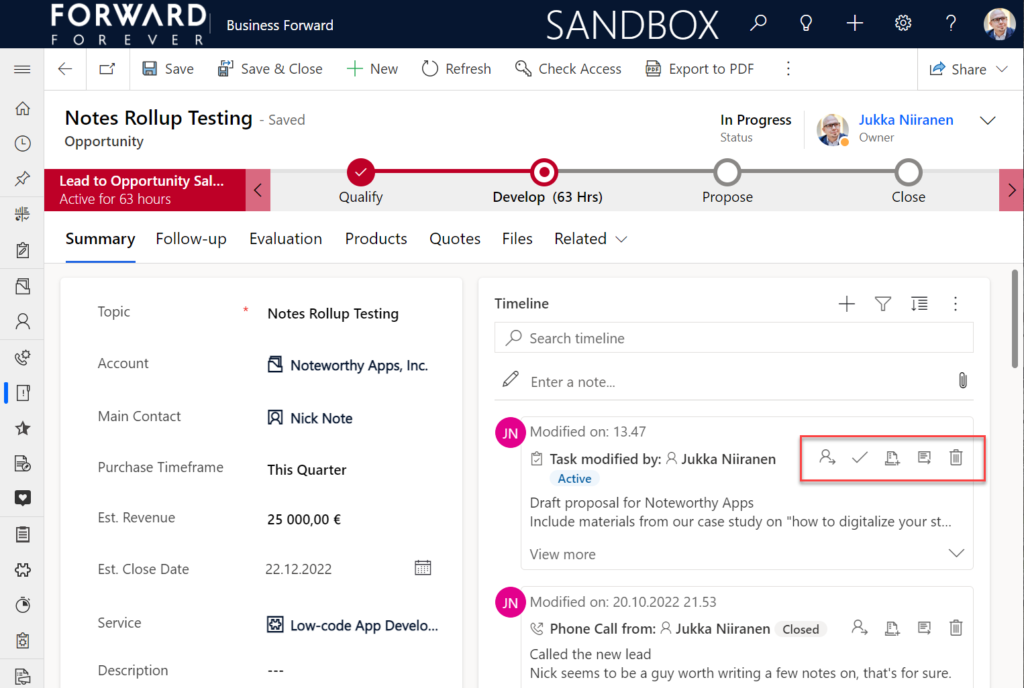
    An area of the Timeline that has really exploded in terms of configuration options is the forms used for interacting with records shown on or created from the Timeline. Let’s look at one example of how the default functionality for tasks could be optimized on the opportunity form Timeline. Without any customizations, it looks like this:

    Looking at the standard Timeline, there’s a bunch of command buttons available for every activity. Problem 1 is: it’s not easy to spot which icon opens the task’s detail form (at least I’ve never learned to immediately pick the right one). Problem 2: when we open the task, it takes us to a whole different web page, thus we lose the context of the original business record (opportunity).

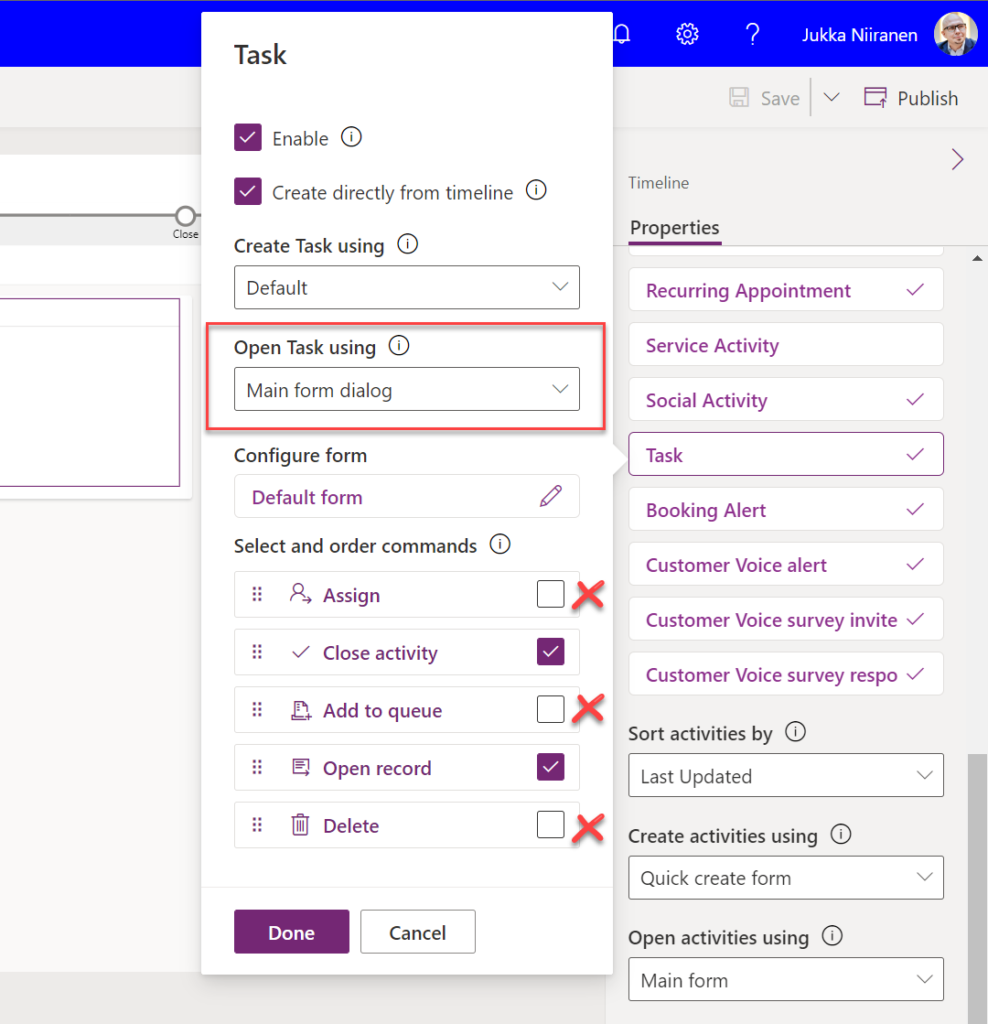
    The Timeline allows us to fix both these problems by changing the settings just a bit. By going to Record settings – Activities and clicking on Task, we get a flyout pane with options specific to that activity type in this specific Timeline instance. Problem 1 can be fixed by disabling rarely needed actions like “Assign”, “Add to queue” (who uses queues anyway?) and “Delete” (deletion of data in CRM does not need to be easy!).

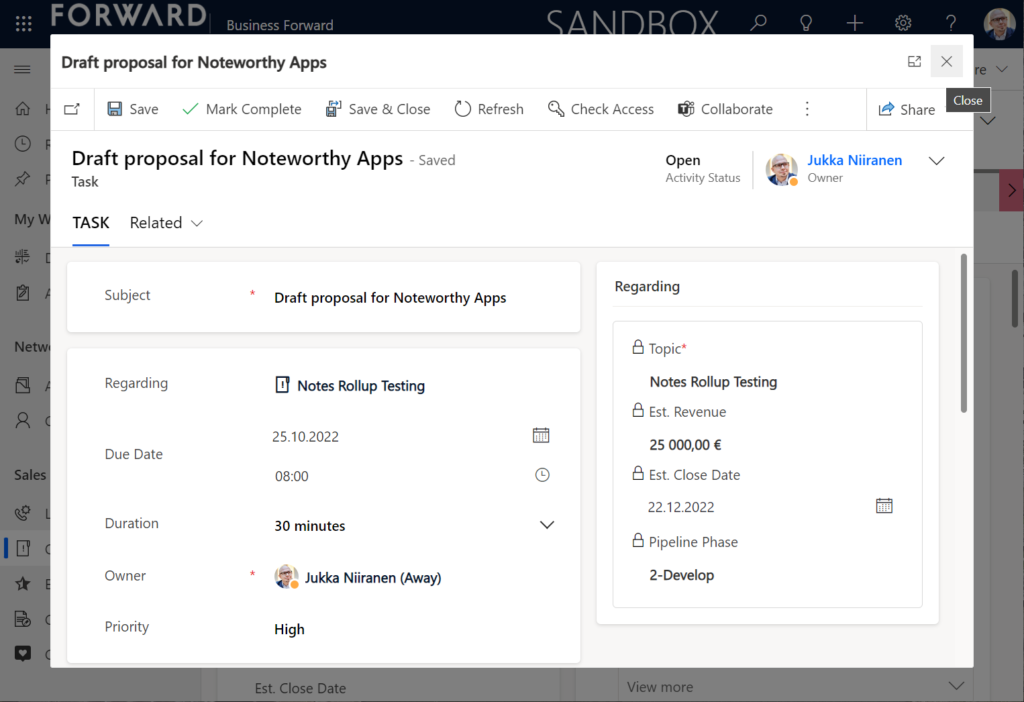
    Problem 2 is resolved by changing the “Open Task using” setting to “Main form dialog”. What does that do exactly? It gives you a modal window on top of the current record, which is a much less jarring experience than bouncing between full forms. Closing it from the X icon will allow you to keep working on the opportunity without forcing any page refresh.

    Want to learn about the Power Apps main form dialog? Read my earlier blog post on how to leverage MFDs for making it easier to work with relational data.

    Timeline configuration sprawl

    The one caveat of all this configurability that we’ve received via the modern Timeline control is that we now have a huge number of different settings we must remember to change. Performing any of the above mentioned changes is relatively easy as an isolated task, but we need to do it for all the tables and their forms where the Timeline control is used. There is no global system setting or “apply to all” option to help us. With any larger business application you’ll quickly need your own Excel sheet just to keep track of all the N settings and N forms that you must manually harmonize.

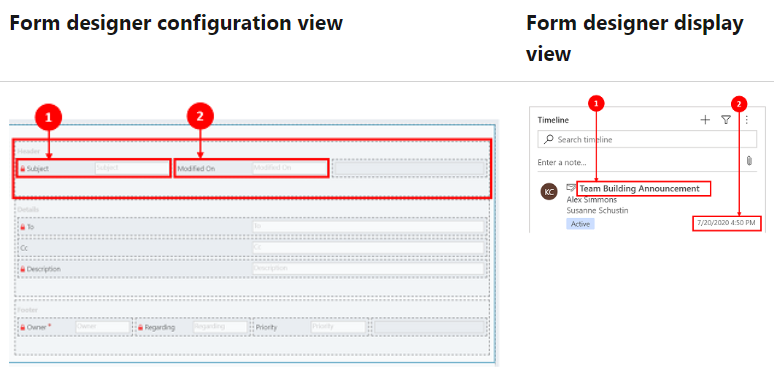
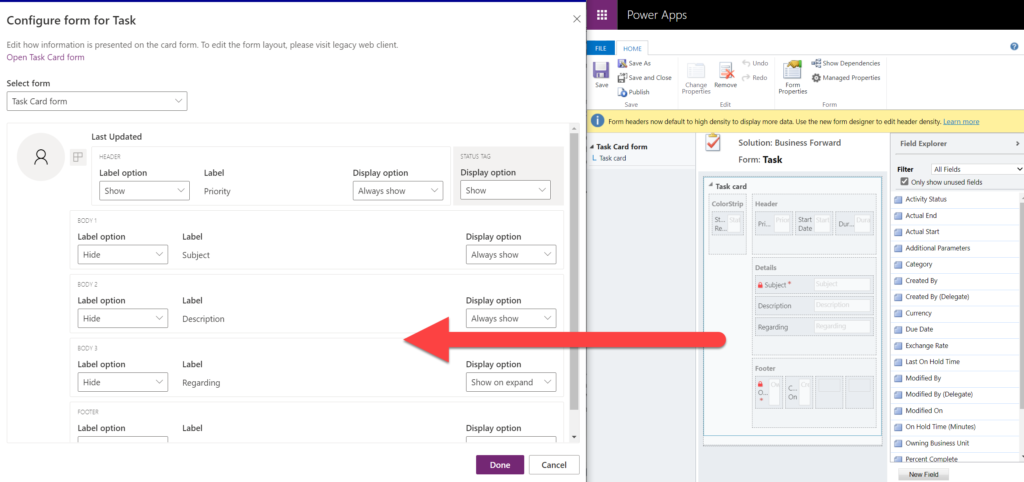
    Where things can potentially get really laborious is modifications to the card forms used for displaying activity and note data on the Timeline. If the standard date fields aren’t what we want to show, for example (created on vs. modified on vs. due date etc.), there’s a way to change most of them. However, as you can quickly see after browsing through the documentation, the card form editor from the CRM 2011 era and the modern Timeline control have nothing in common when it comes to rendering the visible UI:

    If you want to include some custom columns from your activity tables into the Timeline cards, the good news is that it’s supported. The bad news is, you’ll likely need to keep the documentation on one screen as a reference, the form editor one the second screen, and the card form legacy editor on the third one. Good luck doing these tweaks from only your laptop screen while working away from the office!

    These configuration tasks start to quickly add up. Let’s say we need to change one date field on the task card and configure its display options and label options. Perhaps our application has 20 tables where the Timeline is used for showing this activity type. Maybe we’ve also created role based forms and targeted them via different model-driven app modules, like “Sales” and “Admin”. That single requirement could mean updating the settings on maybe 30 different forms. With all the loading, saving and navigating in the Maker portal – it could easily take more than an hour to complete.

    Now, let’s say that in a Dynamics 365 project you’ve been assigned the responsibility to take care of all the details for activity and notes management features on every Timeline in the system. Sorting, filtering, control display options, supported activity types, form types per activity, actions per activity… Planning, configuring and validating all these changes will quickly consume many days, even in an SMB level CRM system. And because it’s so easy to miss a few clicks in performing this repetitive work over & over again, you’ll also need to reserve time for fixing the things that were missed.

    Achieving a consistent user experience requires plenty of work – this simple truth has not changed from the early days of Dynamics CRM projects. As Microsoft invests money in modernizing their client controls and introducing more no-code configuration options, the customers must also do their part in ensuring the changes and new possibilities in the evergreen cloud platform are taken into use in a controlled manner. Striking a balance between what can be customized and what should be customized – this remains the eternal question.

  • Share links with access to records in Model-driven Power Apps

    Share links with access to records in Model-driven Power Apps

    Microsoft has been working towards a unified sharing experience across their cloud products. The dialogs that many are using today in Microsoft 365 services like SharePoint and OneDrive for sharing access to files is also finding its way to Power Platform.

    The visible UI in a sharing dialog is only one part of the experience. Knowing what the traditional sharing experience for Dataverse records has been in Dynamics 365 and what the underlying security model consists of, the new direction can present a few surprises for app makers and admins.

    For example: did you know that a user without any visible security role may be able to read the data of certain Dataverse records? Wow! That goes against everything we’ve learned about security modelling in the good ol’ XRM era. Sounds like something worth investigating a bit deeper then.

    Enabling the sharing links

    Since the new sharing functionality can have a big impact on the security model of your business apps, this capability needs to be consciously enabled by the administrator. I haven’t yet come across the official Docs materials for the feature. Presumably this page is where the details will eventually be published. For now, this blog post is based on my experiments of what you need to have in place (by minimum).

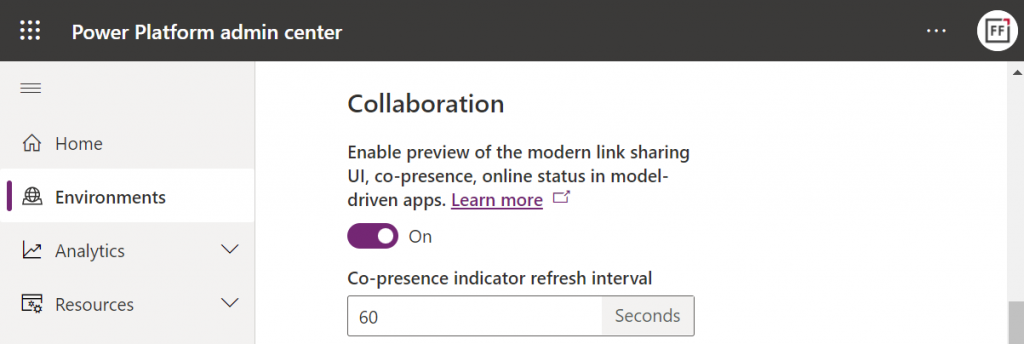
    First, you need to enable the collaboration feature in the environment settings via Power Platform Admin Center (PPAC):

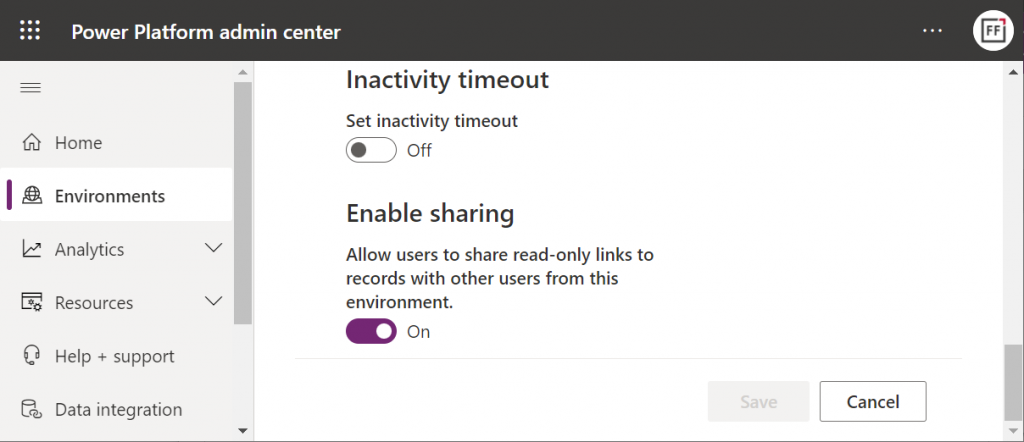
    Next, you should go to the Privacy + Security page of the same environment and switch “enable sharing” to on:

    As the message says, this should “allow users to share read-only links to records with other users from this environment.” I managed to get this working in a couple of different environments in our tenants, yet another demo tenant in the same European geo refused to co-operate. So, don’t be surprised if you see different results in your environments at this point.

    The link sharing experience

    Now that the features are turned on via PPAC, you should be able to go to a record like an account in a model-driven Power App and discover the new sharing menu in the top right corner of the form. Selecting “copy link” will give you a standard link that is the exact same URL as you’d get from the browser’s address bar. That’s because it’s meant for “people with existing access”.

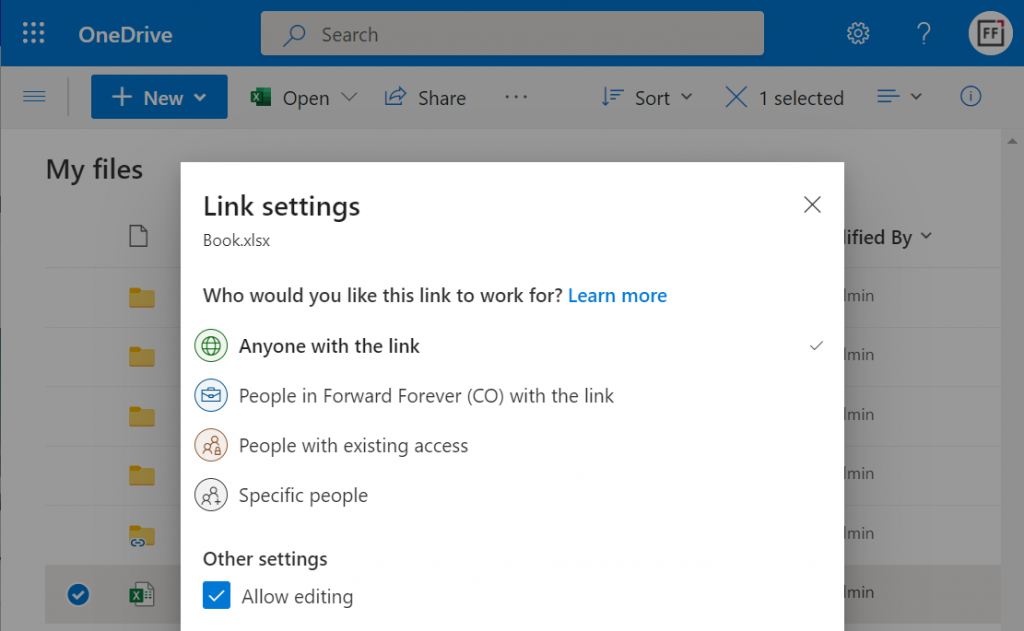
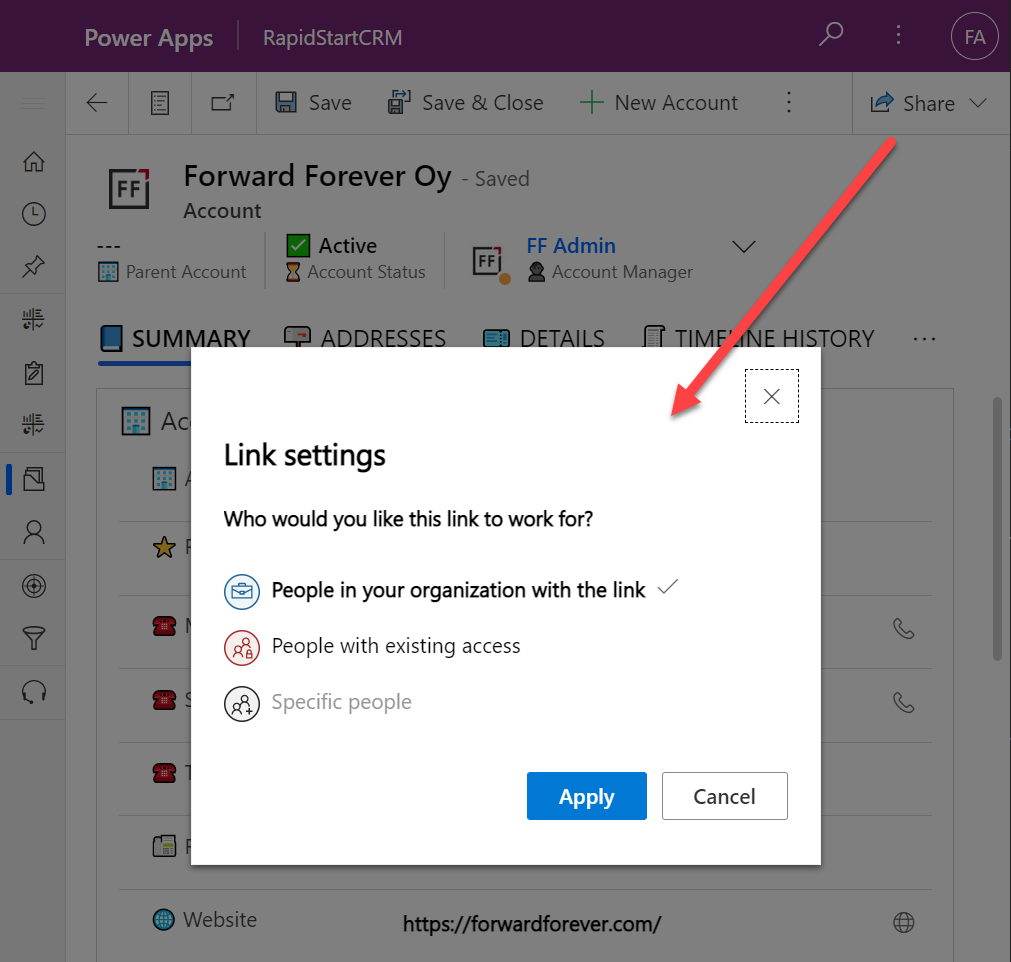
    Once you click on the chevron and explore the link settings, there should be more options available (assuming the environment settings applied earlier have taken effect). Let’s select the “people in your organization with the link” option this time:

    Now we get a URL that is appended with parameters “shareLink” and “sig”. These are the magic keys to authorize someone who does NOT have existing access to the record in Dataverse.

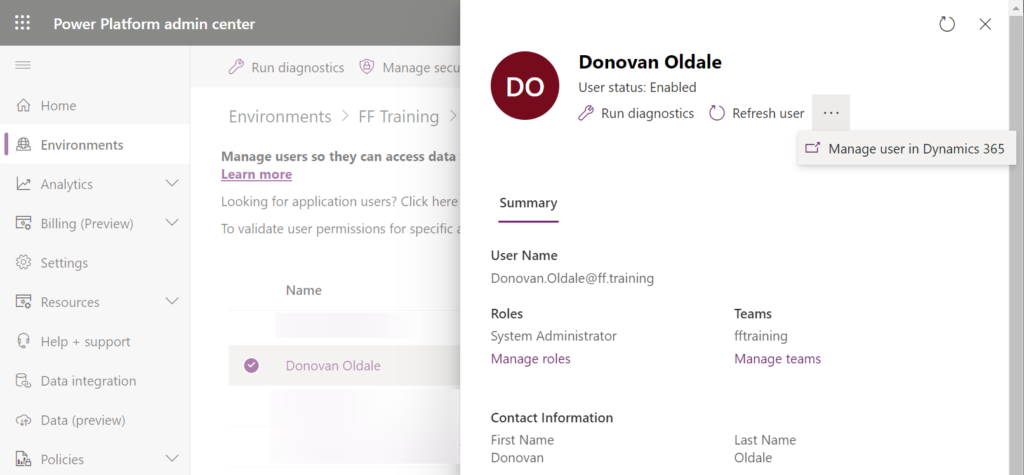
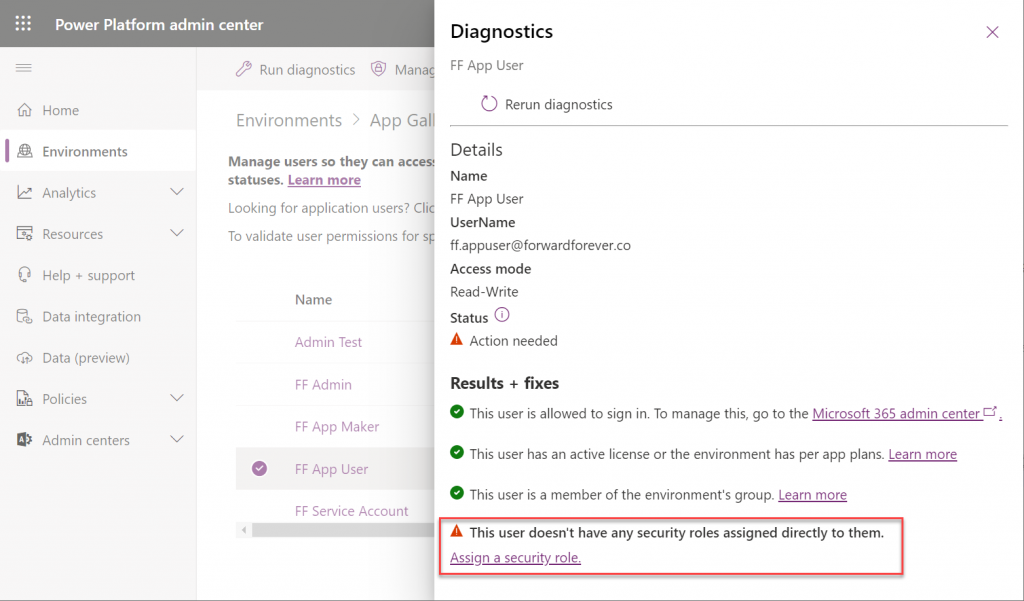
    To validate how the feature actually works, I used our sandbox tenant’s user account FF App User as the guinea pig. First, as an administrator I went and removed any existing security roles for this user from the environment. Then I ran the diagnostics test from the user list in PPAC. A warning was displayed, saying “this user doesn’t have any security roles assigned directly to them”. Looks perfect for our testing purposes.

    (I actually also removed the license, yet that didn’t get flagged in the diagnostics test. Oh well, we all know how mysterious the license assignment and validation in Power Platform can be, so let’s ignore it this time.)

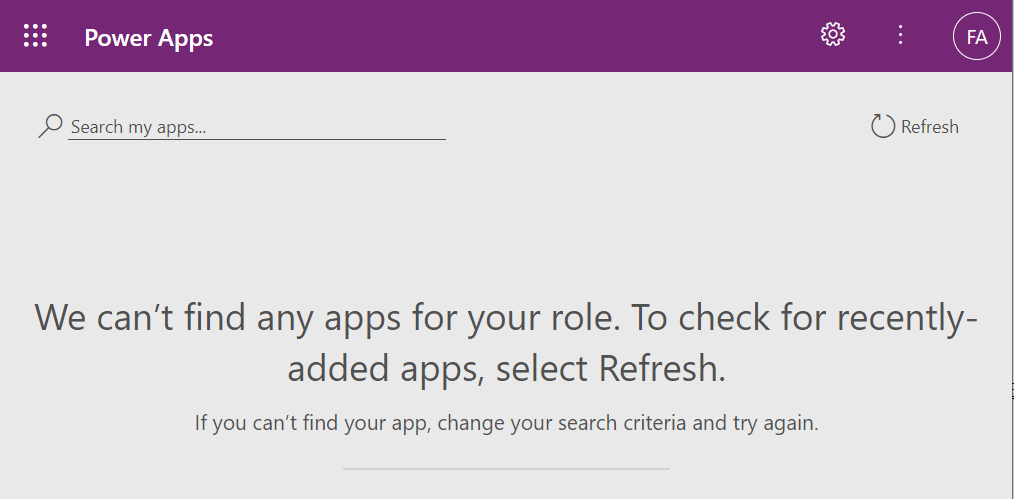
    Opening the naked URL of the Power Platform environment with this user account resulted in a screen saying “we can’t find any apps for your role”. Under normal circumstances, this would be the end of the road for a user.

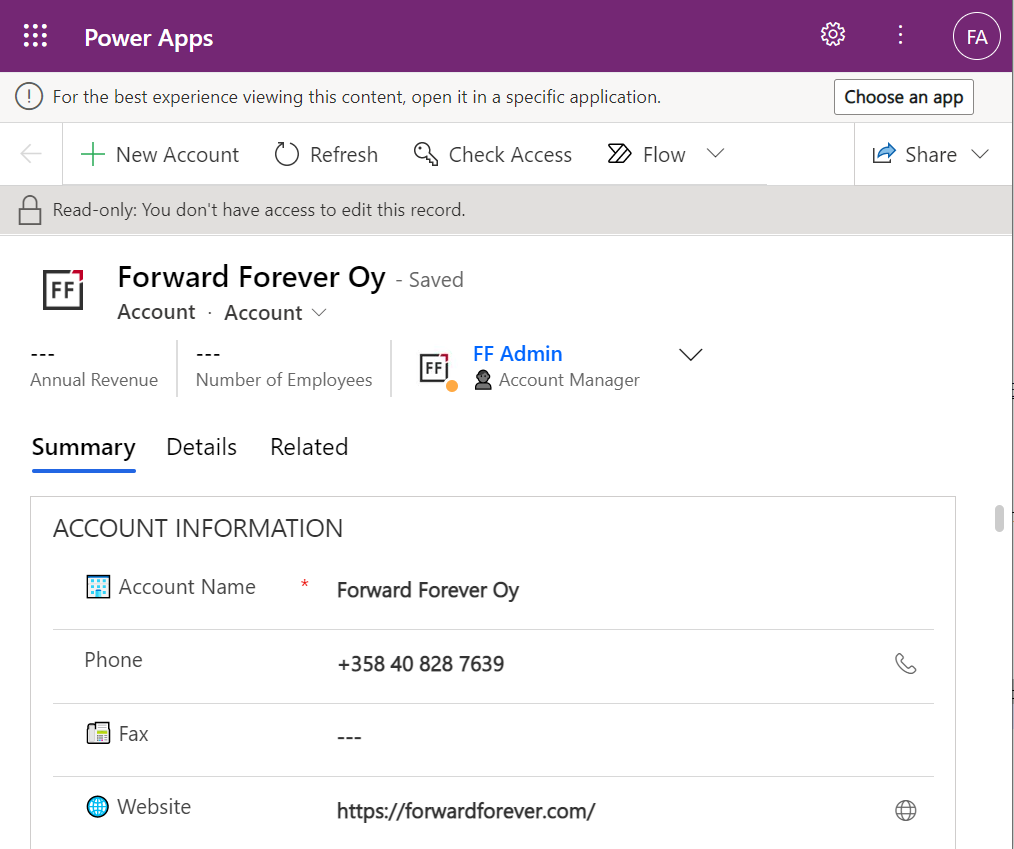
    This user has a special trick up his sleeve, though: the sharing link with the secret access code parameters. Using it allows us to open the account form outside any Model-driven app module. Yes, it’s read-only as the feature’s description text suggested, but from a viewing perspective this record form seems fully functional.

    How far do the sharing rights go?

    If we’d go back to our admin user’s profile and re-run the user diagnostics in PPAC, we’d see that there still aren’t any security roles assigned for the FF App User. Let’s visit the sharing dialog of the single record instead and go to “manage access”.

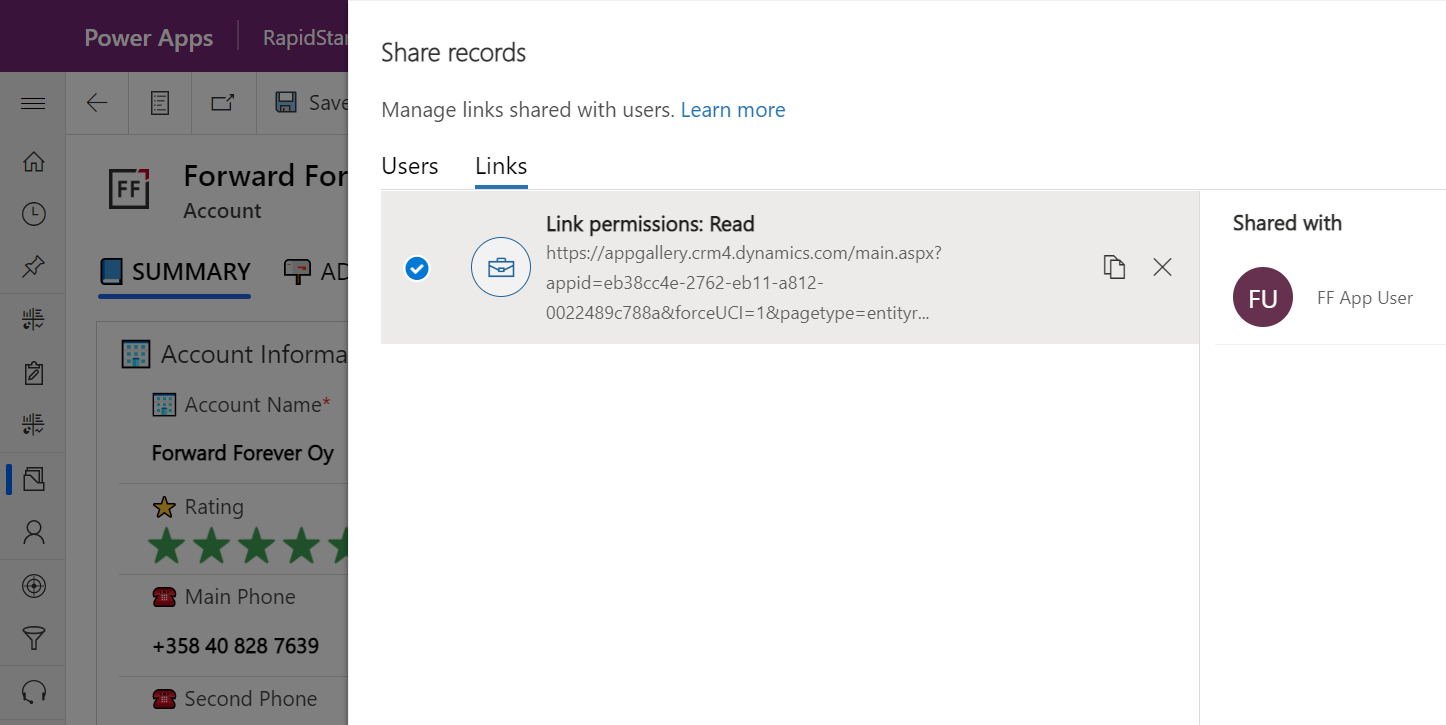
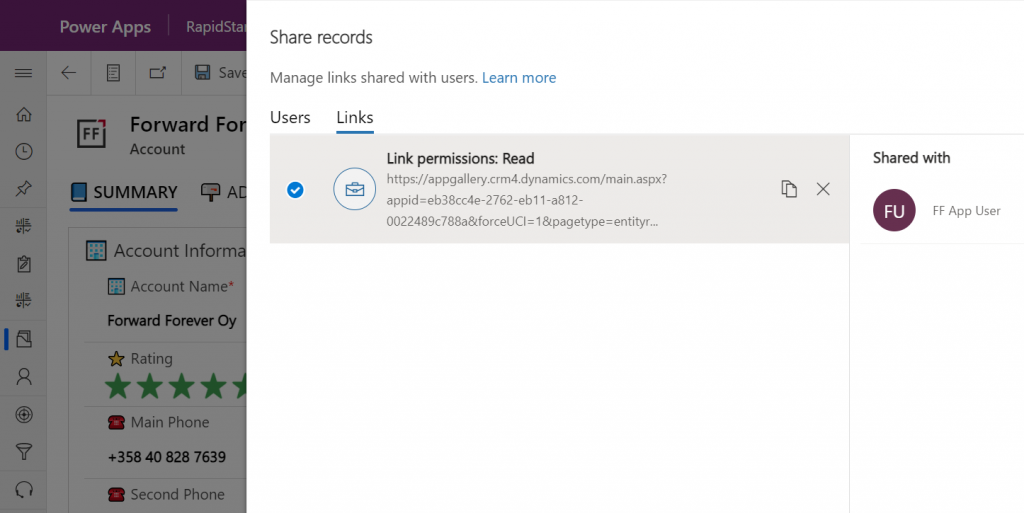
    This screen shows us that we have one sharing link generated for the account in question, with read permissions. Also, since FF App User has accessed the record via the link, the user account is listed under “shared with”.

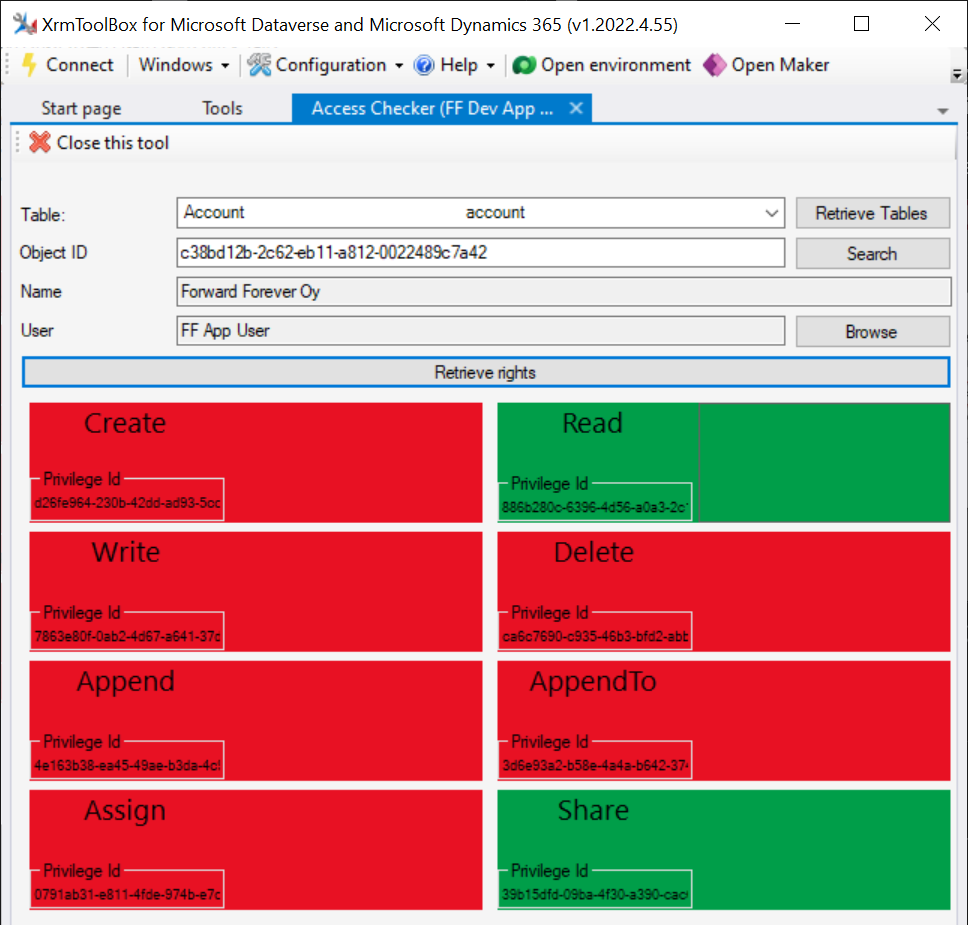
    Time to go deeper still, so let’s open XrmToolBox. Using the Access Checker plugin, we can run a test for the specific account record and the specific user account. We do indeed see that when called via the API, the user has both read and share privileges for this record:

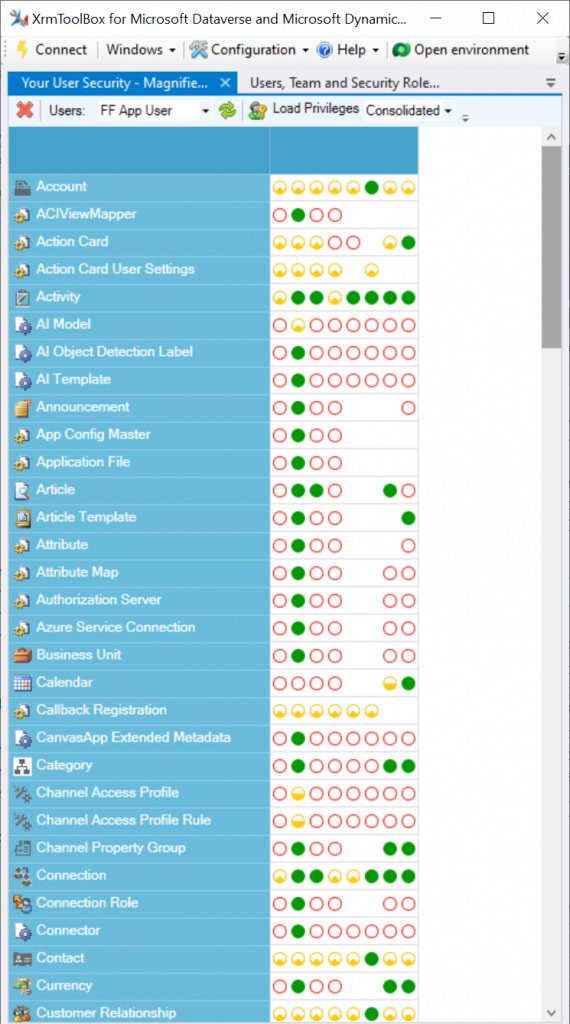
    Could we find out even more about how the privileges are applied? Sure! Another plugin in XrmToolBox, “Your User Security – Magnified”, gives us a very interesting output for the FF App User account:

    As many of you know, there are plenty of system metadata tables (entities) that the user must be able to read for the application to function properly. Things like “attribute” or “user” are therefore understandably opened up for the FF App User account upon sharing the record.

    There are plenty of real business tables listed in that output, too. Contact and activity, for example. While the privileges are granted only in the user’s scope (meaning only records that the user is an owner of), this made me go back and think: what else did we see on the account form when we opened that one record?

    Activities related to the account show up on the timeline. In addition, we’re able to navigate to their forms. We do also see the primary field values of anything that’s in a lookup, such as the regarding opportunity name.

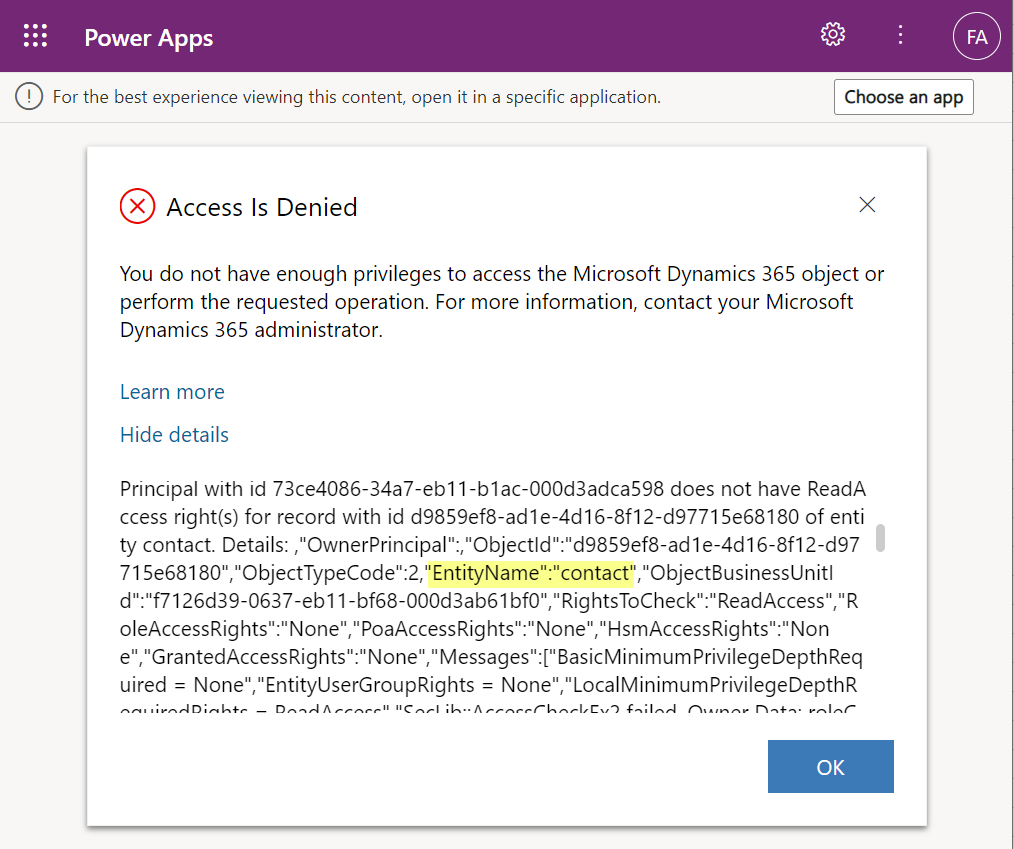
    Clicking on lookups, such as the contacts that are activity parties, will show an error message on missing read access rights. So, the security model is still enforced as expected, meaning we couldn’t just navigate via links to other records. It’s not just the lack of a surrounding app and its navigation that is missing from this user, there’s access checks also on the server side of course.

    It’s good to keep in mind that the modern collaboration features are currently enabled only for certain tables: account, contact, opportunity, case. There may be more configuration options ahead for how the sharing links work once the feature reaches general availability.

    Sharing within Microsoft Teams

    The primary scenario that these internal sharing links have surely been designed for is collaboration within Teams. Already back in July 2021 it was announced by Satya Nadella that “Teams customers will receive access to Dynamics 365 data within Teams at no extra cost.” We’ve been waiting for that possibility to arrive ever since.

    Given how the concept of sharing access to data has been radically different between a document world like SharePoint and a business record world like Dynamics 365, there has understandably been a lot of work needed to be done on the platform side. Now that the share links infrastructure appears to be in place, are we ready for the collaborative apps story to come to life?

    Although the sharing capabilities are a Power Apps feature, there doesn’t yet appear to be the needed pieces in place on the Teams side for any low-code apps to take advantage of record sharing. However, if we test the sharing links in a Dynamics 365 enabled environment and with the Dynamics 365 Teams app deployed for the user, things start to light up:

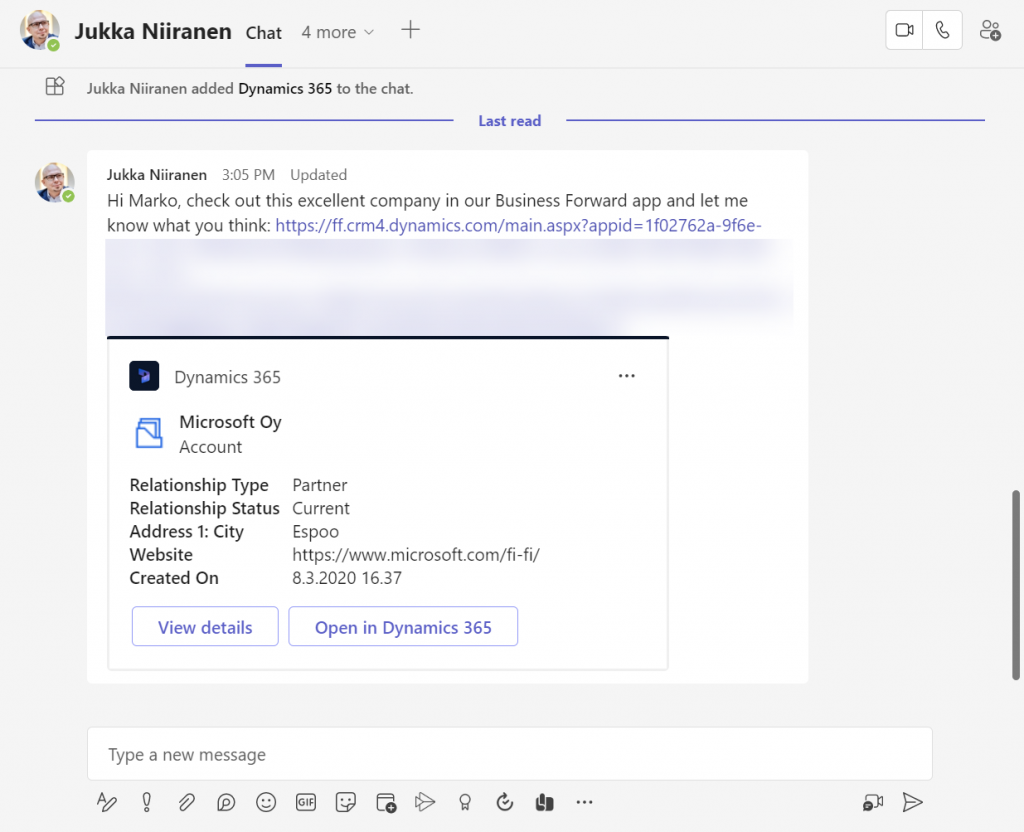
    Pasting the link into a Teams chat will now unfurl the contents and show an information card preview of the record. We also get the option to view the full record in the context of Teams, via the “view details” button. These are small yet important steps in allowing people to get work done within the platform that is Microsoft Teams, without needing to look for the details in another browser window.

    We’re still missing some of the elements showed by Microsoft as part of their collaborative apps story, like Context IQ for at-mentioning a Dataverse record or Loop components to embed live data into messages in Teams or Outlook. While we wait for a delivery timeline on those elements, at least this easy record sharing feature in Power Apps model-driven apps has a target GA date for September 2022.

  • Sharing Dataverse for Teams apps outside the team

    Sharing Dataverse for Teams apps outside the team

    When you’re building Power Apps within a Microsoft Teams based Dataverse environment, the most common target group of app users is obviously people who belong to that team. This is very logical when the purpose of the app is to collaborate as a team on something that might have otherwise been an Excel sheet shared with all team members.

    The simplified table security model of Dataverse for Teams with Owner/Member/Guest (“OMG”) levels instead of custom security roles makes things easy to manage when everyone is equal. But what about when you’d need to have more granularity on who gets to do what? What if in addition to the owners (app admins) and members (managers) you also need a level further down this hierarchy: the “normal” users?

    Colleagues with access

    This is where the concept of a “broad distribution app” comes in handy. It allows you to grant access to the app for users who are not part of the team that’s hosting the Dataverse for Teams environment. Here’s how the Docs on Dataverse for Teams table permissions describe this:

    “With Power Apps for Teams, you can share an app with Azure AD security group whose members need not be part of the Teams team where the app was built. This enables you to add users to the application without having to add them to the specific team, and opens up “Broad Distribution” scenarios. For example, you may want to build an app that is enabled for every accountant in the organization, or even every employee in that organization.”

    The ability to share an app with one Azure AD security group makes Dataverse for Teams quite an attractive platform for low-code apps that have a high number of potential users. Not many organizations have yet committed to covering all their employees with a Power Apps Per User license that unlocks premium features like Dataverse. Since every user who’s licensed for Teams via Office 365 / Microsoft 365 is allowed to use apps running on Dataverse for Teams, this option significantly lowers the barrier to start building apps on top of a true relational database designed for business applications – as opposed to running your complex processes on top of several SharePoint / Microsoft Lists.

    Sharing with colleagues in practice

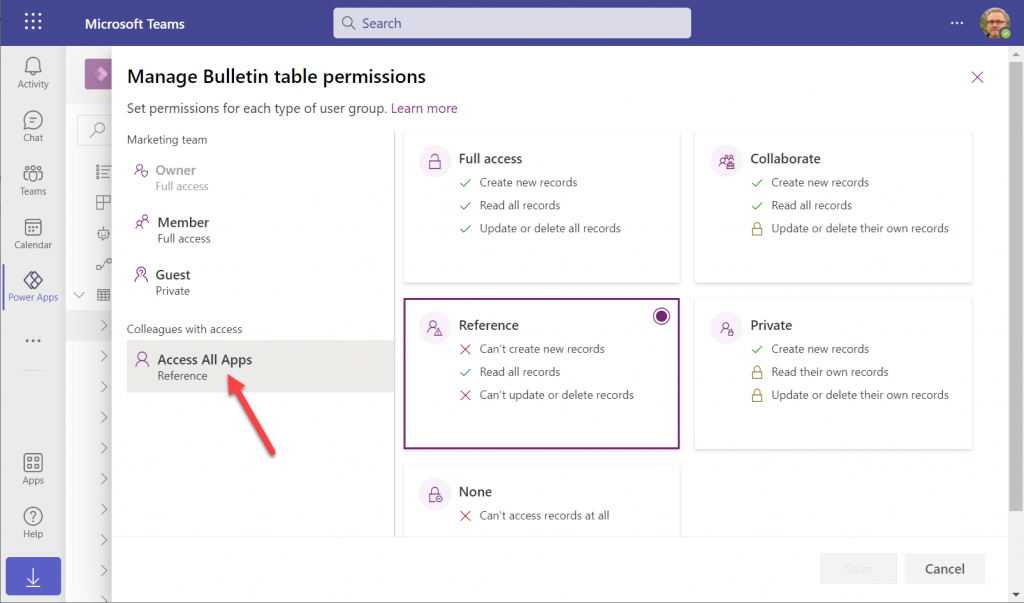
    Let’s say you’ve built an app within a Dataverse for Teams environment and are ready to publish it to the whole organization. In this demo scenario we are using the Bulletins sample app for Teams. We’ve created an Azure AD security group called “Access All Apps”. The first thing we need to do is go an add the necessary access rights to each table used by the app. For example, when it comes to the Bulletin table, users should be able to read all records but not create/modify/delete them, so we grant the “Reference” level to this group:

    You’ll need to do a lot of clicking for an app like Bulletins that has 11 tables, so be sure you’re selecting the “colleagues with access” section before assigning the permission level on each page.

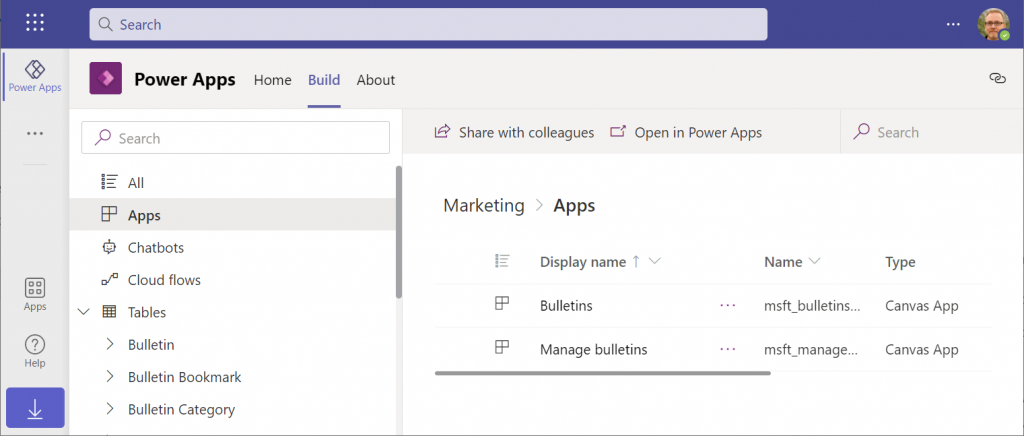
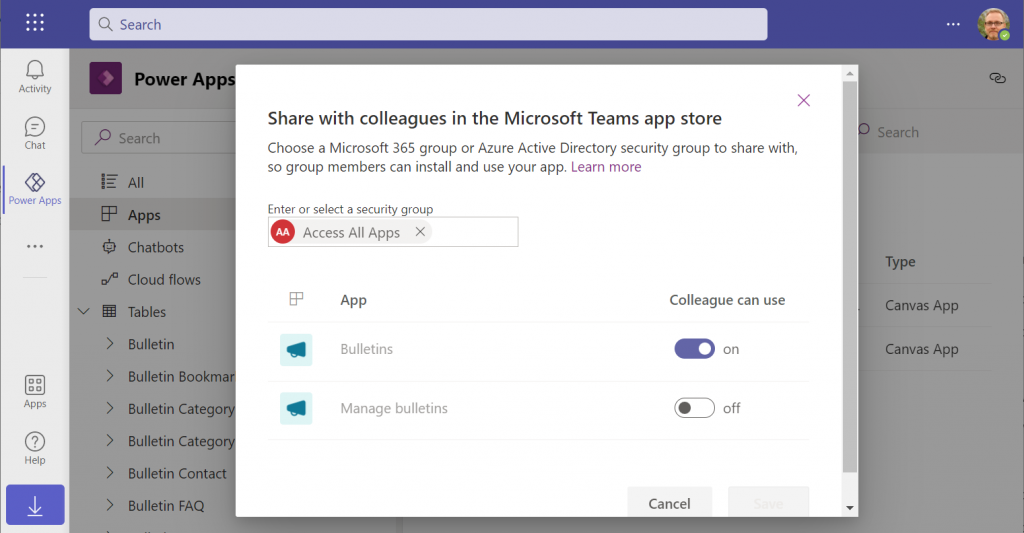
    Next, let’s share the Power Apps canvas app itself with this group. Again, you’ll need to be careful with where to click in the navigation maze that is the Power Apps for Teams app. Go to the Apps list of the Dataverse for Teams environment but don’t select the app. Otherwise you won’t see the “share with colleagues” toolbar button.

    In the modal dialog window, choose which apps from this Dataverse for Teams environment you wish to make accessible with the chosen security group. This is where you’ll notice that while you could have tens of different apps within on environment, there’s no ability to choose which Azure AD security group gets to see which apps – since there can only be one.

    Adding apps to Teams channels

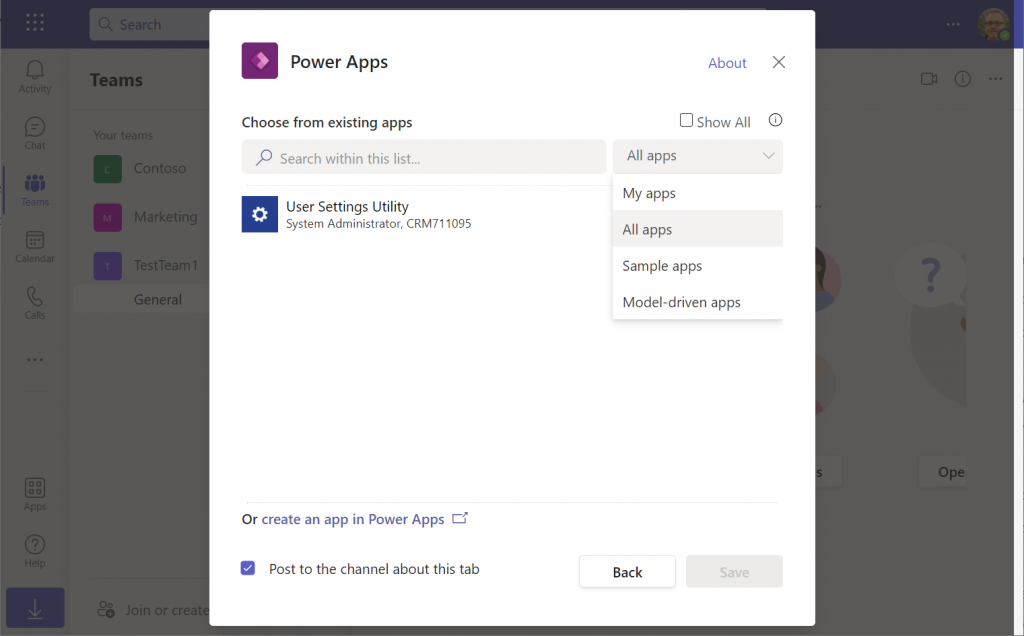
    If we were to now go to our target team and add a new Power Apps tab to the channel, we would not find our Bulletins app there. Nope, not even under that “sample apps” filter, since that actually shows a list of Power Apps sample apps like Asset Checkout that are part of all Power Apps environments. Dataverse for Teams sample apps like Bulletins are a completely separate thing, of course.

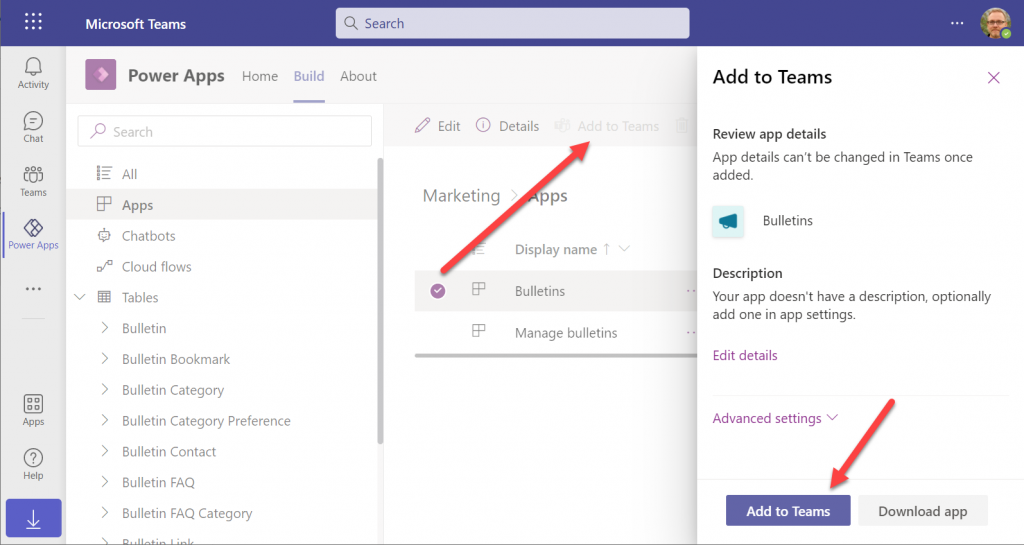
    The logic is different when it comes to Power Apps that have been built within Dataverse for Teams. You need to go back to the Power Apps for Teams app, i.e. the Maker experience. Click on the Build tab, choose your environment, find your app, select it for real this time, then choose “Add to Teams”.

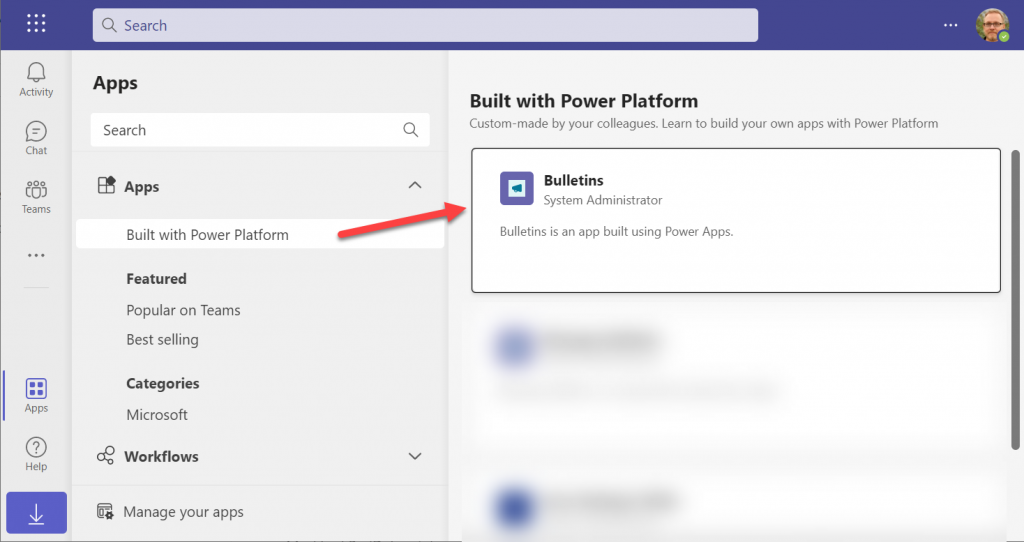
    You don’t get to choose a team or a channel, though. That’s because this process actually publishes your app into the Teams app store. It will become available under the “Built with Power Platform” section:

    OK, fair enough. It’s an app built within Teams, so it makes sense to use the same distribution mechanism as apps developed with custom code. The other Power Apps in your tenant are “external content” that you can freely pin to channel tabs. Dataverse for Teams apps are same but different.

    Blocked by Teams permissions

    This is actually the reason why I started writing this blog post in the first place. Ever since the broad distribution apps were announced in January 2021, adding them to a team from the app store worked without any additional hoops to jump through. Recently that has changed in a way that is not yet reflected in any MS documentation.

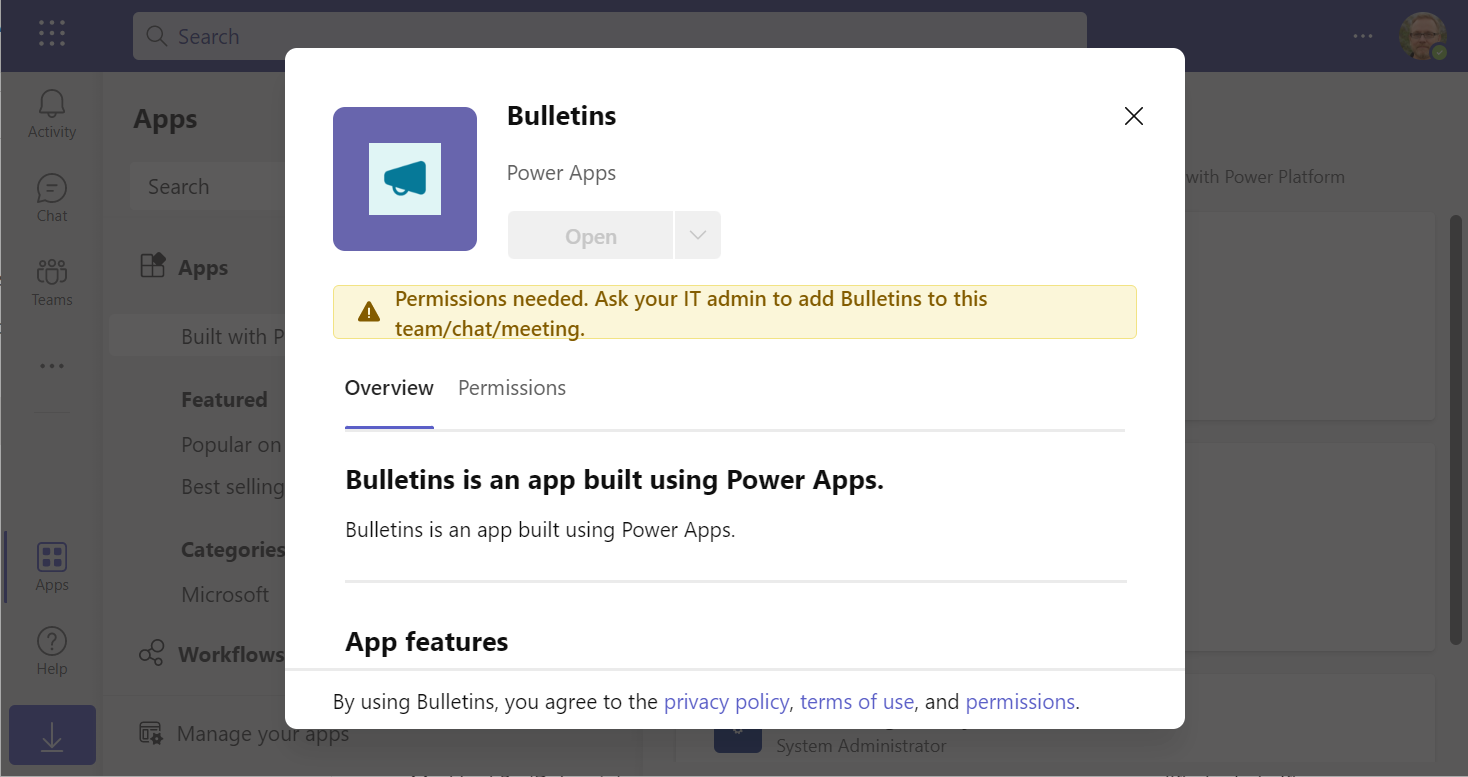
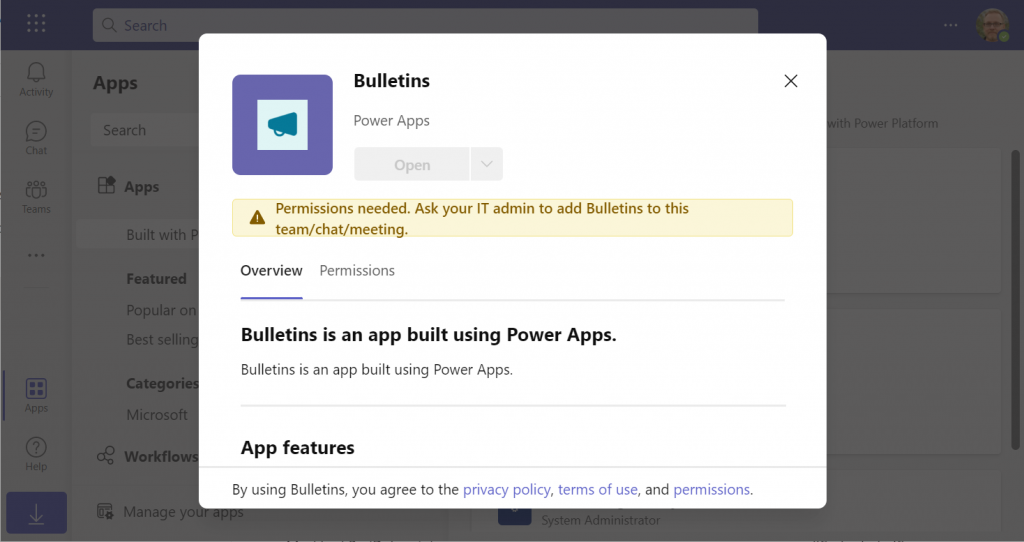
    In a new tenant with the default settings for Microsoft Teams, you may be blocked from installing the Dataverse for Teams based apps after doing the “Add to Teams” dance. Instead the app store may present you with the following error message:

    Permissions needed. Ask your IT admin to add [app name] to this team/chat/meeting.

    You will get this message even if you are the Global Administrator of the tenant, so it’s not about the user permissions. It is rather the Teams policies that are blocking the deployment of Power Apps created within Teams.

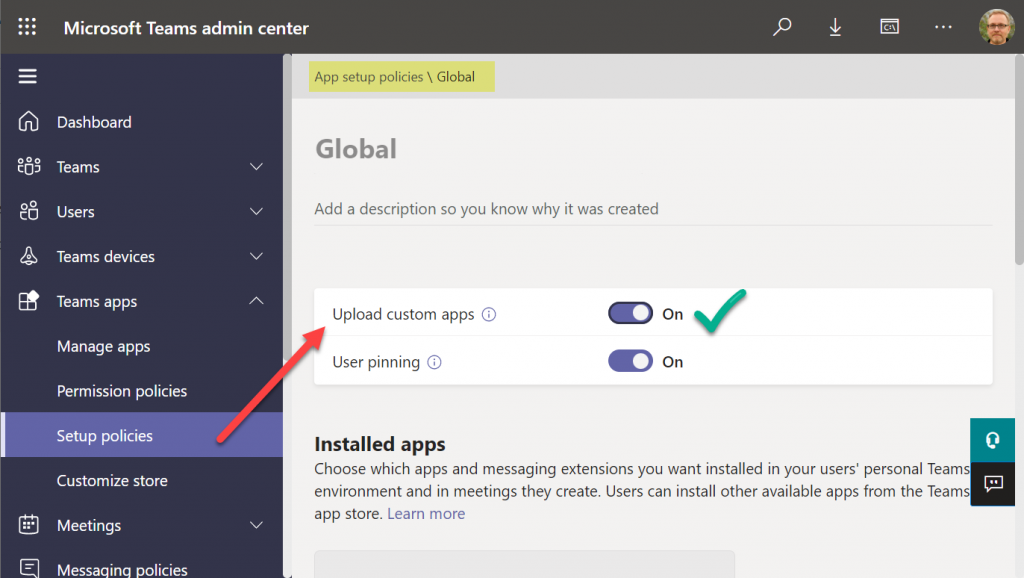
    To solve this issue, you’ll need to contact the Teams administrator of your tenant and ask them to verify that the following setting is turned on:

    Teams apps – Setup policies – Global (Org-wide default) – Upload custom apps – On

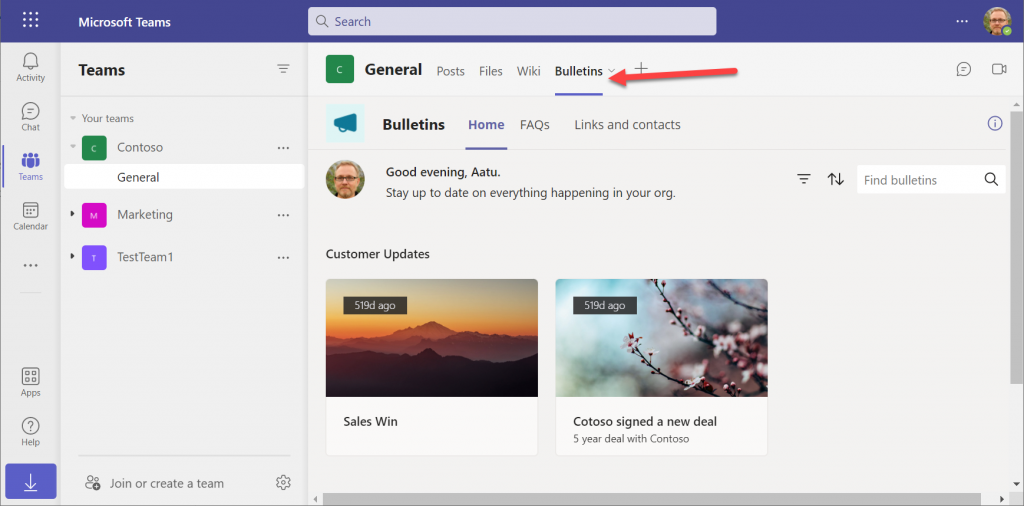
    After this change, you’ll be able to open the Bulletins app in the Teams app store, select “add to team” and create a channel tab in any team that you are a member of.

    I can tell for a fact that the requirement for the “upload custom apps” policy didn’t always used to be required (or it was enabled by default). In one of our demo tenants I had previously used the “share with colleagues” feature to add Dataverse for Teams apps outside the hosting team. The existing tabs worked just fine, but adding new apps became blocked until the apps policy in the Microsoft Teams Admin Center was modified.

    It’s a bit unfortunate if this will indeed become a permanent requirement for IT admins to grant the permission for “upload custom apps”, just to share the Dataverse for Teams app into a different team. Compared to normal Power Apps, there are a number of quirks like this that the app makers need to be aware of. Be sure to also check out my earlier blog post where I explore what it’s like to work with solutions in Dataverse for Teams.

    Update 2022-06-17: In case you’re wondering how the general approval process would actually work for Teams store apps where the approval request prompt is shown, check out this great blog post from Tony Redmond: “Users Can Request Access to Teams Store Apps”.

    Update 2022-08-11: there’s a new feature rolling out, called “Microsoft Teams user request configuration to external systems (URL redirect)”, allowing Teams admins to configure a custom URL + message for the app requests in the Teams app store. Read more here.

  • Dataverse meets Teams: my presentation at #TeamsNation 2022

    Dataverse meets Teams: my presentation at #TeamsNation 2022

    I had the pleasure of attending the Teams Nation conference on March 23rd, alongside more than 4000 Microsoft Teams community members. Not only that, they also allowed a former XRM geek like me to do a presentation on the Power Platform track. So I did.😄

    Since I’ve recenly been working a lot with Dataverse for Teams, that was a natural topic to cover in a Teams related event. My session was titled “Dataverse meets Teams: low-code app opportunities for everyone”.

    I first explained the big picture of what Dataverse means, the demonstrated three different apps our team has built on top of DV4T. Finally, a few words on the known limitations of the Teams based Dataverse environments and how you need to take them into consideration in your solution architecture design.

    The slides are available for download on SlideShare, or you can browse through them in the embedded version below:

    The session recording from Teams Nation 2022 is also now available on YouTube:

    If you’re planning to build apps into a Dataverse for Teams environment, then be sure to also check out my earlier blog post on the solution management experience in DV4T.

  • Working with solutions in Dataverse for Teams

    Working with solutions in Dataverse for Teams

    For over a year now, we’ve been living in a world where Microsoft has two separate offerings of Dataverse. When it comes to the tools especially around solution management, there are certain differences app makers should be aware of.

    In this article I’ll go through the peculiarities I’ve ran into when building solutions in Dataverse for Teams (DV4T). But first, a few words on why you should care about the Teams based environments when building Power Apps.

    Positioning of Dataverse for Teams

    Understandably, not everyone is a fan of the Teams version of Dataverse. After all, it’s a cut-down version of the full Microsoft Dataverse that many have been using for Dynamics 365 and XRM scenarios for ages. However, there’s that one unbeatable feature in Dataverse for Teams that’s hard to ignore: it’s FREE!!! (*With capacity limits, though.)

    If you are building a complex business application for a specific audience, it’s almost always sensible to pay a little more and get the Power Apps Per App or Per User license to unlock the full Dataverses platform capabilities. But when you need an app with a casual usage pattern that applies to a huge number of individual users, sometimes it just ain’t feasible to go premium all at once. So, to avoid falling back to SharePoint lists, Dataverse for Teams a.k.a. DV4T can be a well justified choice from an architecture perspective.

    Just because you’re using Teams as a platform for your low-code apps doesn’t mean you don’t need to plan for ALM (application lifecycle management). A single production environment ain’t going to be sustainable in the long run for the more important business processes. There are good news and bad news when it comes to Dataverse for Teams in this regard.

    Let’s get this one bad news out of the way first: all of the APIs to programmatically interact with Dataverse are not available when working in a Teams environment. So, any pro-dev ALM processes that involves automation via DevOps pipelines and such is out of the question.

    That leaves us manual ALM, meaning export and import of solutions by a human being. Nothing wrong with that, since surely the vast majority of business apps running on the platform globally are developed and maintained this way. After all, there really isn’t a low-code specific ALM process available in Microsoft’s world today that wouldn’t require at least some pro-code developer skills in the delivery team.

    The secret life of solutions in DV4T

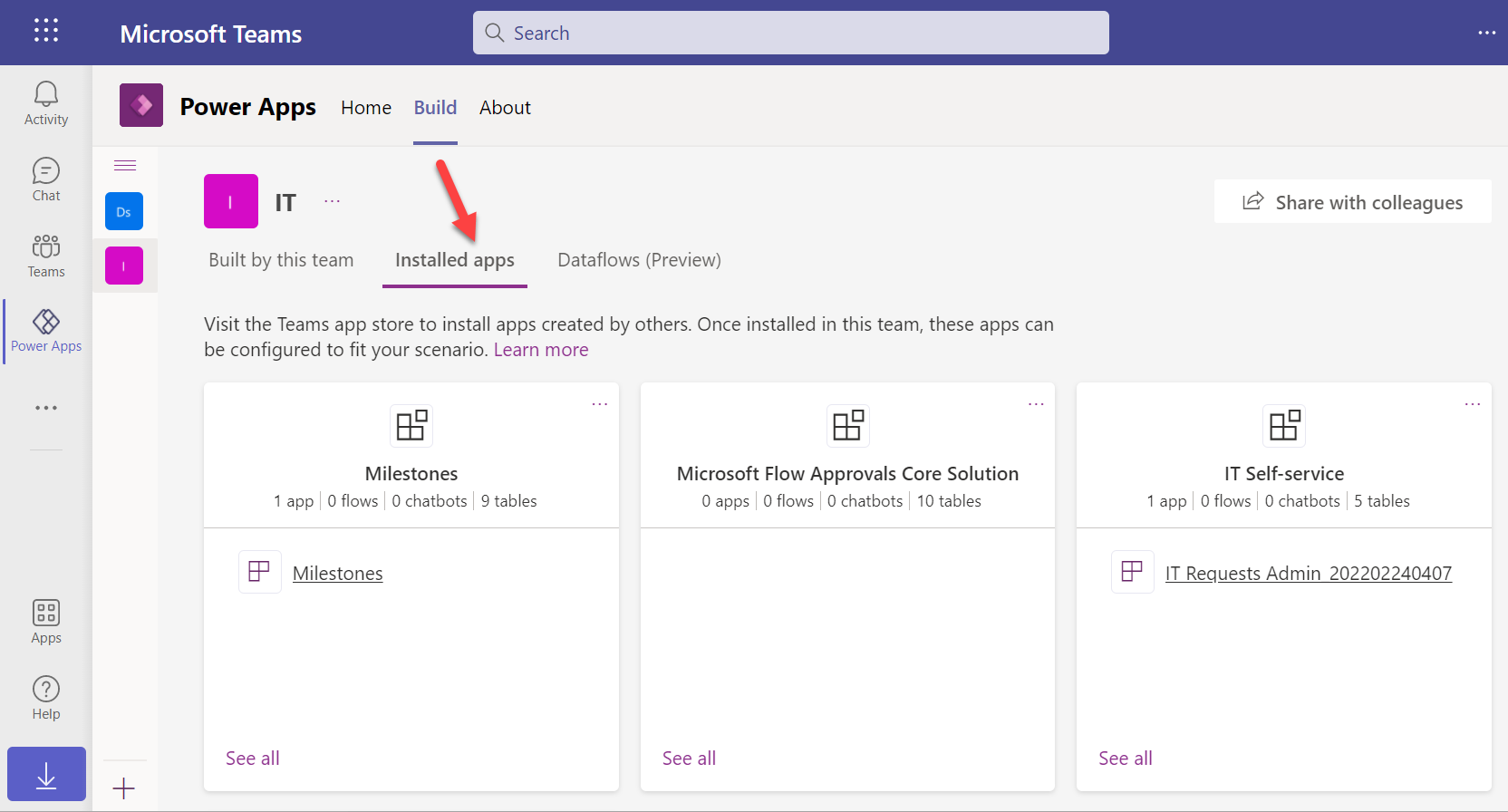
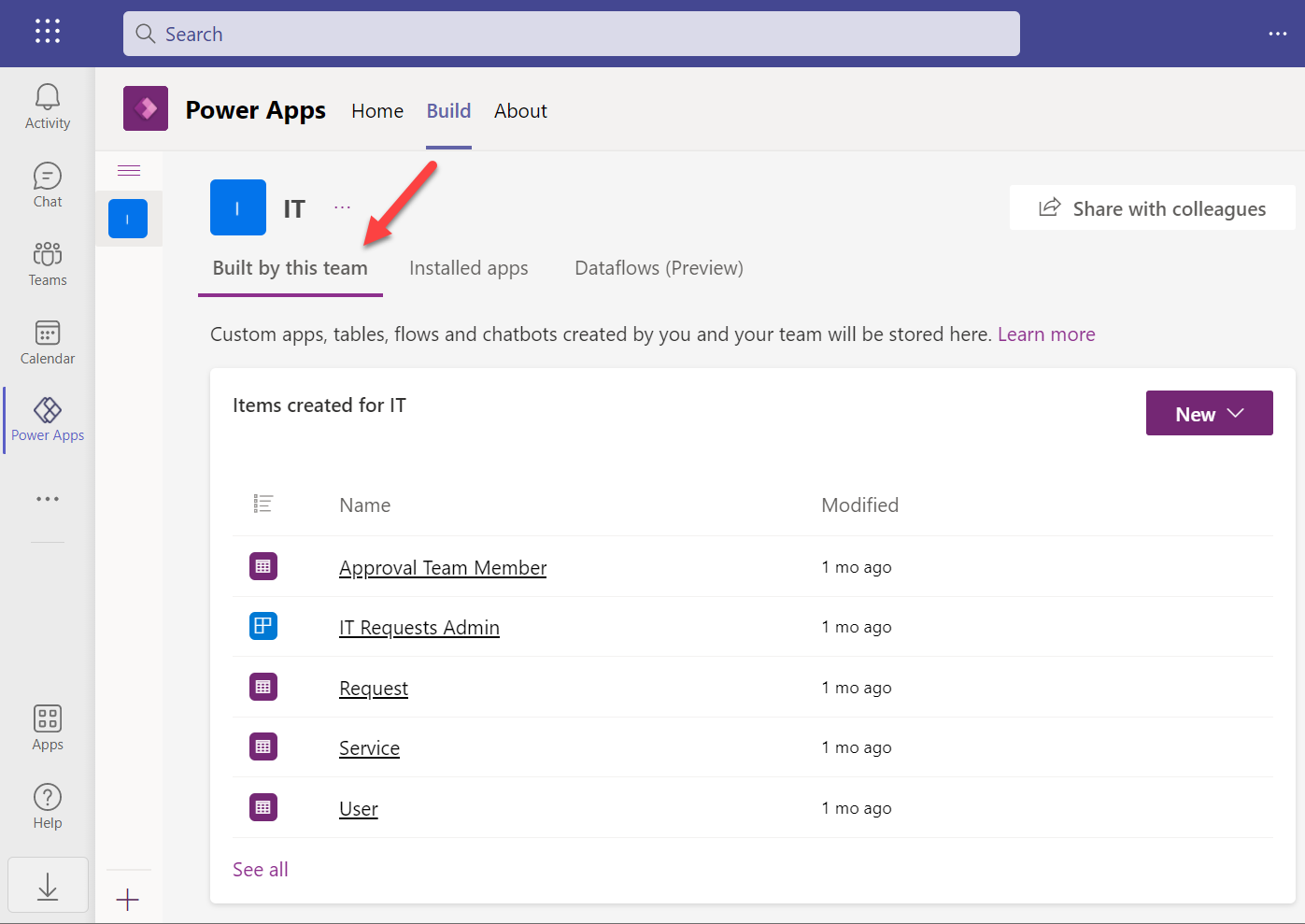
    When you build apps from within the Teams UI, you will never encounter the word “solution” in the app maker experience. The Power Apps app inside Microsoft Teams will instead show you tabs called “built by this team” and “installed apps”:

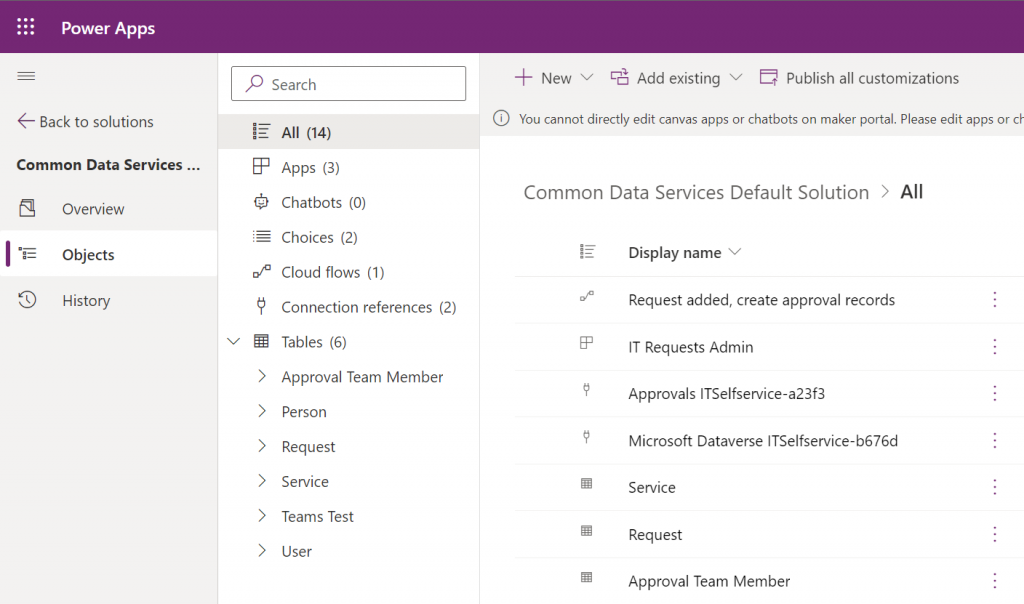
    How does one create new apps here alongside the already installed ones? By importing managed solutions into the DV4T environment. Of the three apps in the above example, IT Self-service has been imported as a managed solution package from another environment. Milestones is a sample app from MS with its own proprietary install experience, whereas Flow Approvals is just the raw infrastructure bits that get auto-provisioned when you create your first approval request in an environment.

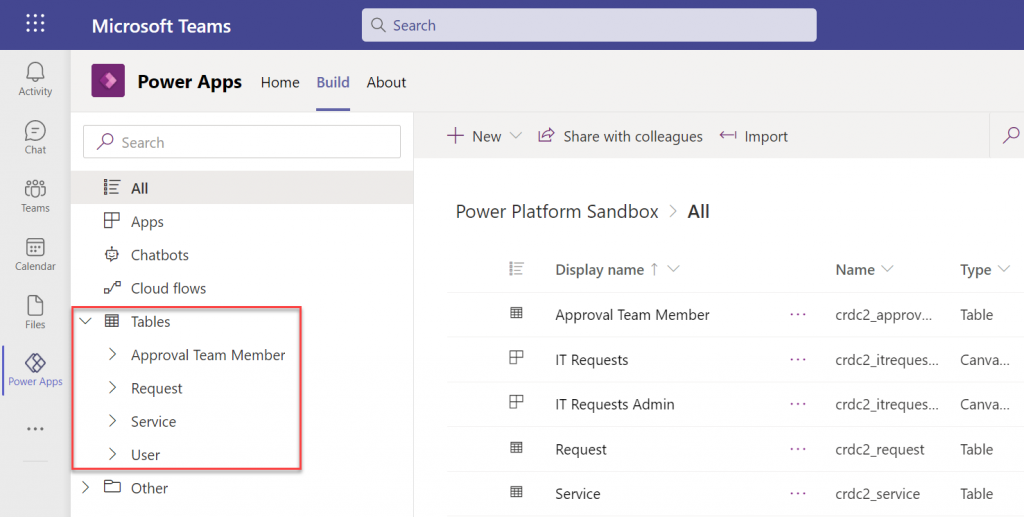
    All the unmanaged components in this environment will be found under the “built by this team” tab. Looking at the source DV4T environment from where the above IT Self-service app has been exported from, here’s how its bits and pieces show up in that environment:

    When you click “see all” you’re taken to what looks a bit like the modern solution explorer in Dataverse, except it’s missing most of the features you’d expect to find there. When you consider for a moment that this experience is aimed at new citizen developers who aren’t really even aware of what “Dataverse” means, it does make a lot of sense.

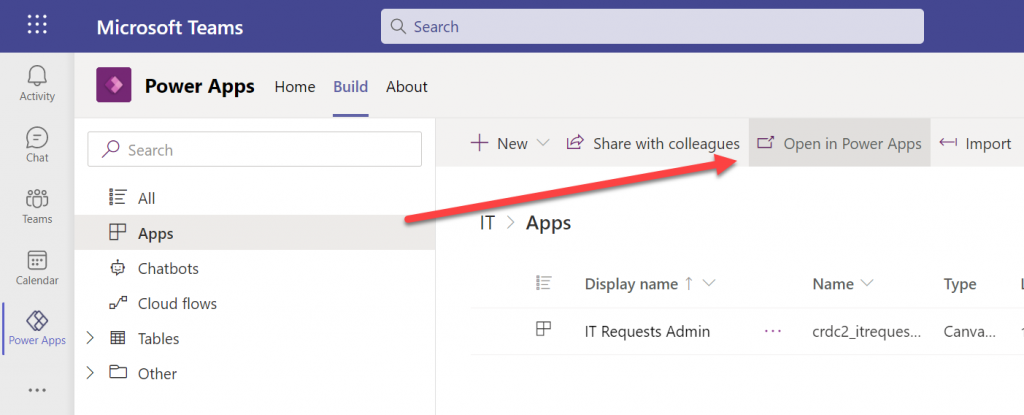
    We’re not like them, though. We are advanced low-code app makers who know what we want to achieve with these tools. Our escape hatch from this simplified world is the “Open in Power Apps” button that can be found when selecting “Apps” from the tree view.

    We’re then taken into a special version of the Power Apps Maker portal that cannot be accessed directly from make.powerapps.com. This is because the DV4T environments do not show up in the environment picker of the usual Maker portal (they do on the Power Automate side, though). Time to add a browser bookmark for this URL, to keep you from having to always remember the curious navigation acrobatics required to land here.

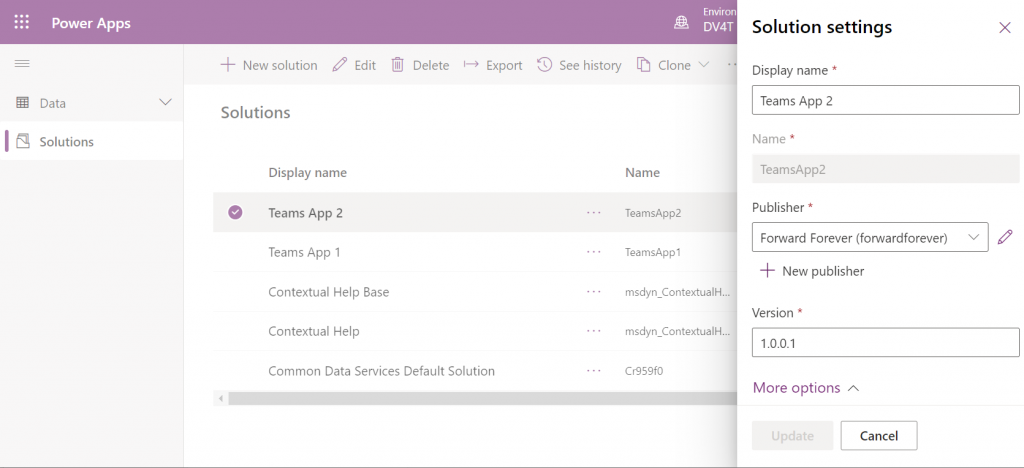
    Anyway, at least we’re now in a place where the good ol’ solutions can be created:

    You’ll quickly notice that only a subset of the full solution explorer features are available here. I’ll next demonstrate how this can lead to some challenges in your app development tasks.

    Choices in a DV4T world with less… choices

    The IT Self-service app that was mentioned above is a fairly straightforward app with a few tables, a canvas app and a cloud flow. After getting the initial version ready in the development environment and preparing to configure it for another Dataverse for Teams environment, I ran into an interesting issue. This example reflects some of the “gotchas” you should be aware of when working without access to the full Dataverse tools.

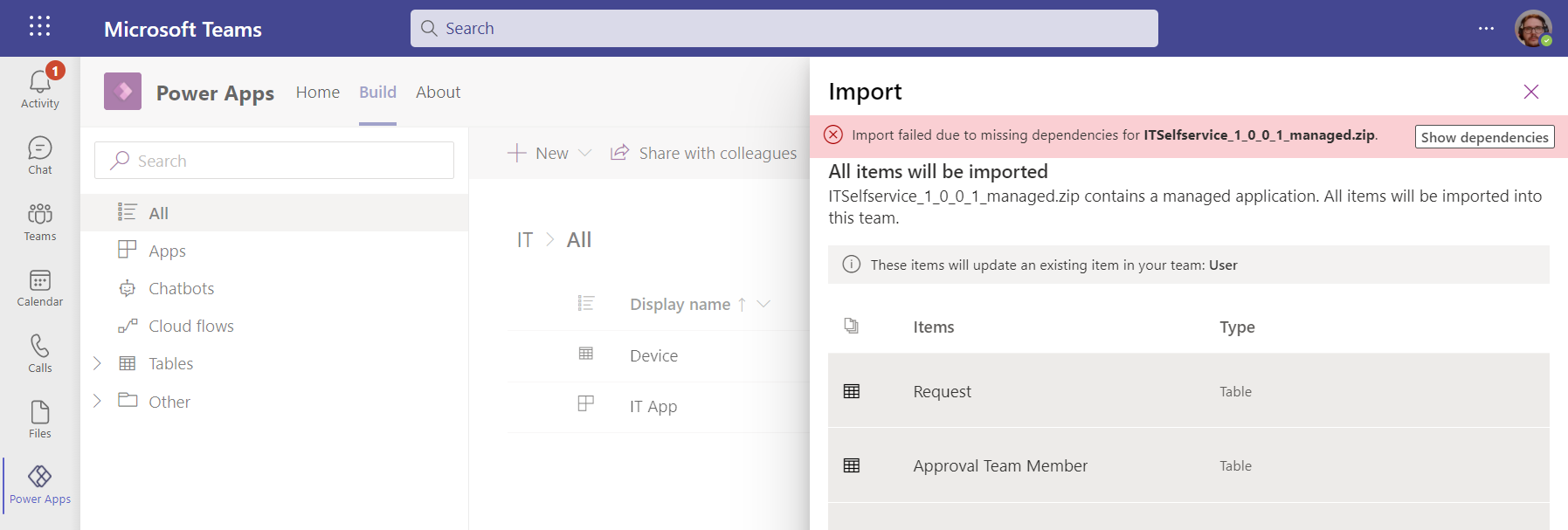
    We can import solution files from the Power Apps experience within Microsoft Teams, too – even if the word “solution” is avoided. When importing my test app from here I encountered the error “import failed due to missing dependencies”. Clicking on the “show dependencies” button didn’t do anything at all.

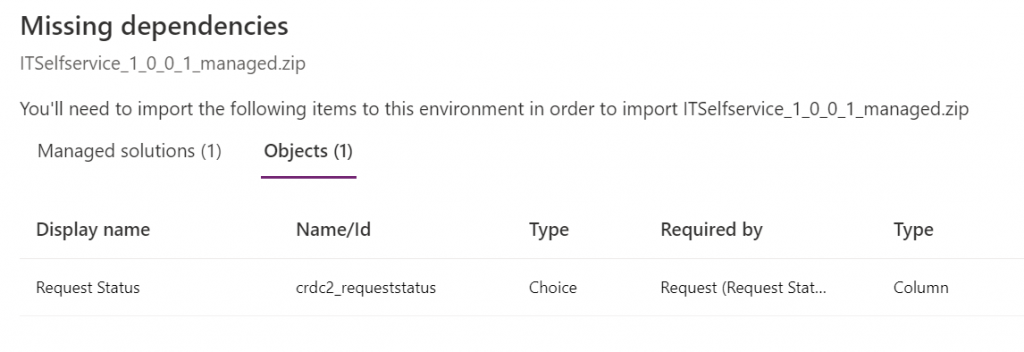
    Switching over to the Maker portal UI for this DV4T environment, then initiating the traditional solution import process, I was able to see the that my solution package was apparently missing a Choice:

    Ah, the awkward naming choices that Microsoft has recently made with our beloved platform… Ok, I’m now switching back to the old terminology that makes more sense.

    So: I had added an option set field for my entity. However, it was a global option set, and now the solution package was missing the actual list of values that are stored within this separate solution component.

    How did I end up in this situation? I’m not actually sure. I did a test with a different app, to see whether it makes any difference if I create the table columns from the Teams experience (which is very citizen friendly in its Microsoft Lists type UI) or the Maker portal. It is different in the sense that Teams creates a local choice vs. the global choice that the Maker portal defaults to (as recommended by Microsoft’s own Docs). Still, the solution export/import worked without any dependency errors on both versions.

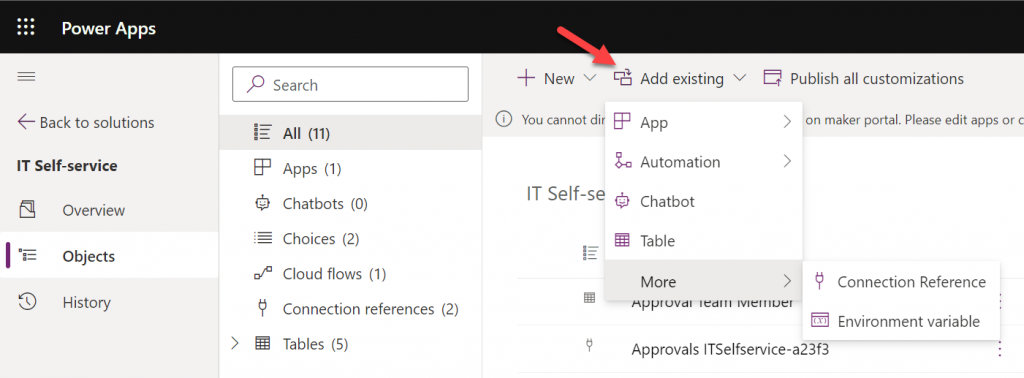
    No big deal, I’ll just add the missing component into the solution… Not so fast, Mr. Advanced Maker! Just because you’re working in a UI that resembles the full Dataverse solution explorer, doesn’t mean you have the same features at your disposal. Although Choices is one of the nodes that does show up in the tree view, you can’t actually find it in the “Add existing” menu:

    Those of you who work with full Dataverse know that the “Add existing” menu contains well over a hundred items. The official Docs on solution component types only list 90 values at the time of writing but MS is adding internal components there all the time. We sure don’t need most of them in DV4T, but this omission sounds a bit unfortunate.

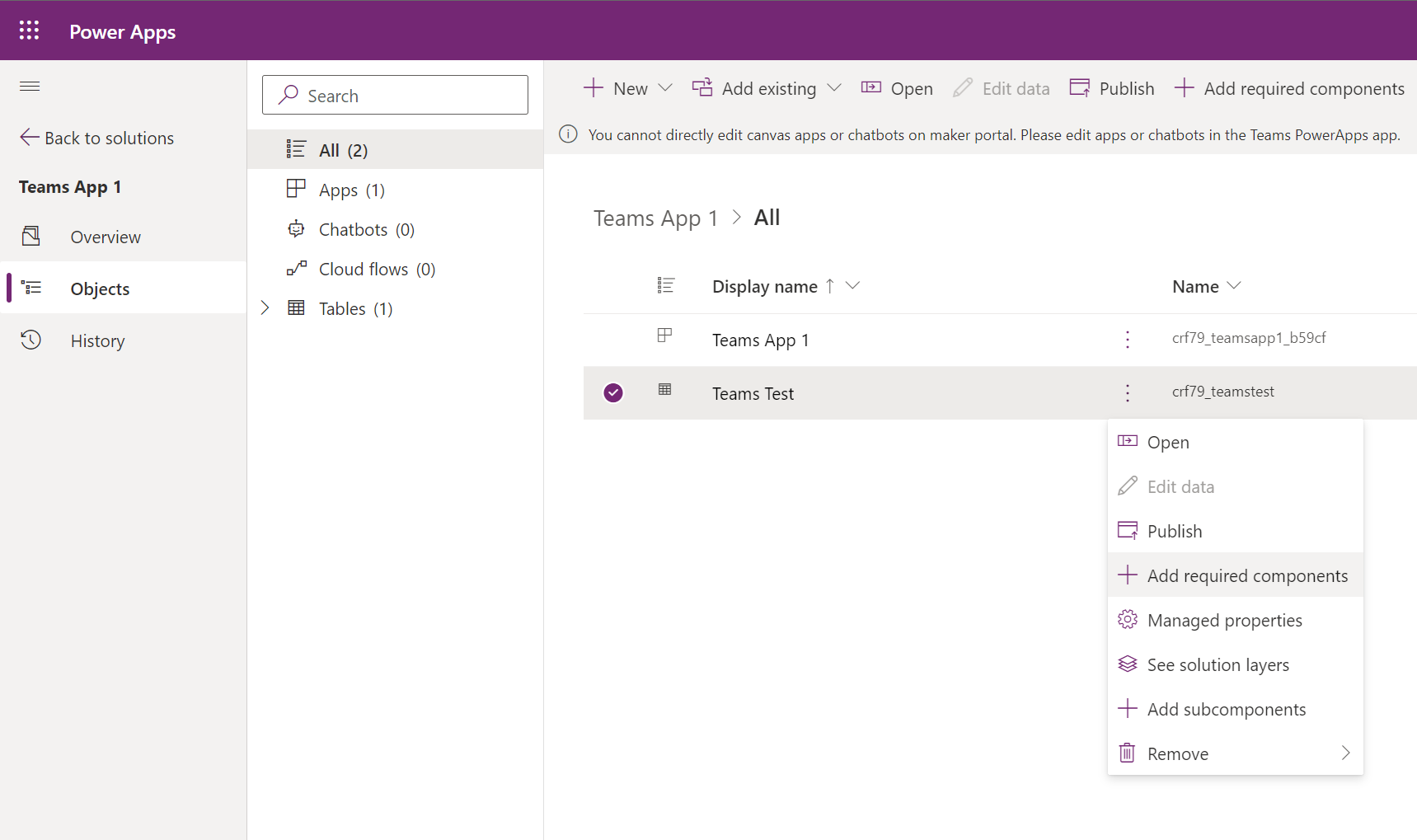
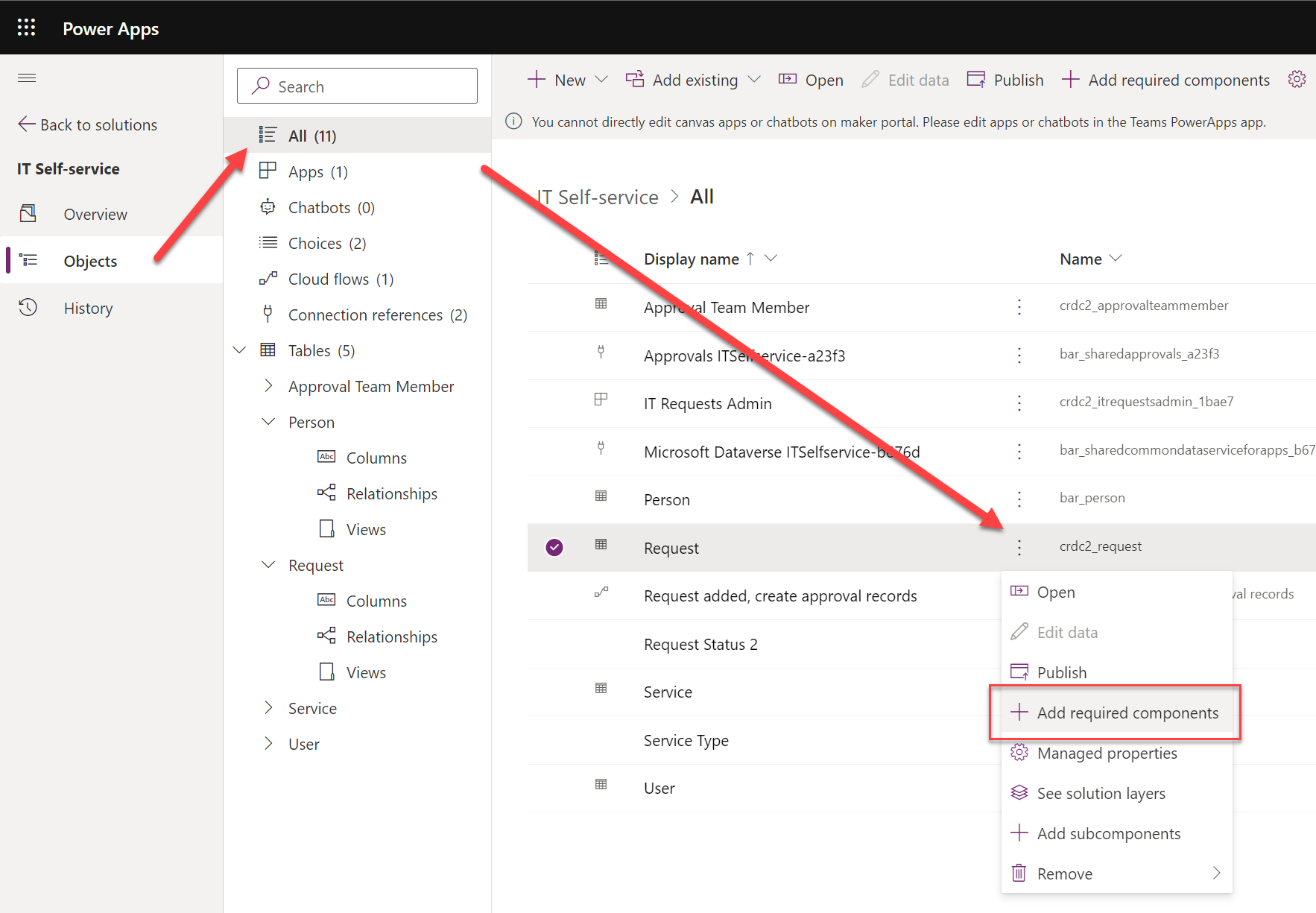
    I had already done all sorts of debugging and hacking to find a way around this annoying limitation until I discovered a UI based way out. I saw that the existing Choices in the solution had the “Add required components” option behind the three dots. Unfortunately the Tables view didn’t include the same option. In the full Dataverse solution explorer we’ve got it in the main toolbar, but DV4T is different in this regard, too.

    Finally I found the place where the option does apply to tables, too: the all objects view. Success!

    It took a few hours for an experienced low-code developer to discover how to do what he wants to do in this simplified environment. It was still faster than replacing everything with a new column at this point, though. I had almost accepted the fact that I had simply clicked on the wrong navigation path somewhere in building the app and managed to break the boundaries of the DV4T sandbox. Luckily that wasn’t the case today.

    Solution publishers

    When you start adding items into a Dataverse for Teams environment via the Teams UI, they will get created under the CDS Default Publisher. The prefix for new solution components will be something like “crdc2”, meaning a random value that’s different in each environment. At least it isn’t the dreaded “new_” prefix…

    You can create a your own custom publisher when creating a new solution via the DV4T edition of the Maker portal, similar to how the full solution explorer works. As long as you create the items from under this solution in the Maker UI rather than the Teams UI, the correct prefixes get assigned to them. However, since you cannot create a new canvas app (or chatbot) via the Maker UI, this means your app schema names will always get the CDS Default Publisher prefixes.

    There are nice new features like the table editor in the Teams UI, which you might be tempted to use for quick editing of demo data while building your app. If you’ve created your tables from the Maker portal side, though, you won’t find them in the Teams UI:

    The reason for this is that the Power Apps app inside Teams will only display the unmanaged solution components for the environment’s default publisher. So, if you tried to follow solution management best practices and created your own solution publisher, the doors will be closed over on the DV4T native app building experience.

    Unmanaged, invisible solutions

    This leads us to another gotcha on how DV4T treats solutions that come from outside the current environment. We already saw the differences in how the managed solutions imported into the environment are listed under “installed apps” and unmanaged stuff is under “built by this team”. That’s how the Teams experience shows things, and as we’ve come to now understand, it isn’t always sufficient for advanced makers.

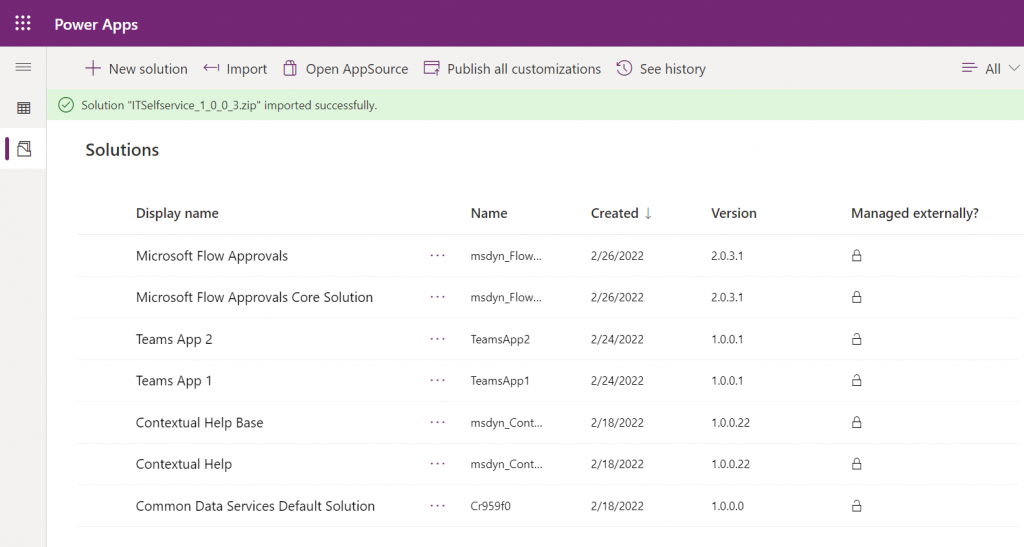
    When we do the equivalent of “switch to classic” in the Teams world and hop over to the Maker portal view of the environment, are things in their right places again? Well, not if you imported an unmanaged solution into the environment. Here, try and find the unmanaged IT Self-service solution from this list below:

    No matter how many times you hit refresh on that page, your imported solution won’t show up. All the imported components do exist in the environment, though. You can access them via the Common Data Services Default Solution:

    Why isn’t the solution visible then? Because Microsoft decided that you don’t need to see it, apparently. Deep down in the database all the solution metadata is stored. You can tell this from the fact that if you try to re-import the same solution, you’ll see a message “this version of the solution package is already installed”.

    The limitation isn’t technical then, just a UI level filter. Yet from a practical point of view it is very real in a DV4T environment. This is because all the standard Dataverse APIs are blocked, so using tools like XrmToolBox to work around UI limitations and improve app maker/developer productivity are out of the question.

    Closing thoughts

    Dataverse for Teams has capabilities for running quite extensive business applications (just look at the CoE Starter Kit for reference). Many internal low-code apps could benefit from having a proper relational database behind them, yet they may not be feasible to be implemented with features requiring Power Apps premium licenses due to their usage patterns. The current app packaging story of DV4T raises some concerns on how solid this foundation will be for applications that will need ongoing maintenance and development.

    Ultimately it would be best if we had a clear path for using the full Dataverse as our development environment, then publish the final app into DV4T for testing and production. As it stands today, the Canvas app editor experiences between the two environments are technically different. Also, it can be all too easy to “infect” your solution with some dependencies to features of full Dataverse that are going to block importing it into a DV4T environment, based on my experiences.

    Update 2022-10-20: Today I learned about one more gotcha with Dataverse for Teams that involves Power BI reporting. If you build your tables from within the Teams Power Apps UI, you won’t see a “publish all customizations” button. However, unless you publish your customizations, the TDS endpoint won’t pick up the choice column labels. You’ll only have the ID values but the “name” fields will be blank. So, as a best practice, always keep the full Power Apps Maker portal open while building Teams apps/tables and remember to publish your customizations from there – just like you always have in the XRM days.

  • Modern advanced find test drive

    Modern advanced find test drive

    The single most powerful end user feature of Dynamics CRM, XRM, CDS and Dataverse was always Advanced Find. Period.

    There, now that we’ve settled that argument, it’s time to move forward and see what life is going to look like when Dataverse no longer includes Advanced Find. Yes, there will still be the broad capabilities of advanced find, but I will refer to it without capitalization. This is in line with the fresh new documentation on a very important feature that aims to take the place of Advanced Find: modern advanced find.

    So modern you can barely see it

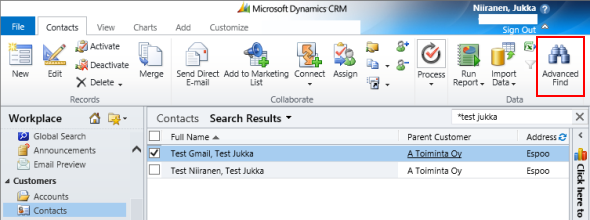
    Advanced Find was always its own UI in a separate popup window. This was perfectly in line with the Dynamics CRM 2011 UI – which was the last time there were any material changes to the visible features. Let’s have one last look at Advanced Find’s glorious Ribbon icon before we move on:

    OK, so this wasn’t actually the last time Microsoft touched the user experience for this feature. The CRM 2013 release did a complete overhaul of the application UI (I’d say a more visible change than Unified Interface even), which lead to the Advanced Find buttons getting either hidden or missing from parts of the app navigation. I had to write a blog post called “Finding Advanced Find in CRM 2013” to help out users who were worried that the feature had been removed from the product entirely.

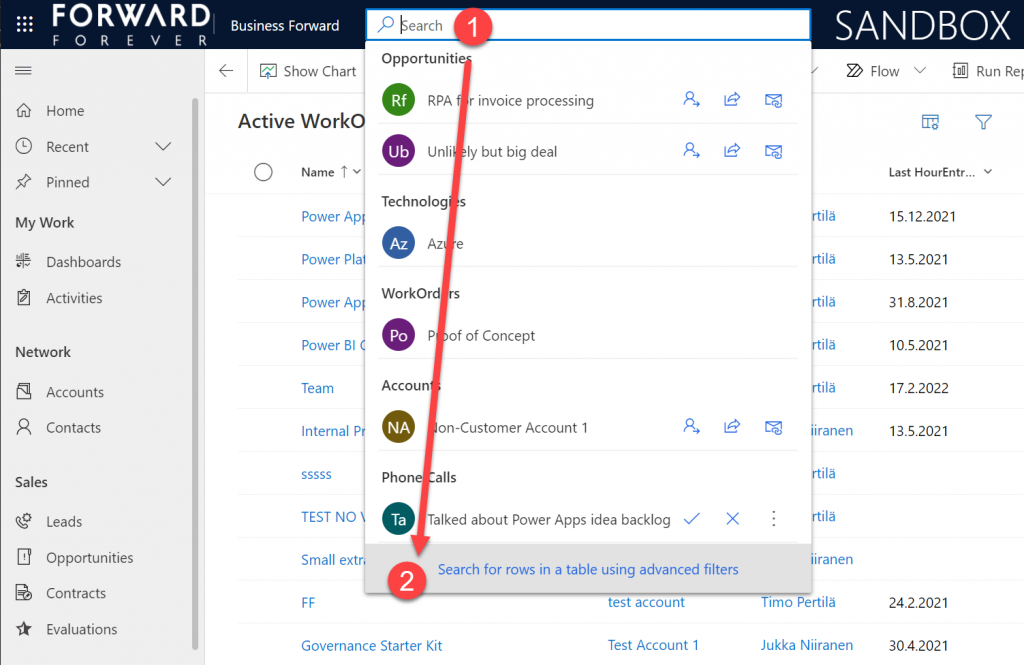
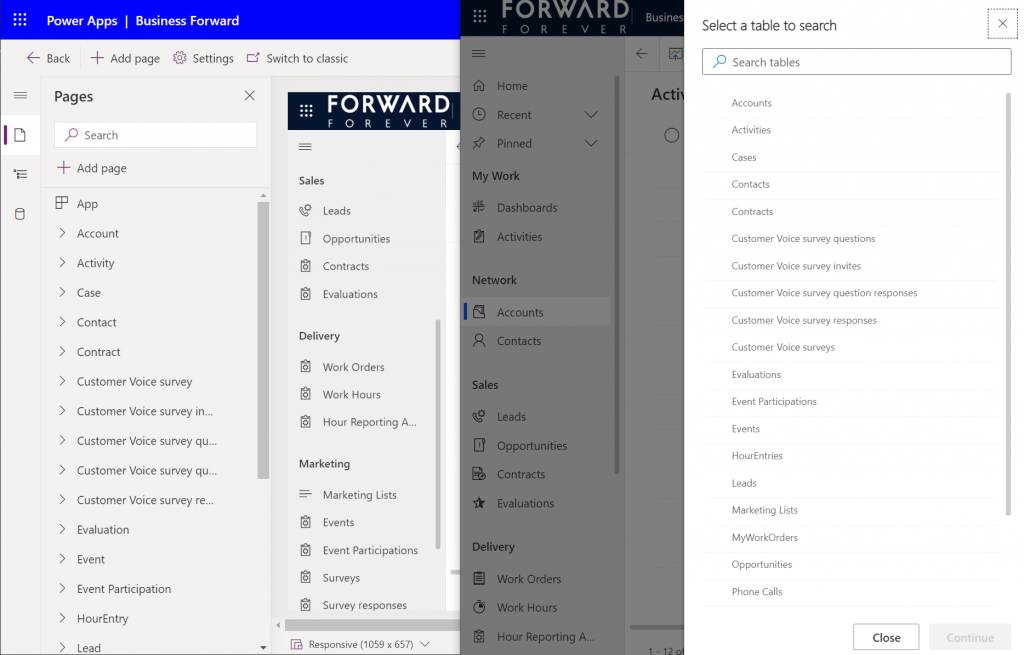
    The modern advanced find that has been introduced as a preview feature in February 2022 takes the hiding game to a whole new level. You see, the entry point to modern advanced find is hidden within the global search bar. You have to 1) click the bar and then 2) click “search for rows in a table using advanced filters”.

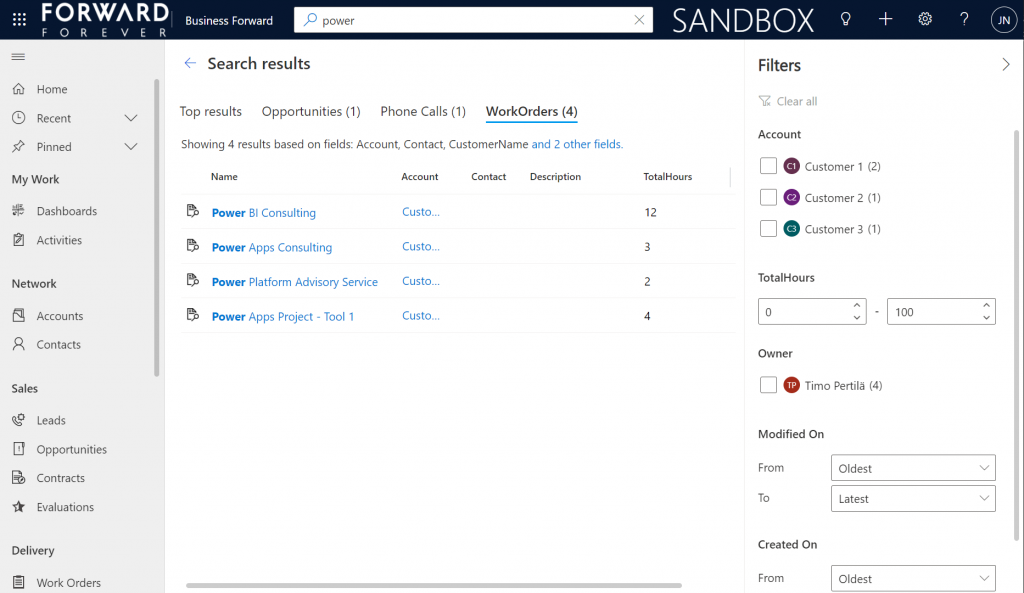
    Be sure to not enter any search text into the bar, because that will hide this new option. Also, whatever you do, do not press enter after this text – otherwise you’ll be taken to the global search results page. There’s no way to “go advanced” from here, it’s a completely different search experience.

    Search “any” table

    A big new feature in the modern advanced find is what happens after you click on the new button within the search bar. (I already forgot the name of that button since it wasn’t anything as nearly catchy as “advanced find”, so I’ll refrain from scrolling up this post to see what it was and just move on instead.)

    You will see a sidebar saying “select a table to search”. Cool, just like in good ol’ Advanced Find! The difference you need to understand, though, is that it’s not a list of all the tables in the environment. Yes, it will likely be a longer list that what your Model-driven app’s sitemap navigation contains. This is because modern advanced find covers all the table’s that your app’s maker has chosen to include in the app module when working with the Model-driven app designer.

    There are pros and cons to this approach. The obvious upside is the ease of use for the casual data finder. He/she doesn’t need to confront the ever growing list of both standard and custom tables in a Dataverse environment (especially those with many Dynamics 365 apps installed in them). Things are quite different now compared to back when Advanced Find was originally designed for a simple CRM systems. Showing hundreds of cryptic tables isn’t a great UX to most users, so cutting down the noise of the underlying data model is understandable.

    How about those users who DO understand the data model, or even work in configuring and extending it? The advanced app makers, consultants and developers will most likely be frustrated by this limitation whenever they need to examine the detailed contents of an environment. Quite often I myself need to build new views and filters just to understand what data has been entered into the system (that has been designed by someone else).

    Sounds to me like there will be a growing demand for a “Super Advanced Find” type of a tool to be introduced in XrmToolBox. If you’ve already got a favorite tool for ad-hoc data exploration needs, be sure to leave a comment below.

    Query criteria remains the key criteria

    The one area where an advanced search feature in Dataverse simply has to perform well is the creation of complex query criteria across the relational data model of the environment. One of the most read articles on my blog has been Advanced Queries with Advanced Find, which illustrates both the possibilities of the tool as well as the demand for such advanced query criteria in real-life business scenarios.

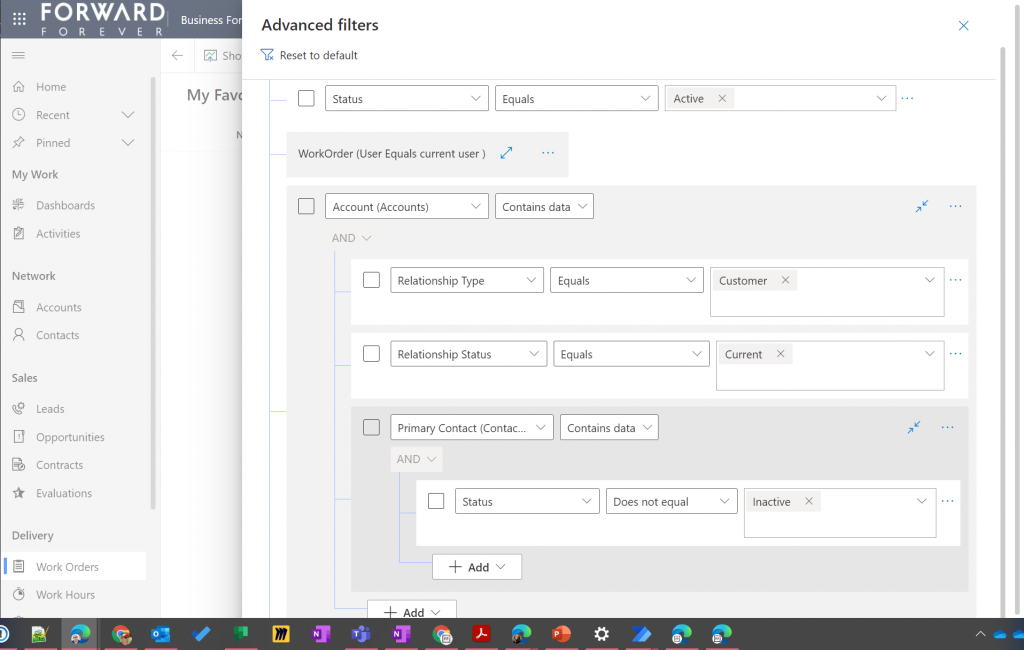
    Luckily this is already included in the non-preview feature set of Model-driven Power Apps. The filter editor that you can find in any table view today is a very worthy replacement for what Advanced Find used to offer. Although I haven’t done a detailed comparison, I couldn’t easily spot any missing capability from the tools available for defining the view filters in modern advanced find vs. the classic pop-up query editor for Advanced Find.

    Just imagine if it was this easy to define the filter criteria for Dataverse tables on the modern automation side, too – not just views? Perhaps one day something similar will be made available for Power Automate cloud flows, based on what is being planned for SharePoint data sources in 2022 wave 1 (because priorities). Until then, luckily we have great articles and reference guides created by the community to copy-paste our “flow code” from while we wait for a GUI to arrive.

    Actually viewing the data

    Far too often I’ve seen people put all their effort in defining the correct query criteria and then being lazy when it comes to actually showing the results of that query. You could say I wrote the book on the importance of Dynamics CRM view design back in the 2013 era, so you can image how such user experience oversights have irritated me over the years.

    Smart choice of view columns and sort order are what defines the user experience outcome. Query filters are merely table stakes.

    Jukka Niiranen, in this blog post right here.

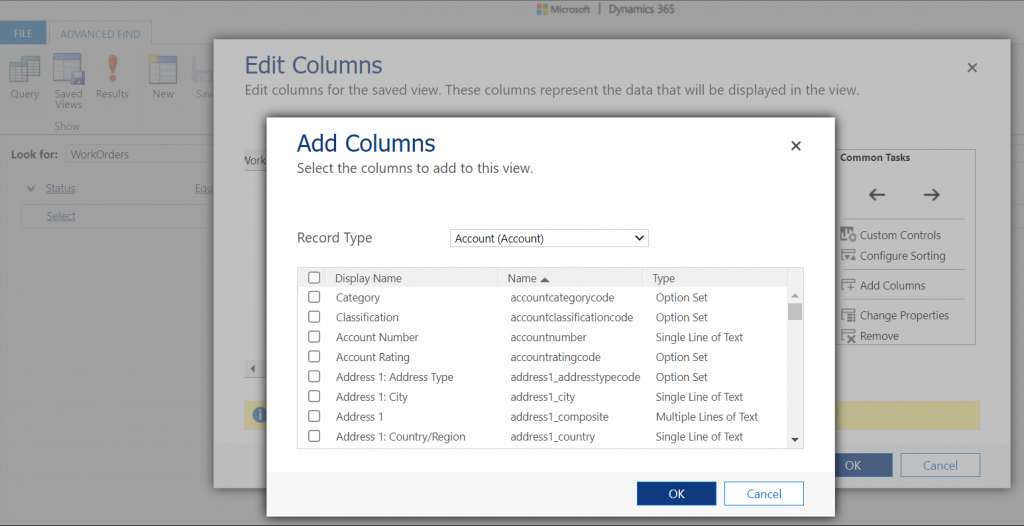
    As a data exploration tool, Advanced Find wasn’t always perfect, but us consultants learned to make the most of it. When needing to dig up data from columns that weren’t readily available in the system views, it was easy to just go and add all columns into an exploration view. Whereas when building more targeted we had two useful features in the “add columns” screen of Advanced Find: sort by name, sort by data type.

    Unfortunately this is where the modern advanced find is a little behind on the classic Advanced Find. Let’s look at what the column editor experience is like.

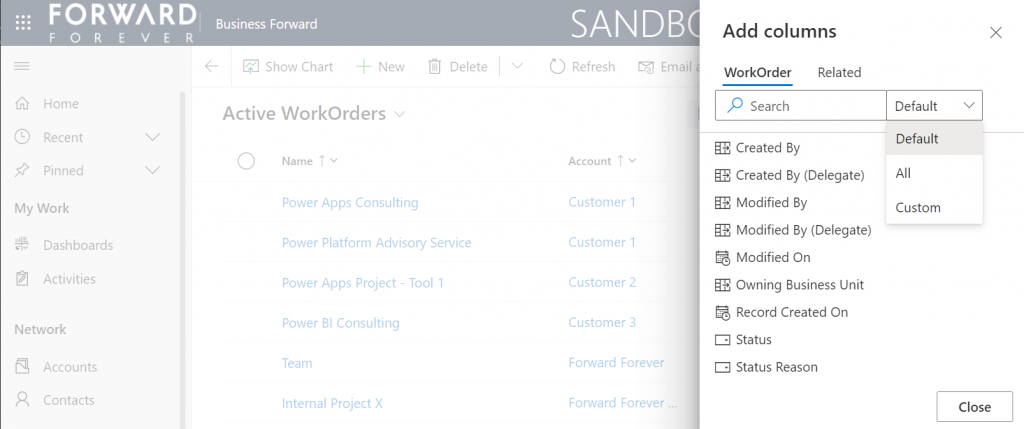
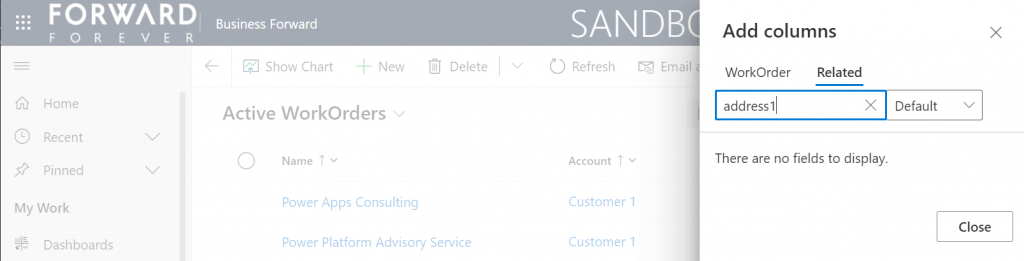
    First of all, the editor includes the very same modern stumbling block that you might have noticed when working in the Power Apps Maker portal and searching for table columns. When you open the “add columns” side pane, the list of available columns doesn’t cover everything that the table contains. Instead you are defaulted to a “Default” filter that’s easy to miss. Switch to “All” and you’ll finally see that field you wanted to include in your view.

    What exactly does “Default” mean in this context and how is it defined? No one can tell, not even Microsoft. It appears to be one of those good intentions in tidying up the menus of what should be a citizen developer friendly platform yet also serves huge enterprise CRM systems. A tough balance to get right, that’s for sure.

    One very nice improvement in the modern advanced find (as well as the Maker portal) is the ability to search for things while you are configuring those very things. Narrowing down the long list of available columns with a free text search term could be especially handy when you’re looking for information stored on a related parental ent… table.

    What could make such a feature even better? I’ve got one idea: extend the search index to include also the schema names. Believe it or not, the display names of f… columns can become quite misleading when you eventually need to adjust them for the places in the app UI where they can’t be customized (which just happens to mainly be: VIEWS!).

    Anyway, often the schema name may have a pattern that makes it easier to logically group columns, which in turn makes the app maker more productive as he/she finds them more easily when defining the views. Right now that’s something the modern advanced find doesn’t yet support. If you think it should, then go and vote for it.

    So, you’ve created a hundred and one views…

    If there was something that the classic Advanced Find feature really didn’t handle well at all, it was the process of managing the views created with it. The way how the Ribbon UI managed to both hide the feature and yet make it highly misleading at the same time was something… special.

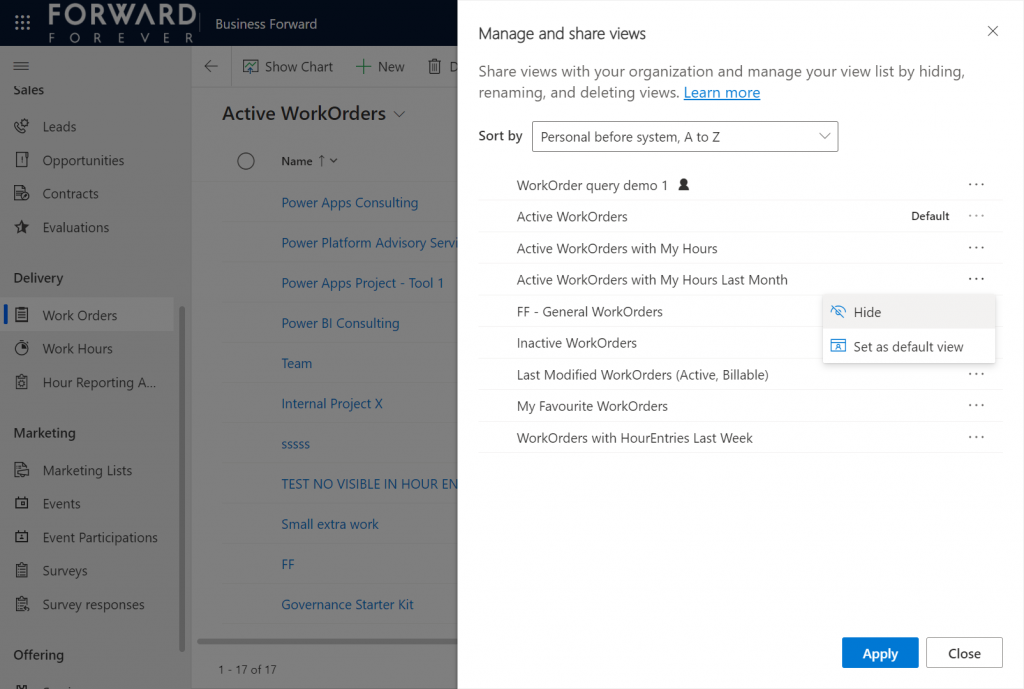
    Compared to what we used to have in Advanced Find, the enanced personal view management now launched in preview is a thing of beauty. Changing the sort order and hiding unnecessary views are very welcome additions to how the power users will be able to take control of their business app UI details.

    The new view hiding feature is something to pay attention to:

    “Hiding a view is a way to personalize the view list and reduce clutter by making views not be visible in the view selector. A view may be needed for a specific purpose periodically or a view could be shared with you that you may not need it anymore. In such instances, hiding enables you to manage your view list by seeing only the views that are most important for you.”

    This probably won’t solve all the pain associated with view management as their number grows in “busy” tables used for different kinds of analysis, both via system and personal views. Yet it’s a simple, user-driven concept to offer personalization within Model-driven apps.

    Closing the Advanced Find popup

    We’ve known for quite some time that eventually the legacy web client popup with Advanced Find will not be supported anymore. This modern advanced find feature in 2022 release wave 1 aims to include the necessary features to allow deprecating a very central part of the product. It does a pretty good job and the general principles in modern advanced find are quite justified.

    Will I miss the good ol’ Advanced Find once the new feature is enabled and the icon to the classic experience is gone? Of course I will. Like with many of the modernization efforts around Power Apps as a business app platform, the new experiences always take away something that used to allow XRM veterans like myself to be productive. Often we get less information density in the screens, blocking the use of multiple tabs, slower loading times due to new API dependencies, more options hidden/missing due to simplification efforts…

    Enough with the complaining already! Things weren’t better before, they were just different. What used to be a single app in a single service is now a cloud where traditional boundaries are vanishing at an astonishing rate. Now everyone really can make apps, and there can be a thousand “XRMs” in an organization. Both the audience and the purpose of these tools is forever evolving – and so must their features.

    Update 2022-06-08: Microsoft has started to roll out an enhancement to the view filter editing screen. There will be a button to download the FetchXML definition of the view filters. Also, export to Excel will now honor the filter modifications done, without requiring the view to be saved. Just like in the good ol’ Advanced Find days then.😊

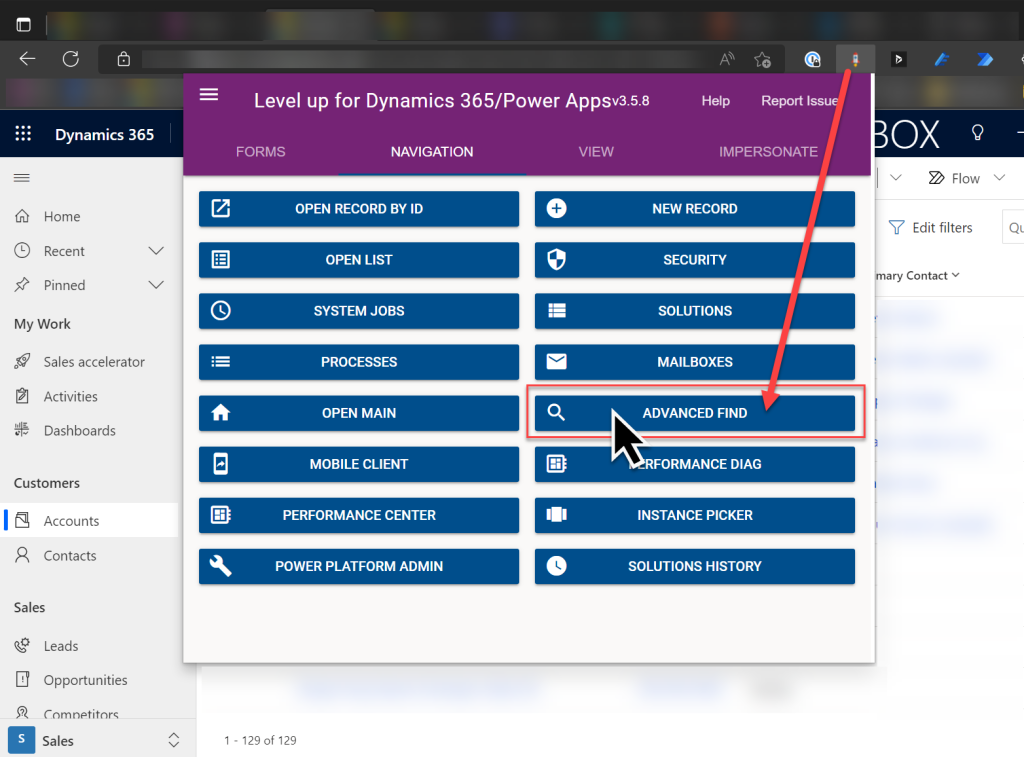
    Update 2022-08-02: As we get closer to 2022 Release Wave 2 when the classic Advanced Find button will be hidden from the UI for everyone (see Modern advanced find turned on by default), you should keep in mind that there is still a way to open the Advance Find page with the direct URL. You can (and should) install the LevelUp extension for Chrome/Edge/Firefox to have access to this dynamic URL. This will hopefully work for as long as Microsoft keeps the legacy web client page infrastructure alive.

  • Canvas app source code editing with VS Code in your browser

    Canvas app source code editing with VS Code in your browser

    The experimental feature for connecting Power Apps Canvas apps with Git version control is pretty amazing. You can read this blog post from my FF colleague Timo Pertilä to see how it looks like for app makers: Power Apps and Git version control.

    What doesn’t feel quite as amazing for a low-code guy like me is the steps needed for configuring the local Visual Studio Code client to connect with a GitHub repo. Timo has also blogged about these steps.

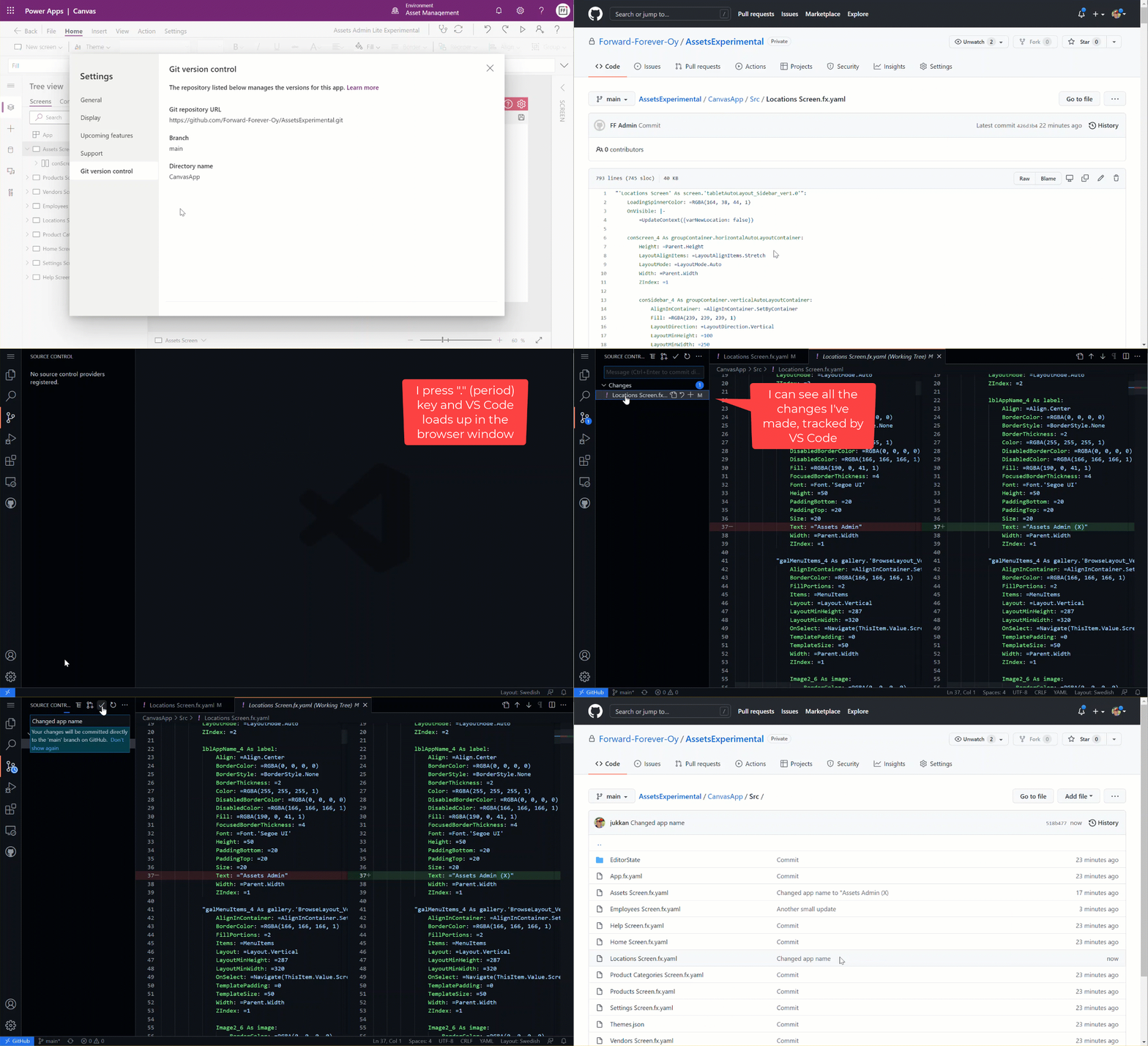
    I’m not sure how many people are yet aware of the really magical feature that GitHub offers: the github.dev web-based editor. In short, what this allows you to do is skip all of the local configuration steps and launch an instance of VS Code directly from a GitHub repo – in your browser. Here it is in action:

    (Grab this MP4 video if the GIF animation doesn’t show up properly.)

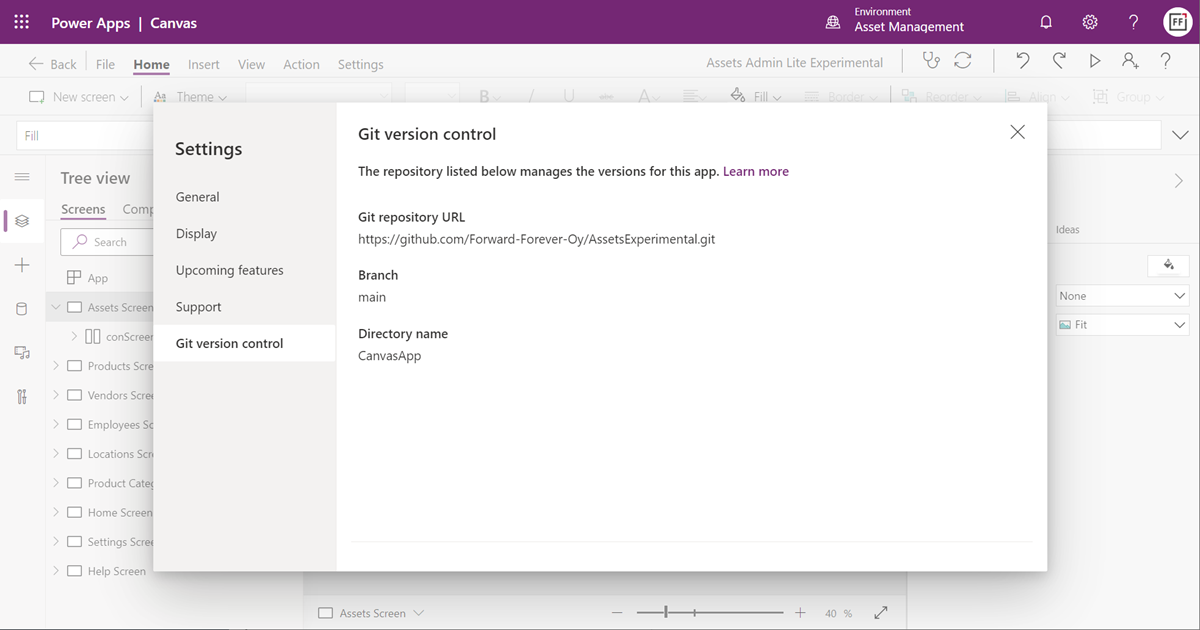
    What are the steps needed? First, we completely everything in Timo’s first blog post. Create a GitHub repo, then enable the experimental feature in Canvas app settings. Note: you will now have irreversibly linked your app to GitHub, so don’t do this for any “real” app just yet.

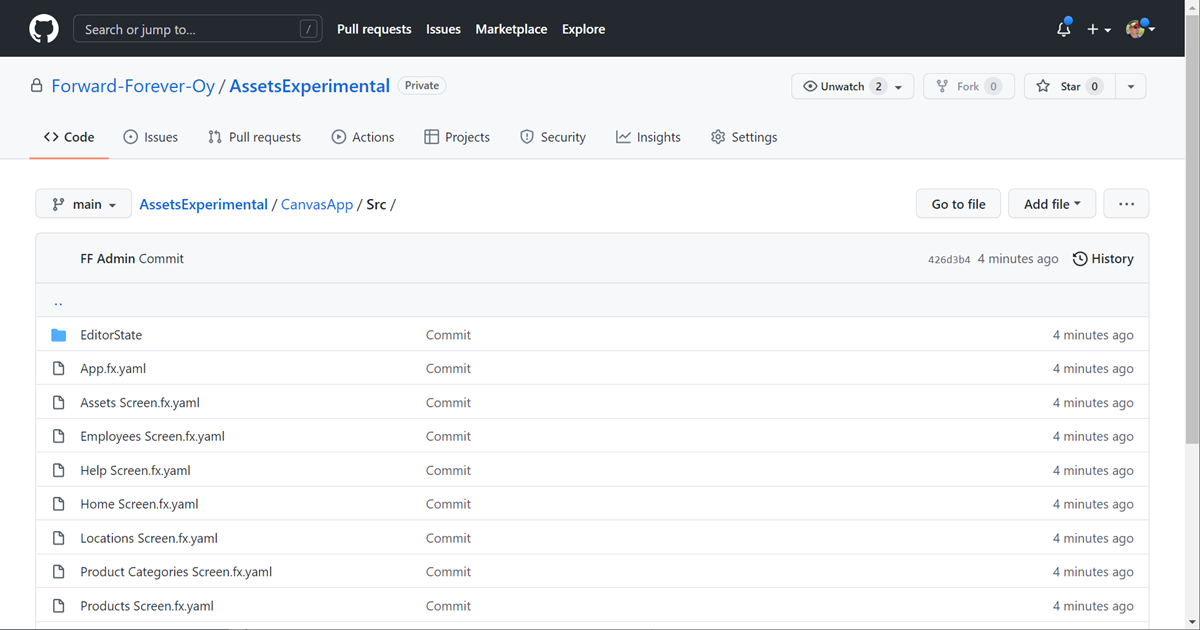
    After linking the repo Power Apps will automatically copy all of the app source code there. Open up GitHub.com and browse to the /Src folder to find YAML source code files for your Canvas app screens.

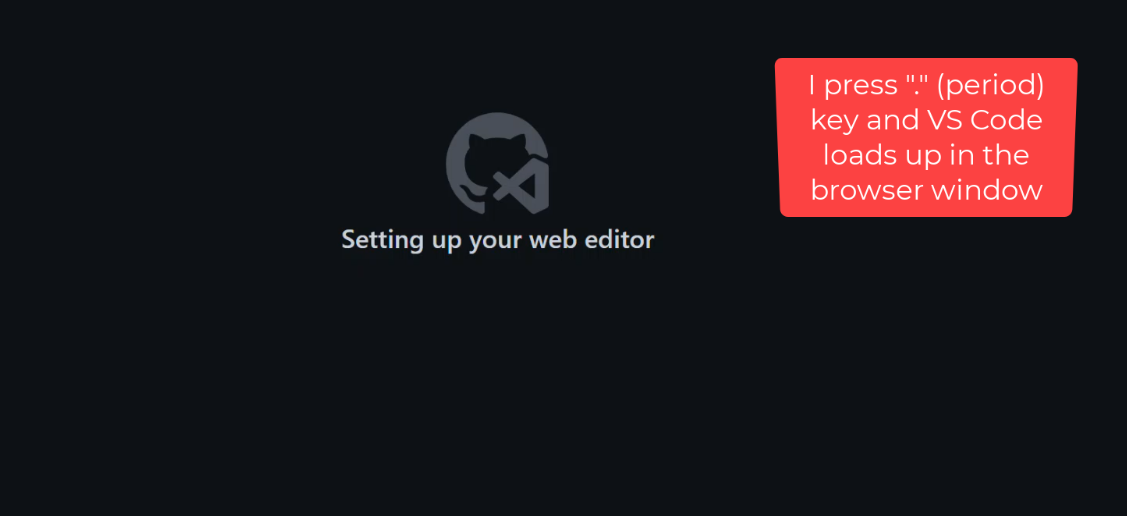
    Open a YAML file you want to edit. Then, it’s time for MAGIC! Press the period key (.) on your keyboard and watch VS Code load up in the current browser window, with the file you were looking at over on github.com.

    You’ve now got immediate access to the wide variety of editing features of VS Code, to perform updates on any file in that repo you’re in. How does github.dev do this? Here’s the answer:

    The web-based editor runs entirely in your browser’s sandbox. The editor doesn’t clone the repository, but instead uses the GitHub Repositories extension to carry out most of the functionality that you will use. Your work is saved in the browser’s local storage until you commit it. You should commit your changes regularly to ensure that they’re always accessible.

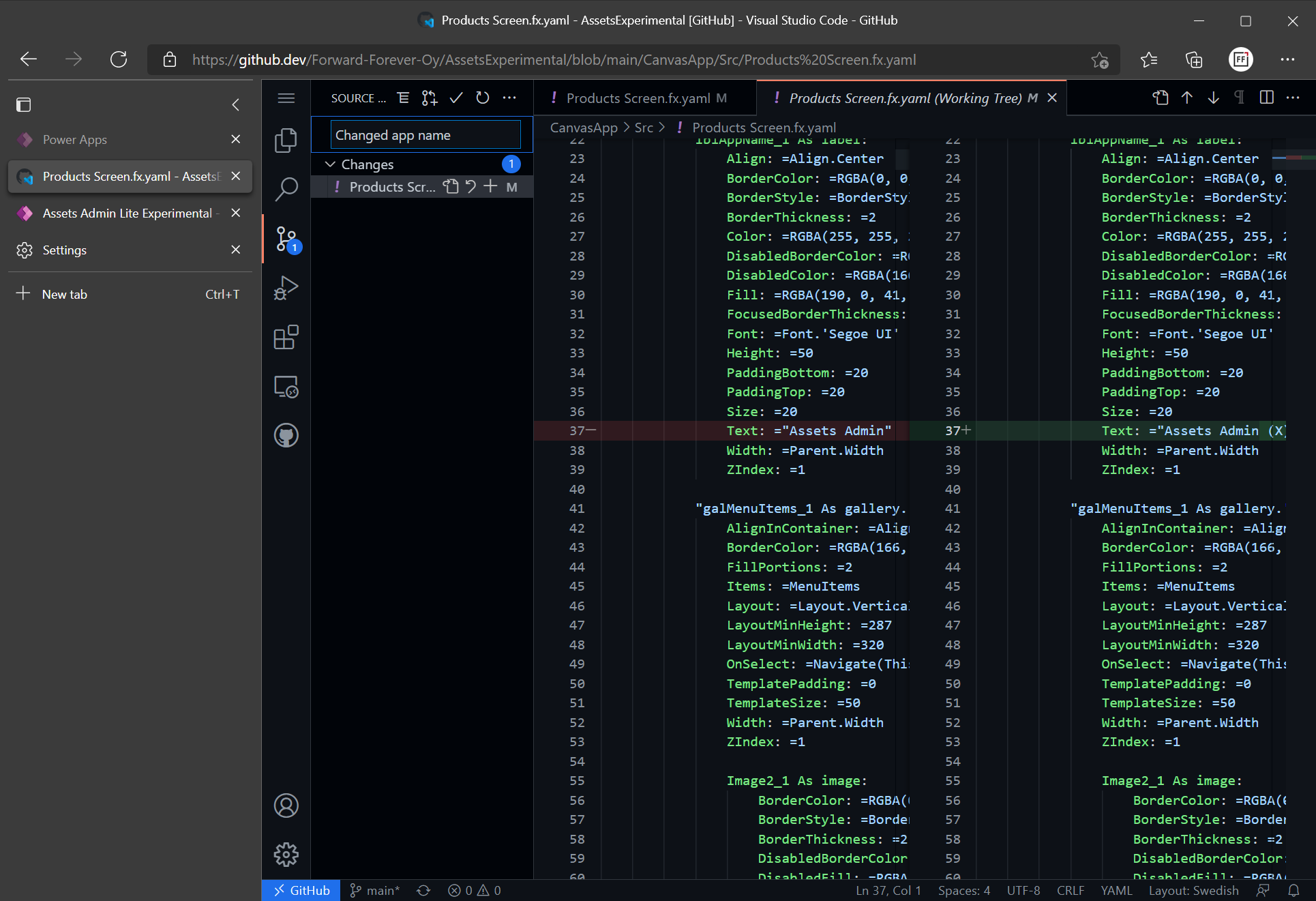
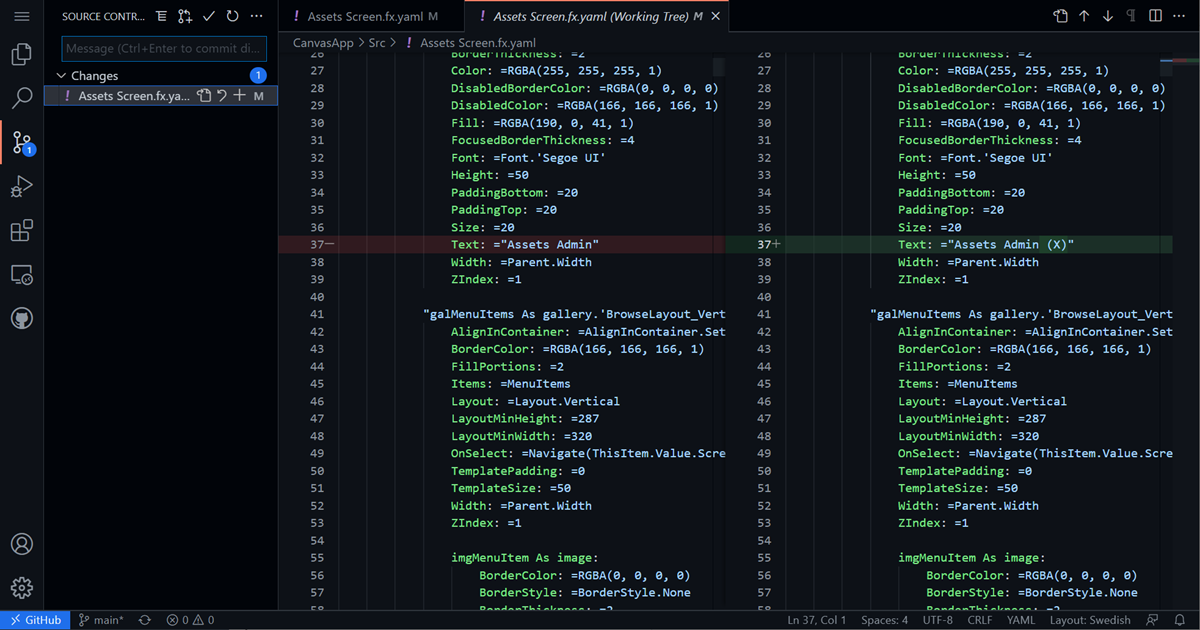
    A simple example of the benefits is that we can visually track all the changes performed on our YAML file. Then, as we’re ready to commit it, just add a commit message and everything will be synced to the repo.

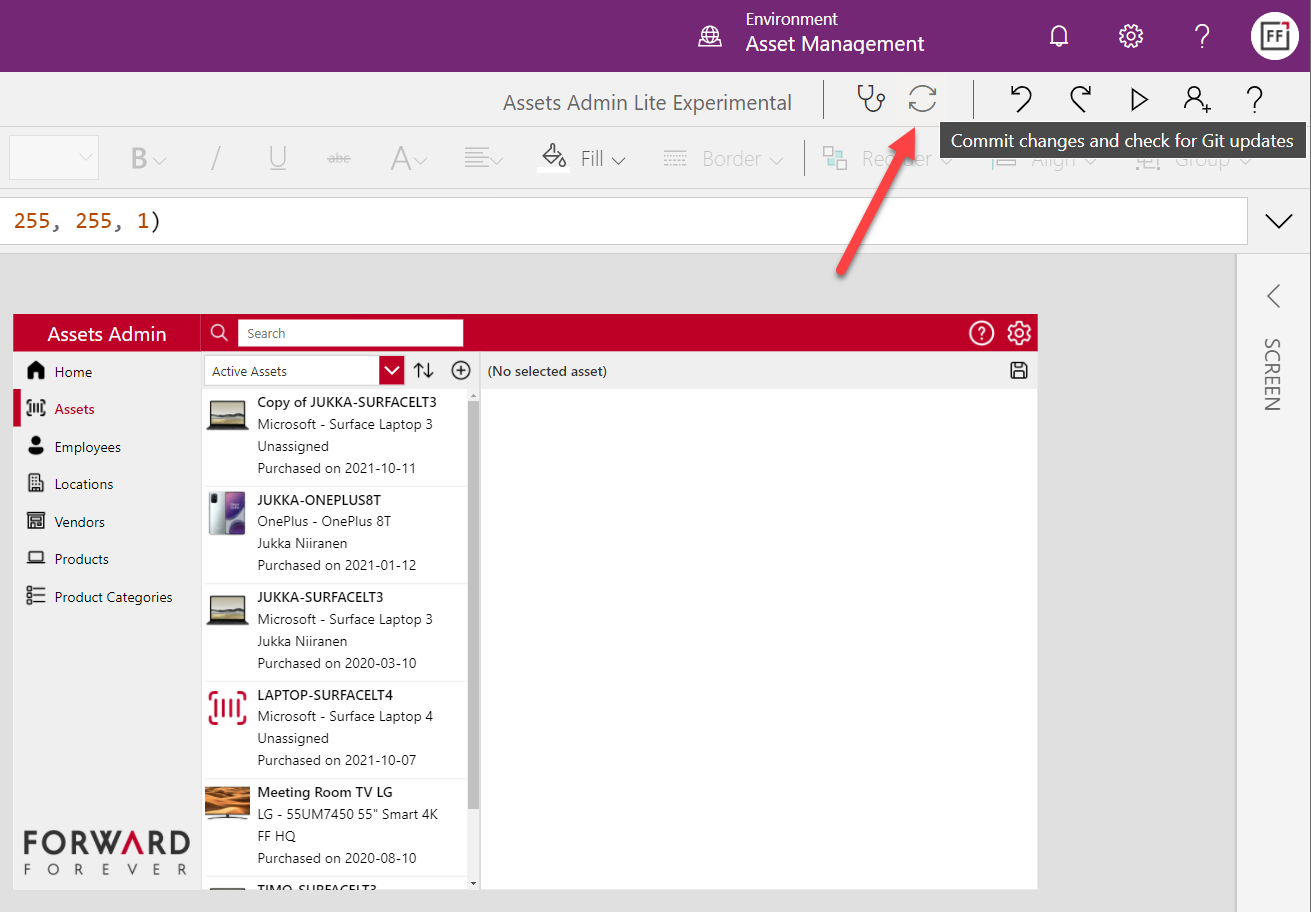
    Whenv we’re back in the Power Apps studio, clicking on the sync button will retrieve the latest updates from GitHub:

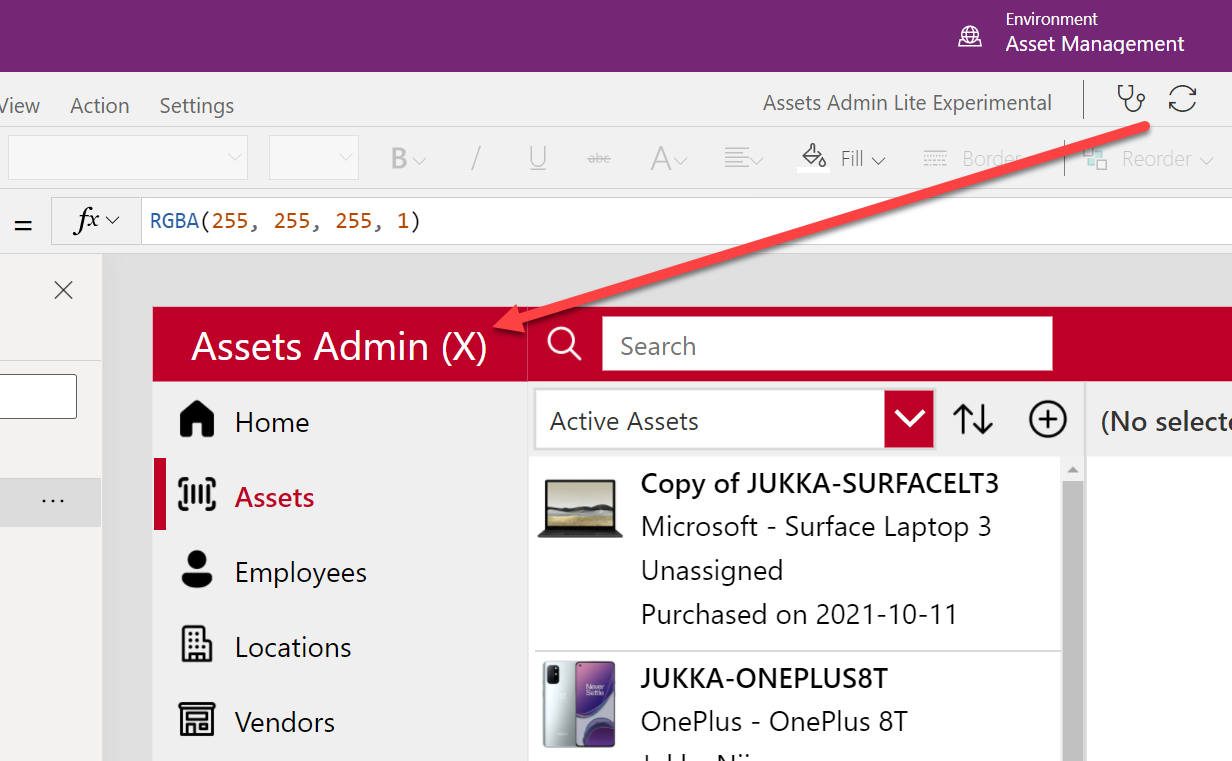
    And there we have it! A new value for the “app name” label that we edited in VS Code, with nothing but GitHub.com and a single “.” keypress.

    Could we one day do all of this directly from within the Power Apps Maker portal / studio? Well, as you can see, Microsoft has a lot of the infrastructure already in place to make the online browsing and editing of Canvas app source code technically possible.

  • Year 2021 in Power Platform

    Year 2021 in Power Platform

    Time to start wrapping up another eventful year in the Microsoft Power Platform ecosystem. Here are the highlights that came to my mind when reflecting on 2021, looking at my own articles and social media posts.

    Power Fx: a programming language for low-code

    This is an announcement from 2021 that will grow up to be a much bigger deal in the years to come. When Microsoft launched Power Fx in March, the only thing we initially had was a new name for the formulas that Canvas app makers had already been working with for years.

    The more impactful side of Power Fx is the grand vision of an open source language built specifically for the low-code app makers and solution developers. Power Fx is a sign of things to come: a world where the concept of code is democratized and any unnecessary barriers for people to act as developers are actively torn down by the platform providers.

    Building Power Fx based command bar buttons was the most fun topic I had to blog about in 2021 (see posts one, two and three). Much of the functionality in modern commanding is still way too early for production use, yet the progress that’s going to happen on this front is inevitable. This is how the business logic that goes beyond the options available via a GUI will largely be written in the near-ish future.

    CoE Starter Kit: the admin product on top of the platform

    It never ceases to amaze me how something like the Center of Excellence Starter Kit can be built purely on top of the Power Platform – to administer and govern that very same platform. In 2021 CoE was updated to be compatible with Dataverse for Teams, which is a small miracle on its own. All you now need is one premium license to unlock the vast feature set of The Kit.

    Officially it of course still isn’t a Microsoft product, rather the CoE Starter Kit is delivered as a template on GitHub that is actively maintained by the Power CAT team. Yet in many ways this is a much better model than what “real” Microsoft software products have. There’s a public backlog of potential and upcoming features, you can get notified of the monthly releases, plus the team is incredibly responsive on triaging the reported issues. This level of transparency gained via working through open source tools and methods is something you can only dream of having for the commercial MS products for Power Platform or Dynamics 365.

    Teams as an application platform

    Dataverse for Teams was launched in late 2020, so 2021 was its first year for us to see the impact from empowering every Microsoft Teams user to build Power Apps with a Dataverse back-end.

    Today there are 10 sample apps from Microsoft that any team member can easily provision from the Teams app store. They’ll end up creating a new Dataverse for Teams environment in that process, which is certainly going to put some governance pressure on your Power Platform environments in general.

    I don’t think we’ve yet seen a huge explosion in more advanced apps being built on top of Dataverse for Teams. However, due to its attractive price point (“free!!!”), it has definitely become an option we always need to evaluate before deciding on full Dataverse or (*gasp*) SharePoint Microsoft Lists.

    With Microsoft Teams being the hub for teamwork in most organizations using MS tools, there’s growing pressure for all business app developers to understand how their solutions should exist and operate within the Teams context. The very least you should do is to consider how Teams can be leveraged for publishing your apps to end users.

    As for the Teams + Power Platform story on a commercial level, we didn’t yet reach a point in 2021 where partners could distribute their Power Apps based products via the public Teams app store. In fact, it is explicitly called out that you shouldn’t submit any such apps to the Teams team to evaluate. Let’s keep an eye on this in 2022 and see how the Teams app store will align with the traditional AppSource channel (that didn’t receive much love in 2021).

    Pay-as-you-go licensing

    You asked for it – you got it! There have been constant demands coming especially from people working on Azure based app development that we should have a way to pay for Power Platform resources on the same Azure bill. The announcement of PAYG for Power Apps app passes and Power Platform capacity was therefore the biggest news that came from November 2021 Ignite event.

    Is the PAYG model going to replace the earlier prepaid licensing options in real life, though? Probably not on a wider scale, since committing to a certain number of Power Apps seats upfront is naturally going to give you a better price point in your Microsoft licensing negotiations. The 100% premium in the Per App price when using PAYG highlights that this model is aimed at serving those app scenarios where the actual consumption volume isn’t well known yet. Great for new experiments, maybe not so great for established app usage patterns.

    With the 30 day minimum duration for the once activated Per App passes, PAYG as it stands today isn’t yet very close to a pure consumption based pricing model like raw Azure services are using. Still, it may be flexible enough to convince customers that the licensing risks in building Power Platform based apps aren’t that high anymore, compared to the more rigid MS Business Apps based model that used to be the only option.

    50% price cut for Power Apps

    As if the PAYG model wasn’t enough, in 2021 we also saw a rare moment when Microsoft slashed the price of Power Apps Per User and Per App licenses in half. In that process, the latter was also redefined to mean “Per 1 App” and not “1+1+1 Apps”, but that just made perfect sense in order to clarify the terminology. You could say in most scenarios the list price for running premium apps got reduced by 50%.

    Those of us who’ve worked with Power Platform on a daily basis have always known the crazy value for money that you could get from the platform, already before this price cut. When it comes to convincing the customers in large organizations that they should license every user with Power Apps premium, in the same way they’ve bought Microsoft 365 licenses, there’s probably been a need to move the price point a little lower still to make such deals happen.

    Looking at the global playing field of low-code application platform vendors, customers’ concerns over pricing and licensing are a common issue listed for all leading vendors in Gartner’s Magic Quadrant. MS may not be able to completely alleviate these concerns, yet it certainly helps to have a list price that isn’t an obstacle for starting the talks with anyone.

    Hello Azure Synapse, bye Data Export Service

    OK, so this doesn’t actually affect pure Power Apps environments but rather Dynamics 365 customers. However, since DES has been so widely utilized as the mechanism to gain SQL style access to the Dataverse tables for building reports, the announcement of its deprecation has to be considered one major event for the year 2021.

    This deprecation will mean many customers need to re-architect their reporting solutions, even when existing reports are happily running in production and possibly meeting all the current business requirements already. Thankfully you can still push the Dataverse data into the same SQL database. Using three Azure products (Synapse, Data Lake, Data Factory) instead of one DES can feel like more complexity to achieve the same results, though.

    There’s a bright side to this change, though. The old DES was always just a stop-gap solution that MS had to put in place, to address (primarily) the reporting concerns that CRM customers had when moving to the cloud. The new Azure Synapse Link, on the other hand, is a critical element for Microsoft’s vision of how customers will make better use of their business data via a multitude of new and future services in Azure. The incentives for maintaining and expanding such a service are obviously much higher. This should lead to positive outcomes for both customers and solution developers in the long term.

    Fusion Teams story

    The term “Fusion Team” in itself doesn’t tell very much at all, but in the context of Power Platform I would categorize pretty much all the integrations between Azure developer tools and Power Platform app maker tools under this umbrella. Much like the PAYG licensing model, this movement is crucial in evolving low-code development techniques beyond the citizen developer domain. People with an XRM background already know the enterprise level capabilities within the platform, but Microsoft needs to convince everyone that also pure Power Apps are credible in this territory.

    In 2021 we saw a Microsoft make a big push in promoting the techy side of Power Platform to the traditional software developer audience. Not only did we get the Power Fx programming language in isolation, there were also plenty of examples shown on how this will support source code versioning and manipulation inside VS Code. Screenshots of command-line interfaces became a regular part of product team blog posts. Supporting the pro-dev workflow via CI/CD pipelines in Azure DevOps remained a high priority, with still no signs of any citizen-friendly ALM story.

    The role where Microsoft seems to want the professional developers to focus on at the start of their Power Platform journey is in connecting to new data sources and custom APIs. This is what their Fusion Development e-book emphasized at least, which ended up becoming my tweet with most impressions in 2021:

    Inevitable complexity of low-code

    This leads us into the last topic I wanted to mention, which is more of a top-of-the-mind phenomenon rather than any individual event that happened in 2021. When we put together all these different growth directions of Power Platform (from Teams to Azure) and its expanding capabilities (from governance to software development), one can rightfully ask: at which point will all this spiral out of control?

    We have a broad variety of audiences that this platform wants to cater to. In one corner we have those heroic citizen app makers who’ve been empowered by the Power Apps & Automate icons found under the Office 365 menu, allowing them to solve business problems via new digital tools that no one expected them to deliver. In another corner we have the folks actually tasked with delivering enterprise wide software solutions – now looking for ways to keep the amount of custom code somehow manageable, by leveraging low-code alternatives where they’re a good enough replacement. More and more corners of this arena will get populated as ISVs and other players will join Microsoft’s low-code game.

    Creating your first apps and flows will remain an easy task. The problem is that the boundaries for what you can’t do and what isn’t supported with Power Platform keep moving further and further out. The rising complexity of apps built on low-code can already be seen everywhere and it will just keep growing in 2022. We need to stop endorsing the misconception that these would be “easy tools for creating simple solutions”. While low-code apps are easy to approach and can delivery quick results, in the end we’ll be faced with the same key task as with any business application landscape – managing the inevitable complexity.

    Could we expect to see some new innovation come along to help us address this growing pool of low-code complexity? Following the familiar People-Process-Technology framework, the biggest requirement I see out there in the real world is establishing the right kind of organization structure around low-code. Once we have people with dedicated roles in place, planning the delivery, admin and governance processes will then become possible. Finally, this will allow the new advancements in technological innovation – to bring better visibility into our growing app portfolio, reduce manual/duplicate configuration work, automate the recurring process and alert humans when their attention is required to address new exceptional events.

    As an example, by turning the low-code of Power Apps canvas apps into actual source code managed in GitHub repos, Microsoft has a chance to feed all this data to their machine learning algorithms. Things like GPT-3 from OpenAI may one day become smart enough to analyze what on earth all these millions of apps are trying to achieve and then offer suggestions to us mere mortals on what modifications and updates we should apply.