
Tag: cloud

  • CRM adventures in Azure: changing the virtual machine size

    CRM adventures in Azure: changing the virtual machine size

    After having managed to overcome my previous challenges of deploying SQL Server 2012 Reporting Services on a virtual machine running in Windows Azure, I was well underway in configuring my Dynamics CRM environment to contain the tools and data needed for developing, testing and even demonstrating custom solutions right in the Microsoft cloud.

    I had started off with a medium size virtual machine that had 2 CPU cores and 3.5 GB memory. While I’ve been able to successfully use CRM 2011 + SQL 2012 on such a setup as a personal development box, I have to say it’s not exactly the fastest thing around. With me being the only person working with the environment currently, it wouldn’t have been such a big issue, but upon trying to import one 5 MB solution file into a CRM organization I started running into timeout issues, leading to the following message:
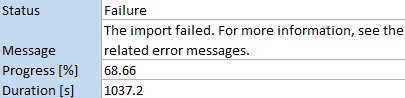
    It’s not very uncommon to experience timeouts with CRM when working with large solution files. There are various settings that you can modify to overcome this issue, including the OLEDBTimeout, Web.Config parameters etc. However, I wasn’t having success with the solution import regardless of having applied the registry and settings changes, so I thought why not crank it up a bit and give my virtual machine some more resources. After all, isn’t that one of the selling points of on-demand cloud computing? If you need more power, just adjust the lever and consume the resources as you see fit.

    I proceeded with shutting down my virtual machine from Windows and going to the Azure management portal. After finally getting the portal to confirm that the machine was in a stopped state, I changed the virtual machine size from medium to large (4 cores, 7 GB). Great, now let’s fire it up once again by clicking on Restart and… it doesn’t start. Trying it again and still the only result I get is the following notification in hte Azure portal:

    The virtual machine cannot restart. The current virtual machine state is RoleStateUnknown.

    Ok, I’ll wait a while, I thought to myself. After a few minutes and some more clicks on the Restart button I was starting to get a bit anxious on why my server wasn’t booting up. I started googling for the error message and discovered a discussion thread that indicated I wasn’t the only person in the world suffering from this problem. The RoleStateUnknown message appears to be a known issue that the Windows Azure team will be fixing by the time the Preview phase is over, but for the time being, this is something you can expect to happen if you power off a virtual machine in Azure on a bad day. If the error message does not go away, the only workaround you have is to create a new copy of your virtual machine.

    While there are ways to do the process through PowerShell to export & import the virtual machine, I decided to take the GUI route and just click on the Delete button on my virtual machine. I must admit that particular action doesn’t feel quite right, deleting the very server you’re trying to get back up, but in this context it’s actually not as catastrophic or irreversible as it sounds at first. You see, the server really is just a VHD disk that has been assigned the hardware, IP and other pieces that make it operational. It’s also worth noting that this is the way how you can stop incurring costs from your virtual machine. If you just shut down your VM, you will still be charged for it, but if you delete the server, you’ll have an image available that you can later on use for creating a new server.

    After deleting the server, I created a new one with the same configuration. OK, not exactly the same, as both the [servername].cloudapp.net DNS entry and the IP address will change in the process. Also do note that the remote desktop port will be different, so only updating the server name in your RDP settings won’t allow you to connect, as I quickly discovered after clicking on Restart.

    Oh yeah, I had that extra F-drive on my machine, too! Better remember to attach that disk as well, since that’s where my CRM databases are located. I hit a restart on the SQL Server service, but noticed that the databases still weren’t available. Then I remembered what Shan McArthur had accidentally demonstrated in his Windows Azure 2012 Spring Wave webinar session on XRMvirtual earlier this week. Although the D-drive on an Azure virtual machine is great for storing temporary data that doesn’t need to be consuming that precious C-drive, the fact that the D-drive is only a temporary storage means also that any directory which you create on that disk will not be available once you spin up a new virtual machine from the same VHD. A quick peek into the Windows application log confirmed that this was what was keeping my SQL Server from starting up, as it wasn’t able to locate or create Temp DB and log it needed.
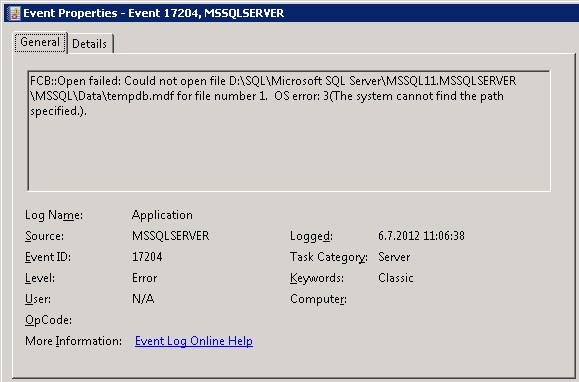
    “FCB::Open failed: Could not open file D:\SQL\Microsoft SQL Server\MSSQL11.MSSQLSERVER\MSSQL\Data\tempdb.mdf for file number 1.  OS error: 3(The system cannot find the path specified.).” There we go, that was the path that was missing from my D-drive. In a default configuration the temporary database would have been under C:\Program Files, but I had put it on D:\SQL instead, so I needed to manually go and create the folder. After this my virtual machine was again able to run CRM the way that is was meant to be. I’m sure there’s a PowerShell script sample out there somewhere for those who wish to automate the directory existence verification and creation upon restart of their servers, but this shouldn’t be a too frequent problem unless you go deleting your Azure virtual machines on a regular basis, so I didn’t bother looking up one right now. The main thing for me was I had my CRM test server running now on double the capacity.

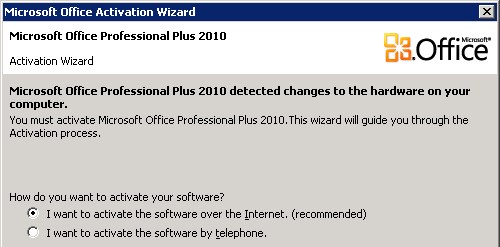
    As a side note, once I opened up Excel, I was greeted by this Microsoft Office Activation Wizard. I guess that proves that it’s now really a whole different machine I’m working on, even though I booted up from the same VHD that I had already activated on the previous day. Hardware based license management feels a bit funny when operating in such an intangible environment as Azure, but that’s how it is…
    Finally, let’s get back to the topic mentioned in the title of this blog post: What is the right way to change the size of your Windows Azure virtual machine? It turns out that you can actually do this right from the Azure management portal without shutting down your server. That’s what it says on the Azure community pages:

    NOTE: If you are attempting to just change the size of your Virtual Machine, you can do this without stopping the Virtual Machine. You can go into the “Configure” tab on the virtual machine in the management portal and select the Virtual Machine size. This will change the size without first stopping, which will allow you to avoid this issue in this scenario.
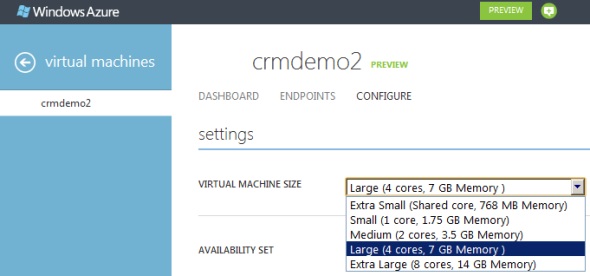
    Will be interesting to see how the Windows server will cope with disappearing CPU cores and memory if I decide to go back from Large to Medium, but I’ll leave that experiment to the next time. Now let’s see if I could get that solution file imported first…

  • CRM adventures in Azure: SQL Server 2012 updates

    CRM adventures in Azure: SQL Server 2012 updates

    Windows Azure Pricing Calculator for Virtual MachinesAfter Microsoft announced their latest enhancements to the Windows Azure service catalog in the beginning of June (although still in a preview phase), I wanted to test the Azure Virtual Machines for running a Microsoft Dynamics CRM 2011 server instance in the Microsoft hosted cloud. Since we now have an excellent step-by-step tutorial available from Shan McArthur / AdxStudio, it was a breeze to get going with the installation process. You should also check out the Gold Coast blog by @devkeydet for some really helpful articles, such as Building a CRM 2011 dev box using a Windows Azure Virtual Machine. With high quality community content like this available, who wouldn’t want to build a CRM server in Azure?

    Hopefully I’ll get a chance to write some of my own experiences on working with Windows Azure in the future, but the first issue I ran into is actually more related to SQL Server in general.

    Side-by-side was not on my side

    In addition to Azure, I also wanted to utilize the latest SQL Server 2012 version to investigate what new reporting capaibilities it might offer compared to the trusted old SQL 2008 R2. The SQL 2012 installation went through without any errors but after I tried to launch the CRM installation I discovered that Reporting Services was not running. In the application log I had the following errors:

    Service cannot be started. System.IO.FileLoadException: Could not load file or assembly ‘ReportingServicesNativeServer, Version=11.0.0.0, Culture=neutral, PublicKeyToken=89845dcd8080cc91’ or one of its dependencies. The application has failed to start because its side-by-side configuration is incorrect. Please see the application event log or use the command-line sxstrace.exe tool for more detail. (Exception from HRESULT: 0x800736B1)
    File name: ‘ReportingServicesNativeServer, Version=11.0.0.0, Culture=neutral, PublicKeyToken=89845dcd8080cc91’ —> System.Runtime.InteropServices.COMException (0x800736B1): The application has failed to start because its side-by-side configuration is incorrect. Please see the application event log or use the command-line sxstrace.exe tool for more detail. (Exception from HRESULT: 0x800736B1)
    at Microsoft.ReportingServices.Library.ServiceAppDomainController..ctor()
    at Microsoft.ReportingServices.Library.ReportService.OnStart(String[] args)
    at System.ServiceProcess.ServiceBase.ServiceQueuedM…

    Activation context generation failed for “F:\SQL\Microsoft SQL Server\MSRS11.MSSQLSERVER\Reporting Services\ReportServer\bin\ReportingServicesNativeServer.dll”.Error in manifest or policy file “C:\Windows\WinSxS\manifests\amd64_microsoft.vc80.atl_1fc8b3b9a1e18e3b_8.0.50727.4053_none_8a1a02152edb659b.manifest” on line 0. Invalid Xml syntax.

    After a bit of googling I landed on a blog post on SQL Server VC++ Installation voes, which seemed to describe the exact same issue I was facing. I tested the sxstrace tool and the System File Checker (SFC) referenced in the post, reproducing the same results as the author was getting. It turned out that this side-by-side (SXS) error was caused by a manifest file that was empty. A similar discussion was also found in the Windows Azure Virtual Machines for SQL Server MSDN forum, so figured I must be on to something.

    Just before I was about to start modifying the manifest file properties and copy pasting the content there, I noticed that there was one detail which stopped me from proceeding: both of the posts were referencing an x86 processor architecture file (x86_microsoft.vc80.atl_1fc8b3b9a1e18e3b_8.0.50727.4053_none_d1c738ec43578ea1.manifest), whereas my error was related to the amd64 version (amd64_microsoft.vc80.atl_1fc8b3b9a1e18e3b_8.0.50727.4053_none_8a1a02152edb659b.manifest). So, I needed to hunt down the correct manifest file content for the 64-bit version with the proper hash value, but unfortunately this was where my googling came up short.

    After being a bit more creative with my search terms, I discovered the Microsoft knowledge base article 2688946: FIX: Error message when you install SQL Server 2012: “The identities of the manifests are identical but their contents are different”. The article also said that the fix for this issue was released in Cumulative Update 1 for SQL Server 2012. So, off to KB 2679368 then to request a download link for the CU1 file. Looks like MS doesn’t want just anyone installing these, so they make you fill in a form with your email address + captcha in order to get the file, but luckily that’s all there was to the process.

    I was a bit puzzled by the fact that the CU1 installer said “This installation provides updates for the Community Technology Preview (August CTP)“, but apparently it’s fully valid for the RTM version, too. I guess the components in SQL tend to be less strict about versions, since the SQL Server 2012 Reporting Services Configuration Tool still has “SQL Server 2008” in the process description… Anyway, after applying CU1 I was able to start the Reporting Services service and proceed with the CRM installation. Success!

    The lesson: there’s always an update hiding somewhere

    When building your development or demo environment, it’s important to be aware of the fact that what you get from the MSDN subscriber downloads site is mostly RTM bits. Especially when going for SQL Sever 2012 as the database for Dynamics CRM 2011, you should not use these files at all, because the installation won’t work. Just grab the product key from MSDN, but go to Microsoft Download Center here (direct download link to CRM 2011 Server) to get the new version that includes Update Rollup 6. Otherwise you won’t be able to configure the Reporting Extensions and will get the error “Unable to validate SQL Server Reporting Services Report Server installation. Please check that it is correctly installed on the local machine.” See this thread on the CRM Forum for some more info.

    Shortly after completing the CRM installation I discovered that there is in fact already a Cumulative Update 2 for SQL Server 2012, too. Wow, things move fast nowadays! Didn’t SQL 2012 get released just recently? Well, it turns out that actually the first cumulative update to SQL Server 2012 was released only 9 days after the general availability (GA) of SQL 2012. Let’s have a look at the Incremental Servicing Model of SQL Server in a bit more detail to understand what’s going on.

    It looks like also the SQL Server team have adopted a fairly agile release policy that mirrors the Dynamics CRM release roadmap concepts to some extent. What they call a Cumulative Update (CU) seems to correspond to the Update Rollup (UR) in the Dynamics CRM lingo, meaning they are both collections of hotfixes, released on a bi-monthly target schedule. However, unlike CRM Update Rollups that are nowadays delivered through Windows Update / Microsoft Update, the SQL CU’s won’t be delivered through this mechanism, because those updates need to fall into the General Distribution Release (GDR) category as defined by Microsoft (you didn’t think it was going to be that simple, now did you?). So, that’s why after installing SQL 2012 + CRM 2011 on a new Windows server you’ll automatically get Update Rollup 8 for CRM, but no updates for SQL. If you need the latest hotfixes, you should acquired the Cumulative Update package through the KB pages.

    Finally, yes, there will also be a Service Pack 1 for SQL Server 2012 released eventually, as many people will refrain from deploying a production database on a new version until this traditional MS software milestone has been reached. Whether the SP1 for SQL 2012 will be a similar release as the Q2 2012 Service Update for Dynamics CRM (to be released sometime in Q3) I’m not so sure, since in the world of CRM these Service Updates contain significant new functionality in addition to the previously released hotfixes. The latest information on SQL updates can be found from the SQL Release Serivces Blog. Note that there are no Service Packs available for Dynamics CRM, so the terminology used in describing the release policies will likely remain different from other Microsoft products like SQL or Windows. For a more detailed description of the CRM update terminology and delivery mechanisms, please see my previous post on the topic.

  • When will my cloud get updated? CRM Online and Update Rollup status

    The benefits of running your Dynamics CRM application in Microsoft’s cloud is that you don’t have to worry about installing update rollups to your server, since MS takes care of all that maintenance. The downside is that you can’t be sure when exactly the updates take place. As we’re coming closer to the expected release date of Dynamics CRM R8, it’s a good time to reflect on the past update schedules of CRM Online.

    As of mid-June, CRM Online organizations are still running only the Update Rollup 5 version (at least on the EMEA CRM4 data center), while on-premises environments may already be running Update Rollup 8. No matter if you use an existing environment or sign up for a new trial organization, the version you get is 5.0.9688.1561. This corresponds to roughly the build number of on-premises UR5, which is 5.0.9688.1533, whereas Update Rollup 6 is 5.0.9690.1992 already. How can you check the version of your CRM Online application? Simple: on the browser client just click File – Help – About Microsoft Dynamics CRM. You’ll see version from the top of the pop-up screen.

    So, where do I go to translate those ten digits into a human readable version name? For the list of detailed build numbers, related KB articles and other information, be sure to bookmark this page on the Dynamics CRM In The Field blog: Microsoft Dynamics CRM 4.0 and 2011 Update Rollup Release Dates, Build Numbers, and Collateral. That page is being updated as new rollups are released and it also has in the past contained projected release dates of upcoming updates as well. Has, since at the time of writing it no longer does. Also note that the CRM Online build numbers and release schedules can and will differ from on-premises, as we’ve already seen.

    How to check the Update Rollup version on CRM Online

    Back when Update Rollup 7 was released on March 22nd, the accompanying post on the CRM Team blog promised the CRM Online Datacenter update schedule to “Mid to Late April, 2012”. This was also the information on the related article KB 2600643, but things have changed since then, as now all the post UR5 KB articles read:

    For online customers Infrastructure improvements are being made to CRM Online. Because of this, update rollups will not be applied to servers until the improvements are complete. Through the System Notifications page for the system maintenance window, you will be notified of when your organization will be updated to the new infrastructure. The latest updates will be applied at that time. 

    It’s no secret that Microsoft is working on bringing the Dynamics CRM Online and Office 365 clouds onto a single platform and unifying many of the surrounding components, such as subscription management or user authentication. This has apparently caused the planned schedules of Update Rollups to CRM Online get changed from those earlier communicated. When UR5, also known as the Q4 2011 Service Update, was released, it was deployed first to CRM Online environments before becoming available for on-premises and hosted environments. Since then we’ve seen UR6, UR7 and UR8 all get released to the on-premises environments first, with CRM Online remaining in the “UR5+” status for quite some time. Note that the builds are not exactly the same and there are likely to be differences in what the terminology means for different platforms. For example, UR6 brought support for SQL Server 2012, but we’ve already heard Microsoft say that CRM Online was running on SQL 2012 long before that.

    What the current status of updates to the Microsoft hosted cloud means that CRM Online customers are not yet able to leverage enhancements brought in UR6-8, such as the read-optimized forms introduced in Update Rollup 7. Also any server side bugfixes and functional changes beyond UR5 must be assumed to be lacking from CRM Online organizations, although we can’t know for sure what may have been applied as hotfixes. For example, problems with connections not merging when deactivating duplicate records was fixed in UR7.

    On the client side things are a bit different, since all the Update Rollups are rolling onto CRM Outlook clients through Microsoft Update. There is no longer a separate client version for Online and on-premises, so everybody gets the same hotfixes. Even though Microsoft recommends that the client and server Update Rollup versions should be kept close to one another, they don’t need to be identical. Here’s what it says on the CRM In The Field blog:

    The general rule of thumb is to try to keep the versions in sync as much as possible. However, it is permissible (though not recommended as a long-term solution) to run mismatched Update Rollup versions on Outlook client and server, as Microsoft does do some testing of such combinations.

    So, since the CRM Online version difference is obviously well known by MS, the UR combinations shouldn’t be an issue for Outlook users who’ve deployed the latest Microsoft Update packages. Even if you’re using the offline database in your CRM Outlook client, I assume compatibility between the CRM Online database has been taken into consideration. Of course in the field of IT, you should never assume anything, rather you should test any Update Rollups in a dedicated test environment, but smaller CRM customers may not always have that luxury. Which gets us to the following rule of thumb: don’t ever be the first one deploy the latest Update Rollup once it’s released. Wait a few weeks and check out the CRM forums and blog posts to read about the experiences other users have with the latest update, only then decide to deploy the update onto production devices (first onto your own test servers and clients, if you have them available). The Dynamics CRM community tends to be quite effective in reporting new issues that arise with UR’s, so leverage the wisdom of the crowd and save yourself from some unpleasant surprises.

    The big question that many people are searching for an answer to is: when exactly will Dynamics CRM R8 / Update Rollup 9 / Q2 2012 Service Update be released? (In case that previous terminology trio made no sense to you, be sure to read my explanation of the “Dynamics CRM update & version madness”.) I wish we knew, but in reality only Microsoft has that information and it hasn’t been publicly communicated. We’ve got less than two weeks to go on the Q2 of 2012, which makes it a tight schedule to keep if also Online organizations would need to be updated in addition to releasing the on-premises bits. We need to remember that R8 is a very significant update due to the added cross browser support, which will surely keep many CRM developers busy with fixing legacy scripts, so any issues that the R8 beta program may have revealed certainly need to be thoroughly investigated and I’m glad if Microsoft is taking extra time to get the whole CRM Anywhere experience right with UR9.

    Status update 2012-06-20: As reported on XRM Services blog, the US data center CRM Online organizations were updated to 5.0.9690.2174 on June 19th, which translates to Update Rollup 7+ but still a bit below the Update Rollup 8 available for on-premises environments. A similar update has been scheduled to take place on EMEA data centers one week later, on June 26th. Since it’s quite unlikely that there would be several maintenance breaks on consecutive weeks, this appears to indicate that at least for CRM Online customers the long awaited R8 release, also known as Microsoft Dynamics CRM Q2 2012 Service Update, appears to be delayed from the original schedule and now seems to become “Q3 2012 Service Update”. It is of course still possible that the on-premises bits for Update Rollup 9 will be released before the end of June.

    Status update 2012-07-04: It’s Q3 now and we know for sure that the release of R8 has been delayed from Q2 2012. The service break for CRM Online on June 26th in EMEA didn’t actually bring any updates to the CRM application, but now there’s another maintenance break scheduled for July 11th. Since the US data center went from UR5+ to UR7+ in the previous round, this may just be EMEA catching up on the delayed Update Rollups.  I’ll update the post again as we see the results or hear announcements from Microsoft so watch this space.

    Status update 2012-07-07: Finally we have a release date of July 19th for CRM Online. However, the “CRM Anywhere” functionality has been dropped from the update and will not arrive until six months later in Q4 2012. Read my analysis on the announcements from this blog post.

  • File storage and CRM: what you should know

    File storage and CRM: what you should know

    Dynamics CRM is a great system for managing your customer data. “Alright, so can you tell me how do I upload all my customer document folders in here?” Well, you don’t. Or more precisely, you better not do it. You see, while it’s more than likely that you have lots of files regarding your existing and potential customers, putting these into your customer relationship management system is rarely a sensible approach. Let me illustrate a few issues that you will encounter if trying to use file attachments in Dynamics CRM as document management solution.

    Storage cost

    Due to some recent announcements on pricing & functionality related updates in Microsoft’s cloud based services in April 2012, I decided to do a little comparison of storage costs between three services. SkyDrive, a consumer focused product that has very recently acquired Dropbpx-like skills of synchronizing content from one or more client PC’s (or mobile devices) into the cloud. SharePoint Online, the SaaS edition of Microsoft’s collaboration / content management platform that’s currently licensed to around 125 million business users around the world in all it’s editions. Finally, CRM Online, the Microsoft hosted version of Dynamics CRM. All of these products include some base level quota for storage, but since the subscription prices per user are not really comparable due to the application functionality included in each, I’ve instead chosen to compare what is the cost of an additional 50 GB storage on each service.

    See the percentage difference in the table when compared to SkyDrive? While a pure file system storage service in the cloud for consumers is practically free these days, as we move towards more structured databases with metadata and workflow related functionality wrapped around the file, things tend to get more expensive. SharePoint Online has just recently cut it’s storage prices by a whopping 92%, yet it remains almost five times as expensive as SkyDrive. Since the price per GB on Dynamics CRM Online has not changed (at least yet), CRM in turn is 50 times as expensive as SharePoint Online. (Note: storage space ain’t cheap on other cloud based CRM systems either, including Salesforce.com).

    Ok, so maybe you’re managing your own servers and SAN’s, which means the direct cost per GB isn’t dramatically different between file shares and database blobs. Let’s look at some application level features that will affect your CRM users nonetheless.

    Search experience

    If we put our files into a structured database that has lots of customer information already, surely that makes them easier to discover when needed? Well, to some extent it does, but not necessarily the way you’d expect. “Did I attach that document to an account, opportunity or contract?” When it comes to Dynamics CRM, you’ll need to be able to answer this question before performing your search, as there is no out-of-the-box way to perform search across multiple entities. Also, instead of entering a natural search phrase like “online migration scribe”, you’ll need to build your query one parameter at a time in Advanced Find, specifying which values should be found in which field or related entity.

    Chances are you found this blog post through Google. That’s the way us humans tend to find what we’re looking for nowadays: free text searches on whichever keywords we have in our minds, rather than selecting a combination of attribute values that correspond to the parent object of the file we are after. Oh, and in case you wanted to search for text from inside the document, forget about it. Attachment contents is not indexed in Dynamics CRM, only fields on the entities directly are available for the search tools.

    Editing experience

    Do you ever need to revise the documents you’ve once created? Having the file as an attachment on a CRM record doesn’t quite give you the same kind of flexibility as a network drive or a document management system. You can’t directly open a document from the system into your MS Word, start editing it and save the changes. Rather you’ll need to store it temporarily on your local hard drive, then upload it back to CRM. The number of clicks and dialog windows involved in the process will not exactly encourage your end users to share information through CRM if they need to go through these steps repeatedly.

    How about archiving different revisions of the document? Let’s not even go there, at least with CRM alone.

    What should we do with our files then?

    While it’s certainly not the end all, be all solution for document management, you should definitely give SharePoint a go and see if it delivers the type of functionality your CRM users would benefit from. The built-in integration between Dynamics CRM 2011 and SharePoint 2010/Online removes much of the pain points mentioned above. Even though it may not cover all the customer document management scenarios directly (access rights, custom folder/site structures etc.), storing files in SharePoint document libraries instead of Dynamics CRM will automatically help you address many of the aforementioned issues related to content search, storage and editing. Also, the CRM SDK provides further extension points for SharePoint document management functionality development, combination with SharePoint’s extension points. You can see an example of such a scenario in this post on the CRM Consultancy blog.

    Thanks to the cloud version of SharePoint Online supporting Dynamics CRM integration starting from November last year, you can easily test the document management functionality in your existing Dynamics CRM 2011 / Online environment by signing up for an Office 365 trial account. With Office 365 E package subscriptions starting at € 7.25 per user per month, even if you’d use the whole subscription for nothing more than complementing the functionality of your CRM system, the cost wouldn’t be all that high, just 18% of a CRM Online subscription price.

    Better yet, if you sign up for Office 365 first and then later on purchase CRM Online, you’ll gain the luxury of using a single Microsoft Online login across both systems (see this post for the steps). Others will need to keep using Windows Live ID for Dynamics CRM until the transition to a single platform on Microsoft’s end has been completed sometime in the future.

  • Enterprise gone social – how will CRM fit in?

    Enterprise gone social – how will CRM fit in?

    Call it a revolution, call it a bubble, call it what you want. One thing is for sure: social networks are not going away. Even though it still remains important to be able to manage and measure your sales funnel with the help of some tried & tested SFA tools, segment your customer database to build more effective target groups for campaigns, or share information on customer support enquiries across your helpdesk staff, this functionality will not be considered as important as it was during the last decade. In this new age of connected customers and empowered information workers, companies will be searching for applications and processes that go beyond what CRM has traditionally stood for.

    Let’s take a look at some of the recent news surrounding the world of CRM, to gather evidence of where we might be heading towards.

    Takeways from #SFDC #DF11

    On the last week of July, Salesforce.com held their annual Dreamforce conference in San Francisco. As a person working with Dynamics CRM for a living, it’s a good idea to keep an eye on where the other CRM solution providers are focusing their development efforts on, and SFDC certainly is one of, if not the main competitor that Microsoft has their eyes on. In his opening keynote, Marc Benioff made it very clear where his team’s focus is on, and that is the concept of a social enterprise. I’ll spare you from the marketing flare and instead present a few screenshots captured from the presentation, highlighting the new feature announcements.


    So, what’s in the pipeline for Salesforce.com during the winter 2011/2012 then?

    • Contact profiles will be “social enabled” by default, showing public feeds from networks were your customers are present
    • Data.com, previously known as Jigsaw, will power the social data discovery and data import, in combination with D&B’s database
    • Chatter Now extends the functionality from microblogging to instant messaging with presence information
    • You can invite your key customer contacts to specific Chatter networks, or even publish Chatter on the web as a customer service channel
    • Radian6’s technology will monitor those customer complaints that are not targeted at your helpdesk, enabling you to jump in on the conversation
    • All of this follows you everywhere you go, as touch.salesforce.com promises to deliver a HTML5 client that’ll make your iPad or smartphone a full-fledged social CRM control panel

    Even if you leave away some of the over-the-top scenarios presented, like friending the Coke machine or having network routers tweet you on social networks, it’s still clear that with all the promised functionality at your fingertips (once it’s available and working in a reliable manner), the possibilities for you to design and implement new business processes will be dramatically expanded. Whether companies are able to make use of and, more importantly, make money out of these new possibilities is a different question, but it surely does push the boundaries of CRM as we know it.

    Social CRM is where it’s at

    “Social” certainly is an attractive attribute to include in your product description these days. Gartner, for example, has predicted that the market for Social CRM would reach a total value of one billion dollars by the end of next year. Predicting the future with concrete figures is always a challenge, but it’s even more difficult when people don’t even agree on the definition of the market to be predicted. Several analysts have commented on Gartner’s reports, starting from reminders that an SCRM market may not really exist yet, or they have questioned Gartner’s choice of products included in their SCRM Magic Quadrants as including applications aimed at other functions than what CRM systems traditionally are about – managing customer information, that is.

    (more…)

  • Office 365 launches without Dynamics CRM integration for document management

    Office 365 launches without Dynamics CRM integration for document management

    Today was finally the big day when Microsoft’s cloud productivity platform BPOS was replaced with Office 365, which is now available for subscription. Having played with the beta version for a while now, I’m overall quite impressed with how close the SharePoint Online environment now is to its on-premises counterpart. While the limitations are still somewhat more visible than when comparing CRM Online vs. CRM 2011 on-premises versions, I think it’s already close enough to enable a significant part of traditional business requirements for SharePoint to be fulfilled with the cloud platform.

    Microsoft confirmed already last fall that also Dynamics CRM Online will eventually be migrated onto the same Online Services Delivery Platform as Office 365. In addition to being a natural fit with SharePoint and Exchange, CRM Online should also gain benefits into both its subscription management as well as authentication options as a result of  this migration. However, there’s no official timeline or feature set communicated yet, so we’ll have to keep waiting possibly until Q4/2011, when the next update for Dynamics CRM has been scheduled to become available, as announced in the latest Statement of Direction document.

    Ever since Dynamics CRM 2011 was launched with built-in SharePoint document library integration, there’s been a bit of anxiety on when this functionality could be leveraged with the cloud versions of CRM and SharePoint. Since BPOS was built on SharePoint 2007, it wasn’t possible to utilize the Microsoft Dynamics CRM 2011 List Component for Microsoft SharePoint Server 2010 in the Online environment. This meant that setting up a document management enabled trial environment with CRM Online required an on-premises SharePoint server, which wasn’t too convenient. Nor was it for any customer looking to go “all in” with their MS applications. Oh well, but now that Office 365 is available, that’s all a thing of the past, isn’t it?

    Wrong! Despite of the better together marketing message surrounding Office 365 and CRM Online, there’s actually still no way to integrate the SharePoint document libraries with the CRM List Component. Sure, you can upload the solution file into a SharePoint Online site and publish it. What you cannot do in the Online version is to take care of the second part of the installation steps, which involves the AllowHtcExtn.ps1 PowerShell script,used for enabling .htc file extensions to be served from SharePoint.

    Why is this important? Because without the .htc support, you can’t actually do anything with the document library. The folder creation can be configured and it flows through as it should when accessing the Documents menu for a new record, such as an account. However, after that you are presented with the following prompt:

    “The action buttons are disabled because the SharePoint server that you are using does not allow HTC component files. To enable the buttons, contact your system administrator.” What this means is that the document library will be rendered nicely inside the CRM entity form, but you can’t upload any documents to it. Clicking on the buttons does nothing, as they’re all disabled.

    How about on the SharePoint side of things then? We can see that the entity specific document libraries are created and also the corresponding folders for each record where the document location has been defined. We can also of course use the native SharePoint UI to upload documents into the library.

    Then when you access the corresponding record through CRM, you can see that the document does appear in the library. But with all the controls disabled, you again cannot do anything with it, like open the document, for example. How nice…

    How did we end up in this situation where the latest and greatest cloud offerings from Microsoft are not working together like they obviously were inteded to? That’s a very good question. The problem with Office 365 SharePoint Online limitations and their implications to Dynamics CRM document management functionality has been a known issue throughout the whole beta phase of Office 365. There are several threads on the Office 365 community forums regarding this. Yet the response from Microsoft has been that this cannot be resolved by GA (general availability) of Office 365 (as in “today”), but rather we’ll have to wait for the first service update, probably. Come on! How can 6 months not be enough to allow one .htc file to perform its work and provide the document integration between CRM and SharePoint? I find it extremely strange that the product management behind Office 365 has allowed such a flaw to be included in the initial release version.

    Of course eventually this issue will be solved and we’ll be able to experience the full document management process flow with Microsoft’s cloud applications.

  • Cloud XRM presentation from PDC 2010

    Andrew Bybee and Girish Raja had a pre-recorded session released on the PDC10 site, called Building Business Applications in the Cloud with Dynamics CRM Online. Not surprisingly, this presentation was revolving heavily around Microsoft Dynamics CRM 2011 and how it’s new features can help developers build XRM applications on top of Microsoft’s cloud architecture: Windows Azure, SQL Azure, AppFabric and, last but not least, CRM Online. You can view the full session here, below are a few takeaways from that session for the CRM crowd.

    The concept of XRM is probably pretty clear to most of us by know, but since PDC is not a Microsoft Dynamics event, an introduction was of course presented. The example used by Andrew here was the familiar HR scenario for processing job applications.

    In the next slide the MS pieces of the puzzle are laid over the solution components.

    With the native support for SharePoint integration in CRM 2011 (limited but extendable through SDK), drawing the document management box inside the XRM platform is already perfectly valid. ERP in the cloud is not a scenario actively promoted yet, but that’s where AppFabric and CRM 2011’s Azure aware plug-ins come into play, allowing the cloud apps to exchange data with on-premises apps. The whole Azure side of things is of course presented in less detail, as these are more of generic services rather than the XRM framework which Dynamics CRM 2011 tries to deliver us. Anyway, compared to the first application development platform talks around Dynamics CRM, it’s safe to assume that Microsoft’s cloud message will become inseparable from the XRM story and form a single Cloud XRM concept. In order to challenge SFDC and Force.com, the hybrid model and power of choice will of course remain in the marketing materials, but I’m sure no one wants to build a non-cloud demo for these kind of conferences anymore.

    (more…)

  • Greetings from Microsoft Convergence 2010 EMEA

    Continuing with the format introduced in 2009, this year’s Microsoft Convergence for the EMEA region was split into three locations: London, Prague and The Hague. Out of all the options, Prague fit our schedules the best, so that became our destination of choice to hear the latest news and buzz around Microsoft Dynamics products.

    With the fairly recent release of Dynamics CRM 2011 public beta, there was certainly a lot for Microsoft to present on the CRM front. Having been working with the product since CTP3 already, I wasn’t expecting too many surprises for myself in the CRM 2011 session contents. It’s still interesting to observe what is being said about the new release and how the customers and partners react to it. There is such a wealth of new, important features included in CRM 2011 (see my walkthrough slides for starters) that you can’t really construct the one right pitch for the product. You could say that there’s something for everyone.

    We saw the first glimpse of CRM 2011 during Kirill’s keynote, when Reuben Krippner showed a bit of Process Dialogs in the Dynamic Business demonstration. From there on, Reuben was a busy man, since he was giving demos in the next four consecutive CRM sessions on the agenda. Great job pulling it off, Reuben! Let’s hope Liverpool picks up their pace in the Premier League, so we can see some more of them in future CRM demos 😉

    Barry Givens held the last CRM session of the day, focusing on data visualization in CRM 2011. Not like we hadn’t seen the charts a few times already during the day, but hey, I always enjoy hearing Barry talk about his favorite topic i.e. analytics in CRM. While the out-of-the-box charts in CRM 2011 certainly do deliver value, you should really look at the broader picture of what the visualization features introduced in the new version truly mean in terms of customization and application design. The charts are actually one alternative method of navigation, due to their tight integration with grids and the drill-down capability. They can be embedded not only on grids but also forms (through sub-grids), bringing visualizations to every part of the CRM UI. Oh, and don’t forget to check out my post about editing the .NET Chart Controls for CRM 2011. Dashboards, on the other hand, are not just an item in the main menu but rather a new form type. By allowing flexible arrangement of embedded components like grids, charts and web resources, the dashboard forms might actually one day become the next generation UI for navigating in Dynamics CRM. You know, something for the future ahead of us when every modern web app must be built in RIA fashion, with Silverlight controls and what have you.

    (more…)

  • Dynamics CRM summer news round-up

    The number of blogs, forums and news sites revolving around Microsoft Dynamics CRM can feel somewhat overwhelming, especially when you’ve spent some time being “unplugged” from the constant feed of information that surrounds our everyday lives. During my four week summer vacation I did managed to keep my hands off CRM most of the time, but the news and posts accumulating on my Google Reader still kept me quite firmly in the loop. Here’s a summary of a few Dynamics CRM related topics that caught my attention this summer.

    Refreshed Virtual PC image with Portal Accelerators

    Microsoft released an updated version of the VPC image that comes with Dynamics CRM 4.0 preconfigured, available for download on CustomerSource or PartnerSource. There’s more on it than just CRM, check out the following list for all the goodies:

    • CRM 4.0 with Update Rollup 11
    • Windows Server 2003 R2 SP2
    • SQL Server 2008 SP1 – SSRS, SSAS
    • SQL Server 2005 Express Edition
    • Office SharePoint Server 2007
    • Office Communications Server 2007
    • Office PerformancePoint Server 2007
    • POP3 Server
    • Visual Studio 2008
    • IE8
    • Office 2010 SP1
    • Windows Mobile 6 SDK and Activesync

    The image has been tweaked to include two virtual hard drives (VHD), allowing the swap file to be physically located on a USB drive, which is promised to improve performance by ~30%. How that figure has been determined is beyond me, but the environment works quite well on my Core i3 2.26GHz, 4GB, Win7 x64 setup. It would of course have been super nice to get your hands on a SharePoint 2010 environment, but the hassle of x64 environment virtualization with Hyper-V instead of Virtual PC would have not been worth all the trouble (although I’ve heard VirtualBox should be able to run also 64-bit images without Windows 2008 hosts). Let’s just settle for MOSS 2007 with Office 2010 client components.

    What made this VPC image especially interesting to me was the latest versions of the Portal Accelerators. Now, I never really had hands-on experience with the first wave of Portal Accelerators released for CRM 4.0, but from what I’ve heard the results delivered didn’t quite live up to people’s expectations. This new breed of accelerators, on the other hand, is based on the technology found in the commercial products of Adxstudio, who have built a full blown content management system on top of Dynamics CRM. I simply had to test drive the Customer Portal and Partner Relationship Management Portal, after seeing them promoted in Convergence 2010 Atlanta. (more…)

  • Dynamics CRM 2011 and the world of (cloud) apps

    On July 12th it was announced in the Microsoft Worldwide Partner Conference (WPC 2010) that there will be no CRM 5.0, instead we will have a product called Microsoft Dynamics CRM 2011. Not a huge surprise, considering the other Dynamics products like AX and NAV had already moved to this naming convetion followed by the Office family for quite some time now (actually 15 years, if we exclude the odd Office XP release in the middle).

    So much for the branding. Underneath it all we will have the “CRM5” engine evolving from CRM 4.0, with quite a few important improvements on how the application can be utilized as a platform for developing your own custom applications, a.k.a. the XRM mantra that Microsoft has been heavily promoting and showcasing between the product version releases. While this side of the coin will surely play an important part in gradually turning Dynamics CRM into part of the core enterprise infrastructure like SharePoint has become, the first thing most new users will see from the application will still be the Outlook client and traditional customer data management functionality. Which is why there have been some big investments from the Redmond boys on developing that side of the CRM product, as you can see from the picture below.

    Instead of merely wrapping the web client page into an Outlook frame, the new rich client interface introduces whole new components that attempt to follow the faimilar Outlook UI experience. Tabs will help in keeping the number of pop-up windows under control while the preview pane we’ve learned to take for granted in processing our email inboxes is now also available in the scope of CRM entity forms. Since Dynamics CRM 2011 now comes with the ribbon interface like most other MS products, the CRM functionality now blends into the Outlook toolbar and gets presented in all its context sensitive glory. (more…)