Blog

  • Advanced Queries with Advanced Find

    Advanced Queries with Advanced Find

    Dynamics_CRM_Advanced_FindOne of the more powerful features of Microsoft Dynamics CRM has to be the Advanced Find tool. What may initially seem like an intimidating maze of menus to a new Dynamics CRM user unfamiliar with the underlying data model, Advanced Find may quickly turn into an invaluable tool for anyone who needs to be able to retrieve specific sets of data from CRM, be it for marketing campaign target groups, ad-hoc data analysis or simply streamlining the usage of the system with saved views for surfacing frequently needed information from the database.

    Here are a couple of examples that show you how Advanced Find can go beyond the typical queries and deliver results that you might have not initially thought of being possible with the tool.

    Referencing the Current User

    Suppose you have a Business Unit structure set up in Dynamics CRM to reflect organizational units where the users generally work together on the same accounts. However, you’ve not restricted their visibility to records from other BU’s, so their view of all active accounts displays the complete contents of the database in a long list. While the users can easily filter their own records by using the My Accounts view, you’d like to offer them an option to see just the accounts owned by any user from their own Business Unit.

    Sure, you could create a long list of system views that are dedicated to a particular business unit (“Accounts from Finland”, “Accounts from Sweden”, “Accounts from Cayman Islands” etc.). The problem with this approach, apart from the number of view variations you need to create and present in the view list, is that it’s not dynamic by nature. Since you can’t centrally set different default views for different user groups in Dynamics CRM, all the users would have to know how to navigate to the “View” tab and click on the “Set As Default View” button to select the view specific to their business unit.

    Instead of all that manual labor, why don’t we build a query criteria with Advanced Find that says “show all accounts where the related owner is in a business unit that has a user that is me. Yes, it’s not exactly the way you would formulate the sentence when communicating with human beings, but this is the language that works with Advanced Find. If you don’t believe me, just try the query below for yourself:

    Advanced_Find_Acocunts_from_My_Business_Unit

    How about if you’re using Teams and would like to create a “my team’s records” type of a view? No problem, you can use the exact same method as with Business Units. Just reference the Team record under the Owning User entity and then add the same “user equals current user” criteria under the related user entity.

    In fact, since starting from CRM 2011 all business units also have a default team where the BU’s users are automatically added to as members, the team approach actually covers both the “my business unit” and “my team” scenarios. If, on the other hand, you’d like to only reference custom teams and not BU teams, include a criteria for the team records that says “Is Default equals No” to exclude the default business unit teams from your view results.

    Ok, so we get the results we were after, but what is the underlying logic that makes this query work? What we are doing in the Advanced Find query criteria definition in the above examples is referencing the relationships through this type of a pattern:

    Advanced_Find_Current_User_Relationships

    The key takeaway here is that there’s no need to limit your queries to only traditional one-to-many (1:N) type of hierarchies. In this example you start from the N side, then go through a “1” and spread out back into the N. Due to the flexible nature of the Advanced Find query designer in presenting all the available relationships, we are free to explore multiple different types of connections between the same entity in a single query. We pass through the user entity more than once but approach it from different relationships in order to define the final filter for the query.

    Multiple Conditions for Related Child Record

    Taking the exploration further, here’s a query method that may seem even less intuitive but is actually a more common requirement than the team/BU membership example. Sometimes you need to search for parent records that have two or more specific child records underneath them, meaning that the single query will have to find several different matches from the child records in order to qualify the parent record into the query results. Examples of such a scenario could be:

    • Accounts that have child contacts with the roles Decision Maker and Influencer
    • Customers who have bought both product A and B
    • Contacts that have attended events in the years 2011, 2012 and 2013
    • Orders that included line items for both Sales Inventory and Services

    When building such queries the problem you may face is that the results include parent record that meet any single criteria, when what you’re interested in is only the records that meet all the different conditions. Taking the last example of searching for line items of several different product types and using the Opportunity and Opportunity Product entities, if we’re including the Sales Inventory and Services values into a single condition for the Product Type field, any opportunity that has either Sales Inventory or Service products will be retrieved. (more…)

  • Keep Calm and Prepare for Orion

    keep-calm-and-prepare-for-orionJust a quick note to all the readers of my blog regarding a new post I wrote for MSDynamicsWorld.com on how existing customers can start preparing for the upcoming release of Orion, the next version of Dynamics CRM.

    That is all. Keep calm and carry on.

  • No-code Customizations with North52 Formula Manager

    North52North52 Formula Manager is a very interesting solution that promises to simplify the process of customizing and extending Dynamics CRM by offering a graphical toolkit to implement custom business logic that would otherwise require developing plug-ins in C# or adding Javascripts on the forms. Instead of writing custom code, the business logic can be configured through the N52 entities inside CRM, with the help of a Silverlight based editor to write formulas that check conditions, perform validations, update fields etc.

    In this article I’ll show you a few simple examples of how a person with no coding skills can perform some customizations that go beyond the GUI tools that Dynamics CRM offers. I’ll use the opportunity entity to add some client side actions to make the sales process a more guided experience for the end user. You can grab the free Standard edition of Formula Manager and use it’s 10 available formulas to try out these examples in your own CRM environment, or watch some of the training videos from North52 that cover several other scenarios.

    Default values

    The sales records in Dynamics CRM contain a few fields that sometimes don’t deliver any added value to the user, but they still need to be filled for each record. One common example is the usage of the price list. If your organization only has a single valid price list at any given time, the CRM users would surely appreciate it if the system could automatically populate the lookup field with the default price list when creating a new opportunity.

    Opportunity_default_price_list

    This is a very simple formula where all we basically need to do is populate a lookup field with a static value. To get the GUID of the price list, open it’s form in a new IE window by pressing Ctrl+N and find the string like “3F2504E0-4F89-11D3-9A0C-0305E82C3301” from it. Then create a new N52 Formula record and define the formula type as Save – To Current Record. We’ll set the mode as Client Side Classic and set it to run on the Create event, as we want the price list field to be populated with the default value only once – when the user creates a new opportunity record. The source and target entities should both be set to opportunity, as we’re updating the current record. The source property in this case is the event that triggers the formula, so let’s select OnLoad to fill the field immediately when the form is opened. Finally, the target property should be the field that will be updated with the results of the formula, in this case Price List.

    Different field types on the CRM form require different kinds of update procedures. Since we’re dealing with a lookup field and populating it as a client side event, let’s pick the SetClientSideLookup function from the N52 Formula menu and give it the required parameters of the entity name, record GUID and record display name:

    SetClientSideLookup(‘pricelevel’, ‘5EF541AA-67B6-E211-93F7-08002719F2F4’, ‘Default List’)

    FormulaManager_opportunity_default_pricelist

    Now we’ll just need to publish the formula and go test it out by creating a new opportunity record and verifying that the price list gets set to the record we wanted. In case you get an error prompt from N52 Formula Manager while opening the form, please revisit the formula record and verify that you’ve selected the correct options.

    Required fields

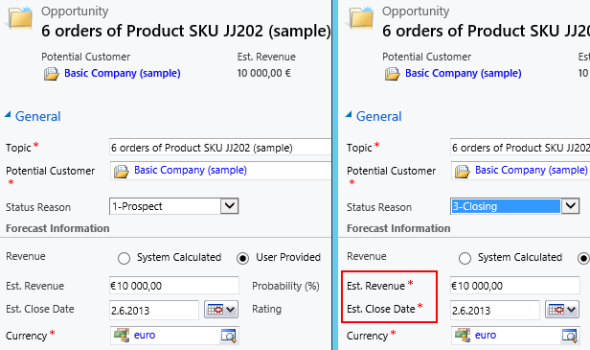
    Changing the requirement level of a field based on another field on the form is another common requirement. Let’s assume we have a simple sales process with three stages (picked up from the default CRM sample opportunity data): 1) Prospect, 2) Qualify, 3) Closing. We’ll use the Status Reason field’s (customized) values to drive the process and we want to enforce the following business rules:

    • If stage = 2) Qualify then make Estimated Close Date field required
    • If stage = 3) Closing then make Estimated Close Date and Estimated Revenue fields required

    In the UI the user would see the requirement level change dynamically when he or she changes the Status Reason field value and clicks elsewhere or tabs out of it.

    Opportunity_required_fields

    To achieve this feature with Formula Manager, we would build a formula that references the statuscode ID values and the schema names of the fields we want to set as required. Something like the following if-statements:

    if(([opportunity.statuscode]=’2′), SetRequiredFields(‘estimatedvalue’), if(([opportunity.statuscode]=’3′), SetRequiredFields(‘estimatedvalue’, ‘estimatedclosedate’), SetNotRequiredFields(‘estimatedvalue’, ‘estimatedclosedate’)))

    Basically what we do in the formula is first check for the stage 2, then stage 3 and finally use a default action for stage 1 to return the fields into not required status (so we also support moving backward in the stages). We’ll set the formula to run on the opportunity entity as a Client Side – Perform Action formula, tied to the source property of the Status Reason field, which effectively means it’s triggered with the OnChange event of that field as the user manipulates the form values. (more…)

  • LinkedIn, Dynamics CRM and Social Selling

    LinkedIn, Dynamics CRM and Social Selling

    LinkedInA significant share of Dynamics CRM systems tend to be implemented for B2B sales scenarios. In the age of social selling, digging up information about the person you’re about to call will quite often involve looking up his or her LinkedIn profile. With this in mind, surely everyone’s running a tight integration between their customer relationship management system and the LinkedIn network, right? Well, based on my personal experience, quite often it tends to be one of those requirements that come up during the sales phase but then get phased out from the actual go-live of a new CRM system.

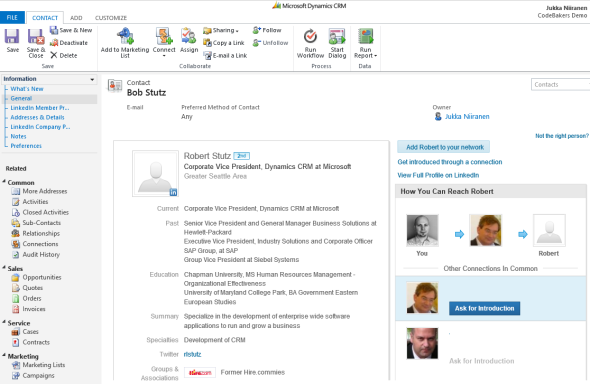
    The question of “how to integrate Microsoft Dynamics CRM with LinkedIn” has been making the rounds in various forums for as long as I’ve been involved with the product. Now that you’ve potentially arrived here in search for an answer (thanks, Google!), I thought I’d collect a few pieces of information and personal thoughts on the subject. If you have any experiences to share regarding using Dynamics CRM in the social selling scenarios, please do leave a comment in the box below.

    The Quick Way

    As always with information systems, there’s integration and then there’s “integration”. If you can meet the requirement by just surfacing a bit of content from LinkedIn inside a Dynamics CRM form, then here’s a great article from Salesmetrix that shows you the steps to integrate the LinkedIn Member Profile badge onto a CRM contact form. By adding a simple web resource and signing up for a LinkedIn API key you can show the contact’s job title and picture from LinkedIn alongside your CRM data, like this:

    CRM_contact_LinkedIn_profile_widget_small

    Why is this not the perfect solution? Well, did you notice the step require for copy-pasting the URL to the contact’s LinkedIn profile field before the profile badge is shown? Yeah, that’s the bit that your sales people are most likely not going to perform. Getting them to even enter the minimum required details on their leads and opportunities into a CRM system can be a major struggle, so introducing a complex operation like this into the process is going to require plenty of sales skills from the implementation consultant to convince the users that there’s a tangible benefit for them in filling in all the blanks on the contact form.

    That’s of course not anything that couldn’t be overcome with a little bit of further development. One example for performing the profile search dynamically based on name fields on the CRM records can be found from Nicolae Tarla’s blog. Coincidentally, Nicolae has also recently released the Microsoft Dynamics CRM 2011 Scripting Cookbook that contains a few examples of lightweight social network integrations in the final chapter. Building proper social profile discovery services will require more than mere Javascript, but for showing LinkedIn Member Profile Plugin and Company Insider Plugin in the CRM UI you probably don’t need to invest a whole lot of time in developing a working solution.

    You could choose an even more simplified approach and just add a button on the contact form’s ribbon to open LinkedIn search page with pre-filled values. A URL like http://www.linkedin.com/vsearch/p?firstName=Jukka&lastName=Niiranen&company=CodeBakers will get you onto my LinkedIn profile faster than manually entering the same search terms. You can study the LinkedIn URL Query Parameters to see the kinds of variables that could be used. There’s also a post on the old CRM Online Team blog that shows you how the button would have been added back in the CRM 4.0 days. (While building your URL’s, do remember to handle special characters and spaces in contact and account names.)

    The problem with all these type of solutions is that if you’re not paying for them (on a continuous basis), you can’t expect them to remain working forever. Several variations of the LinkedIn and Dynamics CRM integration techniques have come and gone, such as Marco Amoedo’s CRM 4.0 LinkedIn Company Insider Widget hover link and Leon Tribe’s & Matt Wittemann’s Five-Minute Integration Between Dynamics CRM and LinkedIn. All fine solutions in their time, but as the API’s and applications keep changing, the need for re-developing solutions to the same problem remains.

    The Official Way

    A company like LinkedIn surely wouldn’t have missed the chance for monetizing the data they’ve accumulated into their network by selling it to B2B sales people who are using a system like Microsoft Dynamics CRM, now would they? Of course not, which means “there’s an app for that”LinkedIn for Microsoft Dynamics CRM.

    The product requires a Sales Plus or Sales Executive subscription for LinkedIn, which start from €28.95 per user per month. If you’re like me, you probably receive frequent “special offers” for a free month of LinkedIn Premium. This time I decided to activate the offer and use it for test driving the Dynamics CRM solution. The deployment process was quite straightforward for a CRM Online environment as no further configuration was needed apart from installing the solution file. After that, this is how you’ll see LinkedIn company profile and people data on the account form:

    LinkedIn_DynamicsCRM_company_profile_small

    On the contact form we have tabs for both Company Profile and individual Member Profile.

    LinkedIn_DynamicsCRM_member_profile_small

    For some reason the lead form doesn’t get any LinkedIn components added on it, so you’ll need to qualify the lead to an account and contact before being able to leverage the integration.

    Not every CRM user needs to have the subscription, but unless they do, they’ll not be able to see the premium content on the account or contact forms. Therefore you’ll probably need to manage role based forms for different user groups by creating a specific LinkedIn security role for those who have the Sales Plus subscription.

    Unfortunately the solution from LinkedIn hasn’t yet been updated to be compatible with the cross-browser world of Polaris / Update Rollup 12, so using it on Chrome, Firefox or Safari isn’t supported. Also Internet Explorer 10 fails to render any content in the iFrame and LinkedIn recommends downgrading to IE9, so if you’re running Windows 8 you’ll need to run Dynamics CRM in IE7 Compatibility View to make use of the solution. No release schedules for an updated solutions were available when I asked about this from LinkedIn support. Needless to say, running CRM Online with the new Polaris process forms isn’t supported with the LinkedIn add-on.

    The Ultimate Way?

    What if we are really determined to get the most out of this wonderful source of “free” information that is LinkedIn? Wouldn’t we want to pour all the data into our own CRM database and preferably also synchronize it with the latest updates available from different online directories?

    (more…)

  • Dynamics CRM 2011 on Windows Server 2012

    In addition to the shared development and test CRM servers at the office, I like to run my own personal CRM sandbox that allows me to test any applications, configurations and updates without having to worry about affecting any of my colleagues’ work. I’ve been running a VirtualBox server image on my desktop PC and standard hard drives, but even in a single user test environment, you can never have too much performance for your own needs.

    SanDisk_ExtremeAfter reading this blog post from Jeff Atwood, I couldn’t help but to shop around for an “SSD in your pocket”, meaning a super fast USB flash drive that would have sufficient storage space for hosting a CRM 2011 development server image. I decided to grab the SanDisk SDCZ80-064G-X46 64GB Extreme USB 3.0 Flash Drive from Amazon.co.uk for €60 and test it out as a portable CRM sandbox. 190 MB/s read and 170 MB/s write should provide a nice performance boost compared to my old spinning HDD’s.

    Since shrinking my existing VirtualBox image down to the 60Gb available on the flash drive would have meant giving up on a lot of things I had installed there, I decided this was a good moment for building a brand new virtual server. During the fall I had already attempted a few times to deploy CRM 2011 on Windows Server 2012, even though it has been unsupported. Unfortunately none of the workarounds published by Daniel Cai had done the trick for me, so I decided to wait for the official support.

    With Update Rollup 13 Microsoft Dynamics CRM 2011 Server finally became officially supported to be run on Windows Server 2012. However, there was one catch: you could only upgrade an existing Windows Server 2008 deployment with CRM 2011 onto Windows Server 2012. For a brand new deployment there was a disclaimer included with UR13 release notes:

    The Self-Healing Setup (SHS) that is required to install Update Rollup 13 for Microsoft Dynamics CRM 2011 on Windows Server 2012 will be published on Microsoft Update alongside the update rollup in mid-to-late April, 2013.

    Ok, it’s 1st of May now, so where are these SHS files? Well, they are available, but not quite in the kind of format you would expect. You can’t simply download an updated version of the Dynamics CRM Server installer, as the one available on Microsoft Download is still the old version with Update Rollup 6 that was released in January 2012.

    There’s a thread over at Dynamics Community CRM Forum that discusses the Windows Server 2012 installation procedure, but I’ll summarize how I managed to get CRM installed on such an environment. There were a few puzzling gotchas that no one else should spend their time on pondering.

    Get the update files

    The KB article 2434455, “How to obtain the setup updates for Microsoft Dynamics CRM 2011”, gives you the steps you need to follow. Instead of heading to Microsoft Download, you’ll need to visit the Microsoft Update catalog website (which only supports IE, by the way, so don’t click the link on Chrome or anything). From there you’ll be able to obtain a file called Setup Update for Microsoft Dynamics CRM Server 2011. The fun part about this is that the size of the file is 1.5 GB.

    Setup_update_for_CRM_2011_server

    Why is the file so huge, with the actual CRM 2011 Server installer being only 120 MB? The reason is that this file contains all 25 language versions for the update file. If you’re installing the English version, you’ll only need the en-server_kb2434455_amd64_1033 cab file. Oh well, the Internet is fast nowadays and hard drives are infinite, so let’s get on with it.

    Prepare for installation

    The cab file won’t be the installer itself, rather it’s a collection of updates that needs to be references while running the actual server installer. How do you do that then? By creating a config.xml file following the example given in the KB article above and dropping it into the same folder as installer and the cab file.

    Then we can proceed with starting the installation. Only there’s one more catch which isn’t included in the KB article: you’ll need to start the installation process from the command line in order to be able to tell that there’s a config file pointing to a cab file that contains the updates necessary for CRM 2011 to run on Windows Server 2012. You can read through the TechNet article “Use the Command Prompt to Install Microsoft Dynamics CRM 2011” if you’re interested in the finer details of parameterizing your CRM server deployments, but if you’re like me, you’ll just want to copy-paste the required bits onto the prompt to move on with the process.

    1. Put the cab and config.xml in C:\Temp
    2. Download the UR6 version of CRM 2011 Server installer and put the CRM2011-Server-ENU-amd64.exe file in the same folder
    3. Run the file, point it to extract the files onto the very same C:\Temp directory
    4. Cancel any further setup screens that may be launched, as you’ll still need to provide the pointer to the cab file
    5. Open the command prompt, go to C:\Temp directory and type: setupserver.exe /config C:\Temp\config.xml

    This process will make the installer skip the question of “do you want to download updates from Microsoft Update” and use the SHS cab file directly. This is the whole point of our exercise, as Microsoft Update for one reason or another cannot provide the necessary updates for Windows Server 2012 compatibility for the CRM 2011 Server installer.

    After this part, you can follow the standard steps for installing CRM. You may get an error screen saying “Action Microsoft.Crm.Setup.Common.InstallWindowsSearchAction failed. Class not registered (Exception from HRESULT: 0x80040154 (REGDB_E_CLASSNOTREG))”, but just click Ignore on it as that issue is most likely just about the indexing service for the CRM help files.

    Validate and update once more

    Once you’re done and have rebooted the server, you’ll be able to launch CRM. From those oldskool icons in the Wunderbar area you’ll quickly notice that this deployment is still running a pre-cross-browser era version of Dynamics CRM. The build numbers 5.0.9690.2015 and 5.0.9690.1992 indicate that it is in fact a UR6 organization still. (Hmm, was there ever any need for UR13 to support installation on Windows Server 2012 then?) Before you start working on your environment, download and install Update Rollup 13 to make CRM support the IE10 running on your Windows Server 2012, unless you enjoy using the IE7 Compatibility View.

    Windows_Server_2012_CRM_2011_small

    There we have it. A nice and fast CRM 2011 sandbox image running Windows Server 2012 and SQL Server 2012 in a 36 GB image stored on a very fast thumb drive. I’m sure I’ll be struggling with keeping the image small enough with all the updates, service packs, Office, Visual Studio and other bloat that’s bound to end up there. On the plus side I’ll be able to carry the sandbox on my keychain and plug it into any PC with sufficient memory to run the environment (3.5 GB & 2 CPU reserved for it currently) and enjoy SSD level disk I/O performance. We’ll see if it was worth all the trouble at the end, but hey – don’t we all just enjoy fiddling with the latest software and fastest hardware?

    Edit 2013-05-04: For anyone looking to move completely towards developing for Dynamics CRM on top of Windows Server 2012, please note that the Dynamics CRM Outlook client does not support Windows Server 2012 yet. If you try to run the setup, all you will get is the following message: “Cannot install Microsoft Dynamics CRM for Outlook. Install Windows Server 2008 Service Pack 2, and then try again.”

    Edit 2013-05-04, Part 2: If you’re interested in the detailed steps for building a Dynamics CRM sandbox, please refer to articles like Creating a MS CRM 2011 VM by Mark Kovalcson or Setting up a CRM demo environment in Windows Azure Virtual Machines by Shan McArthur (unfortunately the images on this post no longer work). It doesn’t really matter on which virtualization platform you’re building your sandbox on. I’m using VirtualBox simply because I have other existing virtual machines on it, but with Windows 8 built-in Hyper-V support you don’t necessarily need any additional software. Also, as you can see from Shan’s post, running these environments in Azure is also a perfectly viable option.

  • Ready Or Not, Orion Is Coming

    There’s been a huge level of interest towards my previous blog post on the updated user experience in the next Dynamics CRM version, codename Orion. A wealth of great comments have been added by #MSDYNCRM community members both here and on the LinkedIn Dynamics CRM Group thread. Thank you all for contributing into the discussion around the future direction of CRM!

    Based on these comments and observations, I decided to write down some further thoughts of mine on the potential impact of Orion. After all, it will be a while before the next Dynamics CRM release is officially out the door (notice how it’s almost “light years away” in timeline slide below?), so we’ve got plenty of time to kill.

    Conv13_Roadmap_02_small

    The Aftermath of Polaris

    The Polaris release in January seems to have raised a few concerns among customers and consultants, specifically on these two fronts:

    • CRM Online only – is Microsoft going to ignore its on-premises customers?
    • Lack of support for Javascript on the process forms – will Dynamics CRM cease to be an extensible XRM platform?

    If we start from the Online part, Microsoft has made it clear already some time ago that they will proceed with an “Online first” strategy when it comes to updates and new features. While previously the gap between the on-premises and Online environments in terms of feature availability has been fairly small (with many hotfixes still arriving first for on-premises customers), Polaris really shifted this balance by introducing a whole new user interface with the process forms as well as integrations to external services like Bing Maps and Skype.

    If you were only casually following the product roadmap announcements from Microsoft last fall, it will have been easy to miss the fine print that said the December 2012 Service Update was for CRM Online customers only. Although Microsoft has basically promised that all of the new features will be introduced also in the on-premises version, with no specific release dates available yet, this message may not have been very comforting to those who were mistaken to expect the new Polaris features for their CRM servers already in December. Many blog posts were later on written to clarify the differences between Update Rollup 12 and Polaris, so clearly there was some room left for improvement in the product roadmap communication strategy for future releases.

    Since Orion will be a major version release with synchronized contents for all deployment models, it’s only a matter of time before we’ll return back to the status of feature parity between Online and on-premises. However, it’s also just a matter of time before there’s a further release planned that targets CRM Online customers only. As has been stated, the plan is to have one release per year for on-premises and two for Online, so it’s best to adjust yourself to the idea that the latest innovations will be piloted in the Microsoft cloud. On-premises remains a perfectly viable option (or the only option for some customer groups), but things just won’t move as fast there as they do in the cloud. When dealing with business software, that’s not always such a bad thing actually.

    Let Them Eat Jscript

    Just like the “Online only” nature of Polaris, the support for scripts or, more precisely, the lack of it wasn’t a widely advertised quality of the new UI. This limitation has understandably caused frustration in different departments. Funnily enough, having the privilege of access to new features doesn’t necessarily make you any happier if you end up feeling that something has been taken away from you at the same time.

    For existing CRM Online customers with form scripts already applied, be it for simple conditional logic related to fields and values or more complex calculations, it has meant that the benefits of the new UI can’t be taken into use without cutting back on functionality that exists in the old UI. For new customers who sign up for a CRM Online trial it can come as a surprise that in order to implement the business logic that the organization needs, their Microsoft partner will have to “downgrade” them to a UI that looks very different from the one that got the excited about the product during the 30 day trial.

    If you ask me, I think the problem really is that Polaris wasn’t released as the “iPad client” but rather as the new user interface for all clients. This brought the requirements for the UI onto a whole different level and, unfortunately, at this level Polaris isn’t able to compete with the classic forms yet. If the Flow UX was something that the users themselves could easily switch to, similar to using the “/m” in the CRM URL to access the Mobile Express version, consultants and administrators wouldn’t need to be cautious about enabling this new UX alonside the fully functional Ribbon UI of CRM 2011.

    Orion Rising

    With Orion we can expect to see the support of form Javascripts to be extended onto the new Process forms, if only for the simple reason that the “classic” forms may not be available anymore in the next release. Alongside this we’ll also see a brand new navigation pattern supported by the global Navigation Bar, as Dynamics CRM will transform from a popup-driven application to a standard web application that can be operated in a single browser window. (more…)

  • The Next Dynamics CRM User Experience: Orion

    Post updated 2013-06-26:

    Hi there, thanks for your interest in Orion, the next version of Microsoft Dynamics CRM. You’ve probably arrived here by following a link that promised to show you what the user interface of the upcoming application release was going to be. Unfortunately you won’t find that content here anymore.

    Back in March 2013 several Microsoft representatives presented a preview of the upcoming release at the Convergence 2013 event. It was the first time that Orion was publicly shown to MS partners, customers and anyone interested enough in the product to either attend the event in New Orleans or watch the webcasts through Virtual Convergence. I enjoyed the latter ones and took a few screenshots from those sessions (which can still be accessed through the aforementioned site. Based on them, I wrote my own analysis of how the upcoming user interface changes were going to impact Dynamics CRM users, consultants, developers and so on.

    It turned out to be quite a popular post. As I write this update on June 28th, the page had been viewed over 11,000 times. Links to the post had been shared almost 300 times on various social channels. Several Dynamics CRM experts contributed to the discussion on the Orion UX changes in the comments section, on LinkedIn and elsewhere. In short, it was a hit.

    Linktally_analytics_Orion_UX

    The reason why the post cannot be available for you to read anymore is that three months after its release my employer has signed an agreement document and the contents of my (personal) blog is seen to be in conflict with the terms of this agreement. I understand the reasoning behind this interpretation and have no problem removing some of the content based on the request I’ve received. After all, I think the post has already done its job in distributing the publicly available information from Convergence 2013 in a structured format that has hopefully made it easier for anyone working within the Microsoft Dynamics CRM ecosystem to understand the direction where the product is heading in its upcoming release.

    We’re approaching the moment when Microsoft will be making official information available about the Orion release. At that point there will no longer be a need for any preview screenshots of the UI. If you simply can’t wait for that moment to arrive, then luckily this is the Internet and it does a great job in distributing information to anyone who can be bothered to search for it. If you want to stay on top of the latest news around Microsoft Dynamics CRM, one source of information to keep an eye on is the Surviving CRM Google+ page. If you want to know, how to prepare for Orion, there are some fine articles written on the topic 😉

  • Side effects of the Polaris UI

    Side effects of the Polaris UI

    Here are some of the gotchas you can expect after switching to the new UI that is introduced in December 2012 Service Update, known by the friendly name “Polaris” release. I previously compiled a summary of the changes in the new UI and publish it as the “What’s New in Polaris” slides, but I thought I should highlight a few situations that may come as a surprise when trying to adapt your existing CRM processes onto the updated user experience of Polaris.

    Relationship attribute inheritance

    As I’ve written earlier, the new forms don’t work all too well with the concept of adding child records from the parent record’s form. Previously in CRM 2011 the ribbon provided a rich, extensible set of actions you could perform on a view of related records or a form subgrid, say contacts related to the parent account or quotes related to the opportunity. While the new Command Bar is about to take the ribbon’s place as the menu of available actions for the main entity form, there’s nothing yet in place to provide similar functionality for related records. Given that CRM by nature is all about managing relationships between different objects, this currently presents quite a severe limitation on the application’s ability to fulfill its purpose.

    “Hey, don’t we have those new plus signs on the subgrids that we can use for adding related records?” Unfortunately the answer is not quite as simple, because the actions the button offers are unconfigurable and in most cases suboptimal. Here’s a take from the CRM Online Resource Center article on customizing the forms in the new sales process:

    You may add sub-grids to the new process forms as you would with existing entity forms. Note that the behavior of the “+” sign in the new sub-grid will vary, depending upon which controls you have in place on the form. Note that sub-grids cannot be customized to display charts.

    • Add Existing and Add New, both. If both are present, the “+” sign control will function as Add Existing.
    • Add New only. The “+” sign will open a new record form.
    • Add Existing only. The “+” sign will open the classic lookup dialog box.

    In most cases we have both options available, which means that instead of the new record form we’re given the Add Existing dialog. Imagine the most basic CRM scenario of them all: adding new contacts for an existing account. Here’s what you get from the form subgrid when clicking the plus sign:

    Polaris_add_related_contact

    Ok, so it’s not exactly as nice and clean as getting a new contact form right away (the classic experience), but guess we could live with that, since there’s a “New” button available there anyway. However, this reveals one of the hidden but nasty side effects of Polaris: the relationship mappings that you’ve defined in your 1:N Parent Customer relationship between the account and contact entity are not respected when using the New button in the Add Existing dialog. This means that your new contact record will not inherit any values from the account you currently have open, including common fields like address and telephone information. Even the Parent Customer field will be empty, as the system no longer understands the context in which you are adding the new record into the database.

    This shortcoming of Polaris renders many common use cases unnecessarily cumbersome. For example, try sending an email from the web UI to a contact record using the new process forms. Although a user who’s completely new to Dynamics CRM might accept the fact that he or she needs to always navigate back to the main window and choose the type of record to create, then fill out all the lookup fields and other non-inherited values, selling this to an existing user of the system would be very tough.

    Opportunity products

    The new process form for the opportunity entity does not show the opportunity products or quotes subgrids/sections by default, you’ll need to enable the visibility in form customization to menu to show them. Once you do, the layout is not very attractive, so you may want to do some clean-up on the form sections. After this exercise you can start to leverage the familiar functionality of adding line items on the opportunity record. No, inline editing of the opportunity products still isn’t possible, but maybe it will one day be in a future release.

    As we add more product lines on the opportunity we start to notice that the total amounts are no longer up to date with the latest additions. In the previous UI we would have reached out to the ribbon to click the Recalculate button to force the system to update the record. The new Command Bar doesn’t offer such an option, however. We can’t click the save button either, as there’s nothing to be saved on the actual parent opportunity itself. Our only options to get the totals updated are to A) close and reopen the opportunity form, or B) update any arbitrary field on the opportunity form. In fact, we might as well create a new checkbox field on the form called “switch to update”, to be changed each time we want to perform the calculation. The new auto save feature will then (in no more than 30 seconds) retrieve the updated value, without even flashing the form.

    Polaris_opportunity_products_small

    Recalculation is not the only issue here, however. Referring to the relationship attribute inheritance problem that the Polaris UI suffers from, this manifests itself also in the further steps of the sales process. Suppose you’ve added a subgrid for quotes on the opportunity form (or rather made it visible), to allow you to proceed with preparing an offer document to the customer. Clicking on the plus sign works nicely here for a change, since there’s no Add Existing option available for opportunity quotes, so we’re presented with the quote record containing the right header level sums and discounts we entered on the quote. We then click save and… WHAT?!? Where did all my monetary values disappear?!  Why is the quote empty now?

    Polaris_quote_products_missing

    The reason this happens is that the quote products were never created. The lack of inheritance doesn’t only limit itself to actions the user performs on the UI, but apparently some of the platform functionality also gets broken when using the Polaris forms. The Add New relationship does carry over the total values from the opportunity form onto the quote form, but none of the line items on the opportunity get added onto the quote. This means that the moment you click save and an update form is opened, the recalculation of the quote level fields takes place, thus deleting the values that existed while we were still on the create form. Sure, you could retrieve the products from the parent opportunity by using the Get Products button on the quote ribbon (as this entity still has the classic experience), but you probably wouldn’t be very happy with this workaround, knowing how it used to work before.

    As a part of the Polaris update, the default value of the Revenue field has been changed from “System calculated” to “User provided” in Polaris, as outlined in article KB2806842. I think that sends a clear signal: if you’re working with line items in your sales process, you’d be better off not enabling the new process forms. In which case, don’t forget to go and set the default back to “System calculated” after the update if that’s how you build your opportunities. (more…)

  • eXtreme CRM 2013 Rome takeaways

    eXtremeCRMThere are no more Microsoft Convergence events held in Europe, but luckily the eXtreme CRM organization has stepped in to arrange a bi-annual conference where all the Dynamics CRM professionals can meet up and share information & thoughts on what’s happening around the product and the surrounding ecosystem. Last year in Berlin was the first time I attended the eXtreme CRM conference and this year it was time to head down south to Rome for eXtreme CRM 2013. Here’s my travel report from the event, focusing on the product roadmap details that were revealed and the direction that Microsoft Dynamics CRM seems to be heading towards, based on my interpretation.

    It’s been a bit rough

    The opening keynote by Bob Stutz, corporate vice president of Microsoft Dynamics CRM, was a somewhat unusual appearance compared to the traditional Microsoft way of highlighting their past achievements and future opportunities. From the European viewpoint, the typical US style keynotes often go over the top in building up hype for the success of the products, but Bob came onto the stage with a different kind of a message. Basically he apologized for all the problems that have surrounded Dynamics CRM recently: the delay of cross-browser support, CRM Online performance/reliability issues and the sad saga of recent Update Rollups being pulled.

    Bob_Stutz_eXtremeCRM_keynoteI think most of the MS partners in the room had shared the pain from these issues, especially when having to explain them on a day-to-day basis while working with customers. In the software business it’s of course nothing unheard of that  such problems may occur, but there’s been an elevated sense of frustration recently with the lack of information given to partners on what’s going on at Microsoft. Communication is the most effective cure in recovering from such events and I bet that it would have been far easier for all parties if there had been more transparent exchange of information on each of these issues earlier on, but it’s good to see the top management acknowledge this now and hopefully do what is necessary to straighten these things out.

    One thing that Bob Stutz promised to change was to return the Update Rollups back to pure hotfix packages instead of vehicles for new feature delivery that they’ve turned into after Microsoft adopted the agile release policy for Dynamics CRM shortly after the 2011 version came out. What this means in practice is that MS will need to come up with a new delivery vehicle for introducing the new features into on-premise CRM environments at least once a year. While this can potentially improve the stability of those environments, the gap between CRM Online and on-premise feature release schedule can also grow even larger as a result of this, which could introduce it’s own challenges through an increased platform fragmentation.

    The mobility story

    This time last year Microsoft made a big announcement of their upcoming “CRM Anywhere” prodcut offering. Following the aforementioned turn of events, the cross-browser support got eventually delayed up until Polaris / Update Rollup 12 while the mobile strategy was gradually revised, scrapping their planned partnership with CWR Mobility and opting to develop in-house mobile apps instead. Individual pieces of news around the mobility offering have become available during the past fall and now at eXtreme CRM 2013 Rome the following mobility roadmap slide was presented:

    Dynamics CRM Mobility Roadmap & Vision

    From this slide and the accompanying presentation I was able to pick out the following pieces of data:

    • The iPad Safari web client that was postponed from the actual Polaris rollout is arriving this month for CRM Online customers, on-premise support will be in Orion
    • Tablet devices will receive a dedicated app, not only the Windows 8 Sales Workspace but also a similar iPad native app appears to be scheduled for Orion, with further Service and Marketing apps in the horizon
    • iPhone and Android support will be limited to the Mobile Express client even after Orion, all the way until Leo
    • No details on whether Windows Phone will receive any new features in addition to the WP7 Activity Feeds app that was released a bit over year ago
    • Customization options as well as offline data support will be rolled out gradually to these clients

    One thing that Bob was emphasizing during the keynote was Microsoft’s decision not to charge additional licenses for access to these mobile and tablet applications. Choosing to take the longer route of build vs. buy in the mobile CRM gives MS a wider range of options to adjust their commercial offering to market needs, but the prolonged period of uncertainty means that many customers will also be postponing their investment decisions on mobile CRM deployment until they have facts available on what level of functionality is going to be baked into the core platform. At the same time ISV’s like Resco and more recently also CWR Mobility are working hard to be able to offer a HTML5 platform for developing customized mobile and tablet apps for Dynamics CRM for those customers who need to equip their mobile workforce with CRM solutions already today.

    Update 2013-02-16: Microsoft partners can now download the Microsoft Dynamics CRM Mobility Roadmap slide deck from PartnerSource (login required).

    From Polaris to Orion via Gemini

    The new “Flow” UI of Dynamics CRM has been rolled out to existing CRM Online customers. This has caused both a lot of excitement as well as anxiety, since the new design and integrations (Bing Maps, Yammer etc.) are very tempting to be demonstrated as the next generation user experience, but the feature set of Polaris takes away many of the standard customization options that rely on form event scripting. I’ve covered the Polaris new features & gotchas in a previous post, in case you haven’t had a chance to dig deeper into the updated CRM Online version yet. Just to repeat once more what I’ve been trying to emphasize ever since latest Statement of Direction document was released: on-premise customers won’t get the new UI with Update Rollup 12, it arrives in the Orion release.

    Orion_the_next_version_of_Dynamics_CRMWith that in mind, let’s get the big news out of the way before digging any deeper: Orion is not an Update Rollup or even Service Update type of a release, it is the next major version of Dynamics CRM. In his closing keynote Bill Patterson pretty much confirmed that it would be called “Microsoft Dynamics CRM 2013” (or 2014) for the on-premise customers. Not a whole lot of other details were shared, apart from the fact that the target release date is in Q3 2013. Although Bob Stutz was hesitant on giving any dates in his speech, July was mentioned more than once, but whether that refers to general availability or CRM Online is anybody’s guess as of now.

    Before that, we’ll have time for another star in the spring sky: Gemini. Yes, it looks like there will be even more frequent releases for CRM Online than previously communicated. Gemini arrives in Q2 2013 and will focus on bringing the Marketing Pilot features acquired last October available to Dynamics CRM users. The feature set was shown in a very brief run through of slides, since the network issues that plagued the whole eXtreme CRM 2013 Rome event held at Marriott Park Hotel forced Bill to skip the live demo and resort to screenshots instead. Not much can be said about what to expect from Marketing Pilot at this stage, but here are some facts I picked up: (more…)

  • Using the updated Activity Feeds to monitor Queues

    As a part of the CRM Online Polaris update and the on-premise Update Rollup 12, new functionality has been added to the Activity Feeds solution. In fact, it’s no longer a separate solution but rather converted into a part of the Default Solution during the upgrade to Polaris / UR12 (see this YouTube video for details). Yeah, I know you were thinking that Activity Feeds are on their way out as the Yammer integration arrives, but the reality is that the auto posts functionality will still remain a CRM platform component, although the data itself may be presented through the common Yammer UI.

    We’ll see how it goes in practice once the Yammer integration arrives in February (hopefully for on-prem, too, although no official info on that yet), but we’re already free to explore the enhancements of the updated Activity Feeds. In addition to the great new feature of being able to filter the records from where posts are shown in your feed instead of having to go and follow each and every interesting record, there’s also another important addition: the support for organization owned entities. Previously you couldn’t add the Record Wall onto entities like competitor but now such limitations have been lifted.

    Another interesting entity that could well benefit from the Activity Feeds style of presenting the latest updates is the queue entity. Although queues themselves are a useful feature for process automation and routing tasks between users, their usability in the out-of-the-box configuration of Dynamics CRM is fairly poor. Unless you’re a full time service rep working on queues, it’s not a very intuitive way for monitoring work to be done and who’s working on what, let alone getting notified of something added into a queue that you should do something about.

    UR12_ActivityFeeds_Queue1

    Enter Activity Feeds. With the ability of having the actions in queue item updates being reflected in a timeline that allows people to also comment on the progress of these items, all of a sudden the whole queue concept can become a lot more accessible to casual CRM users. Following the relevant queues you want to receive updates from is as easy as following your teams’ accounts, and with the new filters in Polaris/UR12 update there’s even more possibilities for creating views of only specific types of queue items.

    There are no standard post configuration rules available for the queue or queue item entity, so you’ll have to build the auto post rules by using workflow processes. Although the users will prefer to follow queues and not queue items, what you as a system administrator or customizer will want to do is create workflow rules for queue items and reference the related queue as a regarding object. This will allow users to see Activity Feed posts when new items are added into queues they are following, when their “worked by” information changes etc.

    UR12_ActivityFeeds_Queue2

    With the new social dashboards introduced in Polaris, it’s ever more likely that users will encounter the What’s New section when logging into CRM. Why not make the most of this and configure a few new rules for creating auto posts that surface relevant and interesting information to the users on what’s happening with the various processes that Dynamics CRM is used for managing?

    UR12_ActivityFeeds_Queue3