Blog

  • Setting up a Microsoft Dynamics CRM 2013 development server on Windows Azure

    Setting up a Microsoft Dynamics CRM 2013 development server on Windows Azure

    First the great news: Microsoft Dynamics CRM 2013 has been officially released today, on October 8th 2013! Not only can you sign up for a brand new Fall ’13 trial environment in CRM Online but you can also download the on-premises bits for the RTM release (build number 06.00.0000.0809). Here are the download links:

    Microsoft Dynamics CRM Server 2013
    http://www.microsoft.com/en-us/download/details.aspx?id=40341

    Microsoft Dynamics CRM 2013 Language Packs
    http://www.microsoft.com/en-us/download/details.aspx?id=40340

    Microsoft Dynamics CRM 2013 Email Router
    http://www.microsoft.com/en-us/download/details.aspx?id=40342

    Microsoft Dynamics CRM 2013 Report Authoring Extension (with SQL Server Data Tools support)
    http://www.microsoft.com/en-us/download/details.aspx?id=40343

    Microsoft Dynamics CRM 2013 for Microsoft Office Outlook (Outlook Client)
    http://www.microsoft.com/en-us/download/details.aspx?id=40344

    Microsoft Dynamics CRM 2013 List Component for Microsoft SharePoint Server 2010 and Microsoft SharePoint Server 2013 (for multiple browsers)
    http://www.microsoft.com/en-us/download/details.aspx?id=40345

    Servers in the cloud

    Now then, what should we do with these shiny new CRM 2013 bits? If you haven’t got any spare hardware lying around but you do have an active MSDN subscription, then why not leverage the subscriber benefits and set up a development/test server in Windows Azure? It’s easy, it’s fast, and if you have the MSDN credits, it’s also FREE!
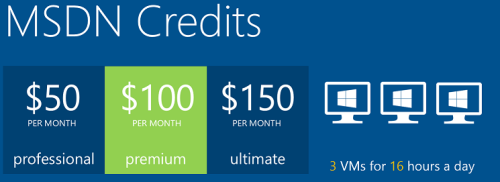
    Azure_MSDN_benefit

    The discounted rates for MSDN subscribers make it up to 97% cheaper to run a virtual machine on Azure compared to the standard rates, leaving the cost at only $0.06 per hour for a VM (small instance). Combine this with the fact that Azure VM’s are nowadays charged by the minute and they incur no charges when the VM is stopped, you can stretch a few $ worth of Azure credits for quite a long period of testing. If you haven’t yet looked into the MSDN benefits, go and read this article on Scott Guthrie’s blog for all the details.

    Not only does MSDN provide you with free credits to spend on your favorite Azure service, you can also leverage the MSDN usage rights for software running on a Windows Azure virtual machine. For a great review of the licensing options for setting up Dynamics CRM development and test environments by using MSDN, look no further than this recent blog post by Leon Tribe.

    Preparing a development server for CRM 2013

    While you can’t just directly provision an Azure VM image pre-configured with CRM 2013 (at least not yet), you can skip a few steps by starting with an image from the Azure VM Gallery that comes with SQL Server 2012. You will need to setup Active Directory and IIS before starting the CRM 2013 server installation, which requires a set of clicks and a couple of reboots.

    To make this process faster, I decided to take notes of the steps needed in installing the required components for CRM 2013 and share them with anyone who’s interested in doing the same. So, here’s a 50 slide presentation with screenshots of the configuration tasks and options to install a working CRM 2013 dev/test/demo server on a Windows Azure VM:

    Do take note of this fact before proceeding any further: this is NOT the “how to” of deploying a live CRM 2013 server. These are the minimum steps needed to get the Dynamics CRM server installation process to complete without errors – nothing more. When considering setting up a proper test and production environment, the first thing you need to do is read the Microsoft Dynamics CRM 2013 Implementation Guide.

    For taking CRM 2013 on a casual test drive and seeing what your current CRM 2011 organization looks like when imported into the latest server version, the steps outlined in the presentation are all you need to get started. I’ve timed the process and the last time it took around 1.5 hours from provisioning a new VM from the Azure Gallery to having a fully working test instance of CRM 2013 in the cloud. Not quite the couple of minutes that spinning up a new CRM Online organization takes, but short enough to set up an ad-hoc test environment for development and configuration tasks that are more easily accomplished with full CRM server and SQL database access.

  • History of Microsoft’s CRM Software

    History of Microsoft’s CRM Software

    Happy_birthdayI recently read the news that Siebel had turned 20 years. Man, that is a respectable age for a CRM software product! Although its market share may have peaked 10 years ago already and today the discussion on the future of Siebel is now circling around the question of when will the last Siebel instance be turned off, you still have to the give credit to the CRM software grandfather. Here’s how Denis Pombriant puts it in his “Siebel at 20” article:

    “In many ways, though, Siebel still is the market. Go into a Global 2000 company and you will see a Siebel system; today Salesforce users might flank that system’s users too. For many of these companies, Siebel is a workhorse system that has been through some of the wars and continues to be serviceable.”

    Inspired by this, I decided to compile a few pieces of history around Microsoft’s CRM product, to provide some context on where it originates from and how the platform has developed over the years. After all, with the first version having been released in 2003, Dynamics CRM has also now reached the 10 years milestone. I’ve personally worked with Microsoft’s CRM only starting from 2005, but the story starts from much earlier than that. I’ve had to do a bit of software archaeology in digging up the events that took place before my first encounter with CRM 3.0, so not all the details may be accurate and you’re more than welcome to add your comments at the end to fill in the blanks.

    Alright then, let’s step onto the timeline and start our journey towards CRM 2013 right from the beginning.

    Before CRM

    A common belief that circulates out there in the wild is that CRM is just another product that Microsoft has bought and integrated into its business software portfolio, like the ERP products Great Plains, Axapta and Navision (nowadays Dynamics GP, AX and NAV). Well, that’s not entirely true, but we can trace back the origins of CRM to the year 2000 and a product by the name iCommunicate.net. Here’s an article taken from IThell.com:

    iCommunicate.net – the first IThell.com Halo Award winner!

    Without a doubt, this is the winner as the coolest (and most helpful) new product of the expo and is the first product to be awarded the Halo Award for providing a solution that can truly help folks in IT by making it easier than ever before to cost-effectively manage customers, customer solutions and resolve customer problems. iCommunicate.net is a web based, out sourced solution (ASP) for CRM with a tremendous feature set and a great pricing model.

    In 2001 Microsoft acquired iCommunicate, which had 10 employees at the time. The developers behind iCommunicate.NET moved to Redmond and started developing a modern, web based CRM application together with Microsoft’s team. Aaron Elder, the lead developer of iCommunicate, shares many wonderful bits of information about the project in his MSDN blog posts. Here’s an enlightening quote on what the starting point was for developing Microsoft CRM:

    When I first joined the team the “application” was literally a mess, this of course was “ok” because at the time the application was referred to only as the “reference app”.  The application that you all know and dare I say love, was originally only going to be an MSDN example of what you could build on top of the CRM Platform!

    There are not many screenshots of iCommunicate.NET available anymore and I’ve only managed to save these two from Google’s cache. According to Aaron, the Microsoft CRM 1.0 UI was simply a logical evolution of the UI he designed for iCommunicate.NET, so perhaps this is one of the more concrete heritages carried over from the pre-Microsoft era of the CRM product.

    Version 1

    Here’s the press release that marked the birth of Microsoft CRM: Microsoft announces new customer relationship management solution. Notice how Microsoft bCentral is one of the online services mentioned as a CRM solution. This service hosted by XO Communications apparently offered some basic contact management and email campaign functionality aimed at the SMB market.

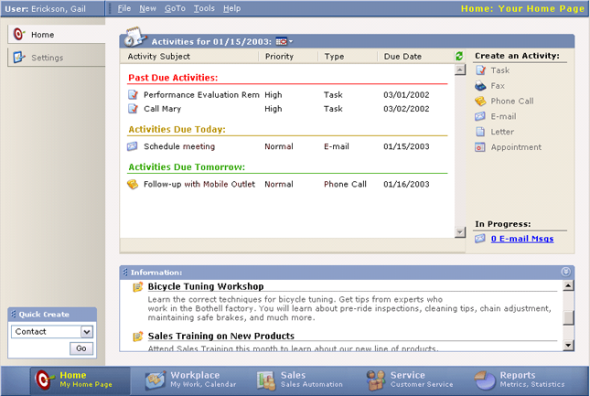
    Microsoft CRM 1.0 was released in January 2003, with the official name being the catchy “Microsoft Business Solutions Customer Relationship Management 1.0”. Here’s a screenshot of the home page that the system offered to the users for a quick glance of the open activities, alongside a Quick Create menu and an announcements list. The navigation bar at the bottom of the screen offered the familiar modules of Workplace, Sales and Service. The reports of CRM 1.0 were not built on SQL Server functionality yet but instead leveraged the well known Crystal Reports product (which was later acquired by Business Objects, which in turn was bought by SAP).

    Microsoft CRM 1.0

    Although it wasn’t possible to perform any advanced customization tasks on CRM in a supported manner, such as adding new entities, the Microsoft partners were already at the time finding good business in filling the gaps of CRM 1.2. Still, everyone was really putting their hopes on CRM 2.0 being an easier product to sell to customers, with more built-in features and improved reliability.

    V2/3.0 and The Birth of XRM

    What was first called Microsoft CRM 2.0 and later Microsoft CRM 2005 became vaporware, as after being delayed a few times the version was never released. In the meantime, Microsoft had revealed information about an ambitious initiative called Project Green in 2003, which aimed to to combine all the business products (CRM, Great Plains, Axapta, Navision, Salomon) onto a single code base. It wasn’t until 2007 that the project was announced as dead & buried, with each of the ERP products remaining separate platforms for the foreseeable future and CRM naturally carrying on with its own roadmap for primarily managing the customer facing interactions instead of financial transactions.

    Microsoft CRM 3.0 was released in December 2005. Or more precisely, Microsoft Dynamics CRM 3.0, as the Dynamics brand was launched in September 2005 to harmonize Microsoft’s ERP and CRM product offering. So even though we didn’t get a Microsoft Business Framework (MBF), at least product names were all aligned under the Dynamics umbrella. This branding update didn’t quite manage to cover all corners of the application and the name “Microsoft CRM” or “MSCRM” in short still carries on today as popular nickname for the product.

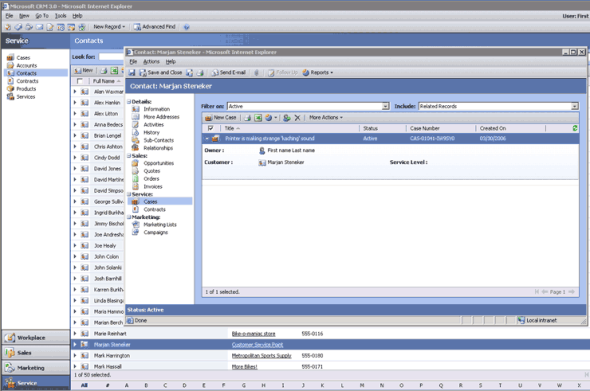
    The UI of v3.0 introduced the navigation paradigm that has been largely carried onward to the current CRM 2011 version. Imitating the Outlook modules, the product now had a “Wunderbar” in the bottom left corner of the screen, including the new Marketing module that introduced basic campaign management functionality into the core CRM offering.

    Microsoft Dynamics CRM 3.0

    Most importantly, with CRM 3.0 it was now possible to create brand new custom entities to expand the default data model to cover whatever business domain that the customer was working in. The term “XRM” was introduced into the Microsoft corporate lingo to describe these new scenarios for eXtended Relationship Management. A whitepaper from 2008 titled “Microsoft Dynamics CRM as a Business Application Platform” written by Jason Hunt and Aaron Elder, the original architects of the platform, goes into great depth on why Dynamics CRM should not be considered as “just CRM” but something much more formidable and powerful. (more…)

  • Thank You, Readers!

    Today Surviving CRM passed the 1,000 +1’s milestone on Google+. Wow!

    Surviving_CRM_Gplus_1K1

    Thank you to all of you who’ve been reading the post over here on the blog or following the latest Microsoft Dynamics CRM news and links shared over at the Surviving CRM Google+ page. Even though I think the most immediate benefit from publishing CRM related content is how you can yourself learn so much more about the topics you’re covering, the fact that other people out there can also benefit from this shared knowledge is what really makes it worthwhile in the end.

    Every post, comment, vote or click matters in the online communities. So, consider this my +1 to you:

    PlusOne


  • Your Essential Toolkit for Microsoft Dynamics CRM

    You can do a lot with the configuration and customization toolkit that Microsoft Dynamics CRM offers. With the SDK and some lines of custom code, you can do almost anything. There in between lies the territory where the Dynamics CRM community is helping its members manage some of the commonly required tasks without the need for .NET developer resources. This is done through a wealth of wonderful, free tools that make it easier for anyone working with Dynamics CRM to access the power of the platform without getting their hands dirty in tweaking XML files or learning the right SDK calls.

    Many of the tools listed here are a permanent fixture I take along with me to any consulting gig, while some are new entrants to the list. If you’ve been actively reading up the posts on various popular CRM blogs, you may well recognize most of them. However, while I personally spend far too much time on social media channels, I realize that not everyone in the industry has the luxury for such a lifestyle and may have therefore missed out on some tools that could have saved them hours worth of work. Therefore, I decided to compile a “Best Of” post to highlight the 10 tools no CRM consultant should be without. (For anyone wanting to stay on top of the latest tools and solutions I come across, you can either subscribe to my Dynamics CRM Links RSS feed or follow the Surviving CRM page on Google+.)

    CRM 2011 User Settings Utility

    Download from CodePlex.

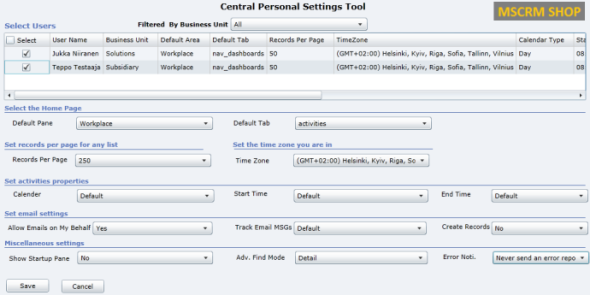
    When setting up new user accounts in your Dynamics CRM organization, wouldn’t it be nice if the system administrator could set their personal settings to match the policies of the organization as well as the likely preferences of the user in question? Things like Time Zone, Records per Page, Advanced Find mode, default home page etc. can be easily configured for users in bulk with the CRM 2011 User Settings Utility by Amreek Singh.

    CRM2011_User_Settings_Utility

    One particular pet peeve of mine related to the default configuration of Dynamics CRM is that new contact records are automatically created from tracked email sender or recipient addresses not found in the database. Well, with this tool you can stop the users from unintentionally populating your database with partially filled contact records not associated to their proper parent accounts by simply configuring the setting to “No” for all users. Beats having to send everyone instructions by email on how to check their CRM profile settings, doesn’t it?

    Universal Settings

    Download from Sonoma Partners website.

    It’s not only the user settings that may require you to pop the hood open on your CRM instance. There is a number of Organization Settings as well as Deployment Settings that can be used to either overcome limitations or alter the default behavior of Dynamics CRM. For example, if you’d like to be able to export all of your contacts records from CRM to Excel and not just the first 10,000 then you’ll be happy to know that changing the MaxRecordsForExportToExcel parameter is a breeze with Universal Settings, no matter if you have an on-premises or CRM Online environment.

    UniversalSettings

    Another handy limit you can adjust with the tool is AggregateQueryRecordLimit, which will allow your charts to summarize more than 50,000 records at a time, instead of seeing “the maximum record limit is exceeded” errors. Also very handy if you wish to work with more than 50,000 marketing list members in your campaign target group. Unfortunately this tweak is not available for CRM Online, though, as the setting resides in the deployment table rather than the organization table, which is the only one you can update in the cloud.

    XrmToolbox

    Download from CodePlex.

    We’re now stepping into the world of “Mr. CRM Tools” himself, a.k.a. Tanguy Touzard. His awesome Toolbox for Dynamics CRM 2011 is a collection of the various tools developed over the years to help make Dynamics CRM administration and customization more efficient and enjoyable. By downloading the Toolbox you’ll get a number of great tools, but just to ensure you understand why you need them, let me give a quick intro to my favorite ones.

    Sitemap editor

    Adjusting the CRM main page navigation (a.k.a. sitemap) is something that you should always perform after you’ve determined what are the entities your different user groups (sales, marketing, etc.) will need to access and what is the logical arrangement of them in the navigation. Trust me, the right answer is not “the order in which the entities were created” nor “alphabetical”. There’s a number of free sitemap editor tools out there, but since XrmToolbox is such a powerhouse, it makes a lot of sense to use the the same tool that you’ll be using for other tasks in the same organization, as you’ll only need to configure the connection parameters once.

    Sitemap_editor

    Re-arrange, add, hide, group, rename, do basically whatever you want with the CRM menus with this editor without ever seeing a trace of the solution XML file contents.

    Easy Translator

    Easy_translatorThe latest addition to XrmToolbox is something every CRM admin from a non-English speaking country can surely appreciate. Since most of us still prefer to use the English base language setting in Dynamics CRM due to the awkward terminology of our native language translations in the customization UI (and any potential technical compatibility quirks that come with it), working with the “export/import labels for translation” process is all too familiar to us. Hunting down those strings in the unstructured output file isn’t very pleasant, which is where Easy Translator comes in handy. You’ll get a nicely arranged Excel with just the types of labels you’ve selected for export, which reduces the amount of trial & error in translating fields, values and form labels to the language of your choice. (more…)

  • Dynamics CRM 2013 Finally Revealed

    There were a couple of announcements made regarding the upcoming version upgrade of Microsoft Dynamics CRM (previously known as “Orion”) during the World Partner Conference 2013 event (WPC13) three weeks ago: 1) it was named as “Microsoft Dynamics CRM 2013 / Microsoft Dynamics CRM Online Fall ’13 (depending on your deployment model) and 2) the client licensing model was unified between Online and on-premises to consist of Professional, Basic and Essential license tiers. The CRM related sessions also presented several interesting facts about where Dynamics CRM is heading (see my WPC13 recaps of Day 1, Day 2 and Day 3 if you missed them), but all in all they were more about the product roadmap rather than detailed features of the next release.

    CRM2013_BlitzToday, on July 31st, Microsoft held the Dynamics CRM Training Blitz Day for all its partners. The sessions were split into two tracks, but for most of this blog’s audience I’m sure the track “Technical Overview for Application Consultants, Presales Consultants and Developers” was the preferred choice. The sessions presented by the Redmond allstars Eric Boocock and Girish Raja consisted of the following topics:

    • Reimagined User Experience in Microsoft Dynamics CRM 2013
    • Process Agility in Microsoft Dynamics CRM 2013
    • Microsoft Dynamics CRM 2013 Mobile Client Application
    • Yammer Integration in Microsoft Dynamics CRM 2013
    • Outlook Client and Exchange Sync in Microsoft Dynamics CRM 2013
    • Microsoft Online Portal Administration in Microsoft Dynamics CRM 2013
    • Upgrade Process in Microsoft Dynamics CRM 2013
    • Business Rules with Dynamics CRM
    • Client Extensibility in Microsoft Dynamics CRM 2013
    • Extensibility on the Server and Cloud with Dynamics CRM
    • Microsoft Dynamics CRM as a Platform for Business Apps

    If you’re a Microsoft partner and have access to the event site, you really need to schedule some time for going through the recordings and other content available, because this is effectively the “What’s new in Microsoft Dynamics CRM 2013” training kit that summarizes the new and updated features of the product you’ll be working with from Q4 onwards.

    Although this was a partner event, it was declared “free to tweet” and resulted in a wealth of content being shared over on Twitter. I collected the most interesting content related to new features of CRM 2013 onto a Storify post that you can view below, to get a quick overview of what was announced in the Blitz event.


    There will surely be more material made available to Dynamics CRM customers shortly, so that they’ll have a better understanding of what it means when they see the update notifications in their existing CRM Online instances. If I’d have to summarize the CRM 2013 release highlights in five bullet points, they would be:

    • The new UI that was previewed in the “public beta” of the Polaris release looks like a worthy successor to the previous forms & ribbons. The impact to user adoption and differentiation from competing CRM products is potentially huge, while the feared breaking changes to existing customizations may not be as big as the initial reaction might have suggested (things will break, of course, but I don’t foresee a catastrophe).
    • Business rules and synchronous workflows are the real killer feature of CRM 2013, since they expand the no-code capabilities of the product immensely. They will surely not cover all the common customization scenarios in the first release, but they point the way towards a declarative future where custom development efforts can be targeted to where they are really needed, meaning system integrations.
    • The mobility story with responsive design and “write once” business logic is far beyond what the “CRM Anywhere” path announced in February 2012 (and later cancelled) would have allowed to achieve.
    • Server side sync is long overdue and many organizations will surely be happy to replace the email router with this solution. Tracking individual items will still require Outlook, though. And while we’re at it, the new UI in Outlook client with its popups and hidden global navigation doesn’t look all that hot, but friends of Outlook and CRM 2011 may disagree with me.
    • Acquisitions of Yammer, Marketing Pilot and NetBreeze will play a significant role in the future of the product, but CRM 2o13 is still very early days for this feature set. It’s loosely coupled services like this which will surely make the most of the rapid release cadence of CRM Online (twice a year), so keep an eye on them.

    As with most new things, there’s a great deal of excitement I have towards the CRM 2o13 release based on what I’ve seen, and at the same time a healthy sense of fear on “is it all really going to work”. Lucky for us, we can now seek validation for the excitement and relieve our fears by downloading the beta for Microsoft Dynamics CRM that has been posted on Microsoft Connect today patiently waiting for a public beta to become available (if ever). Yes, the beta link shared by the CRM team previously was apparently not meant to be made available publicly, so you’ll still need wait for a while to get your hands on the latest version of Dynamics CRM.

    When will the actual Dynamics CRM 2013 product be released then? Many sources are pointing to The Partner Connections Event starting on October 20th as being the official launch event. Also many CRM Online customers have already received information on their organizations having been scheduled for updates to take place during Q4 2013, so I think it’s safe to assume this to be the time frame for general availability of the next version of Dynamics CRM.

  • How to Import Primary Contacts

    The Import Wizard in Dynamics CRM can do a lot more than what may initially seem possible. I’ve covered some of these features in a previous article called CRM 2011 Data Import Wizard in Practice. Among these capabilities is the possibility of importing records to different entities that have multiple relationships connecting them in both directions, not just the simple parent-child relationship pointing from one entity to the other.

    A typical example of such a relationship would be the Primary Contact of an account. The account is a parental record to all the child contacts, but one of these contacts may however have a 1:N relationship back to the account and be presented in the Primary Contact lookup field on an account form. If you are importing both the account and contact columns in a single file (such as an Outlook contacts export) then mapping these relationships should only be a matter of mapping the right fields. If you have two separate files, then simply zipping them up into a single file will allow you to map both entities in the same import process.

    Primary_contacts_account_formOne of the problems that you may encounter during such an import process is that there are multiple matching records for the mapping fields. If you have more than one account record called “Litware, Inc”, to for example represent different regional offices of the company, mapping the primary contact by account name won’t work. Similar problems will arise if several people have the same first and last names. Therefore it’s a good practice to always generate a unique ID for each record before importing it. You can construct the identifier field in Excel with the Concatenate function and combine several fields into a single Import ID string (account name + address 1 city, for example) which you then map into a temporary field in CRM. You can use this field as the lookup reference to the related entity instead of the standard primary field when importing data.

    Appending Existing Records

    In a recent import task I was once again faced with the Primary Contact issue. Only this time the account data that I needed to map the contacts into was already in the CRM database. As these were new contact records being imported, my first thought was to create a workflow rule to be triggered from the create event of a contact record. Using some temporary contact field to store the primary contact flag into, like “governmentid = PrimaryContact”, and then searching for this value in the workflow rule would have allowed me to start a record update step for the parent account of the newly imported contact. In the update step I could just state that the account’s primary contact would be the contact that the workflow process instance has been initiated on.

    Fortunately I looked through the source data once again before proceeding any further, as that revealed a flaw in the assumptions behind the above workflow rule logic. A single contact was sometimes the primary contact for more than one account. Also, there were occurrences where the contact wasn’t the primary contact of its own parent account. The relationships were therefore more complex than what a single workflow rule could cover.

    This doesn’t mean that leveraging workflows was out of the question, though. To enable the creation of multiple relationships from a single imported contact record I just needed to have an intermediate stage in my process, to store the data in CRM. What this requires in practice is that you first import the data into a different entity, then trigger the update step from that record into the actual record you want to append with new information.

    One option would have been to create a new temporary entity just for the sake of getting the data imported correctly. However, since these were account and contact records for which we wanted to link the imported data, there was already a logical place available in the default data model of Dynamics CRM: connections. It’s in fact the perfect entity for importing any relationship data into, as the two parties of the connection can be references to any entity type that has connections enabled for it, meaning several default entities and any custom entity you’ve created. Therefore we could cover several different import scenarios with connections and not have to go into system customizations to add relationships to other entities.

    The Import Process

    First I had to add a new connection role for “Primary Contact” (step 1) to identify the connection records that I want to run my workflow process on. As this role will be used exclusively between account and contact records, I specified them as the available record types for the role (step 2). Also, I always tend to put the same role value on the “other side” of the relationship to keep the data consistent and simple to view/search for, so I set this new role to be its own matching connection role (step 3).

    Primary_contacts_connection_role

    Then I proceeded to creating a new workflow process that would be triggered on the create event of a new connection record. In the workflow rule I specified it to run only on connections that have the Primary Contact connection role. I also wanted to validate that the Connected From and Connected To entities are mapped the right way around in the connection record, so I simply check that the account and contact records behind each relationship contain data. Without these conditions being met, the update step wouldn’t produce any meaningful results anyway.

    Primary_contacts_workflow_rule

    In the update step I mapped the Connected To contact record into the Primary Contact field of the Connected From account record.

    Primary_contacts_workflow_update

    Now we were ready to start the actual import work. Since the primary contact relationship data was handled with a separate entity, I first imported the contact records through the normal process. (more…)

  • No-code Customizations with North52 Formula Manager, Part 3: Case Resolutions

    In the previous articles (part 1 and part 2) we’ve explored how the North52 Formula Manager can be utilized in automating steps related to the sales process. This time we’ll be looking at a scenario related to service management, in an effort to make it easier to share knowledge and report on the resolutions of cases recorded in the Microsoft Dynamics CRM database.

    Cases vs. Case Resolutions

    Case_resolve_cancelIn theory it should be pretty straightforward how you work with a case record: they are support tickets that are initially open (active) when you create them and eventually they end up getting closed as either resolved (service was provided) or cancelled (duplicate ticket, customer never replied etc.).
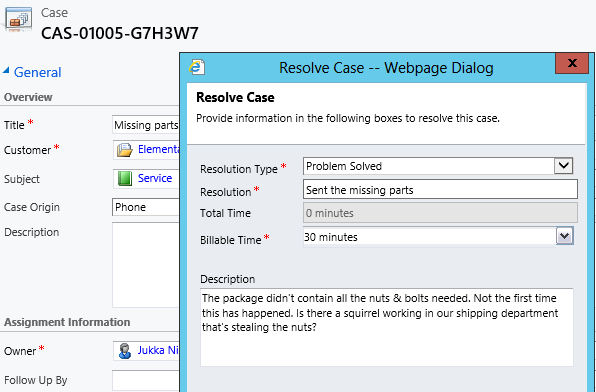
    The point where complexity raises its ugly head is how the resolution process works: instead of entering the case resolution details onto the case record itself, the user is presented with a window that creates a Case Resolution activity underneath the parent case. While this is a perfectly valid design in terms of the nature of the interactions, as there could be situations where the case gets re-opened and resolved again (thus being a 1:N relationship with the case), it does make it more complicated to work with the resolution data later on.

    Resolve_case_dialog

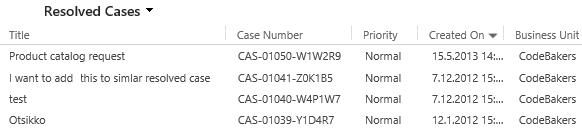
    For example, say you’d want to study the resolved cases by using a view of the case records. In that view you can see the case subject, owner, status and other standard fields, but there’s no information visible on what the actual resolution to the case was. “Ok, so I’ll need to customize the view and show columns from a related record. That’s not too difficult, now is it?” Unfortunately that’s not going to work, because the information we’re interested in resides on the N side of the relationship. Since there can be several case resolutions for a single case, no columns from this entity can be displayed in a case view. So, we can’t construct a nice Q&A list that the service reps could leverage in scanning for similar cases on a new question from a customer. We can only see the problem, not the resolution.

    Resolved_cases_view

    You could build a view of case resolutions, the child entity in this relationship, but that’s not very convenient either. Although case resolution is an entity of its own, it’s not actually available in Advanced Find to directly build queries on. It is possible to access a list of case resolutions by crafting a view of activities with that specific type, but you’ll still be limited to only the generic activity fields. As an example, the field Billable Time (Time Spent) cannot be accessed in a view, which makes it rather difficult to report on this data entered as a part of the service process.

    Activities_Advanced_Find_case_resolution

    Using a Formula to Replicate the Case Resolution Fields on the Case Form

    Luckily Dynamics CRM is a flexible platform that allows you to develop new business logic to fulfill the requirements for your service process. In this situation, if we could simply have the Resolve Case dialog fields copied over to the parent case, this would solve the aforementioned problems. So, how to proceed then?

    If we want to alter the default behavior or the service entities, we should first have a look at the workflow process capabilities of Dynamics CRM to see if can  configure a workflow rule that is triggered when the case resolution is created. This time we won’t get very far with that idea, though, as neither the case resolution nor the activity entity can be used as a workflow trigger. Fair enough, we’ll then need to come up with a lower level solution to meet this requirement. Assuming we have access to a .NET developer who knows the Dynamics CRM SDK, creating a custom plug-in to copy the fields to the case record would be a worthy option to consider. Since the title of this post promised “no-code customizations”, let’s instead look at how we could achieve the same functionality with the Formula Manager.

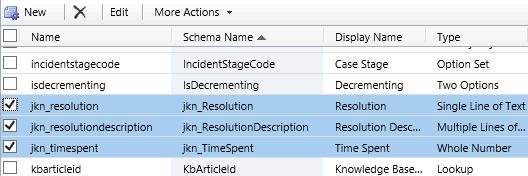
    First we need a place to host the case resolution data of course, so let’s add three custom fields on the case entity: Resolution (text field), Resolution Description (multiple lines) and Time Spent (whole number with duration format). On the case form they can be put into a section of their own and set as disabled, since the user shouldn’t directly update them.  Then we’ll create the three formulas that will populate these fields with corresponding values from the case resolution entity.

    Case_custom_fields

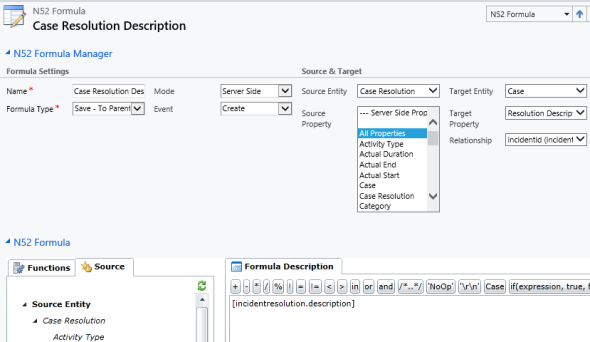
    We’ll be using a formula of the type “Save – To Parent” and attach it to the create event of the case resolution entity. As our target (parent) entity we can select case, but notice that you’ll actually need to specify the relationship field value first before you’re able switch the value in the target entity field. Let’s take the Resolution Description field we just created as the target property. The formula itself in this case will be very simple, since all we need is a value directly from the source entity. We can use the source entity tree visible in the bottom left corner of the screen to browse through the available fields or just type in directly the value [incidentresolution.description].

    Formula_case_description

    The other two fields will get an identical treatment, which means we can click on the Clone Formula button on the ribbon and create two copies of the original formula. Just update the target property field and select a new source field value into the formula description window accordingly. After we’re done, we can publish the formulas and try them out by resolving an existing case.

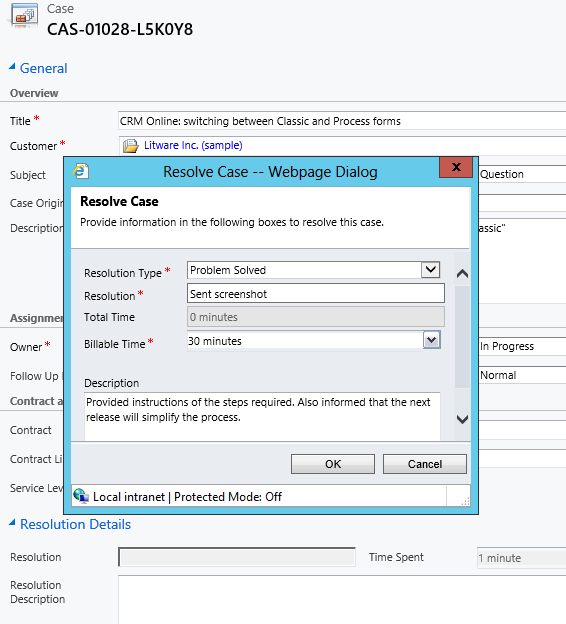
    Resolve_case_formula_1

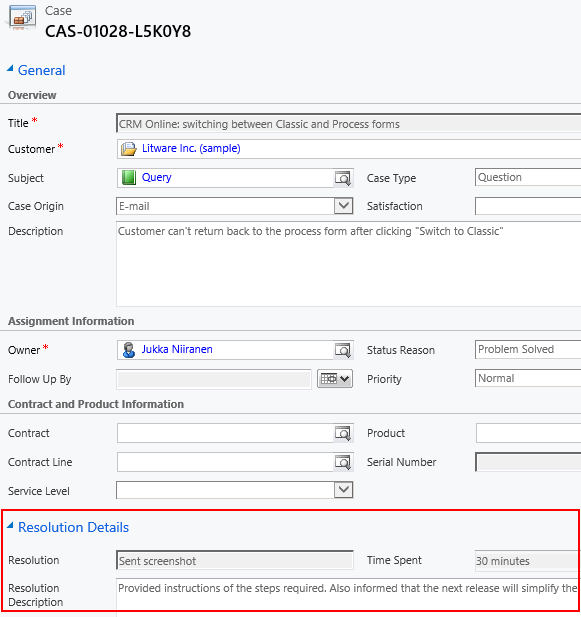
    After we’ve entered the details into the Resolve Case dialog fields and clicked OK, our formula will update the underlying case form in real time to reflect the same values presented directly on the resolved case record. Unlike asynchronous workflow processes, the formulas can perform their tasks right in front of the user, which makes the user experience more consistent.

    Resolve_case_formula_2

    Making Use of the Resolution Data

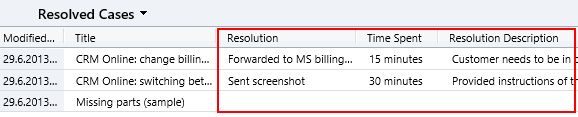
    Now that the fields are available on the case entity, we still need to ensure that the user actually has access to them through all the necessary routes. First we should of course include them into the Resolved Cases view we talked about earlier.

    Resolved_cases_view_updated

    Seeing the resolution field contents directly in the view is a great improvement, but an even more important feature is to enable the users to search for this information. You see, one of the peculiar default settings of Dynamics CRM is that the Quick Find view for case entities only covers active (open) cases. (more…)

  • MVP Award & Why Communities Rock

    MVP Award & Why Communities Rock

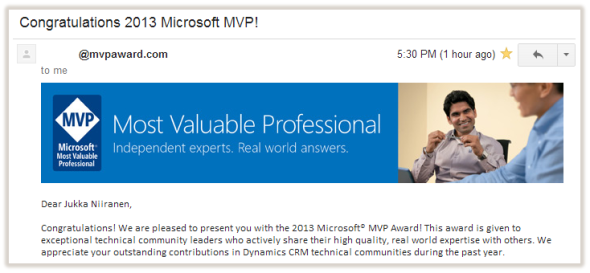
    Today I received the following email:

    MVP_award_email_small

    Wow! Quite an honor, I must say. Not so much for the MVP badge itself but for being recognized alongside all of the brilliant minds that have received the Microsoft Dynamics CRM MVP award before me. Thanks especially to fellow MVP Gustaf Westerlund for nominating me for the award! Also, it’s nice to notice that all of the sarcastic remarks I tend to make in my posts while explaining the do’s and don’ts of the Dynamics CRM product have not permanently angered the folks at Microsoft to put me on their blacklist 😉

    It’s great to receive recognition from the makers of Dynamics CRM of course, but by far the most important thing is the support from all the other members of the Dynamics CRM community. That means anyone who contributes to the discussions on CRM forums, comments on blog posts, sharing of links on social media and all the other activities that help people like you and me to… you know, survive living with this thing we call CRM. In the spirit of award speeches, let me take this moment to ramble on a bit about why these things matter so much.

    All the way back in 2005 when I first got exposed to Microsoft CRM (the pre-Dynamics era) in the role of an ICT specialist evaluating alternative applications to replace an aging yet heavily utilized Lotus Notes based CRM system for my organization, the one thing that stood out in Microsoft’s product was the amount of community contributed material that was already available at the time. Compared to the world we live in today, it was of course a tiny fraction of the vast resources we’ve got now, but compared to the other potential CRM vendors on our short list, it was a significant factor that made me push for choosing Microsoft CRM. Knowing that I would be responsible for administering, supporting and customizing the system further once deployed, I naturally wanted to work with a product that I could find answers from not just the vendor but also other users and consultants who were sharing their expertise so graciously on the Internet.

    CommunityAfter having spent some time in learning the ropes and reading through a pile of invaluable blog posts (~100 RSS feeds on my Dynamics CRM daily diet) that had helped me solve the day-to-day problems encountered when trying to mold the CRM system to meet the requirements of the users in a couple of customer organizations, I decided to put up a blog of my own to have a place to share some of the tips I had found useful. Then along came social networks like Twitter, that allowed you to discover even more great experts and content on hashtags like #MSDYNCRM. Eventually I realized there was no way for me to return back to the way things were before becoming an active member of the global online community around Dynamics CRM, so the only thing left to do was to push even further and try to make the most of it – even experiment with it, if you like.

    The virtuous cycle of communities is truly a powerful force. In exchange for receiving help from complete strangers with no expectation of monetary remuneration, you start to feel compelled to give back to them in one form or another, to pay it forward. Once you do, you begin to notice that there are others who in turn are benefiting from your actions, which makes the cycle just start to spin faster & faster. All that shared knowledge begins to accumulate into a source for “wisdom of crowds” type of phenomena where you are no longer bound by your own cognitive capabilities, rather you can tap onto the community as an extension of your brain to solve the problems you encounter. It’s no cyberpunk fiction, simply the best strategy for an information worker to stay on top of his game today and develop the skills needed tomorrow.

    Most of the things I know about Dynamics CRM I have learned from the community surrounding the product. That is why I personally value the MVP Award, because in essence it’s all about the most important part: the community, not just the application. Therefore, my advise for anyone who’s working with Dynamics CRM and is interested in getting more out of their job, as well as getting better at their job, is to take the plunge and start contributing to the community. You don’t have to be a CRM guru, a superstar developer or even a 24/7 social media geek to be able to add value into this common pool of knowledge and insight that keeps the Dynamics CRM product moving forward and allows all of us to better solve real life business problems with it, thus eventually helping the world outside the community. All you need to do is proceed along these steps, one ladder at a time:

    1. Explore
    2. Learn
    3. Share
    4. Contribute
    5. Rinse & repeat.

    Thank you. Let’s keep rockin’ with CRM.

  • No-code Customizations with North52 Formula Manager, Part 2: Line Items

    In a previous post I wrote about how the North52 Formula Manager solution can help you build some common customizations that would otherwise require writing Javascript for Dynamics CRM entity forms. The scenarios included:

    • Setting default values for lookup fields
    • Dynamically changing the field requirement level
    • Displaying popup warnings
    • Launching dialog process windows

    This time I will show a few examples of the Formula Manager capabilities that would typically fall into the domain of writing C# plugin code to enhance the business logic of Dynamics CRM. Being a functional CRM consultant that doesn’t normally deliver a single line of code (at least for production environments), these scenarios would traditionally require me to hand over the task to a CRM developer. What we’re about to see is an alternative method of creating just formulas with the graphical tools available in the solution package to get the same job done.

    Updating Opportunity, Quote, Order or Invoice Products

    In Microsoft Dynamics CRM 2011 you can trigger workflow processes on the line items of Opportunities, Quotes, Orders or Invoices. This allows you to execute custom logic when, for example, new Quote Product rows are added for a Quote record. Unfortunately what you cannot do with standard workflows is to actually update the line item record itself.

    Workflow_update_quote_product

    Well, this surely looks like a dead-end for most of the use cases you could think of for triggering the workflow process in the first place. If I wanted to, for example, pull information from the selected Product record and save it on the Quote Product’s fields, such as product description, vendor details or a line item number to sort the quote rows, this apparently cannot be achieved with CRM’s workflow functionality.

    Let’s look at how we can solve the problem with Formula Manager instead. In our scenario we would like the description field of the Quote Product record to be updated with the description field contents of the selected Product record. What we therefore need is a “Save – To Current Record” type of formula that is triggered on the Create & Update events of the Quote Product entity. We can limit the update events only to the Existing Product field by setting the Source Property value. The Target Property of our formula should be the Description field.

    Finally, we need the actual formula that will feed the values from the related Product record into the Quote Product’s description field. To retrieve the description field contents we’ll use the FindValue function and tell it to search for a Product record that has the same productid as the existing product selected on the Quote Product record. While we’re at it, let’s also ensure that the Quote Product actually has an existing product instead of a write-in product by verifying the productid field contents with the ContainsData function. The end result will look like this:

    if(ContainsData([quotedetail.productid]), FindValue(‘product’, ‘productid’, [quotedetail.productid], ‘description’),’NoOp’)

    FormulaManager_update_quote_product_description

    Now when we navigate onto a Quote and add a new Quote Product record underneath it, the description field will inherit the value from the related Product and display it directly on the Quote Product form (assuming you’ve made this default field visible on the form in the first place).

    Quote_product_description

    Not that much more complicated than building a workflow rule, just as long as you familiarize yourself with how the formulas work and how to format the parameters required by the functions.

    Creating Line Items

    Let’s proceed with exploring the world of line item records in the sales process. Updating existing records automatically is a nice capability to have for sure, but what about automating the complete process of creating the line items for an Opportunity, Quote, Order or Invoice? For example, if we wanted to ensure that there is always a standard Delivery Fee or other persistent item included whenever we’re creating an Order of a specific type (or for a specific customer group), then this is another area where the out-of-the-box functionality of Dynamics CRM workflows can’t be used, since new Order Product records cannot be created through a workflow rule.

    With Formula Manager we have no such limitations in place, rather we are free to create any type of records we want with the CreateRecord function. The example formula below was actually provided to me by North52’s John Grace to demonstrate the solution’s functionality. The Save – Perform Action formula is attached to the Create event of an Order record, which in turn triggers the creation of a new Order Product record. The contents of this auto-created line item can be defined either directly in the formula or alternatively queried with the FindValue function familiar to us from the previous example.

    CreateRecord(‘salesorderdetail’,
    1,
    ‘salesorderid.salesorder.’ + [salesorder.salesorderid],
    ‘productid.product.’ + FindValue(‘product’, ‘name’, ‘Bike’, ‘productid’),
    ‘uomid.uom.’ + FindValue(‘uom’, ‘name’, ‘Primary Unit’, ‘uomid’),
    ‘quantity.10’
    )

    FormulaManager_create_order_product

    Now, as a limited time special offer, any new Order that we create (or a Quote that we convert) will get 10 Bike products added onto it with their unit price dynamically retrieved from the Price List selected on the Order. What a sweet deal!

    Order_Products

    Cloning Records

    For a Dynamics CRM administrator these type of automated steps can be really handy in enforcing business rules and ensuring correct entry of data onto sales records. If we’d show them to your typical salesman, though, he might not be so impressed with this type of detailed process automation functionality.

    “Sure, it looks like we could save a few clicks with these formulas. But here’s the deal: many of the quotations I make are practically identical. They contain the same line items every time, with only some variations in quantity and discounts given. What I’d really want to do is simply select a quote I’ve created for another customer and create a copy of it. You know, the “Save As” button that’s found in all the other Office applications. Why couldn’t CRM also have that? It would be a huge time saver for me.”

    Ever had this kind of a discussion with your CRM users? If you have, then you’ll surely appreciate the fact that Formula Manager provides a Clone function that allows you to create a new copy of any existing record. Not only that, but the function also clones all the related 1:N & N:N records, which means you can create a copy of both the Quote and Quote Product line items with a single function!

    To get an understanding of how the function could be leveraged in delivering the “Save As” functionality your sales users have been asking for so long, watch this video that demonstrates not only the formula in action but also how you can use the Ribbon Workbench to build a custom Clone button for the required entities.

    Clone_Quote

    Think these type of features would be useful to have in your Dynamics CRM organization? Then go ahead and grab the fully functional Standard Edition of Formula Manager that allows you to have 10 active formulas at a time, for test or production use.

  • Dynamics CRM Data Visualization with Excel 2013 GeoFlow

    Excel_2013There are some great new features available in Excel 2013 that can take your Dynamics CRM data visualization onto a whole new level without the need to invest in new server infrastructure or build traditional OLAP cubes on your SQL Server. With the recent announcement of the GeoFlow Preview for Excel 2013, I decided to see what I could make of this tool when combined with some data pulled from CRM.
    Working with Cloud Data

    Although the feature parity of CRM Online and Dynamics CRM on-premises is on quite a high level these days in terms of the application platform capabilities, one unfortunate limitation has been that you can’t easily tap into the CRM Online data with analytical applications like Excel PowerPivot. Naturally the direct SQL database table connection is unavailable, but also the OData feeds that would be such a neat way for performing some pivot magic have been off limits, as PowerPivot doesn’t support the claims based authentication of CRM Online. Oh, and as far as I know, this also applies to an IFD configured on-premises server  (if anyone knows how to connect to the OData feed with AD authentication while using an IFD CRM, do leave a comment below).

    With the new capabilities of Excel 2013, there is now a workaround available that allows you to access OData feeds from CRM that require Windows Live ID / Microsoft Account / Office 365 authentication. You’ll also need the CRM Outlook client on your workstation to facilitate the initial connection, although with another workaround for the sign-in prompt on the Excel sheet you might be able to do without one.

    Here’s a great video from former Dynamics CRM Team member Ed Martinez that walks you through the steps needed in order to connect your Excel 2013 (note: Excel 2010 is not supported AFAIK) to a Dynamics CRM Online OData feed:

    (For all the Finnish speaking CRM folks out there, you can also check out this video clip by Sulava’s Markku Suominen.)

    As a summary, what you need to do is:

    • Copy the OData feed address from the developer resources menu of your CRM
    • Export any set of data from CRM to a dynamic Excel sheet
    • Open the file and refresh the data (thus establishing the authenticated connection), the save it in .xlsx format
    • Add a new data source by clicking on “Get External Data, From OData Data Feed”
    • Paste in the address you previously copied from CRM

    That’s it. Now you can connect an Excel sheet to a CRM Online (or IFD) data source through OData and refresh the content to reflect the live data as your CRM source system gets updated.

    Power View in Action

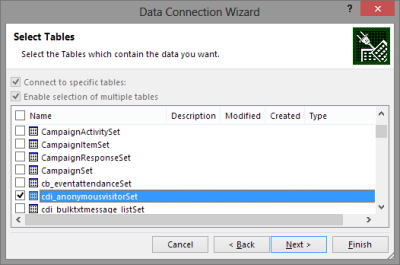
    For my own lil’ “Big Data” scenario I decided to point my OData enabled Excel 2013 towards a Dynamics CRM instance where ClickDimensions is storing the website visitor data from this blog (sorry, you’re being tracked, but it’s all for a noble cause, trust me). I proceeded by following the instructions above, adding a new OData data source into a dynamic Excel sheet, selecting the entities (“sets”) that I wanted to use in my analysis. Then I waited… and waited… and waited some more.

    OData_data_feed_connection_wizard_CRM

    A word of warning: OData data feeds can be slow. It’s nothing like using a direct database connection, and not even the type of performance you get with a dynamic Excel in an IFD environment that uses an Excel Web Query to “screen scrape” the data over http. My data set was retrieving around 100,000 records and I saw the counter ticking on the bottom right corner of the Excel sheet at a rate of roughly 200 rows per second, which translates into some 10 minutes of waiting before the download from CRM is complete. Oh well, it’s not like we’re in a rush to create a real life report for the boss who wants to have it in his inbox within 15 minutes. Let’s be grateful that we can at least retrieve more rows in one go than the default MaxRecordsForExportToExcel setting for this CRM organization would otherwise allow (which is 10,000). (more…)