Blog

  • Save your time by documenting

    Documenting what your CRM environment looks like and what changes you’ve done to it can be such a drag. Compared to how fast you can perform and publish customization changes in Microsoft CRM, writing it all down and communicating it to the rest of the organization can take a lot more time (the same goes for planning your customization changes before rushing into doing them). Most people will learn the purpose of documentation only the hard way, after running into process errors resulting from a misunderstanding of what data goes where, what scripts affect which fields etc.

    After fighting with one such case recently, where I had to perform checks on entity form contents of four supposedly similar CRM instances, I just got fed up with the number of browser windows cluttering my screen and decided to search for a smarter solution. I remembered running into a CRM documentation application some half a year ago, but since it required Excel 2007 which I didn’t yet have at that time, I never had the chance to try it out. Having now upgraded to Office 2007, I promptly surfed to CodePlex and looked up the Microsoft CRM Documentation Generator by Merjin van Mourik.

    What a beautiful tool this is! Not only does it produce a neat list of all your entity forms, their scripts and picklist field lists of values, it does this “live” on your screen. Just export the customizations.xml file, load it up in the Excel add-on, then lean back and enjoy as the CRM server magically documents itself, one attribute at a time, for each of your hundred entities. After the show is over, you can copy & paste the information you need and quickly compare CRM instances side by side to track down the differences.

    CRM Documentation Generator

    The Documentation Generator tool is made for Microsoft CRM 3.0, so all you hip people already on 4.0 may be better off with Microsoft CRM 4.0 Form Reporter, which allegedly does the same thing in Word 2007 format.

  • Convergence 2008 EMEA

    This was the first time I attended Microsoft’s Convergence, the conference for their Dynamics product family. The event turned out to be quite a positive experience. Sure, there was more than enough marketing hype for MS products, but it certainly wasn’t the only item on the agenda. Plenty of practical examples and real life success stories were included, allowing you to catch interesting details about the future direction of the CRM product and even honest comments about it’s current shortcomings.

    Convergence 2008 EMEA

    I was pleased to see a strong focus on application usability and user experience improvements in many of the presentations. Seems like Microsoft is serious about leveraging its decades worth of experience from producing software for the consumer market and using that understanding as a weapon against its competitors on the business applications playing field.

    Once I’ve managed to grab the presentations and review them, I though I’d share some of my Convergence 2008 session notes here in this blog. Most of the truly valuable information is usually not in the PowerPoint slides but rather in what is said during the presentation. It would be interesting to also read what the other session attendees wrote down, just a shame that the Dynamics Community site is so poor that I’ll probably need to hunt down this information in various CRM blogs around the net.

    Copenhagen was a nice city to visit, check out my Picasa Web Albums for some of the pictures I managed to take during the conference and the afterhours downtown. Would be fun to go back there on a warmer time of the year, so you could truly enjoy all the different flavors of Tuborg beer. Since next year’s Convergence will not be in Denmark anymore, I guess I’d need to pay for the trip myself then.

  • Tabbed surfing with IE7 and CRM: the Quick Tabs bug

    One of the prominent features of Microsoft CRM’s user interface is that all records are opened into a new pop-up window. While this does make navigation quite consistent throughout the different areas of the application, the downside is that it won’t take long before you have 20 separate browser windows open and you’re forced to take a break for cleaning up the taskbar.

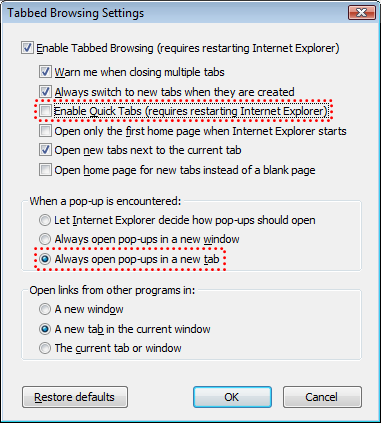
    Internet Explorer 7 brought tabbed browsing into the toolkit of anyone who’s forced to work with IE due to their day-to-day business applications. This would be a nice way to control the clutter of MS CRM windows as well, but unfortunately this has not been possible for many users. I’ve seen numerous different client machines in different organizations experience the same bug: opening CRM pop-up windows in new tabs instead of new windows has spiked the CPU load up to 99% for no apparent reason.

    Finally, after 2 years since the launch of IE7, there is now a workaround for this bug. All you need to do is go to IE’s Internet Options – Tabs – Settings and uncheck the option “Enable Quick Tabs”. After that, you are free to change the pop-up setting to “Always open pop-ups in a new tab” and watch as Microsoft CRM diligently opens the records in the same browser window without any performance impact.

    Thanks to Joel Lindstrom for uncovering this on CustomerEffective’s blog.

  • Microsoft Dynamics file exchange system

    Reinventing the wheel rarely produces a perfectly round object. This is also the case with Microsoft’s attempt to enhance the basic operation of downloading a file from a website.

    If you have Software Assurance for Microsoft CRM, then you will probably also have the rights to use Microsoft Dynamics Customer Source. I know, figuring out how to even gain access there in the first place can be a challenge, but luckily our tech guys had already done the hard part in my company. So, assuming you’re in, you’ll notice that the friendly people at Microsoft have put most of their training course materials on the site, ready to be downloaded. While the course ware designed for classroom training may not ideal for self learning, they are still a great resource for looking up CRM administration related details as you go.

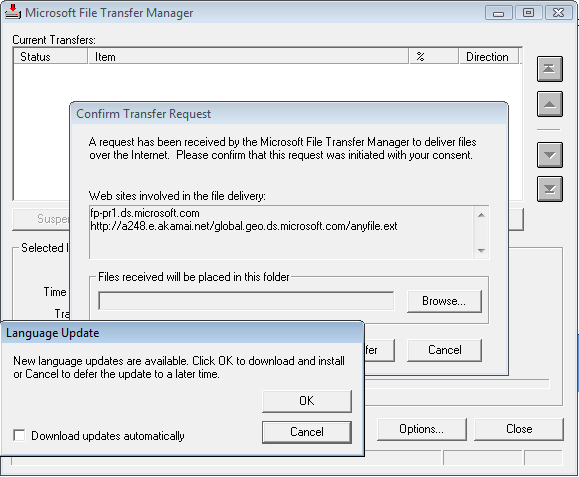
    Instead of the usual download procedure, MS has decided to force everyone to acquire the materials through a  download manager application called Microsoft File Transfer Manager. It’s a tool for providing some controls over the file downloads from Akamai servers, like resuming a broken download. The main question is, why do I need to bother? The downloads are typically a few megabytes in size, nothing I would need to worry about on a company network, since it’s year 2008 and we’re not on 56k modem anymore.

    Compared to the usual “do you want to save the file” prompt, the user now has to run an ActiveX add-on for IE, peform a bewildering amount of clicks and watch a number of pop-up screens to achieve a simple download. The add-on which I just reluctantly installed on my computer is asking for a language update installation only 10 seconds later.

    There is not a single positive feature about this forced process that I can think of, it only masks a simple download operation into something that needs a whole lot of arbitrary “managing”. Kind of reminds me of Microsoft CRM at times. I guess that’s why they’ve chosen the Dynamics users to be the guinea pigs.

    Microsoft Filte Transfer Manager

  • Eating your own dog food: deleted appointments

    In my working team we’ve only recently started to use Microsoft CRM 3.0 for organizing our own work. The CRM system has been already rolled out to 200 users globally, but these databases have been reserved solely for end customer data. Now we finally have a separate CRM environment to manage our team’s internal customer data, projects and tasks, hence the “dog food experiment”. I’ll blog here some of my experiences as a newbie user, like this mystery with appointments.

    This monday I opened up my Outlook calendar and was greeted with a surprisingly empty schedule for the upcoming week. Hmm, didn’t I have plenty of meetings booked for every day, as usual? Going back to my Outlook’s “Recover Deleted Items”, I was actually able to restore a fair amount of ucpoming appointments. But who put them in the bin?

    Upon opening CRM’s My Activities view, I still saw the missing appointments in the list. Looking back, I realized each of the appointments I had to recover from Outlook’s trash bin had been tracked into CRM by myself. Why on earth were they simultaneously removed from Outlook?

    Well, it turns out that there was a contact record in CRM that matches my default outgoing email address with it’s .com domain. My actual CRM user account used an email address with .fi at the end. So, CRM was not able to find any CRM user resources in the list of appointment attendees and promptly synched my Outlook calendar, thus removing the appointments (since I wasn’t participating them). I did remain as the owner of the appointment and was of course one of the contacts listed as attendees. Come to think of it, Microsoft CRM did provide some error screen to me about scheduling issues when pushing the track button, but who reads those?

    Makes you realize how an email address alias can make things confusing for many parties. Also makes you remember not to blindly trust what the system tells you and instead always make a mental note in addition to the virtual one.

  • Works the way you do, almost

    Matt Witteman, an MS CRM MVP, posted a nice wish list of 14 improvements that he would like to see in the product. Out of all these, I agree with almost all of them and would take them up on my list as well, except for the first one, which is the request to have more frequent releases of new MS CRM product versions. And that really contradicts with the whole point of asking for feature improvements.

    When you are working with a product that has a release cycle of 2 years, there are a couple of things that happen. Number 1, you implement workarounds or acquire add-ons to circumvent some of the features that you are most sorely lacking in the current release. Number 2, you commit yourself to the platform that has been given to you and invest in long, tedious and expensive integration projects that promise to deliver value in the long run.

    Imagine that this same platform would suddenly turn into a “perpetual beta” kind of product which continuously insists on updating itself with nice little features and quick polishing. You would end up living in a world of constant fear that a change in the next minor version will either render some of your previous efforts obsolete, or more importantly, break an integration that the whole business has learned to rely on.

    I’d very much like to have it both ways, but when it comes to choosing one or the other, I’m actually pretty happy with the way things are for Microsoft CRM. Yes, my company is still on CRM 3.0. Yes, we have a huge number of critical integrations. Yes, there are plenty of features in 4.0 that I want to get my hands on. Yes, upgrading to 4.0 will be a long and hard journey. I just don’t think there really is a viable alternative to this development path, yet. Then again, while reading The Big Switch and seeing what is going on with Salesforce.com and other modern players, I also keep on wondering how many years the current method of implementing business applications will last, and what will be the next platform that I get my hands dirty on after 5 years time?

  • Optimizing IIS Peformance for Microsoft CRM, Part 1

    If you ever need to access the MS CRM server from a remote office with not such a speedy connection, you will notice that CRM is not a particularly light weight application. In a WAN environment where the server is located in a different country or even on a different continent as the users, this can cause some serious issues. Slow performance is a very real threat for CRM user adoption.

    In an attempt to respond to the complaints of branch office users about the system usability issues caused by network latency, we have started investigating what really goes on between the CRM server and the CRM client in some of the basic use cases, such as opening CRM default front page (my activities) and opening an account form.

    Loading the CRM front page without cahced data can include close to 300 different HTTP requests. To me, that sounds like an insane amount for any web page! Sure, there are various little icons on the screen and many controls to load, but still that is way over what I would expect. My personal installation of SugarCRM only takes 65 HTTP requests to give me a nice dashboard of accounts and activities. Where do all these requests originate from?

    Let’s look at the individual requests that take place during a normal CRM page loading:

    CRM page load HTTP requests

    First you see the request for the 16_print.gif, then a while later you see the same request again. What’s up with that? Going through the list, you will notice that in practice all the items are requested twice from the application server. The first one has a result code 401, the other 200.

    Welcome to the world of IIS, or more precisely version 6.0 of it. This is how content protected by integrated Windows Authentication is handled by the server. You can read some discussion on the subject from this thread: “Integrated Windows Authentication – Double Hits“. Brian Reid from C7 Solutions also covered this subject in his blog post “Improving the Performance of IIS 6.0 Applications”, where he also suggests quite an elegant solution of modifying the AuthPersistSingleRequest setting in IIS metabase. However, this being not just any in-house developed site but Microsoft CRM, a business critical application, I’m hesitant to try anything that has not been officially promoted by MS as a performance tweak. Therefore I decided to have a look at what this article had to say about IIS: Optimizing the Performance of Microsoft Dynamics CRM 3.0 White Paper. I’ll share my findings in part 2 of this post.

  • Switching between Outlook laptop and desktop clients

    If you need to support a Microsoft CRM environment where both the desktop (online) and laptop version of the Outlook client are being used, here’s a quick way to switch your own workstation to use a different client mode. Assuming of course that you already have the local SQL database on your machine.

    • Open Regedit
    • Locate the registry branch HKEY_CURRENT_USER\Software\Microsoft\MSCRMClient
    • Set the LightClient registry key to either 00000001 (desktop) or 00000000 (laptop)

    There’s another key right next to it, which tells the current status of the client:

    • RCOffline = 00000001 equals offline mode
    • RCOffline = 00000000 equals offline mode

    That registry key may come in handy if your “Go Offline” / “Go Online” buttons in the Outlook UI get mixed (which is what they sometimes do!) and you need to determine the real status of the client.

  • Hello CRM

    Another day, another Microsoft CRM blog emerges. WordPress just makes it all too easy.