Blog

  • What Convergence 2014 Europe Tells Us About 2015

    What happens at Convergence rarely stays there. So was the case with Convergence 2014 Europe held this week in (supposedly) sunny Barcelona. There was a flood of #CONV14 tweets shared by the friendly attendees of this conference, which give us quite an accurate picture of what Microsoft’s got in store for the beginning of the year 2015 when it comes to Dynamics CRM and the related products.

    CRM 2015

    Given that the new major version, Dynamics CRM 2015, is scheduled to become available in December, Convergence was naturally the place where this release was to be shown live in action to customers and partners. The actual contents of the release isn’t such a big secret anymore, given that the Release Preview Guide became available already quite some time ago. Although new features like Global Search and Hierarchy Visualization provide some nice looking screens for the demos, there’s also plenty of enhancements buried inside the platform that will make the system customizer’s life easier, like calculated fields and rollup fields.

    Product_hierarchy_2_small

    For anyone wanting to learn in more detail about the upcoming release, Microsoft has made available an unprecedented amount of content on CRM 2015. Check out all the links on this blog post about CRM 2015 prerelease content to keep yourself occupied with Get Ready pages, ebooks and videos for the next week or so.

    Mobility

    What wasn’t previously covered in the Preview Guide was how MS plans to take the mobile client capabilities forward with this latest release. At Convergence 2014 Europe we saw a couple of interesting features being demoed on this front. The first was a Windows Phone exclusive, as Microsoft announced the coming integration between Dynamics CRM and Cortana. While this voice guided WP8 digital assistant is currently only available in limited markets and languages, the CRM integration is a fine example of the type of extensibility and the potential that these new types of user interfaces have on our personal mobile devices.

    CRM_MOWA

    Another far more immediately useful feature that was shown in a demo (and a Youtube video) was the ability to finally track emails from a mobile device into records in CRM. As we know, up until today the only way to select emails to be tracked has been to run a PC with the Outlook client, since CRM activity synchronization options do not cover the use case of promoting new items from you mailbox into CRM. As seen from the image above, the MOWA app (as in Mobile OWA, OWA as in Outlook Web Access) shown at Convergence now promises to deliver a way to do this via your smartphone screen, alongside showing the details about the regarding record such as an opportunity. While you obviously can’t inject a “track” button into the native iPhone email app and the likes, this sure seems like an option worth exploring (at least for Office 365 users) once more details about it become available.

    Marketing and Social

    Gone are the days when there was only the Dynamics CRM product in the Dynamics CRM portfolio. As we saw in the US Convergence event this spring, the product roadmap these days consists of four different lanes, with Dynamics Marketing, Social Listening and Parature (the customer service component yet to be re-branded) having their own releases lined up alongside CRM itself.

    On the Dynamics Marketing side there has been some catching up to do for the features that didn’t originate from the marketing resource management product (Marketing Pilot) that Microsoft acquired a couple of years ago. While the Mira release this spring was the first version to give us a package with the core marketing automation features for email and web content, the next release (Electra) is starting to look a lot fancier, with advanced features from competing solutions being replicated there (graphical email editors, A/B testing, inbox previews) as well as new areas like the Sales Collaboration Panel (included in CRM Professional license now) and integrated Social Listening data making the MDM product an interesting offering for many existing Dynamics CRM customers.
    Microsoft_Social_Engagement_2_small

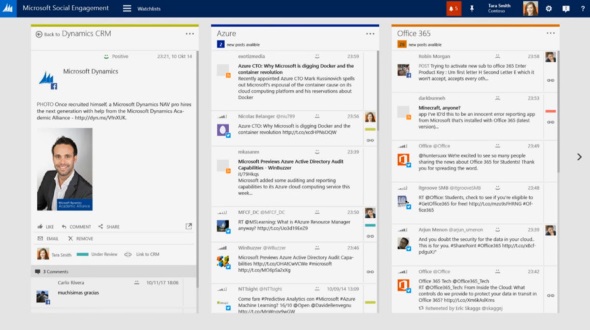
    Speaking of the social side, one highly interesting concept that Microsoft demonstrated during the sessions at Convergence was a social tool targeted not only for listening to the data streams from a central tower but also for bringing out this information to a wider range of CRM users. Labelled as “Microsoft Social Engagement” in the demos, this application offered both a dashboard with KPI charts as well as a stream based view for presumably any CRM user who’s interested in following certain topics on the social networks. Whether this is Microsoft’s version of Hootsuite or something completely different remains to be seen, but simply having the social feeds integrated into the CRM UI and then providing a “track in CRM” button for engaging with the people who are having the discussion on these networks seems to make some of the “social looking glass” visions from 3 years ago finally a reality. Definitely something to keep an eye on for 2015. (more…)

  • Don’t Merge Your Forms in CRM 2013

    If you have been using Dynamics CRM before the 2013 version was released, you may have something in your system called “information forms”. This is not a very descriptive term for them, since of course all the entity forms are about presenting “information” to the end user. These forms actually date back to a time in the Dynamics CRM platform history when there was only a single form available per entity. Times have changed quite a lot since then, as entities can now have role based forms, mobile forms, quick create forms and quick view forms.

    Although not a specific form type in itself, CRM 2013 introduced a whole new layout for the default entity forms as a part of the UI refresh. Instead of the traditional & boring two column layout, the new CRM 2013 forms are made up of three columns that can consist of not just entity fields but also related entity subgrids, the social pane, Bing Maps component and other exciting new features. Whereas the old default forms were called “Information”, the names of these new forms follow the entity names. So, the account entity will have a new form labelled “Account”, as an example. (By the way: check this tip for optimizing your form naming convention.)

    Merge Forms Feature

    Since the new forms are designed to make better use of the new navigation paradigm of CRM 2013 as well as present the data in a much richer way than the old “ERP style” forms of past CRM versions, customers who are upgrading their Dynamics CRM deployment to the latest version are advised to migrate into using these new forms. In fact, Microsoft has stated that the next major version (CRM 2015) would no longer support the use of the old “information forms”.

    To make this transition easier, Microsoft has provided a feature called “Merge Forms”. This new button available on the form editor in the CRM customization UI (which still utilizes the old CRM 2011 style layout even in CRM 2015, by the way) is intended to be used for bringing the tabs, sections and fields from your old forms onto the new forms with as little clicks as possible.

    CRM_merge_forms

    The process is described in the article “Update your forms to Microsoft Dynamics CRM 2013 or Microsoft Dynamics CRM Online Fall ’13”. Even more detailed steps can be found from the PDF document “How to Prepare for the CRM Online Fall ’13 Service Update”. Basically what the feature does is bring in the contents of the old form to the end of the currently open form, with the intention of making it faster to rearrange your customized fields and sections to align with the new default form’s content and layout.

    Sounds like a handy feature, right? There’s only one slight problem with it: it doesn’t work.

    Conflicting ID Values

    “What do you mean it doesn’t work? I have used the button to bring in my custom fields and it did just what I expected.” Well, maybe I should rather say that it works partially. If you never export your CRM customizations into a solution file and move it to a different environment, you may not notice that anything is wrong with your forms. However, if you do want to move the customizations between development, test and production organizations, you might run into the below error message during the solution import process.

    CRM_import_solution_error_after_form_merge

    After the error, if you download the log file and open it, you’ll see a message like this:

    Error code 0x8004F658. The label ‘E-mail 2′, id: ’87dc7c9c-94c1-3953-e490-11413b31d0ad’ already exists. Supply unique labelid values.

    What the system is telling us is that we’re trying to insert an item into the customization metadata that has a non-unique ID. Depending on the scenario, the item could be a field or section label. But how did the ID end up being a duplicate? After all, we don’t assign these GUID values in the customization UI, rather the CRM platform generates them. What could have caused the system to violate its own rules?

    The answer can be found from this thread on the MSDN forums: CRM 2013 Solution Import. A Microsoft support engineer has confirmed that the error is caused by a design mistake in the Merge Forms feature. Apparently in the process of merging form content from the old form onto the new one there is more data carried over than is needed. Not only do you get the form components exactly the way they are configured in the original form, but you also get the same ID’s. Now, since the old form also exists in the system, this will cause an error message when you try to import your solution file from the source system to the target environment, like from development to test environment, for example.

    The Workaround

    The system where I ran into this problem was running Dynamics CRM 2013 Service Pack 1 (6.1.0.581) with no Update Rollups (see this earlier blog post for help on understanding the different updates and version numbering). The forum thread above does not indicate that a hotfix for the form merge bug would have been included in one of the released updates so far, so I’m assuming that all CRM 2013 environments are affected by it during the time of writing.

    The suggested workaround in the forum discussion was basically “start all over”, meaning removing the merged content from the form and re-adding the components back there one by one. In the environment I was working on this would have required many hours of work with using the form editor on a number of entities , which I wasn’t too keen on spending there. I had just migrated a copy of the CRM 2011 production organization database onto a CRM 2013 test server and was in the process of testing the upgrade steps before the final go-live, so re-doing the customizations at this stage just sounded like both a schedule challenge as well as a potential source for new issues.

    I extracted the CRM solution zip file and poked around the customization.xml file for a while, trying to think of a way out of this situation. After I realized that trying to edit the XML manually would only land me into a deeper hole, it occurred to me that there was another feature in CRM that performed something similar than the broken Merge Forms: the “Save As” button. Copying entity forms to create new variations was something that I had used many times with no issues, so perhaps I could rely on it here as well?

    I proceeded with creating a copy of each of the entity forms where I had used the Merge Forms feature. Since the new form versions created via “Save As” are able to co-exist with the original forms without causing any conflicts, this must mean that the CRM platform assigns the required new ID’s to the form components. Based on this reasoning, I therefore assumed that once I deleted the original merged form and renamed the new copy (as well as configured the form order and security roles), I would have a clean solution file with unique ID values. After testing the solution import I was extremely glad to see that this was in fact the case, as no more error messages appeared during the import. Saved by the “Save As”!

    Don’t Just Merge – Design

    So, with the above workaround and a potential upcoming hotfix, is there any reason not to use the Merge Forms feature? In my humble opinion, the merge process is not a best practice but rather just a quick’n dirty way of getting the custom fields to appear on the entity forms. If you don’t in practice know how to customize your Dynamics CRM environment but need to cope with the updated UI of the new version, then the merge will technically make it possible to keep using your CRM data. What it will not do is produce a system that your end users will enjoy.

    The merge will bring over a lot of duplicate content (all the default fields) that you may forget to clean away from the new form. It will also create very confusing components for the system administrators, such as the old “What’s New” section vs. the new Social Pane, which require a deeper understanding of the Dynamics CRM platform evolution to really figure out. The biggest risk is that the form content designed for the old version UI will end up living alongside the content that is specifically made for the post CRM 2013 world, creating a disconnected and illogical application that works differently depending on the area where the user navigates to.

    Instead of taking the shortcut and doing a quick content merge, I recommend investing a bit more time and effort in planning what’s the best way to present the data and how to make it as easy as possible for the users to interact with it through the UI. If you need some ideas for improving the user experience of your Microsoft Dynamics CRM environment, take a look at my previous post that listed 10 tips for designing a great user experience in Dynamics CRM.

  • 10 Tips for Designing a Great User Experience in Dynamics CRM

    Last week I had the privilege to talk at the Dynamics CRM Finland User Group meeting in Helsinki (quick recap available in Finnish here). When planning on what topic to choose for my presentation, I tried to think of something that would appeal to a wide audience of CRM users – both experienced consultants as well as key users who might still be relatively new to the product.

    The common denominator for the group was, as the name suggest, that we’re all CRM users in one way or another. In this role we interact with the software in a variety of different ways, most likely several times during the course of a typical working day. As information workers, systems like CRM are our tools to get the job done. How effectively we succeed in this is largely affected by how much cognitive effort is needed to use these tools to shape the expected output.

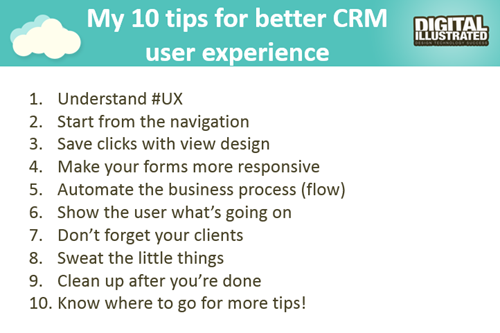
    So, I decided to talk about the many ways how we can sharpen our saws when it comes to Dynamics CRM. While every CRM environment is ultimately different from one another, due to the business processes we manage with it, the systems it integrates to, the user groups working with the application and so on, I believe there are still general design guidelines that apply to basically any organization using Microsoft Dynamics CRM. My presentation, “10 Tips for Designing a Great User Experience in Dynamics CRM“, introduces many of these guidelines that I personally try to follow when designing CRM solutions for customers. You can view the embedded presentation below, or if the content is not showing, then go and have a look at it on SlideShare.

    While UX has always been an important piece of the puzzle when trying to convince business users that using a CRM system can actually deliver tangible benefits to them, rather than just serve as a management tool for keeping track of what the employees are doing, the launch of the Dynamics CRM 2013 version has really heightened the importance of designing solutions with a polished user experience. This is due to the fact that the refreshed user interface and new customization points available in the UI can be leveraged to deliver a much more usable business application than the CRM systems of the past. But: you also need to plan the flow of user interactions with much more attention to detail, because sloppy customizations will now stick out like a sore thumb.

    The good news is that many of the new details in CRM 2013 (and CRM 2015, too) are easy to configure once you know the role of each platform component. You can do so much these days without writing a single line of custom code that the system customizer can easily have his or her plate full of CRM enhancement ideas to implement without ever consulting a .NET developer. That’s why it’s also good to think in advance how to prioritize the areas into which you invest your efforts. This Top 10 list of mine provides one example of such a tool, to help in identifying the low hanging fruit when it comes to making your CRM users happier and more productive with the system. If you have any topics on your mind that I forgot to include on my list, be sure to leave a comment below!

    10_CRM_UX_tips

    Oh, one more thing: if you’re a Microsoft Dynamics CRM user in Finland and would be interested in networking with other fellow CRM professionals, I’m glad to announce that there’s now a new Yammer network available for you: Dynamics CRM Finland User Group. Whether you’re from a customer or partner organization, please feel free to sign up for this network and come join the planning for future events and other ways to share Dynamics CRM knowledge and experiences with peers. Tervetuloa!

  • Time Travel with Workflows: Accessing “Before” and “After” Values

    Time Travel with Workflows: Accessing “Before” and “After” Values

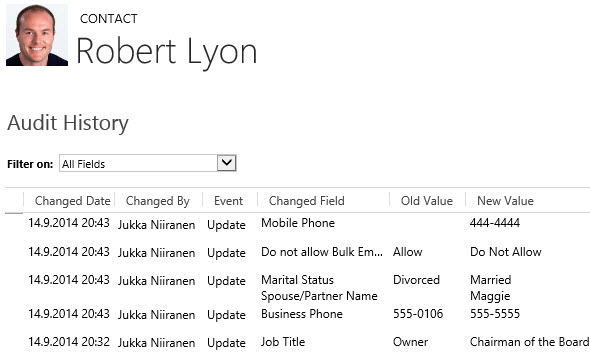
    Dynamics CRM has had a built-in auditing feature since the 2011 version, which provides a really handy tool for situations where someone needs to investigate the changes that have taken place on field values of a specific record. By default auditing is not enabled, but I recommend you to seriously consider enabling it for all business critical entities like accounts and contacts, since without it there’s not much to go by if you ever need to track down any intentional or unintentional updates made to your CRM data.

    CRM_workflow_audit_1

    Auditing is a great tool for capturing the “fire hose” of data updates that are taking place in CRM. However, since the audit data is not stored in actual CRM records but rather in a denormalized state inside the audit database tables, it’s not accessible for any type of reporting or business process logic. If you know what record to look for, the related Audit menu will give you the information. If you are an administrator and have access to the Audit Summary View, you can also use filters to narrow down the audit data stream and hunt down the events that are relevant to your investigation. Very useful for resolving issues in the data, but not so practical for simply staying informed about updates that are of interest to your role in the organization.

    Workflow processes can also be used for tracking specific changes made on the CRM records, just by setting the workflow to start when a particular field or a set of fields change. You can then perform any notification action you see appropriate, such as sending an email, creating an Activity Feed post, adding a note, appending a description field etc. Almost like auditing, but on a much more granular level, and also something that you can report on if necessary. One limitation compared to auditing, though, is that you can only see the new value of each field but not the previous one. So, you can’t produce a similar view that auditing provides, with the old and new values side by side.

    Or can you? With the launch of the CRM 2013 version we gained a whole new category of workflow processes, called real-time workflows. These behave much in the same way as custom plugins, as they are executed synchronously as part of the event pipeline of the CRM platform rather than via the asynchronous service that the traditional workflows use. The extra benefit we gain from this, aside from the fact that the workflow logic is executed immediately, is that we now also have the ability to choose whether the real-time workflow should be started before or after the event. This allows us to actually read the data that was in a field before the update took place. Sounds like a cool little feature? Well why don’t we take it our for a spin then and see what we can achieve with it.

    Tracking Account Name Changes

    Let’s consider a scenario where we would be interested in tracking the changes performed on the account name field. We have decided to leverage the Activity Feeds feature to post a message on the record wall every time an existing account has its name field updated. As a part of this post, we need to provide both the old name and the new name, so that the users can easily associate this particular account as a customer they’ve previously done business with under a different name.

    Since we need a place to store the old name of the account for the purposes of formulating the post’s content, first we’ll add a new custom text field for the account entity, called “Old Name”. Then we’ll open up the workflow editor and create a new real-time workflow process for the account entity, called “Account Name Change: Store Old Name”. The important part here is that we’ll set this workflow to be run when “Record fields change” with a box ticked for the “Account Name” field and change the “Start when” value to “Before”. The actual workflow actions only need to do one thing, which is to copy the value of the standard “Account Name” field to the new “Old Name” field. Nothing else.

    CRM_workflow_audit_2

    Next we’ll create a second workflow, called “Account Name Change: Post Old & New Name”. We’ll set it to run in real time for the account entity, just like the first one. We’ll even associate it with the very same event, meaning the change of the “Account Name” field. The difference will be that we’ll run this workflow “After” the event. Again, the actions that the workflow will perform are very simple, as we’ll only need it to create a new Activity Feed post record. Here’s how the message will be configured with the dynamic field values from the account record:

    CRM_workflow_audit_3

    So, we now have two real-time workflows running for the same entity, for the same field change event. Is this a smart thing to do? Will the universe by any chance collapse onto itself as a result of this reckless twin workflow configuration that we’ve built? Well, there’s only one way to find out! Let’s activate these two workflow processes, go to an account record and change it’s name.

    CRM_workflow_audit_4

    After the name is changed, we can click onto the Activity Feed’s auto posts column to refresh the post view. There we discover a post created by our second workflow process, containing both the “before” and “after” names for this account. Success! If we keep feeding further update events to this workflow duo, we can see that the post message is always updated to contain the last two names for this account in search of its true identity.

    CRM_workflow_audit_5

    If our second workflow process would have been an asynchronous process instead of real-time, the results might be different, though. As I’ve experimented in a previous post, “Auto-Numbering with CRM Workflows: Real-Time vs. Asynchronous”, the record data and execution order for traditional background workflow processes may not always be consistent, due to their asynchronous nature. By using a real-time workflow we are guaranteed to receive a ticket to the front row seats of CRM’s event execution pipeline. In practice this means the following:

    • “Account Name Change: Store Old Name” – this workflow is executed at the pre-operation stage, which means that it sees the record as it was before the update event took place. Therefore when it reads the account name field it still has the old value stored. Furthermore, because the workflow is completed before the actual platform event for the account update takes place, it can inject a new value into the “Old Name” field and have it committed to the database as a part of the original transaction.
    • “Account Name Change: Post Old & New Name” – this workflow is executed at the post-operation stage, meaning after the update has already taken place, but before the transaction is completely over. It receives an image of the account record where the standard “Account Name” field is populated with the new value the user has entered and the “Old Name” contains the value updated by the first workflow in the pre-operation stage.

    As this example scenario demonstrates, while a workflow can’t directly compare the “before” and “after” values of a record, there is actually a workaround available where you could pass the old value from the pre-operation workflow to the post-operation workflow. You could then perform a comparison of the values with the tools that the workflow editor offers (or extend it via custom workflow activities) and alter the outcome of the transaction based on the business logic. If needed, you could even cancel the operation and show an error message to the user if the old & new values are violating the rules of your business processes.

    To close things off, it’s important to keep in mind that just because you can do something with a workflow instead of custom code, it doesn’t mean it would always be the right tool for the job. Aside from the greater level of flexibility that a plugin will give you for comparing and manipulating the data during the update event, there are also performance considerations you should be aware of before pushing a ton of real-time workflows into your production CRM system. I recommend reading this post by CRM MVP Scott Durow: Real Time Workflow or Plugin?

  • Troubleshooting CRM for Tablets Login Issues with ADFS

    All CRM 2013 and CRM Online customers have access to the CRM for Tablets app that’s available for Windows 8, iOS and Android devices. Since it’s an app from the new age of mobile computing, the users can simply download it from the respective app store of the platform provider and install it. Configuring the app to connect with your CRM organization can however prove to be a bit trickier task than this.

    If you’re using CRM Online hosted by Microsoft in their data centers, connecting the tablet app to the CRM server in the cloud is usually a straightforward process. Just enter the URL for your organization, then punch in the credentials and off you go. Well, to be more precise, upon your first connection the organization you’ll be taken to a screen that asks you to hold on tight while the app is being set up. This is because all of the metadata related to your CRM organization’s customizations first needs to be loaded, so that you’ll see your own CRM instead of some generic, hard coded menus and fields. This step can take quite a while to finish, but just hold on tight, it’s worth it.

    If you’ve got your own on-premises CRM server or you’re logging to CRM Online via your on-premises Active Directory credentials, you may need to work a bit harder to achieve connectivity between the CRM for Tablets app and the CRM server. This is because in both of these scenarios you will have ADFS (Active Directory Federation Services) sitting there in the middle, processing your login request and validating your user credentials. Of course the same technology is also used behind the pure cloud CRM Online service, but MS has done the configuration work for you, whereas with on-premises components you’ll be in charge of performing this.

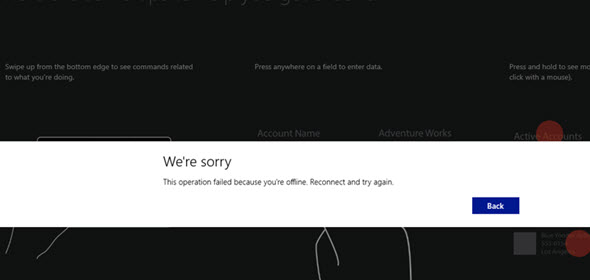
    CRM_for_Tablets_Were_Sorry

    Recently I was faced with a situation where a customer had deployed Dynamics CRM 2013 SP1 on-premises and done the Internet Facing Deployment via Windows Server 2008 R2 ADFS 2.0, published via Forefront TMG (Threat Management Gateway) 2010. Accessing CRM via the web client through the IFD address was working as expected, so was the CRM Outlook client. CRM for Phones was connecting without issues and I could even connect to the server via tools like XrmToolBox with no issues. There was just one problem: the CRM for Tablets wouldn’t connect to the server, no matter what. In the process of troubleshooting this particular scenario I learned a thing or two about the tablet app connectivity as well as server configuration tasks, so I thought I’d share my findings here on my blog. I’m by no means an expert on anything surrounding ADFS , but I’m stubborn enough to keep searching for answers until I find some from the great wide web.

    RTFM – Read The Friendly Manual(s)

    First of all, you’ll need to know your ADFS version, since there’s a few new hoops you’ll need to jump through when working with Windows Server 2012 R2 and the latest ADFS 2.2 (sometimes referred to as ADFS 3.0, since official version numbers seem to have been dropped by MS, in favor of just shipping ADFS together with Windows Server releases). The architecture of ADFS has changed considerably from earlier 2.0 and 2.1 versions, with no more IIS in the background, so the configuration process for CRM IFD also differs from the previous experience.

    You’ll find the extra steps listed on this article: Configure Windows Server 2012 R2 for CRM mobile clients. On the ADFS 2.2 server you’ll need to enable forms authentication manually, since it’s not enabled by default, like in previous versions. Then you need to run a Powershell script on the CRM server to configure the OAuth provider. Finally, you should register the CRM for Tablets app ID’s with the ADFS server via another Powershell script.

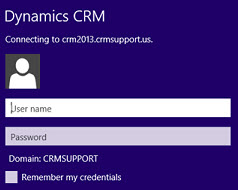
    Tablet_AD_login_promptYou may run into an issue with the login process where the user is prompted for their AD credentials via the standard Windows domain dialog window repeatedly. This is because of some incorrect authentication settings that apparently are caused by the CRM IFD configuration process itself. To avoid these issues, you should run a repair installation on the CRM 2013 server with the Web Application Server role deployed, after you’ve done the IFD configuration and before you attempt to log in with the CRM for Tablets app.

    Another aspect is the requirements imposed by the new Windows 8.1 version of the tablet app. Because of the changes on the OS layer, it’s no longer possible for Win8 apps to connect to any random server at will, but rather the developer has to specify the URL’s of these servers before publishing the app to the Windows Store. For CRM Online the domains for the service are known in advance, but for an on-premises deployment they could be absolutely anything. To overcome this, you’ll need to add a registry entry onto your device before attempting to connect to your server, otherwise the tablet app will just sit there and do nothing. Go to the page Set up CRM for Tablets, expand the section “what the admin needs to do” and grab the Powershell script from there. Running it on your device will prompt you for the CRM organization URL and create the necessary registry key for you. (more…)

  • Access Option Set Labels in Dynamics CRM OData Feeds via Power Query

    Access Option Set Labels in Dynamics CRM OData Feeds via Power Query

    If you’re using Dynamics CRM Online without direct access to the underlying SQL Server database, there may have been a few occasions when you’ve wished for more flexible options for reporting and customer data analytics than what is possible via configuring CRM charts or developing Fetch XML based reports in Visual Studio. Late last year Microsoft enabled support for accessing the secured OData feeds from CRM Online via the Excel Power Query tool, which opened up some interesting options for building modern BI solutions on top of the CRM data up in the Microsoft cloud.

    CRM_OData_Excel

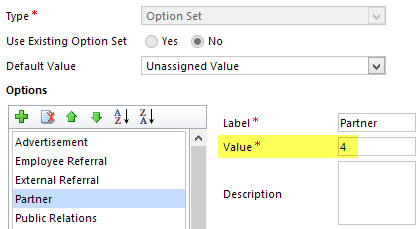
    For a non-developer who hasn’t leveraged OData before it might come as a bit of a surprise that not all of the business data is necessarily readily available via the feeds when examining a particular CRM entity. One crucial thing that’s missing is the option set values. More specifically, it’s the label values that are not accessible via the entity tables retrieved via the OData feed, as all we have access to are the numerical values representing the labels (1, 2, 3, 4… 10001), but not the human readable versions.

    CRM_OptionSet_Value_Label

    From a reporting perspective, it’s very likely that any chart or table that you wish to build is going to leverage one or more option set fields. Formerly known as picklists, these are basically the dropdown fields on CRM entity forms that allow the user to select one value from a list of predefined values. Much more convenient for reporting purposes than free text fields, as I’m sure you’d agree.

    So, what are our options then? We could of course manually create new tables into the Excel workbook that store the mapping of ID values and labels, but that just doesn’t sound like a fun exercise at all. More importantly, that would only give us a static list of option set values that couldn’t adapt to the changes in CRM customizations. Nope, not a good approach from report maintenance perspective, so let’s not go there.

    As a bit more efficient workaround we could be adventurous and import a copy of the CRM solution file containing the entity customizations as an XML data source into Power Query and then pick out the necessary mappings from there. Due to the power of Power Query, this would actually technically work, and we could even set it to reference a file location from where the latest customizations would dynamically be imported upon workbook refresh. Still, that would leave us the burden of setting up an automated export system that would produce the customizations.xml file to reflect the latest changes.

    After a bit of poking around in the OData feed data source, it turns out the optionset labels are actually included there. The tricky part is that they’re not simply a [Record] link that you can drill into and expose the values from your existing entity data set. Nope, they reside in a specific table of their own, called PicklistMappingSet. In this tutorial I’ll show you how to retrieve the data for a “Leads by Source” chart created with Power View, taken from an OData feed data source pointing to Dynamics CRM Online, using Power Query to pull the data into a data model built with Power Pivot.

    1. The Data Source: Power Query

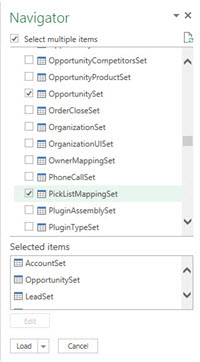
    PowerBI_CRM_Odata_1To follow the steps you should have the latest Power Query version installed in your Excel client. I’ve already covered how to access CRM OData feeds from Power Query in a previous article, so please refer to that one if you haven’t done the exercise before. After connecting to the OData feed URL we should select the tables that we want to work with from the data source navigator pane. By minimum you should grab the LeadSet and PicklistMappingSet to build the chart.

    The problem with CRM and OData is that by default the feed will pull down each and every record in the table. The query performance is less than stellar with CRM Online and if you have a high number of leads (status doesn’t matter, also the closed ones will get downloaded), you might be waiting for a while before the query is completed. If you want to move on a bit faster then check out this great tip by Andre Margono on how to set up a query filter for the Dynamics CRM OData query (for example, only active leads).

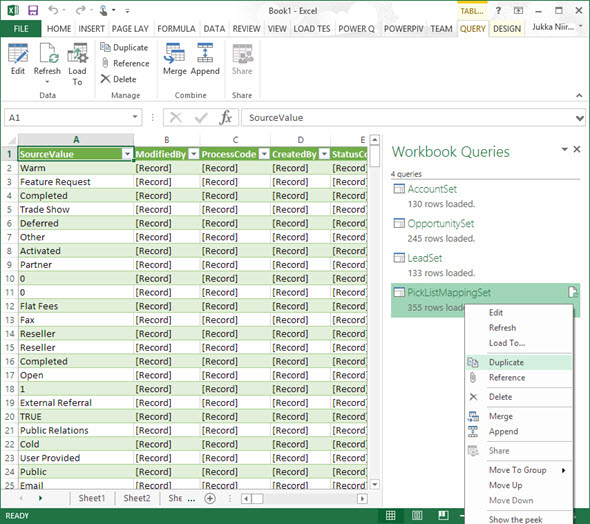
    The real beauty of Power Query is in the query steps you can use for manipulating the workbook queries. Before we go there, though, let’s create a duplicate of the PicklistMappingSet query. This will make it easier for us to map the values into our actual leads table later on, as well as preserve the original option set value table available for further queries.

    PowerBI_CRM_Odata_2

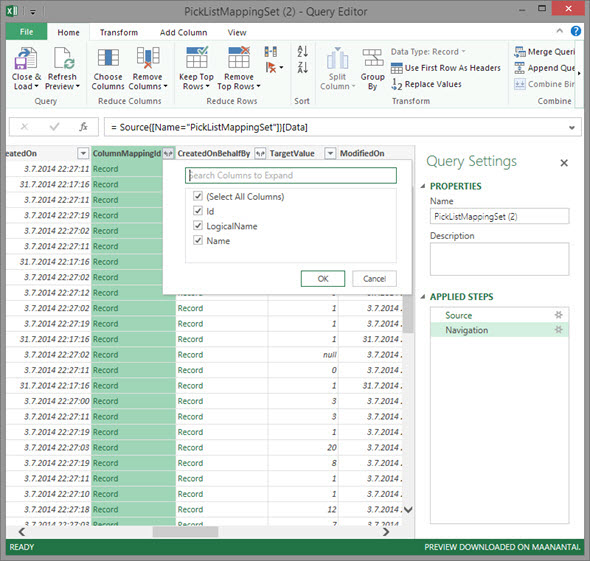
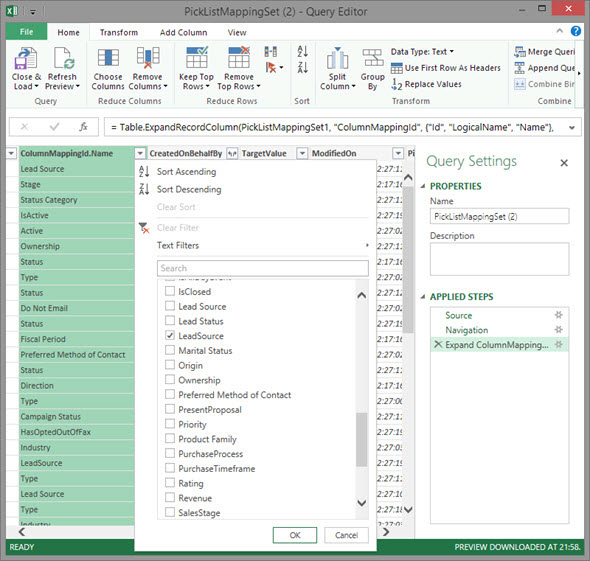
    Open up the new duplicate query you’ve added into the edit mode by double clicking on it, which launches the Power Query query editor (yes, query is the word of the day). The first step we’re going to add for the query involves expanding a column that only shows a green “Record” value by drilling into it from the small icon next to the column label. Do this to the ColumnMappingId column and just load up all the columns found from behind it.

    PowerBI_CRM_Odata_3

    You’ll see the Record column transformed into three new columns as a result of drilling down into the data. The column we’re interested in is ColumnMappingId.Name, which has the names for all option set fields in our source CRM system. For this example we want to see the LeadSource field, so add a new filter for this value, just as you would in a normal Excel data table.

    PowerBI_CRM_Odata_4

    By now you might have noticed that the Applied Steps box in the Query Settings pane is collecting all of the actions that we’re performing on the query and storing them as steps. If you make an error in your selection, just click the delete symbol next to the steps to get rid of it. (more…)

  • Our New Book: CRM 2013 QuickStart

    A few people have asked me for recommendations on what books they should get if they want to learn about the ins & outs of the current Microsoft Dynamics CRM 2013 version. Even though there’s a wealth of blog articles out there that study specific features and an ever growing library of content produced by Microsoft themselves, there’s not been a whole lot of material in traditional book format that would have covered the latest CRM 2013 functionality. Well, now there is a great title available that I can recommend: the CRM 2013 QuickStart.

    CRM_2013_QuickStart_cover_smallHow do I know the book is any good? Because I wrote a part of it! Aside from shameless self promotion, I can honestly say that the writing team behind this book is quite an extraordinary league of CRM experts:

    If that’s not a group of CRM MVP’s you’d trust for advice on how to work with the platform then I don’t know who you would!

    What exactly does the book cover then? As the title suggests, it’s not a complete A-Z of each individual feature included in the Dynamics CRM 2013 platform. Neither is it meant to be “my first Dynamics CRM manual” for people who are unfamiliar with any version of the product. Let me borrow some of the official intro text for the book here to explain the reason for its existence:

    The CRM 2013 Quick Start is a first look at Microsoft Dynamics CRM 2013 and all the new features that have been included.

    In the CRM 2013 Quick Start you will find details that can help administrators, customizers (functional consultants) and developers; not to mention power business users wanting to know all the details the admin never tells them. If you run CRM in the cloud or sitting in a server room at your office the information is useful.

    This book is targeted to someone who has some CRM prior experience. By that we simply don’t spend any time explaining the basics of Microsoft Dynamics CRM from a beginner’s point of view. That said, the information in this book would still be useful on your journey to become proficient.

    Imagine that you’re someone who’s started their Dynamics CRM journey with an earlier version like 4.0 or 2011 and you’re now faced with the upgrade project for moving the solutions onto the latest CRM 2013 version. Is this the right book for you to gain an understanding of what’s new & what has changed in the platform? Absolutely! How about if you’re a system administrator or a customizer that has some exposure to the new version (via CRM Online perhaps) but are looking to ramp up your knowledge about the platform for future projects, enhancements or admin tasks. Will the CRM 2013 QuickStart help you get up to speed faster than searching for random articles online? You bet!

    Now, this is actually the first book that I have ever written content for and it makes me immensely proud to have managed to make my debut in such a prestigious crowd of co-authors. My personal contribution to this title focused on describing the founding principles of how to design a great user experience for the CRM solution that you wish to deliver to your end users. While some of the topics I covered in the book are specific to the latest CRM 2013 version, many of the solution design guidelines are actually universally applicable to any Dynamics CRM version, representing best practices that I’ve personally learned over the past decade of working with the product. I’m really glad to have been given the opportunity to present them in a format that allows for a different type of discussion than your typical blog post.

    Being a newbie in authoring content for books, it was also a valuable learning experience for me. Although I’ve been writing down my thoughts  on all things Dynamics CRM on this blog for six years now, the project of producing close to 50 pages of content on a given topic to create a coherent book chapter that can stand on its own was still a very different kind of assignment. Let’s just say that I have new found respect for authors that have managed to create entire books for new software products on their own.

    The great thing about my writing project was that it provided me a really concrete reason to dig into the details of the various new customization options that Dynamics CRM 2013 offers and experiment with different scenarios that I’m likely to encounter in real life customer projects. As they say, the best way to learn a new topic is to teach it to someone else. If this content that I’ve put together as a part of my own learning process then ends up helping also other members of the Dynamics CRM community to discover better ways to solve customers’ problems with the application, then I consider that a win-win result.

  • Update Rollups, Service Packs, Major Releases: Understanding Dynamics CRM Versioning

    When it comes to commercial software, there’s often times a difference between what the engineering department calls their product versions and how the marketing department decides to label the product for the end customers. For example, after Windows 3.1 the commercial name of the product changed to “Windows XP” while the underlying version number progressed to 4.00. After various changes in both product and naming strategy of the OS, we’re now using a product called “Windows 8.1” when its actual technical version number is 6.3…

    Just like with Windows, Dynamics CRM also has version numbers that are different from the names you’ll see in marketing materials and end user documentation. These numbers are relevant to anyone who needs to either maintain and administer a Dynamics CRM environment or customize and develop solutions for the product, since you need to be aware of the changes introduced by various updates to Dynamics CRM.

    Before CRM 2013 there wasn’t a convenient way through which you could have determined the installed updates by just looking at the version number, since each Update Rollup just had a seemingly random four digit build number assigned to it. Luckily the latest releases have made the version numbers much more user friendly, by starting to follow the standard “major.minor.update.build” pattern. There’s still a few CRM specific things you need to be aware of, especially with the very latest releases, which is why I thought now’s a good time to draw some attention to the topic.

    CRM_version_numberStarting with CRM 2013, the version numbering scheme follows a pattern like this (notice the bold numbers):

    • Major Release
      • Name: Microsoft Dynamics CRM 2013
      • Version number: 6.0.0.xxxx
    • Service Pack:
      • Name: Microsoft Dynamics CRM 2013 Service Pack 1
      • Version number: 6.1.0.xxxx
    • Update Rollup:
      • Name: Microsoft Dynamics CRM 2013 Update Rollup 1
      • Version number: 6.0.1.xxxx

    The build numbers are of course not “xxxx” in reality but I left them out since they’re not something you should actively need to remember. Just bookmark this page and reference it whenever you need to know the detailed number of a particular release: Microsoft Dynamics CRM 2013 and 2011 Update Rollups and Service Packs: Release Dates, Build Numbers, and Collateral.

    I’ll go through these levels in a reversed order, since I think that makes up for a more exciting story line here. Also, I think it’s more likely to resemble the real life process via which you’ll encounter each of these versions of Microsoft Dynamics CRM after your initial deployment. You’ll certainly need to be aware of the different versions even prior to setting up your very first demo/test/development environment, but keeping up with the Dynamics CRM releases is a job that never ends!

    Update Rollups

    These are collections of hotfixes to existing product functionality. When you open a support ticket with Microsoft for an issue you’ve encountered with the software, sometimes you might receive an individual hotfix package from them that fixes your specific issue (and nothing else). Normally you wouldn’t need to install each and every hotfix separately, however, as most of these fixes will eventually be released in an Update Rollup package. You’ll see a list of “issues that are resolved” in the Microsoft Knowledge Base article of each Update Rollup, which is normally your best indication of whether the software bug you’ve encountered has been squashed.

    <rant>Since the official name of these releases is “Update Rollup”, the official acronym for them would logically be “UR”. However, some people seem to happily forget about the first word and instead call them “RU”, presumably as a shorthand from “RollUp”. Fine, call them whatever you want, even give each of the releases your very own pet names if you wish, but you’ll never, ever see me use anything but “UR” on my blog.</rant>

    At the time of writing, the latest released version for CRM 2013 is Update Rollup 3, version number 6.0.3.0106. It was released on July 15th and contains over 200 hotfixes as listed on the KB article. Normally there would be a UR3 package released for all the server and client components, but this time there’s no Outlook version available, since apparently none of the hotfixes required the client bits to be updated. Update Rollups are usually cumulative, so CRM 2013 UR3 also contains the fixes from UR1 and UR2.

    If you don’t manually download and install the UR’s, they will also be distributed via Windows Update later on once Microsoft makes them available via this channel. Since you should always test the effects of each UR prior to production deployment, it’s usually never a good idea to just let things run on autopilot. For example, letting your Outlook clients get the UR’s via the Windows Update schedule without keeping your server components up to date will soon land you in unsupported territory.

    Service Packs

    During it’s first 11 years of existence, there weren’t any official Service Packs released for Dynamics CRM, unlike many other Microsoft products. This changed a couple of months ago when CRM 2013 Service Pack 1 was released on May 28th. Even though MS is mostly referring to it by the name Spring ’14 release in their marketing messages, based on the naming policy of CRM Online, the SP1 version is essentially Spring ’14 for on-premises customers and the Outlook client components (even for CRM Online customers).

    While the CRM 2013 SP1 KB article looks like any UR article we’ve come to know, with a list of resolved issues, this isn’t just a collection of hotfixes. Service Packs are the delivery mechanism for new product features as well as changes to existing functionality of the product. An example of this would be the case creation and routing features introduced in SP1. For a more complete list of SP1 contents, refer to the “What’s New” page on CRM Customer Center. Note that in order to access some of the new features, you’ll not only need to install the SP1 bits onto the server but also go to the CRM organization’s settings menu and apply “Install Product Updates” from there.

    Service Packs are cumulative in the sense that they contain the previously released Update Rollup hotfixes. So, while CRM 2013 UR1 and UR2 were released prior to SP1, you don’t need to install them separately when setting up a new Dynamics CRM 2013 environment. Just grab the Service Pack and you’re all patched up to that point.

    Update Rollups for Service Packs

    Now this is where it really gets interesting. Remember that latest CRM 2013 Update Rollup 3 I linked to a few paragraphs earlier? Based on our discussion so far, would you assume it to contain all the fixes, updates and new features released for CRM 2013 so far? I see quite a number of nodding heads out there and I’m not at all surprised if your initial assumption would be “of course”. The correct answer, however, is “no”. Due to the counter-intuitive nature of this situation for any Dynamics CRM veterans, an explanation is surely in order here. (more…)

  • Dynamics CRM Platform Evolution Revisited

    Dynamics CRM Platform Evolution Revisited

    MVP_year_2_cakeIn celebration of receiving my second Microsoft Dynamics CRM MVP award today (thanks to the whole #MSDYNCRM community for your support!), I’m publishing an article series on the Microsoft Dynamics CRM 2013 Customization and the Platform Evolution.

    For the regular readers of my blog this title may sound eerily familiar, and you are correct. This is indeed a re-release of my earlier webcast topic that I presented in May for MSDynamicsWorld.com. I’ve previously shared the links to the live recording and the slide deck, but this time I decided to put it all down in writing. I had a huge pile of speaker notes, so I tidied them up a bit and published them as articles on this site.

    Why bother revisiting the same old story? Well, it all comes down to my own behavioral patterns and personal preferences. You see, even though there’s an ever increasing number of webcasts, podcasts and other forms of streaming content published these days on highly interesting topics and shared all over the social networks I hang out at, I very rarely find myself actually consuming any of that content. Jeffry van der Goot nicely captured the underlying issue in his recent tweet:

    Stop_the_videos

    Recordings of people presenting on a topic that they claim to be experts in just isn’t a very effective method of online knowledge sharing, if you ask me. Sure, you might be able to convey your message a lot more effectively with the help of audio and video, but the problem is that I, the audience, have a difficult time in assessing whether the content you’ve prepared really is worth my precious time (my precious free time in most of the occasions, I might add).

    It’s not just that all of us can read much faster than we can listen. It’s the avenue of opportunities that a piece of information receives when it’s put down in writing. The audience will be given the chance the glance at the content from a higher level, scan through for highlights that capture their attention and, most importantly, easily revisit any of the words transmitted in this form of communication. The content producer, the presenter of words, also gets to enjoy the same benefits when reviewing his or her own thoughts in a structured manner and designing the detailed message that is to be delivered. Last but not least, written content is infinitely more discoverable via the tools we all now turn to when in need of answers to our everyday questions – the mighty search engines.

    Now that I’ve explained the “why” behind the content strategy, it’s time to return back to the “what”. The Platform Evolution article series is about exploring some of the key themes that are shaping the process of how we can deliver customized business solutions on top of the Microsoft Dynamics CRM 2013 platform. The discussion is broken down into four parts:

    • Part 1: The History. Where does Dynamics CRM as a product originate from and how did we get to where we are now with the CRM 2013 version?
    • Part 2: Mobile Computing. How has the evolution of client devices affected the CRM platform and what should you know about the new client options?
    • Part 3: Customizing CRM Today. What is the difference between a traditional CRM system and a modern business application built to match the CRM 2013 design language?
    • Part 4:  Delivering Responsive Solutions. How could we optimize the user experience of our application without diving into the sea of custom code?

    Hope you find something of interest in these articles, but as said, they are there for you to conveniently scan through and judge for yourself. Because life’s just too short for sitting at your computer, watching long recordings that in the end didn’t quite deliver what you had expected.