Blog

  • This Month in CRM: What Have I Been Up To?

    This Month in CRM: What Have I Been Up To?

    If you’re working with Microsoft Dynamics CRM then I bet you’ve had a busy spring so far! At least I have, due to the great buzz around the CRM ecosystem and an ever growing demand for customer solutions that leverage the latest & greatest Microsoft Dynamics product versions. Here’s a quick update on things I’ve been working on recently in the Dynamics CRM community.

    Our Book: CRM Field Guide v2

    Yay, I’m a published author (again)!  Long before I was awarded the CRM MVP title, this group of Dynamics CRM top experts put their smart heads together and came up with a must-have book on practical dos & don’ts of deploying Microsoft Dynamics CRM 2011 in real life scenarios: The CRM Field Guide. Now, after the big platform revolution that took place with CRM 2013, there is a much needed version 2 of the CRM Field Guide available that covers all updated, changed and expanded features of the product. A joint effort from 20+ CRM MVP’s has produced 29 chapters of brilliant content, with my humble contribution on the CRM user experience design aspects being one of them. Great job, guys, and especially Julie for making this V2 book happen!

    CRM_Field_Guide_v2“Hmm, I’m in CRM Online and we’ve already upgraded to the CRM 2015 release. Is there anything in this book for me?” You bet! I’d say 98% of the book’s ~1000 pages will be perfectly applicable for your environment, even though additional features have been introduced in the v7.0 update released at the end of last year. Just have a look at the book’s chapter descriptions to get a glimpse of what type of insights you can expect to gain from this book – and then click to purchase your copy for only $49.99!

    Our Podcast: Ikkunastudio Episode 4

    Even though the market for Finnish language content aimed at Microsoft professionals is a tiny fraction of the audience that all the text produced in English has, that doesn’t mean there wouldn’t be also some quality tech talk out there on the Internet that is catered in this quirky lil’ language of ours. One of the latest entrants into this space is the Ikkunastudio podcast series that focuses on covering the Microsoft scene in Finland. I was honored to be invited into the fourth episode titled “XRM to rule them all“.

    Ikkunastudio_episode_4

    So, who’s behind this Ikkunastudio thing anyway? The show is hosted by two distinguished gentlemen: Jouni is the Regional Director for Microsoft developer community in Finland and Sakari runs a company focused on Microsoft Azure based solution development. The three of us took over the Digital Illustrated HQ on one fine morning and explored a world that many of the MS developers and IT pros may not be so familiar with – Microsoft Dynamics CRM. In addition to explaining what business scenarios CRM is typically used for and how the latest announcements from Convergence 2015 are shaping up the platform’s future in Microsoft’s product portfolio, we also had an interesting discussion on the XRM side of things – where the platform is coming from, what you can do with it today and where it might be heading towards. Jos suomen kieli sujuu, niin kuuntelehan siis miksi Dynamics CRM:ään kannattaa perehtyä pintaa syvemmältä!

    My Webcast: Smarter Sales Process in CRM 2015

    In addition to this glamorous MVP lifestyle consisting of writing books and appearing on radio shows, I also need to spend a fair amount of time designing and configuring real life Dynamics CRM solutions for customer organizations out there. As you listen to the functional requirements coming from customers who want to make Dynamics CRM better serve their own sales processes, you gradually notice that many of these scenarios are dealing with CRM customization work that isn’t exactly unique to the organization in question. At the same time the Dynamics CRM platform has evolved to offer us an extensive toolkit for configuring solutions that can solve these business problems without needing any custom code development.

    When I look at some of the customization work I’ve been doing lately with CRM 2013 and 2015, using features like real-time workflows, business rules, rollup fields, quick view forms and BPF, it has become apparent that the crucial skill is not in just knowing the way a single Dynamics CRM feature works but rather how you can combine them in a creative way to come up with an end product that solves the customer’s business problem. The growing complexity of these no-code solutions means that it’s by no means a trivial task to figure out how they actually work and how they could be applied to different real world business processes that Dynamics CRM customers are looking to manage with the help of modern business software. So, instead of just writing individual blog posts I’ve decided to cover this topic in a one hour webcast: A Non-Developer’s Guide to Smarter Sales Processes in Dynamics CRM 2015.

    MSDynamicsWorld_Smarter_Sales_Process

    In this webcast hosted by MSDynamicsWorld.com I’ll be introducing a few scenarios that I believe are common needs for Dynamics CRM customers and show you how the graphical customization tools offered by the CRM platform’s latest versions can be put into use in building solutions for them. For example, would you want to bring back the ability to not always create a new sales opportunity from every qualified lead record? Or how about being able to use Dynamics CRM for tracking not just the current sales pipeline value but also storing historical data about how the pipeline has developed over time? Join me on May 6th to see a few tricks on how a system customizer could tackle such requirements and make the Dynamics CRM application support the sales process management work even better than the product does with out-of-the-box configuration.
  • A Few Notes on Convergence 2015 Announcements

    A Few Notes on Convergence 2015 Announcements

    Hey, did you notice what happened in Atlanta last week? Yup, it was again that time of the year when the Dynamics CRM & ERP crowd gathers together at Microsoft Convergence. Instead of packing my bags and hopping on a plane, I once again opted to staying at the comfort of my own home and instead opened up Tweetdeck to keep an eye on all the great content being shared by Dynamics community members on the social networks.

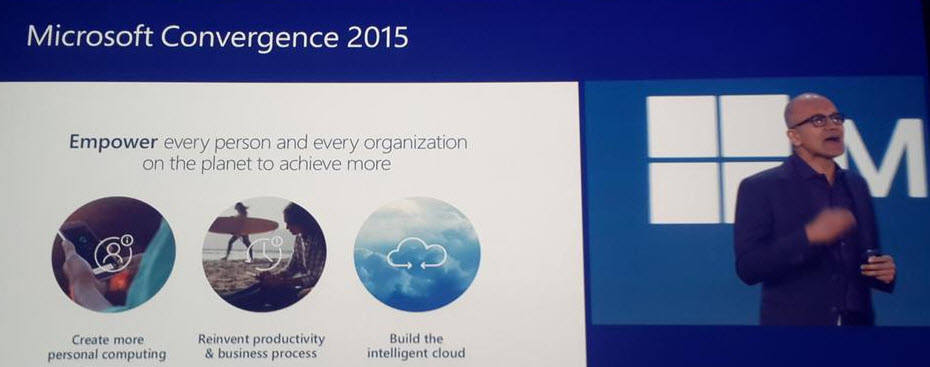
    With Satya Nadella himself opening up the event, it was clear that this year Convergence was going to be about a much broader spectrum of Microsoft solutions than just the Dynamics products. Although Satya is a former CRM blogger, he wasn’t there just to prove he still can build cool mashups with the XRM toolkit but rather to tell the higher level story of what business benefits companies can expect to gain from using the latest and greatest cloud technologies that Microsoft today offers. This is of course the fundamental reason behind why applications like Dynamics CRM are being deployed, and with the ever growing complexity of technologies intertwined together to support digital business, it’s important to increase the customers’ awareness of the types of end results they could be pursuing with the use of this technology.

    CRM_system_is_just_part_of_the_picture_2

    So, while technology is just the means to an end and CRM is just one (central) part of a modern business technology stack, it’s still the area in which I personally strive to deliver the biggest positive impact to our customers. That is why I’ve decided to write down a few notes about what Convergence 2015 announcements you should pay attention to if you also happen to work with Dynamics CRM.

    CRM Online Spring ’15 (v7.1) Is Almost Here

    Known by the codename “Carina”, the next CRM release scheduled for this spring was officially revealed at Convergence 2015. The “What’s New” page for the upcoming version is already live and so is the admin content on TechNet, as well as the developer content on MSDN. The official name for Spring ’15 appears to be “CRM Online 2015 Update 1“, which is a bit of an awkward choice since based on the aforementioned documentation Vega a.k.a. CRM 2015 was called “CRM Online 2015 Update” (without a number, so presumably “Update 0”). Oh well, we all know product marketing names at Microsoft are an eternal mystery, so it’s easier if we stick to the recently simplified version numbers instead. Vega was CRM 7.0 and this next update is CRM 7.1 (but before that we’ll still get UR1 which is 7.0.1…).

    Okay, enough with the numbers. Considering that 7.1 isn’t a new Dynamics CRM major version release but merely a minor version, there sure are plenty of new features and enhancements packed into this next release. I won’t try to list them here as you’re better of reviewing the above links, but the one feature that you simply can’t miss is the new Navigation Bar. You can see it live in action in this video and let me tell you from my experience with using a Carina preview org, it’s love at first click!

    CRM_Spring15_NavBar_1_small

    Arguably the single biggest gripe people had with the refreshed UI introduced in CRM 2013 was the Nav Bar with its ability to only show ~7 menu items on a single screen, then requiring you to scroll right and play really close attention to not moving your mouse cursor too far or the whole menu would collapse. Microsoft has now taken the menu structure introduced in Dynamics Marketing (which has a lot of menu items in its navigation) and brought it over to the world of Dynamics CRM. We now get a “hamburger” menu button that opens the first level (Sales, Service, Marketing, etc.) and clicking on one of them shows us all the included menus aligned vertically, broken down into subgroups. While this does show many more items to the user at once, it’s still a considerably smaller cognitive burden than trying to remember where you need to click to reveal a menu item that’s not on the screen, which happens all the time with the current version.

    The initial reaction to the new Nav Bar from the CRM folks over on Twitter was extremely positive. This feature in combination with the revised MRU menu (most recently used items) that supports pinning records and views into the Nav Bar is certainly going to improve the user experience of Dynamics CRM considerably. Although it’s still advisable to optimize the structure and contents of the Sitemap to remove unnecessary items and promote the most important menus, the larger menu canvas is very much needed in more complex environments with a high number of custom entities that simply need to be shown to the users somewhere.

    CRM_Spring15_NavBar_3_small

    The one thing that’s somewhat inconvenient about this updated navigation is that it will be initially made available only to CRM Online users. Yes, in case you have missed it, Carina / v7.1 is an Online-only release that will not be made available to on-premises customers. This was the initial plan already one year ago with the Leo release, but that then eventually turned into an Online+onprem release as Microsoft Dynamics CRM 2013 Service Pack 1 was made available for download to all CRM 2013 customers. Don’t expect to see such a change of heart this time around. The new features announced are expected to become available to on-premises customers in the next major release “Ara” (8.0) later this year. (more…)

  • Monitoring Rollup Field Values with Workflows

    Monitoring Rollup Field Values with Workflows

    In an earlier post I demonstrated how you could leverage the new Rollup Fields feature of Dynamics CRM 2015 to summarize the behavior of your customers and produce interesting metrics that could be used for targeting your sales activities towards the most active individuals who have reacted to your email and website content. The example included using data collected by ClickDimensions on the clicks on email marketing message links and page views on sites that contain the visitor tracking script. With the help of Rollup Fields and this marketing automation data stored directly into Dynamics CRM database under the contact records we were able to add the following custom fields onto our contact entity form:

    • Latest Email Link Click
    • Total Number of Link Clicks
    • Latest Page View
    • Total Number of Page Views

    While this allowed us to create a nice, sorted view of the contacts who’ve been interacting with our online content most recently, this information is still just data sitting in the CRM system, waiting for the users to go and discover it. Wouldn’t it be great if we could actually build an automated business process around it and make sure that the owners of these contacts who are clicking the links and visiting our website would be notified about these events? Sounds like something that a CRM workflow could help us with, right?

    CRM_2015_rollup_field_Clicks_5

    Unfortunately there are a few limitations when it comes to the new Rollup Fields in CRM 2015, as we discovered in my previous article. For example, if we would like to trigger a workflow process instance whenever the number of Link Clicks goes above a certain threshold, this isn’t something we can do directly by tapping onto the onChange event of the Total Number of Link Clicks field, because Rollup Fields cannot be used to trigger a workflow.

    Ok, what if we lower our expectations a bit and don’t even attempt to perform these actions in real-time for each event? It might be perfectly acceptable from a business perspective to have a process run once every night, inspect which contacts had clicked on the tracked links and then send out notifications to the record owners in one go. Surely that’s something Dynamics CRM can do, right? Well, let’s see if we could put together a solution like this.

    Batch Processing CRM Data with Workflows

    It’s quite a common requirement to perform checks or updates to CRM records based on a predetermined schedule. Although you can use workflow processes to be triggered on an event that takes place on CRM records (as long as it’s not on a special attribute like a Rollup Field), there isn’t actually any ready-made feature available in the CRM platform that would allow you to schedule the workflows to run every X hours, every night, once a week etc.

    The traditional approach for meeting such requirements for scheduled updates would have been to develop a small custom service to run on the CRM server machine. If you had access to other systems with interfaces to CRM like SQL Server Integration Services (SSIS) then these could naturally be also leveraged here. In the brave new cloud era where the number of Windows servers at your disposal for running these type of applications is rapidly decreasing it’s sometimes challenging to find a place where such schedulers could be deployed to, for performing small batch jobs that your CRM business processes would require. Wouldn’t it be convenient if you could build all of this by using just CRM Online and nothing more?

    Get ready for the good news: yes, you can schedule a recurring workflow to handle batch updates within Dynamics CRM, no external servers needed. The one thing you need, though, is a clever little custom workflow activity to extend the standard features of the CRM workflow engine. In this example we’ll use the Scheduling recurring Dynamics CRM workflows with FetchXML solution developed by Lucas Alexander. What this solution does is it gives us the possibility to:

    • Determine a query criteria for the bulk job
    • Schedule this job to be run hourly/daily/weekly
    • Run our own workflow process for all records returned by the query

    CRM_schedule_recurring_workflows_Lucas_Alexander

    The above diagram by Lucas outlines the logic behind the solution, but you really should go and read his blog post on the details of this approach, or check out the source code for the custom workflow activity on MSDN code gallery if you really want to dig deeper into the topic. For the purpose of today’s scenario, I’ll show you how I’ve used the solution in conjunction with the aforementioned Rollup Fields.

    Sending Out Notification Emails Based on Rollup Field Data

    In my example I’ve determined that it’s the Latest Page View datetime field on a contact that should be driving the business process. Once a week I would like to notify the owners of customer contact records if the contact has visited our website during the last 7 days. Turning this into a query criteria, it would mean that during the time of each batch processing I’d want to retrieve all contacts where the Rollup Field for Latest Page View contains a value greater than today minus 7 days.

    I will need to turn that query definition into a language that Dynamics CRM understands, and that is FetchXML. Sounds a bit tricky, eh? Lucky for us, CRM comes with a nifty lil’ FetchXML generator called Advanced Find, which I’m sure you’re already familiar with. All we need to do is find Advanced Find, specify the aforementioned query criteria for the contact entity and then click the “Download Fetch XML” button in the ribbon to grab the XML text into Notepad.

    CRM_AdvancedFind_FetchXML

    Next we should think about what action we want to perform on the contacts who match the query criteria. In this scenario it will be the sending of an email message to the owner of the contact. It only needs to be available as an on-demand process and there isn’t even a requirement to have any query criteria enforced here, but I added the 7 day rule here as well, just in case I end up using the same process in some other scenario.

    CRM_page_view_notification_workflow

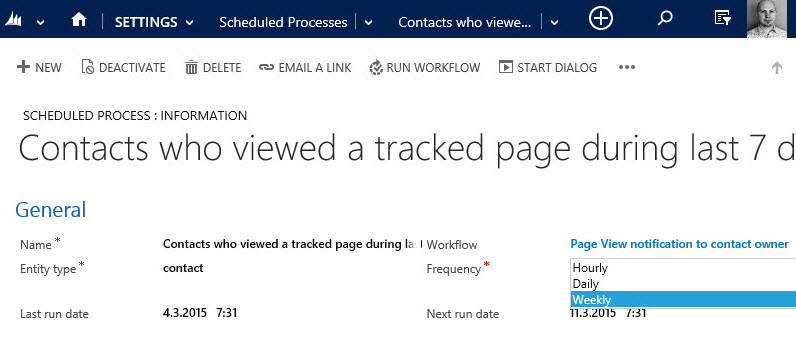
    The final step is to create a record for the new Scheduled Process entity, which has been added to CRM in the solution packaged developed by Lucas. On this form I’ll first give a descriptive name to the Scheduled Process and then define it to be related to the contact entity. In the Workflow lookup field I’ll pick the workflow process you see above, and for the Query field I’ll paste in the FetchXML we grabbed from our Advanced Find.

    CRM_scheduled_process_page_view_small

    All that’s left for us to do is setting the actual schedule for this process. The weekly option in the dropdown menu suits our purpose best in this scenario. By adjusting the Next Run Date I can configure the email notifications to go out in the morning, so that they reach the inbox at an optimal time.

    CRM_notification_website_visit

    Alright, that concludes our scenario for using CRM 2015 Rollup Fields together with workflow processes to deliver actionable insights to our CRM users on how customers are responding to our marketing activities. What I personally find very interesting in this example is the ability to take a piece of existing data that’s sitting inside our CRM database and first turn it into a metric that’s easily viewable in the CRM UI, then further amplify its business impact by configuring conditional processes to deliver it as a notification to the user who should become aware of it.

    None of this required a huge technical development effort or investments into separate reporting systems. All we needed was to take a new feature that was added to the Dynamics CRM platform as a part of the 2015 version rollout (this being a CRM Online environment there wasn’t even an upgrade project to worry about), combine that with an excellent open source enhancement to the platform’s workflow functionality, then just design a solution that delivers new business value from existing data. If you look at your own Dynamics CRM system and the data that’s being collected into it as a part of your business processes, then I’m pretty sure you could also identify potential use cases for similar type of enhancements, built with CRM’s ever evolving process automation toolkit.

  • CRM Navigation Hacking with Bookmarks

    CRM Navigation Hacking with Bookmarks

    When you spend your days working closely with an application like Dynamics CRM, such as when customizing or developing solutions for your customers, your mind will often times be working much faster than the application. You know exactly which feature you want to access, but if you need to navigate through several levels of menu hierarchies to get there, the process may be too slow to keep up with your train of thought, making it hard to concentrate on the actual task at hand.

    My personal strategy for reducing the cognitive burden involved with navigating inside Dynamics CRM has been the use of smart bookmarks. Here’s some tips on how I’ve set up my current working environment. If you have any similar CRM productivity tips of your own, please do share them in the comments section below.

    Launching New Tabs from “Quick Nav”

    While piling up a mountain of open browser tabs may not be great for your productivity either, the cost of moving between tabs is still lower than constant in-app navigation between menus. When working with CRM customizations, I always tend to have the end user content in one tab (views or record detail forms) and the Solutions view on the other one, so that I can quickly access the component I want to modify and validate the results with an F5 on the other tab.

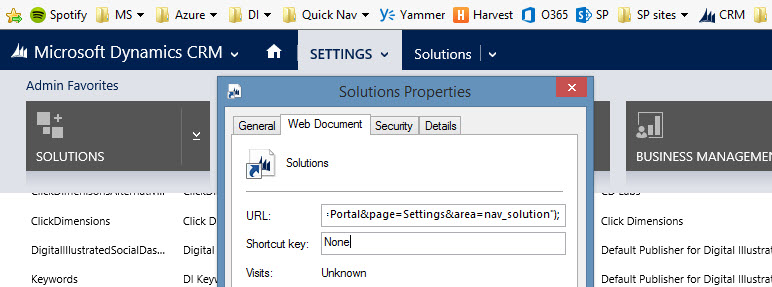
    Dynamics CRM 2013 and beyond unfortunately don’t support the standard convention of right-clicking on menus and opening them up in a new browser window. Nothing stops you from opening CRM in a second tab and working with the settings via it, but this means you always have to start from the first page and navigate back to where you wanted to go. To speed things up a bit, I keep a “Quick Nav” available menu in all my browsers, created as a folder in the favorites/bookmarks bar that I also keep open at all times.

    CRM_QuickNav_menu

    So where exactly do those bookmarks lead to? A specific menu in a certain CRM organization? Nope, those are generic bookmarks that apply to the currently open CRM organization. They work in any CRM 2013 or CRM 2015 environment, on-prem or Online. You see, they are not actual bookmarks with a static URL pointing to a resource somewhere, rather they are bookmarklets that contain a short piece of JavaScript. (more…)

  • CRM 2015 Rollup Fields: The Gotchas

    CRM 2015 Rollup Fields: The Gotchas

    In an earlier blog post in December, I described one use case for the new Rollup Fields feature introduced in Microsoft Dynamics CRM 2015. This example involved rolling up data from email events tracked via ClickDimensions and summarizing this on the contact’s form, so you’ll want to check out the steps listed there if you don’t have any hands-on experience about this new feature yet. In this post I’m going to dig deeper into the details about how Rollup Fields actually work behind the scenes and what limitations you should be aware of when considering whether they are the right tool for the job in your own use cases.

    Rollup Schedules

    The first thing you need to understand about Rollup Fields is that they are not updated in real time. If you’re familiar with the difference between the real time workflows introduced in CRM 2013 and the asynchronous versions that were available in earlier versions, then this is something a bit like that, but not quite. As you might know, the traditional background workflows were triggered by an event that took place on a CRM record and the resulting workflow instance was scheduled to be executed by the asynchronous process running on the CRM server at the earliest possible date (depending on the overall workload on the server). Whereas this usually meant a delay of perhaps a minute or two at most, the new Rollup Fields are even further from real time than this.

    As we saw in my earlier post, when you create a new Rollup Field, a new mass calculation job will be created for the field in question. This will be scheduled 12 hours into the future, based on the assumption that this will most likely fall outside the office hours when actual CRM end users are working with the system. (Because us CRM customizers or system admins never work during the night, right? Yeah, what a funny assumption that is, but anyway…) The reason for such precaution is that the very first calculation job will have to populate each and every record that exists for that entity, which could be up into the millions, depending on what type of data you manage in your CRM.

    CRM_2015_rollup_system_job

    So, does this mean the Rollup Fields only get updated once per day, during that nocturnal schedule? No, actually they get updated once every hour. If you go to the Settings – System Jobs menu you’ll see that there are jobs of type “calculate rollup field” type running for each of your entities that have one or more Rollup Fields defined for them. They are not scheduled to start at exactly the same time, but they all run at one hour intervals. Another thing worth noting in the Rollup Field implementation architecture is that these calculation jobs are only applied to records that were created, updated or deleted after the last job finished. No point in processing a million records if only a handful of them could possibly have new values to be calculated, right? This is why the initial rollup and the recurring rollup requests are handled by different system jobs in the CRM platform.

    Rollups and Workflows

    Now that we know the Rollup Fields may not show a current values in the UI for quite some time, the next logical question to ask is: anything we can do to speed the calculations up? As an end user, you could go and look at any Rollup Fields that have been added onto an entity form which you have the necessary rights to view, then hover over the field and click the “recycle” icon to force the recalculation of the Rollup Field value. As a developer, you also have the option to force a Rollup Field to be recalculated on demand via a plugin, by using the CalculateRollupField message. As a system customizer… Well, there’s not much you can do, at least in the CRM 2015 version. (more…)

  • Welcome to survivingcrm.com!

    Welcome to survivingcrm.com!

    We have moved! The Surviving CRM blog has a new domain, a new host server and even a slightly modified blog theme. Previously hosted at my personal domain’s subfolder http://niiranen.eu/crm/, the blog can now be found simply by typing in the URL http://jukkaniiranen.com. The page loading times should also be visibly better now, thanks to a more powerful hosting environment for my WordPress installation.

    Back in 2008 when I launched this blog, it was mainly just a notebook for my random thoughts around Microsoft Dynamics CRM. Created as a side project on my little web hotel subscription for trying out all the cool new PHP apps out there (before the cloud era had really started), it was never intended to be a very robust setup but rather just something quick, dirty and cheap. As years passed by, more and more blog content was posted, Dynamics CRM as a product kept on growing and so did the traffic to this site. It’s been a great honor to have such a large number of readers come and visit my blog, but at times I’ve felt like I haven’t been able to deliver the optimal user experience for content consumption in terms of website performance. Hopefully this new hosting service provider can better meet these grown expectations.

    At the same time when I migrated the bits to a new location, I also decided to do a bit of a UI refresh for the blog. I realized I had been using the same WP theme for almost five years already, which is an eternity when it comes to websites. I didn’t have the time to perform any major update project and my own web designer skills are nonexistent, but luckily the Streamline Pro theme from Studiopress suited my needs quite nicely. I’ll need to spend some time studying all the cool things that the Genesis framework allows you to do with WordPress, but for now the important thing is to have an easy to read layout and design for my CRM blog posts.

    Surviving_CRM_2010_2015

    If you do discover any broken links or features that are not working with the new blog theme and URL, please do let me know in the comments. Oh, and if you have any bookmarks or RSS feed URL’s pointing to the old niiranen.eu domain, don’t forget to update them to the new survivingcrm.com domain.

  • Previewing the New Power BI Experience with Dynamics CRM

    Previewing the New Power BI Experience with Dynamics CRM

    Around one year ago Microsoft introduced the capability to access CRM Online data via Power Query, one of the client side components of the Power BI suite. More precisely, the capability to authenticate with the already existing CRM OData feeds via Office 365 credentials was introduced into PQ, which then allowed us to use CRM Online as one data source in our Power Pivot data models driving Power View visualizations. No Dynamics CRM specific feature had really been developed, but it was the first step on the road of unlocking the cloud data from the analysis limitations that the previous tools (CRM charts & dashboards, SQL Server Reporting Services reports with Fetch XML queries) had imposed on CRM Online customers.

    There was a lot left to be desired still. Building reports from the raw OData feeds can be a cumbersome process, since no built-in tools existed for filtering the amount of data pulled from the entity tables. Also, not all the components needed in basic reports, such as optionset labels, were available to be retrieved dynamically from the OData feed. The biggest gap, however, has been the inability to automatically refresh the reports published onto Power BI portal, which means that each report end users would have needed to perform this refresh manually. As a result, Power BI has so far not been a something that I would have suggested to CRM Online customers as a company wide reporting solution, since it’s mainly been suitable for fairly advanced CRM power users building their own reports via Excel 2013.

    The Next Generation of Power BI

    Just before Christmas Microsoft announced the new Power BI Public Preview, which has a number of impressive looking enhancements to the service offering:

    Include in this announcement was also the statement: “In addition to the existing seamless connection with Microsoft Dynamics CRM Online, with today’s release customers can also connect to their data in Salesforce, Zendesk, Marketo, SendGrid, and GitHub with many more to come in the months ahead.” Upon first read, it was easy to interpret it as “nothing new for you Dynamics CRM folks out there right now, better luck in the next update!” This, however, isn’t the case.

    PowerBI_Preview_CRM_app

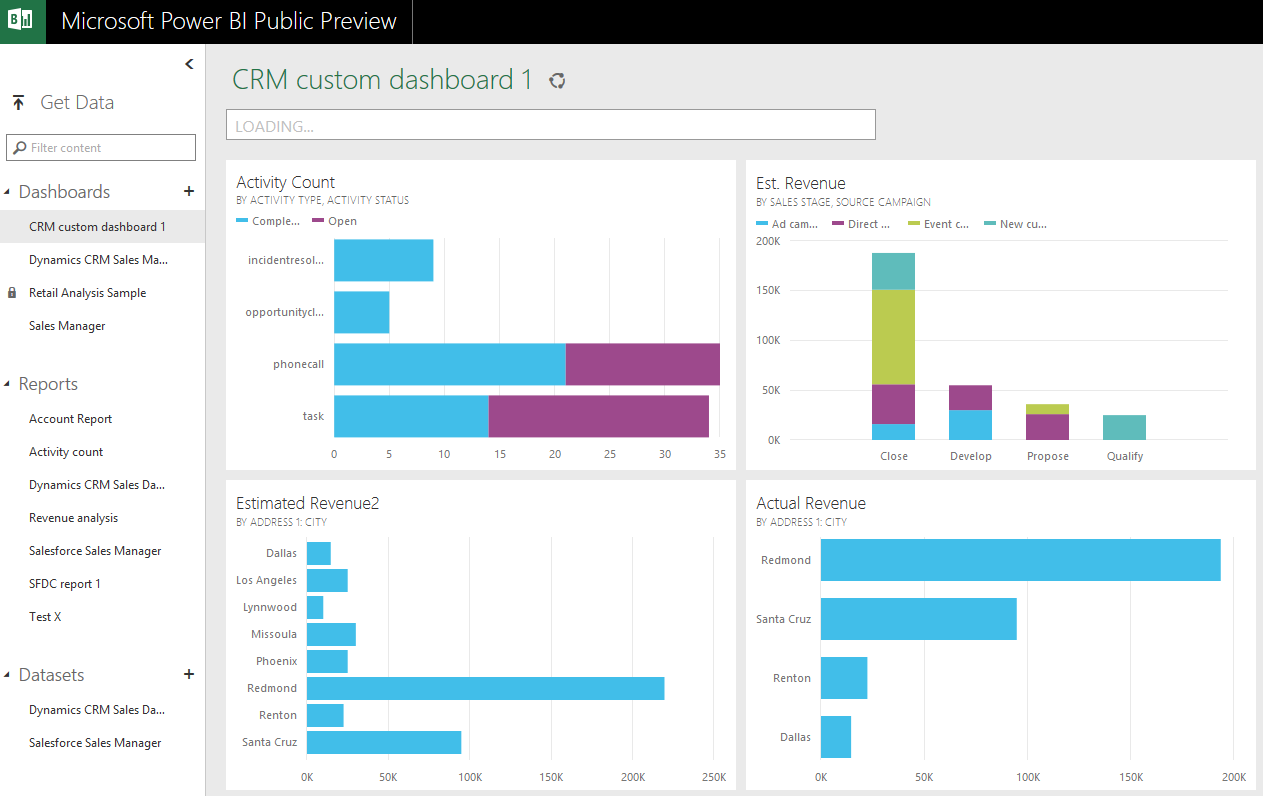
    When browsing through the new support site for Power BI I came across a posted idea on supporting Dynamics CRM as a data source, and a very recent comment from a Power BI product manager that the new Public Preview actually included native support for Dynamics CRM. Here’s the article where you can find the exact steps needed for connecting your Power BI Preview instance to Dynamics CRM. As this Preview is only available in the US for now, I decided to spin up a new CRM Online trial org from across the pond and try it out.

    What’s in Store for Dynamics CRM Cloud BI?

    After going through the process of enrolling for the Power BI Public Preview program with my Office 365 US trial tenant, I completed the steps for connecting to CRM Online. This really is quite a simple process with not too many options. You only have to dig up the OData feed URL from your CRM Online instance. After you’ve added this Microsoft Dynamics CRM app into your Power BI environment, the data retrieval process will start uploading your CRM Online records from one cloud to another. (more…)

  • Analyzing Customer Behavior Data with CRM 2015 Rollup Fields

    CRM_2015_field_type_rollupFrom a system customizer perspective, one of the most intriguing new features in Dynamics CRM 2015 is the addition of two new  field types. Alongside the traditional “simple” fields we can now define our custom attributes to be somewhat more “complex”, by choosing to create them as either calculated fields or rollup fields. These new field type options allow us to create point & click solutions to cover scenarios that would have previously required custom code.

    Microsoft haven’t been advertising this feature much in their “what’s new” materials for the CRM 2015 version release, but great blog articles have already been written on the topic, like this one by Peter Majer on the Sonoma Partners blog. There are also articles on Technet for both rollup fields and calculated fields, which provide all the details you need for getting the new feature implemented in you CRM Online or CRM 2015 on-premises organization.

    Rather than repeating this documentation, I’ll be exploring the different scenarios where the new complex field types can be leveraged, as well as the considerations and limitations to be aware of. In this first blog post I’ll demonstrate how the rollup fields can give us better insights on how our customers are reacting to email marketing campaigns sent to them.

    Summarize Marketing Automation Data for Contacts

    When our own CRM Online production organization received the 2015 update, the first use case I had on my mind for the shiny new features was to apply the rollup field functionality to the online marketing data that our ClickDimensions solution has been storing into the CRM database. If you’re not familiar with ClickDimensions, it’s a marketing automation service that allows you to send and track email campaigns, collect website visitor data, publish web forms integrated with CRM fields, configure automatic nurture programs for new leads, among other things (see this page for a detailed feature listing).

    What makes ClickDimensions particularly interesting in this case is that all of the behavior data is available inside the CRM application, in the dedicated custom entities contained in the managed CD solution package. For example, a page view transaction from a website with the CD tracking script deployed will be stored as a record for the Page View entity and then linked to either an anonymous visitor or an existing lead or contact record in CRM. Since it’s an “XRM” solution that you install as an add-in to Dynamics CRM, rather than an external marketing database that would be just synchronized with CRM, we can leverage all of the CRM platform functionality for showing and analyzing the data, automating related business processes with workflows and so on.

    Now with CRM 2015, the rollup and calculated fields have been added to our marketing automation toolkit. So, what do they allow us to do that would have previously been difficult/expensive to implement? As mentioned, all of the events tracked by ClickDimensions are linked to a CRM contact or lead record when the person performing the actions can be identified from browser cookies, unique id’s in links or submitted form data. If we would now like to view this data from the perspective of an individual contact, the rollup fields provide a way to summarize the data from related entities into fields available directly on the contact form.

    Creating Rollup Fields for Contact’s Email Link Clicks

    Let’s go ahead and add a new field for the contact entity. Yes, it must be a completely new field as you cannot convert existing standard or custom fields into calculated or rollup fields. Not a problem in our scenario, as we’re building a brand new feature into our CRM organization. The first field will be called Total Clicks and we’ll use it to count the number of related records found, so whole number is a suitable data type for us. By setting the field type as “Rollup” we’re given the option to edit the rollup formula.

    CRM_2015_rollup_field_Clicks_1

    In the rollup field definition editor we must now choose the related entity from which we wish to roll the data up to the contact entity. As we’re dealing with email link clicks, these are stored in the Email Event entity in the ClickDimensions solution, so that will be our choice. However, since the entity also contains data about events other than link clicks, we’ll need to add a filter into the related entity section and define that only email events where the field “type” equals “click” should be included in our rollup. As a final step, in the aggregation section we select “count” as the function that will provide the actual value for this new field on the contact record.

    CRM_2015_rollup_field_Clicks_2

    Let’s repeat the process for another new field: Latest Click. Instead of counting records, we’ll be looking at the date values on the related records, retrieving the highest date available and storing it into our rollup field. This means the data type should now be “date and time”. The rollup field definition is otherwise the same as with the first field, but in the aggregation section we’ll now have a different list of functions available for this data type. Let’s pick the Max function and apply it on the creation date of the email event records associated with the contact.

    CRM_2015_rollup_field_Clicks_3

    Alright, let’s save these fields and get them published! Oh, by the way, did you notice the yellow notification bar down in the rollup field definition editor window? That’s actually very useful information to be aware of once we move on to the next stage of our customization process.

    Displaying the Rollup Field Data for Contacts

    There are two main places where fields are presented in Dynamics CRM: forms and views. Let’s start from the contact form and include our new rollup fields there. In my scenario, we already have a suitable custom form available for the contact entity, which has been used for summarizing all the ClickDimensions data related to an individual contact record. Notice those fancy embedded charts and subgrids showing the email events for this test contact record of mine? That’s actually something you’ve been able to do already since the CRM 2011 version, so not exactly related to our agenda of the day, but a good reminder about how you can leverage the XRM capabilities of the Dynamics CRM platform to present data in a format that’s easier for end users to consume. (Check out my 10 tips for better CRM user experience for more discussion on that topic.)

    CRM_2015_rollup_field_Clicks_4

    I’ve added the Latest Clicks and Total Clicks on the contact form, below the existing chart and subgrid. But wait a minute: why are they empty? Did we do a mistake in the rollup field definitions? Don’t worry, this is exactly the expected result after creating a rollup field. If you took a moment to read that yellow notification bar I mentioned earlier, you’ll know that a mass calculation job was created by the CRM system after you added the rollup fields for the contact entity. Also, since it was by default scheduled to be run 12 hours after the field creation, we’re not going to see the whole magic until the next day in many cases.

    If you’d rather validate that the new customizations you’ve created are working as planned, instead of just taking my word for it, open up a contact record form and hover over the rollup field. You’ll see a “recycle” icon that you can click on, after which CRM will perform the rollup calculation for that field, for only the currently selected record. (more…)

  • Who Is The Customer in Your CRM? (Podcast)

    Recently I was invited to make my second appearance on the CRM Rocks podcast series, hosted by Markus Erlandsson. The first episode we did back in fall last year was focused on “what’s new in Microsoft Dynamics CRM 2013”, which was certainly a timely topic back then. This time we decided to discuss on a theme that was less focused on the CRM application functionality or a specific version of it. On our agenda was the question “who is the customer”?

    It might seem like not such a complex question to answer at first. After all, if we are deploying or developing solutions for customer relationship management then surely there must be a clear understanding of what exactly we need to be managing with the system, right? Well, as with most things related to designing a CRM solution, there isn’t a single right answer, but there are many good questions instead! To help anyone who’s starting their journey towards implementing a CRM system for their company and wondering what questions should be asked from the business and process owners, I’ve listed some of these topics into the following presentation available on SlideShare:

    Our discussion in the podcast covers five major aspects of the CRM solution design fundamentals:

    • Who is your customer?
    • B2B customer modelling
    • Segmenting your customers
    • The role of non-customers in CRM
    • Why Social CRM is the new CRM

    While some of the podcast content is of course specific to the application platform that I have the most experience of working with (can you guess which one?), I hope and believe that much of the guidance would also apply to any modern CRM system you might be deploying. So, please have a look at the slides above, and if you feel like the contents is relevant to the business problems that you hope to solve with customer relationship management technology, proceed to listening to the full CRM Rocks podcast.

  • Dynamics CRM 2013 in Retrospect

    Dynamics CRM 2013 was released only a bit over year ago, on October 8th 2013 to be exact. With CRM 2015 already knocking at the door, this seems like ages ago already, even though the actual time between these two major releases is shorter than their marketing names imply.

    Since the discussions in the Dynamics CRM community will inevitably be moving towards the latest 2015 version as the year turns, it’s a good moment to reflect back a bit and recap what the previous release gave us. I took a look at some of the blog posts I’ve personally written regarding CRM 2013 specific functionality since the version came out. By analyzing the page view stats from my blog, the following articles came out on top as the five hottest topics that you, the readers, were interested in reading about.  If you missed any of the articles, now’s the time to do a quick catch up before CRM 2015 steals all the attention.

    Synchronization vs. Tracking: Understanding Activity Management Options

    (Article link)

    CRM_2013_Server-side_SyncCRM 2013 introduced a new feature called server-side synchronization, which allowed the CRM server to communicate directly with the Exchange server for the first time in the product’s history. Upon first look it might have appeared like the long dependency on Dynamics CRM Outlook client was about to be history. However, in our brave new “cloud first, mobile first” world there are many more aspects to managing activity data in relation to CRM records that you need to understand.
    While the synchronization options for activities and contacts were indeed expanded with CRM 2013, the tracking options were not. In addition, the combinations supported email client and server applications for each entity and action type were quite a maze to navigate in. Since this is not such an easy topic to grasp nor explain, I ended up building a support matrix of my own, so that I was able to clearly communicate the various synchronization and tracking options to our customers.

    Getting Your Head Around Dynamics CRM 2013 Processes

    (Article link)

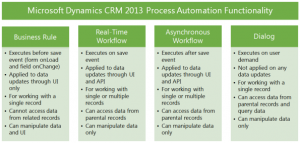
    CRM_2013_Process_Automation_smallChanges in the application’s UI may have grabbed most of the attention when it came to the CRM 2013 release, but there were also notable enhancements made to platform capabilities behind the scenes. Business Rules and Real-time Workflows opened up a whole new world of possibilities for the system customizers to create custom business logic that had previously required JavaScript or plug-in development.
    The one process type that was highly visible to the users, Business Process Flow (BPF), was also perhaps the most demanding one when it came to applying it in real world scenarios. Since BPF’s themselves don’t provide any automation but rather rely on the other process types to work in conjunction with the BPF process stages and steps, understanding the role of each of these components will require a fair bit of experimentation. This is why I wrote a two-part article where I tried to lay out the big picture of process automation in CRM 2013.

    Connecting to CRM Online OData Feed with Excel 2013 Power Query

    (Article link)

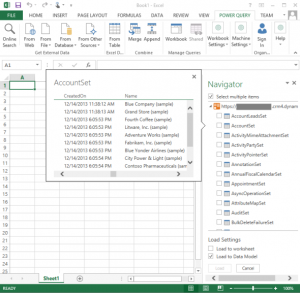
    CRM_OData_feed_Excel_Power_Query_4While the CRM 2013 release itself didn’t provide any dedicated feature for the Power BI tools announced by Microsoft a bit earlier, there were updates made to the Power Query component in Excel 2013 that made it very interesting for CRM Online customers. More specifically, the December 2013 version of Power Query finally delivered the ability to connect to OData feeds what utilize Office 365 authentication – with CRM Online being such an application.

    There isn’t a whole lot of official documentation available on the topic of how to leverage CRM Online OData feeds to build reports utilizing the Power BI toolkit. The process isn’t necessarily very straightforward and requires a fair bit of experimentation with the various Excel components (Power Query, Power Pivot, Power View). In addition to the OData feed connection part, I also wrote a couple other posts on what to do once you have the CRM data flowing into Excel via Power Query.

    Setting Up a Microsoft Dynamics CRM 2013 Development Server on Azure

    (Article link)

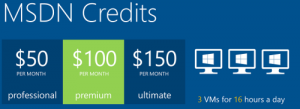
    Azure_MSDN_benefitRunning Dynamics CRM in the cloud via CRM Online is a popular option these days, but for performing testing and development tasks it’s often more convenient to have your own sandbox where you can control each and every part of the system. Azure has evolved into quite an attractive option for running virtual machines, especially with MSDN subscription credits and discounts for development environments.

    I’m not an infrastructure specialist that enjoys configuring servers very much, but when new versions of Dynamics CRM become available as preview/beta versions, it’s a good exercise to set up your own sandbox server. To better remember what the minimum steps are to be able to install the Dynamics CRM server application, I decided to document the process via screenshots and make it available on SlideShare for anyone else wanting to complete the same task.

    Expanding Add Activity Options on CRM 2013 Forms

    (Article link)

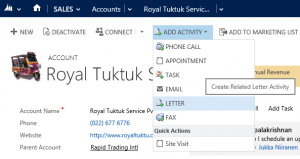
    CRM2013_Activities_2In the course of the UI refresh performed in CRM 2013, the number of menu options visible to the end users were optimized to cover only a single way to perform many of the options that previously might have had alternative route options. While the intention was noble, this did create a few situations where the navigation path required to perform an action may have not been the optimal one.

    The great thing about Dynamics CRM is that it’s a customizable platform that allows you to adjust the data model, forms and also the menu options to the specific use cases required by the customer organization – as long as you know how. With awesome community contributed tools like the Ribbon Workbench these tasks can be completed with a few clicks of a mouse, which is what I illustrated in this post where I added a new flyout menu onto the CRM 2013 Command Bar to access standard as well as custom activity records, and even launching a dialog process directly from the menu.