Tag: usability

  • Tracking Pipeline Development Over Time in CRM 2015

    Tracking Pipeline Development Over Time in CRM 2015

    We’ve come to part 3/3 in the Smarter Sales Process article trilogy. In the earlier posts we talked about customizing the lead qualification process and using calculated fields for opportunity estimated revenue, to get more out of Dynamics CRM 2015 than what the standard sales related functionality offers. To close things off, let’s have a look at how we can gain more insight into the data in our sales opportunity pipeline and particularly how it has developed over a period of time.

    Capture the Sales Pipeline Trend

    With the data that Dynamics CRM collects about sales opportunities we can easily draw charts about how many deals were won or lost at any given time, presenting these as a monthly trend of both estimated and actual revenue. It’s also very simple to visualize the current contents of our sales pipeline by looking at the open opportunity records via standard visualizations like the… well, pipeline chart, obviously!

    What we can’t do quite so easily is to present how the sales pipeline has developed over time. For example, has the number of opportunities in a particular stage of the sales process gone up/down, or how the total estimated revenue from open opportunities is developing. An average CRM user may not understand why such a visualization wouldn’t be included in the application by default, but for a system customizer that knows the data model and behavior of Dynamics CRM this should be fairly obvious. The fundamental difference between closed opportunities and open opportunities is that for the former we have a permanent record of when they were closed and with what values, whereas the records that are currently in an open status represent transient data. It will change over time, based on the future actions that CRM users will take.

    So, what’s the problem with such data? The fact that an open opportunity may have been open last week or even ten weeks ago makes it impossible for us to draw a chart that would show a weekly number of records, since only a single record exists in the database, even though it might need to appear in the bar for each week in a chart showing the size of the pipeline on a weekly level. While technically we would have the information needed to project the number of opportunities that have been open at a given time by looking at their creation date, this would be a more complex exercise than what the ASP.NET charts in Dynamics CRM allow us to draw (although I wouldn’t be surprised if CRM Chart Guy would prove me wrong on this one).

    At the end of the day CRM is an operational system focused on managing individual records and transactions, which means it doesn’t bother archiving copies of records in their historical state. Sure, we have the audit log that will keep a record of the individual changes to tracked fields, but that’s data which isn’t accessible for reporting. But the question to ask is: if we wanted to capture such historical data for our analysis purposes, could we do that with Dynamics CRM? Sure we could! In fact, already back in 2008 when CRM didn’t yet have a built-in auditing capability, CRM MVP Guy Riddle showed us how the use of custom entities and workflows allowed us to build our very own audit log feature to capture changes for record field values.

    CRM_opportunity_count_by_week_and_stage

    Sure, our use case here is a bit different, since we’re not looking to only capture entries on when a record changes. To provide us visibility into how the sales pipeline has developed over time, we would need to capture a snapshot of the pipeline status at predetermined intervals.

    Scheduling Snapshots of CRM Data

    One of my favorite features in CRM 2015 version is Rollup Fields, which I’ve already covered in a number of earlier posts on this blog (including the gotchas you need to be aware of). This feature also comes in handy if we want to build a custom snapshot entity to store the count or sum of records related to it. In this scenario for monitoring sales pipeline development, which I presented in my MSDynamicsWorld.com webcast “A Non-Developer’s Guide to Smarter Sales Processes in Microsoft Dynamics CRM 2015”, what we’ll do is make a 1:N relationship between our custom Snapshot entity and the opportunity entity. This in turn will allow us to create Rollup Fields that will summarize the count and revenue of the related opportunities onto the Snapshot record. By having a snapshot per each stage of our sales process, we will get the attributes needed for drawing the kind of chart shown above, to visualize the trend of opportunity count and estimated revenue development per week.

    The detailed steps for the required customizations can be found from the following SlideShare presentation:

    The one missing ingredient that we still need to think about is how to automate the capture of these snapshots. What Dynamics CRM still doesn’t offer out-of-the-box is the ability to schedule recurring workflow processes in an easy way, to perform an automated task every X days. Luckily there are workarounds for scheduling such bulk data processing tasks with using nothing but the CRM platform, and one of the best solution’s I’ve come across is the Scheduling recurring Dynamics CRM workflows with FetchXML solution from Lucas Alexander. I’ve already shown you how to use this solution for monitoring Rollup Field Values with workflows and the same logic can be applied in this scenario, too. Only this time we don’t send a weekly email blast to CRM users, rather we’ll just create new snapshot records to store the opportunity count and total estimated revenue per sales stage.

    CRM_scheduled_process_opportunity_snapshot

    Alright, that concludes my Smarter Sales Process for CRM 2015 series, at least for now. As mentioned at the start, do check out part 1 and part 2, as well as the YouTube recording of the live demos if you’re interested for more details on the topic. Hopefully these examples have given you some new ideas on what kind of solutions you can build with the Dynamics CRM 2015 customization tools. If you’ve got any thoughts on what kind of no-code customization scenarios you’d be interested in seeing in the Surviving CRM blog in the future, please feel free to leave a comment!
  • Using CRM 2015 Calculated Fields for Opportunity Estimated Revenue

    Using CRM 2015 Calculated Fields for Opportunity Estimated Revenue

    It’s time for part 2 in the Smarter Sales Process article trilogy. As described in my previous blog post about lead qualification process customization, this content is taken from my MSDynamicsWorld.com webcast titled “A Non-Developer’s Guide to Smarter Sales Processes in Microsoft Dynamics CRM 2015“. After having adjusted the lead to opportunity process to better suit our needs, we’ll next have a look at how the data managed in the opportunity stage could be more easily entered and maintained by leveraging the no-code customization tools available in Dynamics CRM.

    Introduction to Calculated Fields

    As you should have noticed by now, the CRM 2015 release added the possibility for defining two new “complex” field types in addition to the traditional “simple” fields. Rollup fields is something I’ve covered in more detail in an earlier blog post, so this time we’ll be working with the other type, which is the calculated fields. Essentially these are the types of fields where you don’t directly insert a value in CRM, but rather the field value is calculated from one or more other fields in the system, based on the formula and conditions you specify in the calculated field definition editor found from the field’s properties in the CRM customization menus.

    How calculated fields differ from rollup fields is that with them we’re always working on the current record, whereas rollup fields retrieve data from related records. Well, actually that’s not entirely true, since a calculated field can also reference a value from a related parental record in its formula. A more accurate description could therefore be that calculated fields can access data from the “1” side of the 1:N one-to-many relationship, whereas rollup fields are the tool for retrieving data from the “N” side of the logical data model in our CRM organization.

    Another aspect that the system customizer must be aware of before starting to leverage these new tools for building CRM 2015 solutions is how and when the field values are calculated. As demonstrated in my post “CRM 2015 Rollup Fields: The Gotchas“, the data shown in rollup fields may be up to 30 minutes old, since these are updated based on an asynchronous job (unless you apply the workaround described in that blog post). Once they are updated, though, the values are persisted in the database. Calculated fields work in the exact opposite way, meaning they are calculated in real-time, but the data is not actually stored in the CRM database. While the latter part of that sentence might sound strange at first, it simply means that the CRM platform performs the calculation any time the specific calculated field is needed. This includes opening a form that contains the field, browsing a view with such columns, accessing a dashboard with charts referencing calculated fields, making SDK calls for retrieving this data and so on.

    To familiarize yourself with the details of these features, have a look at the TechNet article Define Calculated Fields. Or if you’re in a hurry, spend 5 minutes watching this YouTube video from the CRM product team, to see how what the new fields look like in the customization UI.

    Applying Calculated Fields on Revenue Estimation

    The scenario that I chose for the Smarter Sales Process series deals with the way we determine an estimated value for an opportunity record in Dynamics CRM. By default, you have the option of either entering a lump sum into the Est. Revenue field of an opportunity record, or creating individual opportunity product records as line items that have a specific revenue value. This is what the bit field IsRevenueSystemCalculated is all about, with its options of “User Provided” or “System Calculated”. Since many organizations using Dynamics CRM don’t actually bother maintaining the detailed product catalog and price details in corresponding CRM records (at least not without a custom integration being built to sync the data from other systems), the “User Provided” option is quite often used for recording just the total estimated revenue value for the opportunity. What this means in practice is that the sales people end up using their own Excels to calculate the various components from which the revenue is generated and just entering the end result into CRM. If any parameter in the equation changes, it’s back to updating your Excels, then CRM again. Oh joy.

    Could there be some middle ground between taking just a single figure from an external Excel sheet and having a full blown product & price catalog maintenance process for CRM? If the products and services you’re selling consist of a limited set of key revenue components that are typically included in each quotation you make, then exploring the possibilities of creating custom fields for these components directly onto the opportunity record might well be in order. While these will not provide the high granularity data of having opportunity product line items with links to the related product record, the data entry and maintenance experience is probably going to be a lot easier for you to sell to the CRM end users. (After all, we’re talking about sales people here, who are the toughest crowd you’ll ever need to please with your CRM system functionality.)

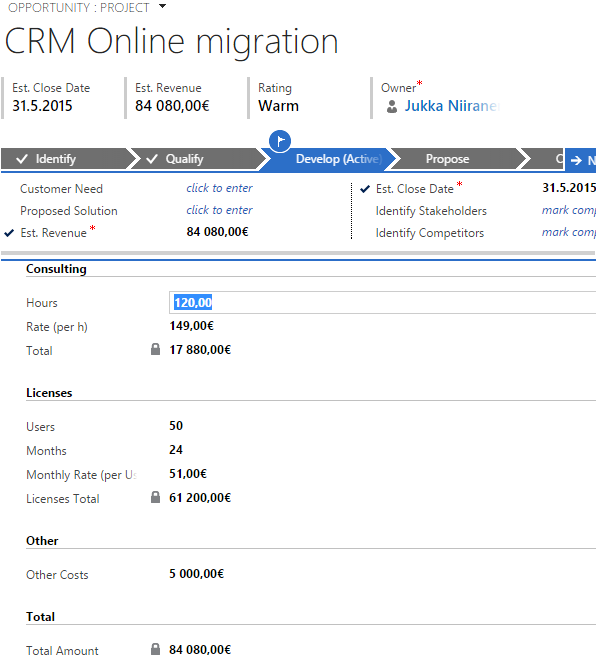
    CRM_Opportunity_Estimated_Revenue_Calculated_Fields

    In this example scenario we’re selling CRM consulting projects that have three common revenue categories: consulting revenue, license revenue and “other” revenue. The total value of each area is calculated via a specific formula, after which each area specific revenue is summed up into the Total Amount field. As you’ve probably guessed by now, this is achieved by using the CRM 2015 calculated fields feature. Compared to adding the line items one by one, configuring unit prices and other variables, the data entry process is considerably faster, since all the user needs to do is tab through the relevant fields on a single form and enter values where necessary. You can catch a quick glimpse of the live opportunity form in this YouTube recording of the webcast.

    For a detailed explanation of how this type of functionality can be configured in Dynamics CRM, have a look at the following slides: Smarter Sales Process in Dynamics CRM 2015 – Part 2: Revenue Estimation.

    A Few “Gotchas” on Calculated Fields

    If you’ve implemented a similar custom opportunity form in the past by using Javascript to perform the calculations, then you should be aware that the native calculated fields in Dynamics CRM don’t offer exactly the same user experience as custom scripts do. The reason is that the calculation logic is executed whenever the fields referenced in the formula are retrieved from the CRM, meaning not before you’ve submitted the updated source field values into the database. So, the moment you change a field value (let’s say “consulting hours” in our example”) and click/tab to the next field, a client-side script would be able to recalculate the fields instantly, triggered by the onChange event of the field. A calculated field will just sit there waiting for the source data to be saved to CRM first, either via the auto-save feature every 30 seconds or the user explicitly clicking on the save icon in the bottom right corner of the form.

    Considering that with CRM 2013 we received the Business Rules feature that acts in practice the same way as a custom script (meaning it’s executed on the client side), this may seem like a slight setback in the level of application UI responsiveness for Dynamics CRM. Knowing that there are also some calculation capabilities available with Business Rules, you might be wondering if this feature could be used instead of calculated fields, to deliver an even better user experience. Well, based on my personal experience, if you try to build a very complex chain of calculations by using Business Rules, you’ll soon find yourself in a world of pain trying to figure out why the events don’t always trigger the way you want them to, how to handle resetting field values and so on. Although I haven’t yet used the calculated fields feature in as many real life scenarios as Business Rules, at least I haven’t run into similar problems in ensuring validity of the calculations performed with them, so my recommendation would be to always opt for calculated fields whenever you need to… calculate the value of a field (ever get the feeling that us consultants just state the obvious things?).

    Another thing to be aware of when it comes to calculated fields and Business Rules is that the two don’t mix. More specifically, a Business Rule cannot reference a calculated field, so you cannot grab the results of the calculation and use them in a subsequent business logic implemented via a Business Rule. Luckily, you can still access the calculated field values in a workflow process, which is the workaround that I’ve used in my aforementioned presentation.

    During the webcast, there was also a very good questions presented on whether there are some limitations on how many calculated fields you can use on a single entity. Based on the official documentation, there doesn’t seem to be any hard limit on the number of calculated fields you can create, but you cannot include more than 10 calculated fields into a single view (or chart), which could potentially be reached if creating a highly complex calculation scenario and a summary view to export the resulting data out of CRM.

    As always, the responsibility on system performance impact ultimately lies on the system customizer, even if the solution is created just via clicking the CRM configuration options instead of writing custom code. As the no-code customization tools get more advanced with every release of Dynamics CRM, it’s becoming increasingly important also for people in the business analyst role to have a basic understanding of how the underlying application platform operates. I want to highlight a couple of recent whitepapers that Microsoft has released around the solution design and performance topic, which should give you plenty of food for thought, whether you’re approaching Dynamics CRM from a developer point of view or if you’re an analyst that’s aspiring to design more complex CRM solutions:

  • Customizing Lead Qualification Process in CRM 2015

    Customizing Lead Qualification Process in CRM 2015

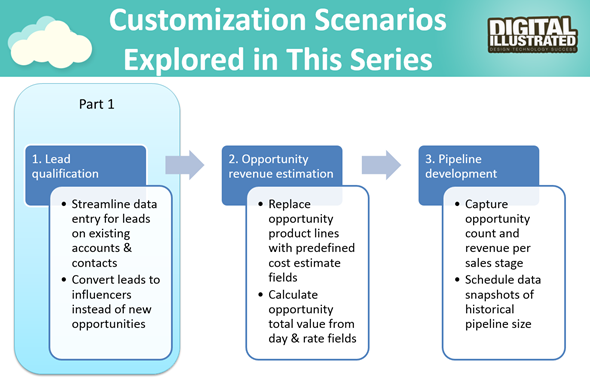
    This is the first part in an article series where I’ll be presenting a few customization tips & tricks that you can use in Microsoft Dynamics CRM 2015 to enhance the functionality used in a typical sales process. The content was first shown in my live webcast on MSDynamicsWorld.com on May 6th: “A Non-Developer’s Guide to Smarter Sales Processes in Microsoft Dynamics CRM 2015.” As promised during the webcast, I’ll be releasing all the slides here on my blog, but since there was a lot of details to go through in the 1h session, it will be split into three separate articles, to improve the accessibility to this information for those who didn’t attend the live webcast.

    The overarching theme of this series is to show you how the creative combination of the various customization tools available in Dynamics CRM 2015 can be used for building whole new functionality into the application – without having to write any custom code. The emphasis is on the word combination, since very often you’ll need to use several different pieces of the platform’s customization tools to achieve the end result. This isn’t something that you can easily learn just by reading the official product documentation that typically focuses on the introduction of a single feature at a time. With the examples in this article series I hope to demonstrate what these combinations could look like, in the context of customizing the standard application behavior in the sales process.

    MSDynamicsWorld_Smarter_Sales_Process_scenarios

    The techniques are by no means exclusive to the sales area of Dynamics CRM. Any process that you manage with our CRM/XRM application can surely benefit from the type of custom functionality that you can build via Business Process Flows, Real-time Workflows, Business Rules, Calculated Fields and Rollup Fields. The absolutely best way to gain an understanding of what you can achieve with the point & click customization tools in Dynamics CRM is to experiment with the tools in a sandbox environment, so I encourage you to go and try out these scenarios in an actual working CRM system. (Why not spin up a new CRM Online trial org and also get access to all the new CRM Online 2015 Update 1 goodies while at it?)

    What’s Wrong with CRM 2015 Lead Qualification?

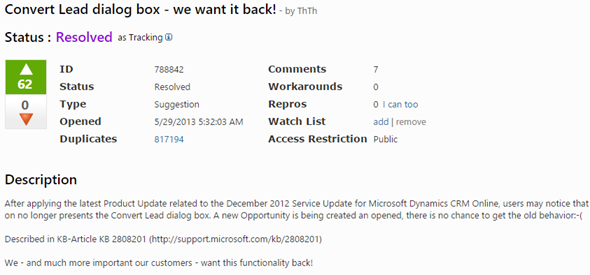
    Those of you that have been working with Dynamics CRM for more than just a couple of years will probably remember how the things used to work before CRM 2013. When clicking on the Qualify button on a lead record, the user was presented with a dialog that allowed them to choose whether a new account, contact and opportunity record should be created from this lead. In the new world of Business Process Flows and no-popup UI of CRM 2013 (and CRM 2015), such options are no longer presented to the user. While this makes for a smooth user experience in general, it creates severe conflicts with many real life business processes of companies who either A) don’t use opportunities or B) don’t want to directly convert each lead into an opportunity. There are lots of suggestions on MS Connect (registration required, see here) to restore the ability for users to select not to create an opportunity from a qualified lead, but so far we haven’t seen any changes in the product to accommodate this.

    CRM_Lead_Qualification_Dialog

    So, if CRM wants to create opportunities but the user doesn’t, what could a mere system customizer do, without any knowledge of how to write plugins or scripts to develop new functionality by using the CRM SDK? Well, I’ve come up with a reasonably good workaround that uses the following solution components to establish a true user driven lead qualification process:

    • Branching Business Process Flow (BPF) to show stages that don’t take the user to the opportunity entity
    • Real-time Workflow to hand the lead status change and record creation instead of the built-in, non-configurable business logic of Dynamics CRM
    • Business Rules to conditionally show/hide fields for account/contact details on the form
    • Quick View Forms to present the records created from lead qualification process on the lead form after it’s closed

    You can find the detailed description of how I’ve configured each components from the below presentation:

    (For those of you who are not reading this article directly on survivingcrm.com and can’t see the embedded SlideShare presentation, click this link to access it.)

    I hope that this example has given you some ideas on how the lead management process and related Dynamics CRM functionality could be further developed in your own CRM organization. Stay tuned for part two of this Smarter Sales Process series, where we’ll be moving to the opportunity record and exploring how the estimated revenue information can more easily be managed by using the Calculated Fields feature introduced in Microsoft Dynamics CRM 2015 release. If you simply can’t wait for it or want to see the lead qualification process in action, then the webcast recording is available on YouTube already today.

  • A Few Notes on Convergence 2015 Announcements

    A Few Notes on Convergence 2015 Announcements

    Hey, did you notice what happened in Atlanta last week? Yup, it was again that time of the year when the Dynamics CRM & ERP crowd gathers together at Microsoft Convergence. Instead of packing my bags and hopping on a plane, I once again opted to staying at the comfort of my own home and instead opened up Tweetdeck to keep an eye on all the great content being shared by Dynamics community members on the social networks.

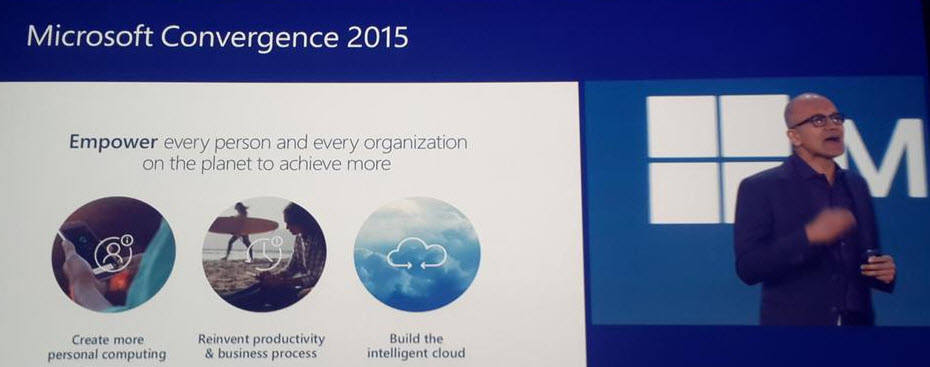
    With Satya Nadella himself opening up the event, it was clear that this year Convergence was going to be about a much broader spectrum of Microsoft solutions than just the Dynamics products. Although Satya is a former CRM blogger, he wasn’t there just to prove he still can build cool mashups with the XRM toolkit but rather to tell the higher level story of what business benefits companies can expect to gain from using the latest and greatest cloud technologies that Microsoft today offers. This is of course the fundamental reason behind why applications like Dynamics CRM are being deployed, and with the ever growing complexity of technologies intertwined together to support digital business, it’s important to increase the customers’ awareness of the types of end results they could be pursuing with the use of this technology.

    CRM_system_is_just_part_of_the_picture_2

    So, while technology is just the means to an end and CRM is just one (central) part of a modern business technology stack, it’s still the area in which I personally strive to deliver the biggest positive impact to our customers. That is why I’ve decided to write down a few notes about what Convergence 2015 announcements you should pay attention to if you also happen to work with Dynamics CRM.

    CRM Online Spring ’15 (v7.1) Is Almost Here

    Known by the codename “Carina”, the next CRM release scheduled for this spring was officially revealed at Convergence 2015. The “What’s New” page for the upcoming version is already live and so is the admin content on TechNet, as well as the developer content on MSDN. The official name for Spring ’15 appears to be “CRM Online 2015 Update 1“, which is a bit of an awkward choice since based on the aforementioned documentation Vega a.k.a. CRM 2015 was called “CRM Online 2015 Update” (without a number, so presumably “Update 0”). Oh well, we all know product marketing names at Microsoft are an eternal mystery, so it’s easier if we stick to the recently simplified version numbers instead. Vega was CRM 7.0 and this next update is CRM 7.1 (but before that we’ll still get UR1 which is 7.0.1…).

    Okay, enough with the numbers. Considering that 7.1 isn’t a new Dynamics CRM major version release but merely a minor version, there sure are plenty of new features and enhancements packed into this next release. I won’t try to list them here as you’re better of reviewing the above links, but the one feature that you simply can’t miss is the new Navigation Bar. You can see it live in action in this video and let me tell you from my experience with using a Carina preview org, it’s love at first click!

    CRM_Spring15_NavBar_1_small

    Arguably the single biggest gripe people had with the refreshed UI introduced in CRM 2013 was the Nav Bar with its ability to only show ~7 menu items on a single screen, then requiring you to scroll right and play really close attention to not moving your mouse cursor too far or the whole menu would collapse. Microsoft has now taken the menu structure introduced in Dynamics Marketing (which has a lot of menu items in its navigation) and brought it over to the world of Dynamics CRM. We now get a “hamburger” menu button that opens the first level (Sales, Service, Marketing, etc.) and clicking on one of them shows us all the included menus aligned vertically, broken down into subgroups. While this does show many more items to the user at once, it’s still a considerably smaller cognitive burden than trying to remember where you need to click to reveal a menu item that’s not on the screen, which happens all the time with the current version.

    The initial reaction to the new Nav Bar from the CRM folks over on Twitter was extremely positive. This feature in combination with the revised MRU menu (most recently used items) that supports pinning records and views into the Nav Bar is certainly going to improve the user experience of Dynamics CRM considerably. Although it’s still advisable to optimize the structure and contents of the Sitemap to remove unnecessary items and promote the most important menus, the larger menu canvas is very much needed in more complex environments with a high number of custom entities that simply need to be shown to the users somewhere.

    CRM_Spring15_NavBar_3_small

    The one thing that’s somewhat inconvenient about this updated navigation is that it will be initially made available only to CRM Online users. Yes, in case you have missed it, Carina / v7.1 is an Online-only release that will not be made available to on-premises customers. This was the initial plan already one year ago with the Leo release, but that then eventually turned into an Online+onprem release as Microsoft Dynamics CRM 2013 Service Pack 1 was made available for download to all CRM 2013 customers. Don’t expect to see such a change of heart this time around. The new features announced are expected to become available to on-premises customers in the next major release “Ara” (8.0) later this year. (more…)

  • CRM Navigation Hacking with Bookmarks

    CRM Navigation Hacking with Bookmarks

    When you spend your days working closely with an application like Dynamics CRM, such as when customizing or developing solutions for your customers, your mind will often times be working much faster than the application. You know exactly which feature you want to access, but if you need to navigate through several levels of menu hierarchies to get there, the process may be too slow to keep up with your train of thought, making it hard to concentrate on the actual task at hand.

    My personal strategy for reducing the cognitive burden involved with navigating inside Dynamics CRM has been the use of smart bookmarks. Here’s some tips on how I’ve set up my current working environment. If you have any similar CRM productivity tips of your own, please do share them in the comments section below.

    Launching New Tabs from “Quick Nav”

    While piling up a mountain of open browser tabs may not be great for your productivity either, the cost of moving between tabs is still lower than constant in-app navigation between menus. When working with CRM customizations, I always tend to have the end user content in one tab (views or record detail forms) and the Solutions view on the other one, so that I can quickly access the component I want to modify and validate the results with an F5 on the other tab.

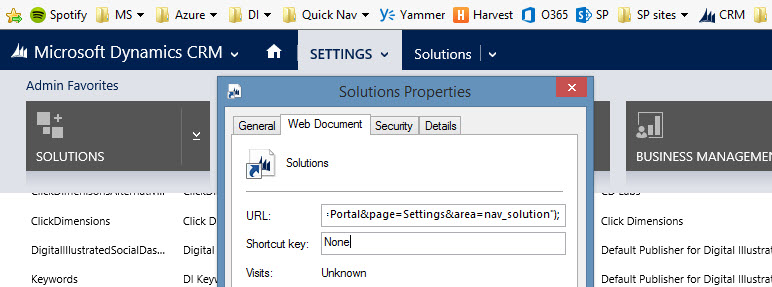
    Dynamics CRM 2013 and beyond unfortunately don’t support the standard convention of right-clicking on menus and opening them up in a new browser window. Nothing stops you from opening CRM in a second tab and working with the settings via it, but this means you always have to start from the first page and navigate back to where you wanted to go. To speed things up a bit, I keep a “Quick Nav” available menu in all my browsers, created as a folder in the favorites/bookmarks bar that I also keep open at all times.

    CRM_QuickNav_menu

    So where exactly do those bookmarks lead to? A specific menu in a certain CRM organization? Nope, those are generic bookmarks that apply to the currently open CRM organization. They work in any CRM 2013 or CRM 2015 environment, on-prem or Online. You see, they are not actual bookmarks with a static URL pointing to a resource somewhere, rather they are bookmarklets that contain a short piece of JavaScript. (more…)

  • Don’t Merge Your Forms in CRM 2013

    If you have been using Dynamics CRM before the 2013 version was released, you may have something in your system called “information forms”. This is not a very descriptive term for them, since of course all the entity forms are about presenting “information” to the end user. These forms actually date back to a time in the Dynamics CRM platform history when there was only a single form available per entity. Times have changed quite a lot since then, as entities can now have role based forms, mobile forms, quick create forms and quick view forms.

    Although not a specific form type in itself, CRM 2013 introduced a whole new layout for the default entity forms as a part of the UI refresh. Instead of the traditional & boring two column layout, the new CRM 2013 forms are made up of three columns that can consist of not just entity fields but also related entity subgrids, the social pane, Bing Maps component and other exciting new features. Whereas the old default forms were called “Information”, the names of these new forms follow the entity names. So, the account entity will have a new form labelled “Account”, as an example. (By the way: check this tip for optimizing your form naming convention.)

    Merge Forms Feature

    Since the new forms are designed to make better use of the new navigation paradigm of CRM 2013 as well as present the data in a much richer way than the old “ERP style” forms of past CRM versions, customers who are upgrading their Dynamics CRM deployment to the latest version are advised to migrate into using these new forms. In fact, Microsoft has stated that the next major version (CRM 2015) would no longer support the use of the old “information forms”.

    To make this transition easier, Microsoft has provided a feature called “Merge Forms”. This new button available on the form editor in the CRM customization UI (which still utilizes the old CRM 2011 style layout even in CRM 2015, by the way) is intended to be used for bringing the tabs, sections and fields from your old forms onto the new forms with as little clicks as possible.

    CRM_merge_forms

    The process is described in the article “Update your forms to Microsoft Dynamics CRM 2013 or Microsoft Dynamics CRM Online Fall ’13”. Even more detailed steps can be found from the PDF document “How to Prepare for the CRM Online Fall ’13 Service Update”. Basically what the feature does is bring in the contents of the old form to the end of the currently open form, with the intention of making it faster to rearrange your customized fields and sections to align with the new default form’s content and layout.

    Sounds like a handy feature, right? There’s only one slight problem with it: it doesn’t work.

    Conflicting ID Values

    “What do you mean it doesn’t work? I have used the button to bring in my custom fields and it did just what I expected.” Well, maybe I should rather say that it works partially. If you never export your CRM customizations into a solution file and move it to a different environment, you may not notice that anything is wrong with your forms. However, if you do want to move the customizations between development, test and production organizations, you might run into the below error message during the solution import process.

    CRM_import_solution_error_after_form_merge

    After the error, if you download the log file and open it, you’ll see a message like this:

    Error code 0x8004F658. The label ‘E-mail 2′, id: ’87dc7c9c-94c1-3953-e490-11413b31d0ad’ already exists. Supply unique labelid values.

    What the system is telling us is that we’re trying to insert an item into the customization metadata that has a non-unique ID. Depending on the scenario, the item could be a field or section label. But how did the ID end up being a duplicate? After all, we don’t assign these GUID values in the customization UI, rather the CRM platform generates them. What could have caused the system to violate its own rules?

    The answer can be found from this thread on the MSDN forums: CRM 2013 Solution Import. A Microsoft support engineer has confirmed that the error is caused by a design mistake in the Merge Forms feature. Apparently in the process of merging form content from the old form onto the new one there is more data carried over than is needed. Not only do you get the form components exactly the way they are configured in the original form, but you also get the same ID’s. Now, since the old form also exists in the system, this will cause an error message when you try to import your solution file from the source system to the target environment, like from development to test environment, for example.

    The Workaround

    The system where I ran into this problem was running Dynamics CRM 2013 Service Pack 1 (6.1.0.581) with no Update Rollups (see this earlier blog post for help on understanding the different updates and version numbering). The forum thread above does not indicate that a hotfix for the form merge bug would have been included in one of the released updates so far, so I’m assuming that all CRM 2013 environments are affected by it during the time of writing.

    The suggested workaround in the forum discussion was basically “start all over”, meaning removing the merged content from the form and re-adding the components back there one by one. In the environment I was working on this would have required many hours of work with using the form editor on a number of entities , which I wasn’t too keen on spending there. I had just migrated a copy of the CRM 2011 production organization database onto a CRM 2013 test server and was in the process of testing the upgrade steps before the final go-live, so re-doing the customizations at this stage just sounded like both a schedule challenge as well as a potential source for new issues.

    I extracted the CRM solution zip file and poked around the customization.xml file for a while, trying to think of a way out of this situation. After I realized that trying to edit the XML manually would only land me into a deeper hole, it occurred to me that there was another feature in CRM that performed something similar than the broken Merge Forms: the “Save As” button. Copying entity forms to create new variations was something that I had used many times with no issues, so perhaps I could rely on it here as well?

    I proceeded with creating a copy of each of the entity forms where I had used the Merge Forms feature. Since the new form versions created via “Save As” are able to co-exist with the original forms without causing any conflicts, this must mean that the CRM platform assigns the required new ID’s to the form components. Based on this reasoning, I therefore assumed that once I deleted the original merged form and renamed the new copy (as well as configured the form order and security roles), I would have a clean solution file with unique ID values. After testing the solution import I was extremely glad to see that this was in fact the case, as no more error messages appeared during the import. Saved by the “Save As”!

    Don’t Just Merge – Design

    So, with the above workaround and a potential upcoming hotfix, is there any reason not to use the Merge Forms feature? In my humble opinion, the merge process is not a best practice but rather just a quick’n dirty way of getting the custom fields to appear on the entity forms. If you don’t in practice know how to customize your Dynamics CRM environment but need to cope with the updated UI of the new version, then the merge will technically make it possible to keep using your CRM data. What it will not do is produce a system that your end users will enjoy.

    The merge will bring over a lot of duplicate content (all the default fields) that you may forget to clean away from the new form. It will also create very confusing components for the system administrators, such as the old “What’s New” section vs. the new Social Pane, which require a deeper understanding of the Dynamics CRM platform evolution to really figure out. The biggest risk is that the form content designed for the old version UI will end up living alongside the content that is specifically made for the post CRM 2013 world, creating a disconnected and illogical application that works differently depending on the area where the user navigates to.

    Instead of taking the shortcut and doing a quick content merge, I recommend investing a bit more time and effort in planning what’s the best way to present the data and how to make it as easy as possible for the users to interact with it through the UI. If you need some ideas for improving the user experience of your Microsoft Dynamics CRM environment, take a look at my previous post that listed 10 tips for designing a great user experience in Dynamics CRM.

  • 10 Tips for Designing a Great User Experience in Dynamics CRM

    Last week I had the privilege to talk at the Dynamics CRM Finland User Group meeting in Helsinki (quick recap available in Finnish here). When planning on what topic to choose for my presentation, I tried to think of something that would appeal to a wide audience of CRM users – both experienced consultants as well as key users who might still be relatively new to the product.

    The common denominator for the group was, as the name suggest, that we’re all CRM users in one way or another. In this role we interact with the software in a variety of different ways, most likely several times during the course of a typical working day. As information workers, systems like CRM are our tools to get the job done. How effectively we succeed in this is largely affected by how much cognitive effort is needed to use these tools to shape the expected output.

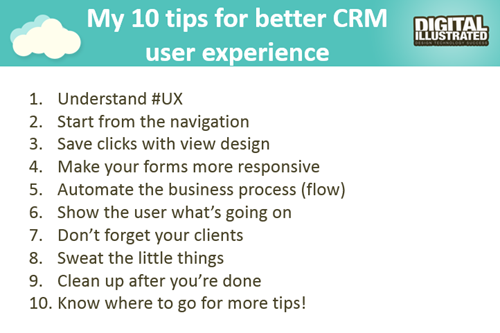
    So, I decided to talk about the many ways how we can sharpen our saws when it comes to Dynamics CRM. While every CRM environment is ultimately different from one another, due to the business processes we manage with it, the systems it integrates to, the user groups working with the application and so on, I believe there are still general design guidelines that apply to basically any organization using Microsoft Dynamics CRM. My presentation, “10 Tips for Designing a Great User Experience in Dynamics CRM“, introduces many of these guidelines that I personally try to follow when designing CRM solutions for customers. You can view the embedded presentation below, or if the content is not showing, then go and have a look at it on SlideShare.

    While UX has always been an important piece of the puzzle when trying to convince business users that using a CRM system can actually deliver tangible benefits to them, rather than just serve as a management tool for keeping track of what the employees are doing, the launch of the Dynamics CRM 2013 version has really heightened the importance of designing solutions with a polished user experience. This is due to the fact that the refreshed user interface and new customization points available in the UI can be leveraged to deliver a much more usable business application than the CRM systems of the past. But: you also need to plan the flow of user interactions with much more attention to detail, because sloppy customizations will now stick out like a sore thumb.

    The good news is that many of the new details in CRM 2013 (and CRM 2015, too) are easy to configure once you know the role of each platform component. You can do so much these days without writing a single line of custom code that the system customizer can easily have his or her plate full of CRM enhancement ideas to implement without ever consulting a .NET developer. That’s why it’s also good to think in advance how to prioritize the areas into which you invest your efforts. This Top 10 list of mine provides one example of such a tool, to help in identifying the low hanging fruit when it comes to making your CRM users happier and more productive with the system. If you have any topics on your mind that I forgot to include on my list, be sure to leave a comment below!

    10_CRM_UX_tips

    Oh, one more thing: if you’re a Microsoft Dynamics CRM user in Finland and would be interested in networking with other fellow CRM professionals, I’m glad to announce that there’s now a new Yammer network available for you: Dynamics CRM Finland User Group. Whether you’re from a customer or partner organization, please feel free to sign up for this network and come join the planning for future events and other ways to share Dynamics CRM knowledge and experiences with peers. Tervetuloa!

  • CRM 2013 and the Platform Evolution: Webcast Recording and Slides

    Last week I presented in a webcast for MSDynamicsWorld.com on the topic of “Microsoft Dynamics CRM 2013 Customization and the Platform Evolution”. If you weren’t able to attend this live event, then have no fear, because it has all been recorded and documented for future generations.

    First off, below are the slides that set the background for my presentation:

    Next we have the actual audio recording of the presentation on YouTube:

    So, what was the session all about? The key message which I’ve tried to convey here is that the Dynamics CRM platform has entered “the next chapter” with the release of CRM 2013. This will not only impact the end users but also place a lot of demands on the system customizer role to learn new tricks and approach the task of solution design with a different mindset than in traditional CRM implementation projects.

    The presentation includes a comparison of the old world vs. the new and also highlights some key elements in the CRM 2013 platform that you should pay attention to when building your solutions today. If you’ve got any questions or comments on the content, then please don’t hesitate to post them below. And if you attended the live webcast, then thank you very much for tuning in!

    Oh, and in case you’re interested in hearing my thoughts on the very latest CRM Online Spring ’14 release / CRM 2013 SP1, then you can catch me in a Google+ hangout hosted by CRM MVP Donna Edwards on Wednesday, June 4th. Check out more details here.

  • Visualizing Your Progress with CRM Goals

    Dynamics CRM is a great tool for making your business processes more quantifiable. Sure, you can maintain a list of your open sales opportunities in an Excel sheet and plan your customer meetings with your Outlook calendar, as many organizations do. You can get a pretty good understanding of the current status with such personal productivity tools that come with your Office package, so why bother using any other software for it?

    Things become a lot more challenging if you need to be able to track your progress over time, let alone manage a team of individuals who are all using personal tools instead of a shared information repository. “How did we meet the monthly sales targets during the past quarter?” “How many meetings did our sales reps have with current vs. potential customers?” Having an always up to date report of not only the historical results but also estimates of how you’re performing during the current measurement period may become an overwhelming task if you need to create such reports manually.

    CRM_goalsDynamics CRM 2011 introduced the goal management feature that allows you to configure a specific measurement criteria just once, define a target value for a certain time period and user, then just sit back and watch the goal progress chart get updated on a daily basis. It’s a generic feature that can be utilized for calculating pretty much any results that are based on data stored and maintained on CRM entities. Sales quotas are a typical example of leveraging CRM goals, but you shouldn’t look at the goal management feature as something that can only be used for tracking formally agreed targets associated with individual employees. Any metric that can be reflected as a quantity in CRM data can potentially be turned into a goal record.

    Set Your Own Recurring Goals

    There are a few aspects about goal management in Dynamics CRM that may stand in the way of organizations truly starting to leverage the feature. First of them is related to how the goals are by default presented as records that you need to separately create for each and every time period where the measurement should be applied. This means that if you would be interested in tracking a goal on a monthly level, you’d have to enter 12 different records into CRM with mostly the same field values, with the only difference being the “From” and “To” date fields (or alternatively selecting the fiscal period as defined in CRM system settings). Even though you can leverage Excel export/import to create more goal records in bulk, it’s still a tedious sounding step that may keep you from even starting to experiment with the goal management feature.

    If you’re not dealing with a hard variable like a sales quota that will have a concrete effect on someone’s salary, then there’s an easier way to get started with goals. Instead of configuring them for a fixed time period, you can set them to be dynamically measured for the last X months, next Y days and so on. I’ve introduced the topic in a previous post, so I won’t dig into the details here, but basically what you can do to create a continuous goal for a dynamic time period is to set the “From” and “To” values as wide apart as you want and then restricting the measured time period in your Rollup Query definition instead.

    In my example, I wanted to create a goal record that would measure how many web forms have been submitted per month in an online campaign that leverages the ClickDimensions Web Forms for automating the process and, naturally, tracking all of the data into the CRM database directly. What I did was 1) add a new Goal Metric for counting the number of Posted Form records, 2) enter a bogus time period of 6 years, 3) set the target value that I want to achieve for monthly downloads and 4) create a new Rollup Query in which I defined the criteria to be “Created On in last 30 days” and defined a specific Web Form record that I want to track the submissions from.

    CRM_2013_recurring_goal_configuration

    Once I saved the record and clicked on Recalculate, I received the current count of Posted Forms that meet this criteria. From here on to eternity this goal will now show the count of submitted forms in the last 30 days, as well as a percentage indicator of how close or far I am from the monthly target of 10 forms. All it took was a few minutes of configuring the goal, now the system will take care of updating it every 24 hours to show the latest result. Time well spent, eh?

    Make Your Goals Visible

    Another potential pitfall with the goal management feature is that while the calculation engine behind the scenes will now maintain these metrics, there’s no guarantee that the users will remember to pay attention to this data. If they know where to go and look for the data, they can access the goal record in a view that will display target, actual and percentage values. If they are really advanced users, they may even know how to display the goal data on a chart that can be opened up from the right side of this view. And, if they have a great CRM administrator in their organization, he or she may have configured the relevant goals to be shown on their role based dashboards.

    That’s a lot of ifs, though. Unfortunately it is quite common that not all of the skills required to get this process right, from business analysis to CRM system customization, may always be available to produce an outcome that would lead to the business value of goals being fully presented to the end users. As we know, user adoption is typically the bigger challenge that CRM system implementations will face, rather than the technical limitations of the underlying software platforms. If it’s not really, truly obvious for the users how the new system will benefit them and make their everyday lives easier, they are unlikely to invest time in frequently visiting it and browsing through the various views and dashboards to review the information available there. So, with the goals feature, is there any other way we could promote the usefulness of these automatic calculations to the users?

    I’ve recently started working at a company called Digital Illustrated, which delivers solutions based on various Microsoft technologies, including Dynamics CRM. The guys at my new office have developed a cool new app for Windows Phone: CRM Goals. As the name suggests, this is an application that enables you to review your Dynamics CRM goal information via a WP8 smartphone screen. The really cool part about it is that you can select the goals you want to show as a Live Tile right on the Windows Phone start screen! For example, I can select the above mentioned eBook download campaign goal and choose a place for it among my other frequently used apps like Dynamics CRM and Yammer:

    Digital_Illustrated_CRM_Goals_for_Windows_Phone

    Now, instead of me having to remember to review the goal in CRM, it’s available to me one the place I visit tens of times every day: my smartphone start screen. The likelihood of me keeping an eye on the campaign target has increased to a whole new level – even if I was already an active CRM user. Also, the convenient presence of these metrics on my personalized mobile start screen can very easily spark up new ideas of other processes where I could leverage the Dynamics CRM goal management feature. All it took was placing the information from CRM into the context of my existing daily workflow.

    If you’re using CRM Online and have a Windows Phone device, then why not go and grab the free CRM Goals app to better visualize your own personal goals?

  • Accessing “Special” Activity Data with CRM Report Wizard

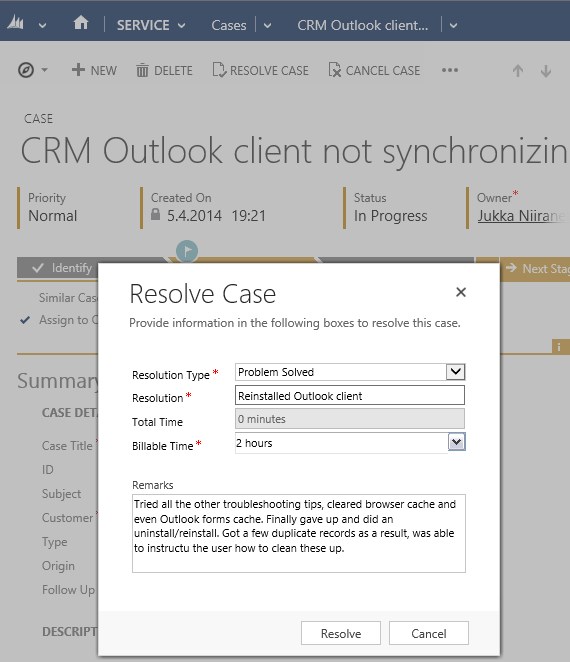
    Sometimes a data model that is perfectly valid on a logical level does not enable the system end users to actually leverage the data stored in it. One example of such a design is the way Microsoft Dynamics CRM handles the information collected on the standard (uncustomizable) dialog windows used in the case resolution and opportunity close processes. While the information collected here would often be valuable for managing the business process and analyzing the results (“what information was provided to the customer while closing the case?” or “why did exactly we end up losing this opportunity?”), it cannot be easily accessed in a way that would show data from more than a single record at a time.

    CRM_Case_Resolution_Dialog

    This is due to the fact that the case resolution and opportunity close information is not recorded onto the actual business entity itself but rather onto a related activity. There are specific activity types for both of these processes that get created once a user clicks OK on the respective dialog for setting the business record status as closed. This makes sense if we think about the lifecycle of a record like case or opportunity, since the closure is not necessarily a permanent end state. The user can reactivate a case or reopen an opportunity and continue working on it if the circumstances and the business process guidelines dictate this to be the correct route of action, in which case there will eventually be more than one close activity for the business record. The data model therefore needs to support a 1:N relationship between these entities, which is why the design of the out-of-the-box business processes in Dynamics CRM is justified.

    The unfortunate side effect of this design is that the system cannot easily produce views of closed cases with both the question and answer information, as these are stored on separate entities. It is equally difficult to view and analyze information regarding won or lost opportunities, as any comments entered by the opportunity owner during the closure event are not available on the opportunity record itself. What makes the situation even more unfortunate is that the Advanced Find UI does not surface these “special” activity types and make them available for custom views, so even extracting the data from the system for ad-hoc analysis in Excel sheets is not directly possible.

    One approach that I often recommend to customers is to develop additional business logic that will store the information about the latest case resolution or opportunity close onto custom fields on the case/opportunity entity. I’ve also written a blog article earlier about how ISV tools like North52 Business Process Activities (formerly known as Formula Manager) can be used for building a no-code customization to better leverage case resolution data. This of course will not cover any records created prior to deploying the customization, so accessing historical information is still a challenge.

    Reporting on Case Resolution Data

    As always, by developing a custom SQL Server Reporting Services report you could access almost any data in CRM and present it exactly the way you want. You’ll need to use Visual Studio and know a thing or two about how to develop SSRS reports for CRM if you take this approach. In the standard user interface of Dynamics CRM there is only the Report Wizard feature available, which in many cases offers quite limited options for designing reports that would go beyond what the inline charts in CRM views can do. This Wizard was originally introduced back in CRM 4.0 when there was no charting or dashboard capability included in Dynamics CRM yet. Once CRM 2011 brought in these new visualization options, the Report Wizard was pretty much abandoned in terms of new functionality development, so today it remains sitting there in its 2007 outfit and looking a bit outdated as a result.

    One of the lesser known qualities of the Report Wizard is that you can actually access certain entities and fields with it that are off limits to Advanced Find. This comes in quite handy when dealing with a scenario like the one I described earlier. So, let me show you how to build a Report Wizard report that will provide you better access to case resolution data.

    When creating a new report and choosing Report Wizard as the type, you’ll first be taken into a dialog window where you can choose 2 entities that you’re allowed to use in the report. By selecting Activities as the primary record type we’re presented with a list of possible related record types that includes also the “hidden” entities like Opportunity Close or Case Resolution. For our purposes, let’s select the resolutions.

    CRM_Report_Wizard_1

    Now we get to the filter criteria screen. Let’s say that we want to build a report on the billable time information recorded into the case resolution entity. We’ll only be interested in resolved cases and case resolutions that contain data in the Time Spent field (this is where the billable time field data in the case resolution dialog gets stored in). (more…)