Tag: process

  • Our New Book: CRM 2013 QuickStart

    A few people have asked me for recommendations on what books they should get if they want to learn about the ins & outs of the current Microsoft Dynamics CRM 2013 version. Even though there’s a wealth of blog articles out there that study specific features and an ever growing library of content produced by Microsoft themselves, there’s not been a whole lot of material in traditional book format that would have covered the latest CRM 2013 functionality. Well, now there is a great title available that I can recommend: the CRM 2013 QuickStart.

    CRM_2013_QuickStart_cover_smallHow do I know the book is any good? Because I wrote a part of it! Aside from shameless self promotion, I can honestly say that the writing team behind this book is quite an extraordinary league of CRM experts:

    If that’s not a group of CRM MVP’s you’d trust for advice on how to work with the platform then I don’t know who you would!

    What exactly does the book cover then? As the title suggests, it’s not a complete A-Z of each individual feature included in the Dynamics CRM 2013 platform. Neither is it meant to be “my first Dynamics CRM manual” for people who are unfamiliar with any version of the product. Let me borrow some of the official intro text for the book here to explain the reason for its existence:

    The CRM 2013 Quick Start is a first look at Microsoft Dynamics CRM 2013 and all the new features that have been included.

    In the CRM 2013 Quick Start you will find details that can help administrators, customizers (functional consultants) and developers; not to mention power business users wanting to know all the details the admin never tells them. If you run CRM in the cloud or sitting in a server room at your office the information is useful.

    This book is targeted to someone who has some CRM prior experience. By that we simply don’t spend any time explaining the basics of Microsoft Dynamics CRM from a beginner’s point of view. That said, the information in this book would still be useful on your journey to become proficient.

    Imagine that you’re someone who’s started their Dynamics CRM journey with an earlier version like 4.0 or 2011 and you’re now faced with the upgrade project for moving the solutions onto the latest CRM 2013 version. Is this the right book for you to gain an understanding of what’s new & what has changed in the platform? Absolutely! How about if you’re a system administrator or a customizer that has some exposure to the new version (via CRM Online perhaps) but are looking to ramp up your knowledge about the platform for future projects, enhancements or admin tasks. Will the CRM 2013 QuickStart help you get up to speed faster than searching for random articles online? You bet!

    Now, this is actually the first book that I have ever written content for and it makes me immensely proud to have managed to make my debut in such a prestigious crowd of co-authors. My personal contribution to this title focused on describing the founding principles of how to design a great user experience for the CRM solution that you wish to deliver to your end users. While some of the topics I covered in the book are specific to the latest CRM 2013 version, many of the solution design guidelines are actually universally applicable to any Dynamics CRM version, representing best practices that I’ve personally learned over the past decade of working with the product. I’m really glad to have been given the opportunity to present them in a format that allows for a different type of discussion than your typical blog post.

    Being a newbie in authoring content for books, it was also a valuable learning experience for me. Although I’ve been writing down my thoughts  on all things Dynamics CRM on this blog for six years now, the project of producing close to 50 pages of content on a given topic to create a coherent book chapter that can stand on its own was still a very different kind of assignment. Let’s just say that I have new found respect for authors that have managed to create entire books for new software products on their own.

    The great thing about my writing project was that it provided me a really concrete reason to dig into the details of the various new customization options that Dynamics CRM 2013 offers and experiment with different scenarios that I’m likely to encounter in real life customer projects. As they say, the best way to learn a new topic is to teach it to someone else. If this content that I’ve put together as a part of my own learning process then ends up helping also other members of the Dynamics CRM community to discover better ways to solve customers’ problems with the application, then I consider that a win-win result.

  • Dynamics CRM Platform Evolution Revisited

    Dynamics CRM Platform Evolution Revisited

    MVP_year_2_cakeIn celebration of receiving my second Microsoft Dynamics CRM MVP award today (thanks to the whole #MSDYNCRM community for your support!), I’m publishing an article series on the Microsoft Dynamics CRM 2013 Customization and the Platform Evolution.

    For the regular readers of my blog this title may sound eerily familiar, and you are correct. This is indeed a re-release of my earlier webcast topic that I presented in May for MSDynamicsWorld.com. I’ve previously shared the links to the live recording and the slide deck, but this time I decided to put it all down in writing. I had a huge pile of speaker notes, so I tidied them up a bit and published them as articles on this site.

    Why bother revisiting the same old story? Well, it all comes down to my own behavioral patterns and personal preferences. You see, even though there’s an ever increasing number of webcasts, podcasts and other forms of streaming content published these days on highly interesting topics and shared all over the social networks I hang out at, I very rarely find myself actually consuming any of that content. Jeffry van der Goot nicely captured the underlying issue in his recent tweet:

    Stop_the_videos

    Recordings of people presenting on a topic that they claim to be experts in just isn’t a very effective method of online knowledge sharing, if you ask me. Sure, you might be able to convey your message a lot more effectively with the help of audio and video, but the problem is that I, the audience, have a difficult time in assessing whether the content you’ve prepared really is worth my precious time (my precious free time in most of the occasions, I might add).

    It’s not just that all of us can read much faster than we can listen. It’s the avenue of opportunities that a piece of information receives when it’s put down in writing. The audience will be given the chance the glance at the content from a higher level, scan through for highlights that capture their attention and, most importantly, easily revisit any of the words transmitted in this form of communication. The content producer, the presenter of words, also gets to enjoy the same benefits when reviewing his or her own thoughts in a structured manner and designing the detailed message that is to be delivered. Last but not least, written content is infinitely more discoverable via the tools we all now turn to when in need of answers to our everyday questions – the mighty search engines.

    Now that I’ve explained the “why” behind the content strategy, it’s time to return back to the “what”. The Platform Evolution article series is about exploring some of the key themes that are shaping the process of how we can deliver customized business solutions on top of the Microsoft Dynamics CRM 2013 platform. The discussion is broken down into four parts:

    • Part 1: The History. Where does Dynamics CRM as a product originate from and how did we get to where we are now with the CRM 2013 version?
    • Part 2: Mobile Computing. How has the evolution of client devices affected the CRM platform and what should you know about the new client options?
    • Part 3: Customizing CRM Today. What is the difference between a traditional CRM system and a modern business application built to match the CRM 2013 design language?
    • Part 4:  Delivering Responsive Solutions. How could we optimize the user experience of our application without diving into the sea of custom code?

    Hope you find something of interest in these articles, but as said, they are there for you to conveniently scan through and judge for yourself. Because life’s just too short for sitting at your computer, watching long recordings that in the end didn’t quite deliver what you had expected.

  • Visualizing Your Progress with CRM Goals

    Dynamics CRM is a great tool for making your business processes more quantifiable. Sure, you can maintain a list of your open sales opportunities in an Excel sheet and plan your customer meetings with your Outlook calendar, as many organizations do. You can get a pretty good understanding of the current status with such personal productivity tools that come with your Office package, so why bother using any other software for it?

    Things become a lot more challenging if you need to be able to track your progress over time, let alone manage a team of individuals who are all using personal tools instead of a shared information repository. “How did we meet the monthly sales targets during the past quarter?” “How many meetings did our sales reps have with current vs. potential customers?” Having an always up to date report of not only the historical results but also estimates of how you’re performing during the current measurement period may become an overwhelming task if you need to create such reports manually.

    CRM_goalsDynamics CRM 2011 introduced the goal management feature that allows you to configure a specific measurement criteria just once, define a target value for a certain time period and user, then just sit back and watch the goal progress chart get updated on a daily basis. It’s a generic feature that can be utilized for calculating pretty much any results that are based on data stored and maintained on CRM entities. Sales quotas are a typical example of leveraging CRM goals, but you shouldn’t look at the goal management feature as something that can only be used for tracking formally agreed targets associated with individual employees. Any metric that can be reflected as a quantity in CRM data can potentially be turned into a goal record.

    Set Your Own Recurring Goals

    There are a few aspects about goal management in Dynamics CRM that may stand in the way of organizations truly starting to leverage the feature. First of them is related to how the goals are by default presented as records that you need to separately create for each and every time period where the measurement should be applied. This means that if you would be interested in tracking a goal on a monthly level, you’d have to enter 12 different records into CRM with mostly the same field values, with the only difference being the “From” and “To” date fields (or alternatively selecting the fiscal period as defined in CRM system settings). Even though you can leverage Excel export/import to create more goal records in bulk, it’s still a tedious sounding step that may keep you from even starting to experiment with the goal management feature.

    If you’re not dealing with a hard variable like a sales quota that will have a concrete effect on someone’s salary, then there’s an easier way to get started with goals. Instead of configuring them for a fixed time period, you can set them to be dynamically measured for the last X months, next Y days and so on. I’ve introduced the topic in a previous post, so I won’t dig into the details here, but basically what you can do to create a continuous goal for a dynamic time period is to set the “From” and “To” values as wide apart as you want and then restricting the measured time period in your Rollup Query definition instead.

    In my example, I wanted to create a goal record that would measure how many web forms have been submitted per month in an online campaign that leverages the ClickDimensions Web Forms for automating the process and, naturally, tracking all of the data into the CRM database directly. What I did was 1) add a new Goal Metric for counting the number of Posted Form records, 2) enter a bogus time period of 6 years, 3) set the target value that I want to achieve for monthly downloads and 4) create a new Rollup Query in which I defined the criteria to be “Created On in last 30 days” and defined a specific Web Form record that I want to track the submissions from.

    CRM_2013_recurring_goal_configuration

    Once I saved the record and clicked on Recalculate, I received the current count of Posted Forms that meet this criteria. From here on to eternity this goal will now show the count of submitted forms in the last 30 days, as well as a percentage indicator of how close or far I am from the monthly target of 10 forms. All it took was a few minutes of configuring the goal, now the system will take care of updating it every 24 hours to show the latest result. Time well spent, eh?

    Make Your Goals Visible

    Another potential pitfall with the goal management feature is that while the calculation engine behind the scenes will now maintain these metrics, there’s no guarantee that the users will remember to pay attention to this data. If they know where to go and look for the data, they can access the goal record in a view that will display target, actual and percentage values. If they are really advanced users, they may even know how to display the goal data on a chart that can be opened up from the right side of this view. And, if they have a great CRM administrator in their organization, he or she may have configured the relevant goals to be shown on their role based dashboards.

    That’s a lot of ifs, though. Unfortunately it is quite common that not all of the skills required to get this process right, from business analysis to CRM system customization, may always be available to produce an outcome that would lead to the business value of goals being fully presented to the end users. As we know, user adoption is typically the bigger challenge that CRM system implementations will face, rather than the technical limitations of the underlying software platforms. If it’s not really, truly obvious for the users how the new system will benefit them and make their everyday lives easier, they are unlikely to invest time in frequently visiting it and browsing through the various views and dashboards to review the information available there. So, with the goals feature, is there any other way we could promote the usefulness of these automatic calculations to the users?

    I’ve recently started working at a company called Digital Illustrated, which delivers solutions based on various Microsoft technologies, including Dynamics CRM. The guys at my new office have developed a cool new app for Windows Phone: CRM Goals. As the name suggests, this is an application that enables you to review your Dynamics CRM goal information via a WP8 smartphone screen. The really cool part about it is that you can select the goals you want to show as a Live Tile right on the Windows Phone start screen! For example, I can select the above mentioned eBook download campaign goal and choose a place for it among my other frequently used apps like Dynamics CRM and Yammer:

    Digital_Illustrated_CRM_Goals_for_Windows_Phone

    Now, instead of me having to remember to review the goal in CRM, it’s available to me one the place I visit tens of times every day: my smartphone start screen. The likelihood of me keeping an eye on the campaign target has increased to a whole new level – even if I was already an active CRM user. Also, the convenient presence of these metrics on my personalized mobile start screen can very easily spark up new ideas of other processes where I could leverage the Dynamics CRM goal management feature. All it took was placing the information from CRM into the context of my existing daily workflow.

    If you’re using CRM Online and have a Windows Phone device, then why not go and grab the free CRM Goals app to better visualize your own personal goals?

  • Dynamics CRM Reminder Workflows Done Right

    A very frequent requirement that customers present for their CRM system functionality is that they will get automatic reminders from it when an item recorded into the database requires their attention after a specific date is reached. This might be a hard, physical date like a contract expiring or a softer variable such as a follow-up date on an open opportunity. Since receiving email notifications from various online services is such a ubiquitous pattern for process reminders these days, it’s only natural that the CRM system is expected to behave the same way.

    What sounds like a straightforward thing to implement with the help of the Dynamics CRM workflow processes isn’t necessarily such an easy task – at least if you want the reminder workflow to operate correctly under all the possible circumstances. In a scenario where the reminder is set by the user via a value entered into a date field there’s a number of other variables that you should take into consideration besides that single data entry. For a developer who is used to dealing with user inputs and exceptions this may be just another routine task of figuring out the logic surrounding the reminder date variable, but for a functional consultant who typically works more directly with the end users and mainly just points & clicks in the CRM customization menus for building out the required functionality this may not be such familiar territory. I’ll be the first to admit that I struggle with workflow logic a lot.

    Dynamics_CRM_reminder_workflows_8Given how much time I’ve spent wondering “how should I do this” when it comes to CRM workflows, the wording of this blog post’s title is pretty bold. Is there really a single right way to build reminder workflows and do I know nearly enough about them to claim the privilege of defining the proper design pattern for them? This is actually just more of a provocation through which I’m hoping to gather feedback on the inevitable shortcomings of this post via the comments section. Another reason behind this choice of the title is that I stand on the shoulders of giants when it comes to my knowledge about CRM workflows, meaning everything I know about them I’ve read from blogs elsewhere and I’ll try my best to highlight the articles deserving most attention via linking to them as we move forward.

    In this post I’ll use a scenario where the opportunity record has been extended with a custom follow-up date field. Entering a date into the field is done by any user who has access to update the opportunity. When the follow-up date is reached, a reminder should be sent to the owner of the opportunity, but only if the record is still in an open status, since won or lost opportunities don’t require reminders anymore. Sounds logical? Good, then let’s start working on implementing all the required business logic onto the Dynamics CRM workflow editor canvas.

    Start conditions

    The first thing we need to decide on when designing workflows is defining the criteria on when should we be performing any actions to begin with. In our scenario, any moment a user could enter a value into our reminder date field is a potential trigger for our workflow logic, so we should have the process started both on the create event of the record as well as the change event of the field in question.

    Since we’re dealing with an optional field that doesn’t necessarily contain any value, we should check this right away. It’s not enough that there is a value in the field, but it also needs to be something we can act upon. There are two general things that interest us: 1) is the record sill active (meaning does it require any reminders) and 2) is the reminder date in the future. There’s no point in us sending an email to a user right away if he or she mistakenly enters a date that’s passed last month already, so better to just ignore any such input values and do nothing in this case.

    Dynamics_CRM_reminder_workflows_1

    Wait conditions and stopping the workflow

    If we’ve determined that there is a valid reason for our workflow to take note of the event to which it has been attached to, the next step is to… just wait. No, I didn’t mean you can just start slacking away with your workflow design! Waiting in itself is a topic deserving your full attention as a CRM customizer, since there are more than just one type of waits in the platform we’re working with. Read this great article by Paul Nieuwelaar for an in-depth discussion on the different options available.

    There are multiple possible outcomes that should cause our workflow process to wake up. It’s not only the events when a follow-up action should be performed but also any path that leads to a state where the workflow is no longer required. After all, you really don’t want to have an ever increasing number of workflow instances left forever waiting in your CRM system, hogging up resources unnecessarily. So, in our scenario, whenever the status of an opportunity changes to something else than “open” before the reminder date is reached, we’ll want to stop our workflow.

    Dynamics_CRM_reminder_workflows_2

    This brings up another best practice regarding Dynamics CRM workflows. We have the option of stopping a workflow with the status values of “Succeeded” or “Cancelled”. As a general rule of thumb, you should always choose to stop your workflow as “Succeeded” unless you have a good reason to do otherwise. This is because a “Cancelled” value is considered an exception in the workflow process job execution and it will leave a permanent record into the system for debugging purposes. If the stopping is just business as usual for your workflow logic, let the system job be deleted by choosing the “Succeeded” option. Only use the “Cancelled” value if you intend to go through and review all the cancelled process instances when testing or debugging your workflows.

    Change of date

    Since our trigger field is just a normal date field on the opportunity form, we need to take into consideration the fact that a user may at any stage go and update the date value. For example, when the opportunity in question gets delayed due to lack of actions from the customer’s decision makers, the opportunity follow-up reminder would naturally also get postponed to a later date. Whether a reminder has already been sent for the record or not doesn’t actually matter to us, since what we’re dealing with in this scenario is a reusable reminder field that should always work reliably and deliver a notification at the time specified by the user.

    Since our start conditions were tied to not just the creation of a new record but also any changes made to the follow-up date field, this will create a new instance of the workflow process whenever the field value is updated. We don’t want to have multiple concurrent waiting workflows for the same record and we most certainly don’t want to send more than one reminder at the follow-up date, so we need a logic to get rid of the old process instance when a new one is created. But how do we tell the existing workflow that a new version has been created? (more…)

  • Accessing “Special” Activity Data with CRM Report Wizard

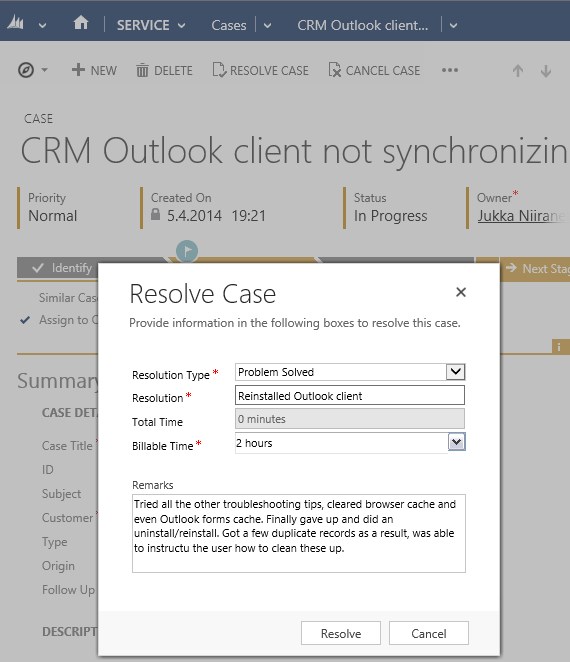
    Sometimes a data model that is perfectly valid on a logical level does not enable the system end users to actually leverage the data stored in it. One example of such a design is the way Microsoft Dynamics CRM handles the information collected on the standard (uncustomizable) dialog windows used in the case resolution and opportunity close processes. While the information collected here would often be valuable for managing the business process and analyzing the results (“what information was provided to the customer while closing the case?” or “why did exactly we end up losing this opportunity?”), it cannot be easily accessed in a way that would show data from more than a single record at a time.

    CRM_Case_Resolution_Dialog

    This is due to the fact that the case resolution and opportunity close information is not recorded onto the actual business entity itself but rather onto a related activity. There are specific activity types for both of these processes that get created once a user clicks OK on the respective dialog for setting the business record status as closed. This makes sense if we think about the lifecycle of a record like case or opportunity, since the closure is not necessarily a permanent end state. The user can reactivate a case or reopen an opportunity and continue working on it if the circumstances and the business process guidelines dictate this to be the correct route of action, in which case there will eventually be more than one close activity for the business record. The data model therefore needs to support a 1:N relationship between these entities, which is why the design of the out-of-the-box business processes in Dynamics CRM is justified.

    The unfortunate side effect of this design is that the system cannot easily produce views of closed cases with both the question and answer information, as these are stored on separate entities. It is equally difficult to view and analyze information regarding won or lost opportunities, as any comments entered by the opportunity owner during the closure event are not available on the opportunity record itself. What makes the situation even more unfortunate is that the Advanced Find UI does not surface these “special” activity types and make them available for custom views, so even extracting the data from the system for ad-hoc analysis in Excel sheets is not directly possible.

    One approach that I often recommend to customers is to develop additional business logic that will store the information about the latest case resolution or opportunity close onto custom fields on the case/opportunity entity. I’ve also written a blog article earlier about how ISV tools like North52 Business Process Activities (formerly known as Formula Manager) can be used for building a no-code customization to better leverage case resolution data. This of course will not cover any records created prior to deploying the customization, so accessing historical information is still a challenge.

    Reporting on Case Resolution Data

    As always, by developing a custom SQL Server Reporting Services report you could access almost any data in CRM and present it exactly the way you want. You’ll need to use Visual Studio and know a thing or two about how to develop SSRS reports for CRM if you take this approach. In the standard user interface of Dynamics CRM there is only the Report Wizard feature available, which in many cases offers quite limited options for designing reports that would go beyond what the inline charts in CRM views can do. This Wizard was originally introduced back in CRM 4.0 when there was no charting or dashboard capability included in Dynamics CRM yet. Once CRM 2011 brought in these new visualization options, the Report Wizard was pretty much abandoned in terms of new functionality development, so today it remains sitting there in its 2007 outfit and looking a bit outdated as a result.

    One of the lesser known qualities of the Report Wizard is that you can actually access certain entities and fields with it that are off limits to Advanced Find. This comes in quite handy when dealing with a scenario like the one I described earlier. So, let me show you how to build a Report Wizard report that will provide you better access to case resolution data.

    When creating a new report and choosing Report Wizard as the type, you’ll first be taken into a dialog window where you can choose 2 entities that you’re allowed to use in the report. By selecting Activities as the primary record type we’re presented with a list of possible related record types that includes also the “hidden” entities like Opportunity Close or Case Resolution. For our purposes, let’s select the resolutions.

    CRM_Report_Wizard_1

    Now we get to the filter criteria screen. Let’s say that we want to build a report on the billable time information recorded into the case resolution entity. We’ll only be interested in resolved cases and case resolutions that contain data in the Time Spent field (this is where the billable time field data in the case resolution dialog gets stored in). (more…)

  • Making Better Use of Business Process Flow Data

    CRM 2013 Business Process Flows (BPF) have been designed to support a scenario where the same transactional records (opportunities, cases, custom entities like projects) can follow alternative process steps depending on the business logic required. For example, you can use the same opportunity entity to support the sales processes of two departments that are operating in very different markets and thus have different process stages as well as information content gathered within those stages.

    You can either limit the availability of BPF’s by CRM security role, so that a salesman in department A will always get the sales process A for the opportunity records he creates, or you can enable the users to see a number of different processes and let them choose the correct one via the Switch Process button on the Command Bar. In the latter scenario the Select Business Process Flow dialog window will present the available processes, like this:

    BPF_CRM2013_multiple_processes_1

    More processes will naturally mean more variety in the type of data your opportunity records will hold. Instead of a fixed number of stages in a specific order you’ll have opportunities that are following different sales processes with unique stages, which could easily lead to a situation where the CRM user may be comparing apples and oranges in the same entity view. How can we avoid such confusion in a multi-process environment? Hopefully this post will give you some ideas on the best strategy to manage your Business Process Flow data.

    Working with the Stage Category

    The officially recommended tool for making Business Process Flow stages visible in views and charts is the Stage Category option set. This is a field available on the Process Stage entity and you can select a value for it while editing the Business Process Flow process record.

    BPF_CRM2013_multiple_processes_2

    Basically what this field allows you to do is to standardize the stage values across different BPF processes. You can enter a different name for the actual stage in the BPF editor but still link it to a Stage Category value that is used in some of your other processes, too. Depending on your business, there may be different sales processes that would each contain a conceptual Propose stage but apply different terminology for it. That’s one problem that the Stage Category can solve.

    If you want to customize the list of values available for the Stage Category, just find the global option set under the Default Solution (Settings – Customizations – Customize the System) and update it like any other field. The new values will appear in he Business Process Flow editor after publishing the changes.

    BPF_CRM2013_multiple_processes_7

    When building a view to display the opportunities by stage, you’ll need to add a column from the related Process Stage entity to leverage this information. In the Add Columns dialog of Advanced Find, choose the aforementioned entity and select the Stage Category field from the list that appears.

    BPF_CRM2013_multiple_processes_3

    One limitation related to the view columns is that we can’t apply any sorting to the Process Stage field. That’s because it’s from a related entity and as a result it doesn’t appear as a possible field in the Configure Sort Order dialog. This means that our opportunity view can’t have the records nicely aligned per stage value, to simulate a pipeline, but instead we’ll need to rank them based on some field that’s directly available on the opportunity record itself.

    BPF_CRM2013_multiple_processes_6

    Grouping or Filtering by Business Process Flow

    So, we have the capability to merge stage values across different BPF’s into a single view. Pretty cool. Now, since different sales processes are often related to different types of product categories or business lines, what are the steps needed for creating an opportunity view that also displays the name of the BPF process chosen for the record? For example, if we want to group the revenue per process instead of process stage, which field do we need to add into the view?

    Sorry, there is no such field. Thank you, have a nice day.

    Excuse me, what?! Didn’t you just show how to harmonize the stage values across different processes? Surely there’s a way to un-harmonize things and break it down based on individual processes and stages?

    Well, stages yes, but processes, no. You see, there isn’t a direct relationship to the actual Business Process Flow process entity from the opportunity entity (or any other BPF enabled entity). While the system does store a GUID reference to the process and process stage records in the StageId and ProcessId fields, these are “unique identifier” type of fields that you can’t reference in Advanced Find query criteria. We could add them as a view column, but they’d just be gibberish like “3e8ebee6-a2bc-4451-9c5f-b146b085413a”.

    BPF_CRM2013_multiple_processes_4

    The Process Stage entity that we examined earlier is a parent entity of the opportunity and it can be accessed in Advanced Find, but it doesn’t contain any field that would specify the name of the process to which the stage belongs to. When selecting view columns in Advanced Find we can only go one level up, but luckily when building a filter criteria for the view we can query entities further away. This means we can reach the Process entity related to the Process Stage entity and find our Alternative Sales Process from there, as illustrated below. (Note that you’ll need to change the default lookup view to display the BPF processes, as otherwise you’ll only see workflow processes to choose from.)

    BPF_CRM2013_multiple_processes_5

    By adding this criteria we are able to build a view containing only opportunities from a specific Business Process Flow. To see the total pipeline revenue per each process we’d just need to switch between the views, or build a dashboard that contains one list/chart per process. Not quite as elegant as having a single chart grouping the revenue per process, but it’s still better than a mixed bucket of opportunities from all over the place.

    What if I told you there was a better way to do this than the out-of-the-box data model provides? Would you be interested in seeing its possibilities? Then you’re in luck, because that’s what I was going to write about next. (more…)

  • Expanding “Add Activity” Options on CRM 2013 Forms

    CRM 2013 has introduced many UI features that aim to reduce the number of different windows between which the user needs to navigate while performing everyday actions on records. Since customer relationship management systems are often focused on capturing the various interactions between the company and its customers, activity management is naturally a core feature that should be as smooth as possible in a CRM application.

    The refreshed entity forms in CRM 2013 contain the Social Pane (shown as “Notes Control” in the form customization UI due to legacy reasons) that shows three tabs of interaction data related to the record: Activity Feed posts (Yammer posts if available), activities and notes/attachments. In addition to a much richer rendering of the activity content than the previously available subgrids, there’s also an inline control available for adding tasks or phone calls directly on the main entity’s form. This provides quite a slick user experience that makes CRM appear very effortless to use for activity management.

    CRM2013_Activities_1

    What’s missing from the Social Pane then? Well, for starters, not all the activity types are available to be created via the Add buttons on the top of the control. We have phone calls & tasks available immediately, clicking the ellipses (…) button gives us email & appointment, and if we’ve added any custom entities into our solutions they’ll be presented here, too. However, if you’d want to add any of the other default activities for the record you’re working on, meaning a letter, fax, recurring appointment or a service activity, then you’re out of luck. The user would need to navigate away from the form by selecting the Activities menu from the Nav Bar, create a new activity record from there, find the Regarding record to reference on the activity, save it, then return back to the original record.

    Another limitation has to do with the inline editing experience of tasks and phone calls. When you create a phone call via the Social Pane, it will always be record as a completed activity. So, no chance for planning upcoming phone calls and setting up a reminder, unless you record it as a task instead. Another downside of the inline form is that it’s not customizable, which means we can’t display any custom category fields related to a phone call or task. When implementing a CRM system for tracking the activities of sales people and account managers, it is a very common requirement to have some compulsory fields added onto the activity entities that the user must fill to categorize and describe the activity before being able to complete it. Well, since the inline form will log a completed phone call right after clicking on OK, this isn’t exactly the optimal feature for those scenarios.

    Ribbon to the rescue

    While some parts of the new UI are not yet customizable in CRM 2013, we do still have a way to introduce additional features onto the entity forms via the Rib… sorry, Command Bar. Even though in its default setup the Command Bar looks like a stripped down version of the CRM 2011 Ribbon, it’s still built on the very same  Ribbon XML definitions and it supports most of the features from its previous incarnation. As we know, CRM in itself doesn’t provide tools for configuring the contents of the Ribbon, which is why someone just had to do something about it. That “someone” is CRM MVP Scott Durow and the “thing” is his awesome Ribbon Workbench solution that gives us everything imaginable for customizing the CRM 2011 Ribbons as well as the CRM 2013 Command Bar.

    Since many of the common features presented on the CRM 2011 Ribbon get hidden away once the CRM environment is upgraded to 2013, Scott has been covering several scenarios in his blog where this functionality is restored onto the Command Bar. Among these articles is a tutorial on how to restore the Add Activity buttons into a CRM 2013 environment. By following these steps documented by Scott we can enable the creation of letter activities while on an entity form, as well as provide a navigation path to opening the full form of a phone call activity to control the business required fields as well as activity status beyond the options that the Social Pane inline activity form gives us.

    To demonstrate the possibilities of modifying the default activity management features of CRM 2013, I decided to take Scott’s example and expand it a bit further. In his blog post Scott shows you how to make the activity buttons appear on the Command Bar, but due to the limitation of max 5 items being shown directly on the form and the rest being pushed away into the “more actions” menu, it’s not going to be very easy for the CRM user to discover their existence. What I did instead was add a new flyout menu, promote it to the top 5 items on the Command Bar and arrange all the “Add Activity” buttons inside it. The screenshot below shows how this has been configured while in the Ribbon Workbench UI:

    CRM2013_Activities_RibbonWorkbench

    How do we get the buttons to do what we want them to do, meaning creating new activity records like they used to in CRM 2011? Scott’s blog post contains all the details you need for making this happen, but since the inherent complexity of the Ribbon XML language can make it challenging to grasp how the various options relate to one another (I’ll be the first to admit I struggled quite a while with the task before being able to achieve the result I wanted), I’ll recap the main steps here for your convenience.

    First of all, we’re not creating a completely new command but rather customizing a native CRM platform command. While the activity buttons aren’t visible on the Command Bar by default, they do exist in the Ribbon definition and can be accessed in the Ribbon Workbench by switching from the Command Bar tab to the Ribbon tab (bottom left corner of the top menu) and navigating to the Form ribbon (since this is where we want the flyout menu to appear in our example). You’ll see the familiar Ribbon in the format that it would be shown, with the Activity buttons available under the Add tab. Yeah, not too many end users probably ever discovered that second tab of the ribbon on their own, which is why the simplified design of CRM 2013 is definitely a step in the right direction, even if it means us consultants need to do a bit more tweaking of the system to enable the relevant features.

    CRM2013_Activities_RibbonWorkbench_2

    Anyway, now that we’ve found the buttons, we can right-click on them and select “Customise Command”. Effectively what this does is it brings the commands like Mscrm.AddPhoneToPrimaryRecord available for us to reference in the custom buttons that we create. While we’re at it, we can also re-use the icons and labels from the native buttons in our custom flyout menu buttons. The one thing we need to change, however, are the Display Rule settings of the now customized commands, as the Mscrm.HideOnCommandBar rule would otherwise do just what it says and hide the buttons from our flyout menu when viewed on a refreshed UI form.

    As mentioned, please refer to the original blog post to guide you through the detailed configuration of the custom buttons. It will give you everything except the different layout, which is the flyout menu that you can see below. In practice this method allows us to create up to five traditional dropdown menus on the form’s Command Bar. We now have a button labelled “Add Activity” that will open up a list of different activity icons, which in turn will lead the user to the traditional full create form for the chosen activity type. It will pop open in a new window, allow the user to edit the details, then close the window and return back to the parent entity form. Just like in the “good ol’ times” of pre-2013 Dynamics CRM.

    CRM2013_Activities_2

    If you took a closer look at the flyout menu shown in the picture, you may have noticed one non-standard entry at the end of the list: Site Visit. What’s that? And why’s it under a menu section called “Quick Actions”? Thanks for asking, let me explain what it’s all about. (more…)

  • Auto-Numbering with CRM Workflows: Real-Time vs. Asynchronous

    One of the missing features that is often requested for Dynamics CRM is the ability to automatically assign numeric identifiers to records (see the feature suggestion on MS Connect). Sure, we’ve had the Auto-Numering feature for a limited set of default entities (contracts, cases, articles, quotes, orders, invoices, campaigns) since the early days of CRM 3.0, but generating numbers on a standard entity like account or any custom entity has not been possible out of the box.

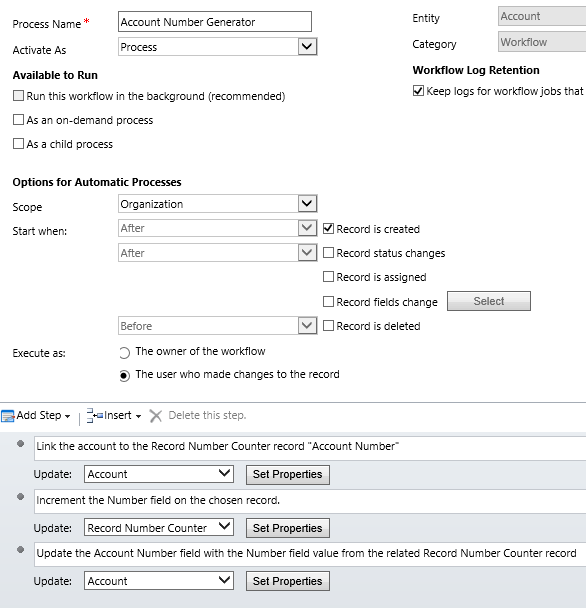
    As if often the case, workflows offer a way for the creative user to overcome such limitations and enhance the CRM functionality with some custom business logic. The usage of workflows to generate automatic numbers for records has been described in several blog posts, of which I’d like to point out the ones written by Karel Iuel and Leon Tribe. The high level concept of this process is as follows:

    • Create a custom entity to hold the current counter value of the number
    • Link your business entity to this custom counter entity through a N:1 relationship (meaning the single counter record will be the parent for all the intended child business records)
    • Trigger a workflow rule from the business entity record creation that performs the following actions:
      • Links the new business entity record to the existing counter entity record
      • Increments the counter value
      • Assigns this value as the number for the child business entity record

    With the recent enhancements to workflows in the CRM 2013 release I thought I’d take this scenario and use it to compare the different outcomes with the new real-time workflows and a traditional asynchronous workflow process.

    Number assignment with a Real-Time Workflow

    Let’s first see how the aforementioned methods work in a CRM 2013 environment. I’ve created a new custom entity called Record Number Counter and added a 1:N relationship to the account entity, with the intention of assigning an automatic number to any new account record that gets added into the CRM database. To actually make this happen, we need to have a workflow process in place that performs the three steps outlined above. Note that the box for “run this workflow in the background (recommended)” is unchecked, meaning this will be a synchronous, real-time workflow process that starts immediately after the specified event, which in this case is “record is created”.

    CRM_2013_auto_numbering_real-time_workflow

    Let’s do some account data importing next to test the results of this workflow. I’ve created an Account Number record of the Record Number Counter entity with its Number value set to 100 500, which means the next account record to get created should be numbered 100 501. With a set of 500 test records to import in my csv file, I’m expecting the counter to hit 101 000 by the time the job is done.

    So, off we go with the import job and then we start to anxiously click on the Refresh icon on the account entity view to see which values get assigned in the Account Number column.

    CRM_2013_auto_numbering_test_1

    Looks like everything is as we wanted it to be! All the 500 account records have been assigned a unique number and the counter value is incremented by one after each assignment. Sure, we’re getting the local number formatting setting from our integer field applied into the target text field on the account (in my case it’s the empty space as the thousands separator), but that’s not a huge issue for our home grown auto-numbering solution. The concept itself appears to be working, which is the main outcome we were after.

    Why this won’t work in CRM 2011

    If you’ve been reading any discussions on the workflow driven method of auto-numbering, you may have come across issues with the numbers not always being unique. If you create a single record, then wait for the workflow process to complete and check the results before the next record, everything will most likely look ok. But when there’s a bigger volume of database inserts taking place in a bulk operation, the results may not be as expected. (more…)

  • Similar Opportunity Analytics with CRM 2013 Quick View Forms

    A while ago when performing a requirements gathering session for the sales process functionality in a CRM implementation project, my client asked me whether Dynamics CRM was able to show information on the opportunity form about how similar opportunities had performed in the past. Thinking of an analogy from the world of consumer web apps, this would be a bit like Amazon’s feature where they show you similar items that other people had purchased after ordering the product you are currently thinking of buying.

    Similar_items

    My initial reaction to the request was “I wish we could do that, but you’re looking at either a significant chunk of custom development or a considerably more expensive piece of software to get that functionality”. After a moment of thinking about it, though, I realized that the new CRM 2013 version already had some platform functionality that could be leveraged for delivering such a feature under the right circumstances.

    Quick View Forms across multiple relationships

    Traditionally Dynamics CRM has been an application where you can show information from either the current record the user is working on or the child records directly related to it. It wasn’t until CRM 2011 that showing the related child records right on the entity form became a supported scenario. With CRM 2013 we’ve gained another important feature that we can use to expand the scope of information being shown to the user on a single form. The new Quick View Forms allow us to show several fields from the parent entity on the current entity’s form. Even better, the Quick View forms support the CRM 2011 subgrid feature, which also makes it possible to show information about the child records of the parent record on one of its other child records.

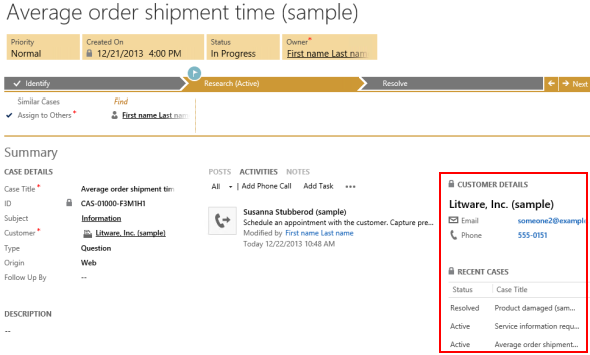
    “Whoa, that’s way more relationships that I can visualize in my head! What does all this actually mean?” No worries, these are not the type of features that would be immediately obvious to even the more seasoned CRM consultants. Let’s approach this via an example from the out-of-the-box configuration of the CRM 2013 case form. This new form contains a Quick View Form called Customer Details:

    Recent_Cases_CRM_2013

    The Quick View Form not only shows details about the customer account but also a subgrid of all the recent cases where this account has been the parent record. So, starting from the case record, we go one level up in the hierarchy to query the account record and then we come back down again to retrieve a list of child records for this account. The Recent Cases subgrid returns back to the same entity as where we start from, but this is not a requirement, as is demonstrated by another subgrid included in the same Customer Details Quick View Form that lists the recent activities regarding this account. Effectively we can show any entity information that is maximum two hops away from the current record and that share the common parent record.

    Applying Quick View Forms in customer segment analysis

    How could we leverage this feature in providing the CRM user some insights on how similar opportunities have worked out in the past? The key here is finding an entity that we can use for binding the different opportunities together and showing relevant information about them that will be helpful for the CRM user in deciding on the actions to take in pursuing the new sales opportunity. If it’s an existing customer that has done purchases in the past we could of course benefit from seeing this history, but assuming that we’re dealing with a scenario where repeat purchases are not that frequent, we should look for a different variable that could help us in surfacing the past sales analytics that can help us in winning the new deal in question.

    Let’s assume that we’ve got a customer segmentation model in place where we assign each new and existing account a segment value. The actual rules behind the segmentation process are beyond the scope of this article, but the one thing that’s critical here is that the segment information is stored in a dedicated “Segment” entity. This custom entity has a parental relationship to the account entity, which basically means that we can open a segment record and see all the accounts belonging to that segment. Now, because of the fact that each account has a value in the segment lookup field, we can also configure it so that every opportunity created for the account also inherits the segment value of that account. Effectively we’ll then have a similar 1:N relationship between the Segment and Opportunity entities as we have with Segment and Account. The end results and our target configuration will therefore look something like this:

    Account_segment_opportunity

    We need to have a bit of redundancy in our data model in order to be able to leverage the Quick View Form feature for our desired purposes. Technically we could determine the segment of the opportunity record just by examining the value on the parent account of that record, but we wouldn’t be able to reference it on the opportunity form customization UI. Therefore it is crucial that the segment value is carried over from the potential customer account onto the opportunity record, either through a relationship attribute inheritance or a real-time workflow that retrieves the value right after the opportunity record is created (preferably both, to cover all scenarios for opportunity creation). (more…)

  • Address Copy Button with CRM 2013 Business Rules and Workflows

    Address Copy Button with CRM 2013 Business Rules and Workflows

    The default forms in Dynamics CRM only contain one set of address fields, but most organizations will need to surface at least the Address 2 fields for accounts and contacts to manage the different information for visiting address, mailing address, delivery address, invoicing address or whatever the business scenario.

    Sometimes it may be justified to have a bit of redundant information in your CRM database for practical purposes. For example, if you use the Address 2 fields for managing the mailing addresses for accounts where this is separate from the visiting address, it may be easier to have the mailing address fields populated also in scenarios where the values are identical to the visiting address. Otherwise the marketing assistant who is building target groups for mailing campaigns will need to perform some Excel sorcery to pick different address fields for different customers when extracting the data from CRM.

    If you’ve bought anything from online stores during the past 10 years, you’ve probably ran into a nice little feature on the checkout or registration forms where the system asks if you’d like to use the address information you entered into your customer profile also as the shipping address for the order. Often times this is presented as a checkbox field that you simply need to tick once, to save you the trouble of re-entering the same data the system already knows.

    Wouldn’t this be a nice feature to have also on the CRM account form? Let’s take a look at a form where both Address 1 and Address 2 fields are presented side-by-side. If we would have a “Copy to Address 2?” checkbox that the user could tick after having tabbed through the Address 1 fields and entering data into them, that would be quite an intuitive feature that the users would surely feel right at home with. On the account form it could look like this:

    CRM_2013_address_copy_account_1

    Now that we have our new custom field below the Address 1 fields, next we need to build the functionality for duplicating the field values from Address 1 to Address 2. So, please open you “Javascript for Dummies” textbook from page 47 and… Hey, wait a minute! We’re working with CRM 2013 now that has the great new Business Rules feature for situations like these! Forget what I said about scripts, instead go ahead to the account entity customization menus and add a new Business Rule for this form.

    On the “Copy Address 1 to Address 2” Business Rule we’ll set a single condition to monitor the value of our custom chechbox field. If the box is ticked, meaning the field value equals “Yes”, we’ll set the values of each visible Address 2 field on the form to be the same as what’s been entered into the corresponding Address 1 field.

    CRM_2013_address_copy_business_rule

    Once we publish our customizations and activate the Business Rule, we can try out the feature in practice. Let’s create a brand new account record to simulate the typical data entry process (although an existing account would work just as well). After we’ve entered the Address 1 information on the left column, the moment we tick on the “Copy to Address 2?” box we’ll see the address fields on the right side get populated with the same values in real time.

    CRM_2013_address_copy_account_2

    Great, we’re all set to move this into production now! Or are we actually? What happens when the user wants to go and edit the field values for Address 2? If we leave the “Copy to Address 2” box ticked, then our Business Rule will keep copying the values over to the Address 2 fields the next time the rule is evaluated. As we’d like to allow the user to leverage this copy feature to initially replicate the fields to Address 2 but perform the necessary changes to those values that are in fact different, such as editing the Street 2 field, we should somehow restrict when our field copy operation is triggered. (more…)