Tag: Outlook

  • When will my cloud get updated? CRM Online and Update Rollup status

    The benefits of running your Dynamics CRM application in Microsoft’s cloud is that you don’t have to worry about installing update rollups to your server, since MS takes care of all that maintenance. The downside is that you can’t be sure when exactly the updates take place. As we’re coming closer to the expected release date of Dynamics CRM R8, it’s a good time to reflect on the past update schedules of CRM Online.

    As of mid-June, CRM Online organizations are still running only the Update Rollup 5 version (at least on the EMEA CRM4 data center), while on-premises environments may already be running Update Rollup 8. No matter if you use an existing environment or sign up for a new trial organization, the version you get is 5.0.9688.1561. This corresponds to roughly the build number of on-premises UR5, which is 5.0.9688.1533, whereas Update Rollup 6 is 5.0.9690.1992 already. How can you check the version of your CRM Online application? Simple: on the browser client just click File – Help – About Microsoft Dynamics CRM. You’ll see version from the top of the pop-up screen.

    So, where do I go to translate those ten digits into a human readable version name? For the list of detailed build numbers, related KB articles and other information, be sure to bookmark this page on the Dynamics CRM In The Field blog: Microsoft Dynamics CRM 4.0 and 2011 Update Rollup Release Dates, Build Numbers, and Collateral. That page is being updated as new rollups are released and it also has in the past contained projected release dates of upcoming updates as well. Has, since at the time of writing it no longer does. Also note that the CRM Online build numbers and release schedules can and will differ from on-premises, as we’ve already seen.

    How to check the Update Rollup version on CRM Online

    Back when Update Rollup 7 was released on March 22nd, the accompanying post on the CRM Team blog promised the CRM Online Datacenter update schedule to “Mid to Late April, 2012”. This was also the information on the related article KB 2600643, but things have changed since then, as now all the post UR5 KB articles read:

    For online customers Infrastructure improvements are being made to CRM Online. Because of this, update rollups will not be applied to servers until the improvements are complete. Through the System Notifications page for the system maintenance window, you will be notified of when your organization will be updated to the new infrastructure. The latest updates will be applied at that time. 

    It’s no secret that Microsoft is working on bringing the Dynamics CRM Online and Office 365 clouds onto a single platform and unifying many of the surrounding components, such as subscription management or user authentication. This has apparently caused the planned schedules of Update Rollups to CRM Online get changed from those earlier communicated. When UR5, also known as the Q4 2011 Service Update, was released, it was deployed first to CRM Online environments before becoming available for on-premises and hosted environments. Since then we’ve seen UR6, UR7 and UR8 all get released to the on-premises environments first, with CRM Online remaining in the “UR5+” status for quite some time. Note that the builds are not exactly the same and there are likely to be differences in what the terminology means for different platforms. For example, UR6 brought support for SQL Server 2012, but we’ve already heard Microsoft say that CRM Online was running on SQL 2012 long before that.

    What the current status of updates to the Microsoft hosted cloud means that CRM Online customers are not yet able to leverage enhancements brought in UR6-8, such as the read-optimized forms introduced in Update Rollup 7. Also any server side bugfixes and functional changes beyond UR5 must be assumed to be lacking from CRM Online organizations, although we can’t know for sure what may have been applied as hotfixes. For example, problems with connections not merging when deactivating duplicate records was fixed in UR7.

    On the client side things are a bit different, since all the Update Rollups are rolling onto CRM Outlook clients through Microsoft Update. There is no longer a separate client version for Online and on-premises, so everybody gets the same hotfixes. Even though Microsoft recommends that the client and server Update Rollup versions should be kept close to one another, they don’t need to be identical. Here’s what it says on the CRM In The Field blog:

    The general rule of thumb is to try to keep the versions in sync as much as possible. However, it is permissible (though not recommended as a long-term solution) to run mismatched Update Rollup versions on Outlook client and server, as Microsoft does do some testing of such combinations.

    So, since the CRM Online version difference is obviously well known by MS, the UR combinations shouldn’t be an issue for Outlook users who’ve deployed the latest Microsoft Update packages. Even if you’re using the offline database in your CRM Outlook client, I assume compatibility between the CRM Online database has been taken into consideration. Of course in the field of IT, you should never assume anything, rather you should test any Update Rollups in a dedicated test environment, but smaller CRM customers may not always have that luxury. Which gets us to the following rule of thumb: don’t ever be the first one deploy the latest Update Rollup once it’s released. Wait a few weeks and check out the CRM forums and blog posts to read about the experiences other users have with the latest update, only then decide to deploy the update onto production devices (first onto your own test servers and clients, if you have them available). The Dynamics CRM community tends to be quite effective in reporting new issues that arise with UR’s, so leverage the wisdom of the crowd and save yourself from some unpleasant surprises.

    The big question that many people are searching for an answer to is: when exactly will Dynamics CRM R8 / Update Rollup 9 / Q2 2012 Service Update be released? (In case that previous terminology trio made no sense to you, be sure to read my explanation of the “Dynamics CRM update & version madness”.) I wish we knew, but in reality only Microsoft has that information and it hasn’t been publicly communicated. We’ve got less than two weeks to go on the Q2 of 2012, which makes it a tight schedule to keep if also Online organizations would need to be updated in addition to releasing the on-premises bits. We need to remember that R8 is a very significant update due to the added cross browser support, which will surely keep many CRM developers busy with fixing legacy scripts, so any issues that the R8 beta program may have revealed certainly need to be thoroughly investigated and I’m glad if Microsoft is taking extra time to get the whole CRM Anywhere experience right with UR9.

    Status update 2012-06-20: As reported on XRM Services blog, the US data center CRM Online organizations were updated to 5.0.9690.2174 on June 19th, which translates to Update Rollup 7+ but still a bit below the Update Rollup 8 available for on-premises environments. A similar update has been scheduled to take place on EMEA data centers one week later, on June 26th. Since it’s quite unlikely that there would be several maintenance breaks on consecutive weeks, this appears to indicate that at least for CRM Online customers the long awaited R8 release, also known as Microsoft Dynamics CRM Q2 2012 Service Update, appears to be delayed from the original schedule and now seems to become “Q3 2012 Service Update”. It is of course still possible that the on-premises bits for Update Rollup 9 will be released before the end of June.

    Status update 2012-07-04: It’s Q3 now and we know for sure that the release of R8 has been delayed from Q2 2012. The service break for CRM Online on June 26th in EMEA didn’t actually bring any updates to the CRM application, but now there’s another maintenance break scheduled for July 11th. Since the US data center went from UR5+ to UR7+ in the previous round, this may just be EMEA catching up on the delayed Update Rollups.  I’ll update the post again as we see the results or hear announcements from Microsoft so watch this space.

    Status update 2012-07-07: Finally we have a release date of July 19th for CRM Online. However, the “CRM Anywhere” functionality has been dropped from the update and will not arrive until six months later in Q4 2012. Read my analysis on the announcements from this blog post.

  • Power of Choice or the Legacy of Outlook?

    The first selling point advertised for Dynamics CRM in almost any context is the user interface familiarity of Office users and the seamless integration to Outlook. Compared to other CRM applications, the feature set available in the Dynamics CRM 2011 client for Outlook is unsurpassed, no doubt about that. However, sometimes you do run into issues that break the illusion that CRM and Outlook would be the one and the same application. Here are a few features that you should be aware of when planning on how you’ll train your users to use the two different client versions available: web and Outlook.

    Issue 1: Dashboard ribbons are not context sensitive in Outlook

    If you build a dashboard out of grids that present the user with relevant data from various entities, this can significantly cut down their need for jumping between different menus and screens. Say, a customer service representative can easily view all the new items in the email support queue, active cases assigned to him/her and also other open activities. With the help of the context sensitive ribbon the user can then process these records in the same screen, by changing record status from open to closed, accepting items from the queue, creating new tasks etc.

    Except, in Outlook that won’t work. The user will only be able to create a new dashboard, but not any of the common tasks, like creating new records for the selected grid. This is because in Outlook the ribbon is not context sensitive within the dashboard. Why is this? It works elsewhere in Outlook, so why not here? I imagine the explanation is that while the normal grids are composed of native MAPI objects inside Outlook, the dashboards are merely web pages as far as the Outlook client can recognize them, so it can’t understand which ribbon should be shown in which part of the page. Bummer.

    As a result, if you want to create actionable dashboards that allow users to work on the items presented there, it’s better to instruct them to open CRM through the web client instead of the Outlook client.

    Issue 2: Different logic in Quick Find

    People who have worked with Dynamics CRM throughout several versions will surely have learned how the Quick Find operates and when you need to use wild cars. With the CRM 2011 Outlook client, this logic no longer holds true. Outlook has its own way of handling search terms, so now we can punch in a search word right from the middle of a field, such as the account name, without entering the asterisk wild card in front of the term.

    Great, easier for the user to perform searches, right? Well, it is if you only ever work inside the Outlook client. If you step into the web client views, you’ll discover that things work differently there. Not only do you need to remember to use the wildcard in Quick Find criteria, but there also is a specific Quick Find View. Whereas in the web client the search will cover every active record in the database, no matter from which view you start, in Outlook the search is conducted on the records in the selected view. So, if you’re in the My Contacts view in Outlook client and search for a contact that belongs to another user, the Quick Find results will not deliver any data. In the web client it will.

    Also the columns presented in the web client will always be the ones specified in the Quick Find View customizations, but in Outlook the columns will not change as you’re searching from within the current view. However, it appears that the search columns that the Outlook client performs the query on are still affected by the ones defined in the entity Quick Find View, even though this view is never actually presented to the Outlook user. Still following me? If the different search logic is hard for a consultant to remember, just imagine how confusing it can be to the CRM user.

    Issue 3: Writing emails from Outlook without Outlook

    One of the three core modules in Dynamics CRM is Service. The most typical scenario for utilizing CRM for customer service processes is directing the incoming emails for an address like support@company.com to a queue in CRM. This way the emails are automatically tracked under a contact record if the sender email exists in CRM. Also the queue allows you to see which items are already being worked on by customer service reps.

    If you’re working with the Outlook client for Dynamics CRM, then you can write all your emails with the normal Outlook email editor and make use of the rich tools for message formatting, signatures, attaching multiple files with at once etc. Right? Not in this case. If the email you are replying to does not exist inside your Outlook mailbox but rather as an email record inside a CRM view, you can’t send “Outlook” emails as a reply. When you click the reply button, the Outlook client will open the web client email editor form for you.

    There’s surely a reason why the email editor in the web client hasn’t been improved since CRM 3.0. Outlook is Microsoft’s premium experience editor that should be used wherever possible, whereas the web editor is a secondary feature. But if you’re using Outlook already, then it would be nice to be able to always remain within that rich client, even when replying to queue emails, wouldn’t it?

    Issue 4: Recently used and pinned records behind the File button

    Many users will normally be working with a selected few accounts, contacts and opportunities at a time, rather than the whole CRM customer database. This is why the Recently used records menu in CRM 2011 is a great usability enhancement, which is also familiar from many other CRM applications. Right from the CRM main window, from the top left corner where you first look, you’ll be able to open a rich pane that presents all the latest records as well as the views you’ve recently visited.

    So, when I’m in the Outlook client then, surely I’m able to access the same list? Well, you are, but you’ll have to open the Office Backstage menu by clicking on the Outlook File menu, then glazing past all the file manipulation options and settings menus, to finally reach the recently viewed CRM records. And even if you reach it, you won’t be able to launch any views from this menu, since again the way how Outlook treats grids is different from the web client. Anyway, you probably won’t be accessing this menu any more often than you tweak your CRM settings, simply because it’s so well hidden away.

    Desktop Outlook: how crucial is it still?

    Ok, so there are a few quirks to be aware of when jumping between the web client and Outlook client. But how essential is it really to use the Outlook client in the first place? (more…)

  • Upgrade gotchas: Outlook client for Dynamics CRM 2011

    Last weekend I finally did my first installation of the RTM versio of CRM 2011 Outlook client onto a machine with Outlook 2010. I had previously only worked with the Outlook 2007 client version, which is lacking a few nice features in the UI, as described in my earlier post.

    I came across a few issues that might cause problems in the installation process, so I decided to link the relevant KB articles and other related content into this blog post to help you save some time when upgrading to the latest version of Microsoft Dynamics CRM on your client machine. I’m using CRM Online here, so some things may differ from the on-premises client version, which no longer has a separate client version, but of course the authentication methods do differ.

    Before you begin: go with 32-bit

    Yeah, I’m sure most of the new business laptops nowadays come with a 64-bit (a.k.a. x64) version of Windows 7. Nevertheless, you should treat 64-bit applications with caution. Why? Well, it’s a bit like with IPv4 vs. IPv6. Everyone knows the old world as we know it is coming to an end, but there simply isn’t a concrete enough reason for developers or companies to go “all in” with the 64-bit apps.

    With Microsoft Dynamics CRM 4.0 the situation was quite nasty, as there was not and there will not be support for the 64-bit versio of Microsoft Office. You simply had to tell the users to “downgrade” their Office, which is not the most optimal starting point for getting someone to adopt a new application such as Dynamics CRM. Now with the arrival of Dynamics CRM 2011 we do in fact have an x64 client for Outlook, so everything should be in order, right? In theory, it is, but if you’re planning to install any fancy RIA apps from the Dynamics Marketplace into your CRM 2011, you should read this blog post from Customer Effective. That’s right, Microsoft hasn’t releases a 64-bit version of the Silverlight add-on for Internet Explorer, which leads us into the following situation:

    KB2500373: Microsoft Silverlight web resources cannot be viewed in the 64-bit version of the Microsoft Dynamics CRM Client for Microsoft Office Outlook

    It’s a fact of life: the world is not 64-bit just yet. With the Office applications there’s not likely to be a significant performance boost from using the x64 version, so take the easy way out and just install the 32-bit Office 2010. Let’s revisit the topic when we all have Windows 8 and Office 2013, shall we?

    Favorite folders no more

    KB2494600: There is no option to add Microsoft Dynamics CRM entities to favorites in Microsoft Office Outlook 2010

    The Solutions Module is a new feature that has become available in Outlook 2010, as described here in the MSDN library article. It allows developers to integrate their applications directly into the Outlook navigation pane, which is what Dynamics CRM 2011 Outlook client is doing to achieve the seamless integration into the native Outlook navigation items.

    What’s the downside? Unfortunately the add-on solution folders cannot be added to the Outlook favorite folders group. Bummer. This was one of the first things I always instructed people to do when training them on how to use Dynamics CRM. There’s no better way to drive CRM adoption that getting the list of the company’s accounts and contacts to be available right below the Outlook inbox folder, where most people start their day at the (MS) office. Even though the CRM folders are now more visual and available under the CRM navigation pane tab, there’s still likely to be tens of entities visible for most CRM users, out of which they typically access just 3-4 most popular ones. I, for one, hate navigating through hierarchical folders that require you to expand them to see the what’s hidden on the next level, so always visible one-click navigation is how I prefer to arrange my working environment, be it SharePoint workspaces or CRM menus in Outlook.

    Following the instructions in the KB article, you can achieve the old favorite folders functionality also in Outlook 2010, but this will require you to disable the Solutions Module. Which, if I’ve understood correctly, will again turn the flashy CRM folder icons into the generic folders that we see in Outlook 2007 or Outlook 2003. Guess we’ll just have to figure out which is a bigger loss for the end user experience and make a choice, until there is a feature enhancement available for the Outlook 2010 Solutions Module (I hope there’s no technical limitation on why this couldn’t be implemented in a future service pack).

    Clashes with Windows Live Essentials

    KB2498892: Unable to Configure the Microsoft Dynamics CRM Client for Outlook against Dynamics CRM Online

    Seems like the Windows Live ID authentication in CRM Online has some issues with the “consumer products” for Windows Live. This might not be a big issue in big corporate environments with locked-down client machine configurations that don’t allow using consumer targeted services such as Hotmail or Skydrive. However, as Dynamics CRM Online is clearly making the former enterprise level applications like Customer Relationship Management suites available to even the smallest organizations with its low monthly cost per user and ease of deployment, there’s likely to be more and more users who’ll be transitioning from Microsoft’s consumer product lines to the new cloud-based business product lines, such as CRM Online and Office 365.

    Basically you’ll need to run a repari install on the Windows Live ID Sign-in assistant or Windows Live Essentials 2011 to make it compatible with the Outlook client for CRM Online, which is also using Windows Live ID to connect you to the CRM server. That should do the trick.
    But wait, isn’t Dynamics CRM Online a business product? Why is it using the WLID authentication method meant for the consumer products? For comparison, here’s an aswer from Allen_MSFT on the Office 365 FAQ to a question regarding weather using Office 365 will require WLID.

    “Re Windows Live ID, you don’t need a Windows Live ID to use Office 365 or to use your Windows Phone 7 with Office 365.  Windows Live services are for consumers, so they are not linked within the Office 365 portal.”

    Indeed. I’m waiting for the day when also Dynamics CRM Online will be migrated over to the new Microsoft Online Services Delivery Platform, which will hopefully give us better tools for managing CRM user accounts and authentication.

    Missing Outlook ribbon after CRM client installation

    KB2494581: The Outlook and CRM ribbons disappear from Microsoft Outlook when you use the Microsoft Dynamics CRM Client for Microsoft Office Outlook

    I had this one happen to myself, since I had been using a previous beta version of the CRM 2011 client on my machine. I had uninstalled both Office and CRM, but there still remained a few lines in the registry that needed to be removed to get the Outlook ribbon to reappear.

    I have to tell you, Outlook 2010 really looks naked when the ribbon is gone (not just hidden). I’m not sure if there even was a way to do any basic Outlook operations like sending emails with the ribbon completely blank, so I started googling around immediately and came up with the instrcutions that pointed to the following steps required to restore the ribbon:

    • Run Regedit.exe
    • Locate the HKEY_CLASSES_ROOT\TypeLib\{2DF8D04C-5BFA-101B-BDE5-00AA0044DE52} key
    • Delete the 2.4 key that’s found under it. It’s not needed anymore, there should only be 2.5
    Update Nov 9th 2011: Since this appears to be quite a popular post on my blog, I decided to append this information here. Today I was creating a new Windows user profile on a PC that already had the CRM 2011 Outlook client installed on a different user profile. When launching Outlook for the first time as this user, the ribbon was missing from the CRM menus (not the whole Outlook as in the aforementioned case), even though everything was working fine for the previously configured user account. In this particular occasion the client was linked to a CRM Online organization which had received the R7 update (a.k.a. Q4 2011 Service Update), but the Outlook client was still on Update Rollup 3 level. After I deployed Update Rollup 5 on the machine and rebooted, the ribbon was restored for this new user profile. So, be sure to check that the client and server hotfix levels match if you encounter a ribbon display problem.

    Reading pane always shows the contact layout

    Dynamics CRM Deployment Forum: CRM 2011 reading pane error in Outlook 2010

    Unfortunately this one doesn’t have a knowledge base article or a fix yet. I encountered this issue briefly when installing the Beta version of CRM 2011 Outlook client. Back then, all it needed was a reboot and the reading panes and icons were restored. With the RTM version of CRM 2011 client, the issue is more persistent. Each and every CRM entity appears as if it was a contact, presented in a business card layout that only contains the entity primary field (name) and not any other data. Click the image below to see an example of the account record shown as a business card with the contact icon.

    Update Nov 10th 2011: Thanks to Wimco’s post on Dynamics CRM Forums, I was finally able to fix the reading pane layout problem on my PC. I simply uninstalled the Office 2007 Primary Interop Assemblies, after which I also applied the latest Update Rollup package and voilá: the reading pane now shows the fields specific to each entity.

    Further update, March 23th 2012: The EMEA Dynamics CRM Support has published an article, where they suggest another fix for the Outlook client preview pane problem. Apparently an existing DisableFormRegions registry key can cause the contact form to be shown instead of the correct entity form.

  • Outlook 2007 with Dynamics CRM 2011: will it blend?

    Perhaps the most visible improvement in Microsoft Dynamics CRM 2011 for the end user is the completely revamped Outlook client. Instead of merely wrapping the CRM web client UI inside the Outlook frame with stripped navigation and giving you the all important tracking buttons, the new Outlook client promises additional usability features over the web client. In the demos we’ve seen, things certainly do look pretty with Outlook 2010, but one question remains: will it blend with the previous versions of Outlook?

    Here’s a reminder of what Dynamics CRM 2011 Outlook client delivers with Outlook 2010:

    Many organizations have only recently gone through the trouble of upgrading to the “ribbonized” Office 2007 and training their staff to locate the familiar commands from the new ribbon icons and sections (or alternatively just shown how you can re-enable the old style menus in 2007). After all this effort, they may not feel like moving on to Office 2010 would really be the next priority item on the software upgrade list. Therefore it will be quite a probable path for companies to first upgrade to CRM 2011 before thinking about their Outlook clients. After all, CRM 2011 has backward compatibility all the way up till Outlook 2003, so why bother? Well, that’s exactly what I was curious to find out after receiving an invitation to CRM 2011 Online beta. I couldn’t risk my primary Outlook at work, so I decided to try this with my home laptop running 32-bit Office 2007 Enterprise on top of Windows 7 x64.

    (Personal confession time: yesterday I was faced with a PC that had Office 2003 installed. Upon trying to start making a few PowerPoint slides to create some very basic graphics, I was completely lost and decide to give up altogether after staring at the screen for half a minute feeling helpless, as I couldn’t figure out which menus to click. So there, that’s how quickly we can all unlearn the skills we used to once possess.)

    Getting started

    Microsoft Dynamics CRM Online will prompt the new users accessing the server through Internet Explorer with a friendly reminder that there is also an Outlook client available. I clicked on the link and received a nice little 5.5 MB installer, so off we go.

    Firing up Outlook after the installer gives a prompt to enter the CRM Online URL. Windows Live ID is verified and after that you’re connected to your CRM organization. Or should I say one of them, as the new Outlook client now supports having multiple organizations accessible through the same client UI. A very nice addition for all the XRM scenarios, but of course it comes with one major caveat: activities can only be synchronized with a single organization. So, you can only truly leverage the traditional Outlook capabilities with a single CRM organization. Maybe one day we’ll have the choice of a global “regarding” field from any server. (more…)

  • Dynamics CRM 2011 and the world of (cloud) apps

    On July 12th it was announced in the Microsoft Worldwide Partner Conference (WPC 2010) that there will be no CRM 5.0, instead we will have a product called Microsoft Dynamics CRM 2011. Not a huge surprise, considering the other Dynamics products like AX and NAV had already moved to this naming convetion followed by the Office family for quite some time now (actually 15 years, if we exclude the odd Office XP release in the middle).

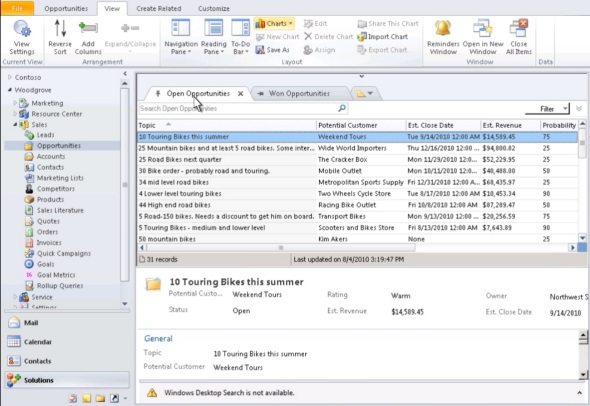
    So much for the branding. Underneath it all we will have the “CRM5” engine evolving from CRM 4.0, with quite a few important improvements on how the application can be utilized as a platform for developing your own custom applications, a.k.a. the XRM mantra that Microsoft has been heavily promoting and showcasing between the product version releases. While this side of the coin will surely play an important part in gradually turning Dynamics CRM into part of the core enterprise infrastructure like SharePoint has become, the first thing most new users will see from the application will still be the Outlook client and traditional customer data management functionality. Which is why there have been some big investments from the Redmond boys on developing that side of the CRM product, as you can see from the picture below.

    Instead of merely wrapping the web client page into an Outlook frame, the new rich client interface introduces whole new components that attempt to follow the faimilar Outlook UI experience. Tabs will help in keeping the number of pop-up windows under control while the preview pane we’ve learned to take for granted in processing our email inboxes is now also available in the scope of CRM entity forms. Since Dynamics CRM 2011 now comes with the ribbon interface like most other MS products, the CRM functionality now blends into the Outlook toolbar and gets presented in all its context sensitive glory. (more…)

  • Switching between Outlook laptop and desktop clients

    If you need to support a Microsoft CRM environment where both the desktop (online) and laptop version of the Outlook client are being used, here’s a quick way to switch your own workstation to use a different client mode. Assuming of course that you already have the local SQL database on your machine.

    • Open Regedit
    • Locate the registry branch HKEY_CURRENT_USER\Software\Microsoft\MSCRMClient
    • Set the LightClient registry key to either 00000001 (desktop) or 00000000 (laptop)

    There’s another key right next to it, which tells the current status of the client:

    • RCOffline = 00000001 equals offline mode
    • RCOffline = 00000000 equals offline mode

    That registry key may come in handy if your “Go Offline” / “Go Online” buttons in the Outlook UI get mixed (which is what they sometimes do!) and you need to determine the real status of the client.