Tag: Outlook

  • Look Out for The End Of Outlook Client

    Look Out for The End Of Outlook Client

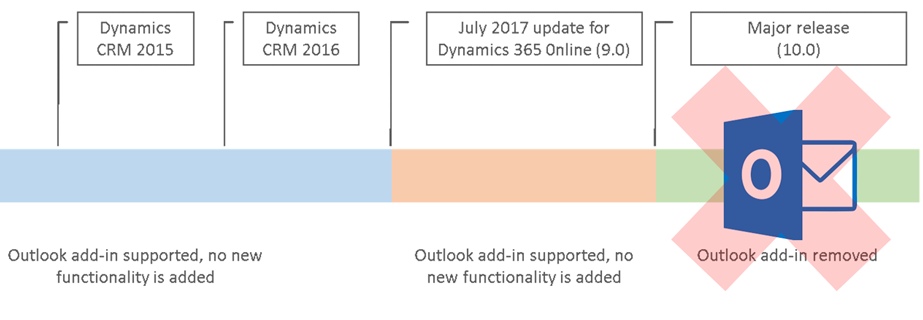
    It’s been a while already since Microsoft announced they were deprecating the Outlook Client for Dynamics 365. This announcement applied to the release formerly (and partially still) known as July 2017 Update, which everyone should rather be calling by its version number, i.e. v9.0. Since this version has only very recently become available for existing customers to schedule their CDU dates, it’s a good moment to remind everyone what this means in practice.

    You’ve Been Replaced By An App

    They all keep saying that robots will take away our jobs, but in the meantime it’s apps that are taking over Dynamics 365. Like I explained in my earlier blog post “What’s An “App” in Dynamics 365 Anyway?”, one of the many uses for the term “app” is now the way you integrate Outlook with your CRM system. Unlike the earlier COM add-in of Outlook Client for Windows PCs, this App will now work in any client environment – both in the browser and in mobile environments. That’s why the App is the future and the Client is the past. Well, actually that’s just one of the reasons, but let’s keep it simple for now, since the outcome remains the same nonetheless.

    So, if we’re just getting more of everything then isn’t this the easiest thing to sell in the world? It probably is a no-brainer for the IT guys who’ve had to struggle with the installation, configuration and updating of the locally installed Outlook Clients for years, as the administration overhead is reduced significantly. For the real end users of the CRM system, the perspective may differ, though. A user will immediately see the things that work differently with the App than they did before. Regardless of all the improvements, it will mean changes to their personal workflow, which is why you should pay attention to how the replacement is communicated and what support the users will need in this process.

    In your initial tests of the new features with a V9 environment and the App for Outlook, it’s good to keep in mind that this is still work in progress. The V9 Readme / Know Issues page has a list of technical glitches and unsupported environments for the App that is today still in Preview mode. It’s expected that by the time the current customers get their V9 updates the fully supported App version would also be available. Even with these hotfixes, you should prepare to see some usability gaps remain in the product for a while, as we’re dealing with a technology that’s fresh from the oven: the Unified Interface.

    In The Name Of Unification

    The Dynamics 365 App for Outlook is one step on the long road towards a Unified Client Infrastructure. The earlier v8.x incarnation of the App was a limited side pane that would show information about records related to the email while browsing your inbox. The V9 App is a miniature app module built on the same Unified Interface that will power all the Dynamics 365 Customer Engagement UI’s in the future. This means that the feature set available is far greater, with the ability for you to scroll through the entire contents of a contact form while remaining in your inbox – or even navigate to related records. Similarly the commands at your disposal will allow completing tasks like adding new competitor records into your CRM database from within the single UI.

    For anyone who’s used the Outlook Client mainly for tracking items from their mailbox, calendar or contact list into the shared Dynamics 365 customer database, this will surely seem like a big step forward in terms of the new contextual actions being offered. These users will have gotten used to opening a browser tab whenever they’ve needed to actually view and search the contents of the CRM database in full screen mode.

    Then there is the group of users who’ve been in the Dynamics game for a longer time – at least from the CRM 2011 version. Back in those days the whole concept of Dynamics CRM might have been sold to them as “never leave your Outlook”. These people may not have actually seen a lot of the UX enhancements that have taken place in the browser and mobile clients in the past few years, since to them CRM has always looked like this:

    A “next generation Microsoft Outlook Experience” revealed seven years ago. Yeah, you probably wouldn’t buy a Customer Engagement solution today that looked like an ERP built into Office 2010. That doesn’t mean there wouldn’t be power users out there who still rely on the feature set of the trusty old Outlook Client to keep them productive, because they have mastered the Ribbon, the panes, the tabs, the whole shebang.

    The End Is Near …ish

    Microsoft has stated that by the time V10 rolls out, the client UI pictured above won’t work with Dynamics 365 anymore. That’s kind of understandable we consider that the Unified Interface will also replace the web client at some point in the future – possibly at the very same moment. If that is the case, we might not yet be all too close to the final removal of the Outlook Client yet.
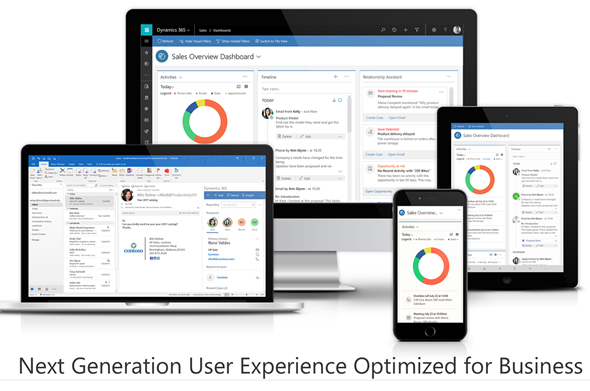
    There’s going to be a lot of work needed before every last bit of legacy client infrastructure will have been replaced with the UCI based components. Microsoft remains committed to the guidance they’ve given to customers about the update schedule, which states there should be two new releases per year. However, we don’t really know much anything about at what point in time the next major release will arrive. Even things like rebranding Dynamics CRM to Dynamics 365 were handled over a minor update of v8.2, so who knows if we’ll see v9.1, v9.2, v9.3 etc. before the plug is finally pulled on the Outlook Client and (presumably) a whole bunch of other deprecated features in V10.

    It also remains to be seen whether Microsoft intends to evolve the desktop experience of using Dynamics 365 Customer Engagement. For example, at the moment the documentation states that the offline functionality is available via the phone and tablet apps. The table app for Windows 10 could of course be used on a regular PC as well, but it’s not completely unrealistic to expect some more targeted client applications appear for the desktop environments. When it comes to the App for Outlook on a PC, the current version still installs an add-in to manage your contacts, for example. So, just because the UI controls are being unified now, this doesn’t necessarily mean we’d be forced to use an “oversized phone app” on our big monitors.

    No More Updates – But Don’t Forget To Update!

    Even though the Outlook Client is now deprecated and there will not be any feature enhancements made to it, that doesn’t mean it would be completely left to rot. In fact, it is very important that once your Dynamics 365 Customer Engagement instances moves up to V9 also your Outlook Clients are using the latest version. This version is now the 8.2.2.137 Update for Dynamics 365 for Microsoft Outlook, available for download here. Yes, it’s V8 and not V9, but don’t let that mismatch distract you.

    You see, with V9 the XRM platform has moved up to using TLS 1.2 protocol for securing the connections between the clients and the server. The earlier Outlook Client versions do not support TLS 1.2 and the V9 server will not accept anything but 1.2 as the cryptographic protocol, which means you’re going to need the latest bits. If you have developed your own clients or code that relies on an earlier TLS version, then be sure to read this in-depth description provided by Matt Barbour of the possible errors you’ll encounter with V9 and the ways how you can avoid those by recompiling your code.

    Update on 2018-01-29: Deprecation of Deprecation

    Against all odds, Microsoft actually decided that they would reverse their previous decision to deprecate the Outlook Client. Read the following blog post and draw your own conclusions:

    Continued support for Outlook add-in (Dynamics 365 for Outlook)
  • What’s An “App” in Dynamics 365 Anyway?

    What’s An “App” in Dynamics 365 Anyway?

    Everywhere you look you see apps these days. Or more truthfully, you’ve been seeing them for ages already. Even in this blog I used the term “applification” over 2 years ago already, so it’s fair to say we’ve been living on the planet of apps for a long time by now. As catchy as those three letters are, the overuse of the term has some side effects that may lead to confusion when people refer to something as an “app”. With Dynamics 365 Customer Engagement (a.k.a. XRM), this danger is very real, since the term has been used in quite a carefree way when naming the different components found in the platform.

    In this blog post I’ll try to provide some clarity for those that are less familiar with the various dimensions that a Dynamics 365 app can have. I will go through the places in which apps can be found and explain their intended usage scenarios. Then in a follow-up post I’ll dig deeper into the architecture of how apps relate to solutions and the XRM customization capabilities in the latest V9 version.

    Mobile Apps

    Since smartphones are to blame for the app craze, we might as well begin by doing a search in the iOS App Store. With the term “Dynamics 365” on my iPad I get a list of various different apps I could install on the device. The top there results present a row of apps from Microsoft, but they are all built on completely different architecture.

    The first result named “Microsoft Dynamics 365” is the actual “CRM” app, meaning the one that’ll give you roughly the same features as you’ll find on Dynamics 365 Customer Engagement when accessed via a browser. Once the Unified Interface is fully developed, the mobile & the web will be almost identical, but currently it’s likely that you’ll see a somewhat different experience on mobile than what the browser UI looks like. You’ll find the app’s setup guide here.

    The seconds result is “Dynamics 365 Unified Ops”. Yes, it’s also by Microsoft, even though the name doesn’t include the corporate brand this time. Now, if you’re looking for the CRM capabilities then don’t get mislead by the app’s description talking about mobilizing your business processes. This is the mobile ERP application and you’ll need the “cloud AX” environment to use it for anything. No, Dynamics 365 isn’t “unified” on the level yet that you’d have just one client for CRM & ERP, but most people probably wouldn’t need a phone app that huge anyway. If you’re into ERP, read more about the Unified Ops mobile app here.

    The third result is “Field Service- Dynamics 365”. Although the app developer info on iOS says “Microsoft Corporation” this is actually the mobile app developed by Resco & licensed by Microsoft to be offered as a part of the Dynamics 365 for Field Service app license. It operates by connecting to the “CRM” instance and using its customer data, but the configuration is separate from the customizations you might have done to your Dynamics 365 Customer Engagement environment. The user guide for this app can be found here, while the customizers will find information about installing the Woodford solution for changing the app configuration here.

    App for Outlook

    For as long as Dynamics CRM has been around, the integration to Outlook has been one of its main selling points against alternative CRM products. The CRM Client for Outlook has served us well over the years but the time has come to lay it to rest and replace the Client with the App. The change is far more significant than what Microsoft’s product naming here would suggest, with “Dynamics 365 for Outlook” being the legacy client for your PC and “Dynamics 365 App for Outlook” referring to the lightweight app that will work on pretty much any device.

    Unlike the mobile apps, the App for Outlook isn’t something that a normal end user can (typically) download and configure for themselves. A system administrator or system customizer must take care of the deployment steps, which may include switching over to server-side synchronization, approving user mailboxes (with O365 Global Admin rights) and finally pushing the app to either selected or all eligible users under the menu Settings – Dynamics 365 App for Outlook.

    As of the first week of 2018, the Dynamics 365 App for Outlook in V9 is still in Preview mode, so a sysadmin needs to enable it from the System Settings – Previews tab. This is because the earlier app has been replaced with a completely new app in this release, built on UCI (Unified Client Infrastructure) that is used in the new Unified Interface. This will actually turn the previously feature limited Outlook sidebar app into a full Dynamic 365 Customer Engagement app that has similar capabilities as the mobile app mentioned above.

    Dynamics 365 App Modules

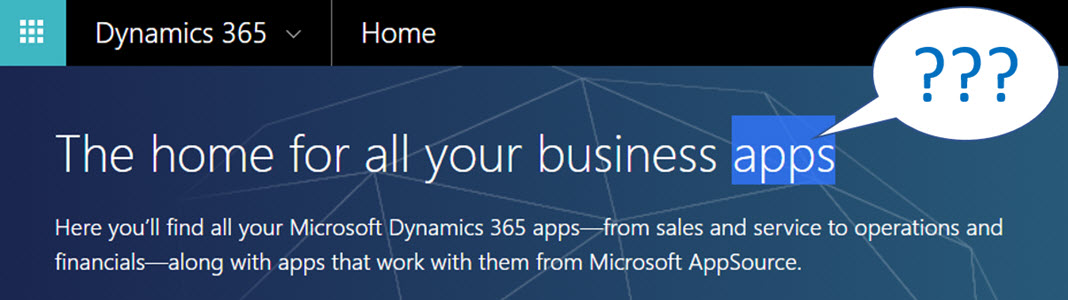
    When you’re logged in to Office 365 and you click on the Dynamics logo in the app launcher, you’ll be taken to the Dynamics 365 home page at home.dynamics.com. Depending on your environment’s configuration, you’ll see a few or a whole number of rectangular icons on this page. Those are all “apps”, but not like the previously described mobile or Outlook apps. More importantly, not all of them are necessarily Dynamics 365 Apps either. Huh?

    The explanation is that the Dynamics 365 home page lists also your Office 365 tenant’s PowerApps apps (which probably should be just called “PowerApps” to make my head hurt less while reading that). Aside from those, the list will include apps from all across your Dynamics 365 Customer Engagement instances, so if you have sandboxes for development and testing purposes, the very same app name & description may appear here multiple times. Furthermore, if you’re also using the ERP side of Dynamics 365, the home pages covers them as well.

    In the Customer Engagement world an app module is basically a subset of the components you can find within a single instance. It can include navigation, dashboards processes, entity views, forms and charts. Aside from a few app specific configuration items, it doesn’t really add anything that you wouldn’t have in the “full” XRM instance already. They are a way of controlling what contents of that particular instance is visible to the end user.

    Each XRM instance has by default at least one app, which will be called “Dynamics 365 – custom” unless you rename it in the System Settings menu. In addition to this, there can be N apps built and configured via the App Designer, or provided as readymade apps from Microsoft, like Field Service in the screenshot. Both the old web apps and the new Unified Interface apps will be present here if your instance is V9+. With so much going on here, I personally try to avoid ever navigating to the Dynamics 365 Home page and just store the direct URLs in my browser’s bookmarks bar where I’m in total control of how the apps are named and organized neatly into folders.

    Microsoft AppSource

    If you feel like you don’t have enough apps on your Dynamics 365 Home page, you can click the “+” icon that says “Find more apps that work with Dynamics 365”. This will open a modal window of AppSource, filtered down to the apps that are designed for, integrated with and some even built on top of the Dynamics 365 platform. Many of these will be built by partners (ISVs) but some of the content is authored by Microsoft themselves, either as officially supported solutions like the Social Selling Assistant, or as “accelerator” style solutions from Microsoft Labs with no warranty or promise of future support like Attachment Management.

    The AppSource apps are closest to the concept that the word “app” was associated with when the iPhone’s App Store was launched ten years ago. These may be small extensions to the common CRM feature set, like a Marketing Calendar component for visualizing campaign records, or integrations between Dynamics 365 and a standalone service like Adobe Sign. Just like in a smartphone app store, some items are completely free of charge while others will cost you dearly. Since we’re dealing with enterprise systems here instead of individual mobile devices, some services allow you to do a test drive in a sandbox completely isolated from your organization’s Dynamics 365 instances, like the CPQ solutions from Experlogix and PROS.

    What can be confusing about AppSource in the Dynamics 365 context is that probably the majority of the apps available in AppSource will not actually result in a new app icon being added to your Dynamics 365 home page. This is because up until V9 and the Unified Interface there wasn’t really a proper presence for the App Module in the XRM platform, so the world is only slowly adjusting to this new reality. I’ll delve into this very topic in my next blog post.

    Dynamics 365 App Licenses

    The concept of an app exists not only in the visible UI and logical platform component containers but also in the contractual world of software licensing. If you go to the Dynamics 365 Pricing page and download the Licensing Guide PDF, you’ll see the detailed way in which the rights of a licensed App user are defined in relation to the features provided by the XRM platform. There are in total 176 occurrences of the word “application” in this document, so don’t expect a quick answer. However, since XRM still largely follows an “honor system” where it’s up to the system administrator to limit the security roles of a user to match those to the rights given to him or her via the assigned Dynamics 365 license type, you’re going to have to understand the concepts.

    Even though you can purchase and assign a user a license for Dynamics 365 for Sales, i.e. an app license, this doesn’t mean that the only thing this user would see or would be legally allowed to access would be the Sales app icon on the Dynamics 365 home page. They can be allowed to view the entire contents of any XRM instance in that particular Office 365 tenant, thanks to the first row in the above table (“all Dynamics 365 Enterprise Edition data”). They could access the “Dynamics 365 – custom” app to look around the whole suite of features in Customer Engagement. They could leverage the Dynamics 365 App for Outlook to track emails to records. But if you misconfigure their security roles and allow them to track emails against case records (a Customer Service app feature), you are in breach of the licensing contract.

    Alright, that’s about as many “app” mentions as I can reasonably fit within one blog post. Next time I will take a look at Apps from a system customizer perspective.

  • First Glance At Dynamics CRM 2016

    First Glance At Dynamics CRM 2016

    Another year, another major Dynamics CRM release! What a time to be alive, eh? CRM 2016 has now been published for new Online trial instances globally and will be coming available as on-premises download within the next couple of weeks. If you haven’t yet explored what’s new with Dynamics CRM 2016 then I recommend starting from the following three links that I personally always refer to when discussing the latest version:

    Rather than just making it a “go and RTFM” type of post, here are a few notable features in the latest release that I personally think you should pay attention to.

    Start From The Top

    For folks upgrading their on-premises CRM environments, this is definitely a sizable release, as the features from CRM Online 2015 Update 1 (v7.1) are only now becoming available to them. Working mostly with CRM Online environments these days, it does really feel painful whenever I have to go back to the pre-7.1 Nav Bar, so the new navigation experience should definitely cheer up your users who are now spared from the game of sideways scrolling accuracy Olympics. I’ve yet to find a single thing that the new navigation would be worse for than the old one released in CRM 2013. Don’t forget to configure a custom theme & logo for your CRM while visiting the customizations menu! Oh, and remember to leverage this Theme Generator, since MS apparently had to cut the development budget when it came to “nice to have” things like color pickers instead of hex codes.

    Experience_it_now

    Moving from 7.1 to 8.0 may not deliver any immediately visible changes to you, as Microsoft has largely decided not to introduce anything dramatic in the look & feel of the familiar web client. One thing you may notice, though, is a yellow notification bar telling you something about an “interactive service hub” and asking you to “experience it now”. Hmm, sounds interesting, so maybe I’ll click on it and… Whoa, what’s happening?! Why am I seeing the same customization download screen as on the tablet client? And where did half of my menu items from the Nav Bar go all of a sudden?

    CRM_2016_interactive_service_hub_account

    So you thought there’s not much new in the CRM 2016 UI, huh? There definitely is a lot of new investments to be found here, ranging from brand new “interactive experience dashboards” to updated form layouts with embedded cards, revised components like Timeline (ex Social Pane) and new concepts like the Reference Panel (“Related”). It’s all built on top of the MoCA framework, and it gives you a taste of how the Dynamics CRM application of the future will behave: less like a web page and more like an app.

    Why do I say “the future” if it’s in fact already available in CRM 2016, for both Online and on-prem customers? Well, if you’re an existing Dynamics CRM user, the chances are that you’re not going to deploy this into production use quite yet. For starters, it only supports a limited set of the core CRM entities like account, contact, activity and case. Sales opportunities, leads, marketing lists or campaigns aren’t within the scope of this release. While you can show custom entities in the Interactive Service Hub, you’ll not be able to perform many of the more advanced customization tasks that the traditional Dynamics CRM web client supports, like embedding web resources or Iframes to forms.

    CRM_2016_interactive_service_hub_dashboard_filters

    There’s a lot to like about the new user experience that this “interactive” web client presents us with. The new dashboards especially appear to address many of the requests that CRM users typically have, like the ability to apply global filters to all the charts. The method of presenting related records and streams of activities is definitely more in line with the way modern mobile apps work, even if the experience itself feels a bit too mobile for a full size monitor in terms of information density. Still, in its current state it remains more of an experimental release that’s not meant for wider adoption yet. Much like the infamous Polaris release prior to CRM 2013, this Interactive Service Hub will be best used for learning about and preparing for the direction of future Dynamics CRM web clients.

    Explaining this grand scheme of things to the customers will be tricky, as it was with Polaris. For example, in order to leverage the new Knowledge Articles you have to access them via The Hub, presumably because Microsoft hasn’t wanted to build a rich text editor UI for the old web client anymore but has rather focused their investments on MoCA. Within the right feature scope you can probably do cool stuff with this client already, it’s going to required setting the right expectation level right from the start. Oh well, I guess that’s what us consultants are there for…

    CRM Via The Apps

    CRM_2016_visual_controlsOn the mobile apps there is now the ability include new types of visual controls for the mobile forms that can make CRM data both a lot more pleasing to the eye as well as easier to work with on a touch screen device. While many of these new controls would surely be great additions to have on normal web client forms as well, Microsoft has decided not to enable them for browser users of CRM in this release. Remember what I said about the MoCA framework being the focus area for MS?

    CRM_2016_task_based_experiencesTask Based Experiences (“TBX”) a.k.a. Task Flows is another new feature that is not just “mobile first” but “mobile only”. The idea behind these experiences is to be independent from the underlying entity relationship model and rather guide the user through a set of screens that present a subset of only the relevant fields from each related record that need to be touched in the process. What’s a bit cumbersome in this release is that TBX isn’t actually launched for a specific record but rather from the bottom left corner of the mobile app start screen. It’s almost like the old (and mostly abandoned) Dialogs feature from CRM 2011 but with a more modern approach, including the ability to add nice looking photo icons for the launch menu. (more…)

  • Configure Outlook Contact Synchronization Settings on Behalf of Your Users

    The ability to get your CRM contacts automatically synchronized to your Outlook address book and mobile phone is a very handy feature in Microsoft Dynamics CRM. Why would you ever manually dial the phone numbers of your customers when you can just set them to appear in your smartphone’s list of contacts? Wouldn’t it also be nice to see the customer’s name instead of just an unfamiliar phone number when he or she calls you after your first meeting? These are examples of everyday benefits that not only save time but can also help drive CRM user adoption by showing tangible benefits of having the customer information managed centrally in a database shared by all employees that are in contact with the customers.

    The new server-side synchronization in CRM 2013 has made the synchronization process independent of the Outlook client, so that updated information flows between your phone and CRM even when your PC is not online. What has not changed, though, is the lack of an administrative control panel for configuring the synchronization settings for the users. Since CRM by default only offers API calls to manipulate the synchronization filters, most users are likely using the default synchronization settings that come with CRM out of the box (unless they’ve received thorough training on how to configure the filters in the personal options menu). These are not always the optimal way to get the most benefit out of the synchronization functionality.

    Once again, XrmToolBox comes to the rescue with its recent Sync Filter Manager addition. This tool gives system administrators the power to create and change the Outlook and offline filters on behalf of the end users. Now you can easily plan the proper synchronization strategy and deploy the correct settings to all users in a controlled manner, instead of needing to visit their PCs or try to get everyone to click the right options.

    Since the concept of synchronization filters and templates may not be so easy to grasp for the CRM admin, I decided to make a tutorial that walks you through a few common scenarios for contact management. These cover enabling more than just the single owner of a contact to have the record synchronized to their address books, as well as how to avoid users in administrative roles from getting thousands and thousands of miscellaneous contacts suddenly appearing in their Outlook and mobile phone. You can view the presentation below or go to SlideShare my Slides archive and download it from there if the embedded slides are not showing up.

    As a great follow up reading, I recommend you to also have a look at the article on contact management best practices that was recently published in the new CRM Virtuosity blog. This will show you how to take the Outlook contact synchronization even further via modifications to the contact form’s Command Bar in CRM 2013, among other things.

  • Synchronization vs. Tracking: Understanding Activity Management Options in Dynamics CRM

    Synchronization vs. Tracking: Understanding Activity Management Options in Dynamics CRM

    Long before a company has any CRM system in place they will already have a bunch of customer facing activities like emails and appointments in the personal mailboxes and calendars of their employees. Once a CRM system is implemented, these activities will not magically disappear but rather they will continue to be a key element in how the customer relationships is managed on a practical, day-to-day level. Typically companies would like to have these communications stored in the CRM database to accumulate a better understanding of both which customers are being contacted by which representatives of the company as well as the detailed information of what’s been said and agreed with the customer in these acts of communication.

    CRM_2013_Activities

    Maintaining two separate systems for entering the same information is never an attractive option for information workers who just wish to stay on top of their daily agenda and commitments, without having to worry about keeping multiple calendars in sync manually. Rather than entering an appointment in your own calendar first, then entering the same data into your CRM system for activity tracking purposes, every single user would rather have the ability to promote their selected calendar entries related to customers into their CRM system for meeting the activity reporting requirements expected by their managers. Similarly, instead of copy-pasting information from their inbox onto forms in a CRM system, anyone presented with the option to click one button in their inbox and get the full message tracked into CRM would surely prefer to take this route.

    This has been one of the founding principles behind the design of Microsoft’s CRM system since day one. With the market dominance of Microsoft’s activity management related software both on the client (Outlook) and server side (Exchange), making the flow of this data across different systems as seamless as possible can be seen as a low hanging fruit to grab when entering the CRM market with the Dynamics product. Looking back, offering users the possibility of remaining within their familiar and personal Outlook inbox and tracking information into the organization-wide CRM database has been a very compelling user experience at best. Yes, regardless of the countless hours I’ve had to spend solving Outlook related issues during my professional career in CRM, I’m still perfectly willing to admit that this type of UX is definitely worthy of pursuing in a CRM product, because it’s simply how it should work.

    How Dynamics CRM actually tracks your data

    What most organizations planning to deploy Dynamics CRM often find surprising is that up until CRM 2013 there hasn’t been much functionality on the server side related to managing the flow of activities between different systems. Even though Microsoft owns both Outlook and Exchange, they have decided to build deep hooks only onto the client side of Outlook and not the server side of Exchange. The positive side of this is that you don’t necessarily need an Exchange server for leveraging most of the activity management features of Dynamics CRM. The downside has been that you very much need the CRM Outlook client in place for things to work as you’d expect.

    When it comes to sending and receiving email, the CRM Outlook client can act as the component that takes care of all the inbound and outbound emails for CRM. However, for any organization that needs to have emails flowing directly into CRM (such as a customer support email address that feeds items into a CRM support queue) or relies on workflow based email notifications to go out even when the Outlook client of an individual user is not connected to a network, the deployment of the Dynamics CRM Email Router has been in practice a compulsory step to take. Again, this component is independent of Exchange server and can be used also with other email systems via SMTP or POP3 connections. The Email Router can replace some of the email management features of the CRM Outlook client (but not all, we’ll get to that later) and basically “email enable” your Dynamics CRM server, so that it can independently communicate with the outside world via email.

    One thing to note is that even customers who’ve chosen CRM Online as their deployment model instead of deploying an on-premises Dynamics CRM server have needed to separately deploy the CRM Email Router if they wish to send/receive email from/to CRM Online without routing all of the messages via the individual Outlook clients of their CRM users. Microsoft doesn’t offer an “Email Router in the cloud”, so you’ll either need to have a local machine available for deploying the router (doesn’t even need to be a Windows Server, also client OS like Vista or Windows 7 are supported) or get a virtual machine from some hosting service, such as Windows Azure. You can leverage the Exchange Online service in your Office 365 subscription for the actual email delivery, but the CRM Email Router cannot be purchased as a service directly from Office 365.

    CRM_2013_Server-side_SyncWith the latest CRM 2013 release Microsoft has started to address these challenges of dependency on either client machine components (Outlook client) or on-premises servers (Email Router) by introducing a feature called Server-Side Synchronization. This allows the Dynamics CRM server to communicate directly with the Exchange server, effectively replacing the email sending and delivery features of the CRM Email Router. In addition to that, server-side sync can also handle other Exchange items like appointments, tasks and contacts, which can also now flow between the CRM database and the users’ calendars and address books on various devices without any central dependency on a client-side component like the CRM Outlook client.

    Great! CRM 2013 server-side sync solves all our problems! End of blog post! Well, not quite. We’re actually just getting to the reason why I’m writing this post, which is the surprising complexity behind understanding the detailed feature sets of the various components that aim to deliver the seamless one-click UX that I was talking about earlier on. Based on what we’ve discussed so far, here’s how the big picture of synchronization methods for CRM 2013 looks like:

    CRM_2013_Synchronization_Methods_small

    As is often the case, the devil is in the details, so let’s proceed with pointing out the “gotchas” that you need to be aware when planning on managing activities in a Dynamics CRM environment. (more…)

  • Windows 8, Outlook 2013 and Dynamics CRM – part 2

    Back in August I wrote about my initial experiences of using a Windows 8 PC with Office 2013 to connect the Outlook client to Microsoft Dynamics CRM. During that time we only had the preview versions of both the OS and Office, so some quirks were naturally to be expected. Now that Windows 8 is generally available and also the RTM bits of Office 2013 can be downloaded from MSDN (with commercial launch expected by end of January), it’s a good moment to revisit the topic. Upon my latest test I came across a few configuration gotchas that I though might be useful to share for anyone who’s struggling with the same issues.

    Connecting to CRM Online with WLID

    Our official work setup is still on Windows 7 / Office 2010 level, but being the kind of eager early adopter that I am, my home PC’s have moved to the brave new world of Windows 8 some time ago already. I installed Office Professional Plus 2013 on a Windows 8 64-bit laptop that’s not joined to a domain, so my login credentials to Windows are linked to my Microsoft Account (previously known as Windows Live ID). In my first tests in August this was a blocker for using a CRM Online organization where the user’s WLID / Microsoft Account was different in CRM and on the local machine.

    Update Rollup 11 removed the need to manually enable Windows Identity Foundation (WIF) on Windows 8, but out of old habits I checked that it was available before configuring CRM. Launching the CRM client Configuration Wizard and selecting CRM Online on the Server URL field of the Configure Organizations prompt gave a familiar error: “Cannot connect to Microsoft Dynamics CRM server because we cannot authenticate your credentials.” Just like before, it appears that the Configuration Wizard automatically attempts to use the Microsoft Account of the local user for logging in to CRM Online. Logging out of the account in Internet Explorer and then logging in to CRM Online in the browser didn’t seem to resolve the issue with the Outlook client connectivity, as a further error message was presented later in the Initializing the Organization phase:

    There is a problem communicating with the Microsoft Dynamics CRM server. The server might be unavailable. Try again later. If the problem persists, contact your system administrator.
    [Expanded Information]
    Unable to load the native components of SQL Server Compact corresponding to the ADO.NET provider of version 8082. Install the correct version of SQL Server Compact. Refer to KB article 974247 for more details.

    The KB article referenced in the error message discusses the following issue: “You receive an error message when you run a SQL Server Compact 3.5-based application after you install the 32-bit version of SQL Server Compact Edition 3.5 Service Pack 2 on an x64 computer.” However, downloading and installing the x64 version of Microsoft SQL Server Compact 3.5 Service Pack 2 for Windows Desktop didn’t resolve the CRM configuration error, so I opened a support ticket with Microsoft. They instructed me that I also needed to install the Cumulative Update 2 for SQL Server Compact 3.5 Service Pack 2, which is a hotfix that you need to request a download link to be sent to you by email. After my SQL CE 3.5 had been updated to build 3.5.8082.00, I was finally able to connect my Outlook 2013 with our CRM Online demo organization.

    Connecting to CRM on-premise with IFD

    During the previous test with CRM Online I had also tried to connect the Outlook 2013 CRM client  to our production on-premise CRM server that is IFD configured. I kept receiving the following error: “Cannot connect to Microsoft Dynamics CRM server because we cannot authenticate your credentials. Check your connection or contact your administrator for more help.” Looking at the error details there was a message claiming “no credentials are available in the security package.” (more…)

  • Future stars: Dynamics CRM roadmap news from Las Vegas

    We didn’t yet get a new Statement of Direction or Release Preview Guide for the future releases of Microsoft Dynamics CRM from today’s eXtreme CRM 2012 Las Vegas keynote by Craig Dewar, titled “Microsoft Dynamics CRM – Now and In the Future”. That is scheduled to happen next week, but who wants to wait around for the information that has been shared to the privileged few who attended the eXtreme CRM session?

    Lucky for us who weren’t able to go to Vegas, the best new bits revealed at the session were tweeted out by outstanding #MSDYNCRM community contributors like Neil Benson, Shawn Tabor, Brad Koontz, Bob Hatcher and Eric W Cahoon. Here’s a “best of #eXtremeCRM tweets” collection that tries to summarize what was presented in Dewar’s session.

    Q4 2012: Polaris

    Let’s start with the updates coming in the very near future. The next release is codenamed “Polaris” will be out in Q4 2012, so this is the “Fall 2012” release we saw on an earlier roadmap slide. More specifically, the new functionality will be delivered as a part of Update Rollup 12 during December 2012 for both on-premise and for CRM Online customers.

    Polaris will contain upgrades to the browser UI as seen in the WPC 2012 session in July. It will include the Process Driven Refresh UI and deliver a more “flat” user experience to better match the look & feel of Office 2013. Also, the cross-browser support originally scheduled for Q2 2012 Service Update will now be delivered in December with UR12 and this part will affect also on-premise and hosted CRM environments. The previously delayed custom workflow activity support for CRM Online will be delivered within the same UR12 update schedule.

    New announcements made at the eXtreme CRM keynote for Q4 2012 include click-to-call integration with Lync and Skype (both of which are Microsoft products these days, in case you forgot). CRM Online customers will get a simple Bing Maps integration with maps embedded on the customer forms. Presumably the CRM Online subscription will in the future include a license to use Bing Maps on an internal application whereas customers who’ve bought perpetual server and client licenses from Microsoft need to acquire a separate license to use the mapping functionality through the API (remember: it’s not a free service, like the Bing Maps or Google Maps website).

    Q2 2013: Orion

    The release after Polaris carries the codename “Orion” and is scheduled for Q2 2013. What’s special about this release is that it will be CRM Online only. Whether on-premises and hosted CRM clients will be completely left without updates in Q2 remains to be seen, but the new release cadence suggest only a single major update for on-premises customers per year. The Update Rollup release schedule with an 8 week cycle should still remain unchanged, though, so it’s likely to be a bit of a mixed bag of what’s really “Online only” in terms of new or changed functionality. Update: it’s actually the Q4 2012 Polaris that will be Online only, see the comments at the end from Craig Dewar.

    As I’ve already speculated for a long time, the new Agaves in Office 2013 apps will be used as the means to deliver Dynamics CRM support for Outlook Web Access, both in OWA and MOWA (mobile app). This will finally enable tracking content from your inbox into CRM without having to live with the Outlook desktop client legacy. Also the synchronizing of items from Exchange will be possible on the server side with the Orion release in Q2 2013.

    Yammer integration, which presumably goes much deeper than the current integration solution built by Yammer before being acquired by Microsoft, is scheduled for Q2 2013. Other than this, concreted evidence of bringing social channels into Dynamics CRM was not leaked from Vegas, so we’ll need to wait a bit longer to see how Microsoft intends to deliver on the social story they’ve been promoting for CRM since this time last year. Back when we were still talking about Polaris as the R9 release this was supposed to connect Dynamics CRM with the external communities in a big way, but no major announcements have so far been made on this front.

    Ok, I did spot one physical evidence of social CRM from the Extreme CRM announcements, in the form of a new Social CRM solution built by Sonoma Partners. It’s baked into the updated version of CRM Demo Builder, which now allows you to provision CRM + SharePoint on the same, shared Office 365 platform, thus achieving single sign-on. Whether this particular Social CRM app will be made available to all CRM customers is something I’m not yet sure, but it looks like quite a solid little app for bringing Twitter feeds into CRM by using the same look & feel as the previous Activity Feeds solution. You can promote tweets into new/existing leads, contacts, accounts, cases or opportunities, after which you see the original tweet in CRM as an Activity Feed post. Nothing revolutionary in itself, but a welcome feature, if something like this is actually on Microsoft’s roadmap.

    That’s all of the news I picked up so far from the event by following the social networks. Did I miss any interesting tweet from #eXtremeCRM or an important piece of news? Leave a comment & let’s assemble the pieces of the Dynamics CRM roadmap together!

    Update 2012-09-04: I received clarification on the release roadmap from Craig Dewar himself, here’s the update:

    • “Polaris due Q4 2012 is online only with one exception. There is one capability in Polaris namely cross browser that is of such high interest we will release that capability on premise also.”
    • “Orion due Q2 2013 is online and on premise. It will include all Polaris functionality in addition to many new capabilities.”

    Based on my interpretation of the above, CRM Online customers will get the Polaris functionality first, while on premise and hosted CRM customers receive these updates 6 months later when Orion comes out.

  • To update or not to Update Rollup? That is the question

    Some time ago I wrote a parody about Dynamics CRM blogs that mainly seem to post news about the latest Update Rollups being released. Now I find myself writing an Update Rollup blog post myself. Is that a sign that I’ve run out of topics and slipped into the autopilot blogging mode? I hope not, but after reading quite a lot about the latest Update Rollup 10 for Dynamics CRM 2011 I decided to contribute a bit into the discussion.

    It’s always great to receive improvements to the software you spend all your days working with, isn’t it? Compared to a product like Java which Oracle promises to patch only four times a year, even if it’s about critical security updates (did you remember to uninstall your Java 7 yet?), Microsoft is doing quite an OK job with their update process and we see a steady stream of releases to make Dynamics CRM better one bit at a time. Even though Update Rollup 9 was cancelled after the beta program, MS is now back on track with their release schedule in the form of UR10 that came out two weeks ago.

    We have once again a great in-depth article from Dynamics CRM in the Field about all things Update Rollup 10. It tells all the details of the story from Microsoft’s perspective, but let’s evaluate the ups & downs of this latest release from the Dynamics CRM community perspective to get a complete picture, shall we? OK, here goes:

    The Ups

    There was quite a number of fixes promised for the CRM Outlook client in Update Rollup 10 that would potentially solve some of the stability issues many users have encountered when trying to use the CRM Outlook client for actual work in their environment. It’s now 2 years since the first beta of the completely rewritten Dynamics CRM Outlook client came out and many of us are certainly hoping that it would have reached a mature enough level where you don’t have to be afraid of if causing a flood of tickets to your helpdesk. Yes, some users may be quite happy with it as it is, but you’d be foolish not to prepare for potential issues when planning a large scale deployment of the Outlook client. Reaching that good ol’ Service Pack 2 type of confidence level would be just great.

    Another promising deliverable from UR10 is the improvements to query performance on large data sets. A new version of the performance optimization whitepaper has been released alongside the update, which describes the new options made available to tune the Quick Find performance. If you read the results of these tests by Chris Cognetta where the query time was decreased by over 80% in an environment with 1.5 million rows, it’s obvious this is an update worth paying attention to if you have or expect to have some “big data” in your CRM system.

    Finally, as many MSDN subscribers are now eagerly updating their PC’s to run Windows 8, Internet Explorer and even the Office 2013 Preview, the added support for all of these in CRM 2011 Update Rollup 10 is reason enough to grab the very latest CRM bits. Just don’t forget that UR10 alone is not enough, there’s some things you should know about Windows 8 RTM & CRM 2011.

    The Downs

    So, we now have a Quick Find that is working faster, which means it must be doing something differently, right? It is, and unfortunately in some cases this will result in a Generic SQL Error message being shown to the user. It appears that the new update is not quite comfortable dealing with a set of Quick Find columns that contains address fields. As some of you may remember, the address 1 & address 2 fields on the account & contact forms are actually not stored in the same database table as the rest of the default fields, rather they reside in the CustomerAddressBase table. The UR10 version of Quick Find may therefore not work properly if you try to search for records based on address fields like city or zip code. Yes, Microsoft says using these as search fields is against best practices, but the users will very often want to narrow down the customer data based on geographic variables, so taking it away from them can only act as a workaround until we have a new hotfix from MS.

    CRM developers might not be too concerned with performing actual queries on live customer data, but they will certainly be annoyed when encountering the following prompt after editing a JavaScript web resource: You have exceeded the maximum number of 200 characters in this field; it will be truncated. Doh! Making small changes to script files just became very tedious until Update Rollup 11 rolls along in 2 months time. Again, there’s a workaround to it (don’t use the editor, instead upload the file or use some helpful web resource tool from CodePlex), but it doesn’t really make anyone want to rush UR10 onto all their servers.

    Then we have stories of people applying UR10 and finding they can’t access any of their CRM organizations, due to an unhandled exceptionMethod not found: ‘Void Microsoft.Xrm.Sdk.Query.FilterExpression.set_IsQuickFindFilter(Boolean)’. Uninstalling UR10 appears to be the only known cure for this show stopper, which obviously is related to the aforementioned Quick Find changes on some level.

    Alternatively, if you’ve updated your CRM server from 4.0 to 2011, you may experience errors when trying to import a solution file: The element ‘savedquery’ has incomplete content. List of possible elements expected: ‘LocalizedNames’. Manually editing the XML to remove a view prior to importing the file is the available workaround, but again it can make the life of a system customizer quite difficult until there’s a fix available.

    OMG, what should we do with these UR’s?!

    The short answer is: always test first, then evaluate the ups & downs for your particular case. If you are struggling with the Outlook client, face performance issues with your huge CRM database or simply want to run CRM 2011 on Windows 8, going for Update Rollup 10 may be perfectly sensible for you. For someone who doesn’t have a compelling need to update, you may well decide to wait a bit longer and no one should blame you for it.

    That’s pretty much how it is with any Update Rollup. In reality there’s never going to be the perfect time to update. Knowing ahead what hotfixes will deliver the biggest gains for you or potentially break your CRM deployment would be a great skill to have. Instead of dreaming about it, here’s a few guiding principles I would recommend you to follow:

    • Always test the updates in your own test environment before planning live deployment. A virtual machine with your solutions & data is a good compromise, identical hardware is for people with enterprise level budgets (and problems).
    • Never be the first to update, always wait a couple of weeks from the release and read the CRM forums for experiences from others. Trust the wisdom of the crowds.
    • Coordinate the server and client update schedules to limit possible issues and maximize the benefits from the updates. While mixed environments tend to be supported, why risk it?
    • Do update your CRM. Staying too far behind in this “cloud first” era can soon turn out to be an expensive strategy, so reserve adequate time and resources for keeping your CRM up to date – on a regular schedule.

    Do you have any words of advise for people who are struggling with the “should I update to Update Rollup X” question? What’s your survival strategy?

    Edit 2012-09-09: Based on the discussions on the Dynamics CRM Forum, I’ve created a new wiki page for Microsoft Dynamics CRM 2011 Update Rollup 10 on the CRM Wiki on Technet. The purpose is to provide a single place where the Dynamics CRM community members could share their information on potential issues and known problems that they encounter when applying the latest Update Rollups, as well as naturally links to any solutions or workarounds that can help others who are struggling with the same problem. I’ve initially added links to 10 suspected issues with UR10, but you are very welcome to contribute by adding new links or additional information to the wiki page. In an ideal world, we could have similar pages for each new rollup that gets released and be able to more easily identify both the benefits and the dangers or applying the updates into our CRM environments. Let’s see if the wiki can serve us as a platform for such information sharing.

  • Making Dynamics CRM exclusive again with Windows 8 & Metro

    We have less than a month to go until Windows 8 hits RTM (release to maunfacturing). What has been described as the biggest OS renewal since Windows 95 is the current center of attention for each and every division at Redmond, since effectively Microsoft is betting the whole company on Windows 8. How does such a significant shift in the operating system used by 1.3 billion users impact a business application like Microsoft Dynamics CRM that has “only” 2.7 million users worldwide?

    The past glory of Outlook

    Previously Outlook used to be the premium client for accessing Microsoft Dynamics CRM. While any other CRM application provider was technically able to design a great user experience on a browser client, tapping into the omnipresent Microsoft Outlook (1 billion MS Office users globally) was a much more challenging task for outsiders, since they couldn’t just borrow members of the Outlook product team to help in building a CRM client, like the Dynamics division did with CRM 2011.

    One regular tweet the Redmond tweeps like to recycle is that Outlook integration is the most popular add-on for Salesforce.com. I can imagine that for anyone selling a CRM application the question of “how does it work with my Outlook email and calendar” will have been a common encounter. As a result, every significant vendor has developed an Outlook integration. Also, as admitted by Bill Patterson at his WPC 2012 presentation, some customers actually prefer the Outlook clients of competing CRM vendros over what Dynamics CRM offers today. Sure, it may be an add-on, but what’s the big difference at the end of the day?

    Another aspect to consider is that CRM inside Outlook is no longer the Holy Grail it once used to be. While I don’t have actual hard evidence to back this claim up, to me it seems obvious that the Outlook client is losing the relevancy it once had as the central hub for all knowledge workers. We no longer process our emails or manage our calendars on only our work PC, instead we do it on mobile phones, tablets, browsers, everywhere. The traditional Outlook application as we know it exists only in one of these environments. Although it remains within the reach of most Dynamics CRM users, it is more about the desktop legacy than showing the way of the future.

    Cross-browser vs. Metro

    Alongside Outlook, also the Internet Explorer client is losing its past status. The Dynamics CRM browser experience is becoming available on pretty much any Internet capable device, be it a PC or tablet, as the cross-browser support in Dynamics CRM rolls out. It was supposed to be here already, but got put on hold for another 6 months based on a decision Microsoft has made very recently. Regardless of the delay, it is something that cannot be stopped anymore. All the users, be it on IE, Chrome, Safari or Firefox will get the benefits of the new “Refresh” UI in their web client.

    The main reason stated for the delayed delivery schedule of cross-browser support has been quality issues related to customizations in existing Dynamics CRM environments. Microsoft representatives have emphasized that they will not release a beta level product for line of business software that’s business critical to many of their customers.

    While those are most likely accurate claims, Dennis Michalis (General Manager, Microsoft Dynamics CRM) also brought up in his WPC 2012 session the impact that Windows 8 has had on product development for other Microsoft product lines. Based on his statements, the demands placed on all the product teams for reaching Metro compatibility as close to the Windows 8 RTM date (beginning of August) as possible have probably forced them to re-evaluate their roadmaps and take away resources from the development of non-Metro functionality. In his own words:

    “If we didn’t render Dynamcis CRM in the Windows 8 context we’d look foolish.”

    Think about the priorities from Microsoft’s perspective: Would you rather make your business applications run seamlessly across PC and non-PC devices, thus making your competitors’ hardware and software more valuable for the user, or would you focus on building something that will run only on Windows machines? Besides, who wouldn’t want to get to selling a CRM app as gorgeous as this ASAP?

    With the introduction of Metro apps on Windows 8, it will once again be possible for Microsoft to deliver a premium user experience that is exclusive to the clients running the latest & greatest MS software. Metro CRM will effectively be what the CRM Outlook client used to be a few years ago. This slide from WPC shows how the future Dynamics CRM client portfolio will no longer be Internet Explorer + Outlook, but instead we have the Classic client (browser + Outlook), Core client (Metro) and Companion clients (mobile apps).

    In this transformation process the iPad apps are relegated into the “companion” category, whereas Metro apps are considered a part of the “core” experience. We probably won’t be seeing all the Dynamics CRM customization tools in the Metro CRM app anytime soon, but most of the functionality accessed by the average CRM user will very likely be available in the Metro client. Companion apps fill the gap for usage scenarios running on truly mobile devices i.e. smartphones, but the iPad or Android tablet apps Microsoft themselves offer will surely never be allowed to reach the level of functionality available on the Metro UI.

    By delaying the availability of Microsoft Dynamics CRM Mobile from Q2 to Q4 the period of time between the Metro CRM app preview (Winter 2012 release = Q1 2013) and the official iPad app availability will have been conveniently minimized. Sure, anyone could acquire the iPad client straight from the manufacturer already today, but in the eyes of industry analysts who don’t pay attention to every detail in the product portfolio of CRM vendors they write articles about, little things like this can make a difference (case in point).

    Are you ready to sell the Windows OS?

    As we feast our eyes on the sneak peaks to a world where Dynamics CRM data is available literally at our fingertips, sliding away smoothly on the Metro canvas, it’s easy to forget what it will actually require for customers to gain access to a system like this. Metro apps will not run on anything but machines with Windows 8 OS. Also, they will not feel all that special unless you have some form of touch based input available in your hardware.

    The Microsoft stack must be a faimilar concept to any IT professional. As an example, a customer doesn’t just buy Dynamics CRM from Microsoft, they buy the OS for the server & client, SQL Server for the database, Office for the end user information processing tools + optionally SharePoint, Exchange & Lync. Similarly, the Dynamics partners don’t only sell Dynamics CRM, Dynamics NAV etc. but also the surrounding stack. While in the past the OS hasn’t been a huge focus for Dynamics VAR’s, soon many of them will be selling Windows 8, indirectly. This is because if the customer doesn’t have the modern client software & hardware at their disposal, then you’ll need to fall back into the classic client in your CRM presales demo. Just imagine how crushing that will be once you’ve had a taste of Metro.

    But there’s more to it then just flashy CRM demos obviously. Microsoft needs Metro to succeed in the enterprise. It may not need it immediately, though, and could therefore be prepared to not see a bigger uptake until Windows 9 comes around. Nevertheless, in order to have any chance of convincing companies to move beyond Windows 7 they’ve spent a lot of time and money migrating to not too long ago, Microsoft is in desperate need of Metro apps for the enterprise user. It’s not too difficult to convince developers to build simple Twitter clients and other small apps for Metro. The consumer can probably migrate to a Metro world pretty quickly, just like they’ve embraced the iPad. The enterprise scenario is a lot more complicated: No enterprise Metro apps -> users stuck with desktop apps -> Windows 8 only makes the life of IT department more difficult -> no sale.

    The previous versions of Windows were sold to the enterprise as an operating system that meets the core needs placed on an OS. Windows 8 and its successors will be sold as the platform that runs the apps that your users need, with the user experience that they want. It’s no longer how you sold the enterprise BlackBerries, it’s increasingly how the enterprise was made to adopt iPhones. From the bottom up, through CoIT strategies (consumerization of IT). Cheap upgrade offers and shiny new slate devices targeted for the Xmas shopping season will not get the enterprises to adopt Windows 8, but they may get a few key influencers to go BYOD with Microsoft software and hardware (unlike the BYOM we’ve seen so far, i.e. Bring Your Own Mac) and put some pressure on their IT departments.

    The same applies to Microsoft Dynamics partners. If the Salesforce.com sales reps go meet the potential customer with an iPad 3 in their hands, what Microsoft needs to get into the hands of its partners is the Surface. Long before the Dynamics CRM users will adopt it in any significant numbers. As the saying goes, the future is already here – it’s just not very evenly distributed. Even if Windows 8 would become an instant success in the consumer space, this will likely remain the reality for the Dynamics CRM customer base for quite some time.