Tag: Model-driven apps

  • Relational data on Model-driven forms, part 2: Form Component Control

    Relational data on Model-driven forms, part 2: Form Component Control

    Our quest for improving the user experience of Power Apps Model-driven app forms and multi-table data models continues with this part 2 blog post. We will explore how the brand new Form Component Control enables us to essentially blend the forms from two different tables (entities) onto a single form for the user to easily interact with.

    In part 1 I laid out the example scenario of a Rental Car app where a single rental event record will always have a single related car record associated with it. Please go and have a look at the details in the earlier post if you want to understand the details.
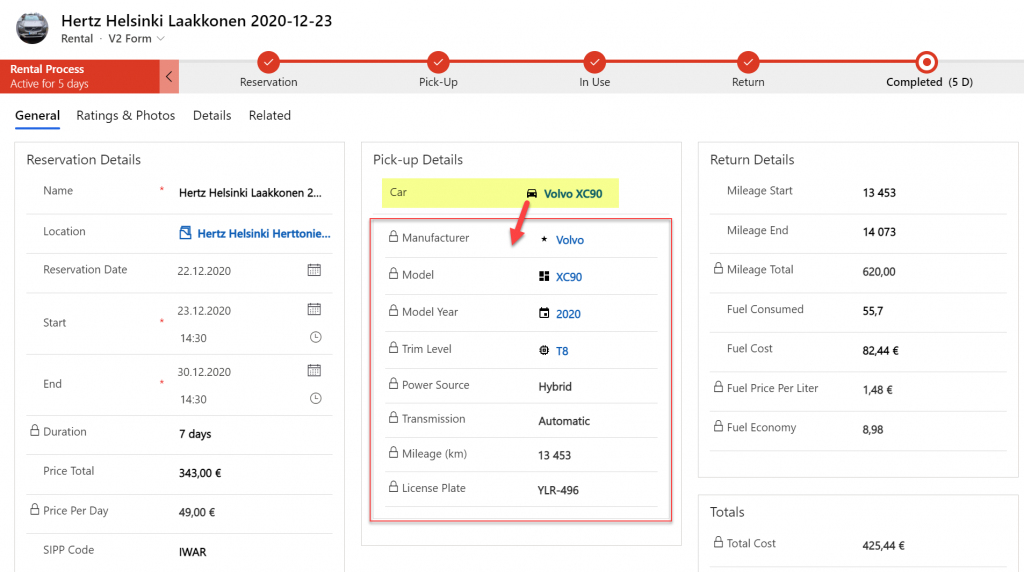
    Our approach was to leverage the Quick View Form to bring in fields from the related parental table (Car) onto the child table (Rental) form. To make the data entry and editing easier we enabled the Main Form Dialog feature for the Car lookup field, which then opens the form in a modal window.

    While this UX is a lot nicer than navigating between full screen forms and page loads, it’s still not all that seamless. The user will be very much aware of the fact that he/she is working on two different tables, while ultimately we’d want to show just a single page that abstracts away all this complexity of the underlying relational data model.

    What is the Form Component Control?

    First of all, it doesn’t have a very sexy name, that’s for sure. During the past few days of exploring the feature, I’ve had to repeatedly go back to the documentation to see what the name was. Even the product team’s announcement “editing related records on a main form in a model driven app” doesn’t sound very exciting. There’s a lot easier way to describe it:

    Forms within forms.

    It’s simple, and it’s very powerful. Unlike the CRM 2013 era feature of Quick View Forms, there’s no requirement to keep the forms as “view only” , nor particularly “quick” in terms of their contents. It’s just regular forms, and they can be used within other regular forms – full edit capabilities included.

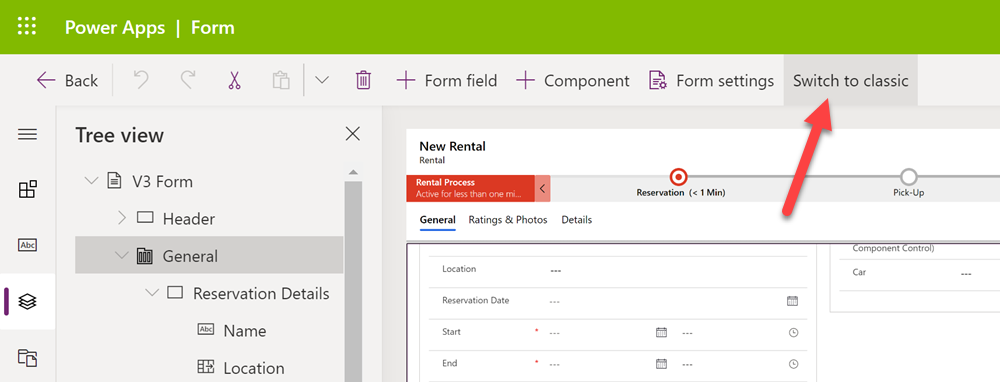
    Let’s add a Form Component Control onto our form and see how it works. Unlike with the Main Form Dialog feature discussed in part 1, this Form Component Control feature is unfortunately not yet available in the modern Power Apps form editor. So, we start with what we still need to do very often in the world of Model-driven apps, meaning hit the “Switch to classic” button to launch the classic Solution Explorer that dates back to CRM 2011.
    On the form where we have a lookup field (in our case the Car lookup on the Rental form), let’s open its properties dialog, go to the Controls tab and click “Add control”. We can see the MS provided PCF control “Form Component Control” in there. Adding it and setting it to be the default control for our web client is easy, but the configuration requires some additional information that doesn’t have a graphical UI (maybe in the modern form editor then once this feature is supported there).
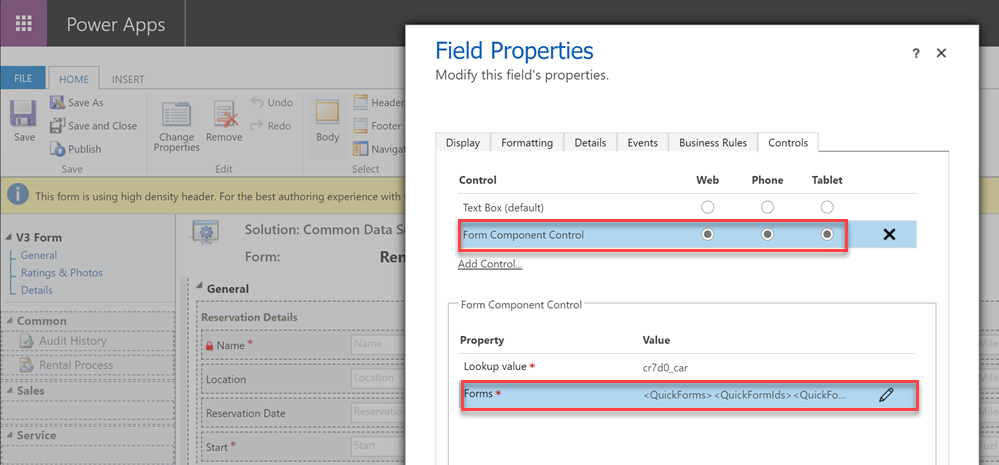
    See the MS documentation page for the detailed steps to take. In short, you’ll need an XML entry that contains the table name (entityname) and the form ID of the main form you want to show for the related table. My configuration looks like this:

    <QuickForms><QuickFormIds><QuickFormId entityname="cr7d0_car">2F3B241A-4E3F-4AE3-A26F-1AB7BF804636</QuickFormId></QuickFormIds></QuickForms>

    Let’s publish the changes and go test out the experience of editing an existing Rental record where the Car record’s fields have been partially populated. On the place where I previously had the Quick View Form with its locked fields, there are now fields coming from the Car table form. Text fields, lookups, choice fields – they all work exactly the way they would if I was editing data that’s natively stored on the Rental record, rather than the related Car record.
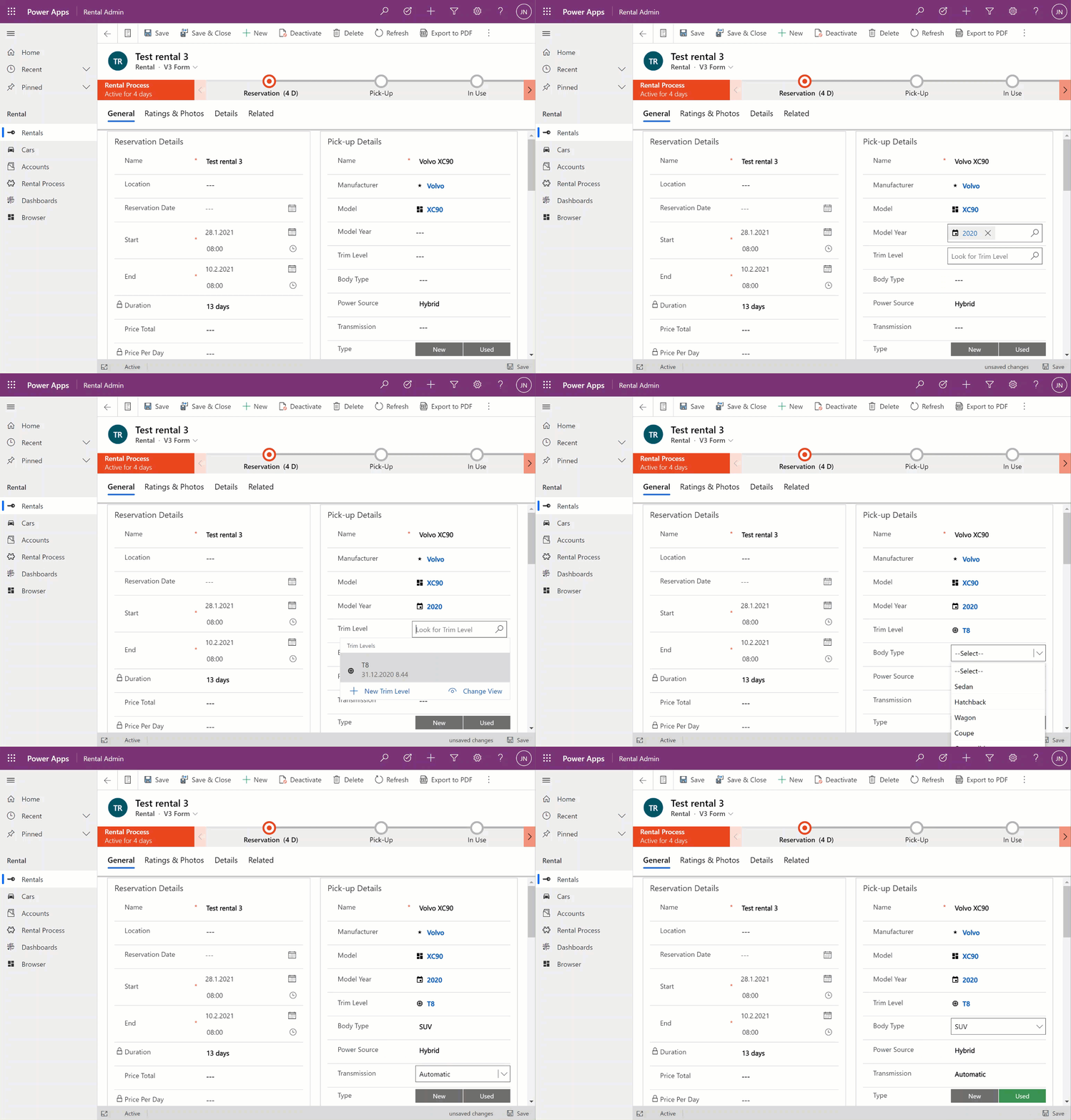
    The save event happens as part of the hosting form, no additional tricks required. Field validation, notifications and error handling is also integrated, regardless of whether the business logic comes from the main form or the embedded form (details in the Docs).

    All in all, this works incredibly well from a user experience perspective in my initial tests. Even if you’re a Dynamics 365 or Power Apps professional you might not realize that the form actually blends two different tables into a single form.

    Main form rendering options via Form Component Control

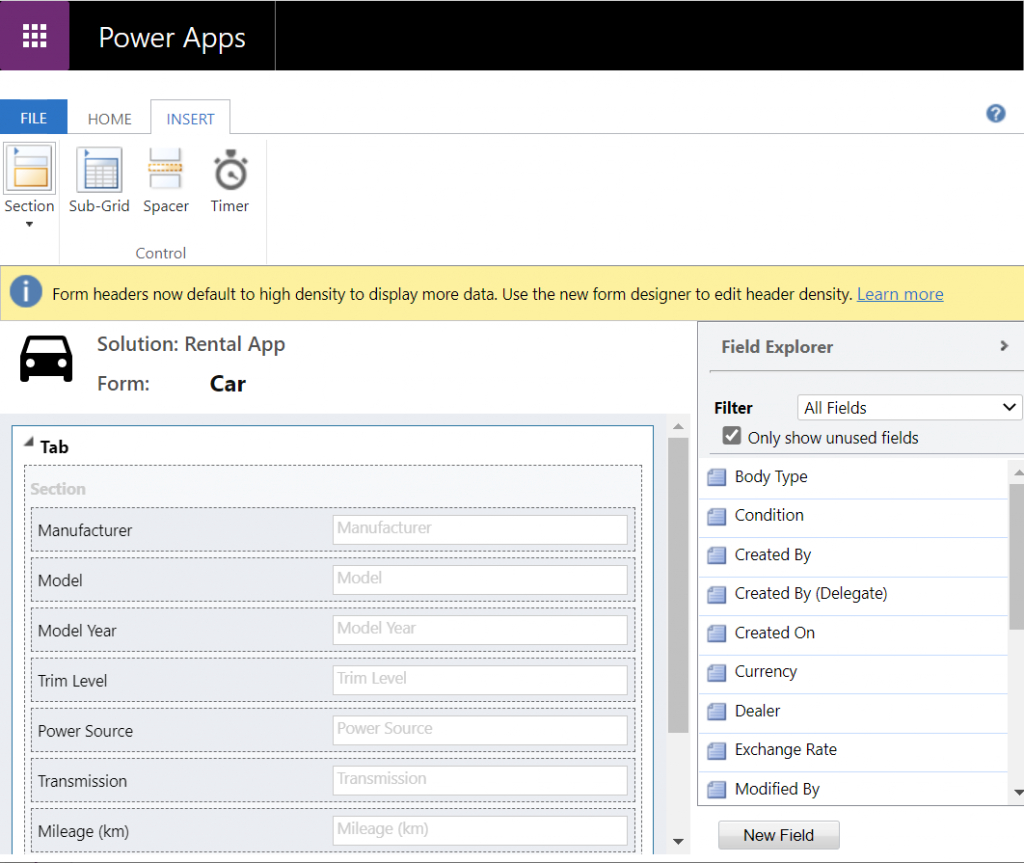
    With the old Quick View Form feature, there was a separate form type you had to create for the table for this specific purpose. It was far more limited in contents and layout than the full table forms, which kind of made sense for the purposes of bringing a few key fields in read-only mode onto a the actual main form of a different table. QVF allowed single column only + no other useful controls than the subgrid:
    The Form Component Control knows no such boundaries. What you can use there are the existing or new main forms for any table. If you place them within a single narrow column on a multi-column form tab, then all of the form contents will be rendered within that column. Since the Unified Interface forms are inherently responsive by default (which is a big benefit compared to Canvas app screens), everything will just reflow into a layout that would resemble a phone screen – even if you’re viewing the form on a widescreen PC monitor.

    What about if we give the Form Component Control a bit more space than a 1/3 of a typical Model-driven table form? The reflow also works the other way around, meaning all of the available screen space will be used. If the area given to FCC can accommodate more columns and the source form has them, they’ll be rendered just like on the “native” viewing experience of that form.

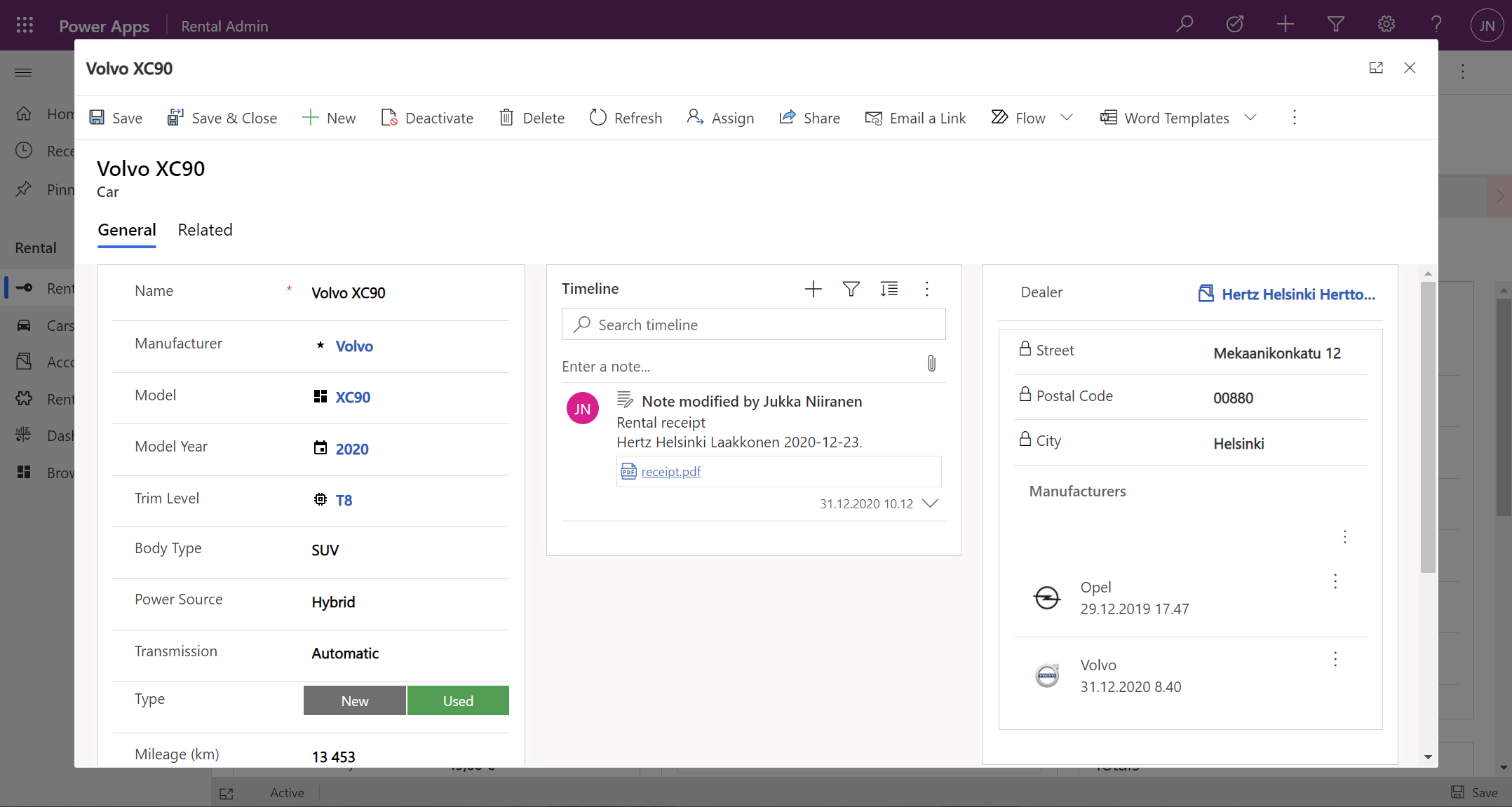
    Below is an example of an alternative form design for the Rental table. Instead of having the related Car shown in the middle of the first form tab, I’ve added a second form tab “Car” and dedicated all the space available in it to a single lookup field that has the FCC control enabled. You’ll see from the static Business Process Flow and the form header that we’re firmly on the Rental form all the time, but the second Car tab shows things like the Timeline for that car record (with a note), further tabs for the car’s Dealer, even a Quick View Form referencing the dealer account related to the Car record – all within on FCC control.
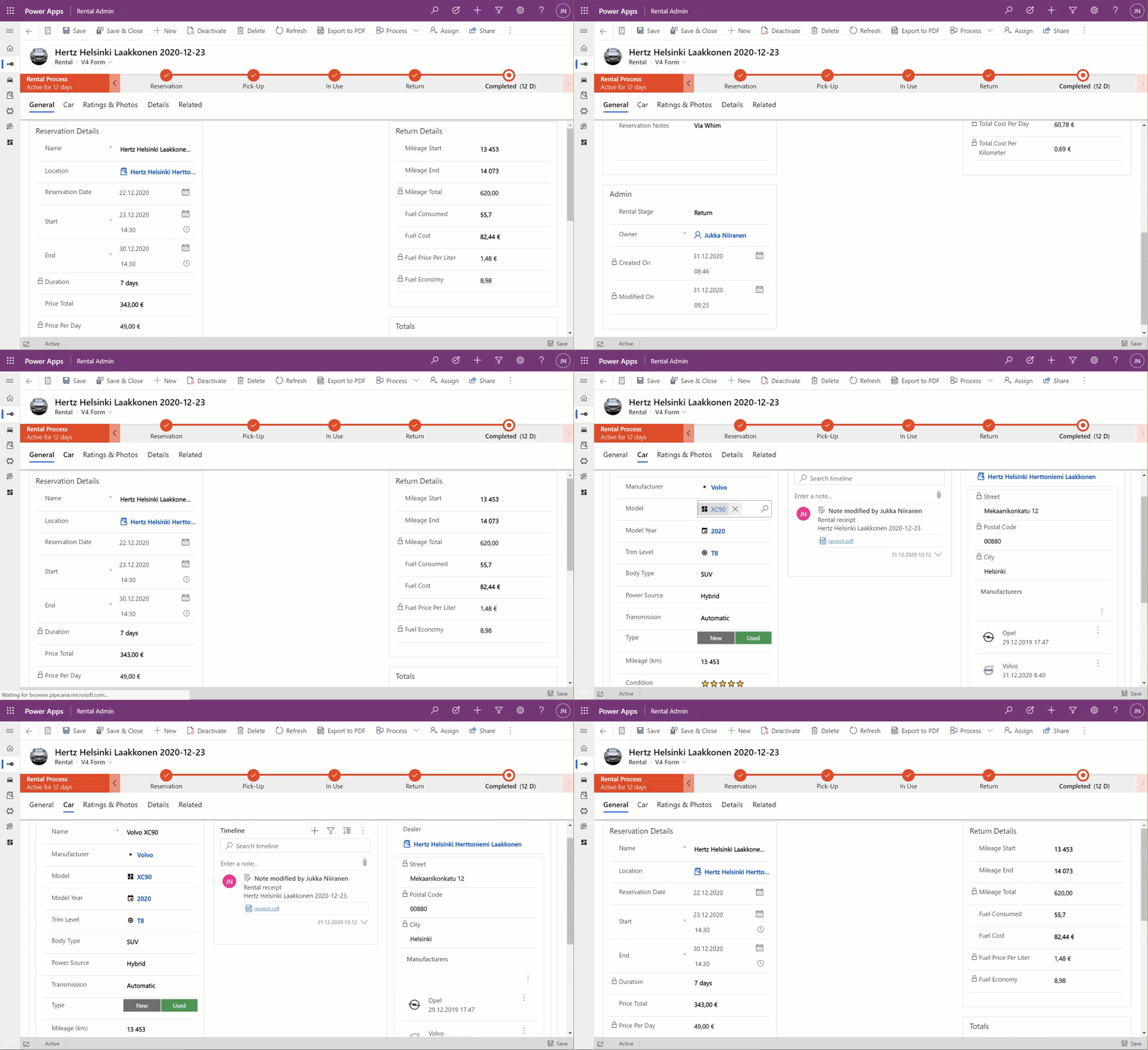
    This to me is just mind-blowing! We are reaching Inception level UX here, with the main forms embedded AND rendered as a full form tab within another form. I could be on the Rental record form, adding an activity via the Timeline control that’s actually linked to the parental Car record. Not the Rental record where the app navigation, form header, Command Bar and everything else visible on the screen is telling me I’m on. I’ve effectively built a form UI that defies the laws of nature I’ve come to expect from Model-driven apps.

    Sure, embedded Canvas apps could do some magic like this already earlier. The big difference is that the user interface of those screens could never match exactly that of a Model-driven app. With FCC there are no visual clues distracting the UX, as everything looks and feels like it’s part of the native experience where Microsoft owns and manages the visual side.

    What about record creation instead of edit?

    The one gap that exists in the inline editing story for Microsoft’s controls like the Editable Grid or this new Form Component Control is that there’s no possibility to use them for adding new rows into a table. They offer the edit experience, but no create experience. Sure, we have the Quick Create Forms feature available for contextual data entry, but it’s not really optimal. The user shouldn’t have to think about if they are editing existing entries or creating new ones. Yes, the difference between these concepts matters to the platform on a technical level. Still, unless there’s a valid business process requirement for making the data entry experience different for create and update scenarios, it’s something I’d prefer to eliminate from the UI.

    When there’s a scenario where we essentially have a one-to-one relationship between tables (no “real” 1:1 relationship exists in Dataverse, but there are ways to fake it), one option would be to automatically create the related parental record behind the scenes. With this approach, at the moment when the user will proceed to entering data via the Form Component Control, the lookup field will already be populated and the experience will look pretty seamless:
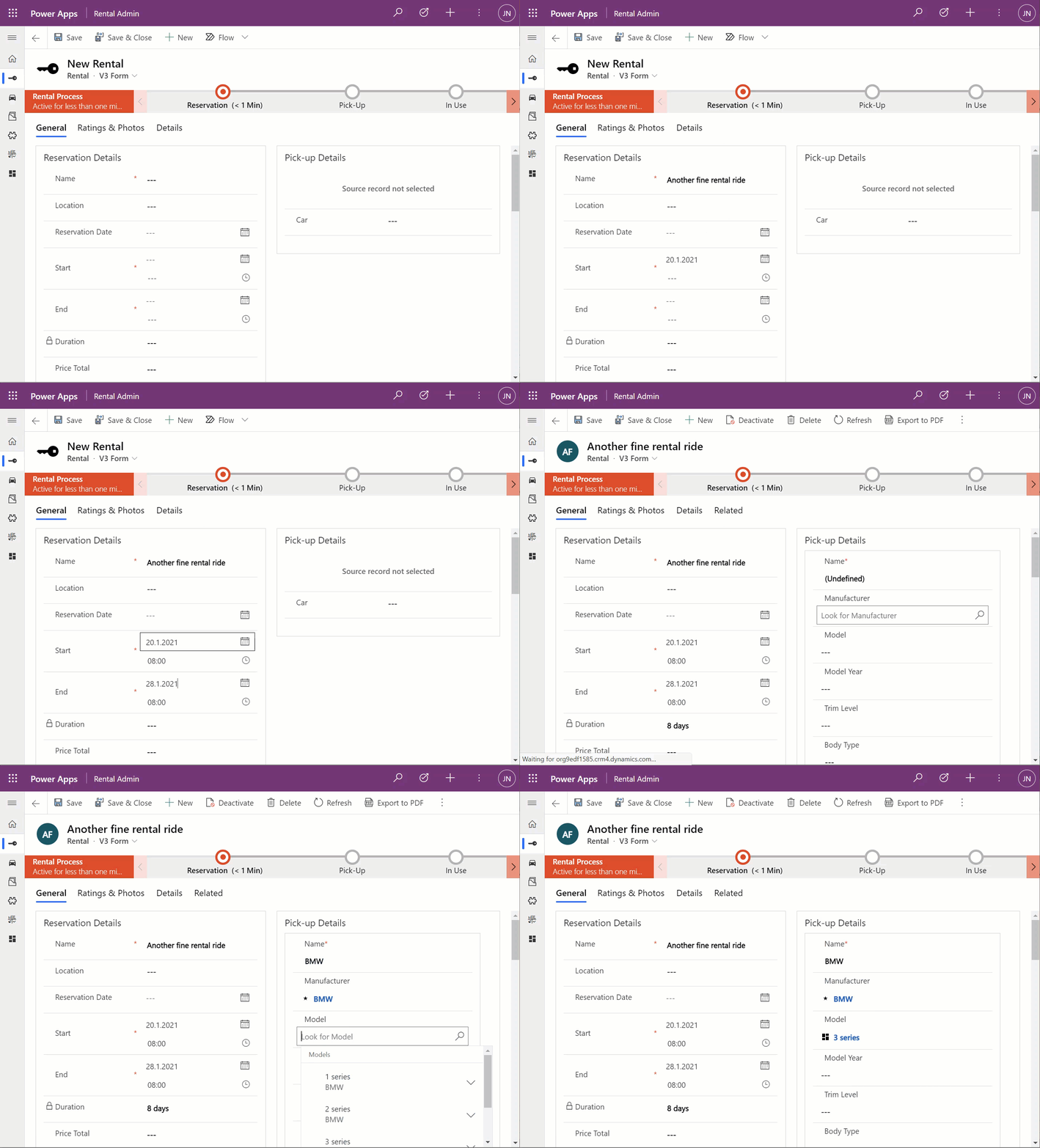
    What I’ve done here is to create a classic XRM workflow that runs in real-time, triggered by the create event of the Rental record. (Power Automate can’t do real-time yet, so it’s a no go for flow in this case.) The workflow will create a Car record with a placeholder name “(Undefined)” and link it to the Rental record. By the time the first save event for the new Rental record takes place, the FCC can then render the fields from this placeholder Car record on the Rental form.

    In the above example GIF animation you may also spot that the Car name changes transparently from “(Undefined)” to “BMW”, due to what has been selected in the Manufacturer field. This again is another real-time workflow that’s triggered by the update event of the Car record. The end user will not need to take any actions, it’s all just the native autosave feature of Model-driven apps that populates this name field while the user is still entering data into other fields further down the Car form.

    Considerations

    If the new Form Component Control gives us not just the read capabilities from Quick View Forms but also data edit support, then should we just stop using Quick View Forms altogether? Well, it certainly is a good question. Given that QVF dates back to the CRM 2013 era user interface technologies, FCC is much more in touch with how the modern Unified Interface client has been designed to work. It’s built using the Power Apps component framework (PCF) and should in theory be the most future proof choice for Model-driven app form design.

    One downside is that the use of FCC for the pure view scenario is a bit more laborious. If we indeed would want to prevent the user from updating values from the parental record while on the child form, then these fields would need to be set as read-only on the main form itself. Which brings us to the challenge that you’ll need to keep more forms visible in the Model-driven app, whereas classic QVF’s are hidden behind the scenes and only applied as the definition when rendering the main form on which they are used.

    The create scenario I talked about earlier is also a bit of challenge when analyzed deeper. If indeed the lookup from which the Form Component Control gets the related parental table record to show isn’t populated immediately, you’ll see a message saying “source record not selected”. In most cases that’s going to be quite a confusing message for the end user to encounter, given they are unlikely to have any idea about the forms magic and relational tables being used in to construct the app’s UI.

    “Couldn’t we just hide that control until it the lookup has data?” Well, I can’t think of a no-code way to achieve this. You see, the problem is that the FCC essentially is the same field as the lookup field. Sure, you can have multiple instances of it on the same Model-driven app form. But you can’t use Business Rules to say “hide this field if this other field is empty”, because they are the one and the same. Quick View Forms handle this scenario much better, so let’s hope Microsoft will improve the functionality in FCC to accommodate this create/hide scenario better in future releases.

    WE NEED TO GO DEEPER Inception

    This first public preview release of the Form Component Control has a few limitations that you should be aware of. For instance, you can’t show more than a single tab from the form being rendered via FCC, which isn’t really a big issue unless you really are building an Inception app to confuse the hell out of the classic CRM users at least. Similarly, you can’t have FCC’s within FCC’s, which blocks some crazy recursion scenarios.
  • Relational data on Model-driven forms, part 1: Main Form Dialog

    Relational data on Model-driven forms, part 1: Main Form Dialog

    Model-driven Power Apps are built on top of the relational data model of Microsoft Dataverse (formerly CDS). Planning how you split your business data into different tables is a crucial step in ensuring that your app’s user experience (UX) is optimal for the data entry, consumption and update tasks that the users will need to live with. This is because unlike with Canvas Power Apps, the data model defines much of the user interface behaviour as well.

    The key thing to keep in mind is that you’re not supposed to build the most normalized data model possible, where every concept in your business process is spun into its own little table. Yes, you do want to leverage the power of relationships (one-to-many, many-to-one, and on some rare occasions also many-to-many) to make the data more manageable than a single flat list structure would offer. No, you don’t want to make your users have to think about the Entity Relationship Diagram (ERD) of the system to know how to navigate within your app.

    Despite of the tight coupling of the data model and the UI, there are plenty of things you can configure on Model-driven forms to improve usability. I’ll be drilling into a few recent features that can make it easier to work with related tables from within a single form.

    The scenario: Rental Car app

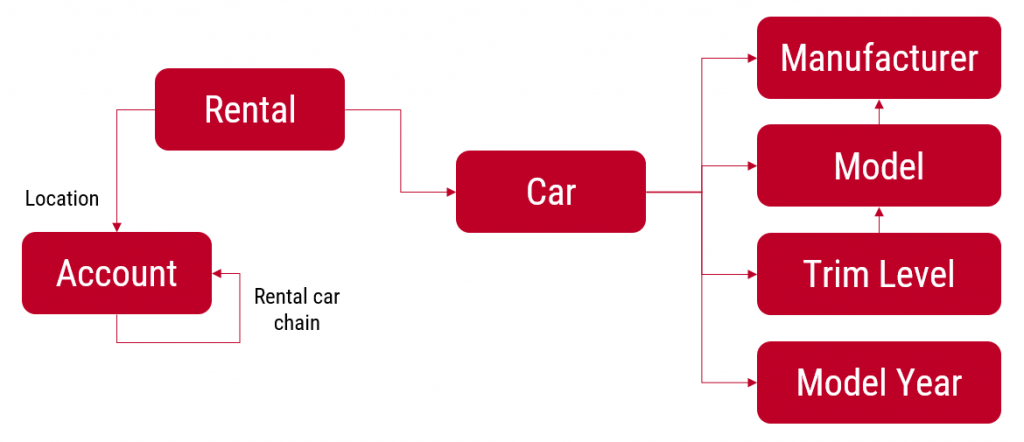
    I’ll be using an example app that I’ve built for my own purposes: Rental Car App. It contains functionality that allows me to track and analyze information about the rental cars that I use, by adding new Rental records for each reservation I make and then tracking the process all the way until the final invoice and related costs. At the heart of the app there’s the Rental table, which has relationships to both the rental car company information (Account table) as well as the Car table, which again links to a few supporting tables like Manufacturer and Model.
    The rental process stages are modelled via the Business Process Flow feature of Power Apps Model-driven apps. We start with 1) the reservation, then proceed to 2) pick-up at the chosen location, 3) use the car we’ve been given, 4) return it and 5) finalize the process upon ensuring we’ve captured all the required data and that the invoice was what we expected to pay.

    Each rental event will have one car associated with it. However, at the first step of the process, meaning reservation time, we won’t yet have any idea what specific vehicle that will be. (You’ll only know the ACRISS code that describes the level of the vehicle features, like “IWAR” for Intermediate, Wagon, Automatic, Air Conditioning.) Once we get to stage 2 of the process, the pick-up, we’ll be given a specific car that we can describe with properties like Manufacturer, Model, Model Year, Trim Level and so on.

    Car is the parent table of Rental, since there can only ever be a single vehicle for one rental event (for now, let’s ignore the possibility of the car breaking down and getting exchanged during the rental period). A single car will of course be used in many, many rental events. However, since the app user is the customer who’s consuming the rental service from different car rental companies, we won’t have the fleet of vehicles defined in advance for our database. The data entry of the car’s details is therefore always a step within the context of the rental process.

    So, we know that logically the car is a different type of object than the rental event, which is why it should have its own table. From a user experience perspective, though, filling in the details of the car should be just a similar task as describing the duration or price of the rental car reservation. Just a set of fields on the single form. Yet by default what the Model-driven app form will give us is a single lookup field to the related table’s car record, with the expectation that we’d go and work with the Car data on a different form than the Rental form where the rest of the details are.

    Despite of the underlying 1-to-N relationship in the data model, we can improve the user experience by leveraging a couple of neat features in Model-driven apps.

    Quick View Forms

    Model-driven Power Apps have evolved from the XRM platform that Microsoft first used for builing a CRM product of their own in 2003. Around seven years ago when Dynamics CRM 2013 was launched, it introduced this new and exciting “flat UI”. Before that, the experience of using CRM was often a maze of popup windows since opening a new record always gave you a new browser window you now had to juggle on your desktop.

    The boundaries of different entities (which is what tables were called for the first 17 years of the platform we now know as Dataverse) were therefore very tangible indeed. While form subgrids were launched in 2011 to offer some relief, it wasn’t until 2013 when we could start to make the users worry less about the data model and focus more on the business process and actual business data involved in it. A key element in this was the Quick View Form.

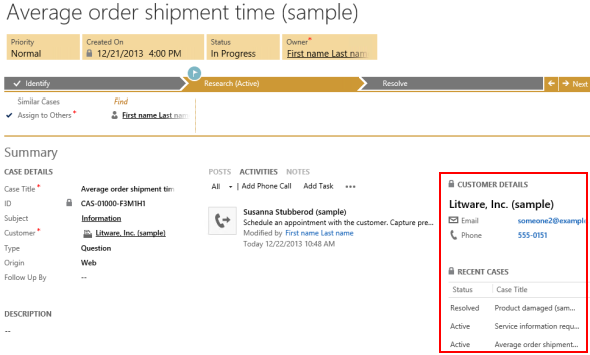
    Above is a screenshot from seven years ago of a case entity form that included data from not just the child entities like activities, but also from the parental record of the customer, via a Quick View Form. We can see the email and phone number of the customer, event though they are physically stored on the account entity. It’s not limited to just that N:1 data from “case:account” either, as we can reach down to N:1:N of “case:account:case” by showing all the related cases that this customer has recently opened with our support department.

    Quick View Forms were a seriously powerful feature back when they were released. I did some blogging to demonstrate the possibilities, like building a similar opportunity analytics feature that resembled (well, remotely at least) the concept of an ecommerce recommendation engine that shows “customers who bought this item also bought these other items”.

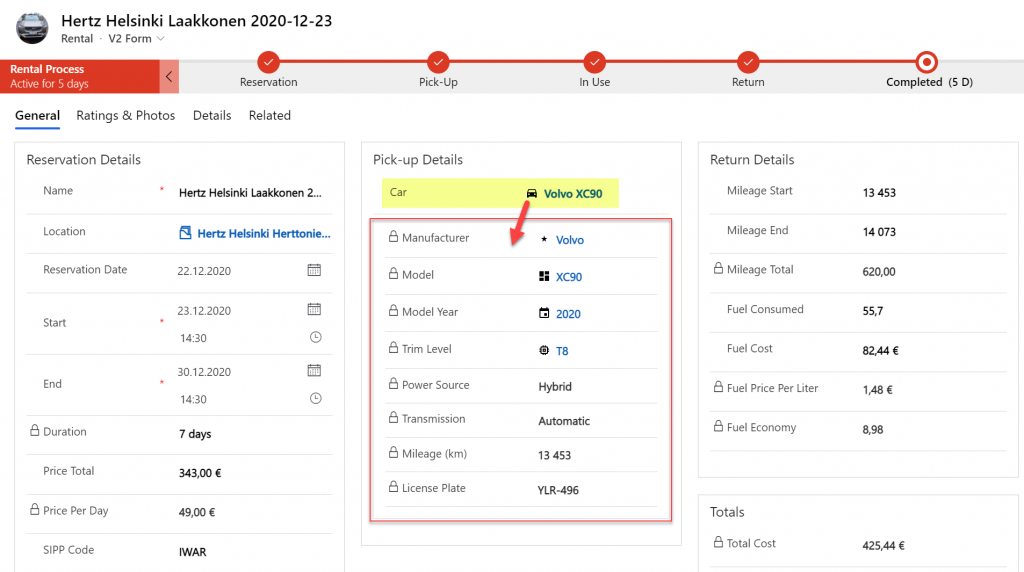
    The scenario in our Rental Car app is a lot more straightforward. We want to display the key properties of the Car record associated with the Rental record within the form that drives the rental process. By having a lookup field for Car on the form, this allows us to add a Quick View Form control to show the Car table fields embedded on the Rental table form:

    From this static screenshot it would seem like everything is in its right place and the user couldn’t be happier. Right? Well, the challenge here is that the Quick View Form really is just a view. It doesn’t allow editing any of the field values on the related parental table record, let alone creating new records. In short, it’s not as actionable as the data living natively in the Rental table.

    Main Form Dialog (MFD)

    A much more recent entrant into our Power Platform low-code toolkit for designing Model-driven application UI’s is the Main Form Dialog feature. What this allows you to do is to launch a modal window from the lookup field on a Model-driven app form. The user interface doesn’t actually move you fully away from the original record, rather it just renders the (Main) Form of the chosen record from a different table in a Dialog window. It’s not like the CRM 2011 era popup windows, since you remain within the same browser window/tab. Once you’re done with looking at the related record, clicking “X” will return you to exactly same state where you were before clicking in the lookup field. It’s not as jarring an experience as if you’d have fully navigated away from the original form.

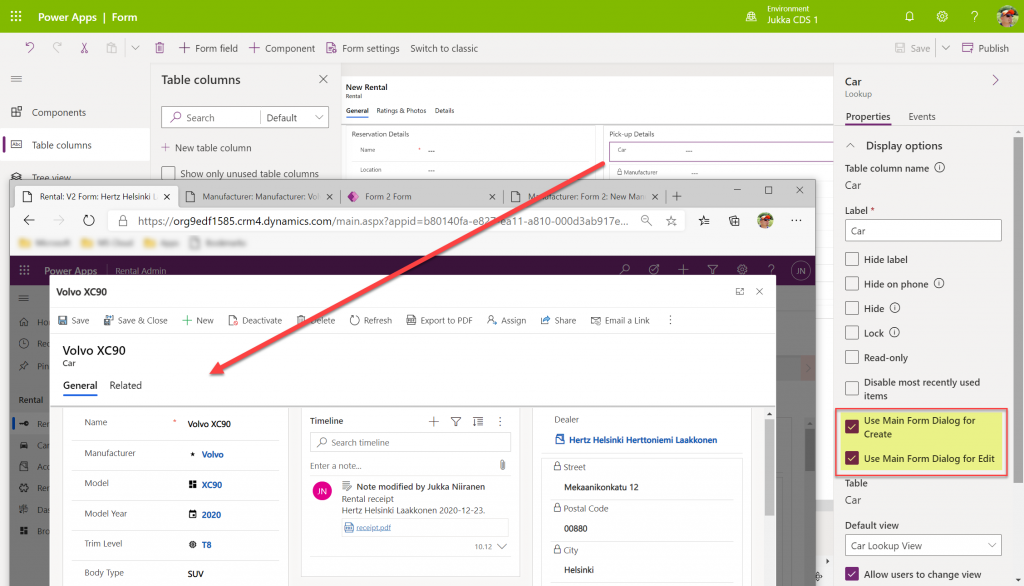
    Originally launched as part of 2020 Release Wave 1, the MFD feature was initially available only via the API. At this moment that is still what the documentation says, but I recently discovered that the modern Power Apps form designer now has graphical tools to configure this feature:

    When selecting a lookup field in the form editor, the properties dialog on the right now contains new options to check:

    • Use Main Form Dialog for Create
    • Use Main Form Dialog for Edit

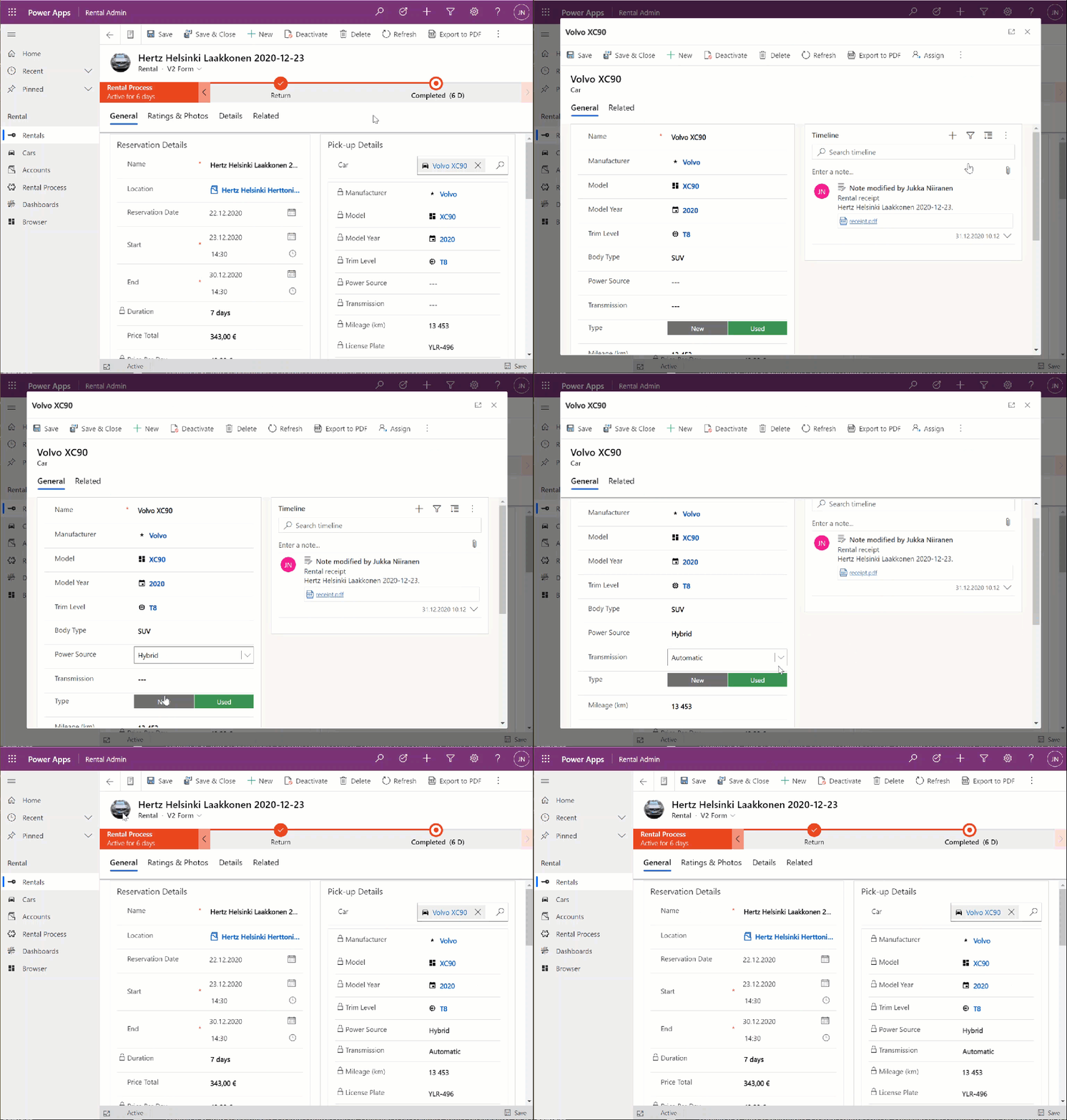
    Oh yeah! We now have the power to keep the users from unintentionally navigating away from the “home” form that acts as the anchor for all relevant details concerning the business process. In the rental car example, the user can now safely click on the Car lookup, examine the available options for properties of the car, change the values, click “Save & Close”, then end up right back to where he or she started from:

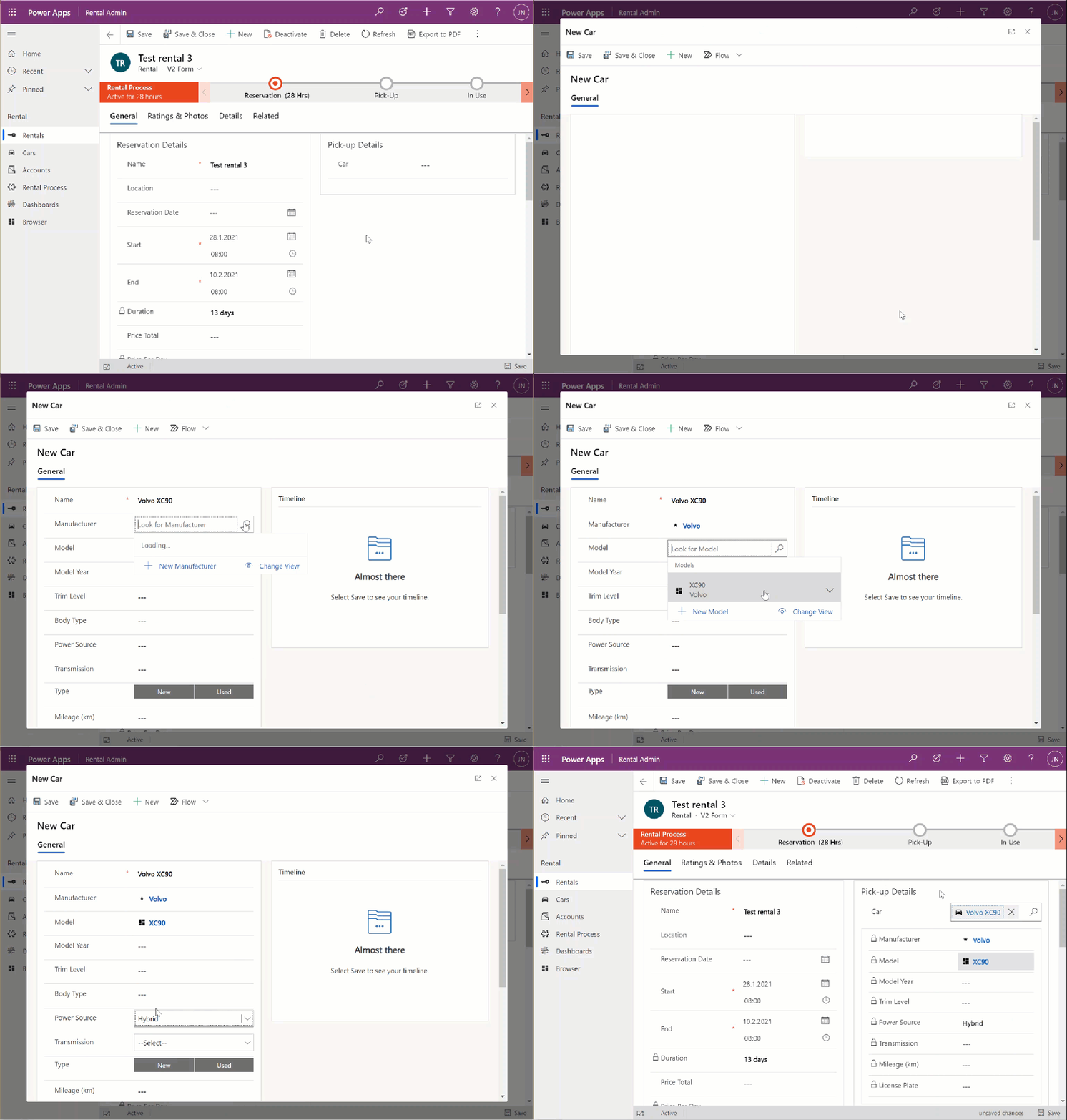
    This also works for the experience of adding a new car record. Instead of having to offer a separate Quick Create Form experience for this step that would behave differently from any other occasion where the user interacts with car data, we can launch the full record form in the Main Form Dialog:

    The key benefit with this modal window approach is that there’s almost zero chance of the user wondering into the wrong menu or page of the application after they’re done with creating, editing or just viewing the related record. There is no visible page load that would change the mental context away from the primary record, in this case the Rental event.

    Considerations

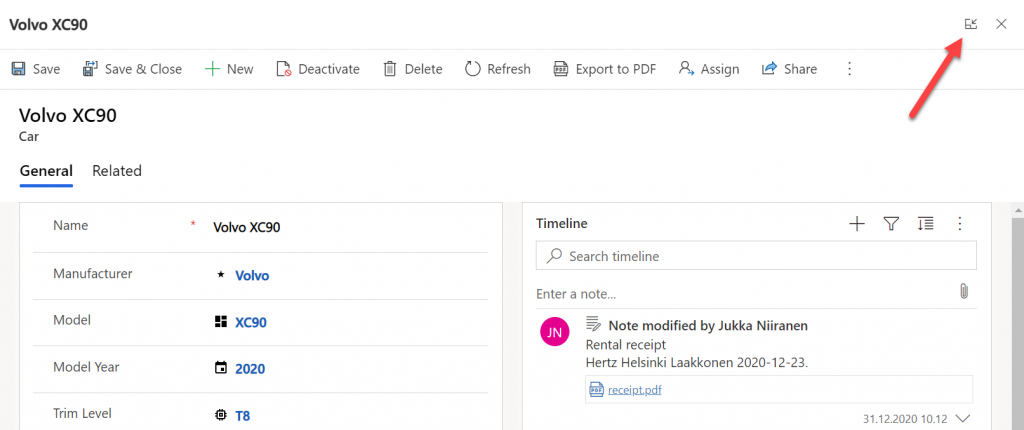
    Should you enable the Main Form Dialog feature now on all your lookup fields? Probably not. There will be times when the user may prefer to actually move along in the process and change the context to the parental record. There is no navigation path available in MFD that would support this context change. The user has the option to launch the dialog in full screen mode, but that just expands it to cover the whole screen, rather than doing a page load that would change the navigation position in the sitemap.

    There is currently no way to select which form specifically should be opened in MFD. Presumably the form will be determined by the table’s main form order, as well as the specific form the particular user has last viewed. Depending on the number of scenarios where the same table is leveraged, the forms shown by MFD can therefore be unnecessarily complex for the task at hand.

    In part 2 I will explore the possibilities of how we can streamline this process even further and make the experience of working with related parental table data almost transparent to the user. We’ll be leveraging the brand new Form Component Control to essentially combine the features from the earlier Quick View Forms and Main Form Dialogs.

  • Make your Power Apps search experience more Relevant

    Make your Power Apps search experience more Relevant

    Microsoft recently launched a brand new search experience for Model-driven Power Apps and therefore also first-party Dynamics 365 apps operating on top of CDS. This is a significant step forward in the “non-structured” search capabilities in Power Apps. The structured queries one can construct via Advanced Find were always one of the most powerful features that the XRM platform could offer on top of relational data (and remain one of my most read posts on this blog). Now also the free text based search experience is catching up nicely:

    Being a low-code application platform, there are several configuration options related to how the search features in Power Apps behave. This can also result in people missing out on how they could ensure that the search really works the way that the users would expect. In this blog post I’ll go through some common challenges that the Dynamics 365 professionals may have already learned to overcome but which can be surprising to new Power Apps makers.

    Challenge 1: Relevance Search is not enabled

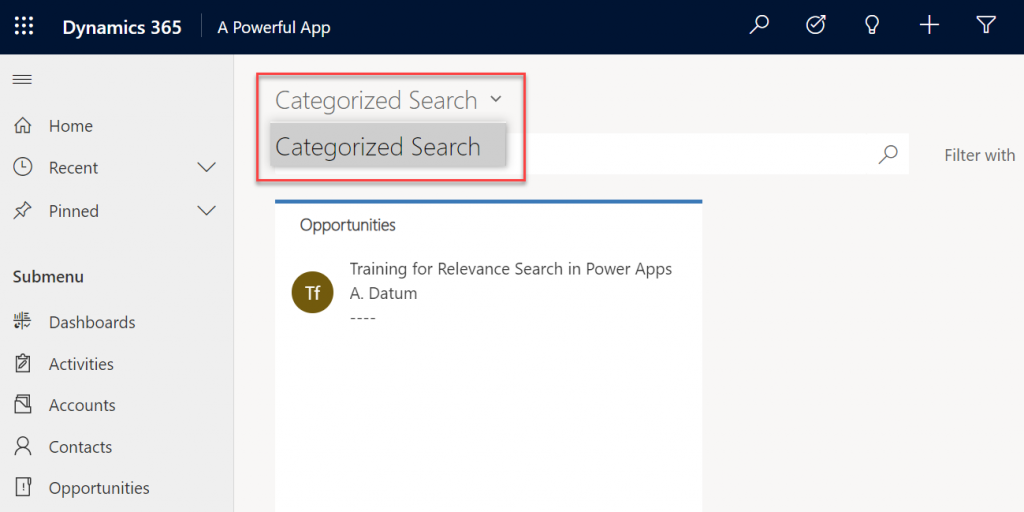
    If you’re not seeing anything even remotely like the MS blog posts when performing a search in a Model-driven app, then you may well be using the limited Categorized Search instead of the fancier Relevance Search. When attempting to change the search type, you might discover that the dropdown actually doesn’t give you any choices, i.e. it’s a dead end with Categorized Search as the only option:

    Why does this Categorized Search option even exist, and why do we need to specifically enable Relevance Search? It all comes down to the on-premises legacy of the platform, where the single CRM server had to be capable of offering a standalone search option. In the cloud era we can leverage Azure Search as the external search index database to where CDS data is syncrhonized to, thus offering a far richer search experience.

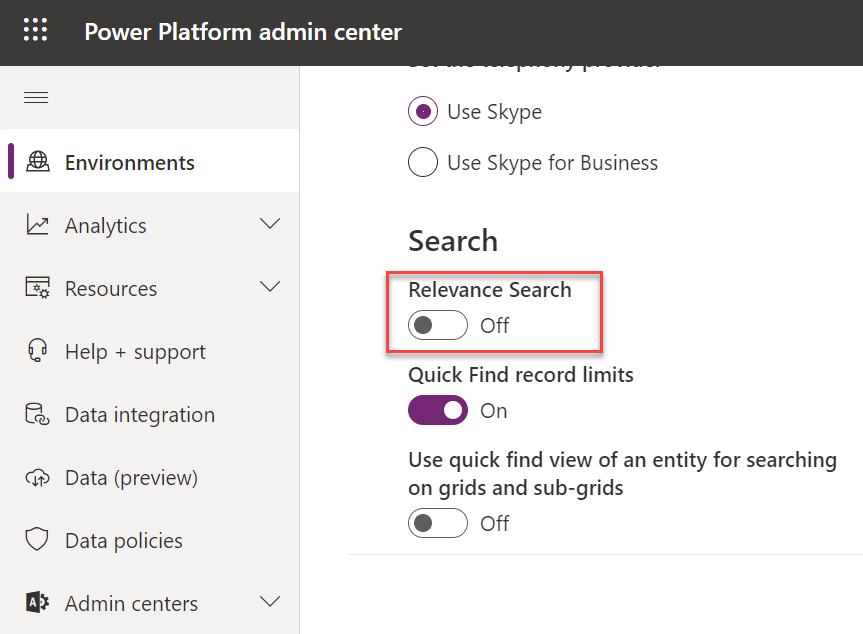
    Now, Azure Search being a separate service and possibly having different types of SLAs and other legal variables than the core Power Apps or Dynamics 365 services follow, it’s not on by default even in the MS cloud. An administrator will need to navigate to the Power Platform Admin Center, choose the environment, then go under Settings / Features / Search to flip on the swith that turns on Relevance Search.

    Once it’s enabled, only then will you see the option to also turn on the new search experience (which probably will become the default option in the future). It won’t show up there immediately, so give it a lil’ time.

    Challenge 2: Relevance Seach doesn’t search my entities

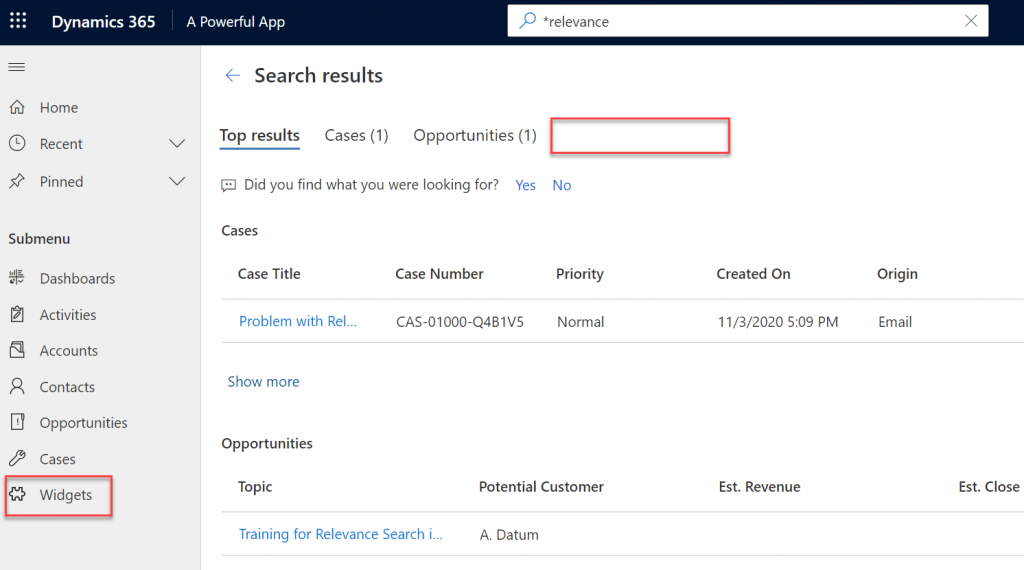
    Cool, we’ve now got the new UI up & running. When we do a search from the new prominent search bar always visible at the top, the results are returned for some of the entites. But why aren’t we getting any hits for Widgets, for example? In this scenario we know there are records in there that contain matches to our search string.

    Even though Azure Search provides a richer search index for your Model-driven Power Apps, it doesn’t directly copy each and every table from CDS into it’s database automatically. When working with a Dynamics 365 environment there are some default entites covered (like accounts, contacts, opportunities). For any custom entities and especially with custom apps, you’re gonna have to explicitly tell which entities should be enabled for Relevance Search.

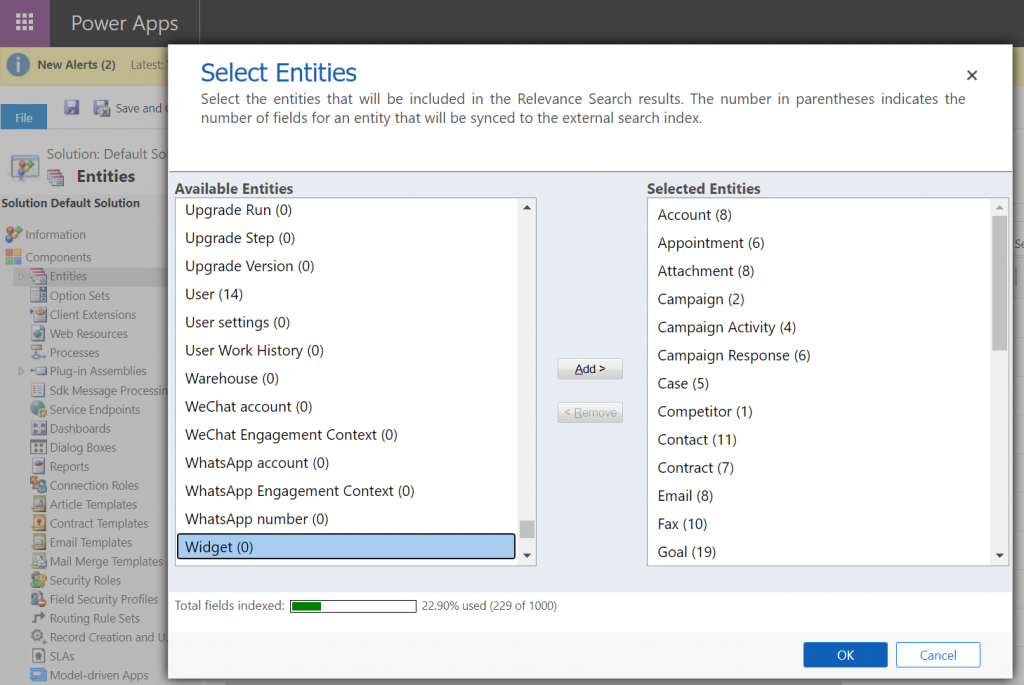
    To access this configuration option you’ll need to leave behind the modern Power Platform Admin Center and venture into the land of the legacy web client and Dynamics CRM era customization UI. You can either add “/main.aspx?settingsonly=true” to your environment URL or find another path into the land of more advanced options. Once there, find Settings / Customizations / Customize The System and open up the Entities menu in the Default Solution window. Now you’ll see what entities are included in your Relevance Search Index and which are not, i.e. they are in the Available Entities list:

    Select the entities you want, click OK, then Publish All Customizations and now they are enabled for the modern Relevance Search experience.

    Challenge 3: Relevance Search doesn’t search the right fields

    Hmm, why aren’t we still getting the full search results for our Widgets entity, even though we added it into Relevance Search? Well, technically you didn’t add the whole entity into the search index. By default a custom entity seems to pick up only the primary field (usually “name”) into the search scope, but it’s likely that you’ll have plenty of other important field that should also get indexed. The same goes for default entities: only a subset of the standard fields are included, and none of the custom ones are, unless you configure them to be included in Relevance Search.

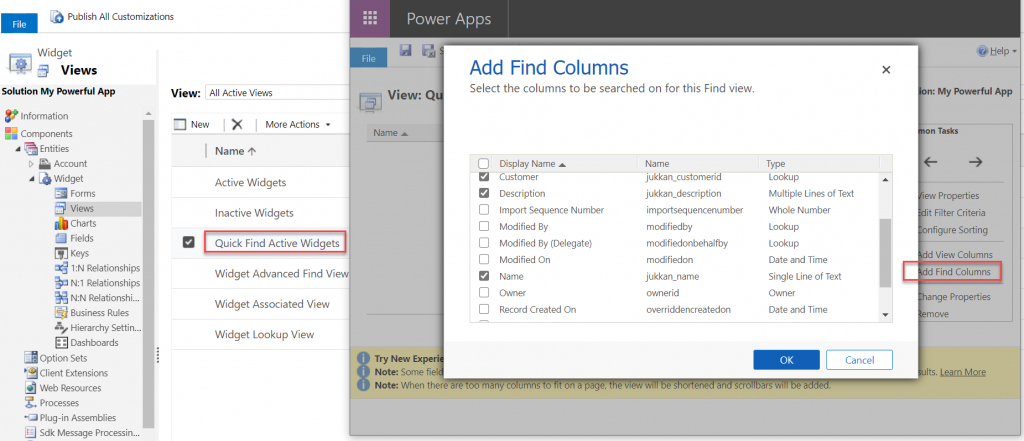
    If finding the menu from where the entities list for Relevance Search is maintained was a bit tricky, then figuring out the place for specifying the field level search settings ain’t that obvious either. You see, it’s not a property of the field in the entity itself. It’s the inclusion of that field in the entity’s specific view called Quick Find View that determines what gets pushed to Azure Search database and back to Power Apps UI.

    Even though the entity view editor can already be found in the modern Maker Portal for Power Apps, these settings aren’t there yet, so I hope you didn’t close that legacy customization UI just yet!

    From the legacy Solution Explorer, open the Quick Find View for your entity, select Add Find Columns from the right and check the boxes for the fields you consider to be potentially useful for Relevance Search. Save & publish your changes, then verify that the search results match with your expectations.

    Challenge 4: Relevance Search doesn’t cover inactive records

    Sometimes the information you’re looking for isn’t found on records that are actively edited anymore, as you may be digging further into the history of your business data to check up on past transactions. In the typical CRM scenarios where Model-driven apps are leveraged this could mean searching through historical sales opportunities that are either won or lost, to find examples of what offers have been made to which clients on what specific terms.

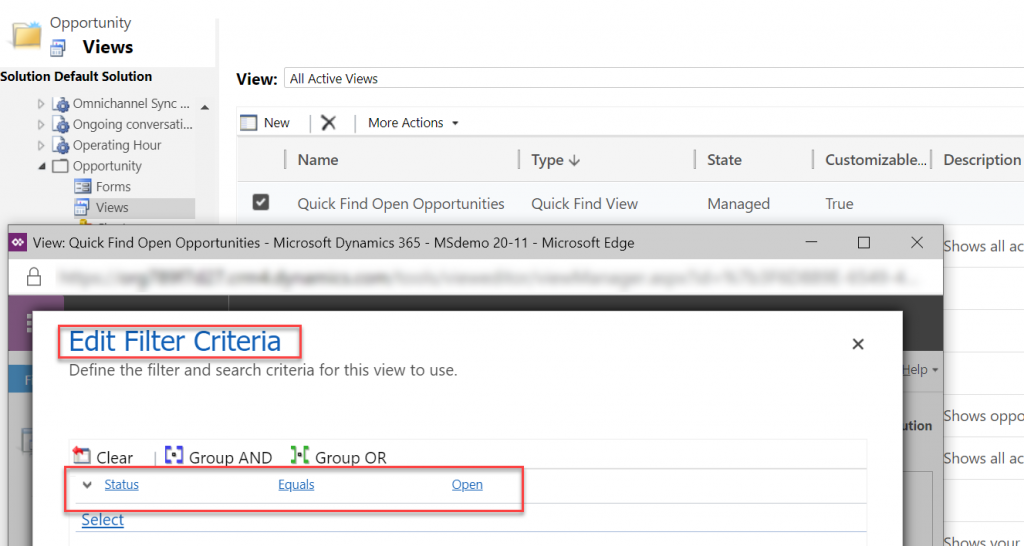
    With the out-of-the-box configuration of Dynamics 365 or Power Apps, you won’t find them via Relevance Seach. Yes, the vast majority of records that you’re storing in CDS may well be excluded from the search index by default. This is because of the same Quick Find View we visited earlier. Not only does it control the fields being indexed, as well as the column layout of the search results page. It also controls the static filters which are applied to the search results before they are shown.

    Using the OoB opportunity entity as an example, you’ll find a system view called “Quick Find Open Opportunities” under the entity. Click on Edit Filter Criteria to reveal the fact that it indeed does only include open opportunities. While we can’t create additional Quick Find Views for entities, luckily we have the freedom to modify or delete the existing filters. So, just remove that status field filter criteria, save & publish. Now your Relevance Search will also return results from the inactive records for this entity.

    Challenge 5: Relevance Search suggestions aren’t found in the search results page

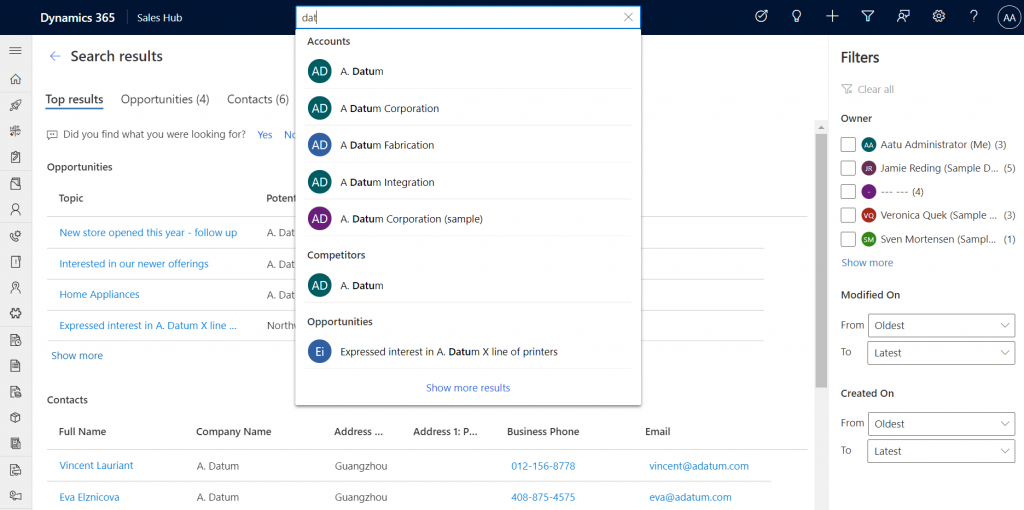
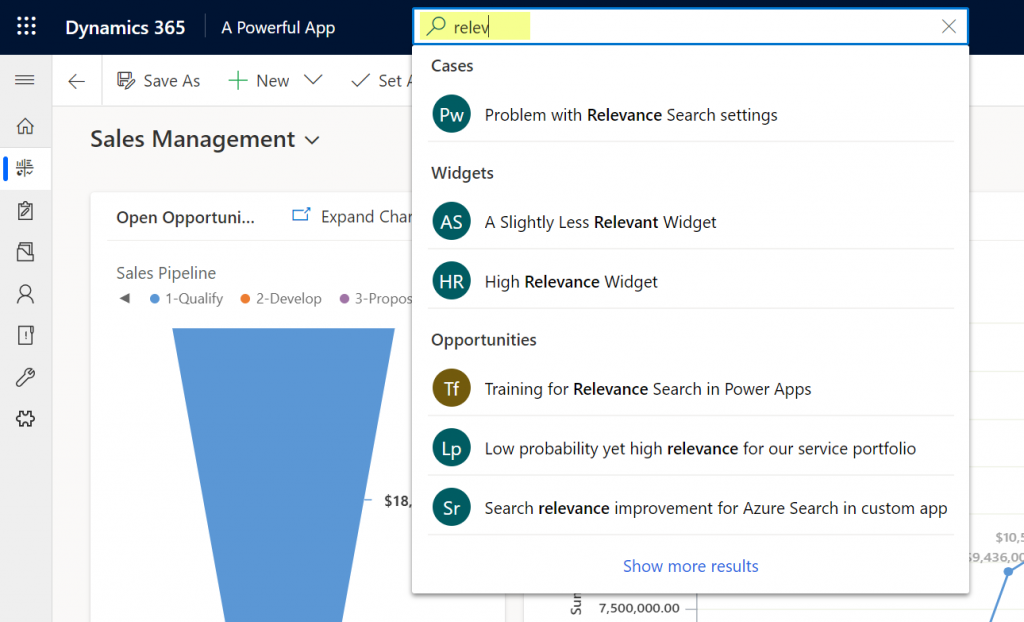
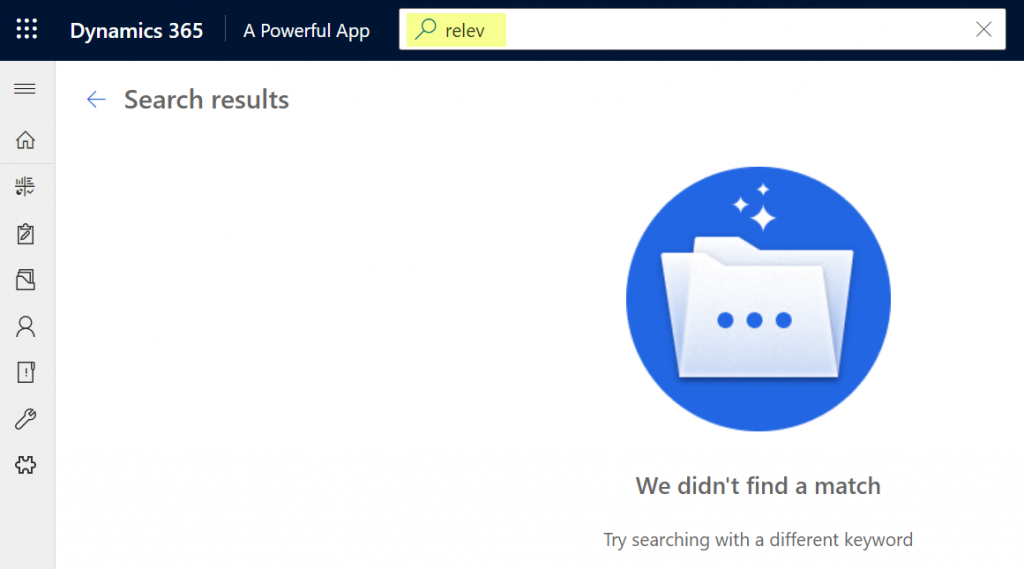
    The new search experience has a nice UX for suggesting matching records immediately as you type the letters in your the search term. Let’s say that we’re interested in the search term “relevance”. By the time we’ve entered “relev” into the search bar there’s already a number of matches in the suggestions box:

    Looks great, but I think I want to see more details, so I’ll click on “show more results” at the end of the search suggestions. Hey, where did all those matching records go?!?

    Unfortunately this is a challenge where you can’t configure way around it (at least yet). For the time being, this actually is by design. Taken from the documentation, Microsoft lists the suggestion feature separately from the actual search requests:

    Suggestions provide a list of matches to the specified search parameter value, based on an entity record’s primary field. This is different from a regular search request because a suggestion search only searches through an entity record’s primary field, while search requests search through all relevance search-enabled entity fields.

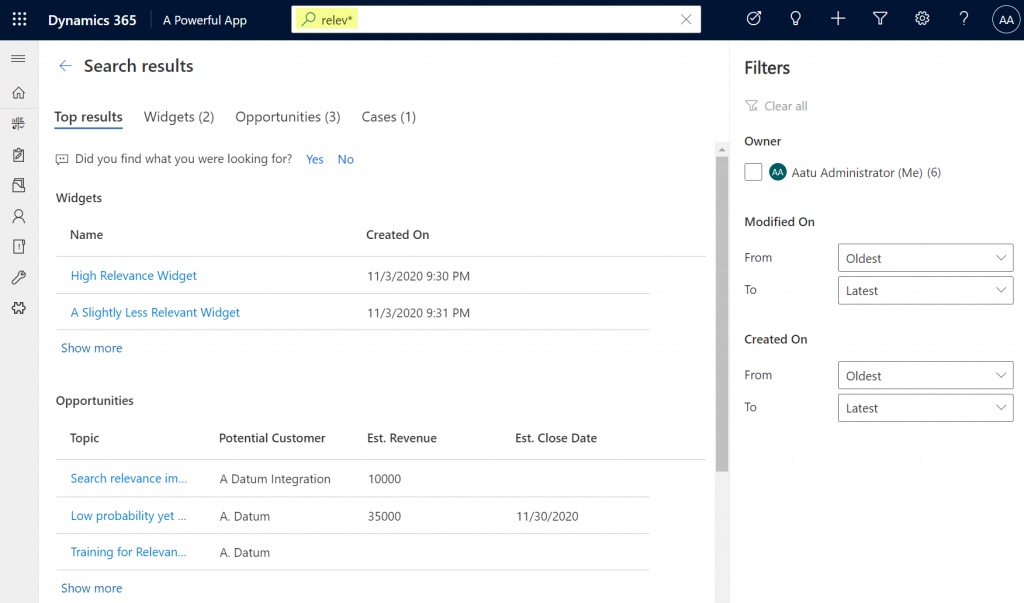
    So, the search box and the search results page follow different logic, which is why it is expected that they will show different matches. This may be seem quite complex to explain to the app end users on a detailed technical level, so it’s better to just instruct them to always apply the wildcard character * at the end of their search term. The results are likely to be closer to what they expected to see:

    Hopefully these 5 tips will help you in setting up the basis for more relevant search results and a better user experience in your Model-driven apps. For more comprehensive guidance, check out these three different levels of documentation that Microsoft provides on the Power Apps seach features:

  • New Team Member apps for Dynamics 365

    New Team Member apps for Dynamics 365

    In the 2020 Release Wave 1 release plan documentation we saw that Microsoft is finally going to bring technical licensing enforcement for Dynamics 365 Team Members into the platform. By launching specific App Modules designed to be used with the cheap Team Member license as well as building the mechanism for controlling which Service Plan entitles the users to access which App Modules, there will now be a clear line for what is and isn’t possible right within the system.

    That’s how it is in theory. What about in practice? Let’s explore the Early Access features launched for 2020 Release Wave 1 on February 3rd and see how these App Modules are implemented.

    Sales Team Member app

    Since Sales is by far the most common business process that CRM systems built on Dynamics 365 Online are managing, let’s start from the dedicated Team Member App Module for this scenario. The pre-release documentation isn’t very extensive yet, but from there we can get the basic intention of this new app:

    “At a high level, users with the Team Member license can perform the following tasks in the Sales Team Member app: 1) Customer management: work with accounts and contacts. 2) Lead and opportunity management: see leads or opportunities linked with accounts or contacts, or see other sales-related data. 3) Add activities, such as notes.”

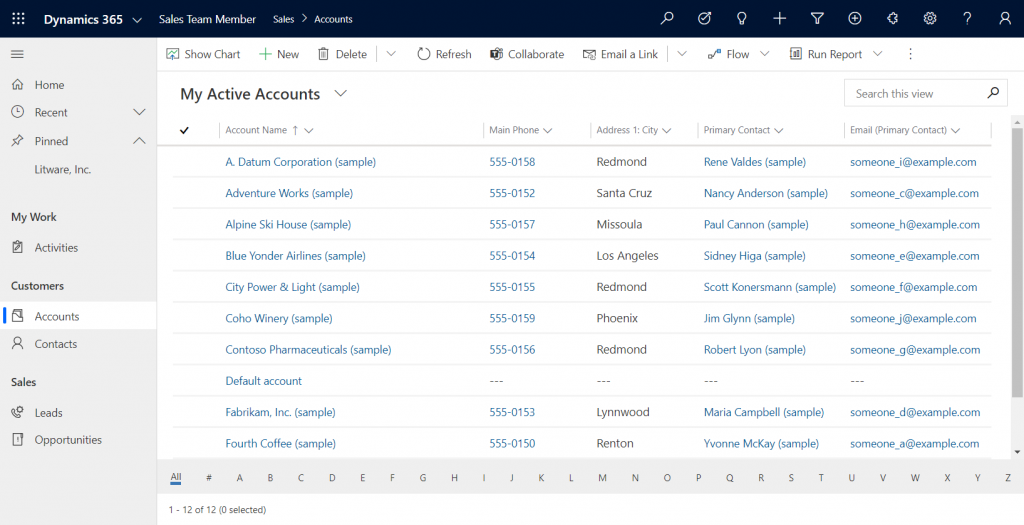
    Upon launching the app, we’re greeted with a familiar experience that looks like Dynamics 365 Sales, only it’s simplified to contain just 5 menu items in the sitemap: Activities, Accounts, Contacts, Leads, Opportunities. If the dashboards menu was also included here, the app would resemble the kind of CRM system that most small organizations or teams actually need in real life.

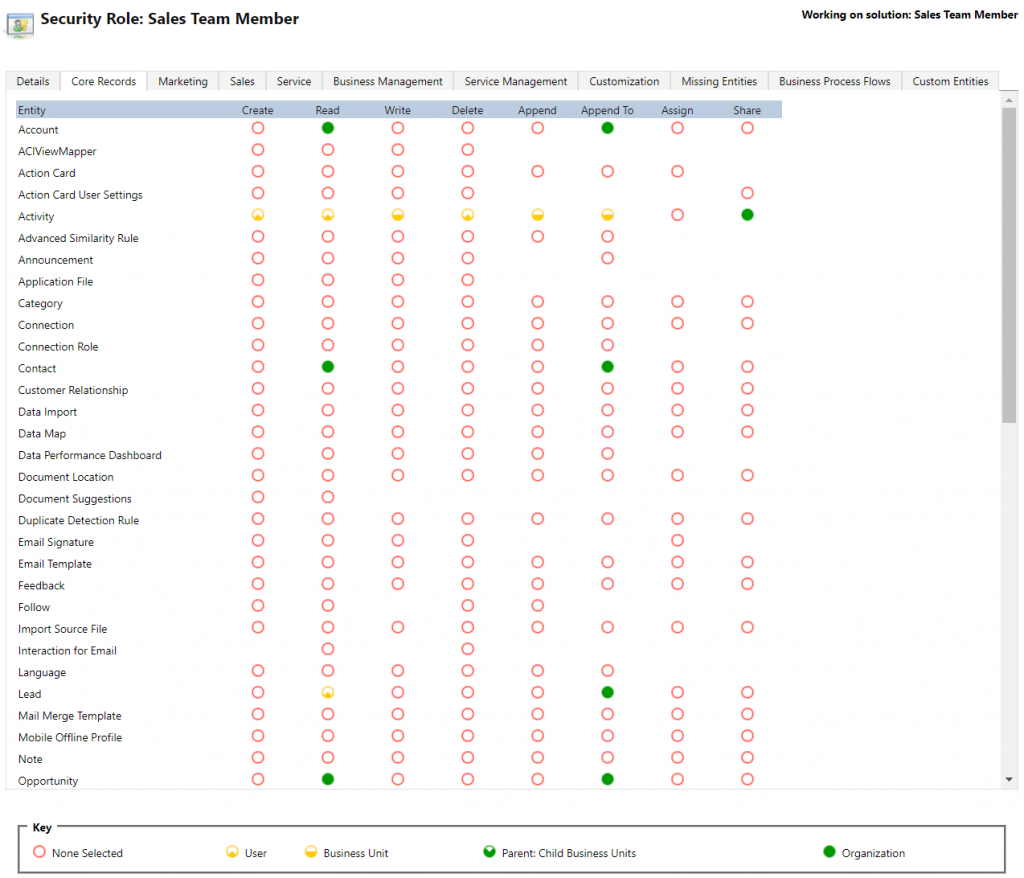
    If we’re using the app with the full access rights granted by a powerful security role like system administrator then there isn’t much that the Sales Team Member app stops us from doing. For example, creating or editing accounts is one of the rights that has been stripped away from the Team Member license, yet the app would happily show us a “New” button for adding accounts via this App Module. The secret lies in the Sales Team Member security role that comes with the solution. A view of the privileges for core entities looks like this:

    Wow, that’s quite restricted indeed! Assigning only this role the users wouldn’t even permit viewing activities from anyone else, nor leads, or adding contacts. Let’s get back to the customization options later, but this is indeed in line with the description of what Microsoft intended the offer with the standard Sales Team Member app.

    Customer Service Team Member app

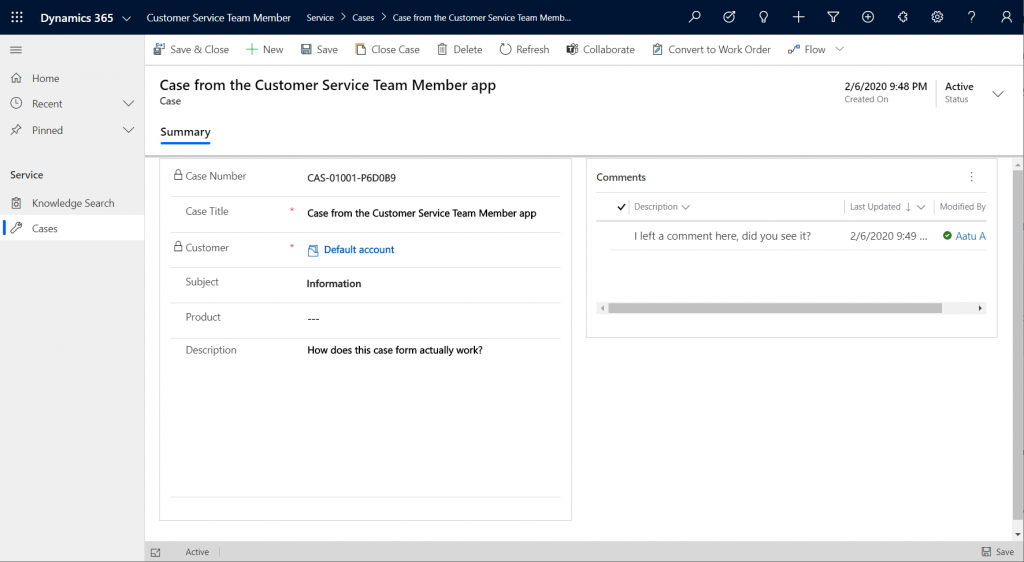
    The second experience is for Customer Service – but not in the way that you’d traditionally see the Customer Service App of Dynamics 365 being leveraged for assisting external customers. This Team Member app is intended for scenarios where the app users is actually the customer being served:

    “With the entry-level Team Member license, you can now address self-service support scenarios for your employees using the new Customer Service Team Member app module. Employees can create cases for their problems, such as laptop issues, HR queries, and administrative needs, and interact with agents through the commenting feature. They can also search the knowledge base for solutions pertaining to their problems.”

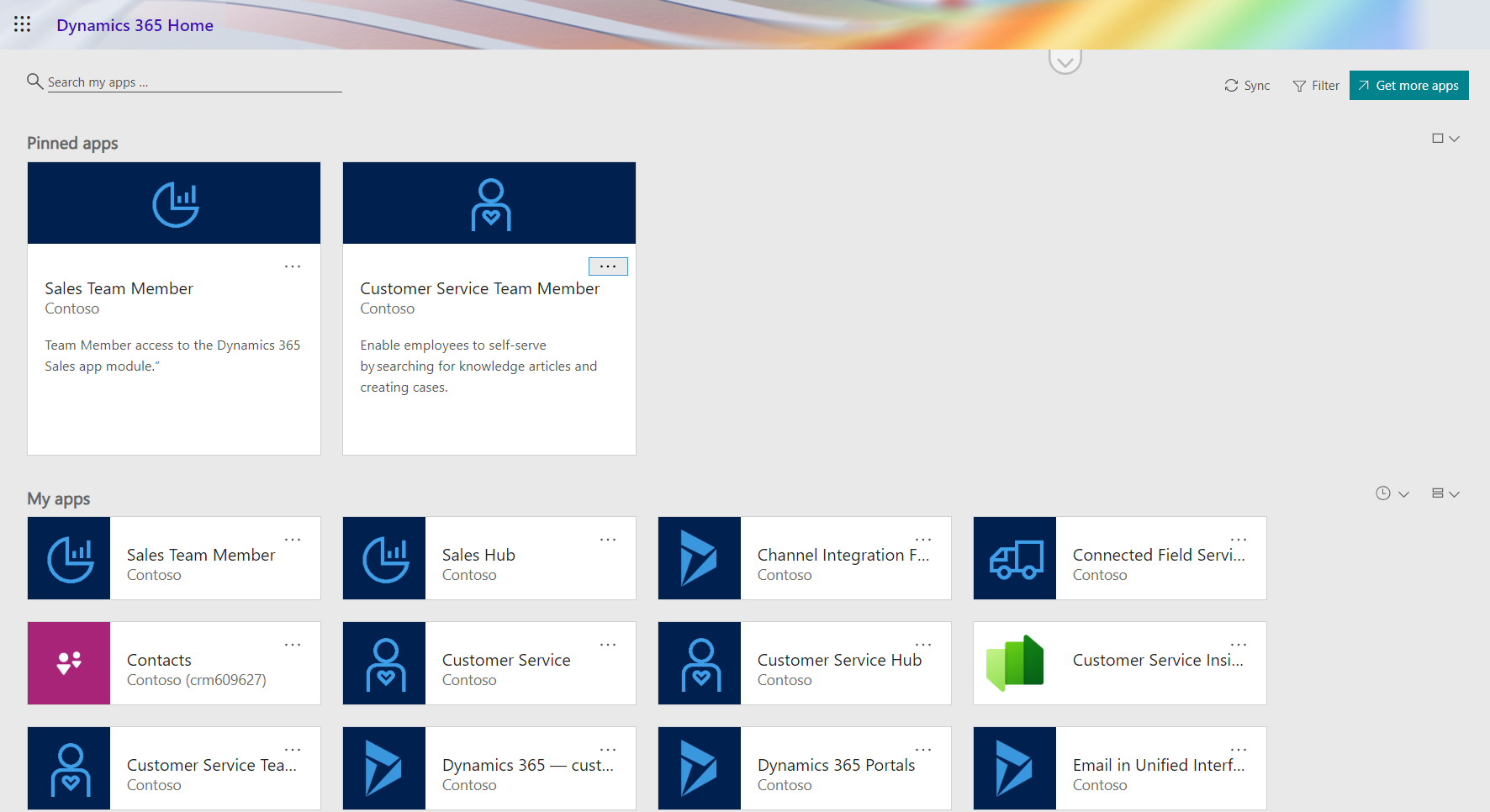
    Unlike the Sales Team Member App, this App Module isn’t installed by default. That’s probably a good thing, since I’d imagine the majority of Dynamics 365 customers are not using it as an internal helpdesk – although it definitely is a perfectly sensible scenario. If that’s what you’re doing, then the CS Team Member solution installation will need to be started from the Dynamics 365 Admin Center.

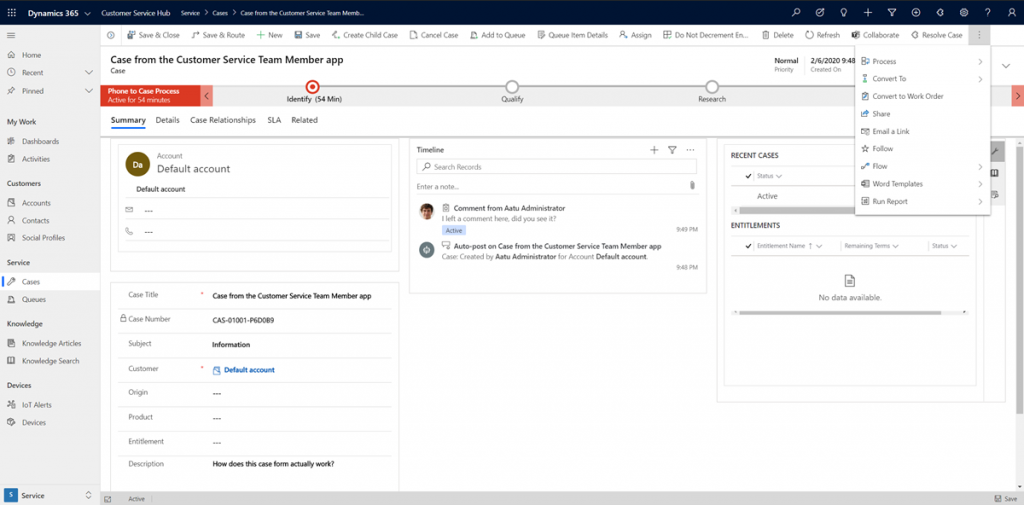
    If we look at the same case record via the full form in the Customer Service Hub App Module, we’ll see quite a stark difference. The solution package for the Team Member app appears to contain a web resource called Incident_teammember_library.js that modifies the behavior of the case form in many ways, such as hiding the Business Process Flow, replacing the standard Resolve Case dialog with a much more streamlined version and who knows what else. The Command Bar also contains far less functionality than it normally would.

    An interesting feature of the Customer Service Team Member app is the use of a default account that you can configure for the organization. The cases created via the Team Member app will automatically be linked to this account as the customer. The requirement for having either an account or contact as the customer has been a part of the MS CRM data model since day one, which has traditionally made the internal helpdesk scenarios quite tricky to implement – if the customers actually are users of Dynamics 365. Without any further documentation, I’m not quite sure what Microsoft’s vision has been for this new feature in the Customer Service Team Member app, since it looks like there isn’t any linkage to the internal customer (user) now in the case data model. If a person who provides helpdesk services would now assign the case to himself to work on, where’s the reference to the actual person who was in need of assistance?

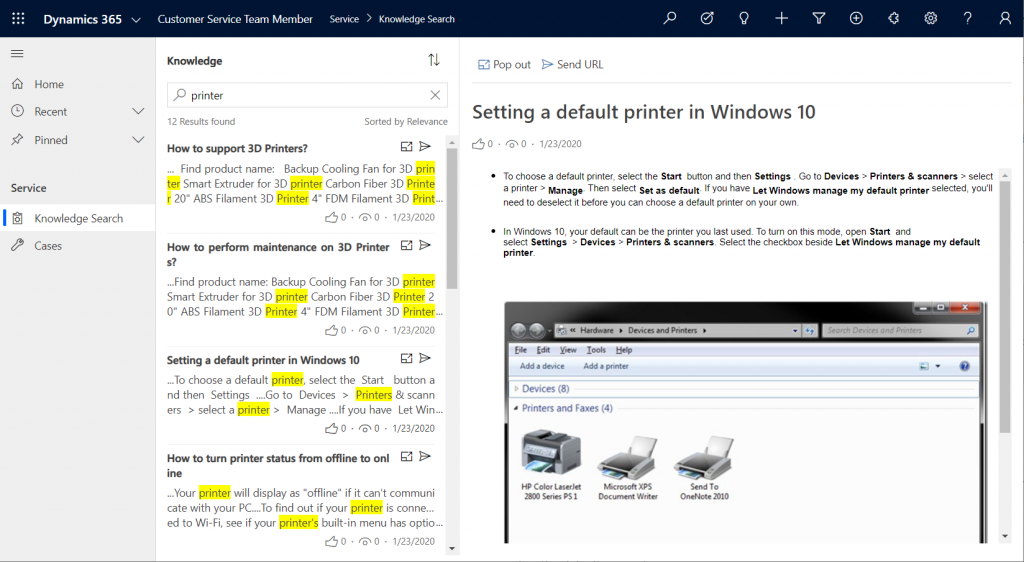
    The other available menu in the Team Member app sitemap, Knowledge Search, isn’t a reference to any entity but rather presents a dedicated UI for browsing published Knowledge Articles. Well, browsing isn’t maybe the right term, since the only option here is free text search for keywords, which will then return a list of articles if matches are found.

    It’s good to keep in mind that certain features of Model-driven Apps in Dynamics 365 aren’t yet App Module aware – meaning they’ll be presented in the UI the same way regardless of which specific app the user has launched. Recent and Pinned items will contain data not included in the App Module, Advanced Find will show all entities that are visible to the user’s security role, the Assistant and (deprecated) Task Flow buttons will always be there in the top Nav Bar. Still, the core experience of App Modules can be restricted down to a limited subset of features, as demonstrated by these Team Member apps. When moving from legacy web client to Unified Interface, these type of targeted experiences definitely are something worth pursuing, rather than the oldskool CRM monoliths that contain a hundred and one items in the navigation.

    Customizing the App Modules

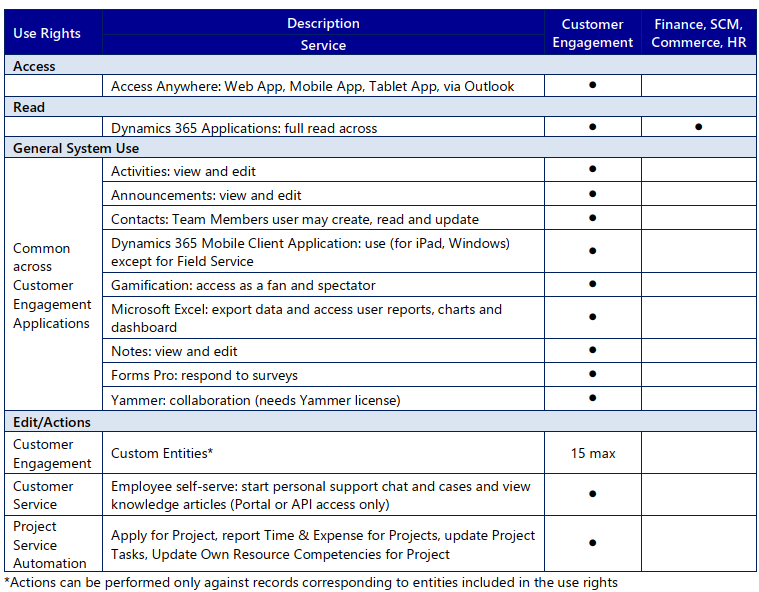
    Now that we know what comes out of the box for Team Member users, many customers will surely be asking what to do with the functionality in their CRM systems that isn’t represented in these standard App Modules. To understand the commercial boundaries better, let’s have a look at what the latest February 2020 licensing guide has to say about the rights of Team Members. We’ll start from Appendix A and the table that describes use rights for Team Members in Customer Engagement apps. (Yes, even though Microsoft product documentation says the term “Customer Engagement” is no longer used for online products, the licensing team hasn’t yet come up with a new term to replace CE in the licensing guide.)

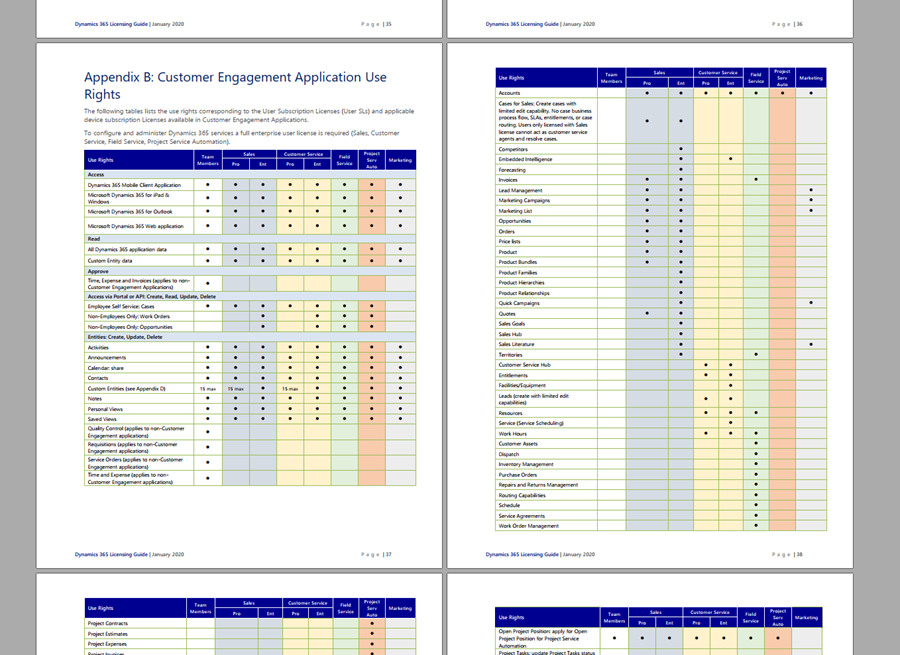
    To start off, Team Members still have the right to read all Dynamics 365 application data. Therefore every single entity you could possibly include within the Sitemap of an App Module could in theory be brought in there. Of course you would have to ensure via the security roles that no creation or modification of those records would be allowed. Also the reporting and dashboards features are explicitly stated as being available for Team Members, on page 11 of the licensing guide.

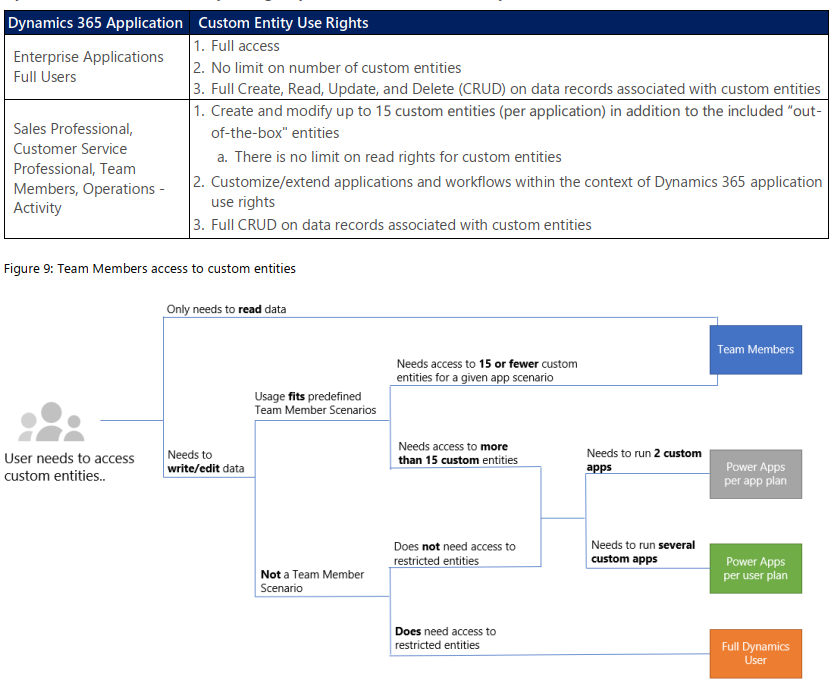
    As for custom entities, we see that there are also edit/actions rights, but we have a “15 max” restriction in the table. What does that mean? The answers are given in Appendix D: Custom Entities.

    We see that for a given app scenario, Team Members can create and modify records for up to 15 custom entities – per app. Where the lines are a bit blurry is the statement that this usage should “fit predefined Team Member scenarios”. As long as these custom entities are related to sales or customer service processes, I guess you’re on the safe side to add them to the standard Team Member App Modules that soon will be the only way for users with Team Member licenses to access Dynamics 365 – once the enforcement for first-party vs. custom apps is enabled in April 2020. Again, keep in mind that read rights are included for any entity, so the 15 custom entity limit couldn’t ever be technically enforced on the App Module level, based on how I interpret the licensing terms.

    What if you really need to do more than what the Team Member license would allow? What if you’re building apps for your unique business processes that aren’t covered by any first party app in the Dynamics 365 suite of products? Then you should explore the possibilities of Power Platform and its licensing model. Power Apps Per User Plan is the platform SKU that Team Member never was intended to be. If you’d map all the current and future workloads that Power Apps could take over in your organization’s business applications portfolio, the value is likely to be much higher than what the customization of these Team Member apps could ever deliver.

    Read more

    Microsoft has published new documentation on Dynamics 365 Team Members license that outlines the user experience for accessing the App Modules, as well as the customization restrictions.

  • Get ready for licensing enforcement in Dynamics 365

    Get ready for licensing enforcement in Dynamics 365

    Understanding what customers can do with specific licensing options available for Microsoft Business Applications has become a key component of the solution design process. There can be many different ways to reach the same business goal when either customizing and extending first party apps that Microsoft has built for Dynamics 365, or leveraging the Power Platform for building your own custom apps. Even within Dynamics 365, when planning which specific features are taken into use for managing a specific business process, it’s important to keep in mind whether it requires some “premium” features available only in more expensive plans like Sales AI. Then there are of course the consumption based components used in Microsoft’s more recent additions to Power Platform licensing model, like API calls and Portals logins.

    Some partners and customers complain that the licensing documents from Microsoft are far too long, but the reality is that at the same time they’re also not extensive enough. It is quite common to run into a scenario when planning the implementation of a specific solution for a customer and then not finding a definite answer on what licenses it requires exactly. This is particularly true nowadays when the licensing model is a merger of the Dynamics 365 style business application products and the new citizen developer focused offering of Power Apps and Power Automate. These different products share more technology underneath the covers than many people realize, yet the way they are sold and positioned is quite different. When there is overlap, that’s when confusion arises.

    What would make it easier to validate the solution design against the licensing model is if there was a way to do test cases with a live system. Unfortunately much of this model still remains an honor system, meaning that many rules only exist on paper but have not been actually technically implemented within the online service run by Microsoft. However, we’ve been hearing about the plans for further technical enforcement of the licensing for some time now. In fact, there are pieces related to this that you can already see with your own eyes when exploring your environments.

    Enforcement mechanism inside CDS

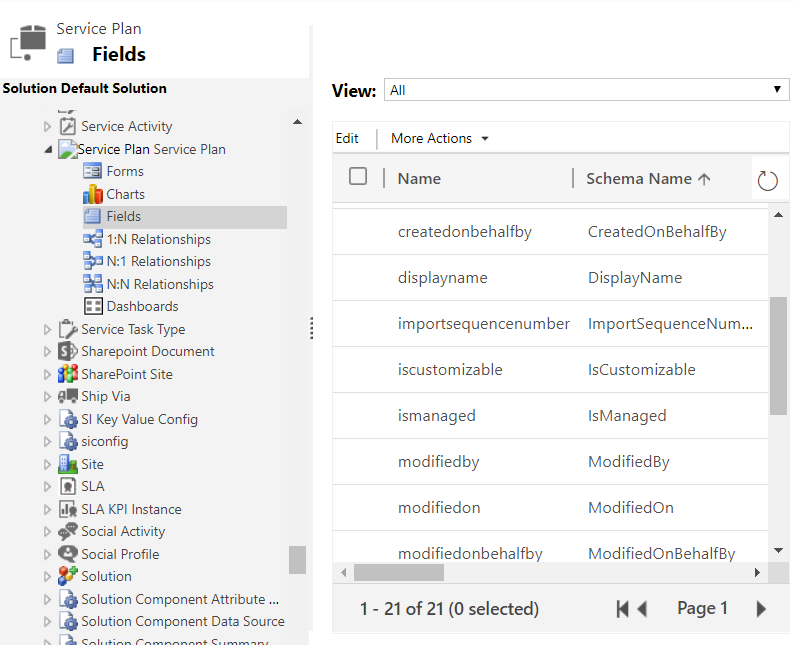
    If you are keeping track of the weekly updates that Microsoft pushes into every Online environment (via tools like Solution History for XrmToolBox), then there’s a chance you’ve noticed a hidden solution called “License Enforcement” deployed in December 2019. This introduced a new “Service Plan” entity into the schema, as can be viewed via the Default Solution:

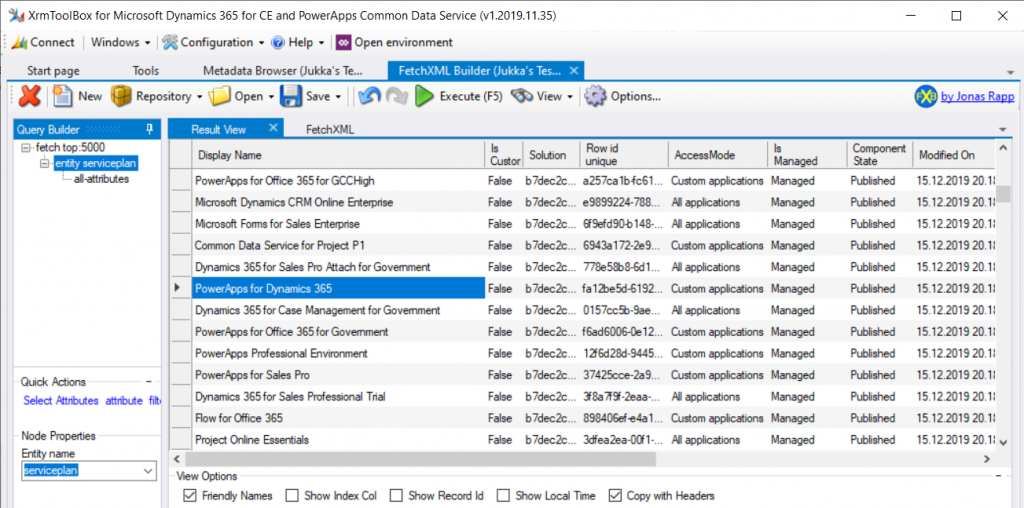
    You won’t be able to do an Advanced Find search to browse through the data for this entity. There is, however, a very convenient way for us to do a query of the Service Plan records, again via XrmToolBox, by leveraging FetchXML Builder:

    Wow, that looks interesting! While installing the solution, Microsoft also deployed a bunch of Service Plan records that presumably cover all the different types of licenses that have at some point in time granted access to a Dynamics 365 Customer Engagement Online environment, or CDS. Let’s copy this data into Excel for further analysis, and let’s make sure we tap the “friendly names” view option before doing so.

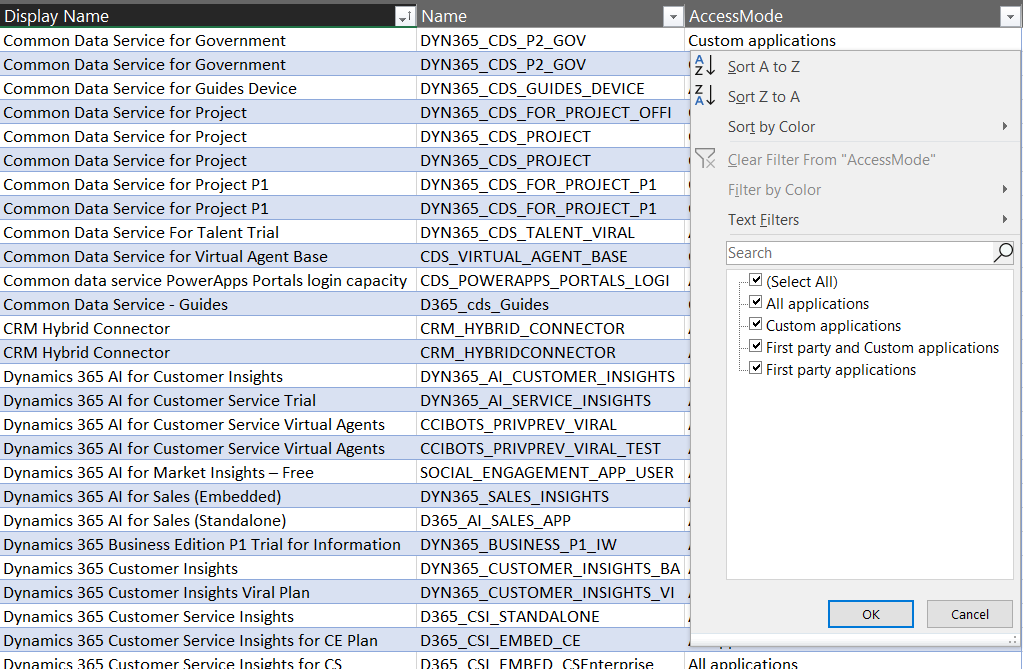
    It looks like there’s important data in the columns “Display Name” & “Name”, but the really interesting column from licensing enforcement perspective is “Access Mode”:

    Looking at the 4 options, it’s a bit difficult to understand what the difference between “all applications” and “first party and custom applications”would be. Even legacy products that are long gone like “Parature Enterprise” have the “all applications” access mode enabled. Without further information on this, let’s focus on the more straightforward options, like “first party applications”:

    Not too many entries for this option. Also it’s not surprising at all that it is the Team Member licenses that show up here. If there is one type of license that Microsoft probably would want to undo in the history of the Dynamics product line, it must be this. Introduced back in the days of Dynamics 365 CRM + ERP story debut, its design neglected the power of the platform in the sense that it granted practically unlimited rights for custom entities for a very low cost. The rights included in Team Member have since then been restricted considerably, to make room for the actual platform SKU that is Power Apps.

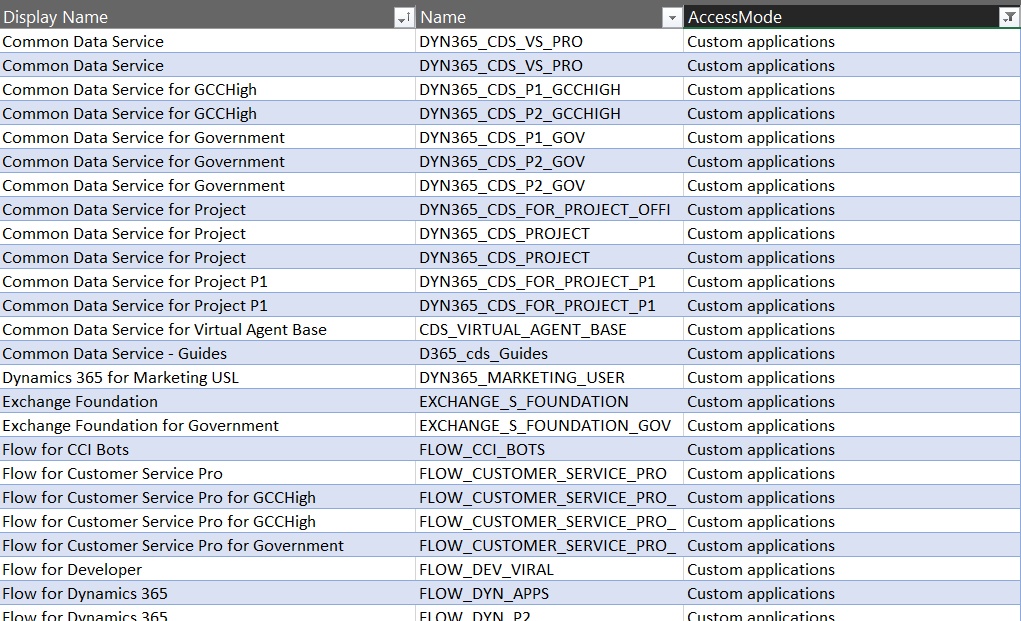
    Speaking of Power Apps, let’s look at the service plans that have the access mode set as “custom applications”.

    A lot longer list, with again some surprising entries like “Exchange Foundation”. The vast majority of this list is however very logical, as it mainly covers PowerApps and Flow (which on the branding side have been changed to “Power Apps” and “Power Automate”, of course, but this is licensing). The twist here is that similar to how Team Member granted too wide access for custom app scenarios, the rights included in Power Apps for accessing Dynamics 365 CE data stored in CDS are also a bit problematic from a commercial perspective for Microsoft. What clearly is off limits is the use of the standard app modules that ship with the Dynamics 365 App licenses.

    App Modules as a licensing construct

    The whole point in bringing data like service plans inside the CDS database is in being able to link that into app modules. If you browse through the metadata of any Online environment you’ll discover an entity with schema name “ServicePlanAppModules”. The relationship between a service plan and the app module is both the way how Microsoft has crafted the licensing terms for different products and also the mechanism through which access rights for different license holders will be restricted in the future.

    Looking at the fresh new Release Plan for Dynamics 365 2020 Release Wave 1, one of the new features is in fact called “License enforcement: users with new Team Member licenses”.

    For Team Member licenses purchased during or after October 2018, license-based access will restrict users to a set of designated app modules. These users will no longer be able to access Customer Service Hub, Sales Hub, or custom app modules.

    In April 2020 and already earlier in preview we’ll finally see the new Sales Team Member and Customer Service Team Member app modules that have been hinted at in earlier communication from Microsoft. Although these will be preconfigured modules, there will be room for customizing them to contain custom entities and (presumably) also hide unwanted entities – just like with traditional app modules. What will be different though, based the Release Notes as well as the Service Plan data model, is the lack of ability to build your own specific app modules from scratch. Any organization that has used Team Member licenses for covering a functionality not included within the first party Dynamics 365 Apps built by Microsoft will therefore have some work to do for redesigning the end user facing experience to accommodate these technical restrictions being put into place.

    “Oh, but we don’t use Unified Interface, so I guess we can skip those app modules in the oldskool web experience, right?” Wrong, you have even more work to do! There will be no support for accessing the legacy web client after October 2020. You better hurry with both planning your transitioning to Unified Interface as well as addressing the gaps that may be left for your Team Members users that will not have access to Sales Hub or any custom app module. Both of these changes have been a long time coming, but as many surely have experienced, it can be challenging to get the necessary planning and development work prioritized within organizations without a hard deadline. Now we have one (well, two dates interlinked), so that part is solved already!

    Restrictions like these enforcement rules are bound to generate some emotional responses. In the long run, having the rules specified in software rather than just paper should serve to bring more clarity into what services are available with which licenses. Any such clarity is most certainly welcome for making it easier to navigate an ever growing product stack like Microsoft Business Applications.’

    Read more

    Check out my blog post New Team Member apps for Dynamics 365 where I explore the 2020 Release Wave 1 early access versions of the new App Modules for Sales Team Member and Customer Service Team Member.

  • Canvas Apps for the Model-driven mind: how to make that leap

    Canvas Apps for the Model-driven mind: how to make that leap

    Business applications come in all shapes and sizes. In the Microsoft ecosystem, we now have a broader set of tools to choose from, compared to the past strategies of Build vs. Buy, i.e. writing code to develop a custom application vs. using an application platform to configure the desired functionality. The birth of Power Platform and especially PowerApps as the underlying platform technology for creating business apps brought together two very different methods of configuration: Canvas Apps and Model-driven Apps.

    It’s safe to say that hardly anyone in the world is currently a master of both application types. If you’ve been introduced into world of business applications via Dynamics CRM, XRM and Dynamics 365 Customer Engagement, then you will by default solve the customers’ problems with a Model-driven approach. For those that have been working with tools like SharePoint, InfoPath and the Office 365 suite of information worker productivity apps, the solution is very likely to be envisioned as a Canvas App. Persons with less professional history from either of these MS clouds will probably gravitate towards the mobile-first experience of Canvas Apps when getting to know the capabilities of PowerApps today.

    There is very real value in being able to identify the logical objects involved in the functionalities required from a business app and turning that into a sensible, scalable data model. This is the XRM mindset of starting from the back end data and processes when designing solutions. If you have been developing these skills in the classic CRM style projects for several years, then you possess superpowers that few Citizen Developers could ever match. Congratulations! However, now you need to start practicing the exact opposite approach for how to solve problems: forget the data and start from the user experience.

    You may already be aware of how massively Microsoft is investing in the new business models that Power Platform unlocks. Hopefully this has lead you to at least experiment with creating Canvas Apps based on existing data sources like CDS (if you still call it Dynamics [something], then hey: that’s perfectly alright!). While exploring these tools, perhaps you’ve also noticed how parts of the old XRM admin and customization features have started appearing in the PowerApps (and Flow) maker experiences. This level of awareness is a great start, but it’s not taking you very far yet in the process of changing how you think about solving business problems. You need to go much deeper, to unlearn the limits our model based world and embrace the possibilities of a modern Enterprise Low-Code Application Platform.

    At 365 Saturday Kyiv and more recently at Power Platform Saturday Oslo I’ve done sessions on this transformation process, aimed at the XRM professionals. These include setting the scene on how & why the different app types are merging together, what are the key differences in solution design process for Canvas vs. Model, and how to get started in being part of this new #PowerAddicts movement. The slide deck includes a “Top 10 tips for starting Canvas App development on top of CDS” section, which should hopefully make the journey a bit easier than it has been for me, back when I started on it around one year ago. See below for the presentation or go directly to SlideShare my Slides archive to enjoy it in full fidelity.

    Now the question is: have YOU already started your journey into the UX driven Canvas App world? If yes, what have been the biggest revelations or obstacles that you have encountered? If not, what are some of the roadblocks that have kept you from making that leap from the familiar Model-driven business applications into the expanding opportunities that PowerApps Canvas apps have to offer? Please do share your experiences in the blog comments, as I’m quite sure this an area where many professionals are searching for guidance and peer support.

  • 2 become 1 UI: PowerApps Roadmap from MBAS

    2 become 1 UI: PowerApps Roadmap from MBAS

    Have you looked at the MBAS Gallery yet? Microsoft Business Applications Summit 2019 was last week and already the majority of sessions have been published online for also non-attendees to enjoy. Even if you attended the conference in Atlanta, there’s a chance that you may have missed a few sessions, with there being 200+ of them in 2+1 days.

    Live recordings of sessions are nice – if you have ~200 hours to sit through them, that is. As is the case with podcasts, I rarely come across a moment in my life where there would be empty space just waiting to be filled with a 1h chunk of audio/video of people talking about something that might or might not be valuable to me. On the other hand, I’m very comfortable with skimming through endless amounts of text & pictures, in search of something that warrants my real attention and further processing. That’s where PowerPoint slides are just awesome. Bullets, tables, charts, diagrams, screenshots, OH YES!

    Last week I started going through the MBAS session catalog and downloading the slide decks for interesting sessions. (I’m not the only one who hoards PPTXs from MS events, check out MVP Jussi Roine’s blog for his tips on learning quick as a consultant.) Now I’ve got a folder with 115 PowerPoint files weighing in at 4.5 Gigabytes. Hmm, looks like some further prioritization is still needed to narrow these down. Well, one thing’s for sure: I know where I want to start diving into the content. The future of business apps awaits in this session:

    Run One UI – the future of canvas, model-driven, and Unified Interface in PowerApps (BRK2073)

    For those with Dynamics 365 Customer Engagement background, the topic of user interface unification might lead your thoughts to Unified Interface. Originally announced 2 years ago, this new client infrastructure aims to do away with the earlier divide between web client, phone, tablet and Outlook. More importantly, it’s a foundation for unbundling the application specific UI controls from the platform and opening up the road for everyone to build the kinds of controls that Sales, Service, Marketing and all the other 1st party apps contain. That story is called PCF and it’s a big deal for sure, but something even bigger is on its way.

    This  “One UI” does not simply look at the Dynamics side of the house, rather it encompasses the whole app story in Power Platform. Ever since XRM merged with PowerApps, we’ve had this somewhat awkward divide between Canvas apps and Model-driven apps. These terms don’t mean much anything to customers when explaining them the platform capabilities. For the Dynamics professionals the concept of a “Model-driven PowerApp” sounds artificial. While on the back end the CDS, admin and developer story is coming together quite nicely, on the front end we see two experiences with not too much in common – today.

    We’ve already heard Charles Lamanna make a statement that Microsoft has no intentions of keeping the app types in PowerApps separate:

    “Artificial limitations in app features will be removed, so that choosing [File – New App] will give you model or canvas experiences and everything will work across both.”

    Power 365 Show: Power Platform Changes and Answering Community Questions with Charles Lamanna

    Sounds cool! But how exactly are they going to pull off this merging of the two client frameworks with a very different history? On the platform side it was fairly simple as XRM probably offered a lot of what CDS v1 was capable of and turning it into CDS v2 was not a big issue due to low adoption rate of the less mature technology of the two. PowerApps Canvas apps on the other hand have a huge momentum going on and the number of apps in production is exploding. Dynamics 365 CE ain’t doing too bad either when it comes to growth figures in the cloud, so messing too much with it sound very risky. After all, we’re still waiting for many existing customers to even move from the classic web client to Unified Interface, so do we really need more confusion in this space?

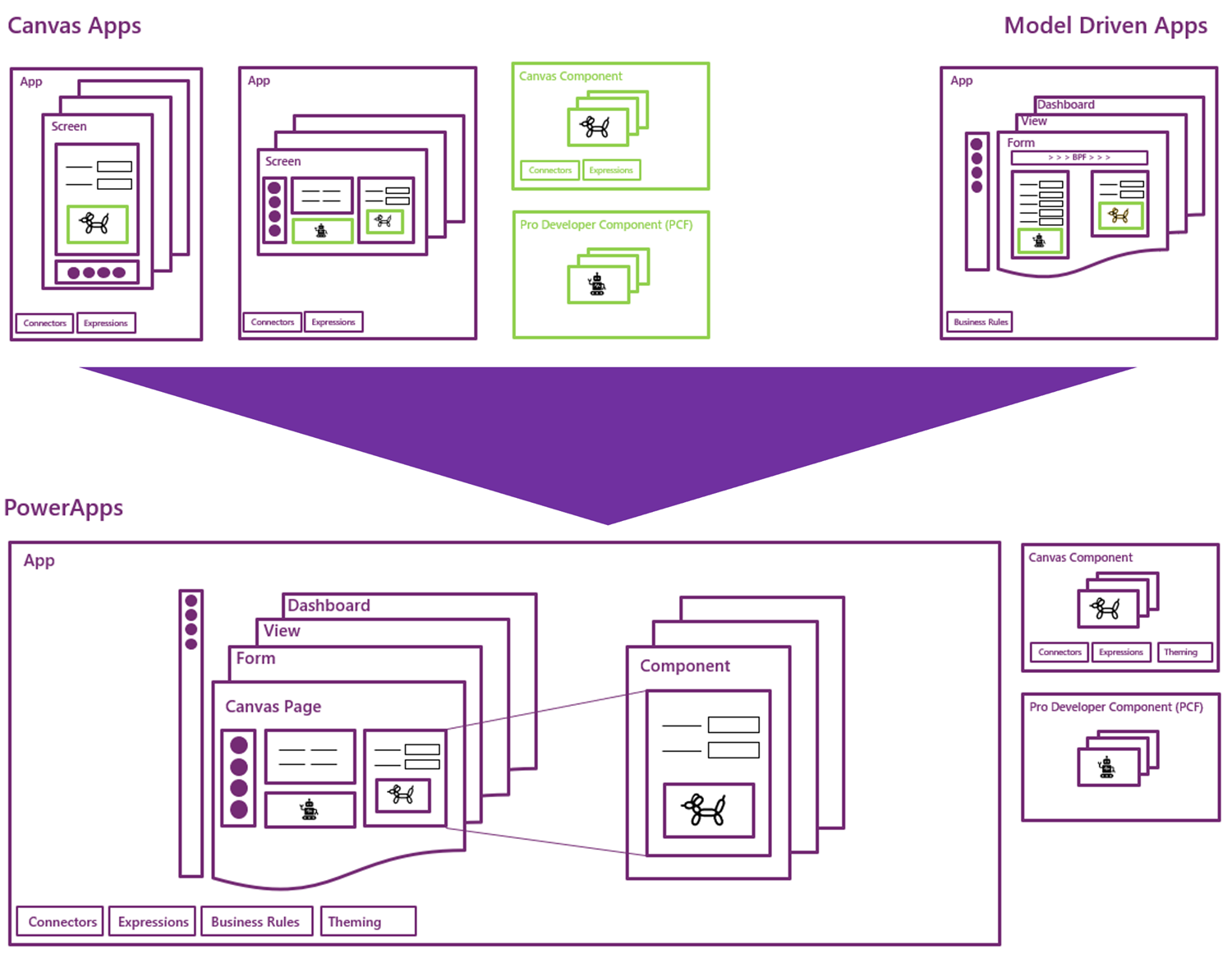
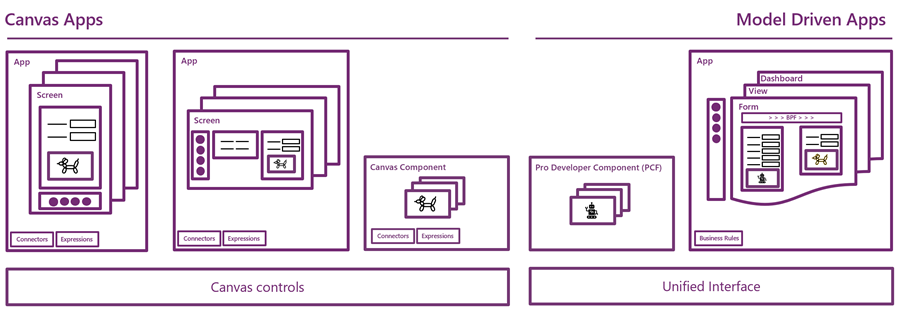
    In the Run One UI session at MBAS we heard Clay Wesener present the master plan of how the two different app types will gradually turn into one PowerApp. Here it is:

    This is really just mashing together the start and end state from Clay’s presentation, so this time you really should reserve an hour of your time and watch the recording, to understand the finer details. And grab the slides for reference, naturally.

    A key part of the plan is that this won’t happen in a big bang. There won’t be an “Even MORE Unified Interface” launched at some grandiose marketing event, rather Microsoft will introduce capabilities from one app type to the other in a gradual fashion. PCF just arrived on Model-driven Apps as a public preview, soon it will start showing up on the Canvas side, too. Canvas Components are bringing the more structured way to define the UI into the previously blank canvas where each pixel used to run free, making it more like the grown up version familiar from enterprise business applications. These new parts are all about blurring the lines between Canvas and Model.

    (more…)