Tag: development

  • Creating a copy of your production CRM database

    If you have an on-premises CRM server and you’re running Dynamics CRM 2011, then you’re eligible to having more than one database in your CRM environment. Back when the multi-tenancy concept was introduced in CRM 4.0, there was a distinction between Workgroup, Professional and Enterprise editions. Only the Enterprise version granted you the right to run several CRM databases on a single server. With CRM 2011 the Professional and Enterprise editions were merged, which means that almost all Dynamics CRM customers can now enjoy the benefits of multi-tenancy. (The Workgroup edition still has a limitation of max 5 users, which in this age of cloud computing means hardly anyone would choose that version and put up a server for it, so let’s ignore that one.)

    Why would you need more than one CRM database? One possible reason could be the XRM approach: for no additional license or hardware costs you could be using your Dynamics CRM environment for also managing other processes than sales, marketing and service that traditionally are the focus area of CRM systems, while keeping it separate from your main customer database (HR, IT service desk, project management etc.). In case you’re happy with focusing on customer relationship management for now, then a typical reason for needing another database is that you want to test some customizations in an environment that won’t mess with your live system settings.

    How would you go about managing multiple databases then? In Dynamics CRM terminology, each database represents a distinct organization in CRM. Adding new organizations into your CRM server can be easily achieved through the CRM Deployment Manager. If all you need is a blank new test organization, then just start the New Organization wizard and click through the process, which will create a new database, configure language and currency settings etc. Click Finish and you’re all set!
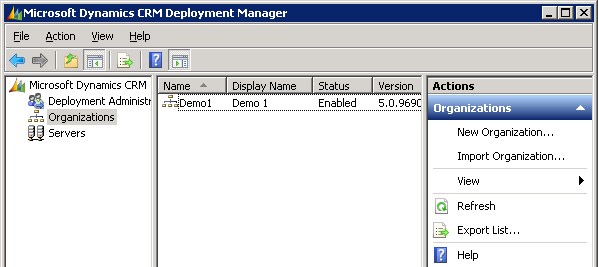
    Oh, you wanted your production system entities, fields and other customizations in there, too? No problem, just go into your production CRM settings area, pick a solution that contains the elements you need and export it. If you don’t have such a solution, then simply create a new one, as it’s not going to affect how your live environment operates in any way. After all, solutions are just pointers to the components like entities, processes or plugins, until you export them, at which time they become physical containers to all those bits that make your CRM environment different from the plain vanilla Dynamics CRM organization. Don’t export your transport solution as managed, unless you have a good reason for it (you’ll know once you do). Just take the unmanaged solution zip file from your current CRM organization, open the new one, import it there and publish all customizations. Now we’re done!

    Huh? What’s that you say about data? Would you prefer to have not just the schema of the database but also the contents of your CRM database in that new test organization of yours? In that case, let’s forget the previous steps and use another approach, shall we? Instead of the New Organization wizard you’ll want to use the Import Organization option. Before you click on it, though, we’re going to need to create a copy of your database, because the CRM Deployment Manager does not have a “Copy Organization” feature.

    Typically the Import Organization functionality is used when taking a database from some other environment, like when establishing a whole separate development box or test server. Also the actual upgrade process for turning a CRM 4.0 database into a CRM 2011 database is handled through the same import wizard. When you’re in the process of planning your Dynamics CRM upgrade, this is a handy way to update the old CRM 4.0 customizations into new CRM 2011 solutions. In these scenarios you’d first take a backup of the original database on your old SQL Server, then copy it over to the new environment, import it into SQL and finally into CRM. However, as we’re simply creating a replica of the database inside the same environment, we don’t need to necessarily go through the backup stage.

    On your SQL Server machine, open up SQL Server Management Studio, right click on the database which has the name ending with “_MSCRM”, then select Tasks – Copy Database. This helpful Copy Database Wizard will step you through the process of creating an exact copy of your CRM organization database. Just give it a different name than the original database and point it to the same server. You don’t even necessarily need to schedule a maintenance break for your production CRM environment, since the wizard can create the copy without the need to detach and attach the original database. This wizard actually builds an SSIS (SQL Server Integration Services) package that takes care of the copy operation.

    Before returning to the CRM Deployment Manager we’ll need to pause for a while and think about how the Dynamics CRM server operates. Just like records in CRM, also the actual organization itself has a unique ID in addition to the name and display name visible in Deployment Manager. Although the Import Organization wizard does attempt to handle this, it doesn’t perform it in the most graceful way. The two known side effects from from having overlapping organization ID’s prior to the import are that: A) the import will fail if you’ve customized the business unit entity and B) email router will not work for the new organizations. There might even be other nasty surprises hiding deep inside the database, so ultimately we’d like to have a situation where the organization ID’s are 100% unique.

    There are no official tools for this operation, but luckily the Microsoft Dynamics community has come up with a solution. In the CRM Forum thread “CRM 2011 Import Organization on the same server (or how do you create a development sandboxes)” you can find a script that you can execute on your new database copy. This script will generate a new ID and update it to all the relevant tables, including the PrincipalObjectAccess table where the OrganizationID goes by the name PrincipalID. If you’re not familiar with working on SQL Server then it may look scary, but the process itself is quite simple. Select your new database (not the old one!), right click, New Query. Copy the script created by Frenkie Smart found in the CRM Forum post and paste it into the query window. Pause for a minute amd check that you have fresh backup copies of anything that’s valuable to you on that SQL Server. Got it? Good, then just click the Execute button to run the script. You’ll see in the message window below the query how many records the script has changed in each table it processes.


    Now we’ve got the new database in such a condition that we can proceed to the Import Organization wizard in the CRM Deployment Manager. Select the new database as the one you want to import, give the organization a unique display name and database name, accept the user mappings, and off you go (see detailed process instructions in this Technet article). The Deployment Manager will build a new organization for you from the copy of the existing database, which you can then access by replacing the organization name in your existing CRM URL (in my case from http://server/demo1 to http://server/demo2). If you want to use friendly URL’s or IFD for accessing CRM then you’ll need to know which DNS entries and settings to modify for the new organization to be available.

    That’s it, for real. Here’s a quick recap of the process steps:

    1. Copy your production database
    2. Take backups!
    3. Run the script on the new database
    4. Import the database as a new CRM Organization with a unique name

    The typical scenario for performing this process would be the need to generate several development organizations that contain identical data and customizations as a starting point. If you just want to maintain your own test organization alongside your production CRM environment then there’s a few things you should take into consideration. First of all, the chance for human error. If you have two identical CRM organizations that are separated only by a few characters in the URL, the chances of mixing them up can be high. Second, you won’t be able to test anything related to Update Rollups and other components that are shared by all the organizations on the server. Third, if you’re unsure about what you’re doing, then don’t do it on your live CRM server!

    With all this in mind, it might be a good idea to investigate the possibility of having a separate test server after all, don’t you think? If you don’t have any suitable hardware lying around, then signing up for a virtual machine straight from the cloud is a valid option these days. With its latest improvements, Windows Azure offers a convenient service for provisioning persistent virtual machines as needed. Building a VHD image with CRM 2011 is not a very difficult process if you follow the instructions (and know the few gotchas about SQL or VM size settings). Also, if you don’t need to keep the server up & running on a continuous basis, you can always delete the Azure virtual machine and still keep a copy of the VHD image, available for booting it back up again when the time comes.

  • Cross-browser support implications for CRM developers and users

    Soon the R8 update of Microsoft Dynamics CRM will be upon us and the application will officially open up to browsers other than Internet Explorer. What this means is CRM will also be accessible through different devices than just Windows PC’s: Macs, Linux machines, iPads and other tablets. Exciting times for all CRM geeks around the world, myself included, which is why I already wrote some of my thoughts on the topic after the Q2 2012 Service Update contents was revealed (see the post “To the eXtreme, part 2: The future of the web caught up with IE and Dynamics CRM”).

    More supported browsers & devices will inevitably mean more work for CRM developers, as testing your application on IE alone will no longer be enough. As we get closer to R8 go-live before the end of Q2, the need for more detailed information on the practical implications is surely growing. Luckily XRM Virtual had managed to get Karun Krishna from Microsoft to give a webinar on the topic of cross-browser development on May 1st. The Live Meeting recording is now available for viewing at the XRM Virtual site. Apparently also Karun’s slides were shared during the live session, but since the recording didn’t contain them, I decided to write down a few notes of mine from the contents of the presentation.

    First up is the detailed browser support matrix seen below, which expands the list previously provided in the R8 release preview guide. Included are new yellow boxes for Internet Explorer 10 on Windows 7 and Windows 8, which indicate a “supported but not full fidelity” user experience for Dynamics CRM. Also the Firefox support on Mac OS X appears to have fallen onto this level where some display/functionality bugs will exist.

    Microsoft Dynamics CRM 2011 cross-browser support matrix

    In his presentation, Karun explained that while the CRM team tried to use HTML5 compliant techniques wherever possible, there were still some areas where an alternative approach had to be used in order to replicate the existing Dynamics CRM functionality across non-IE browsers. Any IE specific APIs have been removed, but as the w3C standards are still evolving, there isn’t necessarily always one single right way to implement a specific functionality in the cross-browser world. Therefore a feature detection approach for checking for browser capability differences is recommended over developing for any specific browser version. The webinar included examples and best practices on API’s and XML processing, so be sure to view the recording for details.

    It was announced already earlier that using browsers other than Internet Explorer for the administration and customization menus of Dynamics CRM would not be supported. Sorry guys, you’ll still need to boot into Windows on your MacBook if you intend to do any customization work. Some additional information was now provided on features that will not be supported on other browsers than IE. These include:

    • Workplace calendar
    • Services (scheduling) and service calendar
    • Editors for workflows and dialogs
    • Lync based presence information

    One thing to note is that the old crmForm object API from CRM 4.0 days will continue to work only for Internet Explorer. Therefore if you have any scripts in place that have not been updated to use the Xrm.Page methods, these won’t work for users on Chrome, Safari or Firefox.

    Finally, while iPad 2 support with iOS 5 is provided, it’s important to note that this is simply the support for usage through Safari browser, not a dedicated application optimized for the tablet environment. For the premium UX you’ll need to acquire/subscribe to an add-on app like the Microsoft Dynamics CRM Mobile for iPad, of which you can view screenshots in this post. The browser experience on an iPad 2 will have the following known limitations/issues:

    • No popus. Since Dynamics CRM by default opens a wealth of windows and dialogs, this doesn’t match well with the “flat” UI’s of tablet apps.
    • Touch events compared to mouse events will cause some lack of functionality (no right click, double click)
    • iFrame scroll bars may be missing.
    • Window closing has issues due to a focus related bug in the .close API
    • No Silverlight. Well, no surprise there…

    Edit 9.5.2012: The long awaited R8 release for Microsoft Dynamics CRM 2011 is now available as a beta version! PartnerSource login is required for the beta program sign-up and download (CustomerSource might also work) at http://bit.ly/crmr8beta. If you want to test your Dynamics CRM solutions in a cross-browser environment (Safari, Chrome, Firefox) before the official release of Update Rollup 9, then this is the program for you. Please note that the beta version of R8 will not support an upgrade to the final version of R8, so you should apply it to a dedicated test environment only.

  • Top Dynamics CRM links in Q1 2012

    In addition to Surviving CRM, I also maintain a blog called Microsoft Dynamics CRM Links. However, it’s not an actual blog but rather my public bookmarking service for collecting interesting tools, solutions, add-ons, services and other sites that are related to Dynamics CRM. If I discover a useful new tool on, say, CodePlex, I simply create a new blog post using the tool’s name as the title, the URL as the body text and add a few tags for link categorization. I keep the list on WordPress.com because it provides a great cloud based app for managing any content, not just blog posts.

    Even though the primary purpose of the site is for me to personally keep track of interesting links that I may need to come back to later on, there are also other people who have discovered the site, most likely through a search engine. One day I was looking at the statistics that WordPress.com collects and thought that this actually provides an interesting view to what the Dynamics CRM online community is currently searching for. In the spirit of open data, I decided to publish a snapshot of the website visit stats to show what’s hot in CRM right now and also promote some of the most useful tools and apps out there, to help more people discover them. So, without further ado, here’s the list of…

    Most popular Microsoft Dynamics CRM links, Q1 2012

    1. Auto Number for Microsoft Dynamics CRM 2011
    2. Hierarchical Treeview for Dynamics CRM 2011
    3. CRM 2011 User Settings Utility
    4. Ribbon Workbench for Dynamics CRM 2011
    5. MS CRM 2011 Twitter Integration by Pragmasys
    6. MS CRM 2011 Pragma Toolkit: Ribbon, Sitemap Editor
    7. CRM 2011 TreeView for Dependent Picklist
    8. Silverlight CRM Attachment Image
    9. KingswaySoft SSIS Integration Toolkit for Microsoft Dynamics CRM
    10. CRM 2011 Visio add-in: Business Unit Org Chart
    11. Ribbon Editor for Microsoft Dynamics CRM 2011
    12. Dynamics CRM Dashboard for Microsoft Lync by Orbit One
    13. Powertrak In-line Editable Grids for Microsoft Dynamics CRM 2011
    14. Metadata Document Generator for Microsoft Dynamics CRM 2011
    15. CRM 2011 Attribute Mapping
    16. CozyRoc SSIS+ with Dynamics CRM Connection Manager
    17. CRM 2011 Attachment Image Browser HTML Web Resource
    18. Skype Connector Tool for Microsoft Dynamics CRM 2011
    19. Bing Maps Browser for Microsoft Dynamics CRM 2011
    20. Dynamics CRM 2011 Script# Xrm.Page library
    21. Web Resources Manager for Microsoft Dynamics CRM 2011

    There we have it, the most in-demand apps or tools for Dynamics CRM! Just don’t take the list ranking too seriously, as this isn’t a very scientific way to analyze the true popularity of the links. Some of them have been published earlier, some during Q1. Some have better keywords for search engine optimization. The page view volumes are quite limited, as the top page received 145 hits during three months. Nevertheless, I think the data still gives a fairly realistic view of the functionality people working with Microsoft Dynamics CRM are typically searching for, such as:

    • Auto-numbering
    • Hierarchical data visualization
    • Ribbon & sitemap editing tools
    • Displaying images on forms
    • VoIP integration (Lync & Skype)
    • Customization documentation generator

    One way to look at it would be that these are all features/areas where Microsoft could improve the out-of-the-box functionality that Dynamics CRM 2011 delivers. Luckily there’s an active ecosystem around the platform that is creating either commercial or free solutions to address these areas. Especially the open source tools on CodePlex or free code samples published on various CRM expert blogs are highly valuable resources that I’m thankful for, which is why I attempt to do my own little part by sharing the best links with others. I encourage you all to do the same.

  • Did you just disable duplicate detection in CRM by accident?

    Duplicate detection rules in Dynamics CRM are an example of a configuration item that may often be active only in production environments. Since you don’t actively enter data into development or test environments, why bother thinking too much about them? Well, the one place where you need to be thinking about them is when you are importing new solutions and publishing changes to customizations.

    Life would be easy if you could just set up and publish your duplicate detection rules once during the initial configuration of your Dynamics CRM production environment, thus stopping the unintentional entry of duplicate records into the customer database. However, you may run into a situation where a rule that you’ve once published has later on returned to an unpublished state. “What? Who touched my duplicate detection settings?”

    The likely answer to the question is “You did, but unintentionally”. You see, the duplicate detection rules are sensitive to changes in your entity customizations. As noted in the Madrona Solutions Group blog article, whenever any entity metadata is changed, all duplicate detection rules associated with that entity are unpublished.

    If you look at this from the system’s perspective, the process does make sense. After all, you might have set up a duplicate detection rule that is comparing records based on a criteria that that references fields you’ve changed or removed as a part of your CRM customization actions. Still, the fact that a publish event on a CRM 2011 solution triggers an unpublish event somewhere else is not very intuitive and most system administrators are likely to be unaware of the impact. As a result, there are certainly several production CRM environments out there where the once carefully planned duplicate detection rules have been deactivated because of this dependency between solutions and duplicate detection. In fact, you might want to check your own Dynamics CRM environment right now and check if you see duplicate detection rules with the status reason “unpublished” which should in fact be published.

    What this means in practice is that anyone who’s deploying solution updates to an environment that is using duplicate detection rules needs to instructed to always re-enable the rules after they’ve updated customizations that reference an entity which is being monitored for duplicates. In my opinion, it would be very practical to have the system notify you about this task, for example by asking “would you like to re-publish the affected duplicate detection rules?” when publishing a solution. If you would like to see this functionality changed in a future version of Dynamics CRM, please sign in to Microsoft Connect with your Windows Live ID and vote for the item “Automatically re-publish duplicate detection rules after deploying a solution”. Thanks for your contribution.


    Edit 2013-05-02: There’s a post on Magnetism blog that shows you how to write a plugin that will automatically publish unpublished duplication detection rules after the “publish all customizations” event, in case you want to automate this procedure in your production environment.

  • More agile direction for Dynamics CRM future product releases

    During Convergence 2011 Atlanta we already heard the first pieces of news about an upcoming change in the release cycle of Microsoft Dynamics CRM product versions. Now we have the updated Statement of Direction May 2011 whitepaper in our hands and it lays out a roadmap for more rapid delivery of new features into both CRM Online as well as on-premises and partner hosted instances.

    What has now been labelled as the agile release model for Microsoft Dynamics CRM will mean that an update/upgrade to the core platform will become available every six months. Contrast that to the previous 2-3 years in between major releases and you can see it’s no minor readjustment but rather a whole new way from the Microsoft Dynamics team to deliver products to the business users.

    Funnily enough, the SoD whitepaper claims that CRM 2011 is the fifth major release of the product. While it goes by the 5.0 version number, I guess some of the folks in Redmond have already forgotten that there never was a CRM 2.0 realease, rather we saw the version number incremented from 1.2 to 3.0. Oh well, time flies when you’re having fun working in the field of CRM, so let’s move on…

    The new release cycle is of course a direct result of the Cloud Power in action. No longer can you spend years in designing and developing features for your new product behind closed doors, even if you are Microsoft. Cloud applications have taught us consumers into living in a world of perpetual beta products that constantly get updated with new functionality, without any effort required from us to physically upgrade the apps. If Google can do it for Gmail, then why would the enterprise users settle for working with a standarized XP/2003 toolset for almost a decade? In the scheme of CRM, if you’re competing against Salesforce.com that has a monthly release cycle (or so I’ve heard), delivering a huge box of new features once every three years (which is what 2011 does offer over 4.0) means you’d have to actually keep three years ahead in terms of development, just to avoid slipping behind your competitor again. Doesn’t quite sound like a winning strategy.

    Microsoft Dynamics CRM Statement of Direction May 2011

    During the CTP and Beta phases of the Dynamics CRM 2011 release process there were many times when I found either myself or someone else on the forums & blogosphere expressing their thoughts along these lines: “these new features are really awesome, but I just wish the small details of X and Y could be included before RTM, so I can really truly make the most of the product”. In the world of the old release cycle, hearing MSFT representatives reply back with the words “thanks, we’ll try to include it in v.Next” didn’t give much comfort. If the next version was three years away, it’s effectively the same as “forget about it”, if you contrast it with how fast the world of applications keeps turning these days. Facebook grew from 10 million to 310 million active users during a timeframe like that.

    Smaller packages of new features twice a year should definitely help Microsoft fill the gaps in product functionality that inevitably appear whenever a big release deadline approaches and planned features have to be dropped to meet the real life requirement of shipping a release. At the moment, Dynamics CRM 2011 is lacking some functionality on three distinct areas that the Statement of Direction says will be addressed in upcoming versions to be released within one year:

    • Cross-browser support. Transforming Dynamics CRM from an Internet Explorer only application to a true cross browser app through a new HTML5 UI, thus finally making the platform an option for Mac users as well.
    • Mobile devices support. The Mobile Express client in 2011 is identical to what we had in 4.0, but with more and more iPads and Android/iOS/WP7 smartphones found in the workplace, the out-of-the-box mobile experience should be much better, with possible 3rd party apps taking it on an even higher level (offline data access etc.).
    • Social CRM. There are two dimensions in which a CRM application needs to be “social enabled” these days: 1) internal collaboration on customer information and activity feeds á la Yammer and Chatter, and 2) capturing and enabling a dialog with the customers in social media channels like Twitter, Facebook, LinkedIn.

    Dynamics Marketplace will also presumably play a role in addressing some of the needs that don’t quite fit into the core product delivered by Microsoft. The accelerators that we saw released for CRM 4.0 were nice proofs of concept, but they weren’t proper add-on products that could have been deployed by the end user organizations without customization and development services provided by MS partners. The solution management framework included in CRM 2011 will make the distribution of apps much easier and I would expect to see development also on the Marketplace functionality as a channel for app delivery (eventually commerce). When the base platform of Dynamics CRM is built on one single product edition (meaning no separate standard/enterprise or sales/service versions), modularity is enabled throug the solution packages. While the verticals will likely remain a partner driven domain, I’m expecting to see some interesting releases coming from Microsoft Dynamics Labs as well.

    (more…)

  • The price of customization

    Although this excellent article by Vjekoslav Babic is written from the ERP and MS Dynamics NAV perspective, the same list holds true for the CRM side as well:

    Top 7 reasons why to avoid (much) customization

    • Regressions can be tricky to hunt down and fix
    • Go-live schedule can be delayed if the customizations are not properly though out in advance
    • Official support does not cover custom code, how do you then identify if problems in your system are covered or not?
    • Upgrade to the next version will become more difficult and expensive
    • Know-how only exists within your organization, so proper documentation becomes a critical factor for risk management
    • Vendor lock-in is almost inevitable, which in practice means rewriting the code if the co-operation with your vendor is no longer working
    • Help for the users needs to be developed and maintained in-house, since user guides and courseware can’t possibly cover your custom processes

    The relative ease of developing custom solutions on top of applications like Microsoft Dynamics CRM can easily lead you to dangerous path. Just because you can quickly implement it, does not mean that it will be cheap in the long run. Unless you are able to identify these hidden costs of customization in advance, you may find yourself singing up for something that will ultimately cost you more than the potential benefit to be derived from the custom solution.

    So, just because you can, does not mean you should.