Tag: customization

  • CRM 2016 Solution Segmentation for The Rest of Us

    CRM 2016 Solution Segmentation for The Rest of Us

    There’s been a significant enhancement to the Dynamics CRM solution framework in the 2016 release. Here’s what the TechNet article on CRM solution segmentation promises us:

    To gain tighter control over what you distribute in solutions and solution patches, use solution segmentation. With Microsoft Dynamics CRM solution segmentation, you can export solutions with selected entity assets, such as entity fields, forms, and views, rather than entire entities with all the assets. To create the segmented solutions and patches, you can use the CRM user interface, without writing code.

    Sounds pretty cool, doesn’t it? I’m sure there’s hardly a CRM customizer out there who wouldn’t have encountered the challenges with the lack of granularity when it comes to how Dynamics CRM defines some of the solution components to be inseparable from their parent entity. For example, if you just wanted to add a custom chart or modify a system view you always had to include the whole entity into your solution to distribute it from your development environment to other CRM orgs. With this type of “all or nothing” approach, it’s very easy to end up overwriting customizations in the target organization for components that you had no intention of modifying. The worst part really is that you can never be sure if you’ve done some damage after clicking on “publish solution”.

    The TechNet article immediately starts talking about concepts like patching and cloning solutions, so it’s important to note here that these really are mostly relevant only to people who ship managed solutions. If you’re an ISV developing an add-on product or work in a large enterprise developer team with automated release processes, this will surely be what you do all day everyday. If, on the other hand, your work is more focused on customizing and configuring Dynamics CRM environments in projects that don’t contain a large amount of custom code and only target a single customer specific production instance, I bet you’re dealing a lot with unmanaged solutions. I know I am, since the price you pay for deploying unmanaged solutions is most often a lot lower than what you’d face when committing to the path of the managed solutions (and crossing that scary point of no return while at it).

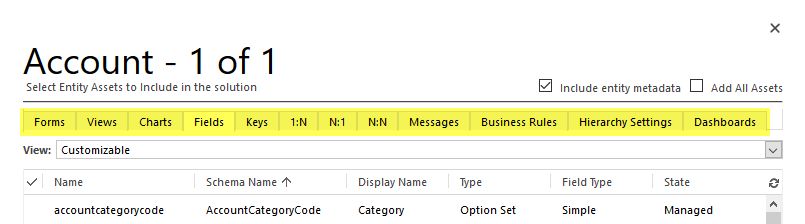
    What makes the new solution segmentation concept important to understand for any CRM customizer is that each and every one of you will come across it when adding default entities into your solution in CRM 2016 and beyond. After you select an entity like the opportunity, for instance, you’ll be presented with a brand new screen asking you to “select entity assets to include in the solution”:

    CRM_2016_solution_segmentation_01

    This is where you now can pick just the components that you wish to ship with your solution once you export it out from the development environment. You could choose just a specific set of fields, for example, or go to the views tab and click the top left corner of the grid to mark all the assets of type “view” to be included in the solution. Want to see how it can be used in practice? Okay, let’s go ahead and pick from the opportunity entity just the Sales Pipeline chart into our solution, so we can modify it.

    Let’s say we want to change the pipeline chart to use weighted revenue instead of estimated revenue values. So, where do we get those fields? You create them! CRM doesn’t ship with a weighted revenue field OoB but instead it contains the tools for building it, thanks to the great calculated fields feature introduced in CRM 2015. We’ll therefore need to create a new currency field and set its formula as “estimated revenue * (probability / 100)”. Even though we’re referencing other fields in the formula, there’s no requirement to include them in our solution, as these system fields will be in place in the target environment regardless of our actions. What we might want to pay attention to is something that the solution segmentation engine doesn’t worry about, which is including the system generated “Weighted Revenue (Base)” field into the solution, as that’s where the base currency version of our calculation will be automatically stored. Better safe than sorry! Furthermore, the new solution segmentation model means we can remove any individual component from the solution if we later deem it unnecessary (as shown below).

    CRM_2016_solution_segmentation_02

    Now that we’ve got our Weighted Revenue field, we can update the Sales Pipeline chart to use this new value. To test the segmented solutions functionality in more depth, let’s also pick another system component into our package: the Sales Activity Social Dashboard. We’ll update the elements of this dashboard and see how they transfer into the target organization. Once we’re ready, let’s export the solution as an unmanaged package like we’ve always done. We’ll get the warnings on missing dependencies (again, like we always do), but since the whole exercise is about updating just selected pieces of the CRM puzzle, we don’t need to worry about any of those.

    Upon importing the solution .zip file into the target org, there are no differences to how things worked with non-segmented solutions. If we want to peek inside solution details before hitting publish, we’re only presented with the high level components, which means there’s no way to tell at this point if the package contains the entire opportunity entity or just a couple of fields from it. If I was importing an ISV solution received from an external source, I would actually like to know what’s included on a very detailed level, but for now we’ll just need to keep on trusting the publisher.

    CRM_2016_solution_segmentation_03

    Let’s see what happens to our updated dashboard now. As a starting point I have a CRM Online demo environment from my previous post regarding “preferred vendor solutions” offered by Microsoft. As you can see, one of these solutions (probably FieldOne) has turned the flat CRM 2016 funnel chart into a retro 2011 style 3D version. Yeah, that’s precisely why solution segmentation makes a big difference, as you no longer need to overwrite things just to add new things.

    CRM_2016_solution_segmentation_04

    Once we import our new solution and publish the changes, we’ll see that the funnel chart has now been restored to the flat version that we exported from another CRM 2016 org. More importantly, the stages are now different as we’re mapping the opportunities into the pipeline based on our custom field Weighted Revenue instead of Estimated Revenue. The Top Opportunities chart has also been replaced by another custom chart I included into the solution. Looks like our segmentation is working great so far!

    CRM_2016_solution_segmentation_05

    Picking the entity assets one by one is perfectly fine for a scenario where you are deploying a very specific change like the one presented here. However, when you aren’t just performing minor tweaks to an existing CRM environment but rather deploying a brand new CRM system for a customer, you’re likely going to be touching a very large number of components. For instance, this week I’ve been working on a deployment project where the current sprint focuses on sales process management functionality. The number of tweaks I’ve done during two straight days of CRM customization is pretty massive, when you start from an out-of-the-box Dynamics CRM environment and turn it into something that actually works the way the users expect. If I would have had to plan in advance which components I need to be touching, or alternatively adding them into the solution one by one as I realize they need to be customized, I would have probably spent ~20 days instead of 2 while waiting for the CRM Online customization dialog windows to open.

    What I’m saying is that while having the full granularity of solution components available to you is awesome, there are common scenarios where you actually may want to keep on working the way you’re used to – adding the whole big entity chunk into your solution. Let’s say I’m building a “base customizations” solution package in a development environment which should contain all the core data model and UI customizations for a new CRM org. I know I’ll be messing with the opportunity entity big time, so I want to ensure every change to the OoB configuration is covered. Instead of picking the individual assets, I can tick the box in the top right corner to “add all assets” into the solution at once.

    CRM_2016_solution_segmentation_07

    Nice, now I’ve got the best of both worlds! My base customizations package looks like things were before CRM 2016 so I’m comfortable with building the customer specific solution with it. So, with that I’ll conclude my feature overview of a CRM 2016 highlight…

    “Wait, hold on just a moment there! Are you telling me there’s not a single “gotcha” discussed in this blog post? This is Surviving CRM! You never do a happy path walkthrough of CRM features without finding some issues in them.” Okay, you got me. I wasn’t really going to stop there. Let’s keep exploring this segmentation path a little deeper, shall we? (more…)

  • Gentlemen Prefer Solutions: The Expanding Dynamics CRM Footprint

    Gentlemen Prefer Solutions: The Expanding Dynamics CRM Footprint

    If you haven’t worked with CRM Online using Office 365 Global Admin rights recently, you might have missed the new delivery mechanism that Microsoft has created for additional CRM functionality not included in a new Online org by default: preferred solutions. Unlike the traditional solution import mechanism under the CRM application’s Settings area, these preferred solutions are both installed as well as updated (upgraded) via a miniature “CRM app store” controlled by and reserved for Microsoft exclusively. To access these preferred solutions you need to go to the O365 Admin Portal, open the CRM Online Administration Center, choose an instance and click the edit icon next to “Solutions”. You’ll be presented with a list like this one:

    Preferred_solutions_manage

    OK, maybe not exactly like this one, unless you work in the United States. You see, these preferred solutions are also targeted to preferred customers, meaning in practice CRM Online customers who use a tenant located in North America. Let me point this preferred region out to you from the Office 365 and CRM Online datacenter map:

    O365_datacenter_map

    The current availability of the preferred solutions is as follows:

    • Insights for Microsoft Dynamics CRM Online: powered by InsideView, this service is free for CRM Online US customers only. Presumably due to the fact that their database wouldn’t have very good coverage of companies in other parts of the world. You could of course buy the service from InsideView directly if you really must have it.
    • FantasySalesTeam: acquired by MS in August 2015, this gamification solution is built on the concept of fantasy sports that’s apparently a huge industry in the US but less familiar in most other regions. Sales people all around the world surely are a competitive species but no one turns the competition into entertainment quite like the Americans do. Expanded availability of the preview is coming any day now.
    • Voice of the Customer: built in the UK and acquired by MS in March, the solution formerly known as Mojo Surveys has been launched in preview mode for US customers only. Ouch. Well, don’t worry, this feedback management solution will surely come to other geos quite quickly (or MS will need to deal with some customer feedback of their own…)
    • Office 365 Groups: not acquired from anywhere but rather an original Redmond design, this solution became available already back in CRM 2015 Update 1 (v7.1) time frame as a preview globally (yay!)and is now available in full production support mode to all CRM Online customers.
    • FieldOne Sky: only the sky’s the limit for this solution that’s available to CRM Online users with Professional licenses, no matter where your field service personnel may roam. Acquired in July 2015, FieldOne is running mostly on Microsoft’s XRM platform, but the mobile client still relies on Resco and allows only access to a subset of CRM default entities, so for broader mobile use you’ll still need to buy a separate Resco license.

    Although not a CRM solution in technical terms, it’s also worth mentioning that the CRM App for Outlook which was released as US only preview last summer is now available to all CRM Online users who are on CRM 2016 version. I haven’t seen any upgrade time slots being scheduled for existing CRM Online customers yet, so currently mostly newly provisioned orgs can access the Settings – CRM App for Outlook menu to enable users for this lightweight successor to the “heavyweight” Outlook client of the past. (more…)

  • The Irresistible Force of Great User Experience in CRM Applications

    The Irresistible Force of Great User Experience in CRM Applications

    Those who have worked with Dynamics CRM for a longer period of time will remember how the user experience delivered by the platform has evolved over time: from an Office style, data entry focused, Internet Explorer popup window application into the clean and modern Dynamics CRM 2015 application that works on any device and aims to present the maximum amount of relevant information to the user with the minimum amount of clicks. There was a time when CRM didn’t exactly seem like something that was designed with the needs of the end user in mind, but this direction changed quite drastically from the CRM Online December 2012 Service Update onwards, as Microsoft started to redesign the experiences they wanted to deliver for the users of their business applications in the new era where mobile, social and cloud were quickly becoming the most dominating forces in the world of enterprise software. Not forgetting the consumerization of IT, which had shown people that not every app used in a work context needed to look like a 90’s ERP system.

    I have covered this transition in quite a bit of detail in my four part article series titled “Dynamics CRM Platform Evolution”, which I’d recommend you to read through for understanding the practical impact of moving from the “first era” of MS CRM v1-v5 onto the current era of largely CRM Online focused rapid product iterations. One of the points I raised in the article was that not all the CRM software providers in the market had chosen to follow a similar path of introducing a big bang revolution to their application. Unlike Microsoft, Salesforce.com had instead opted for an evolutionary path that had seen their application UI remain almost unchanged for the main components and layout, as depicted in the image below.

    CRM_Platform_Evolution_2_small

    While being wildly successful in becoming the “next CRM application” after the 90’s generation of Siebel style, on-premises enterprise CRM suites had began to slide out of the limelight, Salesforce also began to receive a growing amount of criticism over the legacy that its user interface had accumulated over its history. The question of “Why doesn’t Salesforce upgrade the UI/UX of its core CRM web app?” did seem more and more valid, especially when competing products like Dynamics CRM were transforming the user experience that one could expect from a customer relationship management application. Well, finally in late August 2015, Salesforce announced that their next era of CRM UX would arrive in the form of the new Salesforce Lightning UI.

    Welcome to the Future of CRM, Salesforce!

    First of all, congratulations to the product team behind the Lightning UI on the launch! Pulling off a major redesign like this is bound to be a massive task and I’m sure in many ways the work has only begun now, but it’s still definitely an achievement worth celebrating. As many of you may have noticed, in my day job I work exclusively with Microsoft Dynamics CRM, so whatever I write here about a competing CRM solution is not going to be 100% objective. For that I apologize, but the point of my post isn’t to bash Salesforce but rather to analyze some of the trends in CRM software in general and also reflect back a bit on what has taken place in the world of Dynamics CRM during the past few years.

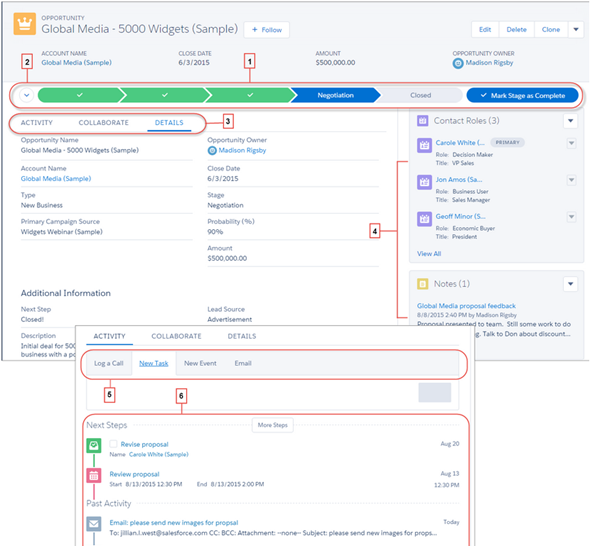
    But first, I need to just get something out of the way. Damn how these two apps look alike! Here’s the brand new opportunity form on Salesforce Lightning UI, a.k.a. Opportunity Workspace:

    Salesforce_Lightning_Opportunity_small

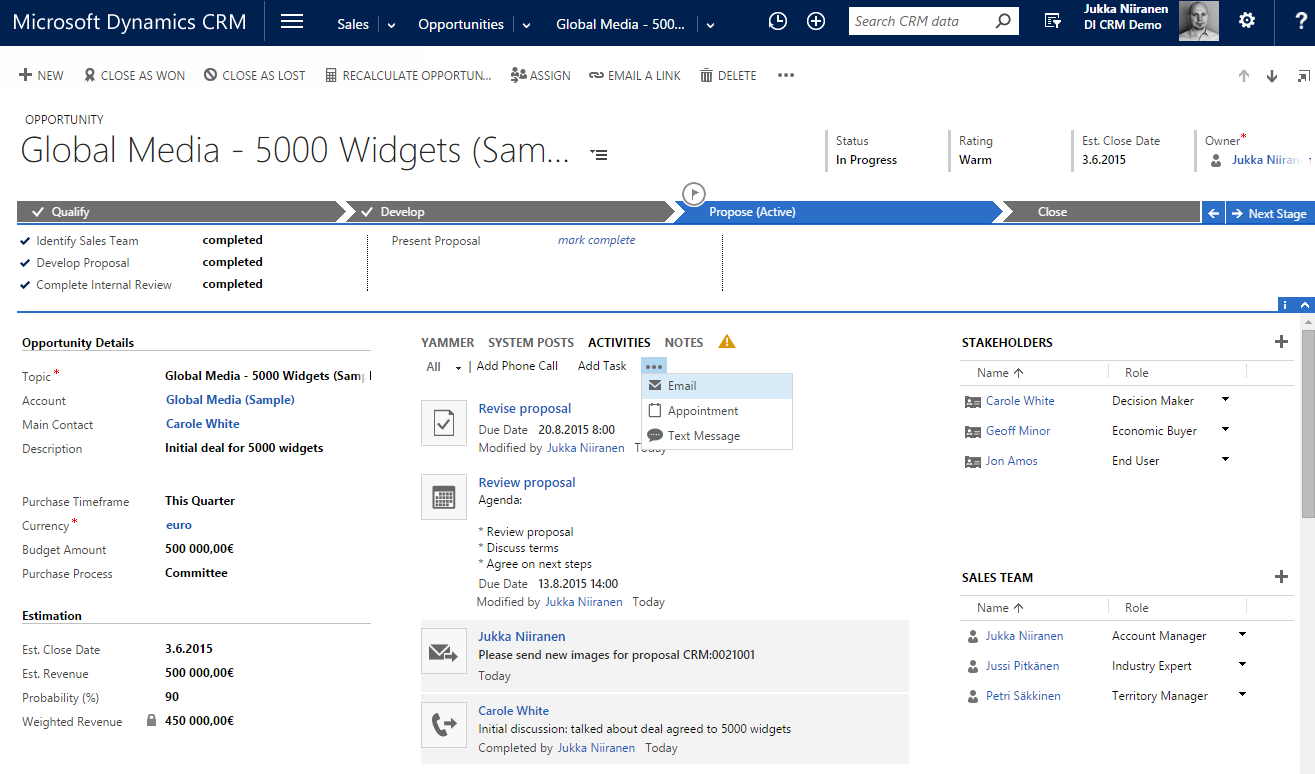
    …And here’s how the opportunity form on Dynamics CRM has looked like pretty much since the 2013 version:

    Dynamics_CRM_2015_Opportunity_small

    Notice any resemblance? Let me help you out a bit by listing the first five things that come to my mind from the Salesforce screenshot:

    • Sales Path for visualizing the sales process stages and related fields, known as Business Process Flow in Dynamics CRM
    • Tabs for switching between related activities and social posts, known as the Social Pane in Dynamics CRM
    • Composer for adding new tasks, phone calls and events to the opportunity, which simply is an inline activity quick create form in Dynamics CRM
    • Related information on Contact Roles, essentially the Stakeholders editable grid in Dynamics CRM
    • Persistent four header fields at the top of the form, ditto for Dynamics CRM

    Yeah, of course these both are applications for managing your typical sales opportunity information with activities and contacts, so its understandable that the concepts used in the default screens would be unlikely to radically differ from one another. Still, contrasting Lighting UI with the traditional Salesforce UI and looking at how close to the now familiar Dynamics CRM form layout, UI controls and especially the Business Process Flow feature the Salesforce product team has ended up with their design is, well… Quite remarkable in my opinion. Not a bad choice by any means, and also serves in validating the direction that Microsoft’s team took when overhauling their application’s UI a couple of years ago.

    Aside from the similarity to Dynamics CRM, there are plenty of nice looking designs and features included in the Salesforce Winter ’16 release notes. Some of them are about filling the functional gaps to Dynamics CRM (list view charts known from CRM 2011 make an appearance here), others are borrowing concepts from the more recent CRM apps out there (Kanban style opportunity board used in Pipedrive, Pipeliner et al., as well as SalesFlow for Dynamics CRM), but many of the release items seem to be focused on fine tuning the application usability and removing unnecessary friction from common tasks that sales people need to perform on a daily basis. Rather than just slapping on a new field layout and updating the icons, it does seem like the user experience of Salesforce will change quite dramatically with Lightning. Of course the true UX can only be evaluated once a live version of the application is available for testing how it truly feels like to use the app, but at this point it looks like a major step forward.

    The Price of Revolution

    Introducing a new application user experience to new users who don’t have prior experience of the product will always be far easier than forcing it upon the existing user base. While few people would say that they don’t want a nice & easy UI, the reality is that resistance to change is always a factor when dealing with human beings. When it comes to business software especially, disruptive changes are at the very bottom of the want list for the majority of people who are responsible for ensuring that information systems deployed for managing the core business processes of their organization keep on churning out the expected results. What’s going to happen when a CRM system jumps from evolutionary releases to revolutionary changes instead?

    The one important thing to keep in mind is that changes like this never take place overnight. Migrating over all the functionality that vast application platforms like Salesforce of Dynamics CRM have accumulated over time isn’t something you can get away with a single big bang release. With Microsoft there was a preview version of the new UX introduced with the Online only Polaris release, launched almost one year ahead of the actual major release of CRM 2013 (v6.0). Initially only five core entities were updated to the new “refreshed” forms, and even today the latest v7.1 still contains lots and lots of entities and menus that follow the old Ribbon based user experience. So, three years later the work isn’t even done for the Dynamics CRM product team in renewing the platform, which means that the end users and system customizers need to cope with a somewhat mixed application environment. The platform legacy becomes most apparent with the new mobile client applications that don’t support the old product architecture, resulting in features like marketing lists or connections not being available on the modern client versions. Sure, life is much, much better with the new UX, but it has also introduced some new complexities into the product.

    In the case of Salesforce, the story sounds to be somewhat similar, as not every area of their platform will be Lightning enabled right from the start. The Service Cloud will not yet be updated, nor will features like forecasting, orders or person accounts. In moments like these it’s always interesting to see how companies prioritize their development efforts, as they are likely to indicate either the observed level of usage for certain features of their products, or alternatively possible future plans to scrap something old and rebuild it from the ground up. If you’re working as a consultant that advises customers on what features they should take into use or invest in developing for their CRM systems, the messages conveyed by the application vendors via the frequency of updates to certain functional areas of their products are signals you’ll most certainly take into consideration when deciding on what strategy to recommend to your client base.

    With 150k customers and millions of users, it’s going to take a while before Salesforce will have safely moved each and every one into the Lightning world. In fact, based on the statement by Sara Varni, senior VP of marketing for SFDC Sales Cloud,  this milestone may never even be reached, since Salesforce will support the classic experience “indefinitely”. In the oldskool settings of on-premises servers, the way this could have been handled would be for the customers just sticking to an older version of the software and not deploying any updates. When you’re the grandaddy of SaaS platforms, things are obviously a bit different and supporting older versions will require more than just accepting support tickets for ancients releases of your software. With CRM Online, Microsoft has previously been pretty strict on getting every customer to move on to the latest version via the CDU (Customer Driven Update) program, but lately they’ve also changed their update policy to allow skipping the bi-annual releases and updating only once per year. As SaaS products become a more mature market, I bet we’ll be seeing a growing number of options for customers to choose which versions to use, which features to activate and when to schedule these changes to take place.

    Universal Experiences

    The way Salesforce chose to build their next generation UI is different from the path that Microsoft took. While Dynamics CRM 2013 introduced both the new web client experience as well as the “MoCA” tablet client application as separate experiences (followed by the refreshed mobile app in CRM 2015 Update 1), Salesforce decided to first build the Lightning framework for their Salesforce1 mobile app and then scale it out to the PC screens. As a result, the screenshots that we see in the Winter ’16 release notes look very much like a mobile app placed onto the screen of an iMac. While you could in theory also use the Dynamics CRM for Tablets app on a Windows 8/10 laptop, the users will certainly almost always end up choosing the Dynamics CRM web client designed for interaction with mouse & keyboard rather than touch optimized “Metro” experience.

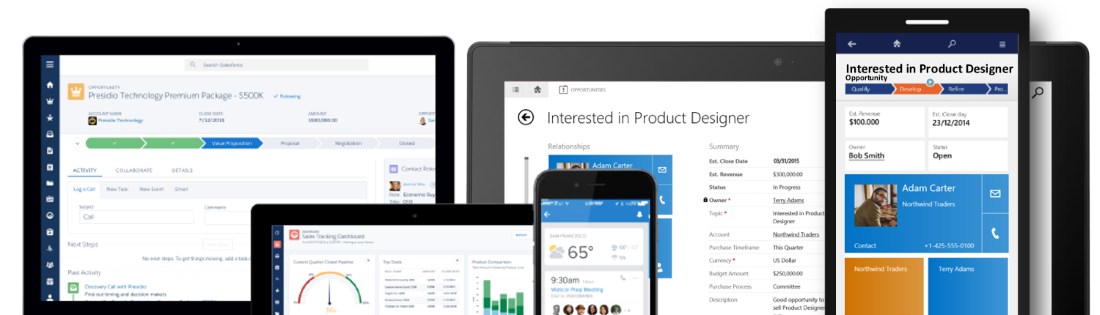
    Salesforce_Dynamics_clients

    I think this will be one of the most interesting design choices to keep an eye on when it comes to user reactions to the new Salesforce Lightning UI. Regardless of all the recent Universal Apps hype that Microsoft has been building up alongside the Windows 10 release, I’m personally not quite convinced yet that you can deliver a great UX with a single app that needs to scale from 5″ touch screens to 27″ desktop monitors. As a result, I’m also not a big proponent of the “configure once, deploy everywhere” slogan used in reference to the Dynamics CRM mobile apps, since I’d rather see CRM applications truly optimized for the device and use case in question. However, if Salesforce can pull this off with Lightning, then perhaps Microsoft has been right all along with their OS strategy and the application teams should now move faster towards unifying the client side of things.

    Applification of Platforms?

    When it comes to products like Dynamics CRM or Salesforce, one of the key reasons why they are being so widely deployed across enterprises today is the ability to customize them to align with the business processes specific to the customer organization. They are not only replacing legacy CRM suites but also capturing an ever larger share of the market that used to belong to custom developed business software, since using a customizable application platform delivered from the public cloud can really drive down the TCO quite significantly. But if the CRM applications are now reaching towards an even more polished user experience in performing common tasks with sales, marketing and service records, what will happen to supporting the business specific scenarios that are more unique than what pre-built application features can cover?

    When Microsoft launched the Dynamics CRM 2013 version with the refreshed UI, they didn’t only add more features into the already crammed product, but rather they took away some configuration options that had been previously expected from the platform. As the saying goes about the goal of design work, “perfection is achieved not when there is nothing more to add, but when there is nothing left to take away.” That may very well be true when designing a product to serve a specific set of tasks, but it may not resonate so well with a toolkit used for crafting these end products. Limiting the options shown to an end users is different from limiting the options available to the designer of the final solution that the user will be exposed to.

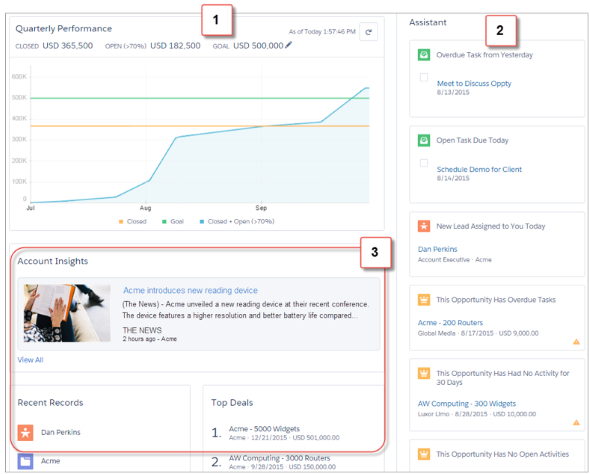
    How do such limitations show up in everyday life with the latest Dynamics CRM version? Today we have inline quick create forms for effortlessly adding activities for records, but we can no longer choose if we want to record a future phone call activity instead of a completed one. We can use an editable grid for adding line items into opportunities, quotes and orders, but we can’t configure these grids to contain those fields that the business logic would require to be recorded onto these line items. The price of added convenience for some is therefore resulting in the reduced usefulness to others. Looking at the Salesforce Winter ’16 release, it’s apparent that also here the polished UX will be come at the cost of reduced options. For example, there will be a brand new, great looking Home screen offered for sales users, but the components shown in it cannot be customized at this time.

    Salesforce_Lightning_Home

    Is there an inherent conflict between the needs of the application end user and the platform customizer? I don’t believe this is necessarily the case, but it is obvious that there are trade offs in building something that works great and building something configurable when it comes to the allocation of development resources for these software products. As the release cycles get faster and faster, the pressure for getting a new feature out there can mean there’s no time to perfect the first version into something that will meet the needs of all user groups and align with the rest of the platform functionality. The real question is, will the features be made more customizable in the subsequent releases, or will the requirements be pushed down in the backlog when the demand for more new features arises?

    When discussing the user experience of applications that are not commodity services like email but highly business specific process management tools (at least when properly deployed), it’s very important to understand what the final UX really consists of. It’s not only about having the slickest UI controls for working with the data, the flashiest graphics for visualizing the sales pipeline or most creative layouts for presenting different data sources on one screen. At the end of the day, the users need to feel like they can easily accomplish the tasks they are responsible for, with the help of the application – not despite of it. Understanding what exactly those tasks are and what pieces of information are relevant to the process of their completion is something that requires careful analysis conducted at the organization deploying a new CRM solution. Failure to do this will quickly wash away any value that the software features could have potentially delivered to the organization.

    As today’s CRM platforms become more and more sophisticated with the functionality and data presentation options available, the design work of those who configure the customer specific solutions also needs to be aligned with the increasing expectation levels for application usability. It’s still not rocket science, but it does require a greater attention to detail than the earlier, more primitive business applications where the UI was essentially a reflection of the data model. I’ve illustrated some of these design aspects in my 10 Tips for Designing A Great User Experience presentation, which hopefully can give an idea of how the system customizers can do their part in building CRM systems that the business users will find great value in – a Useful Experience, if you will.

  • Tracking Pipeline Development Over Time in CRM 2015

    Tracking Pipeline Development Over Time in CRM 2015

    We’ve come to part 3/3 in the Smarter Sales Process article trilogy. In the earlier posts we talked about customizing the lead qualification process and using calculated fields for opportunity estimated revenue, to get more out of Dynamics CRM 2015 than what the standard sales related functionality offers. To close things off, let’s have a look at how we can gain more insight into the data in our sales opportunity pipeline and particularly how it has developed over a period of time.

    Capture the Sales Pipeline Trend

    With the data that Dynamics CRM collects about sales opportunities we can easily draw charts about how many deals were won or lost at any given time, presenting these as a monthly trend of both estimated and actual revenue. It’s also very simple to visualize the current contents of our sales pipeline by looking at the open opportunity records via standard visualizations like the… well, pipeline chart, obviously!

    What we can’t do quite so easily is to present how the sales pipeline has developed over time. For example, has the number of opportunities in a particular stage of the sales process gone up/down, or how the total estimated revenue from open opportunities is developing. An average CRM user may not understand why such a visualization wouldn’t be included in the application by default, but for a system customizer that knows the data model and behavior of Dynamics CRM this should be fairly obvious. The fundamental difference between closed opportunities and open opportunities is that for the former we have a permanent record of when they were closed and with what values, whereas the records that are currently in an open status represent transient data. It will change over time, based on the future actions that CRM users will take.

    So, what’s the problem with such data? The fact that an open opportunity may have been open last week or even ten weeks ago makes it impossible for us to draw a chart that would show a weekly number of records, since only a single record exists in the database, even though it might need to appear in the bar for each week in a chart showing the size of the pipeline on a weekly level. While technically we would have the information needed to project the number of opportunities that have been open at a given time by looking at their creation date, this would be a more complex exercise than what the ASP.NET charts in Dynamics CRM allow us to draw (although I wouldn’t be surprised if CRM Chart Guy would prove me wrong on this one).

    At the end of the day CRM is an operational system focused on managing individual records and transactions, which means it doesn’t bother archiving copies of records in their historical state. Sure, we have the audit log that will keep a record of the individual changes to tracked fields, but that’s data which isn’t accessible for reporting. But the question to ask is: if we wanted to capture such historical data for our analysis purposes, could we do that with Dynamics CRM? Sure we could! In fact, already back in 2008 when CRM didn’t yet have a built-in auditing capability, CRM MVP Guy Riddle showed us how the use of custom entities and workflows allowed us to build our very own audit log feature to capture changes for record field values.

    CRM_opportunity_count_by_week_and_stage

    Sure, our use case here is a bit different, since we’re not looking to only capture entries on when a record changes. To provide us visibility into how the sales pipeline has developed over time, we would need to capture a snapshot of the pipeline status at predetermined intervals.

    Scheduling Snapshots of CRM Data

    One of my favorite features in CRM 2015 version is Rollup Fields, which I’ve already covered in a number of earlier posts on this blog (including the gotchas you need to be aware of). This feature also comes in handy if we want to build a custom snapshot entity to store the count or sum of records related to it. In this scenario for monitoring sales pipeline development, which I presented in my MSDynamicsWorld.com webcast “A Non-Developer’s Guide to Smarter Sales Processes in Microsoft Dynamics CRM 2015”, what we’ll do is make a 1:N relationship between our custom Snapshot entity and the opportunity entity. This in turn will allow us to create Rollup Fields that will summarize the count and revenue of the related opportunities onto the Snapshot record. By having a snapshot per each stage of our sales process, we will get the attributes needed for drawing the kind of chart shown above, to visualize the trend of opportunity count and estimated revenue development per week.

    The detailed steps for the required customizations can be found from the following SlideShare presentation:

    The one missing ingredient that we still need to think about is how to automate the capture of these snapshots. What Dynamics CRM still doesn’t offer out-of-the-box is the ability to schedule recurring workflow processes in an easy way, to perform an automated task every X days. Luckily there are workarounds for scheduling such bulk data processing tasks with using nothing but the CRM platform, and one of the best solution’s I’ve come across is the Scheduling recurring Dynamics CRM workflows with FetchXML solution from Lucas Alexander. I’ve already shown you how to use this solution for monitoring Rollup Field Values with workflows and the same logic can be applied in this scenario, too. Only this time we don’t send a weekly email blast to CRM users, rather we’ll just create new snapshot records to store the opportunity count and total estimated revenue per sales stage.

    CRM_scheduled_process_opportunity_snapshot

    Alright, that concludes my Smarter Sales Process for CRM 2015 series, at least for now. As mentioned at the start, do check out part 1 and part 2, as well as the YouTube recording of the live demos if you’re interested for more details on the topic. Hopefully these examples have given you some new ideas on what kind of solutions you can build with the Dynamics CRM 2015 customization tools. If you’ve got any thoughts on what kind of no-code customization scenarios you’d be interested in seeing in the Surviving CRM blog in the future, please feel free to leave a comment!

  • Using CRM 2015 Calculated Fields for Opportunity Estimated Revenue

    Using CRM 2015 Calculated Fields for Opportunity Estimated Revenue

    It’s time for part 2 in the Smarter Sales Process article trilogy. As described in my previous blog post about lead qualification process customization, this content is taken from my MSDynamicsWorld.com webcast titled “A Non-Developer’s Guide to Smarter Sales Processes in Microsoft Dynamics CRM 2015“. After having adjusted the lead to opportunity process to better suit our needs, we’ll next have a look at how the data managed in the opportunity stage could be more easily entered and maintained by leveraging the no-code customization tools available in Dynamics CRM.

    Introduction to Calculated Fields

    As you should have noticed by now, the CRM 2015 release added the possibility for defining two new “complex” field types in addition to the traditional “simple” fields. Rollup fields is something I’ve covered in more detail in an earlier blog post, so this time we’ll be working with the other type, which is the calculated fields. Essentially these are the types of fields where you don’t directly insert a value in CRM, but rather the field value is calculated from one or more other fields in the system, based on the formula and conditions you specify in the calculated field definition editor found from the field’s properties in the CRM customization menus.

    How calculated fields differ from rollup fields is that with them we’re always working on the current record, whereas rollup fields retrieve data from related records. Well, actually that’s not entirely true, since a calculated field can also reference a value from a related parental record in its formula. A more accurate description could therefore be that calculated fields can access data from the “1” side of the 1:N one-to-many relationship, whereas rollup fields are the tool for retrieving data from the “N” side of the logical data model in our CRM organization.

    Another aspect that the system customizer must be aware of before starting to leverage these new tools for building CRM 2015 solutions is how and when the field values are calculated. As demonstrated in my post “CRM 2015 Rollup Fields: The Gotchas“, the data shown in rollup fields may be up to 30 minutes old, since these are updated based on an asynchronous job (unless you apply the workaround described in that blog post). Once they are updated, though, the values are persisted in the database. Calculated fields work in the exact opposite way, meaning they are calculated in real-time, but the data is not actually stored in the CRM database. While the latter part of that sentence might sound strange at first, it simply means that the CRM platform performs the calculation any time the specific calculated field is needed. This includes opening a form that contains the field, browsing a view with such columns, accessing a dashboard with charts referencing calculated fields, making SDK calls for retrieving this data and so on.

    To familiarize yourself with the details of these features, have a look at the TechNet article Define Calculated Fields. Or if you’re in a hurry, spend 5 minutes watching this YouTube video from the CRM product team, to see how what the new fields look like in the customization UI.

    Applying Calculated Fields on Revenue Estimation

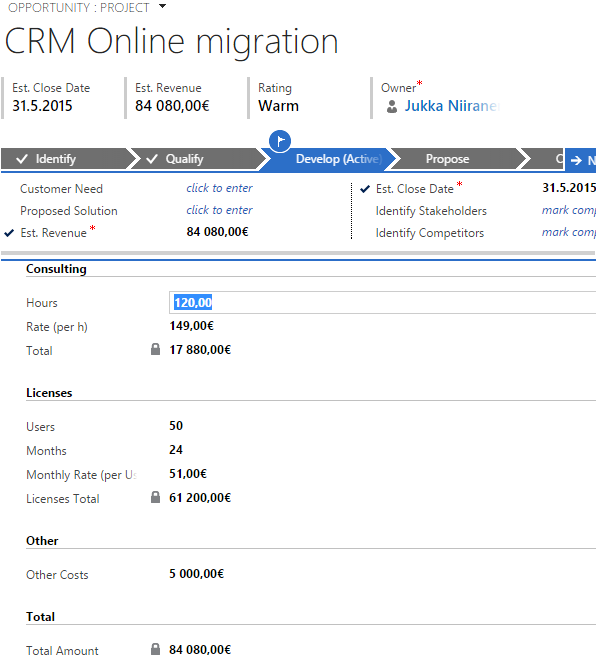
    The scenario that I chose for the Smarter Sales Process series deals with the way we determine an estimated value for an opportunity record in Dynamics CRM. By default, you have the option of either entering a lump sum into the Est. Revenue field of an opportunity record, or creating individual opportunity product records as line items that have a specific revenue value. This is what the bit field IsRevenueSystemCalculated is all about, with its options of “User Provided” or “System Calculated”. Since many organizations using Dynamics CRM don’t actually bother maintaining the detailed product catalog and price details in corresponding CRM records (at least not without a custom integration being built to sync the data from other systems), the “User Provided” option is quite often used for recording just the total estimated revenue value for the opportunity. What this means in practice is that the sales people end up using their own Excels to calculate the various components from which the revenue is generated and just entering the end result into CRM. If any parameter in the equation changes, it’s back to updating your Excels, then CRM again. Oh joy.

    Could there be some middle ground between taking just a single figure from an external Excel sheet and having a full blown product & price catalog maintenance process for CRM? If the products and services you’re selling consist of a limited set of key revenue components that are typically included in each quotation you make, then exploring the possibilities of creating custom fields for these components directly onto the opportunity record might well be in order. While these will not provide the high granularity data of having opportunity product line items with links to the related product record, the data entry and maintenance experience is probably going to be a lot easier for you to sell to the CRM end users. (After all, we’re talking about sales people here, who are the toughest crowd you’ll ever need to please with your CRM system functionality.)

    CRM_Opportunity_Estimated_Revenue_Calculated_Fields

    In this example scenario we’re selling CRM consulting projects that have three common revenue categories: consulting revenue, license revenue and “other” revenue. The total value of each area is calculated via a specific formula, after which each area specific revenue is summed up into the Total Amount field. As you’ve probably guessed by now, this is achieved by using the CRM 2015 calculated fields feature. Compared to adding the line items one by one, configuring unit prices and other variables, the data entry process is considerably faster, since all the user needs to do is tab through the relevant fields on a single form and enter values where necessary. You can catch a quick glimpse of the live opportunity form in this YouTube recording of the webcast.

    For a detailed explanation of how this type of functionality can be configured in Dynamics CRM, have a look at the following slides: Smarter Sales Process in Dynamics CRM 2015 – Part 2: Revenue Estimation.

    A Few “Gotchas” on Calculated Fields

    If you’ve implemented a similar custom opportunity form in the past by using Javascript to perform the calculations, then you should be aware that the native calculated fields in Dynamics CRM don’t offer exactly the same user experience as custom scripts do. The reason is that the calculation logic is executed whenever the fields referenced in the formula are retrieved from the CRM, meaning not before you’ve submitted the updated source field values into the database. So, the moment you change a field value (let’s say “consulting hours” in our example”) and click/tab to the next field, a client-side script would be able to recalculate the fields instantly, triggered by the onChange event of the field. A calculated field will just sit there waiting for the source data to be saved to CRM first, either via the auto-save feature every 30 seconds or the user explicitly clicking on the save icon in the bottom right corner of the form.

    Considering that with CRM 2013 we received the Business Rules feature that acts in practice the same way as a custom script (meaning it’s executed on the client side), this may seem like a slight setback in the level of application UI responsiveness for Dynamics CRM. Knowing that there are also some calculation capabilities available with Business Rules, you might be wondering if this feature could be used instead of calculated fields, to deliver an even better user experience. Well, based on my personal experience, if you try to build a very complex chain of calculations by using Business Rules, you’ll soon find yourself in a world of pain trying to figure out why the events don’t always trigger the way you want them to, how to handle resetting field values and so on. Although I haven’t yet used the calculated fields feature in as many real life scenarios as Business Rules, at least I haven’t run into similar problems in ensuring validity of the calculations performed with them, so my recommendation would be to always opt for calculated fields whenever you need to… calculate the value of a field (ever get the feeling that us consultants just state the obvious things?).

    Another thing to be aware of when it comes to calculated fields and Business Rules is that the two don’t mix. More specifically, a Business Rule cannot reference a calculated field, so you cannot grab the results of the calculation and use them in a subsequent business logic implemented via a Business Rule. Luckily, you can still access the calculated field values in a workflow process, which is the workaround that I’ve used in my aforementioned presentation.

    During the webcast, there was also a very good questions presented on whether there are some limitations on how many calculated fields you can use on a single entity. Based on the official documentation, there doesn’t seem to be any hard limit on the number of calculated fields you can create, but you cannot include more than 10 calculated fields into a single view (or chart), which could potentially be reached if creating a highly complex calculation scenario and a summary view to export the resulting data out of CRM.

    As always, the responsibility on system performance impact ultimately lies on the system customizer, even if the solution is created just via clicking the CRM configuration options instead of writing custom code. As the no-code customization tools get more advanced with every release of Dynamics CRM, it’s becoming increasingly important also for people in the business analyst role to have a basic understanding of how the underlying application platform operates. I want to highlight a couple of recent whitepapers that Microsoft has released around the solution design and performance topic, which should give you plenty of food for thought, whether you’re approaching Dynamics CRM from a developer point of view or if you’re an analyst that’s aspiring to design more complex CRM solutions:

  • Customizing Lead Qualification Process in CRM 2015

    Customizing Lead Qualification Process in CRM 2015

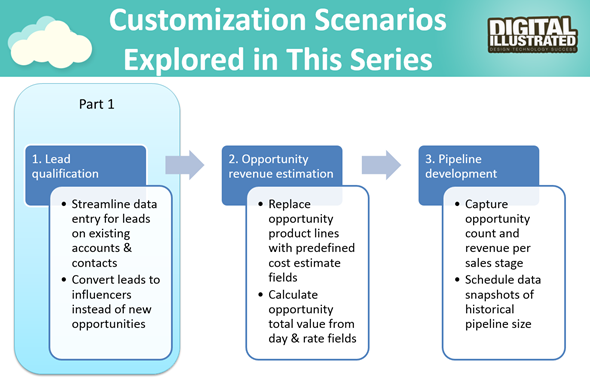
    This is the first part in an article series where I’ll be presenting a few customization tips & tricks that you can use in Microsoft Dynamics CRM 2015 to enhance the functionality used in a typical sales process. The content was first shown in my live webcast on MSDynamicsWorld.com on May 6th: “A Non-Developer’s Guide to Smarter Sales Processes in Microsoft Dynamics CRM 2015.” As promised during the webcast, I’ll be releasing all the slides here on my blog, but since there was a lot of details to go through in the 1h session, it will be split into three separate articles, to improve the accessibility to this information for those who didn’t attend the live webcast.

    The overarching theme of this series is to show you how the creative combination of the various customization tools available in Dynamics CRM 2015 can be used for building whole new functionality into the application – without having to write any custom code. The emphasis is on the word combination, since very often you’ll need to use several different pieces of the platform’s customization tools to achieve the end result. This isn’t something that you can easily learn just by reading the official product documentation that typically focuses on the introduction of a single feature at a time. With the examples in this article series I hope to demonstrate what these combinations could look like, in the context of customizing the standard application behavior in the sales process.

    MSDynamicsWorld_Smarter_Sales_Process_scenarios

    The techniques are by no means exclusive to the sales area of Dynamics CRM. Any process that you manage with our CRM/XRM application can surely benefit from the type of custom functionality that you can build via Business Process Flows, Real-time Workflows, Business Rules, Calculated Fields and Rollup Fields. The absolutely best way to gain an understanding of what you can achieve with the point & click customization tools in Dynamics CRM is to experiment with the tools in a sandbox environment, so I encourage you to go and try out these scenarios in an actual working CRM system. (Why not spin up a new CRM Online trial org and also get access to all the new CRM Online 2015 Update 1 goodies while at it?)

    What’s Wrong with CRM 2015 Lead Qualification?

    Those of you that have been working with Dynamics CRM for more than just a couple of years will probably remember how the things used to work before CRM 2013. When clicking on the Qualify button on a lead record, the user was presented with a dialog that allowed them to choose whether a new account, contact and opportunity record should be created from this lead. In the new world of Business Process Flows and no-popup UI of CRM 2013 (and CRM 2015), such options are no longer presented to the user. While this makes for a smooth user experience in general, it creates severe conflicts with many real life business processes of companies who either A) don’t use opportunities or B) don’t want to directly convert each lead into an opportunity. There are lots of suggestions on MS Connect (registration required, see here) to restore the ability for users to select not to create an opportunity from a qualified lead, but so far we haven’t seen any changes in the product to accommodate this.

    CRM_Lead_Qualification_Dialog

    So, if CRM wants to create opportunities but the user doesn’t, what could a mere system customizer do, without any knowledge of how to write plugins or scripts to develop new functionality by using the CRM SDK? Well, I’ve come up with a reasonably good workaround that uses the following solution components to establish a true user driven lead qualification process:

    • Branching Business Process Flow (BPF) to show stages that don’t take the user to the opportunity entity
    • Real-time Workflow to hand the lead status change and record creation instead of the built-in, non-configurable business logic of Dynamics CRM
    • Business Rules to conditionally show/hide fields for account/contact details on the form
    • Quick View Forms to present the records created from lead qualification process on the lead form after it’s closed

    You can find the detailed description of how I’ve configured each components from the below presentation:

    (For those of you who are not reading this article directly on survivingcrm.com and can’t see the embedded SlideShare presentation, click this link to access it.)

    I hope that this example has given you some ideas on how the lead management process and related Dynamics CRM functionality could be further developed in your own CRM organization. Stay tuned for part two of this Smarter Sales Process series, where we’ll be moving to the opportunity record and exploring how the estimated revenue information can more easily be managed by using the Calculated Fields feature introduced in Microsoft Dynamics CRM 2015 release. If you simply can’t wait for it or want to see the lead qualification process in action, then the webcast recording is available on YouTube already today.

  • This Month in CRM: What Have I Been Up To?

    This Month in CRM: What Have I Been Up To?

    If you’re working with Microsoft Dynamics CRM then I bet you’ve had a busy spring so far! At least I have, due to the great buzz around the CRM ecosystem and an ever growing demand for customer solutions that leverage the latest & greatest Microsoft Dynamics product versions. Here’s a quick update on things I’ve been working on recently in the Dynamics CRM community.

    Our Book: CRM Field Guide v2

    Yay, I’m a published author (again)!  Long before I was awarded the CRM MVP title, this group of Dynamics CRM top experts put their smart heads together and came up with a must-have book on practical dos & don’ts of deploying Microsoft Dynamics CRM 2011 in real life scenarios: The CRM Field Guide. Now, after the big platform revolution that took place with CRM 2013, there is a much needed version 2 of the CRM Field Guide available that covers all updated, changed and expanded features of the product. A joint effort from 20+ CRM MVP’s has produced 29 chapters of brilliant content, with my humble contribution on the CRM user experience design aspects being one of them. Great job, guys, and especially Julie for making this V2 book happen!

    CRM_Field_Guide_v2“Hmm, I’m in CRM Online and we’ve already upgraded to the CRM 2015 release. Is there anything in this book for me?” You bet! I’d say 98% of the book’s ~1000 pages will be perfectly applicable for your environment, even though additional features have been introduced in the v7.0 update released at the end of last year. Just have a look at the book’s chapter descriptions to get a glimpse of what type of insights you can expect to gain from this book – and then click to purchase your copy for only $49.99!

    Our Podcast: Ikkunastudio Episode 4

    Even though the market for Finnish language content aimed at Microsoft professionals is a tiny fraction of the audience that all the text produced in English has, that doesn’t mean there wouldn’t be also some quality tech talk out there on the Internet that is catered in this quirky lil’ language of ours. One of the latest entrants into this space is the Ikkunastudio podcast series that focuses on covering the Microsoft scene in Finland. I was honored to be invited into the fourth episode titled “XRM to rule them all“.

    Ikkunastudio_episode_4

    So, who’s behind this Ikkunastudio thing anyway? The show is hosted by two distinguished gentlemen: Jouni is the Regional Director for Microsoft developer community in Finland and Sakari runs a company focused on Microsoft Azure based solution development. The three of us took over the Digital Illustrated HQ on one fine morning and explored a world that many of the MS developers and IT pros may not be so familiar with – Microsoft Dynamics CRM. In addition to explaining what business scenarios CRM is typically used for and how the latest announcements from Convergence 2015 are shaping up the platform’s future in Microsoft’s product portfolio, we also had an interesting discussion on the XRM side of things – where the platform is coming from, what you can do with it today and where it might be heading towards. Jos suomen kieli sujuu, niin kuuntelehan siis miksi Dynamics CRM:ään kannattaa perehtyä pintaa syvemmältä!

    My Webcast: Smarter Sales Process in CRM 2015

    In addition to this glamorous MVP lifestyle consisting of writing books and appearing on radio shows, I also need to spend a fair amount of time designing and configuring real life Dynamics CRM solutions for customer organizations out there. As you listen to the functional requirements coming from customers who want to make Dynamics CRM better serve their own sales processes, you gradually notice that many of these scenarios are dealing with CRM customization work that isn’t exactly unique to the organization in question. At the same time the Dynamics CRM platform has evolved to offer us an extensive toolkit for configuring solutions that can solve these business problems without needing any custom code development.

    When I look at some of the customization work I’ve been doing lately with CRM 2013 and 2015, using features like real-time workflows, business rules, rollup fields, quick view forms and BPF, it has become apparent that the crucial skill is not in just knowing the way a single Dynamics CRM feature works but rather how you can combine them in a creative way to come up with an end product that solves the customer’s business problem. The growing complexity of these no-code solutions means that it’s by no means a trivial task to figure out how they actually work and how they could be applied to different real world business processes that Dynamics CRM customers are looking to manage with the help of modern business software. So, instead of just writing individual blog posts I’ve decided to cover this topic in a one hour webcast: A Non-Developer’s Guide to Smarter Sales Processes in Dynamics CRM 2015.

    MSDynamicsWorld_Smarter_Sales_Process

    In this webcast hosted by MSDynamicsWorld.com I’ll be introducing a few scenarios that I believe are common needs for Dynamics CRM customers and show you how the graphical customization tools offered by the CRM platform’s latest versions can be put into use in building solutions for them. For example, would you want to bring back the ability to not always create a new sales opportunity from every qualified lead record? Or how about being able to use Dynamics CRM for tracking not just the current sales pipeline value but also storing historical data about how the pipeline has developed over time? Join me on May 6th to see a few tricks on how a system customizer could tackle such requirements and make the Dynamics CRM application support the sales process management work even better than the product does with out-of-the-box configuration.

  • Monitoring Rollup Field Values with Workflows

    Monitoring Rollup Field Values with Workflows

    In an earlier post I demonstrated how you could leverage the new Rollup Fields feature of Dynamics CRM 2015 to summarize the behavior of your customers and produce interesting metrics that could be used for targeting your sales activities towards the most active individuals who have reacted to your email and website content. The example included using data collected by ClickDimensions on the clicks on email marketing message links and page views on sites that contain the visitor tracking script. With the help of Rollup Fields and this marketing automation data stored directly into Dynamics CRM database under the contact records we were able to add the following custom fields onto our contact entity form:

    • Latest Email Link Click
    • Total Number of Link Clicks
    • Latest Page View
    • Total Number of Page Views

    While this allowed us to create a nice, sorted view of the contacts who’ve been interacting with our online content most recently, this information is still just data sitting in the CRM system, waiting for the users to go and discover it. Wouldn’t it be great if we could actually build an automated business process around it and make sure that the owners of these contacts who are clicking the links and visiting our website would be notified about these events? Sounds like something that a CRM workflow could help us with, right?

    CRM_2015_rollup_field_Clicks_5

    Unfortunately there are a few limitations when it comes to the new Rollup Fields in CRM 2015, as we discovered in my previous article. For example, if we would like to trigger a workflow process instance whenever the number of Link Clicks goes above a certain threshold, this isn’t something we can do directly by tapping onto the onChange event of the Total Number of Link Clicks field, because Rollup Fields cannot be used to trigger a workflow.

    Ok, what if we lower our expectations a bit and don’t even attempt to perform these actions in real-time for each event? It might be perfectly acceptable from a business perspective to have a process run once every night, inspect which contacts had clicked on the tracked links and then send out notifications to the record owners in one go. Surely that’s something Dynamics CRM can do, right? Well, let’s see if we could put together a solution like this.

    Batch Processing CRM Data with Workflows

    It’s quite a common requirement to perform checks or updates to CRM records based on a predetermined schedule. Although you can use workflow processes to be triggered on an event that takes place on CRM records (as long as it’s not on a special attribute like a Rollup Field), there isn’t actually any ready-made feature available in the CRM platform that would allow you to schedule the workflows to run every X hours, every night, once a week etc.

    The traditional approach for meeting such requirements for scheduled updates would have been to develop a small custom service to run on the CRM server machine. If you had access to other systems with interfaces to CRM like SQL Server Integration Services (SSIS) then these could naturally be also leveraged here. In the brave new cloud era where the number of Windows servers at your disposal for running these type of applications is rapidly decreasing it’s sometimes challenging to find a place where such schedulers could be deployed to, for performing small batch jobs that your CRM business processes would require. Wouldn’t it be convenient if you could build all of this by using just CRM Online and nothing more?

    Get ready for the good news: yes, you can schedule a recurring workflow to handle batch updates within Dynamics CRM, no external servers needed. The one thing you need, though, is a clever little custom workflow activity to extend the standard features of the CRM workflow engine. In this example we’ll use the Scheduling recurring Dynamics CRM workflows with FetchXML solution developed by Lucas Alexander. What this solution does is it gives us the possibility to:

    • Determine a query criteria for the bulk job
    • Schedule this job to be run hourly/daily/weekly
    • Run our own workflow process for all records returned by the query

    CRM_schedule_recurring_workflows_Lucas_Alexander

    The above diagram by Lucas outlines the logic behind the solution, but you really should go and read his blog post on the details of this approach, or check out the source code for the custom workflow activity on MSDN code gallery if you really want to dig deeper into the topic. For the purpose of today’s scenario, I’ll show you how I’ve used the solution in conjunction with the aforementioned Rollup Fields.

    Sending Out Notification Emails Based on Rollup Field Data

    In my example I’ve determined that it’s the Latest Page View datetime field on a contact that should be driving the business process. Once a week I would like to notify the owners of customer contact records if the contact has visited our website during the last 7 days. Turning this into a query criteria, it would mean that during the time of each batch processing I’d want to retrieve all contacts where the Rollup Field for Latest Page View contains a value greater than today minus 7 days.

    I will need to turn that query definition into a language that Dynamics CRM understands, and that is FetchXML. Sounds a bit tricky, eh? Lucky for us, CRM comes with a nifty lil’ FetchXML generator called Advanced Find, which I’m sure you’re already familiar with. All we need to do is find Advanced Find, specify the aforementioned query criteria for the contact entity and then click the “Download Fetch XML” button in the ribbon to grab the XML text into Notepad.

    CRM_AdvancedFind_FetchXML

    Next we should think about what action we want to perform on the contacts who match the query criteria. In this scenario it will be the sending of an email message to the owner of the contact. It only needs to be available as an on-demand process and there isn’t even a requirement to have any query criteria enforced here, but I added the 7 day rule here as well, just in case I end up using the same process in some other scenario.

    CRM_page_view_notification_workflow

    The final step is to create a record for the new Scheduled Process entity, which has been added to CRM in the solution packaged developed by Lucas. On this form I’ll first give a descriptive name to the Scheduled Process and then define it to be related to the contact entity. In the Workflow lookup field I’ll pick the workflow process you see above, and for the Query field I’ll paste in the FetchXML we grabbed from our Advanced Find.

    CRM_scheduled_process_page_view_small

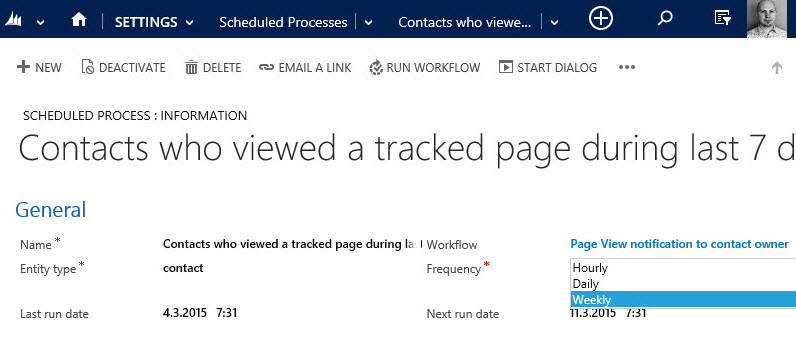
    All that’s left for us to do is setting the actual schedule for this process. The weekly option in the dropdown menu suits our purpose best in this scenario. By adjusting the Next Run Date I can configure the email notifications to go out in the morning, so that they reach the inbox at an optimal time.

    CRM_notification_website_visit

    Alright, that concludes our scenario for using CRM 2015 Rollup Fields together with workflow processes to deliver actionable insights to our CRM users on how customers are responding to our marketing activities. What I personally find very interesting in this example is the ability to take a piece of existing data that’s sitting inside our CRM database and first turn it into a metric that’s easily viewable in the CRM UI, then further amplify its business impact by configuring conditional processes to deliver it as a notification to the user who should become aware of it.

    None of this required a huge technical development effort or investments into separate reporting systems. All we needed was to take a new feature that was added to the Dynamics CRM platform as a part of the 2015 version rollout (this being a CRM Online environment there wasn’t even an upgrade project to worry about), combine that with an excellent open source enhancement to the platform’s workflow functionality, then just design a solution that delivers new business value from existing data. If you look at your own Dynamics CRM system and the data that’s being collected into it as a part of your business processes, then I’m pretty sure you could also identify potential use cases for similar type of enhancements, built with CRM’s ever evolving process automation toolkit.

  • CRM Navigation Hacking with Bookmarks

    CRM Navigation Hacking with Bookmarks

    When you spend your days working closely with an application like Dynamics CRM, such as when customizing or developing solutions for your customers, your mind will often times be working much faster than the application. You know exactly which feature you want to access, but if you need to navigate through several levels of menu hierarchies to get there, the process may be too slow to keep up with your train of thought, making it hard to concentrate on the actual task at hand.

    My personal strategy for reducing the cognitive burden involved with navigating inside Dynamics CRM has been the use of smart bookmarks. Here’s some tips on how I’ve set up my current working environment. If you have any similar CRM productivity tips of your own, please do share them in the comments section below.

    Launching New Tabs from “Quick Nav”

    While piling up a mountain of open browser tabs may not be great for your productivity either, the cost of moving between tabs is still lower than constant in-app navigation between menus. When working with CRM customizations, I always tend to have the end user content in one tab (views or record detail forms) and the Solutions view on the other one, so that I can quickly access the component I want to modify and validate the results with an F5 on the other tab.

    Dynamics CRM 2013 and beyond unfortunately don’t support the standard convention of right-clicking on menus and opening them up in a new browser window. Nothing stops you from opening CRM in a second tab and working with the settings via it, but this means you always have to start from the first page and navigate back to where you wanted to go. To speed things up a bit, I keep a “Quick Nav” available menu in all my browsers, created as a folder in the favorites/bookmarks bar that I also keep open at all times.

    CRM_QuickNav_menu

    So where exactly do those bookmarks lead to? A specific menu in a certain CRM organization? Nope, those are generic bookmarks that apply to the currently open CRM organization. They work in any CRM 2013 or CRM 2015 environment, on-prem or Online. You see, they are not actual bookmarks with a static URL pointing to a resource somewhere, rather they are bookmarklets that contain a short piece of JavaScript. (more…)