CRM 2013 has introduced many UI features that aim to reduce the number of different windows between which the user needs to navigate while performing everyday actions on records. Since customer relationship management systems are often focused on capturing the various interactions between the company and its customers, activity management is naturally a core feature that should be as smooth as possible in a CRM application.
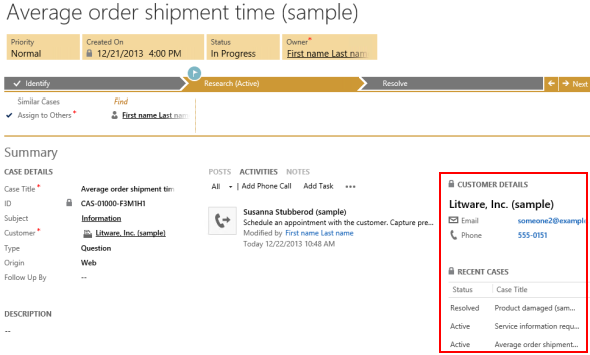
The refreshed entity forms in CRM 2013 contain the Social Pane (shown as “Notes Control” in the form customization UI due to legacy reasons) that shows three tabs of interaction data related to the record: Activity Feed posts (Yammer posts if available), activities and notes/attachments. In addition to a much richer rendering of the activity content than the previously available subgrids, there’s also an inline control available for adding tasks or phone calls directly on the main entity’s form. This provides quite a slick user experience that makes CRM appear very effortless to use for activity management.

What’s missing from the Social Pane then? Well, for starters, not all the activity types are available to be created via the Add buttons on the top of the control. We have phone calls & tasks available immediately, clicking the ellipses (…) button gives us email & appointment, and if we’ve added any custom entities into our solutions they’ll be presented here, too. However, if you’d want to add any of the other default activities for the record you’re working on, meaning a letter, fax, recurring appointment or a service activity, then you’re out of luck. The user would need to navigate away from the form by selecting the Activities menu from the Nav Bar, create a new activity record from there, find the Regarding record to reference on the activity, save it, then return back to the original record.
Another limitation has to do with the inline editing experience of tasks and phone calls. When you create a phone call via the Social Pane, it will always be record as a completed activity. So, no chance for planning upcoming phone calls and setting up a reminder, unless you record it as a task instead. Another downside of the inline form is that it’s not customizable, which means we can’t display any custom category fields related to a phone call or task. When implementing a CRM system for tracking the activities of sales people and account managers, it is a very common requirement to have some compulsory fields added onto the activity entities that the user must fill to categorize and describe the activity before being able to complete it. Well, since the inline form will log a completed phone call right after clicking on OK, this isn’t exactly the optimal feature for those scenarios.
Ribbon to the rescue
While some parts of the new UI are not yet customizable in CRM 2013, we do still have a way to introduce additional features onto the entity forms via the Rib… sorry, Command Bar. Even though in its default setup the Command Bar looks like a stripped down version of the CRM 2011 Ribbon, it’s still built on the very same Ribbon XML definitions and it supports most of the features from its previous incarnation. As we know, CRM in itself doesn’t provide tools for configuring the contents of the Ribbon, which is why someone just had to do something about it. That “someone” is CRM MVP Scott Durow and the “thing” is his awesome Ribbon Workbench solution that gives us everything imaginable for customizing the CRM 2011 Ribbons as well as the CRM 2013 Command Bar.
Since many of the common features presented on the CRM 2011 Ribbon get hidden away once the CRM environment is upgraded to 2013, Scott has been covering several scenarios in his blog where this functionality is restored onto the Command Bar. Among these articles is a tutorial on how to restore the Add Activity buttons into a CRM 2013 environment. By following these steps documented by Scott we can enable the creation of letter activities while on an entity form, as well as provide a navigation path to opening the full form of a phone call activity to control the business required fields as well as activity status beyond the options that the Social Pane inline activity form gives us.
To demonstrate the possibilities of modifying the default activity management features of CRM 2013, I decided to take Scott’s example and expand it a bit further. In his blog post Scott shows you how to make the activity buttons appear on the Command Bar, but due to the limitation of max 5 items being shown directly on the form and the rest being pushed away into the “more actions” menu, it’s not going to be very easy for the CRM user to discover their existence. What I did instead was add a new flyout menu, promote it to the top 5 items on the Command Bar and arrange all the “Add Activity” buttons inside it. The screenshot below shows how this has been configured while in the Ribbon Workbench UI:

How do we get the buttons to do what we want them to do, meaning creating new activity records like they used to in CRM 2011? Scott’s blog post contains all the details you need for making this happen, but since the inherent complexity of the Ribbon XML language can make it challenging to grasp how the various options relate to one another (I’ll be the first to admit I struggled quite a while with the task before being able to achieve the result I wanted), I’ll recap the main steps here for your convenience.
First of all, we’re not creating a completely new command but rather customizing a native CRM platform command. While the activity buttons aren’t visible on the Command Bar by default, they do exist in the Ribbon definition and can be accessed in the Ribbon Workbench by switching from the Command Bar tab to the Ribbon tab (bottom left corner of the top menu) and navigating to the Form ribbon (since this is where we want the flyout menu to appear in our example). You’ll see the familiar Ribbon in the format that it would be shown, with the Activity buttons available under the Add tab. Yeah, not too many end users probably ever discovered that second tab of the ribbon on their own, which is why the simplified design of CRM 2013 is definitely a step in the right direction, even if it means us consultants need to do a bit more tweaking of the system to enable the relevant features.

Anyway, now that we’ve found the buttons, we can right-click on them and select “Customise Command”. Effectively what this does is it brings the commands like Mscrm.AddPhoneToPrimaryRecord available for us to reference in the custom buttons that we create. While we’re at it, we can also re-use the icons and labels from the native buttons in our custom flyout menu buttons. The one thing we need to change, however, are the Display Rule settings of the now customized commands, as the Mscrm.HideOnCommandBar rule would otherwise do just what it says and hide the buttons from our flyout menu when viewed on a refreshed UI form.
As mentioned, please refer to the original blog post to guide you through the detailed configuration of the custom buttons. It will give you everything except the different layout, which is the flyout menu that you can see below. In practice this method allows us to create up to five traditional dropdown menus on the form’s Command Bar. We now have a button labelled “Add Activity” that will open up a list of different activity icons, which in turn will lead the user to the traditional full create form for the chosen activity type. It will pop open in a new window, allow the user to edit the details, then close the window and return back to the parent entity form. Just like in the “good ol’ times” of pre-2013 Dynamics CRM.

If you took a closer look at the flyout menu shown in the picture, you may have noticed one non-standard entry at the end of the list: Site Visit. What’s that? And why’s it under a menu section called “Quick Actions”? Thanks for asking, let me explain what it’s all about. (more…)





![Dynamics CRM OData Feeds and Power Query: What’s the [Record]?](https://jukkaniiranen.jukkan.com/wp-content/uploads/sites/6/2014/02/pexels-photo-177598.jpeg)