Tag: CRM 2013

  • Update Rollups, Service Packs, Major Releases: Understanding Dynamics CRM Versioning

    When it comes to commercial software, there’s often times a difference between what the engineering department calls their product versions and how the marketing department decides to label the product for the end customers. For example, after Windows 3.1 the commercial name of the product changed to “Windows XP” while the underlying version number progressed to 4.00. After various changes in both product and naming strategy of the OS, we’re now using a product called “Windows 8.1” when its actual technical version number is 6.3…

    Just like with Windows, Dynamics CRM also has version numbers that are different from the names you’ll see in marketing materials and end user documentation. These numbers are relevant to anyone who needs to either maintain and administer a Dynamics CRM environment or customize and develop solutions for the product, since you need to be aware of the changes introduced by various updates to Dynamics CRM.

    Before CRM 2013 there wasn’t a convenient way through which you could have determined the installed updates by just looking at the version number, since each Update Rollup just had a seemingly random four digit build number assigned to it. Luckily the latest releases have made the version numbers much more user friendly, by starting to follow the standard “major.minor.update.build” pattern. There’s still a few CRM specific things you need to be aware of, especially with the very latest releases, which is why I thought now’s a good time to draw some attention to the topic.

    CRM_version_numberStarting with CRM 2013, the version numbering scheme follows a pattern like this (notice the bold numbers):

    • Major Release
      • Name: Microsoft Dynamics CRM 2013
      • Version number: 6.0.0.xxxx
    • Service Pack:
      • Name: Microsoft Dynamics CRM 2013 Service Pack 1
      • Version number: 6.1.0.xxxx
    • Update Rollup:
      • Name: Microsoft Dynamics CRM 2013 Update Rollup 1
      • Version number: 6.0.1.xxxx

    The build numbers are of course not “xxxx” in reality but I left them out since they’re not something you should actively need to remember. Just bookmark this page and reference it whenever you need to know the detailed number of a particular release: Microsoft Dynamics CRM 2013 and 2011 Update Rollups and Service Packs: Release Dates, Build Numbers, and Collateral.

    I’ll go through these levels in a reversed order, since I think that makes up for a more exciting story line here. Also, I think it’s more likely to resemble the real life process via which you’ll encounter each of these versions of Microsoft Dynamics CRM after your initial deployment. You’ll certainly need to be aware of the different versions even prior to setting up your very first demo/test/development environment, but keeping up with the Dynamics CRM releases is a job that never ends!

    Update Rollups

    These are collections of hotfixes to existing product functionality. When you open a support ticket with Microsoft for an issue you’ve encountered with the software, sometimes you might receive an individual hotfix package from them that fixes your specific issue (and nothing else). Normally you wouldn’t need to install each and every hotfix separately, however, as most of these fixes will eventually be released in an Update Rollup package. You’ll see a list of “issues that are resolved” in the Microsoft Knowledge Base article of each Update Rollup, which is normally your best indication of whether the software bug you’ve encountered has been squashed.

    <rant>Since the official name of these releases is “Update Rollup”, the official acronym for them would logically be “UR”. However, some people seem to happily forget about the first word and instead call them “RU”, presumably as a shorthand from “RollUp”. Fine, call them whatever you want, even give each of the releases your very own pet names if you wish, but you’ll never, ever see me use anything but “UR” on my blog.</rant>

    At the time of writing, the latest released version for CRM 2013 is Update Rollup 3, version number 6.0.3.0106. It was released on July 15th and contains over 200 hotfixes as listed on the KB article. Normally there would be a UR3 package released for all the server and client components, but this time there’s no Outlook version available, since apparently none of the hotfixes required the client bits to be updated. Update Rollups are usually cumulative, so CRM 2013 UR3 also contains the fixes from UR1 and UR2.

    If you don’t manually download and install the UR’s, they will also be distributed via Windows Update later on once Microsoft makes them available via this channel. Since you should always test the effects of each UR prior to production deployment, it’s usually never a good idea to just let things run on autopilot. For example, letting your Outlook clients get the UR’s via the Windows Update schedule without keeping your server components up to date will soon land you in unsupported territory.

    Service Packs

    During it’s first 11 years of existence, there weren’t any official Service Packs released for Dynamics CRM, unlike many other Microsoft products. This changed a couple of months ago when CRM 2013 Service Pack 1 was released on May 28th. Even though MS is mostly referring to it by the name Spring ’14 release in their marketing messages, based on the naming policy of CRM Online, the SP1 version is essentially Spring ’14 for on-premises customers and the Outlook client components (even for CRM Online customers).

    While the CRM 2013 SP1 KB article looks like any UR article we’ve come to know, with a list of resolved issues, this isn’t just a collection of hotfixes. Service Packs are the delivery mechanism for new product features as well as changes to existing functionality of the product. An example of this would be the case creation and routing features introduced in SP1. For a more complete list of SP1 contents, refer to the “What’s New” page on CRM Customer Center. Note that in order to access some of the new features, you’ll not only need to install the SP1 bits onto the server but also go to the CRM organization’s settings menu and apply “Install Product Updates” from there.

    Service Packs are cumulative in the sense that they contain the previously released Update Rollup hotfixes. So, while CRM 2013 UR1 and UR2 were released prior to SP1, you don’t need to install them separately when setting up a new Dynamics CRM 2013 environment. Just grab the Service Pack and you’re all patched up to that point.

    Update Rollups for Service Packs

    Now this is where it really gets interesting. Remember that latest CRM 2013 Update Rollup 3 I linked to a few paragraphs earlier? Based on our discussion so far, would you assume it to contain all the fixes, updates and new features released for CRM 2013 so far? I see quite a number of nodding heads out there and I’m not at all surprised if your initial assumption would be “of course”. The correct answer, however, is “no”. Due to the counter-intuitive nature of this situation for any Dynamics CRM veterans, an explanation is surely in order here. (more…)

  • Dynamics CRM Platform Evolution Revisited

    Dynamics CRM Platform Evolution Revisited

    MVP_year_2_cakeIn celebration of receiving my second Microsoft Dynamics CRM MVP award today (thanks to the whole #MSDYNCRM community for your support!), I’m publishing an article series on the Microsoft Dynamics CRM 2013 Customization and the Platform Evolution.

    For the regular readers of my blog this title may sound eerily familiar, and you are correct. This is indeed a re-release of my earlier webcast topic that I presented in May for MSDynamicsWorld.com. I’ve previously shared the links to the live recording and the slide deck, but this time I decided to put it all down in writing. I had a huge pile of speaker notes, so I tidied them up a bit and published them as articles on this site.

    Why bother revisiting the same old story? Well, it all comes down to my own behavioral patterns and personal preferences. You see, even though there’s an ever increasing number of webcasts, podcasts and other forms of streaming content published these days on highly interesting topics and shared all over the social networks I hang out at, I very rarely find myself actually consuming any of that content. Jeffry van der Goot nicely captured the underlying issue in his recent tweet:

    Stop_the_videos

    Recordings of people presenting on a topic that they claim to be experts in just isn’t a very effective method of online knowledge sharing, if you ask me. Sure, you might be able to convey your message a lot more effectively with the help of audio and video, but the problem is that I, the audience, have a difficult time in assessing whether the content you’ve prepared really is worth my precious time (my precious free time in most of the occasions, I might add).

    It’s not just that all of us can read much faster than we can listen. It’s the avenue of opportunities that a piece of information receives when it’s put down in writing. The audience will be given the chance the glance at the content from a higher level, scan through for highlights that capture their attention and, most importantly, easily revisit any of the words transmitted in this form of communication. The content producer, the presenter of words, also gets to enjoy the same benefits when reviewing his or her own thoughts in a structured manner and designing the detailed message that is to be delivered. Last but not least, written content is infinitely more discoverable via the tools we all now turn to when in need of answers to our everyday questions – the mighty search engines.

    Now that I’ve explained the “why” behind the content strategy, it’s time to return back to the “what”. The Platform Evolution article series is about exploring some of the key themes that are shaping the process of how we can deliver customized business solutions on top of the Microsoft Dynamics CRM 2013 platform. The discussion is broken down into four parts:

    • Part 1: The History. Where does Dynamics CRM as a product originate from and how did we get to where we are now with the CRM 2013 version?
    • Part 2: Mobile Computing. How has the evolution of client devices affected the CRM platform and what should you know about the new client options?
    • Part 3: Customizing CRM Today. What is the difference between a traditional CRM system and a modern business application built to match the CRM 2013 design language?
    • Part 4:  Delivering Responsive Solutions. How could we optimize the user experience of our application without diving into the sea of custom code?

    Hope you find something of interest in these articles, but as said, they are there for you to conveniently scan through and judge for yourself. Because life’s just too short for sitting at your computer, watching long recordings that in the end didn’t quite deliver what you had expected.

  • CRM 2013 SP1: Case Creation and Routing – The Details

    In my previous post about the new functionality included in CRM 2013 SP1 / Spring ’14 release I laid out the big picture of how case creation and routing rules relate to cases and queues in Dynamics CRM. Now it’s time to take a more detailed look at how you would actually configure these rules to automate your case creation process. There are a few limitations that it’s good to be aware of before you jump into applying these new tools in your service management scenarios.

    Case Creation Rules

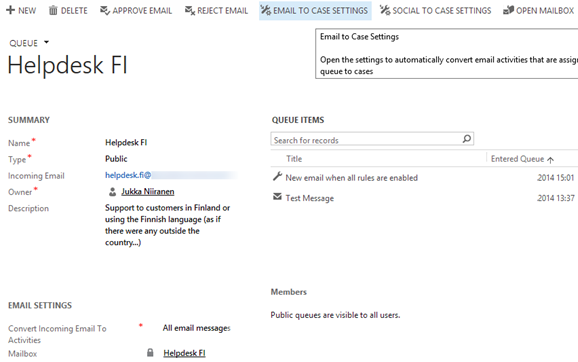
    As illustrated in the big picture of queue and case management in my previous article, Case Creation Rules are specific to a single queue. Also, you can only have one Case Creation Rule per queue – per channel. It is nevertheless a 1:N relationship between queues and rules, since a queue can have a Case Creation Rule both for email and social activities (the latter of which are not yet leveraged in this release). The Command Bar buttons on the updated queue form, labelled “Email To Case Settings” and “Social To Case Settings”, take you to the respective rule record.

    CRM2013SP1_queue_settings

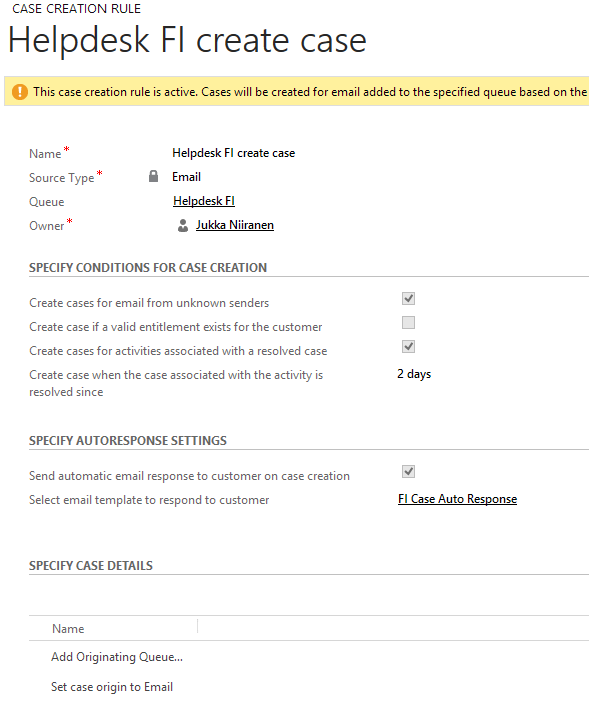
    The Case Creation Rule form allows you to configure predefined conditions for case creation. Emails from unknown senders can be filtered away from case creation. Also the existence of a valid entitlement for the sender (contact) or the senders company (parent account) can be used as a filter. Finally, email related to an already resolved case can be set to generate a new case record, with a configurable “quarantine” time period. So, if you resolve a case today and the customer replies “thanks for your help”, this probably shouldn’t generate a new case, but a reply sent after 3 days to the same email thread might warrant opening up a whole new case record.

    CRM2013SP1_case_creation_rule

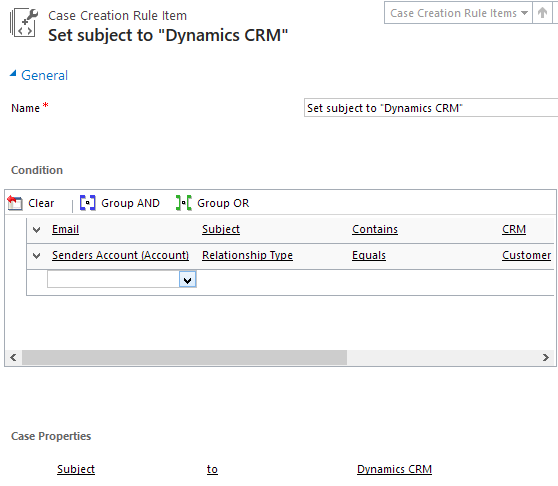
    That’s all the conditions you can apply for the automatic case creation. There’s an additional entity called Case Creation Rule Item that’s found in the “Specify Case Details” subgrid. What this feature allows you to do is specify a condition on the activity record (email or social activity) and set values for the newly created case’s fields. As an example, if the email subject contains word X, you could populate the case subject lookup field with value Y. So, you can’t use these Rule Items to determine whether a case will be created or not, but you can pass along some variables from the originating activity.

    CRM2013SP1_case_creation_rule_item

    The entity fields you can access in the Conditions box are limited to those directly related to the email (or social) activity. There is however one welcome exception and that is the Senders Account. This means that when the email is coming from a known contact, there’s a way to reach into the fields of the account related to the contact (related to the activity), to check variables like relationship status, customer category or other important pieces of information in a B2B service scenario. (more…)

  • CRM 2013 and the Platform Evolution: Webcast Recording and Slides

    Last week I presented in a webcast for MSDynamicsWorld.com on the topic of “Microsoft Dynamics CRM 2013 Customization and the Platform Evolution”. If you weren’t able to attend this live event, then have no fear, because it has all been recorded and documented for future generations.

    First off, below are the slides that set the background for my presentation:

    Next we have the actual audio recording of the presentation on YouTube:

    So, what was the session all about? The key message which I’ve tried to convey here is that the Dynamics CRM platform has entered “the next chapter” with the release of CRM 2013. This will not only impact the end users but also place a lot of demands on the system customizer role to learn new tricks and approach the task of solution design with a different mindset than in traditional CRM implementation projects.

    The presentation includes a comparison of the old world vs. the new and also highlights some key elements in the CRM 2013 platform that you should pay attention to when building your solutions today. If you’ve got any questions or comments on the content, then please don’t hesitate to post them below. And if you attended the live webcast, then thank you very much for tuning in!

    Oh, and in case you’re interested in hearing my thoughts on the very latest CRM Online Spring ’14 release / CRM 2013 SP1, then you can catch me in a Google+ hangout hosted by CRM MVP Donna Edwards on Wednesday, June 4th. Check out more details here.

  • CRM 2013 SP1: Case Creation and Routing – The Big Picture

    The latest Dynamics CRM Online Spring ’14 release is now rolling out to existing and new customers (starting from the US data centers) and the on-premises equivalent of CRM 2013 Service Pack 1 will soon follow is now available from MS Download Center (here’s the KB article for more details about SP1). The quickest way to check if your CRM Online organization is already updated to the latest release is on the About screen, accessible via the gear icon in the top right corner. If your version reads 6.1.0.575 (or 6.1.anything) then you’ve got the Spring ’14 release available and you can proceed to the Install Product Updates menu to enable the new features.

    CRM2013SP1_version

    This release, previously known by the codename “Leo”, focuses on enhancing the service management capabilities of Dynamics CRM. There’s a great “What’s New” page on CRM Customer Center that provides a detailed listing of the new features launched now, including an eBook of the changes in service management. Instead of repeating all of this information, I’ll try and provide an overview of how the features align with one another and specifically how they could be applied in real world scenarios for managing incoming service cases from customers.

    Enhancements in Case Creation and Queues

    I guess we’ll still need to first list the new options we need to be aware of when configuring the service module in CRM 2013 SP1 to handle emails and cases  via queues. First off, there is now support for server side synchronization of emails (and other activities) between CRM Online and Exchange Online, without having to use the old Email Router technology (no support for hybrid deployments, though). Then there’s a new feature called Case Creation Rule that allows you to automatically convert an email message or a social activity record placed in a queue into a new case record. Finally, we have Routing Rules that can be leveraged for moving items into queues.

    The following is my own interpretation of how these three areas are aligned in CRM 2013 Spring ´14 Update / Service Pack 1. The picture illustrates how an email message from the customer would flow through the system automatically based on the configuration of the aforementioned features. It also includes a few bullet points about the supported actions for each component. (Feel free to click on the image to view a bigger version that won’t stress your eyes so much.)

    CRM2013SP1_Queue_Case_Configuration_small

    When going through the Leo release features I found it a bit challenging to get a clear view of the logical order in which the different functional areas found under the new Service Management settings menu should be applied. Also the relationships between them and the restrictions imposed on the number of records was something I only learned through trial and error. Hopefully this illustration makes it easier to identify the roles of case creation rules and case routing rules in the new release.

    Rules vs. Workflows & Plugins

    Looking at the picture, someone who has previously configured Dynamics CRM to be used in an email, queue and case based support process will surely find many familiar actions from the list. At the end of the day, pretty much everything here has already been possible with previous CRM versions. With those you just needed to leverage the workflow engine in the CRM platform to configure the case creation and routing activities. So, what’s really new here and why has Microsoft built this into the latest product release?

    Behind the scenes, what the case creation and routing rules do is they create the workflow processes for you. This can be seen from the release documentation where the administrator of those rules is reminded about the requirement to have sufficient security roles for performing the corresponding actions via workflows. So, taking a very simplistic view, you could think of these new features available in the Service Management as a dedicated UI for configuring common process automation actions for customer service scenarios.

    There’s definitely value in having these new features available right inside the core product. In previous versions, it has been far from trivial to build the necessary functionality for frequently encountered requirements, such as “email to case”. Several ISV add-ons have been developed to deliver such functionality and system customizers have surely spent a ton of time pushing the CRM workflow editor to its limits in an effort to automate the common tasks that a service organization would need to perform when managing cases in Dynamics CRM. Now there’s a new standard way to implement these processes via a method that is fully supported by Microsoft, which in turn will lead to far more customers taking a serious look at these case management capabilities in their business application platform.

    CRM2013SP1_Service_Management_Settings

    It’s important to keep in mind that these new features don’t replace any of the existing CRM platform functionality. They offer a default method to configure common features, but they will not cover every possible scenario that you’ll come across in real life implementation scenarios. That means you can still use workflows and plugins to extend the process automation for service case management. For example, while a case creation rule provides the possibility to set an auto response email to be sent to the customer upon case creation, there’s nothing stopping you from doing this via familiar workflow process if more complex business logic is needed than what the new Service Management UI in CRM makes available.

    In the next blog post I will take a more detailed look at how the case creation and routing features can be leveraged in practice, so stay tuned!

  • CRM 2013 Customization and the Platform Evolution (Webcast)

    MSDynamicsWorldOn Thursday, 22nd of May, I’ll be delivering a one hour webcast on MSDynamicsWorld.com, the leading independent online publication covering all things Microsoft Dynamics. The topic of my webcast is “Microsoft Dynamics CRM 2013 Customization and the Platform Evolution”. Here’s the official description of the session:

    During its 11 years of life, Microsoft Dynamics CRM has grown from simple sales force automation software into a comprehensive business application platform. At the same time, both the tools available for the typical knowledge worker as well as the general expectations for the functionality in web-based business applications like CRM have evolved considerably.

    Join Microsoft MVP and Dynamics CRM expert Jukka Niiranen for a live session that will:

    • Explore the implications of these solutions design trends with respect to Dynamics CRM 2013; 
    • Discuss how to fully leverage the latest platform capabilities;  
    • Examine ways to deliver a modern productivity application that works the way in which the user expects

    This event content is aimed at persons who are planning, designing or implementing customizations to Dynamics CRM. Whether you have already moved to CRM 2013 or are considering upgrading your existing system, this session will provide insights on key areas where the latest platform version is different from its predecessors.

    Sounds interesting? Then by all means sign up for the live webcast next week!

  • Synchronization vs. Tracking: Understanding Activity Management Options in Dynamics CRM

    Synchronization vs. Tracking: Understanding Activity Management Options in Dynamics CRM

    Long before a company has any CRM system in place they will already have a bunch of customer facing activities like emails and appointments in the personal mailboxes and calendars of their employees. Once a CRM system is implemented, these activities will not magically disappear but rather they will continue to be a key element in how the customer relationships is managed on a practical, day-to-day level. Typically companies would like to have these communications stored in the CRM database to accumulate a better understanding of both which customers are being contacted by which representatives of the company as well as the detailed information of what’s been said and agreed with the customer in these acts of communication.

    CRM_2013_Activities

    Maintaining two separate systems for entering the same information is never an attractive option for information workers who just wish to stay on top of their daily agenda and commitments, without having to worry about keeping multiple calendars in sync manually. Rather than entering an appointment in your own calendar first, then entering the same data into your CRM system for activity tracking purposes, every single user would rather have the ability to promote their selected calendar entries related to customers into their CRM system for meeting the activity reporting requirements expected by their managers. Similarly, instead of copy-pasting information from their inbox onto forms in a CRM system, anyone presented with the option to click one button in their inbox and get the full message tracked into CRM would surely prefer to take this route.

    This has been one of the founding principles behind the design of Microsoft’s CRM system since day one. With the market dominance of Microsoft’s activity management related software both on the client (Outlook) and server side (Exchange), making the flow of this data across different systems as seamless as possible can be seen as a low hanging fruit to grab when entering the CRM market with the Dynamics product. Looking back, offering users the possibility of remaining within their familiar and personal Outlook inbox and tracking information into the organization-wide CRM database has been a very compelling user experience at best. Yes, regardless of the countless hours I’ve had to spend solving Outlook related issues during my professional career in CRM, I’m still perfectly willing to admit that this type of UX is definitely worthy of pursuing in a CRM product, because it’s simply how it should work.

    How Dynamics CRM actually tracks your data

    What most organizations planning to deploy Dynamics CRM often find surprising is that up until CRM 2013 there hasn’t been much functionality on the server side related to managing the flow of activities between different systems. Even though Microsoft owns both Outlook and Exchange, they have decided to build deep hooks only onto the client side of Outlook and not the server side of Exchange. The positive side of this is that you don’t necessarily need an Exchange server for leveraging most of the activity management features of Dynamics CRM. The downside has been that you very much need the CRM Outlook client in place for things to work as you’d expect.

    When it comes to sending and receiving email, the CRM Outlook client can act as the component that takes care of all the inbound and outbound emails for CRM. However, for any organization that needs to have emails flowing directly into CRM (such as a customer support email address that feeds items into a CRM support queue) or relies on workflow based email notifications to go out even when the Outlook client of an individual user is not connected to a network, the deployment of the Dynamics CRM Email Router has been in practice a compulsory step to take. Again, this component is independent of Exchange server and can be used also with other email systems via SMTP or POP3 connections. The Email Router can replace some of the email management features of the CRM Outlook client (but not all, we’ll get to that later) and basically “email enable” your Dynamics CRM server, so that it can independently communicate with the outside world via email.

    One thing to note is that even customers who’ve chosen CRM Online as their deployment model instead of deploying an on-premises Dynamics CRM server have needed to separately deploy the CRM Email Router if they wish to send/receive email from/to CRM Online without routing all of the messages via the individual Outlook clients of their CRM users. Microsoft doesn’t offer an “Email Router in the cloud”, so you’ll either need to have a local machine available for deploying the router (doesn’t even need to be a Windows Server, also client OS like Vista or Windows 7 are supported) or get a virtual machine from some hosting service, such as Windows Azure. You can leverage the Exchange Online service in your Office 365 subscription for the actual email delivery, but the CRM Email Router cannot be purchased as a service directly from Office 365.

    CRM_2013_Server-side_SyncWith the latest CRM 2013 release Microsoft has started to address these challenges of dependency on either client machine components (Outlook client) or on-premises servers (Email Router) by introducing a feature called Server-Side Synchronization. This allows the Dynamics CRM server to communicate directly with the Exchange server, effectively replacing the email sending and delivery features of the CRM Email Router. In addition to that, server-side sync can also handle other Exchange items like appointments, tasks and contacts, which can also now flow between the CRM database and the users’ calendars and address books on various devices without any central dependency on a client-side component like the CRM Outlook client.

    Great! CRM 2013 server-side sync solves all our problems! End of blog post! Well, not quite. We’re actually just getting to the reason why I’m writing this post, which is the surprising complexity behind understanding the detailed feature sets of the various components that aim to deliver the seamless one-click UX that I was talking about earlier on. Based on what we’ve discussed so far, here’s how the big picture of synchronization methods for CRM 2013 looks like:

    CRM_2013_Synchronization_Methods_small

    As is often the case, the devil is in the details, so let’s proceed with pointing out the “gotchas” that you need to be aware when planning on managing activities in a Dynamics CRM environment. (more…)

  • What’s on the 2014 Roadmap for Microsoft Dynamics CRM?

    The annual festivities of the Microsoft Dynamics Convergence event in the US have now been completed for the year 2014. This means that the outline for upcoming releases in this calendar year have also been presented to the 12K attendees in Atlanta as well as anyone watching the sessions via Virtual Convergence. The following roadmap slide shown at the event tells us the big picture: it’s going to be a busy year for Dynamics CRM!

    Microsoft Dynamics CRM roadmap 2014

    OK, so if the first “swim lane” in the CRM Roadmap schedule is titled “CRM”, then what’s with all the other lanes then and how do these non-CRM items relate to the Dynamics CRM roadmap? Well, here’s the thing: this ain’t the CRM you used to know. It’s no longer that IIS application you used to install on your own little Windows server along with a SQL database and maybe a client component in Outlook. It’s now a suite of services that cover not just your internal processes and tools for your employees but also a wealth of external touch points where your customers will also encounter your CRM system, be it directly or indirectly. Oh, and naturally most of it lives in the cloud, because that’s also where your customers are.

    Of course customer relationship management has never been about just that single CRM database where you keep your own contact records, but now it has become very obvious that also Microsoft’s offering in the field of CRM has grown way beyond that. Following on the footsteps of Oracle and Salesforce.com, the acquisition and integration of a growing number of tools to complement the traditional core Dynamics CRM platform means the future CRM product will be much more modular, as opposed to the earlier “one app & license for everybody” approach. Let’s go through each of these lanes in the CRM roadmap and look at what was announced for them at Convergence 2014, starting from the most familiar one: “CRM”.

    CRM

    After last fall’s release of the new Dynamics CRM 2013 major version (code name Orion), you might have been lead to believe that there wouldn’t be so much happening with the core platform this year, at least in the on-premises world. The earlier communication from Microsoft indicated that the plan was to introduce a new release for CRM Online twice a year and roll out an on-prem version once a year. The code names for these releases were also shared: Leo in Q2 2014 and Vega in Q4, one year after CRM 2013 RTM.

    This is no longer true. But wait! It’s not an R8 style cancellation but rather a positive piece of news. The Q2 2014 release Leo will be for both CRM Online and on-premises customers, as will Vega. It doesn’t mean all the features will be identical across deployment models but it does promise to deliver new functionality also to customers who are running CRM on their own servers. What exactly will be the delivery mechanism (Update Rollups were supposed to be clear of any new features) or how the official naming convention for different versions will evolve is not yet clear, but currently Microsoft is referring to this as the Dynamics CRM Spring Wave. Partners will have a training blitz session for this wave on April 8th/9th, so expect to see more details made public after this.

    The functional changes in Leo will focus on the service module of CRM. New features showcased in the Convergence sessions included SLA management with a timer control available on the case form, merging cases and linking parent/child cases, entitlement management, email to case automation and improvements in the queue feature usability. Considering how much these new features alter the case entity functionality and configuration options, it would have surely been quite difficult to continue supporting two different feature levels if Leo would have in fact been Online only. For callcenter scenarios the new Unified Service Desk (USD) will offer functionality similar to what has previously been delivered via components like the Customer Care Accelerator (CCA) or User Interface Integration (UII). Expect to see also other feature enhancements or tools released as a part of Leo that will not be customer service specific, as well as new capabilities for CRM Online subscription management.

    The contents of the Vega release had not really been disclosed prior to Convergence 2014. As this release is still further away in the future the details are not yet as clear as for Leo, but a number of very interesting enhancements to the core Dynamics CRM product were shown on the CRM roadmap slides. Calculated fields will finally be available without writing custom code, via a graphical editor with intellisense support. Business Process Flows (BF) will be enhanced with support for branching processes. On the UI side we can expect to see built-in capability for visualizing account hierarchies. These three features all address very common scenarios that Dynamics CRM customers require in their system implementations, so it’s great to see them introduced as configurable features that a system customizer can leverage right out of the box.

    Social

    Remember when Microsoft bought NetBreeze one year ago? Their service has now been integrated into the Redmond product portfolio and carries the name Microsoft Social Listening. Last month it was announced that Microsoft Social Listening will be offered as part of the CRM Online Professional licenses at no additional charge, whereas on-premises customers can get it for an incremental cost. This “incremental cost” was later specified to be $20 per user per month for CRM Professional CAL holders. So, while it’s not free for everyone, the pricing is still in line with Microsoft’s previous announcements of wanting to “democratize social” and integrate it as just another channel into their CRM product. (more…)

  • Power User Tips for CRM 2013 Navigation

    Power User Tips for CRM 2013 Navigation

    Multitasking isn’t necessarily the most efficient working method for us humans with only a very limited capacity for concurrent threads in our CPU. The reality however is that the days of an information worker are filled with a never ending dance of switching between apps and windows. With large Full-HD monitors (and soon 40 inch 4K screens) it would simply be a waste of space not to have several applications, documents or web pages open simultaneously, to make it easier to combine information from different sources to get our jobs done.

    CRM 2013 has been redesigned for a single window UI paradigm that kills the need for most popup windows while working in the end user areas of the application. This works great when searching for information related to a particular account, opportunity etc. but there are situations when you need to work with the data in more detail, to compare the contents of multiple records, for example. At times like these you can find yourself wishing you had those multiple CRM windows you could switch between.

    Instead of having to manually open several different sessions of CRM in your browser, you can leverage the built-in navigation paths for popping records open in a new window. In a list view you can right-click on a record to reveal the menu that offers this feature:

    CRM2013_power_user_navigation_1

    If you’ve already clicked open the record you want to continue working with while navigating onto a different part of the application, you’ll find an icon in the top right corner of the form that will allow you to pop the current record open onto a new browser window:

    CRM2013_power_user_navigation_2

    Great, so there are ways to have the individual records open simultaneously. Now, as a person who mainly works with CRM system customization and configuration instead of the data, I often find myself wishing to have two different parts of the application open at any given time: the end user records and the solution management interface. This way I can more easily pinpoint the views, fields, form components etc. from the end user UI that I want to manipulate in the customization UI. Ever since CRM 2013 arrived it has therefore become a routine for me to open two copies of the CRM organization in separate browser tabs, usually by copy-pasting the URL from the first tab onto a brand new one and hitting enter.

    When working with CRM Online organizations I noticed that if you access CRM via the Office 365 Admin portal as a system administrator, you’re by default taken to the CRM Settings area instead of your home page as defined in the Default Pane and Default Tab of your personal settings. The reason is that the URL gets appended with a few additional parameters and ends up looking like this: https://orgname.crm4.dynamics.com/main.aspx?Origin=Portal&page=Settings&area=nav_administration. While I almost never want to go to that Administration page directly, it did give me an idea for a little productivity tweak that I can use for shaving off a few clicks from my average working day.

    As we can see from the URL, there are parameters for variables called “page” and “area”. The last one looks like a sitemap subarea ID (you can review these via several config tools, such as the Sitemap Editor found in XrmToolbox), so the first one must be the sitemap area ID then. Hmm, I wonder if I changed the link to point to the Solutions subarea ID instead, would that take me to the list of solutions that I so frequently need to access? Let’s try https://orgname.crm4.dynamics.com/main.aspx?Origin=Portal&page=Settings&area=nav_solution and see what happens:

    CRM2013_power_user_navigation_3

    Yup, that’s exactly where we land. Now, if only there was a way to make this a generic link that I could apply in any of the zillion CRM organizations that I need to work with… Hey, wait a minute! That’s precisely what I did just a while ago with the global Advanced Find button! All I need to do now is to apply the awesome script from Sonoma Partners’ Blake Scarlavai and create a Javascript bookmark that will take me to the Solutions menu instead of Advanced Find. As we’ve already cracked the URL code, we can now change the part between the last quotation marks to append the CRM URL with our destination of choice:

    javascript:window.open($('#crmContentPanel iframe:not([style*=\"visibility: hidden\"])')[0].contentWindow.Xrm.Page.context.getClientUrl() + "/main.aspx?Origin=Portal&page=Settings&area=nav_solution");

    While we’re at it, let’s also go and build another URL that takes us to the accounts view, which is a fairly safe bet to have as the “get out of the admin land” navigation link (although not every org may have it in the sitemap). Following the same logic as above, our Javascript bookmark contents will be:

    javascript:window.open($('#crmContentPanel iframe:not([style*=\"visibility: hidden\"])')[0].contentWindow.Xrm.Page.context.getClientUrl() + "/main.aspx?Origin=Portal&page=SFA&area=nav_accts");

    Once we paste the scripts into the URL fields of bookmarks on our browser and add them to the toolbar, there’s now a powerful set of quick access buttons to take us to the frequently visited areas of the CRM application in any CRM 2013 organization that we have currently open in the active browser tab.

    CRM2013_power_user_navigation_4

    If you’re not working within the customization area of CRM that much but would rather just have a faster way to switch between different areas and entity lists than what the touch optimized Navigation Bar of CRM 2013 enables, I suggest you take a look at a brand new solution from MVP Scott Durow (of Ribbon Workbench fame) called Start Menu for Microsoft Dynamics CRM 2013. Instead of organization agnostic Javascript bookmarks in a browser, the solution from Scott takes the CRM 2013 Command Bar to where no ribbon has gone before and introduces a true power user menu for accessing any part of the CRM application from (almost) anywhere, by rendering the sitemap contents as a dropdown menu available on all Command Bar enabled entities. Here it is in action:

    CRM2013_StartMenu

    Last but not least, if you have any thoughts on how the CRM 2013 navigation options should be developed further in upcoming releases, be sure to review these links to feature suggestions on Microsoft Connect and cast your vote for the ones that you feel would help your organization’s users to be more productive when working with Dynamics CRM. Thank you.