Tag: CRM 2011

  • Microsoft Dynamics CRM Mobile iPad screenshots

    Microsoft has released a YouTube video where Ruben Krippner talks you through the upcoming features of the Q2 2012 Service Update, a.k.a. Dynamics CRM R8. Since we already know much of the new release details through the Release Preview Guide, the most interesting part of the video is the live footage of Microsoft Dynamics CRM Mobile running on an iPad. For those of you who want to get a quick glimpse of what the client looks like, I took the liberty of taking a few screenshots from the video.

    Sitemap & Dashboards
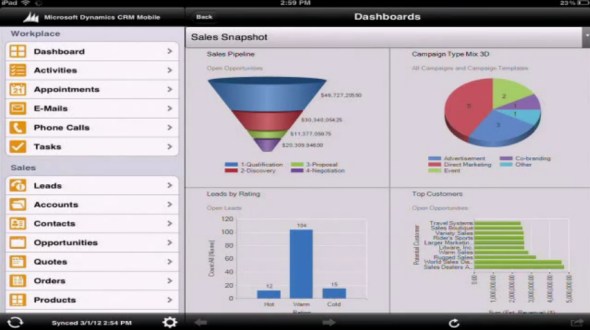
    Microsoft Dynamics CRM Mobile iPad dashboards

    As we know, the “new” client is actually a rebranded version of the CWR Mobility client for Dynamics CRM. The UI looks almost identical, apart from a new set of Metro style entity icons. The sharp edges and “authentically digital” appearance look somewhat out of place in the otherwise iOS-style app, but let’s hope that there will be a full Metro app for Dynamics CRM available once the Windows 8 tablets hit the stores.

    Dashboards appear to be close to the web UI as far as charts go. If you have other types of web resources on your dashboard (say, a Silverlight component), the results may be a bit less so. Also, I’m assuming entity grids will not be rendered on the iPad Dashboard, at least not in their original format.

    Views

    Microsoft Dynamics CRM Mobile iPad views

    The iPad UI does support filtering data through views, just like you do on the web client. However, the views themselves will not be presented in the familiar grid style with columns, rather you’ll see a list of records with the primary field and some other data stacked on top of each other. Whether this is because of iOS limitations or an inherited design from the iPhone app, I’m not sure.

    Forms

    Microsoft Dynamics CRM Mobile iPad forms

    The standard fields are presented on a form that has a single column. Picklist and date fields use native iOS controls, also field types like phone numbers or email addresses will open native apps for respective actions. Why an iPad app shows you the options to dial a phone call or send SMS, I don’t know, because at least my iPad won’t allow me to do those without jailbreaking the device, but maybe Ruben has a special version of the Apple tablet 😉

    As you can see from the form, it’s not specifically optimized for landscape mode viewing on a tablet, but rather looks like a big iPhone app. Entity forms with many columns will therefore be presented as a long list the user has to scroll up & down.

    Maps

    Microsoft Dynamics CRM Mobile iPad Google Maps

    As a funny little detail that Ruben mentions on the video how the account address opens up on Google Maps. Why not Bing Maps? Well, because the native map application on an iOS device comes from Google…

    Off-topic: It’s great that the mobile clients for iOS, Android and Windows Phone now have the basic address mapping integration in place, now we just need to get it for the web and Outlook clients as well. While the integration itself is technically quite trivial, the requirement for purchasing a Bing Maps license for using the map data on a non-public application is currently a big barrier in the desktop world. But enough about that, let’s get back to the mobile client.

    Related records

    Microsoft Dynamics CRM Mobile iPad related records

    Because the sitemap navigation pane is permanently visible on the left hand side of the screen, which on a normal web client entity form would show the related records, in the mobile client these are accessed through a button on the lower right corner of the screen. Subgrid type of functionality is not available on the tablet UI, which can make it a bit cumbersome to navigate through long hierarchies of records. As a result, using the iPad client for tasks such as order entry while on the road is not really optimal in the Microsoft Dynamics CRM Mobile client. These types of use cases will still be better met with a custom developed tablet application equipped with specific data entry screens, so toolkits like Resco will remain relevant even after this official Dynamics CRM iPad client gets released.

    Configuration

    Microsoft Dynamics CRM Mobile iPad configuration

    The mobile client is not just an alternative UI for CRM, but there is a wealth of management options for user and client management, synchronization settings, usage reports etc. Since the way you use a mobile/tablet application is quite different from the normal desktop client usage scenario, it’s important that the information presented to the user can be optimized. Microsoft Dynamics CRM Mobile allows you to do this by defining different user groups and assigning them tailored mobile profiles containing only relevant entities in the sitemap. Also the contents of the mobile forms can be adjusted, so you don’t have to show all the tens of attributes that your entities contain.

    Microsoft Dynamics CRM Mobile iPad mobile profile and entities

    Conclusions

    The CRM Anywhere theme is definitely a step in the right direction for Microsoft Dynamics CRM to become an application that truly “works the way you do”. Even though the cross-browser compatibility will enable users to open up the CRM web client on their iPad Safari browser, for any serious work on a tablet you’ll want to have a client that is optimized for:

    1. touch based user interface
    2. streamlined data presentation to support the “working in short bursts” mode of mobile device usage
    3. offline access for those moments when 3G or WiFi just doesn’t reach you

    For the subscription price of $30 per user per month (or the perpetual license you can still acquire from CWR Mobility), you can install a fully capable Dynamics CRM mobile client on both your iPad and your iPhone, and still have one user license left for trying out the latest Android phone (whether the non-offline Windows Phone 7 client will consume a license, I don’t know yet).

    You can read more of my thoughts on Microsoft Dynamics CRM Mobile on this article I wrote after the announcement at eXtreme CRM 2012 Berlin.

  • To the eXtreme, part 2: The future of the web caught up with IE and Dynamics CRM

    One great thing about Microsoft Dynamics CRM as a business application platform has been that it’s modern enough to have been born into the browser window from day one. With no legacy from the pre-web era, the product has been able to stay relevant with no major disruptions in the client side development and also supported the eventual move of the server side functionality to the data centers in the cloud.

    A history of Internet ExplorerInternet Explorer market share peaked in 2003, when 95% of all Internet usage was on IE. Coincidentally, Microsoft CRM 1.0 was released in January 2003. At the time, providing support for any other browser than your in-house product would have certainly sounded like a requirement you could de-prioritize. Today Internet Explorer commands a market share of less than 40%. There are now more iPads sold than any brand of desktop PCs combined. If that doesn’t signal the move to a post-PC era, I don’t know what does. If you’d be a company manufacturing an IE only product for PCs in the year 2012, you could soon be out of business.

    This is a fate Microsoft intends to avoid, which is why the cross-browser support for Microsoft Dynamics CRM was officially announced in the Q2 2012 Service Update release preview guide, released at the beginning of Extreme CRM 2012 conference in Berlin. We had already seen the promise of non-IE browser clients for Dynamics CRM presented in Microsoft’s May 2011 Statement of Direction and now we finally have details about what to expect in Dynamics CRM R8 release exactly one year later. As with my previous post on mobile CRM, I won’t rephrase all the content of the official announcement but I’ll rather try and reflect on the topic with some personal observations and thoughts.

    There’s Supported and then there’s “supported”

    If you’ve glanced at the table of supported browser and OS combinations, you’ll have noticed that Microsoft does not guarantee support on every browser out there on every operating system. This is not too surprising, as any web application developer surely knows what a nightmare the differences in interpretation of web standards between various browsers can be for application development and testing. In the words of Craig Dewar (Director of Product Management for MSDYNCRM), browser testing is a “gigantic effort” for Microsoft, which is why official support is not all encompassing.

    Microsoft Dynamics CRM browser and OS support

    Just because a browser or OS is not listed in Microsoft’s documentation as supported, doesn’t mean Dynamics CRM won’t work on it. So, even though there are no supported options for using Microsoft Dynamics CRM on Linux, you might not notice any problems if you access it with Firefox on Ubuntu. In fact, Craig mentioned in his keynote at Extreme CRM 2012 Berlin that even if you’re using a client that’s not officially supported, Microsoft will allow you to open support tickets on issues that are not specific to the browser/OS combination you’re running. I guess you’ll just want to have at least one Win/IE or Mac/Safari device around to make sure you can reproduce the issue when dealing with Microsoft Support representatives.

    “Macbooks for everyone!”

    In case you’ve been drooling over the cool Apple hardware that all the opinion leaders seem to carry with them these days, the future does indeed look brighter for people working on/with Dynamics CRM. Before you jump head first into the OSX & iOS world and format all your Windows partitions, it’s important to remember that what Microsoft is talking about here is just the browser client support for CRM end users.

    Outlook 2011 for Mac: sorry, no Microsoft Dynamics CRM clientWhile you can get Microsoft Office for OSX and run Outlook on you Mac, what you can’t do is use the Microsoft Dynamics CRM for Outlook client. This means you can’t track emails to CRM, synchronize your calendar appointments between Outlook and CRM, get CRM task and call reminders from your Outlook, synchronize your contacts from CRM to Outlook to your iPhone, or have any offline support for CRM data and application functionality when your Macbook doesn’t have WiFi or 3G data connectivity. All in all, you lose quite a bit of that seamless productivity tools magic that Dynamics CRM promises to deliver for all Windows users. I haven’t seen any announcements about a CRM Outlook client for Mac, so it’s pretty safe to assume that we won’t see one released for the Outlook 2011 for Mac version currently available.

    OK, so how about the support of Apple’s mobile devices then? It says Dynamics CRM will run on iPad 2 with iOS 5.x, so that should at least deliver the full flavor of the browser experience on a tablet, right? Well, the problem is you might get more than you bargained for in that deal, since (as far as I’m aware of) the browser client will look and work exactly the same on all supported platforms and devices. If you’ve ever tried running the Dynamics CRM web client on a Windows 7 tablet, you’ll know that simply replacing the mouse cursor with your index finger will not magically “touchify” the user experience. What works nicely on a 24″ screen with mouse & keyboard input may not scale/transform into the tablet environment of 10″ screens and touch UI. If you’ve used a remote desktop app on your iPad, then I’d imagine this is pretty much what you can expect from a browser client on an iPad. Unless you go for the $30 per month subscription of Microsoft Dynamics CRM Mobile app or purchase a perpetual license from CWR Mobility, TenDigits or other ISV’s that develop mobile clients optimized specifically for the touch UI. The same goes for Android tablets, only with the exception that the browser client falls into the “not officially supported” territory.

    Finally, if you’re not only using Dynamics CRM but also administering or customizing it, I’ve read that you’ll still need Internet Explorer in order to access these areas in the web client.

    ‘Reimagining’ Windows, should we also reimagine Dynamics CRM?

    WinRT architectureIt’s important to note that the web client coming out in Q2 2012 is not a HTML5 product, rather it’s a trimmed version of the previous IE only client with removed dependencies on Microsoft’s proprietary extensions that only IE supports (.htc files etc.). The future is not here yet, but there is little doubt on the direction Microsoft is heading towards, with the upcoming WinRT framework and the big push for HTML, Javascript and CSS as the foundation for future Windows apps.

    Which brings us to Silverlight. It’s been widely speculated that Silverlight 5 released at the end of 2011 will be the last of it’s kind, the end of the road. Porting existing Silverlight apps to run on Win RT is said to be easy, which should naturally be in the interest of Microsoft to ensure. As I’m not a developer, I’m looking at the discussion more from the point of view of someone who needs to examine all the available technologies out there, evaluate how they fit together and build a working business solution out of them. From this perspective, there are some concerns regarding Silverlight that very much affect Dynamics CRM users as well.

    While Dynamics CRM might work on a browser/OS combination that is not officially supported, the game is different if you’re using Silverlight web parts in your CRM. If a Silverlight plugin is not available for the client, it will not work, period. This includes combinations such as Chrome/OSX, any machine running Linux and most notably the iPad. Ok, so what about making the same UI with a different technology, like HTML, Javascript and CSS? In theory everything should work on every platform in this case. You’re free to draw your conclusions on which approach is better for starting your next Dynamics CRM add-on project.

    Looking further ahead to Windows 8, we’ve already received the announcement that there will actually be a completely different edition of the operating system, called Windows On ARM (WOA), that will the basis for building always on, always connected, low power consumption devices to rival the iPad. The Internet Explorer 10 browser on WOA will not allow any plug-ins whatsoever, be it Flash or Silverlight. Furthermore, the Office 15 package that is available for WOA tablets will include only Word, Excel, PowerPoint and OneNote, but not Outlook. By now you should have figured out that the Microsoft Dynamics CRM experience on WOA will need to be quite different from what we have on Windows 7 today.

    If there will not be Outlook on the “real” Windows tablets, what does the future hold for the CRM Outlook client? I previously wrote about the legacy of Outlook and how it will be increasingly more difficult to carry all that legacy when moving to the Post-PC era of iPad-esque devices for every knowledge worker. By the looks of things, Outlook could possibly get split into Metro Mail, Contacts and Calendar apps. If this happens, then it’s easy to envision a separate Dynamics CRM Metro app sitting alongside them, integrating into all the other installed apps through a simple share contract. After all, isn’t that the way it should really be? Link contacts/friends/followers from any social network app to CRM contacts, track any type of status update/post/tweet from the same app as a custom activity type into your CRM database. There’s no reason why customer relationship management tasks should be any more complex or inflexible than that.

    It’s great to have Dynamics CRM available soon on (almost) any browser. Still, if Microsoft truly is reimagining Windows the way they claim to be and if their business customers buy into their new story, perhaps running Dynamics CRM on Safari won’t seem all that exciting anymore this time next year.

  • Make CRM Activity Feeds easier to follow by creating custom groups

    The functionality of the new Activity Feeds feature introduced in CRM Online R7 / CRM 2011 Update Rollup 5 is built around the concept of following specific records. This allows a very granular level of control for the users to select the specific items from which they wish to see posts on their personal wall. However, this does also force us to carefully plan for the scenario of a new user who logs into the Activity Feeds view for the very first time. What they will have in front of their eyes is an empty wall with just a few links to the online help material.

    An empty wall greets the new CRM users

    In order to make Activity Feeds a shared, trusted source of information on customer related events, the organization using Dynamics CRM needs to provide its users a path that they can follow to become a member of this community. Although it is possible to build custom business logic through the SDK that automates the following of records, wouldn’t it be better if teams of users could themselves choose topics that they wish to follow, and also broadcast their posts to other users following the same topic? You know, like #hashtags on Twitter. Well, there’s no built-in support for hashtags in the current release of the Activity Feeds solution, but here’s a description of one possible workaround which I’ve come up with.

    In my previous post on the topic, I covered the general process of how to enable Activity Feeds for entities in Dynamics CRM. The natural choice for supporting a team collaboration scenario would be to use the default entity Team to display relevant posts for its’ users on the entity form. Unfortunately you can’t enable Activity Feeds for teams, since that’s not a supported entity. In fact, you cannot enable Activity Feeds for any organization-owned entities, even custom ones.

    Luckily there’s nothing stopping your from creating a user-owned custom entity and enabling it for Activity Feeds, so let’s go ahead and create a new entity called “Group”. No need for new fields, just publish the entity, then create a Post Configuration record with the same entity name (new_group or something like that). After this you’ll need to go and adjust the form so that the Record Wall is directly visible when you open the form, by moving it below the first General tab.

    New entity Group created for enabling mentions on Activity Feed posts

    Now you’re all set for starting to use the group entity in Activity Feed posts. No matter on which record’s wall (or your personal wall) you’re writing a post to, you can perform a mention by entering the @ character followed by the group’s name. In this case I’ve created a group called CRM, so I’ll add a mention of @CRM on an account record wall. You’ll see how that turns into a hyperlink to the group record.

    Post with a group mention on an account record wall

    How the user’s personal wall works is that it will display all Activity Feed posts that contain any reference to a record that the user has followed. It doesn’t have to be the record where the post has been written on. This is what enables us to make following updates concerning a certain topic easier for the end user, as long as the posts contain a mention/link to the group record. For manual posts the users will need to indicate that they wish to direct the post to the group’s followers by performing the @[groupname] mention as seen below.

    Performing a mention on a Personal Wall post

    So, does this mean that the mentions can only be utilized with manual user initiated posts? Absolutely not! There is a new attribute available in the workflow editor, called Post Url (Dynamics value). You can read this post on the MS Dynamics CRM Team Blog for details on how the feature can be leveraged in building workflow rules that create Activity Feed posts with mentions referencing other records. This allows us to reference multiple related records in a single post and make it appear on the personal wall of anyone who’s following one of the records.

    Let’s say we want to create an auto post whenever a case record is created and it has the value “CRM” in the subject field, to notify anyone who’s following the CRM group. Ok, so we can find a relationship to the related subject record but since that’s not supported for Activity Feeds (just like teams aren’t), we wouldn’t be able to use it for creating a mention. Also, since the group entity we created doesn’t have a relationship to the case entity, it’s not available in the workflow dynamic values menu.

    Should we go and create a relationship through entity customization? Well, that would be a bit cumbersome, since you’d then have to include a reference into the actual group record in every case record you wish to create a post a mention on. You’d pretty much have an additional subject lookup on the case form as a result, which is not a good solution in terms of usability (at least if you already use the default subject entity in your processes). (more…)

  • Power of Choice or the Legacy of Outlook?

    The first selling point advertised for Dynamics CRM in almost any context is the user interface familiarity of Office users and the seamless integration to Outlook. Compared to other CRM applications, the feature set available in the Dynamics CRM 2011 client for Outlook is unsurpassed, no doubt about that. However, sometimes you do run into issues that break the illusion that CRM and Outlook would be the one and the same application. Here are a few features that you should be aware of when planning on how you’ll train your users to use the two different client versions available: web and Outlook.

    Issue 1: Dashboard ribbons are not context sensitive in Outlook

    If you build a dashboard out of grids that present the user with relevant data from various entities, this can significantly cut down their need for jumping between different menus and screens. Say, a customer service representative can easily view all the new items in the email support queue, active cases assigned to him/her and also other open activities. With the help of the context sensitive ribbon the user can then process these records in the same screen, by changing record status from open to closed, accepting items from the queue, creating new tasks etc.

    Except, in Outlook that won’t work. The user will only be able to create a new dashboard, but not any of the common tasks, like creating new records for the selected grid. This is because in Outlook the ribbon is not context sensitive within the dashboard. Why is this? It works elsewhere in Outlook, so why not here? I imagine the explanation is that while the normal grids are composed of native MAPI objects inside Outlook, the dashboards are merely web pages as far as the Outlook client can recognize them, so it can’t understand which ribbon should be shown in which part of the page. Bummer.

    As a result, if you want to create actionable dashboards that allow users to work on the items presented there, it’s better to instruct them to open CRM through the web client instead of the Outlook client.

    Issue 2: Different logic in Quick Find

    People who have worked with Dynamics CRM throughout several versions will surely have learned how the Quick Find operates and when you need to use wild cars. With the CRM 2011 Outlook client, this logic no longer holds true. Outlook has its own way of handling search terms, so now we can punch in a search word right from the middle of a field, such as the account name, without entering the asterisk wild card in front of the term.

    Great, easier for the user to perform searches, right? Well, it is if you only ever work inside the Outlook client. If you step into the web client views, you’ll discover that things work differently there. Not only do you need to remember to use the wildcard in Quick Find criteria, but there also is a specific Quick Find View. Whereas in the web client the search will cover every active record in the database, no matter from which view you start, in Outlook the search is conducted on the records in the selected view. So, if you’re in the My Contacts view in Outlook client and search for a contact that belongs to another user, the Quick Find results will not deliver any data. In the web client it will.

    Also the columns presented in the web client will always be the ones specified in the Quick Find View customizations, but in Outlook the columns will not change as you’re searching from within the current view. However, it appears that the search columns that the Outlook client performs the query on are still affected by the ones defined in the entity Quick Find View, even though this view is never actually presented to the Outlook user. Still following me? If the different search logic is hard for a consultant to remember, just imagine how confusing it can be to the CRM user.

    Issue 3: Writing emails from Outlook without Outlook

    One of the three core modules in Dynamics CRM is Service. The most typical scenario for utilizing CRM for customer service processes is directing the incoming emails for an address like support@company.com to a queue in CRM. This way the emails are automatically tracked under a contact record if the sender email exists in CRM. Also the queue allows you to see which items are already being worked on by customer service reps.

    If you’re working with the Outlook client for Dynamics CRM, then you can write all your emails with the normal Outlook email editor and make use of the rich tools for message formatting, signatures, attaching multiple files with at once etc. Right? Not in this case. If the email you are replying to does not exist inside your Outlook mailbox but rather as an email record inside a CRM view, you can’t send “Outlook” emails as a reply. When you click the reply button, the Outlook client will open the web client email editor form for you.

    There’s surely a reason why the email editor in the web client hasn’t been improved since CRM 3.0. Outlook is Microsoft’s premium experience editor that should be used wherever possible, whereas the web editor is a secondary feature. But if you’re using Outlook already, then it would be nice to be able to always remain within that rich client, even when replying to queue emails, wouldn’t it?

    Issue 4: Recently used and pinned records behind the File button

    Many users will normally be working with a selected few accounts, contacts and opportunities at a time, rather than the whole CRM customer database. This is why the Recently used records menu in CRM 2011 is a great usability enhancement, which is also familiar from many other CRM applications. Right from the CRM main window, from the top left corner where you first look, you’ll be able to open a rich pane that presents all the latest records as well as the views you’ve recently visited.

    So, when I’m in the Outlook client then, surely I’m able to access the same list? Well, you are, but you’ll have to open the Office Backstage menu by clicking on the Outlook File menu, then glazing past all the file manipulation options and settings menus, to finally reach the recently viewed CRM records. And even if you reach it, you won’t be able to launch any views from this menu, since again the way how Outlook treats grids is different from the web client. Anyway, you probably won’t be accessing this menu any more often than you tweak your CRM settings, simply because it’s so well hidden away.

    Desktop Outlook: how crucial is it still?

    Ok, so there are a few quirks to be aware of when jumping between the web client and Outlook client. But how essential is it really to use the Outlook client in the first place? (more…)

  • Connections don’t merge, so be careful with duplicate records

    Update 22.3.2012: this has now been fixed in Update Rollup 7 for Microsoft Dynamics CRM 2011 (KB 2600643). Go and get the file here, unless you’re using CRM Online.

    Connections are a nice new feature in Dynamics CRM 2011 that allow you to create ad-hoc relationships between two records of almost any entity type. Additionally, you can specify roles for both the Connected To and Connected From parties, to describe the connection in more detail, as well as provide start and end dates for the connection. These are very handy for recording non-hierarchical relationships between contacts and accounts that tend to exist in the real world. As an example, a person working as the CEO of Company A might be a member of the board in Company B, which means they should be visible under both accounts. Company A would then be the parent account of the contact, whereas there would be a connection between the contact and Company B.

    Another common real life phenomena is that duplicate records find their way into the CRM database. This can be due to data imports from external databases, web forms feeding in new contacts, or simply two users being unaware of each other’s records and entering data with slightly different spelling or email address variations. Luckily Dynamics CRM has a built-in functionality that allows you to merge duplicates from the database. This process will move all the child records from the subordinate record to the master record, thus ensuring that everything remains linked to the active record and not the deactivated duplicate.

    Except that for connections this doesn’t happen! Once the merge is done, all the connections will still be referencing the inactive record, not the master record. In the aforementioned example, you would have effectively lost the information about the contact’s relationship with Company B. Even though you could still see it by opening up Company B’s record and seeing the connection there, how would you ever have known where to look?

    There is an existing feedback item 683301 on Microsoft Connect regarding this functionality:

    Here’s a quote of the comment I’ve posted on the item:

    I think this is a serious flaw that undermines the perceived reliability of the Merge Duplicates feature in the eyes of the end users. The merge screen indicates that all child records related to the subordinate record to be deactivated would be transferred to the master record, but it doesn’t warn that connections would need to be manually checked.

    The merge process works just fine for custom entities, activities and pretty much everything except connections. Why would the user ever want to leave behind some non-duplicate information to the deactivated record? By merging two accounts or contacts the user is effectively declaring that these represent the same object in the real world. If something in the database has a relationship with either of these records, it should be carried over to the active record, as the inactive record no longer serves any other purpose than indicating the prior existence of a duplicate entry and the possible differences in attribute values compared to the current active record.

    If you think connections should be transferred over to the master record when merging duplicates, be sure to log in to Microsoft Connect with your Windows Live ID and cast your vote on this item. In the meantime, if you’re planning to use the connections entity for recording any data related to accounts, contacts, or leads, my suggested options are:

    • Don’t do it. Create a new custom entity for recording this data, as they will merge over to the master record just fine.
    • Develop you own plugin for capturing any merge events and updating the related connection records accordingly.
    While we’re on the topic, I also tested what happens to the old Relationship records that were used for connecting account, contact and opportunity records in versions prior to CRM 2011 (and are still visible in an upgraded organization). The result? When merging two contacts, any relationships referencing the subordinate record are deleted! Yeah, crazy, I know. If you’ve got any insight on what is the reason behind this perplexing system behavior for either connections or relationships when dealing with duplicate records merging, please leave a comment in the box below.
  • Activity Feeds are here, so “What’s New” in CRM then?

    Microsoft Dynamics CRM Q4 2011 Service UpdateIt’s been nine months since Microsoft Dynamics CRM 2011 was released. Given the large number of new features and functionality included in the new version, I’m sure many organizations have been able to keep themselves busy with thinking about how to leverage all of them. Anyway, the time is now upon us when we see the first true deliverable from the new agile development path that the Dynamics CRM product development team has adopted. The “Q4 2011 Service Update”, “November Service Update” or “CRM Online R7”, however you like to call it, gives a taste of things to come, as new features and improvements are now introduced bi-annually instead of a big bang release every 2-3 years.

    There’s lots of neat things included in the update, such as multi-category charts, user access auditing, lookup and date fields for dialogs, ignoring null values and inactive records in duplicate detection rules etc. Have no doubt, though, this release will be remembered from the Activity Feeds, so let’s proceed straight to them.

    More than just an accelerator for CRM

    Microsoft has split the delivery method of the Activity Feeds functionality into two tiers. The platform level changes are delivered with Update Rollup 4, which brings us a selection of new default entities, such as the feed Post. These will provide the building blocks not only for the visible Activity Feeds released now but also web services API enhancements, which are covered in the 5.0.7 update of the SDK.

    The Update Rollups can nowadays be considered pretty much as “business as usual” hotfixes like the ones released for other Microsoft products, both on server and client side, as they are delivered through the common Microsoft Update mechanism. Testing and planning for the Rollups is of course very much recommended still, as significant changes can be included in them, and yes, they do occasionally break compatibility between versions. Furthermore, the Update Rollup 5 required for Activity Feeds to function cannot be uninstalled if things go wrong.

    Anyway, unlike the hotfixes that can be expected to be installed on almost all CRM environments, the Activity Feeds user interface components will probably remain missing from many instances. Why? Because there is no automatic delivery method for them, unless you are using a CRM Online environment that has been provisioned after the R7 release became available. You see, Activity Feeds still are kind of like an accelerator package, as the solution file will need to be downloaded from the Dynamics Marketplace and installed by the system administrator.

    Download the Activity Feeds solution for Microsoft Dynamics CRM 2011 from the Dynamics Marketplace

    Not even installing the solution file and publishing the customizations is enough – you still need to configure them. The menu item for “What’s New” will appear in the UI after the solution installation, but none of the entities in your CRM have yet been enabled for Activity Feed posts. To do this, you’ll need to navigate to Settings and go to Activity Feeds Configuration menu. Create a new Post Configuration record for each entity that you wish to relate posts to. The configuration UI of the solution is not too nice, as you’ll actually need to use the logical name of the entity rather than the display name. So, to enable the new functionality for the user entity (which is the very first thing you must do!) is enter the value “systemuser” and click save. Make sure you check the box for “enable walls for this type of record form” and don’t forget to publish the entity’s customizations after clicking on save.

    Activity Feed Post Configuration

    What’s a “wall”? If you’re on Facebook (and who isn’t), you’ll know this refers to the place where the posts related to a user will be displayed in a descending chronological order. Now, in CRM it’s not only users that can have walls, but any entity for which you have created a Post Configuration entry for. Even your custom entities, like “project” or “event” can be set to have their own Wall. However, bare in mind that not all the system entities are supported for the Activity Feeds functionality, so you can’t have a discussion related to, say, competitor or product records (which kind of sucks, as those are some very common topics for employee discussion around the water cooler, but guess you’ll still need to get away from your desk every now & then). For a complete list of supported system entities, see this page on the SDK.

    Account record wall

    As you can see from the image above, the wall is actually a web part that is presented on a new tab, that is located before the first default tab (general). The tab will be collapsed by default and the form actually scrolls to the general tab right after the form script is loaded, so a user may not notice anything new on the form. However, if you click on the anchor on the left side navigation, the Record Wall will be revealed in all its glory. Here the user will have the option of adding the record into his list of followed CRM records, see who else is following it, and of course post an update on the wall. (By the way: if you have multiple forms per entity, you’ll need to add the Record Wall web parts manually, by following these instructions.)

    There’s also a Personal Wall that shows the user all the content from followed records, and that’s the first entry visible on the updated sitemap for Workplace. What’s really nice is that you have a link right after the “What’s New” header, which will allow you to pop up the wall in a new window. This way you can have the feed view quickly available for you at any time, no matter with which CRM entities you are currently working on in the main application window.

    Activity Feeds personal wall

    Furthermore, every user has a User Record Wall, which would be identical to the concept of a Facebook profile page. Sorry, no timeline design available here yet!

    Not just for mindless chatter: business logic for Auto Posts

    If all that Activity Feeds provided was the ability to chat with your colleagues or manually post updates related to records, then it would have a tough time competing with established enterprise microblogging apps like Yammer. Luckily the Dynamics CRM platform can offer much more than that. By allowing certain events related to CRM records to generate content for the Activity Feeds the system can actually serve as a tool that removes the need for you to email information about business events or type updates into a microblogging app. A traditional way to demonstrate the CRM workflows has been to create email alerts on closed opportunities, but now you can reduce the clutter in your inbox by moving these into the right context (opportunity form) with the ability for users to comment and see others’ comments. (more…)

  • Know your application: the MB2-868 exam for CRM 2011

    You pass! That’s a sight for sore eyes after staring at 75 grey screens full of Microsoft Dynamics CRM 2011 Applications certification exam questions for almost 2 hours. I received 750 points out of the required 700 minimum, so not exactly a walk in the park, but who’s going to care about the detailed statistics of how you acquired your MCTS certification?

    During the test I did have to go back to some 15 questions I marked for review during the initial round and spend a fair amount of time rolling the virtual dice in my head. Well, not exactly like that, but rather trying to reverse engineer the process of how the people at Microsoft might have designed the application to function in different scenarios and what reasons and practical limitations lead them to these choices. While many of the questions could well be taken from real life use cases, the way in which you need to be able to solve these problems in the exam is quite far from the normal routines. In real life you experiment, investigate and iterate, whereas here you’ve only got a few words to work on; each of them possibly containing a hint towards the right answer, or alternatively loaded with the malicious intent of leading you astray.

    Just because you’ve been working with the Dynamics CRM application on a daily basis for several years, doesn’t guarantee you would pass the MB2-868 exam. Even MVP’s have failed on their first attempt, so beware! The amount of product information covered in the Applications exam is growing all the time as new features are introduced and with CRM 2011 there’s a lot to read, let alone to try out in the application itself. At least when I was going through the training materials, the most time consuming part was when I constantly kept coming up with new ideas about “hey, this is something we must also set up for our presales demos”. Even though I had started digging deeper into the new version functionality already before the beta of CRM 2011 was released (and compiled my findings into two “what’s new” presentations you can find here: pt1 and pt2), preparing for the Applications exam made me realize how much of pre-2011 functionality you also need to keep in mind at the same time.

    So, tell me then, how important is it to remember by heart from which menus a particular standard report can be executed, when they’re A) all available from the Reports menu anyway and B) usually available in the right context for the user? Or what about studying all the different record statuses in which certain actions can be performed, when we’ve got a graphical, context sensitive ribbon persistently available in the UI, gently reminding us of the things we can and cannot (greyed-out/hidden buttons) perform at any given time? Like it or not, this is the direction that these multiple choice exams tend to drift towards: detailed information that’s perhaps nice to know, but won’t matter much in terms of real life skills required while actually using Dynamics CRM.

    If we look at Microsoft’s target audience definition for this exam, it reads:

    This exam is intended for individuals that plan to implement, use, maintain, or support Microsoft Dynamics CRM 2011 in their organization.  The exam is also intended for service schedulers, administrators, office managers, CEOs, and consultants who want to demonstrate foundational understanding of the application functionality.

    Quite a broad definition then. If you as an end-user or administrator are interested in learning details about the default functionality available in Dynamics CRM 2011, by all means do attend the training courses and download the training manuals from CustomerSource. They contain a wealth of useful information and some nice exercises you can try out in, for example, your very own 30-day trial environment of CRM Online (which may offer you quite a different “vanilla” training environment than your customized production CRM server). However, don’t worry too much about “demonstrating foundational understanding” of Dynamics CRM through the MB2-868 exam. The system is far easier to use in everyday life than how the exam questions portray it, so you’re better off in directing that time and energy towards exploring the possibilities that Dynamics CRM gives you in customizing the system to fit your business data and to automate your business processes. That’s where the real ROI of your CRM system is hiding, after all.

    Microsoft Dynamics CRM 2011 Applications courseware


    For those of you who need to take the exam due to MS partner competency requirements, the MB2-868 exam page section “skills measured”  is a useful document to keep by your side when browsing through all the CRM 2011 applications MOC courseware. Checking the topics enables you to better balance your study efforts, to make sure you’re not just diving deep into one module and neglecting another. This is how everything counts:

    • Marketing automation: 27%
    • Sales management: 30%
    • Service management: 24%
    • Service scheduling: 19%

    For example, service scheduling and service contract management have been standard features of the Dynamics CRM product for a long time, yet I find it hard to discover real life use cases of customers having deployed these processes into production use. Either the organization has initially tried using them, but later given up due to the mismatch of the built-in process flow and solved their problem with custom entities instead, or then they’ve gone down the customization route directly. As a result of this, it’s not necessarily an area that CRM consultants would be too knowledgeable on, when considerably more of their time is spent configuring and training the sales process in CRM.

    Does this then mean that these modules should have less emphasis in the exam? Well, at the end of the day, probably not. If you look at things from Microsoft’s point of view, it is in their best interest to have CRM consultants be aware of all the different functionality that their product contains out of the box. Precisely because their common tendency might be to focus on what they already know best and leave out the rest of the story when discussing with potential and existing Dynamics clients, it’s actually a fair exercise to make these specialists step outside of their comfort zones for a while during the certification process. Sure, you may not need the information in the projects you’re working on right now, but you need to have the ability to get up to speed quickly when duty calls.

    Finally, here’s a few practical tips from me on how to prepare for the CRM 2011 Applications exam:

    • Goal management: understand what values are recorded on which entity, the impact of ownership, fiscal year settings.
    • Teams and queues: this is where most of your answers based on experience from CRM 4.0 will guide you down the wrong path, so forget what you know and learn the new CRM 2011 way of working.
    • Charts and dashboards: what the user can do vs. what the admin can do, this should actually be pretty much 101 stuff if you’re well in grips with the solution management side of things. However, you shouldn’t forget about SSRS entirely: open each default report at least once and try them out, just to refresh your memory.
    • Marketing lists: Try building a few dynamic marketing lists to see how they’re different from the traditional static ones, and also how to mix’n match them.
    • Scheduling: you’ll need to understand how capacity management and resource selection rules work from the service and the resource perspectives, there’s just no way around this.
    • Record statuses: trust me, things that require no attention from you in everyday life will be very important here, so play around with as many different entities as you have time for and examine what actions are available on the ribbon in which record status.
    • RTFM: knowing how the system works is not good enough, as some of the questions are clearly derived from how the use cases are described in the training material, and in these kind of exams every word in the questions and answers is significant. So, don’t just play around with the fun tools built into CRM 2011 or trust what a lecturer tells you – also read through the MOC PDF’s.

    And just to close things off, some useful links for seeing what others think about MB2-868:


  • Enterprise gone social – how will CRM fit in?

    Enterprise gone social – how will CRM fit in?

    Call it a revolution, call it a bubble, call it what you want. One thing is for sure: social networks are not going away. Even though it still remains important to be able to manage and measure your sales funnel with the help of some tried & tested SFA tools, segment your customer database to build more effective target groups for campaigns, or share information on customer support enquiries across your helpdesk staff, this functionality will not be considered as important as it was during the last decade. In this new age of connected customers and empowered information workers, companies will be searching for applications and processes that go beyond what CRM has traditionally stood for.

    Let’s take a look at some of the recent news surrounding the world of CRM, to gather evidence of where we might be heading towards.

    Takeways from #SFDC #DF11

    On the last week of July, Salesforce.com held their annual Dreamforce conference in San Francisco. As a person working with Dynamics CRM for a living, it’s a good idea to keep an eye on where the other CRM solution providers are focusing their development efforts on, and SFDC certainly is one of, if not the main competitor that Microsoft has their eyes on. In his opening keynote, Marc Benioff made it very clear where his team’s focus is on, and that is the concept of a social enterprise. I’ll spare you from the marketing flare and instead present a few screenshots captured from the presentation, highlighting the new feature announcements.


    So, what’s in the pipeline for Salesforce.com during the winter 2011/2012 then?

    • Contact profiles will be “social enabled” by default, showing public feeds from networks were your customers are present
    • Data.com, previously known as Jigsaw, will power the social data discovery and data import, in combination with D&B’s database
    • Chatter Now extends the functionality from microblogging to instant messaging with presence information
    • You can invite your key customer contacts to specific Chatter networks, or even publish Chatter on the web as a customer service channel
    • Radian6’s technology will monitor those customer complaints that are not targeted at your helpdesk, enabling you to jump in on the conversation
    • All of this follows you everywhere you go, as touch.salesforce.com promises to deliver a HTML5 client that’ll make your iPad or smartphone a full-fledged social CRM control panel

    Even if you leave away some of the over-the-top scenarios presented, like friending the Coke machine or having network routers tweet you on social networks, it’s still clear that with all the promised functionality at your fingertips (once it’s available and working in a reliable manner), the possibilities for you to design and implement new business processes will be dramatically expanded. Whether companies are able to make use of and, more importantly, make money out of these new possibilities is a different question, but it surely does push the boundaries of CRM as we know it.

    Social CRM is where it’s at

    “Social” certainly is an attractive attribute to include in your product description these days. Gartner, for example, has predicted that the market for Social CRM would reach a total value of one billion dollars by the end of next year. Predicting the future with concrete figures is always a challenge, but it’s even more difficult when people don’t even agree on the definition of the market to be predicted. Several analysts have commented on Gartner’s reports, starting from reminders that an SCRM market may not really exist yet, or they have questioned Gartner’s choice of products included in their SCRM Magic Quadrants as including applications aimed at other functions than what CRM systems traditionally are about – managing customer information, that is.

    (more…)

  • More agile direction for Dynamics CRM future product releases

    During Convergence 2011 Atlanta we already heard the first pieces of news about an upcoming change in the release cycle of Microsoft Dynamics CRM product versions. Now we have the updated Statement of Direction May 2011 whitepaper in our hands and it lays out a roadmap for more rapid delivery of new features into both CRM Online as well as on-premises and partner hosted instances.

    What has now been labelled as the agile release model for Microsoft Dynamics CRM will mean that an update/upgrade to the core platform will become available every six months. Contrast that to the previous 2-3 years in between major releases and you can see it’s no minor readjustment but rather a whole new way from the Microsoft Dynamics team to deliver products to the business users.

    Funnily enough, the SoD whitepaper claims that CRM 2011 is the fifth major release of the product. While it goes by the 5.0 version number, I guess some of the folks in Redmond have already forgotten that there never was a CRM 2.0 realease, rather we saw the version number incremented from 1.2 to 3.0. Oh well, time flies when you’re having fun working in the field of CRM, so let’s move on…

    The new release cycle is of course a direct result of the Cloud Power in action. No longer can you spend years in designing and developing features for your new product behind closed doors, even if you are Microsoft. Cloud applications have taught us consumers into living in a world of perpetual beta products that constantly get updated with new functionality, without any effort required from us to physically upgrade the apps. If Google can do it for Gmail, then why would the enterprise users settle for working with a standarized XP/2003 toolset for almost a decade? In the scheme of CRM, if you’re competing against Salesforce.com that has a monthly release cycle (or so I’ve heard), delivering a huge box of new features once every three years (which is what 2011 does offer over 4.0) means you’d have to actually keep three years ahead in terms of development, just to avoid slipping behind your competitor again. Doesn’t quite sound like a winning strategy.

    Microsoft Dynamics CRM Statement of Direction May 2011

    During the CTP and Beta phases of the Dynamics CRM 2011 release process there were many times when I found either myself or someone else on the forums & blogosphere expressing their thoughts along these lines: “these new features are really awesome, but I just wish the small details of X and Y could be included before RTM, so I can really truly make the most of the product”. In the world of the old release cycle, hearing MSFT representatives reply back with the words “thanks, we’ll try to include it in v.Next” didn’t give much comfort. If the next version was three years away, it’s effectively the same as “forget about it”, if you contrast it with how fast the world of applications keeps turning these days. Facebook grew from 10 million to 310 million active users during a timeframe like that.

    Smaller packages of new features twice a year should definitely help Microsoft fill the gaps in product functionality that inevitably appear whenever a big release deadline approaches and planned features have to be dropped to meet the real life requirement of shipping a release. At the moment, Dynamics CRM 2011 is lacking some functionality on three distinct areas that the Statement of Direction says will be addressed in upcoming versions to be released within one year:

    • Cross-browser support. Transforming Dynamics CRM from an Internet Explorer only application to a true cross browser app through a new HTML5 UI, thus finally making the platform an option for Mac users as well.
    • Mobile devices support. The Mobile Express client in 2011 is identical to what we had in 4.0, but with more and more iPads and Android/iOS/WP7 smartphones found in the workplace, the out-of-the-box mobile experience should be much better, with possible 3rd party apps taking it on an even higher level (offline data access etc.).
    • Social CRM. There are two dimensions in which a CRM application needs to be “social enabled” these days: 1) internal collaboration on customer information and activity feeds á la Yammer and Chatter, and 2) capturing and enabling a dialog with the customers in social media channels like Twitter, Facebook, LinkedIn.

    Dynamics Marketplace will also presumably play a role in addressing some of the needs that don’t quite fit into the core product delivered by Microsoft. The accelerators that we saw released for CRM 4.0 were nice proofs of concept, but they weren’t proper add-on products that could have been deployed by the end user organizations without customization and development services provided by MS partners. The solution management framework included in CRM 2011 will make the distribution of apps much easier and I would expect to see development also on the Marketplace functionality as a channel for app delivery (eventually commerce). When the base platform of Dynamics CRM is built on one single product edition (meaning no separate standard/enterprise or sales/service versions), modularity is enabled throug the solution packages. While the verticals will likely remain a partner driven domain, I’m expecting to see some interesting releases coming from Microsoft Dynamics Labs as well.

    (more…)

  • Upgrade gotchas: Outlook client for Dynamics CRM 2011

    Last weekend I finally did my first installation of the RTM versio of CRM 2011 Outlook client onto a machine with Outlook 2010. I had previously only worked with the Outlook 2007 client version, which is lacking a few nice features in the UI, as described in my earlier post.

    I came across a few issues that might cause problems in the installation process, so I decided to link the relevant KB articles and other related content into this blog post to help you save some time when upgrading to the latest version of Microsoft Dynamics CRM on your client machine. I’m using CRM Online here, so some things may differ from the on-premises client version, which no longer has a separate client version, but of course the authentication methods do differ.

    Before you begin: go with 32-bit

    Yeah, I’m sure most of the new business laptops nowadays come with a 64-bit (a.k.a. x64) version of Windows 7. Nevertheless, you should treat 64-bit applications with caution. Why? Well, it’s a bit like with IPv4 vs. IPv6. Everyone knows the old world as we know it is coming to an end, but there simply isn’t a concrete enough reason for developers or companies to go “all in” with the 64-bit apps.

    With Microsoft Dynamics CRM 4.0 the situation was quite nasty, as there was not and there will not be support for the 64-bit versio of Microsoft Office. You simply had to tell the users to “downgrade” their Office, which is not the most optimal starting point for getting someone to adopt a new application such as Dynamics CRM. Now with the arrival of Dynamics CRM 2011 we do in fact have an x64 client for Outlook, so everything should be in order, right? In theory, it is, but if you’re planning to install any fancy RIA apps from the Dynamics Marketplace into your CRM 2011, you should read this blog post from Customer Effective. That’s right, Microsoft hasn’t releases a 64-bit version of the Silverlight add-on for Internet Explorer, which leads us into the following situation:

    KB2500373: Microsoft Silverlight web resources cannot be viewed in the 64-bit version of the Microsoft Dynamics CRM Client for Microsoft Office Outlook

    It’s a fact of life: the world is not 64-bit just yet. With the Office applications there’s not likely to be a significant performance boost from using the x64 version, so take the easy way out and just install the 32-bit Office 2010. Let’s revisit the topic when we all have Windows 8 and Office 2013, shall we?

    Favorite folders no more

    KB2494600: There is no option to add Microsoft Dynamics CRM entities to favorites in Microsoft Office Outlook 2010

    The Solutions Module is a new feature that has become available in Outlook 2010, as described here in the MSDN library article. It allows developers to integrate their applications directly into the Outlook navigation pane, which is what Dynamics CRM 2011 Outlook client is doing to achieve the seamless integration into the native Outlook navigation items.

    What’s the downside? Unfortunately the add-on solution folders cannot be added to the Outlook favorite folders group. Bummer. This was one of the first things I always instructed people to do when training them on how to use Dynamics CRM. There’s no better way to drive CRM adoption that getting the list of the company’s accounts and contacts to be available right below the Outlook inbox folder, where most people start their day at the (MS) office. Even though the CRM folders are now more visual and available under the CRM navigation pane tab, there’s still likely to be tens of entities visible for most CRM users, out of which they typically access just 3-4 most popular ones. I, for one, hate navigating through hierarchical folders that require you to expand them to see the what’s hidden on the next level, so always visible one-click navigation is how I prefer to arrange my working environment, be it SharePoint workspaces or CRM menus in Outlook.

    Following the instructions in the KB article, you can achieve the old favorite folders functionality also in Outlook 2010, but this will require you to disable the Solutions Module. Which, if I’ve understood correctly, will again turn the flashy CRM folder icons into the generic folders that we see in Outlook 2007 or Outlook 2003. Guess we’ll just have to figure out which is a bigger loss for the end user experience and make a choice, until there is a feature enhancement available for the Outlook 2010 Solutions Module (I hope there’s no technical limitation on why this couldn’t be implemented in a future service pack).

    Clashes with Windows Live Essentials

    KB2498892: Unable to Configure the Microsoft Dynamics CRM Client for Outlook against Dynamics CRM Online

    Seems like the Windows Live ID authentication in CRM Online has some issues with the “consumer products” for Windows Live. This might not be a big issue in big corporate environments with locked-down client machine configurations that don’t allow using consumer targeted services such as Hotmail or Skydrive. However, as Dynamics CRM Online is clearly making the former enterprise level applications like Customer Relationship Management suites available to even the smallest organizations with its low monthly cost per user and ease of deployment, there’s likely to be more and more users who’ll be transitioning from Microsoft’s consumer product lines to the new cloud-based business product lines, such as CRM Online and Office 365.

    Basically you’ll need to run a repari install on the Windows Live ID Sign-in assistant or Windows Live Essentials 2011 to make it compatible with the Outlook client for CRM Online, which is also using Windows Live ID to connect you to the CRM server. That should do the trick.

    But wait, isn’t Dynamics CRM Online a business product? Why is it using the WLID authentication method meant for the consumer products? For comparison, here’s an aswer from Allen_MSFT on the Office 365 FAQ to a question regarding weather using Office 365 will require WLID.

    “Re Windows Live ID, you don’t need a Windows Live ID to use Office 365 or to use your Windows Phone 7 with Office 365.  Windows Live services are for consumers, so they are not linked within the Office 365 portal.”

    Indeed. I’m waiting for the day when also Dynamics CRM Online will be migrated over to the new Microsoft Online Services Delivery Platform, which will hopefully give us better tools for managing CRM user accounts and authentication.

    Missing Outlook ribbon after CRM client installation

    KB2494581: The Outlook and CRM ribbons disappear from Microsoft Outlook when you use the Microsoft Dynamics CRM Client for Microsoft Office Outlook

    I had this one happen to myself, since I had been using a previous beta version of the CRM 2011 client on my machine. I had uninstalled both Office and CRM, but there still remained a few lines in the registry that needed to be removed to get the Outlook ribbon to reappear.

    I have to tell you, Outlook 2010 really looks naked when the ribbon is gone (not just hidden). I’m not sure if there even was a way to do any basic Outlook operations like sending emails with the ribbon completely blank, so I started googling around immediately and came up with the instrcutions that pointed to the following steps required to restore the ribbon:

    • Run Regedit.exe
    • Locate the HKEY_CLASSES_ROOT\TypeLib\{2DF8D04C-5BFA-101B-BDE5-00AA0044DE52} key
    • Delete the 2.4 key that’s found under it. It’s not needed anymore, there should only be 2.5
    Update Nov 9th 2011: Since this appears to be quite a popular post on my blog, I decided to append this information here. Today I was creating a new Windows user profile on a PC that already had the CRM 2011 Outlook client installed on a different user profile. When launching Outlook for the first time as this user, the ribbon was missing from the CRM menus (not the whole Outlook as in the aforementioned case), even though everything was working fine for the previously configured user account. In this particular occasion the client was linked to a CRM Online organization which had received the R7 update (a.k.a. Q4 2011 Service Update), but the Outlook client was still on Update Rollup 3 level. After I deployed Update Rollup 5 on the machine and rebooted, the ribbon was restored for this new user profile. So, be sure to check that the client and server hotfix levels match if you encounter a ribbon display problem.

    Reading pane always shows the contact layout

    Dynamics CRM Deployment Forum: CRM 2011 reading pane error in Outlook 2010

    Unfortunately this one doesn’t have a knowledge base article or a fix yet. I encountered this issue briefly when installing the Beta version of CRM 2011 Outlook client. Back then, all it needed was a reboot and the reading panes and icons were restored. With the RTM version of CRM 2011 client, the issue is more persistent. Each and every CRM entity appears as if it was a contact, presented in a business card layout that only contains the entity primary field (name) and not any other data. Click the image below to see an example of the account record shown as a business card with the contact icon.

    Update Nov 10th 2011: Thanks to Wimco’s post on Dynamics CRM Forums, I was finally able to fix the reading pane layout problem on my PC. I simply uninstalled the Office 2007 Primary Interop Assemblies, after which I also applied the latest Update Rollup package and voilá: the reading pane now shows the fields specific to each entity.

    Further update, March 23th 2012: The EMEA Dynamics CRM Support has published an article, where they suggest another fix for the Outlook client preview pane problem. Apparently an existing DisableFormRegions registry key can cause the contact form to be shown instead of the correct entity form.