Tag: administration

  • Share links with access to records in Model-driven Power Apps

    Share links with access to records in Model-driven Power Apps

    Microsoft has been working towards a unified sharing experience across their cloud products. The dialogs that many are using today in Microsoft 365 services like SharePoint and OneDrive for sharing access to files is also finding its way to Power Platform.

    The visible UI in a sharing dialog is only one part of the experience. Knowing what the traditional sharing experience for Dataverse records has been in Dynamics 365 and what the underlying security model consists of, the new direction can present a few surprises for app makers and admins.

    For example: did you know that a user without any visible security role may be able to read the data of certain Dataverse records? Wow! That goes against everything we’ve learned about security modelling in the good ol’ XRM era. Sounds like something worth investigating a bit deeper then.

    Enabling the sharing links

    Since the new sharing functionality can have a big impact on the security model of your business apps, this capability needs to be consciously enabled by the administrator. I haven’t yet come across the official Docs materials for the feature. Presumably this page is where the details will eventually be published. For now, this blog post is based on my experiments of what you need to have in place (by minimum).

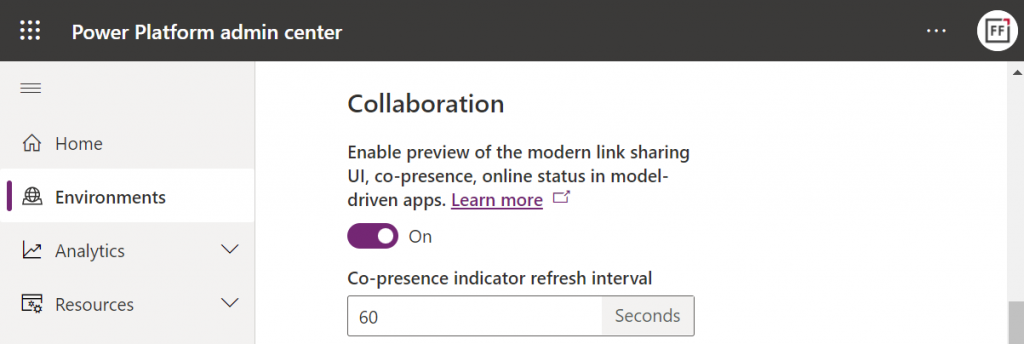
    First, you need to enable the collaboration feature in the environment settings via Power Platform Admin Center (PPAC):

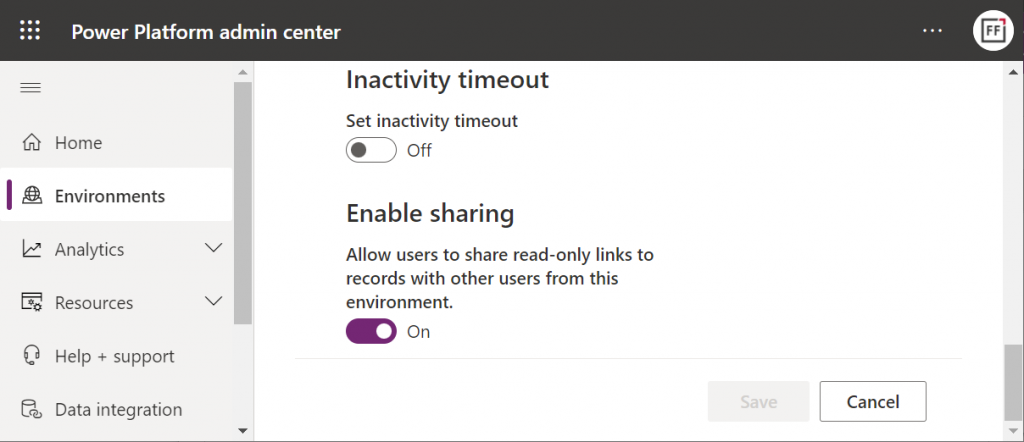
    Next, you should go to the Privacy + Security page of the same environment and switch “enable sharing” to on:

    As the message says, this should “allow users to share read-only links to records with other users from this environment.” I managed to get this working in a couple of different environments in our tenants, yet another demo tenant in the same European geo refused to co-operate. So, don’t be surprised if you see different results in your environments at this point.

    The link sharing experience

    Now that the features are turned on via PPAC, you should be able to go to a record like an account in a model-driven Power App and discover the new sharing menu in the top right corner of the form. Selecting “copy link” will give you a standard link that is the exact same URL as you’d get from the browser’s address bar. That’s because it’s meant for “people with existing access”.

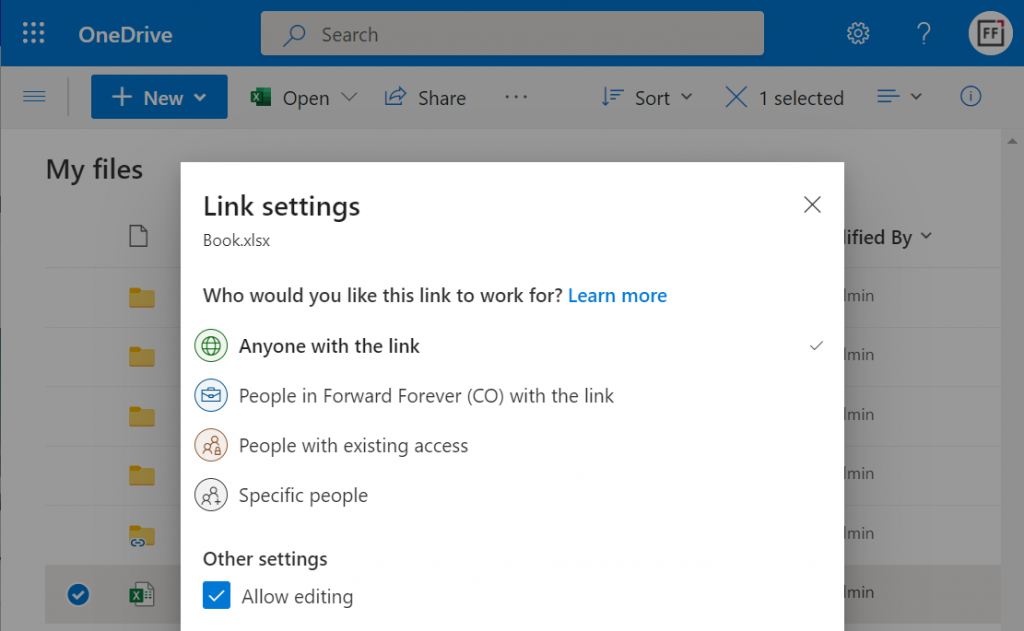
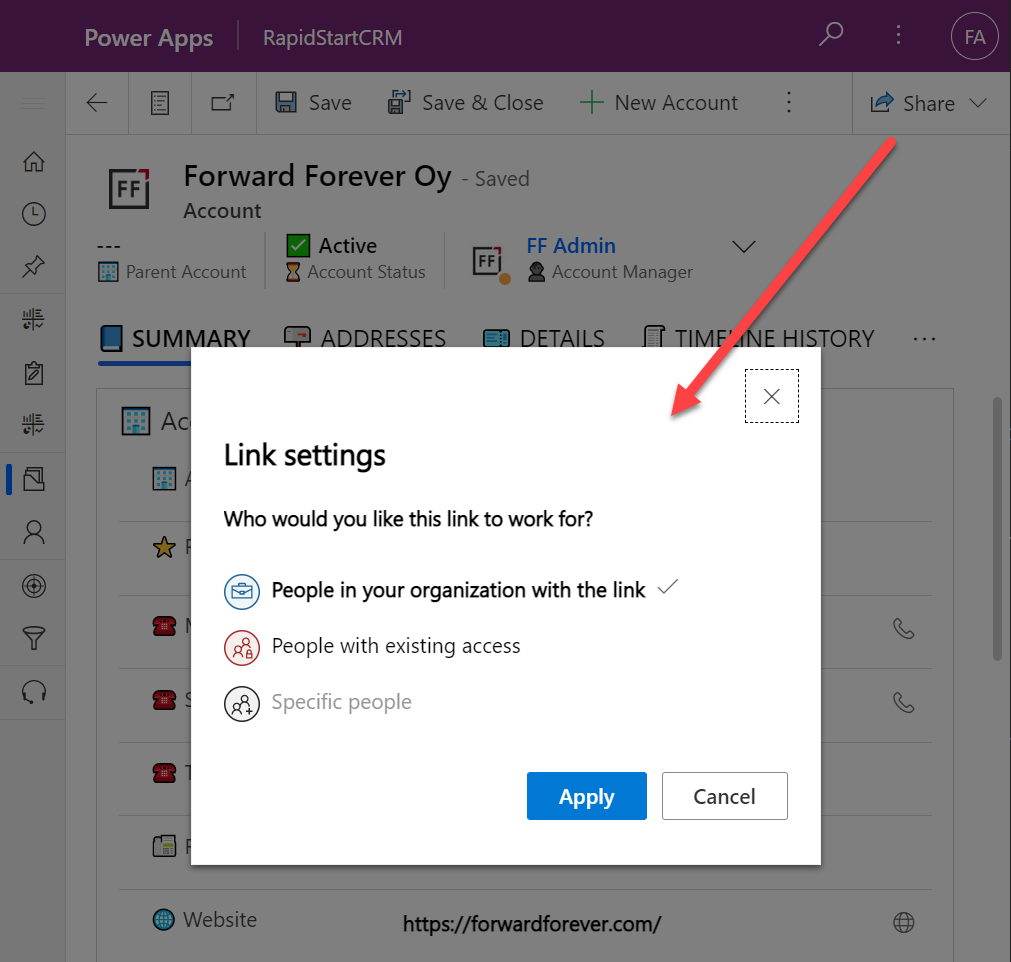
    Once you click on the chevron and explore the link settings, there should be more options available (assuming the environment settings applied earlier have taken effect). Let’s select the “people in your organization with the link” option this time:

    Now we get a URL that is appended with parameters “shareLink” and “sig”. These are the magic keys to authorize someone who does NOT have existing access to the record in Dataverse.

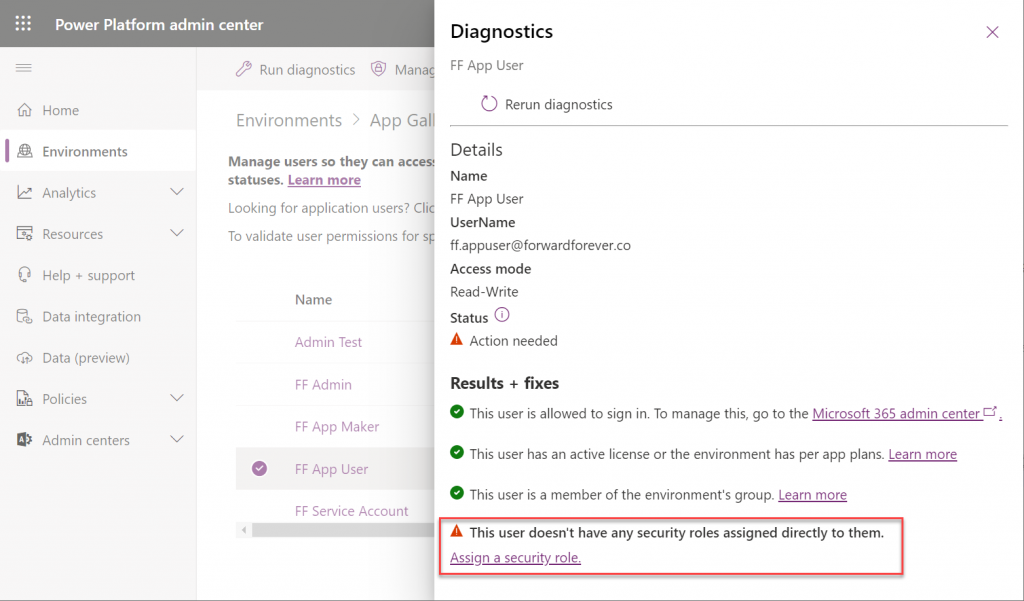
    To validate how the feature actually works, I used our sandbox tenant’s user account FF App User as the guinea pig. First, as an administrator I went and removed any existing security roles for this user from the environment. Then I ran the diagnostics test from the user list in PPAC. A warning was displayed, saying “this user doesn’t have any security roles assigned directly to them”. Looks perfect for our testing purposes.

    (I actually also removed the license, yet that didn’t get flagged in the diagnostics test. Oh well, we all know how mysterious the license assignment and validation in Power Platform can be, so let’s ignore it this time.)

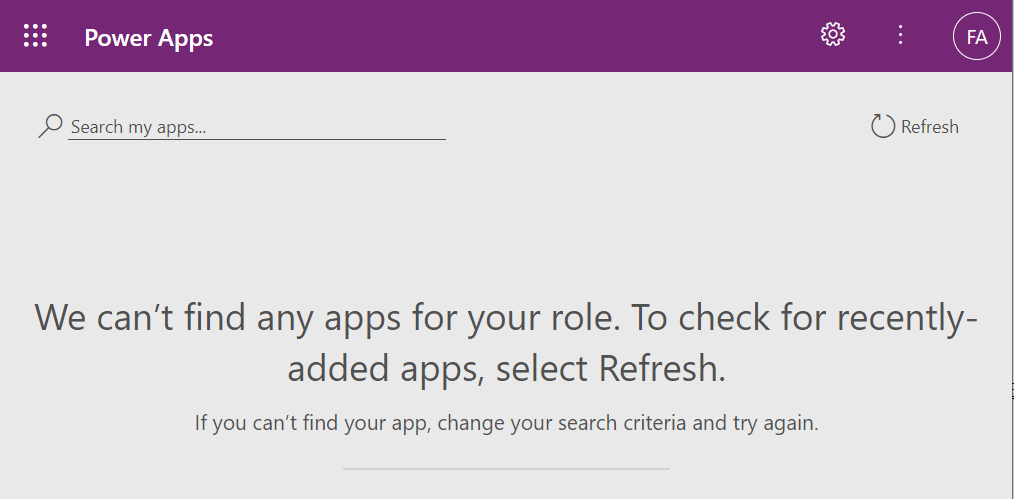
    Opening the naked URL of the Power Platform environment with this user account resulted in a screen saying “we can’t find any apps for your role”. Under normal circumstances, this would be the end of the road for a user.

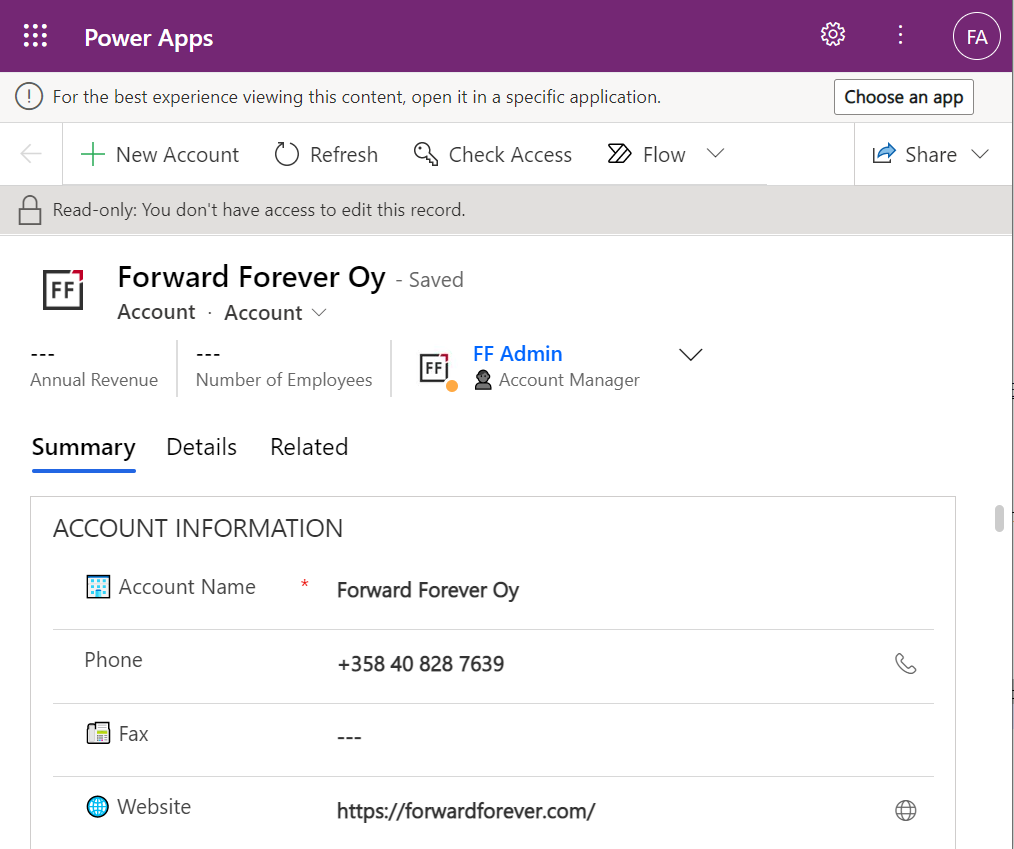
    This user has a special trick up his sleeve, though: the sharing link with the secret access code parameters. Using it allows us to open the account form outside any Model-driven app module. Yes, it’s read-only as the feature’s description text suggested, but from a viewing perspective this record form seems fully functional.

    How far do the sharing rights go?

    If we’d go back to our admin user’s profile and re-run the user diagnostics in PPAC, we’d see that there still aren’t any security roles assigned for the FF App User. Let’s visit the sharing dialog of the single record instead and go to “manage access”.

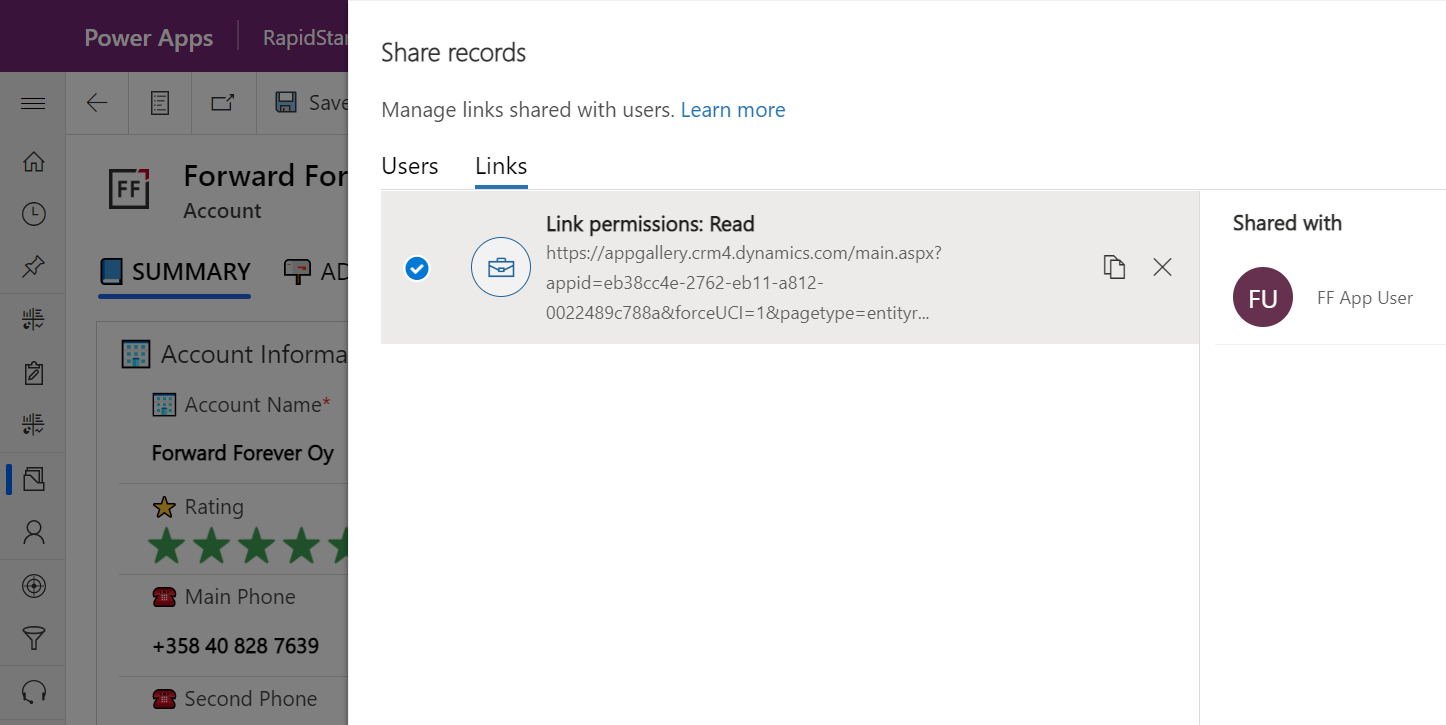
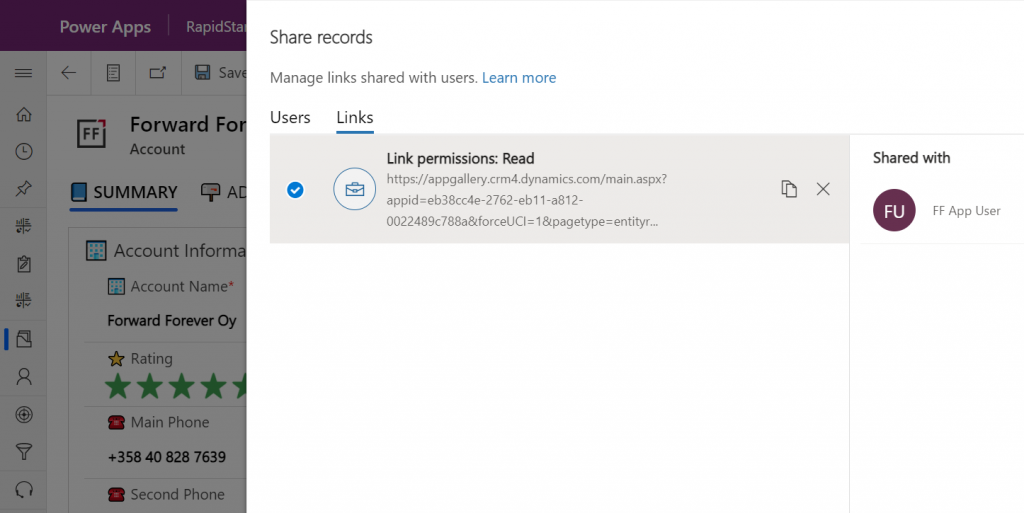
    This screen shows us that we have one sharing link generated for the account in question, with read permissions. Also, since FF App User has accessed the record via the link, the user account is listed under “shared with”.

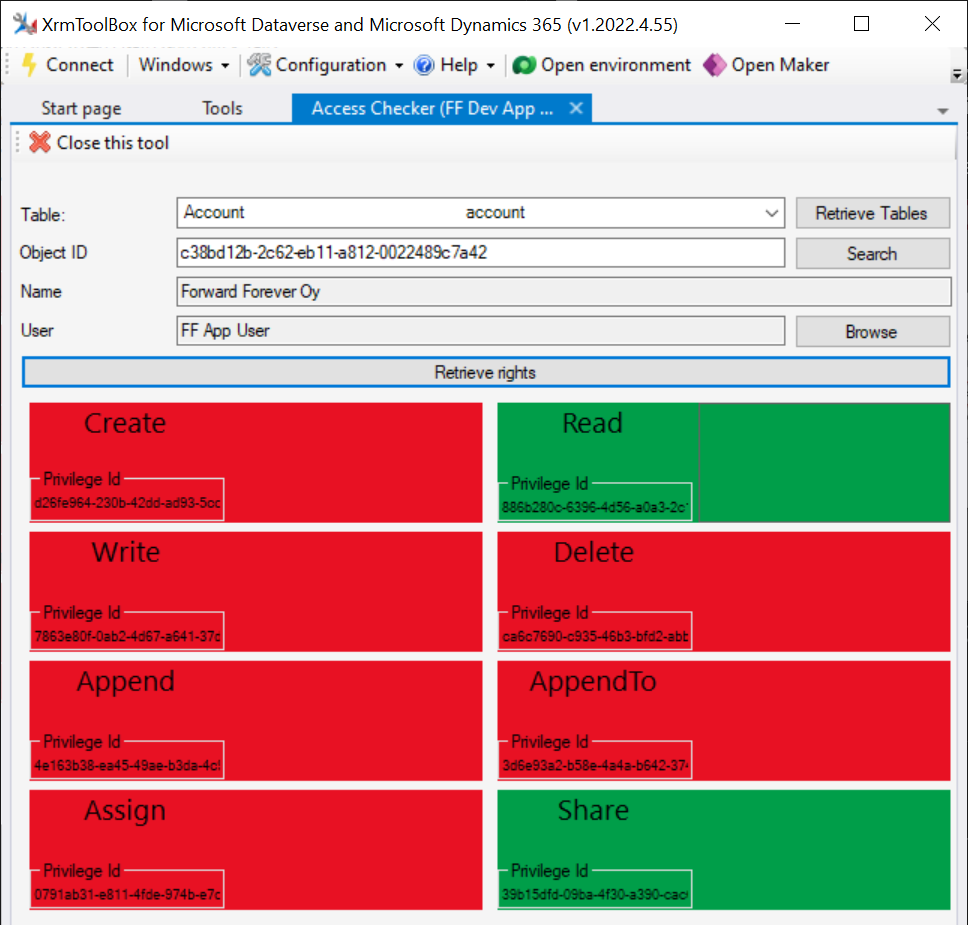
    Time to go deeper still, so let’s open XrmToolBox. Using the Access Checker plugin, we can run a test for the specific account record and the specific user account. We do indeed see that when called via the API, the user has both read and share privileges for this record:

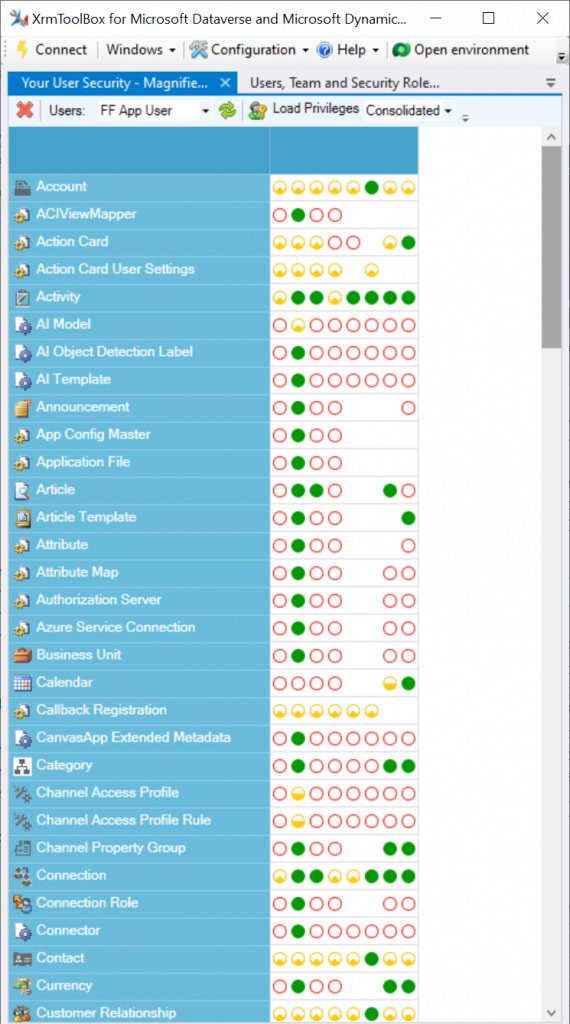
    Could we find out even more about how the privileges are applied? Sure! Another plugin in XrmToolBox, “Your User Security – Magnified”, gives us a very interesting output for the FF App User account:

    As many of you know, there are plenty of system metadata tables (entities) that the user must be able to read for the application to function properly. Things like “attribute” or “user” are therefore understandably opened up for the FF App User account upon sharing the record.

    There are plenty of real business tables listed in that output, too. Contact and activity, for example. While the privileges are granted only in the user’s scope (meaning only records that the user is an owner of), this made me go back and think: what else did we see on the account form when we opened that one record?

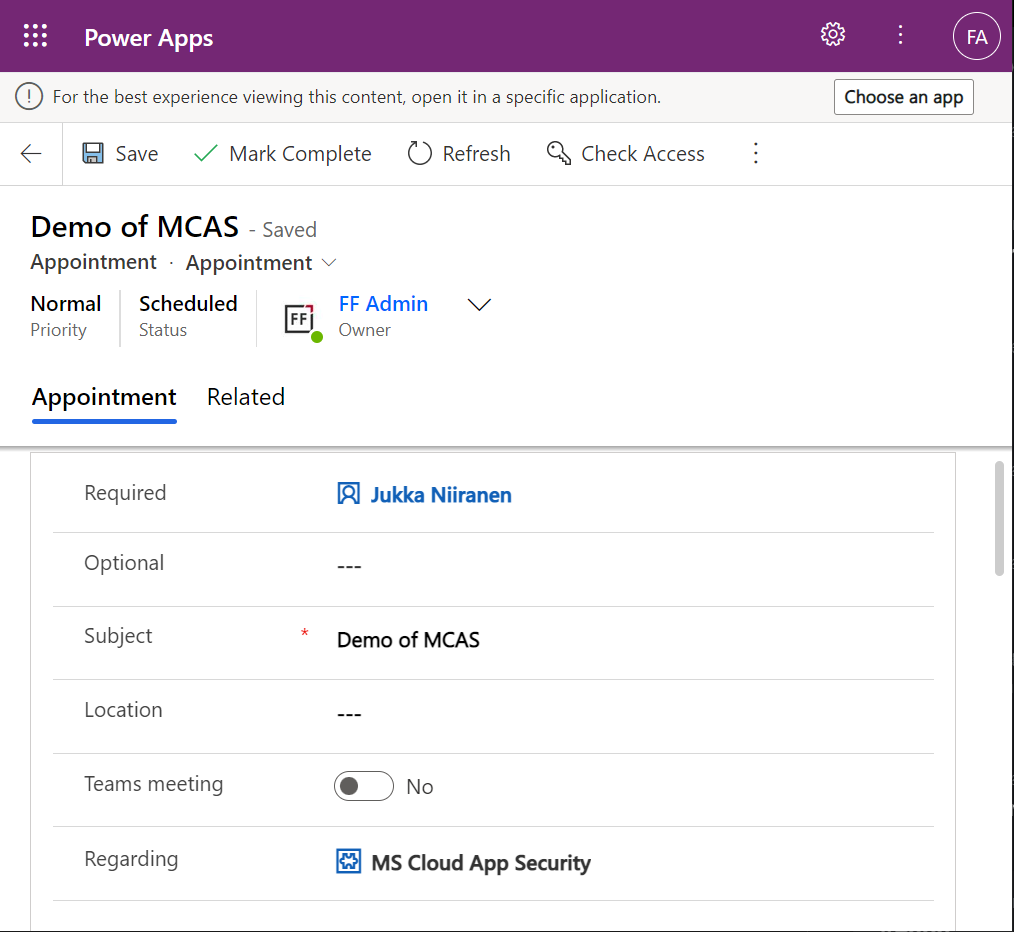
    Activities related to the account show up on the timeline. In addition, we’re able to navigate to their forms. We do also see the primary field values of anything that’s in a lookup, such as the regarding opportunity name.

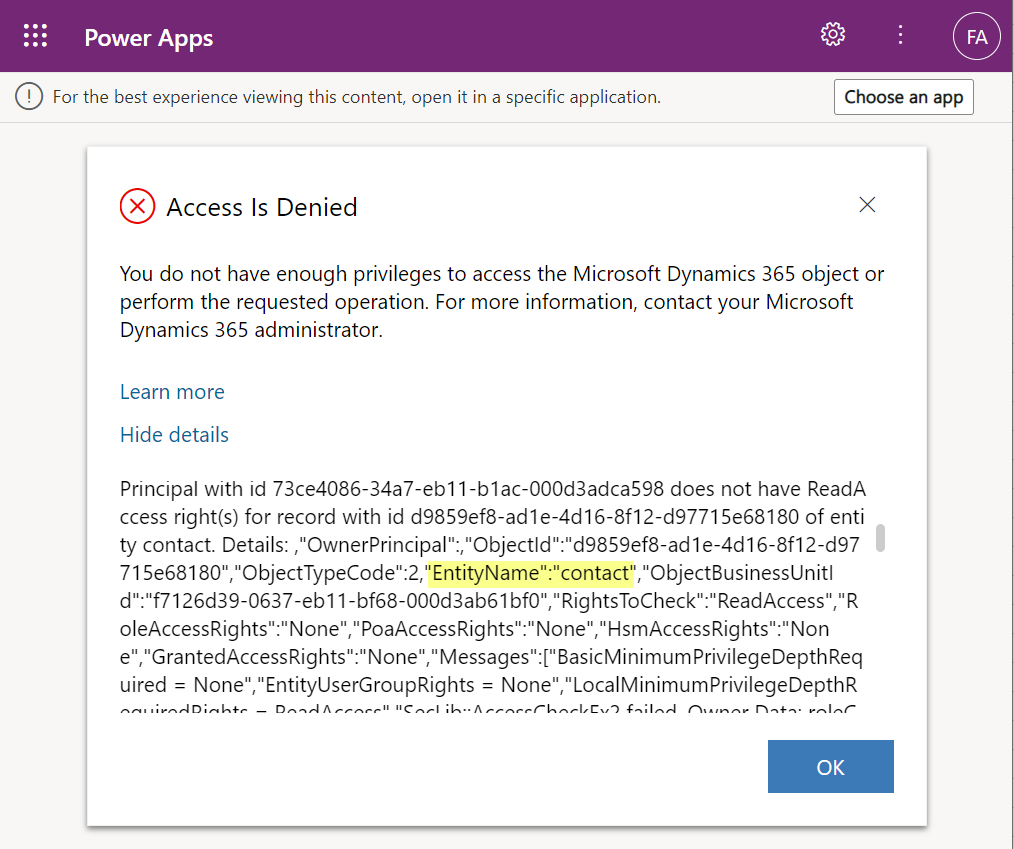
    Clicking on lookups, such as the contacts that are activity parties, will show an error message on missing read access rights. So, the security model is still enforced as expected, meaning we couldn’t just navigate via links to other records. It’s not just the lack of a surrounding app and its navigation that is missing from this user, there’s access checks also on the server side of course.

    It’s good to keep in mind that the modern collaboration features are currently enabled only for certain tables: account, contact, opportunity, case. There may be more configuration options ahead for how the sharing links work once the feature reaches general availability.

    Sharing within Microsoft Teams

    The primary scenario that these internal sharing links have surely been designed for is collaboration within Teams. Already back in July 2021 it was announced by Satya Nadella that “Teams customers will receive access to Dynamics 365 data within Teams at no extra cost.” We’ve been waiting for that possibility to arrive ever since.

    Given how the concept of sharing access to data has been radically different between a document world like SharePoint and a business record world like Dynamics 365, there has understandably been a lot of work needed to be done on the platform side. Now that the share links infrastructure appears to be in place, are we ready for the collaborative apps story to come to life?

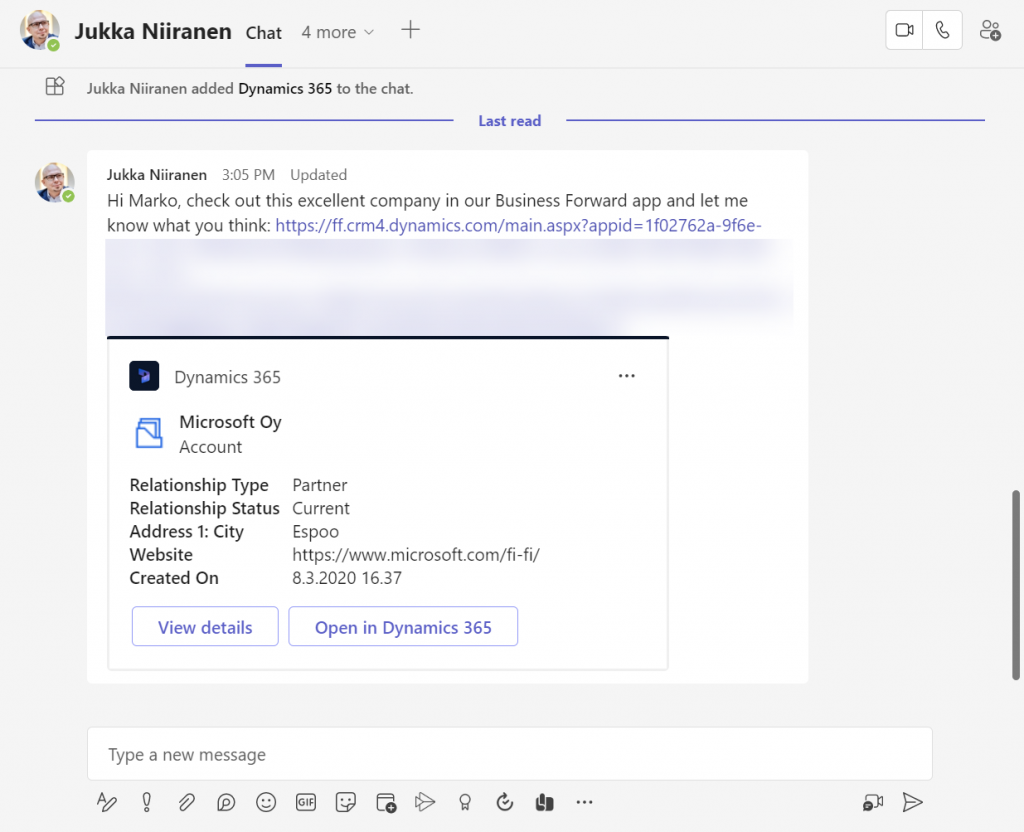
    Although the sharing capabilities are a Power Apps feature, there doesn’t yet appear to be the needed pieces in place on the Teams side for any low-code apps to take advantage of record sharing. However, if we test the sharing links in a Dynamics 365 enabled environment and with the Dynamics 365 Teams app deployed for the user, things start to light up:

    Pasting the link into a Teams chat will now unfurl the contents and show an information card preview of the record. We also get the option to view the full record in the context of Teams, via the “view details” button. These are small yet important steps in allowing people to get work done within the platform that is Microsoft Teams, without needing to look for the details in another browser window.

    We’re still missing some of the elements showed by Microsoft as part of their collaborative apps story, like Context IQ for at-mentioning a Dataverse record or Loop components to embed live data into messages in Teams or Outlook. While we wait for a delivery timeline on those elements, at least this easy record sharing feature in Power Apps model-driven apps has a target GA date for September 2022.

  • Sharing Dataverse for Teams apps outside the team

    Sharing Dataverse for Teams apps outside the team

    When you’re building Power Apps within a Microsoft Teams based Dataverse environment, the most common target group of app users is obviously people who belong to that team. This is very logical when the purpose of the app is to collaborate as a team on something that might have otherwise been an Excel sheet shared with all team members.

    The simplified table security model of Dataverse for Teams with Owner/Member/Guest (“OMG”) levels instead of custom security roles makes things easy to manage when everyone is equal. But what about when you’d need to have more granularity on who gets to do what? What if in addition to the owners (app admins) and members (managers) you also need a level further down this hierarchy: the “normal” users?

    Colleagues with access

    This is where the concept of a “broad distribution app” comes in handy. It allows you to grant access to the app for users who are not part of the team that’s hosting the Dataverse for Teams environment. Here’s how the Docs on Dataverse for Teams table permissions describe this:

    “With Power Apps for Teams, you can share an app with Azure AD security group whose members need not be part of the Teams team where the app was built. This enables you to add users to the application without having to add them to the specific team, and opens up “Broad Distribution” scenarios. For example, you may want to build an app that is enabled for every accountant in the organization, or even every employee in that organization.”

    The ability to share an app with one Azure AD security group makes Dataverse for Teams quite an attractive platform for low-code apps that have a high number of potential users. Not many organizations have yet committed to covering all their employees with a Power Apps Per User license that unlocks premium features like Dataverse. Since every user who’s licensed for Teams via Office 365 / Microsoft 365 is allowed to use apps running on Dataverse for Teams, this option significantly lowers the barrier to start building apps on top of a true relational database designed for business applications – as opposed to running your complex processes on top of several SharePoint / Microsoft Lists.

    Sharing with colleagues in practice

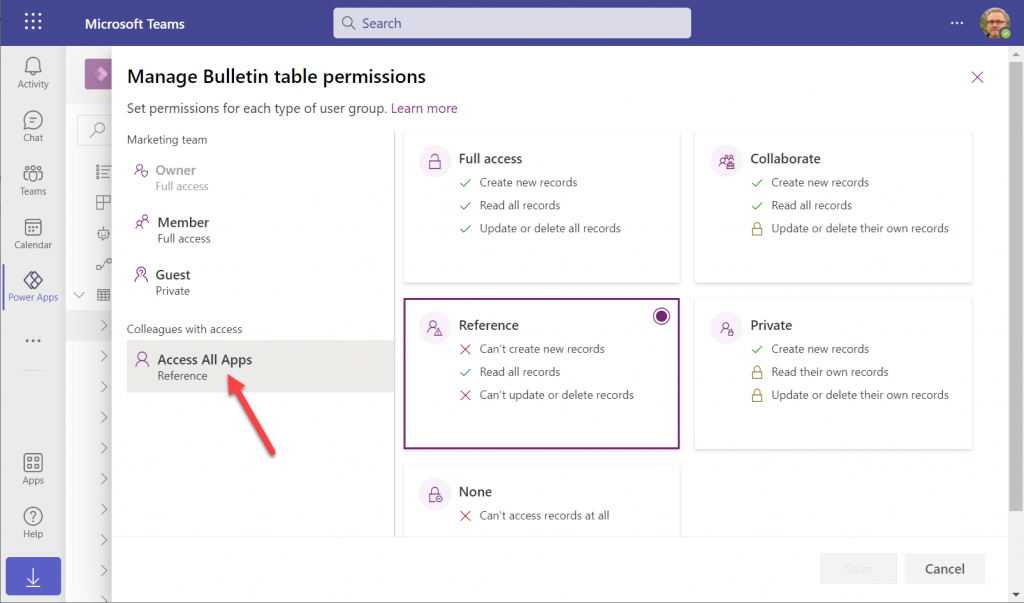
    Let’s say you’ve built an app within a Dataverse for Teams environment and are ready to publish it to the whole organization. In this demo scenario we are using the Bulletins sample app for Teams. We’ve created an Azure AD security group called “Access All Apps”. The first thing we need to do is go an add the necessary access rights to each table used by the app. For example, when it comes to the Bulletin table, users should be able to read all records but not create/modify/delete them, so we grant the “Reference” level to this group:
    You’ll need to do a lot of clicking for an app like Bulletins that has 11 tables, so be sure you’re selecting the “colleagues with access” section before assigning the permission level on each page.

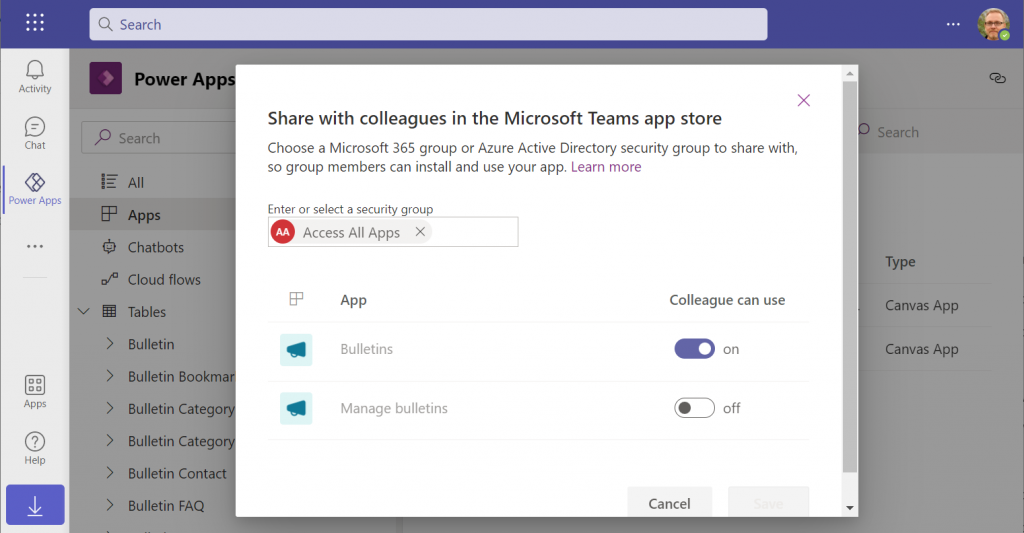
    Next, let’s share the Power Apps canvas app itself with this group. Again, you’ll need to be careful with where to click in the navigation maze that is the Power Apps for Teams app. Go to the Apps list of the Dataverse for Teams environment but don’t select the app. Otherwise you won’t see the “share with colleagues” toolbar button.

    In the modal dialog window, choose which apps from this Dataverse for Teams environment you wish to make accessible with the chosen security group. This is where you’ll notice that while you could have tens of different apps within on environment, there’s no ability to choose which Azure AD security group gets to see which apps – since there can only be one.

    Adding apps to Teams channels

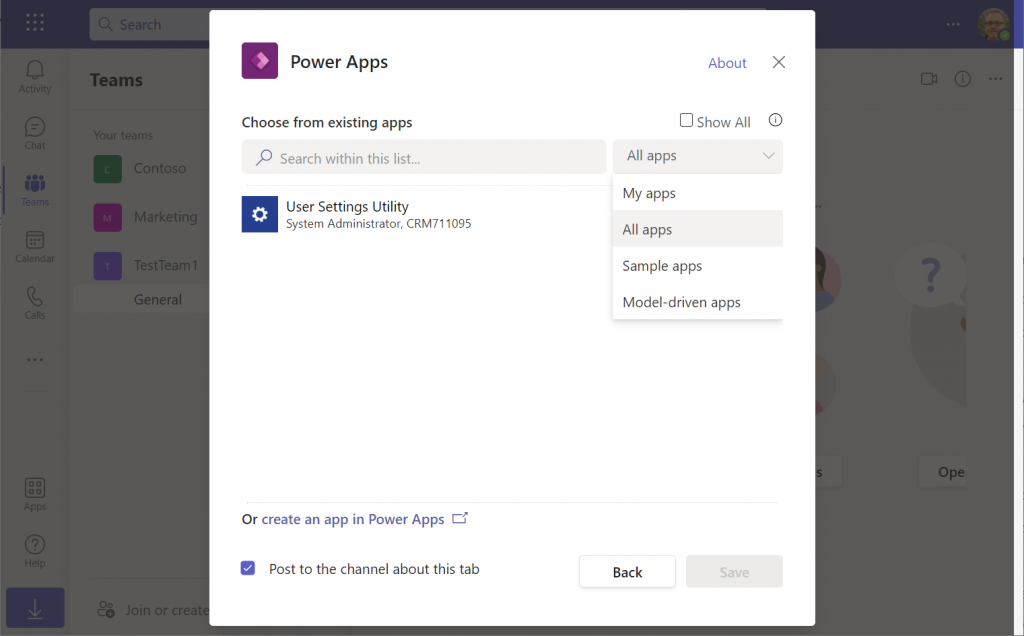
    If we were to now go to our target team and add a new Power Apps tab to the channel, we would not find our Bulletins app there. Nope, not even under that “sample apps” filter, since that actually shows a list of Power Apps sample apps like Asset Checkout that are part of all Power Apps environments. Dataverse for Teams sample apps like Bulletins are a completely separate thing, of course.

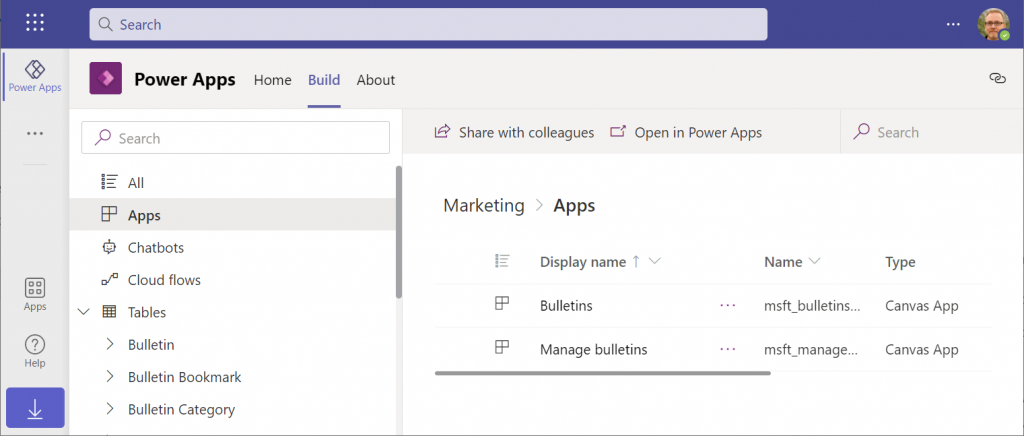
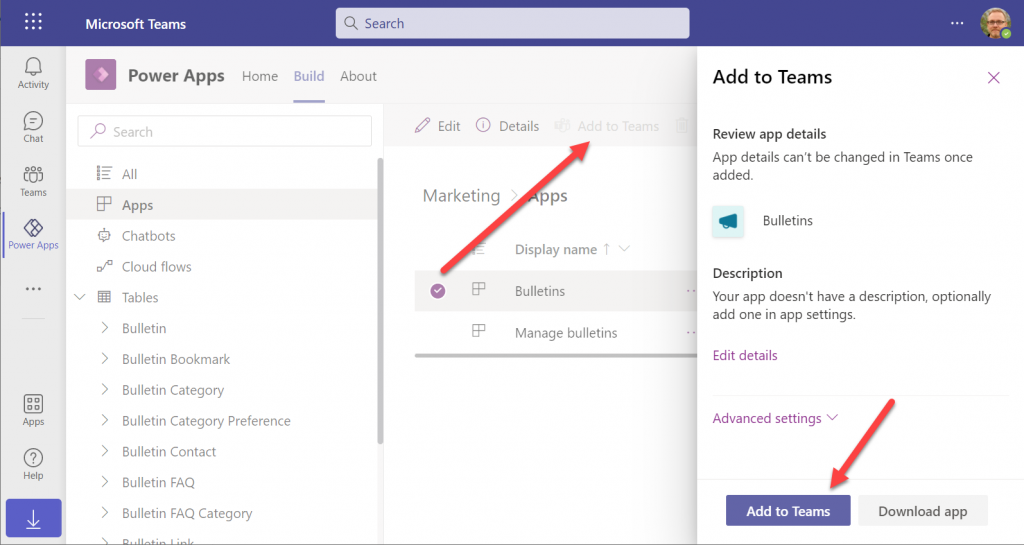
    The logic is different when it comes to Power Apps that have been built within Dataverse for Teams. You need to go back to the Power Apps for Teams app, i.e. the Maker experience. Click on the Build tab, choose your environment, find your app, select it for real this time, then choose “Add to Teams”.

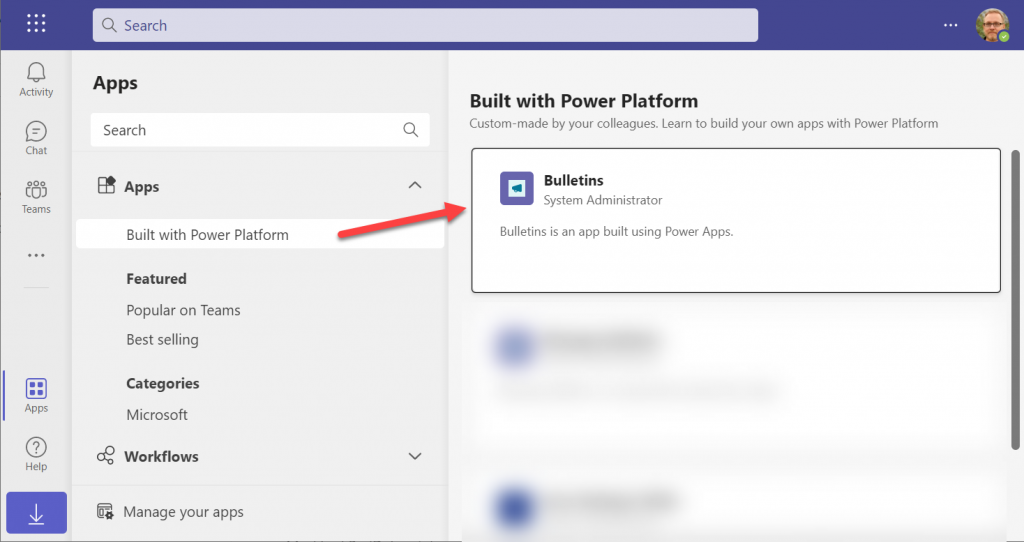
    You don’t get to choose a team or a channel, though. That’s because this process actually publishes your app into the Teams app store. It will become available under the “Built with Power Platform” section:

    OK, fair enough. It’s an app built within Teams, so it makes sense to use the same distribution mechanism as apps developed with custom code. The other Power Apps in your tenant are “external content” that you can freely pin to channel tabs. Dataverse for Teams apps are same but different.

    Blocked by Teams permissions

    This is actually the reason why I started writing this blog post in the first place. Ever since the broad distribution apps were announced in January 2021, adding them to a team from the app store worked without any additional hoops to jump through. Recently that has changed in a way that is not yet reflected in any MS documentation.

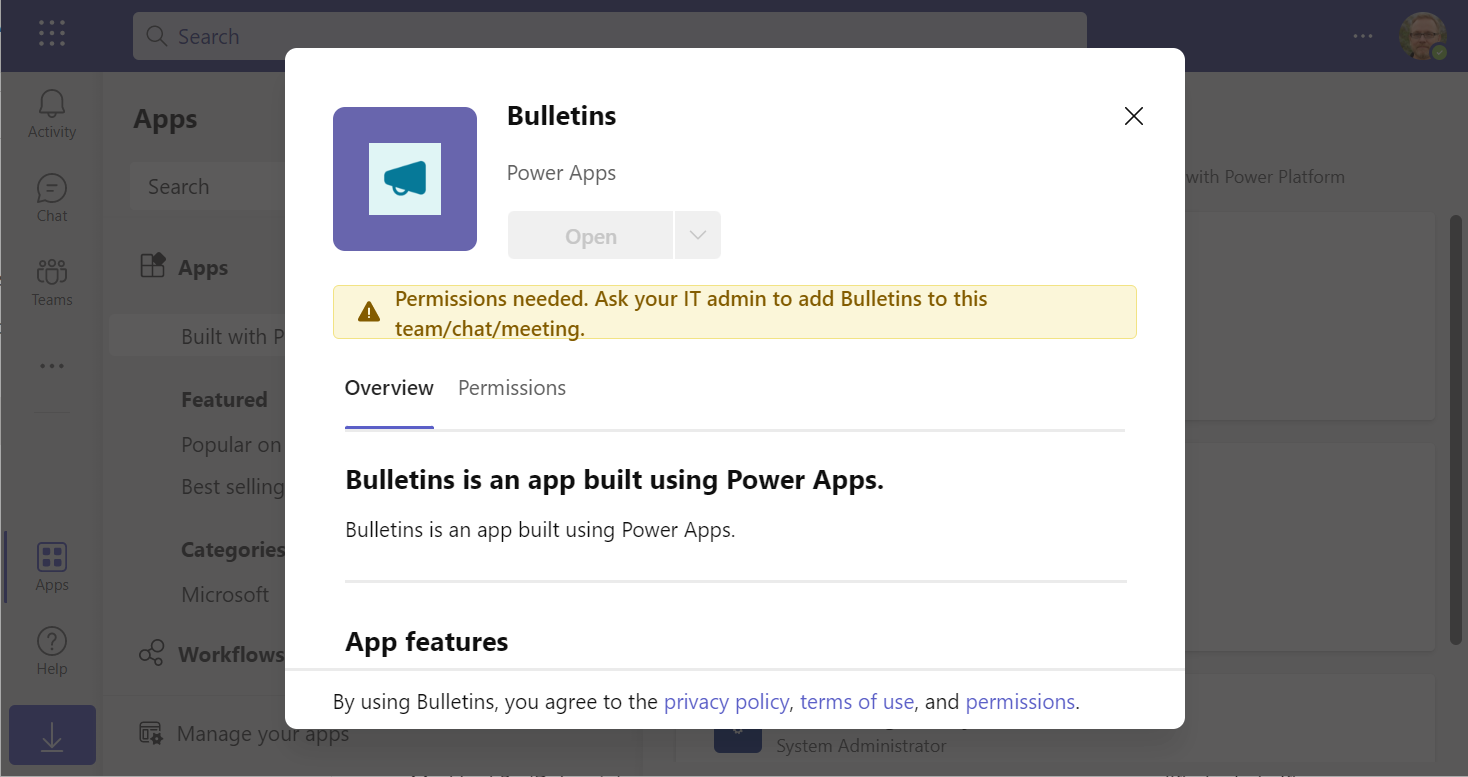
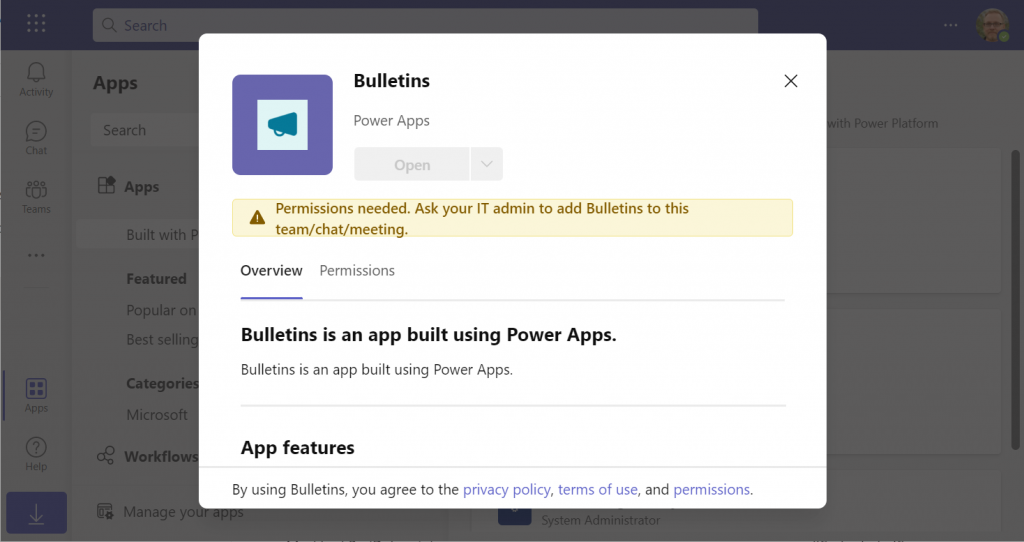
    In a new tenant with the default settings for Microsoft Teams, you may be blocked from installing the Dataverse for Teams based apps after doing the “Add to Teams” dance. Instead the app store may present you with the following error message:

    Permissions needed. Ask your IT admin to add [app name] to this team/chat/meeting.

    You will get this message even if you are the Global Administrator of the tenant, so it’s not about the user permissions. It is rather the Teams policies that are blocking the deployment of Power Apps created within Teams.

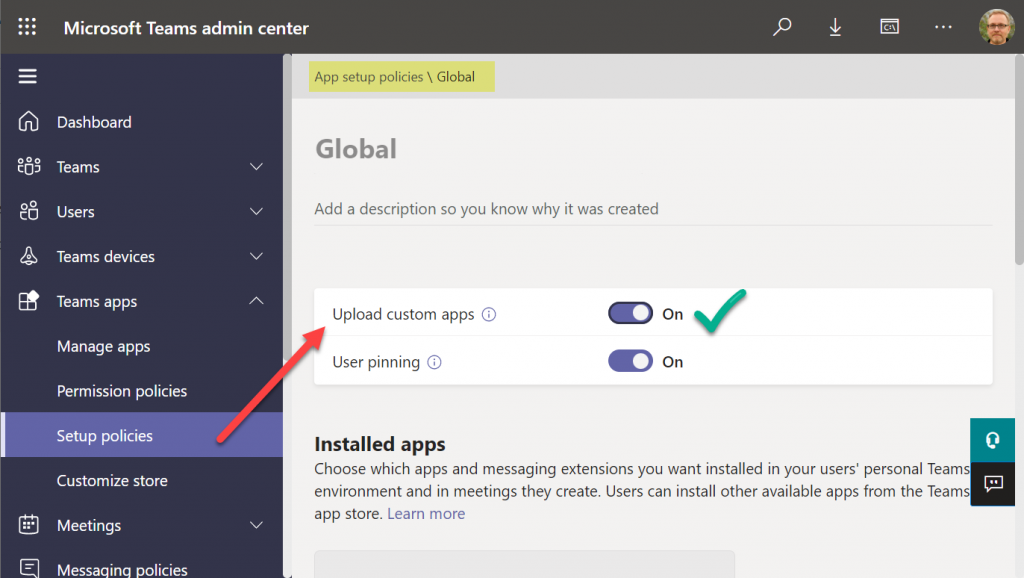
    To solve this issue, you’ll need to contact the Teams administrator of your tenant and ask them to verify that the following setting is turned on:

    Teams apps – Setup policies – Global (Org-wide default) – Upload custom apps – On

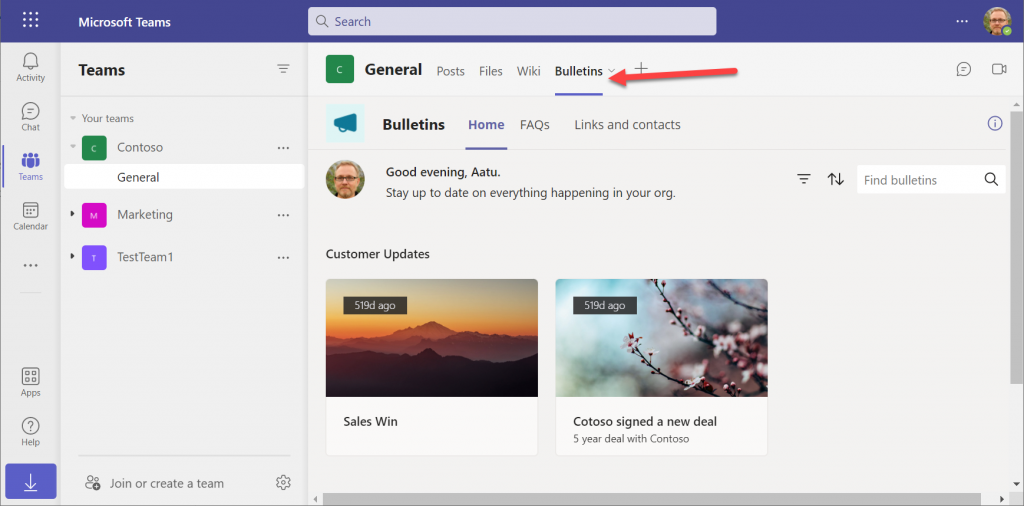
    After this change, you’ll be able to open the Bulletins app in the Teams app store, select “add to team” and create a channel tab in any team that you are a member of.

    I can tell for a fact that the requirement for the “upload custom apps” policy didn’t always used to be required (or it was enabled by default). In one of our demo tenants I had previously used the “share with colleagues” feature to add Dataverse for Teams apps outside the hosting team. The existing tabs worked just fine, but adding new apps became blocked until the apps policy in the Microsoft Teams Admin Center was modified.

    It’s a bit unfortunate if this will indeed become a permanent requirement for IT admins to grant the permission for “upload custom apps”, just to share the Dataverse for Teams app into a different team. Compared to normal Power Apps, there are a number of quirks like this that the app makers need to be aware of. Be sure to also check out my earlier blog post where I explore what it’s like to work with solutions in Dataverse for Teams.

    Update 2022-06-17: In case you’re wondering how the general approval process would actually work for Teams store apps where the approval request prompt is shown, check out this great blog post from Tony Redmond: “Users Can Request Access to Teams Store Apps”.

    Update 2022-08-11: there’s a new feature rolling out, called “Microsoft Teams user request configuration to external systems (URL redirect)”, allowing Teams admins to configure a custom URL + message for the app requests in the Teams app store. Read more here.

  • Dataverse environment administration mode and storage consumption

    Dataverse environment administration mode and storage consumption

    In November we had a situation where our production environment had records unintentionally deleted. This required us to restore a backup copy of production into a new environment and retrieve the missing records from it.

    Why didn’t we restore the environment backup directly over the production environment? There are many reasons which I’ve documented in the Forward Forever team blog. In short, if you’ve got any Power Apps canvas apps or Power Automate cloud flows in your environment, things can get seriously messed up if you restore the backup into the same environment. My recommendation is to avoid doing this in production if you have any workarounds at your disposal.

    After we had manually copied & imported the data back, we left that restore environment in place for a while. In this case, “a while” actually meant 6 months. We were in no rush to free up the capacity, so I decided to wait and see if there were any further lessons to be learned from this incident.

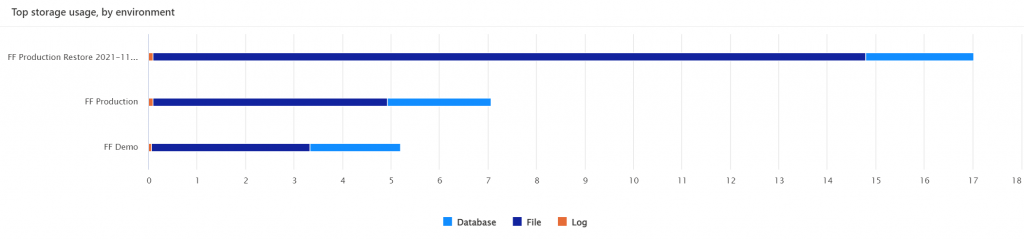
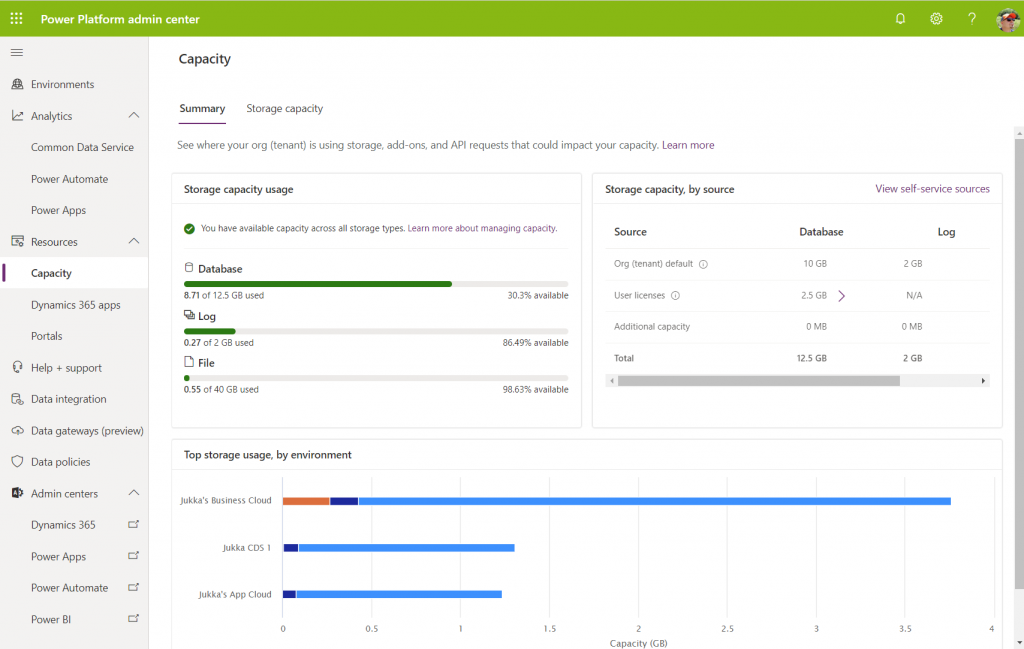
    What happens to the storage space of a restored environment that no one is using? You might expect it to remain roughly in the same size as the original backup. In our case, the restore environment grew to be over 2x the size of the original environment. Below is an illustration of the restore vs. production environment storage usage from Power Platform Admin Center reports:

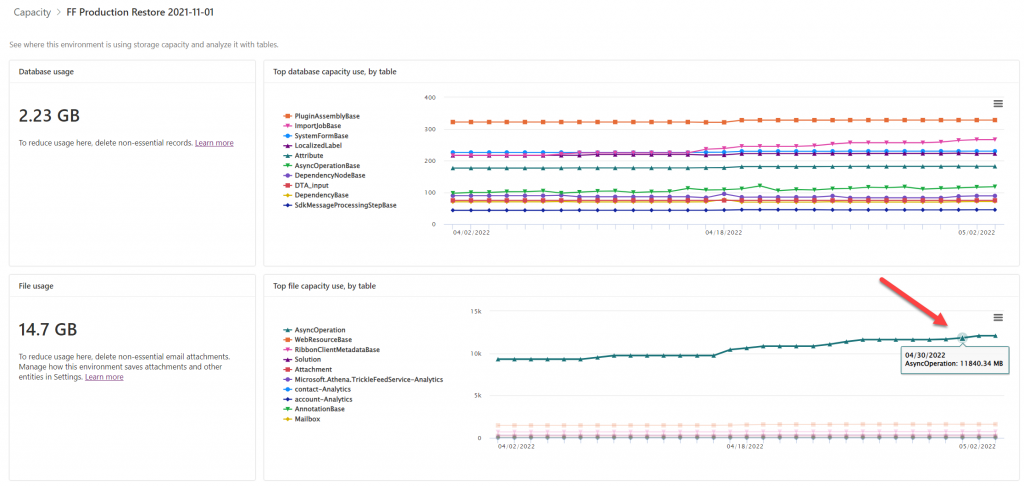
    Our production today is at around 7 GB total Dataverse storage consumed, whereas the production restore environment had ballooned to 17 GB. What was consuming all that space? The AsyncOperation table:

    This is where all the Dataverse system jobs are stored. These jobs will keep running, even if no live users (nor outside integrations) touch the environment.

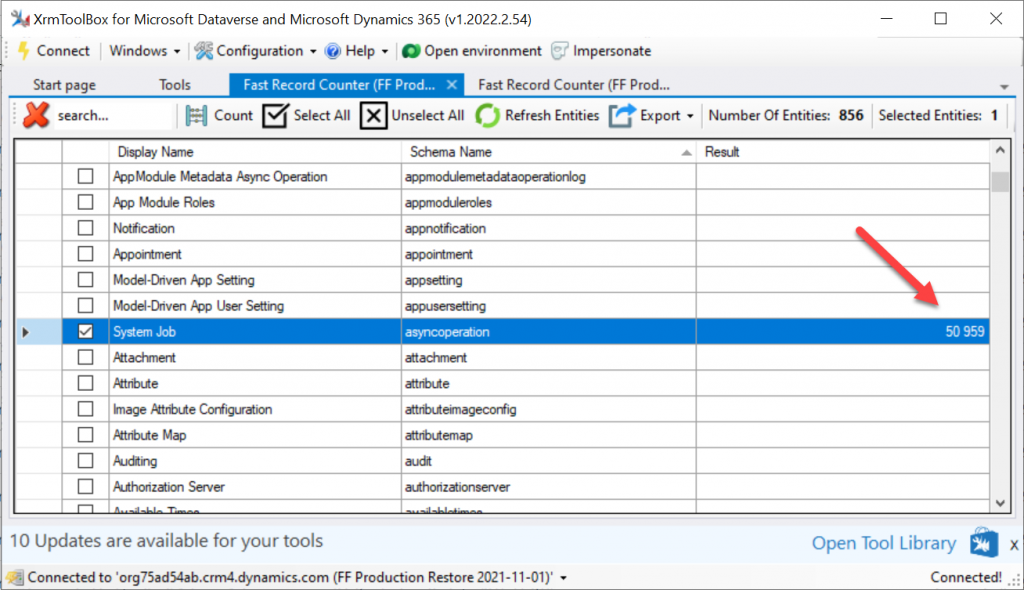
    Looking at the number of rows in that table (via XrmToolBox plugin Fast Record Counter), I saw that while our production environment had 8.4k rows, the restore environment had 51k rows in that table.

    Why are there more jobs in the dormant environment? This is because normally the completed system jobs are deleted by another scheduled job, known as bulk delete jobs. Only in this restore environment the jobs just kept piling up. I checked that the bulk delete jobs weren’t reporting any errors. However, the actual system jobs offered the explanation to the storage space growth:

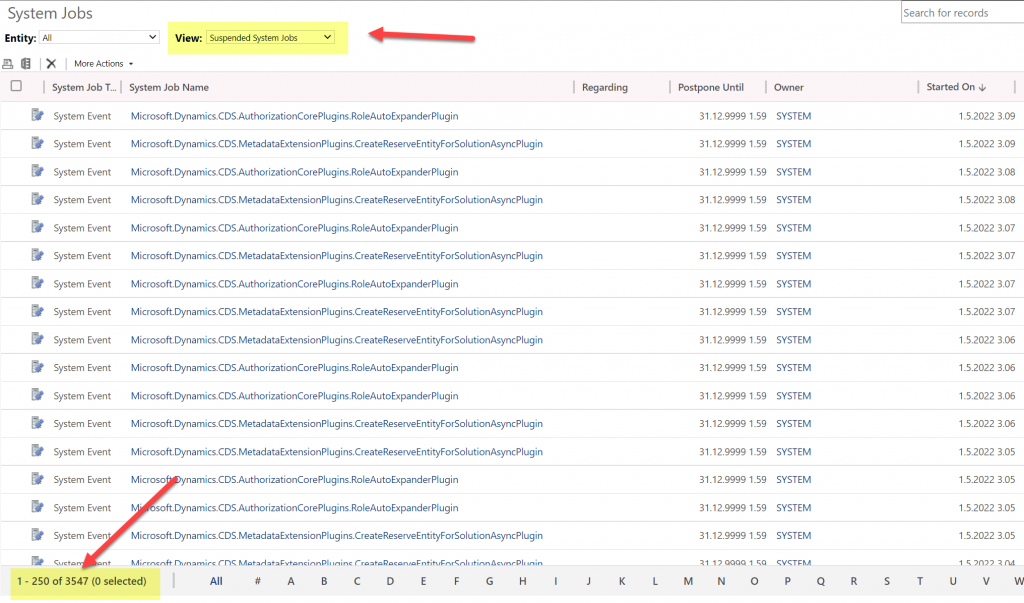
    Switching to the suspended system jobs view revealed that there were 3.5k system events stuck. New batches seemed to be generated on a daily basis. With titles like “Microsoft.Dynamics.CDD.AuthorizationCorePlugins.RoleAutoExpanderPlugin”, it wasn’t immediately obvious what these jobs were related with.

    Upon inspecting the system jobs records, the column “message name” revealed that these are related to solution imports and updates. Yes, just because you stop using a Dataverse environment, that doesn’t mean Microsoft would stop from servicing it with the latest solution versions and new features.

    Why did the jobs get suspended then? The answer is in what happens after restoring tje environment from a backup. It gets put into administration mode by default. The intention here is quite sensible, since you wouldn’t want any integrations from the newly restored environment to be talking with the outside world. This could cause issues when you’d have multiple Dataverse environments connecting to the same target systems, potentially causing duplicate data and messages to be created.

    The challenge here is that in today’s Dataverse / Dynamics 365 environments there are first-party integrations that also rely on features that the admin mode by default disables. These will keep running as system jobs inside the environment, yet they can’t complete their tasks and are therefore put in the queue as suspended jobs.

    In a small CRM style environment like we have, this caused 10 GB worth of additional data to get accumulated into the Dataverse tables within 6 months. While system jobs are now stored in the cheaper file capacity rather than the expensive database capacity, it’s still quite a lot of unwanted storage consumption from built-in features.

    Obviously the administration mode is not designed to be a permanent state for any Power Apps or Dynamics 365 solution’s hosting environment. This does highlight the fact that it’s not possible to simply “freeze” a Dataverse environment and keep a snapshot of your data and configuration for a longer duration in the MS cloud. All live environments will get updates to system solutions sooner rather than later, thus altering the state of the database. While the business data in the Dataverse tables will be preserved as-is, the metadata and its surrounding maintenance processes will keep on living their lives.

  • Making Model-driven Power Apps visible (and hidden)

    Making Model-driven Power Apps visible (and hidden)

    I’ve got a confession to make: even though I’ve been building Model-driven apps long before they even were Power Apps (back in the XRM era), I’ve struggled to understand how I can make them visible to the end users in the modern experiences Microsoft offers.

    In this post I’ll address two different challenges. First, how to enable end users to have access to your Model-driven app. Second, how to protect them from seeing irrelevant apps.

    “Why isn’t the app sharing menu working?”

    Once you’ve built your Model-driven app are ready to release it, you need to make it visible not just to the app makers and system admins but also regular users. This involves using the Share menu from the list of apps available in the environment.

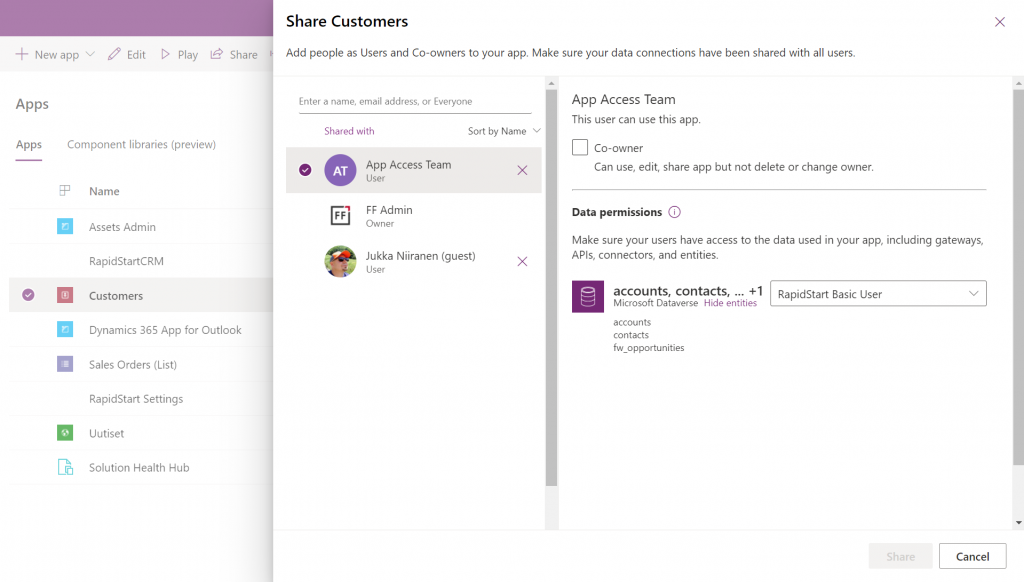
    Working in the Power Apps Maker portal, it’s pretty obvious the things we see here have been built with Canvas apps in mind. When it comes to sharing a Canvas app, the steps are fairly logical. You click the 3 dots next to the app, select “Share” and are shown this dialog:

    You add users or groups, set their data permissions via the many available security roles within Dataverse, click Share, after which the users get an (optional) email message. All good!

    Try the same steps with a Model-driven app and your users will see… nothing. It’s not just that there isn’t an email message with the app URL sent to them. They actually don’t have access to the app at all, even if you provide them the URL directly. Why isn’t the share action working from here?

    If you’ve worked with the Dynamics 365 App Modules before, you might remember that you needed to specify which security roles have access to which app. Just like with role-based forms, too. Now, that particular role assignment UI existed in the legacy web client that has been deprecated and there doesn’t seem to be an equivalent in the Maker portal anymore. Does this mean we don’t have to perform this step, rather the sharing of the app to the users takes care of this automatically?

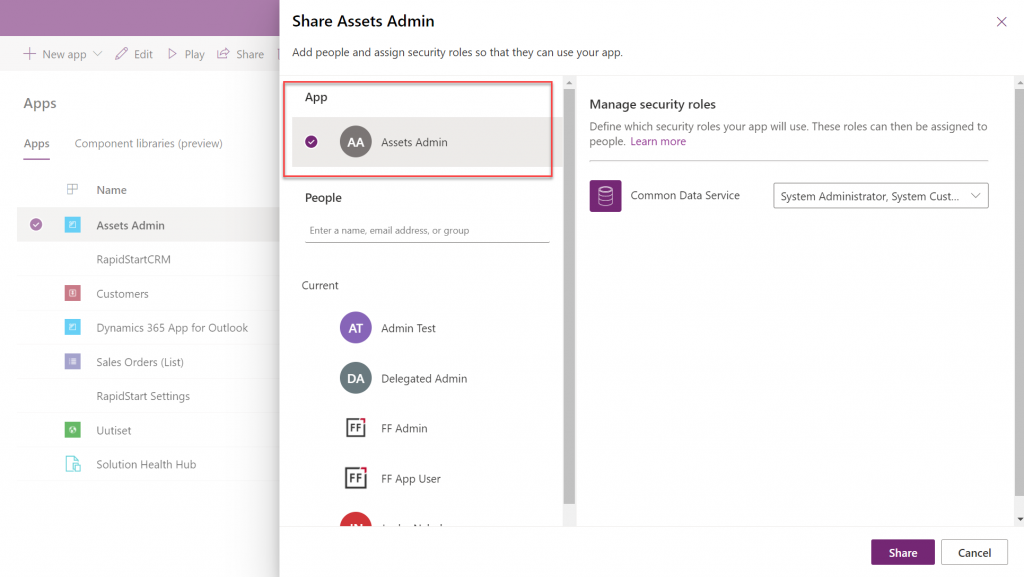
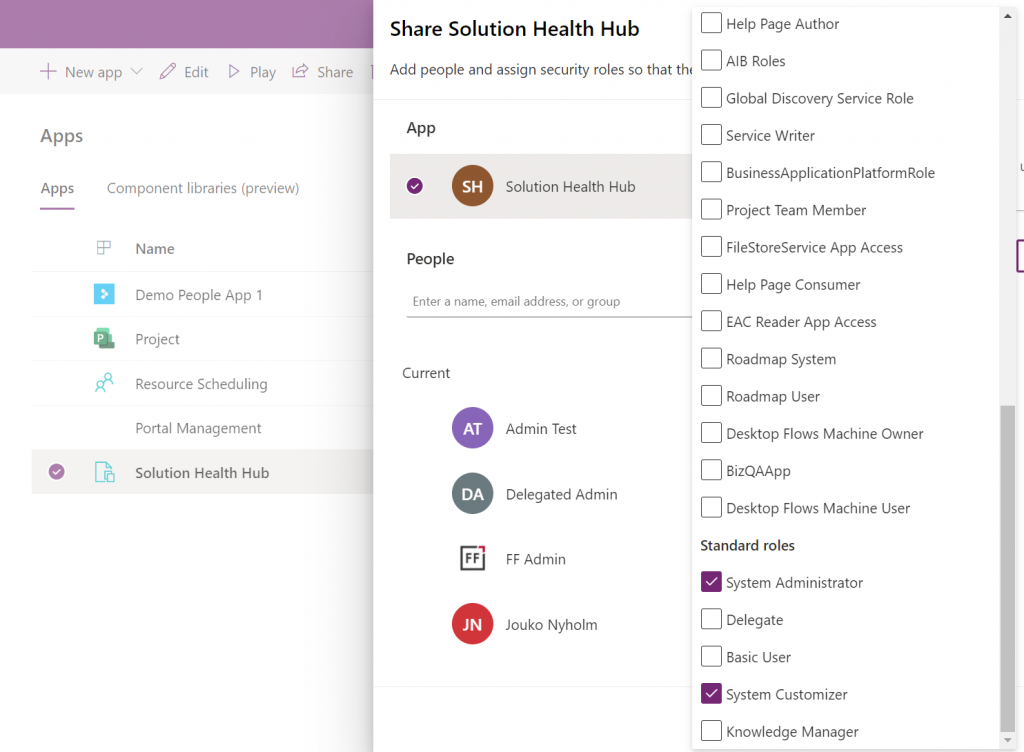
    At some point I assumed so, but this isn’t actually the case. After a long hard look at the documentation, I finally realized that the MS product team had squeezed this functionality into the Canvas sharing dialog in quite an unintuitive way. You see, you’re not only using it to share the app to the users, but also for “sharing” the app to a security role:

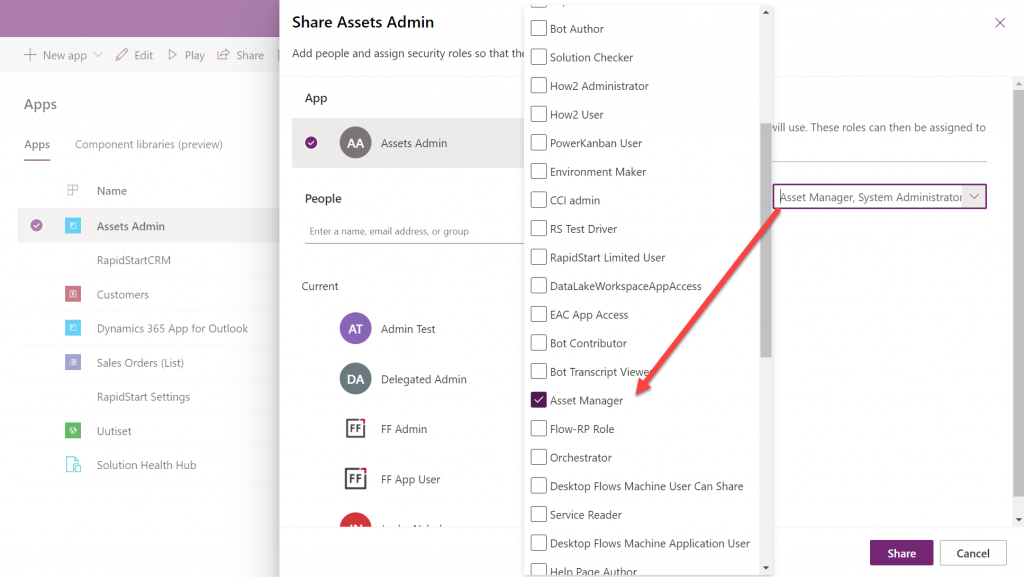
    So, rather than sharing the app to the users, stay on the higlighted App section that’s at the top of the list. Pick the correct security role from the list and then click “Share”:

    Now all users with the specified security role will have access to the app when trying the URL shared with them. Yes, you didn’t actually need to explicitly share the app to them via this menu at all! Sure, you can use it for adding the required security roles for these users, if they haven’t already acquired through other means, like group membership. But the whole concept of “app sharing” is still completely irrelevant to Model-driven apps, from what I can see. It’s only this misleading UI that may give you the impression that you can achieve visibility to Model-driven apps via a sharing action when in fact it’s still security role based like it was back in XRM.

    This leads us to the next question around Model-driven app visibility that has been puzzling me:

    “Where can I find the apps I have access to?”

    If the app user is not a maker in the particular environment, they logically won’t have access to the Power Apps Maker portal to view the list of apps in it. So, from where exactly should they be viewing the list of all the apps shared to them?

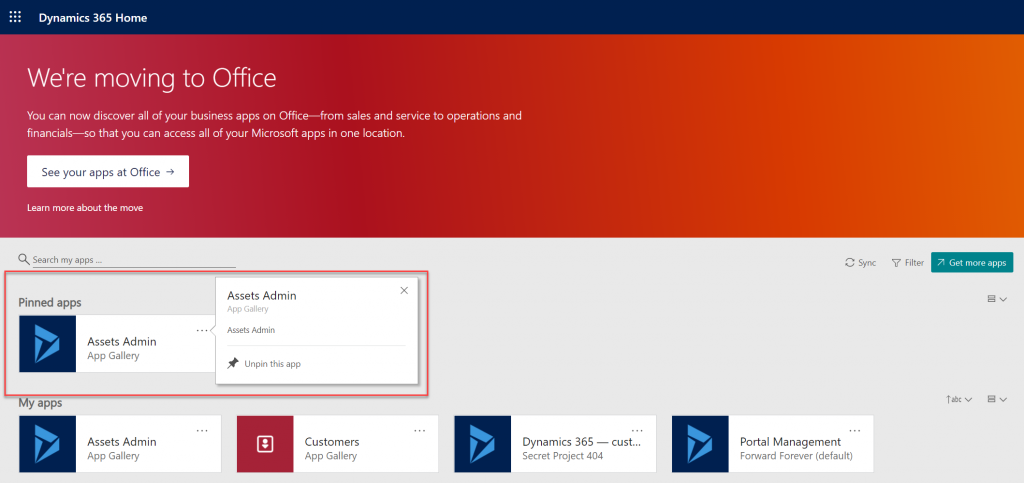
    If we have past experience from the world of XRM then we’d probably navigate to the Dynamics 365 Home page at home.dynamics.com. This page should be showing all the apps that the user has access to, which it currently does. We can pin our newly shared Model-driven app to the top of the list for easy access:

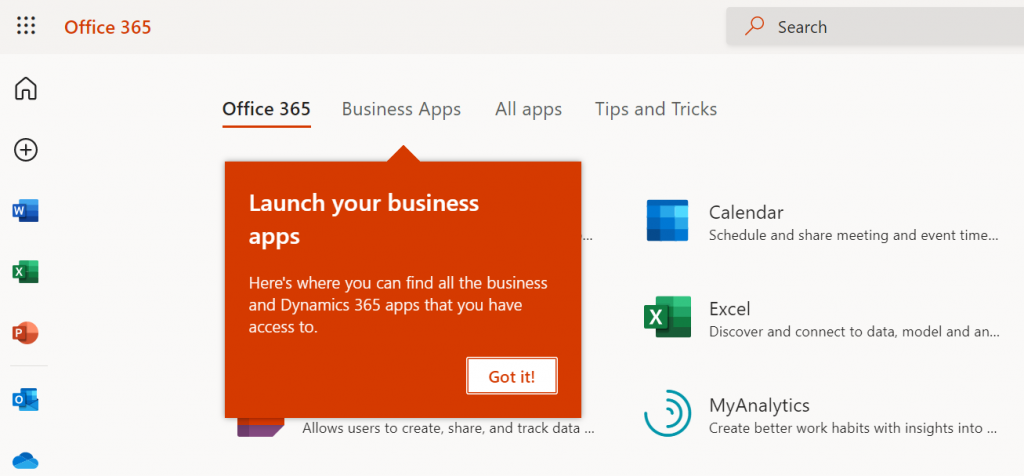
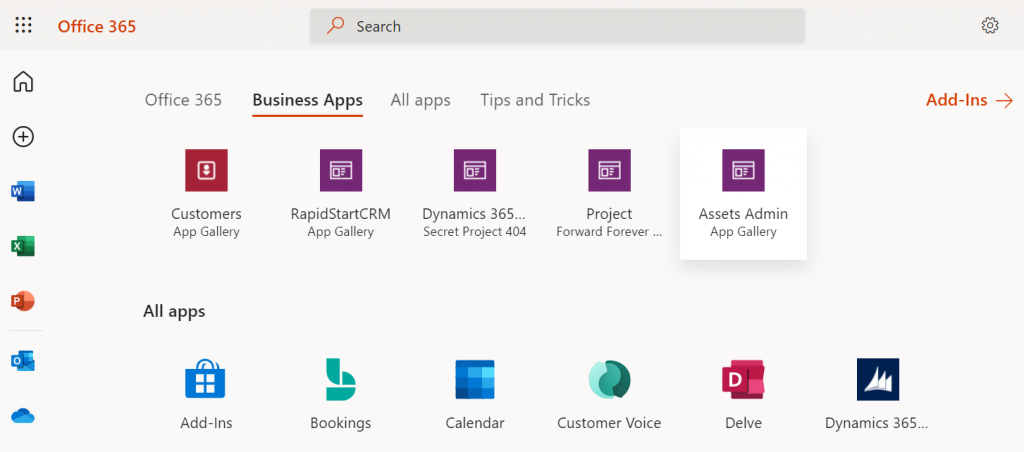
    Oh, right. “We’re moving to Office” says the banner, since this Dynamics 365 Home page has been deprecated a while ago. In fact, based on the original deprecation message this page should have started to automatically redirect you to office.com/apps already. Today we still have the option to visit the legacy page, but let’s move over to the modern Office experience. We’re greeted with the “launch your business apps” onboarding dialog that points us to the Business Apps tab at the Office 365 home page:

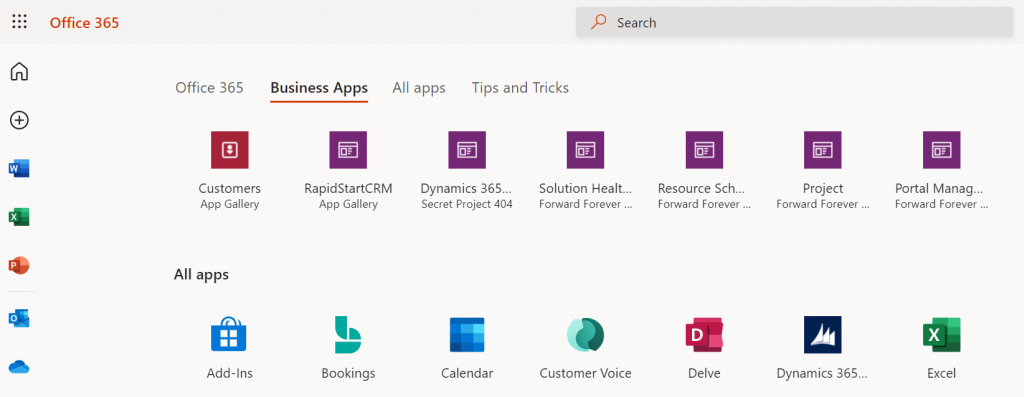
    Looking at the list of apps, though, we probably won’t see our brand new app here right away. There’s a pretty significant delay in the list of business apps getting updated here. Unlike the old Dynamics 365 Home, which suffered from a similar delay, we don’t have a “Sync” button to make this process any quicker.

    While we’re waiting for our new Model-driven app to show up on the Office 365 home page, we may start to wonder what apsp actually are listed here. For instance, why is Solution Health Hub showing up there for a normal user with no admin nor maker roles?

    Perhaps the Model-driven apps visibility isn’t entirely security role based after all. Whatever the reason why these Microsoft built apps like Solution Health Hub or Resource Scheduling from the default environment show up for a non-admin user, it’s not exactly a pleasant user experience. The Office 365 home page doesn’t offer us any pinning or filtering features like the old Dynamics 365 home page did, so there’s not much an end user could do to clean up the mess.

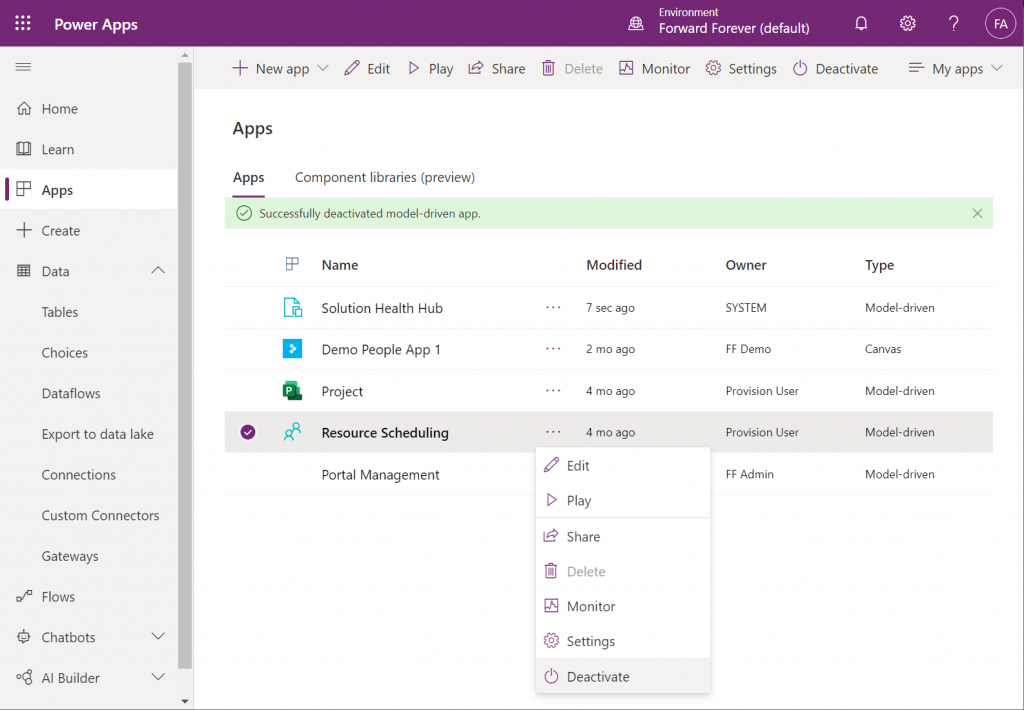
    As a system administrator, though, we actually do have a way to trim the list of apps – even when they are first-party MS apps. Thanks to fellow MVP Alex Shlega, I recently learned that Model-driven apps can now be deactivated and activated. So, let’s go to the Maker portal in the default environment, pick the apps we want to hide from office.com/apps and select “Deactivate”:

    Much better! Not only have the unwanted apps disappeared from the Business Apps list, but also our newly configured Model-driven app has appeared there during our small exercise.

    There still remains one item on that app list that I can’t figure out a way to remove from the user. That “Dynamics 365 – custom” app from the Secret Project 404 environment is actually the result of a Dataverse for Teams environment provisioned by this end user. Now, since we have no way to directly navigate to the full Maker portal of such an environment and they shouldn’t support any Model-driven apps to begin with, these apps are something only MS can clear away in a future update hopefully

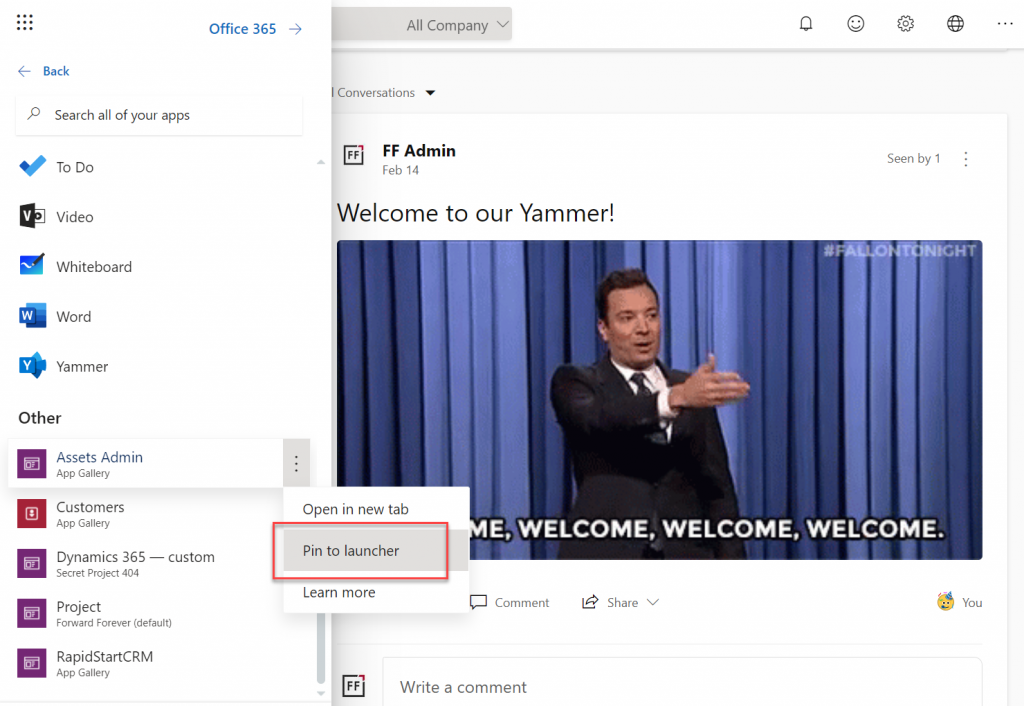
    Thankfully there’s another place where the end user has more control over the app list than the Office 365 home page. Whenever you’re using some other Microsoft 365 service and need to open up a Power App, it’s a lot more convenient to use the waffle menu from the top left corner rather than the full home page.

    Thanks to Thomas Sandsør for reminding me about the customizability of this app launcher. This is of course the place where a user should be instructed to pin their new Model-driven app for easy access:

    One final point to make about Model-driven apps visibility is around Microsoft Teams. You should definitely consider pinning the apps into relevant Teams channels as tabs, to maximize the likelihood of the end users remembering to use them. As for a complete list of Power Apps available to the user, currently no such place exists within Teams, so you should pay attention to the Office menus as the portal to display your Power Apps app catalog for desktop users.

    Update 2021-12-07: Office App Launcher new visibility criteria defined

    Microsoft has recently changed the behavior of their app lists, with an update communicated via Microsoft 365 Message center message MC290818. Since many people will not have access to MC content and it will probably disappear at some point, I’ll post the contents here in full:

    To help improve the app exploration and discovery experience for users, beginning mid-November 2021, the Office App Launcher, All Apps (https://office.com/apps), and app search experiences will be updated to only list relevant Dynamics 365 apps, Power Apps apps, and Azure Active Directory integrated apps.

    Following this update, the Office App Launcher, All Apps, and app search experiences will only list Dynamics 365 apps, Power Apps apps, and Azure AD integrated apps that meet one of the following criteria:

    Dynamics 365 apps and Power Apps apps:

    • Apps a user has launched in the last 7 days
    • Apps created by a user
    • Apps an admin has marked as ‘featured’ in the tenant
    • User accessible Microsoft published Dynamics 365 apps

    Dynamics 365 apps or Power Apps apps that meet the above criteria will be shown in the App Launcher, the Business Apps section of the All Apps experience, and in app search results. Note that the time between when an app is shared with a user and when it appears in an Office experience is expected to be 24 hours.

    Azure AD Integrated Apps:

    • Apps an admin or user has added to an Azure AD collection

    Azure AD integrated apps meeting the criteria above will be shown grouped by collection name in the All Apps experiences, as well as individually listed in the App Launcher and in app search results. A link to the My Apps portal where users can create Azure AD collections will be added to the All Apps experiences as part of this update.

    How does this affect me?
    Dynamics 365 apps, Power Apps apps, and Azure AD integrated apps that don’t meet the above criteria will no longer be listed in the Office App Launcher, All Apps, and app search experience. Users can take the following steps to access these apps and have them listed again in their experiences.

    For Dynamics 365 apps and Power Apps apps, if a user cannot find an app they are looking for will need to first launch it in the browser via its Uniform Resource Identifier (URI). Note that admins and makers can get an app’s URI by selecting an app in the Power Platform admin center or via https://make.powerapps.com by selecting details, then selecting web link. Once the app is launched, it will be listed in the Office App Launcher, All Apps, and app search experiences.

    For Azure AD integrated apps, a user can locate the full list in the “Apps” collection of the My Apps portal. Users can create collections for quick access to their favorite or most often used Azure AD integrated apps. Once the Azure AD integrated app is added to a collection, it will be listed in the Office App Launcher, All Apps, and app search experiences.

    What action do I need to take?
    This message is to inform you of an upcoming change, no action is required. However, if you want to guarantee specific Dynamics 365 apps, Power Apps apps, and Azure AD integrated apps are available to users following this update, please perform either of the following:

  • Dataverse for Teams as your CoE platform

    Dataverse for Teams as your CoE platform

    If you’re serious about leveraging Power Platform low-code tools in your organization, then you definitely should be using the Power Platform Center of Excellence Starter Kit (CoE) from Microsoft. This is the best way to get an understanding of what happens in all the environments across your tenant – ranging from small experiments by citizen developers to enterprise wide systems running on Dataverse, like Dynamics 365 Customer Engagement apps.

    The latest CoE update is a big milestone, since it enables the installation of these tools into any Dataverse for Teams environment (DV4T). Why is this a big deal? Because it removes a few licensing blockers that might have previously stopped organizations from deploying the CoE or making the most of its capabilities.

    The first upside is you no longer need to consume Dataverse storage capacity for the CoE deployment. That isn’t actually such a big of a deal, since the CoE Starter Kit data usually doesn’t really take much storage space at all (unless you’ve got a huge enterprise tenant). A nice bonus from this is that you can now deploy CoE in a demo / trial environment with no paid capacity available.

    You still need some actual Power Platform licenses to run CoE, though. Remember: Microsoft 365 does not contain Power Platform licenses – not even at E5 level. From the CoE setup prerequisites, we can find the following statement about Power Automate licenses:

    If you are using the CoE Starter Kit in a Dataverse for Teams environment, a Power Automate per user license will be required for the admin running the sync flows. No additional licenses will be required for users interacting with any of the canvas apps.

    CoE setup prerequisites

    Now, the really big thing is that by using Dataverse for Teams as opposed to the full Microsoft Dataverse, every user with a Microsoft Teams license is allowed to interact with the CoE data and processes. This means that you can actually invite all citizen developers in your organization to participate in the governance practices and automations directly – regardless of whether they already have a premium Power Apps license assigned to them.

    If you only perceive Power Platform governance to be about restrictions and enforcement of policies by IT admins, then the differences between the old & the new model aren’t that big. If, on the other hand, you believe in the power that low-code has to democratize technology and make it accessible to every developer, be it a pro or a citizen one, then this Teams based deployment option is something you’ll definitely want to explore.

    Installation

    Let’s try things out in a new DV4T environment, to see how the deployment process differs from the traditional set up of CoE core components. There’s a different solution package aimed at the Teams deployment option. We’ll need to have an environment provisioned in our chosen team before the installation, so just create one dummy app if you’re using a new team for CoE purposes.

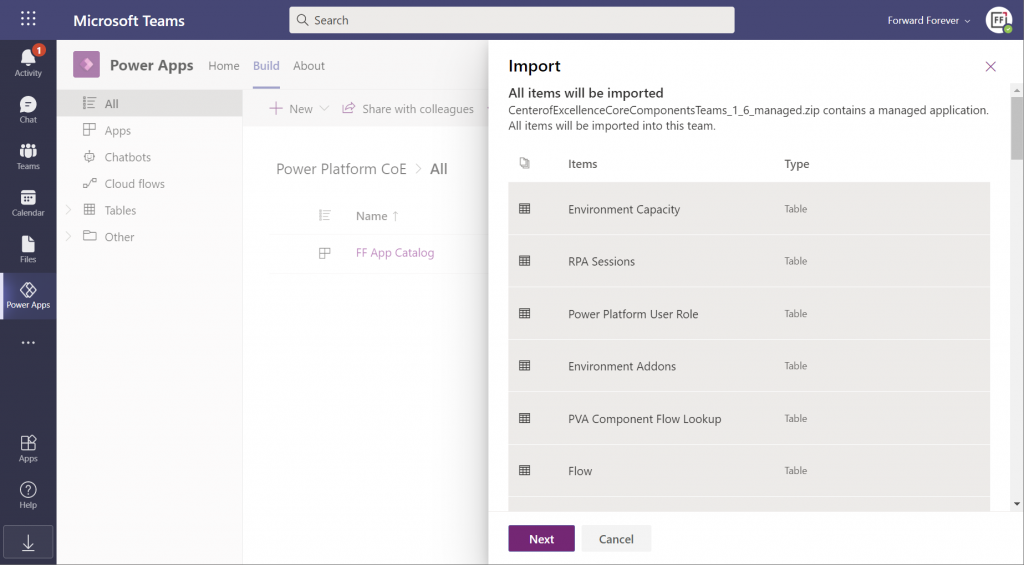
    The import (and export) options within the Power Apps app in Microsoft Teams have only recently been enabled. Importing the managed solution zip file into DV4T gives you a bit different experience than what we’ve been accustomed to in the Dataverse side, by listing all the items that are part of the import:

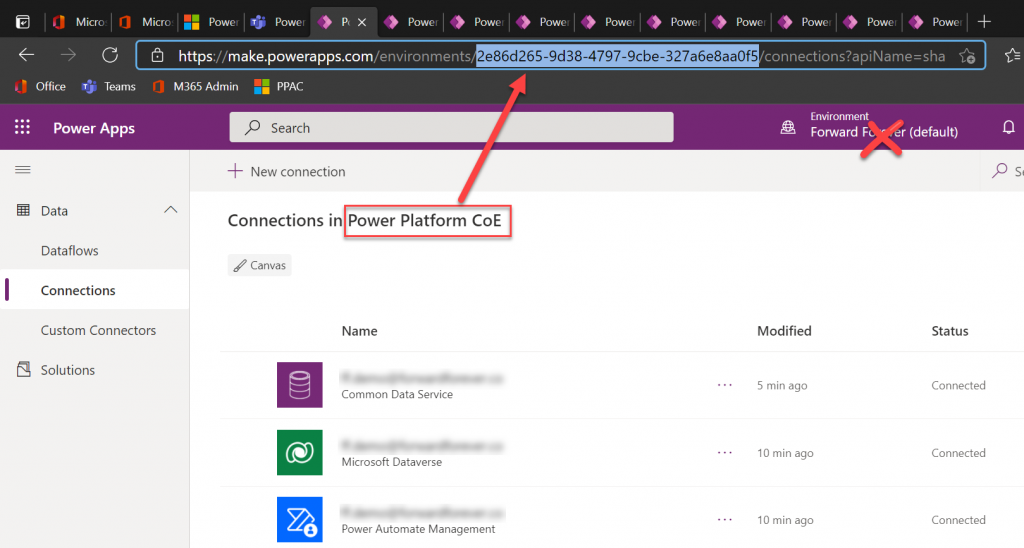
    Next we need to create a bunch of connections before proceeding further with the installation, to allow CoE to perform the necessary data retrieval through a wealth of APIs. This process will give you ~10 new browser tabs that show the traditional non-Teams version of the Maker Portal. A bit of a click show – but luckily there’s one upside to it.

    While you can’t open the DV4T environment directly in the Power Apps Maker Portal (as of now), you can hack the URL to get access to this full maker UI. So, as you’re adding all the required connections, grab the environment GUID from the address bar in one of the aforementioned tabs. Use that GUID to replace the zeros in the following URL:

    https://make.preview.powerapps.com/environments/00000000-0000-0000-0000-000000000000/home

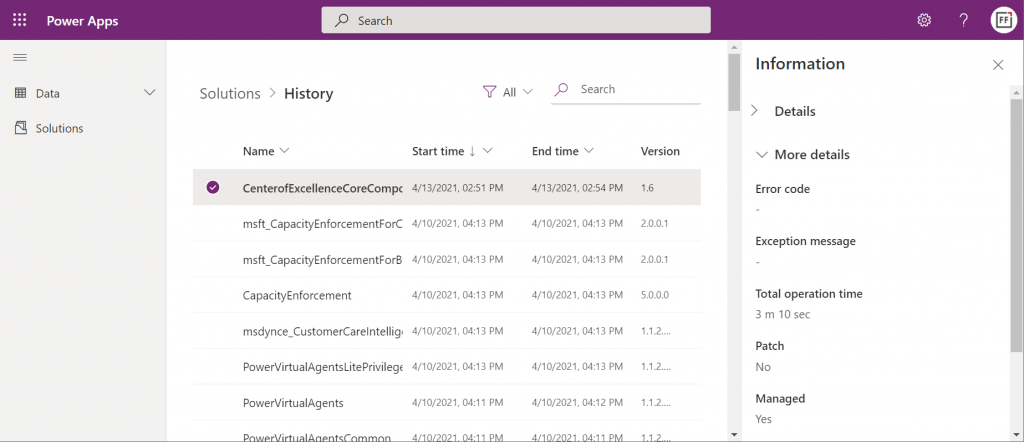
    Now you have a proper Power Apps browser tab that’s independent from Teams yet lets you browse through the environment’s components. For instance, we can go and check the solution history view, to verify that the Center of Excellence Core Components solution imported successfully in 3 minutes 10 seconds:

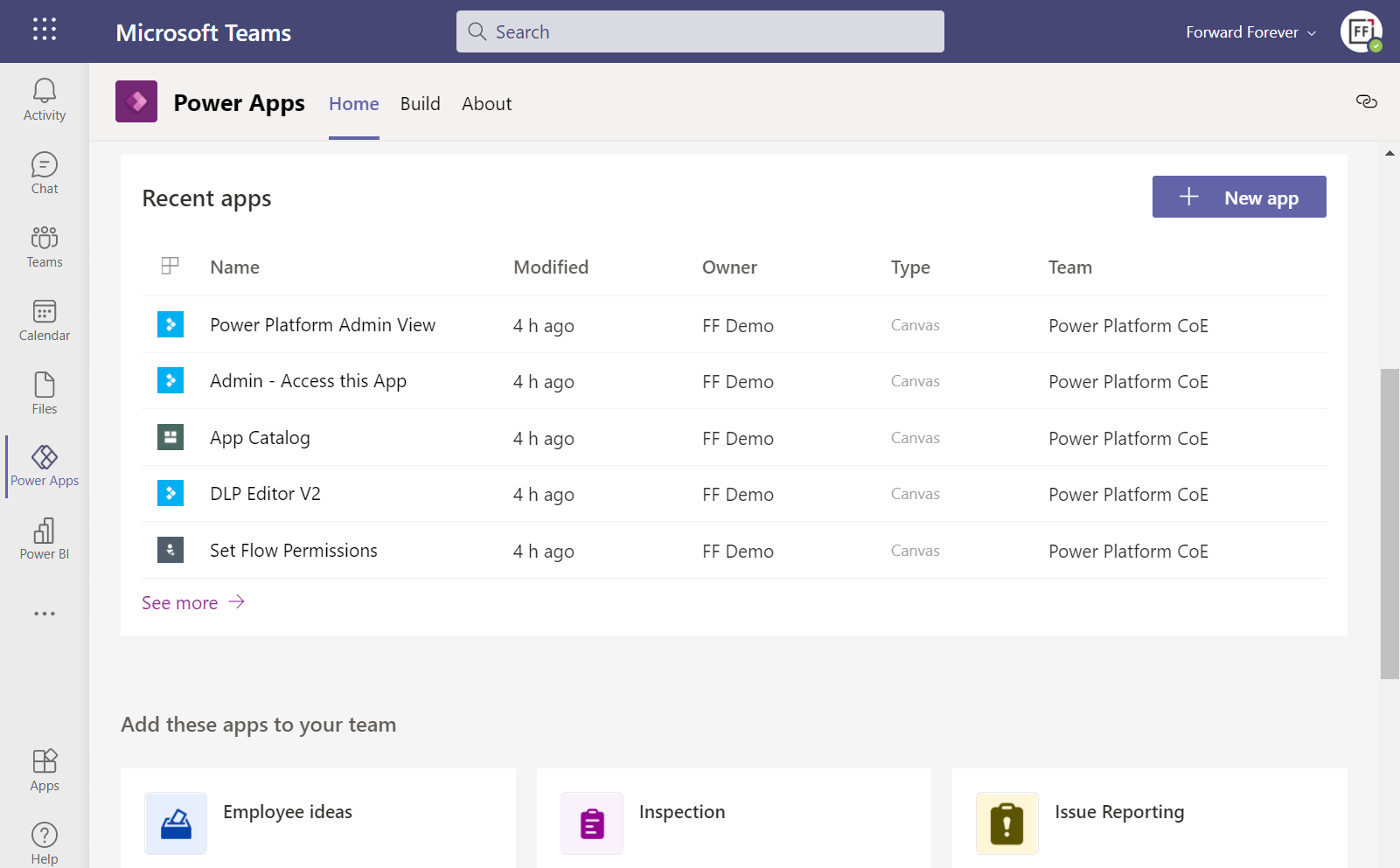
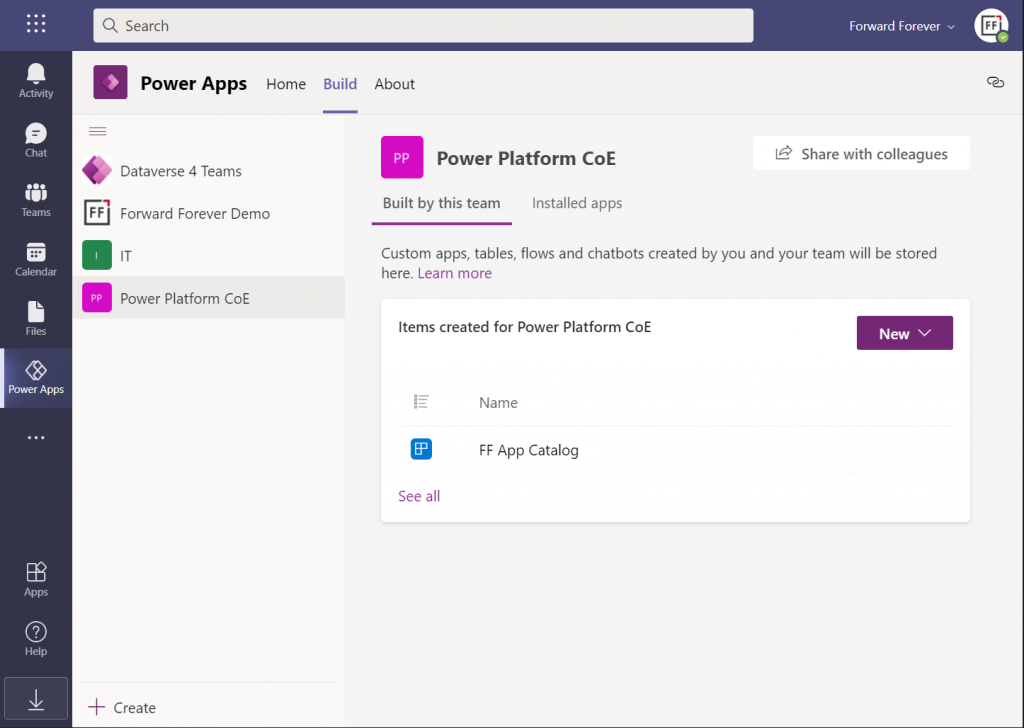
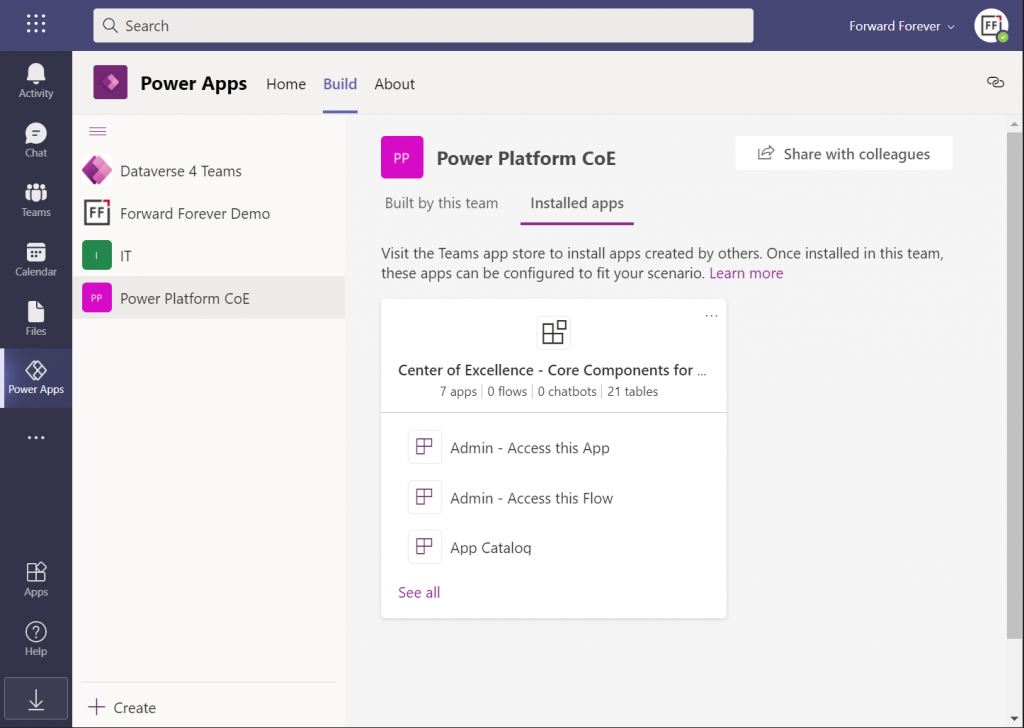
    Hmm, but why can’t I see anything yet on the Power Apps Teams UI? Even if I click “See all” then I only see that one dummy app I added earlier, to get the DV4T environment provisioned.

    The secret is in you choice of tabs within the Power Apps app. Specifically, instead of the “built by this team” tab you need to have a look at the “installed apps” tab. Ah! So, it looks like the managed solutions that you import into a DV4T environment are actually treated like Teams apps here – rather than just a list of components like we know them from the XRM era.

    In fact, while we can import solutions into DV4T, the whole concept of a solution package isn’t actually visible when viewing the world from a Microsoft Teams perspective. Also during the import process, we’re importing “a managed application” rather than a managed solution. Make of that what you will.

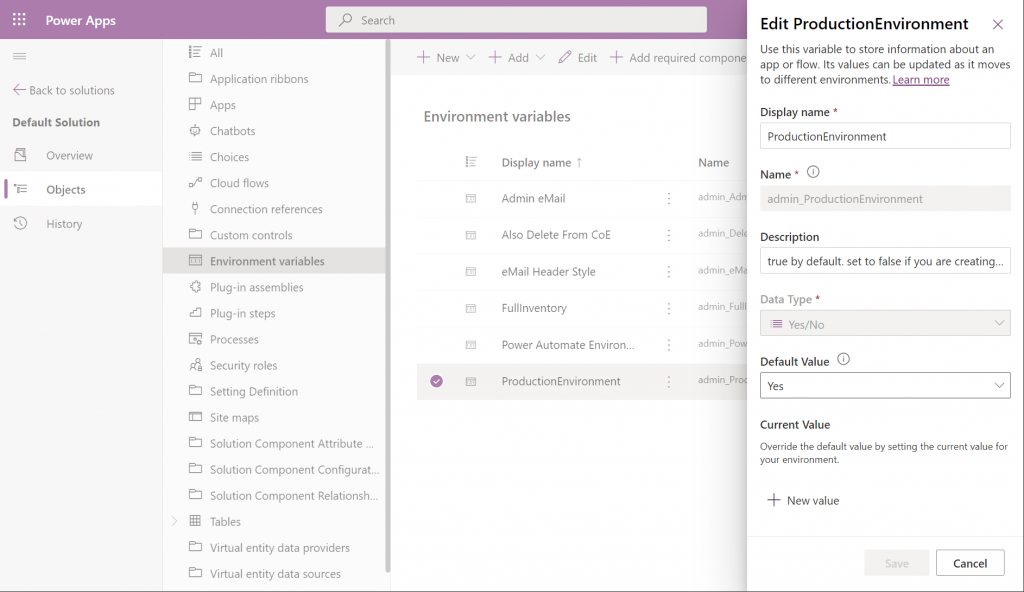
    By using the full Power Apps Maker portal we have access to not just individual solutions in the DV4T environment but all the components when accessing them via the Default Solution. For example, managing things like Environment Variables can easily be achieved here:

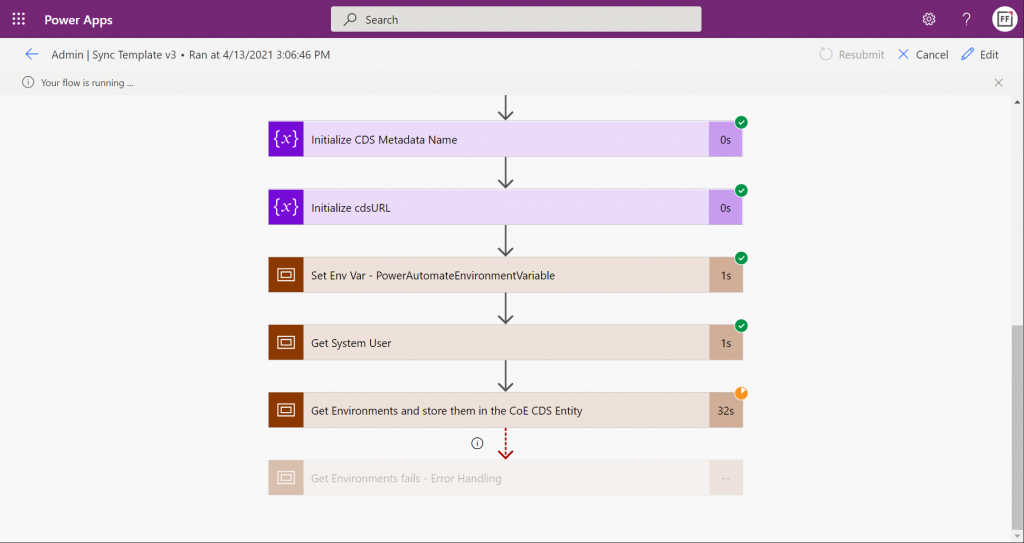
    Let’s get everything configured and move into the CoE core components deployment step that’s common to all environments: sync template flows activation. This will populate the tables in our CoE Dataverse environment with information about environments (how recursive…), apps, flows, makers and so on:

    Once the data is in, we can admire it via the Power Platform Admin View app. Oh, but wasn’t that a Model-driven app? And Dataverse for Teams doesn’t currently have support for those, right?

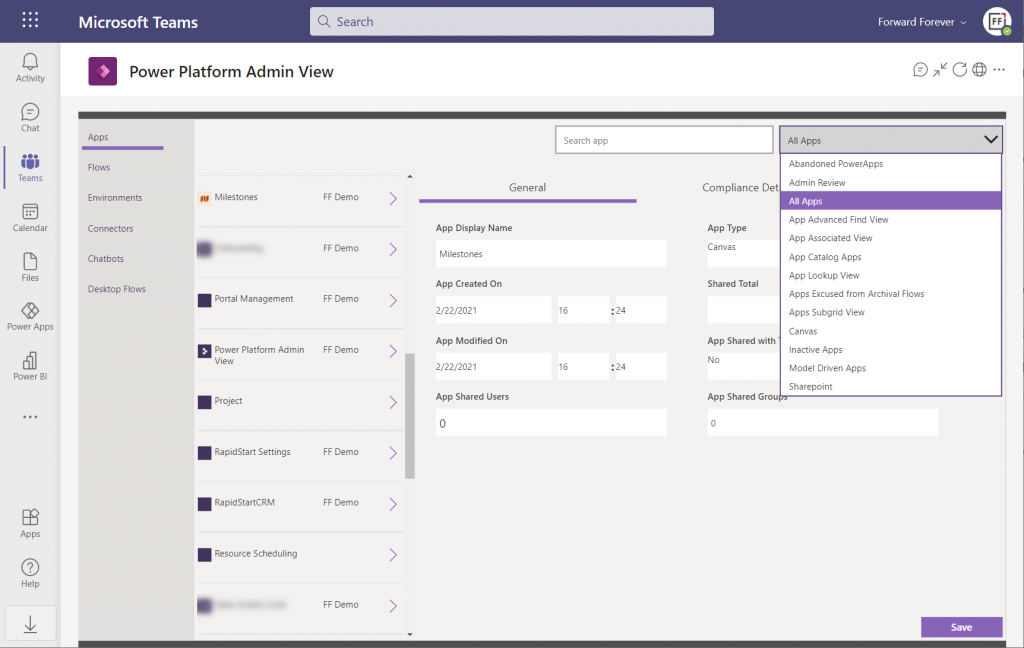
    Luckily there’s a new Canvas version of the Admin View available instead. Compared to the full Model-driven version, it’s… Well, how should I say this? “You get what you pay for.” Still, it gives a UI for browsing and editing the contents of your CoE environment’s tables. For those admins with little or no exposure to all goodies that the Model-driven apps and Dynamics 365 products offer, this may be perfectly sufficient for basic data management needs.

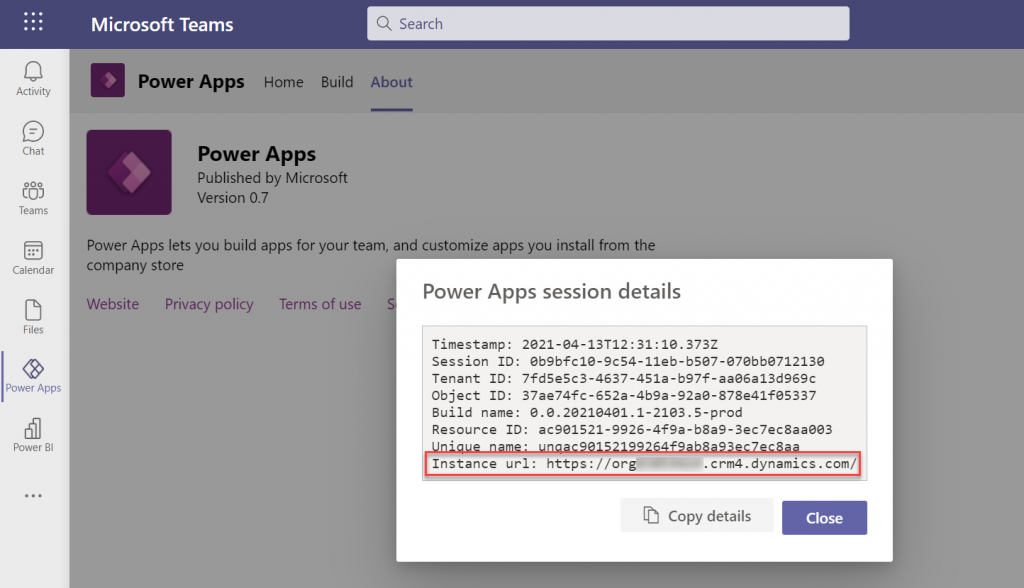
    How about the Power BI dashboard then? That has always been a nice tool in the CoE Starter Kit to demonstrate the wealth of different elements and data points of the platform. The good news is, the same version that’s used for the full Dataverse based CoE deployments is applicable also to CoE in Dataverse for Teams. The one trick you need to know, though, is how to find the Org URL for DV4T:

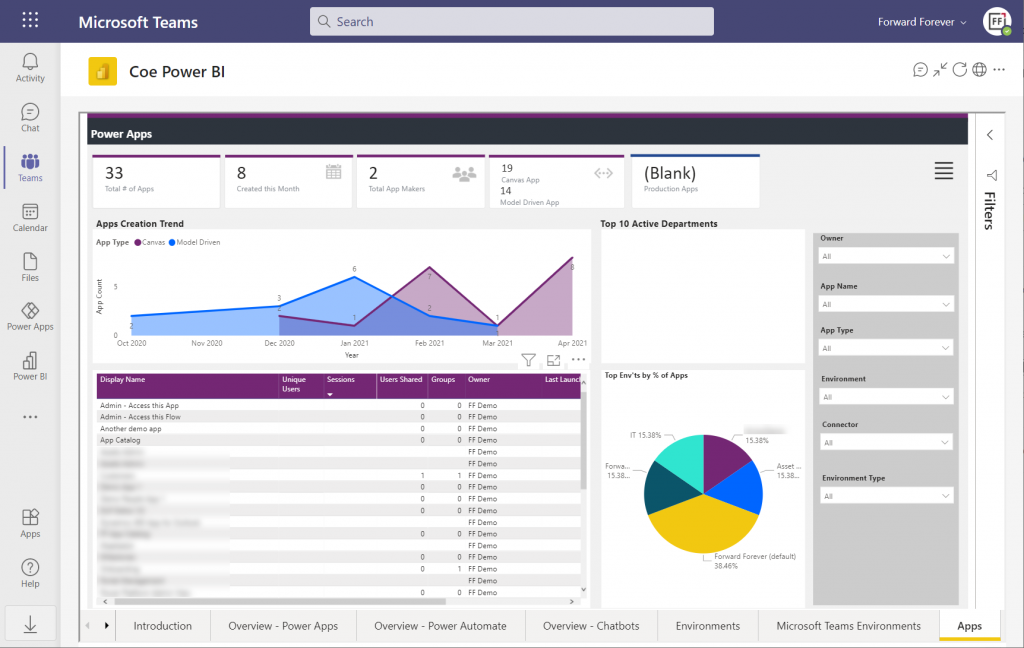
    Paste the instance URL without “https://” and trailing “/” into the parameter field when configuring the Power BI dashboard for CoE. Import the .pbix into a new workspace, create a Power BI app from it and publish it to the end users. After pinning it into a Teams channel tab, we now have a lot more visual method for exploring the apps, flows and other elements in our tenant’s Power Platform environments:

    There’s of course plenty of other useful apps in the CoE Starter Kit, both in the Core Components solution and further packages. In fact, when you look at the comparison table of what’s supported in Microsoft Dataverse vs. Dataverse for Teams, the differences boil down to the lack of a Model-driven admin app.

    Conclusions

    Despite of some of the new hoops you need to jump through to work with the simplified maker UI within Teams, the installation process of the Center of Excellence Starter Kit works pretty well in this deployment option, too. I’m actually surprised how well the CoE team has managed to “retrofit” the earlier solutions to work within the limits of DV4T.

    This highlights an important question which I’m sure many people in the Power Platform community have been wondering about: how far will Dataverse for Teams actually go? Sure, if we analyze the detailed feature comparison between Dataverse editions, it’s easy to identify limitations in existing business applications that wouldn’t really fit within the Teams edition. At least yet.

    While I don’t believe we’ll see the full feature set of Microsoft Dataverse unlocked for usage with Teams licenses alone, I also don’t think it’s going to be severely handicapped – intentionally at least. There’s a lot for MS to gain in pursuing the Teams as a platform story when competing against tools like Zoom or platforms like Salesforce + Slack. By attracting as many app makers and users onto the platform and then upselling them on premium Power Apps & Power Automate licenses when things like 3rd party connectivity or enterprise data platform features are needed, the revenue stream can be pretty darn nice still.

    One final thing to keep in mind about CoE is that it’s actually a great showcase in itself of what Microsoft’s low-code tools can do. It’s built with the very same Power Platform tools that it is used for managing. All the APIs, automations, reports and apps use publicly available technology that the customers also could apply for their own scenarios. Put into a different business context, these are the kinds of big systems that could evolve on top of the platform over time, to guide pretty much any digital process.

  • PPAC is your new Dynamics 365 Admin Center

    PPAC is your new Dynamics 365 Admin Center

    When talking to Microsoft cloud customers about Power Platform as the enabler for low-code app creation by citizen developers, we often find that also Dynamics 365 has already been deployed for one purpose or another within that organization. Typically it’s not the same people who are deeply engaged with the development of corporate wide CRM systems and these new type of agile solutions that Power Apps represents. Yet they share mostly the same architecture from a platform perspective (and increasingly on the client side, too), so the overlap and differences from an admin perspective are a source of confusion for many IT departments.

    Earlier it’s been perfectly possible to perceive the administrative tasks for these two ends of the MS Business Applications spectrum to be separete, since there has been different admin centers for all products. From now on, this will no longer be the case, as can be seen from a recent message posted by Microsoft in the M365 Message Center:

    Transition to Power Platform Admin Center (PPAC)

    We are reaching out to inform you that the Dynamics 365 admin center, Power Automate admin center and Power Apps admin center will be deprecated on June 30, 2020 and will be replaced with the Power Platform admin center. This change will provide a unified portal to manage your environments and settings within Dynamics 365 and Power Platform. To learn more about its capabilities, please visit this site.

    I don’t think many people (well, anyone, to be honest) will miss the Power Apps or Power Automate admin centers, as these have always been corners of the Power Platform that mostly served to confuse admins rather than offer them a clear view of what they can & need to manage. The new Power Platform Admin Center (a.k.a. PPAC, accessible via https://aka.ms/ppac) has been an easy sell for this audience, as it has offered a single place for common features like capacity management and analytics.

    As for the Dynamics 365 Admin Center, that has been around much longer than the whole Power Platform concept. Originally built to be the CRM Online Admin Center, it has been the place for all instance management actions (sandbox copies/resets), version updates, features related to 1st-party apps and AppSource solutions, even Dynamics 365 Portals administration. It never was a sight for sore eyes either, but it served as the toolkit for Dynamics CRM pros to get the admin job done. And now it’s going away:

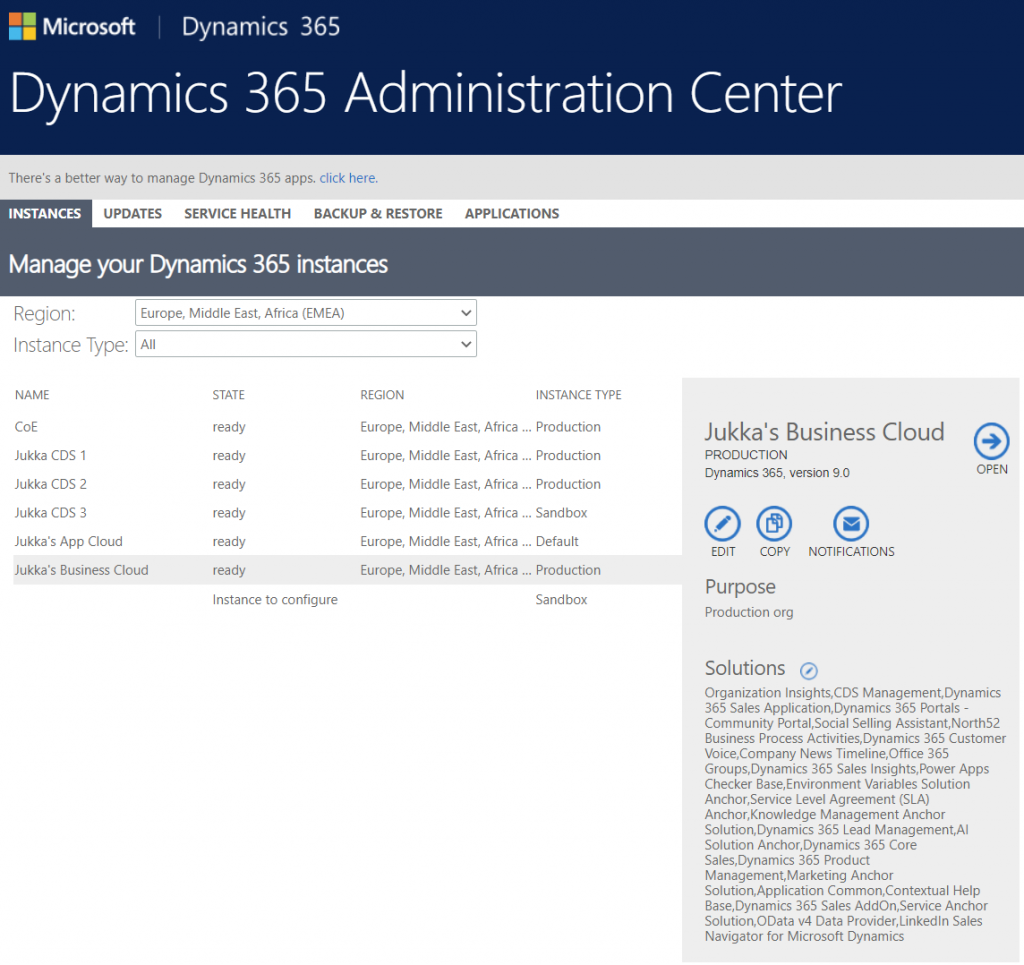
    Just in case you’re reading this after July 31st and you don’t get to admire the old Admin Center anymore, below is what the experience used to be like. Let’s have a look at each of the available tabs and how they now map to features in PPAC.

    Instances was the equivalent of what is nowadays called environments. Due to sharing the same back-end architecture, the Dynamics 365 Admin Center has displayed also CDS environments that had no relationship to Dynamics 365 products for over 2 years already. On the other hand, the new environments view in PPAC does not reveal the information about whether Dynamics 365 apps are in place or not, so prepare to have some other mechanism like the CoE Starter Kit to help you keep track of what apps are in which environments.

    Updates became a redundant tab some time ago, as Microsoft removed the need for customers to schedule their environment version updates via the Customer Driven Update mechanism. Today the continuous deployment mechanism will roll out the new versions to all customers on the same date (per geo), according to the timeline communicated on the Dynamics 365 release schedule and early access page, following the geo specific dates on the GA deployment page.

    Service health is of course an important topic, but the actual information about service outages and other issues has been incorporated into the Microsoft 365 Service Health dashboard common to all business services in the MS public cloud. PPAC environments list does have a “State” column that could presumably indicate if there is a specific issue that’s not affecting all customers, simliar to what the Dynamics 365 Admin Center view on instance health offered.

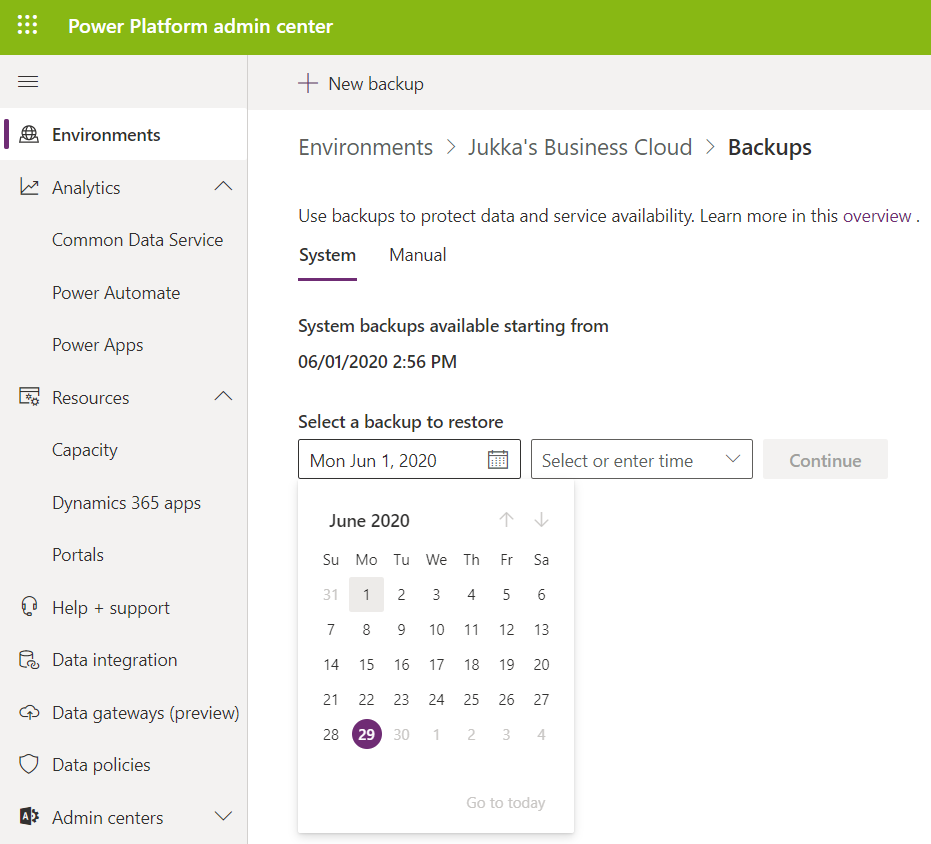
    Backup & restore has already been forwarding folks into PPAC for a while now, so obviously all the features needed for environment creation, copies etc. has been transitioned there. Backups is actually vastly improved compared to the Dynamics CRM days, since now we can freely choose any point in time from past 28 days to return to, with no specific backup actions needed from the admins. This is thanks to the Automated Backups feature of Azure SQL, now available for Dynamics 365 based business applications environments. It’s worth noting that “naked CDS” environments and sandboxes only get 7 days of backups, though.

    What about application updates?

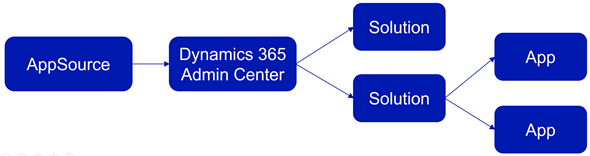
    The CDS core platform itself follows the update schedule outlined above, but the lifecycle of the actual apps that run on the platform has been a separate story. In fact, the whole concept of what an “App” exactly is was complex already before the merging of XRM and Power Apps into a single platform, thanks to what the App Module in Unified Interface and AppSource as a delivery channel were trying to use that particular concept for. Back in January 2018 I tried to explain this scenario with an illustration like the one below. Now with Canvas Apps and Model-driven Apps thrown into the mix, it’s probably a topic worth a whole blog post of its own to once again try and decypher the various meanings of those three innocent looking letters…

    The Applications tab in Dynamics 365 Admin Center was always a bit of a mystery. It seemed like a bin of random links to app specific configuration pages hosted outside of the Power Platform. Whatever was there can surely be put better into context somewhere else.

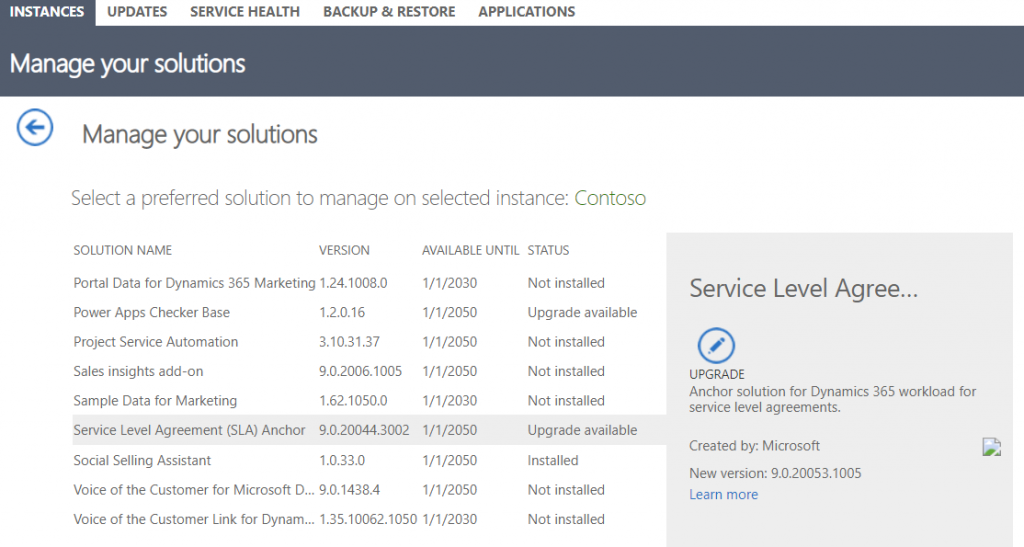
    Then there was that other place for your apps – meaning the environment specific list of solutions found inside Dynamics 365 Admin Center after you selected an instance. Clicking on the Solutions icon gave you a list of solutions that were either “installed”, “not installed”, “installation failed” or “upgrade available”. Here’s an example:

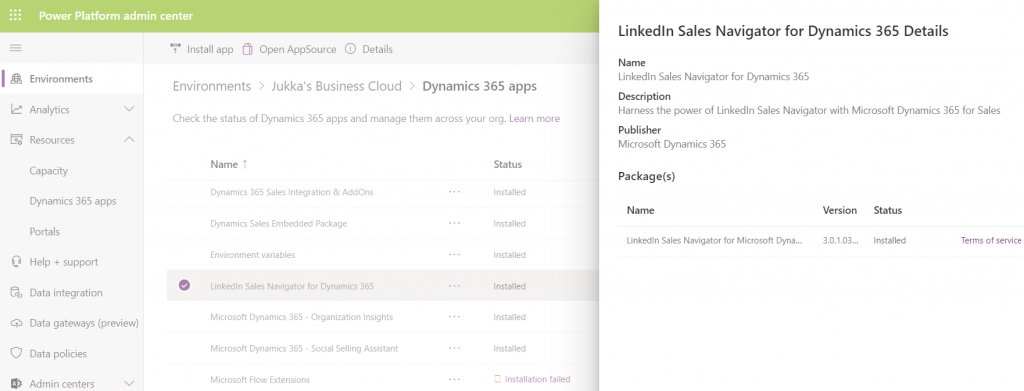
    Looking for this same information within PPAC, I see that I can select an environment, go to its Dynamcis 365 apps from the Resources box and browse through a list that resembles the old view (yet doesn’t have the exact same solutions). One thing that’s not very well presented is the version numbers, which you have to dig out via a hover action to get the last digits:

    As of today, there isn’t a way for you to upgrade solutions from here. Nor will you see if there is an upgrade available. In the example, there would actually be an update to LinkedIn Sales Navigator, which I see from the classic Admin Portal. I can also manually install that solution if I go to “install app”, select the app I already have, then re-install it (thanks for the tip, Joris!). I’ve been informed that there will be an fix applied to PPAC shortly that will make the Update option visible in the list of apps for the tenant, as described in the documentation page Manage Dynamics 365 apps.

    Regardless of the navigation path, though, I believe the concept of an Update button is from a bygone era. In the best case you should not see such an option anywhere. Zero-click updates are the way to go.

    Let’s step back for a moment and think about how the old solution upgrade experience worked. In order to know that there was something new for me as an admin to deploy, I had to open each environment’s Solutions list, browse through the paginated list of solutions that were either installed or not installed, then spot one that said “upgrade available”. OK, I see there is “Service Level Agreement (SLA) Anchor” that could be moved up from the deployed version 9.0.20044.3002. to 9.0.20053.1005. Great. So what’s new in that and how will that impact my applications?

    *Crickets*

    That’s the response to basically all solutions ever offered via the old Admin Portal. I don’t think the “Learn more” link associated with the solution upgrade has ever taken me to a page that had proper release notes specific to the solution in question. At best it’s a link to product documentation, at worst it’s a complete placeholder link to microsoft.com that was inputed because the field has been set as required in the solution publishing process.

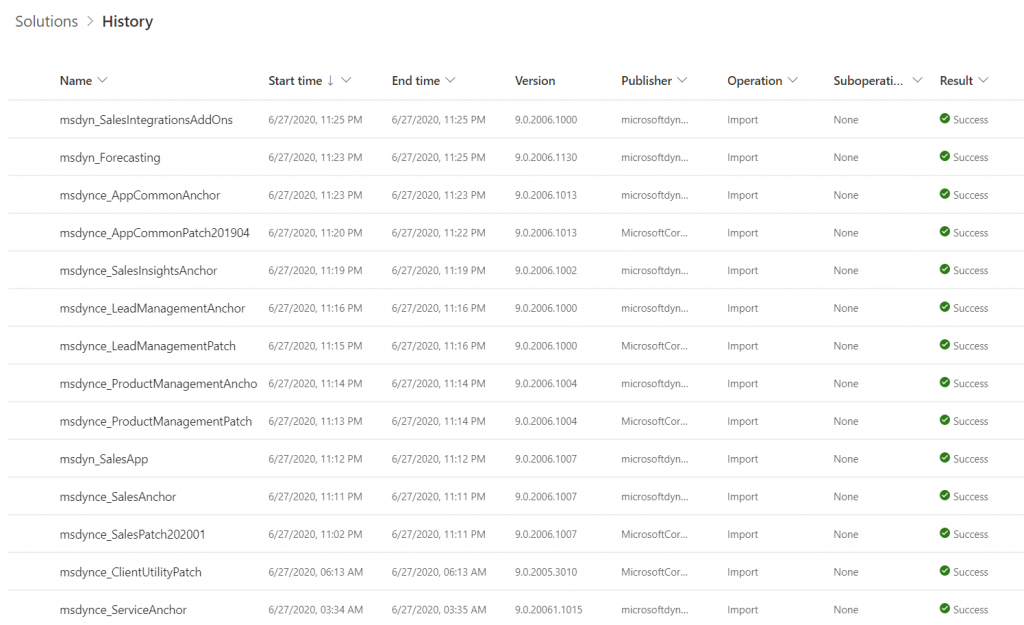
    Obviously this wasn’t the way to go, so a new direction was needed. After all, it makes no sense to require an admin to perform the upgrade steps for a solution when he or she cannot make a meaningful go/no-go decision about it due to lack of information. While there is a beautiful illusion of control in having an “Update” button to click, it’s important for everyone to understand that Microsoft has already been pushing weekly (sometimes daily) updates to tens and tens of internal solutions in your Dynamics 365 environments. You can view this list from the Power Apps Maker Portal (not directly from PPAC unfortunately), under Solutions – See history.

    Automatic updates are the way to go, not just for the platform but also the apps. Dynamics 365 app teams have published their Automatic Update Policy posts for Field Service, Project Service and most recently Marketing. Running manual solution upgrades through the Admin Portal isn’t really a part of this modern world anymore. Therefore it shouldn’t make much difference how or where this is presented in PPAC. What you should care more about in the new Admin Center is seeing how the various apps across all your tenant’s environments are doing in terms of capacity consumption, usage analytics, do you have the necessary DLP policies in place and so on. The role of a Power Platform Administrator can be quite different than what the traditional CRM admins were used to, so it’s natural that the admin tools will also need to evolve to better reflect this.

  • First impressions on Power Platform 2020 Release Wave 1

    First impressions on Power Platform 2020 Release Wave 1

    It’s that time of the year again when all us Microsoft Business Applications geeks are blessed with two huge documents to consume: the Release Plans for both Power Platform and Dynamics 365. While I gotta say that it’s awesome to have this level of transparency on what specifically is in the next 6 month release cycle, the amount information does feel overwhelming – at least if you’re trying to cover more than a few specific products within the stack.

    Ultimately we should at least aim to have a general idea of how each piece of the BizApps puzzle is evolving. Especially the Power Platform side is very relevant for anyone who’s not strictly focused on training/delivering/administering just a single app from the Dynamics 365 portfolio, because this is your low-code toolkit for making those applications meet the real life needs of customers. Unlike with past CRM projects, the customization tools are not part of single server installation, rather they can be discovered from all around the Microsoft cloud.

    To make the Release Plan easier to digest, I’ve picked out the new/improved features that jumped out when I went through it for the first time. Instead of the PDF versions (which are coming a bit later anyway), I prefer the online documentation, so below are links to each of those items for you to drill deeper into – and also keep track of possible changes to the original plan.

    I’ve added my comments on why I consider these to be the most important items in the Release Plan. Time will tell how they actually land and what the impact will be. It’s going to be fun to review this list October 2020 when Wave 1 is over!

    Power Apps

    Single mobile app player for Canvas & Model: very much needed in order to break free from the assumption that Model-driven apps are only for Dynamics 365 customers.

    Offline improvements: the need for accessing data without a live connection is still very real in mobile scenarios. What is somewhat of a bummer is that the efforts here are targeting Model-driven apps only for now.

    Modern solution explorer makeover: Yes! There are a lot of areas where app maker productivity could be improved, so it’s great to see investments are being made here.

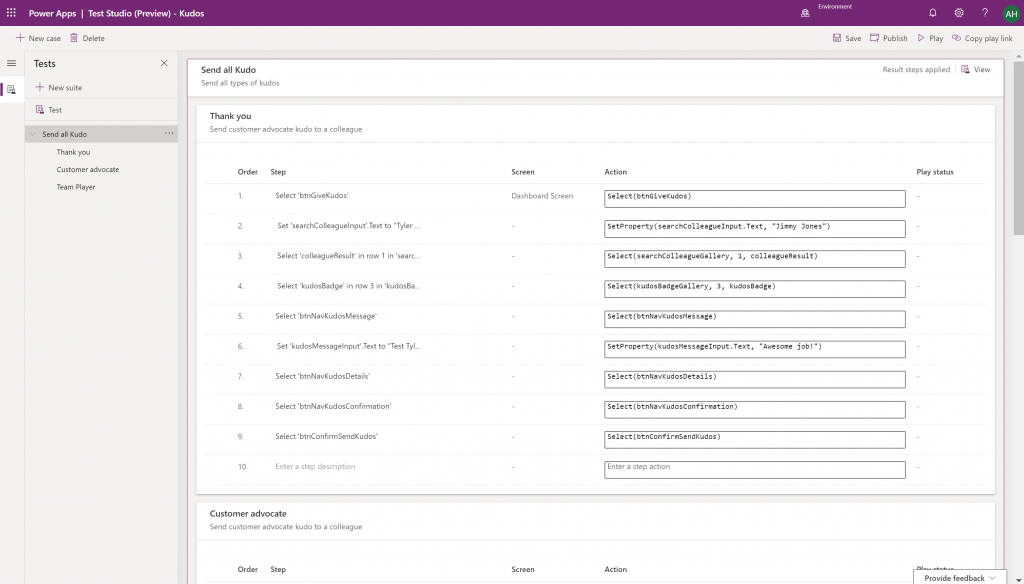
    Canvas app Monitor tool & Test studio GA: the wave of the future. Low-code app development isn’t going to be restricted to personal productivity scenarios, we’ll have much of the same needs as in the pro dev side.

    Azure Application Insights telemetry in Canvas: a great example of how the existing tools from Azure should be harnessed to offer shortcuts for Power Apps makers.

    Generate app from data with responsive layout for phone and tablet: it’s been an awkward limitation before to only support phone layouts. The bigger story is in bringing out these templates for how to actually make Canvas apps responsive, as it has been quite a mountain to climb for citizen developers. In 2020 Wave 1 we’ll also see a preview of the awaited responsive Canvas app pages.

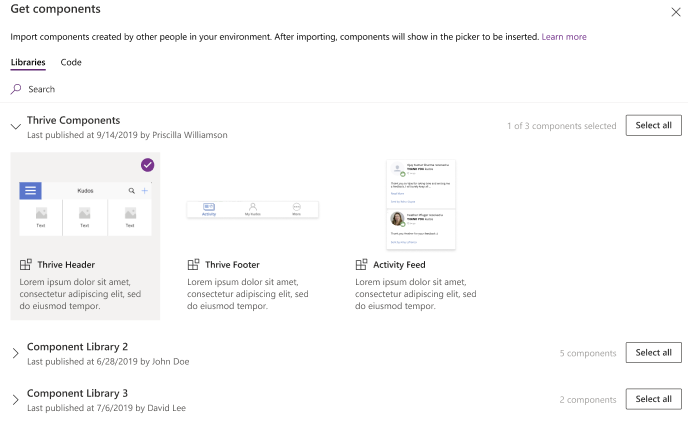
    Canvas Components GA: very impactful stuff here. Component libraries, solution awareness, support for galleries and forms, using collections and media files. These are big steps in bringing the two app types of Canvas and Model-driven closer together.

    Power BI embed component in Portals: oh yeah, there’s that third app type, too… Definitely looks a lot more approachable than the current embed experience. As for Portals extensibility for pro devs, the CRUD Web API sure made Nick Doelman excited, so keep an eye on that one.

    Unified Interface enhancements: important for many Dynamics 365 experiences. Forms as modal dialogs in particular looks useful, better filters are about closing the gaps to legacy web client, search in this view is an age old requirement.

    Improved themes reflecting modern Microsoft Fluent themes: UI matters, the power of the Apps is not just in the logic, data and automation. MS should be more aggressive here when competing against other low-code development platforms.

    Power Automate

    Interactive adaptive cards: we’ve surely been waiting for this. Very important for bridging the user experiences across different tools in different MS clouds (Office, Dynamics, Power Apps). Could 2020 be the year of the Adaptive Cards? Potentially yes, if you look at how Teams & Power Automate can make use of this feature.

    UI Flows solution awareness: aligning RPA with the common shipping vehicle of Power Platform. Being a new preview feature, there’s of course a lot of other parts moving around still, but the important bit from a platform play perspective is getting everything to play nice with solutions (including non-UI Flows…)

    Use business process flows in Office 365 apps: interesting yet logical step. From a process automation perspective there’s no reason to keep BPF functionality tied too closely with the familiar CRM sales process stages mentality. Again, it’s the platform that counts.

    Power Platform governance and administration

    Environment life cycle support: much needed in the real world implementations. To be able to test new standard and custom features in complex business systems, copying and deleting environments needs to be compatible with all the platform components used. Power Automate, Canvas apps etc. have to support healthy ALM patterns for enterprise development scenarios.

    User access diagnostic experience: again, very much needed for keeping larger environments operating the way IT would want them to. The process of managing access to applications should be isolated from the actual app maker tools or features specific for Dynamics 365 admins, to ensure there’s help available on a broad enough level when users encounter problems.

    Admin connectors & PowerShell cmdlets Generally Available: because they need to be. Low-code Application Platforms for enterprise customers will have to provide automation tools for not just app creation but app governance and administration. If the number of business apps within an organization will explode thanks to these tools, trying to scale the old admin practices isn’t going to be the answer.

    Bring your own data lake: allowing customers to control their own adoption metrics for Power Apps. Just like the GUI for admin tools might not meet the requirements of all organizations, it makes sense for Microsoft to allow customers to also take the telemetry data from apps and use Azure services to put it into their own reporting context.

    Power BI

    Paginated reports enhancements: the next generation SSRS has been a long time coming. The new features like API to render a paginated report to any format (e.g., PDF, Excel) and subreport support will bring the cloud reporting powers of Power BI close to what you could do in on-prem 15 years ago. They might not be the coolest of features, but for many CRM scenarios these “pixel perfect” A4 outputs are still a very practical solution.

    Copy and paste visuals into other applications: supporting the modern flow of information. If the paginated reports represent the PC era way of working, then being able to grab a part of your analysis and quickly paste it to a conversation in Teams with a link back to the full report is the way today’s information workers expect these cloud apps to work with one another.

    Data lineage GA & enhancements: when cross-referencing data from anywhere is a breeze, how can you tell if the analysis is actually accurate? The lineage visualization is an effective way to illustrate how this modern world of self-service BI operates and bring tools to do meta-analysis on what’s the actual source of the truth being presented to you.

    Power Virtual Agent

    Add a Power Virtual Agents bot into Power Apps canvas app: because bots are not just for customer service. Internal scenarios for app users would be very interesting, although the starting price for using bots is probably going to scare most customers away.

    Adaptive Cards: see my comment in Power Automate section.

    Single Sign-On: if attempting to go beyond generic website chat popups, strong identity management features are a must.

    Pass context to a bot from the calling site: “Hi, how may I help you?” That’s not how a smart agent would initiate the chat, so after identity comes context management. Bridging the gaps between apps is where I see bots being particularly powerful, so URL query string support is a good start for making this happen.

    AI Builder

    Power Automate integration: building the Cognitive Service for citizen developers. The patterns from Azure need to become more accessible in the BizApps frame of reference.

    New models like anomaly detection and receipt scanning: making AI Builder ready for business. Training AI for unique data sets is one thing, but where I believe wider adoption will start is through these more “ready to go” scenarios.

    Common Data Model

    Empower out-of-the-box analytics: delivering on the promise of CDM. It’s all just theory until we see Microsoft deliver on those promises about making it easier to integrate data sources and analytics/AI via a common semantic model.

    CDM visualization and management experience: making CDM more than a GitHub repo. “Increased focus on growing the Common Data Model ecosystem requires enabling users to work with Common Data Model in their native data environments, such as Power Query, Insights Apps, Synapse, and Power BI.” Yes, it certainly does.

  • Licensing is NOT a security mechanism

    Licensing is NOT a security mechanism

    Licensing remains a topic that no one claims to like yet everyone keeps on talking about. October 2019 saw what was undoubtedly the biggest number of changes to Microsoft Business Applications SKUs (i.e. items that MS sells), with the end of Dynamics 365 Plan licenses and new models for licensing PowerApps & Flow. Not to mention the new structure that ties licenses closely to API call limits. Oh, and we’re still waiting for the new restricted entities definition that should have gone along with October 1st licensing terms.

    We’re not even past the month of October and there’s already a new licensing discussion heating up in the MS customer and partner community. The announcement of Self-service purchase capabilities for Power Platform products, made via Microsoft 365 Messaging Center (only visible to admins), seems to have pretty much angered everyone who saw it.

    I gotta say, you simply could not find a worse channel to announce something like this, because it’s aimed squarely at getting around a problem that IT administration (and sometimes consultants like me) are a part of. But like we’ve seen so many times before, communication isn’t exactly the strongest part of Microsoft’s software licensing management efforts, so let’s just move on and start analyzing what is happening here, why it is happening and what possible outcomes there might be from it.

    Empowering every individual to acquire applications

    To get an overview of what exactly is going on, you can read the article from Mary Jo Foley: “Microsoft to enable end users to buy Power Platform licenses without administrative approval”. In short, starting in November 2019 (in the US), any user that has an account in your organization’s Azure AD tenant will be able to go and buy Power BI licenses directly from MS. Later this will expand to PowerApps & Flow, and other regions. Essentially this will be an “insert your credit card here to unlock Power Platform functionality” type of experience.

    How is this different from any of the popular SaaS products from other vendors then? It isn’t. That’s the model that every consumer app and most business apps support, since it represents the lowest barrier to entering a commercial relationship. Usually you would start with a free trial period to try out the capabilities of the SaaS product. If it’s a good fit for the problem you’re trying to solve, the next problem you face is the procurement of the app. Buying things for personal use is easy, whereas the bigger the organization you’re working in is, the longer you can expect this purchasing stage to be. During it you’re basically standing behind the store window, staring at the product you know you’d really need, yet the door to the store is being kept shut. Often there’s even no opening hours sign to give you any clue on how long this will take (or if you’ll ever get what you wanted).

    In such a scenario, it’s not uncommon for problems to get solved with a credit card and an expense claim. The ease of taking this route is how Shadow IT came to be, and I bet we’re just going to see more & more of this Bring Your Own App (BYOA) activity in organizations as the information workers become more savvy about what’s actually out there in the cloud. If one store is closed, there are tens of other options with 24H service.

    But they can’t do this! They’re MICROSOFT!!!

    It’s one thing being an enterprise software startup and trying to get onto the radar of potential customers via the Bring Your Own App strategy. When you’re Microsoft, though, the expectation is that things work in a completely different way. Since pretty much every bigger company is a MSFT customer, the licensing game has been a process of long negotiations and complex agreements. This is the procurement norm of how Microsoft software finds its way into the hands of the end users. Well, it sometimes does, and other times it doesn’t, because the needs of individual users may get lost in the big corporate IT machine that’s trying their best to keep things under control, with the growing amount of regulations, systems and requirements.

    What’s Microsoft on about here with self-service purchases, specifically with this chosen set of products? Imagine you’re the world’s most valuable company, you happen to be producing software & you’ve recently discovered a huge new market in the Low-code Application Platform space. You’ve built up a strong community of advocates (or addicts even) and your target is to empower the next 10 million application developers to digitally transform their organizations with the help of your global cloud infrastructure and AI driven insights. You’ve got all these key buzzwords lined up, there’s a seemingly endless sea of citizen developer opportunity ahead of you. The only thing standing in the way of your success is this nasty thing that looks like Niagara Falls, sucking in many of the smaller boats that the poor citizens attempt to use to sail to this promised land of Power Platform. That thing has a name and it’s called Enterprise Software Licensing Models. So much for the “no cliffs” experience then – hope you packed a life vest on this journey!

    To avoid this vortex that Microsoft themselves have largely caused over the past decades with the swirls of their enterprise software sales strategies, it makes perfect business sense to open up new, alternative routes for those power users who seek to merely use the software tools – instead of catering only to those who are tasked with managing the whole lifecycle of IT tools in the organization.

    There’s only so much you can do with the PowerApps and Flow features bundled into Office 365 subscriptions, after which you’ll need a premium plan. Why on earth would Microsoft willingly push the users to look for alternative tools like Zapier or IFTTT to automate processes that connect to data sources that are outside Office 365? Why shouldn’t it be possible to enter the very same credit card details into a form provided by MS, to keep the tools within the same MS cloud that’s already used by the organization? Isn’t this actually a way to reduce the problems resulting from Shadow IT? Keep the rogue users closer to the official IT world and you’ll have a better chance of converting the tools into non-shadow status at some point.

    Rogue citizens

    Obviously there are some valid concerns with a model that might encourage users to acquire MS software via an alternative channel than the officially sanctioned one. The self-service shop won’t give the same negotiated prices for licenses as the company wide agreements. Handling the expenses from various different sources will be an overhead. The boundaries between supported and unsupported IT will become blurry. Even with the promised central visibility into who’s bought what licenses in the tenant, initially it will all just look like more work to those persons who have traditionally managed Microsoft licenses in the organization. There’s an FAQ document from MS for this self-service purchase model that attempts to address some of these concerns, but with a change like this there’s bound to be far more Q’s than A’s at this point.

    There shouldn’t be a need for the self-service purchase channel to exist, but in reality there is. If you have only spent time working in roles that represent the centrally planned deployment of IT systems, you may not realize the challenges that can stand in the way of you and the software license you would need for getting your job done in a larger organization. Sure, there might be a theoretical process in place for how the needs of business users are identified and then eventually turned into a working piece of software that everyone happily uses. In reality a fair share of the people on the business side who live in the world of needs may not be seeing such processes in action. They may well be unaware of any development initiatives on the IT side, nor have contacts with those professionals that could help them navigate these processes. If IT systems can be complex, then the inner workings of an enterprise organization can represent a whole new dimension of complexity. No one is at fault, yet everyone pays the price.

    (more…)
  • Keeping Dynamics 365 Apps Up to Date

    Keeping Dynamics 365 Apps Up to Date

    We’re living in the “post-October” era where many of the new Dynamics 365 Customer Engagement features promised in the Oct ’18 Release are materializing into the live environments. Not all of them, though, since that space train carrying the Business Applications release bits has been scheduled to run from October 2018 to March 2019, as you can clearly see: 

    While some features arrive in preview and only for a specific geographic region, there is plenty of stuff that’s being deployed to nearly all Dynamics 365 CE online orgs. While we’re not quite yet at the target state of having every customer running the same version of the application, there’s no longer a process for scheduling the update for your own environments on a particular date in the distant future. v9.1 has most likely now been rolled out in all but the most exotic geos.

    This lack of CDU calendars to pick the dates from doesn’t mean that everything would automatically get switched to the latest version. Remember that in addition to the underlying platform (now called Common Data Service for Apps, CDS) there are also the actual Apps to update. For example, if you’re running the Sales Hub a.k.a. the Unified Interface app for Dynamics 365 for Sales, the menu items in the App Settings section might look like the following:

    Whereas what you should be seeing in the latest version currently is this:

    How do we get there? Let’s dive into the world of solutions and find out.

    Applying Solution Updates

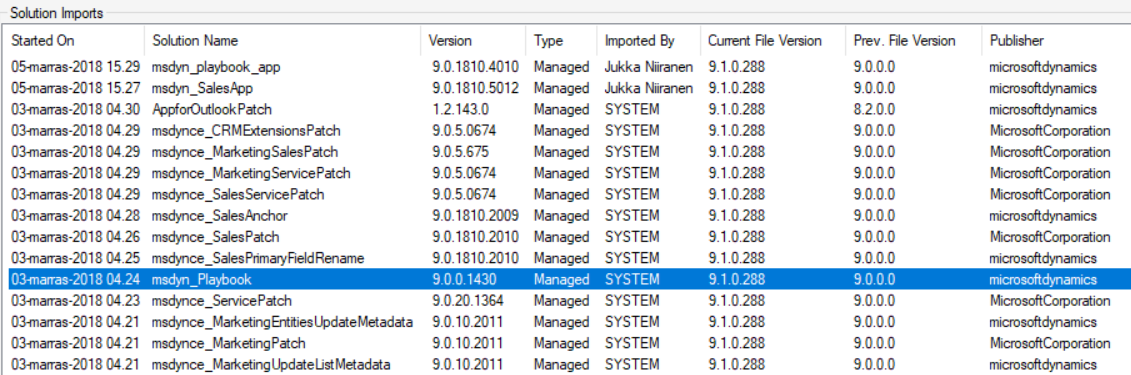
    How do we know which solution versions carry which new features? We don’t have a central place for such information right now, since the Microsoft Dynamics 365 Online releases page only lists fixes and changes to existing functionality (in theory at least). When we browse the documentation for specific features like Playbooks for example, we may see details like this:

    OK, that gives us a hint about what versions we should be seeing inside Dynamics 365. Getting the platform version is easy enough via the About menu behind the configuration cog, and everyone who’s customized Dynamics CRM should know where to look for the solution version number.

    (more…)