Blog

  • Ignite 2018 & The Power of Microsoft’s Platform

    Ignite 2018 & The Power of Microsoft’s Platform

    Just like last year, I was fortunate to be able to escape the chilly Finnish autumn weather to sunny and warm Orlando this September, to attend the Microsoft Ignite 2018 conference. This time my visit to Florida did not contain a whole lot of sunlight, though, as my stay in that region was focused strictly on the days of the event, which meant I was mostly wandering back and forth the endless corridors of Orange County Convention Center. With 1600+ sessions crammed into 5+1 days, you’re always going to have a packed agenda at a conference like Ignite where 30,000 fellow Microsoft geeks are swarming around to gather the latest announcements and demos from their favorite technologies and evangelists.

    I’ve written a summary over on LinkedIn of what were the main themes I picked up from Ignite this year. In short, Power Platform was front and center in the story of how Microsoft is further helping organizations to digitally transform their business processes. Not just from the traditional CRM and ERP scope of Dynamics 365 but on a much broader scope that speaks to the audiences that might not have otherwise ended up exploring how PowerApps, Flow, Power BI and CDS can connect their existing Office tools into a more automated flow of data through predefined pipes – as opposed to the more free-form processes that information workers previously had to agree on, to efficiently collaborate with their colleagues.

    On the one end we saw a lot of praise for the unlikely heroes that have managed to pick up a toolkit like PowerApps without any developer background or formal position in IT, and build applications that their organizations have adopted into their day to day routines. Even though these citizen developer scenarios may not seem all that complex for professional software people, the key lesson is that these manual processes would have been unlikely to get digitalized with off-the-shelf or custom built software anytime soon. Making the tools for digital problem solving accessible to the people who intimately know the problem is what’s really shortening the time to value, which in turn drives the growth of the community around the Power Platform. It’s not capped by the number of companies looking for a CRM deployment project, rather it’s fueled by the amount of data and cloud based services that make this data available to the platform via connectors.

    At the other end of the spectrum there was the true enterprise scale where this data needs to be harnessed with advanced tools and technologies to remain competitive in today’s global business. AI is the kind of buzzword that cloud was in the beginning of this decade, but in the same way as cloud computing became an everyday commodity, we’re bound to see if not artificial intelligence (AI) but at least machine learning (ML) algorithms find their way into everyday tools in the very near future. All of the major apps in the Dynamics 365 CE suite recently received their AI extensions that aim to bring intelligence built into the packaged applications, not just via Cognitive Services from Azure that developers and data scientists must plug into the business applications. Another example of the enterprise application providers’ focus on squeezing more value out of data was the Open Data Initiative by Microsoft, SAP and Adobe that took the center stage in the opening keynote were the three CEO’s explained why it’s in their best interest to help customers “deliver unparalleled business insight from their behavioral, transactional, financial, and operational data.” It’s really interesting to see that the Common Data Model (CDM) may be evolving into something that actually connects applications across big tech vendors.

    Among all these tech giants, there was also a 20 minute slot where an ordinary Dynamics 365 guy like me got a chance to tell a bit about what we’re building in this small country of ours. My session was called “Onboarding customers to Microsoft Dynamics 365 for Sales via PowerApps” and you can catch the YouTube recording of the session or just check out the slides if you’re interested in knowing how we at Elisa aim to make use of the Power Platform as part of our product offering. It was the first time for me to be a speaker at an event the scale of Ignite, so a big thanks to Microsoft for providing me this exciting opportunity!

    Even though Ignite wasn’t really a Dynamics 365 themed event like the Business Applications Summit a couple of months earlier, there were a lot of interesting demos about the brand new functionality rolling out as a part of the October 2018 release shortly. I compiled some of the highlights tweeted out on the #MSIgnite hashtag during the event onto this Wakelet collection for you to check out if you missed the live event excitement.

    Just like in previous Microsoft conferences, the learning doesn’t stop with the closing of the venue doors. The Ignite on demand sessions provide a library of videos and slides that you definitely should be browsing through to keep up with the latest news around what’s coming to Microsoft Business Applications and the many connected products. Now, if you just happen to be located in Helsinki next week, then I have to promote the brand new Finland Dynamics User Group (#FDUG) and our very first Meetup event on October 18th where I’ll be doing a “whole Ignite in 30 minutes” summary of what I found most interesting in the various Power Platform related sessions I attended. See you there!
  • Unified Experiences in October 2018 Release

    Unified Experiences in October 2018 Release

    The October ’18 of Microsoft Business Applications is going to bring a whole bunch of exciting features, spread across the huge stack of products and apps that either make up or operate on the Power Platform. Much of them will be specific to an area that only some of the users or developers work with in their specific customer scenarios, but there are also going to be updates that will be visible to practically everyone. Here are some of those new experiences that we can expect to see within the next few months as the features are gradually released.

    App Navigation

    On the Model-driven App client side, there will be some changes to the navigation features in Unified Interface. Here’s what October ’18 update is going to look like for the end user:

    The product team has communicated the following changes:

    • Sitemap will now be expanded by default, so users don’t need to remember what icon stands for what entity/feature.
    • Recent and Pinned items will be more prominently displayed at the top. MRU (most recently used items) will now be a single list instead of the earlier entity specific MRU list.
    • Sitemap areas will be displayed at the bottom, with a more visible icon and area switcher feature instead of the tabbed area list on top in current version.
    • Command Bar icons will have more color and hover effects to highlight their interactive nature.
    • Both Sitemap and Command Bar color scheme will be changed to dark text on light grey background.

    These are great enhancements that are aimed at making the Unified Interface work more smoothly on the desktop browser specifically. They will not affect the mobile or Mail app, but only the screens that will have a width of 480 or more pixels. It’s awesome to see that even though the clients share the same infrastructure, not everything is forced to work exactly the same way on a big monitor vs. small phone screen.

    Hybrid Experiences on Unified Interface

    For existing Dynamics 365 CE customers who are working in the “classic” web client, the question of “can we do this in Unified Interface?” is a critical factor in deciding on the strategy of how to migrate users to the latest experiences available in the cloud. There’s a list of capabilities not yet on Unified Interface over on docs.microsoft.com that should serve as the starting point for any such planning. For a more forward looking list, the Unified Interface roadmap presented at MS Business Applications Summit 2018 is currently the best summary of what to expect:

    While there will be more and more entities and features natively supported on UCI, not everything from good ol’ Dynamics CRM is going to be rebuilt for the new client infrastructure – at least not yet. When you look at what’s happening on the broader Power Platform side, this prioritization makes a lot of sense, as porting over old UI controls as-is probably doesn’t fit with the long term platform vision. Still, you can’t just pretend that a few missing features like Advanced Find would NOT be critical to business users who’ve built their work processes around these core capabilities of Dynamics 365 CE.

    The short term solution will be to offer a “hybrid UI”, in which the controls not yet ported to UCI will be opened up in windows that render the classic web client UI. So, things like merge dialogs, personal settings, SSRS reports and Advanced Find will be accessible to users from within Unified Interface, with the existing feature set that they’ve come to expect in earlier versions. Of course they won’t be mobile friendly like the responsive UCI controls, but desktop users aren’t probably going to care all that much about this anyway.

    As we can see in the roadmap presentation, Microsoft aims to make Unified Interface the default experience first for new customers and shortly also to existing environments. There’s no need to panic over this change, though, as the plan is to introduce a “Side by Side” (SxS) option for administrators to define whether the classic web client is visible to users or not. If you have a good reason to not yet push everyone over to Unified Interface, you don’t have to – at least not with the Oct ’18 release.

    Power Platform Admin Center

    While the aforementioned changes are mostly relevant to customers who have bought Dynamics 365 Customer Engagement and are using it for either traditional CRM scenarios or more XRM style applications, it’s good to keep in mind that all these investments are actually done in the context of the greater platform. Starting from the July 2018 announcements, Power Platform is now an actual thing that Microsoft sells. To the developers and administrators it has seemed like a collection of separate product boxes of different shapes, but that experience is also about to get unified as the new Power Platform Admin Center is introduced:

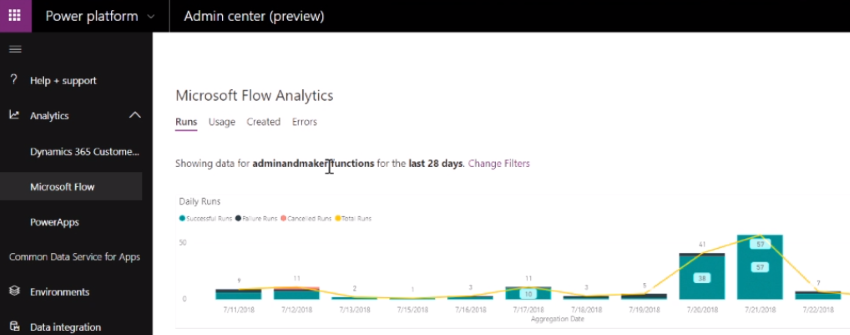
    You can already access this UI from either the short URL admin.dynamics.com or the longer (official) version admin.powerplatform.microsoft.com. Today you don’t yet see too many actual admin screens of individual applications within the Power Platform Admin Center, as the menu items will mostly redirect you to existing admin centers for PowerApps, Flow, Power BI and Dynamics 365 CE. Things are going to change soon, though, as a brand new admin UI will reveal the various Dynamics 365 CE settings that you’ve earlier been able to only access from the classic web client:

    These images are taken from another Business Applications Summit presentation, “Key features coming to Microsoft PowerApps and Dynamics 365 admins”. Just like in the UCI session, there’s a great roadmap slide included that shows the stages via which the new features are planned to be rolled out:

    Now, you may not want to look at the detailed dates, since both roadmaps are already ancient history from over a month ago and things aren’t necessarily quite where the initial targets were set. Nevertheless, these are the features and experiences that will soon be out there. If you compare this to the traditional Dynamics CRM world in which many current on-prem customers with their v8.2 (at best) environments are operating in, then it’s in many ways like a whole new application platform to work with. MVP Scott Durow has drawn a great diagram of the new admin experiences in Power Platform that also helps in illustrating the huge shift that is taking place here. We’ve seen architecture diagrams like the one below for a long time now, but once the actual user experience for solution designers also starts to reflect this, I believe that will have a “powerful” impact indeed!

  • The End Is Near for Dynamics 365 (Customer Driven) Updates

    The End Is Near for Dynamics 365 (Customer Driven) Updates

    Have you been administering organizations running on the online version of Dynamics CRM / Dynamics 365 Customer Engagement for a while now? If so, you will be familiar with this screen:

    That is essentially CDU in flesh. CDU of course stands for Customer Driven Update, the process through which Microsoft has allowed online customers to decide when their instances are updated to the latest available version of Dynamics 365 CE. While it hasn’t been a completely open schedule of “pick whichever date you want”, the availability of update slots for a period of up to six months has formed the backbone of how many organizations plan the dates on their business application development roadmaps.

    This is all about to change very soon, as CDU will be going away. The plan was laid out on a post in the beginning of July already, but I suspect not everyone has yet quite grasped the practical impact of what “Modernizing the way we update Dynamics 365” truly means. Admins of online tenants with v8.2 orgs will have been receiving the following notifications into their mailbox recently:

    Those who have reacted to this request to schedule their V9 updates will have seen a fairly familiar calendar with update time slots all the way up until January 2019. The thing you should keep in mind is that this is the last time you will ever see that CDU calendar. You cannot freely schedule your Dynamics 365 CE online updates ever again, once you’re on V9+. Enjoy your final Customer Driven Update, folks!

    “What’s going on here?!? Is Microsoft giving up on maintaining their Dynamics 365 CE cloud? Will we no longer get updates for this product?”

    It’s exactly the opposite, in fact. Microsoft is so determined to get all of their online customers to run the latest & greatest bits that they’re transforming their update delivery model into continuous deployment. From February 2019 onward, everyone will (in theory) be running the exact same version and no org will be left behind – or be allowed to. Then shortly after, it’s time for the next major release, V10, coming in April 2019:

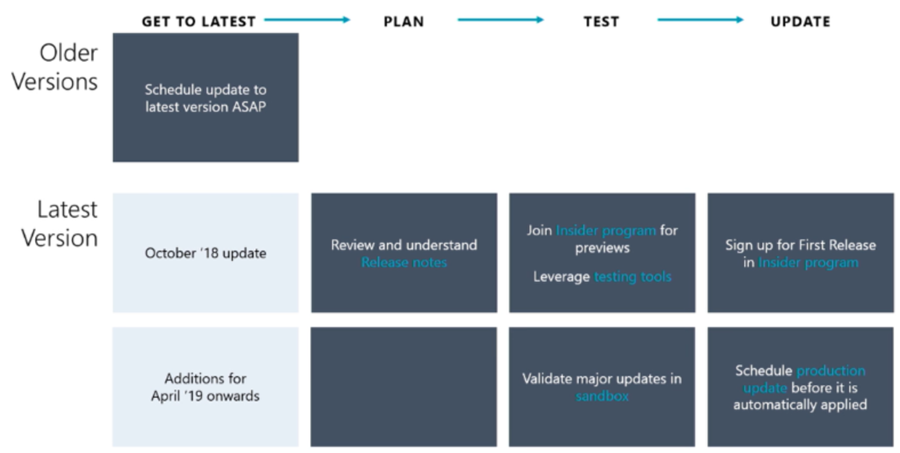
    Alright, so there is no way of opting out from major releases and waiting for the dust to settle for a while before rolling it into your own instances. This just means you better be ready for the changes as they take place, so preparation and thorough understanding of the releases notes for the coming versions is going to be crucial. And how will we be able to test the new version in advance, you might ask. The answer is you can’t do that just yet, but before V10 rolls out there will be a new mechanism in place for a First Release instance:

    As we can see from the Release Stations diagram above, the updates will be rolled out to different “rings” over a period of several weeks. Not even Microsoft wants to deploy the updates to every single environment at the click of one button, so they start from the smaller geos like Japan and Canada, gather telemetry on the update process and then gradually move to the largest geos of North America and Europe.

    Telemetry will also play a key role in how Microsoft plans to deal with the inevitable need to deprecate and remove older functionality from the platform. Although the new Dynamics 365 update policy aims to preserve backward compatibility and present new features as “off by default”, there are going to be scenarios where it’s not just a matter of adding more and more stuff onto the ever expanding cloud platform. Since MS hosts all of the online instances, they can also measure how much each product feature or platform component is utilized by the customers. Decisions on how to deal with deprecation will therefore be much more data driven than it could have been in the past.

    Just because the product is moving into an ever more “cloud native” delivery model doesn’t mean that there’s no need to test your customizations, extensions and integrations. While the process aims to reduce the chances of breaking changes interfering with the day-to-day use of Dynamics 365, there will of course be some changes that break stuff in reality. While the First Release environment will only give you a few weeks notice for performing your own changes in preparation of the version update, the Insider programs for Dynamics 365 will be your best hope to have earlier access to the information on what’s coming & how it may impact you.

    To fully grasp the how, why and when of this new update policy for Dynamics 365, I highly recommend you to watch the session from Business Applications Summit 2018 on Dynamics 365 and Update Cadence. I’m hoping that Microsoft will make this information available in more convenient formats than live recordings in the future, so that this bold “one version for all” vision can be better understood by partners and customers. After all, we’re only in the process of digesting the October ’18 releases notes highlights, but in reality the V10 update isn’t that far away in the horizon anymore.

    For all of us who are used to thinking about Dynamics 365 version updates as projects, it’s time to start shifting our thought process to the continuous delivery mode. Many of the “born in the cloud” products like Dynamics 365 Business Central or PowerApps are already now operating according to this one version principle, so it makes perfect sense to try and align the Common Data Service for Apps platform and the Dynamics 365 Customer Engagement applications with this new reality. Not just from a technical standpoint, but also the adoption of new product features that can be enabled when needed is going to be quite different from the traditional way of features arriving at the very moment a version update is deployed.

  • Winter in July: Release Notes for Next Dynamics 365 Version

    Winter in July: Release Notes for Next Dynamics 365 Version

    While I’m over in Finland enjoying the biggest and longest heatwave ever, some of my fellow MVPs and Dynamics 365 community members were attending the first ever Microsoft Business Applications Summit this week on the other side of the globe in Seattle. As much as I would have enjoyed sitting in cold & dark conference rooms instead of trying to hide from the burning sunlight, this time I had to rely on the others to share the latest news from #MSBizAppsSummit while I attempt to enjoy the summer vacation.

    A large share of the conference’s announcements are covered in the October ’18 Release Notes, which you can download in PDF format right here. This is a massive “drop” that follows the format of what we already saw with the previous April ’18 release. Even though it’s been made available during the summer heat, it’s actually a list of features that Microsoft intends to (mostly) make available between October 2018 and March 2019. So, winter came early this year, which is a positive thing, since now we have several months of advance notice of what’s in the product team’s pipeline. These release notes essentially replace the earlier roadmap.dynamics.com website, which in itself was kinda cool (running on top of Dynamics 365 Portals and all) but didn’t communicate the actual road ahead all that well. So, these twice a year PDF releases with ongoing updates to their detailed content is the thing you need to pay attention to now.

    One small but notable difference is that Microsoft is no longer calling it “Dynamics 365 Release Notes” but “Business Applications Release Notes”, which together with the Summit’s name reflects the new context in which we all should approach whatever parts of the toolkit we use in our end user solutions. Recently also the Microsoft Most Valuable Professional program updated its terminology, and now the previous Business Solutions MVPs are in the Business Applications MVP category.

    The previous April 2018 release was the first time when we saw the new organizational structure of Microsoft Business Applications Group (“BAG”) bringing previously separate product offerings under one roof, with CRM & ERP products being represented in the same release notes list as PowerApps, Flow, Power BI. That also was the time when things like the Common Data Service for Apps were announced as replacements for what XRM previously stood for. However, from a raw functionality level there appeared to be a greater urgency in reaching GDPR compliance before the May 25th deadline than to actually push out new integrated features for the CDS for Apps platform.

    Reading through the October 2018 release notes, this time it’s very different. There are huge steps being take to bring together the “ex-XRM” technologies with the newer products and make it truly one Power Platform. Here are selected highlights:

    • PowerApps Canvas Apps and Flows can now been included inside CDS for Apps solutions, giving them the ALM story for enterprise grade deployment across different dev/test/UAT/prod instances. This clearly makes them no longer a “power user” focus tool but a building block for credible business applications.
    • PowerApps Canvas Apps can be embedded inside the model-driven app entity forms. The traditional UI of XRM apps that was generated from metadata will get a touch of pixel-perfect design options that the Canvas Apps have always been about. This ability coincides with the new options to freely set the app size instead of earlier phone/tablet format limitations.
    • Flow is promised to reach parity with async workflows. Even though the transactional capabilities of real-time workflows (similar to plug-ins) is not yet within October 2018 scope, that’s one bold step to make the XRM workflows history and move their logic into Flows.
    • Power BI reports & tiles can be embedded onto CDS for Apps entity forms and the record context as well as any record attribute can be passed to them for data query and visualization filtering. Surely pretty much anyone has at one time wished “gee, wouldn’t it be sweet if instead of working with this limited ASP.NET chart XML from Dynamics CRM 2011 we could leverage those modern Power BI charts instead”. Well, that day is getting closer!
    • PowerApps Canvas Apps will FINALLY offer native support for lookups, option sets and datetime fields. For anyone who’s tried to replicate pretty much any CRM functionality with PowerApps, this will have been a very early stumbling block. Not so easy to solve with separate product teams inside MSFT apparently, but within the new Business Applications Group these gaps for real life solutions can now be filled.
    • There will be a single mobile “player” for both Model-driven Apps and Canvas Apps. When previously the Dynamics 365 Customer Engagement mobile app for Unified Interface and the PowerApps apps lived behind separate app icons on your phone, soon the users may no longer see any difference when switching between different business applications.

    These are only a few items in the long list of upcoming features that the 239 pages of October 2018 release notes contain. A lot of important unification is also taking place in the author and admin experience of how Dynamics 365 Customer Engagement apps, CDS for Apps platform, PowerApps Canvas Apps and Flow can be used together for your solution design needs. Similarly, a lot of advances are being made on the UCI front, with the legacy web client being more and more replace with Unified Interface. Then there’s the whole CDS for Analytics side of things coming up, with promises for new AI apps and capabilities. You’re going to need to read through a wealth of blog posts to grasp the full spectrum of what Microsoft is planning to launch, so a good place to start is the Scott Durow Top 10 favourite features in this release.

    The April 2018 release for Dynamics 365 CE was a bit of a surprise due to the fact that it wasn’t officially a major release like v10 or even v9.1, instead it was only a v9.0.2 update. Deployed automatically to your v9 instances, with no CDU process to schedule the update from the available time slots. Now in July we got a confirmation from Microsoft that this reflects the way all future updates will be rolled out, in the blog post Modernizing the way we update Dynamics 365. Looking at how the Power Platform will increasingly be consisting of functionality that isn’t found in the “XRM server”, the automatic updates make a whole lot of sense. It remains to be seen how the remaining on-premises customers will be serviced with the updates and to what extent there will be feature parity. At least we now got a confirmation at the Business Applications Summit 2018 that there will be a new on-prem release this fall, so there appears to be a plan to bring things like UCI available for those who still prefer to run their own business application servers.

  • Unified Interface Form Design Notes

    Unified Interface Form Design Notes

    It’s been around a year since Microsoft announced that Dynamics 365 Customer Engagement would be moving from the world of separate web, mobile and Outlook clients into a single Unified Interface (or UCI, as in “Unified Client Infrastructure”). At that time I made a prediction that this level of shift in the client technology would be a long road, and to date that still pretty much holds true.

    Although V9 has been available for quite some time for new cloud instances and also existing customers have been upgrading as the version has become available for them a bit later, the majority of current Dynamics 365 CE users won’t yet be on UCI – at least for the desktop usage. MoCA was already replaced with UCI in V9, so the mobile UI is now on the new infrastructure, no choices there. For the web, there’s still a fair bit of capabilities not yet on Unified Interface, which makes it hard for customers to move over to it.

    Eventually everyone will need to migrate to UCI, though. It’s best to start exploring the scenarios where Unified Interface can fulfill the core needs and to gain the skills needed for designing great user experiences on this new client type. Even though the majority of the customizations will be rendered the same in UCI as on the current web client, there are still details that you should pay attention to. This is a collection of a few observations I’ve made when building a Dynamics 365 Customer Engagement App on UCI. Specifically, I’ll focus on the entity form rendering here, as a continuation of the previous post where I covered the new Card Form type.

    The Header

    Let’s start from the top. Form headers are where you would have previously placed up to 4 fields that you wanted to be always visible to the user when opening the form and scrolling down along it. Great for highlighting properties of the record that users needed to be aware of.

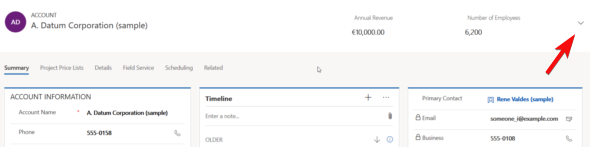
    In UCI there can still be just as many fields on the form header, but unfortunately they won’t always be shown. Even on a 1920*1080 screen resolution you may only see the first 2 fields on the form. The rest are hidden behind a small downward arrow icon that the user would have to discover and the click on to see the remaining header fields. I’m pretty sure most will never even realize the fields’ existence.

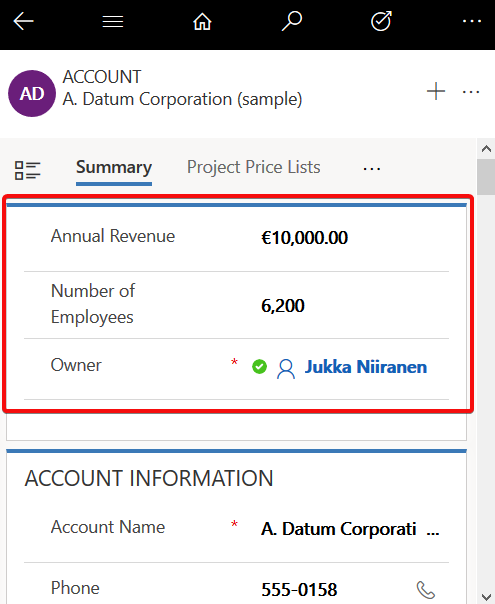
    When using a smaller mobile device screen the rendering changes quite significantly. Since on a vertical screen there’s no space for showing a header next to the record primary field (the name), in this form factor the header actually becomes the very first form section to be shown to the user. The nice thing is that it’s really “in your face” for the user. The downside is that this may not be the most logical information to be shown at the start of the form – or at least it will differ from what the user might expect to find there. Especially when creating new records these header fields rarely are the ones where you’d start the data entry process.

    For now, I don’t really have a good guidelince on how to consistently leverage the form header with UCI. You probably want to minimize the number of fields shown there, instead of capitalizing on the full 4 field opportunity, and stick to 1-2 fields max.

    The Footer

    Like the header fields, also the form footer has enjoyed a persistent presence on the XRM entity form. Now with UCI and Dynamics 365 CE, this is no longer the case. On a PC screen the fields do get shown, though, but not in a very nice way.

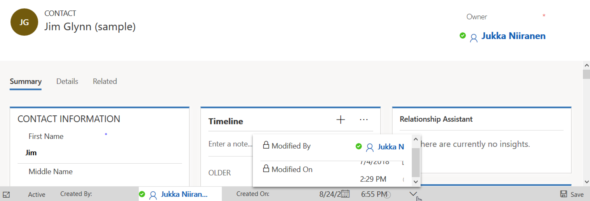
    As an example, a fairly common use case for the footer has been to present a few entity default fields that were hidden in CRM 2013 upgrade when the record properties dialog was removed from the UI. I’m referring to the created/modified on/by information, which can be very useful in determining the validity of the CRM data and persons responsible of the updates. You can still put them there, but currently the rendering looks so messy that I’d prefer not to show that to customers:

    The icons of these fields are often overlapping, even in full screen. This also highlights one of the current issues with UCI, meaning it doesn’t respect the user’s format settings and instead forces “AM” & “PM” upon users who live in a country where these concepts are never used. (Do also watch out for the date fields that sometimes reverse the order of day and month around, creating interesting results with things like appointment data entry.)

    The upside of the new design is that the footer fields don’t add up an extra row at the bottom, instead they are incorporated into the gray bar containing the record status and update indicators. This is very welcome, since in the old web client with especially entities using the BPF control, you’d sometimes have barely any vertical space left for working on the actual record fields, thanks to all the padding at the top & the bottom. Striking a balance with these responsive screen layouts surely isn’t an easy task for the engineers, with requirements for both information density and touch friendliness being presented to them.

    On a mobile screen you will not see the fields of the footer at all. It doesn’t appear to be rendered anywhere else on the form, so any information presented in this form section will be inaccessible in some scenarios. Much like the header, I would also advise not to put many fields in the footer if you plan on using Unified Interface (or if your users need them while out on the road).

    The Tabs

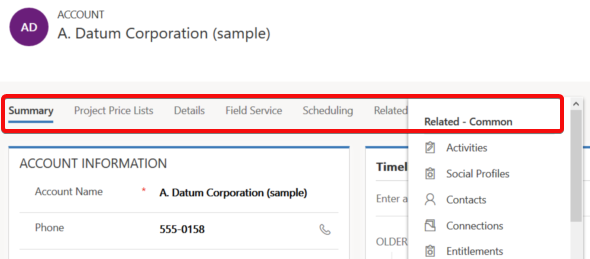
    The return of the visible tabs is certainly one of the big UX improvements compared to the old web client. Having these anchors visible right at the start of the form’s loading is a great help especially with information heavy forms like what accounts tend to have. Adding the “Related” menu to the end of the tab list to reveal the child entities is also much better than the mystery arrow in the middle of the old Nav Bar at the top of the screen. Left navigation and Proper Tabs, woo-hoo! Go UCI!

    Except that much like the header and footer, the tabs aren’t persistent either. The moment you start scrolling down the form, the tab labels get removed from the screen. Doh! Oh well, I guess we’ll just need to scroll down a bit further without the help of those anchors…

    Except we can’t. Once we reach the end of the tab, it’s a hard stop. No matter how much you spin your mouse wheel or swipe your finger on a touch screen, there will be no more of the form revealed to you. You see, in order to go further DOWN on the form you’ll need to scroll all the way UP, reveal the tab labels and then click/press on them. The longer your forms are, especially when reflown as a single column view on a smartphone screen, the longer it will take for your users to reach the next tab.

    Having the tabs as containers with hard boundaries might be an understandable design choice from a UX perspective. Getting lost on an endless list of scrolling fields and sections will not be fun for the users, so bringing some structure into this navigation experience is welcome. On the mobile form factor there’s also the Semantic Zoom option to help the user understand the form’s different tabs and sections. Just a shame that also the Semantic Zoom icon is hidden once move down an inch on the form…

    Here’s an idea to upvote: Ability to Dock “Tabs” on top of Unified Client Interface Tabs.

    We’re Getting There

    Despite of these few challenges, there is a lot to like about the way Unified Interface changes the user experience of entity forms:

    • Quick View Forms truly blend into the native form fields in UCI, whereas with the legacy web client the rendering was always quite clumsy.
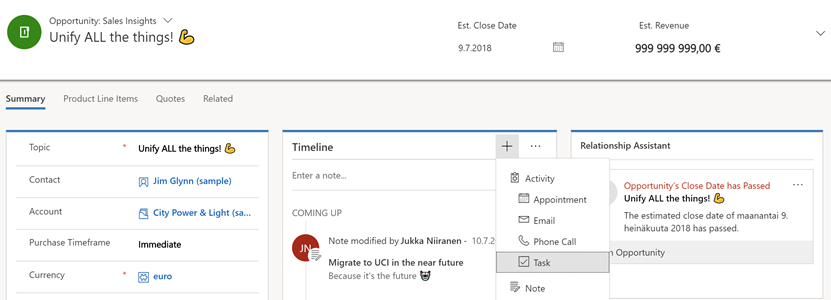
    • Timeline is far better at exposing related activities, notes, posts than the earlier tabbed UI hiding most of the content.
    • Subgrids are actually actionable, with access to full grid features like sorting, select multiple.
    • Subgrid content rendering can be customized via custom control configuration options like Card Forms.
    • Business Process Flow consumes less vertical space (although BPF stage fields being hidden by default may cause challenges).
    • Visual hierarchy is much more obvious than even with the web client “refresh UI”.

    A big bonus is also the fact that by default you’ll get the same form customizations for desktop and for mobile users. It may or may not be suitable for real life mobile use cases, but at least you get the starting point for designing a mobile optimized UCI App to be targeted for specific scenarios that only need a subset of full form functionality.

    The key thing to keep in mind when considering the choice between the classic web client and UCI is this, though: UCI is the future. It will be continuously updated with more supported features and optimized for the end user experience with the latest browsers and devices. These updates don’t even require the customer to schedule their version upgrades via the CDU calendar, since from V9 onward all the Dynamics 365 online updates will be deployed automatically to customer environments. See the new continuous deployment policy that Microsoft just announced for more details.

    More and more areas of the classic XRM UI will be moved over to Unified Interface with every release. Although we don’t yet know any dates for end of support for the web client nor the target date for UCI’s full parity, the next wave of features in October 2018 release will be published as release notes on July 23rd at the Microsoft Business Application Summit. Better keep an eye on that one!

  • Card Forms and List Views in Unified Interface

    Card Forms and List Views in Unified Interface

    Since the beginning of time, meaning early days of MS CRM, we’ve grown accustomed to the fact that record fields in Dynamics 365 Customer Engagement can be presented either via entity forms or entity views. The entity form shows the editable fields of a single record, whereas the entity view gives us a list of many records from the same entity. Views used to be read only, but as Microsoft finally provided a first-party editable grid feature in December 2016 update for Dynamics 365, that blurred the lines between a view and a form to some extent.

    Showing views on a form has been possible since already 2011 when subgrids were introduced. Now with the expanding feature set of CDS for Apps and their Model-driven Apps (formerly XRM), it’s actually possible to also show forms within a view. No, not just any random form, as that wouldn’t really make all that much sense. After all, if you want to look at an actual entity form with several tabs and sections worth of data, you’re going to want to click away from the view and show the entity form in full screen mode. In Unified Interface there’s even a nice shortcut for you to keep browsing the other records in the source view without having to navigate away from the entity form you’ve opened:

    The scenario for showing form style content within a view is for a different type of a need: presenting several fields from one record in a view when there is no space available for showing columns side by side. This is of course related mostly to the vertical layout of a phone app that has more pixels available from top down than left to right. You could however encounter this type of a layout need when embedding views onto either forms or dashboards, with a narrow space available for any single record from the view to identify itself with its fields.

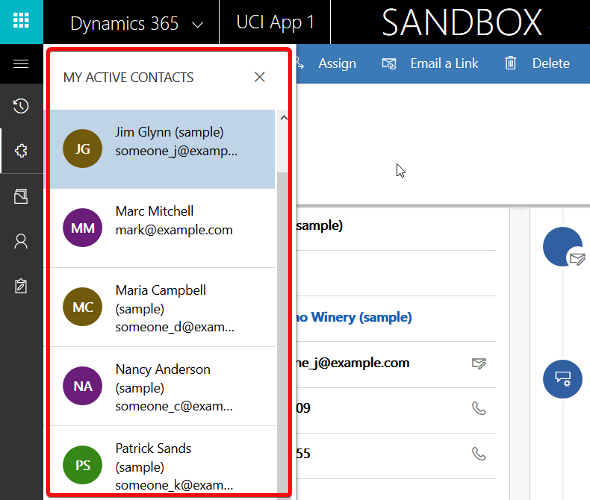
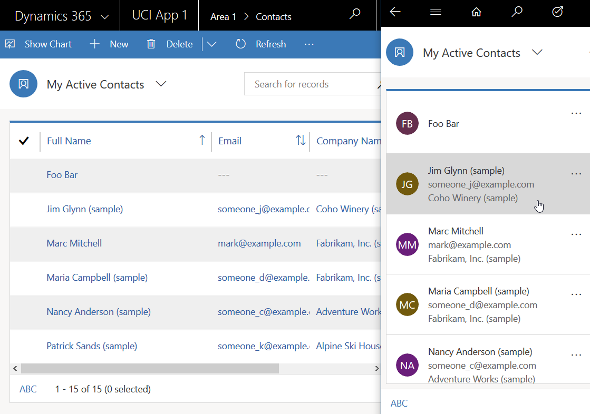
    The Unified Interface already has a built-in capability to address this scenario with its automatic reflow. If you take the “My Active Contacts” view as an example, when in the web client on a wider screen you’ll see the view columns in the traditional format. However, if you start making the screen (or “viewport” as the developers like to call it) more and more narrow, you’ll eventually reach a point where the presentation mode changes to remove all the columns & sideways scrolling bar, replaced with a card like UI. It will by default show the entity icon and the first three columns available in the original view definition.

    If you want to have more control over how the information would be presented in its compact, mobile friendly format, then the entity Card Form is a tool that you should take a look at. Available as one form type alongside the more familiar Main Form, Quick View Form and Quick Create Form, the Card Form was introduced originally with the Interactive Service Hub (ISH) client. Since this was a very limited client type that predated the Unified Interface, most customers and many consultants probably haven’t worked with it in the past. Now that Unified Interface is set to take over the world from the legacy web client sometime in the future, it’s about time to get familiar with these features.

    Unfortunately Microsoft doesn’t yet provide much documentation about the use of Card Forms. The references in the current documentation are also somewhat misleading, since the term “card form” is also used in reference to what is actually a Quick View Form. Many people will surely have an image in their minds about the Card Form being something like the example shown below. It is not.

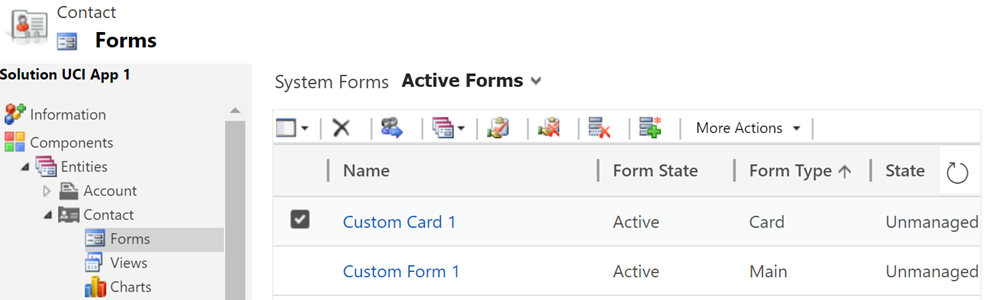
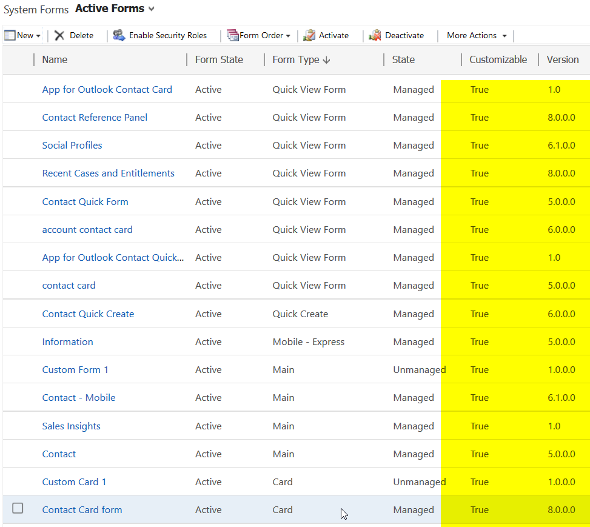
    The customization UI in the application itself isn’t that helpful either. Out of the ~14 default forms that the contact entity currently has in a sales focused Dynamics 365 Customer Engagement instance, 4 forms contain the word “card” in their name, but only one is actually of the type Card Form!

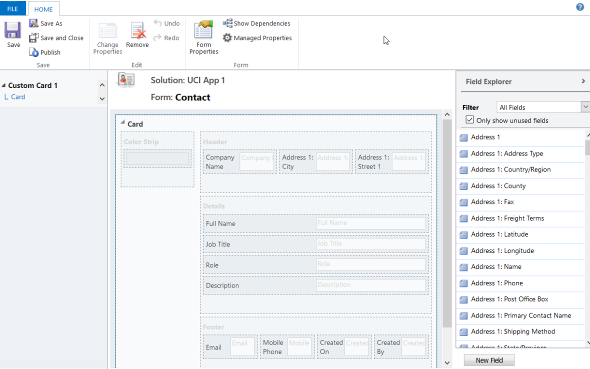
    Ignore the false cards and head straight to either the default “Contact Card form”, or alternatively create a brand new one. You’ll land on the classic form editor experience that will present to you the fixed layout and available features of a Card Form:

    It looks like there are familiar elements from the Main Form available here: header, details, footer. What’s different is that there aren’t much properties you could play around with when it comes to the sections, meaning any labels or layout options that a traditional form would have. The maximum number of fields you can drag from the field explorer and drop onto the Card Form are:

    • Header: 3
    • Details: 4
    • Footer: 4

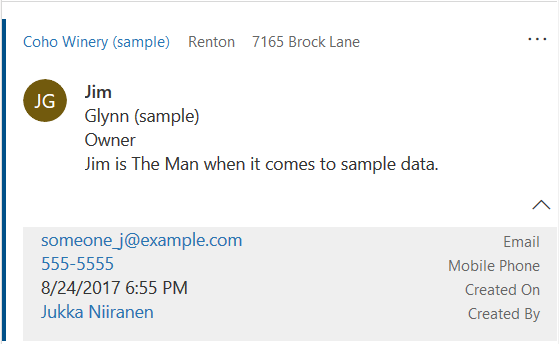
    Given that the intention is to provide just the key attributes of a record in a view, these numbers should be plenty. In fact, you might want to be cautious about not including too many fields onto the Card Form to keep it visually pleasing to the eye. As you’ll see from the example of how the form renders, there will be no form labels provided for any of the fields in the header or details sections, so be sure to only include the kind of fields that will be obvious to the user based on just the data of the field or the context in which the view is available (not just a bunch of date fields, for example). Also note that the footer currently appears to be expanded by default when the view renders, although there’s an upward arrow for you to collapse it for an individual record (you’d think this would be the other way around). You can control whether the footer is expanded by default or not by going to System Settings – General – Set the default card state for Interactive Dashboards.

    How will you then determine where this card form layout will appear? This is where the Custom Control Framework comes into play. We now have a control type in standard Dynamics 365 Customer Engagement called “Read Only Grid” that is different from the “Read-only Grid (default)” control. When you switch one of the clients (web, phone, tablet) to utilize this new control instead, you’ll get the option to link your default or custom Card Forms as the way how the view contents should be rendered. (more…)

  • Business Application Platform at Microsoft Build 2018

    Business Application Platform at Microsoft Build 2018

    Build is the lead event for all things developer related in the Microsoft ecosystem. This year was the first time that the Business Applications side of MS’s stack also had dedicated tracks in the event agenda. While I didn’t attend the event myself (the Elisa Microsoft developer community was of course represented in Seattle), I was quite curious to see what kind of story is being told to the dev crowd about CDS for Apps, Dynamics 365, PowerApps, Flow and Power BI. Luckily there’s the virtual Build Live experience for viewing the live streams from the event these days.

    What’s not so fortunate is that the Build site doesn’t seem to provide a very good experience for discovering the specific content from a particular technology. At least the content selector for “Business Apps” doesn’t really show all too many relevant sessions at the time of writing:

    The good news is that us virtual attendees can also access the session catalog for My Build, which allows to perform either free text searches or filter the content to products in the Business Application Platform category:

    Once we know the IDs for the sessions we’re interested in, we can then dig the content from from Channel 9’s Build 2018 page. There we can continue our journey to the YouTube videos of session recordings and SlideShare for the presentation decks. Not really all that hard for anyone who’s accustomed to navigating the maze of portals that MS partners encounter, but of course it might be a bit tricky for newcomers into the ecosystem. So, just for the sake of convenience I though it might be useful to have the most relevant Business Applications content fro Build 2018 collected onto a single page. Which is what this blog post essentially is about.

    Accelerate your SaaS App development using the power of the Business Application Platform (BRK3411)

    “Join this session to learn how the Business Application Platform can accelerate the time to market for your next Line of Business SaaS app. Through the lens of an ISV/software developer, we will walk you through the entire application development process showcasing what it takes to build a new, composite app from the ground up using out of the box no-code/no-code tooling, to extending with custom code and connectors through to packaging and publishing to AppSource allowing you to reach 120M+ monthly active users. During this session we will also touch upon the value of the Common Data Service for Apps as it applies specifically to you as an ISV, how you can extend and contribute to the ISV ecosystem flywheel and greatly reduce both cost and time to market for new SaaS apps.”

    A good introduction to what the steps for app development are when working on the Business Application Platform (BAP) as opposed to other environments. Includes a demo of the development path as well as discussion on what investments are being made to deliver a more seamless app delivery experience in the future.

    Be sure to check out the slides if you want to see the “before” and “after” architecture of XRM, PowerApps + CDS 1.0, and the final Common Data Service for Apps (a.k.a. CDS 2.0):

    There are more ways than ever for partners to work with the platform, now that it also encompasses PowerApps and CDM:

    Watch the session recording on YouTube, then view the presentation on SlideShare:

    Extending PowerApps and the Common Data Service for Apps with custom controls and server side logic (BRK3403)

    “Professional developer extensibility is a key capability to the Business Application Platform. We’ll focus on enriching model-driven PowerApps solutions with server-side code and custom controls on the Common Data Service for Apps. We’ll utilize the developer toolkit and write code for native plugin development, use of functions and logic apps, Web API, Administration API, and the Virtual Entity subsystem.”

    Whenever Matt Barbour delivers a session, you’re going to want to pay close attention. This session is no exception, as Matt talks through the story how XRM evolved into CDS for Apps in his candid manner and explains to us what decisions and choices were made along the way. No matter if you’re an XRM old timer or only starting to look deeper into app development story of CDS for Apps, you need to watch this session.

    While the logical architecture of CDS is quite familiar to friends of the XRM SDK, the important bits are about how plug-ins will eventually be replaced by Azure Functions, how Microsoft Flow now owns the Business Rules story, and all these details about future investment areas that you can pick up from Matt’s presentation. After all, the former XRM solution management system will be how you’ll deploy also Canvas Apps, Flows, connections and gateways from one instance to another in the future, so it’s far more relevant to an ever larger audience.

    Watch the session recording on YouTube. No slides available so far, but Matt only had a few anyway and mostly focused on the demo side.

    Build and extend applications for Office 365 with PowerApps and Flow (BRK2303)

    “Come discover the capabilities of PowerApps and Flow as the unified high productivity application development and workflow platform across Office 365 and Dynamics 365. As the successor to InfoPath and Access Web Apps, PowerApps enables users to build both simple forms to advanced, feature-rich apps, while Flow as the successor to SharePoint Designer Workflow, enables users to build automated workflows for a range of scenarios from notifications to approvals. In this session, we’ll cover integrations with SharePoint, Dynamics 365, Microsoft Teams, Microsoft Graph, Excel, and more. Start extending and building apps and workflows for Office 365 and Dynamics 365 today!”

    If the earlier presentations were more developer focused platform discussion, this is a more citizen developer themed session that demonstrates the built-in integration points of where the different MS provided apps meet each other. If you have less hands-on experience with the non-Dynamics side of things, then have a look at these demonstrations to catch up on things.

    The slide deck contains a lot of good reference material for you to store on your hard drive for customer facing presentations. There are also updated product roadmaps for PowerApps and Flow that are always interesting:

    Watch the session recording on YouTube, then view the presentation on SlideShare:

    Automating business processes and approvals with Microsoft Flow (BRK2302)

    “Use Microsoft Flow to easily add business process automation and approval processes to your solutions. You’ll learn to build Flows with a few simple clicks and extend your learnings to more advanced techniques and expressions used to build complex workflows. Finally discover how you can take it up to Azure Logic Apps when it makes sense.”

    Stephen Siciliano has been doing great presentations on Microsoft Flow that sort of work as the missing manual to how us citizen developers can approach scenarios where Flow doesn’t quite offer any obvious ready-made features – yet there are capabilities hidden in the tool that could solve the problem. Judging by the slides, this looks like another information session where you’re bound to learn many things you thought Flow couldn’t even do.

    Funnily enough, Stephen’s deck actually seems to offer the best answer to the question that most Microsoft Build attendees probably would present when encountering this Business Applications side of MSFT for the first time: how does the Business Application Platform differ from the Azure platform?

    Check out the slides below, and the session recording on YouTube.

    Deep dive into building apps on Common Data Service for Apps (BRK3404)

    “In this session, we’ll deep dive into the concepts needed to build applications on CDS for Apps, whether you leverage it PowerApps or in your custom built solutions. We’ll cover all the fundamentals like entity modelling, business rules, business processes, and include an introduction to extensibility options like Plugins, Virtual Entities, and more.”

    No one can escape the Digital Feedback Loop slide, not even the developers. This is a demo-heavy presentation where a sample app is built and the various capabilities of Model-driven Apps are explained. All pretty familiar to anyone who’s done app building with XRM.

    Video only, no slides.

    More Business Application Platform content from Build

    For session recordings that touch upon parts of the platform we’re working with, here are some more that I picked up from the Build 2018 catalog:

    Did I miss any session that you think is worth watching? Then be sure to leave a comment!

  • Exploring CDS for Apps Platform Licensing (PowerApps)

    Exploring CDS for Apps Platform Licensing (PowerApps)

    When Microsoft originally made the Spring 2018 release announcement for Business Applications products and essentially promoted XRM to be the Common Data Service for Apps, they didn’t yet disclose the finer details about how the CDS for Apps license model would work outside the Dynamics 365 Apps and Plans that we’re familiar with. On May 1st the details were revealed alongside the blog post “Which PowerApps plan do I need for model-driven apps and CDS for Apps”.

    In his earlier blog post, Frank Weigel announced that PowerApps Plan 2 officially became the platform SKU for CDS for Apps. In the updated PowerApps pricing page we can see that actually the license types and prices have effectively remained the same as they were before Spring 2018 release:

    The changes are mostly on the new Model-driven App side (formerly XRM), but since there’s now also a wealth of server-side functionality made available for PowerApps via the new CDS for Apps concept, it also affects the Canvas Apps designers. Let’s dive into the details and explore the license model from a few different angles.

    PowerApps for the Productivity Folks

    A customer who’s got Office 365 will already have the specific PowerApps license type included in that subscription. As stated by the Licensing overview page over on docs.microsoft.com, this allows them to create and run applications within the context of this service (O365), as well as connect to “common cloud services including Box.com, Facebook, and many more”. Not D365 and not CDS, but that still covers a lot of interesting scenarios for building an app to replace a manual process that used to run on email or Excel.

    Since it never was a “pure business app” like Dynamics 365 CRM and ERP products, PowerApps has grown into a highly versatile tool that connects with the more mainstream Microsoft services. You can embed them into a wide variety of places within your MS Cloud environment, like on Power BI dashboards or modern SharePoint pages. For your data collection forms, they are InfoPath on steroids. An Office 365 customer might therefore get pretty far with just mashing up the UI’s of different apps and storing data into less structured places like SharePoint lists or OneDrive files.

    If they’d like to introduce more solid capabilities for relational data modeling, process automation and granular security management, the PowerApps Plan 1 would unlock this scenario for €5.90 per user. With this the data could be managed in CDS for Apps database, a much more robust back end for a business application than simple lists in the Office tools. The users still couldn’t access any Dynamics 365 style UI, since Plan 1 doesn’t grant the access to Model-driven Apps. You would need to construct the required lists, forms, navigation and client side logic with the traditional PowerApps “maker” experience and publish it through the same channels as what the Office 365 users already have access to.

    This Plan 1 approach could be viewed as the first step up from the starting point where a knowledgeable power user or “citizen developer” had built a PowerApp with the license they already had via Office 365 and now the app needs to be adopted more widely within the organization. The new admins and designers of the app would need a Plan 2 license for €33.70 but the users could be assigned the cheaper Plan 1 license for €5.90 a piece. It shouldn’t be too difficult a business case to build if there’s real demand for the app and it either saves time or money in some business process that used to be a painful manual operation before Microsoft Cloud came along. If things work out well, these same P1 licensed users can then go and use any number of apps that the P2 power users design for them, since each P2 gets 2 databases with it and no limits on how many PowerApps you have on top of those.

    PowerApps for the Dynamics Crowd

    Dynamics 365 has a powerful, growing set of first party Apps from Microsoft, but sometimes there isn’t an app for that particular business process you’re looking to digitally transform with the help of MS Cloud. This is where the power of the platform comes to rescue and saves you from custom software development and maintenance efforts. Earlier this platform was called “eXtended Relationship Management” (XRM) but now we refer to it as the Common Data Service for Apps. We don’t even need to buy a Dynamics 365 license for it anymore, since we could just use PowerApps Plan 2 instead.

    What sets Plan 2 apart from Plan 1 is that you can work with the application data via the Model-driven App UI that is automatically generated for you when you design your data model. Sure, you’ll need to configure the details of it to deliver a pleasant UX, but you’re not forced into pixel-perfect design work of the Canvas App. Navigation is provided for you, there’s the full search capability, you can quickly configure dashboards, Business Rules can make your entity forms adapt to field data values, and so on. With the new Unified Interface your Model-driven App will adapt to any screen size, and the solution framework ensures you can easily transport your customizations across environments. The Model-driven sample apps will give you a quick idea of what a non-Dynamics 365 app on CDS might look like.

    There are limitations, though, and you’ll find them listed on the “license requirements for entities” page on CDS for Apps documentation. As mentioned, P1 users can’t access the Model-driven App UI, but they also aren’t authorized to access a Canvas App that runs on a CDS for Apps instance and uses entities that have real-time workflows or plug-ins associated with them. These require a P2 license, which unlocks the full XRM style functionality of the platform.

    Now, just because the Dynamics 365 first party Apps from Microsoft are built on the same platform as your custom Model-driven Apps, that doesn’t mean a PowerApps P2 license would fully cover their usage. There’s a list of restricted entities that are used in MS apps like Sales, Customer Service, Field Service, that you aren’t allowed to touch without the proper Dynamics 365 license. For example, you’re free to work with leads and opportunities, but you can’t use cases or knowledge articles in your custom PowerApps – because Microsoft said so.

    For an overview of the different license types and privileges, be sure to check out the great blog posts and ever so slick videos that MVP Scott Durow has created for explaning the topic of PowerApps to those of us who’ve got a Dynamics background.

    PowerApps vs. Dynamics 365 License Model

    Just because we now have something declared as Platform SKU on a Microsoft blog post doesn’t mean we get to skip the finer details laid out in the Dynamics 365 Licensing Guide. Anyone working on the partner side must have experienced the amount of documentation that goes into performing changes to the licensing practices of Dynamics products. (Remember that deck about transition from Dynamics CRM to Dynamics 365? Of course you do, how could you ever forget…) I’ve got a feeling that we’re going to see more licensing related information emerge about the new PowerApps Model-driven Apps offering in the near future, as this initial announcement raises many questions that need to be answered before customers and partners can fully embrace the new platform opportunities. (more…)

  • Discussing Spring 2018 Highlights at CRM Rocks

    Discussing Spring 2018 Highlights at CRM Rocks

    The amount of new information that was launched upon the world in the 2018 Spring Wave for Microsoft Business Applications was overwhelming, to put it short. When you’ve got a 245 page release notes document that covers not just the Dynamics 365 stack of CRM and ERP apps but also related platform functionality like PowerApps and Power BI, there’s certainly a lot to digest for even the experienced professionals in this field.

    If you want to know what I consider to be the highlights of this release wave and what my thoughts are around them, then check out the latest episode of CRM Rocks podcast where I discuss the Spring 2018 Release together with Markus Erlandsson. For an index of the topics we covered in this 1h session, below are  my show notes:

    You can find the podcast on iTunes or just head over to crmrocks.com to grab the audio recording. Enjoy!

  • Yes, XRM Is The New Common Data Service

    Yes, XRM Is The New Common Data Service

    In November 2016 I wrote an article on LinkedIn with the title “No, Common Data Service is not the new XRM”. This was my response to the speculation that had emerged from Microsoft’s announcement of a new cloud-native platform to store, model and integrate business data with other (cloud) applications. This platform called CDS was seen as a potential replacement to XRM that had been born into the good ol’ on-premises server world already back in 2003. Given the transformative power of SaaS and PaaS, it wasn’t such an outlandish thought to imagine the days of XRM bits being numbered, with a new Azure based alternative being prepared behind the scenes to take over.

    Well, today we had the public launch of the Dynamics 365 Spring Wave in the Microsoft Business Forward event, which I summarized in my previous blog post. The most significant piece of news from this announcement wasn’t perhaps articulated so clearly in official Microsoft materials, so I’ll try and clarify it here and give some perspective on the what/why/how behind this change.

    XRM = CDS v2

    The platform known as XRM, which has served as the foundation for Dynamics CRM and later Dynamics 365 Customer Engagement, is now reimagined as Common Data Service, CDS. Or more specifically, “CDS for Apps”, but more on that later. The key things to understand here are that A) nothing from the current XRM is being removed while B) existing CDS v1 environments are migrated onto CDS v2 that effectively is XRM.

    The adoption of CDS as a component of solution architecture for live customer environments has likely not reached a very high level up until this point. Originally introduced as a concept back at the time when the whole Dynamics 365 concept was launched in 2016, the purpose of CDS has remained too fuzzy for many customers to explore it further. At the same time, the feature set offered by CDS v1 hasn’t yet covered many of the scenarios that Microsoft partners would have likely used it in. You could say that in their noble attempt to connect many of the existing boxes in the business application architecture, Microsoft ended up inventing yet another box. Which is pretty much the fear I had in my first blog post covering CDS, which back in those days was still called Common Data Model (CDM):

    Being the giant corporation that Microsoft is, there’s bound to be both plenty of overlap between different products developed by different groups within the organization, as well as the occasional lack of alignment between the roadmaps to where each of their countless products is heading to. I’m sure there was a clear need for introducing a foundation for managing all that business data which the Power Suite tools (PowerApps, Flow, Power BI) had to intimately work with, instead of just relying on distant services via APIs. Viewed from this perspective, the idea of CDS must have seemed pretty awesome. When looking at the feedback coming from outside the MSFT firewall, though, it’s obvious that the V1 product didn’t quite manage to meet the mark:

    This Ain’t The XRM of 2011 Anymore

    A lot of work remained ahead if CDS was to be built into what the real world requirements from enterprise customers were. At the same time, the XRM cloud platform was being transitioned to run on Azure services and the new target architecture was to allow the separation of the built-in applications (Sales, Service etc.) from the core platform. The CRM “legacy” of XRM was about to become an optional component you could remove and not break things, with previously hard-coded features being re-engineered as either core platform capabilities or implemented as reusable pieces within the in-house apps’ solution packages, built with Custom Control Framework (CCF) and presented via the Unified Interface.

    The people at Microsoft who actually design and build the functioning technical product were sure doing all they possibly could to prepare XRM to take a bigger role than just that boring old sales pipeline management engine with Outlook integration we’ve seen since forever. The community that had worked with Dynamics CRM and seen its potential to deliver custom business apps time & time again in actual customer projects were always asking for MS to deliver a “Pure XRM” SKU, to make it a true platform. Whether it would ever happen, though, was not for either of those groups to decide.

    At the end, as we now can see with the announcement of PowerApps Spring Update, the leadership team at Microsoft ultimately came to the right conclusion. XRM was chosen as the platform that would power the further expansion of PowerApps becoming more enterprise ready with the support for building model-driven apps alongside the familiar canvas apps. From a licensing perspective, “PowerApps P2 officially becomes the new platform SKU, moving away from being a admin and maker focused plan to becoming THE plan for users of stand-alone model driven apps.” So, there we have it then: Pure XRM at last.

    So Long, XRM!

    A legitimate question that some of you might as at this point is:

    “If the CDS v1 platform is replaced with XRM, then why is everyone talking about Common Data Service still?”

    Are we seeing yet another marketing spin that tries to blur our vision from what the underlying technologies really are, like with the Dynamics 365 “it might be CRM or ERP and you’ll never figure out which one we’re  talking about” rebranding pains? Well, that was my initial though when I first learned about the plans for this platform merge, but I’ve later come to the conclusion that it is actually a fairly sensible decision to replace XRM with CDS.

    For those of you who have been in the Dynamics game for long enough time to recall the first moments when Microsoft started throwing around the term XRM, you might still remember the excitement that was collectively felt around that letter “X” for describing the bold journey of going beyond the standard CRM feature set. The thrill of creating your very first custom entity via the customization GUI – man, what a rush! This truly felt like the future of business application development at the time.

    Fast forward to where we are today and the excitement of data model and UI customization has been replaced by the anxiety to get as many different apps and services to talk with one another with as little effort as possible. It’s not that focused on the Relationship Management part anymore, and instead of “X” we have X^N different things we need to manage and connect with (some are even IoT enabled things). To describe what we’re actually trying to use XRM for today, the Common Data Service is a pretty fitting name in the end. We’re trying to bring some common sense into the sea of data that everyone is swimming in, and we’d of course prefer to consume it as a service like we already do with movies or transportation, for example. And as for the visible UI part of the application that user interact with – well, there just happens to be this concept called PowerApps out there already. So, “XRM Part 2” = CDS + PowerApps.

    I think we’re at a point where we really should look at the road we’ve traveled with our trust ol’ XRM Swiss knife, appreciate all those countless times that we were able to find a tool from it that got the job done, but accept the fact that from this point onward we’re going to need a bigger knife. Which we might as well call CDS for the server side & PowerApps for the client side.

    One More Thing…

    Just so things wouldn’t be uncharacteristically clear for Microsoft’s product naming tradition, what we’re seeing here is actually a bit of a “SkyDrive moment”. By this I’m referring to the episode where after renaming SkyDrive to OneDrive due to a lawsuit from BSkyB, Microsoft then proceeded with launching another product called OneDrive for Business. So, “One Drive, many meanings”…

    With CDS the scenario is that while the XRM platform has now been rebranded as Common Data Service for Apps, there’s already another product on the way, called Common Data Service for Analytics. Regardless of the word “common” in the name, these two platforms are unlikely to share many characteristics when it comes to the technology under the hood. Here’s how the MSFT Technical Fellow behind Power BI describes it:

    So, we’ll soon have two awesome products from Microsoft named according to the pattern “Common Data Service for X”, which we can easily distinguish from one another by using the terms CDS-A and CDS-… Oh. Right. Well, there’s always the next round of rebranding we can look forward to!