Category: Configuration

  • Setting up a Microsoft Dynamics CRM 2013 development server on Windows Azure

    Setting up a Microsoft Dynamics CRM 2013 development server on Windows Azure

    First the great news: Microsoft Dynamics CRM 2013 has been officially released today, on October 8th 2013! Not only can you sign up for a brand new Fall ’13 trial environment in CRM Online but you can also download the on-premises bits for the RTM release (build number 06.00.0000.0809). Here are the download links:

    Microsoft Dynamics CRM Server 2013
    http://www.microsoft.com/en-us/download/details.aspx?id=40341

    Microsoft Dynamics CRM 2013 Language Packs
    http://www.microsoft.com/en-us/download/details.aspx?id=40340

    Microsoft Dynamics CRM 2013 Email Router
    http://www.microsoft.com/en-us/download/details.aspx?id=40342

    Microsoft Dynamics CRM 2013 Report Authoring Extension (with SQL Server Data Tools support)
    http://www.microsoft.com/en-us/download/details.aspx?id=40343

    Microsoft Dynamics CRM 2013 for Microsoft Office Outlook (Outlook Client)
    http://www.microsoft.com/en-us/download/details.aspx?id=40344

    Microsoft Dynamics CRM 2013 List Component for Microsoft SharePoint Server 2010 and Microsoft SharePoint Server 2013 (for multiple browsers)
    http://www.microsoft.com/en-us/download/details.aspx?id=40345

    Servers in the cloud

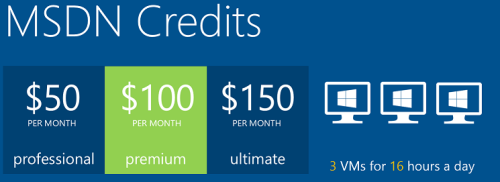
    Now then, what should we do with these shiny new CRM 2013 bits? If you haven’t got any spare hardware lying around but you do have an active MSDN subscription, then why not leverage the subscriber benefits and set up a development/test server in Windows Azure? It’s easy, it’s fast, and if you have the MSDN credits, it’s also FREE!

    Azure_MSDN_benefit

    The discounted rates for MSDN subscribers make it up to 97% cheaper to run a virtual machine on Azure compared to the standard rates, leaving the cost at only $0.06 per hour for a VM (small instance). Combine this with the fact that Azure VM’s are nowadays charged by the minute and they incur no charges when the VM is stopped, you can stretch a few $ worth of Azure credits for quite a long period of testing. If you haven’t yet looked into the MSDN benefits, go and read this article on Scott Guthrie’s blog for all the details.

    Not only does MSDN provide you with free credits to spend on your favorite Azure service, you can also leverage the MSDN usage rights for software running on a Windows Azure virtual machine. For a great review of the licensing options for setting up Dynamics CRM development and test environments by using MSDN, look no further than this recent blog post by Leon Tribe.

    Preparing a development server for CRM 2013

    While you can’t just directly provision an Azure VM image pre-configured with CRM 2013 (at least not yet), you can skip a few steps by starting with an image from the Azure VM Gallery that comes with SQL Server 2012. You will need to setup Active Directory and IIS before starting the CRM 2013 server installation, which requires a set of clicks and a couple of reboots.

    To make this process faster, I decided to take notes of the steps needed in installing the required components for CRM 2013 and share them with anyone who’s interested in doing the same. So, here’s a 50 slide presentation with screenshots of the configuration tasks and options to install a working CRM 2013 dev/test/demo server on a Windows Azure VM:

    Do take note of this fact before proceeding any further: this is NOT the “how to” of deploying a live CRM 2013 server. These are the minimum steps needed to get the Dynamics CRM server installation process to complete without errors – nothing more. When considering setting up a proper test and production environment, the first thing you need to do is read the Microsoft Dynamics CRM 2013 Implementation Guide.

    For taking CRM 2013 on a casual test drive and seeing what your current CRM 2011 organization looks like when imported into the latest server version, the steps outlined in the presentation are all you need to get started. I’ve timed the process and the last time it took around 1.5 hours from provisioning a new VM from the Azure Gallery to having a fully working test instance of CRM 2013 in the cloud. Not quite the couple of minutes that spinning up a new CRM Online organization takes, but short enough to set up an ad-hoc test environment for development and configuration tasks that are more easily accomplished with full CRM server and SQL database access.

  • Dynamics CRM 2011 on Windows Server 2012

    In addition to the shared development and test CRM servers at the office, I like to run my own personal CRM sandbox that allows me to test any applications, configurations and updates without having to worry about affecting any of my colleagues’ work. I’ve been running a VirtualBox server image on my desktop PC and standard hard drives, but even in a single user test environment, you can never have too much performance for your own needs.

    SanDisk_ExtremeAfter reading this blog post from Jeff Atwood, I couldn’t help but to shop around for an “SSD in your pocket”, meaning a super fast USB flash drive that would have sufficient storage space for hosting a CRM 2011 development server image. I decided to grab the SanDisk SDCZ80-064G-X46 64GB Extreme USB 3.0 Flash Drive from Amazon.co.uk for €60 and test it out as a portable CRM sandbox. 190 MB/s read and 170 MB/s write should provide a nice performance boost compared to my old spinning HDD’s.

    Since shrinking my existing VirtualBox image down to the 60Gb available on the flash drive would have meant giving up on a lot of things I had installed there, I decided this was a good moment for building a brand new virtual server. During the fall I had already attempted a few times to deploy CRM 2011 on Windows Server 2012, even though it has been unsupported. Unfortunately none of the workarounds published by Daniel Cai had done the trick for me, so I decided to wait for the official support.

    With Update Rollup 13 Microsoft Dynamics CRM 2011 Server finally became officially supported to be run on Windows Server 2012. However, there was one catch: you could only upgrade an existing Windows Server 2008 deployment with CRM 2011 onto Windows Server 2012. For a brand new deployment there was a disclaimer included with UR13 release notes:

    The Self-Healing Setup (SHS) that is required to install Update Rollup 13 for Microsoft Dynamics CRM 2011 on Windows Server 2012 will be published on Microsoft Update alongside the update rollup in mid-to-late April, 2013.

    Ok, it’s 1st of May now, so where are these SHS files? Well, they are available, but not quite in the kind of format you would expect. You can’t simply download an updated version of the Dynamics CRM Server installer, as the one available on Microsoft Download is still the old version with Update Rollup 6 that was released in January 2012.

    There’s a thread over at Dynamics Community CRM Forum that discusses the Windows Server 2012 installation procedure, but I’ll summarize how I managed to get CRM installed on such an environment. There were a few puzzling gotchas that no one else should spend their time on pondering.

    Get the update files

    The KB article 2434455, “How to obtain the setup updates for Microsoft Dynamics CRM 2011”, gives you the steps you need to follow. Instead of heading to Microsoft Download, you’ll need to visit the Microsoft Update catalog website (which only supports IE, by the way, so don’t click the link on Chrome or anything). From there you’ll be able to obtain a file called Setup Update for Microsoft Dynamics CRM Server 2011. The fun part about this is that the size of the file is 1.5 GB.

    Setup_update_for_CRM_2011_server

    Why is the file so huge, with the actual CRM 2011 Server installer being only 120 MB? The reason is that this file contains all 25 language versions for the update file. If you’re installing the English version, you’ll only need the en-server_kb2434455_amd64_1033 cab file. Oh well, the Internet is fast nowadays and hard drives are infinite, so let’s get on with it.

    Prepare for installation

    The cab file won’t be the installer itself, rather it’s a collection of updates that needs to be references while running the actual server installer. How do you do that then? By creating a config.xml file following the example given in the KB article above and dropping it into the same folder as installer and the cab file.

    Then we can proceed with starting the installation. Only there’s one more catch which isn’t included in the KB article: you’ll need to start the installation process from the command line in order to be able to tell that there’s a config file pointing to a cab file that contains the updates necessary for CRM 2011 to run on Windows Server 2012. You can read through the TechNet article “Use the Command Prompt to Install Microsoft Dynamics CRM 2011” if you’re interested in the finer details of parameterizing your CRM server deployments, but if you’re like me, you’ll just want to copy-paste the required bits onto the prompt to move on with the process.

    1. Put the cab and config.xml in C:\Temp
    2. Download the UR6 version of CRM 2011 Server installer and put the CRM2011-Server-ENU-amd64.exe file in the same folder
    3. Run the file, point it to extract the files onto the very same C:\Temp directory
    4. Cancel any further setup screens that may be launched, as you’ll still need to provide the pointer to the cab file
    5. Open the command prompt, go to C:\Temp directory and type: setupserver.exe /config C:\Temp\config.xml

    This process will make the installer skip the question of “do you want to download updates from Microsoft Update” and use the SHS cab file directly. This is the whole point of our exercise, as Microsoft Update for one reason or another cannot provide the necessary updates for Windows Server 2012 compatibility for the CRM 2011 Server installer.

    After this part, you can follow the standard steps for installing CRM. You may get an error screen saying “Action Microsoft.Crm.Setup.Common.InstallWindowsSearchAction failed. Class not registered (Exception from HRESULT: 0x80040154 (REGDB_E_CLASSNOTREG))”, but just click Ignore on it as that issue is most likely just about the indexing service for the CRM help files.

    Validate and update once more

    Once you’re done and have rebooted the server, you’ll be able to launch CRM. From those oldskool icons in the Wunderbar area you’ll quickly notice that this deployment is still running a pre-cross-browser era version of Dynamics CRM. The build numbers 5.0.9690.2015 and 5.0.9690.1992 indicate that it is in fact a UR6 organization still. (Hmm, was there ever any need for UR13 to support installation on Windows Server 2012 then?) Before you start working on your environment, download and install Update Rollup 13 to make CRM support the IE10 running on your Windows Server 2012, unless you enjoy using the IE7 Compatibility View.

    Windows_Server_2012_CRM_2011_small

    There we have it. A nice and fast CRM 2011 sandbox image running Windows Server 2012 and SQL Server 2012 in a 36 GB image stored on a very fast thumb drive. I’m sure I’ll be struggling with keeping the image small enough with all the updates, service packs, Office, Visual Studio and other bloat that’s bound to end up there. On the plus side I’ll be able to carry the sandbox on my keychain and plug it into any PC with sufficient memory to run the environment (3.5 GB & 2 CPU reserved for it currently) and enjoy SSD level disk I/O performance. We’ll see if it was worth all the trouble at the end, but hey – don’t we all just enjoy fiddling with the latest software and fastest hardware?

    Edit 2013-05-04: For anyone looking to move completely towards developing for Dynamics CRM on top of Windows Server 2012, please note that the Dynamics CRM Outlook client does not support Windows Server 2012 yet. If you try to run the setup, all you will get is the following message: “Cannot install Microsoft Dynamics CRM for Outlook. Install Windows Server 2008 Service Pack 2, and then try again.”

    Edit 2013-05-04, Part 2: If you’re interested in the detailed steps for building a Dynamics CRM sandbox, please refer to articles like Creating a MS CRM 2011 VM by Mark Kovalcson or Setting up a CRM demo environment in Windows Azure Virtual Machines by Shan McArthur (unfortunately the images on this post no longer work). It doesn’t really matter on which virtualization platform you’re building your sandbox on. I’m using VirtualBox simply because I have other existing virtual machines on it, but with Windows 8 built-in Hyper-V support you don’t necessarily need any additional software. Also, as you can see from Shan’s post, running these environments in Azure is also a perfectly viable option.

  • Windows 8, Outlook 2013 and Dynamics CRM – part 2

    Back in August I wrote about my initial experiences of using a Windows 8 PC with Office 2013 to connect the Outlook client to Microsoft Dynamics CRM. During that time we only had the preview versions of both the OS and Office, so some quirks were naturally to be expected. Now that Windows 8 is generally available and also the RTM bits of Office 2013 can be downloaded from MSDN (with commercial launch expected by end of January), it’s a good moment to revisit the topic. Upon my latest test I came across a few configuration gotchas that I though might be useful to share for anyone who’s struggling with the same issues.

    Connecting to CRM Online with WLID

    Our official work setup is still on Windows 7 / Office 2010 level, but being the kind of eager early adopter that I am, my home PC’s have moved to the brave new world of Windows 8 some time ago already. I installed Office Professional Plus 2013 on a Windows 8 64-bit laptop that’s not joined to a domain, so my login credentials to Windows are linked to my Microsoft Account (previously known as Windows Live ID). In my first tests in August this was a blocker for using a CRM Online organization where the user’s WLID / Microsoft Account was different in CRM and on the local machine.

    Update Rollup 11 removed the need to manually enable Windows Identity Foundation (WIF) on Windows 8, but out of old habits I checked that it was available before configuring CRM. Launching the CRM client Configuration Wizard and selecting CRM Online on the Server URL field of the Configure Organizations prompt gave a familiar error: “Cannot connect to Microsoft Dynamics CRM server because we cannot authenticate your credentials.” Just like before, it appears that the Configuration Wizard automatically attempts to use the Microsoft Account of the local user for logging in to CRM Online. Logging out of the account in Internet Explorer and then logging in to CRM Online in the browser didn’t seem to resolve the issue with the Outlook client connectivity, as a further error message was presented later in the Initializing the Organization phase:

    There is a problem communicating with the Microsoft Dynamics CRM server. The server might be unavailable. Try again later. If the problem persists, contact your system administrator.
    [Expanded Information]
    Unable to load the native components of SQL Server Compact corresponding to the ADO.NET provider of version 8082. Install the correct version of SQL Server Compact. Refer to KB article 974247 for more details.

    The KB article referenced in the error message discusses the following issue: “You receive an error message when you run a SQL Server Compact 3.5-based application after you install the 32-bit version of SQL Server Compact Edition 3.5 Service Pack 2 on an x64 computer.” However, downloading and installing the x64 version of Microsoft SQL Server Compact 3.5 Service Pack 2 for Windows Desktop didn’t resolve the CRM configuration error, so I opened a support ticket with Microsoft. They instructed me that I also needed to install the Cumulative Update 2 for SQL Server Compact 3.5 Service Pack 2, which is a hotfix that you need to request a download link to be sent to you by email. After my SQL CE 3.5 had been updated to build 3.5.8082.00, I was finally able to connect my Outlook 2013 with our CRM Online demo organization.

    Connecting to CRM on-premise with IFD

    During the previous test with CRM Online I had also tried to connect the Outlook 2013 CRM client  to our production on-premise CRM server that is IFD configured. I kept receiving the following error: “Cannot connect to Microsoft Dynamics CRM server because we cannot authenticate your credentials. Check your connection or contact your administrator for more help.” Looking at the error details there was a message claiming “no credentials are available in the security package.” (more…)

  • Activity Feeds and user rights: who can see what?

    Activity Feeds are a channel that’s much like Twitter: creating posts that are visible for other users who are following you. On the surface they share many of the same concepts (mentions, following, replies/comments), but there are some notable differences that may come as a surprise to a user who’s accustomed to the open communication taking place on the external social networks. This is especially apparent in a CRM organization that has a hierarchical structure of business units and is limiting the visibility of core records such as accounts across the BU’s.

    Let’s assume that we have a CRM deployment with multiple BU’s that form a hierarchy of a single parent (the top level BU) and multiple child business units. In our example the child level is represented by two country specific BU’s: Finland and France. There’s a user called Jukka in Finland and another user by the name of Teppo in France (OK, not exactly a typical French name, but we’re actually dealing with a Finnish expat here in this case). They are both using CRM to manage accounts and opportunities in their own business units but do not have visibility to any other BU’s data. Nevertheless, we’d like to leverage the Dynamics CRM Activity Feeds as a channel for sharing insights and connecting across BU borders, to make the most of the human capital and knowledge available within our global organization.

    If Teppo from France is looking for new users to follow, he will need to fire up Advanced Find and perform a search of the user records available in the CRM organization (this is the first thing you need to provide clear instructions on, as it’s not quite as intuitive as on Twitter). Unless the default security roles have been adjusted in terms of the User entity, he will be able to see a list of users from all business units. Also the follow buttons on the ribbon of the results view will be active, so Teppo selects a few users from outside his own business unit, as he’s eager to learn about what information they might be sharing on the common CRM platform. However, if he’s paying close attention to the dialog that CRM presents to him he’ll actually notice that he wasn’t able to follow Jukka from Finland.

    “You might have tried to follow some recently deleted records. Newly following: 0” Hmm, what does that mean exactly? It means that the user wasn’t able to follow any users, even though he was not greeted with the familiar big, red X. The reason for this error message was most likely that the user didn’t have sufficient rights to append the Follow records to the selected User records. Assuming that we want to enable such cross-BU following of users, what we need to do is to modify one of the user’s security roles to grant a global right to the Append To function on the User entity.

    After we’ve granted the new rights, Teppo from France is able to follow Jukka from Finland. When Jukka posts a message on his personal wall, Teppo is able to see the post and jump in on the conversation. Social Business in action!

    OK, now how about if Jukka from Finland is writing a post on the wall of an account owned by a user from the Finland business unit? If Teppo is following Jukka’s posts, he will probably see this update from him as well? No, actually he won’t see anything on his wall. If we look at the same post from Jukka’s own Activity Feed wall we can spot the difference to the previous post:

    Here we see the importance of the regarding object of an Activity Feed post. Teppo will not see any of these posts written by a user he is following, because they are set as regarding an account record he himself is not following. These are not just independent posts on the Personal Wall of the user, rather they are updates that are posted on the wall of a specific account (Nokia). In our case, since Teppo does not have visibility to the accounts from another business unit, he has no way to access the conversation going on there or to go and follow the account record.

    (more…)

  • Country lists and multi-language lookup fields

    Country lists and multi-language lookup fields

    One of the most common customizations almost any organization working with customers from multiple countries will want to have in their Microsoft Dynamics CRM data model is the addition of a structured list of country names, to ensure they are stored in a consistent format. Yes, by default the Country/Region fields on the account, contact and lead entities are free text fields that a user must manually fill every time. This can result in some serious issues with data quality that make it difficult to perform a common task such as searching for accounts from specific countries. The field may contain values like “United States of America”, “United States”, “USA”, “Estados Unidos de América”, not to mention different conventions for upper/lowercase letters, hyphens etc.

    Why doesn’t Dynamics CRM come with a pre-configured list of countries? There are probably several reasons for the choice of this design, some of them which date back to the early days when CRM wasn’t a multi-language platform (before version 4.0 came along). Anyway, there’s absolutely nothing stopping us from fixing this gap by using the basic customization tools, so let’s get right to it!

    Picking the right Country field option

    There are two alternative approaches to implementing a controlled list of values for country names. You can either create a new option set (preferably a global one) or a new entity to hold the country name values. There are pros and cons to each method, which means the right choice depends on the use cases of the organization in question. In a simple scenario the option set may well be sufficient, if there are no other requirements for country data in CRM. For implementation guidance, look no further than this excellent post by Pedro Innecco: Dynamics CRM: Adding a Country/Region option set using ISO 3166-1.

    Sometimes the country data management requirements may be somewhat more complex, which may lead you into choosing to create a custom Country entity. This approach has the benefit of allowing you to store other variables than just the name of the country on the same record. For example, there may be parameters related to reporting that are country specific and would therefore be logically placed on the same record as the official name of the country. Other regional variables such as states or languages spoken are also a natural fit to be stored on the country entity.

    One interesting scenario to explore is the possibility of using the Country records as a central location for posting updates specific to a particular region, by using Activity Feeds on the Country record’s wall. Let’s say you have a multi-region Dynamics CRM implementation and you want to target auto-posts to users working with customers from specific countries. By generating posts like “New campaign Big Fair 2012 launched in @Finland” or “Major opportunity closed in @Sweden for account Contoso” that mention the country record you can easily push updates to any user who’s following that particular country. For a more detailed explanation please see my earlier post on how to make CRM Activity Feeds easier to follow by creating custom groups.

    There’s a catch with the custom entity approach, though, and that is the lack of native support for multiple languages. While the option set labels are a part of Dynamics CRM solution files and support translations just like your regular form fields, a custom entity is just data stored into the CRM database, no matter if you use it in a metadata like manner. As a result, if your CRM organization has different languages enabled and the user switches from English to Spanish, the value on the Country field on the account form won’t change from “United States of America” to “Estados Unidos de América”. If you had used an option set, all you’d need to do is export the labels for translation, enter values for the Spanish language column for the option set values, import it back and publish the results. However, with the custom Country entity we’ve ended up choosing, the value stored in the name field of the Country record will display the same way, regardless of the UI language of the logged in user.

    Nothing a little Jscript can’t fix

    Lucky for us, Pedro has come up with a solution that can also handle the multi-language support requirement when using a custom entity to hold the country labels. In the image below, you can see an account record viewed first in English, then in Finnish. Even though we’re using a lookup field to the Country entity on the account form, the label of the selected Country record has magically been translated from one language to another. As if that wasn’t enough, also the Look Up Record dialog window shows a list of values that has been tailored to the language of the user. Well, that looks like the best of both worlds, doesn’t it?

    How can you switch the label in the lookup field then? All you need to do is to download the Country/Region for Dynamics CRM solution created by Pedro Innecco and configure your CRM organization to take advantage of the scripts included. The solution also provides the ability to add more languages, so I’ll list out the steps I followed to add the Finnish language support for this Country lookup field.

    (more…)

  • Creating a copy of your production CRM database

    If you have an on-premises CRM server and you’re running Dynamics CRM 2011, then you’re eligible to having more than one database in your CRM environment. Back when the multi-tenancy concept was introduced in CRM 4.0, there was a distinction between Workgroup, Professional and Enterprise editions. Only the Enterprise version granted you the right to run several CRM databases on a single server. With CRM 2011 the Professional and Enterprise editions were merged, which means that almost all Dynamics CRM customers can now enjoy the benefits of multi-tenancy. (The Workgroup edition still has a limitation of max 5 users, which in this age of cloud computing means hardly anyone would choose that version and put up a server for it, so let’s ignore that one.)

    Why would you need more than one CRM database? One possible reason could be the XRM approach: for no additional license or hardware costs you could be using your Dynamics CRM environment for also managing other processes than sales, marketing and service that traditionally are the focus area of CRM systems, while keeping it separate from your main customer database (HR, IT service desk, project management etc.). In case you’re happy with focusing on customer relationship management for now, then a typical reason for needing another database is that you want to test some customizations in an environment that won’t mess with your live system settings.

    How would you go about managing multiple databases then? In Dynamics CRM terminology, each database represents a distinct organization in CRM. Adding new organizations into your CRM server can be easily achieved through the CRM Deployment Manager. If all you need is a blank new test organization, then just start the New Organization wizard and click through the process, which will create a new database, configure language and currency settings etc. Click Finish and you’re all set!
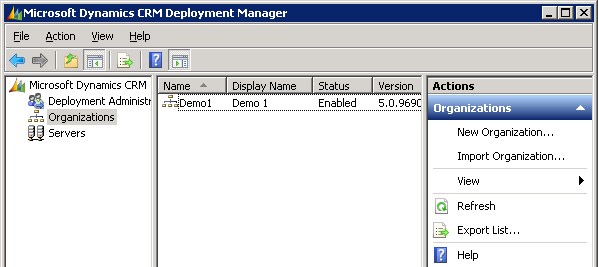
    Oh, you wanted your production system entities, fields and other customizations in there, too? No problem, just go into your production CRM settings area, pick a solution that contains the elements you need and export it. If you don’t have such a solution, then simply create a new one, as it’s not going to affect how your live environment operates in any way. After all, solutions are just pointers to the components like entities, processes or plugins, until you export them, at which time they become physical containers to all those bits that make your CRM environment different from the plain vanilla Dynamics CRM organization. Don’t export your transport solution as managed, unless you have a good reason for it (you’ll know once you do). Just take the unmanaged solution zip file from your current CRM organization, open the new one, import it there and publish all customizations. Now we’re done!

    Huh? What’s that you say about data? Would you prefer to have not just the schema of the database but also the contents of your CRM database in that new test organization of yours? In that case, let’s forget the previous steps and use another approach, shall we? Instead of the New Organization wizard you’ll want to use the Import Organization option. Before you click on it, though, we’re going to need to create a copy of your database, because the CRM Deployment Manager does not have a “Copy Organization” feature.

    Typically the Import Organization functionality is used when taking a database from some other environment, like when establishing a whole separate development box or test server. Also the actual upgrade process for turning a CRM 4.0 database into a CRM 2011 database is handled through the same import wizard. When you’re in the process of planning your Dynamics CRM upgrade, this is a handy way to update the old CRM 4.0 customizations into new CRM 2011 solutions. In these scenarios you’d first take a backup of the original database on your old SQL Server, then copy it over to the new environment, import it into SQL and finally into CRM. However, as we’re simply creating a replica of the database inside the same environment, we don’t need to necessarily go through the backup stage.

    On your SQL Server machine, open up SQL Server Management Studio, right click on the database which has the name ending with “_MSCRM”, then select Tasks – Copy Database. This helpful Copy Database Wizard will step you through the process of creating an exact copy of your CRM organization database. Just give it a different name than the original database and point it to the same server. You don’t even necessarily need to schedule a maintenance break for your production CRM environment, since the wizard can create the copy without the need to detach and attach the original database. This wizard actually builds an SSIS (SQL Server Integration Services) package that takes care of the copy operation.

    Before returning to the CRM Deployment Manager we’ll need to pause for a while and think about how the Dynamics CRM server operates. Just like records in CRM, also the actual organization itself has a unique ID in addition to the name and display name visible in Deployment Manager. Although the Import Organization wizard does attempt to handle this, it doesn’t perform it in the most graceful way. The two known side effects from from having overlapping organization ID’s prior to the import are that: A) the import will fail if you’ve customized the business unit entity and B) email router will not work for the new organizations. There might even be other nasty surprises hiding deep inside the database, so ultimately we’d like to have a situation where the organization ID’s are 100% unique.

    There are no official tools for this operation, but luckily the Microsoft Dynamics community has come up with a solution. In the CRM Forum thread “CRM 2011 Import Organization on the same server (or how do you create a development sandboxes)” you can find a script that you can execute on your new database copy. This script will generate a new ID and update it to all the relevant tables, including the PrincipalObjectAccess table where the OrganizationID goes by the name PrincipalID. If you’re not familiar with working on SQL Server then it may look scary, but the process itself is quite simple. Select your new database (not the old one!), right click, New Query. Copy the script created by Frenkie Smart found in the CRM Forum post and paste it into the query window. Pause for a minute amd check that you have fresh backup copies of anything that’s valuable to you on that SQL Server. Got it? Good, then just click the Execute button to run the script. You’ll see in the message window below the query how many records the script has changed in each table it processes.


    Now we’ve got the new database in such a condition that we can proceed to the Import Organization wizard in the CRM Deployment Manager. Select the new database as the one you want to import, give the organization a unique display name and database name, accept the user mappings, and off you go (see detailed process instructions in this Technet article). The Deployment Manager will build a new organization for you from the copy of the existing database, which you can then access by replacing the organization name in your existing CRM URL (in my case from http://server/demo1 to http://server/demo2). If you want to use friendly URL’s or IFD for accessing CRM then you’ll need to know which DNS entries and settings to modify for the new organization to be available.

    That’s it, for real. Here’s a quick recap of the process steps:

    1. Copy your production database
    2. Take backups!
    3. Run the script on the new database
    4. Import the database as a new CRM Organization with a unique name

    The typical scenario for performing this process would be the need to generate several development organizations that contain identical data and customizations as a starting point. If you just want to maintain your own test organization alongside your production CRM environment then there’s a few things you should take into consideration. First of all, the chance for human error. If you have two identical CRM organizations that are separated only by a few characters in the URL, the chances of mixing them up can be high. Second, you won’t be able to test anything related to Update Rollups and other components that are shared by all the organizations on the server. Third, if you’re unsure about what you’re doing, then don’t do it on your live CRM server!

    With all this in mind, it might be a good idea to investigate the possibility of having a separate test server after all, don’t you think? If you don’t have any suitable hardware lying around, then signing up for a virtual machine straight from the cloud is a valid option these days. With its latest improvements, Windows Azure offers a convenient service for provisioning persistent virtual machines as needed. Building a VHD image with CRM 2011 is not a very difficult process if you follow the instructions (and know the few gotchas about SQL or VM size settings). Also, if you don’t need to keep the server up & running on a continuous basis, you can always delete the Azure virtual machine and still keep a copy of the VHD image, available for booting it back up again when the time comes.

  • CRM adventures in Azure: SQL Server 2012 updates

    CRM adventures in Azure: SQL Server 2012 updates

    Windows Azure Pricing Calculator for Virtual MachinesAfter Microsoft announced their latest enhancements to the Windows Azure service catalog in the beginning of June (although still in a preview phase), I wanted to test the Azure Virtual Machines for running a Microsoft Dynamics CRM 2011 server instance in the Microsoft hosted cloud. Since we now have an excellent step-by-step tutorial available from Shan McArthur / AdxStudio, it was a breeze to get going with the installation process. You should also check out the Gold Coast blog by @devkeydet for some really helpful articles, such as Building a CRM 2011 dev box using a Windows Azure Virtual Machine. With high quality community content like this available, who wouldn’t want to build a CRM server in Azure?

    Hopefully I’ll get a chance to write some of my own experiences on working with Windows Azure in the future, but the first issue I ran into is actually more related to SQL Server in general.

    Side-by-side was not on my side

    In addition to Azure, I also wanted to utilize the latest SQL Server 2012 version to investigate what new reporting capaibilities it might offer compared to the trusted old SQL 2008 R2. The SQL 2012 installation went through without any errors but after I tried to launch the CRM installation I discovered that Reporting Services was not running. In the application log I had the following errors:

    Service cannot be started. System.IO.FileLoadException: Could not load file or assembly ‘ReportingServicesNativeServer, Version=11.0.0.0, Culture=neutral, PublicKeyToken=89845dcd8080cc91’ or one of its dependencies. The application has failed to start because its side-by-side configuration is incorrect. Please see the application event log or use the command-line sxstrace.exe tool for more detail. (Exception from HRESULT: 0x800736B1)
    File name: ‘ReportingServicesNativeServer, Version=11.0.0.0, Culture=neutral, PublicKeyToken=89845dcd8080cc91’ —> System.Runtime.InteropServices.COMException (0x800736B1): The application has failed to start because its side-by-side configuration is incorrect. Please see the application event log or use the command-line sxstrace.exe tool for more detail. (Exception from HRESULT: 0x800736B1)
    at Microsoft.ReportingServices.Library.ServiceAppDomainController..ctor()
    at Microsoft.ReportingServices.Library.ReportService.OnStart(String[] args)
    at System.ServiceProcess.ServiceBase.ServiceQueuedM…

    Activation context generation failed for “F:\SQL\Microsoft SQL Server\MSRS11.MSSQLSERVER\Reporting Services\ReportServer\bin\ReportingServicesNativeServer.dll”.Error in manifest or policy file “C:\Windows\WinSxS\manifests\amd64_microsoft.vc80.atl_1fc8b3b9a1e18e3b_8.0.50727.4053_none_8a1a02152edb659b.manifest” on line 0. Invalid Xml syntax.

    After a bit of googling I landed on a blog post on SQL Server VC++ Installation voes, which seemed to describe the exact same issue I was facing. I tested the sxstrace tool and the System File Checker (SFC) referenced in the post, reproducing the same results as the author was getting. It turned out that this side-by-side (SXS) error was caused by a manifest file that was empty. A similar discussion was also found in the Windows Azure Virtual Machines for SQL Server MSDN forum, so figured I must be on to something.

    Just before I was about to start modifying the manifest file properties and copy pasting the content there, I noticed that there was one detail which stopped me from proceeding: both of the posts were referencing an x86 processor architecture file (x86_microsoft.vc80.atl_1fc8b3b9a1e18e3b_8.0.50727.4053_none_d1c738ec43578ea1.manifest), whereas my error was related to the amd64 version (amd64_microsoft.vc80.atl_1fc8b3b9a1e18e3b_8.0.50727.4053_none_8a1a02152edb659b.manifest). So, I needed to hunt down the correct manifest file content for the 64-bit version with the proper hash value, but unfortunately this was where my googling came up short.

    After being a bit more creative with my search terms, I discovered the Microsoft knowledge base article 2688946: FIX: Error message when you install SQL Server 2012: “The identities of the manifests are identical but their contents are different”. The article also said that the fix for this issue was released in Cumulative Update 1 for SQL Server 2012. So, off to KB 2679368 then to request a download link for the CU1 file. Looks like MS doesn’t want just anyone installing these, so they make you fill in a form with your email address + captcha in order to get the file, but luckily that’s all there was to the process.

    I was a bit puzzled by the fact that the CU1 installer said “This installation provides updates for the Community Technology Preview (August CTP)“, but apparently it’s fully valid for the RTM version, too. I guess the components in SQL tend to be less strict about versions, since the SQL Server 2012 Reporting Services Configuration Tool still has “SQL Server 2008” in the process description… Anyway, after applying CU1 I was able to start the Reporting Services service and proceed with the CRM installation. Success!

    The lesson: there’s always an update hiding somewhere

    When building your development or demo environment, it’s important to be aware of the fact that what you get from the MSDN subscriber downloads site is mostly RTM bits. Especially when going for SQL Sever 2012 as the database for Dynamics CRM 2011, you should not use these files at all, because the installation won’t work. Just grab the product key from MSDN, but go to Microsoft Download Center here (direct download link to CRM 2011 Server) to get the new version that includes Update Rollup 6. Otherwise you won’t be able to configure the Reporting Extensions and will get the error “Unable to validate SQL Server Reporting Services Report Server installation. Please check that it is correctly installed on the local machine.” See this thread on the CRM Forum for some more info.

    Shortly after completing the CRM installation I discovered that there is in fact already a Cumulative Update 2 for SQL Server 2012, too. Wow, things move fast nowadays! Didn’t SQL 2012 get released just recently? Well, it turns out that actually the first cumulative update to SQL Server 2012 was released only 9 days after the general availability (GA) of SQL 2012. Let’s have a look at the Incremental Servicing Model of SQL Server in a bit more detail to understand what’s going on.

    It looks like also the SQL Server team have adopted a fairly agile release policy that mirrors the Dynamics CRM release roadmap concepts to some extent. What they call a Cumulative Update (CU) seems to correspond to the Update Rollup (UR) in the Dynamics CRM lingo, meaning they are both collections of hotfixes, released on a bi-monthly target schedule. However, unlike CRM Update Rollups that are nowadays delivered through Windows Update / Microsoft Update, the SQL CU’s won’t be delivered through this mechanism, because those updates need to fall into the General Distribution Release (GDR) category as defined by Microsoft (you didn’t think it was going to be that simple, now did you?). So, that’s why after installing SQL 2012 + CRM 2011 on a new Windows server you’ll automatically get Update Rollup 8 for CRM, but no updates for SQL. If you need the latest hotfixes, you should acquired the Cumulative Update package through the KB pages.

    Finally, yes, there will also be a Service Pack 1 for SQL Server 2012 released eventually, as many people will refrain from deploying a production database on a new version until this traditional MS software milestone has been reached. Whether the SP1 for SQL 2012 will be a similar release as the Q2 2012 Service Update for Dynamics CRM (to be released sometime in Q3) I’m not so sure, since in the world of CRM these Service Updates contain significant new functionality in addition to the previously released hotfixes. The latest information on SQL updates can be found from the SQL Release Serivces Blog. Note that there are no Service Packs available for Dynamics CRM, so the terminology used in describing the release policies will likely remain different from other Microsoft products like SQL or Windows. For a more detailed description of the CRM update terminology and delivery mechanisms, please see my previous post on the topic.

  • The haunted house of callouts

    One of the integrations implemented for our CRM environment includes a feature that writes entries to a dedicated Error Log entity. This can be a convenient way to provide the end users access to error notifications, when the process itself is asynchronous and does not provide a way to prompt the user.

    During the development project of this integration, frequent updates were made to this callout dll file and I received new versions to be deployed from the developers almost on a daily basis. After one particular update, we were surprised to notice that the callout was still writing an error messge into the custom entity, which was not supposed to be there. In fact, the whole message string no longer existed in the dll file. Where did his ghost messages appear from?

    It turned out that merely stopping and starting IIS does not guarantee that the previous version of a callout would not remain in the cache. If there are any workflows associated with the entities that the callout references, these can keep the old version of the dll loaded up in memory, thus creating the “haunting” effect described.

    As a lesson learned, whenever I need to update a callout dll file, I now go through the following steps:

    • Stop the CRM Workflow Service (net stop mscrmworkflowservice)
    • Stop IIS (iisreset /stop)
    • Replace the callout dll
    • Start IIS (iisreset /start)
    • Start the CRM Workflow Service (net start mscrmworkflowservice)
  • Save your time by documenting

    Documenting what your CRM environment looks like and what changes you’ve done to it can be such a drag. Compared to how fast you can perform and publish customization changes in Microsoft CRM, writing it all down and communicating it to the rest of the organization can take a lot more time (the same goes for planning your customization changes before rushing into doing them). Most people will learn the purpose of documentation only the hard way, after running into process errors resulting from a misunderstanding of what data goes where, what scripts affect which fields etc.

    After fighting with one such case recently, where I had to perform checks on entity form contents of four supposedly similar CRM instances, I just got fed up with the number of browser windows cluttering my screen and decided to search for a smarter solution. I remembered running into a CRM documentation application some half a year ago, but since it required Excel 2007 which I didn’t yet have at that time, I never had the chance to try it out. Having now upgraded to Office 2007, I promptly surfed to CodePlex and looked up the Microsoft CRM Documentation Generator by Merjin van Mourik.

    What a beautiful tool this is! Not only does it produce a neat list of all your entity forms, their scripts and picklist field lists of values, it does this “live” on your screen. Just export the customizations.xml file, load it up in the Excel add-on, then lean back and enjoy as the CRM server magically documents itself, one attribute at a time, for each of your hundred entities. After the show is over, you can copy & paste the information you need and quickly compare CRM instances side by side to track down the differences.

    CRM Documentation Generator

    The Documentation Generator tool is made for Microsoft CRM 3.0, so all you hip people already on 4.0 may be better off with Microsoft CRM 4.0 Form Reporter, which allegedly does the same thing in Word 2007 format.

  • Eating your own dog food: deleted appointments

    In my working team we’ve only recently started to use Microsoft CRM 3.0 for organizing our own work. The CRM system has been already rolled out to 200 users globally, but these databases have been reserved solely for end customer data. Now we finally have a separate CRM environment to manage our team’s internal customer data, projects and tasks, hence the “dog food experiment”. I’ll blog here some of my experiences as a newbie user, like this mystery with appointments.

    This monday I opened up my Outlook calendar and was greeted with a surprisingly empty schedule for the upcoming week. Hmm, didn’t I have plenty of meetings booked for every day, as usual? Going back to my Outlook’s “Recover Deleted Items”, I was actually able to restore a fair amount of ucpoming appointments. But who put them in the bin?

    Upon opening CRM’s My Activities view, I still saw the missing appointments in the list. Looking back, I realized each of the appointments I had to recover from Outlook’s trash bin had been tracked into CRM by myself. Why on earth were they simultaneously removed from Outlook?

    Well, it turns out that there was a contact record in CRM that matches my default outgoing email address with it’s .com domain. My actual CRM user account used an email address with .fi at the end. So, CRM was not able to find any CRM user resources in the list of appointment attendees and promptly synched my Outlook calendar, thus removing the appointments (since I wasn’t participating them). I did remain as the owner of the appointment and was of course one of the contacts listed as attendees. Come to think of it, Microsoft CRM did provide some error screen to me about scheduling issues when pushing the track button, but who reads those?

    Makes you realize how an email address alias can make things confusing for many parties. Also makes you remember not to blindly trust what the system tells you and instead always make a mental note in addition to the virtual one.