Category: Annoyances

  • File storage and CRM: what you should know

    File storage and CRM: what you should know

    Dynamics CRM is a great system for managing your customer data. “Alright, so can you tell me how do I upload all my customer document folders in here?” Well, you don’t. Or more precisely, you better not do it. You see, while it’s more than likely that you have lots of files regarding your existing and potential customers, putting these into your customer relationship management system is rarely a sensible approach. Let me illustrate a few issues that you will encounter if trying to use file attachments in Dynamics CRM as document management solution.

    Storage cost

    Due to some recent announcements on pricing & functionality related updates in Microsoft’s cloud based services in April 2012, I decided to do a little comparison of storage costs between three services. SkyDrive, a consumer focused product that has very recently acquired Dropbpx-like skills of synchronizing content from one or more client PC’s (or mobile devices) into the cloud. SharePoint Online, the SaaS edition of Microsoft’s collaboration / content management platform that’s currently licensed to around 125 million business users around the world in all it’s editions. Finally, CRM Online, the Microsoft hosted version of Dynamics CRM. All of these products include some base level quota for storage, but since the subscription prices per user are not really comparable due to the application functionality included in each, I’ve instead chosen to compare what is the cost of an additional 50 GB storage on each service.

    See the percentage difference in the table when compared to SkyDrive? While a pure file system storage service in the cloud for consumers is practically free these days, as we move towards more structured databases with metadata and workflow related functionality wrapped around the file, things tend to get more expensive. SharePoint Online has just recently cut it’s storage prices by a whopping 92%, yet it remains almost five times as expensive as SkyDrive. Since the price per GB on Dynamics CRM Online has not changed (at least yet), CRM in turn is 50 times as expensive as SharePoint Online. (Note: storage space ain’t cheap on other cloud based CRM systems either, including Salesforce.com).

    Ok, so maybe you’re managing your own servers and SAN’s, which means the direct cost per GB isn’t dramatically different between file shares and database blobs. Let’s look at some application level features that will affect your CRM users nonetheless.

    Search experience

    If we put our files into a structured database that has lots of customer information already, surely that makes them easier to discover when needed? Well, to some extent it does, but not necessarily the way you’d expect. “Did I attach that document to an account, opportunity or contract?” When it comes to Dynamics CRM, you’ll need to be able to answer this question before performing your search, as there is no out-of-the-box way to perform search across multiple entities. Also, instead of entering a natural search phrase like “online migration scribe”, you’ll need to build your query one parameter at a time in Advanced Find, specifying which values should be found in which field or related entity.

    Chances are you found this blog post through Google. That’s the way us humans tend to find what we’re looking for nowadays: free text searches on whichever keywords we have in our minds, rather than selecting a combination of attribute values that correspond to the parent object of the file we are after. Oh, and in case you wanted to search for text from inside the document, forget about it. Attachment contents is not indexed in Dynamics CRM, only fields on the entities directly are available for the search tools.

    Editing experience

    Do you ever need to revise the documents you’ve once created? Having the file as an attachment on a CRM record doesn’t quite give you the same kind of flexibility as a network drive or a document management system. You can’t directly open a document from the system into your MS Word, start editing it and save the changes. Rather you’ll need to store it temporarily on your local hard drive, then upload it back to CRM. The number of clicks and dialog windows involved in the process will not exactly encourage your end users to share information through CRM if they need to go through these steps repeatedly.

    How about archiving different revisions of the document? Let’s not even go there, at least with CRM alone.

    What should we do with our files then?

    While it’s certainly not the end all, be all solution for document management, you should definitely give SharePoint a go and see if it delivers the type of functionality your CRM users would benefit from. The built-in integration between Dynamics CRM 2011 and SharePoint 2010/Online removes much of the pain points mentioned above. Even though it may not cover all the customer document management scenarios directly (access rights, custom folder/site structures etc.), storing files in SharePoint document libraries instead of Dynamics CRM will automatically help you address many of the aforementioned issues related to content search, storage and editing. Also, the CRM SDK provides further extension points for SharePoint document management functionality development, combination with SharePoint’s extension points. You can see an example of such a scenario in this post on the CRM Consultancy blog.

    Thanks to the cloud version of SharePoint Online supporting Dynamics CRM integration starting from November last year, you can easily test the document management functionality in your existing Dynamics CRM 2011 / Online environment by signing up for an Office 365 trial account. With Office 365 E package subscriptions starting at € 7.25 per user per month, even if you’d use the whole subscription for nothing more than complementing the functionality of your CRM system, the cost wouldn’t be all that high, just 18% of a CRM Online subscription price.

    Better yet, if you sign up for Office 365 first and then later on purchase CRM Online, you’ll gain the luxury of using a single Microsoft Online login across both systems (see this post for the steps). Others will need to keep using Windows Live ID for Dynamics CRM until the transition to a single platform on Microsoft’s end has been completed sometime in the future.

  • Did you just disable duplicate detection in CRM by accident?

    Duplicate detection rules in Dynamics CRM are an example of a configuration item that may often be active only in production environments. Since you don’t actively enter data into development or test environments, why bother thinking too much about them? Well, the one place where you need to be thinking about them is when you are importing new solutions and publishing changes to customizations.

    Life would be easy if you could just set up and publish your duplicate detection rules once during the initial configuration of your Dynamics CRM production environment, thus stopping the unintentional entry of duplicate records into the customer database. However, you may run into a situation where a rule that you’ve once published has later on returned to an unpublished state. “What? Who touched my duplicate detection settings?”

    The likely answer to the question is “You did, but unintentionally”. You see, the duplicate detection rules are sensitive to changes in your entity customizations. As noted in the Madrona Solutions Group blog article, whenever any entity metadata is changed, all duplicate detection rules associated with that entity are unpublished.

    If you look at this from the system’s perspective, the process does make sense. After all, you might have set up a duplicate detection rule that is comparing records based on a criteria that that references fields you’ve changed or removed as a part of your CRM customization actions. Still, the fact that a publish event on a CRM 2011 solution triggers an unpublish event somewhere else is not very intuitive and most system administrators are likely to be unaware of the impact. As a result, there are certainly several production CRM environments out there where the once carefully planned duplicate detection rules have been deactivated because of this dependency between solutions and duplicate detection. In fact, you might want to check your own Dynamics CRM environment right now and check if you see duplicate detection rules with the status reason “unpublished” which should in fact be published.

    What this means in practice is that anyone who’s deploying solution updates to an environment that is using duplicate detection rules needs to instructed to always re-enable the rules after they’ve updated customizations that reference an entity which is being monitored for duplicates. In my opinion, it would be very practical to have the system notify you about this task, for example by asking “would you like to re-publish the affected duplicate detection rules?” when publishing a solution. If you would like to see this functionality changed in a future version of Dynamics CRM, please sign in to Microsoft Connect with your Windows Live ID and vote for the item “Automatically re-publish duplicate detection rules after deploying a solution”. Thanks for your contribution.


    Edit 2013-05-02: There’s a post on Magnetism blog that shows you how to write a plugin that will automatically publish unpublished duplication detection rules after the “publish all customizations” event, in case you want to automate this procedure in your production environment.

  • Activity view default filter, missing due dates and how to modify the filter

    Certain entities that contain the activity roll-up feature, namely accounts, contacts and opportunities, are also equipped with a date filter that allows you to choose whether you want to see all the activities related to the record or just a selected subset. By default this is “Next 30 days”, but you also can choose between “Overdue” or “Next 12 months”, or just go for “All”. That’s the good news.

    The bad news is that this piece of helpful functionality has remained uncustomizable throughout different Dynamics CRM versions. A lot of users were annoyed with especially the same filter in the associated history view, nowadays known as Closed Activities view in CRM 2011, which used to default to “Last 30 days” and hide away all but the most recent email threads, appointments and other information that you might have been searching for. You always had to change the filter manually to “All” to uncover the historical information about the relationship with the account or contact. However, this has changed now in the latest version and “All” has become the default filter (or should I say the filter is off by default).

    That’s definitely a step towards the right direction. It’s not exactly what the response on Microsoft Connect suggests, which claims that “we’ve allowed a user to change the default filter for associated views in CRM 2011”. I’ve yet run into such a setting and neither has The Great Internet, unless Google is hiding such instructions or blog posts. It would be useful to be able to configure or remove filters that the end users don’t want to deal with, without having to resort to unsupported customizations.

    Open vs. closed activities

    History is one thing but it’s the future actions that matter the most. Until very recently, I’d say up until Update Rollup 2 of CRM 2011 the filter functionality in the open activities associated views used to be such that the default “Next 30 days” would also show any activity that was missing a due date. By default the due dates are not a required field and sometimes they are not that practical for the CRM users, as many things in the daily life of a modern information worker don’t have strict deadlines. Also, there’s no out-of-the-box functionality in Dynamics CRM to set default values for date fields either, so setting the exact due date for every task or phone call you enter on your task list may feel too bureaucratic. An activity with a missing date should be considered as “do this as soon as you can, given all the surrounding factors”, in my personal opinion.

    In the current version of Update Rollup 5 the “Filter on” value is applied in such a way that it by default hides away all activities that don’t meet the “Next 30 days” criteria. If the due date is blank, the activities won’t show under the account/contact/opportunity. This may seem quite confusing to the user, since any new activity that he or she creates for the record will appear to “vanish” into thin air after clicking “Save and close”. In the My Activities view they will still appear on the top of the list, as null values in the Due Date column are sorted on top.

    What’s even more confusing is that CRM 2011 introduces two different ways for users to navigate to related activities on the account form: the familiar associated view and the new subgrid. If you’ve been reading my blog, you’ll know that subgrids ain’t exactly what associated views used to be. They don’t contain the activity roll-up feature, so you won’t see those activities that are set regarding a child record of an account (for example, opportunities) instead of the account record directly. Just like another filter, except you can’t even change it.

    How to change the default filter value

    There’s been numerous blog posts written on the topic of setting the filter defaults on CRM 4.0, but I was initially a bit surprised I couldn’t find a working piece of Javascript to achieve this on CRM 2011. Examples like this, this or this didn’t seem to be working for me, but luckily I ran into this post on the Microsoft Dynamics CRM German forum by Andreas Buchinger. To save you the trouble of Google Translate (well, it’s not much trouble at all when using Chrome’s built-in translation toolbar), here’s a walk through of the steps needed.

    (more…)

  • Power of Choice or the Legacy of Outlook?

    The first selling point advertised for Dynamics CRM in almost any context is the user interface familiarity of Office users and the seamless integration to Outlook. Compared to other CRM applications, the feature set available in the Dynamics CRM 2011 client for Outlook is unsurpassed, no doubt about that. However, sometimes you do run into issues that break the illusion that CRM and Outlook would be the one and the same application. Here are a few features that you should be aware of when planning on how you’ll train your users to use the two different client versions available: web and Outlook.

    Issue 1: Dashboard ribbons are not context sensitive in Outlook

    If you build a dashboard out of grids that present the user with relevant data from various entities, this can significantly cut down their need for jumping between different menus and screens. Say, a customer service representative can easily view all the new items in the email support queue, active cases assigned to him/her and also other open activities. With the help of the context sensitive ribbon the user can then process these records in the same screen, by changing record status from open to closed, accepting items from the queue, creating new tasks etc.

    Except, in Outlook that won’t work. The user will only be able to create a new dashboard, but not any of the common tasks, like creating new records for the selected grid. This is because in Outlook the ribbon is not context sensitive within the dashboard. Why is this? It works elsewhere in Outlook, so why not here? I imagine the explanation is that while the normal grids are composed of native MAPI objects inside Outlook, the dashboards are merely web pages as far as the Outlook client can recognize them, so it can’t understand which ribbon should be shown in which part of the page. Bummer.

    As a result, if you want to create actionable dashboards that allow users to work on the items presented there, it’s better to instruct them to open CRM through the web client instead of the Outlook client.

    Issue 2: Different logic in Quick Find

    People who have worked with Dynamics CRM throughout several versions will surely have learned how the Quick Find operates and when you need to use wild cars. With the CRM 2011 Outlook client, this logic no longer holds true. Outlook has its own way of handling search terms, so now we can punch in a search word right from the middle of a field, such as the account name, without entering the asterisk wild card in front of the term.

    Great, easier for the user to perform searches, right? Well, it is if you only ever work inside the Outlook client. If you step into the web client views, you’ll discover that things work differently there. Not only do you need to remember to use the wildcard in Quick Find criteria, but there also is a specific Quick Find View. Whereas in the web client the search will cover every active record in the database, no matter from which view you start, in Outlook the search is conducted on the records in the selected view. So, if you’re in the My Contacts view in Outlook client and search for a contact that belongs to another user, the Quick Find results will not deliver any data. In the web client it will.

    Also the columns presented in the web client will always be the ones specified in the Quick Find View customizations, but in Outlook the columns will not change as you’re searching from within the current view. However, it appears that the search columns that the Outlook client performs the query on are still affected by the ones defined in the entity Quick Find View, even though this view is never actually presented to the Outlook user. Still following me? If the different search logic is hard for a consultant to remember, just imagine how confusing it can be to the CRM user.

    Issue 3: Writing emails from Outlook without Outlook

    One of the three core modules in Dynamics CRM is Service. The most typical scenario for utilizing CRM for customer service processes is directing the incoming emails for an address like support@company.com to a queue in CRM. This way the emails are automatically tracked under a contact record if the sender email exists in CRM. Also the queue allows you to see which items are already being worked on by customer service reps.

    If you’re working with the Outlook client for Dynamics CRM, then you can write all your emails with the normal Outlook email editor and make use of the rich tools for message formatting, signatures, attaching multiple files with at once etc. Right? Not in this case. If the email you are replying to does not exist inside your Outlook mailbox but rather as an email record inside a CRM view, you can’t send “Outlook” emails as a reply. When you click the reply button, the Outlook client will open the web client email editor form for you.

    There’s surely a reason why the email editor in the web client hasn’t been improved since CRM 3.0. Outlook is Microsoft’s premium experience editor that should be used wherever possible, whereas the web editor is a secondary feature. But if you’re using Outlook already, then it would be nice to be able to always remain within that rich client, even when replying to queue emails, wouldn’t it?

    Issue 4: Recently used and pinned records behind the File button

    Many users will normally be working with a selected few accounts, contacts and opportunities at a time, rather than the whole CRM customer database. This is why the Recently used records menu in CRM 2011 is a great usability enhancement, which is also familiar from many other CRM applications. Right from the CRM main window, from the top left corner where you first look, you’ll be able to open a rich pane that presents all the latest records as well as the views you’ve recently visited.

    So, when I’m in the Outlook client then, surely I’m able to access the same list? Well, you are, but you’ll have to open the Office Backstage menu by clicking on the Outlook File menu, then glazing past all the file manipulation options and settings menus, to finally reach the recently viewed CRM records. And even if you reach it, you won’t be able to launch any views from this menu, since again the way how Outlook treats grids is different from the web client. Anyway, you probably won’t be accessing this menu any more often than you tweak your CRM settings, simply because it’s so well hidden away.

    Desktop Outlook: how crucial is it still?

    Ok, so there are a few quirks to be aware of when jumping between the web client and Outlook client. But how essential is it really to use the Outlook client in the first place? (more…)

  • Connections don’t merge, so be careful with duplicate records

    Update 22.3.2012: this has now been fixed in Update Rollup 7 for Microsoft Dynamics CRM 2011 (KB 2600643). Go and get the file here, unless you’re using CRM Online.

    Connections are a nice new feature in Dynamics CRM 2011 that allow you to create ad-hoc relationships between two records of almost any entity type. Additionally, you can specify roles for both the Connected To and Connected From parties, to describe the connection in more detail, as well as provide start and end dates for the connection. These are very handy for recording non-hierarchical relationships between contacts and accounts that tend to exist in the real world. As an example, a person working as the CEO of Company A might be a member of the board in Company B, which means they should be visible under both accounts. Company A would then be the parent account of the contact, whereas there would be a connection between the contact and Company B.

    Another common real life phenomena is that duplicate records find their way into the CRM database. This can be due to data imports from external databases, web forms feeding in new contacts, or simply two users being unaware of each other’s records and entering data with slightly different spelling or email address variations. Luckily Dynamics CRM has a built-in functionality that allows you to merge duplicates from the database. This process will move all the child records from the subordinate record to the master record, thus ensuring that everything remains linked to the active record and not the deactivated duplicate.

    Except that for connections this doesn’t happen! Once the merge is done, all the connections will still be referencing the inactive record, not the master record. In the aforementioned example, you would have effectively lost the information about the contact’s relationship with Company B. Even though you could still see it by opening up Company B’s record and seeing the connection there, how would you ever have known where to look?

    There is an existing feedback item 683301 on Microsoft Connect regarding this functionality:

    Here’s a quote of the comment I’ve posted on the item:

    I think this is a serious flaw that undermines the perceived reliability of the Merge Duplicates feature in the eyes of the end users. The merge screen indicates that all child records related to the subordinate record to be deactivated would be transferred to the master record, but it doesn’t warn that connections would need to be manually checked.

    The merge process works just fine for custom entities, activities and pretty much everything except connections. Why would the user ever want to leave behind some non-duplicate information to the deactivated record? By merging two accounts or contacts the user is effectively declaring that these represent the same object in the real world. If something in the database has a relationship with either of these records, it should be carried over to the active record, as the inactive record no longer serves any other purpose than indicating the prior existence of a duplicate entry and the possible differences in attribute values compared to the current active record.

    If you think connections should be transferred over to the master record when merging duplicates, be sure to log in to Microsoft Connect with your Windows Live ID and cast your vote on this item. In the meantime, if you’re planning to use the connections entity for recording any data related to accounts, contacts, or leads, my suggested options are:

    • Don’t do it. Create a new custom entity for recording this data, as they will merge over to the master record just fine.
    • Develop you own plugin for capturing any merge events and updating the related connection records accordingly.
    While we’re on the topic, I also tested what happens to the old Relationship records that were used for connecting account, contact and opportunity records in versions prior to CRM 2011 (and are still visible in an upgraded organization). The result? When merging two contacts, any relationships referencing the subordinate record are deleted! Yeah, crazy, I know. If you’ve got any insight on what is the reason behind this perplexing system behavior for either connections or relationships when dealing with duplicate records merging, please leave a comment in the box below.
  • Office 365 launches without Dynamics CRM integration for document management

    Office 365 launches without Dynamics CRM integration for document management

    Today was finally the big day when Microsoft’s cloud productivity platform BPOS was replaced with Office 365, which is now available for subscription. Having played with the beta version for a while now, I’m overall quite impressed with how close the SharePoint Online environment now is to its on-premises counterpart. While the limitations are still somewhat more visible than when comparing CRM Online vs. CRM 2011 on-premises versions, I think it’s already close enough to enable a significant part of traditional business requirements for SharePoint to be fulfilled with the cloud platform.

    Microsoft confirmed already last fall that also Dynamics CRM Online will eventually be migrated onto the same Online Services Delivery Platform as Office 365. In addition to being a natural fit with SharePoint and Exchange, CRM Online should also gain benefits into both its subscription management as well as authentication options as a result of  this migration. However, there’s no official timeline or feature set communicated yet, so we’ll have to keep waiting possibly until Q4/2011, when the next update for Dynamics CRM has been scheduled to become available, as announced in the latest Statement of Direction document.

    Ever since Dynamics CRM 2011 was launched with built-in SharePoint document library integration, there’s been a bit of anxiety on when this functionality could be leveraged with the cloud versions of CRM and SharePoint. Since BPOS was built on SharePoint 2007, it wasn’t possible to utilize the Microsoft Dynamics CRM 2011 List Component for Microsoft SharePoint Server 2010 in the Online environment. This meant that setting up a document management enabled trial environment with CRM Online required an on-premises SharePoint server, which wasn’t too convenient. Nor was it for any customer looking to go “all in” with their MS applications. Oh well, but now that Office 365 is available, that’s all a thing of the past, isn’t it?

    Wrong! Despite of the better together marketing message surrounding Office 365 and CRM Online, there’s actually still no way to integrate the SharePoint document libraries with the CRM List Component. Sure, you can upload the solution file into a SharePoint Online site and publish it. What you cannot do in the Online version is to take care of the second part of the installation steps, which involves the AllowHtcExtn.ps1 PowerShell script,used for enabling .htc file extensions to be served from SharePoint.

    Why is this important? Because without the .htc support, you can’t actually do anything with the document library. The folder creation can be configured and it flows through as it should when accessing the Documents menu for a new record, such as an account. However, after that you are presented with the following prompt:

    “The action buttons are disabled because the SharePoint server that you are using does not allow HTC component files. To enable the buttons, contact your system administrator.” What this means is that the document library will be rendered nicely inside the CRM entity form, but you can’t upload any documents to it. Clicking on the buttons does nothing, as they’re all disabled.

    How about on the SharePoint side of things then? We can see that the entity specific document libraries are created and also the corresponding folders for each record where the document location has been defined. We can also of course use the native SharePoint UI to upload documents into the library.

    Then when you access the corresponding record through CRM, you can see that the document does appear in the library. But with all the controls disabled, you again cannot do anything with it, like open the document, for example. How nice…

    How did we end up in this situation where the latest and greatest cloud offerings from Microsoft are not working together like they obviously were inteded to? That’s a very good question. The problem with Office 365 SharePoint Online limitations and their implications to Dynamics CRM document management functionality has been a known issue throughout the whole beta phase of Office 365. There are several threads on the Office 365 community forums regarding this. Yet the response from Microsoft has been that this cannot be resolved by GA (general availability) of Office 365 (as in “today”), but rather we’ll have to wait for the first service update, probably. Come on! How can 6 months not be enough to allow one .htc file to perform its work and provide the document integration between CRM and SharePoint? I find it extremely strange that the product management behind Office 365 has allowed such a flaw to be included in the initial release version.

    Of course eventually this issue will be solved and we’ll be able to experience the full document management process flow with Microsoft’s cloud applications.

  • Upgrade gotchas: Outlook client for Dynamics CRM 2011

    Last weekend I finally did my first installation of the RTM versio of CRM 2011 Outlook client onto a machine with Outlook 2010. I had previously only worked with the Outlook 2007 client version, which is lacking a few nice features in the UI, as described in my earlier post.

    I came across a few issues that might cause problems in the installation process, so I decided to link the relevant KB articles and other related content into this blog post to help you save some time when upgrading to the latest version of Microsoft Dynamics CRM on your client machine. I’m using CRM Online here, so some things may differ from the on-premises client version, which no longer has a separate client version, but of course the authentication methods do differ.

    Before you begin: go with 32-bit

    Yeah, I’m sure most of the new business laptops nowadays come with a 64-bit (a.k.a. x64) version of Windows 7. Nevertheless, you should treat 64-bit applications with caution. Why? Well, it’s a bit like with IPv4 vs. IPv6. Everyone knows the old world as we know it is coming to an end, but there simply isn’t a concrete enough reason for developers or companies to go “all in” with the 64-bit apps.

    With Microsoft Dynamics CRM 4.0 the situation was quite nasty, as there was not and there will not be support for the 64-bit versio of Microsoft Office. You simply had to tell the users to “downgrade” their Office, which is not the most optimal starting point for getting someone to adopt a new application such as Dynamics CRM. Now with the arrival of Dynamics CRM 2011 we do in fact have an x64 client for Outlook, so everything should be in order, right? In theory, it is, but if you’re planning to install any fancy RIA apps from the Dynamics Marketplace into your CRM 2011, you should read this blog post from Customer Effective. That’s right, Microsoft hasn’t releases a 64-bit version of the Silverlight add-on for Internet Explorer, which leads us into the following situation:

    KB2500373: Microsoft Silverlight web resources cannot be viewed in the 64-bit version of the Microsoft Dynamics CRM Client for Microsoft Office Outlook

    It’s a fact of life: the world is not 64-bit just yet. With the Office applications there’s not likely to be a significant performance boost from using the x64 version, so take the easy way out and just install the 32-bit Office 2010. Let’s revisit the topic when we all have Windows 8 and Office 2013, shall we?

    Favorite folders no more

    KB2494600: There is no option to add Microsoft Dynamics CRM entities to favorites in Microsoft Office Outlook 2010

    The Solutions Module is a new feature that has become available in Outlook 2010, as described here in the MSDN library article. It allows developers to integrate their applications directly into the Outlook navigation pane, which is what Dynamics CRM 2011 Outlook client is doing to achieve the seamless integration into the native Outlook navigation items.

    What’s the downside? Unfortunately the add-on solution folders cannot be added to the Outlook favorite folders group. Bummer. This was one of the first things I always instructed people to do when training them on how to use Dynamics CRM. There’s no better way to drive CRM adoption that getting the list of the company’s accounts and contacts to be available right below the Outlook inbox folder, where most people start their day at the (MS) office. Even though the CRM folders are now more visual and available under the CRM navigation pane tab, there’s still likely to be tens of entities visible for most CRM users, out of which they typically access just 3-4 most popular ones. I, for one, hate navigating through hierarchical folders that require you to expand them to see the what’s hidden on the next level, so always visible one-click navigation is how I prefer to arrange my working environment, be it SharePoint workspaces or CRM menus in Outlook.

    Following the instructions in the KB article, you can achieve the old favorite folders functionality also in Outlook 2010, but this will require you to disable the Solutions Module. Which, if I’ve understood correctly, will again turn the flashy CRM folder icons into the generic folders that we see in Outlook 2007 or Outlook 2003. Guess we’ll just have to figure out which is a bigger loss for the end user experience and make a choice, until there is a feature enhancement available for the Outlook 2010 Solutions Module (I hope there’s no technical limitation on why this couldn’t be implemented in a future service pack).

    Clashes with Windows Live Essentials

    KB2498892: Unable to Configure the Microsoft Dynamics CRM Client for Outlook against Dynamics CRM Online

    Seems like the Windows Live ID authentication in CRM Online has some issues with the “consumer products” for Windows Live. This might not be a big issue in big corporate environments with locked-down client machine configurations that don’t allow using consumer targeted services such as Hotmail or Skydrive. However, as Dynamics CRM Online is clearly making the former enterprise level applications like Customer Relationship Management suites available to even the smallest organizations with its low monthly cost per user and ease of deployment, there’s likely to be more and more users who’ll be transitioning from Microsoft’s consumer product lines to the new cloud-based business product lines, such as CRM Online and Office 365.

    Basically you’ll need to run a repari install on the Windows Live ID Sign-in assistant or Windows Live Essentials 2011 to make it compatible with the Outlook client for CRM Online, which is also using Windows Live ID to connect you to the CRM server. That should do the trick.

    But wait, isn’t Dynamics CRM Online a business product? Why is it using the WLID authentication method meant for the consumer products? For comparison, here’s an aswer from Allen_MSFT on the Office 365 FAQ to a question regarding weather using Office 365 will require WLID.

    “Re Windows Live ID, you don’t need a Windows Live ID to use Office 365 or to use your Windows Phone 7 with Office 365.  Windows Live services are for consumers, so they are not linked within the Office 365 portal.”

    Indeed. I’m waiting for the day when also Dynamics CRM Online will be migrated over to the new Microsoft Online Services Delivery Platform, which will hopefully give us better tools for managing CRM user accounts and authentication.

    Missing Outlook ribbon after CRM client installation

    KB2494581: The Outlook and CRM ribbons disappear from Microsoft Outlook when you use the Microsoft Dynamics CRM Client for Microsoft Office Outlook

    I had this one happen to myself, since I had been using a previous beta version of the CRM 2011 client on my machine. I had uninstalled both Office and CRM, but there still remained a few lines in the registry that needed to be removed to get the Outlook ribbon to reappear.

    I have to tell you, Outlook 2010 really looks naked when the ribbon is gone (not just hidden). I’m not sure if there even was a way to do any basic Outlook operations like sending emails with the ribbon completely blank, so I started googling around immediately and came up with the instrcutions that pointed to the following steps required to restore the ribbon:

    • Run Regedit.exe
    • Locate the HKEY_CLASSES_ROOT\TypeLib\{2DF8D04C-5BFA-101B-BDE5-00AA0044DE52} key
    • Delete the 2.4 key that’s found under it. It’s not needed anymore, there should only be 2.5
    Update Nov 9th 2011: Since this appears to be quite a popular post on my blog, I decided to append this information here. Today I was creating a new Windows user profile on a PC that already had the CRM 2011 Outlook client installed on a different user profile. When launching Outlook for the first time as this user, the ribbon was missing from the CRM menus (not the whole Outlook as in the aforementioned case), even though everything was working fine for the previously configured user account. In this particular occasion the client was linked to a CRM Online organization which had received the R7 update (a.k.a. Q4 2011 Service Update), but the Outlook client was still on Update Rollup 3 level. After I deployed Update Rollup 5 on the machine and rebooted, the ribbon was restored for this new user profile. So, be sure to check that the client and server hotfix levels match if you encounter a ribbon display problem.

    Reading pane always shows the contact layout

    Dynamics CRM Deployment Forum: CRM 2011 reading pane error in Outlook 2010

    Unfortunately this one doesn’t have a knowledge base article or a fix yet. I encountered this issue briefly when installing the Beta version of CRM 2011 Outlook client. Back then, all it needed was a reboot and the reading panes and icons were restored. With the RTM version of CRM 2011 client, the issue is more persistent. Each and every CRM entity appears as if it was a contact, presented in a business card layout that only contains the entity primary field (name) and not any other data. Click the image below to see an example of the account record shown as a business card with the contact icon.

    Update Nov 10th 2011: Thanks to Wimco’s post on Dynamics CRM Forums, I was finally able to fix the reading pane layout problem on my PC. I simply uninstalled the Office 2007 Primary Interop Assemblies, after which I also applied the latest Update Rollup package and voilá: the reading pane now shows the fields specific to each entity.

    Further update, March 23th 2012: The EMEA Dynamics CRM Support has published an article, where they suggest another fix for the Outlook client preview pane problem. Apparently an existing DisableFormRegions registry key can cause the contact form to be shown instead of the correct entity form.

  • Update Rollup 27 has been… Seriously, guys!

    Got a Dynamics CRM blog? Like to tweet about all things Microsoft Dynamics? You’re in luck, because Microsoft is providing you a steady supply of topics in the form of CRM Update Rollups (or UR’s if you prefer acronyms). Right now Microsoft Dynamics CRM 4.0 is on level 13 and will certainly continue to receive plenty more until the end of its support lifecycle. In January 2009 Microsoft stated that they aim to release a new update rollup every 8 weeks. If you multiply 13 x 8, that gives you 104 (two years), which means the actual release schedule is even tighter.

    When a UR comes out, you’ll be certainly well informed about it through the Dynamics CRM community, as this tends to generate a massive number of blog posts, tweets and retweets in celebration of the event. Having new hotfixes is of course important for anyone working with CRM, but has the whole UR phenomena gotten a little bit out of hand by now? The recent tweet by Jerry Weinstock from CRM Innovation highlights the issue perfectly:

    Let’s make one thing clear: there is no newsworthy content in just posting that “Update Rollup X has been released”. Nada. It’s like stating that a new copy of Wired is now available at the news stands.

    I’ve seen a countless number of practically abandoned Dynamics CRM blogs where the author no longer has the time or energy to produce original content. Yet they see it as their duty to keep posting UR notifications one after another. Wow, writing a blog has never been so easy! Ok, so you guys may have way more posts than I do, but do you really think you’re contributing to the CRM community in a meaningful way?

    I’m not saying that UR’s cannot be meaningful topics for a post, but you absolutely must provide some editorial content of your own, in addition to the KB article cut&paste. Tell about your experiences with the update, what was the reason why a particular hotfix was significant for you, what possible problems the UR installation may cause etc. Say something that not every one of us CRM geeks out there wouldn’t already know through their RSS feeds and Twitter lists.

    The amount of great information you can acquire just by following a Twitter hashtag like #MSDYNCRM is truly incredible and I don’t want to play down the value of an active Dynamics CRM community in any way. Quite the contrary, that’s the one thing we should all celebrate. All I’m asking is that the next time you see the news about a new UR, think for a moment how likely it is that all your followers and readers have already received the news through their own channels. And if you RT, at least put a funny twist on it!

    As for the UR release process in general, I propose that Microsoft registers the @UpdateRollup account on Twitter and we can all just start following it. Or better yet, replace the old Announcements section inside Dynamics CRM with a dashboard of all the official MS Dynamics CRM tweets in one convenient place. Of course in CRM 2011 we’ll already be able to configure those dashboards ourselves.

  • Tabbed surfing with IE7 and CRM: the Quick Tabs bug

    One of the prominent features of Microsoft CRM’s user interface is that all records are opened into a new pop-up window. While this does make navigation quite consistent throughout the different areas of the application, the downside is that it won’t take long before you have 20 separate browser windows open and you’re forced to take a break for cleaning up the taskbar.

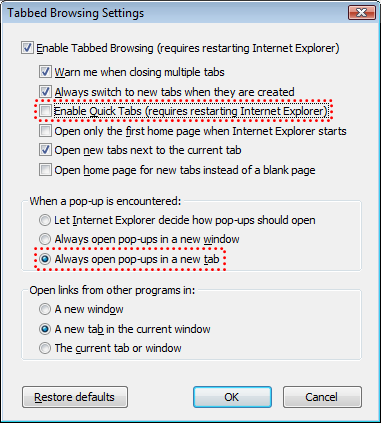
    Internet Explorer 7 brought tabbed browsing into the toolkit of anyone who’s forced to work with IE due to their day-to-day business applications. This would be a nice way to control the clutter of MS CRM windows as well, but unfortunately this has not been possible for many users. I’ve seen numerous different client machines in different organizations experience the same bug: opening CRM pop-up windows in new tabs instead of new windows has spiked the CPU load up to 99% for no apparent reason.

    Finally, after 2 years since the launch of IE7, there is now a workaround for this bug. All you need to do is go to IE’s Internet Options – Tabs – Settings and uncheck the option “Enable Quick Tabs”. After that, you are free to change the pop-up setting to “Always open pop-ups in a new tab” and watch as Microsoft CRM diligently opens the records in the same browser window without any performance impact.

    Thanks to Joel Lindstrom for uncovering this on CustomerEffective’s blog.

  • Microsoft Dynamics file exchange system

    Reinventing the wheel rarely produces a perfectly round object. This is also the case with Microsoft’s attempt to enhance the basic operation of downloading a file from a website.

    If you have Software Assurance for Microsoft CRM, then you will probably also have the rights to use Microsoft Dynamics Customer Source. I know, figuring out how to even gain access there in the first place can be a challenge, but luckily our tech guys had already done the hard part in my company. So, assuming you’re in, you’ll notice that the friendly people at Microsoft have put most of their training course materials on the site, ready to be downloaded. While the course ware designed for classroom training may not ideal for self learning, they are still a great resource for looking up CRM administration related details as you go.

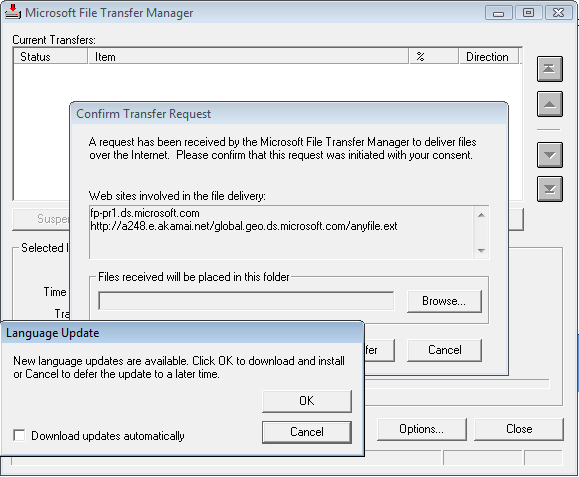
    Instead of the usual download procedure, MS has decided to force everyone to acquire the materials through a  download manager application called Microsoft File Transfer Manager. It’s a tool for providing some controls over the file downloads from Akamai servers, like resuming a broken download. The main question is, why do I need to bother? The downloads are typically a few megabytes in size, nothing I would need to worry about on a company network, since it’s year 2008 and we’re not on 56k modem anymore.

    Compared to the usual “do you want to save the file” prompt, the user now has to run an ActiveX add-on for IE, peform a bewildering amount of clicks and watch a number of pop-up screens to achieve a simple download. The add-on which I just reluctantly installed on my computer is asking for a language update installation only 10 seconds later.

    There is not a single positive feature about this forced process that I can think of, it only masks a simple download operation into something that needs a whole lot of arbitrary “managing”. Kind of reminds me of Microsoft CRM at times. I guess that’s why they’ve chosen the Dynamics users to be the guinea pigs.

    Microsoft Filte Transfer Manager