Author: Jukka Niiranen

  • Account address capture & mapping with Power Apps

    Account address capture & mapping with Power Apps

    In the Power Apps team blog there was an announcement of the GA availability of Geospatial Features for Canvas apps. In short, we now have a preview of two new controls powered by Azure Maps:

    • Address Input control which suggests the correct address based on partial street names and autocompletes attributes like city, postal code, country, latitude/longitude.
    • Interactive Map control to show one or more records from a dataset as pins or cards on a visual map .

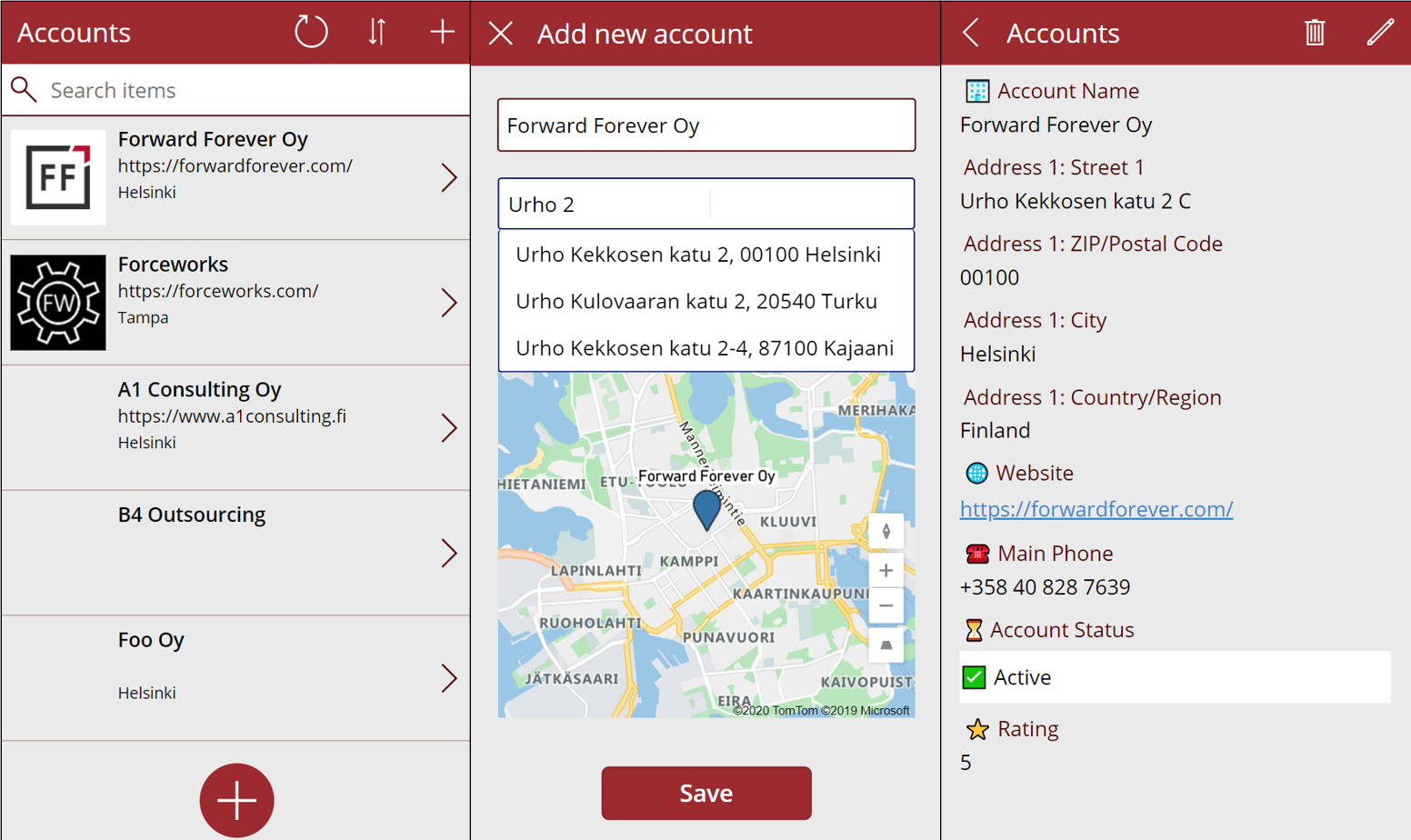
    I decided to do a quick test of how to leverage these new capabilities in a simple scenario where we are managing account address information via a Canvas app running on a phone screen. Here is the end result:

    Simple yet effective! Let’s explore the steps I needed to perform to achieve this functionality.

    Source data

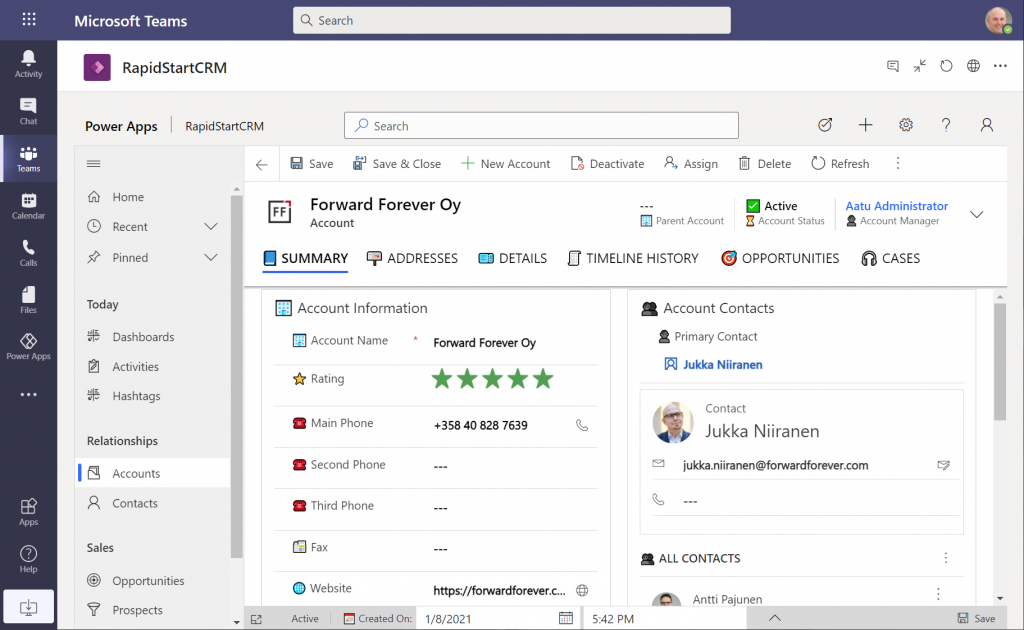
    As a starting point, I’m using a pure Dataverse environment with no Dynamics 365 components. Instead, I’ve installed the free RapidStartCRM solution to give me a simplified CRM data model, plus a fully working Model-driven Power App. I could embed this inside Microsoft Teams and use it via a channel tab, for example:
    In our scenario I want to offer the users a simplified UI to be used on a phone screen, with only a small subset of the full features found in the Model-driven app. I’ll focus just on the account data, which means I can simply start by going to make.powerapps.com and choose to generate the mobile app based on a data source. In this case I’ll select the account table in the Dataverse environment where RapidStartCRM is deployed. This gives me the basic 3-screen UI for browsing, viewing and editing records (yeah, I know, “rows” – but I refuse to adopt this part of the latest MS BizApps naming bingo results just yet).
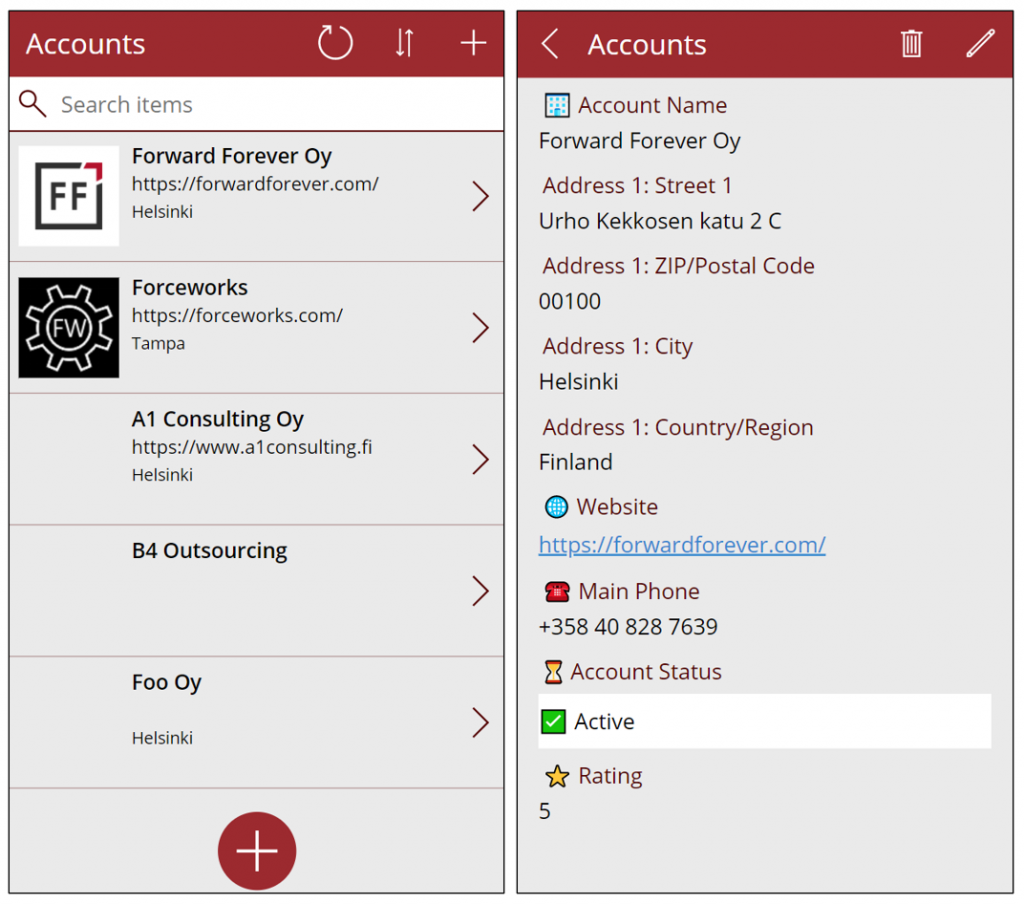
    I want to create a custom data entry UX for this demo scenario, so I’ve added a “+” button at the bottom of the gallery screen to launch a new screen where I’ll be leveraging the geospatial features.

    Address Input control

    It’s never a fun task to enter the address details when creating new account records, especially when on a mobile device. Instead of asking the user to fill the various fields included in an address, we’ll add the new Address input control from the Input menu onto our “Add new account” screen. From the control’s documentation page we can see there are a number of input properties we could use, but it works quite well just by dropping it as a field onto the form and starting to enter text:
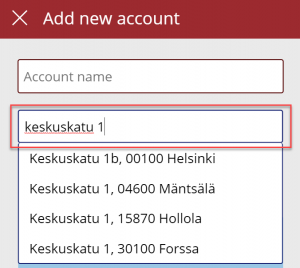
    In my case, I did limit the country set to “FI” to give me just Finnish streets for my demo app. It looks like you need to enter the street name and number before anything is suggested by the Azure Maps API, but you’re allowed to have small typos in the street name, so there’s some fuzzy matching logic applied here.

    The real benefit of the Address input control is in the 19 output properties you get from it. Ultimately I’ll want to use them to A) show the map control based on lat/lon and B) store the data onto the new account record the app will create. But first, it’s nice to see the control’s output on the screen while updating values, so I’ve added a few labels where I display the results from the selected address. To do this, I’ll reference properties like AddressInput1.PostalCode and AddressInput1.Municipality to construct a nice looking string for the text property of the label:
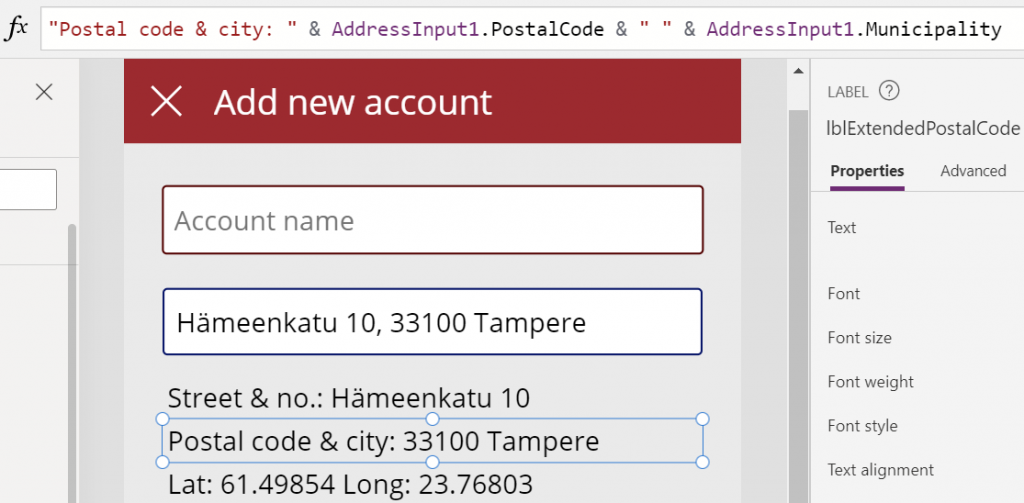
    This exercise will also help me in identifying how I’ll need to concatenate properties like StreetName and StreetNumber to create a valid value for the Dataverse account table’s Street 1 field eventually.

    Map control

    Seeing a map view where the address we’ve inputted is physically located is a big factor in the app’s user experience. We’ll want to give visual confirmation to the user that the address is actually at a location where they expected it to be, plus the ability to zoom in/out on the map to explore the surroundings. So, while in the Power Apps maker studio, let’s click on the Media dropdown and add the Map control onto our screen.
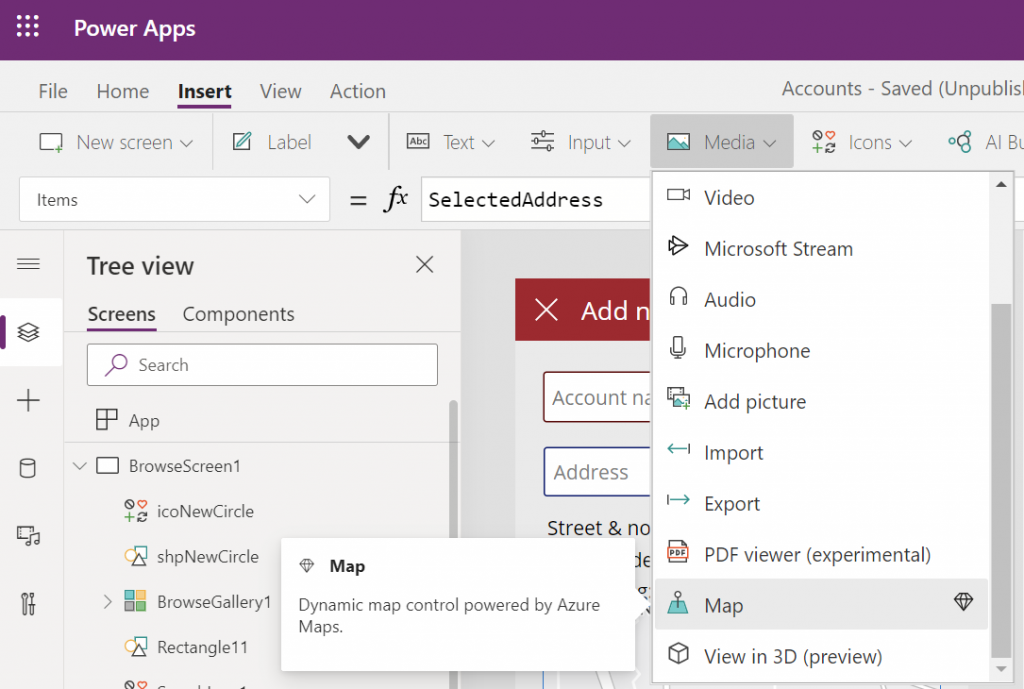
    Hmm, how do we then tell the Map control to zoom in to the address we’ve selected in the Address input control? I had to browse the Interactive map component documentation for quite a while to figure out a way to do this, as it wasn’t entirely obvious how to visualize an individual address rather than a table of records. What I ended up doing was to go into the OnChange property of the Address input control and create a SelectedAddress variable to be set to the chosen address whenever the field’s value changes:

    Set(SelectedAddress, Table({Label:tiAccountName.Text, Longitude:AddressInput1.SelectedLongitude, Latitude:AddressInput1.SelectedLatitude}))

    Note that in my app I’ve got a Text input control tiAccountName into which the user is requested to type in the name of the new account being created, before proceeding to work with the Address input control. I’m picking that name as the label to be shown on the map pin.

    Then in the properties of the Map control I’m setting the values of ItemsLabels, ItemsLatitudes and ItemsLongitudes properties to reference my SelectedAddress variable’s respective properties:
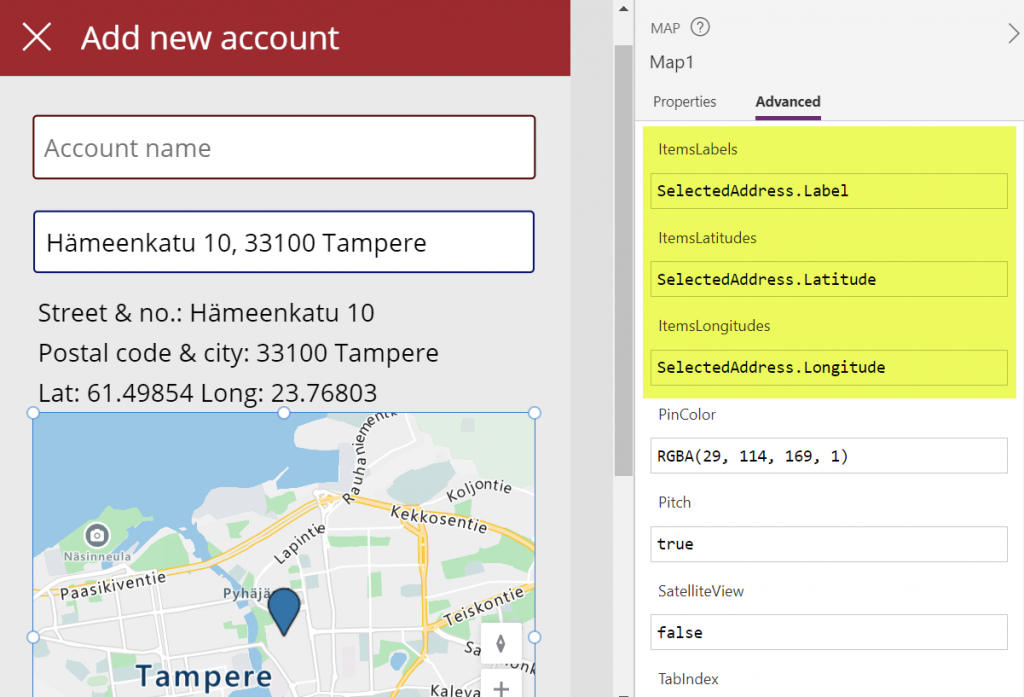
    There’s a variety of other input properties for the Map control, many of which I didn’t yet tweak in my demo app. For example, setting the default location to be that of the current location of the user’s device might be a good idea, but a quick test in the browser didn’t yet tell me how exactly I’d then replace that with my custom location from the variable. I’m sure the will be plenty of ways to optimize these map parameters when connecting them with your app’s business logic and data.

    Saving the account + address

    Finally we need to store the account name and address details onto a new Dataverse record in the account table. As we aren’t working with the form control here, it’s time to use the Patch function. I always need to check the Docs page for the exact syntax, but when working with simple text fields in the target table, the formula isn’t all that complex. On my Save button of the “Add new account” screen I’m running this:
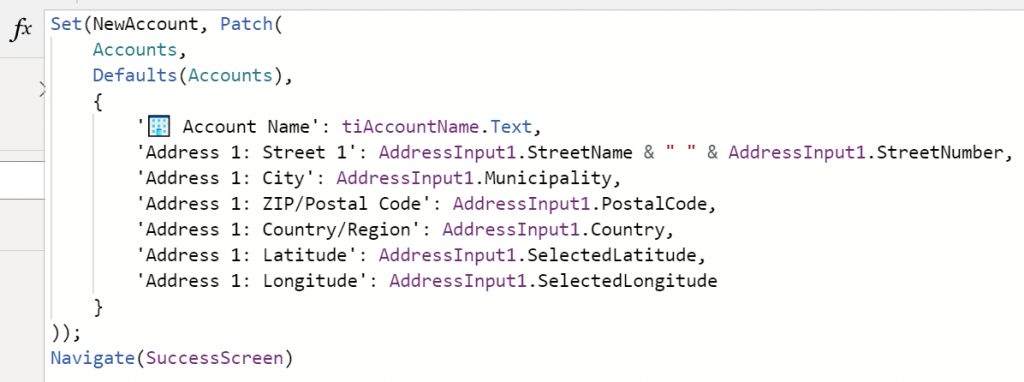
    I’m storing the results of the Patch function also inside a NewAccount variable, so that I could reference the values further in the UI if needed (confirmation dialogs, for example). No error handling or anything else fancy here in the demo app, instead I’m just navigating the user to a “Success!” screen after the record has (hopefully) been saved in Dataverse:
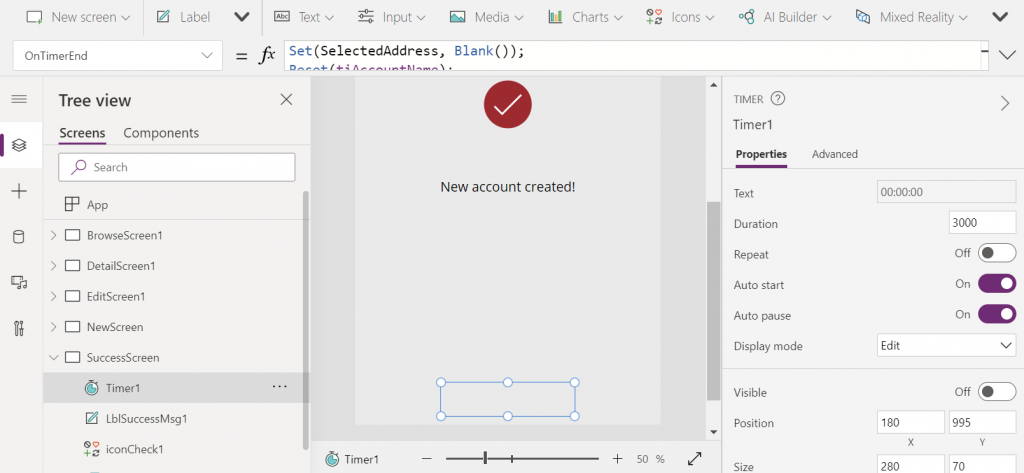
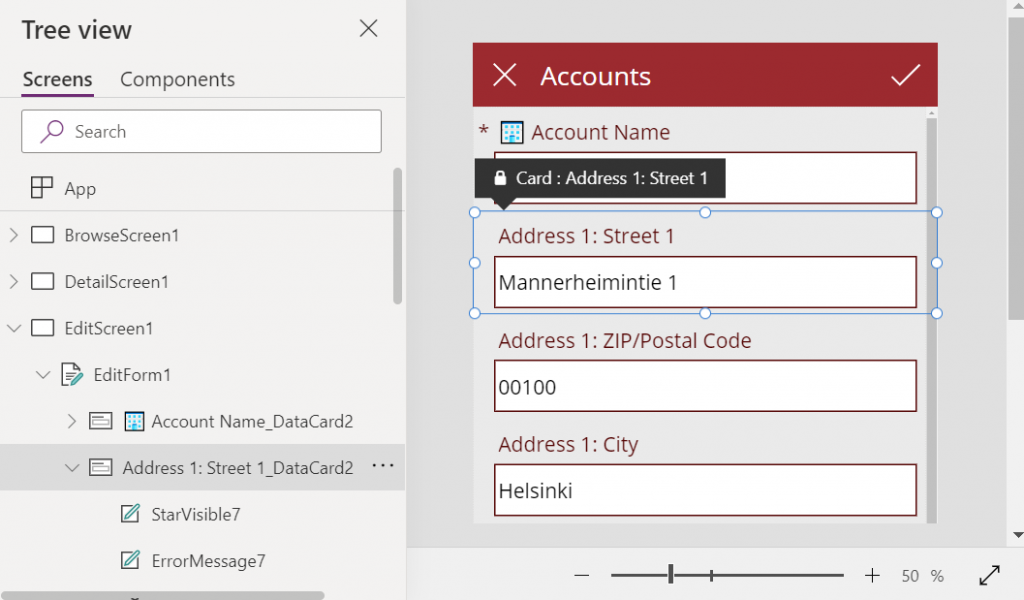
    The “Success!” screen has an invisible timer control set to auto start and a duration of 3000 milliseconds. In the OnTimerEnd I’m doing housekeeping like setting the SelectedAddress variable to Blank(), resetting the Account name text input, then navigating the user onto the account browse screen that will show our newly created account somewhere in the gallery. Another option would of course be to take the user onto the full Edit Screen of the record, to enter further details via the standard form control if needed:
    That’s all there is to it! All in all, my first impression from these new geospatial features is quite a positive one. It’s important to note that since they are using Azure Maps service behind the scenes, these controls have the “premium diamond” next to them in the UI. This means you’ll need to have a premium license like Power Apps Per App or Power Apps Per User for users who are taking advantage of these address mapping features. Also keep in mind that the Power Platform environment where your app lives in must be enabled for geospatial features by the admin.
  • Relational data on Model-driven forms, part 2: Form Component Control

    Relational data on Model-driven forms, part 2: Form Component Control

    Our quest for improving the user experience of Power Apps Model-driven app forms and multi-table data models continues with this part 2 blog post. We will explore how the brand new Form Component Control enables us to essentially blend the forms from two different tables (entities) onto a single form for the user to easily interact with.

    In part 1 I laid out the example scenario of a Rental Car app where a single rental event record will always have a single related car record associated with it. Please go and have a look at the details in the earlier post if you want to understand the details.

    Our approach was to leverage the Quick View Form to bring in fields from the related parental table (Car) onto the child table (Rental) form. To make the data entry and editing easier we enabled the Main Form Dialog feature for the Car lookup field, which then opens the form in a modal window.

    While this UX is a lot nicer than navigating between full screen forms and page loads, it’s still not all that seamless. The user will be very much aware of the fact that he/she is working on two different tables, while ultimately we’d want to show just a single page that abstracts away all this complexity of the underlying relational data model.

    What is the Form Component Control?

    First of all, it doesn’t have a very sexy name, that’s for sure. During the past few days of exploring the feature, I’ve had to repeatedly go back to the documentation to see what the name was. Even the product team’s announcement “editing related records on a main form in a model driven app” doesn’t sound very exciting. There’s a lot easier way to describe it:

    Forms within forms.

    It’s simple, and it’s very powerful. Unlike the CRM 2013 era feature of Quick View Forms, there’s no requirement to keep the forms as “view only” , nor particularly “quick” in terms of their contents. It’s just regular forms, and they can be used within other regular forms – full edit capabilities included.

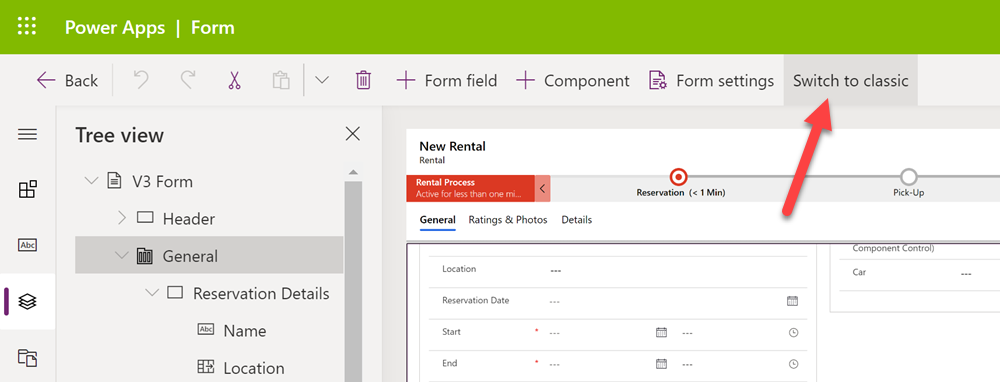
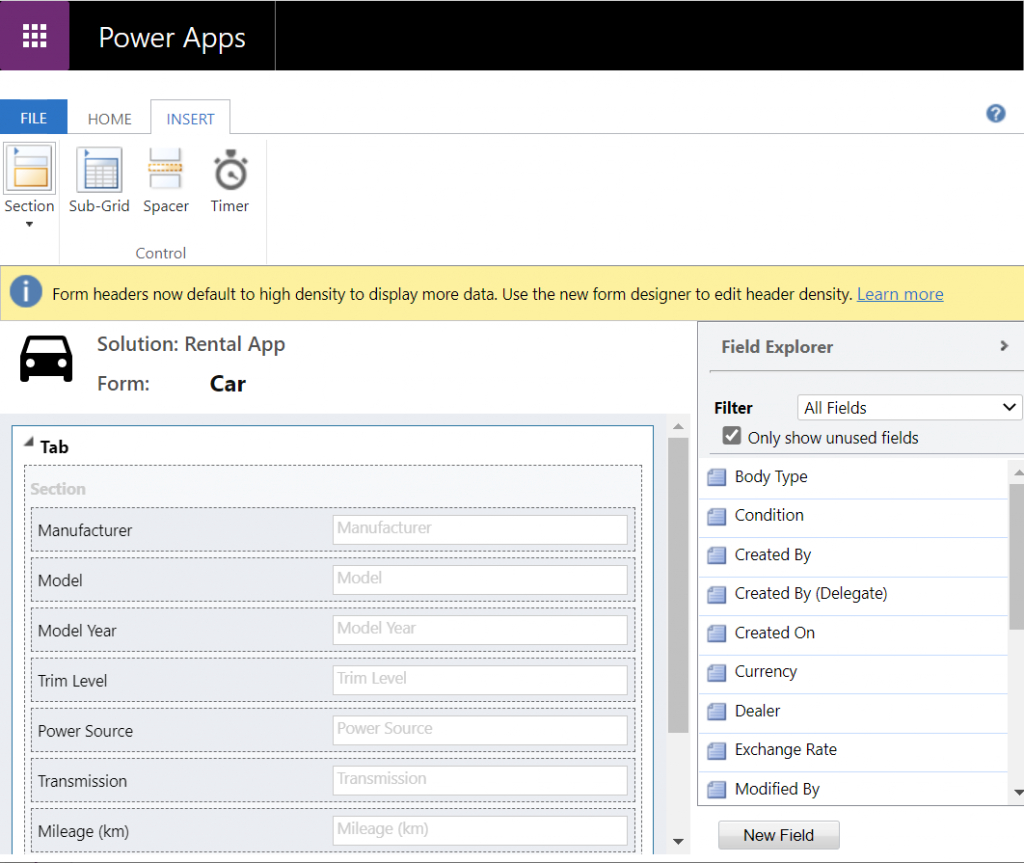
    Let’s add a Form Component Control onto our form and see how it works. Unlike with the Main Form Dialog feature discussed in part 1, this Form Component Control feature is unfortunately not yet available in the modern Power Apps form editor. So, we start with what we still need to do very often in the world of Model-driven apps, meaning hit the “Switch to classic” button to launch the classic Solution Explorer that dates back to CRM 2011.

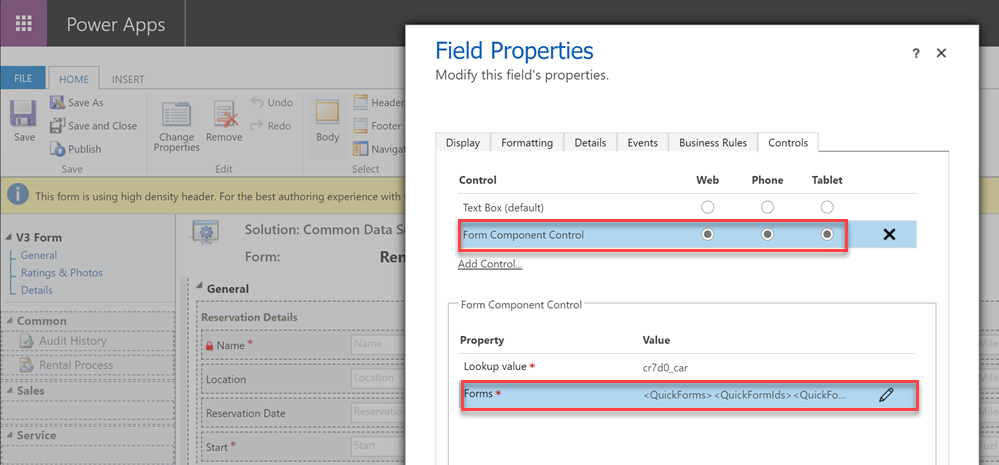
    On the form where we have a lookup field (in our case the Car lookup on the Rental form), let’s open its properties dialog, go to the Controls tab and click “Add control”. We can see the MS provided PCF control “Form Component Control” in there. Adding it and setting it to be the default control for our web client is easy, but the configuration requires some additional information that doesn’t have a graphical UI (maybe in the modern form editor then once this feature is supported there).

    See the MS documentation page for the detailed steps to take. In short, you’ll need an XML entry that contains the table name (entityname) and the form ID of the main form you want to show for the related table. My configuration looks like this:

    <QuickForms><QuickFormIds><QuickFormId entityname="cr7d0_car">2F3B241A-4E3F-4AE3-A26F-1AB7BF804636</QuickFormId></QuickFormIds></QuickForms>

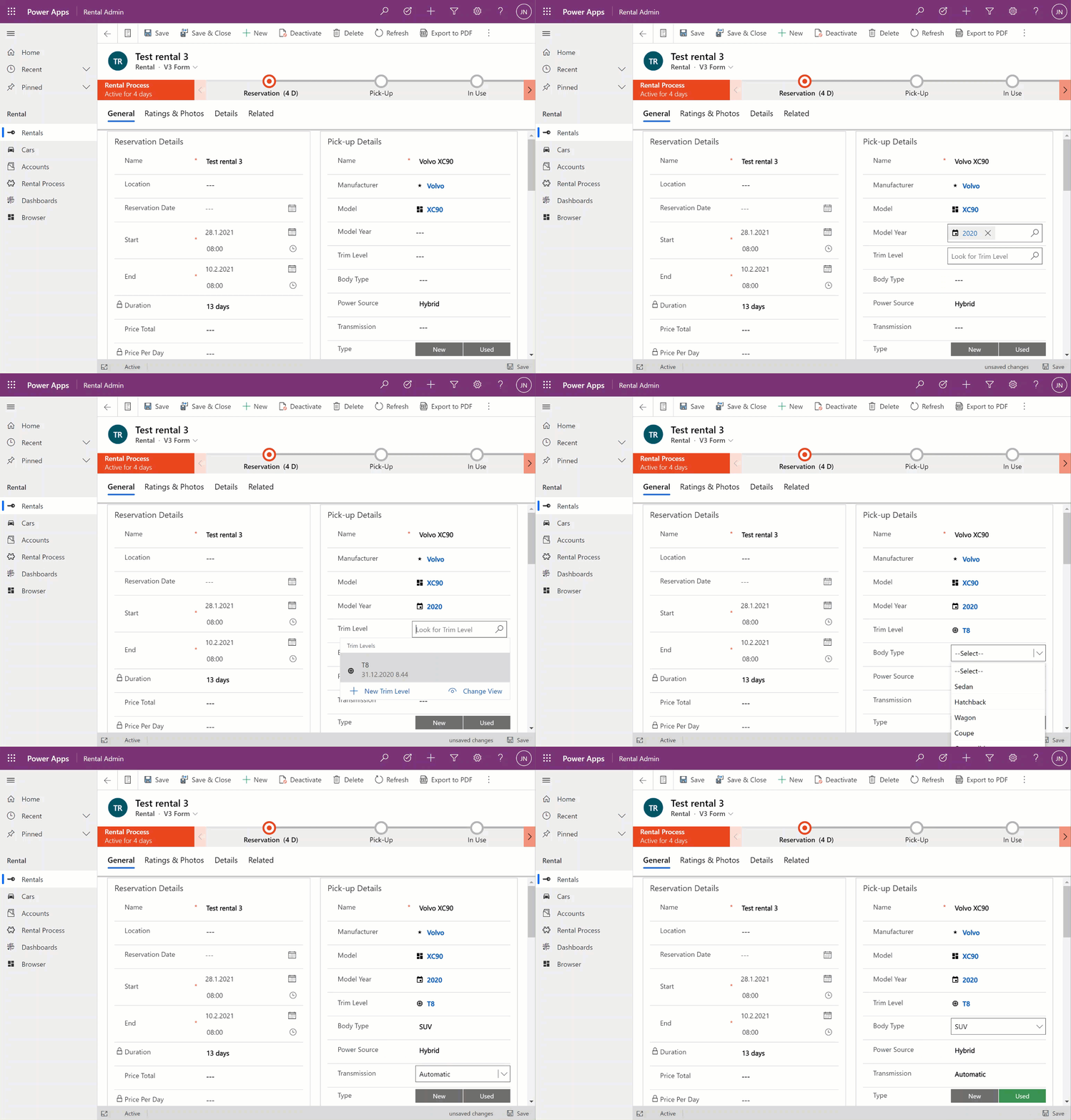
    Let’s publish the changes and go test out the experience of editing an existing Rental record where the Car record’s fields have been partially populated. On the place where I previously had the Quick View Form with its locked fields, there are now fields coming from the Car table form. Text fields, lookups, choice fields – they all work exactly the way they would if I was editing data that’s natively stored on the Rental record, rather than the related Car record.

    The save event happens as part of the hosting form, no additional tricks required. Field validation, notifications and error handling is also integrated, regardless of whether the business logic comes from the main form or the embedded form (details in the Docs).

    All in all, this works incredibly well from a user experience perspective in my initial tests. Even if you’re a Dynamics 365 or Power Apps professional you might not realize that the form actually blends two different tables into a single form.

    Main form rendering options via Form Component Control

    With the old Quick View Form feature, there was a separate form type you had to create for the table for this specific purpose. It was far more limited in contents and layout than the full table forms, which kind of made sense for the purposes of bringing a few key fields in read-only mode onto a the actual main form of a different table. QVF allowed single column only + no other useful controls than the subgrid:

    The Form Component Control knows no such boundaries. What you can use there are the existing or new main forms for any table. If you place them within a single narrow column on a multi-column form tab, then all of the form contents will be rendered within that column. Since the Unified Interface forms are inherently responsive by default (which is a big benefit compared to Canvas app screens), everything will just reflow into a layout that would resemble a phone screen – even if you’re viewing the form on a widescreen PC monitor.

    What about if we give the Form Component Control a bit more space than a 1/3 of a typical Model-driven table form? The reflow also works the other way around, meaning all of the available screen space will be used. If the area given to FCC can accommodate more columns and the source form has them, they’ll be rendered just like on the “native” viewing experience of that form.

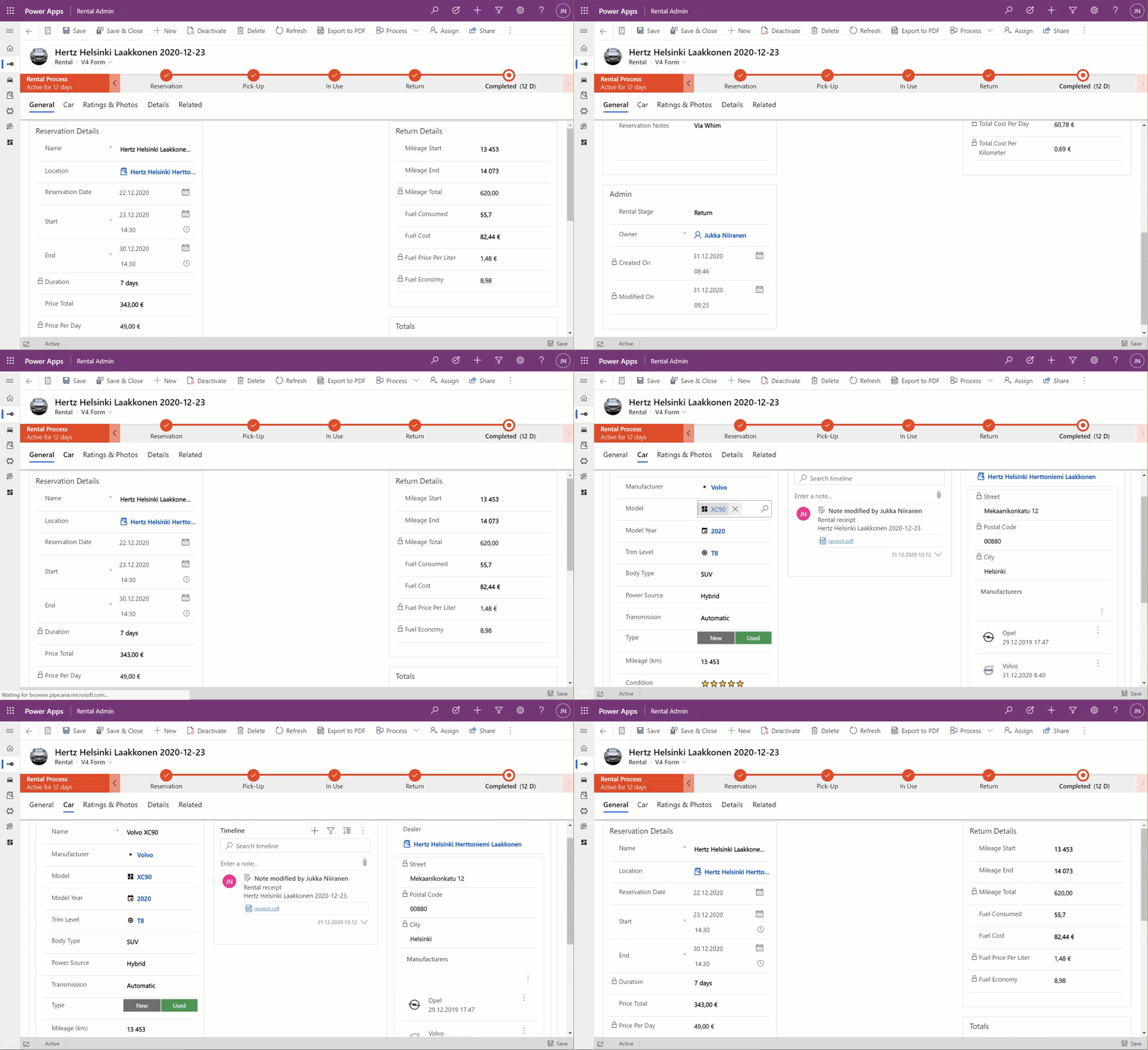
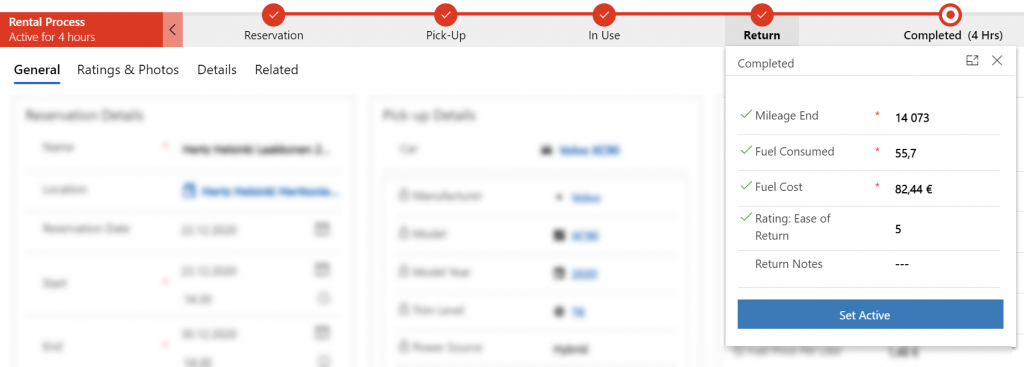
    Below is an example of an alternative form design for the Rental table. Instead of having the related Car shown in the middle of the first form tab, I’ve added a second form tab “Car” and dedicated all the space available in it to a single lookup field that has the FCC control enabled. You’ll see from the static Business Process Flow and the form header that we’re firmly on the Rental form all the time, but the second Car tab shows things like the Timeline for that car record (with a note), further tabs for the car’s Dealer, even a Quick View Form referencing the dealer account related to the Car record – all within on FCC control.

    This to me is just mind-blowing! We are reaching Inception level UX here, with the main forms embedded AND rendered as a full form tab within another form. I could be on the Rental record form, adding an activity via the Timeline control that’s actually linked to the parental Car record. Not the Rental record where the app navigation, form header, Command Bar and everything else visible on the screen is telling me I’m on. I’ve effectively built a form UI that defies the laws of nature I’ve come to expect from Model-driven apps.

    Sure, embedded Canvas apps could do some magic like this already earlier. The big difference is that the user interface of those screens could never match exactly that of a Model-driven app. With FCC there are no visual clues distracting the UX, as everything looks and feels like it’s part of the native experience where Microsoft owns and manages the visual side.

    What about record creation instead of edit?

    The one gap that exists in the inline editing story for Microsoft’s controls like the Editable Grid or this new Form Component Control is that there’s no possibility to use them for adding new rows into a table. They offer the edit experience, but no create experience. Sure, we have the Quick Create Forms feature available for contextual data entry, but it’s not really optimal. The user shouldn’t have to think about if they are editing existing entries or creating new ones. Yes, the difference between these concepts matters to the platform on a technical level. Still, unless there’s a valid business process requirement for making the data entry experience different for create and update scenarios, it’s something I’d prefer to eliminate from the UI.

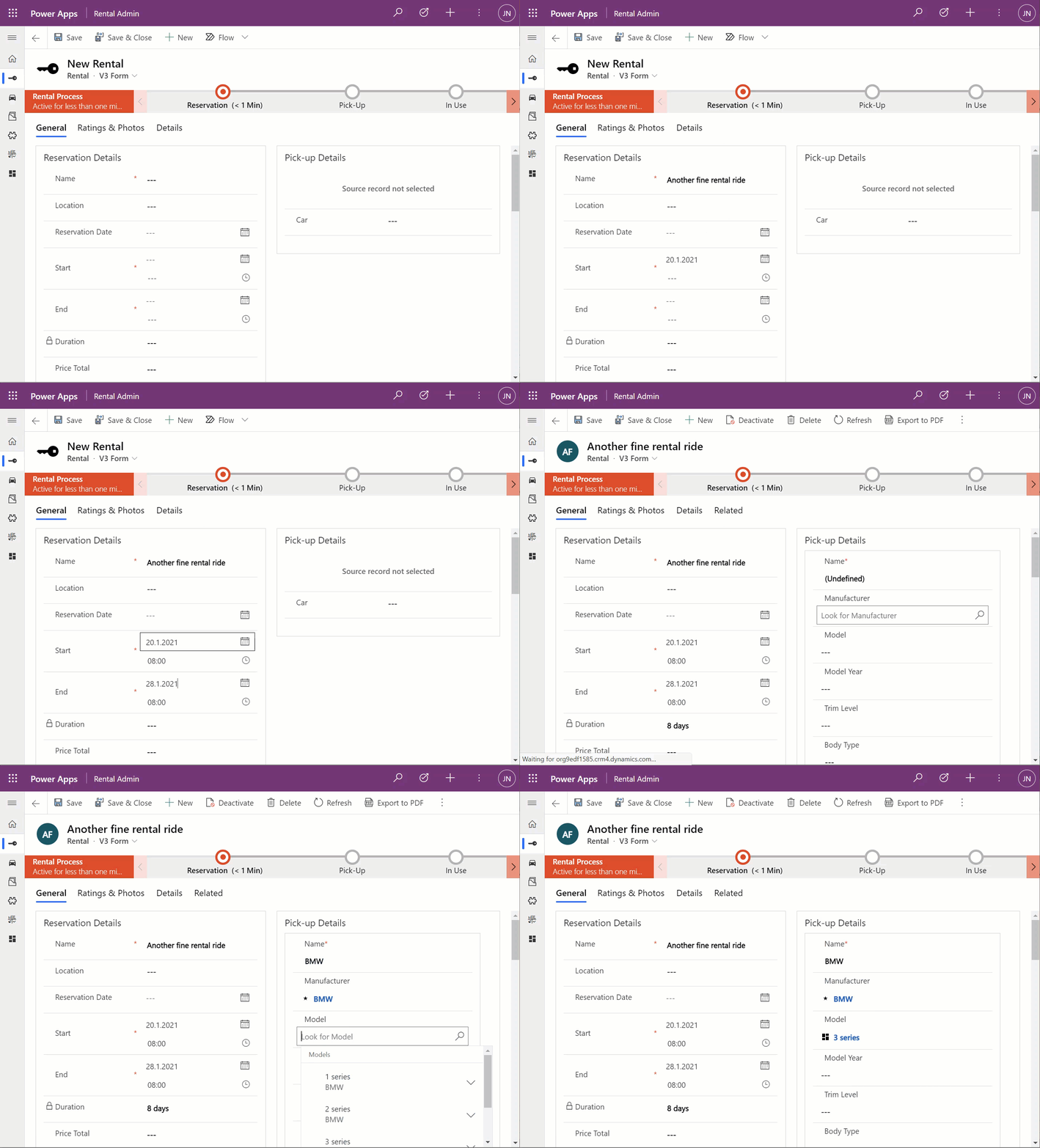
    When there’s a scenario where we essentially have a one-to-one relationship between tables (no “real” 1:1 relationship exists in Dataverse, but there are ways to fake it), one option would be to automatically create the related parental record behind the scenes. With this approach, at the moment when the user will proceed to entering data via the Form Component Control, the lookup field will already be populated and the experience will look pretty seamless:

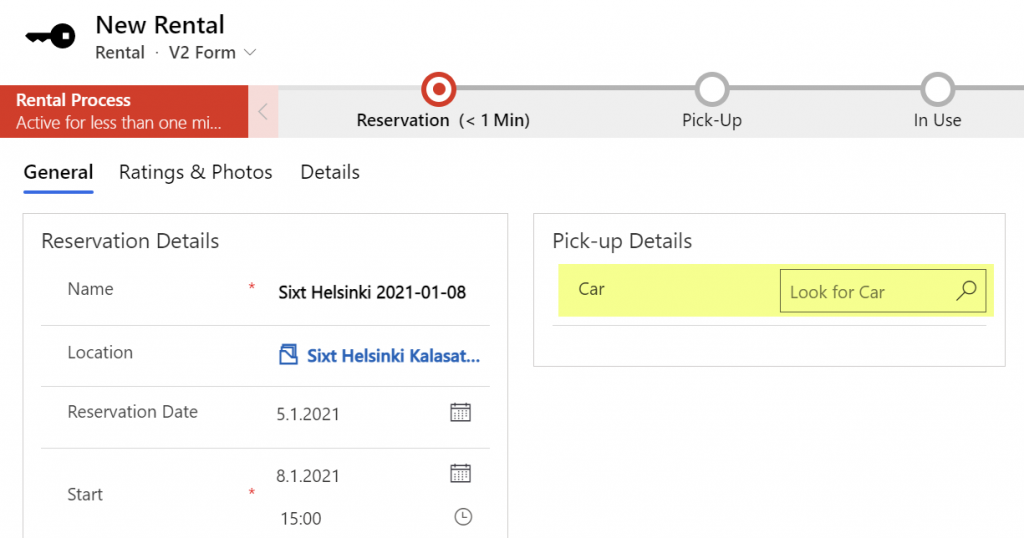
    What I’ve done here is to create a classic XRM workflow that runs in real-time, triggered by the create event of the Rental record. (Power Automate can’t do real-time yet, so it’s a no go for flow in this case.) The workflow will create a Car record with a placeholder name “(Undefined)” and link it to the Rental record. By the time the first save event for the new Rental record takes place, the FCC can then render the fields from this placeholder Car record on the Rental form.

    In the above example GIF animation you may also spot that the Car name changes transparently from “(Undefined)” to “BMW”, due to what has been selected in the Manufacturer field. This again is another real-time workflow that’s triggered by the update event of the Car record. The end user will not need to take any actions, it’s all just the native autosave feature of Model-driven apps that populates this name field while the user is still entering data into other fields further down the Car form.

    Considerations

    If the new Form Component Control gives us not just the read capabilities from Quick View Forms but also data edit support, then should we just stop using Quick View Forms altogether? Well, it certainly is a good question. Given that QVF dates back to the CRM 2013 era user interface technologies, FCC is much more in touch with how the modern Unified Interface client has been designed to work. It’s built using the Power Apps component framework (PCF) and should in theory be the most future proof choice for Model-driven app form design.

    One downside is that the use of FCC for the pure view scenario is a bit more laborious. If we indeed would want to prevent the user from updating values from the parental record while on the child form, then these fields would need to be set as read-only on the main form itself. Which brings us to the challenge that you’ll need to keep more forms visible in the Model-driven app, whereas classic QVF’s are hidden behind the scenes and only applied as the definition when rendering the main form on which they are used.

    The create scenario I talked about earlier is also a bit of challenge when analyzed deeper. If indeed the lookup from which the Form Component Control gets the related parental table record to show isn’t populated immediately, you’ll see a message saying “source record not selected”. In most cases that’s going to be quite a confusing message for the end user to encounter, given they are unlikely to have any idea about the forms magic and relational tables being used in to construct the app’s UI.

    “Couldn’t we just hide that control until it the lookup has data?” Well, I can’t think of a no-code way to achieve this. You see, the problem is that the FCC essentially is the same field as the lookup field. Sure, you can have multiple instances of it on the same Model-driven app form. But you can’t use Business Rules to say “hide this field if this other field is empty”, because they are the one and the same. Quick View Forms handle this scenario much better, so let’s hope Microsoft will improve the functionality in FCC to accommodate this create/hide scenario better in future releases.

    WE NEED TO GO DEEPER Inception

    This first public preview release of the Form Component Control has a few limitations that you should be aware of. For instance, you can’t show more than a single tab from the form being rendered via FCC, which isn’t really a big issue unless you really are building an Inception app to confuse the hell out of the classic CRM users at least. Similarly, you can’t have FCC’s within FCC’s, which blocks some crazy recursion scenarios.

  • Relational data on Model-driven forms, part 1: Main Form Dialog

    Relational data on Model-driven forms, part 1: Main Form Dialog

    Model-driven Power Apps are built on top of the relational data model of Microsoft Dataverse (formerly CDS). Planning how you split your business data into different tables is a crucial step in ensuring that your app’s user experience (UX) is optimal for the data entry, consumption and update tasks that the users will need to live with. This is because unlike with Canvas Power Apps, the data model defines much of the user interface behaviour as well.

    The key thing to keep in mind is that you’re not supposed to build the most normalized data model possible, where every concept in your business process is spun into its own little table. Yes, you do want to leverage the power of relationships (one-to-many, many-to-one, and on some rare occasions also many-to-many) to make the data more manageable than a single flat list structure would offer. No, you don’t want to make your users have to think about the Entity Relationship Diagram (ERD) of the system to know how to navigate within your app.

    Despite of the tight coupling of the data model and the UI, there are plenty of things you can configure on Model-driven forms to improve usability. I’ll be drilling into a few recent features that can make it easier to work with related tables from within a single form.

    The scenario: Rental Car app

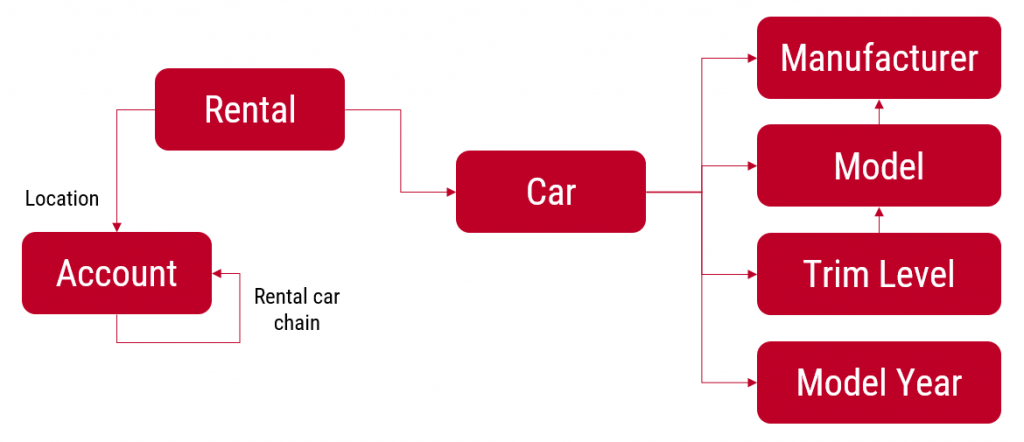
    I’ll be using an example app that I’ve built for my own purposes: Rental Car App. It contains functionality that allows me to track and analyze information about the rental cars that I use, by adding new Rental records for each reservation I make and then tracking the process all the way until the final invoice and related costs. At the heart of the app there’s the Rental table, which has relationships to both the rental car company information (Account table) as well as the Car table, which again links to a few supporting tables like Manufacturer and Model.

    The rental process stages are modelled via the Business Process Flow feature of Power Apps Model-driven apps. We start with 1) the reservation, then proceed to 2) pick-up at the chosen location, 3) use the car we’ve been given, 4) return it and 5) finalize the process upon ensuring we’ve captured all the required data and that the invoice was what we expected to pay.

    Each rental event will have one car associated with it. However, at the first step of the process, meaning reservation time, we won’t yet have any idea what specific vehicle that will be. (You’ll only know the ACRISS code that describes the level of the vehicle features, like “IWAR” for Intermediate, Wagon, Automatic, Air Conditioning.) Once we get to stage 2 of the process, the pick-up, we’ll be given a specific car that we can describe with properties like Manufacturer, Model, Model Year, Trim Level and so on.

    Car is the parent table of Rental, since there can only ever be a single vehicle for one rental event (for now, let’s ignore the possibility of the car breaking down and getting exchanged during the rental period). A single car will of course be used in many, many rental events. However, since the app user is the customer who’s consuming the rental service from different car rental companies, we won’t have the fleet of vehicles defined in advance for our database. The data entry of the car’s details is therefore always a step within the context of the rental process.

    So, we know that logically the car is a different type of object than the rental event, which is why it should have its own table. From a user experience perspective, though, filling in the details of the car should be just a similar task as describing the duration or price of the rental car reservation. Just a set of fields on the single form. Yet by default what the Model-driven app form will give us is a single lookup field to the related table’s car record, with the expectation that we’d go and work with the Car data on a different form than the Rental form where the rest of the details are.

    Despite of the underlying 1-to-N relationship in the data model, we can improve the user experience by leveraging a couple of neat features in Model-driven apps.

    Quick View Forms

    Model-driven Power Apps have evolved from the XRM platform that Microsoft first used for builing a CRM product of their own in 2003. Around seven years ago when Dynamics CRM 2013 was launched, it introduced this new and exciting “flat UI”. Before that, the experience of using CRM was often a maze of popup windows since opening a new record always gave you a new browser window you now had to juggle on your desktop.

    The boundaries of different entities (which is what tables were called for the first 17 years of the platform we now know as Dataverse) were therefore very tangible indeed. While form subgrids were launched in 2011 to offer some relief, it wasn’t until 2013 when we could start to make the users worry less about the data model and focus more on the business process and actual business data involved in it. A key element in this was the Quick View Form.

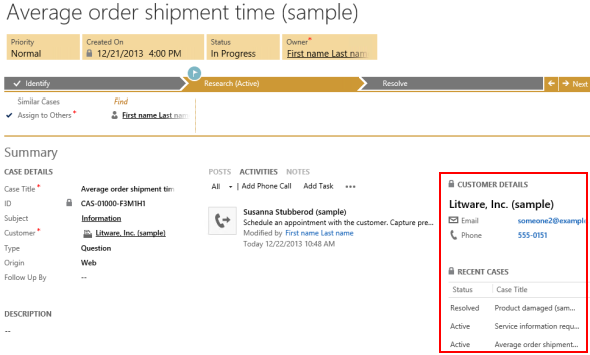
    Above is a screenshot from seven years ago of a case entity form that included data from not just the child entities like activities, but also from the parental record of the customer, via a Quick View Form. We can see the email and phone number of the customer, event though they are physically stored on the account entity. It’s not limited to just that N:1 data from “case:account” either, as we can reach down to N:1:N of “case:account:case” by showing all the related cases that this customer has recently opened with our support department.

    Quick View Forms were a seriously powerful feature back when they were released. I did some blogging to demonstrate the possibilities, like building a similar opportunity analytics feature that resembled (well, remotely at least) the concept of an ecommerce recommendation engine that shows “customers who bought this item also bought these other items”.

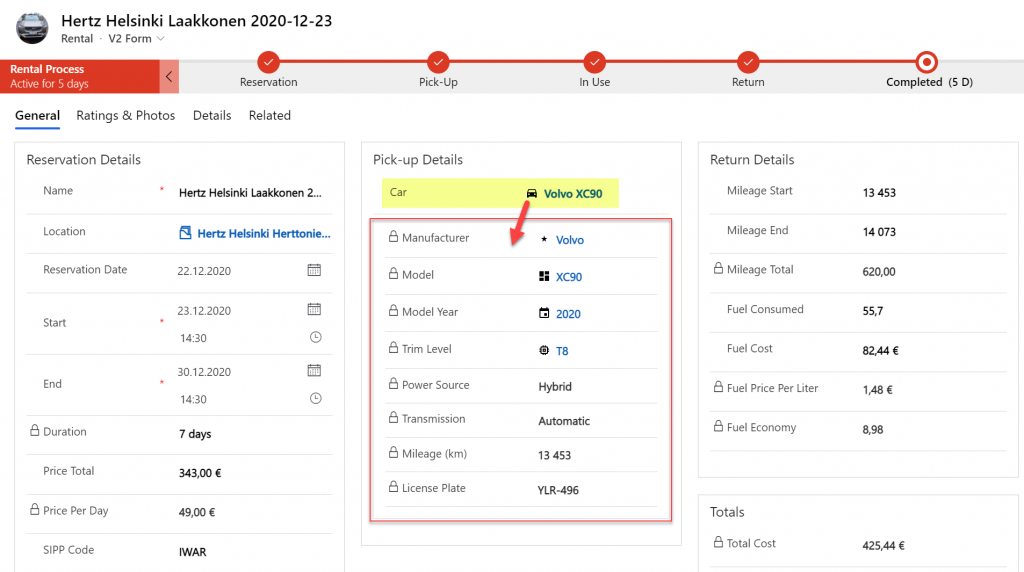
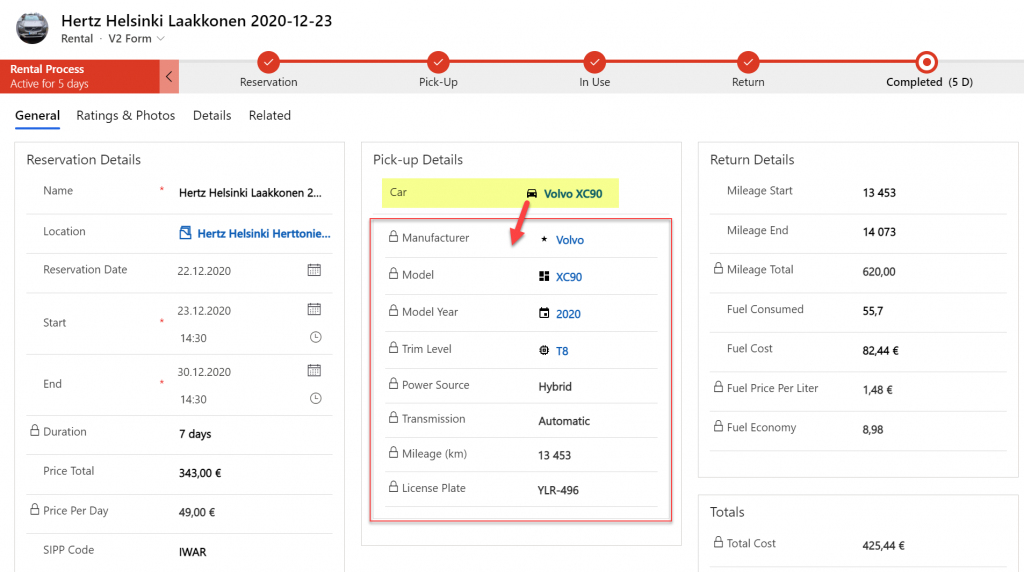
    The scenario in our Rental Car app is a lot more straightforward. We want to display the key properties of the Car record associated with the Rental record within the form that drives the rental process. By having a lookup field for Car on the form, this allows us to add a Quick View Form control to show the Car table fields embedded on the Rental table form:

    From this static screenshot it would seem like everything is in its right place and the user couldn’t be happier. Right? Well, the challenge here is that the Quick View Form really is just a view. It doesn’t allow editing any of the field values on the related parental table record, let alone creating new records. In short, it’s not as actionable as the data living natively in the Rental table.

    Main Form Dialog (MFD)

    A much more recent entrant into our Power Platform low-code toolkit for designing Model-driven application UI’s is the Main Form Dialog feature. What this allows you to do is to launch a modal window from the lookup field on a Model-driven app form. The user interface doesn’t actually move you fully away from the original record, rather it just renders the (Main) Form of the chosen record from a different table in a Dialog window. It’s not like the CRM 2011 era popup windows, since you remain within the same browser window/tab. Once you’re done with looking at the related record, clicking “X” will return you to exactly same state where you were before clicking in the lookup field. It’s not as jarring an experience as if you’d have fully navigated away from the original form.

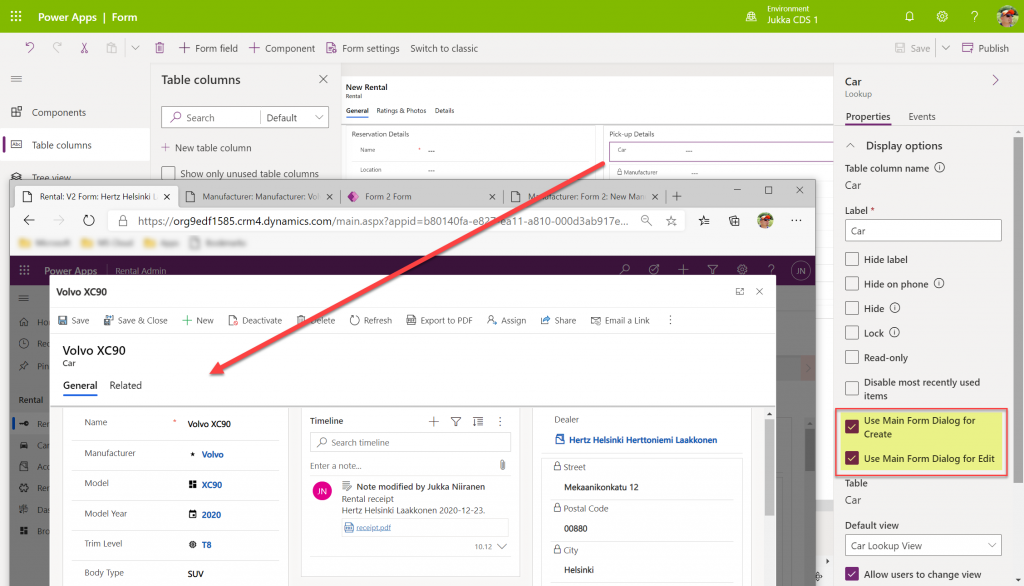
    Originally launched as part of 2020 Release Wave 1, the MFD feature was initially available only via the API. At this moment that is still what the documentation says, but I recently discovered that the modern Power Apps form designer now has graphical tools to configure this feature:

    When selecting a lookup field in the form editor, the properties dialog on the right now contains new options to check:

    • Use Main Form Dialog for Create
    • Use Main Form Dialog for Edit

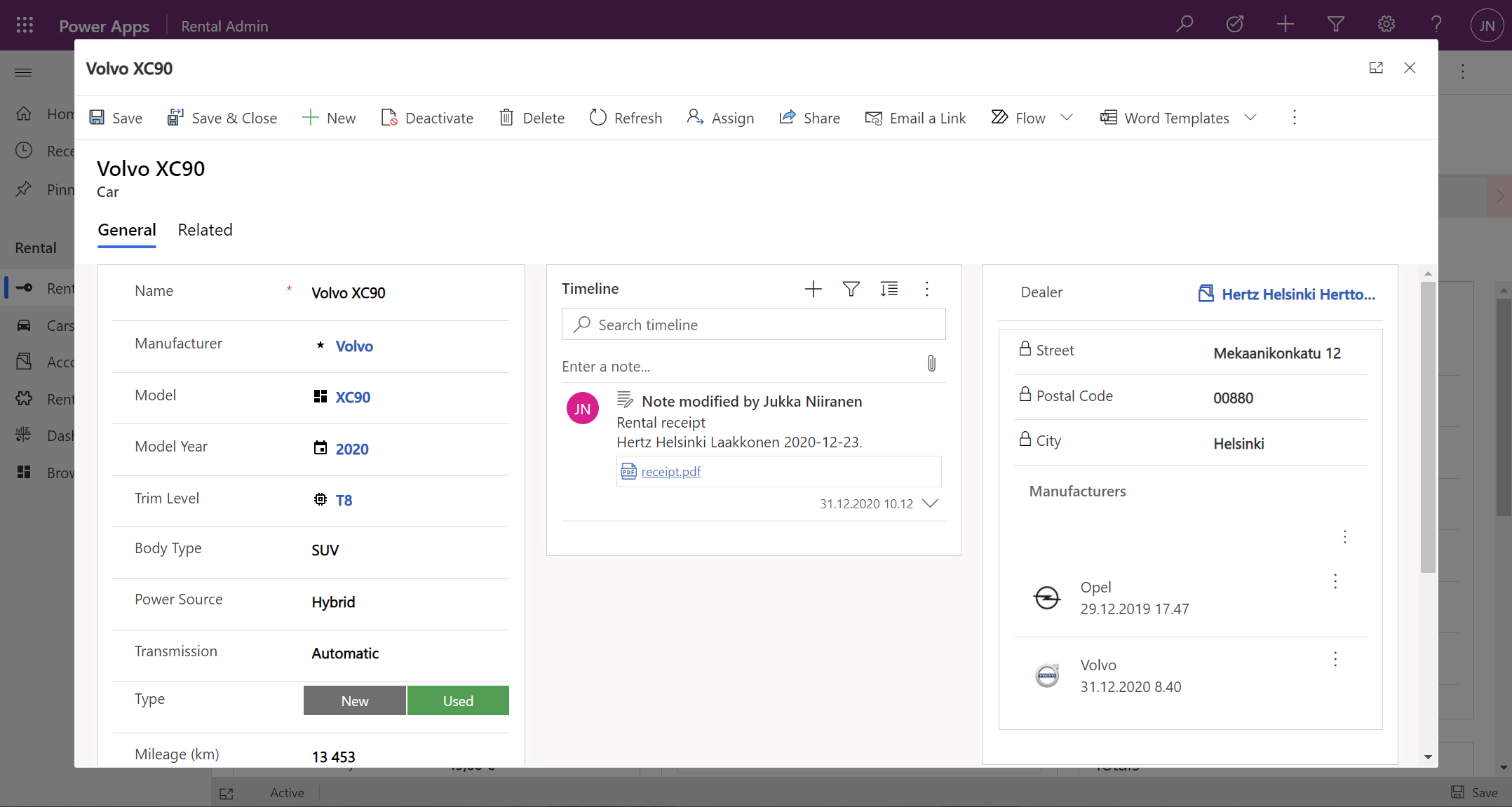
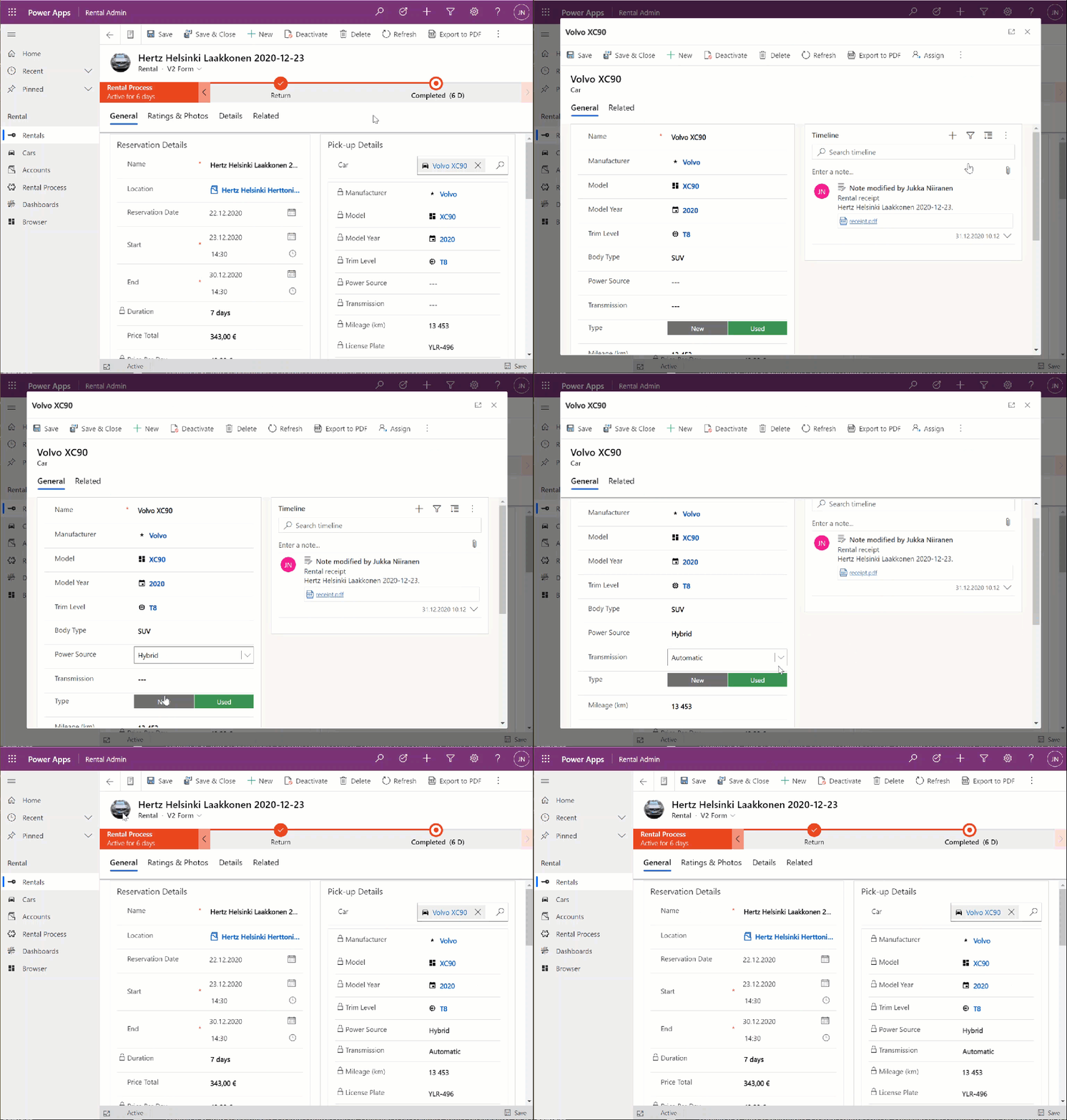
    Oh yeah! We now have the power to keep the users from unintentionally navigating away from the “home” form that acts as the anchor for all relevant details concerning the business process. In the rental car example, the user can now safely click on the Car lookup, examine the available options for properties of the car, change the values, click “Save & Close”, then end up right back to where he or she started from:

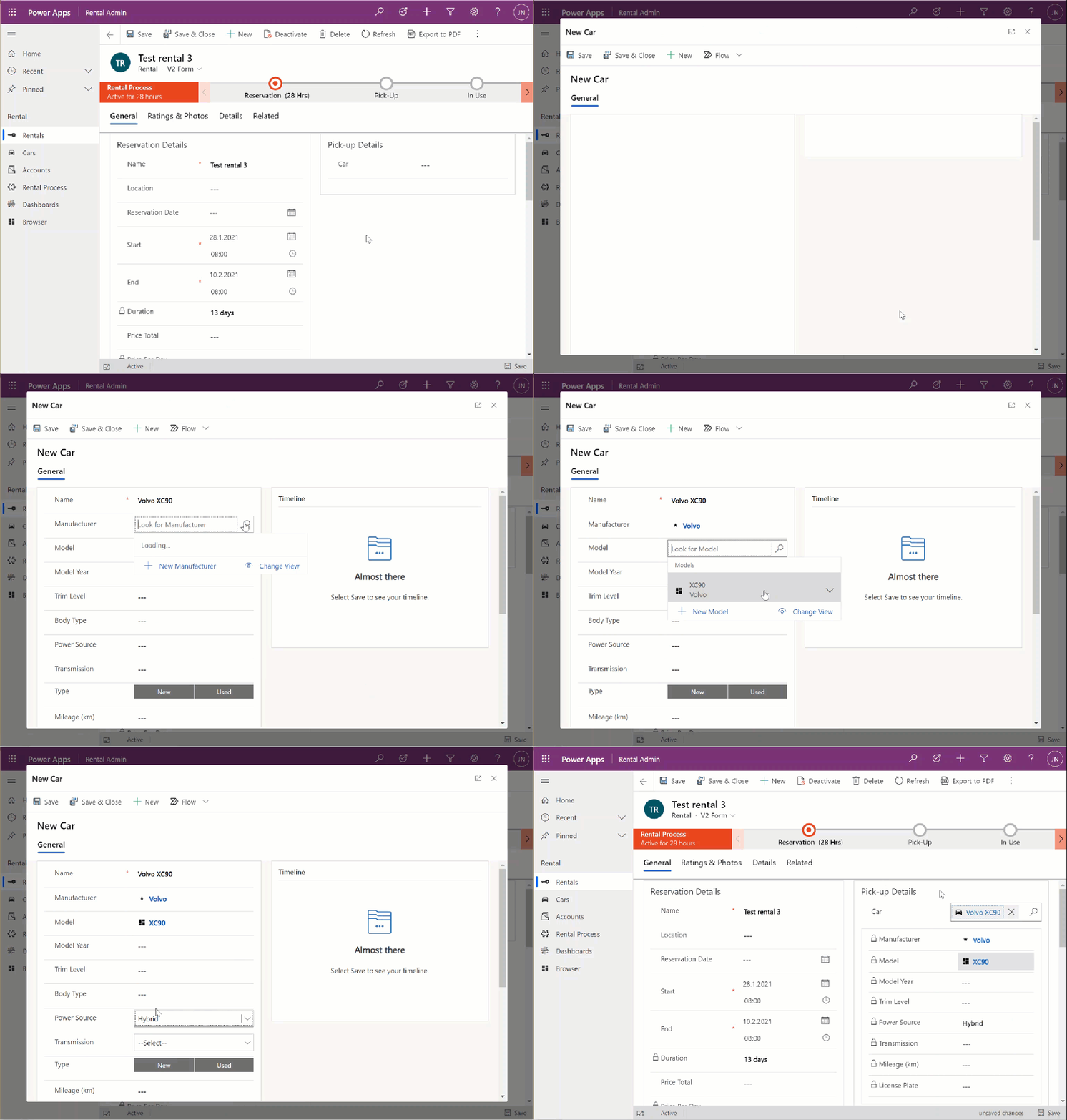
    This also works for the experience of adding a new car record. Instead of having to offer a separate Quick Create Form experience for this step that would behave differently from any other occasion where the user interacts with car data, we can launch the full record form in the Main Form Dialog:

    The key benefit with this modal window approach is that there’s almost zero chance of the user wondering into the wrong menu or page of the application after they’re done with creating, editing or just viewing the related record. There is no visible page load that would change the mental context away from the primary record, in this case the Rental event.

    Considerations

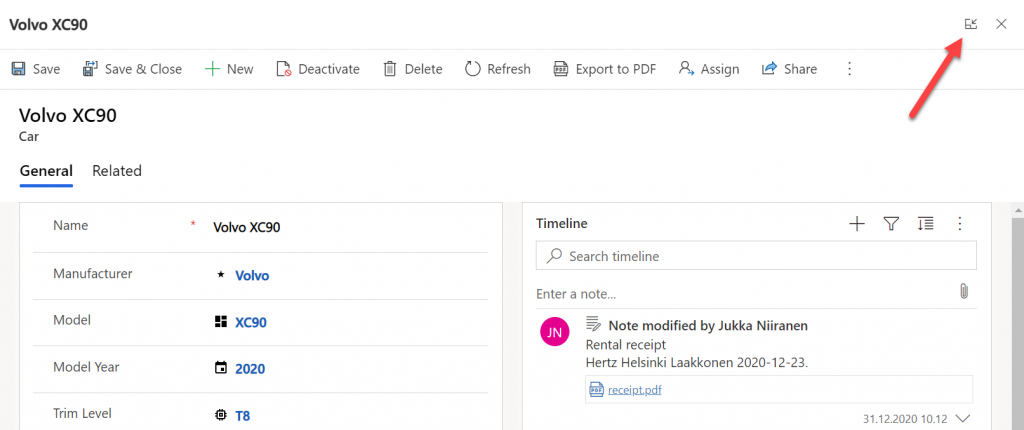
    Should you enable the Main Form Dialog feature now on all your lookup fields? Probably not. There will be times when the user may prefer to actually move along in the process and change the context to the parental record. There is no navigation path available in MFD that would support this context change. The user has the option to launch the dialog in full screen mode, but that just expands it to cover the whole screen, rather than doing a page load that would change the navigation position in the sitemap.

    There is currently no way to select which form specifically should be opened in MFD. Presumably the form will be determined by the table’s main form order, as well as the specific form the particular user has last viewed. Depending on the number of scenarios where the same table is leveraged, the forms shown by MFD can therefore be unnecessarily complex for the task at hand.

    In part 2 I will explore the possibilities of how we can streamline this process even further and make the experience of working with related parental table data almost transparent to the user. We’ll be leveraging the brand new Form Component Control to essentially combine the features from the earlier Quick View Forms and Main Form Dialogs.

  • Year 2020 in Microsoft Business Applications

    Year 2020 in Microsoft Business Applications

    Recently I had the privilege to make my sixth appearance in the CRM Rocks podcast run by Markus Erlandsson. Between our first session back in October 2013 and today, the world of CRM has certainly gone through a lot of interesting events. It’s amazing that out of those ~2600 days in between, there are now more days when a product named “Dynamics CRM” has NOT existed than it has.

    CRM of course still is very much a “thing” – it just isn’t the center of the Business Applications universe anymore. In our podcast with Markus we talked about the broader scope of what has happened with both the first-party Dynamics 365 applications as well as the Power Platform in the year 2020. Put on your headphones and listen to the CRM Rocks episode right here.

    The topics in the podcast also tie in nicely with another tradition of mine, which is writing these end of the year retrospectives about the top 3 topics that I’ve found to be most interesting or impactful for our ecosystem. Before we get started with the fourth edition in this series, let’s quickly check back on what themes I picked out last year at the end of 2019. They were: 1) low-code movement, 2) licensing confusion, 3) data story evolved.

    All fairly hot topics still today – which is of course the reason why I emphasized their importance one year ago. Now for 2020, this time I’ll keep you on the edge of your seat by introducing the top 3 in reverse order. Hold on tight, here we go!

    Nr. 3 from 2020: Renaming frenzy

    We all know that Microsoft loves updating not just their software but also the terminology used for referring to these products. CRM is of course a prime example of this. Microsoft’s isn’t always “following the money” by sticking to industry standard names, rather they prefer to reimagine the categories in which their technology can be used for solving new business problems.

    In 2020 we saw the iconic Office 365 brand get removed from the official vocabulary of Microsoft’s list of products available for purchase. Like with CRM, the actual technology and the customer use cases for the products didn’t see any major overhaul overnight. Previously there were SKUs in the price list branded Office 365 and Microsoft 365, which caused confusion for the customers, according to Microsoft’s own branding change announcement. Luckily now everything is crystal clear and no one will be talking about Office 365 in the year 2021 anymore. (Right?)

    While Offi… sorry, I mean Microsoft 365, is a mainstream product used by pretty much all customers in the MS Cloud, its rebranding in Spring 2020 turned out to be just a warm up for the real main event of 2020 that took place in July. I’m of course talking about the rise and fall of Microsoft Dataflex. In may have only lasted for exactly 3 weeks but the Dataflex era will surely be remembered as the crazy days of software branding.

    Luckily the Dataflex saga started in the middle of the year, which means we were able to catch the season finale before 2020 ended. The revised names of “Microsoft Dataverse” and “Microsoft Dataverse for Teams” were revealed in the GA launch of what used to be codename Project Oakdale. These names have persisted for six weeks already without changes, so they seem to be the real deal now.

    Following along the path travelled by CRM and XRM earlier, the three letter acronym of CDS is therefore now officially deprecated. What were perhaps more shocking casualties of the year 2020 were the terms “entity”, “field”, “record”, “option set” and “two options”. (I’m not counting “multi select option sets” in this list since everyone who’s had to deal with them probably hated them already, so good riddance.)

    As for how many adjustments there were to products in the Dynamics 365 family, I honestly can’t even tell. The fact that I needed to do a dedicated “why MS product naming is complex” type of a blog post to analyze the phenomena should be firm enough evidence that the renaming frenzy definitely was one of the top themes of 2020.

    Nr. 2 from 2020: Power Platform licensing complexity growth

    Measured by my own articles and the comments I’ve been hearing, there seems to be no end to how much headache the licensing of different Power Platform components is causing to people. Even though most of the last major changes to the licensing model were actually introduced already in 2019, I think the impact from them has only now started to hit home with a lot of the technical folks when trying to apply the new rules in real life scenarios.

    Earlier in the year there was a lot of fuss around the coming technical enforcement of access rights on the app module level. The immediate attention was of course on the arrival of Dynamics 365 Team Member licensing enforcement and the targeted app modules offered by MS while they would be blocking all other standard and custom apps. This was supposed to take place already on April 1st, but then COVID-19 came around and the deadline was pushed to January 31, 2021.

    We did still see a growing number of technical limitations implemented to keep customers in compliance with the licensing terms while using MS cloud services. The CDS Dataverse storage capacity in particular became a big practical blocker for customers wanting to leverage multiple Power Platform environments to some ALM practices for their low-code apps.

    While storage consumption is already enforced today, the big question on every developer’s mind (well, at least those who follow what the Power Platform community talks about) must be the API call limits. We’ve been getting a few bits & pieces of information here & there from MS about how they actually plan to keep track of the API quota for different operation types, but no definitive guide exists today. The eventual enforcement of these rules could potentially lead into future troubleshooting patterns where we could replace “DNS” with “licensing” in this popular meme:

    In the year 2020 I wrote in total 9 blog posts on the topic of Microsoft Business Applications licensing – including a 4 part series on the various sources of complexity in licensing. As for Microsoft, during the year 2020 they didn’t manage to launch the licensing consumption metrics dashboard that has been promised for Power Platform Admin Center ever since the October 2019 licensing model came into effect (on paper). With all these factors combined, licensing complexity in my eyes earns again a place in the 2020 Top 3 themes, just like it did in 2019. Let’s see if in 2021 things will settle down a bit and we’ll finally gain more confidence in understanding and managing the licensing costs of solutions built on top of Power Platform.

    Nr. 1 from 2020: Microsoft Teams as a platform

    There’s not a single doubt about what the year 2020 will be remembered for on a global scale. The total impact from the COVID-19 pandemic reaches far beyond the mere side effect that it had on us information workers, with everyone being forced to join the #WFH trend and getting used to all of our work being remote work. Still, that is the most immediately and easily observable part of what the virus did to us. As a result, for pretty much anyone working in the MS ecosystem, 2020 became the year of Teams, Teams and a whole lot more Teams.

    Working from home proved to information centric businesses that a surprisingly high percentage of those processes that weren’t fully digital before COVID-19 struck could actually be turned into such when no other option was given. While this will give a major boost to future digital transformation investments for sure, it also demonstrated how little new tech was actually need at the end of the day to make the typical business processes work without any sort of physical encounter. Already with our collaboration tools of 2020 and the low-code application platforms of 2020, many teams have learned to creatively solve their problems and get the job done. No massive multi-year initiatives and agile software development projects with big budgets were needed to reach “good enough for now”.

    In 2019 Microsoft started promoting Power Platform as “the platform for every developer” by addressing the pro developer audience on the benefits they could reap from adopting low-code tools as part of their app development toolkit. In 2020 it was time to address a much wider audience of power users, by promoting Microsoft Teams as a platform for the apps they could be creating for themselves, for their teams, or for their entire organization.

    Power Platform as a whole has managed to reach 1o million monthly users, based on the latest Microsoft FY21 Q1 earnings call. While that’s an impressive figure, it’s nothing compared to the 115 million daily active users that Microsoft Teams has. In my own analysis on this Teams as a Platform motion, I wrote about how Teams is gradually transforming into the next Windows:

    Teams is now the closest thing that Microsoft has at its disposal to transform into an OS style fabric that connects a significant share of information workers globally.

    By bundling the basic Dataverse functionality inside Microsoft Teams both in technical and licensing terms, I’d say we’re seeing the low-code equivalent of what the Internet Explorer + Windows bundle represented back in the early days of the commercial usage of the web. It will be pretty tough for the competing vendors to find their way inside any existing corporate IT infrastructure on the same breadth as what Teams has already achieved.

    Teams of course was delivered there as part of the licensing payload of Office 365, which lead to competing workplace messaging platform Slack to file an antitrust complaint against Microsoft in the EU in July 2020. Later in December when the business app platform vendor Salesforce acquired Slack and announced it plans to use it to “create the operating system for the new way to work”, this kind of validated the strategy that MS had followed with Teams all along.

    The way I see it, Business Applications will increasingly be presented within the context of where the work actually gets done. They will become more targeted for the specific user groups and use cases that may well be unique to every organization. The complex ERP style systems of record will still exist behind the scenes, to orchestrate how work gets assigned, scheduled and invoiced. For the actual end user experience of interacting with these work processes, though, it will likely be closer to just using an app inside Teams than what is required operating the complex UIs of traditional enterprise applications. This is why the biggest theme of 2020 in Microsoft Business Applications has to be the concept of Teams as a key layer in the application platform story.

  • How naming works in the Power Platform universe

    How naming works in the Power Platform universe

    After the peculiar episode in July-August timeframe when Microsoft first tried to rebrand the Common Data Service and had to later cancel their plans, we’ve been eagerly awaiting to hear what they are actually going to call CDS from now on. Yesterday the Teams based features known as Project Oakdale finally went GA and now we know the answer. I won’t focus here on the actual features, but you can read my thoughts on them from the Forward Forever team’s blog:

    Hello Microsoft Dataverse

    The mapping of the old & new names is quite straightforward:

    • CDS = Dataverse
    • Project Oakdale a.k.a. “CDS Lite” = Dataverse for Teams

    Not all that different from their initial plans of using the name “Dataflex”, which didn’t go through since the owner of that trademark considered it to be an infringement and sued MS. Is the name “Dataverse” unique then? Not entirely, as there appears to be at least the Harvard Dataverse out there. Luckily it’s not as directly related to low-code application development platforms as the DataFlex that caused grief the last time.

    Just because there are other existing products out there in the IT space that use a particular word, this doesn’t mean new products would never appear in the market with the same name. As an example, last month a service called Microsoft Clarity was made Generally Available. Is “Clarity” a brand name that isn’t used by any other IT product? Of course it isn’t. The first thing that comes to my mind is Clarity PPM project & portfolio management software, but search engines will reveal many others. Heck even MS has acquired a BI software company called ProClarity back in 2006.

    That’s just how it goes in the real world. Coming up with a name that hasn’t ever been used before yet also means something is not an easy task. If instead of a Globally Unique ID you’re aiming for a product name that actually contains some hints about what the product does, then your choices will always be limited.

    Ah, the Choice / Choices in life…

    Which brings us to:

    Terminology updates inside the Dataverse

    Not only does the name of the technolgy itself change from CDS to Dataverse, there have been a number of terminology updates to the foundational concepts of the data platform:

    • Entity > Table
    • Field / Attribute > Column
    • Record > Row
    • Option set / Picklist > Choice
    • Multi select option set > Choices
    • Two options > Yes/No

    For a quick explanation about the scope of changes, see this short video by David Yack:

    I bet this is a bigger change for many of the professionals in Power Platform and Dynamics 365 area than the new Dataverse brand. We’ve been talking about entities ever since the birth of MS CRM and now all of a sudden the idea of “entities are much, MUCH more than a mere database table” should be replaced with “fine, they are tables”.

    Why are these changes necessary then? Largely for the same reasons why a more approachable name was needed for CDS: the target group for this technology is no longer the same – it is considerably broader. Microsoft doesn’t want the platform to be an exclusive club for those who thoroughly understand the business process management and data modeling techniques offered by their products, sometimes only after having gone through training courses and technical certifications. No, this needs to be something a power user that’s equipped with nothing more than a Microsoft Teams license can quickly figure out on their own.

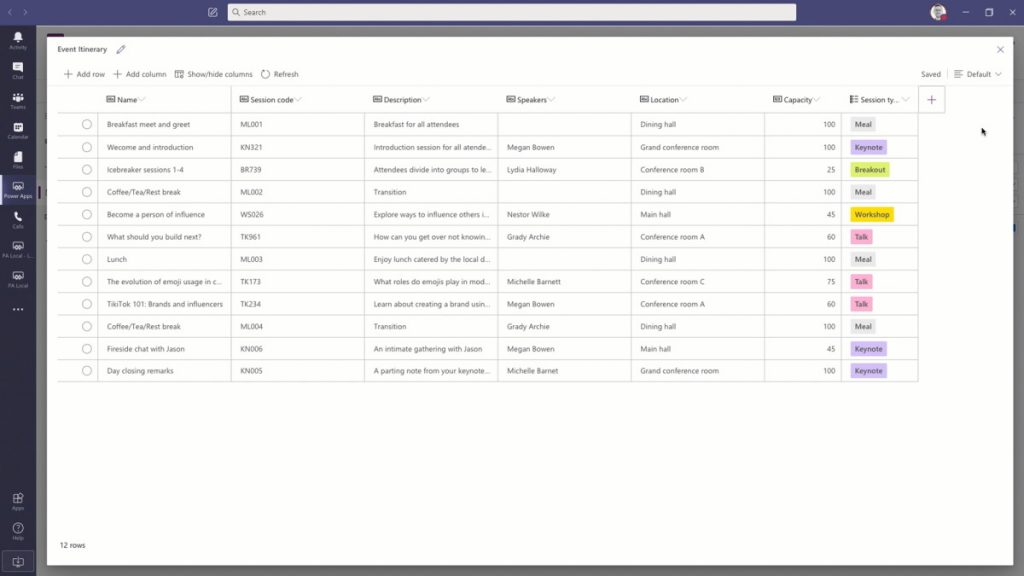
    The path towards Teams as a platform brings more changes than just new names for familiar things. Previously the data model construction was a back-end task handled largely separately from configuring the app’s front-end. With Dataverse for Teams and later presumably in other UI’s, too, the interactive table editor supports both data model design and data entry all in one – much like a pre-built app á la Microsoft Lists does today. It doesn’t remove all the other functionality of entities in the underlying relationship management system, but it makes these optional at the start. You could just build a table like in Excel or Access, then later take it further as the app requirements become better defined.

    For those who have mastered the earlier XRM universe, the simplification of the terminology that was very specific and accurate to what the platform does may feel like a slap in the face. How can Microsoft tell us that we should pretend that it’s just a database table when we know the reality as well as the history? There isn’t much of an upside for these technical professionals in the new naming – at least if they don’t need to interact much with business users unfamiliar with the core concepts of CDS.

    We’ll get over it, though. Developers and even many no-code customizers will probably hold on to the entity/field terminology for quite a while – especially when on the API level everything the terms are not expected to change (at least for now). Having this dual reality of tables and entities isn’t going to present a huge cognitive challenge for those who’ve been with the platform for a longer time. The old content from pre-Dataverse era may cause confusion for the newbies, but we’ve already been through the merger of Power Apps & XRM a short while ago, which had a much more profound impact on the names of concepts in the platform. This too shall pass.

    While it may not be of much consolation, there’s one thing that we know won’t change: this changing of product and feature names isn’t ever going to stop.

    Why is this naming thing so hard in BizApps?

    I’m not going to write a four-part series on the product naming complexity just yet (like I did on the complexity of Power Platform licensing). Let’s try and keep it within this blog post for now. So, here are four reasons that make naming especially tricky in the context of Microsoft Business Applications are:

    1. Ambiguity
    2. Hierarchy of concepts
    3. Shifting product boundaries
    4. Marketing goals vs. market needs

    1. Ambiguity

    In a universe as broad as Power Platform, there can easily be overlap in naming elements of that platform that serve different purposes but really should have a fairly generic name. As an example, “a Power Apps portal” and “the Power Apps portal” are 2 different things. Excuse me, what?!? Yes, it’s all in the documentation. Power Apps portals are one of types of apps you can build, whereas the Power Apps portal is the place to create new tables and columns. People tend to refer to the latter one as the Maker Portal thanks to its URL, but it’s good to keep in mind that URLs in Power Platform do also change occasionally.

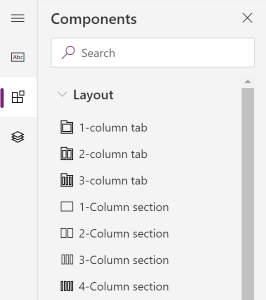
    Layout components

    This is why we now have Model-driven app forms which use the word “column” for both describing a field on a form as well as the number of adjacent containers within a tab or section. The original intentions for using easy and generic terms can sometimes create confusing results. If not in their native English language then most probably somewhere down the line when the terms get localized to a multitude of different languages.

    2. Hierarchy of concepts

    You won’t always have a clear view of what individual products and technologies will eventually be needed when pursuing a particular vision. Thinking about what CDS was called initially, it wasn’t a separate “thing”. It was embedded within the Common Data Model concept introduced in 2016. It took a year for this vision to evolve to a level where the actual data platform functionality operated by Microsoft was named Common Data Service and the earlier CDM term was dedicated to the idea of a shared schema across business apps from different vendors. It’s easy to see these should be 2 different things, but finding the right way to put them out there took a few iterations.

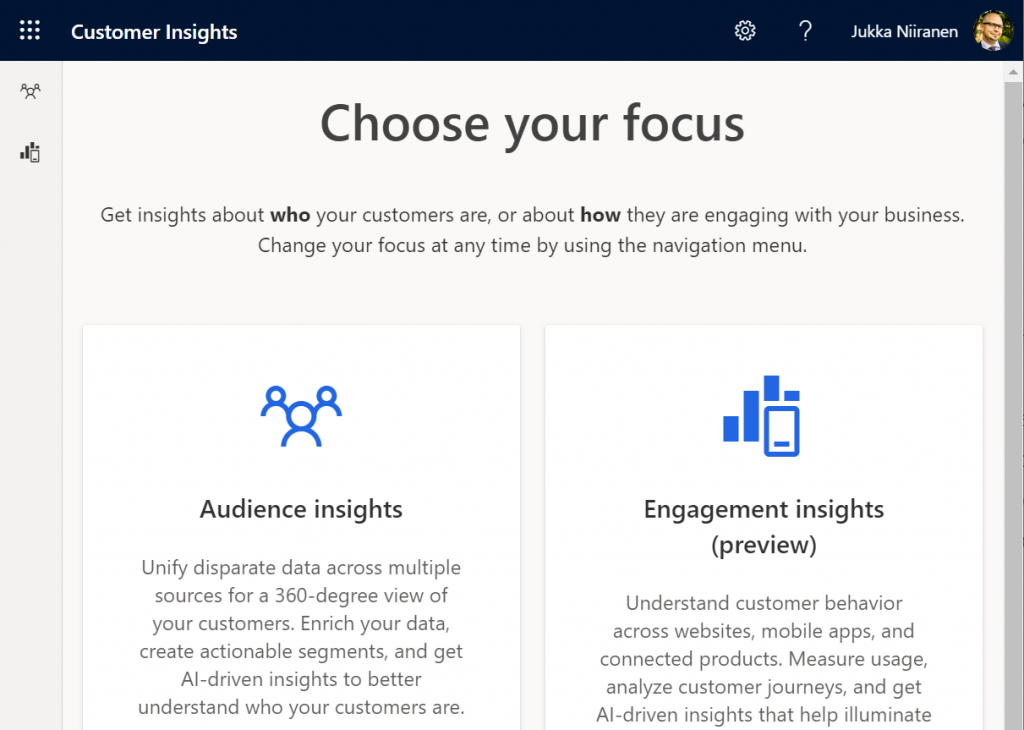
    Another example where things are a bit further already when a the need for redefining the terminology arises is Customer Insights. Microsoft has been shouting a lot about the booming demand for their Customer Data Platform solution (CDP, a generic term like CRM). Recently they’ve had to reshuffle the Insights deck of cards to ensure the gameplay works smoothly, so a hierarchy like this has been introduced:

    • Customer Insights: the top level concept of Microsoft’s CDP
      • Audience Insights: the features that were initially called Customer Insights, now referred to merely as a “capability” of CI.
      • Engagement Insights: announced originally as an independent product called Product Insights, now in preview as another capability of CI

    3. Shifting product boundaries

    Microsoft today excels in understanding the importance of their technology stack. You could also call it the platform approach in this context, but the point remains the same. Their products rarely get developed in isolation these days, rather there is (at least seemingly) a big push for combining elements of existing services to create new products. The problem is, though, that this game of connecting the dots isn’t ever really over.

    Survey feedback management was first brought into the Business Applications portfolio via acquiring an ISV product called Mojo Surveys that had been built on the XRM platform. After some rearchitecting and rebranding it was launched as Microsoft Voice of the Customer (VoC). The capabilities for the survey form design were quite lacking compared to the simplified UX in Microsoft Forms that had been developed internally on the Office 365 side of the house. Instead of retrofitting the form designer into VoC, MS decided to take CDS as the process and data management engine to give birth to a more structured feedback management tool, called Forms Pro. VoC was then deprecated and customers were asked to migrate to Forms Pro instead.

    In this process the technical capability of feedback management had hopped over the fence from the Dynamics side to the Office side. This was somewhat problematic from a business perspective, as well as causing confusion between the non-Pro and Pro usage of Forms. So, Microsoft ended up doing a further reimagining of EFM and rebranded Forms Pro to Dynamics 365 Customer Voice, bringing it back to the BizApps side where it started from.

    Returning to the previous example, before we had Dynamics 365 Customer Insights, the product names Microsoft used for referring to the same concept included “Cortana Intelligence Customer Insights” and “Azure Customer Insights”. The earlier Azure products that were offered in preview had to be scrapped and rebuilt as a Dynamics 365 product to finally see the GA milestone. Today it makes far more sense to have these type of packaged AI capabilities in the BizApps portfolio than in the Azure service catalog, but it wasn’t always obvious – especially back when Dynamics was just about CRM and ERP.

    4. Marketing goals vs. market needs

    Product marketing at Microsoft is in an endless pursuit of finding the best story that can sell customers a shiny new vision of what results they could achieve – if they choose the right technology from MS. Making a single purchase isn’t enough. You have to get the customers hooked on buying more from you, which leads to the invention of new things to sell. It’s easy to understand the incentives that lead to such actions, but they can sometimes end up irritating the customer who’s already made a purchase based on their own understanding of their needs.

    When Microsoft decided in 2016 that it would no longer sell a product called CRM, you could argue that their vision for tearing down the traditional CRM and ERP silos was logically a goal worth pursuing. The side effect from this product marketing goal was that when Microsoft took away the name “CRM”, they didn’t give anything new to replace it with. Reluctantly the Customer Engagement name was introduced a bit later, only to be quietly discontinued.

    The CRM systems that customers had deployed didn’t disappear anywhere of course. Companies offering professional services around them first struggled in migrating from Dynamics CRM consulting to Dynamics 365 CE consulting, and now they’re even more confused about what to call themselves.

    Microsoft’s branding changes aren’t ever exactly applauded in the partner or customer space, since renaming CDS to Dataflex to Dataverse will always cause extra work for them and give little in return. Removing an entire category like CRM has a far bigger impact than changing A to B. Redefining concepts and their boundaries is of course a very powerful way to stir things up and generate motion in the markets. I can’t say that I personally have any regrets on moving on from CRM, yet it’s easy to understand why not everyone is cheering when someone comes and says “what you’re doing is no longer a thing – time to reimagine everything!”

  • Make your Power Apps search experience more Relevant

    Make your Power Apps search experience more Relevant

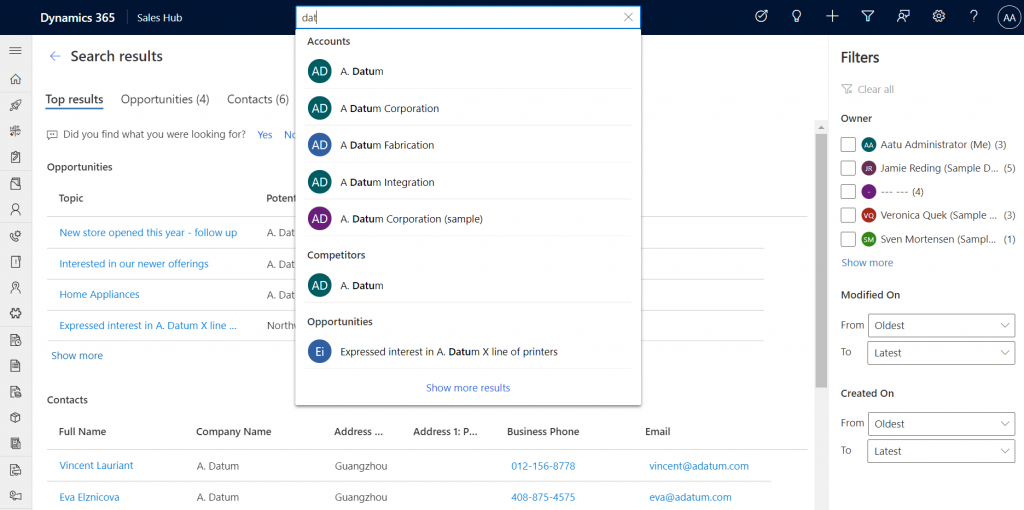
    Microsoft recently launched a brand new search experience for Model-driven Power Apps and therefore also first-party Dynamics 365 apps operating on top of CDS. This is a significant step forward in the “non-structured” search capabilities in Power Apps. The structured queries one can construct via Advanced Find were always one of the most powerful features that the XRM platform could offer on top of relational data (and remain one of my most read posts on this blog). Now also the free text based search experience is catching up nicely:

    Being a low-code application platform, there are several configuration options related to how the search features in Power Apps behave. This can also result in people missing out on how they could ensure that the search really works the way that the users would expect. In this blog post I’ll go through some common challenges that the Dynamics 365 professionals may have already learned to overcome but which can be surprising to new Power Apps makers.

    Challenge 1: Relevance Search is not enabled

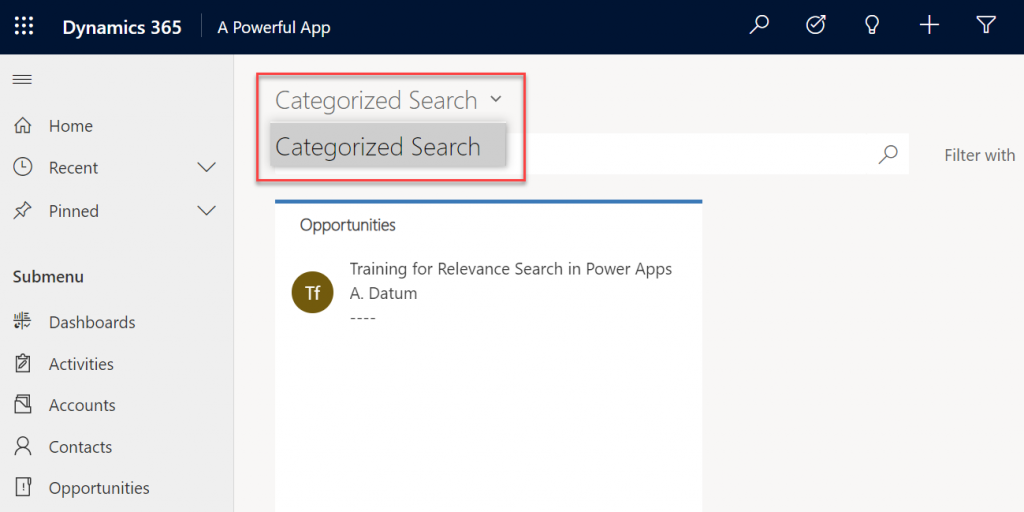
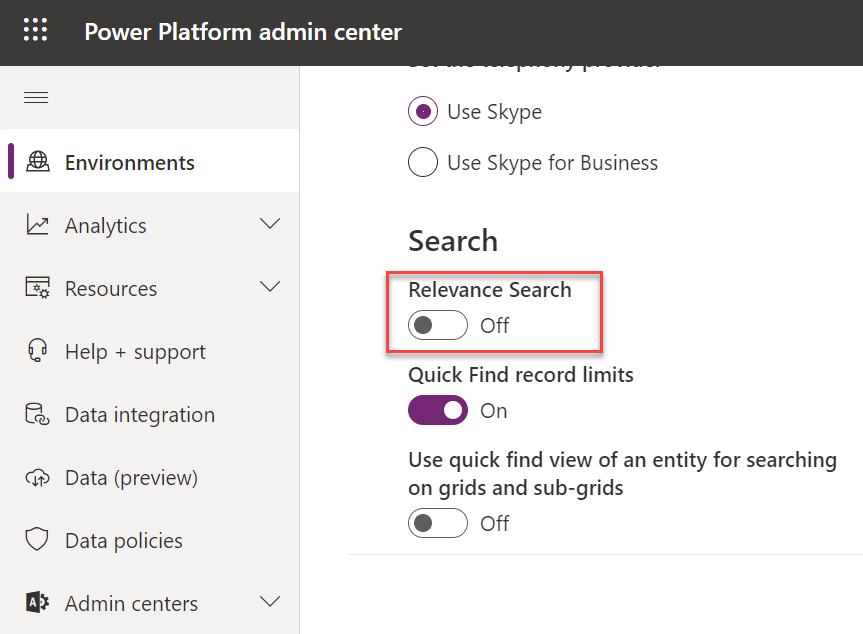
    If you’re not seeing anything even remotely like the MS blog posts when performing a search in a Model-driven app, then you may well be using the limited Categorized Search instead of the fancier Relevance Search. When attempting to change the search type, you might discover that the dropdown actually doesn’t give you any choices, i.e. it’s a dead end with Categorized Search as the only option:

    Why does this Categorized Search option even exist, and why do we need to specifically enable Relevance Search? It all comes down to the on-premises legacy of the platform, where the single CRM server had to be capable of offering a standalone search option. In the cloud era we can leverage Azure Search as the external search index database to where CDS data is syncrhonized to, thus offering a far richer search experience.

    Now, Azure Search being a separate service and possibly having different types of SLAs and other legal variables than the core Power Apps or Dynamics 365 services follow, it’s not on by default even in the MS cloud. An administrator will need to navigate to the Power Platform Admin Center, choose the environment, then go under Settings / Features / Search to flip on the swith that turns on Relevance Search.

    Once it’s enabled, only then will you see the option to also turn on the new search experience (which probably will become the default option in the future). It won’t show up there immediately, so give it a lil’ time.

    Challenge 2: Relevance Seach doesn’t search my entities

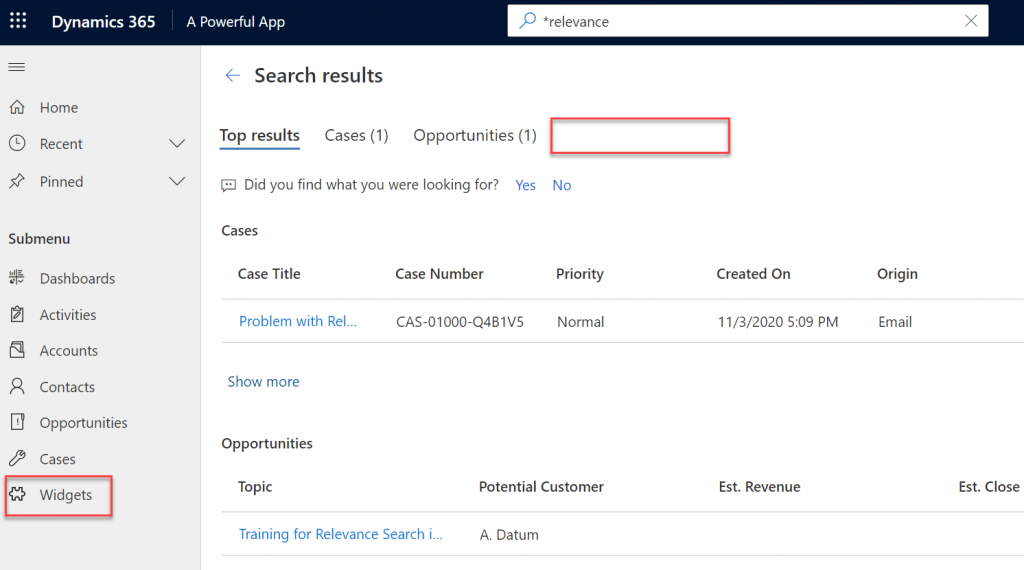
    Cool, we’ve now got the new UI up & running. When we do a search from the new prominent search bar always visible at the top, the results are returned for some of the entites. But why aren’t we getting any hits for Widgets, for example? In this scenario we know there are records in there that contain matches to our search string.

    Even though Azure Search provides a richer search index for your Model-driven Power Apps, it doesn’t directly copy each and every table from CDS into it’s database automatically. When working with a Dynamics 365 environment there are some default entites covered (like accounts, contacts, opportunities). For any custom entities and especially with custom apps, you’re gonna have to explicitly tell which entities should be enabled for Relevance Search.

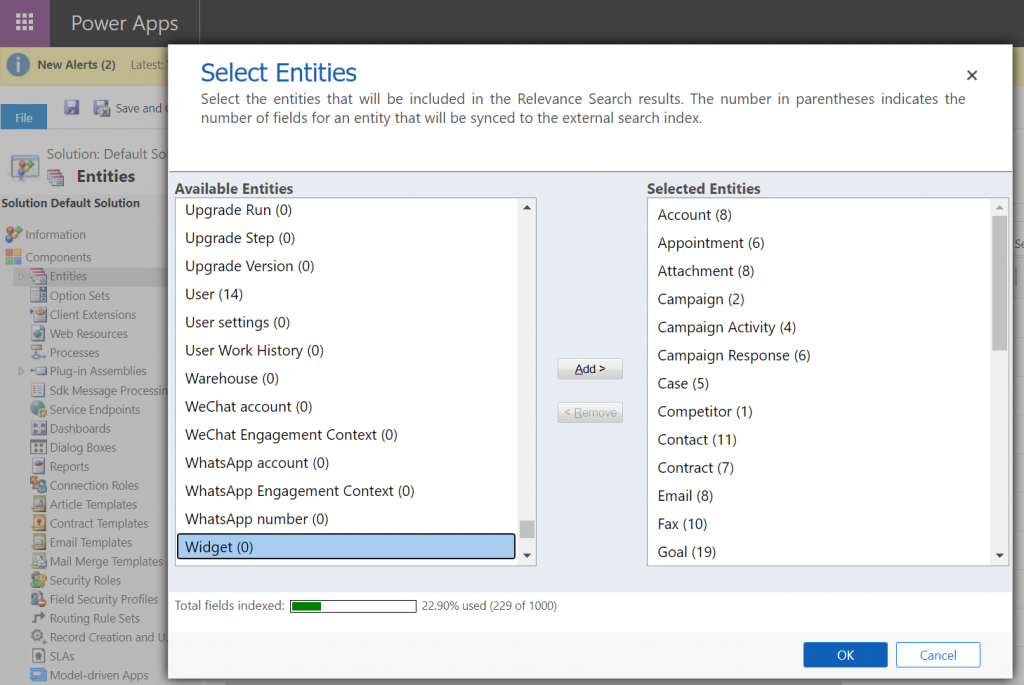
    To access this configuration option you’ll need to leave behind the modern Power Platform Admin Center and venture into the land of the legacy web client and Dynamics CRM era customization UI. You can either add “/main.aspx?settingsonly=true” to your environment URL or find another path into the land of more advanced options. Once there, find Settings / Customizations / Customize The System and open up the Entities menu in the Default Solution window. Now you’ll see what entities are included in your Relevance Search Index and which are not, i.e. they are in the Available Entities list:

    Select the entities you want, click OK, then Publish All Customizations and now they are enabled for the modern Relevance Search experience.

    Challenge 3: Relevance Search doesn’t search the right fields

    Hmm, why aren’t we still getting the full search results for our Widgets entity, even though we added it into Relevance Search? Well, technically you didn’t add the whole entity into the search index. By default a custom entity seems to pick up only the primary field (usually “name”) into the search scope, but it’s likely that you’ll have plenty of other important field that should also get indexed. The same goes for default entities: only a subset of the standard fields are included, and none of the custom ones are, unless you configure them to be included in Relevance Search.

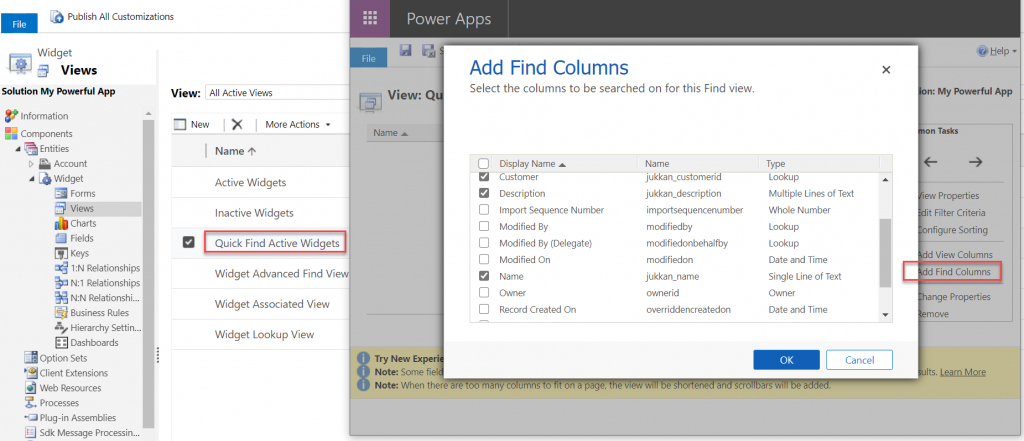
    If finding the menu from where the entities list for Relevance Search is maintained was a bit tricky, then figuring out the place for specifying the field level search settings ain’t that obvious either. You see, it’s not a property of the field in the entity itself. It’s the inclusion of that field in the entity’s specific view called Quick Find View that determines what gets pushed to Azure Search database and back to Power Apps UI.

    Even though the entity view editor can already be found in the modern Maker Portal for Power Apps, these settings aren’t there yet, so I hope you didn’t close that legacy customization UI just yet!

    From the legacy Solution Explorer, open the Quick Find View for your entity, select Add Find Columns from the right and check the boxes for the fields you consider to be potentially useful for Relevance Search. Save & publish your changes, then verify that the search results match with your expectations.

    Challenge 4: Relevance Search doesn’t cover inactive records

    Sometimes the information you’re looking for isn’t found on records that are actively edited anymore, as you may be digging further into the history of your business data to check up on past transactions. In the typical CRM scenarios where Model-driven apps are leveraged this could mean searching through historical sales opportunities that are either won or lost, to find examples of what offers have been made to which clients on what specific terms.

    With the out-of-the-box configuration of Dynamics 365 or Power Apps, you won’t find them via Relevance Seach. Yes, the vast majority of records that you’re storing in CDS may well be excluded from the search index by default. This is because of the same Quick Find View we visited earlier. Not only does it control the fields being indexed, as well as the column layout of the search results page. It also controls the static filters which are applied to the search results before they are shown.

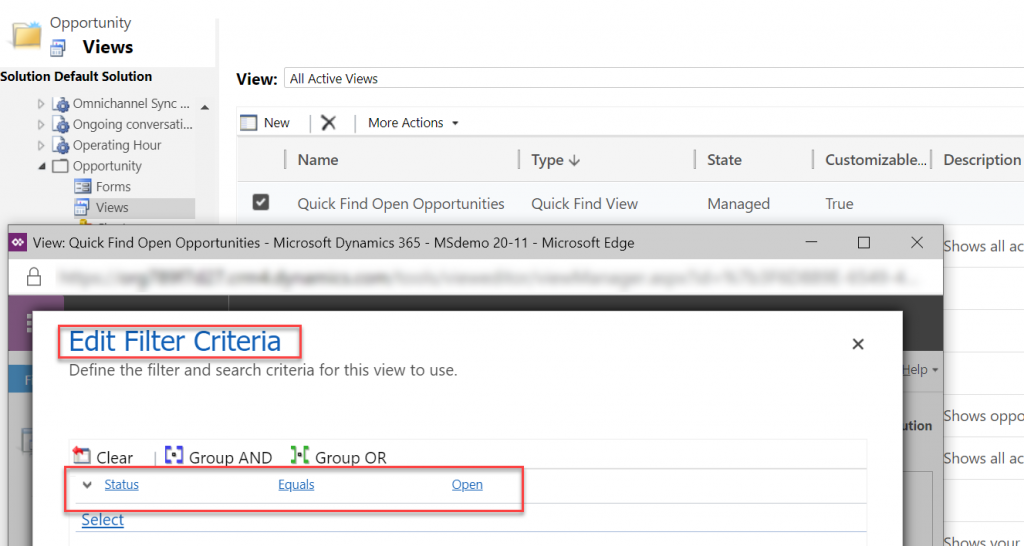
    Using the OoB opportunity entity as an example, you’ll find a system view called “Quick Find Open Opportunities” under the entity. Click on Edit Filter Criteria to reveal the fact that it indeed does only include open opportunities. While we can’t create additional Quick Find Views for entities, luckily we have the freedom to modify or delete the existing filters. So, just remove that status field filter criteria, save & publish. Now your Relevance Search will also return results from the inactive records for this entity.

    Challenge 5: Relevance Search suggestions aren’t found in the search results page

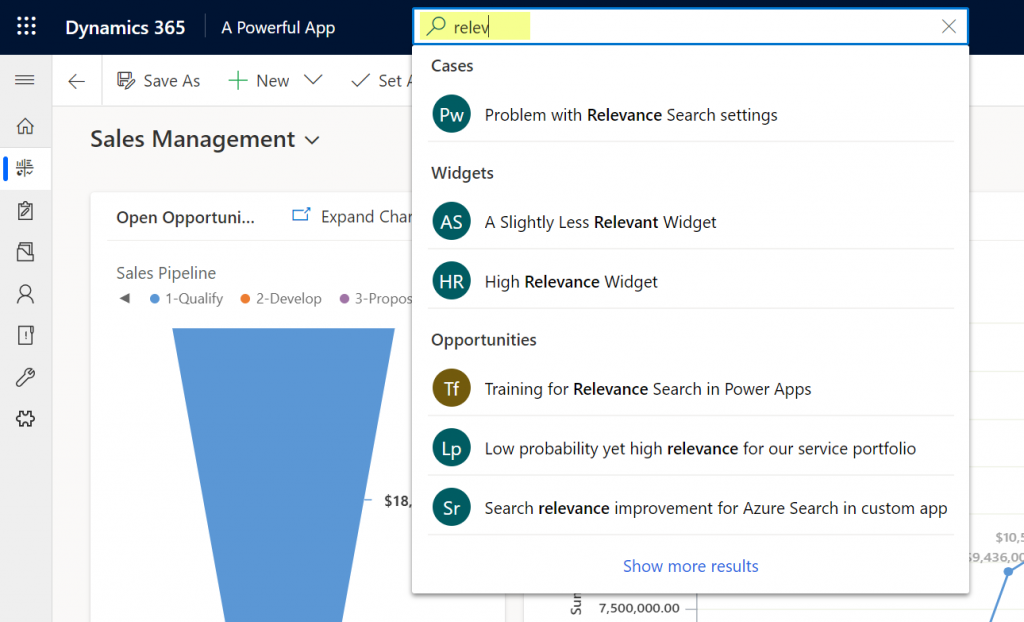
    The new search experience has a nice UX for suggesting matching records immediately as you type the letters in your the search term. Let’s say that we’re interested in the search term “relevance”. By the time we’ve entered “relev” into the search bar there’s already a number of matches in the suggestions box:

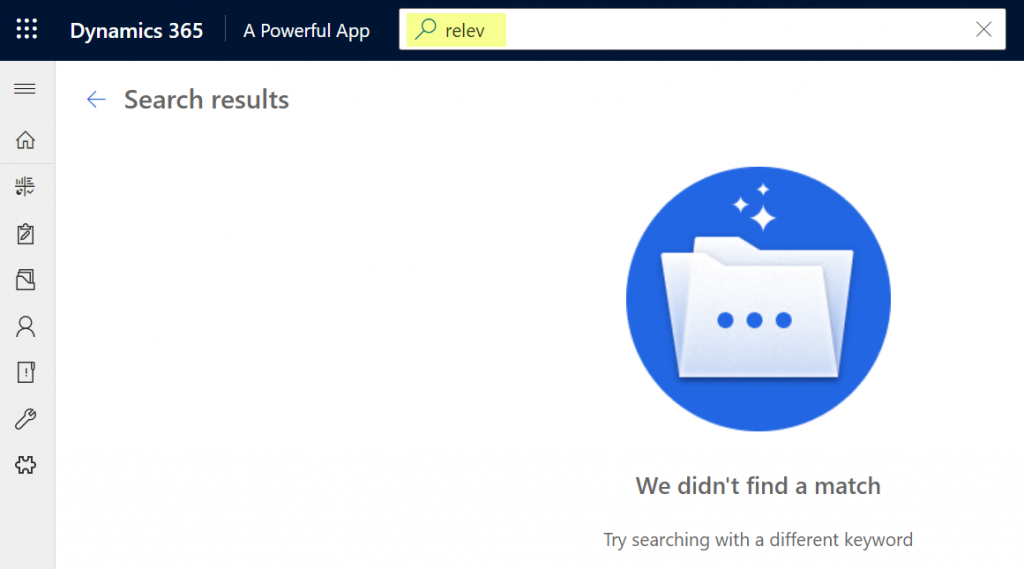
    Looks great, but I think I want to see more details, so I’ll click on “show more results” at the end of the search suggestions. Hey, where did all those matching records go?!?

    Unfortunately this is a challenge where you can’t configure way around it (at least yet). For the time being, this actually is by design. Taken from the documentation, Microsoft lists the suggestion feature separately from the actual search requests:

    Suggestions provide a list of matches to the specified search parameter value, based on an entity record’s primary field. This is different from a regular search request because a suggestion search only searches through an entity record’s primary field, while search requests search through all relevance search-enabled entity fields.

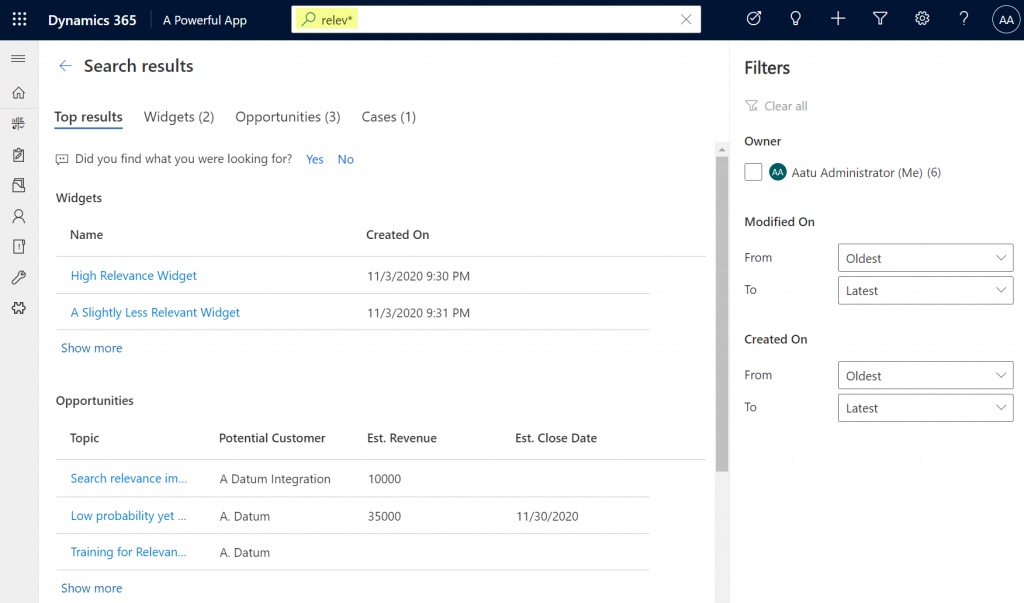
    So, the search box and the search results page follow different logic, which is why it is expected that they will show different matches. This may be seem quite complex to explain to the app end users on a detailed technical level, so it’s better to just instruct them to always apply the wildcard character * at the end of their search term. The results are likely to be closer to what they expected to see:

    Hopefully these 5 tips will help you in setting up the basis for more relevant search results and a better user experience in your Model-driven apps. For more comprehensive guidance, check out these three different levels of documentation that Microsoft provides on the Power Apps seach features:

  • Renewed Dynamics 365 Licensing Guide for October 2020

    Renewed Dynamics 365 Licensing Guide for October 2020

    On the first business day of each month, I have one routine that I’ve been following for quite some time now: check the latest Licensing Guides that Microsoft has published. I have two short URLs that I use for quickly downloading them:

    I also have a habit of storing each historical version of these documents (and other licensing materials from MS) onto my OneDrive. I’ve found this to be the only way you can actually keep track of what’s going on in the rapidly moving world of BizApps licensing. Well, these days there is also the GitHub history of commits made on Microsoft Docs pages covering licensing (like this one), if you’re into comparing the diffs of each change made in the detailed wording.

    Fresh new look for October 2020

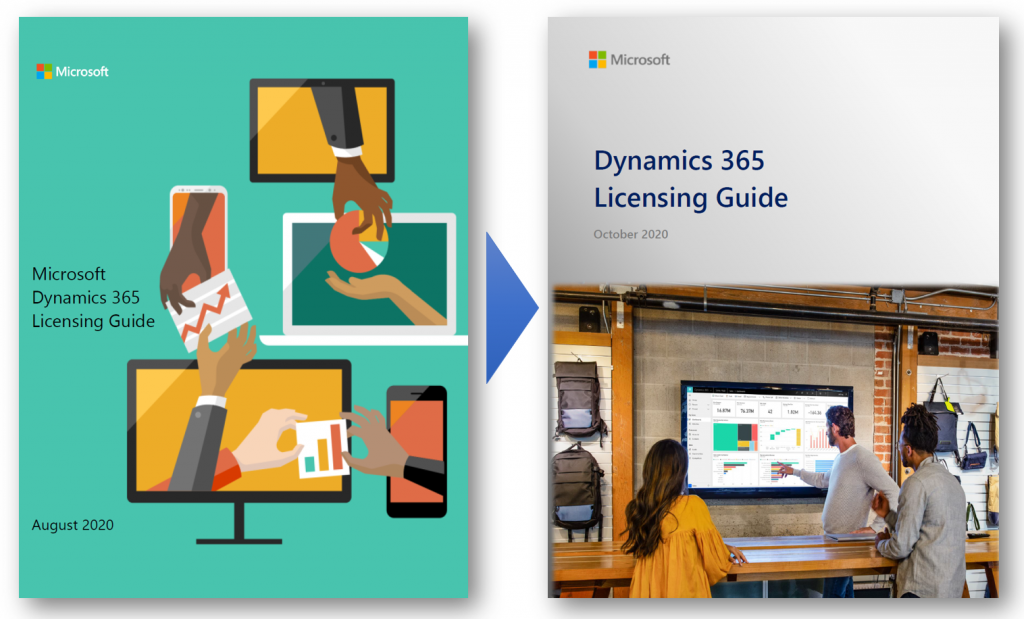
    This time the latest PDF for Dynamics 365 Licensing Guide offered quite significant changes, which are clearly visible right from opening the document:

    “Big deal, just another cover page update like they do with Release Plans.” This time there’s more to it, though. Here’s what MS says:

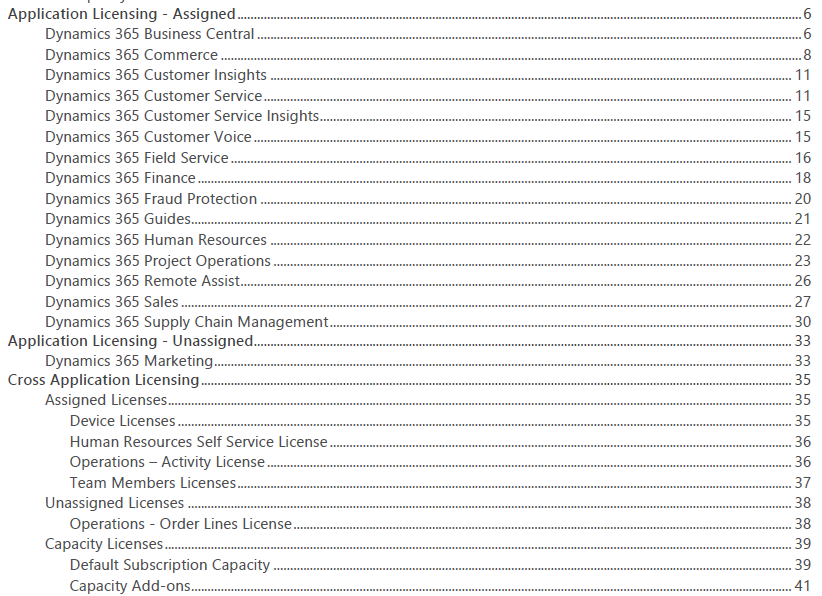
    The Dynamics 365 Licensing Guide has been reformatted and renewed for October 2020. We hope you will find it consistent and easier to consume. Applications are presented in alphabetical order, and each section covers the full story including licensing model, additional applications, and user rights. Dynamics 365 Business Central and Mixed Reality offers are now included in this guide and duplicative information has been removed. Product licensing information that is legally binding is presented in the Product Terms and Online Services Terms (OST). Power Platform licensing information is referenced in Power Platform licensing documents.

    Previously Business Central was excluded from the Dynamics 365 Licensing Guide, which of course sounded a bit strange. After all, the historical plans for having separate Business Edition and Enterprise Edition product tiers for Dynamics 365 were scrapped before these products ever launched, so preserving such division in the licensing documentation did not seem justified.

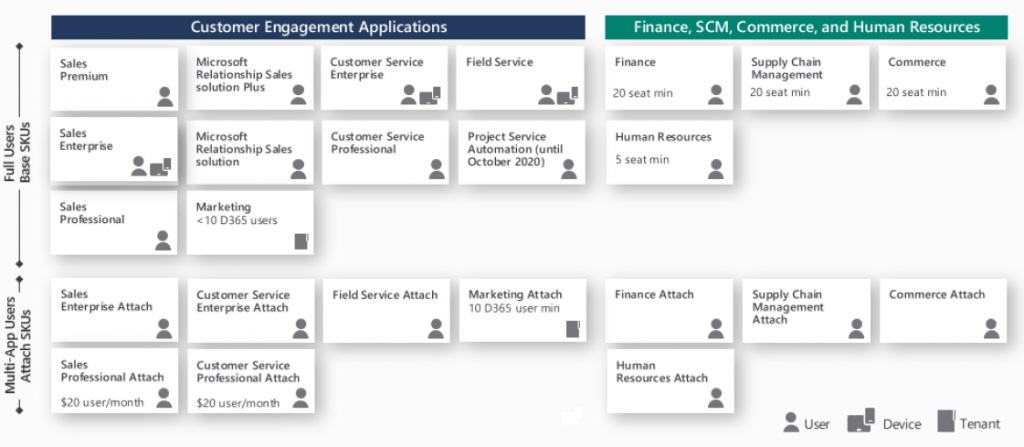
    This was not the only division that existed in the earlier Dynamics 365 Licensing Guide, though. For old time’s sake, here’s how the last August 2020 version of the Guide illustrated the different types of Base and Attach licenses available:

    We had a split between “Customer Engagement Applications” and “Finance, SCM, Commerce and Human Resources”. Go back a full year and the right side said “Finance and Operations, Retail, and Talent” – because it’s apparently a great idea to change software product names at least as often as their licensing model… Anyway, the logical grouping was still the same, meaning we had the XRM/CRM apps on the left and AX/ERP on the right.

    This wasn’t exactly the way Microsoft would like to present their Dynamics 365 suite of products, as instead of CRM on one side and ERP on the other it should be one seamless plaform. Related to this, MS had stated in October 2019 already that they would no longer be using the term “Dynamics 365 for Customer Engagement apps” to refer to any cloud services, leaving CE as the term for legacy on-prem versions only. Despite of this, up until the August 2020 version the Licensing Guide for these cloud apps still had 47 occurrences of the term “Customer Engagement” in it.

    Customer Engagement is gone for good

    Now in the lastest Licensing Guide version we have a truly flat list of all the different Dynamics 365 apps presented in an alphabetical order. If you didn’t know the origin of each application and what technical platform it actually runs on, there wouldn’t be anything in the Licensing Guide to highlight this.

    From a commercial perspective this makes a lot of sense. The whole idea behind Dynamics 365 today is that instead of subscribing to a “plan” that opens on set of apps that share a common server origin, your organization’s users could subscribe to any combination of apps that suit the needs of a particular subset of your users. The Base/Attach licensing model makes the cost of additional apps an attractive option to explore. While not all data might be in the same physical place for each app, this may not even be an issue for unrelated business processes like Sales and Human Resources.

    From a technical perspective, things aren’t necessarily getting any easier to grasp by this removal of a familiar layer like CE (or CRM). Yet on a factual level the Dynamics 365 suite hasn’t been about the combination of CRM and ERP for a while anymore.

    Think about Customer Insights, for example. That’s a service built to ingest data from multiple different systems (like CRM or ERP) and manage it on Azure Data Lake. Or how about Customer Voice. It was born from the feature set of Microsoft Forms, then merged with the legacy of now-deprecated Voice of the Customer. The resulting product isn’t exactly pure XRM nor is it an extended Office app.

    We can expect most new Dynamics 365 products to be hybrids built out of multiple technologies. In the process it’s becoming difficult to assign them into buckets based on established enterprise systems.

    What’s my name again…?

    People with a Dynamics CRM background have fairly broadly adopted CE as the descriptor to identify which part of Dynamics 365 they specialize in. As Microsoft erases the last instances of Customer Engagement from their terminology, this can cause some further identify crisis for long time professionals who are experienced with XRM yet can’t quite place themselves on the long list of current Dynamics 365 app names.
    The way I see it, there isn’t any need for a new replacement term to cover what used to be CE, and XRM before that. It’s just simply Power Apps! All of the common features of the platform are essentially included under the Power Apps umbrella, and there’s a data platform called Common Data Service as one key element of it. Everything up from there is the app specific layer where the Dynamics 365 X product team has implemented functionality with a business process in mind. CE isn’t such a useful concept here anymore, because knowing about Sales doesn’t guarantee you’re fluent in Marketing or Field Service apps.

    So that things wouldn’t be all too simple, Power Apps does of course cover a wide array of functionality that CE professionals may not be familiar with. For starters, alongside the Model-driven apps there are Canvas apps and Portals – each with very specific logic that could be compared to CRM vs. ERP. Power Automate as the candidate for replacing traditional CE process automation is a fair bit wider than just workflows. If you’d then expand beyond Power Apps and call yourself a Power Platform specialist, would that indicate fluency in Power Virtual Agents and Power BI, too?

    Licensing just Dynamics 365 ain’t enough

    The extensive list of apps and their pricing elements in the current Dynamics 365 Licensing Guide is a bit like the Terms & Conditions of any online service: no one is going to read through it all. At the same time, though, it doesn’t go deep enough in explaining how the first-party Dynamics 365 apps relate to the platform capabilities licensed via Power Apps. Unfortunately there is no single Power Platform Licensing Guide document to provide answers, because no such product is actually being sold by Microsoft. You license various pieces of it and then assemble them into your own unique structures.

    The trickiest questions around business applications licensing aren’t usually about the app specific details that you can read from the Dynamics 365 Licensing Guide. It’s about those scenarios which involve using the Power Platform as the means to customize, extend and integrate Dynamics 365 apps. On this front nothing has really changed nor improved, as Microsoft continues to treat these two sides as separate products (see my blog post on why Power Platform licensing is complex). Often you’re left between browsing the two separate Licensing Guides, digging through FAQ answers and sometimes tracing the underlying intent of the licensing model into something that a MS representative has informally stated in an interview.

    As it just so happens, I’ll be speaking at the CDS Saturday event on October 24th about Making Sense of CDS Licensing. This will be a live event with no recording to catch later so be sure to sign up and be there if you’re interested in diving deeper into the key aspects of licensing Dynamics 365 & Power Apps when building CDS based solutions.

  • How Microsoft Teams can scale up low-code: my 5 min explanation

    How Microsoft Teams can scale up low-code: my 5 min explanation

    At the virtual Microsoft Ignite 2020 event I had chance to join many fellow Finns in our FIgnite session and spend 5 minutes on highlighting a topic that I considered to be important in the MS ecosystem right now. It turned out to be an easy choice to make.

    Project Oakdale (briefly known as Dataflex) is bringing the low-code/no-code functionality from Power Platform into the hands of pretty much all the information workers leveraging Microsoft 365 tools in their day-to-day job. This is not so much about any single technical feature as it is a change in mindset about who the app makers should be. So, I set out to explain this my 5 minute presentation titled How Power Platform Now Empowers All Teams Users.

    https://www.youtube.com/watch?v=Dj_IH4yq1dE

    This is all part of the larger Microsoft Teams as a platform story that I covered in my previous pre-Ignite blog post. It’s no surprise that MS has created much more content around this topic than you could have ever expected to see on Power Apps or Power Automate as independent technologies. It’s a sign of the size of the audience to which this “no cliffs” application platform message is now targeted at.

    Will the inclusion of “CDS Lite” in the Microsoft Teams subscriptions prove to be a gateway drug that makes Common Data Service a household name in Microsoft 365 customer organizations? And if so, what will the actual brand name be for Project Oakdale once wre’re past the preview phase? Time will tell!

  • Microsoft Teams as a platform

    Microsoft Teams as a platform

    2020 became the year of #WFH (work from home) and for many organizations also the turning point when Microsoft Teams became the primary place where being “at work” happens. This is accelerating the evolution of Teams from being merely a communication tool that connects human beings into a foundational service layer for many types of business applications.

    How the concept of Teams as a platform contrasts with Microsoft’s Power Platform suite of technology is something I’ve been thinking about a lot lately. In this post I’ll first reflect on the relatively short history of where Teams came from. I’ll then examine how the recent feature announcements are brining apps front & center in Teams. Finally, a few words on the possible future for Teams as part of Microsoft’s broader strategy.

    The road that lead to Teams

    Looking back ~10 years, the real-time communication & instant messaging tools from MS seemed to be going through an endless renaming cycle: from OCS to Lync to Skype for Business. The core feature set presented to the end user didn’t seem to evolve nearly as much as product branding did. On a broader level, the communication activities of information workers within an organization still typically took place within Outlook’s inbox, and different servers like SharePoint and Dynamics CRM all packed their own features for posting short messages to other users.

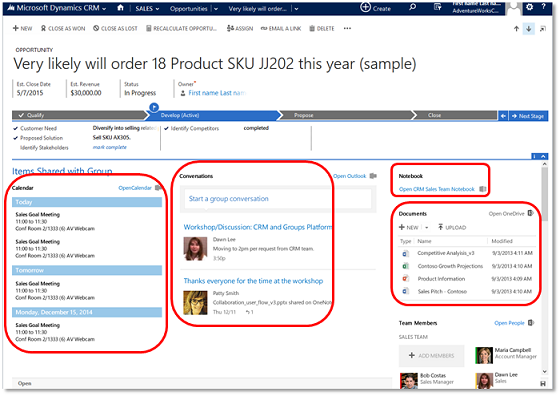
    4 years ago, when the first images of what was then called “Skype Teams” started to leak out, we were already waiting for MS to create something a bit more ambitious than just another online meeting tool. Office Groups had began to emerge in various different places inside the MS Cloud, but they were primarily a technical construct with no sensible UX for everyday people to approach them. Even Dynamics CRM had it’s own solution that attempted to bring together the dicussion, calendars, notes, documents and team memberships from under an Office 365 Group associated with a record like account or opportunity:

    I remember having many discussions with our CRM customers where I attempted to steer people away from deploying this Groups solution. Instead I wanted to encourage them to wait for something a bit more polished that I knew had to be on it’s way sooner or later.
    At one point there was a clear & present danger of another “Yammer moment” taking place, as Microsoft was reportedly quite serious about their plans to acquire Slack. In retrospect it was a blessing for both parties that MS decided to keep investing in building their own product, instead of trying to retrofit an established service like Slack into their existing software offering.

    I would argue that this “build over buy” strategy which Microsoft has since then followed across their business software stack has been a key success factor for BizApps in particular. It has enabled MS to move from merely chasing CRM competitors like Salesforce into redefining the business apps playing field with Power Platform. There’s a stark difference between acquiring companies and bundling them as “X Cloud” versus engineering your own software stack to act as a true platform.

    Teams: the collaboration chapter

    Initially the first version of the Microsoft Teams product that became generally available in Spring 2017 was pretty much focused on being three things:

    1. Replacement for Skype for Business
    2. Alternative to Slack
    3. UI layer for Office 365 Groups

    From a business applications perspective there wasn’t all that much you could do to hook Teams up with Dynamics 365, until Fall 2018 when the previews for the first integrated features were launched. In particular the integrated file sharing experience that Teams offered seemed almost like the Holy Grail for many CRM professionals, offering to fix the glaring hole in the SharePoint integration story that lacked any security model synchronization. The roadmap image below presents the plans from 2 years ago on how Teams and Dynamics 365 were going to be integrated:

    The last item on the roadmap has still not been delivered, which is the visibility of Teams conversations inside the Dynamics 365 record form. Why this hasn’t been a higher priority for MS to implement seems to me like a sign of how Microsoft Teams is nowadays positioned as the primary UI for all information work. MS probably would prefer if everything always started from inside Teams. You pin record tabs into channels, you show previews of records inside teams discussions, you interact with records via bot interfaces and so on. As long as Teams is that big umbrella under which all work takes place.

    The lack of a deep 2-way integration does not therefore mean that investments aren’t being made into the products involved. It can simply be a reflection of the new vision that is being built, by aligning many existing services to form a whole that aims to be greater than the sum of its parts.

    As an example, if you look at Microsoft’s task management story, you’ll see that features and data from across various apps like To Do, Planner and Outlook tasks / flagged emails are currently being collapsed into a central location that is the Tasks app for Teams. Tasks as a generic construct don’t necessarily need to be fully controlled by a single database, yet they very much need to be logically represented within “the hub for teamwork” that Teams is positioned as.

    Going forward, when new apps appear into the MS cloud product portfolio and they need to offer task management features to users, the logical integration point to focus on would be Teams. For activity feed type of functionality the choice is even more clear for product development: choose to piggyback on Teams instead of inventing yet another stream of short messages.

    Teams: the platform chapter

    Moving beyond simply integrating Teams with products X, Y and Z, we’re now seeing the rise of a model where apps are built specifically to be used in Teams. This has of course been possible for a long time already, by developing custom web services and using the SDKs. Now there are many features coming up that will amplify the platform story around Teams on the no-code/low-code front specifically.

    lists in teams1.png

    Microsoft Lists app has been the first to reach GA and offers an ultra low barrier for users to process data in a single table through a configurable, readymade UI. When accessed via Teams, the list data gains one more special dimension: discussions to be had regarding a list item. This is pretty much the same as the usage pattern offered for a Dynamics 365 record with the integration mentioned earlier.

    Underneath the new covers of MS Lists is the technology familiar from SharePoint lists. If we were to only examine the UI layer, there is actually a remarkable similarity to a popular no-code service called Airtable. So much that the accusations of MS simply copying the visuals and core features from this competitor don’t seem entirely unjustified.

    Comparing these two offerings gives us some perspective on what exactly is the market position these tools are aiming to conquer. Simple lists themselves are not a particularly unique feature, rather it’s the team collaboration capabilities and ease of data sharing that turns these tables into what you’d call an actual app. Incidentally, just this week Airtable announced they were building a full platform with apps offering JavaScript based extensibility, a marketplace for sharing apps, automations for executing business logic, and finally a sync service to transfer data across environments (“bases”).

    Collaboration scenarios around semi-structured data like lists and Excel style tables can be seen as a gateway drug. They allow turning email or paper based manual processes into a quick first draft of what the digital process could be like. If there are indeed clear business benefits in automating the said process, the requirements for more complex app features will soon begin to emerge from the user base. Hence the collaboration platform should offer an obvious path to grow these pre-built app experiences into more advanced no-code/low-code apps.

    Project Oakdale a.k.a bringing CDS to Teams

    If Microsoft Lists is the equivalent of an Excel table within the Teams context, then Project Oakdale / “CDS Lite” could be though of as bringing SQL Server inside Teams. Now, obviously Microsoft has zero intent on actually replacing Excel nor SQL with features built into Teams. They only need to introduce those parts that make sense from a team collabocation perspective.

    Microsoft Lists is a far cry from what a real Excel workbook can do, yet it can offer much more value in a collaboration scenarios that those lone .xlsx files ever could. Similarly, the version of CDS that will very soon be available for building Power Apps within Teams is nowhere near as powerful as the services powering enterprise CRM systems like Dynamics 365 (or the raw power offered by SQL). Still, the fact that it can be found from within every team and used by a much larger audience than what Power Apps citizen developer tools could hope to capture – those are the factors that can truly make CDS a mainstream service that most information workers in the Microsoft 365 cloud interact it.

    The experience of defining the CDS data model in Project Oakdale will be very different from the path that Power Apps makers have gone through – let alone the XRM veterans. In fact, you could easily mistake the table design and row entry UX to be that of Microsoft Lists rather than CDS. This highlights a key aspect that not all Power Platform experts may yet have grasped: for MS this “CDS Lite” is not so much about deciding what premium features of the full Power Platform to give away for free to Teams subscibers – rather it’s about how to best simplify the enterprise CRM features of CDS into a new product that Teams users could adopt on their own.

    This doesn’t mean that Microsoft Teams should be viewed only as a mechanism for MS to scale Power Platform to the masses, by “dumbing it down”. If the app platform story of Teams plays out like it ought to, there should also be clear benefits from it to enterprise business applications development.

    Capabilities like messaging, notifications, task management, documents or group memberships are not something the Power Platform tools are very good at. For historical reasons there has been the need to build standalone features into XRM for these type of common requirements found in business application scenarios. For the future generations of apps being created, it’s easy to see the benefits of having these non-core capabilities offloaded onto a platform more suitable for managing them – meaning Teams.

    It doesn’t really even matter if the feature set offered by Teams couldn’t cover all the deep business logic integration of native Dynamics 365 functionality. Ultimately it’s not about supporting the system-of-record legacy but rather encouraging the new low-code scenarios that will generate 100x more apps onto the platform.

    Teams is the new Windows?

    The concept of an operating system is something many of us may relate back to the origins of the Personal Computer era, even if OS’s of course have existed far longer than the IBM PC. Windows was the first runaway success in the OS space when it comes to both awareness and commercial results, shaping the fate of Microsoft for roughly three decades. Then along came the era of mobile computing and Android & iOS took over in the number of devices running them. MS could no longer hope to regain that position so they decided to take over a different layer in the computing space: the (business) app cloud.

    Azure has been called “the world’s computer” and this does offer some perspective on how the computing concept has evolved since the PC days. Still, Azure is not something most people will ever interact with directly. To remain relevant in the decades to come, MS needs to have presence in the minds of the end users, too. Now that Windows has become merely an optional part of the modern computing stack, it would be pretty darn critical to gain a strong enough foothold on a level that’s above the traditional OS but still below the individual apps. A platform that spans across all the devices people in the business world are using.

    Teams is now the closest thing that Microsoft has at its disposal to transform into an OS style fabric that connects a significant share of information workers globally. Nothing like the glory days of Windows, of course, but we should expect to see very conscious steps from MS to further the goal of Teams becoming more OS like. The place where the user interacts with a multitude of apps, share their work context with those apps, a “service bus” for the various apps to exchange data with one another, and finally a unified communications channel for notifications and messaging.

    It’s still a long, long way to go for this type of shift to happen where the collaboration tools become the true center of gravity for the multitude of other apps and services that people use today in their #WFH offices. Personally, I can’t live with the limitations on multitasking that the MS Teams content embeds enforce upon the user and much prefer a collection of separate browser tabs to freely switch between. Nevertheless, it’s not an entirely crazy though that the resulting congnitive load for the user isn’t everyone’s ideal way of working. Which means organizations need to be looking for ways to optimize the employee experience via common information work hubs like Teams.

    Dion Hinchcliffe has written an excellent analysis on Microsoft’s platform strategy with Teams, where he talks about seeing Teams as the operating system for work. While it may indeed be difficult to get the current owners of the collaboration tools in customer organizations to accept the business app side of Teams onto their plate (especially now with the #WFH boom and its unexpected requirements), the perspectives may change when the time is right from both the technical capabilities side as well as the organizational targets. In the same way as the MS CRM foundation evolved into a key element of the broader low-code application platform known today as Power Platform, the barriers between collaboration tools and business apps should not be perceived to be carved in stone.

  • There never was a “Microsoft Dataflex”

    There never was a “Microsoft Dataflex”

    There are a lot of benefits in taking long enough holidays during the summer, like many people here in the Nordics do. Going offline for a while is a great way to reset your brain and force-close all those open browser tabs of the mind, to free up memory capacity for properly engaging in brand new tasks.

    If you were lucky enough to set your vacation time between July 21st and August 11th, you managed to dodge an unfortunate episode in software product launches from Redmond. Here are the key dates:

    • July 21st (first day of MS Inspire conference): a new brand name “Dataflex” is announced, with Common Data Service renamed as “Dataflex Pro” and a new subscription tier “Dataflex” promised for all Microsoft Teams customers. (My blog post about it is still here.)
    • July 29th: the name “Dataflex for Teams” is used for the first time to reference the previous “Dataflex” tier that’s bunlded with Teams, in an effort to make this product connection more clear.
    • August 11th: all references to “Dataflex” in all Microsoft websites are taken down. The announcement blog posts are brought back online with the terms “Dataflex” and “Dataflex for Teams” replaced with “Project Oakdale”, and “Dataflex Pro” now reverted back to “Common Data Service”.

    What happened? The answer is: litigation from the owner of the trademark “Dataflex”.

    There already was an established software product with the name “Dataflex” out there – in fact it had been around for 4 decades already. Immediately upon the launch day of July 21st several community members were quick to point this out, as indeed it was in practice impossible to miss this brand name overlap when using a search engine. Why Microsoft decided to proceed with their plans on renaming CDS into something like this is something we’ll never know for sure. Some had initially speculated that perhaps there was a preliminary agreement in place with Data Access Worldwide to transfer the ownership of the trademark, but based on the immediate legal action that the company understandably took to defend their rights, nothing like this was likely ever discussed. Our conclusion must therefore be that Microsoft knowingly and intentionally attempted to change the name of its existing technology (Common Data Service) into something that was already in use within the same domain by another software company (Dataflex) without considering the consequences.

    The end results is almost like a story taken from The Onion. Even if we are living in 2020 right now and the world appears to go mad every few days, it’s still an utterly bizarre episode in software business. I can’t recall seeing anything killed this fast after it’s announcement, which in the case of Microsoft Dataflex was only 21 days. Neither can I think of an example where something with such a clear potential for software product naming conflict would have been attempted. It is indeed similar to as if MS would have launched “PlayStation 6”.

    It’s of course not unusual for Microsoft to pull a product name between its announcement and the planned GA. Remember Dynamics 365 Business Edition, for example? Just because we see something presented on slide decks aimed at MS Partners as guidance for building their business around it, that doesn’t guarantee it will ever see the light of day. Shift happens, plans change and a lot of the partners have already become accustomed to this risk as simply the cost of doing business in this ecosystem. This time the product itself is not pulled, though. The need for coming up with a new brand will most likely delay the commercial roll-out of CDS features for Microsoft Teams based apps, but it’s important to keep in mind that this is all still happening. CDS will most likely become a mainstream data platform to replace use cases where SharePoint Lists have previously been used.

    SkyDrive is another example of a Microsoft product brand that suffered from the conflict with an existing trademark and had to be renamed OneDrive as a result. BSkyB as a media broadcaster and digital services provider wasn’t entirely in the same business as Microsoft with it’s personal cloud storage that was following in the footsteps of Dropbox, yet the end result of that case showed that at least between large enterprises such near misses with strong brands can become costly. Even features of a product like the “Metro UI” with Windows 8’s modern user experience had to be avoided due to objections from German reltailer Metro AG. Both of these are examples where it wasn’t obvious to an outsider if a trademark was actually violated, though. With Dataflex the evidence was in plain sight for everyone.

    Lucky for us, MS had not yet made any public preview or a commercial subscription of the new Dataflex branded services available by the time they had to call the whole thing off. It was only the early adopters in the partner field and the passionate community members a.k.a. #PowerAddicts that lost some of their work hours due to the branding incident. Yeah, I had to go back and edit a number of web pages, rewrite presentation decks, revert our service documents etc. to recover from the erraneous information that had been published on July 21st. The majority of people out there in the MS ecosystem probably didn’t yet even get a chance to understand what Dataflex meant or how it was different from CDS, so they will have dodged the bullet when it comes to loss in productivity.

    There is, however, a much greater loss here than the “Find and Replace” activities needed for changing product names. It is the loss of credibility that Microsoft’s Business Applications specifically suffered from this very unfortunate product naming incident. The worst thing is that there has not been any explanation presented to the genereal audience on what’s going on, rather we’ve just seen the word “Dataflex” disappear and get replaced with “Project Oakdale” or CDS. Microsoft at this point is facing legal action from the owner of the Dataflex trademark, which we all know from the many Hollywood movies we’ve watched that “anything they say can and will be used againts them in a court of law”. It is at moments like these where it would be crucial for companies to have a voice, to be able to reach out to their most important audience (customers) and explain what happened & what are they going to do about it.

    I can tell you that it would honestly be a full time job keeping up with A) product naming and B) product licensing of Microsoft Business Applications. It’s not full time for me (luckily), but since I also do it as a hobby / community activity, I can say I’m pretty well educated on what the “right” answers in this area would be at any given time. For anyone who actually IS covering the actions of Microsoft full time in a professional manner, Business Applications is an area they usually openly admit to struggle in.

    At the end of the day, what matters to each and every one of us the most in this MS ecosystem is how the end customers react to what they see & hear. While the marketing machine at Redmond surely is capable of capturing the attention of IT professionals worldwide with their news and campaigns, what it does not seem to be very good at is explaining “what does this really mean to you”. As the cloud platforms grow and become an ever larger pool of individual apps that form a spider web of integrations underneath the user interface, the need for someone to cut through the marketing speak and explain the customers what’s really happening here seems to be growing exponentially. What we all could do with the Power Platform is simply magical, yet the understanding of A) through which products, B) based on what technology, with C) what levels of effort and D) for what license cost – this level of understanding is lacking pretty much anywhere I look. I’m not talking about the “how to” instructions of building apps but rather the higher level discussion of where business decisions get made. It is here where the damage from confusing messaging is, in my opinion, holding this ecosystem back.

    To close things off for now, as we wait for the new product names that Microsoft has said they will be giving to the technology briefly known as Dataflex, let’s recap where we are right now. “Project Oakdale” is the codename that is for the time being used to refer to the “Lite” version of CDS that will be made available to all Microsoft Teams customers at no charge. Common Data Service is what we will continue to use as the term (for now) when talking about the full capabilities of data management, entities, solutions, Model-driven apps and many other advanced features in Power Platform. This post on the Power Apps blog (originally from July 29th) is still valid in every other aspect, apart from that one “D” term that got removed on August 11th.

    It’ll all work out in the end, I’m sure. This time next year there will probably be a whole number of other product names that we’ll be using when discussing the latest turn of events in the crazy & exciting world of Microsoft Business Applications. Dataflex and Oakdale will live on as one of those trick questions in the pub quizzes run by the community. No one died as a result of this episode.

    In a way, us #PowerAddicts simply got a taste of what the BizApps whirwind must at times feel like for the end customer who isn’t involved with this technology of ours, all day, every day.