Author: Jukka Niiranen

  • Getting back at blog content thieves

    Blogs are not only a valuable information source, they are also incredibly efficient vehicles for performing content marketing to promote a company or its products. In the line of professional services, many organizations want to use blog content created by experts in their own organization to prove to their potential customers that they are a viable business partner.

    Unfortunately there are also companies who don’t possess the required expertise or haven’t assigned proper resources for content creation, but they still wish to drive traffic to their website through articles that contain keywords they expect potential customers to be searching for. As the web is already full of content, why not just grab a suitable piece of it and post it in your own name? Sure, it’s unethical and mostly illegal, but what’s the risk of getting caught on the wild wild west of the Internet?

    Microsoft Dynamics CRM community has tons of great experts that choose to share their knowledge with others without asking for any direct monetary compensation for it. Lurking inside this community (or perhaps rather outside at the gates of the community) is a small number of players who are willing to take advantage of all this free content and use it to fill up their own blogs with direct copies of the original posts. Typically the only difference is the lack of reference to the original author of the content, because it wouldn’t look very smart if someone finds out you haven’t actually added any value in the copy-paste process. It’s not content sharing like posting links to articles by others, it is content theft with a very clear intention of benefiting from the works of others.

    This week I ran into two cases where the posts from my Surviving CRM blog had been posted on another blog, word by word, without my permission. The first one was a blog by an individual, who apparently was trying to build up his profile as a Dynamics CRM expert. The second one, however, was a Microsoft Dynamics CRM consulting company that’s a listed partner on Microsoft’s Pinpoint service (I won’t post the name of the company, but this is their profile). Looking at their Blogger profile, it was apparent that this company was misusing blogs and stolen content from also many other sources in an effort to gain traffic for their own website.

    I spotted that the company in question had hotlinked the article images from my web server, instead of re-posting them on Blogger. That’s of course the easiest way for them to steal content, but it also opened up an opportunity for me to teach them a lesson. See the slide deck below for the results of the little trick I played on them. If you’re interested in viewing the actual page and seeing if the modified images are still there, just open my original article about subgrids and associated views in CRM 2011, copy a sentence from it and paste it into Google to find the unauthorized copy of my article hosted on the company’s blog (tip: it’s the Blogger blog with a dynamics-crm2011 prefix in the URL, the article’s posted in September 2011).

    Despite of me getting to have some fun at the expense of the content thief, it is of course a very sad thing to see such practices being utilized in selling services for Microsoft Dynamics CRM. Out of all people, it’s CRM consultants who should understand the importance of building long term business relationships on trust, not short term money grabs from gaming the search engines with keywords to lure in customers. In this light, who in their right mind would consider ripping off content from others as a viable tactic to be used for selling services related to customer relationship management?

    The unfortunate fact is that there are many people who work with CRM solutions purely from a technical perspective, without understanding the business problems that these solutions are meant to solve. For a customer looking for experts to guide them through the process of deploying Microsoft Dynamics CRM in their organization, it’s not easy to spot the bad apples and choose the right partner. So many professional organizations working with the Dynamics CRM product still today do not bring out their expertise online but rather just settle for having a brochure website with generic, static content about their products and services. This leaves the door open for unethical marketers to flood the net with their blogs and steal the top spots on search listings. It’s not something we can blame Google for; their tactics work because we allow them to work.

    To quote myself (or rather the updated blog post image):

    So, as a conclusion, when you’re looking for Dynamics CRM professionals to help you implement & develop your CRM system, do some background checks first. It’s all too easy to steal content from others and build up a web presence to lure in potential customers. Online content is easy to generate, building a reputation requires hard work. Some of us choose to skip that ”hard work” part.

    Have you encountered content theft on Dynamics CRM blogs you’ve written, or consulting companies that take advantage of stolen content? Any thoughts or ideas on how the Dynamics CRM community could weed out this unwanted behavior?

  • To update or not to Update Rollup? That is the question

    Some time ago I wrote a parody about Dynamics CRM blogs that mainly seem to post news about the latest Update Rollups being released. Now I find myself writing an Update Rollup blog post myself. Is that a sign that I’ve run out of topics and slipped into the autopilot blogging mode? I hope not, but after reading quite a lot about the latest Update Rollup 10 for Dynamics CRM 2011 I decided to contribute a bit into the discussion.

    It’s always great to receive improvements to the software you spend all your days working with, isn’t it? Compared to a product like Java which Oracle promises to patch only four times a year, even if it’s about critical security updates (did you remember to uninstall your Java 7 yet?), Microsoft is doing quite an OK job with their update process and we see a steady stream of releases to make Dynamics CRM better one bit at a time. Even though Update Rollup 9 was cancelled after the beta program, MS is now back on track with their release schedule in the form of UR10 that came out two weeks ago.

    We have once again a great in-depth article from Dynamics CRM in the Field about all things Update Rollup 10. It tells all the details of the story from Microsoft’s perspective, but let’s evaluate the ups & downs of this latest release from the Dynamics CRM community perspective to get a complete picture, shall we? OK, here goes:

    The Ups

    There was quite a number of fixes promised for the CRM Outlook client in Update Rollup 10 that would potentially solve some of the stability issues many users have encountered when trying to use the CRM Outlook client for actual work in their environment. It’s now 2 years since the first beta of the completely rewritten Dynamics CRM Outlook client came out and many of us are certainly hoping that it would have reached a mature enough level where you don’t have to be afraid of if causing a flood of tickets to your helpdesk. Yes, some users may be quite happy with it as it is, but you’d be foolish not to prepare for potential issues when planning a large scale deployment of the Outlook client. Reaching that good ol’ Service Pack 2 type of confidence level would be just great.

    Another promising deliverable from UR10 is the improvements to query performance on large data sets. A new version of the performance optimization whitepaper has been released alongside the update, which describes the new options made available to tune the Quick Find performance. If you read the results of these tests by Chris Cognetta where the query time was decreased by over 80% in an environment with 1.5 million rows, it’s obvious this is an update worth paying attention to if you have or expect to have some “big data” in your CRM system.

    Finally, as many MSDN subscribers are now eagerly updating their PC’s to run Windows 8, Internet Explorer and even the Office 2013 Preview, the added support for all of these in CRM 2011 Update Rollup 10 is reason enough to grab the very latest CRM bits. Just don’t forget that UR10 alone is not enough, there’s some things you should know about Windows 8 RTM & CRM 2011.

    The Downs

    So, we now have a Quick Find that is working faster, which means it must be doing something differently, right? It is, and unfortunately in some cases this will result in a Generic SQL Error message being shown to the user. It appears that the new update is not quite comfortable dealing with a set of Quick Find columns that contains address fields. As some of you may remember, the address 1 & address 2 fields on the account & contact forms are actually not stored in the same database table as the rest of the default fields, rather they reside in the CustomerAddressBase table. The UR10 version of Quick Find may therefore not work properly if you try to search for records based on address fields like city or zip code. Yes, Microsoft says using these as search fields is against best practices, but the users will very often want to narrow down the customer data based on geographic variables, so taking it away from them can only act as a workaround until we have a new hotfix from MS.

    CRM developers might not be too concerned with performing actual queries on live customer data, but they will certainly be annoyed when encountering the following prompt after editing a JavaScript web resource: You have exceeded the maximum number of 200 characters in this field; it will be truncated. Doh! Making small changes to script files just became very tedious until Update Rollup 11 rolls along in 2 months time. Again, there’s a workaround to it (don’t use the editor, instead upload the file or use some helpful web resource tool from CodePlex), but it doesn’t really make anyone want to rush UR10 onto all their servers.

    Then we have stories of people applying UR10 and finding they can’t access any of their CRM organizations, due to an unhandled exceptionMethod not found: ‘Void Microsoft.Xrm.Sdk.Query.FilterExpression.set_IsQuickFindFilter(Boolean)’. Uninstalling UR10 appears to be the only known cure for this show stopper, which obviously is related to the aforementioned Quick Find changes on some level.

    Alternatively, if you’ve updated your CRM server from 4.0 to 2011, you may experience errors when trying to import a solution file: The element ‘savedquery’ has incomplete content. List of possible elements expected: ‘LocalizedNames’. Manually editing the XML to remove a view prior to importing the file is the available workaround, but again it can make the life of a system customizer quite difficult until there’s a fix available.

    OMG, what should we do with these UR’s?!

    The short answer is: always test first, then evaluate the ups & downs for your particular case. If you are struggling with the Outlook client, face performance issues with your huge CRM database or simply want to run CRM 2011 on Windows 8, going for Update Rollup 10 may be perfectly sensible for you. For someone who doesn’t have a compelling need to update, you may well decide to wait a bit longer and no one should blame you for it.

    That’s pretty much how it is with any Update Rollup. In reality there’s never going to be the perfect time to update. Knowing ahead what hotfixes will deliver the biggest gains for you or potentially break your CRM deployment would be a great skill to have. Instead of dreaming about it, here’s a few guiding principles I would recommend you to follow:

    • Always test the updates in your own test environment before planning live deployment. A virtual machine with your solutions & data is a good compromise, identical hardware is for people with enterprise level budgets (and problems).
    • Never be the first to update, always wait a couple of weeks from the release and read the CRM forums for experiences from others. Trust the wisdom of the crowds.
    • Coordinate the server and client update schedules to limit possible issues and maximize the benefits from the updates. While mixed environments tend to be supported, why risk it?
    • Do update your CRM. Staying too far behind in this “cloud first” era can soon turn out to be an expensive strategy, so reserve adequate time and resources for keeping your CRM up to date – on a regular schedule.

    Do you have any words of advise for people who are struggling with the “should I update to Update Rollup X” question? What’s your survival strategy?

    Edit 2012-09-09: Based on the discussions on the Dynamics CRM Forum, I’ve created a new wiki page for Microsoft Dynamics CRM 2011 Update Rollup 10 on the CRM Wiki on Technet. The purpose is to provide a single place where the Dynamics CRM community members could share their information on potential issues and known problems that they encounter when applying the latest Update Rollups, as well as naturally links to any solutions or workarounds that can help others who are struggling with the same problem. I’ve initially added links to 10 suspected issues with UR10, but you are very welcome to contribute by adding new links or additional information to the wiki page. In an ideal world, we could have similar pages for each new rollup that gets released and be able to more easily identify both the benefits and the dangers or applying the updates into our CRM environments. Let’s see if the wiki can serve us as a platform for such information sharing.

  • Making use of Dynamics CRM process automation capabilities

    You shouldn’t use Dynamics CRM only for storing and presenting data entered by users, otherwise you’re really missing out on much of the capabilities that a CRM system has to offer. Sure, the immediate need for a CRM system will often be establishing a single location for customer data, rather than having it spread out to hundreds of Excel sheets on everyone’s C-drives. Effectively managing information about who is doing what with which customers is a key benefit you should try to achieve with your CRM implementation project, but it’s just the start. You shouldn’t be happy with it and just stop there.

    Another reason why processes are crucial especially when going for the Microsoft Dynamics flavor of CRM is that there isn’t much business logic configured into the system right out of the box. It’s in many ways a blank slate that is waiting to be filled with the business rules of your operational customer facing processes. For example, there isn’t a default sales process built into the system, but it provides you the tools to configure one. The beauty of this approach is that no one is forcing you to adapt your business to the way how the software works, but the price of it is that you’ll need to invest adequate time and resources into the configuration work.

    Process automation doesn’t have to be something very complex or expensive, though. An example of an expensive route to take would be first arranging workshops with cross-functional business teams to discuss and define the business processes to be followed in high detail, then transforming those into functional specifications for the CRM system that the .NET developers will in turn use for designing, building and testing their custom code based solutions. While there’s nothing wrong with this traditional approach, it pretty much bypasses many of the strengths that Dynamics CRM has for a more rapid business application deployment.

    If you have a CRM power user or a trusted CRM advisor that knows how to make the most out of Dynamics CRM workflows and dialogs, not only can you cut down the costs involved in implementing process automation. You also gain a new level of agility in being able to respond to new or changing business needs as they arise from your operational customer relationship management work. You can have the solution up and running within hours, plus you’re able to see the results in action the next day instead of next month, allowing you to quickly adjust the system to better match the reality as you discover new facts about it through experimentation.

    Speed of iteration is something that can have a profound effect on success in business. Note that I’m not saying you should skip the requirements gathering and business process analysis steps completely, because that’s guaranteed to lead to failure. What you should however aim for is taking a step away from the traditional waterfall project flow and experiment with CRM’s capabilities already while in the analysis phase. Instead of an “all or nothing” attitude, meaning jumping from 0% system to a 100% system that meets each and every requirement, what if you could instead get 70% of the functionality into use in a fraction of time of what the delivery of 100% would take? Could it be that you’d actually find yourself in a better position to build that remaining 30% because of what the first 70% has already taught you?

    People don’t often know what they want before they see it. Remember that “faster horses” quote from Henry Ford? You’ll likely receive much more concise and practical requirements from the users if they can see a prototype of the system in action, before you ask them to define what exactly it is that they need. Using the configurable workflow and dialog processes together with Dynamics CRM’s flexible data model customization tools allows you quickly build the first draft of the proposed process automation functionality. You’ll also identify at a very early stage what features can be implemented with the built-in tools and which would require custom code.

    If you want to reduce the Time-to-Value of your CRM implementation, you really should look into the process automation tools that come with Microsoft Dynamics CRM and learn about their capabilities.

    Where should I start?

    The only right way to get familiar with Dynamics CRM workflow and dialog processes is to get your hands dirty by trying to build them in a real, functioning CRM system. If you don’t have a test environment available right now, just sign up for a 30 day trial account in CRM Online. (You can read more about how the new Office 365 integration affects the CRM Online provisioning process here.) You can bring in your own system’s customizations by exporting the solution files and importing them to the trial environment, which will allow you to test with scenarios related to your specific CRM data model. If you also need to have your actual CRM data available for testing instead of test records keyed in manually, read this article for one possible approach.

    Building workflow and dialog processes in Dynamics CRM doesn’t require any developer skills, but it does take a bit of courage from the CRM system administrator or power user to dig into the platform functionality and business logic that the process editor surfaces. The web is full of nice blog posts on how to perform a specific action with CRM workflows, but it’s perhaps not the most convenient method to learn about the process automation concepts on a higher level. If you ask me, a better way to ensure you’re using your time efficiently while getting to know CRM workflows and dialogs is to do it the oldskool way and buy a book. No, I don’t mean you have to get a physical book made of paper to sit on a table somewhere, an eBook will do just fine, too.

    Which book should you then get? I recommend this one: Building Business with CRM – Using Processes in Microsoft Dynamics CRM 2011. It really is the missing manual for workflow and dialog processes in Dynamics CRM. If you’ve ever searched the web for practical tips on “how to do X with Y in Dynamics CRM”, you may well have come across the website Richard Knudson’s Dynamics CRM Trick Bag.  Richard, happens to be the author of this book, has been publishing an incredible amount of in-depth articles on topics like CRM customization, dashboards and workflows during the past few years on his website, making his blog feed required reading for anyone working with Dynamics CRM. You can also find several excerpts of the Building Business with CRM book from the website, which give a good indication of the type of content you can expect to find in the full publication.

    While Microsoft does also have their own training materials for the course 80444A: “Workflow and Dialog Processes in Microsoft Dynamics CRM 2011”, I’d personally recommend you to get familiar with the process automation features of CRM through reading Richard’s book instead. The reason is that there is a wealth of gotchas when it comes to putting your newly acquired knowledge of available workflow and dialog functionality into practice. I personally found the Building Business with CRM book to be much more oriented towards helping the reader to navigate around the pitfalls, by highlighting not only what you can do with workflows & dialogs but also what you can’t. Understandably the courseware from Microsoft will need to have a more neutral tone of voice, whereas the CRMbizbook is able to talk about the real, everyday scenarios and explain how to work around some of the limitations that users will encounter sooner or later. What’s also great about the book (and Richard’s blog posts, too) is that you can really sense the level of enthusiasm the author has in explaining how to unlock the potential of the Dynamics CRM platform, which makes you want to go and build those example processes in your own CRM environment.

    Back when I first got to know the new workflow engine introduced in CRM 4.0, after having spent some time with the very limited CRM 3.0 workflow rules, I initially had difficulties in understanding how to build some of the common workflows that business users expected the system to deliver, such as notifications for expiring contracts & opportunities. Richard’s previous book, Building Workflows in Microsoft Dynamics CRM 4.0 (Second Edition), helped me a great deal in learning the practical applications of workflow rules and understanding why things worked (or didn’t work) the way they do. Sure, blogs, forums & Google are great for finding answers to detailed questions you will have later on, but for learning the basic skills it may be better to just concentrate on a well written book on the topic.

    Why the importance of CRM processes is on the rise

    Looking further into the distance, we’ve already been given a sneak peek of what the future holds for the Dynamics CRM application. In the WPC 2012 session Microsoft Dynamics CRM – Now and in the Future (you can watch the session recording on YouTube), we saw that one central investment area in the next three releases is going to be the new Process Driven UI.

    Previously the workflow and dialog processes have been accessible in the CRM user interface, but not really actively promoted to the user. Unless you have trained the CRM users to follow a certain business process that required them to click on a workflow or dialog, they probably have absolutely no idea what those menu items for “Workflows” or “Dialog Sessions” are doing in all the menus and ribbons found on pretty much any CRM entity form. That’s of course not such a big deal if you don’t currently (yet) utilize the process automation functionality, but it does make it somewhat complicated to introduce the concept to your users once you actually want to take them into use.

    The Process Driven UI is going to bring these processes into the forefront, by showing stage information right at the top of the entity form. In addition to the visual presentation, the new UI will also allow users to interact with the process related fields directly from the stage indicator, to enter values that would have previously required launching a separate dialog popup window. For a more in-depth look at the UI changes, please see my post on Dynamics CRM Fall 2012 “Refresh” UI first impressions.

    We don’t yet have details on all the planned functionality to be introduced in the Fall 2012, Winter 2013 and Spring 2013 releases, but one thing is for sure: the importance of process automation in Dynamics CRM is not going to decrease. On the contrary, there’s a good chance that these upcoming changes to the CRM UI will bring the process engine capabilities into the attention of a much wider audience. Instead of an optional feature, leveraging processes in common tasks like lead qualification or sales funnel management may even become “compulsory”, if the Dynamics CRM team decide to include some out-of-the-box workflows and dialogs into the future releases.

    Combine these changes in the presentation layer with the upcoming enhancement of supporting custom workflow activities also in CRM Online (originally scheduled for Q2 2012 but now delayed to the Q4 2012 / Fall 2012 release) and we’re about to have a powerful process automation machine at our hands. For those not familiar with the custom workflow activities concept, you could describe these as pieces of reusable code that you can reference in the graphical CRM process designer UI. What this means is that if a CRM developer has built a custom workflow activity like “add business days to date” (example below taken from CRM Manipulation Library available on CodePlex), this functionality will be available to be used in any workflow or dialog process rules in that CRM environment, without the need for touching any code if the business logic needs to be changed later on.

    Let’s say you’ve built a workflow process that sends out an order confirmation email to the customer. If you want to print out an estimated delivery date on the message, using a rule “order creation date + 5 business days”, you can’t do that with the standard workflows, but the custom workflow library mentioned above will help you to achieve the required output. “That’s nice, but we could have just as well written a plugin to store that date on the order form, right?” True, but then what happens when the business users discover that actually 5 days was optimistic and the printed value should now be “order creation date + 7 business days”? Well, someone will need to modify the plugin code and deploy a new version of the solution file where the plugin was delivered. How about then if the business discovers that actually orders from customers in region A should get a 5 day estimate and region B should see 7 days? Another round of changes to the code. With a custom workflow activity, all these changes could have been made by a CRM user with access to the workflow processes, by just modifying the business logic and parameters in the graphical user interface.

    If you’re the CRM superuser in an organization, which route would you rather take: 15 minutes of configuration changes in the workflow process editor vs. 15 days spent in scheduling developer resources and planning solution deployment schedules, to achieve a trivial change like this? The time required for the latter option is of course completely dependent on the kind of environment and organization you happen to be operating in, but my point is that workflow and dialog processes can sometimes allow you to take the power into your own hands and reduce the friction involved in applying changes to your business information system to better comply with the changes that occur in real life business processes. That’s the reason why you should always analyze new functionality or change request by first asking this question: “can this be done with a workflow or dialog process?”

  • Creating a copy of your production CRM database

    If you have an on-premises CRM server and you’re running Dynamics CRM 2011, then you’re eligible to having more than one database in your CRM environment. Back when the multi-tenancy concept was introduced in CRM 4.0, there was a distinction between Workgroup, Professional and Enterprise editions. Only the Enterprise version granted you the right to run several CRM databases on a single server. With CRM 2011 the Professional and Enterprise editions were merged, which means that almost all Dynamics CRM customers can now enjoy the benefits of multi-tenancy. (The Workgroup edition still has a limitation of max 5 users, which in this age of cloud computing means hardly anyone would choose that version and put up a server for it, so let’s ignore that one.)

    Why would you need more than one CRM database? One possible reason could be the XRM approach: for no additional license or hardware costs you could be using your Dynamics CRM environment for also managing other processes than sales, marketing and service that traditionally are the focus area of CRM systems, while keeping it separate from your main customer database (HR, IT service desk, project management etc.). In case you’re happy with focusing on customer relationship management for now, then a typical reason for needing another database is that you want to test some customizations in an environment that won’t mess with your live system settings.

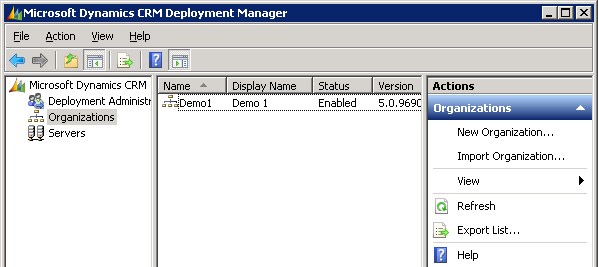
    How would you go about managing multiple databases then? In Dynamics CRM terminology, each database represents a distinct organization in CRM. Adding new organizations into your CRM server can be easily achieved through the CRM Deployment Manager. If all you need is a blank new test organization, then just start the New Organization wizard and click through the process, which will create a new database, configure language and currency settings etc. Click Finish and you’re all set!

    Oh, you wanted your production system entities, fields and other customizations in there, too? No problem, just go into your production CRM settings area, pick a solution that contains the elements you need and export it. If you don’t have such a solution, then simply create a new one, as it’s not going to affect how your live environment operates in any way. After all, solutions are just pointers to the components like entities, processes or plugins, until you export them, at which time they become physical containers to all those bits that make your CRM environment different from the plain vanilla Dynamics CRM organization. Don’t export your transport solution as managed, unless you have a good reason for it (you’ll know once you do). Just take the unmanaged solution zip file from your current CRM organization, open the new one, import it there and publish all customizations. Now we’re done!

    Huh? What’s that you say about data? Would you prefer to have not just the schema of the database but also the contents of your CRM database in that new test organization of yours? In that case, let’s forget the previous steps and use another approach, shall we? Instead of the New Organization wizard you’ll want to use the Import Organization option. Before you click on it, though, we’re going to need to create a copy of your database, because the CRM Deployment Manager does not have a “Copy Organization” feature.

    Typically the Import Organization functionality is used when taking a database from some other environment, like when establishing a whole separate development box or test server. Also the actual upgrade process for turning a CRM 4.0 database into a CRM 2011 database is handled through the same import wizard. When you’re in the process of planning your Dynamics CRM upgrade, this is a handy way to update the old CRM 4.0 customizations into new CRM 2011 solutions. In these scenarios you’d first take a backup of the original database on your old SQL Server, then copy it over to the new environment, import it into SQL and finally into CRM. However, as we’re simply creating a replica of the database inside the same environment, we don’t need to necessarily go through the backup stage.

    On your SQL Server machine, open up SQL Server Management Studio, right click on the database which has the name ending with “_MSCRM”, then select Tasks – Copy Database. This helpful Copy Database Wizard will step you through the process of creating an exact copy of your CRM organization database. Just give it a different name than the original database and point it to the same server. You don’t even necessarily need to schedule a maintenance break for your production CRM environment, since the wizard can create the copy without the need to detach and attach the original database. This wizard actually builds an SSIS (SQL Server Integration Services) package that takes care of the copy operation.

    Before returning to the CRM Deployment Manager we’ll need to pause for a while and think about how the Dynamics CRM server operates. Just like records in CRM, also the actual organization itself has a unique ID in addition to the name and display name visible in Deployment Manager. Although the Import Organization wizard does attempt to handle this, it doesn’t perform it in the most graceful way. The two known side effects from from having overlapping organization ID’s prior to the import are that: A) the import will fail if you’ve customized the business unit entity and B) email router will not work for the new organizations. There might even be other nasty surprises hiding deep inside the database, so ultimately we’d like to have a situation where the organization ID’s are 100% unique.

    There are no official tools for this operation, but luckily the Microsoft Dynamics community has come up with a solution. In the CRM Forum thread “CRM 2011 Import Organization on the same server (or how do you create a development sandboxes)” you can find a script that you can execute on your new database copy. This script will generate a new ID and update it to all the relevant tables, including the PrincipalObjectAccess table where the OrganizationID goes by the name PrincipalID. If you’re not familiar with working on SQL Server then it may look scary, but the process itself is quite simple. Select your new database (not the old one!), right click, New Query. Copy the script created by Frenkie Smart found in the CRM Forum post and paste it into the query window. Pause for a minute amd check that you have fresh backup copies of anything that’s valuable to you on that SQL Server. Got it? Good, then just click the Execute button to run the script. You’ll see in the message window below the query how many records the script has changed in each table it processes.


    Now we’ve got the new database in such a condition that we can proceed to the Import Organization wizard in the CRM Deployment Manager. Select the new database as the one you want to import, give the organization a unique display name and database name, accept the user mappings, and off you go (see detailed process instructions in this Technet article). The Deployment Manager will build a new organization for you from the copy of the existing database, which you can then access by replacing the organization name in your existing CRM URL (in my case from http://server/demo1 to http://server/demo2). If you want to use friendly URL’s or IFD for accessing CRM then you’ll need to know which DNS entries and settings to modify for the new organization to be available.

    That’s it, for real. Here’s a quick recap of the process steps:

    1. Copy your production database
    2. Take backups!
    3. Run the script on the new database
    4. Import the database as a new CRM Organization with a unique name

    The typical scenario for performing this process would be the need to generate several development organizations that contain identical data and customizations as a starting point. If you just want to maintain your own test organization alongside your production CRM environment then there’s a few things you should take into consideration. First of all, the chance for human error. If you have two identical CRM organizations that are separated only by a few characters in the URL, the chances of mixing them up can be high. Second, you won’t be able to test anything related to Update Rollups and other components that are shared by all the organizations on the server. Third, if you’re unsure about what you’re doing, then don’t do it on your live CRM server!

    With all this in mind, it might be a good idea to investigate the possibility of having a separate test server after all, don’t you think? If you don’t have any suitable hardware lying around, then signing up for a virtual machine straight from the cloud is a valid option these days. With its latest improvements, Windows Azure offers a convenient service for provisioning persistent virtual machines as needed. Building a VHD image with CRM 2011 is not a very difficult process if you follow the instructions (and know the few gotchas about SQL or VM size settings). Also, if you don’t need to keep the server up & running on a continuous basis, you can always delete the Azure virtual machine and still keep a copy of the VHD image, available for booting it back up again when the time comes.

  • More rumors on Dynamics CRM browser and mobile support

    While we wait for the official Release Preview Guide for the next Dynamics CRM update, let’s add some more water into the rumor mill. I came across an interesting blog post titled “What’s the status of Microsoft Dynamics CRM 2011 R8 (Update Rollup 9)” on the SyncraTec Solutions blog, which included the following piece of news:

    The Safari browser is not going to work on the iPad.  Instead, there will be a “specific mobile companion application” that won’t be available until post Fall 2012 Release.  This (device-) specific mobile companion application will be based on html5 and work with any of Windows 8, iPad, or other tablet-type devices (e.g., Android).

    So, not only will we be getting a new Refresh UI for the browser experience as well as the inevitable Metro CRM app, there’s also a third in-house CRM client in the works for mobile and tablet devices. Although the deal with making CWR Mobility’s CRM client available with Microsoft’s branding appears to be still in the works, this gives a whole new perspective on speculation for the reason why the mobile clients were delayed together with the cross-browser support. Why put the whole CRM Anywhere concept on hold just because the IE-specific scripts would have caused issues to PC and Mac users on an alternative browser? Well, seems like there’s more to the whole “companion” client story than slide below from WPC 2012 would have lead us to believe.

    I’ve never been fully convinced that it’s a good idea to use a similar CRM client app both on the small smartphone screen and the 10″ screen of a typical tablet device (read: iPad). The use cases for these devices tend to vary quite a lot, at least in my personal experience. The upcoming Metro UI of Windows 8 seems to fit very well with the tablet scenarios that aim to replace traditional laptops as the devices which you take with you to the meeting rooms and other temporary workspaces. However, there are currently zero tablets out there running Windows RT (at least in the hands of end users) and a growing number of iOS and Android devices. Since Metro will make many Microsoft apps exclusive to Microsoft platforms again, how do you capture the audience that needs a mobile CRM solution but doesn’t want to replace all their hardware the very moment Win8 becomes generally available?

    It appears now that this is a market Microsoft intends to go after, by building a HTML5 based client specifically designed for the smaller screens. Based on the above quote, we’ll see an app that is platform specific, but will they take the same route as Facebook did with their iPad app and just embed a browser view into the UI chrome of iOS and Android operating systems? Or will there be more native features used in each platform, which would be the opposite approach to the responsive design paradigm that’s become trendy with public websites nowadays? And what will remain as the domain of the existing iPad app that was promoted so much back in Convergence 2012?

    Another question that arises from statement of “CRM on Safari browser will not work on iPad” is whether this means Dynamics CRM is not officially supported on that browser/device combo or if Microsoft will actually actively block the usage of the browser client on a tablet device? Earlier this spring the message was that the browser support matrix published would indicate which platforms would fall under Microsoft’s customer support plans, but other devices like Android might still work OK. Although the Dynamics CRM browser user interface that has been designed to be used with a mouse would surely not be optimal on a multi-touch tablet, the initial reports from running the UR9 / R8 beta on the iPad Safari browser were saying the experience wasn’t actually that bad at all.

    Returning back to the R8 discussion, we now have confirmation also from a Microsoft representative that the following features will not be published this summer but instead be delayed until Q4 2012:

    • Custom workflow activities on CRM Online
    • Activity Feeds solution update with view filters

    Bummer. Many developers and ISV’s were really waiting for the possibility to start utilizing custom code in workflow processes, but now with CRM Online still not supporting them and 2/3 of new Dynamics CRM customers choosing the Microsoft hosted cloud platform, there’s not much opportunities to release commercial solutions with custom workflow activities until later this year.

    Why the Activity Feeds update is not released either is difficult to understand. While testing the R8 beta the new filter features seemed like a very welcome addition that would surely make it easier to deploy Activity Feeds into the day-to-day operations of CRM users without worrying about how to get the users to follow relevant records. The only sensible explanation for this delay could be that Microsoft has decided to pull back some of their own feed functionality and try to merge them with the Yammer platform’s capabilities. Given the relatively short time frame until Q4, I’m not sure how much integration could actually be developed between Yammer’s feeds and the MS stack of business applications, but let’s see how this thing develops.

  • Signing up for CRM Online in the Microsoft Online Services era

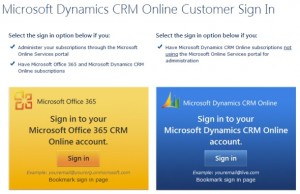
    Starting from July 19th, you no longer can/need to use a Windows Live ID to sign up for a 30 day trial of Microsoft Dynamics CRM Online. Instead you’re directed to the Microsoft Online Services Portal (a.k.a. MOP) to follow the same registration steps as you would when starting an Office 365 trial subscription. So, how does it work in practice then? Let’s sign up and see.

    There are a few additional steps in the registration process now. In addition to specifying the name of your company, you also need to select a new domain name, such as “yourcompany.onmicrosoft.com”. You’re given the chance to check for domain name availability, but it’s important to note that this only checks the .onmicrosoft.com domain. Your actual CRM Online organization will still be at yourcompany.crm.dynamics.com (depending on the region) and if the name given already exists on that side, the CRM provisioning process will automatically adjust the URL (I sure hope it’s better than those org85fs321nad type of CRM organization name monsters we had before). Additionally, since we don’t yet have a Microsoft Online user account in this case (if we did, the process would be somewhat easier), we’ll need to provide a user name and password.

    Once the data input has been accepted, we’re greeted with the administration portal that’s familiar to anyone who’s been managing an Office 365 subscription. Instead of the Exchange, Lync and SharePoint services we’ll see Dynamics CRM as the only available option. The actual provisioning process can take a while, so you may need to keep your eye on the spinner and refresh the screen quite a few times. In the US data centers the process took just a couple of minutes, but in EMEA I had to wait for half an hour before CRM was enabled in the Microsoft Online trial subscription. Presumably things will speed up as CRM becomes an everyday part of the Online portal.

    Under Dynamics CRM there’s a Manage link, so let’s click on that and off we go… Ouch, grey screen! You weren’t using a non-IE browser, now were you? Just because Office 365 web apps are compatible with most browsers, doesn’t mean Dynamics CRM would be. Remember how that cross-browser support was re-scheduled to Q4 2012? That’s ok, it’s easy to forget such minor details. Also, since Microsoft still doesn’t want to make it clear to the potential customer what the system requirements for Dynamics CRM are, many of them will surely be greeted with the below screen once they login to their CRM Online trial with Chrome, Firefox or Safari, puzzled about why they’re seeing this mobile UI instead of the pretty charts and familiar Office experience they were promised.

    After we click on the CRM link inside MOP with Internet Explorer, we get an additional dialog that used to be a part of the CRM Online sign-up form: selecting the base currency for the CRM organization. Once done, the familiar CRM provisioning screen is presented, alongside the promotional WMV video telling us how Dynamics CRM will improve your productivity etc. Wait a couple of minutes and you’re given the button to launch CRM Online.

    From this point onward the user experience is exactly the way it used to be back in the Windows Live ID days. Once you go to add more users into your CRM Online subscription there is however something new in the UI: instead of allowing you to add new CRM user records, a popup window will instruct you that in order to add more users to Microsoft Dynamics CRM Online, you’ll need to go to the Microsoft Office 365 Admin Portal.

    Ok, let’s click on the Add and Licenses Users button. We’re taken to the Online Services portal and get to specify a name for the new user. There’s also a “bulk add” option available, but since that would require creating and uploading a CSV file, we’ll skip that for now. Similarly to the subscription administrator (the first CRM user you created), the new users will be given a user@yourcompany.onmicrosoft.com user name. You can enter more details for the user, but not an email address (more on that later).

    Moving forward, we’re given the option to grant a CRM user license to the user. However, unlike the native CRM dialog windows for adding users, the MOP dialogs won’t allow you to assign any CRM security roles to the new users. Instead, you’ll need to go back to the Dynamics CRM administration menus to perform this operation. Don’t forget this part, as otherwise your users will have a user account but no access rights to CRM.

    Ok, we’re now almost done and are presented with the option of sending details of the new user name and temporary password by email. By default the recipient will be the admin user. Don’t send it there. Why? Because even though it looks like an email address and MOP considers it to be one, there is no email service available for you to access this inbox. Remember: you’re just configuring a CRM Online trial, not Exchange Online. So put a real email address in there, or then just copy & paste the data from the next screen.

    Once the new user account becomes available in the CRM users view (it can take a couple of minutes), you can open up the record and assign the required security roles to the user. Another thing you should do is to specify the real email address of the new user, so replace the @onmicrosoft address with a proper business email. While you’re at it, you may notice that not all user profile fields are available for editing on the CRM user form like they would normally be. Changing details like job title, main phone, mobile phone etc. needs to be done in the Microsoft Online Services portal and not CRM, as these are part of the user information maintained in MOP’s directory. Unlike in a traditional on-premises implementation with Active Directory, changes to the user profile fields will actually be updated onto the corresponding CRM user record after it has been created. See the following MSDN article for details: Sychronized Users in Microsoft Dynamics CRM Online and Office 365.

    In addition to user management, also the subscription management for CRM Online now utilizes the Office 365 platform capabilities rather than the old system that was used for billing Xbox Live credits and other consumer services. What this means is that a potential customer might as well go and sign up for an Office 365 trial to go alongside their CRM Online trial. All it takes is finding the link under Subscriptions – Purchase – Microsoft Office 365 (Plan E3) – Trial and they can take the Exchange, SharePoint and Lync functionality for a test drive. Cross-sell opportunities galore!

    Are there any benefits then for a customer who just wants CRM from the public cloud and not Office 365? Yes, because the new Microsoft Online based authentication allows setting up an integration with the existing Active Directory that the customer has. No need to manage separate credentials for CRM Online anymore if you configure AD federation between your domain and the cloud services hosted in Microsoft’s data centers to offer the users a single sign-on (SSO) experience. It requires some level of effort, though, so start by getting to know the following article: Plan for and deploy AD FS 2.0 for use with single sign-on.

    Another nice addition is the access to a CRM Online Service Health dashboard. Similar to what Office 365 has offered, you can now also see information about the current status and pas issues related to various CRM Online service components. While Microsoft has actively promoted the new CRM Online Trust Center, effectively it’s just a static page with information regarding security policies and certifications. In comparison, the Office 365 (and now CRM Online) Service Health dashboard will tell you what’s going on with the service right now and what maintenance breaks are planned. Compared to, say, trust.salesforce.com, it’s less transparent due to the requirement of having an administrator login to access the information, but it’s a good start.

    What if you’ve already implemented CRM Online and want to take advantage of the integration with Office 365 user accounts or on-premises AD? At the moment, there’s not much you can do. The changes introduced on July 19th only apply to new CRM Online organizations, which will now be provisioned onto the Online Services Delivery Platform (OSDP). Existing organizations on the old Commerce Transaction Platform (CTP) will eventually be migrated, but there is no official schedule for this yet.

    My guess would be that we’re not going to see any updates for existing CRM Online customers until the Office 2013 wave of updates rolls out to Office 365 customers, as Microsoft will surely put all its resources behind ensuring the Windows 8 launch with the accompanying business apps is a success. With plenty of other things on the Dynamics CRM development roadmap, it may take another year before we can finally say goodbye to the Windows Live ID based authentication in CRM Online. In the meantime, why not sign up for an Office 365 Enterprise Preview to see what the 2013 wave has to offer on SharePoint, Office and other products?

    Edit 2012-07-31: here’s a list of a few Office 365 issues that can cause problems for new CRM Online organizations:

    • Setting an integration user account to Non-Interactive access mode doesn’t reduce the count of assigned CRM licenses in MOP, as there are no free service accounts on Office 365 at the moment. In the past CRM Online allowed 5 free non-interactive user accounts. This is no longer the case, so any integrated application with its dedicated credentials will consume a full license on CRM Online. Unless this policy changes, it will increase the license cost for existing customers when they are eventually migrated from CTP to the new OSDP environment.
    • Developer toolkit and plugin registration tool cannot connect to CRM Online, default discovery service URL has changed from dev.crm.dynamics.com to disco.crm.dynamics.com (see thread on CRM forum)
    • Internet Lead Capture functionality is currently unavailable for new organizations in US (other regions have never had this functionality to begin with)
    • Instead of *.live.com, now you’ll need to add *.microsoftonline.com and *.accesscontrol.windows.net into IE Trusted Sites alongside *.dynamics.com to avoid prompts during the authentication process
  • Making Dynamics CRM exclusive again with Windows 8 & Metro

    We have less than a month to go until Windows 8 hits RTM (release to maunfacturing). What has been described as the biggest OS renewal since Windows 95 is the current center of attention for each and every division at Redmond, since effectively Microsoft is betting the whole company on Windows 8. How does such a significant shift in the operating system used by 1.3 billion users impact a business application like Microsoft Dynamics CRM that has “only” 2.7 million users worldwide?

    The past glory of Outlook

    Previously Outlook used to be the premium client for accessing Microsoft Dynamics CRM. While any other CRM application provider was technically able to design a great user experience on a browser client, tapping into the omnipresent Microsoft Outlook (1 billion MS Office users globally) was a much more challenging task for outsiders, since they couldn’t just borrow members of the Outlook product team to help in building a CRM client, like the Dynamics division did with CRM 2011.

    One regular tweet the Redmond tweeps like to recycle is that Outlook integration is the most popular add-on for Salesforce.com. I can imagine that for anyone selling a CRM application the question of “how does it work with my Outlook email and calendar” will have been a common encounter. As a result, every significant vendor has developed an Outlook integration. Also, as admitted by Bill Patterson at his WPC 2012 presentation, some customers actually prefer the Outlook clients of competing CRM vendros over what Dynamics CRM offers today. Sure, it may be an add-on, but what’s the big difference at the end of the day?

    Another aspect to consider is that CRM inside Outlook is no longer the Holy Grail it once used to be. While I don’t have actual hard evidence to back this claim up, to me it seems obvious that the Outlook client is losing the relevancy it once had as the central hub for all knowledge workers. We no longer process our emails or manage our calendars on only our work PC, instead we do it on mobile phones, tablets, browsers, everywhere. The traditional Outlook application as we know it exists only in one of these environments. Although it remains within the reach of most Dynamics CRM users, it is more about the desktop legacy than showing the way of the future.

    Cross-browser vs. Metro

    Alongside Outlook, also the Internet Explorer client is losing its past status. The Dynamics CRM browser experience is becoming available on pretty much any Internet capable device, be it a PC or tablet, as the cross-browser support in Dynamics CRM rolls out. It was supposed to be here already, but got put on hold for another 6 months based on a decision Microsoft has made very recently. Regardless of the delay, it is something that cannot be stopped anymore. All the users, be it on IE, Chrome, Safari or Firefox will get the benefits of the new “Refresh” UI in their web client.

    The main reason stated for the delayed delivery schedule of cross-browser support has been quality issues related to customizations in existing Dynamics CRM environments. Microsoft representatives have emphasized that they will not release a beta level product for line of business software that’s business critical to many of their customers.

    While those are most likely accurate claims, Dennis Michalis (General Manager, Microsoft Dynamics CRM) also brought up in his WPC 2012 session the impact that Windows 8 has had on product development for other Microsoft product lines. Based on his statements, the demands placed on all the product teams for reaching Metro compatibility as close to the Windows 8 RTM date (beginning of August) as possible have probably forced them to re-evaluate their roadmaps and take away resources from the development of non-Metro functionality. In his own words:

    “If we didn’t render Dynamcis CRM in the Windows 8 context we’d look foolish.”

    Think about the priorities from Microsoft’s perspective: Would you rather make your business applications run seamlessly across PC and non-PC devices, thus making your competitors’ hardware and software more valuable for the user, or would you focus on building something that will run only on Windows machines? Besides, who wouldn’t want to get to selling a CRM app as gorgeous as this ASAP?

    With the introduction of Metro apps on Windows 8, it will once again be possible for Microsoft to deliver a premium user experience that is exclusive to the clients running the latest & greatest MS software. Metro CRM will effectively be what the CRM Outlook client used to be a few years ago. This slide from WPC shows how the future Dynamics CRM client portfolio will no longer be Internet Explorer + Outlook, but instead we have the Classic client (browser + Outlook), Core client (Metro) and Companion clients (mobile apps).

    In this transformation process the iPad apps are relegated into the “companion” category, whereas Metro apps are considered a part of the “core” experience. We probably won’t be seeing all the Dynamics CRM customization tools in the Metro CRM app anytime soon, but most of the functionality accessed by the average CRM user will very likely be available in the Metro client. Companion apps fill the gap for usage scenarios running on truly mobile devices i.e. smartphones, but the iPad or Android tablet apps Microsoft themselves offer will surely never be allowed to reach the level of functionality available on the Metro UI.

    By delaying the availability of Microsoft Dynamics CRM Mobile from Q2 to Q4 the period of time between the Metro CRM app preview (Winter 2012 release = Q1 2013) and the official iPad app availability will have been conveniently minimized. Sure, anyone could acquire the iPad client straight from the manufacturer already today, but in the eyes of industry analysts who don’t pay attention to every detail in the product portfolio of CRM vendors they write articles about, little things like this can make a difference (case in point).

    Are you ready to sell the Windows OS?

    As we feast our eyes on the sneak peaks to a world where Dynamics CRM data is available literally at our fingertips, sliding away smoothly on the Metro canvas, it’s easy to forget what it will actually require for customers to gain access to a system like this. Metro apps will not run on anything but machines with Windows 8 OS. Also, they will not feel all that special unless you have some form of touch based input available in your hardware.

    The Microsoft stack must be a faimilar concept to any IT professional. As an example, a customer doesn’t just buy Dynamics CRM from Microsoft, they buy the OS for the server & client, SQL Server for the database, Office for the end user information processing tools + optionally SharePoint, Exchange & Lync. Similarly, the Dynamics partners don’t only sell Dynamics CRM, Dynamics NAV etc. but also the surrounding stack. While in the past the OS hasn’t been a huge focus for Dynamics VAR’s, soon many of them will be selling Windows 8, indirectly. This is because if the customer doesn’t have the modern client software & hardware at their disposal, then you’ll need to fall back into the classic client in your CRM presales demo. Just imagine how crushing that will be once you’ve had a taste of Metro.

    But there’s more to it then just flashy CRM demos obviously. Microsoft needs Metro to succeed in the enterprise. It may not need it immediately, though, and could therefore be prepared to not see a bigger uptake until Windows 9 comes around. Nevertheless, in order to have any chance of convincing companies to move beyond Windows 7 they’ve spent a lot of time and money migrating to not too long ago, Microsoft is in desperate need of Metro apps for the enterprise user. It’s not too difficult to convince developers to build simple Twitter clients and other small apps for Metro. The consumer can probably migrate to a Metro world pretty quickly, just like they’ve embraced the iPad. The enterprise scenario is a lot more complicated: No enterprise Metro apps -> users stuck with desktop apps -> Windows 8 only makes the life of IT department more difficult -> no sale.

    The previous versions of Windows were sold to the enterprise as an operating system that meets the core needs placed on an OS. Windows 8 and its successors will be sold as the platform that runs the apps that your users need, with the user experience that they want. It’s no longer how you sold the enterprise BlackBerries, it’s increasingly how the enterprise was made to adopt iPhones. From the bottom up, through CoIT strategies (consumerization of IT). Cheap upgrade offers and shiny new slate devices targeted for the Xmas shopping season will not get the enterprises to adopt Windows 8, but they may get a few key influencers to go BYOD with Microsoft software and hardware (unlike the BYOM we’ve seen so far, i.e. Bring Your Own Mac) and put some pressure on their IT departments.

    The same applies to Microsoft Dynamics partners. If the Salesforce.com sales reps go meet the potential customer with an iPad 3 in their hands, what Microsoft needs to get into the hands of its partners is the Surface. Long before the Dynamics CRM users will adopt it in any significant numbers. As the saying goes, the future is already here – it’s just not very evenly distributed. Even if Windows 8 would become an instant success in the consumer space, this will likely remain the reality for the Dynamics CRM customer base for quite some time.

  • Dynamics CRM Fall 2012 “Refresh” UI first impressions

    Last year the Microsoft Word Partner Conference gave us a first look at the Activity Feeds solution and other R7 feature enhancements. This year in WPC 2012 we got a taste of things to come in Dynamics CRM on not just one but two client UI’s. Although the Metro CRM app is surely a more significant step in the long run, the updated browser UI will initially have an impact on a much wider user base. That’s why I decided to blog about these news first before jumping into the world of Windows 8.

    The screenshots in this post are taken from the recording of the WPC session titled Microsoft Dynamics CRM — Now and in the Future, in which Bill Patterson presented the future roadmap of Dynamics CRM. We’ll be getting an updated Release Preview Guide soon which hopefully goes into more detail about the changes and new features, so consider this just a sneak peak into what’s coming in the next Dynamics CRM update.

    After the R8 / Q2 2012 release contents on the browser front were rescheduled, we’ll now be getting visible changes also on the Internet Explorer user experience in the Fall 2012 release (in practice the Q4 2012 Service Update). The new “Refresh” UI will take the classic browser experience closer to the Metro look & feel, but it is not the same thing as the Metro app. Point & click mouse interaction is still the focus here, although with cross-browser support you will at least theoretically be able to run this on a tablet with a touch UI.

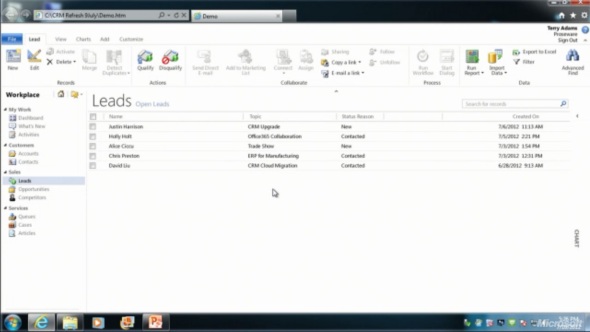
    The changes in the main screen of Dynamics CRM browser client do not appear to be functionally significant, rather just small tweaks in the colors, fonts and other details. We’re moving from the Vista style Aero UI into a simplified, flat Metro UI, which will be visible in all Microsoft products very shortly.

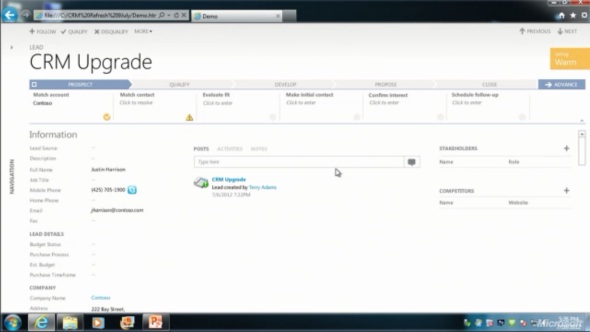
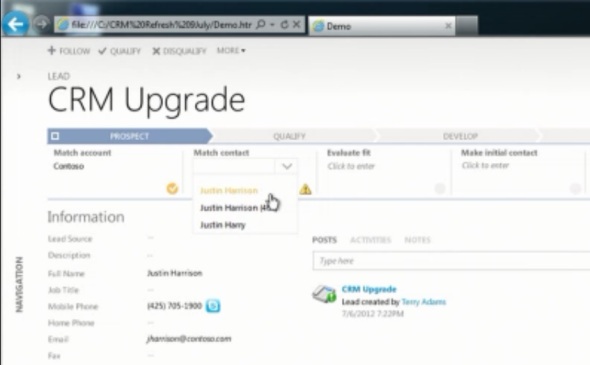
    The entity form windows will experience a much more significant update. Please note that one of the focus areas in the Dynamics CRM roadmap for Fall 2012 is developing the application functionality specifically for opportunity and case management, so I expect these changes will not initially impact all the entities. The demo at WPC covered lead and opportunity forms, below is a screenshot of how the lead form appears in the “Refresh” UI:

    Wow! We’ve come a long way from the CRM 2011 UI. Where should we start with going through the changes?

    Let’s take the ribbon first, or more specifically the lack of it. Although the main window of CRM will still present the full application ribbon, at least on the lead & opportunity forms the ribbon will be minimized by default. Clicking the “More” button will presumably reveal the ribbon, but we didn’t see this in the demo, because the intention of Microsoft is to hide it away as much as possible.

    “Hey, didn’t we just get the ribbon 1.5 years ago?” Yes, we did, but it doesn’t fit with the Metro design principles anymore, which state: only deliver the right information to the user at the right time, don’t overwhelm them. Touch UI on tablets and phones makes this even more important, which is quite easy to understand. For the power users (most of the readers of this blog, I’d imagine), the wealth of functionality presented on the ribbon must have felt like a welcome addition back in Office 2007 or CRM 2011, but this doesn’t necessarily mean it’s the right design choice for a CRM application. Results of the usability research Microsoft has conducted can be summarized in the following quote from Patterson:

    “Ribbon is great for the power user, but the everyday user just wants the file menu back.”

    Well, that’s it then. RIP ribbon 2011-2012, it was nice to know you. While the reality may not be quite as black & white, anyone designing solutions on top of the XRM platform should definitely take the inevitable fate of the ribbon into consideration.

    If we don’t have the ribbon there to guide the user anymore, then what can we use instead? The answer is: processes. What is called the Process Driven UI in the development roadmap will in practice manifest itself as a graphical, interactive process stage indicator on the top section of the entity form.

    According to Patterson, the new UI is built on the Dialog Process foundation established in the original CRM 2011 release. Presumably the arrow titles will then come from process stage names. Each stage can contain multiple steps that the user needs to complete (although they don’t appear to be mandatory, at least in the lead qualification demo). Logically these would then be created with the Prompt and Response pairs available in current dialogs. The user can progress from one stage to another manually by clicking arrows on the far right corner of the process graph, but presumably there will also be support for creating conditions for automatic rules to update the stage of a record.

    Without knowing much about the features and initial limitations yet, the Process Driven UI looks like an excellent addition to the Dynamics CRM application. Workflow and dialog processes have so far been almost invisible to the user, which has made CRM look like just a static place for entering, reading and updating fields on a form. By bringing the process thinking into the foreground, the barrier for using CRM to really automate business processes will become significantly lower, which in turn can make the application a much more valuable tool for the organization using it.

    Moving on with the UI review, into the main form sections, we can see another welcome addition: the built-in follow-up activity functionality is back! When the form assistant was deprecated in CRM 2011 we lost the ability to quickly create follow-up actions from the previous activity form (unless you built a custom process for this, as I’m sure many organizations have), but now it returns into the  core Dynamics CRM application.

    These follow-ups, like any other related record presented on the form, are fully editable directly on the parent entity form instead of a separate pop-up window, which has been a paint point that Microsoft is working hard on trying to eliminate. Modern web apps don’t have popups and modern devices (tablets and smartphones) don’t support them, so inline editing is the only sensible way going forward.

    Notice how the traditional form fields of a lead are all stacked up on the left side. With the related entities navigation collapsed by default, this single column approach actually looks pretty good. Must be because the iPad and Metro apps are teaching us that fields don’t exist side by side but on top of each other. But what do you then fill the rest of the screen with?

    The answer: related records. In the opportunity form example there are subgrids of stakeholders (Connections), Competitors and pursuit team (possibly new team management related entity, or just a Connection type?), although they barely look like subgrids at all since the Metro style form design blends these seamlessly into the entity form. In the middle there’s a combined list that shows Activity Feed Posts, Activities or Notes, depending on the selected tab. Another design choice that sure feels better than spreading these records into a wall web resource, subgrid and a notes/attachments list as they are in the current CRM 2011 UI.

    Also pay attention to the top right corner of the form, where there is a highlighted section of entity fields, in this case the opportunity probability, rating, estimated close date and estimated revenue. Whether these are business required or business recommended fields that get automatically promoted into this section of the UI remains to be seen. It’s like a form header section that is actually editable, which could be another possible implementation method. As you may or may not have noticed yet, the header and footer section of the lead and opportunity forms are now history, with no apparent way of bringing them back, unlike the ribbon with the “More” menu.

    All in all, what the WPC 2012 demo showed us is almost like a whole new application. The way in which the lead-to-opportunity process now flows within the same window, without a single pop-up window is nothing short of revolutionary, if you compare it to the current Dynamics CRM UI logic. The navigation paths in the application have remained fairly static from v3.0 to 2011, with the latest major version adding a large amount of new UI components (ribbons, charts, subgrids, filters) into the mixture but not really changing the core concepts. Now with the Fall 2012 browser client update and the Metro CRM app looming in the horizon, all of a sudden the  Dynamics CRM user experience is about to get redesigned in a major way.

  • Dynamics CRM roadmap for Fall 2012 release and beyond (the road to Metro)

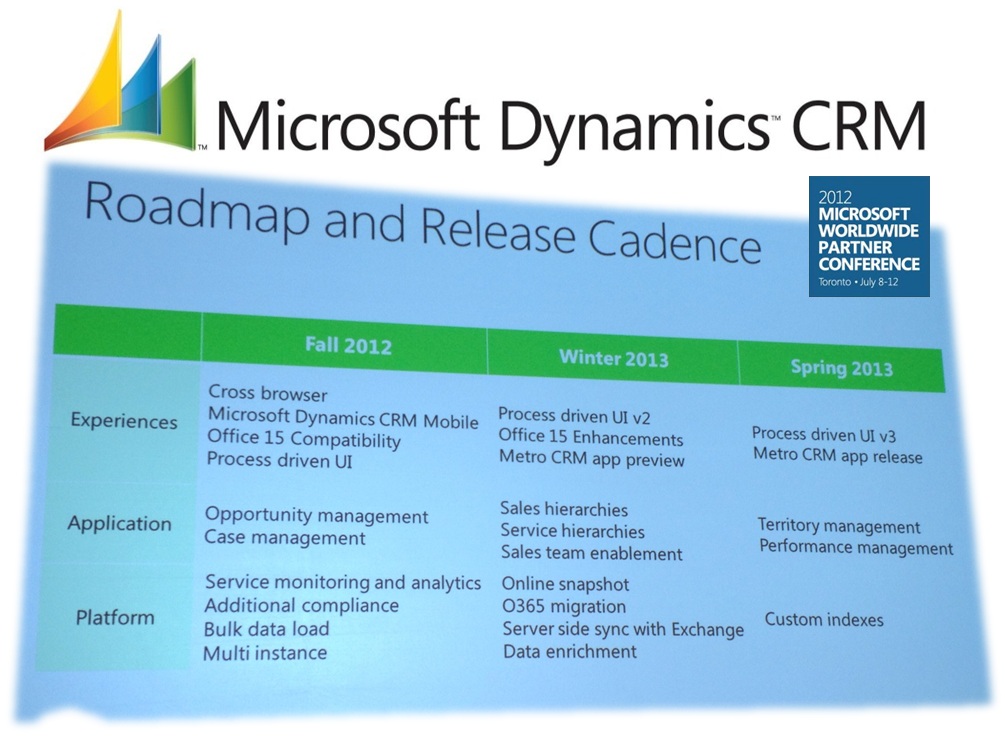
    After the unfortunate delay announcement of R8 / Q2 2012 Service Update planned functionality into Q4 2012 (cross-browser and mobile, read it all here), we have some more upbeat news regarding the future of Microsoft Dynamics CRM. As of now there is no official document available on this information, but the screenshots from World Partner Conference 2012 (WPC) already give us plenty of new information and reasons to get excited about the road ahead. Without further ado, here’s what the future releases of Dynamics CRM are planned to contain:

    Click here for a bigger version of the picture. Now, let’s break this roadmap slide down into pieces so we can better digest the contents.

    No more references to “Q4 2012 Service Update”, R9 etc. Instead we now have the functionality placed into Fall 2012, Winter 2013 and Spring 2013 updates. Whether this is the official new naming policy for Dynamics CRM updates remains to be seen.

    “Refresh” UI coming to the browser client presumably in Fall 2012 update. These UI changes have now been merged with the cross-browser support, which was delayed from Q2 2012 to Q4 2012. The new UI will have a Metro feel to it, but it won’t be an actual Metro app. Simplified appearance with less colors seems to be the way to go here. If you’ve seen the leaked Office 15 screenshots, that’s probably where CRM is going as well.

    Office 15 (Office 2013) compatibility in Fall 2012, enhancements during Winter 2013. Since we don’t have a beta of Office 2013 available, the future functionality is unconfirmed, but I’d imagine CRM to integrate with the Agaves feature, for example. Making the CRM client compatible with Outlook 2013 should be an obvious deliverable here.

    Process driven UI, to be launched in Fall 2012 update and developed further in consecutive releases. The demo from WPC shows a persistent process “timeline” graphic on top of the lead form, which visualizes the stage the record is in and he information & actions required in that stage. What’s interesting is that this process in the demo flows seamlessly from a lead record onto an opportunity record. This looks like a highly interesting new feature that will hopefully allow us to make workflow and dialog processes as well as status reason data easier for the CRM user to understand and interact with. Also notice how the lead entity form in the demo presents fields and subgrids in several columns side by side, with the form navigation collapsed.

    Metro CRM app preview in Winter 2013, full release in Spring 2013. Yes, the real deal, not just a generic Dynamics app we’ve seen in the keynote demos in Convergence 2012 and now WPC 2012. CRM reimagined.

    Application functionality updates. Opportunity management and case management enhancements in Fall 2012, presumably to go alongside the process driven UI. Sales & service hierarchies, sales team enablement in Winter 2013, providing some of the team functionality visible in the Metro demo. Territory and performance management in Spring 2013.

    On the platform side there’s plenty of new things lined up. For Fall 2012 we have:

    • Service monitoring and analytics (á la Office 365 Trust Center)
    • Additional compliance (more certifications for CRM Online?)
    • Bulk data load (improved data import wizard?)
    • Multi-instance (?)

    Winter 2013 promises us:

    • Online snapshot (can we download a copy of CRM Online database as self service?)
    • Office 365 migration (is this the move from CTP to OSDP, finalizing the “better together” story for existing customers?)
    • Server side sync with Exchange (R9 rumor from Convergence now confirmed, no more Outlook client dependency)
    • Data enrichment (could be Azure Data Market, InsideView or something similar for filling customer details from external databases & networks)

    And finally “custom indexes” for Fall 2013. A lot of questions arise from a single roadmap slide, but that’s what the upcoming Q4 2012 Release Preview Guide will hopefully address once released during the summer.

    A big shout out to CRM MVP Mark Smith from Magnetism for sharing the pictures he grabbed during the WPC 2012 sessions. You can find his WPC album on SkyDrive, filled with Metro goodness. I’ll close off with another beautiful scene from the Metro CRM and start counting the days to when I can get my hands on a Windows 8 slate running the preview app.