Last weekend I finally did my first installation of the RTM versio of CRM 2011 Outlook client onto a machine with Outlook 2010. I had previously only worked with the Outlook 2007 client version, which is lacking a few nice features in the UI, as described in my earlier post.
I came across a few issues that might cause problems in the installation process, so I decided to link the relevant KB articles and other related content into this blog post to help you save some time when upgrading to the latest version of Microsoft Dynamics CRM on your client machine. I’m using CRM Online here, so some things may differ from the on-premises client version, which no longer has a separate client version, but of course the authentication methods do differ.
Before you begin: go with 32-bit
Yeah, I’m sure most of the new business laptops nowadays come with a 64-bit (a.k.a. x64) version of Windows 7. Nevertheless, you should treat 64-bit applications with caution. Why? Well, it’s a bit like with IPv4 vs. IPv6. Everyone knows the old world as we know it is coming to an end, but there simply isn’t a concrete enough reason for developers or companies to go “all in” with the 64-bit apps.
 With Microsoft Dynamics CRM 4.0 the situation was quite nasty, as there was not and there will not be support for the 64-bit versio of Microsoft Office. You simply had to tell the users to “downgrade” their Office, which is not the most optimal starting point for getting someone to adopt a new application such as Dynamics CRM. Now with the arrival of Dynamics CRM 2011 we do in fact have an x64 client for Outlook, so everything should be in order, right? In theory, it is, but if you’re planning to install any fancy RIA apps from the Dynamics Marketplace into your CRM 2011, you should read this blog post from Customer Effective. That’s right, Microsoft hasn’t releases a 64-bit version of the Silverlight add-on for Internet Explorer, which leads us into the following situation:
KB2500373: Microsoft Silverlight web resources cannot be viewed in the 64-bit version of the Microsoft Dynamics CRM Client for Microsoft Office Outlook
It’s a fact of life: the world is not 64-bit just yet. With the Office applications there’s not likely to be a significant performance boost from using the x64 version, so take the easy way out and just install the 32-bit Office 2010. Let’s revisit the topic when we all have Windows 8 and Office 2013, shall we?
Favorite folders no more
KB2494600: There is no option to add Microsoft Dynamics CRM entities to favorites in Microsoft Office Outlook 2010
 The Solutions Module is a new feature that has become available in Outlook 2010, as described here in the MSDN library article. It allows developers to integrate their applications directly into the Outlook navigation pane, which is what Dynamics CRM 2011 Outlook client is doing to achieve the seamless integration into the native Outlook navigation items.
What’s the downside? Unfortunately the add-on solution folders cannot be added to the Outlook favorite folders group. Bummer. This was one of the first things I always instructed people to do when training them on how to use Dynamics CRM. There’s no better way to drive CRM adoption that getting the list of the company’s accounts and contacts to be available right below the Outlook inbox folder, where most people start their day at the (MS) office. Even though the CRM folders are now more visual and available under the CRM navigation pane tab, there’s still likely to be tens of entities visible for most CRM users, out of which they typically access just 3-4 most popular ones. I, for one, hate navigating through hierarchical folders that require you to expand them to see the what’s hidden on the next level, so always visible one-click navigation is how I prefer to arrange my working environment, be it SharePoint workspaces or CRM menus in Outlook.
Following the instructions in the KB article, you can achieve the old favorite folders functionality also in Outlook 2010, but this will require you to disable the Solutions Module. Which, if I’ve understood correctly, will again turn the flashy CRM folder icons into the generic folders that we see in Outlook 2007 or Outlook 2003. Guess we’ll just have to figure out which is a bigger loss for the end user experience and make a choice, until there is a feature enhancement available for the Outlook 2010 Solutions Module (I hope there’s no technical limitation on why this couldn’t be implemented in a future service pack).
Clashes with Windows Live Essentials
KB2498892: Unable to Configure the Microsoft Dynamics CRM Client for Outlook against Dynamics CRM Online
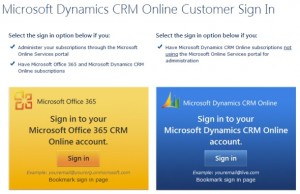
Seems like the Windows Live ID authentication in CRM Online has some issues with the “consumer products” for Windows Live. This might not be a big issue in big corporate environments with locked-down client machine configurations that don’t allow using consumer targeted services such as Hotmail or Skydrive. However, as Dynamics CRM Online is clearly making the former enterprise level applications like Customer Relationship Management suites available to even the smallest organizations with its low monthly cost per user and ease of deployment, there’s likely to be more and more users who’ll be transitioning from Microsoft’s consumer product lines to the new cloud-based business product lines, such as CRM Online and Office 365.
 Basically you’ll need to run a repari install on the Windows Live ID Sign-in assistant or Windows Live Essentials 2011 to make it compatible with the Outlook client for CRM Online, which is also using Windows Live ID to connect you to the CRM server. That should do the trick.
But wait, isn’t Dynamics CRM Online a business product? Why is it using the WLID authentication method meant for the consumer products? For comparison, here’s an aswer from Allen_MSFT on the Office 365 FAQ to a question regarding weather using Office 365 will require WLID.
“Re Windows Live ID, you don’t need a Windows Live ID to use Office 365 or to use your Windows Phone 7 with Office 365. Windows Live services are for consumers, so they are not linked within the Office 365 portal.”
Indeed. I’m waiting for the day when also Dynamics CRM Online will be migrated over to the new Microsoft Online Services Delivery Platform, which will hopefully give us better tools for managing CRM user accounts and authentication.
Missing Outlook ribbon after CRM client installation
KB2494581: The Outlook and CRM ribbons disappear from Microsoft Outlook when you use the Microsoft Dynamics CRM Client for Microsoft Office Outlook
I had this one happen to myself, since I had been using a previous beta version of the CRM 2011 client on my machine. I had uninstalled both Office and CRM, but there still remained a few lines in the registry that needed to be removed to get the Outlook ribbon to reappear.
I have to tell you, Outlook 2010 really looks naked when the ribbon is gone (not just hidden). I’m not sure if there even was a way to do any basic Outlook operations like sending emails with the ribbon completely blank, so I started googling around immediately and came up with the instrcutions that pointed to the following steps required to restore the ribbon:
- Run Regedit.exe
- Locate the HKEY_CLASSES_ROOT\TypeLib\{2DF8D04C-5BFA-101B-BDE5-00AA0044DE52} key
- Delete the 2.4 key that’s found under it. It’s not needed anymore, there should only be 2.5
Update Nov 9th 2011: Since this appears to be quite a popular post on my blog, I decided to append this information here. Today I was creating a new Windows user profile on a PC that already had the CRM 2011 Outlook client installed on a different user profile. When launching Outlook for the first time as this user, the ribbon was missing from the CRM menus (not the whole Outlook as in the aforementioned case), even though everything was working fine for the previously configured user account. In this particular occasion the client was linked to a CRM Online organization which had received the R7 update (a.k.a. Q4 2011 Service Update), but the Outlook client was still on Update Rollup 3 level. After I deployed
Update Rollup 5 on the machine and rebooted, the ribbon was restored for this new user profile. So, be sure to check that the client and server hotfix levels match if you encounter a ribbon display problem.
Reading pane always shows the contact layout
Dynamics CRM Deployment Forum: CRM 2011 reading pane error in Outlook 2010
Unfortunately this one doesn’t have a knowledge base article or a fix yet. I encountered this issue briefly when installing the Beta version of CRM 2011 Outlook client. Back then, all it needed was a reboot and the reading panes and icons were restored. With the RTM version of CRM 2011 client, the issue is more persistent. Each and every CRM entity appears as if it was a contact, presented in a business card layout that only contains the entity primary field (name) and not any other data. Click the image below to see an example of the account record shown as a business card with the contact icon.

Update Nov 10th 2011: Thanks to Wimco’s post on Dynamics CRM Forums, I was finally able to fix the reading pane layout problem on my PC. I simply uninstalled the Office 2007 Primary Interop Assemblies, after which I also applied the latest Update Rollup package and voilá: the reading pane now shows the fields specific to each entity.
Further update, March 23th 2012: The EMEA Dynamics CRM Support has published an article, where they suggest another fix for the Outlook client preview pane problem. Apparently an existing DisableFormRegions registry key can cause the contact form to be shown instead of the correct entity form.
 Back in August I wrote about my initial experiences of using a Windows 8 PC with Office 2013 to connect the Outlook client to Microsoft Dynamics CRM. During that time we only had the preview versions of both the OS and Office, so some quirks were naturally to be expected. Now that Windows 8 is generally available and also the RTM bits of Office 2013 can be downloaded from MSDN (with commercial launch expected by end of January), it’s a good moment to revisit the topic. Upon my latest test I came across a few configuration gotchas that I though might be useful to share for anyone who’s struggling with the same issues.
 With all these shiny new MS apps getting released and the Dynamics CRM updates getting postponed to Q4, it’s a good opportunity to test how we can mix the old with the new. In other words, how does Microsoft Dynamics CRM 2011 work with Outlook 2013 on a Windows 8 machine?