Tag: webcast

  • Tracking Pipeline Development Over Time in CRM 2015

    Tracking Pipeline Development Over Time in CRM 2015

    We’ve come to part 3/3 in the Smarter Sales Process article trilogy. In the earlier posts we talked about customizing the lead qualification process and using calculated fields for opportunity estimated revenue, to get more out of Dynamics CRM 2015 than what the standard sales related functionality offers. To close things off, let’s have a look at how we can gain more insight into the data in our sales opportunity pipeline and particularly how it has developed over a period of time.

    Capture the Sales Pipeline Trend

    With the data that Dynamics CRM collects about sales opportunities we can easily draw charts about how many deals were won or lost at any given time, presenting these as a monthly trend of both estimated and actual revenue. It’s also very simple to visualize the current contents of our sales pipeline by looking at the open opportunity records via standard visualizations like the… well, pipeline chart, obviously!

    What we can’t do quite so easily is to present how the sales pipeline has developed over time. For example, has the number of opportunities in a particular stage of the sales process gone up/down, or how the total estimated revenue from open opportunities is developing. An average CRM user may not understand why such a visualization wouldn’t be included in the application by default, but for a system customizer that knows the data model and behavior of Dynamics CRM this should be fairly obvious. The fundamental difference between closed opportunities and open opportunities is that for the former we have a permanent record of when they were closed and with what values, whereas the records that are currently in an open status represent transient data. It will change over time, based on the future actions that CRM users will take.

    So, what’s the problem with such data? The fact that an open opportunity may have been open last week or even ten weeks ago makes it impossible for us to draw a chart that would show a weekly number of records, since only a single record exists in the database, even though it might need to appear in the bar for each week in a chart showing the size of the pipeline on a weekly level. While technically we would have the information needed to project the number of opportunities that have been open at a given time by looking at their creation date, this would be a more complex exercise than what the ASP.NET charts in Dynamics CRM allow us to draw (although I wouldn’t be surprised if CRM Chart Guy would prove me wrong on this one).

    At the end of the day CRM is an operational system focused on managing individual records and transactions, which means it doesn’t bother archiving copies of records in their historical state. Sure, we have the audit log that will keep a record of the individual changes to tracked fields, but that’s data which isn’t accessible for reporting. But the question to ask is: if we wanted to capture such historical data for our analysis purposes, could we do that with Dynamics CRM? Sure we could! In fact, already back in 2008 when CRM didn’t yet have a built-in auditing capability, CRM MVP Guy Riddle showed us how the use of custom entities and workflows allowed us to build our very own audit log feature to capture changes for record field values.

    CRM_opportunity_count_by_week_and_stage

    Sure, our use case here is a bit different, since we’re not looking to only capture entries on when a record changes. To provide us visibility into how the sales pipeline has developed over time, we would need to capture a snapshot of the pipeline status at predetermined intervals.

    Scheduling Snapshots of CRM Data

    One of my favorite features in CRM 2015 version is Rollup Fields, which I’ve already covered in a number of earlier posts on this blog (including the gotchas you need to be aware of). This feature also comes in handy if we want to build a custom snapshot entity to store the count or sum of records related to it. In this scenario for monitoring sales pipeline development, which I presented in my MSDynamicsWorld.com webcast “A Non-Developer’s Guide to Smarter Sales Processes in Microsoft Dynamics CRM 2015”, what we’ll do is make a 1:N relationship between our custom Snapshot entity and the opportunity entity. This in turn will allow us to create Rollup Fields that will summarize the count and revenue of the related opportunities onto the Snapshot record. By having a snapshot per each stage of our sales process, we will get the attributes needed for drawing the kind of chart shown above, to visualize the trend of opportunity count and estimated revenue development per week.

    The detailed steps for the required customizations can be found from the following SlideShare presentation:

    The one missing ingredient that we still need to think about is how to automate the capture of these snapshots. What Dynamics CRM still doesn’t offer out-of-the-box is the ability to schedule recurring workflow processes in an easy way, to perform an automated task every X days. Luckily there are workarounds for scheduling such bulk data processing tasks with using nothing but the CRM platform, and one of the best solution’s I’ve come across is the Scheduling recurring Dynamics CRM workflows with FetchXML solution from Lucas Alexander. I’ve already shown you how to use this solution for monitoring Rollup Field Values with workflows and the same logic can be applied in this scenario, too. Only this time we don’t send a weekly email blast to CRM users, rather we’ll just create new snapshot records to store the opportunity count and total estimated revenue per sales stage.

    CRM_scheduled_process_opportunity_snapshot

    Alright, that concludes my Smarter Sales Process for CRM 2015 series, at least for now. As mentioned at the start, do check out part 1 and part 2, as well as the YouTube recording of the live demos if you’re interested for more details on the topic. Hopefully these examples have given you some new ideas on what kind of solutions you can build with the Dynamics CRM 2015 customization tools. If you’ve got any thoughts on what kind of no-code customization scenarios you’d be interested in seeing in the Surviving CRM blog in the future, please feel free to leave a comment!

  • Using CRM 2015 Calculated Fields for Opportunity Estimated Revenue

    Using CRM 2015 Calculated Fields for Opportunity Estimated Revenue

    It’s time for part 2 in the Smarter Sales Process article trilogy. As described in my previous blog post about lead qualification process customization, this content is taken from my MSDynamicsWorld.com webcast titled “A Non-Developer’s Guide to Smarter Sales Processes in Microsoft Dynamics CRM 2015“. After having adjusted the lead to opportunity process to better suit our needs, we’ll next have a look at how the data managed in the opportunity stage could be more easily entered and maintained by leveraging the no-code customization tools available in Dynamics CRM.

    Introduction to Calculated Fields

    As you should have noticed by now, the CRM 2015 release added the possibility for defining two new “complex” field types in addition to the traditional “simple” fields. Rollup fields is something I’ve covered in more detail in an earlier blog post, so this time we’ll be working with the other type, which is the calculated fields. Essentially these are the types of fields where you don’t directly insert a value in CRM, but rather the field value is calculated from one or more other fields in the system, based on the formula and conditions you specify in the calculated field definition editor found from the field’s properties in the CRM customization menus.

    How calculated fields differ from rollup fields is that with them we’re always working on the current record, whereas rollup fields retrieve data from related records. Well, actually that’s not entirely true, since a calculated field can also reference a value from a related parental record in its formula. A more accurate description could therefore be that calculated fields can access data from the “1” side of the 1:N one-to-many relationship, whereas rollup fields are the tool for retrieving data from the “N” side of the logical data model in our CRM organization.

    Another aspect that the system customizer must be aware of before starting to leverage these new tools for building CRM 2015 solutions is how and when the field values are calculated. As demonstrated in my post “CRM 2015 Rollup Fields: The Gotchas“, the data shown in rollup fields may be up to 30 minutes old, since these are updated based on an asynchronous job (unless you apply the workaround described in that blog post). Once they are updated, though, the values are persisted in the database. Calculated fields work in the exact opposite way, meaning they are calculated in real-time, but the data is not actually stored in the CRM database. While the latter part of that sentence might sound strange at first, it simply means that the CRM platform performs the calculation any time the specific calculated field is needed. This includes opening a form that contains the field, browsing a view with such columns, accessing a dashboard with charts referencing calculated fields, making SDK calls for retrieving this data and so on.

    To familiarize yourself with the details of these features, have a look at the TechNet article Define Calculated Fields. Or if you’re in a hurry, spend 5 minutes watching this YouTube video from the CRM product team, to see how what the new fields look like in the customization UI.

    Applying Calculated Fields on Revenue Estimation

    The scenario that I chose for the Smarter Sales Process series deals with the way we determine an estimated value for an opportunity record in Dynamics CRM. By default, you have the option of either entering a lump sum into the Est. Revenue field of an opportunity record, or creating individual opportunity product records as line items that have a specific revenue value. This is what the bit field IsRevenueSystemCalculated is all about, with its options of “User Provided” or “System Calculated”. Since many organizations using Dynamics CRM don’t actually bother maintaining the detailed product catalog and price details in corresponding CRM records (at least not without a custom integration being built to sync the data from other systems), the “User Provided” option is quite often used for recording just the total estimated revenue value for the opportunity. What this means in practice is that the sales people end up using their own Excels to calculate the various components from which the revenue is generated and just entering the end result into CRM. If any parameter in the equation changes, it’s back to updating your Excels, then CRM again. Oh joy.

    Could there be some middle ground between taking just a single figure from an external Excel sheet and having a full blown product & price catalog maintenance process for CRM? If the products and services you’re selling consist of a limited set of key revenue components that are typically included in each quotation you make, then exploring the possibilities of creating custom fields for these components directly onto the opportunity record might well be in order. While these will not provide the high granularity data of having opportunity product line items with links to the related product record, the data entry and maintenance experience is probably going to be a lot easier for you to sell to the CRM end users. (After all, we’re talking about sales people here, who are the toughest crowd you’ll ever need to please with your CRM system functionality.)
    CRM_Opportunity_Estimated_Revenue_Calculated_Fields

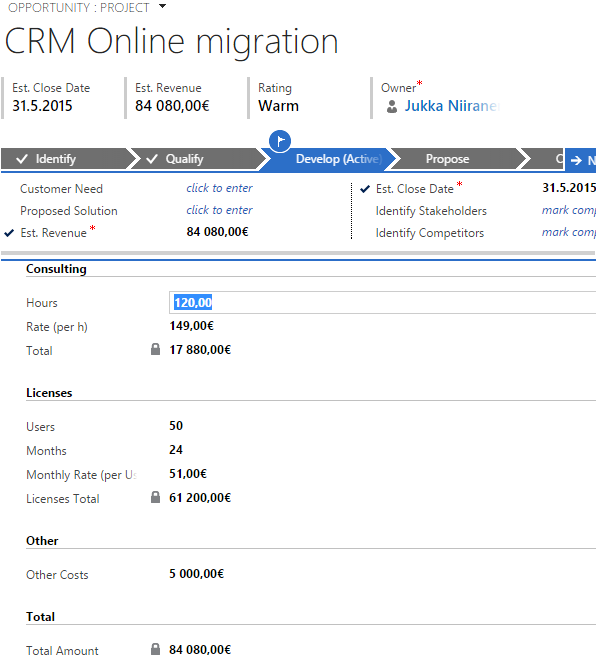
    In this example scenario we’re selling CRM consulting projects that have three common revenue categories: consulting revenue, license revenue and “other” revenue. The total value of each area is calculated via a specific formula, after which each area specific revenue is summed up into the Total Amount field. As you’ve probably guessed by now, this is achieved by using the CRM 2015 calculated fields feature. Compared to adding the line items one by one, configuring unit prices and other variables, the data entry process is considerably faster, since all the user needs to do is tab through the relevant fields on a single form and enter values where necessary. You can catch a quick glimpse of the live opportunity form in this YouTube recording of the webcast.

    For a detailed explanation of how this type of functionality can be configured in Dynamics CRM, have a look at the following slides: Smarter Sales Process in Dynamics CRM 2015 – Part 2: Revenue Estimation.

    A Few “Gotchas” on Calculated Fields

    If you’ve implemented a similar custom opportunity form in the past by using Javascript to perform the calculations, then you should be aware that the native calculated fields in Dynamics CRM don’t offer exactly the same user experience as custom scripts do. The reason is that the calculation logic is executed whenever the fields referenced in the formula are retrieved from the CRM, meaning not before you’ve submitted the updated source field values into the database. So, the moment you change a field value (let’s say “consulting hours” in our example”) and click/tab to the next field, a client-side script would be able to recalculate the fields instantly, triggered by the onChange event of the field. A calculated field will just sit there waiting for the source data to be saved to CRM first, either via the auto-save feature every 30 seconds or the user explicitly clicking on the save icon in the bottom right corner of the form.

    Considering that with CRM 2013 we received the Business Rules feature that acts in practice the same way as a custom script (meaning it’s executed on the client side), this may seem like a slight setback in the level of application UI responsiveness for Dynamics CRM. Knowing that there are also some calculation capabilities available with Business Rules, you might be wondering if this feature could be used instead of calculated fields, to deliver an even better user experience. Well, based on my personal experience, if you try to build a very complex chain of calculations by using Business Rules, you’ll soon find yourself in a world of pain trying to figure out why the events don’t always trigger the way you want them to, how to handle resetting field values and so on. Although I haven’t yet used the calculated fields feature in as many real life scenarios as Business Rules, at least I haven’t run into similar problems in ensuring validity of the calculations performed with them, so my recommendation would be to always opt for calculated fields whenever you need to… calculate the value of a field (ever get the feeling that us consultants just state the obvious things?).

    Another thing to be aware of when it comes to calculated fields and Business Rules is that the two don’t mix. More specifically, a Business Rule cannot reference a calculated field, so you cannot grab the results of the calculation and use them in a subsequent business logic implemented via a Business Rule. Luckily, you can still access the calculated field values in a workflow process, which is the workaround that I’ve used in my aforementioned presentation.

    During the webcast, there was also a very good questions presented on whether there are some limitations on how many calculated fields you can use on a single entity. Based on the official documentation, there doesn’t seem to be any hard limit on the number of calculated fields you can create, but you cannot include more than 10 calculated fields into a single view (or chart), which could potentially be reached if creating a highly complex calculation scenario and a summary view to export the resulting data out of CRM.

    As always, the responsibility on system performance impact ultimately lies on the system customizer, even if the solution is created just via clicking the CRM configuration options instead of writing custom code. As the no-code customization tools get more advanced with every release of Dynamics CRM, it’s becoming increasingly important also for people in the business analyst role to have a basic understanding of how the underlying application platform operates. I want to highlight a couple of recent whitepapers that Microsoft has released around the solution design and performance topic, which should give you plenty of food for thought, whether you’re approaching Dynamics CRM from a developer point of view or if you’re an analyst that’s aspiring to design more complex CRM solutions:
  • This Month in CRM: What Have I Been Up To?

    This Month in CRM: What Have I Been Up To?

    If you’re working with Microsoft Dynamics CRM then I bet you’ve had a busy spring so far! At least I have, due to the great buzz around the CRM ecosystem and an ever growing demand for customer solutions that leverage the latest & greatest Microsoft Dynamics product versions. Here’s a quick update on things I’ve been working on recently in the Dynamics CRM community.

    Our Book: CRM Field Guide v2

    Yay, I’m a published author (again)!  Long before I was awarded the CRM MVP title, this group of Dynamics CRM top experts put their smart heads together and came up with a must-have book on practical dos & don’ts of deploying Microsoft Dynamics CRM 2011 in real life scenarios: The CRM Field Guide. Now, after the big platform revolution that took place with CRM 2013, there is a much needed version 2 of the CRM Field Guide available that covers all updated, changed and expanded features of the product. A joint effort from 20+ CRM MVP’s has produced 29 chapters of brilliant content, with my humble contribution on the CRM user experience design aspects being one of them. Great job, guys, and especially Julie for making this V2 book happen!

    CRM_Field_Guide_v2“Hmm, I’m in CRM Online and we’ve already upgraded to the CRM 2015 release. Is there anything in this book for me?” You bet! I’d say 98% of the book’s ~1000 pages will be perfectly applicable for your environment, even though additional features have been introduced in the v7.0 update released at the end of last year. Just have a look at the book’s chapter descriptions to get a glimpse of what type of insights you can expect to gain from this book – and then click to purchase your copy for only $49.99!

    Our Podcast: Ikkunastudio Episode 4

    Even though the market for Finnish language content aimed at Microsoft professionals is a tiny fraction of the audience that all the text produced in English has, that doesn’t mean there wouldn’t be also some quality tech talk out there on the Internet that is catered in this quirky lil’ language of ours. One of the latest entrants into this space is the Ikkunastudio podcast series that focuses on covering the Microsoft scene in Finland. I was honored to be invited into the fourth episode titled “XRM to rule them all“.

    Ikkunastudio_episode_4

    So, who’s behind this Ikkunastudio thing anyway? The show is hosted by two distinguished gentlemen: Jouni is the Regional Director for Microsoft developer community in Finland and Sakari runs a company focused on Microsoft Azure based solution development. The three of us took over the Digital Illustrated HQ on one fine morning and explored a world that many of the MS developers and IT pros may not be so familiar with – Microsoft Dynamics CRM. In addition to explaining what business scenarios CRM is typically used for and how the latest announcements from Convergence 2015 are shaping up the platform’s future in Microsoft’s product portfolio, we also had an interesting discussion on the XRM side of things – where the platform is coming from, what you can do with it today and where it might be heading towards. Jos suomen kieli sujuu, niin kuuntelehan siis miksi Dynamics CRM:ään kannattaa perehtyä pintaa syvemmältä!

    My Webcast: Smarter Sales Process in CRM 2015

    In addition to this glamorous MVP lifestyle consisting of writing books and appearing on radio shows, I also need to spend a fair amount of time designing and configuring real life Dynamics CRM solutions for customer organizations out there. As you listen to the functional requirements coming from customers who want to make Dynamics CRM better serve their own sales processes, you gradually notice that many of these scenarios are dealing with CRM customization work that isn’t exactly unique to the organization in question. At the same time the Dynamics CRM platform has evolved to offer us an extensive toolkit for configuring solutions that can solve these business problems without needing any custom code development.

    When I look at some of the customization work I’ve been doing lately with CRM 2013 and 2015, using features like real-time workflows, business rules, rollup fields, quick view forms and BPF, it has become apparent that the crucial skill is not in just knowing the way a single Dynamics CRM feature works but rather how you can combine them in a creative way to come up with an end product that solves the customer’s business problem. The growing complexity of these no-code solutions means that it’s by no means a trivial task to figure out how they actually work and how they could be applied to different real world business processes that Dynamics CRM customers are looking to manage with the help of modern business software. So, instead of just writing individual blog posts I’ve decided to cover this topic in a one hour webcast: A Non-Developer’s Guide to Smarter Sales Processes in Dynamics CRM 2015.

    MSDynamicsWorld_Smarter_Sales_Process

    In this webcast hosted by MSDynamicsWorld.com I’ll be introducing a few scenarios that I believe are common needs for Dynamics CRM customers and show you how the graphical customization tools offered by the CRM platform’s latest versions can be put into use in building solutions for them. For example, would you want to bring back the ability to not always create a new sales opportunity from every qualified lead record? Or how about being able to use Dynamics CRM for tracking not just the current sales pipeline value but also storing historical data about how the pipeline has developed over time? Join me on May 6th to see a few tricks on how a system customizer could tackle such requirements and make the Dynamics CRM application support the sales process management work even better than the product does with out-of-the-box configuration.