Tag: virtual machine

  • Dynamics CRM 2013 in Retrospect

    Dynamics CRM 2013 was released only a bit over year ago, on October 8th 2013 to be exact. With CRM 2015 already knocking at the door, this seems like ages ago already, even though the actual time between these two major releases is shorter than their marketing names imply.

    Since the discussions in the Dynamics CRM community will inevitably be moving towards the latest 2015 version as the year turns, it’s a good moment to reflect back a bit and recap what the previous release gave us. I took a look at some of the blog posts I’ve personally written regarding CRM 2013 specific functionality since the version came out. By analyzing the page view stats from my blog, the following articles came out on top as the five hottest topics that you, the readers, were interested in reading about.  If you missed any of the articles, now’s the time to do a quick catch up before CRM 2015 steals all the attention.

    Synchronization vs. Tracking: Understanding Activity Management Options
    (Article link)

    CRM_2013_Server-side_SyncCRM 2013 introduced a new feature called server-side synchronization, which allowed the CRM server to communicate directly with the Exchange server for the first time in the product’s history. Upon first look it might have appeared like the long dependency on Dynamics CRM Outlook client was about to be history. However, in our brave new “cloud first, mobile first” world there are many more aspects to managing activity data in relation to CRM records that you need to understand.

    While the synchronization options for activities and contacts were indeed expanded with CRM 2013, the tracking options were not. In addition, the combinations supported email client and server applications for each entity and action type were quite a maze to navigate in. Since this is not such an easy topic to grasp nor explain, I ended up building a support matrix of my own, so that I was able to clearly communicate the various synchronization and tracking options to our customers.

    Getting Your Head Around Dynamics CRM 2013 Processes
    (Article link)

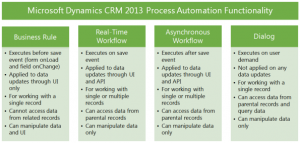
    CRM_2013_Process_Automation_smallChanges in the application’s UI may have grabbed most of the attention when it came to the CRM 2013 release, but there were also notable enhancements made to platform capabilities behind the scenes. Business Rules and Real-time Workflows opened up a whole new world of possibilities for the system customizers to create custom business logic that had previously required JavaScript or plug-in development.

    The one process type that was highly visible to the users, Business Process Flow (BPF), was also perhaps the most demanding one when it came to applying it in real world scenarios. Since BPF’s themselves don’t provide any automation but rather rely on the other process types to work in conjunction with the BPF process stages and steps, understanding the role of each of these components will require a fair bit of experimentation. This is why I wrote a two-part article where I tried to lay out the big picture of process automation in CRM 2013.

    Connecting to CRM Online OData Feed with Excel 2013 Power Query
    (Article link)

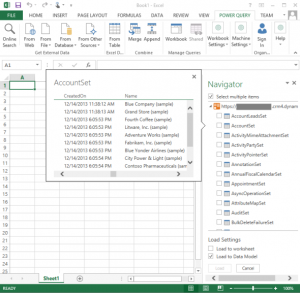
    CRM_OData_feed_Excel_Power_Query_4While the CRM 2013 release itself didn’t provide any dedicated feature for the Power BI tools announced by Microsoft a bit earlier, there were updates made to the Power Query component in Excel 2013 that made it very interesting for CRM Online customers. More specifically, the December 2013 version of Power Query finally delivered the ability to connect to OData feeds what utilize Office 365 authentication – with CRM Online being such an application.

    There isn’t a whole lot of official documentation available on the topic of how to leverage CRM Online OData feeds to build reports utilizing the Power BI toolkit. The process isn’t necessarily very straightforward and requires a fair bit of experimentation with the various Excel components (Power Query, Power Pivot, Power View). In addition to the OData feed connection part, I also wrote a couple other posts on what to do once you have the CRM data flowing into Excel via Power Query.

    Setting Up a Microsoft Dynamics CRM 2013 Development Server on Azure
    (Article link)

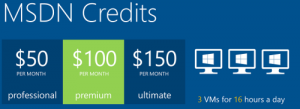
    Azure_MSDN_benefitRunning Dynamics CRM in the cloud via CRM Online is a popular option these days, but for performing testing and development tasks it’s often more convenient to have your own sandbox where you can control each and every part of the system. Azure has evolved into quite an attractive option for running virtual machines, especially with MSDN subscription credits and discounts for development environments.

    I’m not an infrastructure specialist that enjoys configuring servers very much, but when new versions of Dynamics CRM become available as preview/beta versions, it’s a good exercise to set up your own sandbox server. To better remember what the minimum steps are to be able to install the Dynamics CRM server application, I decided to document the process via screenshots and make it available on SlideShare for anyone else wanting to complete the same task.

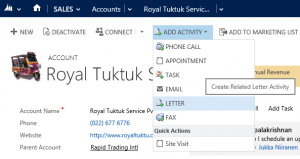
    Expanding Add Activity Options on CRM 2013 Forms
    (Article link)

    CRM2013_Activities_2In the course of the UI refresh performed in CRM 2013, the number of menu options visible to the end users were optimized to cover only a single way to perform many of the options that previously might have had alternative route options. While the intention was noble, this did create a few situations where the navigation path required to perform an action may have not been the optimal one.

    The great thing about Dynamics CRM is that it’s a customizable platform that allows you to adjust the data model, forms and also the menu options to the specific use cases required by the customer organization – as long as you know how. With awesome community contributed tools like the Ribbon Workbench these tasks can be completed with a few clicks of a mouse, which is what I illustrated in this post where I added a new flyout menu onto the CRM 2013 Command Bar to access standard as well as custom activity records, and even launching a dialog process directly from the menu.

  • Dynamics CRM 2011 on Windows Server 2012

    In addition to the shared development and test CRM servers at the office, I like to run my own personal CRM sandbox that allows me to test any applications, configurations and updates without having to worry about affecting any of my colleagues’ work. I’ve been running a VirtualBox server image on my desktop PC and standard hard drives, but even in a single user test environment, you can never have too much performance for your own needs.

    SanDisk_ExtremeAfter reading this blog post from Jeff Atwood, I couldn’t help but to shop around for an “SSD in your pocket”, meaning a super fast USB flash drive that would have sufficient storage space for hosting a CRM 2011 development server image. I decided to grab the SanDisk SDCZ80-064G-X46 64GB Extreme USB 3.0 Flash Drive from Amazon.co.uk for €60 and test it out as a portable CRM sandbox. 190 MB/s read and 170 MB/s write should provide a nice performance boost compared to my old spinning HDD’s.

    Since shrinking my existing VirtualBox image down to the 60Gb available on the flash drive would have meant giving up on a lot of things I had installed there, I decided this was a good moment for building a brand new virtual server. During the fall I had already attempted a few times to deploy CRM 2011 on Windows Server 2012, even though it has been unsupported. Unfortunately none of the workarounds published by Daniel Cai had done the trick for me, so I decided to wait for the official support.

    With Update Rollup 13 Microsoft Dynamics CRM 2011 Server finally became officially supported to be run on Windows Server 2012. However, there was one catch: you could only upgrade an existing Windows Server 2008 deployment with CRM 2011 onto Windows Server 2012. For a brand new deployment there was a disclaimer included with UR13 release notes:

    The Self-Healing Setup (SHS) that is required to install Update Rollup 13 for Microsoft Dynamics CRM 2011 on Windows Server 2012 will be published on Microsoft Update alongside the update rollup in mid-to-late April, 2013.

    Ok, it’s 1st of May now, so where are these SHS files? Well, they are available, but not quite in the kind of format you would expect. You can’t simply download an updated version of the Dynamics CRM Server installer, as the one available on Microsoft Download is still the old version with Update Rollup 6 that was released in January 2012.

    There’s a thread over at Dynamics Community CRM Forum that discusses the Windows Server 2012 installation procedure, but I’ll summarize how I managed to get CRM installed on such an environment. There were a few puzzling gotchas that no one else should spend their time on pondering.

    Get the update files

    The KB article 2434455, “How to obtain the setup updates for Microsoft Dynamics CRM 2011”, gives you the steps you need to follow. Instead of heading to Microsoft Download, you’ll need to visit the Microsoft Update catalog website (which only supports IE, by the way, so don’t click the link on Chrome or anything). From there you’ll be able to obtain a file called Setup Update for Microsoft Dynamics CRM Server 2011. The fun part about this is that the size of the file is 1.5 GB.

    Setup_update_for_CRM_2011_server

    Why is the file so huge, with the actual CRM 2011 Server installer being only 120 MB? The reason is that this file contains all 25 language versions for the update file. If you’re installing the English version, you’ll only need the en-server_kb2434455_amd64_1033 cab file. Oh well, the Internet is fast nowadays and hard drives are infinite, so let’s get on with it.

    Prepare for installation

    The cab file won’t be the installer itself, rather it’s a collection of updates that needs to be references while running the actual server installer. How do you do that then? By creating a config.xml file following the example given in the KB article above and dropping it into the same folder as installer and the cab file.

    Then we can proceed with starting the installation. Only there’s one more catch which isn’t included in the KB article: you’ll need to start the installation process from the command line in order to be able to tell that there’s a config file pointing to a cab file that contains the updates necessary for CRM 2011 to run on Windows Server 2012. You can read through the TechNet article “Use the Command Prompt to Install Microsoft Dynamics CRM 2011” if you’re interested in the finer details of parameterizing your CRM server deployments, but if you’re like me, you’ll just want to copy-paste the required bits onto the prompt to move on with the process.

    1. Put the cab and config.xml in C:\Temp
    2. Download the UR6 version of CRM 2011 Server installer and put the CRM2011-Server-ENU-amd64.exe file in the same folder
    3. Run the file, point it to extract the files onto the very same C:\Temp directory
    4. Cancel any further setup screens that may be launched, as you’ll still need to provide the pointer to the cab file
    5. Open the command prompt, go to C:\Temp directory and type: setupserver.exe /config C:\Temp\config.xml

    This process will make the installer skip the question of “do you want to download updates from Microsoft Update” and use the SHS cab file directly. This is the whole point of our exercise, as Microsoft Update for one reason or another cannot provide the necessary updates for Windows Server 2012 compatibility for the CRM 2011 Server installer.

    After this part, you can follow the standard steps for installing CRM. You may get an error screen saying “Action Microsoft.Crm.Setup.Common.InstallWindowsSearchAction failed. Class not registered (Exception from HRESULT: 0x80040154 (REGDB_E_CLASSNOTREG))”, but just click Ignore on it as that issue is most likely just about the indexing service for the CRM help files.

    Validate and update once more

    Once you’re done and have rebooted the server, you’ll be able to launch CRM. From those oldskool icons in the Wunderbar area you’ll quickly notice that this deployment is still running a pre-cross-browser era version of Dynamics CRM. The build numbers 5.0.9690.2015 and 5.0.9690.1992 indicate that it is in fact a UR6 organization still. (Hmm, was there ever any need for UR13 to support installation on Windows Server 2012 then?) Before you start working on your environment, download and install Update Rollup 13 to make CRM support the IE10 running on your Windows Server 2012, unless you enjoy using the IE7 Compatibility View.

    Windows_Server_2012_CRM_2011_small

    There we have it. A nice and fast CRM 2011 sandbox image running Windows Server 2012 and SQL Server 2012 in a 36 GB image stored on a very fast thumb drive. I’m sure I’ll be struggling with keeping the image small enough with all the updates, service packs, Office, Visual Studio and other bloat that’s bound to end up there. On the plus side I’ll be able to carry the sandbox on my keychain and plug it into any PC with sufficient memory to run the environment (3.5 GB & 2 CPU reserved for it currently) and enjoy SSD level disk I/O performance. We’ll see if it was worth all the trouble at the end, but hey – don’t we all just enjoy fiddling with the latest software and fastest hardware?

    Edit 2013-05-04: For anyone looking to move completely towards developing for Dynamics CRM on top of Windows Server 2012, please note that the Dynamics CRM Outlook client does not support Windows Server 2012 yet. If you try to run the setup, all you will get is the following message: “Cannot install Microsoft Dynamics CRM for Outlook. Install Windows Server 2008 Service Pack 2, and then try again.”

    Edit 2013-05-04, Part 2: If you’re interested in the detailed steps for building a Dynamics CRM sandbox, please refer to articles like Creating a MS CRM 2011 VM by Mark Kovalcson or Setting up a CRM demo environment in Windows Azure Virtual Machines by Shan McArthur (unfortunately the images on this post no longer work). It doesn’t really matter on which virtualization platform you’re building your sandbox on. I’m using VirtualBox simply because I have other existing virtual machines on it, but with Windows 8 built-in Hyper-V support you don’t necessarily need any additional software. Also, as you can see from Shan’s post, running these environments in Azure is also a perfectly viable option.

  • CRM adventures in Azure: changing the virtual machine size

    CRM adventures in Azure: changing the virtual machine size

    After having managed to overcome my previous challenges of deploying SQL Server 2012 Reporting Services on a virtual machine running in Windows Azure, I was well underway in configuring my Dynamics CRM environment to contain the tools and data needed for developing, testing and even demonstrating custom solutions right in the Microsoft cloud.

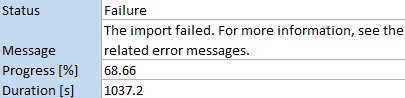
    I had started off with a medium size virtual machine that had 2 CPU cores and 3.5 GB memory. While I’ve been able to successfully use CRM 2011 + SQL 2012 on such a setup as a personal development box, I have to say it’s not exactly the fastest thing around. With me being the only person working with the environment currently, it wouldn’t have been such a big issue, but upon trying to import one 5 MB solution file into a CRM organization I started running into timeout issues, leading to the following message:

    It’s not very uncommon to experience timeouts with CRM when working with large solution files. There are various settings that you can modify to overcome this issue, including the OLEDBTimeout, Web.Config parameters etc. However, I wasn’t having success with the solution import regardless of having applied the registry and settings changes, so I thought why not crank it up a bit and give my virtual machine some more resources. After all, isn’t that one of the selling points of on-demand cloud computing? If you need more power, just adjust the lever and consume the resources as you see fit.

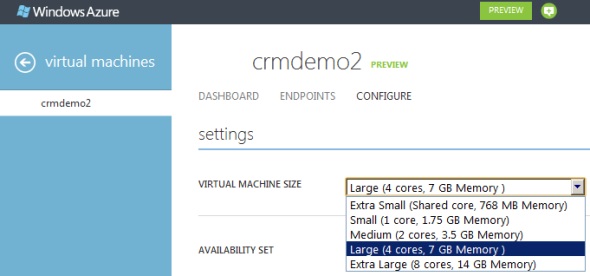
    I proceeded with shutting down my virtual machine from Windows and going to the Azure management portal. After finally getting the portal to confirm that the machine was in a stopped state, I changed the virtual machine size from medium to large (4 cores, 7 GB). Great, now let’s fire it up once again by clicking on Restart and… it doesn’t start. Trying it again and still the only result I get is the following notification in hte Azure portal:

    The virtual machine cannot restart. The current virtual machine state is RoleStateUnknown.

    Ok, I’ll wait a while, I thought to myself. After a few minutes and some more clicks on the Restart button I was starting to get a bit anxious on why my server wasn’t booting up. I started googling for the error message and discovered a discussion thread that indicated I wasn’t the only person in the world suffering from this problem. The RoleStateUnknown message appears to be a known issue that the Windows Azure team will be fixing by the time the Preview phase is over, but for the time being, this is something you can expect to happen if you power off a virtual machine in Azure on a bad day. If the error message does not go away, the only workaround you have is to create a new copy of your virtual machine.

    While there are ways to do the process through PowerShell to export & import the virtual machine, I decided to take the GUI route and just click on the Delete button on my virtual machine. I must admit that particular action doesn’t feel quite right, deleting the very server you’re trying to get back up, but in this context it’s actually not as catastrophic or irreversible as it sounds at first. You see, the server really is just a VHD disk that has been assigned the hardware, IP and other pieces that make it operational. It’s also worth noting that this is the way how you can stop incurring costs from your virtual machine. If you just shut down your VM, you will still be charged for it, but if you delete the server, you’ll have an image available that you can later on use for creating a new server.

    After deleting the server, I created a new one with the same configuration. OK, not exactly the same, as both the [servername].cloudapp.net DNS entry and the IP address will change in the process. Also do note that the remote desktop port will be different, so only updating the server name in your RDP settings won’t allow you to connect, as I quickly discovered after clicking on Restart.

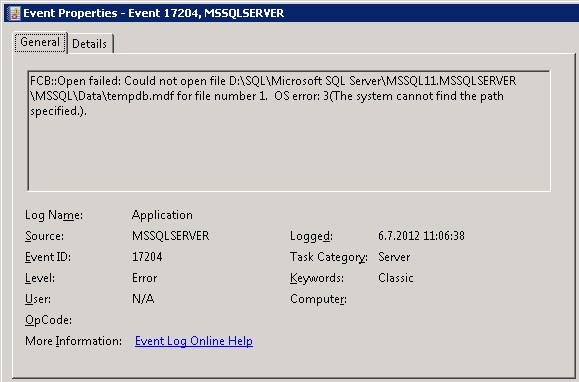
    Oh yeah, I had that extra F-drive on my machine, too! Better remember to attach that disk as well, since that’s where my CRM databases are located. I hit a restart on the SQL Server service, but noticed that the databases still weren’t available. Then I remembered what Shan McArthur had accidentally demonstrated in his Windows Azure 2012 Spring Wave webinar session on XRMvirtual earlier this week. Although the D-drive on an Azure virtual machine is great for storing temporary data that doesn’t need to be consuming that precious C-drive, the fact that the D-drive is only a temporary storage means also that any directory which you create on that disk will not be available once you spin up a new virtual machine from the same VHD. A quick peek into the Windows application log confirmed that this was what was keeping my SQL Server from starting up, as it wasn’t able to locate or create Temp DB and log it needed.

    “FCB::Open failed: Could not open file D:\SQL\Microsoft SQL Server\MSSQL11.MSSQLSERVER\MSSQL\Data\tempdb.mdf for file number 1.  OS error: 3(The system cannot find the path specified.).” There we go, that was the path that was missing from my D-drive. In a default configuration the temporary database would have been under C:\Program Files, but I had put it on D:\SQL instead, so I needed to manually go and create the folder. After this my virtual machine was again able to run CRM the way that is was meant to be. I’m sure there’s a PowerShell script sample out there somewhere for those who wish to automate the directory existence verification and creation upon restart of their servers, but this shouldn’t be a too frequent problem unless you go deleting your Azure virtual machines on a regular basis, so I didn’t bother looking up one right now. The main thing for me was I had my CRM test server running now on double the capacity.

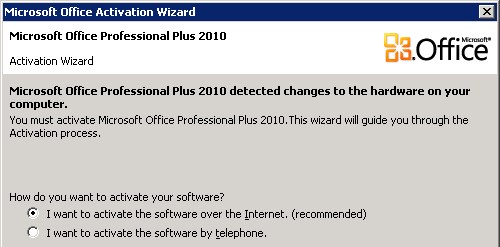
    As a side note, once I opened up Excel, I was greeted by this Microsoft Office Activation Wizard. I guess that proves that it’s now really a whole different machine I’m working on, even though I booted up from the same VHD that I had already activated on the previous day. Hardware based license management feels a bit funny when operating in such an intangible environment as Azure, but that’s how it is…

    Finally, let’s get back to the topic mentioned in the title of this blog post: What is the right way to change the size of your Windows Azure virtual machine? It turns out that you can actually do this right from the Azure management portal without shutting down your server. That’s what it says on the Azure community pages:

    NOTE: If you are attempting to just change the size of your Virtual Machine, you can do this without stopping the Virtual Machine. You can go into the “Configure” tab on the virtual machine in the management portal and select the Virtual Machine size. This will change the size without first stopping, which will allow you to avoid this issue in this scenario.

    Will be interesting to see how the Windows server will cope with disappearing CPU cores and memory if I decide to go back from Large to Medium, but I’ll leave that experiment to the next time. Now let’s see if I could get that solution file imported first…