Tag: views

  • Activity Management Enhancements in Dynamics 365 (v8.2)

    Activity Management Enhancements in Dynamics 365 (v8.2)

    Whenever a new version of Dynamics CRM and now Dynamics 365 (the XRM part) are released, the first thing you should review is the “what’s new” documentation that Microsoft produces for three different audiences: users, admins/customizers and developers. For the “December 2016 update for Dynamics 365” a.k.a version 8.2 of what used to be called CRM, these articles can be found from the following links:

    As always, there’s way more goodies in there that a single blog article could ever hope to cover in meaningful level of detail. One area that deserves a mention in terms of the core XRM platform enhancements is the way activities can now be presented in the UI, so let’s focus on those in this here post.

    Display the associated activities of the related entities

    If you’ve happened to read my ancient CRM 2011 era blog post about how subgrids ain’t what associated views used to be, then the concept of activity rollup may be familiar to you. The way Dynamics CRM has worked up to this point is that for out-of-the-box core entities like Account and Opportunity the activities from under the child entity were presented also under the parent entity’s Associated Activities View. If you created a custom entity under the Account, though, then none of the activities linked to it would show up in the rollup view. A major inconvenience for any XRM scenarios where you then had to instruct the users not to track their activities against any of the child entity records but rather put them all to the Account level.

    In v8.2 this limitation has now been addressed by the product team:

    “We added a new flag called Rollup View in the customization user interface, on the Relationship Behavior form. It lets customizers indicate that associated activities of the related entity should be included in the Activity Associated View for the primary entity.”

    Woo-hoo! Let’s go and try this one out in an example scenario with a custom entity called “Account Plan” that we’ve linked to the standard Account entity via N:1 relationship. Meaning: there can be several Account Plans (per year, for example) for a single Account. Being the “plan” and all, you’d find it pretty natural to track tasks and other upcoming activities against this record, but also would probably prefer to have access to them from under the parent Account of this plan.

    When we open up the relationship configuration screen and have a look at the Relationship Behavior section, we find our usual list of actions where cascading behavior can be configured. Down at the bottom there’s a new option: Rollup View. This is where the magic will happen for activity rollup between the two entities. (Note: if the field is disabled, make sure your entity is enabled for activities before trying to enable the Rollup View.)

    CRMv82_Associated_Actitivies_01

    With the Rollup View behavior set to “Cascade All”, we can now go and do some activity entry on the Account Plan form. Let’s use the Social Pane to add some tasks that are set regarding this particular plan. Normally this would be the only place where we’d see them (aside from the owner’s My Activities view and their task list synced to Outlook, of course), but thanks to our cascading relationship behavior this will no longer be the case. Let’s navigate up in the hierarchy towards the Account record.

    CRMv82_Associated_Actitivies_02

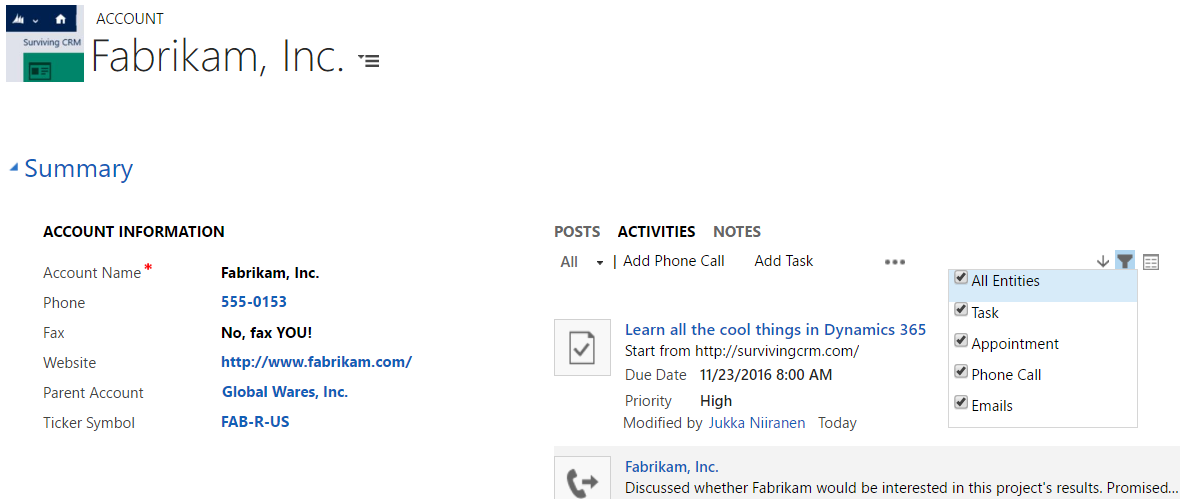
    Now, in addition to the activities that have been either directly set regarding the Account or one of the built-in roll-u enabled child entities, we also see those activities created from the Account Plan form listed in the Social Pane of the Account record. A tiny step towards the mythical “Customer 360”, but a major improvement nonetheless for ensuring the complete communication history for a particular customer account is easily accessible for the Dynamics 365 end user. In case you were wondering: yes, these child entity activities also roll up the account hierarchy, so a global group’s top account may end up having a BIG list of emails in its Social Pane.

    crmv82_associated_actitivies_03

    As for another follow-up question related to the article from five years ago: no, the activity subgrid still won’t show any of these “special” relationships. The feature is specific to the Activity Associated View, which is also a “special” thing in the XRM platform, supported by another “special” component called the Social Pane. The implications from this are laid out bare in the feature documentation:

    “The primary entity for the relationship must be Account, Contact, or Opportunity. This is because these are the only entity forms in the system where the Activity Associated View appears. You can’t specify any other primary entity for activity rollups.”

    So, this is not a generic Holy Grail to presenting activity data in XRM just the way we’d want to, but one big rock rolled in the ditch from that long road at least.

    Control how activities are sorted by date

    Another new feature in v8.2 that touches upon the same functional area is related to the Social Pane configuration options. Traditionally, these words would not have existed anywhere near each other – aside from the countless feature requests on MS Connect CRM Ideas forum. Everybody liked the CRM 2013 feature in terms of rich presentation and inline editing capabilities, and simultaneously loathed it for being a completely uncustomizable component placed smack in the middle of most XRM entity forms.
    (more…)

  • Your Interaction Network in Dynamics CRM

    Your Interaction Network in Dynamics CRM

    One of my posts that seems to remain in high demand, based on the site visitor analytics, is Advanced Queries with Advanced Find. Written over two years ago, people still tend to read it far more often than the newer posts dealing with the latest trends around Dynamics CRM or instructions on how to leverage other platform features like workflows and Business Process Flows. Thinking about the potential audience size, it’s of course understandable that a feature accessible to all CRM users will be much more popular than process configuration tools or the Dynamics product roadmap.

    AFAlthough very few updates have been done on the Advanced Find functionality during the 10 years I’ve been using Dynamics CRM, it’s arguably still a real killer feature of the platform, at least when comparing it to the query capabilities of many similar business applications. The fact that you’re able to reference pretty much any related record in your query criteria (and in the CRM data model, absolutely everything is related) means that the tool can be used for building the most complex target group definitions for your marketing campaigns, for example, based on behavioral data stored many relationships away. You only have to use another Microsoft application to understand how powerful such a tool can be in the right hands.

    It never hurts to have a good understanding of the CRM data model of your organization when launching Advanced Find to build some queries, since AF is a world of abundance when it comes to the available options to select from. Usually the relationships between records are something you can figure out from the end user UI if you spend a moment thinking about it – although with the “flat” design of CRM 2013+ menus and navigation structures, the front end ain’t as hierarchical in nature as the old popup-heavy UI used to be, thus sometimes leading you astray with the underlying data model. In some cases, though, Advanced Find will allow you to perform queries on entities that are completely invisible to the CRM end user. In this post we’ll take a look at one such entity, the activity party, and explore ways in which we can use it for providing the CRM users information on who they are interacting with.

    Ain’t No Party Like The Activity Party…

    ActivityParty_Appointment…’Cause in the Activity Party everybody’s connected! OK, so what exactly is this “party” thing then? In the CRM user interface we have activities, which are divided into a number of different types, like email, appointment, phone call, letter, fax (everyone’s favorite default entity, right?) and potentially a selection of custom activity entities for non-standard communication channels like SMS or business specific record types for handling assignments, approvals and these types of work items. Each activity type shares a number of common fields that can be found from the entity called “activity”, which is what allows CRM to show this mixed bag of apples, oranges and pineapples in a single list of fruit activities related to a business record like the customer account.

    When we add people into an activity like a meeting invitation (remember: appointments are always invitations now in the server-side sync world, so be careful when including customer contacts there), CRM is not just populating a lookup field on the activity entity with the GUIDs of all the related users, contacts and other resources. What happens behind the scenes is that each of these related records will result in a new activity party record being created. This is an entity that you will not see in the CRM customization UI if you open the default solution. You can read about it in the SDK, or install a tool like the Metadata Browser (found inside the downloadable SDK package) and have a look at its contents from the live system, as we see below.

    ActivityParty_Metadata

    People who have been tasked to build SSRS reports that deal with activity records will have surely run into the ActivityParty table/view. If you’re interested in learning more about how the data is created and stored into the SQL database, go and read this great investigation by CRM MVP Aileen Gusni. If, on the other hand, you’d rather not spend too much time in Visual Studio / SQL Server Data Tools building reports but rather want to see how to leverage activity parties in Advanced Find, then this is the right article you’re reading right here.

    View of “Activities Involving Me”

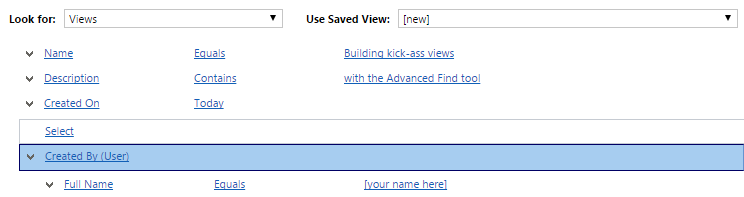
    While activity parties are not accessible as a configurable entity in CRM (because ultimately they’re not), luckily they do exist in the Advanced Find UI. The first scenario in which we can take advantage of this capability is in building a view of activities that uses some criteria that’s not directly available on the activity record itself. Out of the box, CRM provides views like “My Activities” that show the records in which the current user is the owner (and which are open, even though the name of that default view is a bit misleading). Sure, it’s important to understand what’s on your To Do list right now, but sometimes it is beneficial to be able to reflect back a bit and see also what has happened in the past, to understand what you’ve spent your time on and who have you interacted with. For this, we’ll create a brand new view called “Activities Involving Me”.

    (more…)

  • Making Better Use of Business Process Flow Data

    CRM 2013 Business Process Flows (BPF) have been designed to support a scenario where the same transactional records (opportunities, cases, custom entities like projects) can follow alternative process steps depending on the business logic required. For example, you can use the same opportunity entity to support the sales processes of two departments that are operating in very different markets and thus have different process stages as well as information content gathered within those stages.

    You can either limit the availability of BPF’s by CRM security role, so that a salesman in department A will always get the sales process A for the opportunity records he creates, or you can enable the users to see a number of different processes and let them choose the correct one via the Switch Process button on the Command Bar. In the latter scenario the Select Business Process Flow dialog window will present the available processes, like this:

    BPF_CRM2013_multiple_processes_1

    More processes will naturally mean more variety in the type of data your opportunity records will hold. Instead of a fixed number of stages in a specific order you’ll have opportunities that are following different sales processes with unique stages, which could easily lead to a situation where the CRM user may be comparing apples and oranges in the same entity view. How can we avoid such confusion in a multi-process environment? Hopefully this post will give you some ideas on the best strategy to manage your Business Process Flow data.

    Working with the Stage Category

    The officially recommended tool for making Business Process Flow stages visible in views and charts is the Stage Category option set. This is a field available on the Process Stage entity and you can select a value for it while editing the Business Process Flow process record.

    BPF_CRM2013_multiple_processes_2

    Basically what this field allows you to do is to standardize the stage values across different BPF processes. You can enter a different name for the actual stage in the BPF editor but still link it to a Stage Category value that is used in some of your other processes, too. Depending on your business, there may be different sales processes that would each contain a conceptual Propose stage but apply different terminology for it. That’s one problem that the Stage Category can solve.

    If you want to customize the list of values available for the Stage Category, just find the global option set under the Default Solution (Settings – Customizations – Customize the System) and update it like any other field. The new values will appear in he Business Process Flow editor after publishing the changes.

    BPF_CRM2013_multiple_processes_7

    When building a view to display the opportunities by stage, you’ll need to add a column from the related Process Stage entity to leverage this information. In the Add Columns dialog of Advanced Find, choose the aforementioned entity and select the Stage Category field from the list that appears.

    BPF_CRM2013_multiple_processes_3

    One limitation related to the view columns is that we can’t apply any sorting to the Process Stage field. That’s because it’s from a related entity and as a result it doesn’t appear as a possible field in the Configure Sort Order dialog. This means that our opportunity view can’t have the records nicely aligned per stage value, to simulate a pipeline, but instead we’ll need to rank them based on some field that’s directly available on the opportunity record itself.

    BPF_CRM2013_multiple_processes_6

    Grouping or Filtering by Business Process Flow

    So, we have the capability to merge stage values across different BPF’s into a single view. Pretty cool. Now, since different sales processes are often related to different types of product categories or business lines, what are the steps needed for creating an opportunity view that also displays the name of the BPF process chosen for the record? For example, if we want to group the revenue per process instead of process stage, which field do we need to add into the view?

    Sorry, there is no such field. Thank you, have a nice day.

    Excuse me, what?! Didn’t you just show how to harmonize the stage values across different processes? Surely there’s a way to un-harmonize things and break it down based on individual processes and stages?

    Well, stages yes, but processes, no. You see, there isn’t a direct relationship to the actual Business Process Flow process entity from the opportunity entity (or any other BPF enabled entity). While the system does store a GUID reference to the process and process stage records in the StageId and ProcessId fields, these are “unique identifier” type of fields that you can’t reference in Advanced Find query criteria. We could add them as a view column, but they’d just be gibberish like “3e8ebee6-a2bc-4451-9c5f-b146b085413a”.

    BPF_CRM2013_multiple_processes_4

    The Process Stage entity that we examined earlier is a parent entity of the opportunity and it can be accessed in Advanced Find, but it doesn’t contain any field that would specify the name of the process to which the stage belongs to. When selecting view columns in Advanced Find we can only go one level up, but luckily when building a filter criteria for the view we can query entities further away. This means we can reach the Process entity related to the Process Stage entity and find our Alternative Sales Process from there, as illustrated below. (Note that you’ll need to change the default lookup view to display the BPF processes, as otherwise you’ll only see workflow processes to choose from.)

    BPF_CRM2013_multiple_processes_5

    By adding this criteria we are able to build a view containing only opportunities from a specific Business Process Flow. To see the total pipeline revenue per each process we’d just need to switch between the views, or build a dashboard that contains one list/chart per process. Not quite as elegant as having a single chart grouping the revenue per process, but it’s still better than a mixed bucket of opportunities from all over the place.

    What if I told you there was a better way to do this than the out-of-the-box data model provides? Would you be interested in seeing its possibilities? Then you’re in luck, because that’s what I was going to write about next. (more…)

  • Advanced Queries with Advanced Find

    Advanced Queries with Advanced Find

    Dynamics_CRM_Advanced_FindOne of the more powerful features of Microsoft Dynamics CRM has to be the Advanced Find tool. What may initially seem like an intimidating maze of menus to a new Dynamics CRM user unfamiliar with the underlying data model, Advanced Find may quickly turn into an invaluable tool for anyone who needs to be able to retrieve specific sets of data from CRM, be it for marketing campaign target groups, ad-hoc data analysis or simply streamlining the usage of the system with saved views for surfacing frequently needed information from the database.

    Here are a couple of examples that show you how Advanced Find can go beyond the typical queries and deliver results that you might have not initially thought of being possible with the tool.

    Referencing the Current User

    Suppose you have a Business Unit structure set up in Dynamics CRM to reflect organizational units where the users generally work together on the same accounts. However, you’ve not restricted their visibility to records from other BU’s, so their view of all active accounts displays the complete contents of the database in a long list. While the users can easily filter their own records by using the My Accounts view, you’d like to offer them an option to see just the accounts owned by any user from their own Business Unit.

    Sure, you could create a long list of system views that are dedicated to a particular business unit (“Accounts from Finland”, “Accounts from Sweden”, “Accounts from Cayman Islands” etc.). The problem with this approach, apart from the number of view variations you need to create and present in the view list, is that it’s not dynamic by nature. Since you can’t centrally set different default views for different user groups in Dynamics CRM, all the users would have to know how to navigate to the “View” tab and click on the “Set As Default View” button to select the view specific to their business unit.

    Instead of all that manual labor, why don’t we build a query criteria with Advanced Find that says “show all accounts where the related owner is in a business unit that has a user that is me. Yes, it’s not exactly the way you would formulate the sentence when communicating with human beings, but this is the language that works with Advanced Find. If you don’t believe me, just try the query below for yourself:

    Advanced_Find_Acocunts_from_My_Business_Unit

    How about if you’re using Teams and would like to create a “my team’s records” type of a view? No problem, you can use the exact same method as with Business Units. Just reference the Team record under the Owning User entity and then add the same “user equals current user” criteria under the related user entity.

    In fact, since starting from CRM 2011 all business units also have a default team where the BU’s users are automatically added to as members, the team approach actually covers both the “my business unit” and “my team” scenarios. If, on the other hand, you’d like to only reference custom teams and not BU teams, include a criteria for the team records that says “Is Default equals No” to exclude the default business unit teams from your view results.

    Ok, so we get the results we were after, but what is the underlying logic that makes this query work? What we are doing in the Advanced Find query criteria definition in the above examples is referencing the relationships through this type of a pattern:

    Advanced_Find_Current_User_Relationships

    The key takeaway here is that there’s no need to limit your queries to only traditional one-to-many (1:N) type of hierarchies. In this example you start from the N side, then go through a “1” and spread out back into the N. Due to the flexible nature of the Advanced Find query designer in presenting all the available relationships, we are free to explore multiple different types of connections between the same entity in a single query. We pass through the user entity more than once but approach it from different relationships in order to define the final filter for the query.

    Multiple Conditions for Related Child Record

    Taking the exploration further, here’s a query method that may seem even less intuitive but is actually a more common requirement than the team/BU membership example. Sometimes you need to search for parent records that have two or more specific child records underneath them, meaning that the single query will have to find several different matches from the child records in order to qualify the parent record into the query results. Examples of such a scenario could be:

    • Accounts that have child contacts with the roles Decision Maker and Influencer
    • Customers who have bought both product A and B
    • Contacts that have attended events in the years 2011, 2012 and 2013
    • Orders that included line items for both Sales Inventory and Services

    When building such queries the problem you may face is that the results include parent record that meet any single criteria, when what you’re interested in is only the records that meet all the different conditions. Taking the last example of searching for line items of several different product types and using the Opportunity and Opportunity Product entities, if we’re including the Sales Inventory and Services values into a single condition for the Product Type field, any opportunity that has either Sales Inventory or Service products will be retrieved. (more…)

  • Activity view default filter, missing due dates and how to modify the filter

    Certain entities that contain the activity roll-up feature, namely accounts, contacts and opportunities, are also equipped with a date filter that allows you to choose whether you want to see all the activities related to the record or just a selected subset. By default this is “Next 30 days”, but you also can choose between “Overdue” or “Next 12 months”, or just go for “All”. That’s the good news.

    The bad news is that this piece of helpful functionality has remained uncustomizable throughout different Dynamics CRM versions. A lot of users were annoyed with especially the same filter in the associated history view, nowadays known as Closed Activities view in CRM 2011, which used to default to “Last 30 days” and hide away all but the most recent email threads, appointments and other information that you might have been searching for. You always had to change the filter manually to “All” to uncover the historical information about the relationship with the account or contact. However, this has changed now in the latest version and “All” has become the default filter (or should I say the filter is off by default).

    That’s definitely a step towards the right direction. It’s not exactly what the response on Microsoft Connect suggests, which claims that “we’ve allowed a user to change the default filter for associated views in CRM 2011”. I’ve yet run into such a setting and neither has The Great Internet, unless Google is hiding such instructions or blog posts. It would be useful to be able to configure or remove filters that the end users don’t want to deal with, without having to resort to unsupported customizations.

    Open vs. closed activities

    History is one thing but it’s the future actions that matter the most. Until very recently, I’d say up until Update Rollup 2 of CRM 2011 the filter functionality in the open activities associated views used to be such that the default “Next 30 days” would also show any activity that was missing a due date. By default the due dates are not a required field and sometimes they are not that practical for the CRM users, as many things in the daily life of a modern information worker don’t have strict deadlines. Also, there’s no out-of-the-box functionality in Dynamics CRM to set default values for date fields either, so setting the exact due date for every task or phone call you enter on your task list may feel too bureaucratic. An activity with a missing date should be considered as “do this as soon as you can, given all the surrounding factors”, in my personal opinion.

    In the current version of Update Rollup 5 the “Filter on” value is applied in such a way that it by default hides away all activities that don’t meet the “Next 30 days” criteria. If the due date is blank, the activities won’t show under the account/contact/opportunity. This may seem quite confusing to the user, since any new activity that he or she creates for the record will appear to “vanish” into thin air after clicking “Save and close”. In the My Activities view they will still appear on the top of the list, as null values in the Due Date column are sorted on top.

    What’s even more confusing is that CRM 2011 introduces two different ways for users to navigate to related activities on the account form: the familiar associated view and the new subgrid. If you’ve been reading my blog, you’ll know that subgrids ain’t exactly what associated views used to be. They don’t contain the activity roll-up feature, so you won’t see those activities that are set regarding a child record of an account (for example, opportunities) instead of the account record directly. Just like another filter, except you can’t even change it.

    How to change the default filter value

    There’s been numerous blog posts written on the topic of setting the filter defaults on CRM 4.0, but I was initially a bit surprised I couldn’t find a working piece of Javascript to achieve this on CRM 2011. Examples like this, this or this didn’t seem to be working for me, but luckily I ran into this post on the Microsoft Dynamics CRM German forum by Andreas Buchinger. To save you the trouble of Google Translate (well, it’s not much trouble at all when using Chrome’s built-in translation toolbar), here’s a walk through of the steps needed.

    (more…)

  • CRM 2011 subgrids ain’t what associated views used to be

    Back in the days before we had Microsoft Dynamics CRM 2011 available, it was a commonplace customization to show entities related to the parent entity directly on the parent’s form by utilizing an iFrame. Making information such as latest history items (nowadays called closed activities) quickly visible to any user opening the form is often justified, as one key functions of a CRM system is to share information about what interaction has taken place with the customer. Referencing the URL of the related view on the iFrame was not exactly supported, but it was a relatively safe customization to apply nonetheless.

    Due to popular demand, Microsoft introduced an official method for achieving this UI customization in CRM 2011 through the use of the form sub-grid element. As a part of the entity forms redesign, the subgrids have now become an out-of-the-box feature on several default entities, such as accounts, contacts and opportunities.

    Different navigation points, different views

    It’s important to note that subgrids don’t use the entity associated view definition, which is applied when traditionally navigating to the view by using left side menu items on an entity form. Instead they allow you to separately choose a filter to “view only related records”, in combination with any of the system views available for the entity in question (but not the associated views, as those are “special” views). 9 times out of 10 you’ll want to keep the filter on, as showing non-related records on the entity’s form would under normal circumstances defy the standard UI logic of how Dynamics CRM presents records in different windows.

    OK, fair enough, so that’s why the columns in a subgrid aren’t updated after you edit the entity related view, like you used to do in CRM 4.0 and previous versions. We can live with that. In order to provide a consistent user experience, I would recommend that these two views are set up so that they have identical contents. This is because an “oldskool” CRM user may navigate through the left side menu by habbit, whereas a person new to Dynamics CRM will probably prefer to just scroll through the form. Sadly there’s no “save as” functionality available on the entity related view, and you can’t promote a normal view to become a related view (since there’s only one of them). This means you have to manually configure the two views to be indentical in terms of attributes, column order, width, sorting and (in some cases) filters.

    Rolling up the records

    Another thing that may surprise a seasoned Dynamics CRM consultant until he learns the tricks of the latest version is that the aforementioned feature has further implications specific to accounts and opportunities in particular. As we’ve come to know, these entities have special capabilities enabled in the activity views: the roll-up functionality. Instead of being restricted to only activities directly related to a record, we can actually see a bit further. Let’s take a simple example of an account and it’s open activity associated view:

    It’s that “Include Related Regarding Records” selection above the grid which allows us to view activities not only related to the account itself but also the ones regarding a contact of the account and an opportunity related to it. Pretty neat, as it’s often the people working at an account that we associate communication and activities to, such as emails and appointments.

    Now, let’s take advatage of the new CRM 2011 functionalities and look at the activity subgrid that’s conveniently available in the out-of-the-box configuration of an account form:

    Huh? Where did my activities go? They’re still there, but this particular navigation path will not allow you to view them, since you’re on a subgrid and, as we previously concluded, subgrids can’t show the entity associated view. This means there’s no way for you to apply the “Including Related Regarding Records” functionality over here.

    I’ll be the first to admit I’ve fallen for this trap in customer demos more than once. The menu anchor for accessing the Notes & Activities subgrid is just too tempting to click, when what you really intended to do was to view the fully featured activity associated view and access a complete list of the related activities. If the difference between view columns was a minor inconvenience, then this is downright misleading to many users I’m sure.

    The quick solution for this would be to just remove the activity subgrids from the account and opportunity entity forms where the results can be contradicting, thus forcing the user to navigate through the old fashioned menus into the related activities views. Another option would be to perform the old iFrame trick and just embed this view onto a form iFrame, which does sound a bit 4.0-ish. The last option is to go and vote on Dynamics 365 Ideas site, requesting MS to include the full roll-up functionality for subgrid views in a future version of Dynamics CRM. (more…)