Tag: v9

  • The End Is Near for Dynamics 365 (Customer Driven) Updates

    The End Is Near for Dynamics 365 (Customer Driven) Updates

    Have you been administering organizations running on the online version of Dynamics CRM / Dynamics 365 Customer Engagement for a while now? If so, you will be familiar with this screen:

    That is essentially CDU in flesh. CDU of course stands for Customer Driven Update, the process through which Microsoft has allowed online customers to decide when their instances are updated to the latest available version of Dynamics 365 CE. While it hasn’t been a completely open schedule of “pick whichever date you want”, the availability of update slots for a period of up to six months has formed the backbone of how many organizations plan the dates on their business application development roadmaps.

    This is all about to change very soon, as CDU will be going away. The plan was laid out on a post in the beginning of July already, but I suspect not everyone has yet quite grasped the practical impact of what “Modernizing the way we update Dynamics 365” truly means. Admins of online tenants with v8.2 orgs will have been receiving the following notifications into their mailbox recently:

    Those who have reacted to this request to schedule their V9 updates will have seen a fairly familiar calendar with update time slots all the way up until January 2019. The thing you should keep in mind is that this is the last time you will ever see that CDU calendar. You cannot freely schedule your Dynamics 365 CE online updates ever again, once you’re on V9+. Enjoy your final Customer Driven Update, folks!

    “What’s going on here?!? Is Microsoft giving up on maintaining their Dynamics 365 CE cloud? Will we no longer get updates for this product?”

    It’s exactly the opposite, in fact. Microsoft is so determined to get all of their online customers to run the latest & greatest bits that they’re transforming their update delivery model into continuous deployment. From February 2019 onward, everyone will (in theory) be running the exact same version and no org will be left behind – or be allowed to. Then shortly after, it’s time for the next major release, V10, coming in April 2019:

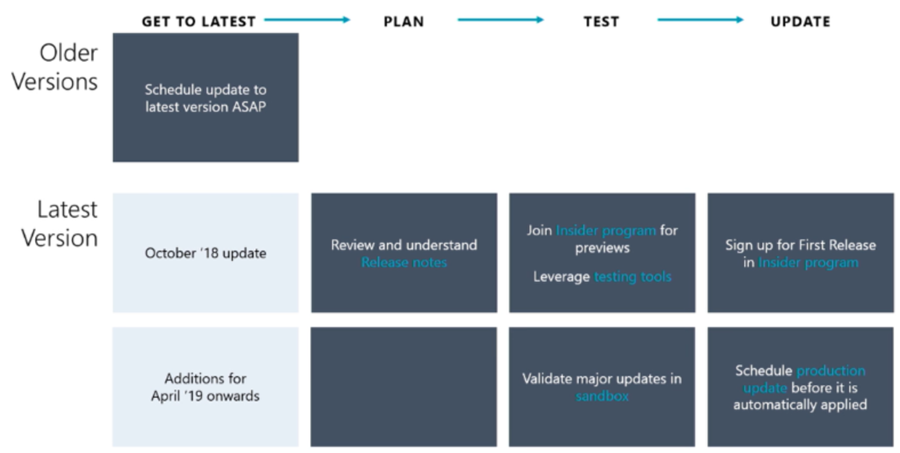
    Alright, so there is no way of opting out from major releases and waiting for the dust to settle for a while before rolling it into your own instances. This just means you better be ready for the changes as they take place, so preparation and thorough understanding of the releases notes for the coming versions is going to be crucial. And how will we be able to test the new version in advance, you might ask. The answer is you can’t do that just yet, but before V10 rolls out there will be a new mechanism in place for a First Release instance:

    As we can see from the Release Stations diagram above, the updates will be rolled out to different “rings” over a period of several weeks. Not even Microsoft wants to deploy the updates to every single environment at the click of one button, so they start from the smaller geos like Japan and Canada, gather telemetry on the update process and then gradually move to the largest geos of North America and Europe.

    Telemetry will also play a key role in how Microsoft plans to deal with the inevitable need to deprecate and remove older functionality from the platform. Although the new Dynamics 365 update policy aims to preserve backward compatibility and present new features as “off by default”, there are going to be scenarios where it’s not just a matter of adding more and more stuff onto the ever expanding cloud platform. Since MS hosts all of the online instances, they can also measure how much each product feature or platform component is utilized by the customers. Decisions on how to deal with deprecation will therefore be much more data driven than it could have been in the past.

    Just because the product is moving into an ever more “cloud native” delivery model doesn’t mean that there’s no need to test your customizations, extensions and integrations. While the process aims to reduce the chances of breaking changes interfering with the day-to-day use of Dynamics 365, there will of course be some changes that break stuff in reality. While the First Release environment will only give you a few weeks notice for performing your own changes in preparation of the version update, the Insider programs for Dynamics 365 will be your best hope to have earlier access to the information on what’s coming & how it may impact you.

    To fully grasp the how, why and when of this new update policy for Dynamics 365, I highly recommend you to watch the session from Business Applications Summit 2018 on Dynamics 365 and Update Cadence. I’m hoping that Microsoft will make this information available in more convenient formats than live recordings in the future, so that this bold “one version for all” vision can be better understood by partners and customers. After all, we’re only in the process of digesting the October ’18 releases notes highlights, but in reality the V10 update isn’t that far away in the horizon anymore.

    For all of us who are used to thinking about Dynamics 365 version updates as projects, it’s time to start shifting our thought process to the continuous delivery mode. Many of the “born in the cloud” products like Dynamics 365 Business Central or PowerApps are already now operating according to this one version principle, so it makes perfect sense to try and align the Common Data Service for Apps platform and the Dynamics 365 Customer Engagement applications with this new reality. Not just from a technical standpoint, but also the adoption of new product features that can be enabled when needed is going to be quite different from the traditional way of features arriving at the very moment a version update is deployed.
  • Card Forms and List Views in Unified Interface

    Card Forms and List Views in Unified Interface

    Since the beginning of time, meaning early days of MS CRM, we’ve grown accustomed to the fact that record fields in Dynamics 365 Customer Engagement can be presented either via entity forms or entity views. The entity form shows the editable fields of a single record, whereas the entity view gives us a list of many records from the same entity. Views used to be read only, but as Microsoft finally provided a first-party editable grid feature in December 2016 update for Dynamics 365, that blurred the lines between a view and a form to some extent.

    Showing views on a form has been possible since already 2011 when subgrids were introduced. Now with the expanding feature set of CDS for Apps and their Model-driven Apps (formerly XRM), it’s actually possible to also show forms within a view. No, not just any random form, as that wouldn’t really make all that much sense. After all, if you want to look at an actual entity form with several tabs and sections worth of data, you’re going to want to click away from the view and show the entity form in full screen mode. In Unified Interface there’s even a nice shortcut for you to keep browsing the other records in the source view without having to navigate away from the entity form you’ve opened:

    The scenario for showing form style content within a view is for a different type of a need: presenting several fields from one record in a view when there is no space available for showing columns side by side. This is of course related mostly to the vertical layout of a phone app that has more pixels available from top down than left to right. You could however encounter this type of a layout need when embedding views onto either forms or dashboards, with a narrow space available for any single record from the view to identify itself with its fields.

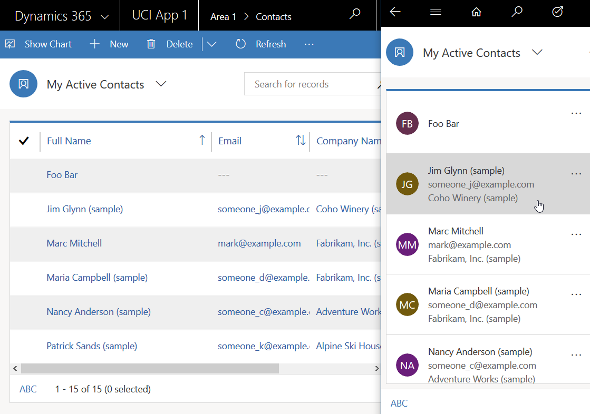
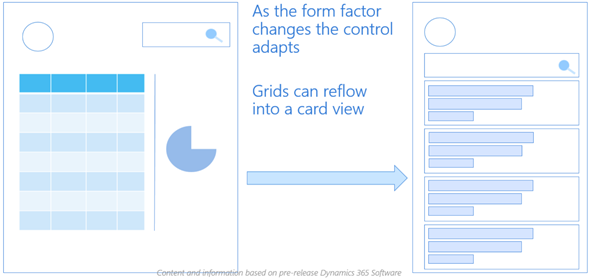
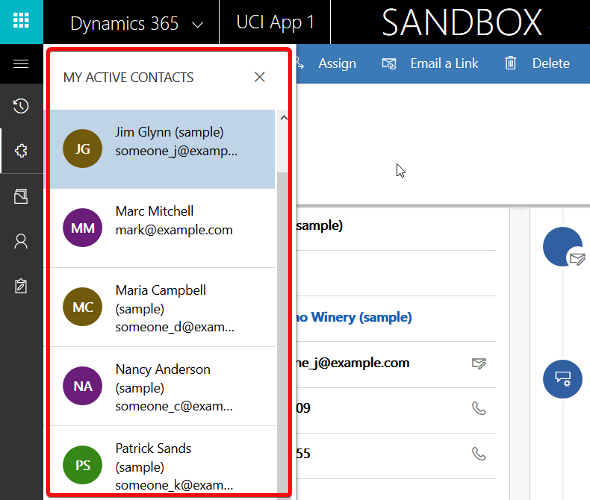
    The Unified Interface already has a built-in capability to address this scenario with its automatic reflow. If you take the “My Active Contacts” view as an example, when in the web client on a wider screen you’ll see the view columns in the traditional format. However, if you start making the screen (or “viewport” as the developers like to call it) more and more narrow, you’ll eventually reach a point where the presentation mode changes to remove all the columns & sideways scrolling bar, replaced with a card like UI. It will by default show the entity icon and the first three columns available in the original view definition.

    If you want to have more control over how the information would be presented in its compact, mobile friendly format, then the entity Card Form is a tool that you should take a look at. Available as one form type alongside the more familiar Main Form, Quick View Form and Quick Create Form, the Card Form was introduced originally with the Interactive Service Hub (ISH) client. Since this was a very limited client type that predated the Unified Interface, most customers and many consultants probably haven’t worked with it in the past. Now that Unified Interface is set to take over the world from the legacy web client sometime in the future, it’s about time to get familiar with these features.

    Unfortunately Microsoft doesn’t yet provide much documentation about the use of Card Forms. The references in the current documentation are also somewhat misleading, since the term “card form” is also used in reference to what is actually a Quick View Form. Many people will surely have an image in their minds about the Card Form being something like the example shown below. It is not.

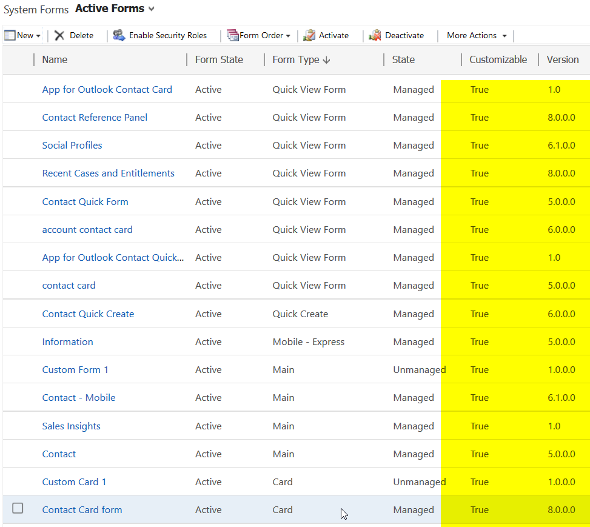
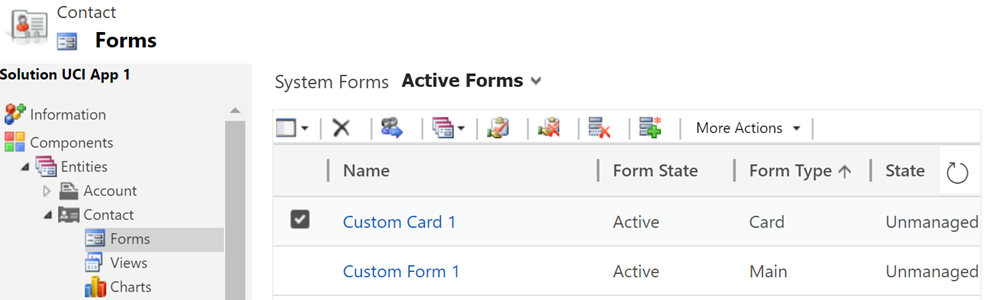
    The customization UI in the application itself isn’t that helpful either. Out of the ~14 default forms that the contact entity currently has in a sales focused Dynamics 365 Customer Engagement instance, 4 forms contain the word “card” in their name, but only one is actually of the type Card Form!

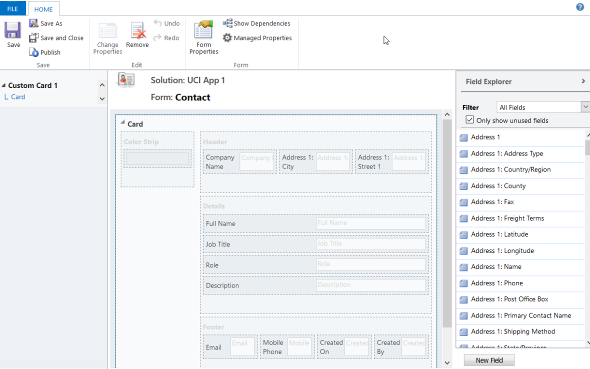
    Ignore the false cards and head straight to either the default “Contact Card form”, or alternatively create a brand new one. You’ll land on the classic form editor experience that will present to you the fixed layout and available features of a Card Form:

    It looks like there are familiar elements from the Main Form available here: header, details, footer. What’s different is that there aren’t much properties you could play around with when it comes to the sections, meaning any labels or layout options that a traditional form would have. The maximum number of fields you can drag from the field explorer and drop onto the Card Form are:

    • Header: 3
    • Details: 4
    • Footer: 4

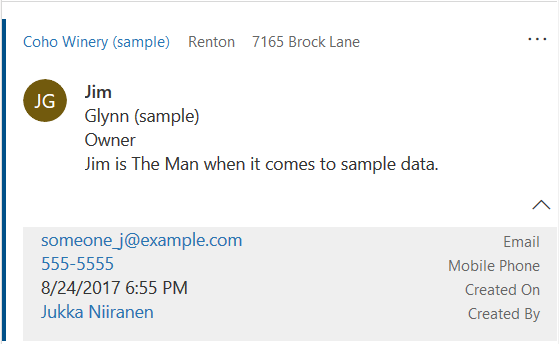
    Given that the intention is to provide just the key attributes of a record in a view, these numbers should be plenty. In fact, you might want to be cautious about not including too many fields onto the Card Form to keep it visually pleasing to the eye. As you’ll see from the example of how the form renders, there will be no form labels provided for any of the fields in the header or details sections, so be sure to only include the kind of fields that will be obvious to the user based on just the data of the field or the context in which the view is available (not just a bunch of date fields, for example). Also note that the footer currently appears to be expanded by default when the view renders, although there’s an upward arrow for you to collapse it for an individual record (you’d think this would be the other way around). You can control whether the footer is expanded by default or not by going to System Settings – General – Set the default card state for Interactive Dashboards.

    How will you then determine where this card form layout will appear? This is where the Custom Control Framework comes into play. We now have a control type in standard Dynamics 365 Customer Engagement called “Read Only Grid” that is different from the “Read-only Grid (default)” control. When you switch one of the clients (web, phone, tablet) to utilize this new control instead, you’ll get the option to link your default or custom Card Forms as the way how the view contents should be rendered. (more…)

  • Look Out for The End Of Outlook Client

    Look Out for The End Of Outlook Client

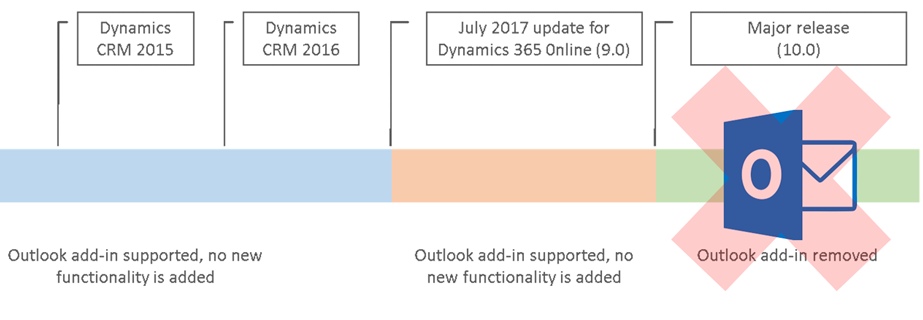
    It’s been a while already since Microsoft announced they were deprecating the Outlook Client for Dynamics 365. This announcement applied to the release formerly (and partially still) known as July 2017 Update, which everyone should rather be calling by its version number, i.e. v9.0. Since this version has only very recently become available for existing customers to schedule their CDU dates, it’s a good moment to remind everyone what this means in practice.

    You’ve Been Replaced By An App

    They all keep saying that robots will take away our jobs, but in the meantime it’s apps that are taking over Dynamics 365. Like I explained in my earlier blog post “What’s An “App” in Dynamics 365 Anyway?”, one of the many uses for the term “app” is now the way you integrate Outlook with your CRM system. Unlike the earlier COM add-in of Outlook Client for Windows PCs, this App will now work in any client environment – both in the browser and in mobile environments. That’s why the App is the future and the Client is the past. Well, actually that’s just one of the reasons, but let’s keep it simple for now, since the outcome remains the same nonetheless.

    So, if we’re just getting more of everything then isn’t this the easiest thing to sell in the world? It probably is a no-brainer for the IT guys who’ve had to struggle with the installation, configuration and updating of the locally installed Outlook Clients for years, as the administration overhead is reduced significantly. For the real end users of the CRM system, the perspective may differ, though. A user will immediately see the things that work differently with the App than they did before. Regardless of all the improvements, it will mean changes to their personal workflow, which is why you should pay attention to how the replacement is communicated and what support the users will need in this process.

    In your initial tests of the new features with a V9 environment and the App for Outlook, it’s good to keep in mind that this is still work in progress. The V9 Readme / Know Issues page has a list of technical glitches and unsupported environments for the App that is today still in Preview mode. It’s expected that by the time the current customers get their V9 updates the fully supported App version would also be available. Even with these hotfixes, you should prepare to see some usability gaps remain in the product for a while, as we’re dealing with a technology that’s fresh from the oven: the Unified Interface.

    In The Name Of Unification

    The Dynamics 365 App for Outlook is one step on the long road towards a Unified Client Infrastructure. The earlier v8.x incarnation of the App was a limited side pane that would show information about records related to the email while browsing your inbox. The V9 App is a miniature app module built on the same Unified Interface that will power all the Dynamics 365 Customer Engagement UI’s in the future. This means that the feature set available is far greater, with the ability for you to scroll through the entire contents of a contact form while remaining in your inbox – or even navigate to related records. Similarly the commands at your disposal will allow completing tasks like adding new competitor records into your CRM database from within the single UI.

    For anyone who’s used the Outlook Client mainly for tracking items from their mailbox, calendar or contact list into the shared Dynamics 365 customer database, this will surely seem like a big step forward in terms of the new contextual actions being offered. These users will have gotten used to opening a browser tab whenever they’ve needed to actually view and search the contents of the CRM database in full screen mode.

    Then there is the group of users who’ve been in the Dynamics game for a longer time – at least from the CRM 2011 version. Back in those days the whole concept of Dynamics CRM might have been sold to them as “never leave your Outlook”. These people may not have actually seen a lot of the UX enhancements that have taken place in the browser and mobile clients in the past few years, since to them CRM has always looked like this:

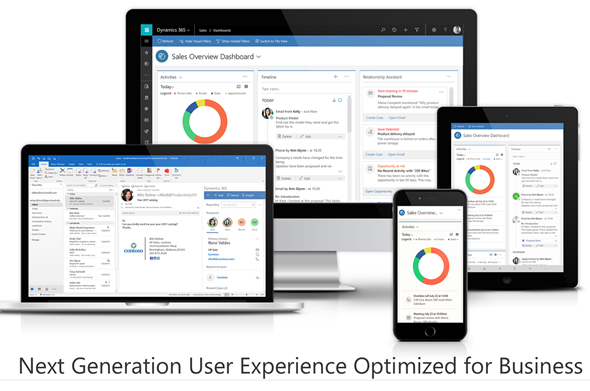
    A “next generation Microsoft Outlook Experience” revealed seven years ago. Yeah, you probably wouldn’t buy a Customer Engagement solution today that looked like an ERP built into Office 2010. That doesn’t mean there wouldn’t be power users out there who still rely on the feature set of the trusty old Outlook Client to keep them productive, because they have mastered the Ribbon, the panes, the tabs, the whole shebang.

    The End Is Near …ish

    Microsoft has stated that by the time V10 rolls out, the client UI pictured above won’t work with Dynamics 365 anymore. That’s kind of understandable we consider that the Unified Interface will also replace the web client at some point in the future – possibly at the very same moment. If that is the case, we might not yet be all too close to the final removal of the Outlook Client yet.

    There’s going to be a lot of work needed before every last bit of legacy client infrastructure will have been replaced with the UCI based components. Microsoft remains committed to the guidance they’ve given to customers about the update schedule, which states there should be two new releases per year. However, we don’t really know much anything about at what point in time the next major release will arrive. Even things like rebranding Dynamics CRM to Dynamics 365 were handled over a minor update of v8.2, so who knows if we’ll see v9.1, v9.2, v9.3 etc. before the plug is finally pulled on the Outlook Client and (presumably) a whole bunch of other deprecated features in V10.

    It also remains to be seen whether Microsoft intends to evolve the desktop experience of using Dynamics 365 Customer Engagement. For example, at the moment the documentation states that the offline functionality is available via the phone and tablet apps. The table app for Windows 10 could of course be used on a regular PC as well, but it’s not completely unrealistic to expect some more targeted client applications appear for the desktop environments. When it comes to the App for Outlook on a PC, the current version still installs an add-in to manage your contacts, for example. So, just because the UI controls are being unified now, this doesn’t necessarily mean we’d be forced to use an “oversized phone app” on our big monitors.

    No More Updates – But Don’t Forget To Update!

    Even though the Outlook Client is now deprecated and there will not be any feature enhancements made to it, that doesn’t mean it would be completely left to rot. In fact, it is very important that once your Dynamics 365 Customer Engagement instances moves up to V9 also your Outlook Clients are using the latest version. This version is now the 8.2.2.137 Update for Dynamics 365 for Microsoft Outlook, available for download here. Yes, it’s V8 and not V9, but don’t let that mismatch distract you.

    You see, with V9 the XRM platform has moved up to using TLS 1.2 protocol for securing the connections between the clients and the server. The earlier Outlook Client versions do not support TLS 1.2 and the V9 server will not accept anything but 1.2 as the cryptographic protocol, which means you’re going to need the latest bits. If you have developed your own clients or code that relies on an earlier TLS version, then be sure to read this in-depth description provided by Matt Barbour of the possible errors you’ll encounter with V9 and the ways how you can avoid those by recompiling your code.

    Update on 2018-01-29: Deprecation of Deprecation

    Against all odds, Microsoft actually decided that they would reverse their previous decision to deprecate the Outlook Client. Read the following blog post and draw your own conclusions:

    Continued support for Outlook add-in (Dynamics 365 for Outlook)

  • What’s An “App” in Dynamics 365 Anyway?

    What’s An “App” in Dynamics 365 Anyway?

    Everywhere you look you see apps these days. Or more truthfully, you’ve been seeing them for ages already. Even in this blog I used the term “applification” over 2 years ago already, so it’s fair to say we’ve been living on the planet of apps for a long time by now. As catchy as those three letters are, the overuse of the term has some side effects that may lead to confusion when people refer to something as an “app”. With Dynamics 365 Customer Engagement (a.k.a. XRM), this danger is very real, since the term has been used in quite a carefree way when naming the different components found in the platform.

    In this blog post I’ll try to provide some clarity for those that are less familiar with the various dimensions that a Dynamics 365 app can have. I will go through the places in which apps can be found and explain their intended usage scenarios. Then in a follow-up post I’ll dig deeper into the architecture of how apps relate to solutions and the XRM customization capabilities in the latest V9 version.

    Mobile Apps

    Since smartphones are to blame for the app craze, we might as well begin by doing a search in the iOS App Store. With the term “Dynamics 365” on my iPad I get a list of various different apps I could install on the device. The top there results present a row of apps from Microsoft, but they are all built on completely different architecture.

    The first result named “Microsoft Dynamics 365” is the actual “CRM” app, meaning the one that’ll give you roughly the same features as you’ll find on Dynamics 365 Customer Engagement when accessed via a browser. Once the Unified Interface is fully developed, the mobile & the web will be almost identical, but currently it’s likely that you’ll see a somewhat different experience on mobile than what the browser UI looks like. You’ll find the app’s setup guide here.

    The seconds result is “Dynamics 365 Unified Ops”. Yes, it’s also by Microsoft, even though the name doesn’t include the corporate brand this time. Now, if you’re looking for the CRM capabilities then don’t get mislead by the app’s description talking about mobilizing your business processes. This is the mobile ERP application and you’ll need the “cloud AX” environment to use it for anything. No, Dynamics 365 isn’t “unified” on the level yet that you’d have just one client for CRM & ERP, but most people probably wouldn’t need a phone app that huge anyway. If you’re into ERP, read more about the Unified Ops mobile app here.

    The third result is “Field Service- Dynamics 365”. Although the app developer info on iOS says “Microsoft Corporation” this is actually the mobile app developed by Resco & licensed by Microsoft to be offered as a part of the Dynamics 365 for Field Service app license. It operates by connecting to the “CRM” instance and using its customer data, but the configuration is separate from the customizations you might have done to your Dynamics 365 Customer Engagement environment. The user guide for this app can be found here, while the customizers will find information about installing the Woodford solution for changing the app configuration here.

    App for Outlook

    For as long as Dynamics CRM has been around, the integration to Outlook has been one of its main selling points against alternative CRM products. The CRM Client for Outlook has served us well over the years but the time has come to lay it to rest and replace the Client with the App. The change is far more significant than what Microsoft’s product naming here would suggest, with “Dynamics 365 for Outlook” being the legacy client for your PC and “Dynamics 365 App for Outlook” referring to the lightweight app that will work on pretty much any device.

    Unlike the mobile apps, the App for Outlook isn’t something that a normal end user can (typically) download and configure for themselves. A system administrator or system customizer must take care of the deployment steps, which may include switching over to server-side synchronization, approving user mailboxes (with O365 Global Admin rights) and finally pushing the app to either selected or all eligible users under the menu Settings – Dynamics 365 App for Outlook.

    As of the first week of 2018, the Dynamics 365 App for Outlook in V9 is still in Preview mode, so a sysadmin needs to enable it from the System Settings – Previews tab. This is because the earlier app has been replaced with a completely new app in this release, built on UCI (Unified Client Infrastructure) that is used in the new Unified Interface. This will actually turn the previously feature limited Outlook sidebar app into a full Dynamic 365 Customer Engagement app that has similar capabilities as the mobile app mentioned above.

    Dynamics 365 App Modules

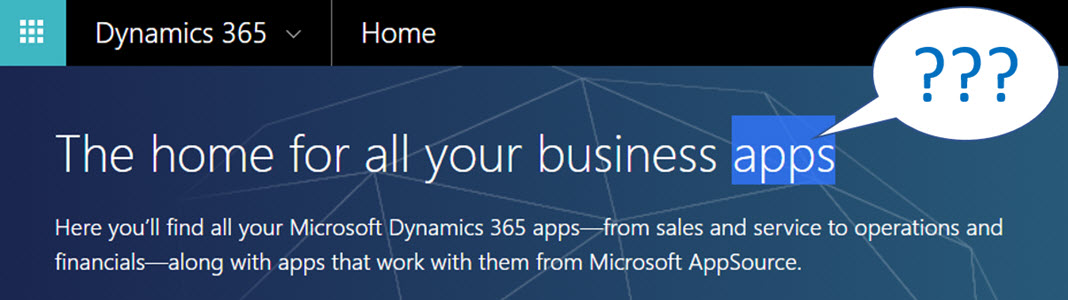
    When you’re logged in to Office 365 and you click on the Dynamics logo in the app launcher, you’ll be taken to the Dynamics 365 home page at home.dynamics.com. Depending on your environment’s configuration, you’ll see a few or a whole number of rectangular icons on this page. Those are all “apps”, but not like the previously described mobile or Outlook apps. More importantly, not all of them are necessarily Dynamics 365 Apps either. Huh?

    The explanation is that the Dynamics 365 home page lists also your Office 365 tenant’s PowerApps apps (which probably should be just called “PowerApps” to make my head hurt less while reading that). Aside from those, the list will include apps from all across your Dynamics 365 Customer Engagement instances, so if you have sandboxes for development and testing purposes, the very same app name & description may appear here multiple times. Furthermore, if you’re also using the ERP side of Dynamics 365, the home pages covers them as well.

    In the Customer Engagement world an app module is basically a subset of the components you can find within a single instance. It can include navigation, dashboards processes, entity views, forms and charts. Aside from a few app specific configuration items, it doesn’t really add anything that you wouldn’t have in the “full” XRM instance already. They are a way of controlling what contents of that particular instance is visible to the end user.

    Each XRM instance has by default at least one app, which will be called “Dynamics 365 – custom” unless you rename it in the System Settings menu. In addition to this, there can be N apps built and configured via the App Designer, or provided as readymade apps from Microsoft, like Field Service in the screenshot. Both the old web apps and the new Unified Interface apps will be present here if your instance is V9+. With so much going on here, I personally try to avoid ever navigating to the Dynamics 365 Home page and just store the direct URLs in my browser’s bookmarks bar where I’m in total control of how the apps are named and organized neatly into folders.

    Microsoft AppSource

    If you feel like you don’t have enough apps on your Dynamics 365 Home page, you can click the “+” icon that says “Find more apps that work with Dynamics 365”. This will open a modal window of AppSource, filtered down to the apps that are designed for, integrated with and some even built on top of the Dynamics 365 platform. Many of these will be built by partners (ISVs) but some of the content is authored by Microsoft themselves, either as officially supported solutions like the Social Selling Assistant, or as “accelerator” style solutions from Microsoft Labs with no warranty or promise of future support like Attachment Management.

    The AppSource apps are closest to the concept that the word “app” was associated with when the iPhone’s App Store was launched ten years ago. These may be small extensions to the common CRM feature set, like a Marketing Calendar component for visualizing campaign records, or integrations between Dynamics 365 and a standalone service like Adobe Sign. Just like in a smartphone app store, some items are completely free of charge while others will cost you dearly. Since we’re dealing with enterprise systems here instead of individual mobile devices, some services allow you to do a test drive in a sandbox completely isolated from your organization’s Dynamics 365 instances, like the CPQ solutions from Experlogix and PROS.

    What can be confusing about AppSource in the Dynamics 365 context is that probably the majority of the apps available in AppSource will not actually result in a new app icon being added to your Dynamics 365 home page. This is because up until V9 and the Unified Interface there wasn’t really a proper presence for the App Module in the XRM platform, so the world is only slowly adjusting to this new reality. I’ll delve into this very topic in my next blog post.

    Dynamics 365 App Licenses

    The concept of an app exists not only in the visible UI and logical platform component containers but also in the contractual world of software licensing. If you go to the Dynamics 365 Pricing page and download the Licensing Guide PDF, you’ll see the detailed way in which the rights of a licensed App user are defined in relation to the features provided by the XRM platform. There are in total 176 occurrences of the word “application” in this document, so don’t expect a quick answer. However, since XRM still largely follows an “honor system” where it’s up to the system administrator to limit the security roles of a user to match those to the rights given to him or her via the assigned Dynamics 365 license type, you’re going to have to understand the concepts.

    Even though you can purchase and assign a user a license for Dynamics 365 for Sales, i.e. an app license, this doesn’t mean that the only thing this user would see or would be legally allowed to access would be the Sales app icon on the Dynamics 365 home page. They can be allowed to view the entire contents of any XRM instance in that particular Office 365 tenant, thanks to the first row in the above table (“all Dynamics 365 Enterprise Edition data”). They could access the “Dynamics 365 – custom” app to look around the whole suite of features in Customer Engagement. They could leverage the Dynamics 365 App for Outlook to track emails to records. But if you misconfigure their security roles and allow them to track emails against case records (a Customer Service app feature), you are in breach of the licensing contract.

    Alright, that’s about as many “app” mentions as I can reasonably fit within one blog post. Next time I will take a look at Apps from a system customizer perspective.

  • Configuring Custom Controls for Views in Dynamics 365 CE V9

    Configuring Custom Controls for Views in Dynamics 365 CE V9

    The new Unified Interface that launched in v9.0 of Microsoft Dynamics 365 Customer Engagement gave us all the possibility to try out the next generation CRM user experience in new trial orgs or sandboxes. While the CDU process for upgrading existing customer environments to V9 has not yet been made available by Microsoft (which gives them some time to iron out the remaining wrinkles with a steady stream of Service Updates), now’s a good time to explore what’s new and what’s changing with the imminent arrival of Unified Interface.

    One of the most exciting platform enhancements from a developer perspective is surely the arrival of the Custom Control Framework. Known as CCF for short (no, not that Microsoft CCF you senior members of the community might recall), this is essentially the mechanism through which all of the data visualization in the XRM platform will be handled in the Unified Interface. Not just the custom developed UI components from partners but also everything that Microsoft builds. Take a look at the default solution of a V9 org and you’ll already see a wealth of these components listed in there:

    The bad news is that as of now there’s no documentation nor API available for developers to build new or extend existing controls via CCF. It’s coming, but it just ain’t ready quite yet. In the meantime, us system customizers can get familiar with the concept by tinkering with the configuration options that ship with V9.

    Custom Controls for Views

    Back when the Editable Grid first launched, the feature was rolled out in an “all or nothing” style. What this meant was that you were able to enable it on the entity level, but then it was the only view type that any user would see in the UI (at least in the specified client type). Sure, they were given the option to switch from editable to classic read-only grid if they spotted the option, but the system customizer wasn’t able to target the powers of Editable Grid to only views that actually benefited from this feature.

    V9 has taken this a step further and introduced a Custom Control setting for each individual entity view. This gives us the option to set that only a specific view like “Edit Account Details” would only present the grid in the editable format with all the pros and UX cons that this particular control introduces over a read-only view. This doesn’t apply in the classic web UI (or the “Refreshed UI” as the V9 release refers to it) but on the Unified Interface side we can now see the power that this granular control over controls has on the user experience.

    New View Controls in V9

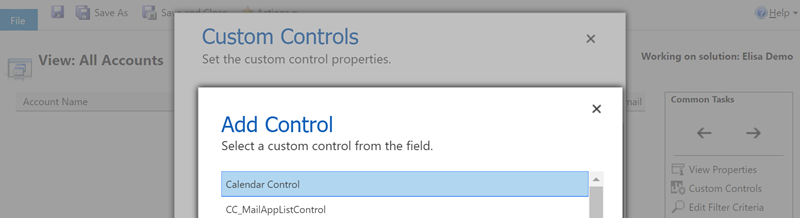
    In addition to the Editable Grid, there are a number of other grid types that a V9 org presents as options for the system customizer. In the screenshot above you’ll see the Calendar Control having been chosen as the data visualization type for the view. This opens up a number of configuration options that can be set right in the UI, like the date field data sources, description label, colors and so on. What we see here is essentially an example of the point & click configurability that a CCF based control can offer when used in the Dynamics 365 CE solution.

    The Calendar Control is also responsive to the client type. When access via a browser app using the Unified Interface style (in this case a custom Subscription Management app), you’ll see a somewhat ugly legacy calendar with the week days presented horizontally. When viewed via the Dynamics 365 for Phones app it will render in a the above format of vertically stacked records per day. (Yes, those day of the week and month texts are presented in Finnish regardless of the app language setting being English, because that’s how Microsoft prefers things to be).

    There are also other control types available for views in V9 currently, such as Timeline Control. That specific control appears to require quite a specific format of source data that fits the scenario of the Company News Timeline solution, so you might not find it useful in your own customization work. What might be worth noticing is that there are in fact two separate read-only grids available in the current release: the default one and the Read Only Grid with settings to control the entity card form and data reflow behavior.

  • Postcards from Microsoft Ignite 2017, part 2

    Postcards from Microsoft Ignite 2017, part 2

    Back to Florida again – at least on a mental level. In part 1 of my Microsoft Ignite conference diary I described the overall setting of Dynamics 365 in the context of the Business Applications story. This time let’s have a look at some of the details on what the XRM platform can do now and in the near future. The live tweet content can be found from my #MSIgnite Storified collection part 2, but here’s the story behind those social posts.

    The GA (general availability) target of Dynamics 365 Customer Engagement V9 was set to the week after Ignite. This was indeed the case, as I didn’t even have a chance to arrive back home from Ignite before I had my first V9 trial instance running the in the cloud. People who had participated in the Dynamics 365 Insider program were already granted access to the preview instances of this major release but now each and every new trial is provisioned with the V9 bits. A few days later there also was an official blog post that announced the availability of “Dynamics 365 October service update”. The naming of course is a bit confusing, since up until this point Microsoft had stuck to the “July 2017 Update” name – and that’s what still shows up in the D365 Admin Center UI. Don’t you agree that life would be much simpler if we’d all just use the version numbers instead of marketing names? Oh, and if we had the KB article already available for the 9.0.0.1103 GA build, that would be even sweeter.

    After the initial Preview Executive Briefing sessions for V9 that were conducted before the summer holiday season, Ignite was the place where the next big presentation on Unified Interface took place (at least to my knowledge). Oren Ryngler and Linda Simovic took us through a detailed demo of all the UX goodies that V9 has to offer. Unfortunately the slide deck is not available for download even for Ignite attendees, but you can view the full recording of the presentation on YouTube. I bet that even if you participated in the preview program, you’d be hard pressed to recall all the wonderful details packed into the Unified Interface. Principles like “Gradual exposure to complexity”, AI capabilities like Grid Recommendations or the new chart types are something you can expect to discover in the video.

    There was another excellent session where Linda discussed what the underlying motivations behind the Unified Interface initiative (or “Unified Client Infrastructure” / UCI) were. Even more interesting was the quick peak at the Custom Control Framework (CCF) that is a significant benefit unlocked by UCI. Described as “extensibility framework for building UI components that visualize data”, we’ve already heard that Microsoft has been busy rebuilding everything in the default app UI as Custom Controls (“but if it’s default then how can it be custom?” Ah, never mind the semantics…). What we don’t yet have is a definitive date for when the APIs for building true Custom Controls will be opened up to customers and partners. What’s REALLY interesting is that the product team’s roadmap includes a “Control Gallery” marketplace for viewing and purchasing these as solutions. If it all works out, then the Unified Interface in V9 is just the start of the true transformation of XRM UI into something more than fields and grids on an entity form.

    While the UI story is always going to get far more social media coverage due to fancy screenshots from the visible application, there’s a lot more bubbling under in V9 than just the promise of a Custom Control Framework. Matt Barbour presented the Microsoft Dynamics 365 CE Platform Update for Developers, delivering a concise “what you need to know” package for people working with XRM solutions or API based extensions. Now that everything in the OoB apps has been separated from “system” into actual solutions, managing the dependencies via solution segmentation is actually a big deal. Why it’s even a bigger thing from application maintenance perspective is that the next V10 major version will ONLY accept V9+ solutions – so start getting used to them right away. In addition to the earlier announced V9 platform enhancements of Virtual Entities and Multi-Select Option Sets, we also received a “one more thing” with Auto Number fields! Thousands of custom numbering solutions can finally be put to rest, at least after you install the Auto Number Manager for XrmToolBox to access the configuration options for this new native field type.

    There were several shorter sessions in the Expo area of Ignite that offered practical tips for how to do more with less when it comes to Dynamics 365 Customer Engagement. While I remain firmly in the no-code territory myself, the PowerShell scripting capabilities available in the new Online Management API or the more familiar Microsoft.Xrm.Data.PowerShell module demonstrated by Shwan Dieken and Sean McNellis from the PFE team open up automation capabilities even I can easily relate to. Don’t forget to check out this huge link list put together by Shawn & Sean for the latest admin tips & tricks you need to be aware of. Over on the MVP powered sessions of Ignite, George Doubinski also showed a wealth of automation tips to reduce manual labor for Dynamics pros. What I bet you didn’t know how easy the integration of Dynamics 365 Customer Engagement with a WordPress website can be, thanks to the plugin developed by George & Co at AlexaCRM.

    Like I wrote on the back of my first Ignite postcard, the Business Applications story that Microsoft wants to tell us consists of a lot more than just Dynamics 365 these days. While it’s been all too easy to disregard the earlier sales pitch for PowerApps and Flow as just a citizen developer fable that doesn’t apply when working on Real Projects, they are gradually gaining the types of ALM capabilities that put them higher up on the list of tools to consider for solving customers’ business problems. While there were some disappointments, like the continuing non-story of Adobe Marketing Cloud + Dynamics 365, you could easily find yourself thinking “hmm, that’s actually pretty cool” while watching the demos for this “Power platform” of non-XRM business tools. Even though CDS still largely is “a box to connect other boxes on a PowerPoint”, the added features like embedded PowerQuery and the accompanying new data sources give us a sign that progress is being made.

    As always, the big questions is about when’s the right time to jump in to the new technology if you want to deliver successful customer projects with it. Events like Microsoft Ignite are great for calibrating your own perceptions and expectations, not just via the official product demos but also the community response to them. I know I walked away from the conference with a far better understanding of what Microsoft is pursuing with their latest product development investments – even though I’ll need to review a bunch of the session recordings to actually grasp the finer details of each individual technology.

  • XRM Rebooted with Dynamics 365 Embedded?

    XRM Rebooted with Dynamics 365 Embedded?

    The next major release of Microsoft Dynamics 365 Customer Engagement, the July 2017 Update, has been called “the biggest release to date” by the product team. If you look at the number of features that a single release now touches, with the product offering being further divided into Enterprise Edition and Business Edition, the number of work streams sure is massive. It’s amazing to think how much wider the scope of Dynamics 365 is today compared to “just” five years ago when it was still Dynamics CRM and the primary target seemed to be making the traditional sales-service-marketing CRM package to work with modern browsers (non-IE), devices (mobile) and infrastructure (cloud). Here’s the roadmap presented in WPC 2012:

    Times change and even the Worldwide Partner Conference has evolved into Microsoft Inspire now – which I think is far too close to Microsoft Ignite as a name, since I’ve found myself mixing #MSInspire with #MSIgnite all the time. Anyway, this annual MS partner conference launched on July 10th with a keynote led by Satya Nadella. The recording of this is naturally already available, but you could also check out my Storify collection of the most interesting tweets from the event:

    One of the announcements that didn’t get much space on the big stage but certainly has big potential implications for the Dynamics ecosystem was the announcement of a new ISV Cloud Embed program for partners. With a reference to their earlier success with offering Azure IaaS and PaaS services as the foundation for ISV applications, Microsoft now states that it will offer also higher level services available as building blocks for ISV apps. The list shown below includes “Dynamics 365 Embedded”.

    Yes, it shows a number of other embeddable products too, like PowerApps and Flow, but c’mon – those are newcomers to the Microsoft product portfolio. Dynamics as in CRM and later Customer Engagement has been around for a decade and a half now! One does not simply rip the CRM roots out of the platform (assuming that it even is the CRM part and not AX/NAV) and then use the remaining parts as a building block for an ISV app. Except that it might just be happening soon.

    This is not a brand new concept of course. Since I have a tendency of documenting the platform evolution of Dynamics CRM/XRM/365/CE/etc. onto my blog posts, all I have to do is search and reference my earlier writings these days. Back in 2010 when Office 365 was launched, I posted the first reference to the concept of “Dynamics CRM Services”. This is turned out to be pure slideware in the end, as the early illustrations of what the high level Azure services architecture was planned to be never quite materialized in that format. Read this post from Simon Hutson for a great overview of the buzz and confusion around CRM Services.

    The statement in 2008 was:

    “In the future, developers will have access to SharePoint & CRM functionality for collaboration and building stronger customer relationships. With the flexibility to use familiar developer tools like Visual Studio, developers will be able to rapidly build applications that utilize SharePoint and CRM capabilities as developer services for their own applications. Developers can expect a breadth of SharePoint & CRM capabilities across the spectrum of on-premises, online & the Azure Services Platform.”

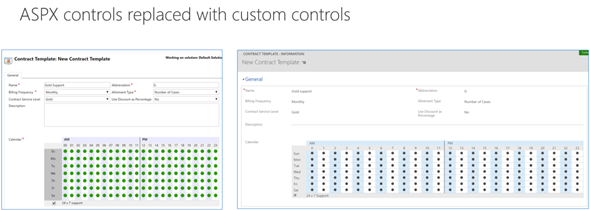
    With this week’s statement on Dynamics 365 Embedded, could the “future” referenced in the original text actually arrive ten years later? We don’t know for sure yet, but there are a lot of signs pointing towards that direction. If you followed the V9 Preview Executive Briefing or skimmed through my collected tweets from it, then you might already be aware of the concept of App/Plat Separation that’s taking place right this very moment. The earlier built-in application functionality of sales, marketing and services that you always got preinstalled with a CRM instance are now being moved into solutions like the newer Field Service etc. already are. Not only that, but also the built-in ASPX controls for data presentation components like grids and dialogs are now being rewritten with the new Custom Control Framework.

    And what about Azure? Well, it’s everywhere you look now with the new features built for Dynamics 365. Then there’s also… something that will become more clear as the GA of V9 approaches. With all of this technical architecture being lined up for the next generation XRM, it looks like the only thing missing really is a commercial model for selling Dynamics 365 without the CRM. Now that we have the ISV Cloud Embed program announced at Inspire 2017, I would say the time has come to give the people what they want:

    That Twitter poll ain’t open anymore, but please feel free to place your bets in the comments section of this post! What might the Embedded future of Dynamics 365 be and what still needs to happen in your opinion?

  • The Long Road to Unified Interface in Dynamics 365

    The Long Road to Unified Interface in Dynamics 365

    On June 20th Microsoft started taking the cover off its next major release of Dynamics 365 Customer Engagement (formerly known as CRM): v9.0. The biggest announcements in the first day of the Dynamics 365 Preview Executive Briefing were around the client story. With the new Unified Interface (sometimes also referred to as “UCI” for Unified Client Interface/Infrastructure) the plan is to bring a single client technology to cover all the different UI’s across devices. Web, Outlook, Mobile, Tablet.

    This is very exciting news, but there’s a lot of details and footnotes that people in the Dynamics ecosystem need to be aware of. Let’s dive right in!

    The Client Fragmentation of Dynamics CRM

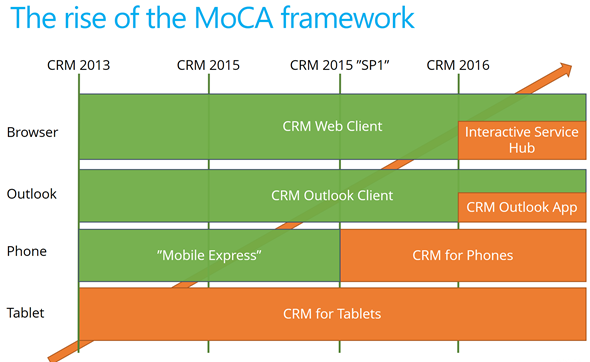
    Most of you will have probably been around when the previous big UX refresh took place with CRM 2013. We then received the MoCA Framework based tablet app with Windows 8 style tile UI and later saw this framework being used in many other places. We even received a brand new client to be used on the (desktop) web, the Interactive Service Hub (ISH). In fact, one year ago it almost looked like MoCA would be eating the world:

    The only problem with this strategy seemed to be that all of these individual parts never formed a sensible whole. Instead, there were so many “seams” visible everywhere you looked in the Dynamics CRM client landscape that many times you just wanted to keep your focus on the traditional web client and wait for things to clear up in these newer areas of the platform. A few examples:

    • Knowledge Articles were introduced only on ISH, but at the same time ISH was too limited/buggy to be used in most of the existing customer service scenarios with customizations in place.
    • Visual Controls were introduced in the phone and tablet, but the main web app forms just kept getting more and more white with nothing but text fields.
    • Dashboards with filters were made available on ISH, but much of the entities (i.e. sales) that typically are analyzed with dashboards were not allowed on the ISH side.

    MoCA was born for the mobile first era of touch UI and understandably it didn’t have all of the traditional capabilities from the web client. However, there were plenty of gaps that didn’t make it ideal for mobile use either. One of the biggest issues I had with MoCA was the “configure once, deploy everywhere” principle, which tried to force the same full CRM configuration onto the mobile device screens. MoCA brought the CRM into your pocket, but most of the time what a user would need in their pocket is a simplified app focused on a limited set of tasks. The limitations with MoCA meant that Microsoft had to rely on a Resco based client for their Field Service app in which the use cases are primarily mobile only.

    This Time It’s Different

    The promise of Unified Interface is that the era of web vs. mobile is over and now we’ll see a UI that’ll both adapt to the device or screen in use, as well as offer the same customization options in each of them. Content will be presented in a way that will reflow into different states of the control as the space available to it changes.

    Unlike with MoCA, this time there can be multiple different apps also accessed on a mobile device. Also web-only features like form switching are now available on all devices which makes it far less challenging for the system customizer to design a solution when all the exceptions and limitations of specific client types are (in theory) no longer in the way. It’s important to set the expectations on a realistic level, though, since I’m quite sure we’ll need to make some more compromises on the web side of the house with this new Unified Interface, but hopefully it’ll be a price worth paying for true mobility of Dynamics 365 business apps.

    For an even more customized experience, the Custom Control Framework that has been gradually introduced as part of the application (like the Editable Grid, for example) is going to introduce a design surface for developers to extend Dynamics 365 Customer Engagement apps in exciting new ways. Not only that, the existing ASPX based UI controls that have been in the core CRM application since forever are now also being transformed into Custom Controls. This is a part of the larger application/platform separation initiative that’s a whole topic of its own. On a high level, the developers should soon have access to basically the same tools for building new UI controls as what Microsoft is using to build their business apps.

    All of this should help in removing many of the gaps that have currently stopped the rolling out of the individual application features in earlier releases for real life business scenarios. There are plenty of promises that MS is making on performance improvements of this new client technology, too. That’s an important aspect to keep in mind and realistically evaluate as the Unified Interface becomes available, since all of the eye candy in the world won’t be of much value if the actual user experience of working with the application isn’t meeting the ever growing expectations of fluid interaction with the data stored in and managed via Dynamics 365.

    Are We There Yet?

    So, all of this looks great – now can we have it by tomorrow, please? The short answer is “no” and the expanded one is “it depends”. As mentioned in my earlier blog post, much of the new features in Dynamics 365 will now be rolled out via Private Previews and Preview programs before general availability. Hopping on to the preview train will shorten the time it takes for gaining hands on experience with the new UI. However, there’s more to it.

    Earlier I mentioned the previous UI refresh of CRM 2013 release (“Orion”), but some of you might still remember the intermediate release of “Polaris” (whereas the official name December 2012 Service Update isn’t something even I remembered anymore). That was perhaps the first Online-only release that Microsoft developed, with a target of not even trying to upgrade all of the application features into the new UI concept but instead just a selected few entities (“COLAC”) received the refreshed forms and Business Process Flow. You could build a simple CRM demo for a new customer with it, but trying to upgrade existing systems into Polaris or building anything with more customization requirements was a no-no. They had to wait until the full CRM 2013 release became available.

    The reason I’m bringing up this is that initially the Unified Interface is likely to be a bit like Polaris. It’s going to be made available only to brand new instances with the Business Edition licensing, or for new Apps that are either built by Microsoft (Customer Service Hub, a.k.a. ISH v2) or by the customer. It will also be available on the Phone and Tablet apps as well as in the lightweight Dynamics 365 App for Outlook (which officially replaces Outlook Client that’s now deprecated). Everywhere else, though, it’s not going to be the time for Unified Interface yet, but instead a refresh of the web client that’ll look something like this:

    Starting to get confused? I don’t blame you! There’s a hint of irony in the fact that the “Unified” Interface will initially be yet another interface variation for the Dynamics 365 application. I’m sure it’s not the way Microsoft would prefer to have these things introduced but reality is usually a bit more messy than PowerPoint presentations. The new client technology simply represents such a major shift in how Dynamics 365 works that upgrading all the complex customizations of existing Enterprise customers into it in one go would not be a smart move. Remember that “everyone’s an enterprise customer” until the Business Edition finally is out the door.

    To truly understand the client strategy that Microsoft is pursuing, you simply have to look at the Business Edition now, regardless of your deployment’s size. It is the dreamy wonderland in which MS can cut back on unnecessary complexity of application features and not worry about breaking any existing deployments, since there is hardly any legacy there. A fresh start that doesn’t need to carry all of the overlapping functionality (like Contracts vs. Entitlements) or provide all the admin options necessary for hybrid environments. It’s not all pure bliss in the sense that all of this will eventually have to live in harmony with the more complex custom UI’s and business logic of big corporations with “non-simplified” CRM systems running on the Dynamics platform. Still, right now we’re seeing a move from “cloud first” to “Business Edition first” when it comes to client innovation.

    Just because the Business Edition is targeting the lower end of the product licensing fees doesn’t mean you should dismiss the functionality that is being introduced in it. If the Sales app mainly streamlines many of the unnecessary complexities of current opportunity management in Dynamics 365 Enterprise, then the Marketing app will bring advanced logic like Customer Journey management that many existing larger customers would surely love to get their hands on. Unified Interface is the big story here that’s driving the release policy. I suspect that it’s the primary reason why the new XRM based Marketing app is only available for Business Edition customers initially, since features like integration with Customer Insights based segmentation and scoring mechanisms are not a feature anyone would build solely with the SMB segment in mind.

    It will all make sense in the end (hopefully), but in the near future both the customers as well as Microsoft will have some work ahead of them before the new promised land of Unification is reached. This is of course not all that different from what other business application platforms with a long market presence must go through every once in a while. Some may claim that Microsoft is following the Salesforce Lightning UI concept here with their Unified Interface and the similarities are surely there to be found. In fact, what I wrote about this the last time when Salesforce was following Microsoft’s lead is still pretty relevant when it comes to user experience evolution, so why not revisit that blog post for some perspective: The Irresistible Force of Great User Experience in CRM Applications.

  • All You Need to Know About Dynamics 365 v9.0 (For Now)

    All You Need to Know About Dynamics 365 v9.0 (For Now)

    The truth is out there. “There” meaning the social networks in this case. Unlike with previous beta programs (TAP’s or whatever they used to be called), the July 2017 release of Microsoft Dynamics 365 Customer Engagement (in short, “CRM”) was announced to the world in a three day event called Preview Executive Briefing that didn’t come with any NDA ties. As a result, the content from the live stream of these 37 sessions presented to us by the product team PM’s was free to be tweeted out into the world.

    That’s exactly what happened then. Community members like #CCOGNETTABOT didn’t settle for only capturing screenshots from the sessions into their own OneNotes but also shared it with the world under the #MSDyn365 hashtag. As the amount of information was approaching Big Data, I in turn tried my best to capture the most relevant pieces of the social stream and compile it into Storify. Not only did we end up getting a “best of” from the slides and live demos, also the most interesting Q&A responses from the product team were recorded here.

    Below is a link to each individual Storify collection, as well as the embedded story for a preview (ha!) of the content included there (if you’re viewing this on survivingcrm.com and not Dynamics Community).

    Day 1, 2017-06-20

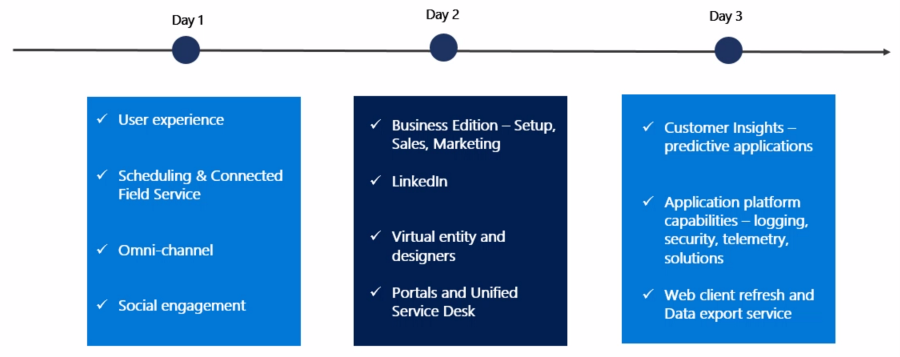
    Topics included Unified Interface (earlier names “Unified Client” or UCI), mobile, field service, Unified Resource Scheduling (URS), CafeX, Social Engagement (MSE).

    Storify: Microsoft Dynamics 365 July 2017 Release Preview, Part 1


    Day 2, 2017-06-21

    Business Edition for sales & marketing (i.e. differences compared to Enterprise Edition), event management, LinkedIn, portals, USD, App Modules, Virtual Entity.

    Storify: Microsoft Dynamics 365 July 2017 Release Preview, Part 2

    Day 3, 2017-06-22

    Customer Insights, Organization Insights, Relationship Insights (notice a pattern here?), business process automation (BPF, MS Flow), multi-select option sets, security and compliance, Web UI refresh (for Enterprise Edition), Application/Platform separation (“solutionizing CRM”), Power BI, Data Export Service (DES), Common Data Service (CDS).

    Storify: Microsoft Dynamics 365 July 2017 Release Preview, Part 3

    What’s Next?

    This v9.0 is a major release, not just by the version number but by the sheer amount changes happening in the platform, the client, the apps and the services connected to Dynamics 365. Most of this will NOT arrive in July, instead it’ll be rolled out via Private Preview and Preview programs towards the eventual GA. I believe it’s definitely the right thing to do, seeing the number of moving parts involved here. Also, the investments made to the platform are specifically designed to make it more modular and less of a monolith that you have to upgrade in one big bang. Oh, and v9.0 is online only, with on-prem updates coming for the applicable areas after these things are tested in the cloud.

    You can still sign up for the preview program here. In fact, if any of this Dynamics 365 stuff is of interest, you MUST sign up, or risk being left seriously behind. After three long nights of watching the non-stop live stream from the Preview Executive Briefing of v9.0, at least I feel like I’m now just starting to know what I don’t know. No single developer ninja or superhero consultant can grasp all of this, so it’s important that you also make it a team effort and spread out the responsibility of keeping yourselves educated. My advice would be for everyone to review these summaries from the three days, let people pick out the areas that seem most interesting/relevant for their current and potential projects, then agree to start poking around with the preview environments and reading the related documentation as soon as they become available. And most importantly: share with the world what you have learned!