In November we had a situation where our production environment had records unintentionally deleted. This required us to restore a backup copy of production into a new environment and retrieve the missing records from it.
Why didn’t we restore the environment backup directly over the production environment? There are many reasons which I’ve documented in the Forward Forever team blog. In short, if you’ve got any Power Apps canvas apps or Power Automate cloud flows in your environment, things can get seriously messed up if you restore the backup into the same environment. My recommendation is to avoid doing this in production if you have any workarounds at your disposal.
After we had manually copied & imported the data back, we left that restore environment in place for a while. In this case, “a while” actually meant 6 months. We were in no rush to free up the capacity, so I decided to wait and see if there were any further lessons to be learned from this incident.
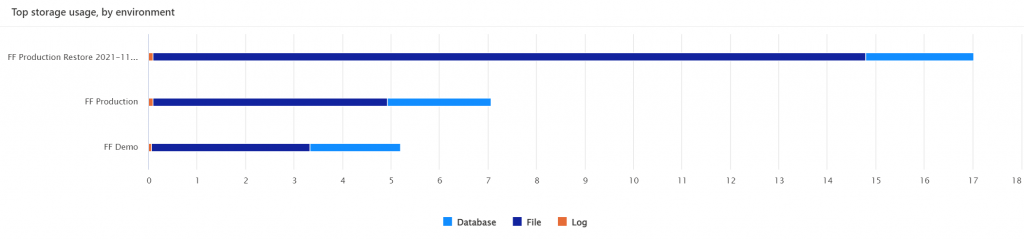
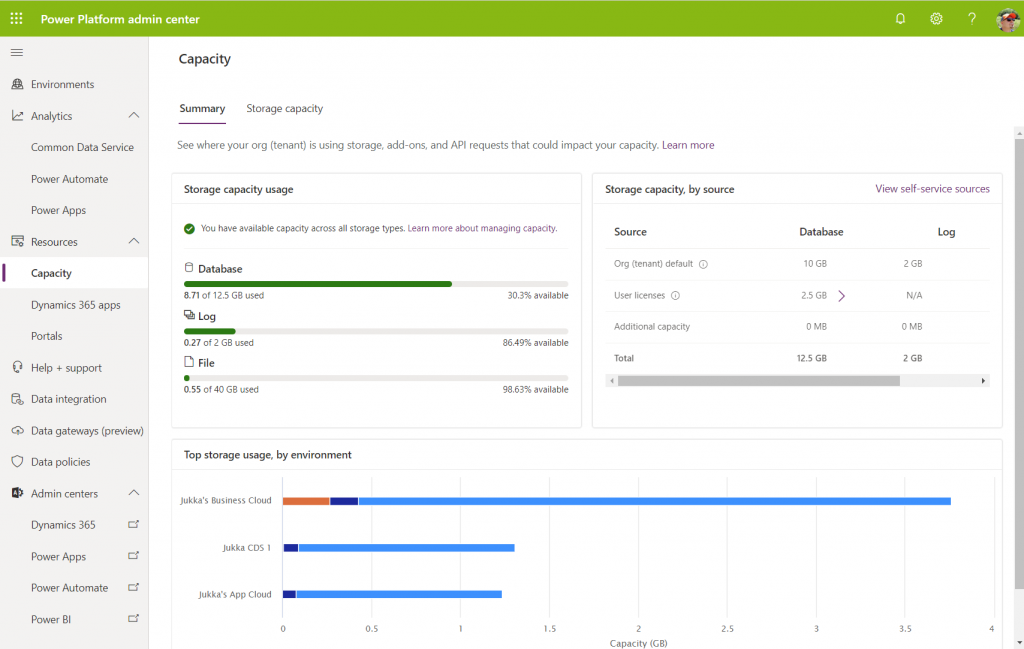
What happens to the storage space of a restored environment that no one is using? You might expect it to remain roughly in the same size as the original backup. In our case, the restore environment grew to be over 2x the size of the original environment. Below is an illustration of the restore vs. production environment storage usage from Power Platform Admin Center reports:
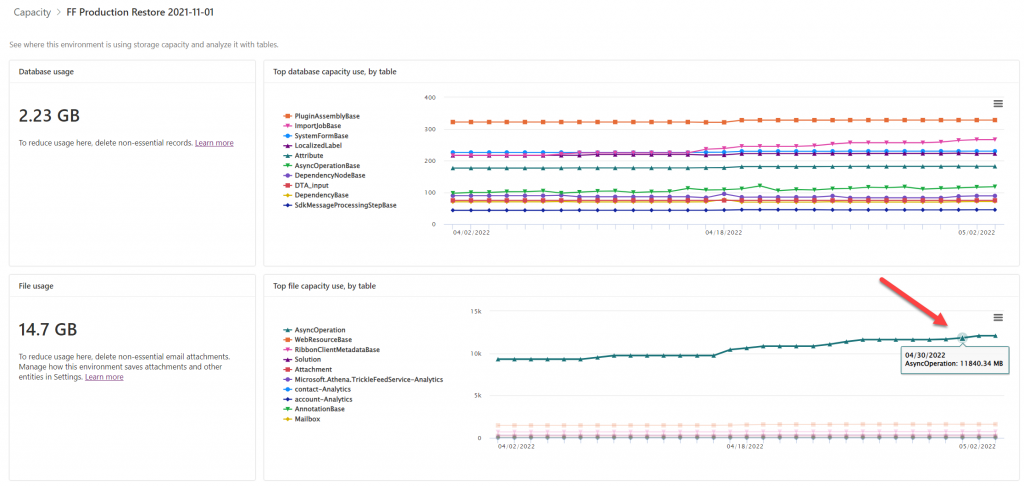
Our production today is at around 7 GB total Dataverse storage consumed, whereas the production restore environment had ballooned to 17 GB. What was consuming all that space? The AsyncOperation table:
This is where all the Dataverse system jobs are stored. These jobs will keep running, even if no live users (nor outside integrations) touch the environment.
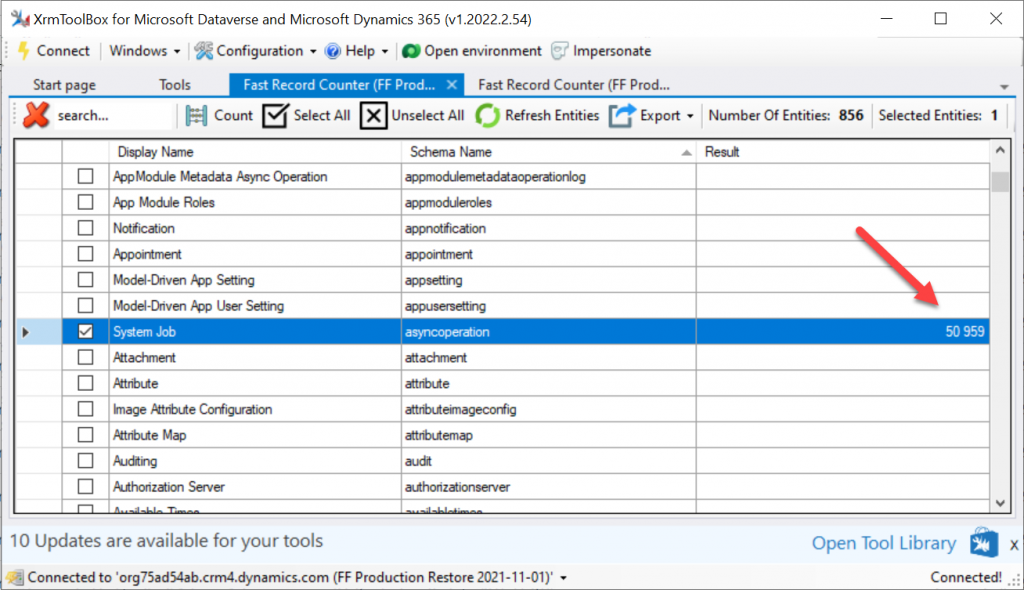
Looking at the number of rows in that table (via XrmToolBox plugin Fast Record Counter), I saw that while our production environment had 8.4k rows, the restore environment had 51k rows in that table.
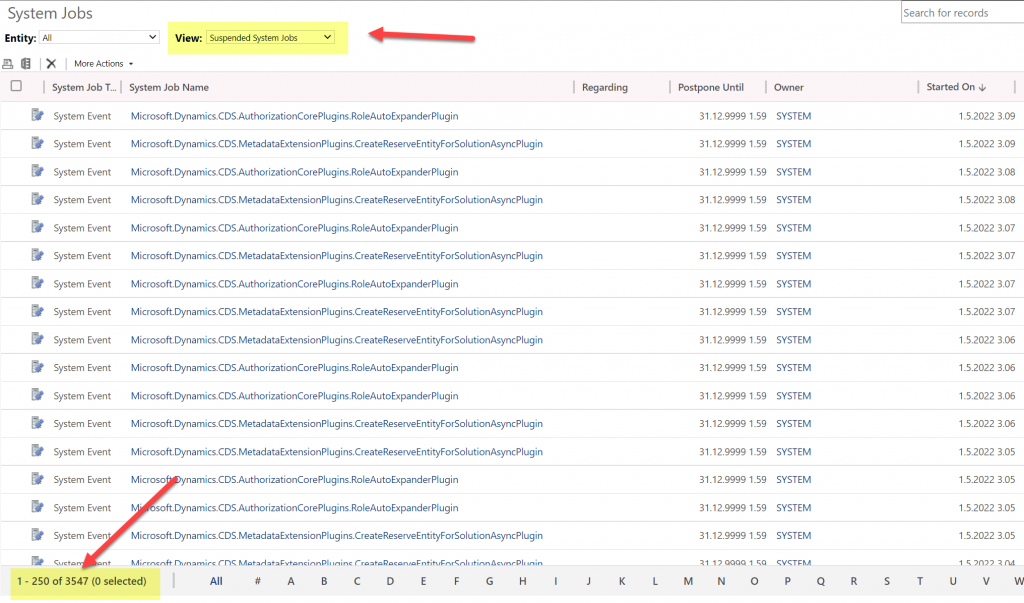
Why are there more jobs in the dormant environment? This is because normally the completed system jobs are deleted by another scheduled job, known as bulk delete jobs. Only in this restore environment the jobs just kept piling up. I checked that the bulk delete jobs weren’t reporting any errors. However, the actual system jobs offered the explanation to the storage space growth:
Switching to the suspended system jobs view revealed that there were 3.5k system events stuck. New batches seemed to be generated on a daily basis. With titles like “Microsoft.Dynamics.CDD.AuthorizationCorePlugins.RoleAutoExpanderPlugin”, it wasn’t immediately obvious what these jobs were related with.
Upon inspecting the system jobs records, the column “message name” revealed that these are related to solution imports and updates. Yes, just because you stop using a Dataverse environment, that doesn’t mean Microsoft would stop from servicing it with the latest solution versions and new features.
Why did the jobs get suspended then? The answer is in what happens after restoring tje environment from a backup. It gets put into administration mode by default. The intention here is quite sensible, since you wouldn’t want any integrations from the newly restored environment to be talking with the outside world. This could cause issues when you’d have multiple Dataverse environments connecting to the same target systems, potentially causing duplicate data and messages to be created.
The challenge here is that in today’s Dataverse / Dynamics 365 environments there are first-party integrations that also rely on features that the admin mode by default disables. These will keep running as system jobs inside the environment, yet they can’t complete their tasks and are therefore put in the queue as suspended jobs.
In a small CRM style environment like we have, this caused 10 GB worth of additional data to get accumulated into the Dataverse tables within 6 months. While system jobs are now stored in the cheaper file capacity rather than the expensive database capacity, it’s still quite a lot of unwanted storage consumption from built-in features.
Obviously the administration mode is not designed to be a permanent state for any Power Apps or Dynamics 365 solution’s hosting environment. This does highlight the fact that it’s not possible to simply “freeze” a Dataverse environment and keep a snapshot of your data and configuration for a longer duration in the MS cloud. All live environments will get updates to system solutions sooner rather than later, thus altering the state of the database. While the business data in the Dataverse tables will be preserved as-is, the metadata and its surrounding maintenance processes will keep on living their lives.
When talking to Microsoft cloud customers about Power Platform as the enabler for low-code app creation by citizen developers, we often find that also Dynamics 365 has already been deployed for one purpose or another within that organization. Typically it’s not the same people who are deeply engaged with the development of corporate wide CRM systems and these new type of agile solutions that Power Apps represents. Yet they share mostly the same architecture from a platform perspective (and increasingly on the client side, too), so the overlap and differences from an admin perspective are a source of confusion for many IT departments.
Earlier it’s been perfectly possible to perceive the administrative tasks for these two ends of the MS Business Applications spectrum to be separete, since there has been different admin centers for all products. From now on, this will no longer be the case, as can be seen from a recent message posted by Microsoft in the M365 Message Center:
Transition to Power Platform Admin Center (PPAC)
We are reaching out to inform you that the Dynamics 365 admin center, Power Automate admin center and Power Apps admin center will be deprecated on June 30, 2020 and will be replaced with the Power Platform admin center. This change will provide a unified portal to manage your environments and settings within Dynamics 365 and Power Platform. To learn more about its capabilities, please visit this site.
I don’t think many people (well, anyone, to be honest) will miss the Power Apps or Power Automate admin centers, as these have always been corners of the Power Platform that mostly served to confuse admins rather than offer them a clear view of what they can & need to manage. The new Power Platform Admin Center (a.k.a. PPAC, accessible via https://aka.ms/ppac) has been an easy sell for this audience, as it has offered a single place for common features like capacity management and analytics.
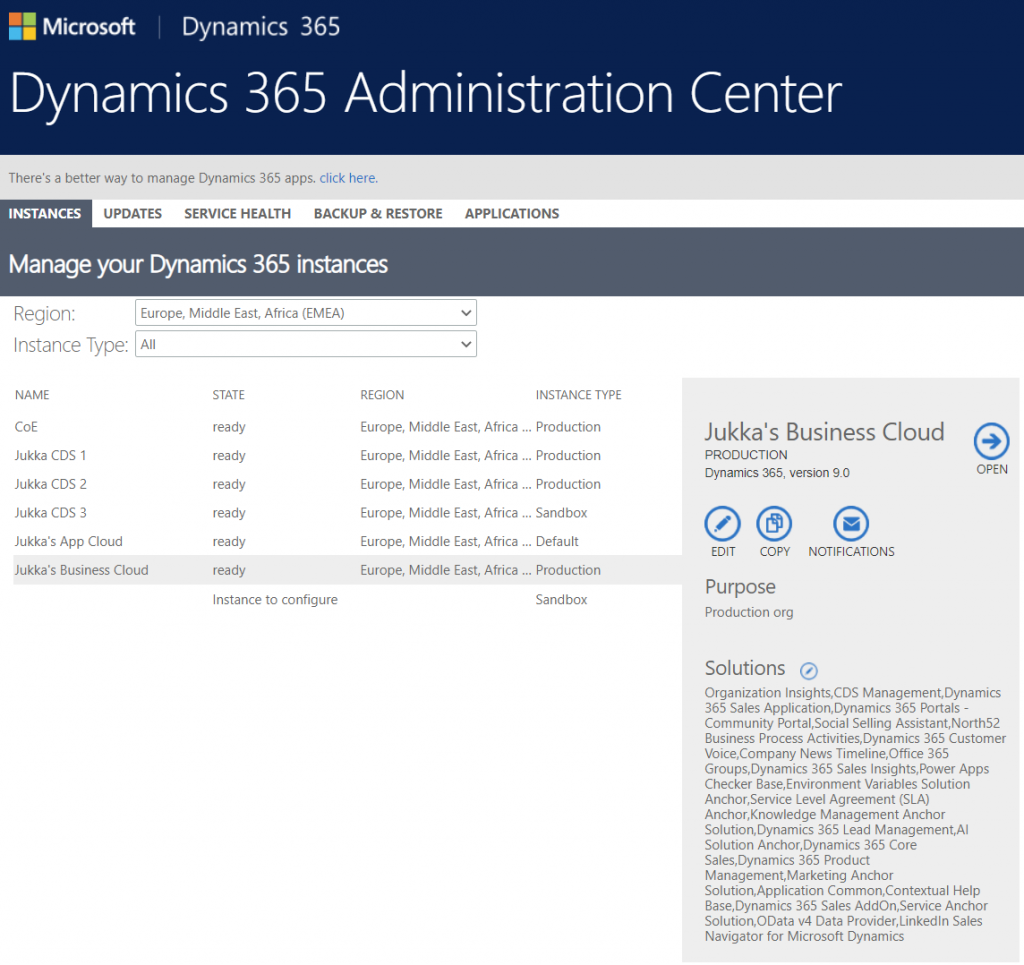
As for the Dynamics 365 Admin Center, that has been around much longer than the whole Power Platform concept. Originally built to be the CRM Online Admin Center, it has been the place for all instance management actions (sandbox copies/resets), version updates, features related to 1st-party apps and AppSource solutions, even Dynamics 365 Portals administration. It never was a sight for sore eyes either, but it served as the toolkit for Dynamics CRM pros to get the admin job done. And now it’s going away:
Just in case you’re reading this after July 31st and you don’t get to admire the old Admin Center anymore, below is what the experience used to be like. Let’s have a look at each of the available tabs and how they now map to features in PPAC.
Instances was the equivalent of what is nowadays called environments. Due to sharing the same back-end architecture, the Dynamics 365 Admin Center has displayed also CDS environments that had no relationship to Dynamics 365 products for over 2 years already. On the other hand, the new environments view in PPAC does not reveal the information about whether Dynamics 365 apps are in place or not, so prepare to have some other mechanism like the CoE Starter Kit to help you keep track of what apps are in which environments.
Updates became a redundant tab some time ago, as Microsoft removed the need for customers to schedule their environment version updates via the Customer Driven Update mechanism. Today the continuous deployment mechanism will roll out the new versions to all customers on the same date (per geo), according to the timeline communicated on the Dynamics 365 release schedule and early access page, following the geo specific dates on the GA deployment page.
Service health is of course an important topic, but the actual information about service outages and other issues has been incorporated into the Microsoft 365 Service Health dashboard common to all business services in the MS public cloud. PPAC environments list does have a “State” column that could presumably indicate if there is a specific issue that’s not affecting all customers, simliar to what the Dynamics 365 Admin Center view on instance health offered.
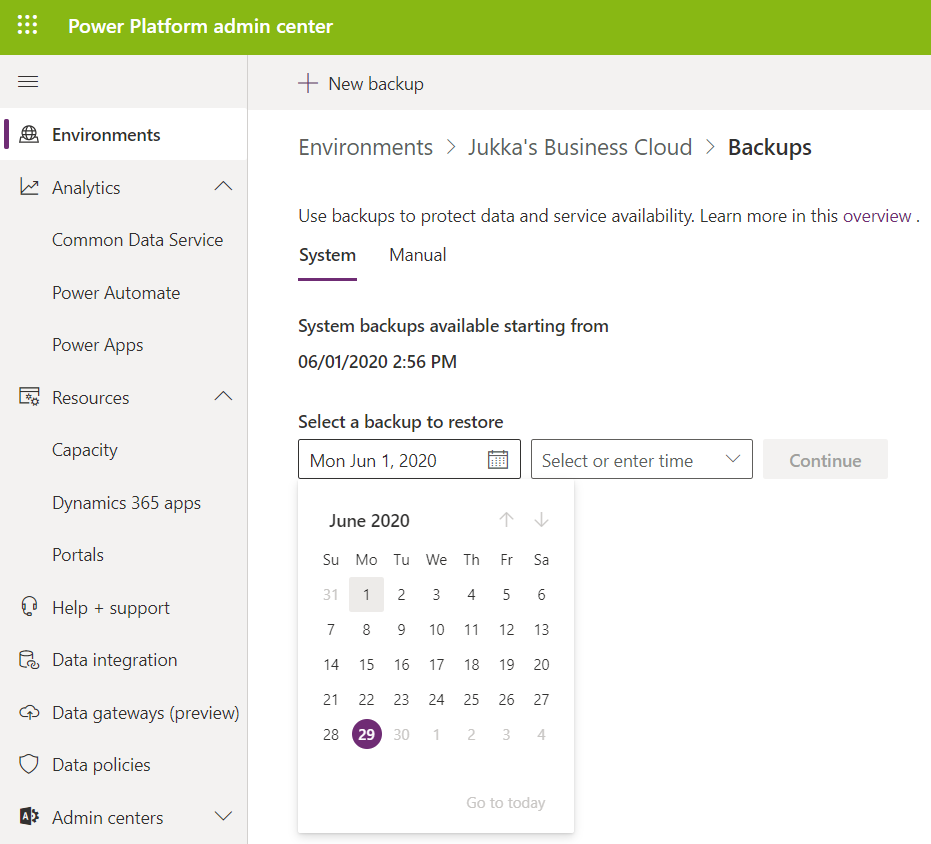
Backup & restore has already been forwarding folks into PPAC for a while now, so obviously all the features needed for environment creation, copies etc. has been transitioned there. Backups is actually vastly improved compared to the Dynamics CRM days, since now we can freely choose any point in time from past 28 days to return to, with no specific backup actions needed from the admins. This is thanks to the Automated Backups feature of Azure SQL, now available for Dynamics 365 based business applications environments. It’s worth noting that “naked CDS” environments and sandboxes only get 7 days of backups, though.
What about application updates?
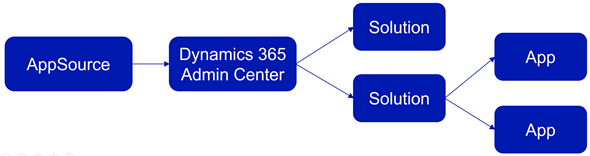
The CDS core platform itself follows the update schedule outlined above, but the lifecycle of the actual apps that run on the platform has been a separate story. In fact, the whole concept of what an “App” exactly is was complex already before the merging of XRM and Power Apps into a single platform, thanks to what the App Module in Unified Interface and AppSource as a delivery channel were trying to use that particular concept for. Back in January 2018 I tried to explain this scenario with an illustration like the one below. Now with Canvas Apps and Model-driven Apps thrown into the mix, it’s probably a topic worth a whole blog post of its own to once again try and decypher the various meanings of those three innocent looking letters…
The Applications tab in Dynamics 365 Admin Center was always a bit of a mystery. It seemed like a bin of random links to app specific configuration pages hosted outside of the Power Platform. Whatever was there can surely be put better into context somewhere else.
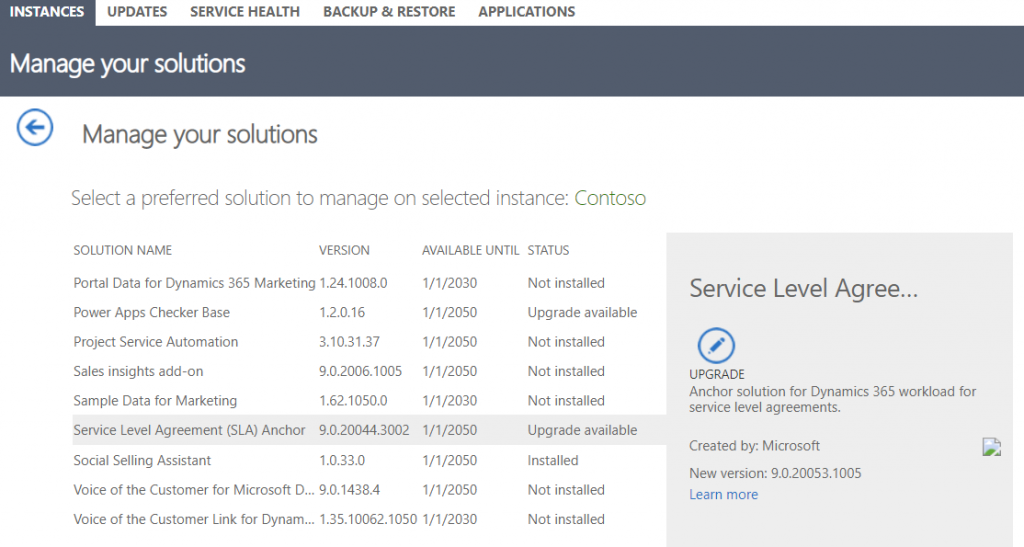
Then there was that other place for your apps – meaning the environment specific list of solutions found inside Dynamics 365 Admin Center after you selected an instance. Clicking on the Solutions icon gave you a list of solutions that were either “installed”, “not installed”, “installation failed” or “upgrade available”. Here’s an example:
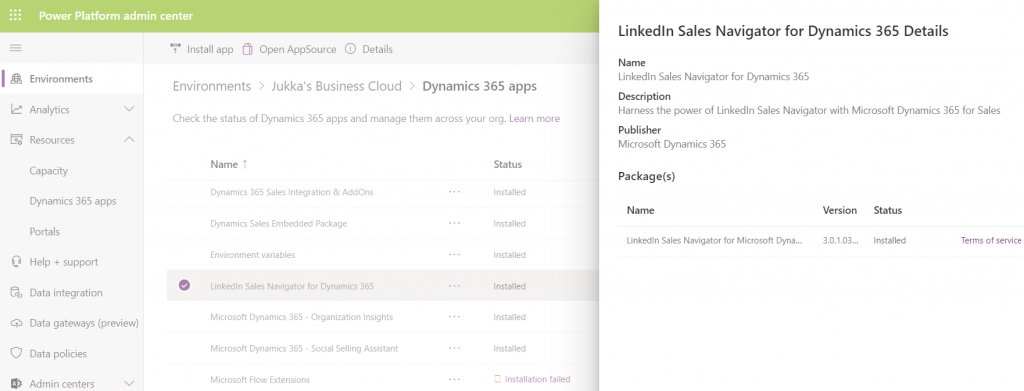
Looking for this same information within PPAC, I see that I can select an environment, go to its Dynamcis 365 apps from the Resources box and browse through a list that resembles the old view (yet doesn’t have the exact same solutions). One thing that’s not very well presented is the version numbers, which you have to dig out via a hover action to get the last digits:
As of today, there isn’t a way for you to upgrade solutions from here. Nor will you see if there is an upgrade available. In the example, there would actually be an update to LinkedIn Sales Navigator, which I see from the classic Admin Portal. I can also manually install that solution if I go to “install app”, select the app I already have, then re-install it (thanks for the tip, Joris!). I’ve been informed that there will be an fix applied to PPAC shortly that will make the Update option visible in the list of apps for the tenant, as described in the documentation page Manage Dynamics 365 apps.
Regardless of the navigation path, though, I believe the concept of an Update button is from a bygone era. In the best case you should not see such an option anywhere. Zero-click updates are the way to go.
Let’s step back for a moment and think about how the old solution upgrade experience worked. In order to know that there was something new for me as an admin to deploy, I had to open each environment’s Solutions list, browse through the paginated list of solutions that were either installed or not installed, then spot one that said “upgrade available”. OK, I see there is “Service Level Agreement (SLA) Anchor” that could be moved up from the deployed version 9.0.20044.3002. to 9.0.20053.1005. Great. So what’s new in that and how will that impact my applications?
*Crickets*
That’s the response to basically all solutions ever offered via the old Admin Portal. I don’t think the “Learn more” link associated with the solution upgrade has ever taken me to a page that had proper release notes specific to the solution in question. At best it’s a link to product documentation, at worst it’s a complete placeholder link to microsoft.com that was inputed because the field has been set as required in the solution publishing process.
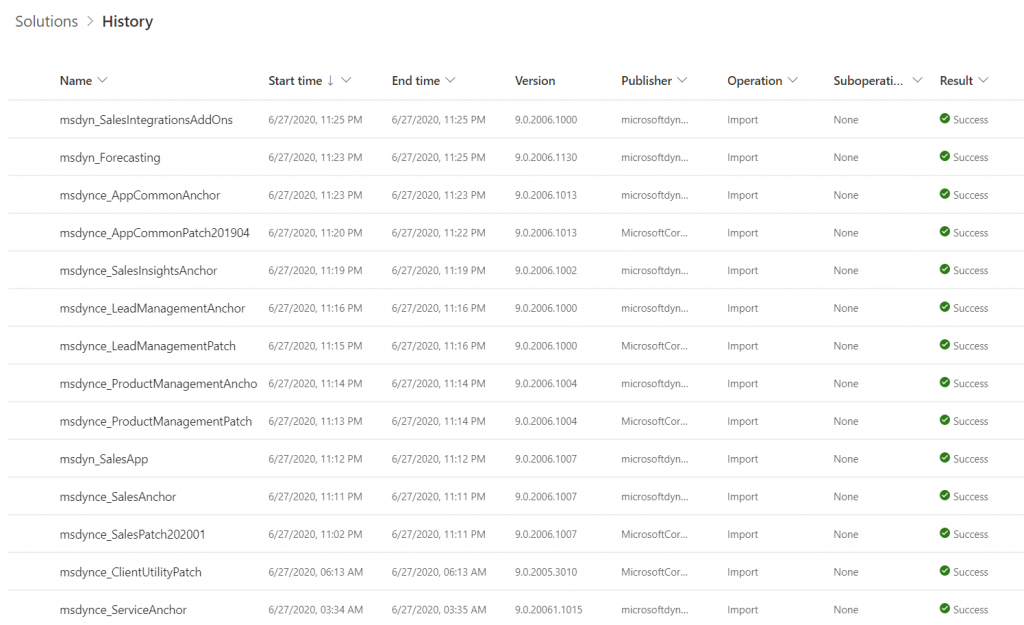
Obviously this wasn’t the way to go, so a new direction was needed. After all, it makes no sense to require an admin to perform the upgrade steps for a solution when he or she cannot make a meaningful go/no-go decision about it due to lack of information. While there is a beautiful illusion of control in having an “Update” button to click, it’s important for everyone to understand that Microsoft has already been pushing weekly (sometimes daily) updates to tens and tens of internal solutions in your Dynamics 365 environments. You can view this list from the Power Apps Maker Portal (not directly from PPAC unfortunately), under Solutions – See history.
Automatic updates are the way to go, not just for the platform but also the apps. Dynamics 365 app teams have published their Automatic Update Policy posts for Field Service, Project Service and most recently Marketing. Running manual solution upgrades through the Admin Portal isn’t really a part of this modern world anymore. Therefore it shouldn’t make much difference how or where this is presented in PPAC. What you should care more about in the new Admin Center is seeing how the various apps across all your tenant’s environments are doing in terms of capacity consumption, usage analytics, do you have the necessary DLP policies in place and so on. The role of a Power Platform Administrator can be quite different than what the traditional CRM admins were used to, so it’s natural that the admin tools will also need to evolve to better reflect this.
As promised, Microsoft published the release notes for the April 2019 release wave on January 21st. Instead of just a high level blog post, there’s a huge list of items in 16 top level categories at the docs.microsoft.com site. If you want to consume the content in an offline mode, there’s a PDF version available of the same content, with 315 pages of April 2019 release notes.
315 pages? Ain’t nobody got time for that!
Yeah, I know. Whether you’re working with Dynamics 365, PowerApps or Power BI, you probably aren’t just sitting around, waiting for some work to come your way. These are all high demand technologies that pull in pretty much all of the available consulting resources into actual project work with the tools. To make things worse, the communities around them grow larger every day and flood our social streams with blog posts, podcasts, videos, webinars, conferences full of “can’t miss this” information.
The problem is, though, that you haven’t got all that much time to get into grips with April 2019. It may sound far away, but the preview availability of many of these features (but not all) will start already on February 1st – 10 days from now at the time of writing. What’s even more important is that this time the features will be rolled out immediately to all customers, once Microsoft thinks they are ready. There’s also a date available for this particular moment and that is April 5th. You’ve got around 2 months from preview to GA.
How should an ex-XRM pro / Dynamics 365 Customer Engagement specialist then optimize the available time to learn the important parts about April 2019 release? I’ve got one tip for you, which may sound unintuitive at first, if you spend your working days mostly with things that say “Dynamics”. Here goes: Start reading the release notes from where it says “PowerApps”:
For real? Yes. We no longer live in a world where PowerApps would refer to the quickly generated mobile apps that you’d connect with SharePoint lists. It is the platform on top of which much of the “Dynamics 365 for X” products listed at the beginning of the release notes now live. Whereas each of these 1st party apps touches just those environments that happen to be using them, PowerApps and Flow are relevant for everyone. Common Data Service for Apps a.k.a. CDS is bundled within those two topics. If you’re operating in Dynamics 365 Online environments, you are working with CDS.
In the PowerApps section you’ll find platform and customization features like:
New form and view designers GA
Canvas app embed in model-driven apps GA
PowerApps Control Framework (PCF) preview
Unified Interface as the default UI
Offline data access
Azure AD Groups for security roles & record sharing
New tooling for plug-ins and solution packaging
Those are examples of the traditional XRM side of the house being extended under the new PowerApps brand. Microsoft Flow is equally important for any Dynamics 365 CE system customizer going forward, due to enhancements like:
Parity with CDS (XRM) asynchronous workflows
Calling XRM workflow actions from Flow
Batch operations for CDS records
Transaction support via change set scopes
Calling child Flows
Multiple trigger events
Flow parameters inside solutions
Sure, there are great new features and improvements listed for each of the Dynamics 365 apps, too. Also a wealth of opportunities for further expanding our Dynamics pro footprint in business application development on the Office 365 side (thanks to PowerApps, Flow). Not to mention the growing data integration capabilities via CDM, or the whole world of BI and big data. Still, we know that there’s probably not enough time to try and absorb these things right away. Which is why my recommendation is to start by looking at what the common business application platform is forming into. Then once the preview is available, update your sandbox into the latest bits and start experimenting with these things in practice (and possibly hunting down those features that actually shipped in the preview version).
OK, I have to admit it: even I didn’t dive straight into PowerApps myself, instead spent a bit of time with the full release notes document. If you want to know which items caught my eye, then you’ll find them in this Twitter Moment collection.
This time last year I wrote my Top 3 themes of 2017 article on what were the major events and directions from the year for the Dynamics 365 ecosystem. The start of a brand new year always feels like the logical moment to reflect back on the past 365 days, so this sounds like a worthy tradition to keep going. Here are my Top 3 picks from 2018 and some thoughts on how they might influence the direction of the year 2019 ahead.
Power Platform
The biggest single announcement of 2018 came in March when the Dynamics 365 Customer Engagement and PowerApps platforms were merged into one. It wasn’t until July that we began to see the Power Platform term used in describing this new suite of tools that now is the way to extend both Dynamics 365 and Office 365 apps, as well as building brand new apps for customer specific scenarios.All of a sudden the technology that had been bubbling under in the Dynamics CRM corner room is now brought onto the main stage of MS business software show.
The immediate impact was that XRM became CDS 2.0 (Common Data Service for Apps),which probably hasn’t been all that easy for non-Dynamics professionals to understand if they only paid attention to official MS information sources covering the topic. For the Dynamics partners a nice upside in this merger was PowerApps P2 becoming the “naked XRM” platform license they had been asking for many years (compared to the earlier Dynamics 365 Plan license for bundling CRM + ERP, which I don’t think was in as high demand).
A more subtle but equally important change was the birth of model-driven app and canvas app concepts. No, not the marketing terms nor the division into two app types, rather the fact that these different client technologies now had a clear need to start approaching one another in terms of how they behave, what data sources they support and how they are administered. Examples of these have become visible through recent announcements like:
New Form Editor for model-driven apps that resembles the canvas app studio experience.
Growing support for relational CDS data source in canvas apps, with support for 1:N, N:N, option sets.
Unified admin center from where both canvas and model-driven apps are configured.
It would be perfectly justified to call 2018 “the year of the platform”, considering how significantly the investments from MS side seem to have shifted from Dynamics 365 to the Power Platform. During 2019 we’ll see if the partner channel can follow along, to transform their offering into something more in line with the PowerApps story than the traditional CRM business models that have mostly been just revised for the cloud based environments during recent years.
A similar challenge awaits the professionals who’ve been working in this business and now need to figure out how to put their existing skills into use in projects that may not even mention the Dynamics product name anywhere. Plenty of new skills will also need to be acquired for leveraging the broader toolkit. The recent announcement of Dynamics 365 exams certifications to be retired gives an indication of the looming new requirements that await the MCP’s wanting to remain current with their certification record.
One Version
My Nr. 2 theme from 2017 was the App/Plat separation that largely took place as part of version 9 release. Now that Dynamics 365 CE is running purely on Azure after all orgs get to v9, the next logical step is to start delivering new releases on it the same way a modern cloud native product would. PowerApps, Flow and Power BI have already been operating as a service with a single version for all customers and now the platform underneath Dynamics 365 as well as the Apps on top of it are set to transition into this model. The July announcement of how Microsoft plans to deliver predictable updates with continuous deployment for both Customer Engagement and Finance & Operations is another major event of 2018 that will shape the future of these product lines and introduce a new reality for customers who build their digital business processes on top of them. The old CDU process for version update scheduling is no more and everyone will get the April 2019 update bases on the public release schedule.
We’re living in the “post-October” era where many of the new Dynamics 365 Customer Engagement features promised in the Oct ’18 Release are materializing into the live environments. Not all of them, though, since that space train carrying the Business Applications release bits has been scheduled to run from October 2018 to March 2019, as you can clearly see:
While some features arrive in preview and only for a specific geographic region, there is plenty of stuff that’s being deployed to nearly all Dynamics 365 CE online orgs. While we’re not quite yet at the target state of having every customer running the same version of the application, there’s no longer a process for scheduling the update for your own environments on a particular date in the distant future. v9.1 has most likely now been rolled out in all but the most exotic geos.
This lack of CDU calendars to pick the dates from doesn’t mean that everything would automatically get switched to the latest version. Remember that in addition to the underlying platform (now called Common Data Service for Apps, CDS) there are also the actual Apps to update. For example, if you’re running the Sales Hub a.k.a. the Unified Interface app for Dynamics 365 for Sales, the menu items in the App Settings section might look like the following:
Whereas what you should be seeing in the latest version currently is this:
How do we get there? Let’s dive into the world of solutions and find out.
Applying Solution Updates
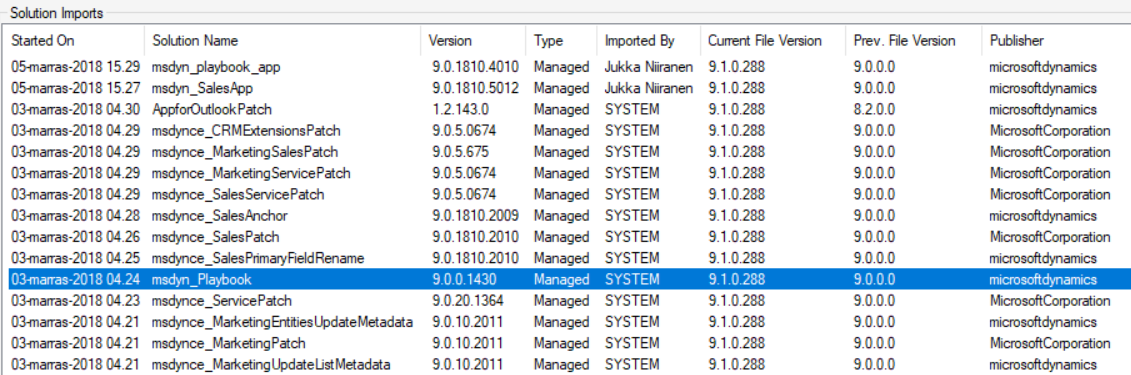
How do we know which solution versions carry which new features? We don’t have a central place for such information right now, since the Microsoft Dynamics 365 Online releases page only lists fixes and changes to existing functionality (in theory at least). When we browse the documentation for specific features like Playbooks for example, we may see details like this:
OK, that gives us a hint about what versions we should be seeing inside Dynamics 365. Getting the platform version is easy enough via the About menu behind the configuration cog, and everyone who’s customized Dynamics CRM should know where to look for the solution version number.
Have you been administering organizations running on the online version of Dynamics CRM / Dynamics 365 Customer Engagement for a while now? If so, you will be familiar with this screen:
That is essentially CDU in flesh. CDU of course stands for Customer Driven Update, the process through which Microsoft has allowed online customers to decide when their instances are updated to the latest available version of Dynamics 365 CE. While it hasn’t been a completely open schedule of “pick whichever date you want”, the availability of update slots for a period of up to six months has formed the backbone of how many organizations plan the dates on their business application development roadmaps.
This is all about to change very soon, as CDU will be going away. The plan was laid out on a post in the beginning of July already, but I suspect not everyone has yet quite grasped the practical impact of what “Modernizing the way we update Dynamics 365” truly means. Admins of online tenants with v8.2 orgs will have been receiving the following notifications into their mailbox recently:
Those who have reacted to this request to schedule their V9 updates will have seen a fairly familiar calendar with update time slots all the way up until January 2019. The thing you should keep in mind is that this is the last time you will ever see that CDU calendar. You cannot freely schedule your Dynamics 365 CE online updates ever again, once you’re on V9+. Enjoy your final Customer Driven Update, folks!
“What’s going on here?!? Is Microsoft giving up on maintaining their Dynamics 365 CE cloud? Will we no longer get updates for this product?”
It’s exactly the opposite, in fact. Microsoft is so determined to get all of their online customers to run the latest & greatest bits that they’re transforming their update delivery model into continuous deployment. From February 2019 onward, everyone will (in theory) be running the exact same version and no org will be left behind – or be allowed to. Then shortly after, it’s time for the next major release, V10, coming in April 2019:
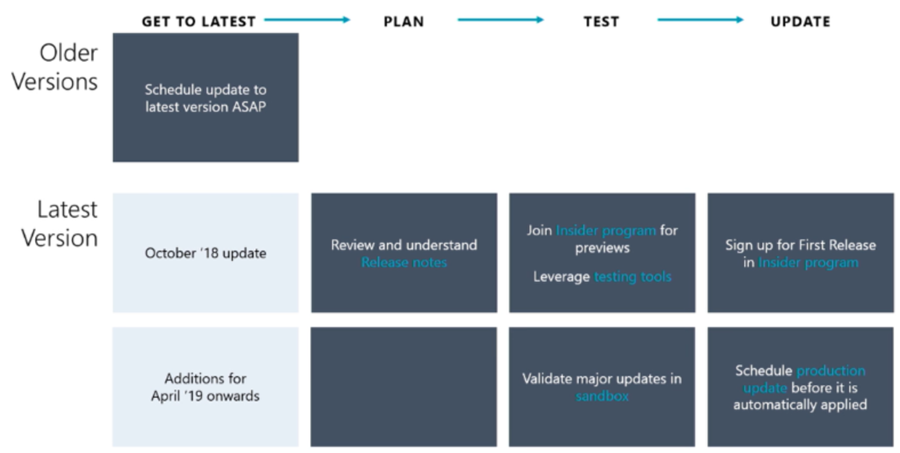
Alright, so there is no way of opting out from major releases and waiting for the dust to settle for a while before rolling it into your own instances. This just means you better be ready for the changes as they take place, so preparation and thorough understanding of the releases notes for the coming versions is going to be crucial. And how will we be able to test the new version in advance, you might ask. The answer is you can’t do that just yet, but before V10 rolls out there will be a new mechanism in place for a First Release instance:
As we can see from the Release Stations diagram above, the updates will be rolled out to different “rings” over a period of several weeks. Not even Microsoft wants to deploy the updates to every single environment at the click of one button, so they start from the smaller geos like Japan and Canada, gather telemetry on the update process and then gradually move to the largest geos of North America and Europe.
Telemetry will also play a key role in how Microsoft plans to deal with the inevitable need to deprecate and remove older functionality from the platform. Although the new Dynamics 365 update policy aims to preserve backward compatibility and present new features as “off by default”, there are going to be scenarios where it’s not just a matter of adding more and more stuff onto the ever expanding cloud platform. Since MS hosts all of the online instances, they can also measure how much each product feature or platform component is utilized by the customers. Decisions on how to deal with deprecation will therefore be much more data driven than it could have been in the past.
Just because the product is moving into an ever more “cloud native” delivery model doesn’t mean that there’s no need to test your customizations, extensions and integrations. While the process aims to reduce the chances of breaking changes interfering with the day-to-day use of Dynamics 365, there will of course be some changes that break stuff in reality. While the First Release environment will only give you a few weeks notice for performing your own changes in preparation of the version update, the Insider programs for Dynamics 365 will be your best hope to have earlier access to the information on what’s coming & how it may impact you.
To fully grasp the how, why and when of this new update policy for Dynamics 365, I highly recommend you to watch the session from Business Applications Summit 2018 on Dynamics 365 and Update Cadence. I’m hoping that Microsoft will make this information available in more convenient formats than live recordings in the future, so that this bold “one version for all” vision can be better understood by partners and customers. After all, we’re only in the process of digesting the October ’18 releases notes highlights, but in reality the V10 update isn’t that far away in the horizon anymore.
For all of us who are used to thinking about Dynamics 365 version updates as projects, it’s time to start shifting our thought process to the continuous delivery mode. Many of the “born in the cloud” products like Dynamics 365 Business Central or PowerApps are already now operating according to this one version principle, so it makes perfect sense to try and align the Common Data Service for Apps platform and the Dynamics 365 Customer Engagement applications with this new reality. Not just from a technical standpoint, but also the adoption of new product features that can be enabled when needed is going to be quite different from the traditional way of features arriving at the very moment a version update is deployed.