Long before a company has any CRM system in place they will already have a bunch of customer facing activities like emails and appointments in the personal mailboxes and calendars of their employees. Once a CRM system is implemented, these activities will not magically disappear but rather they will continue to be a key element in how the customer relationships is managed on a practical, day-to-day level. Typically companies would like to have these communications stored in the CRM database to accumulate a better understanding of both which customers are being contacted by which representatives of the company as well as the detailed information of what’s been said and agreed with the customer in these acts of communication.

Maintaining two separate systems for entering the same information is never an attractive option for information workers who just wish to stay on top of their daily agenda and commitments, without having to worry about keeping multiple calendars in sync manually. Rather than entering an appointment in your own calendar first, then entering the same data into your CRM system for activity tracking purposes, every single user would rather have the ability to promote their selected calendar entries related to customers into their CRM system for meeting the activity reporting requirements expected by their managers. Similarly, instead of copy-pasting information from their inbox onto forms in a CRM system, anyone presented with the option to click one button in their inbox and get the full message tracked into CRM would surely prefer to take this route.
This has been one of the founding principles behind the design of Microsoft’s CRM system since day one. With the market dominance of Microsoft’s activity management related software both on the client (Outlook) and server side (Exchange), making the flow of this data across different systems as seamless as possible can be seen as a low hanging fruit to grab when entering the CRM market with the Dynamics product. Looking back, offering users the possibility of remaining within their familiar and personal Outlook inbox and tracking information into the organization-wide CRM database has been a very compelling user experience at best. Yes, regardless of the countless hours I’ve had to spend solving Outlook related issues during my professional career in CRM, I’m still perfectly willing to admit that this type of UX is definitely worthy of pursuing in a CRM product, because it’s simply how it should work.
How Dynamics CRM actually tracks your data
What most organizations planning to deploy Dynamics CRM often find surprising is that up until CRM 2013 there hasn’t been much functionality on the server side related to managing the flow of activities between different systems. Even though Microsoft owns both Outlook and Exchange, they have decided to build deep hooks only onto the client side of Outlook and not the server side of Exchange. The positive side of this is that you don’t necessarily need an Exchange server for leveraging most of the activity management features of Dynamics CRM. The downside has been that you very much need the CRM Outlook client in place for things to work as you’d expect.
When it comes to sending and receiving email, the CRM Outlook client can act as the component that takes care of all the inbound and outbound emails for CRM. However, for any organization that needs to have emails flowing directly into CRM (such as a customer support email address that feeds items into a CRM support queue) or relies on workflow based email notifications to go out even when the Outlook client of an individual user is not connected to a network, the deployment of the Dynamics CRM Email Router has been in practice a compulsory step to take. Again, this component is independent of Exchange server and can be used also with other email systems via SMTP or POP3 connections. The Email Router can replace some of the email management features of the CRM Outlook client (but not all, we’ll get to that later) and basically “email enable” your Dynamics CRM server, so that it can independently communicate with the outside world via email.
One thing to note is that even customers who’ve chosen CRM Online as their deployment model instead of deploying an on-premises Dynamics CRM server have needed to separately deploy the CRM Email Router if they wish to send/receive email from/to CRM Online without routing all of the messages via the individual Outlook clients of their CRM users. Microsoft doesn’t offer an “Email Router in the cloud”, so you’ll either need to have a local machine available for deploying the router (doesn’t even need to be a Windows Server, also client OS like Vista or Windows 7 are supported) or get a virtual machine from some hosting service, such as Windows Azure. You can leverage the Exchange Online service in your Office 365 subscription for the actual email delivery, but the CRM Email Router cannot be purchased as a service directly from Office 365.
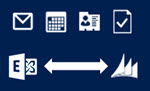 With the latest CRM 2013 release Microsoft has started to address these challenges of dependency on either client machine components (Outlook client) or on-premises servers (Email Router) by introducing a feature called Server-Side Synchronization. This allows the Dynamics CRM server to communicate directly with the Exchange server, effectively replacing the email sending and delivery features of the CRM Email Router. In addition to that, server-side sync can also handle other Exchange items like appointments, tasks and contacts, which can also now flow between the CRM database and the users’ calendars and address books on various devices without any central dependency on a client-side component like the CRM Outlook client.
Great! CRM 2013 server-side sync solves all our problems! End of blog post! Well, not quite. We’re actually just getting to the reason why I’m writing this post, which is the surprising complexity behind understanding the detailed feature sets of the various components that aim to deliver the seamless one-click UX that I was talking about earlier on. Based on what we’ve discussed so far, here’s how the big picture of synchronization methods for CRM 2013 looks like:

As is often the case, the devil is in the details, so let’s proceed with pointing out the “gotchas” that you need to be aware when planning on managing activities in a Dynamics CRM environment. (more…)