Tag: sharing

  • Share links with access to records in Model-driven Power Apps

    Share links with access to records in Model-driven Power Apps

    Microsoft has been working towards a unified sharing experience across their cloud products. The dialogs that many are using today in Microsoft 365 services like SharePoint and OneDrive for sharing access to files is also finding its way to Power Platform.
    The visible UI in a sharing dialog is only one part of the experience. Knowing what the traditional sharing experience for Dataverse records has been in Dynamics 365 and what the underlying security model consists of, the new direction can present a few surprises for app makers and admins.

    For example: did you know that a user without any visible security role may be able to read the data of certain Dataverse records? Wow! That goes against everything we’ve learned about security modelling in the good ol’ XRM era. Sounds like something worth investigating a bit deeper then.

    Enabling the sharing links

    Since the new sharing functionality can have a big impact on the security model of your business apps, this capability needs to be consciously enabled by the administrator. I haven’t yet come across the official Docs materials for the feature. Presumably this page is where the details will eventually be published. For now, this blog post is based on my experiments of what you need to have in place (by minimum).

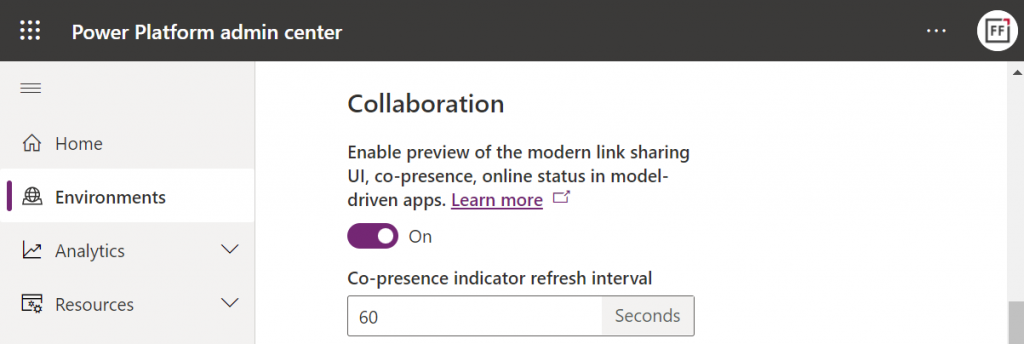
    First, you need to enable the collaboration feature in the environment settings via Power Platform Admin Center (PPAC):
    Next, you should go to the Privacy + Security page of the same environment and switch “enable sharing” to on:
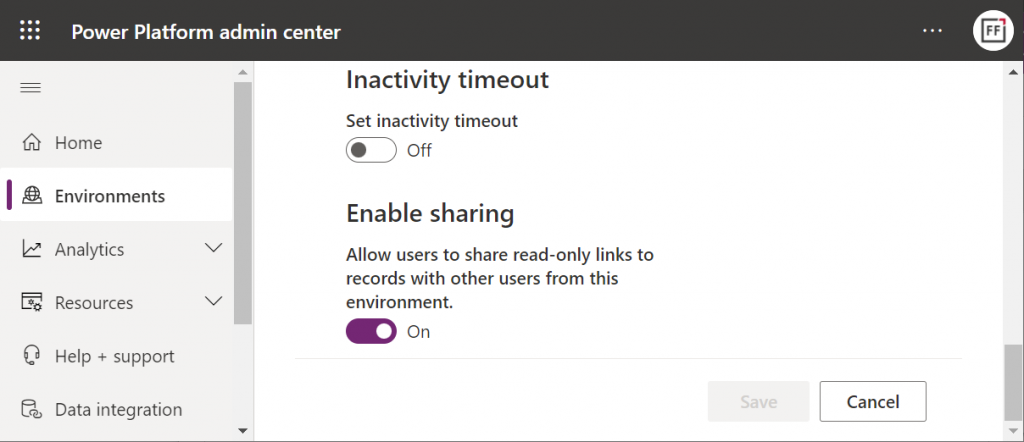
    As the message says, this should “allow users to share read-only links to records with other users from this environment.” I managed to get this working in a couple of different environments in our tenants, yet another demo tenant in the same European geo refused to co-operate. So, don’t be surprised if you see different results in your environments at this point.

    The link sharing experience

    Now that the features are turned on via PPAC, you should be able to go to a record like an account in a model-driven Power App and discover the new sharing menu in the top right corner of the form. Selecting “copy link” will give you a standard link that is the exact same URL as you’d get from the browser’s address bar. That’s because it’s meant for “people with existing access”.

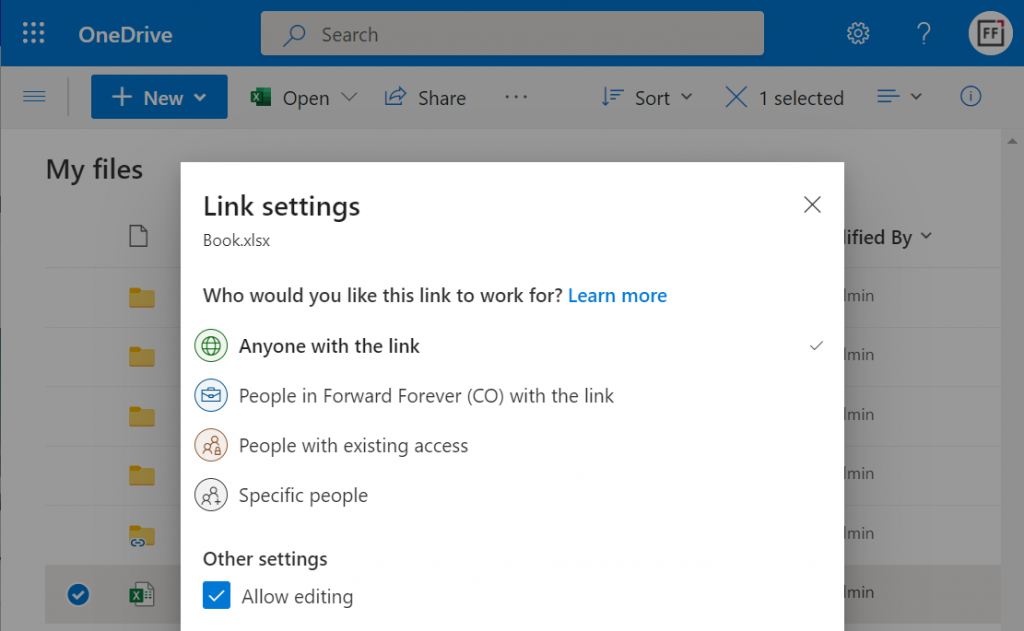
    Once you click on the chevron and explore the link settings, there should be more options available (assuming the environment settings applied earlier have taken effect). Let’s select the “people in your organization with the link” option this time:
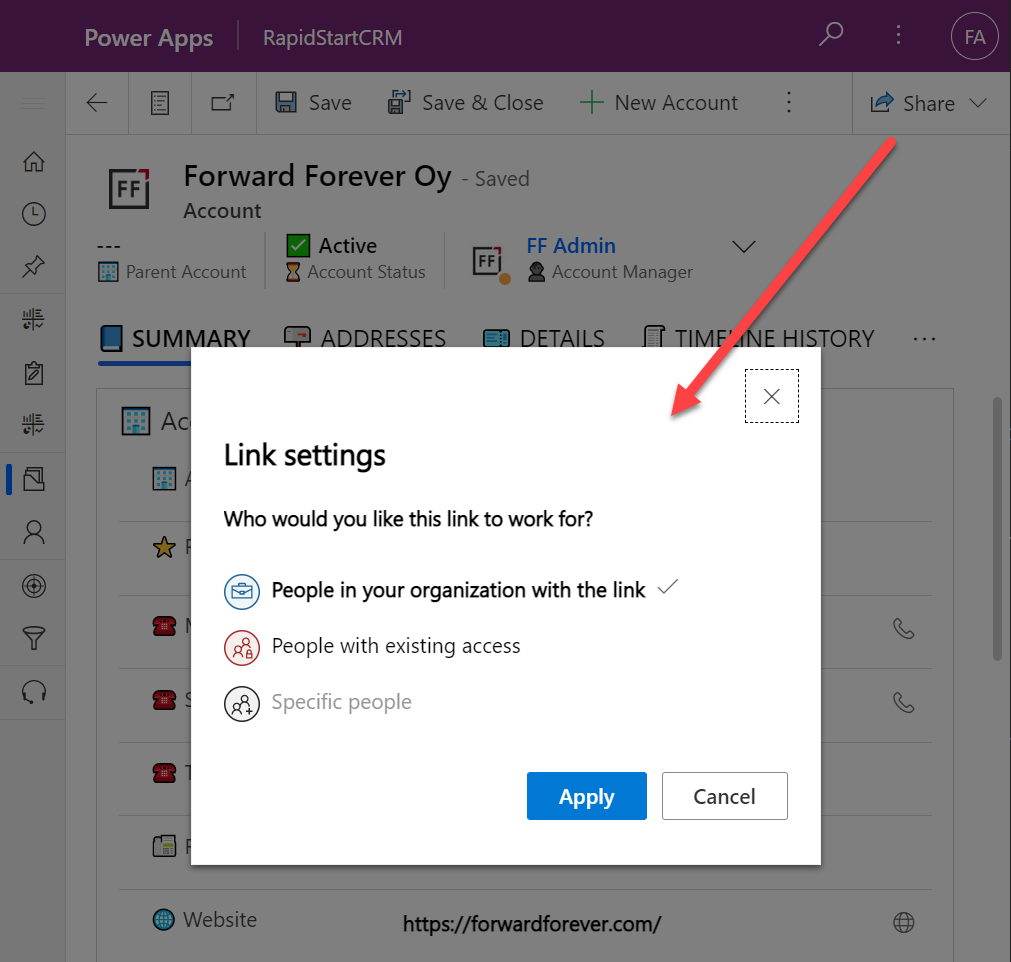
    Now we get a URL that is appended with parameters “shareLink” and “sig”. These are the magic keys to authorize someone who does NOT have existing access to the record in Dataverse.

    To validate how the feature actually works, I used our sandbox tenant’s user account FF App User as the guinea pig. First, as an administrator I went and removed any existing security roles for this user from the environment. Then I ran the diagnostics test from the user list in PPAC. A warning was displayed, saying “this user doesn’t have any security roles assigned directly to them”. Looks perfect for our testing purposes.
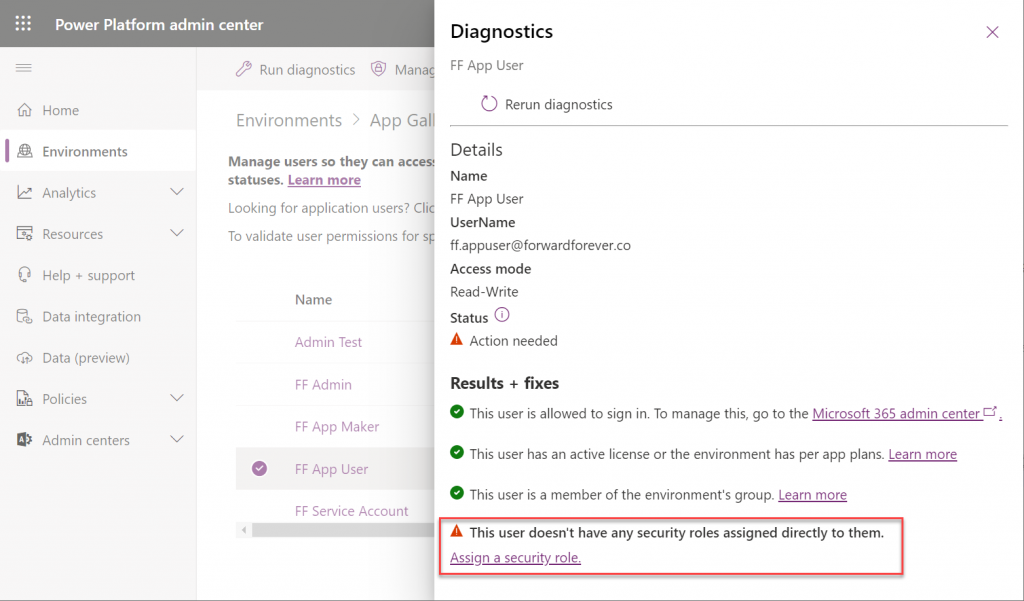
    (I actually also removed the license, yet that didn’t get flagged in the diagnostics test. Oh well, we all know how mysterious the license assignment and validation in Power Platform can be, so let’s ignore it this time.)

    Opening the naked URL of the Power Platform environment with this user account resulted in a screen saying “we can’t find any apps for your role”. Under normal circumstances, this would be the end of the road for a user.
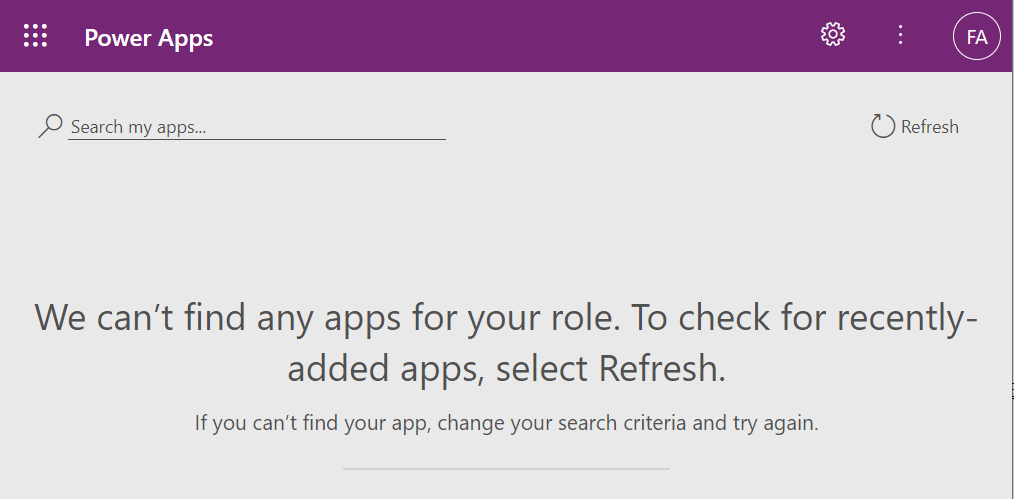
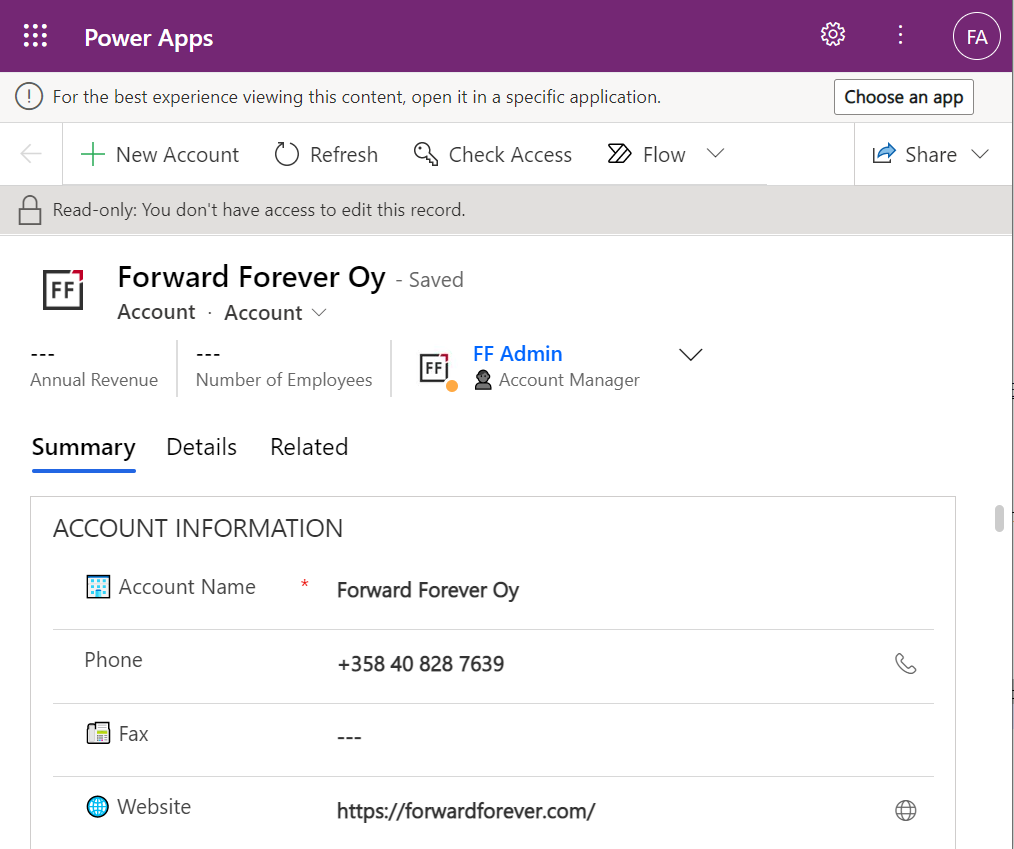
    This user has a special trick up his sleeve, though: the sharing link with the secret access code parameters. Using it allows us to open the account form outside any Model-driven app module. Yes, it’s read-only as the feature’s description text suggested, but from a viewing perspective this record form seems fully functional.
    How far do the sharing rights go?

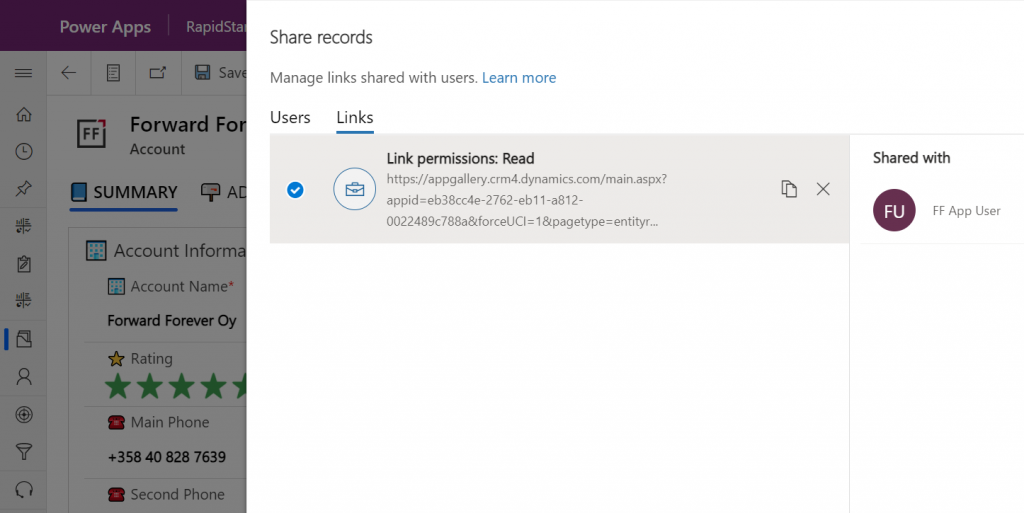
    If we’d go back to our admin user’s profile and re-run the user diagnostics in PPAC, we’d see that there still aren’t any security roles assigned for the FF App User. Let’s visit the sharing dialog of the single record instead and go to “manage access”.

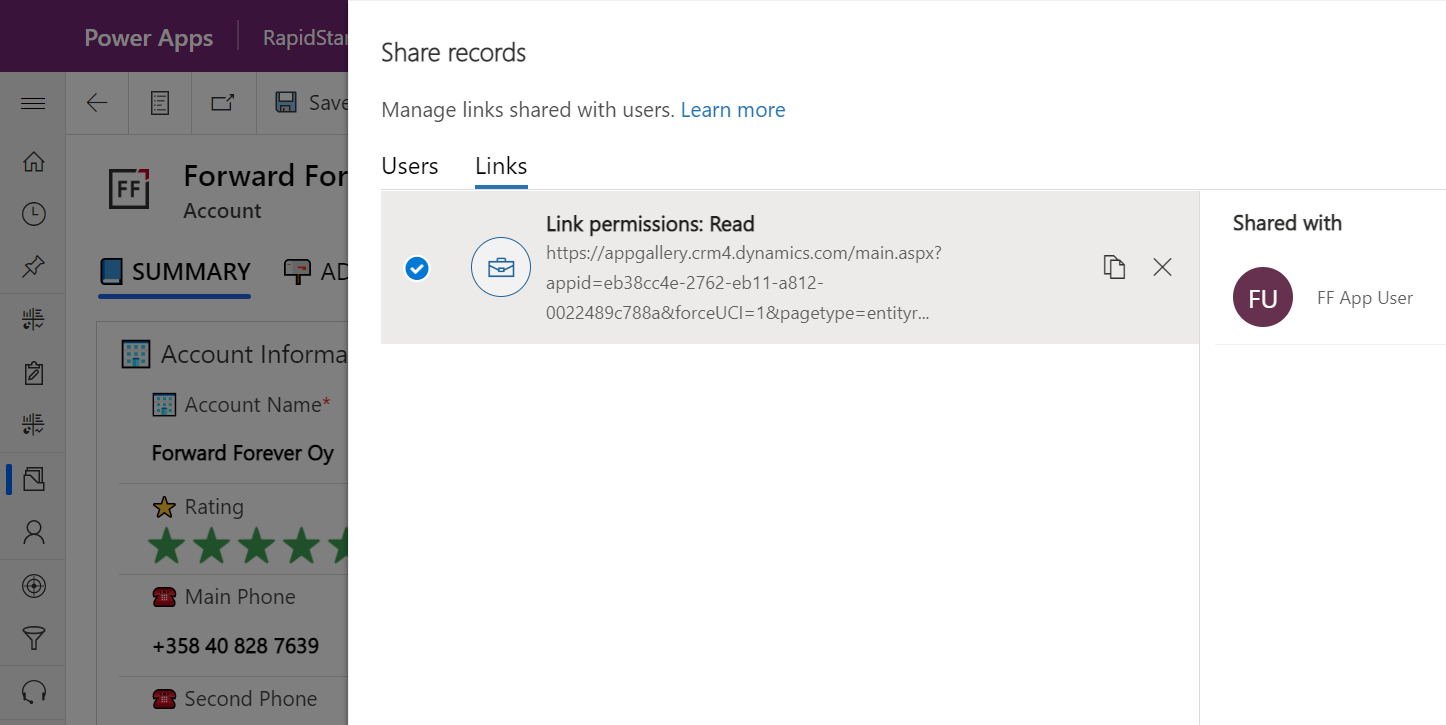
    This screen shows us that we have one sharing link generated for the account in question, with read permissions. Also, since FF App User has accessed the record via the link, the user account is listed under “shared with”.
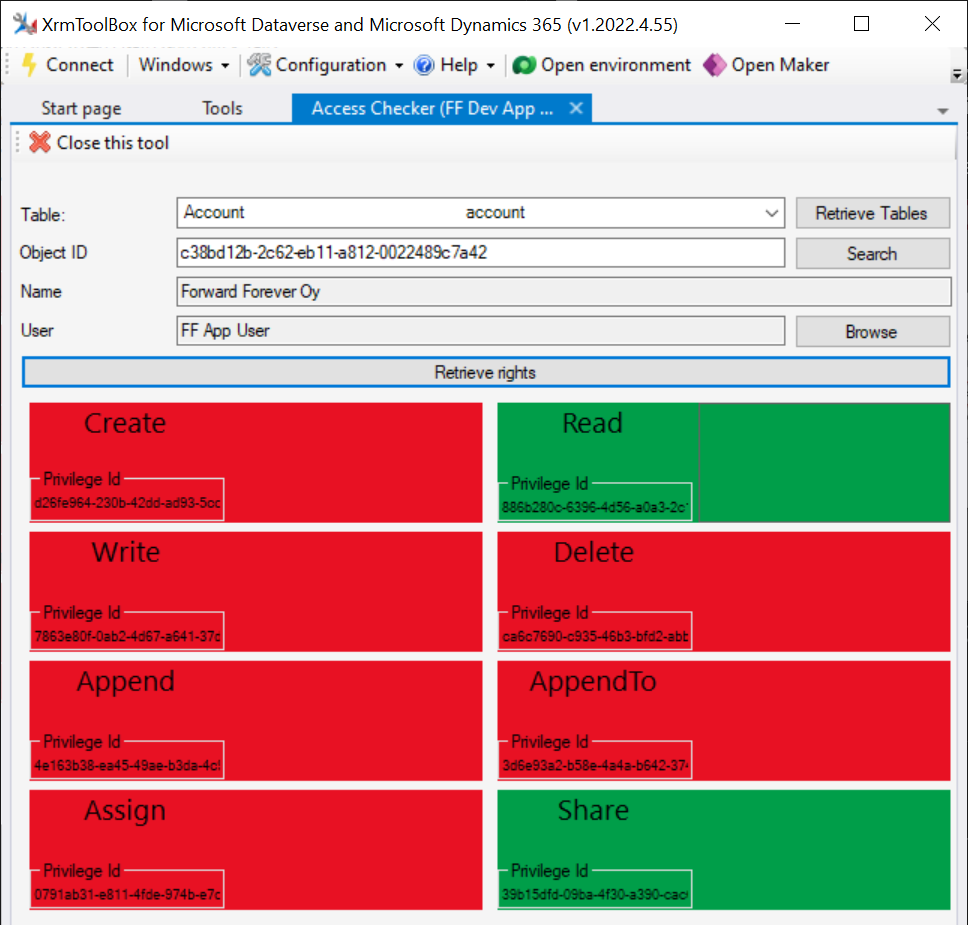
    Time to go deeper still, so let’s open XrmToolBox. Using the Access Checker plugin, we can run a test for the specific account record and the specific user account. We do indeed see that when called via the API, the user has both read and share privileges for this record:
    Could we find out even more about how the privileges are applied? Sure! Another plugin in XrmToolBox, “Your User Security – Magnified”, gives us a very interesting output for the FF App User account:
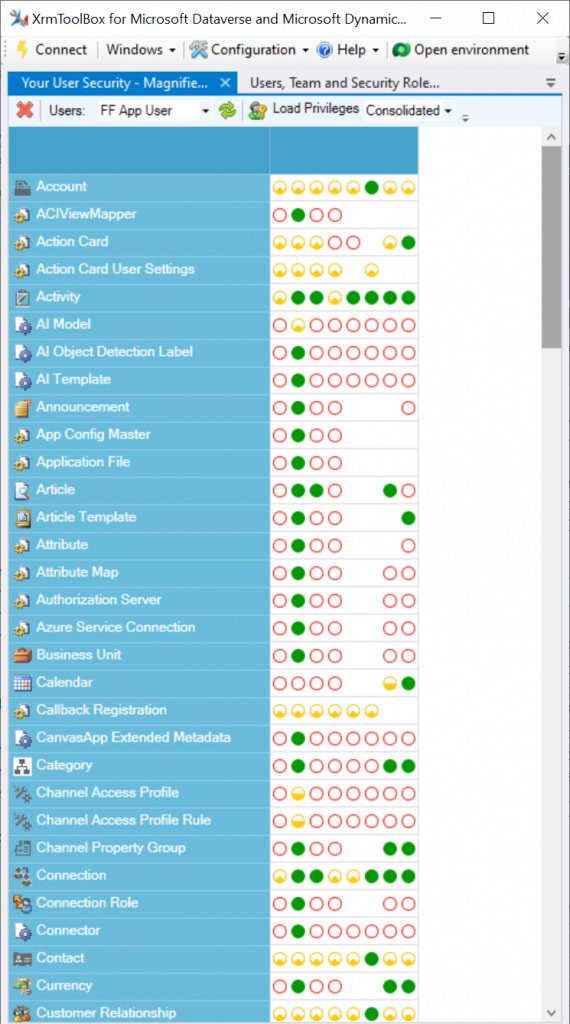
    As many of you know, there are plenty of system metadata tables (entities) that the user must be able to read for the application to function properly. Things like “attribute” or “user” are therefore understandably opened up for the FF App User account upon sharing the record.

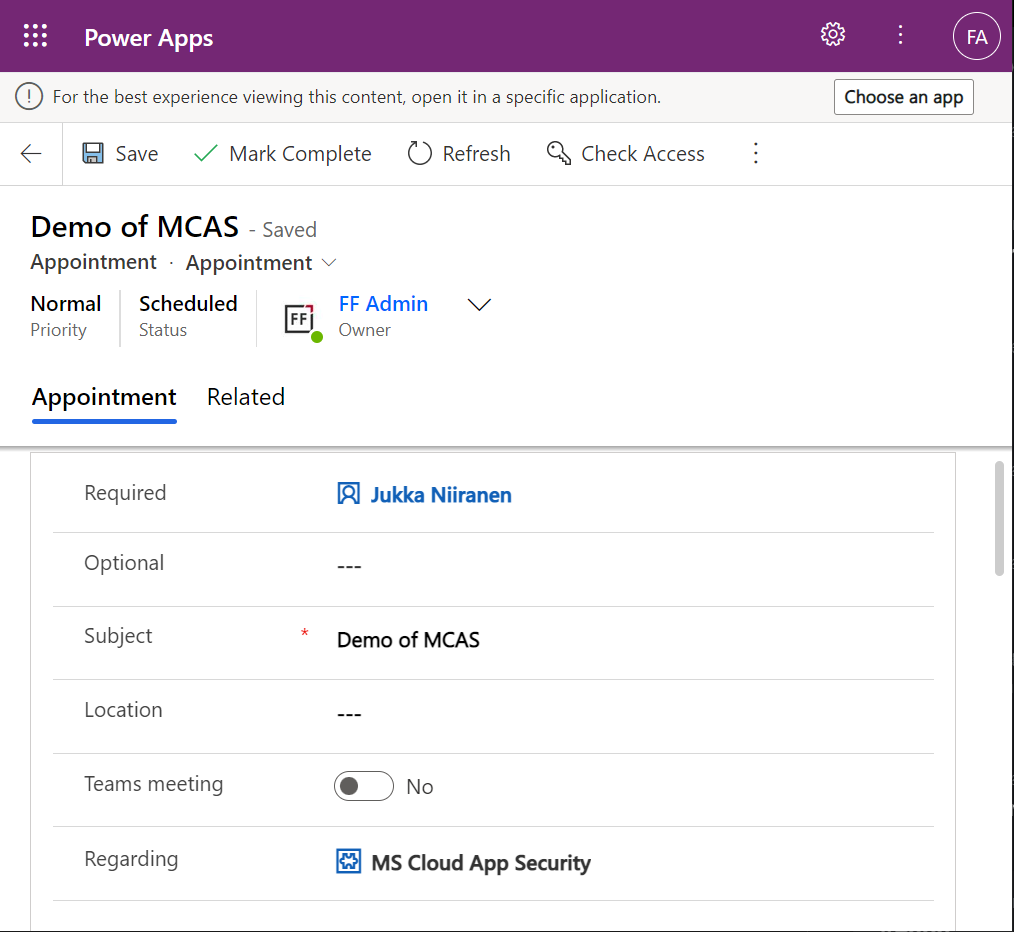
    There are plenty of real business tables listed in that output, too. Contact and activity, for example. While the privileges are granted only in the user’s scope (meaning only records that the user is an owner of), this made me go back and think: what else did we see on the account form when we opened that one record?

    Activities related to the account show up on the timeline. In addition, we’re able to navigate to their forms. We do also see the primary field values of anything that’s in a lookup, such as the regarding opportunity name.
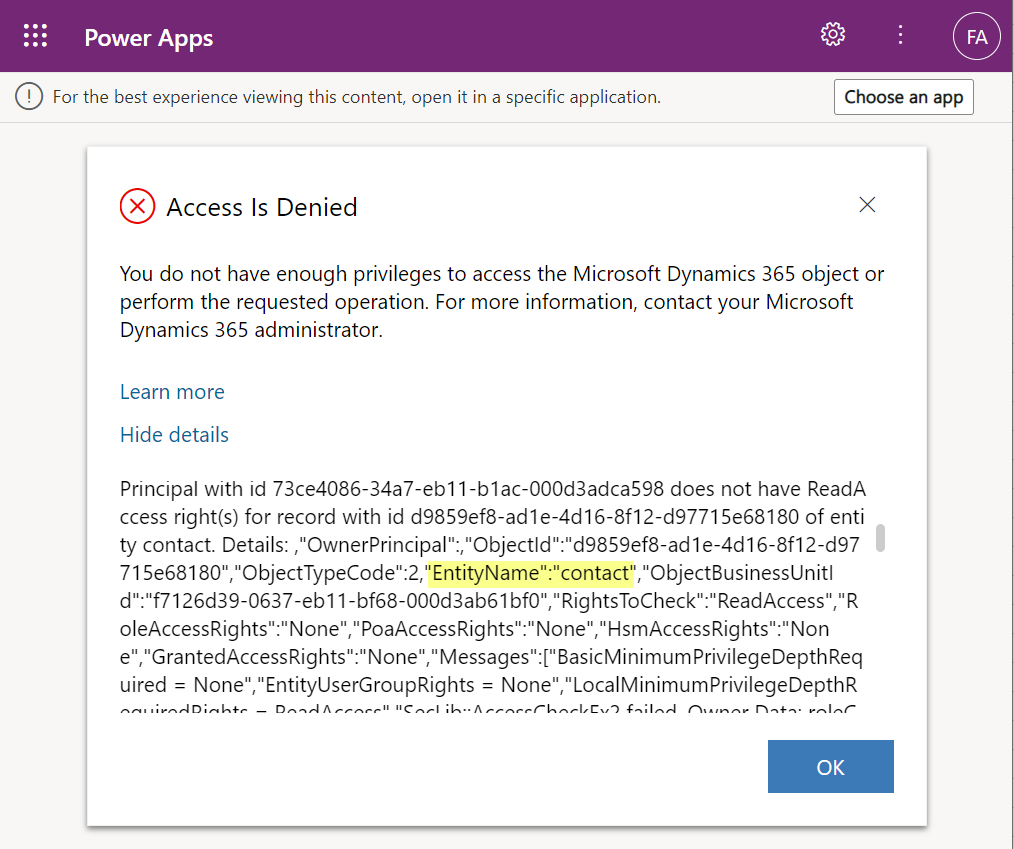
    Clicking on lookups, such as the contacts that are activity parties, will show an error message on missing read access rights. So, the security model is still enforced as expected, meaning we couldn’t just navigate via links to other records. It’s not just the lack of a surrounding app and its navigation that is missing from this user, there’s access checks also on the server side of course.
    It’s good to keep in mind that the modern collaboration features are currently enabled only for certain tables: account, contact, opportunity, case. There may be more configuration options ahead for how the sharing links work once the feature reaches general availability.

    Sharing within Microsoft Teams

    The primary scenario that these internal sharing links have surely been designed for is collaboration within Teams. Already back in July 2021 it was announced by Satya Nadella that “Teams customers will receive access to Dynamics 365 data within Teams at no extra cost.” We’ve been waiting for that possibility to arrive ever since.

    Given how the concept of sharing access to data has been radically different between a document world like SharePoint and a business record world like Dynamics 365, there has understandably been a lot of work needed to be done on the platform side. Now that the share links infrastructure appears to be in place, are we ready for the collaborative apps story to come to life?

    Although the sharing capabilities are a Power Apps feature, there doesn’t yet appear to be the needed pieces in place on the Teams side for any low-code apps to take advantage of record sharing. However, if we test the sharing links in a Dynamics 365 enabled environment and with the Dynamics 365 Teams app deployed for the user, things start to light up:
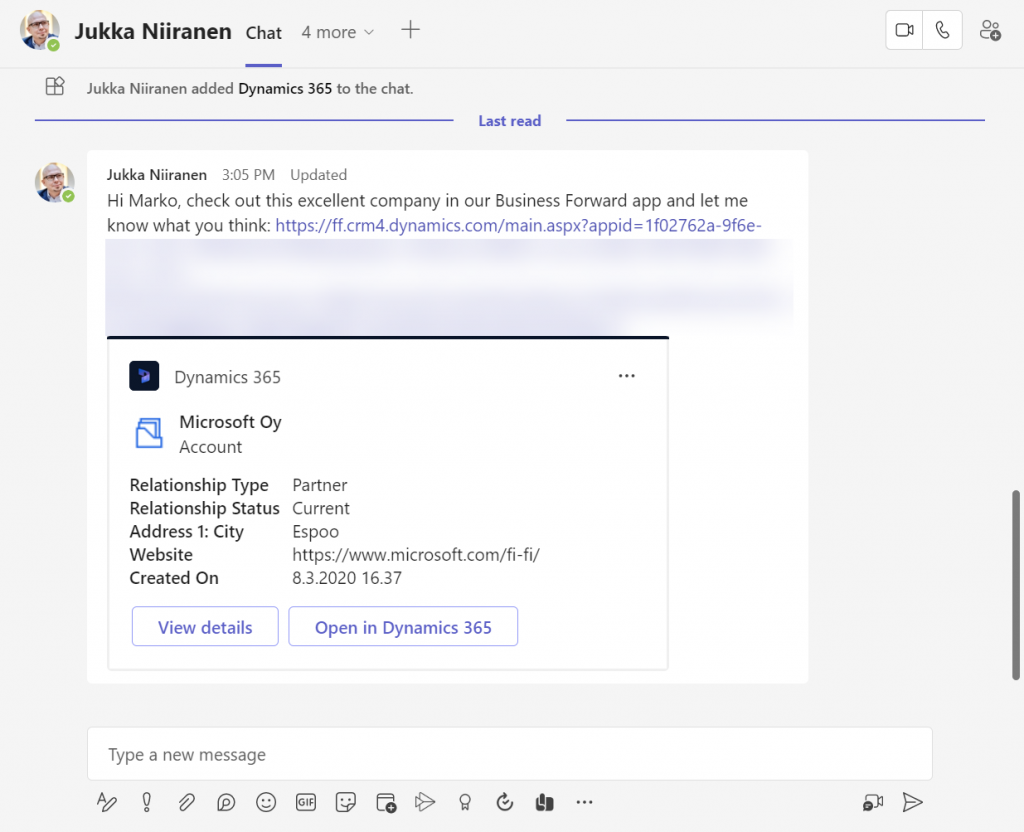
    Pasting the link into a Teams chat will now unfurl the contents and show an information card preview of the record. We also get the option to view the full record in the context of Teams, via the “view details” button. These are small yet important steps in allowing people to get work done within the platform that is Microsoft Teams, without needing to look for the details in another browser window.

    We’re still missing some of the elements showed by Microsoft as part of their collaborative apps story, like Context IQ for at-mentioning a Dataverse record or Loop components to embed live data into messages in Teams or Outlook. While we wait for a delivery timeline on those elements, at least this easy record sharing feature in Power Apps model-driven apps has a target GA date for September 2022.

  • Making Model-driven Power Apps visible (and hidden)

    Making Model-driven Power Apps visible (and hidden)

    I’ve got a confession to make: even though I’ve been building Model-driven apps long before they even were Power Apps (back in the XRM era), I’ve struggled to understand how I can make them visible to the end users in the modern experiences Microsoft offers.

    In this post I’ll address two different challenges. First, how to enable end users to have access to your Model-driven app. Second, how to protect them from seeing irrelevant apps.

    “Why isn’t the app sharing menu working?”

    Once you’ve built your Model-driven app are ready to release it, you need to make it visible not just to the app makers and system admins but also regular users. This involves using the Share menu from the list of apps available in the environment.

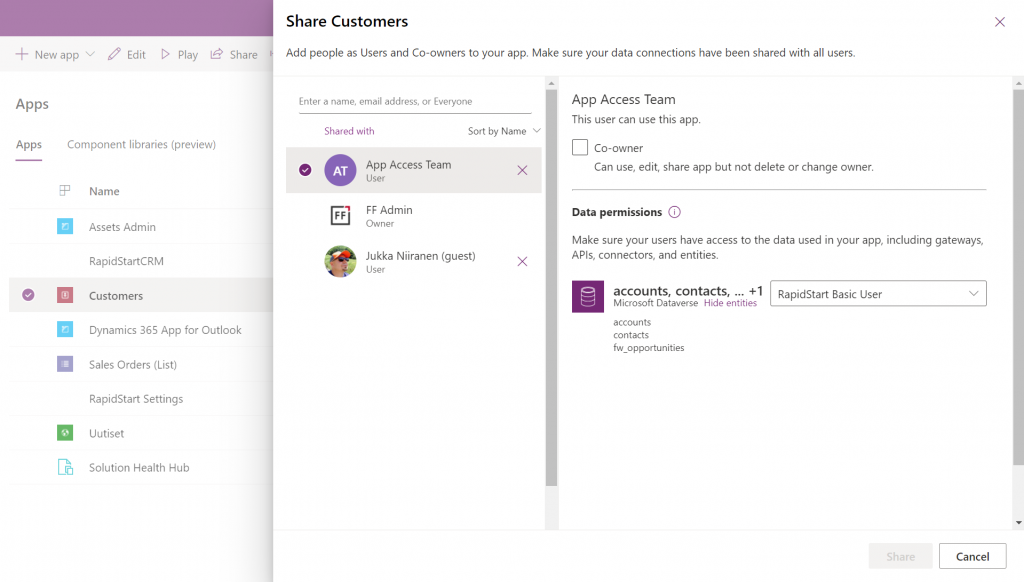
    Working in the Power Apps Maker portal, it’s pretty obvious the things we see here have been built with Canvas apps in mind. When it comes to sharing a Canvas app, the steps are fairly logical. You click the 3 dots next to the app, select “Share” and are shown this dialog:

    You add users or groups, set their data permissions via the many available security roles within Dataverse, click Share, after which the users get an (optional) email message. All good!

    Try the same steps with a Model-driven app and your users will see… nothing. It’s not just that there isn’t an email message with the app URL sent to them. They actually don’t have access to the app at all, even if you provide them the URL directly. Why isn’t the share action working from here?

    If you’ve worked with the Dynamics 365 App Modules before, you might remember that you needed to specify which security roles have access to which app. Just like with role-based forms, too. Now, that particular role assignment UI existed in the legacy web client that has been deprecated and there doesn’t seem to be an equivalent in the Maker portal anymore. Does this mean we don’t have to perform this step, rather the sharing of the app to the users takes care of this automatically?

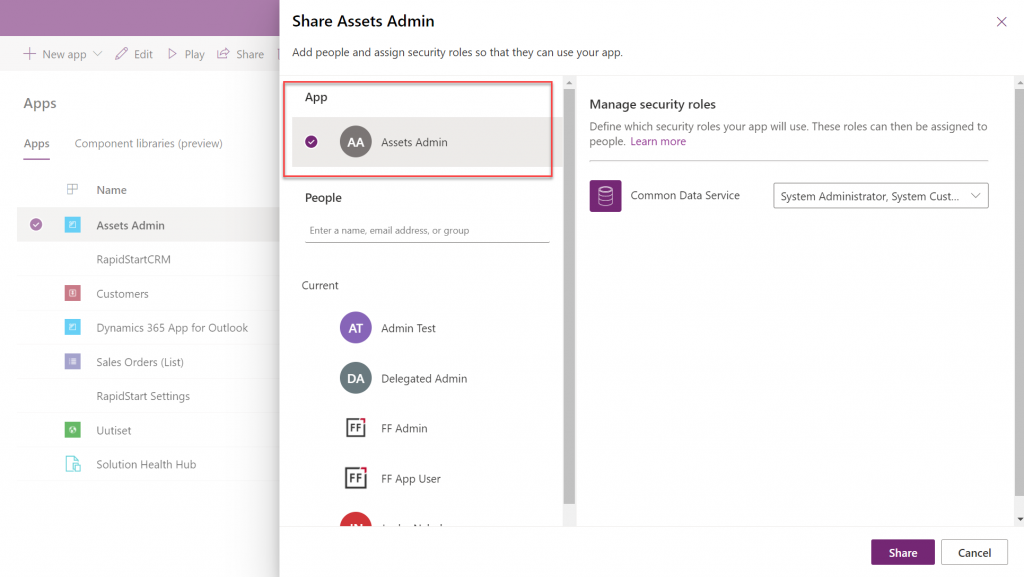
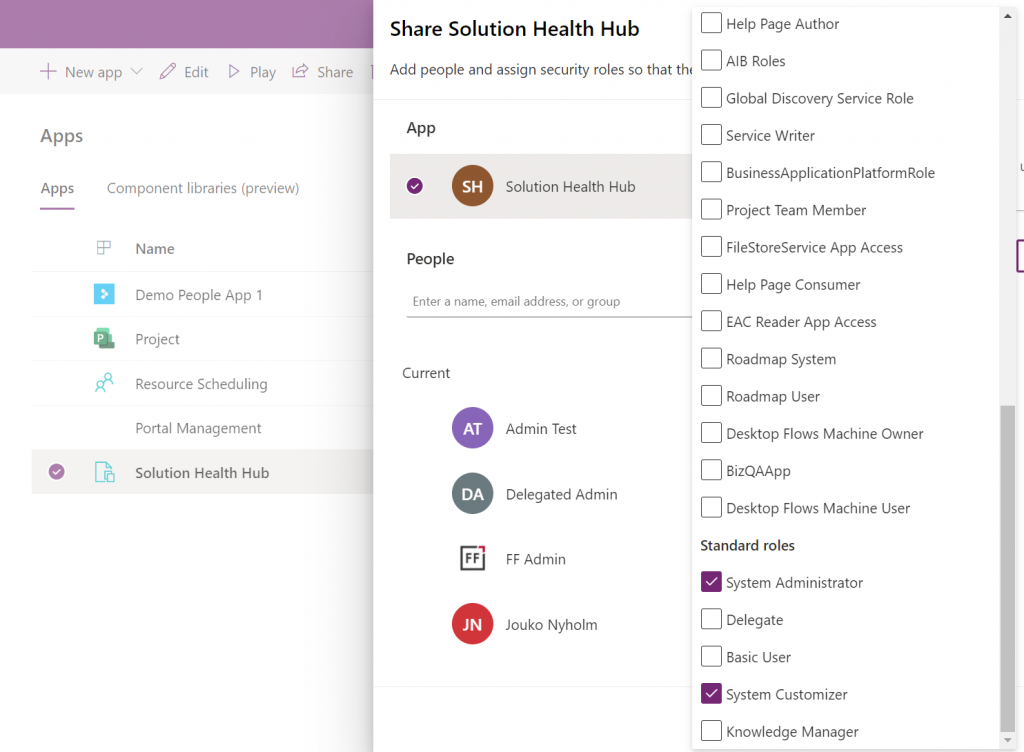
    At some point I assumed so, but this isn’t actually the case. After a long hard look at the documentation, I finally realized that the MS product team had squeezed this functionality into the Canvas sharing dialog in quite an unintuitive way. You see, you’re not only using it to share the app to the users, but also for “sharing” the app to a security role:

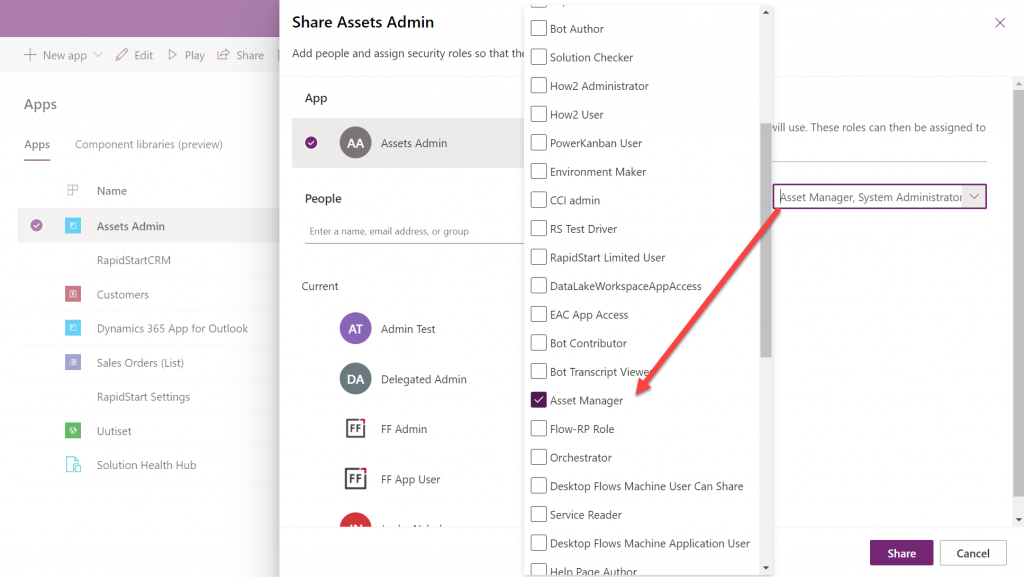
    So, rather than sharing the app to the users, stay on the higlighted App section that’s at the top of the list. Pick the correct security role from the list and then click “Share”:

    Now all users with the specified security role will have access to the app when trying the URL shared with them. Yes, you didn’t actually need to explicitly share the app to them via this menu at all! Sure, you can use it for adding the required security roles for these users, if they haven’t already acquired through other means, like group membership. But the whole concept of “app sharing” is still completely irrelevant to Model-driven apps, from what I can see. It’s only this misleading UI that may give you the impression that you can achieve visibility to Model-driven apps via a sharing action when in fact it’s still security role based like it was back in XRM.

    This leads us to the next question around Model-driven app visibility that has been puzzling me:

    “Where can I find the apps I have access to?”

    If the app user is not a maker in the particular environment, they logically won’t have access to the Power Apps Maker portal to view the list of apps in it. So, from where exactly should they be viewing the list of all the apps shared to them?

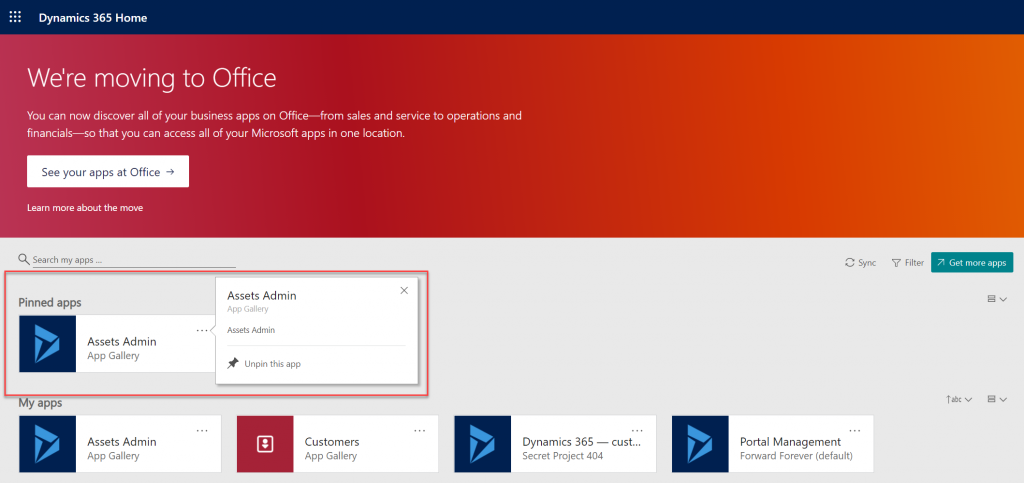
    If we have past experience from the world of XRM then we’d probably navigate to the Dynamics 365 Home page at home.dynamics.com. This page should be showing all the apps that the user has access to, which it currently does. We can pin our newly shared Model-driven app to the top of the list for easy access:

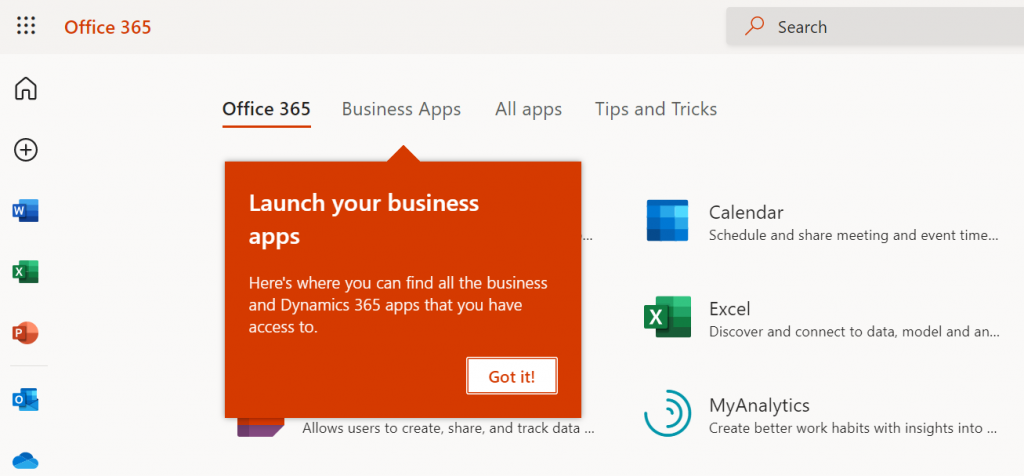
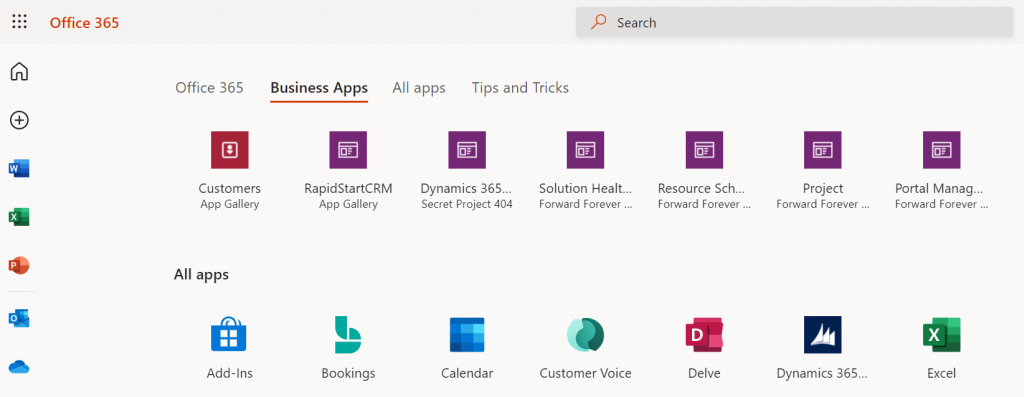
    Oh, right. “We’re moving to Office” says the banner, since this Dynamics 365 Home page has been deprecated a while ago. In fact, based on the original deprecation message this page should have started to automatically redirect you to office.com/apps already. Today we still have the option to visit the legacy page, but let’s move over to the modern Office experience. We’re greeted with the “launch your business apps” onboarding dialog that points us to the Business Apps tab at the Office 365 home page:

    Looking at the list of apps, though, we probably won’t see our brand new app here right away. There’s a pretty significant delay in the list of business apps getting updated here. Unlike the old Dynamics 365 Home, which suffered from a similar delay, we don’t have a “Sync” button to make this process any quicker.

    While we’re waiting for our new Model-driven app to show up on the Office 365 home page, we may start to wonder what apsp actually are listed here. For instance, why is Solution Health Hub showing up there for a normal user with no admin nor maker roles?

    Perhaps the Model-driven apps visibility isn’t entirely security role based after all. Whatever the reason why these Microsoft built apps like Solution Health Hub or Resource Scheduling from the default environment show up for a non-admin user, it’s not exactly a pleasant user experience. The Office 365 home page doesn’t offer us any pinning or filtering features like the old Dynamics 365 home page did, so there’s not much an end user could do to clean up the mess.

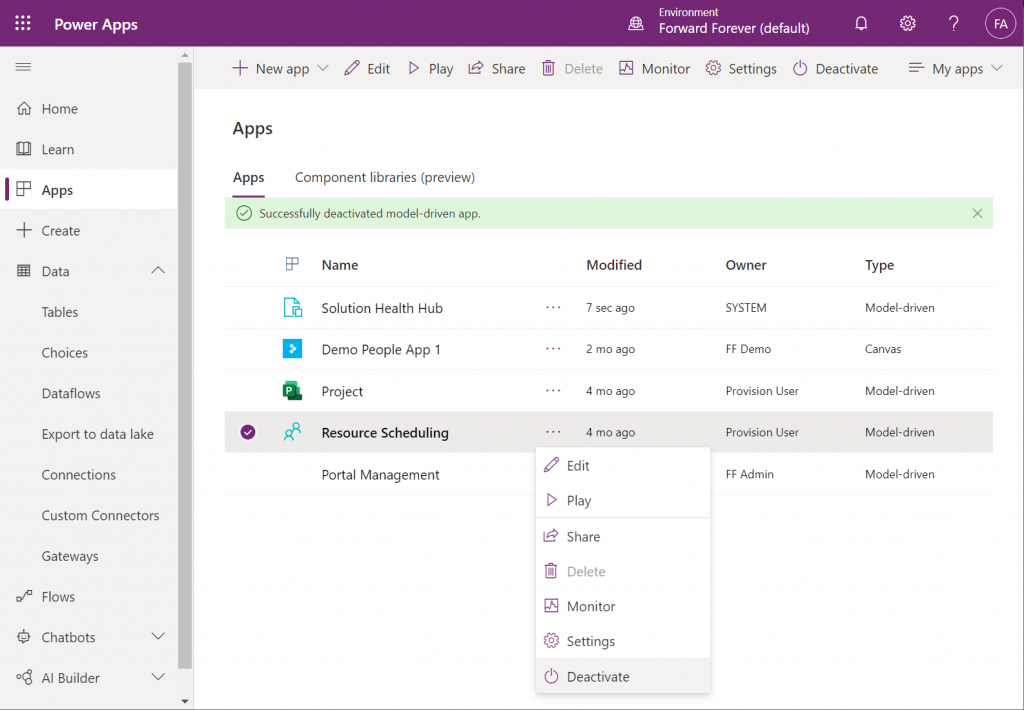
    As a system administrator, though, we actually do have a way to trim the list of apps – even when they are first-party MS apps. Thanks to fellow MVP Alex Shlega, I recently learned that Model-driven apps can now be deactivated and activated. So, let’s go to the Maker portal in the default environment, pick the apps we want to hide from office.com/apps and select “Deactivate”:

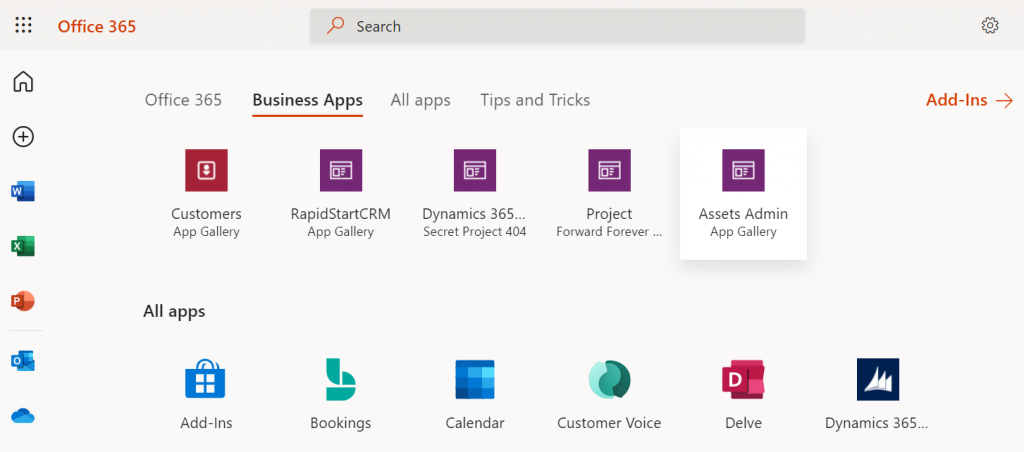
    Much better! Not only have the unwanted apps disappeared from the Business Apps list, but also our newly configured Model-driven app has appeared there during our small exercise.

    There still remains one item on that app list that I can’t figure out a way to remove from the user. That “Dynamics 365 – custom” app from the Secret Project 404 environment is actually the result of a Dataverse for Teams environment provisioned by this end user. Now, since we have no way to directly navigate to the full Maker portal of such an environment and they shouldn’t support any Model-driven apps to begin with, these apps are something only MS can clear away in a future update hopefully

    Thankfully there’s another place where the end user has more control over the app list than the Office 365 home page. Whenever you’re using some other Microsoft 365 service and need to open up a Power App, it’s a lot more convenient to use the waffle menu from the top left corner rather than the full home page.

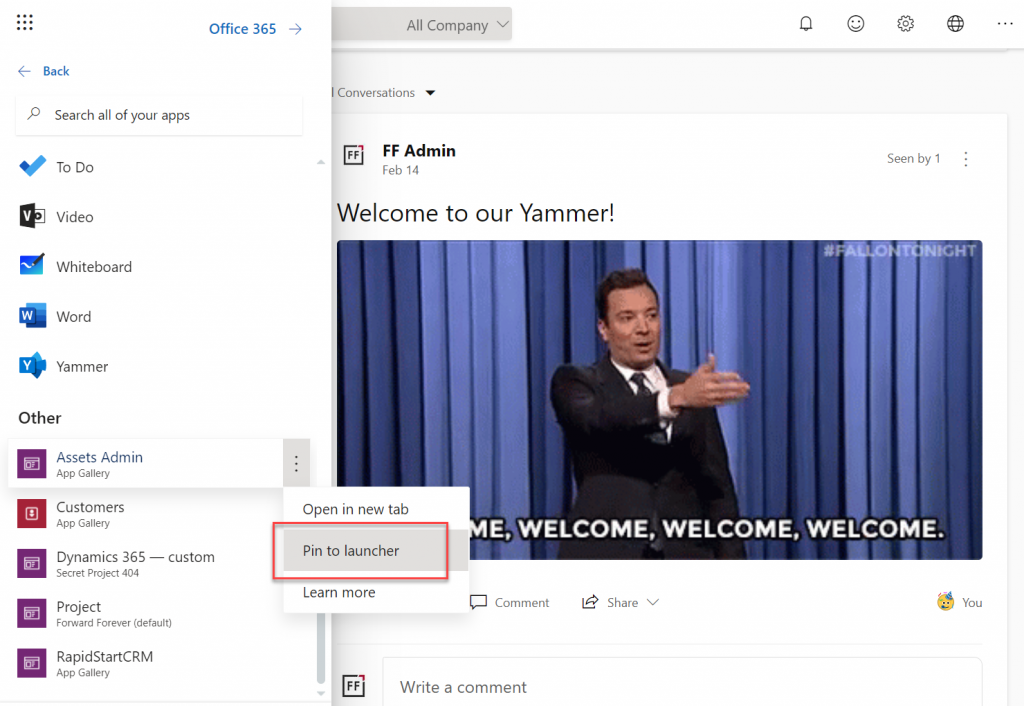
    Thanks to Thomas Sandsør for reminding me about the customizability of this app launcher. This is of course the place where a user should be instructed to pin their new Model-driven app for easy access:

    One final point to make about Model-driven apps visibility is around Microsoft Teams. You should definitely consider pinning the apps into relevant Teams channels as tabs, to maximize the likelihood of the end users remembering to use them. As for a complete list of Power Apps available to the user, currently no such place exists within Teams, so you should pay attention to the Office menus as the portal to display your Power Apps app catalog for desktop users.

    Update 2021-12-07: Office App Launcher new visibility criteria defined

    Microsoft has recently changed the behavior of their app lists, with an update communicated via Microsoft 365 Message center message MC290818. Since many people will not have access to MC content and it will probably disappear at some point, I’ll post the contents here in full:

    To help improve the app exploration and discovery experience for users, beginning mid-November 2021, the Office App Launcher, All Apps (https://office.com/apps), and app search experiences will be updated to only list relevant Dynamics 365 apps, Power Apps apps, and Azure Active Directory integrated apps.

    Following this update, the Office App Launcher, All Apps, and app search experiences will only list Dynamics 365 apps, Power Apps apps, and Azure AD integrated apps that meet one of the following criteria:

    Dynamics 365 apps and Power Apps apps:

    • Apps a user has launched in the last 7 days
    • Apps created by a user
    • Apps an admin has marked as ‘featured’ in the tenant
    • User accessible Microsoft published Dynamics 365 apps

    Dynamics 365 apps or Power Apps apps that meet the above criteria will be shown in the App Launcher, the Business Apps section of the All Apps experience, and in app search results. Note that the time between when an app is shared with a user and when it appears in an Office experience is expected to be 24 hours.

    Azure AD Integrated Apps:

    • Apps an admin or user has added to an Azure AD collection

    Azure AD integrated apps meeting the criteria above will be shown grouped by collection name in the All Apps experiences, as well as individually listed in the App Launcher and in app search results. A link to the My Apps portal where users can create Azure AD collections will be added to the All Apps experiences as part of this update.

    How does this affect me?
    Dynamics 365 apps, Power Apps apps, and Azure AD integrated apps that don’t meet the above criteria will no longer be listed in the Office App Launcher, All Apps, and app search experience. Users can take the following steps to access these apps and have them listed again in their experiences.

    For Dynamics 365 apps and Power Apps apps, if a user cannot find an app they are looking for will need to first launch it in the browser via its Uniform Resource Identifier (URI). Note that admins and makers can get an app’s URI by selecting an app in the Power Platform admin center or via https://make.powerapps.com by selecting details, then selecting web link. Once the app is launched, it will be listed in the Office App Launcher, All Apps, and app search experiences.

    For Azure AD integrated apps, a user can locate the full list in the “Apps” collection of the My Apps portal. Users can create collections for quick access to their favorite or most often used Azure AD integrated apps. Once the Azure AD integrated app is added to a collection, it will be listed in the Office App Launcher, All Apps, and app search experiences.

    What action do I need to take?
    This message is to inform you of an upcoming change, no action is required. However, if you want to guarantee specific Dynamics 365 apps, Power Apps apps, and Azure AD integrated apps are available to users following this update, please perform either of the following:

  • Sharing Apps Is Caring

    Sharing Apps Is Caring

    A while ago there was an announcement made on the PowerApps team blog about “Share canvas apps with guests in your organization”. Launched in public preview, this feature makes it (almost) as simple to share apps with a guest user as it is with internal users from your company. Basically all you need to do is invite them as guests into your tenant, by leveraging the Azure AD B2B collaboration:

    Once they’re in, providing access in the PowerApps Canvas app sharing menu works the way you should already be familiar with. Guests will appear as users that appear in the search and you can do all the usual stuff, apart from making guests co-owners of your app.

    The fact that you can Bring Your Own Identity in this app sharing scenario is already a big benefit. Forget about trying to create user accounts for your partners & customers, let alone manage password renewals, people leaving the partner company and all that tedious admin work. When there are no separate credentials for the different applications, you can focus your efforts on configuring the appropriate security model on your side and then automating as many steps in the Azure AD driven process as you can via group memberships etc.

    (Side note: Technically BYOI probably refers only to scenarios where you log into Azure AD with something completely external like a Google account, instead of just an identity from a neighboring tenant. )

    Providing application access to third parties via Azure AD B2B Collaboration has been possible for Model-driven apps for a while now, or Dynamics 365 CE like it is more commonly referenced. If you have partners that are performing telemarketing or support services that link closely to your core customer data, providing them access to your CRM directly is usually far more efficient than shipping data via Excels or handling task assignments via email.

    Licensing a shared app

    The one negative side about this external user scenario has been that you will always need to purchase a license for these guests before they can access your apps. It doesn’t matter if they’ve got Dynamics 365 licenses back at their home tenant, since that can’t grant them access to another tenant’s environment. Boo! No one likes to pay twice for the same service, but sometimes the costs can of course be absorbed while keeping the business case valid. Especially now when there’s the $10 Per App Plan for PowerApps.

    It doesn’t have to be that way, though. With the nearing GA of Canvas apps sharing across different organizations, there is now the possibility to “Bring Your Own License” (BYOL). Have a look at what the documentation says about the prerequisites for Canvas apps sharing with guests:

    The guest user must have a PowerApps license assigned through one of the following tenants:

    * The tenant hosting the app being shared.
    * The home tenant of the guest user.

    This is awesome! What this essentially means that any user that has either PowerApps or applicable Dynamics 365 licenses assigned to them in their own organization can use the powers granted by that license to operate apps in any other tenant in which he or she has been granted the rights via the respective security model of the app.

    Let’s try this out. I’ve got a user account with Dynamics 365 Customer Engagement Plan license (R.I.P.) assigned to it in my production tenant. What I will do in a test tenant that represents a partner organization in this demo is to 1) provision a CDS environment, 2) install sample account data into it, 3) generate a quick Canvas app from data to work with these account entity records, 4) invite my production user as a guest into the demo tenant, and finally 5) share the Canvas app from the demo to my production user.

    Steps 1-2 are just the configuration work familiar to any Dynamics 365 professional, so we can skip talking about those. Also step 3 is a matter of selecting “create new app, Canvas” and then going with the Common Data Service option with the account entity as the target table.

    After saving the app, we need to make sure that our guest user is found in the Azure AD user list, pretty much like an actual local user of the tenant would:

    Back in PowerApps, the sharing menu should now show us the guest user as a possible share target. Since this Canvas app is using CDS as the data source, we’re also presented with the options to set the security roles for the guest.

    Click “Share” and the guest will have an invite email in a few seconds, with a link to the Canvas app:

    Click the link & off we go! By the power invested in me via a Dynamics 365 license purchase by a completely different organization, I’m now fully capable to work with the CDS data via a PowerApp offered to me by a partner in their tenant.

    App strategies for the Power Platform era

    To an outsider this whole app sharing thing might seem a bit underwhelming. “What’s the big deal? Isn’t that exactly how it should work?” YES. It should, but it hasn’t – until now. Being originally born into the internal networks of organizations, the business user software from Microsoft has suffered from the boundaries set by an invisible firewall that no longer physically exists in the era of public cloud applications. While the application platforms from MS have gradually acquired better skills to work with the outside world, the licensing model hasn’t been all too friendly for many cross-tenant scenarios.

    For now, when you purchase the Per User license to Microsoft’s low-code application platform, you get a “1:N pass” for one user to access an unlimited number of PowerApps Canvas or Model-driven applications within the home tenant:

    The more business scenarios you can cover with PowerApps, the cheaper the relative price you pay for the platform capabilities. The result within an organization that goes all-in on Power Platform to digitally transform themselves can be quite a high number of apps already. Now, imagine that it wouldn’t be limited just to the types of digital processes that operate within your organization’s firewall. What if there was a multi-tenant model where the Per User license could unlock collaboration scenarios with your partners or customers? This network effect could grow the number of apps even faster, as it represents a “1:N:N pass”:

    Pretty exciting, don’t you think? We’re not quite yet on the level where B2C app scenarios would be within the scope of PowerApps, but this expansion into B2B collaboration area is surely a part of the strategy how Microsoft plans to grow their Power Platform business. The ability to use Canvas apps without a license in the app’s home tenant directly is an important variable to consider when planning your app strategy in the MS Cloud.

    One thing to keep in mind here is that Canvas app sharing doesn’t replace the use of PowerApps Portals for external audiences, as those have different pros and cons from a feature and cost perspective. Also the usage of Model-driven apps for collaborating with external parties in complex business processes will probably still have a place in the greater Power Platform puzzle, even if this new license portability doesn’t cover them (at least not yet).

  • Activity Feeds and user rights: who can see what?

    Activity Feeds are a channel that’s much like Twitter: creating posts that are visible for other users who are following you. On the surface they share many of the same concepts (mentions, following, replies/comments), but there are some notable differences that may come as a surprise to a user who’s accustomed to the open communication taking place on the external social networks. This is especially apparent in a CRM organization that has a hierarchical structure of business units and is limiting the visibility of core records such as accounts across the BU’s.

    Let’s assume that we have a CRM deployment with multiple BU’s that form a hierarchy of a single parent (the top level BU) and multiple child business units. In our example the child level is represented by two country specific BU’s: Finland and France. There’s a user called Jukka in Finland and another user by the name of Teppo in France (OK, not exactly a typical French name, but we’re actually dealing with a Finnish expat here in this case). They are both using CRM to manage accounts and opportunities in their own business units but do not have visibility to any other BU’s data. Nevertheless, we’d like to leverage the Dynamics CRM Activity Feeds as a channel for sharing insights and connecting across BU borders, to make the most of the human capital and knowledge available within our global organization.

    If Teppo from France is looking for new users to follow, he will need to fire up Advanced Find and perform a search of the user records available in the CRM organization (this is the first thing you need to provide clear instructions on, as it’s not quite as intuitive as on Twitter). Unless the default security roles have been adjusted in terms of the User entity, he will be able to see a list of users from all business units. Also the follow buttons on the ribbon of the results view will be active, so Teppo selects a few users from outside his own business unit, as he’s eager to learn about what information they might be sharing on the common CRM platform. However, if he’s paying close attention to the dialog that CRM presents to him he’ll actually notice that he wasn’t able to follow Jukka from Finland.

    “You might have tried to follow some recently deleted records. Newly following: 0” Hmm, what does that mean exactly? It means that the user wasn’t able to follow any users, even though he was not greeted with the familiar big, red X. The reason for this error message was most likely that the user didn’t have sufficient rights to append the Follow records to the selected User records. Assuming that we want to enable such cross-BU following of users, what we need to do is to modify one of the user’s security roles to grant a global right to the Append To function on the User entity.

    After we’ve granted the new rights, Teppo from France is able to follow Jukka from Finland. When Jukka posts a message on his personal wall, Teppo is able to see the post and jump in on the conversation. Social Business in action!

    OK, now how about if Jukka from Finland is writing a post on the wall of an account owned by a user from the Finland business unit? If Teppo is following Jukka’s posts, he will probably see this update from him as well? No, actually he won’t see anything on his wall. If we look at the same post from Jukka’s own Activity Feed wall we can spot the difference to the previous post:

    Here we see the importance of the regarding object of an Activity Feed post. Teppo will not see any of these posts written by a user he is following, because they are set as regarding an account record he himself is not following. These are not just independent posts on the Personal Wall of the user, rather they are updates that are posted on the wall of a specific account (Nokia). In our case, since Teppo does not have visibility to the accounts from another business unit, he has no way to access the conversation going on there or to go and follow the account record.

    (more…)