 I recently read the news that Siebel had turned 20 years. Man, that is a respectable age for a CRM software product! Although its market share may have peaked 10 years ago already and today the discussion on the future of Siebel is now circling around the question of when will the last Siebel instance be turned off, you still have to the give credit to the CRM software grandfather. Here’s how Denis Pombriant puts it in his “Siebel at 20” article:
“In many ways, though, Siebel still is the market. Go into a Global 2000 company and you will see a Siebel system; today Salesforce users might flank that system’s users too. For many of these companies, Siebel is a workhorse system that has been through some of the wars and continues to be serviceable.”
Inspired by this, I decided to compile a few pieces of history around Microsoft’s CRM product, to provide some context on where it originates from and how the platform has developed over the years. After all, with the first version having been released in 2003, Dynamics CRM has also now reached the 10 years milestone. I’ve personally worked with Microsoft’s CRM only starting from 2005, but the story starts from much earlier than that. I’ve had to do a bit of software archaeology in digging up the events that took place before my first encounter with CRM 3.0, so not all the details may be accurate and you’re more than welcome to add your comments at the end to fill in the blanks.
Alright then, let’s step onto the timeline and start our journey towards CRM 2013 right from the beginning.
Before CRM
A common belief that circulates out there in the wild is that CRM is just another product that Microsoft has bought and integrated into its business software portfolio, like the ERP products Great Plains, Axapta and Navision (nowadays Dynamics GP, AX and NAV). Well, that’s not entirely true, but we can trace back the origins of CRM to the year 2000 and a product by the name iCommunicate.net. Here’s an article taken from IThell.com:
iCommunicate.net – the first IThell.com Halo Award winner!
Without a doubt, this is the winner as the coolest (and most helpful) new product of the expo and is the first product to be awarded the Halo Award for providing a solution that can truly help folks in IT by making it easier than ever before to cost-effectively manage customers, customer solutions and resolve customer problems. iCommunicate.net is a web based, out sourced solution (ASP) for CRM with a tremendous feature set and a great pricing model.
In 2001 Microsoft acquired iCommunicate, which had 10 employees at the time. The developers behind iCommunicate.NET moved to Redmond and started developing a modern, web based CRM application together with Microsoft’s team. Aaron Elder, the lead developer of iCommunicate, shares many wonderful bits of information about the project in his MSDN blog posts. Here’s an enlightening quote on what the starting point was for developing Microsoft CRM:
When I first joined the team the “application” was literally a mess, this of course was “ok” because at the time the application was referred to only as the “reference app”. The application that you all know and dare I say love, was originally only going to be an MSDN example of what you could build on top of the CRM Platform!

 There are not many screenshots of iCommunicate.NET available anymore and I’ve only managed to save these two from Google’s cache. According to Aaron, the Microsoft CRM 1.0 UI was simply a logical evolution of the UI he designed for iCommunicate.NET, so perhaps this is one of the more concrete heritages carried over from the pre-Microsoft era of the CRM product.
Version 1
Here’s the press release that marked the birth of Microsoft CRM: Microsoft announces new customer relationship management solution. Notice how Microsoft bCentral is one of the online services mentioned as a CRM solution. This service hosted by XO Communications apparently offered some basic contact management and email campaign functionality aimed at the SMB market.
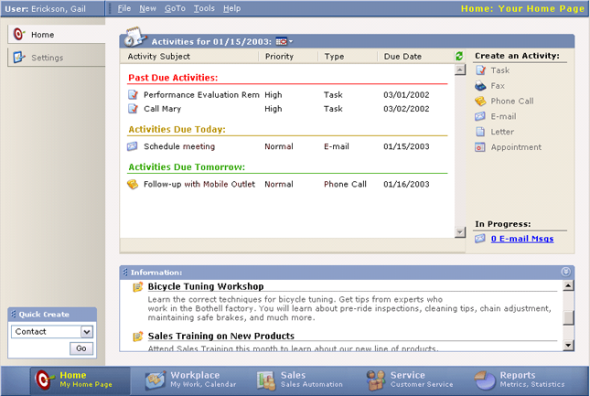
Microsoft CRM 1.0 was released in January 2003, with the official name being the catchy “Microsoft Business Solutions Customer Relationship Management 1.0”. Here’s a screenshot of the home page that the system offered to the users for a quick glance of the open activities, alongside a Quick Create menu and an announcements list. The navigation bar at the bottom of the screen offered the familiar modules of Workplace, Sales and Service. The reports of CRM 1.0 were not built on SQL Server functionality yet but instead leveraged the well known Crystal Reports product (which was later acquired by Business Objects, which in turn was bought by SAP).
Although it wasn’t possible to perform any advanced customization tasks on CRM in a supported manner, such as adding new entities, the Microsoft partners were already at the time finding good business in filling the gaps of CRM 1.2. Still, everyone was really putting their hopes on CRM 2.0 being an easier product to sell to customers, with more built-in features and improved reliability.
V2/3.0 and The Birth of XRM
What was first called Microsoft CRM 2.0 and later Microsoft CRM 2005 became vaporware, as after being delayed a few times the version was never released. In the meantime, Microsoft had revealed information about an ambitious initiative called Project Green in 2003, which aimed to to combine all the business products (CRM, Great Plains, Axapta, Navision, Salomon) onto a single code base. It wasn’t until 2007 that the project was announced as dead & buried, with each of the ERP products remaining separate platforms for the foreseeable future and CRM naturally carrying on with its own roadmap for primarily managing the customer facing interactions instead of financial transactions.
Microsoft CRM 3.0 was released in December 2005. Or more precisely, Microsoft Dynamics CRM 3.0, as the Dynamics brand was launched in September 2005 to harmonize Microsoft’s ERP and CRM product offering. So even though we didn’t get a Microsoft Business Framework (MBF), at least product names were all aligned under the Dynamics umbrella. This branding update didn’t quite manage to cover all corners of the application and the name “Microsoft CRM” or “MSCRM” in short still carries on today as popular nickname for the product.
The UI of v3.0 introduced the navigation paradigm that has been largely carried onward to the current CRM 2011 version. Imitating the Outlook modules, the product now had a “Wunderbar” in the bottom left corner of the screen, including the new Marketing module that introduced basic campaign management functionality into the core CRM offering.
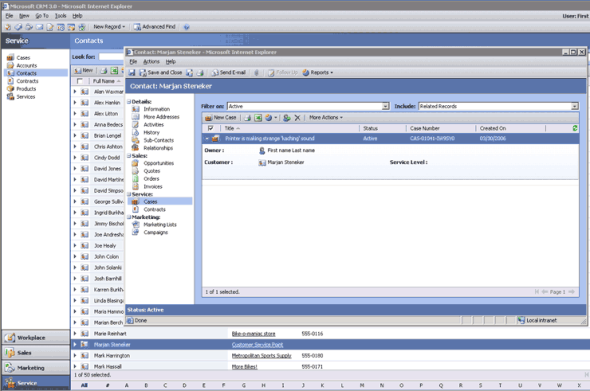
Most importantly, with CRM 3.0 it was now possible to create brand new custom entities to expand the default data model to cover whatever business domain that the customer was working in. The term “XRM” was introduced into the Microsoft corporate lingo to describe these new scenarios for eXtended Relationship Management. A whitepaper from 2008 titled “Microsoft Dynamics CRM as a Business Application Platform” written by Jason Hunt and Aaron Elder, the original architects of the platform, goes into great depth on why Dynamics CRM should not be considered as “just CRM” but something much more formidable and powerful. (more…)