Tag: sales

  • New Team Member apps for Dynamics 365

    New Team Member apps for Dynamics 365

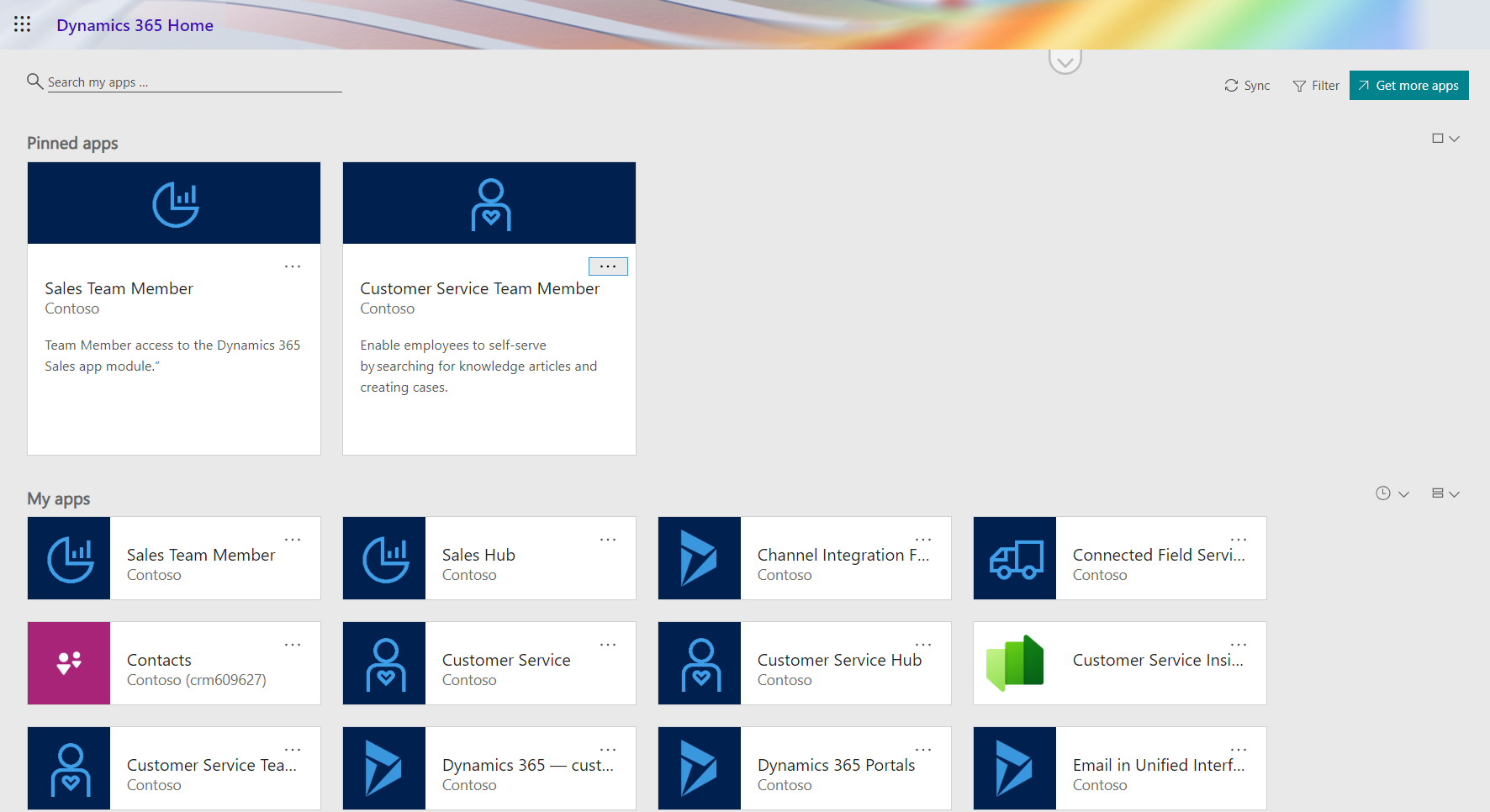
    In the 2020 Release Wave 1 release plan documentation we saw that Microsoft is finally going to bring technical licensing enforcement for Dynamics 365 Team Members into the platform. By launching specific App Modules designed to be used with the cheap Team Member license as well as building the mechanism for controlling which Service Plan entitles the users to access which App Modules, there will now be a clear line for what is and isn’t possible right within the system.

    That’s how it is in theory. What about in practice? Let’s explore the Early Access features launched for 2020 Release Wave 1 on February 3rd and see how these App Modules are implemented.

    Sales Team Member app

    Since Sales is by far the most common business process that CRM systems built on Dynamics 365 Online are managing, let’s start from the dedicated Team Member App Module for this scenario. The pre-release documentation isn’t very extensive yet, but from there we can get the basic intention of this new app:

    “At a high level, users with the Team Member license can perform the following tasks in the Sales Team Member app: 1) Customer management: work with accounts and contacts. 2) Lead and opportunity management: see leads or opportunities linked with accounts or contacts, or see other sales-related data. 3) Add activities, such as notes.”

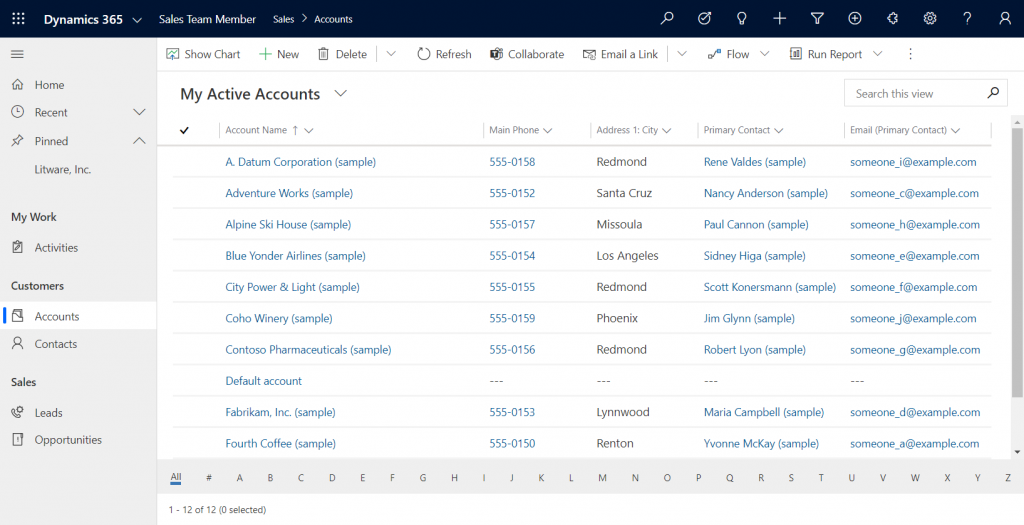
    Upon launching the app, we’re greeted with a familiar experience that looks like Dynamics 365 Sales, only it’s simplified to contain just 5 menu items in the sitemap: Activities, Accounts, Contacts, Leads, Opportunities. If the dashboards menu was also included here, the app would resemble the kind of CRM system that most small organizations or teams actually need in real life.

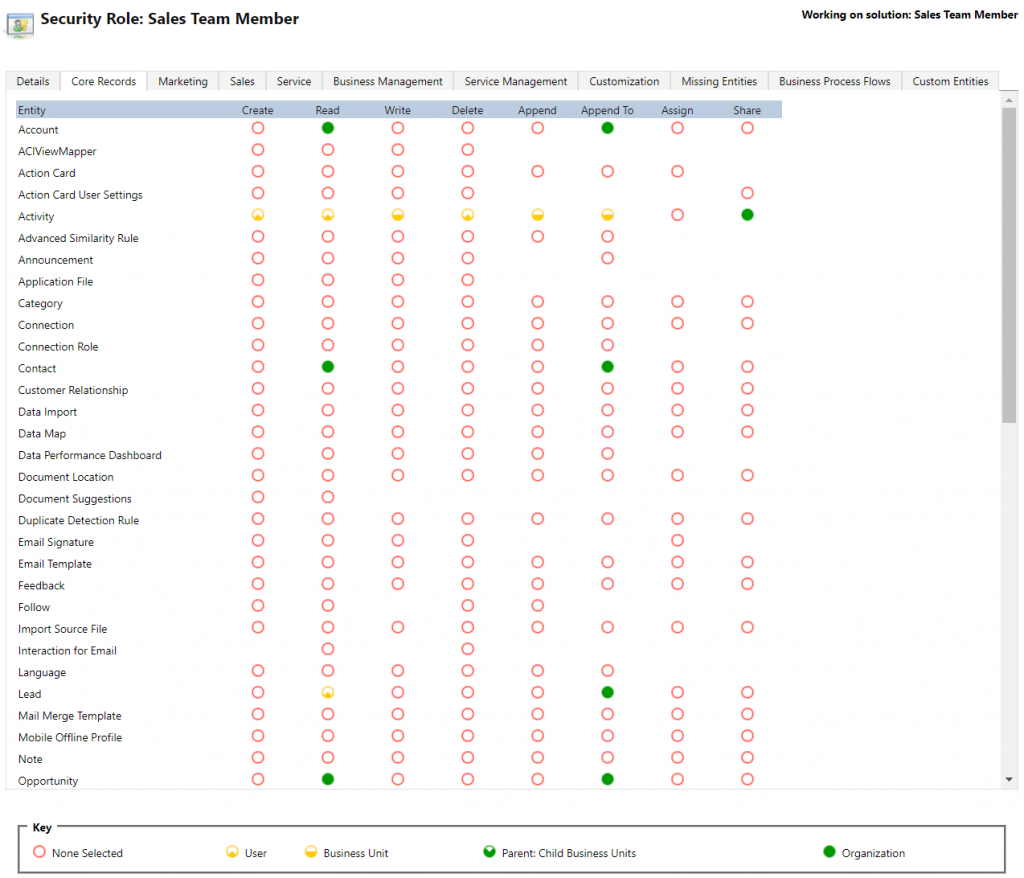
    If we’re using the app with the full access rights granted by a powerful security role like system administrator then there isn’t much that the Sales Team Member app stops us from doing. For example, creating or editing accounts is one of the rights that has been stripped away from the Team Member license, yet the app would happily show us a “New” button for adding accounts via this App Module. The secret lies in the Sales Team Member security role that comes with the solution. A view of the privileges for core entities looks like this:

    Wow, that’s quite restricted indeed! Assigning only this role the users wouldn’t even permit viewing activities from anyone else, nor leads, or adding contacts. Let’s get back to the customization options later, but this is indeed in line with the description of what Microsoft intended the offer with the standard Sales Team Member app.

    Customer Service Team Member app

    The second experience is for Customer Service – but not in the way that you’d traditionally see the Customer Service App of Dynamics 365 being leveraged for assisting external customers. This Team Member app is intended for scenarios where the app users is actually the customer being served:

    “With the entry-level Team Member license, you can now address self-service support scenarios for your employees using the new Customer Service Team Member app module. Employees can create cases for their problems, such as laptop issues, HR queries, and administrative needs, and interact with agents through the commenting feature. They can also search the knowledge base for solutions pertaining to their problems.”

    Unlike the Sales Team Member App, this App Module isn’t installed by default. That’s probably a good thing, since I’d imagine the majority of Dynamics 365 customers are not using it as an internal helpdesk – although it definitely is a perfectly sensible scenario. If that’s what you’re doing, then the CS Team Member solution installation will need to be started from the Dynamics 365 Admin Center.

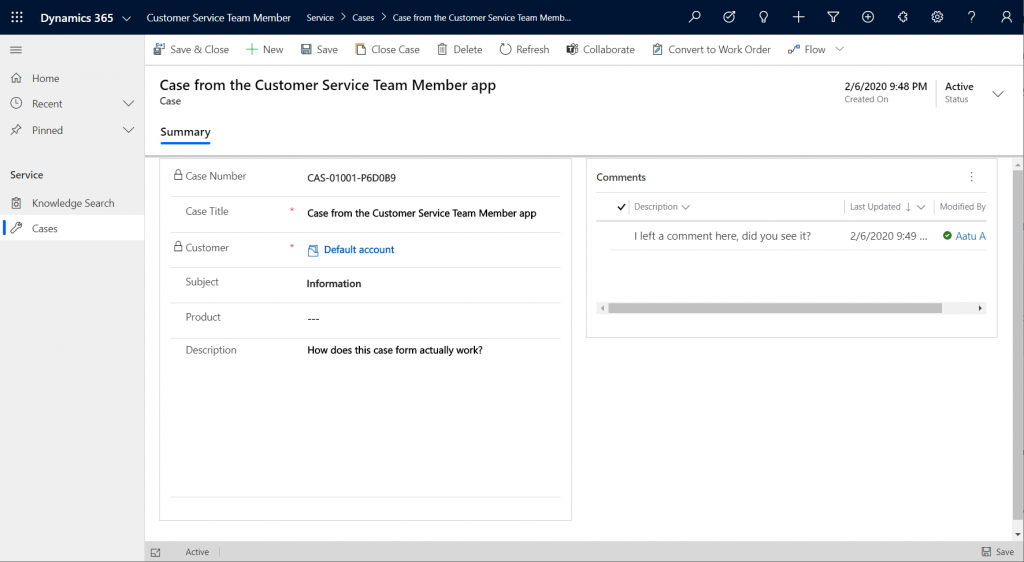
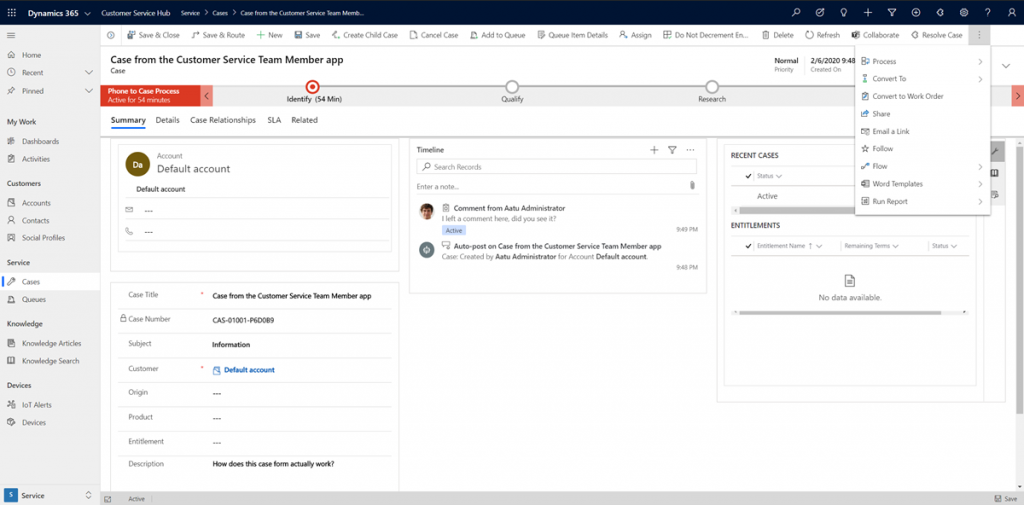
    If we look at the same case record via the full form in the Customer Service Hub App Module, we’ll see quite a stark difference. The solution package for the Team Member app appears to contain a web resource called Incident_teammember_library.js that modifies the behavior of the case form in many ways, such as hiding the Business Process Flow, replacing the standard Resolve Case dialog with a much more streamlined version and who knows what else. The Command Bar also contains far less functionality than it normally would.

    An interesting feature of the Customer Service Team Member app is the use of a default account that you can configure for the organization. The cases created via the Team Member app will automatically be linked to this account as the customer. The requirement for having either an account or contact as the customer has been a part of the MS CRM data model since day one, which has traditionally made the internal helpdesk scenarios quite tricky to implement – if the customers actually are users of Dynamics 365. Without any further documentation, I’m not quite sure what Microsoft’s vision has been for this new feature in the Customer Service Team Member app, since it looks like there isn’t any linkage to the internal customer (user) now in the case data model. If a person who provides helpdesk services would now assign the case to himself to work on, where’s the reference to the actual person who was in need of assistance?

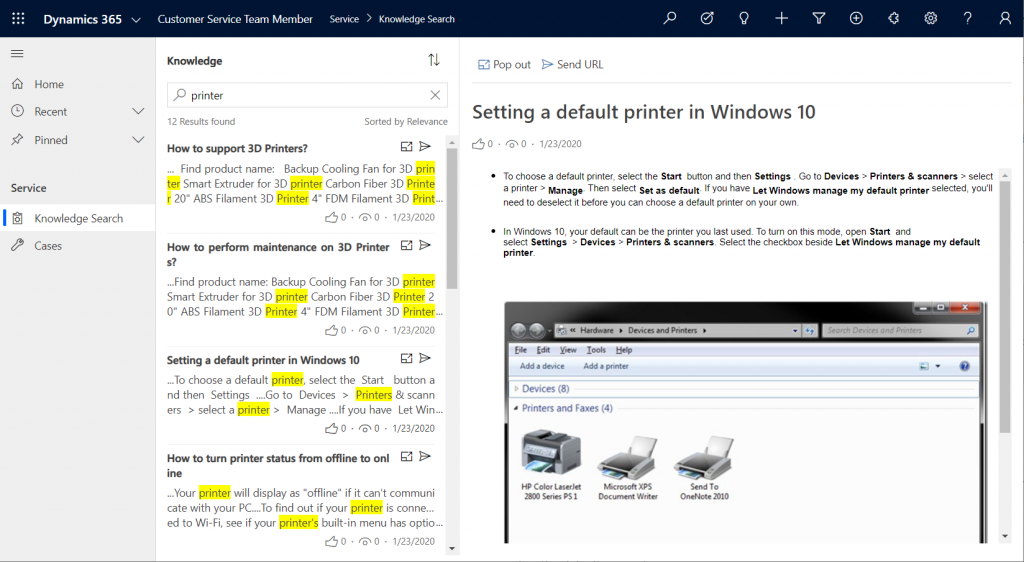
    The other available menu in the Team Member app sitemap, Knowledge Search, isn’t a reference to any entity but rather presents a dedicated UI for browsing published Knowledge Articles. Well, browsing isn’t maybe the right term, since the only option here is free text search for keywords, which will then return a list of articles if matches are found.

    It’s good to keep in mind that certain features of Model-driven Apps in Dynamics 365 aren’t yet App Module aware – meaning they’ll be presented in the UI the same way regardless of which specific app the user has launched. Recent and Pinned items will contain data not included in the App Module, Advanced Find will show all entities that are visible to the user’s security role, the Assistant and (deprecated) Task Flow buttons will always be there in the top Nav Bar. Still, the core experience of App Modules can be restricted down to a limited subset of features, as demonstrated by these Team Member apps. When moving from legacy web client to Unified Interface, these type of targeted experiences definitely are something worth pursuing, rather than the oldskool CRM monoliths that contain a hundred and one items in the navigation.

    Customizing the App Modules

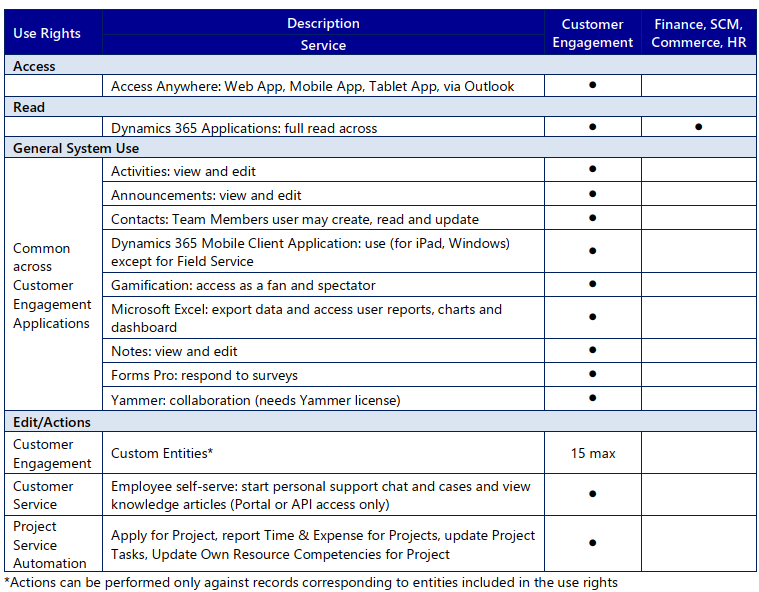
    Now that we know what comes out of the box for Team Member users, many customers will surely be asking what to do with the functionality in their CRM systems that isn’t represented in these standard App Modules. To understand the commercial boundaries better, let’s have a look at what the latest February 2020 licensing guide has to say about the rights of Team Members. We’ll start from Appendix A and the table that describes use rights for Team Members in Customer Engagement apps. (Yes, even though Microsoft product documentation says the term “Customer Engagement” is no longer used for online products, the licensing team hasn’t yet come up with a new term to replace CE in the licensing guide.)

    To start off, Team Members still have the right to read all Dynamics 365 application data. Therefore every single entity you could possibly include within the Sitemap of an App Module could in theory be brought in there. Of course you would have to ensure via the security roles that no creation or modification of those records would be allowed. Also the reporting and dashboards features are explicitly stated as being available for Team Members, on page 11 of the licensing guide.

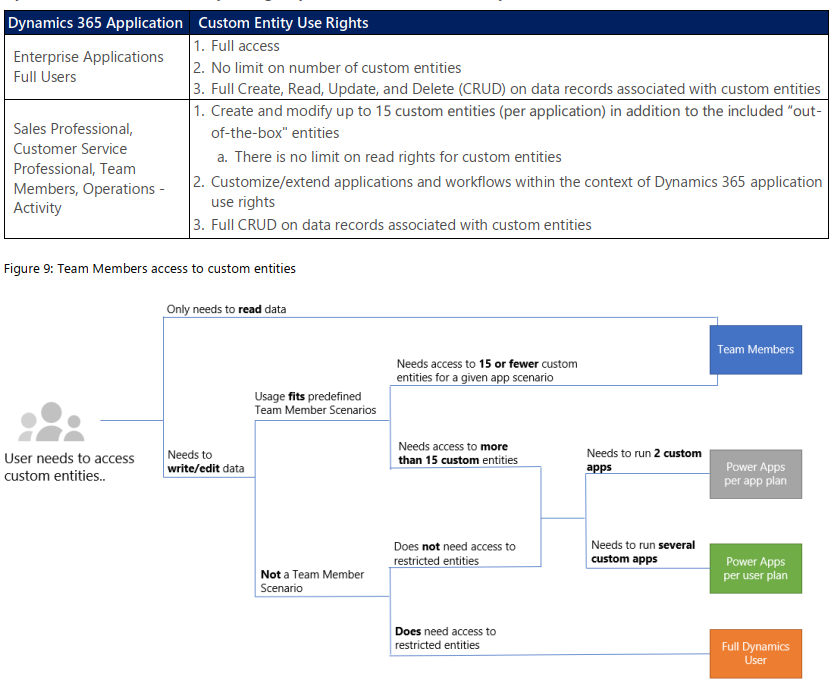
    As for custom entities, we see that there are also edit/actions rights, but we have a “15 max” restriction in the table. What does that mean? The answers are given in Appendix D: Custom Entities.

    We see that for a given app scenario, Team Members can create and modify records for up to 15 custom entities – per app. Where the lines are a bit blurry is the statement that this usage should “fit predefined Team Member scenarios”. As long as these custom entities are related to sales or customer service processes, I guess you’re on the safe side to add them to the standard Team Member App Modules that soon will be the only way for users with Team Member licenses to access Dynamics 365 – once the enforcement for first-party vs. custom apps is enabled in April 2020. Again, keep in mind that read rights are included for any entity, so the 15 custom entity limit couldn’t ever be technically enforced on the App Module level, based on how I interpret the licensing terms.

    What if you really need to do more than what the Team Member license would allow? What if you’re building apps for your unique business processes that aren’t covered by any first party app in the Dynamics 365 suite of products? Then you should explore the possibilities of Power Platform and its licensing model. Power Apps Per User Plan is the platform SKU that Team Member never was intended to be. If you’d map all the current and future workloads that Power Apps could take over in your organization’s business applications portfolio, the value is likely to be much higher than what the customization of these Team Member apps could ever deliver.

    Read more

    Microsoft has published new documentation on Dynamics 365 Team Members license that outlines the user experience for accessing the App Modules, as well as the customization restrictions.

  • Playbooks for Dynamics 365 Activity Templates

    Playbooks for Dynamics 365 Activity Templates

    In my previous post I explored the current Dynamics 365 Customer Engagement solution update practices and used the Playbooks feature as an example. Here’s a quick overview of what the actual Playbooks offer.

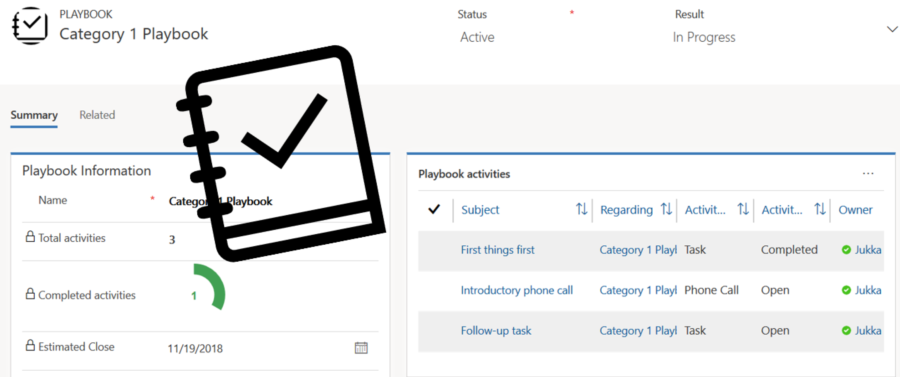
    The official MS documentation, “enforce best practices with playbooks”, gives you a list of what the initial October ’18 release of Playbooks contains. The feature is essentially a way for a sales manager to determine a set of activities that sales users should perform when a real life event takes place that the playbook contents has been designed for. A checklist, if you will.

    To get started, you’ll need to have the Sales app upgraded to a recent enough version, so that the Sales Hub UCI app displays Playbook Templates under the App Settings:

    Notice that you won’t find these anywhere in the legacy web client (“classic UI”). One thing you might want to do first via that legacy client, though, is to ensure that the associated roles for Playbook Manager and Playbook User are assigned to the required user accounts.

    To kick things off, you could create examples of Playbook Categories for grouping your playbooks, since that’s a compulsory lookup on the Playbook Template form. The actual configuration work will all take place on the template, where you’ll first of all specify the record types that the playbook applies for. Right now it’s only lead, opportunity, quote, order, invoice, so don’t plan on using playbooks for any custom entities or other Dynamics 365 Apps than Sales.

    The template shows a subgrid of Playbook Activities, which look pretty much like your regular activities on the surface. They are a separate entity, however, as this is how you define the parameters for an activity (task, phone call or appointment). You have the usual subject, description, duration etc. fields you’d find on a normal activity, but instead of fixed dates you give them relative due dates, calculated from when the playbook is launched.

    (more…)
  • Keeping Dynamics 365 Apps Up to Date

    Keeping Dynamics 365 Apps Up to Date

    We’re living in the “post-October” era where many of the new Dynamics 365 Customer Engagement features promised in the Oct ’18 Release are materializing into the live environments. Not all of them, though, since that space train carrying the Business Applications release bits has been scheduled to run from October 2018 to March 2019, as you can clearly see: 

    While some features arrive in preview and only for a specific geographic region, there is plenty of stuff that’s being deployed to nearly all Dynamics 365 CE online orgs. While we’re not quite yet at the target state of having every customer running the same version of the application, there’s no longer a process for scheduling the update for your own environments on a particular date in the distant future. v9.1 has most likely now been rolled out in all but the most exotic geos.

    This lack of CDU calendars to pick the dates from doesn’t mean that everything would automatically get switched to the latest version. Remember that in addition to the underlying platform (now called Common Data Service for Apps, CDS) there are also the actual Apps to update. For example, if you’re running the Sales Hub a.k.a. the Unified Interface app for Dynamics 365 for Sales, the menu items in the App Settings section might look like the following:

    Whereas what you should be seeing in the latest version currently is this:

    How do we get there? Let’s dive into the world of solutions and find out.

    Applying Solution Updates

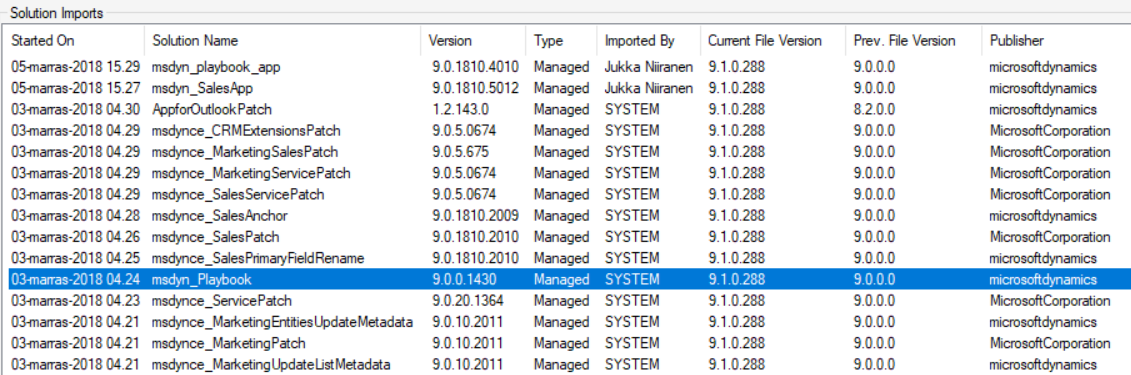
    How do we know which solution versions carry which new features? We don’t have a central place for such information right now, since the Microsoft Dynamics 365 Online releases page only lists fixes and changes to existing functionality (in theory at least). When we browse the documentation for specific features like Playbooks for example, we may see details like this:

    OK, that gives us a hint about what versions we should be seeing inside Dynamics 365. Getting the platform version is easy enough via the About menu behind the configuration cog, and everyone who’s customized Dynamics CRM should know where to look for the solution version number.

    (more…)
  • Tracking Pipeline Development Over Time in CRM 2015

    Tracking Pipeline Development Over Time in CRM 2015

    We’ve come to part 3/3 in the Smarter Sales Process article trilogy. In the earlier posts we talked about customizing the lead qualification process and using calculated fields for opportunity estimated revenue, to get more out of Dynamics CRM 2015 than what the standard sales related functionality offers. To close things off, let’s have a look at how we can gain more insight into the data in our sales opportunity pipeline and particularly how it has developed over a period of time.

    Capture the Sales Pipeline Trend

    With the data that Dynamics CRM collects about sales opportunities we can easily draw charts about how many deals were won or lost at any given time, presenting these as a monthly trend of both estimated and actual revenue. It’s also very simple to visualize the current contents of our sales pipeline by looking at the open opportunity records via standard visualizations like the… well, pipeline chart, obviously!

    What we can’t do quite so easily is to present how the sales pipeline has developed over time. For example, has the number of opportunities in a particular stage of the sales process gone up/down, or how the total estimated revenue from open opportunities is developing. An average CRM user may not understand why such a visualization wouldn’t be included in the application by default, but for a system customizer that knows the data model and behavior of Dynamics CRM this should be fairly obvious. The fundamental difference between closed opportunities and open opportunities is that for the former we have a permanent record of when they were closed and with what values, whereas the records that are currently in an open status represent transient data. It will change over time, based on the future actions that CRM users will take.

    So, what’s the problem with such data? The fact that an open opportunity may have been open last week or even ten weeks ago makes it impossible for us to draw a chart that would show a weekly number of records, since only a single record exists in the database, even though it might need to appear in the bar for each week in a chart showing the size of the pipeline on a weekly level. While technically we would have the information needed to project the number of opportunities that have been open at a given time by looking at their creation date, this would be a more complex exercise than what the ASP.NET charts in Dynamics CRM allow us to draw (although I wouldn’t be surprised if CRM Chart Guy would prove me wrong on this one).

    At the end of the day CRM is an operational system focused on managing individual records and transactions, which means it doesn’t bother archiving copies of records in their historical state. Sure, we have the audit log that will keep a record of the individual changes to tracked fields, but that’s data which isn’t accessible for reporting. But the question to ask is: if we wanted to capture such historical data for our analysis purposes, could we do that with Dynamics CRM? Sure we could! In fact, already back in 2008 when CRM didn’t yet have a built-in auditing capability, CRM MVP Guy Riddle showed us how the use of custom entities and workflows allowed us to build our very own audit log feature to capture changes for record field values.

    CRM_opportunity_count_by_week_and_stage

    Sure, our use case here is a bit different, since we’re not looking to only capture entries on when a record changes. To provide us visibility into how the sales pipeline has developed over time, we would need to capture a snapshot of the pipeline status at predetermined intervals.

    Scheduling Snapshots of CRM Data

    One of my favorite features in CRM 2015 version is Rollup Fields, which I’ve already covered in a number of earlier posts on this blog (including the gotchas you need to be aware of). This feature also comes in handy if we want to build a custom snapshot entity to store the count or sum of records related to it. In this scenario for monitoring sales pipeline development, which I presented in my MSDynamicsWorld.com webcast “A Non-Developer’s Guide to Smarter Sales Processes in Microsoft Dynamics CRM 2015”, what we’ll do is make a 1:N relationship between our custom Snapshot entity and the opportunity entity. This in turn will allow us to create Rollup Fields that will summarize the count and revenue of the related opportunities onto the Snapshot record. By having a snapshot per each stage of our sales process, we will get the attributes needed for drawing the kind of chart shown above, to visualize the trend of opportunity count and estimated revenue development per week.

    The detailed steps for the required customizations can be found from the following SlideShare presentation:

    The one missing ingredient that we still need to think about is how to automate the capture of these snapshots. What Dynamics CRM still doesn’t offer out-of-the-box is the ability to schedule recurring workflow processes in an easy way, to perform an automated task every X days. Luckily there are workarounds for scheduling such bulk data processing tasks with using nothing but the CRM platform, and one of the best solution’s I’ve come across is the Scheduling recurring Dynamics CRM workflows with FetchXML solution from Lucas Alexander. I’ve already shown you how to use this solution for monitoring Rollup Field Values with workflows and the same logic can be applied in this scenario, too. Only this time we don’t send a weekly email blast to CRM users, rather we’ll just create new snapshot records to store the opportunity count and total estimated revenue per sales stage.

    CRM_scheduled_process_opportunity_snapshot

    Alright, that concludes my Smarter Sales Process for CRM 2015 series, at least for now. As mentioned at the start, do check out part 1 and part 2, as well as the YouTube recording of the live demos if you’re interested for more details on the topic. Hopefully these examples have given you some new ideas on what kind of solutions you can build with the Dynamics CRM 2015 customization tools. If you’ve got any thoughts on what kind of no-code customization scenarios you’d be interested in seeing in the Surviving CRM blog in the future, please feel free to leave a comment!

  • Using CRM 2015 Calculated Fields for Opportunity Estimated Revenue

    Using CRM 2015 Calculated Fields for Opportunity Estimated Revenue

    It’s time for part 2 in the Smarter Sales Process article trilogy. As described in my previous blog post about lead qualification process customization, this content is taken from my MSDynamicsWorld.com webcast titled “A Non-Developer’s Guide to Smarter Sales Processes in Microsoft Dynamics CRM 2015“. After having adjusted the lead to opportunity process to better suit our needs, we’ll next have a look at how the data managed in the opportunity stage could be more easily entered and maintained by leveraging the no-code customization tools available in Dynamics CRM.

    Introduction to Calculated Fields

    As you should have noticed by now, the CRM 2015 release added the possibility for defining two new “complex” field types in addition to the traditional “simple” fields. Rollup fields is something I’ve covered in more detail in an earlier blog post, so this time we’ll be working with the other type, which is the calculated fields. Essentially these are the types of fields where you don’t directly insert a value in CRM, but rather the field value is calculated from one or more other fields in the system, based on the formula and conditions you specify in the calculated field definition editor found from the field’s properties in the CRM customization menus.

    How calculated fields differ from rollup fields is that with them we’re always working on the current record, whereas rollup fields retrieve data from related records. Well, actually that’s not entirely true, since a calculated field can also reference a value from a related parental record in its formula. A more accurate description could therefore be that calculated fields can access data from the “1” side of the 1:N one-to-many relationship, whereas rollup fields are the tool for retrieving data from the “N” side of the logical data model in our CRM organization.

    Another aspect that the system customizer must be aware of before starting to leverage these new tools for building CRM 2015 solutions is how and when the field values are calculated. As demonstrated in my post “CRM 2015 Rollup Fields: The Gotchas“, the data shown in rollup fields may be up to 30 minutes old, since these are updated based on an asynchronous job (unless you apply the workaround described in that blog post). Once they are updated, though, the values are persisted in the database. Calculated fields work in the exact opposite way, meaning they are calculated in real-time, but the data is not actually stored in the CRM database. While the latter part of that sentence might sound strange at first, it simply means that the CRM platform performs the calculation any time the specific calculated field is needed. This includes opening a form that contains the field, browsing a view with such columns, accessing a dashboard with charts referencing calculated fields, making SDK calls for retrieving this data and so on.

    To familiarize yourself with the details of these features, have a look at the TechNet article Define Calculated Fields. Or if you’re in a hurry, spend 5 minutes watching this YouTube video from the CRM product team, to see how what the new fields look like in the customization UI.

    Applying Calculated Fields on Revenue Estimation

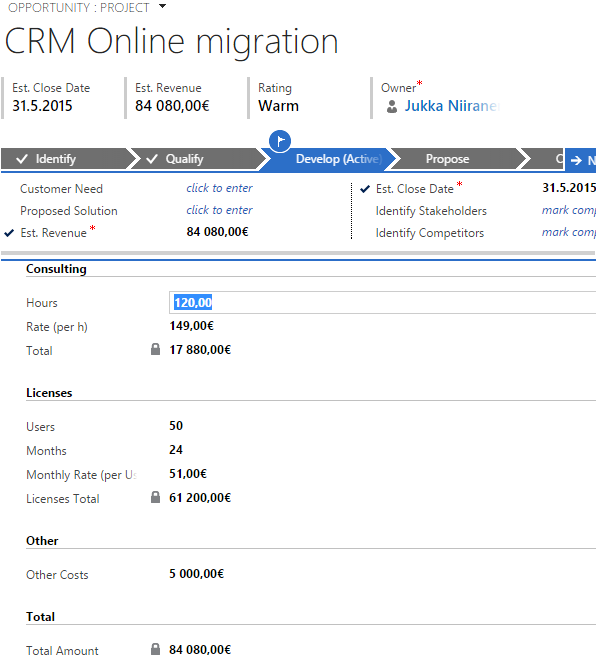
    The scenario that I chose for the Smarter Sales Process series deals with the way we determine an estimated value for an opportunity record in Dynamics CRM. By default, you have the option of either entering a lump sum into the Est. Revenue field of an opportunity record, or creating individual opportunity product records as line items that have a specific revenue value. This is what the bit field IsRevenueSystemCalculated is all about, with its options of “User Provided” or “System Calculated”. Since many organizations using Dynamics CRM don’t actually bother maintaining the detailed product catalog and price details in corresponding CRM records (at least not without a custom integration being built to sync the data from other systems), the “User Provided” option is quite often used for recording just the total estimated revenue value for the opportunity. What this means in practice is that the sales people end up using their own Excels to calculate the various components from which the revenue is generated and just entering the end result into CRM. If any parameter in the equation changes, it’s back to updating your Excels, then CRM again. Oh joy.

    Could there be some middle ground between taking just a single figure from an external Excel sheet and having a full blown product & price catalog maintenance process for CRM? If the products and services you’re selling consist of a limited set of key revenue components that are typically included in each quotation you make, then exploring the possibilities of creating custom fields for these components directly onto the opportunity record might well be in order. While these will not provide the high granularity data of having opportunity product line items with links to the related product record, the data entry and maintenance experience is probably going to be a lot easier for you to sell to the CRM end users. (After all, we’re talking about sales people here, who are the toughest crowd you’ll ever need to please with your CRM system functionality.)

    CRM_Opportunity_Estimated_Revenue_Calculated_Fields

    In this example scenario we’re selling CRM consulting projects that have three common revenue categories: consulting revenue, license revenue and “other” revenue. The total value of each area is calculated via a specific formula, after which each area specific revenue is summed up into the Total Amount field. As you’ve probably guessed by now, this is achieved by using the CRM 2015 calculated fields feature. Compared to adding the line items one by one, configuring unit prices and other variables, the data entry process is considerably faster, since all the user needs to do is tab through the relevant fields on a single form and enter values where necessary. You can catch a quick glimpse of the live opportunity form in this YouTube recording of the webcast.

    For a detailed explanation of how this type of functionality can be configured in Dynamics CRM, have a look at the following slides: Smarter Sales Process in Dynamics CRM 2015 – Part 2: Revenue Estimation.

    A Few “Gotchas” on Calculated Fields

    If you’ve implemented a similar custom opportunity form in the past by using Javascript to perform the calculations, then you should be aware that the native calculated fields in Dynamics CRM don’t offer exactly the same user experience as custom scripts do. The reason is that the calculation logic is executed whenever the fields referenced in the formula are retrieved from the CRM, meaning not before you’ve submitted the updated source field values into the database. So, the moment you change a field value (let’s say “consulting hours” in our example”) and click/tab to the next field, a client-side script would be able to recalculate the fields instantly, triggered by the onChange event of the field. A calculated field will just sit there waiting for the source data to be saved to CRM first, either via the auto-save feature every 30 seconds or the user explicitly clicking on the save icon in the bottom right corner of the form.

    Considering that with CRM 2013 we received the Business Rules feature that acts in practice the same way as a custom script (meaning it’s executed on the client side), this may seem like a slight setback in the level of application UI responsiveness for Dynamics CRM. Knowing that there are also some calculation capabilities available with Business Rules, you might be wondering if this feature could be used instead of calculated fields, to deliver an even better user experience. Well, based on my personal experience, if you try to build a very complex chain of calculations by using Business Rules, you’ll soon find yourself in a world of pain trying to figure out why the events don’t always trigger the way you want them to, how to handle resetting field values and so on. Although I haven’t yet used the calculated fields feature in as many real life scenarios as Business Rules, at least I haven’t run into similar problems in ensuring validity of the calculations performed with them, so my recommendation would be to always opt for calculated fields whenever you need to… calculate the value of a field (ever get the feeling that us consultants just state the obvious things?).

    Another thing to be aware of when it comes to calculated fields and Business Rules is that the two don’t mix. More specifically, a Business Rule cannot reference a calculated field, so you cannot grab the results of the calculation and use them in a subsequent business logic implemented via a Business Rule. Luckily, you can still access the calculated field values in a workflow process, which is the workaround that I’ve used in my aforementioned presentation.

    During the webcast, there was also a very good questions presented on whether there are some limitations on how many calculated fields you can use on a single entity. Based on the official documentation, there doesn’t seem to be any hard limit on the number of calculated fields you can create, but you cannot include more than 10 calculated fields into a single view (or chart), which could potentially be reached if creating a highly complex calculation scenario and a summary view to export the resulting data out of CRM.

    As always, the responsibility on system performance impact ultimately lies on the system customizer, even if the solution is created just via clicking the CRM configuration options instead of writing custom code. As the no-code customization tools get more advanced with every release of Dynamics CRM, it’s becoming increasingly important also for people in the business analyst role to have a basic understanding of how the underlying application platform operates. I want to highlight a couple of recent whitepapers that Microsoft has released around the solution design and performance topic, which should give you plenty of food for thought, whether you’re approaching Dynamics CRM from a developer point of view or if you’re an analyst that’s aspiring to design more complex CRM solutions:

  • Customizing Lead Qualification Process in CRM 2015

    Customizing Lead Qualification Process in CRM 2015

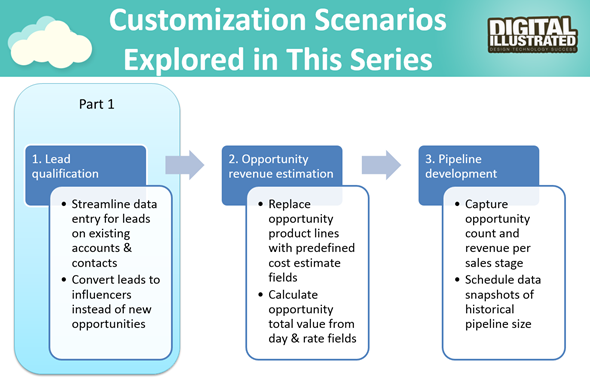
    This is the first part in an article series where I’ll be presenting a few customization tips & tricks that you can use in Microsoft Dynamics CRM 2015 to enhance the functionality used in a typical sales process. The content was first shown in my live webcast on MSDynamicsWorld.com on May 6th: “A Non-Developer’s Guide to Smarter Sales Processes in Microsoft Dynamics CRM 2015.” As promised during the webcast, I’ll be releasing all the slides here on my blog, but since there was a lot of details to go through in the 1h session, it will be split into three separate articles, to improve the accessibility to this information for those who didn’t attend the live webcast.

    The overarching theme of this series is to show you how the creative combination of the various customization tools available in Dynamics CRM 2015 can be used for building whole new functionality into the application – without having to write any custom code. The emphasis is on the word combination, since very often you’ll need to use several different pieces of the platform’s customization tools to achieve the end result. This isn’t something that you can easily learn just by reading the official product documentation that typically focuses on the introduction of a single feature at a time. With the examples in this article series I hope to demonstrate what these combinations could look like, in the context of customizing the standard application behavior in the sales process.

    MSDynamicsWorld_Smarter_Sales_Process_scenarios

    The techniques are by no means exclusive to the sales area of Dynamics CRM. Any process that you manage with our CRM/XRM application can surely benefit from the type of custom functionality that you can build via Business Process Flows, Real-time Workflows, Business Rules, Calculated Fields and Rollup Fields. The absolutely best way to gain an understanding of what you can achieve with the point & click customization tools in Dynamics CRM is to experiment with the tools in a sandbox environment, so I encourage you to go and try out these scenarios in an actual working CRM system. (Why not spin up a new CRM Online trial org and also get access to all the new CRM Online 2015 Update 1 goodies while at it?)

    What’s Wrong with CRM 2015 Lead Qualification?

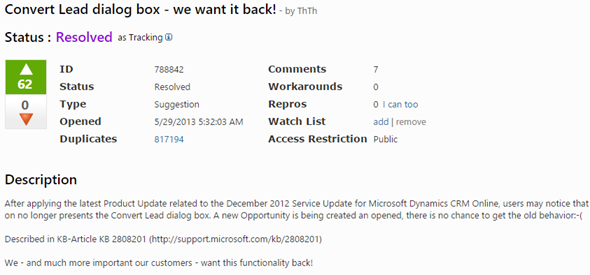
    Those of you that have been working with Dynamics CRM for more than just a couple of years will probably remember how the things used to work before CRM 2013. When clicking on the Qualify button on a lead record, the user was presented with a dialog that allowed them to choose whether a new account, contact and opportunity record should be created from this lead. In the new world of Business Process Flows and no-popup UI of CRM 2013 (and CRM 2015), such options are no longer presented to the user. While this makes for a smooth user experience in general, it creates severe conflicts with many real life business processes of companies who either A) don’t use opportunities or B) don’t want to directly convert each lead into an opportunity. There are lots of suggestions on MS Connect (registration required, see here) to restore the ability for users to select not to create an opportunity from a qualified lead, but so far we haven’t seen any changes in the product to accommodate this.

    CRM_Lead_Qualification_Dialog

    So, if CRM wants to create opportunities but the user doesn’t, what could a mere system customizer do, without any knowledge of how to write plugins or scripts to develop new functionality by using the CRM SDK? Well, I’ve come up with a reasonably good workaround that uses the following solution components to establish a true user driven lead qualification process:

    • Branching Business Process Flow (BPF) to show stages that don’t take the user to the opportunity entity
    • Real-time Workflow to hand the lead status change and record creation instead of the built-in, non-configurable business logic of Dynamics CRM
    • Business Rules to conditionally show/hide fields for account/contact details on the form
    • Quick View Forms to present the records created from lead qualification process on the lead form after it’s closed

    You can find the detailed description of how I’ve configured each components from the below presentation:

    (For those of you who are not reading this article directly on survivingcrm.com and can’t see the embedded SlideShare presentation, click this link to access it.)

    I hope that this example has given you some ideas on how the lead management process and related Dynamics CRM functionality could be further developed in your own CRM organization. Stay tuned for part two of this Smarter Sales Process series, where we’ll be moving to the opportunity record and exploring how the estimated revenue information can more easily be managed by using the Calculated Fields feature introduced in Microsoft Dynamics CRM 2015 release. If you simply can’t wait for it or want to see the lead qualification process in action, then the webcast recording is available on YouTube already today.

  • Accessing “Special” Activity Data with CRM Report Wizard

    Sometimes a data model that is perfectly valid on a logical level does not enable the system end users to actually leverage the data stored in it. One example of such a design is the way Microsoft Dynamics CRM handles the information collected on the standard (uncustomizable) dialog windows used in the case resolution and opportunity close processes. While the information collected here would often be valuable for managing the business process and analyzing the results (“what information was provided to the customer while closing the case?” or “why did exactly we end up losing this opportunity?”), it cannot be easily accessed in a way that would show data from more than a single record at a time.

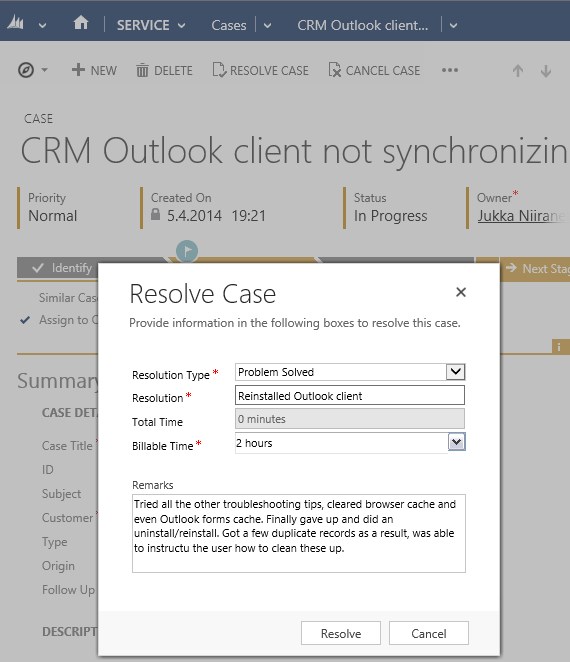
    CRM_Case_Resolution_Dialog

    This is due to the fact that the case resolution and opportunity close information is not recorded onto the actual business entity itself but rather onto a related activity. There are specific activity types for both of these processes that get created once a user clicks OK on the respective dialog for setting the business record status as closed. This makes sense if we think about the lifecycle of a record like case or opportunity, since the closure is not necessarily a permanent end state. The user can reactivate a case or reopen an opportunity and continue working on it if the circumstances and the business process guidelines dictate this to be the correct route of action, in which case there will eventually be more than one close activity for the business record. The data model therefore needs to support a 1:N relationship between these entities, which is why the design of the out-of-the-box business processes in Dynamics CRM is justified.

    The unfortunate side effect of this design is that the system cannot easily produce views of closed cases with both the question and answer information, as these are stored on separate entities. It is equally difficult to view and analyze information regarding won or lost opportunities, as any comments entered by the opportunity owner during the closure event are not available on the opportunity record itself. What makes the situation even more unfortunate is that the Advanced Find UI does not surface these “special” activity types and make them available for custom views, so even extracting the data from the system for ad-hoc analysis in Excel sheets is not directly possible.

    One approach that I often recommend to customers is to develop additional business logic that will store the information about the latest case resolution or opportunity close onto custom fields on the case/opportunity entity. I’ve also written a blog article earlier about how ISV tools like North52 Business Process Activities (formerly known as Formula Manager) can be used for building a no-code customization to better leverage case resolution data. This of course will not cover any records created prior to deploying the customization, so accessing historical information is still a challenge.

    Reporting on Case Resolution Data

    As always, by developing a custom SQL Server Reporting Services report you could access almost any data in CRM and present it exactly the way you want. You’ll need to use Visual Studio and know a thing or two about how to develop SSRS reports for CRM if you take this approach. In the standard user interface of Dynamics CRM there is only the Report Wizard feature available, which in many cases offers quite limited options for designing reports that would go beyond what the inline charts in CRM views can do. This Wizard was originally introduced back in CRM 4.0 when there was no charting or dashboard capability included in Dynamics CRM yet. Once CRM 2011 brought in these new visualization options, the Report Wizard was pretty much abandoned in terms of new functionality development, so today it remains sitting there in its 2007 outfit and looking a bit outdated as a result.

    One of the lesser known qualities of the Report Wizard is that you can actually access certain entities and fields with it that are off limits to Advanced Find. This comes in quite handy when dealing with a scenario like the one I described earlier. So, let me show you how to build a Report Wizard report that will provide you better access to case resolution data.

    When creating a new report and choosing Report Wizard as the type, you’ll first be taken into a dialog window where you can choose 2 entities that you’re allowed to use in the report. By selecting Activities as the primary record type we’re presented with a list of possible related record types that includes also the “hidden” entities like Opportunity Close or Case Resolution. For our purposes, let’s select the resolutions.

    CRM_Report_Wizard_1

    Now we get to the filter criteria screen. Let’s say that we want to build a report on the billable time information recorded into the case resolution entity. We’ll only be interested in resolved cases and case resolutions that contain data in the Time Spent field (this is where the billable time field data in the case resolution dialog gets stored in). (more…)

  • Making Better Use of Business Process Flow Data

    CRM 2013 Business Process Flows (BPF) have been designed to support a scenario where the same transactional records (opportunities, cases, custom entities like projects) can follow alternative process steps depending on the business logic required. For example, you can use the same opportunity entity to support the sales processes of two departments that are operating in very different markets and thus have different process stages as well as information content gathered within those stages.

    You can either limit the availability of BPF’s by CRM security role, so that a salesman in department A will always get the sales process A for the opportunity records he creates, or you can enable the users to see a number of different processes and let them choose the correct one via the Switch Process button on the Command Bar. In the latter scenario the Select Business Process Flow dialog window will present the available processes, like this:

    BPF_CRM2013_multiple_processes_1

    More processes will naturally mean more variety in the type of data your opportunity records will hold. Instead of a fixed number of stages in a specific order you’ll have opportunities that are following different sales processes with unique stages, which could easily lead to a situation where the CRM user may be comparing apples and oranges in the same entity view. How can we avoid such confusion in a multi-process environment? Hopefully this post will give you some ideas on the best strategy to manage your Business Process Flow data.

    Working with the Stage Category

    The officially recommended tool for making Business Process Flow stages visible in views and charts is the Stage Category option set. This is a field available on the Process Stage entity and you can select a value for it while editing the Business Process Flow process record.

    BPF_CRM2013_multiple_processes_2

    Basically what this field allows you to do is to standardize the stage values across different BPF processes. You can enter a different name for the actual stage in the BPF editor but still link it to a Stage Category value that is used in some of your other processes, too. Depending on your business, there may be different sales processes that would each contain a conceptual Propose stage but apply different terminology for it. That’s one problem that the Stage Category can solve.

    If you want to customize the list of values available for the Stage Category, just find the global option set under the Default Solution (Settings – Customizations – Customize the System) and update it like any other field. The new values will appear in he Business Process Flow editor after publishing the changes.

    BPF_CRM2013_multiple_processes_7

    When building a view to display the opportunities by stage, you’ll need to add a column from the related Process Stage entity to leverage this information. In the Add Columns dialog of Advanced Find, choose the aforementioned entity and select the Stage Category field from the list that appears.

    BPF_CRM2013_multiple_processes_3

    One limitation related to the view columns is that we can’t apply any sorting to the Process Stage field. That’s because it’s from a related entity and as a result it doesn’t appear as a possible field in the Configure Sort Order dialog. This means that our opportunity view can’t have the records nicely aligned per stage value, to simulate a pipeline, but instead we’ll need to rank them based on some field that’s directly available on the opportunity record itself.

    BPF_CRM2013_multiple_processes_6

    Grouping or Filtering by Business Process Flow

    So, we have the capability to merge stage values across different BPF’s into a single view. Pretty cool. Now, since different sales processes are often related to different types of product categories or business lines, what are the steps needed for creating an opportunity view that also displays the name of the BPF process chosen for the record? For example, if we want to group the revenue per process instead of process stage, which field do we need to add into the view?

    Sorry, there is no such field. Thank you, have a nice day.

    Excuse me, what?! Didn’t you just show how to harmonize the stage values across different processes? Surely there’s a way to un-harmonize things and break it down based on individual processes and stages?

    Well, stages yes, but processes, no. You see, there isn’t a direct relationship to the actual Business Process Flow process entity from the opportunity entity (or any other BPF enabled entity). While the system does store a GUID reference to the process and process stage records in the StageId and ProcessId fields, these are “unique identifier” type of fields that you can’t reference in Advanced Find query criteria. We could add them as a view column, but they’d just be gibberish like “3e8ebee6-a2bc-4451-9c5f-b146b085413a”.

    BPF_CRM2013_multiple_processes_4

    The Process Stage entity that we examined earlier is a parent entity of the opportunity and it can be accessed in Advanced Find, but it doesn’t contain any field that would specify the name of the process to which the stage belongs to. When selecting view columns in Advanced Find we can only go one level up, but luckily when building a filter criteria for the view we can query entities further away. This means we can reach the Process entity related to the Process Stage entity and find our Alternative Sales Process from there, as illustrated below. (Note that you’ll need to change the default lookup view to display the BPF processes, as otherwise you’ll only see workflow processes to choose from.)

    BPF_CRM2013_multiple_processes_5

    By adding this criteria we are able to build a view containing only opportunities from a specific Business Process Flow. To see the total pipeline revenue per each process we’d just need to switch between the views, or build a dashboard that contains one list/chart per process. Not quite as elegant as having a single chart grouping the revenue per process, but it’s still better than a mixed bucket of opportunities from all over the place.

    What if I told you there was a better way to do this than the out-of-the-box data model provides? Would you be interested in seeing its possibilities? Then you’re in luck, because that’s what I was going to write about next. (more…)

  • Similar Opportunity Analytics with CRM 2013 Quick View Forms

    A while ago when performing a requirements gathering session for the sales process functionality in a CRM implementation project, my client asked me whether Dynamics CRM was able to show information on the opportunity form about how similar opportunities had performed in the past. Thinking of an analogy from the world of consumer web apps, this would be a bit like Amazon’s feature where they show you similar items that other people had purchased after ordering the product you are currently thinking of buying.

    Similar_items

    My initial reaction to the request was “I wish we could do that, but you’re looking at either a significant chunk of custom development or a considerably more expensive piece of software to get that functionality”. After a moment of thinking about it, though, I realized that the new CRM 2013 version already had some platform functionality that could be leveraged for delivering such a feature under the right circumstances.

    Quick View Forms across multiple relationships

    Traditionally Dynamics CRM has been an application where you can show information from either the current record the user is working on or the child records directly related to it. It wasn’t until CRM 2011 that showing the related child records right on the entity form became a supported scenario. With CRM 2013 we’ve gained another important feature that we can use to expand the scope of information being shown to the user on a single form. The new Quick View Forms allow us to show several fields from the parent entity on the current entity’s form. Even better, the Quick View forms support the CRM 2011 subgrid feature, which also makes it possible to show information about the child records of the parent record on one of its other child records.

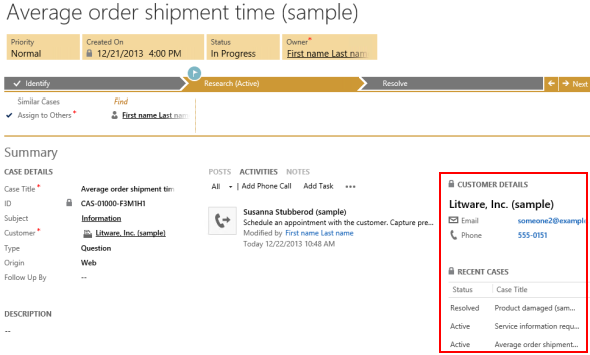
    “Whoa, that’s way more relationships that I can visualize in my head! What does all this actually mean?” No worries, these are not the type of features that would be immediately obvious to even the more seasoned CRM consultants. Let’s approach this via an example from the out-of-the-box configuration of the CRM 2013 case form. This new form contains a Quick View Form called Customer Details:

    Recent_Cases_CRM_2013

    The Quick View Form not only shows details about the customer account but also a subgrid of all the recent cases where this account has been the parent record. So, starting from the case record, we go one level up in the hierarchy to query the account record and then we come back down again to retrieve a list of child records for this account. The Recent Cases subgrid returns back to the same entity as where we start from, but this is not a requirement, as is demonstrated by another subgrid included in the same Customer Details Quick View Form that lists the recent activities regarding this account. Effectively we can show any entity information that is maximum two hops away from the current record and that share the common parent record.

    Applying Quick View Forms in customer segment analysis

    How could we leverage this feature in providing the CRM user some insights on how similar opportunities have worked out in the past? The key here is finding an entity that we can use for binding the different opportunities together and showing relevant information about them that will be helpful for the CRM user in deciding on the actions to take in pursuing the new sales opportunity. If it’s an existing customer that has done purchases in the past we could of course benefit from seeing this history, but assuming that we’re dealing with a scenario where repeat purchases are not that frequent, we should look for a different variable that could help us in surfacing the past sales analytics that can help us in winning the new deal in question.

    Let’s assume that we’ve got a customer segmentation model in place where we assign each new and existing account a segment value. The actual rules behind the segmentation process are beyond the scope of this article, but the one thing that’s critical here is that the segment information is stored in a dedicated “Segment” entity. This custom entity has a parental relationship to the account entity, which basically means that we can open a segment record and see all the accounts belonging to that segment. Now, because of the fact that each account has a value in the segment lookup field, we can also configure it so that every opportunity created for the account also inherits the segment value of that account. Effectively we’ll then have a similar 1:N relationship between the Segment and Opportunity entities as we have with Segment and Account. The end results and our target configuration will therefore look something like this:

    Account_segment_opportunity

    We need to have a bit of redundancy in our data model in order to be able to leverage the Quick View Form feature for our desired purposes. Technically we could determine the segment of the opportunity record just by examining the value on the parent account of that record, but we wouldn’t be able to reference it on the opportunity form customization UI. Therefore it is crucial that the segment value is carried over from the potential customer account onto the opportunity record, either through a relationship attribute inheritance or a real-time workflow that retrieves the value right after the opportunity record is created (preferably both, to cover all scenarios for opportunity creation). (more…)