Tag: rollup

  • Tracking Pipeline Development Over Time in CRM 2015

    Tracking Pipeline Development Over Time in CRM 2015

    We’ve come to part 3/3 in the Smarter Sales Process article trilogy. In the earlier posts we talked about customizing the lead qualification process and using calculated fields for opportunity estimated revenue, to get more out of Dynamics CRM 2015 than what the standard sales related functionality offers. To close things off, let’s have a look at how we can gain more insight into the data in our sales opportunity pipeline and particularly how it has developed over a period of time.

    Capture the Sales Pipeline Trend

    With the data that Dynamics CRM collects about sales opportunities we can easily draw charts about how many deals were won or lost at any given time, presenting these as a monthly trend of both estimated and actual revenue. It’s also very simple to visualize the current contents of our sales pipeline by looking at the open opportunity records via standard visualizations like the… well, pipeline chart, obviously!

    What we can’t do quite so easily is to present how the sales pipeline has developed over time. For example, has the number of opportunities in a particular stage of the sales process gone up/down, or how the total estimated revenue from open opportunities is developing. An average CRM user may not understand why such a visualization wouldn’t be included in the application by default, but for a system customizer that knows the data model and behavior of Dynamics CRM this should be fairly obvious. The fundamental difference between closed opportunities and open opportunities is that for the former we have a permanent record of when they were closed and with what values, whereas the records that are currently in an open status represent transient data. It will change over time, based on the future actions that CRM users will take.

    So, what’s the problem with such data? The fact that an open opportunity may have been open last week or even ten weeks ago makes it impossible for us to draw a chart that would show a weekly number of records, since only a single record exists in the database, even though it might need to appear in the bar for each week in a chart showing the size of the pipeline on a weekly level. While technically we would have the information needed to project the number of opportunities that have been open at a given time by looking at their creation date, this would be a more complex exercise than what the ASP.NET charts in Dynamics CRM allow us to draw (although I wouldn’t be surprised if CRM Chart Guy would prove me wrong on this one).

    At the end of the day CRM is an operational system focused on managing individual records and transactions, which means it doesn’t bother archiving copies of records in their historical state. Sure, we have the audit log that will keep a record of the individual changes to tracked fields, but that’s data which isn’t accessible for reporting. But the question to ask is: if we wanted to capture such historical data for our analysis purposes, could we do that with Dynamics CRM? Sure we could! In fact, already back in 2008 when CRM didn’t yet have a built-in auditing capability, CRM MVP Guy Riddle showed us how the use of custom entities and workflows allowed us to build our very own audit log feature to capture changes for record field values.

    CRM_opportunity_count_by_week_and_stage

    Sure, our use case here is a bit different, since we’re not looking to only capture entries on when a record changes. To provide us visibility into how the sales pipeline has developed over time, we would need to capture a snapshot of the pipeline status at predetermined intervals.

    Scheduling Snapshots of CRM Data

    One of my favorite features in CRM 2015 version is Rollup Fields, which I’ve already covered in a number of earlier posts on this blog (including the gotchas you need to be aware of). This feature also comes in handy if we want to build a custom snapshot entity to store the count or sum of records related to it. In this scenario for monitoring sales pipeline development, which I presented in my MSDynamicsWorld.com webcast “A Non-Developer’s Guide to Smarter Sales Processes in Microsoft Dynamics CRM 2015”, what we’ll do is make a 1:N relationship between our custom Snapshot entity and the opportunity entity. This in turn will allow us to create Rollup Fields that will summarize the count and revenue of the related opportunities onto the Snapshot record. By having a snapshot per each stage of our sales process, we will get the attributes needed for drawing the kind of chart shown above, to visualize the trend of opportunity count and estimated revenue development per week.

    The detailed steps for the required customizations can be found from the following SlideShare presentation:

    The one missing ingredient that we still need to think about is how to automate the capture of these snapshots. What Dynamics CRM still doesn’t offer out-of-the-box is the ability to schedule recurring workflow processes in an easy way, to perform an automated task every X days. Luckily there are workarounds for scheduling such bulk data processing tasks with using nothing but the CRM platform, and one of the best solution’s I’ve come across is the Scheduling recurring Dynamics CRM workflows with FetchXML solution from Lucas Alexander. I’ve already shown you how to use this solution for monitoring Rollup Field Values with workflows and the same logic can be applied in this scenario, too. Only this time we don’t send a weekly email blast to CRM users, rather we’ll just create new snapshot records to store the opportunity count and total estimated revenue per sales stage.

    CRM_scheduled_process_opportunity_snapshot

    Alright, that concludes my Smarter Sales Process for CRM 2015 series, at least for now. As mentioned at the start, do check out part 1 and part 2, as well as the YouTube recording of the live demos if you’re interested for more details on the topic. Hopefully these examples have given you some new ideas on what kind of solutions you can build with the Dynamics CRM 2015 customization tools. If you’ve got any thoughts on what kind of no-code customization scenarios you’d be interested in seeing in the Surviving CRM blog in the future, please feel free to leave a comment!
  • Monitoring Rollup Field Values with Workflows

    Monitoring Rollup Field Values with Workflows

    In an earlier post I demonstrated how you could leverage the new Rollup Fields feature of Dynamics CRM 2015 to summarize the behavior of your customers and produce interesting metrics that could be used for targeting your sales activities towards the most active individuals who have reacted to your email and website content. The example included using data collected by ClickDimensions on the clicks on email marketing message links and page views on sites that contain the visitor tracking script. With the help of Rollup Fields and this marketing automation data stored directly into Dynamics CRM database under the contact records we were able to add the following custom fields onto our contact entity form:

    • Latest Email Link Click
    • Total Number of Link Clicks
    • Latest Page View
    • Total Number of Page Views

    While this allowed us to create a nice, sorted view of the contacts who’ve been interacting with our online content most recently, this information is still just data sitting in the CRM system, waiting for the users to go and discover it. Wouldn’t it be great if we could actually build an automated business process around it and make sure that the owners of these contacts who are clicking the links and visiting our website would be notified about these events? Sounds like something that a CRM workflow could help us with, right?

    CRM_2015_rollup_field_Clicks_5

    Unfortunately there are a few limitations when it comes to the new Rollup Fields in CRM 2015, as we discovered in my previous article. For example, if we would like to trigger a workflow process instance whenever the number of Link Clicks goes above a certain threshold, this isn’t something we can do directly by tapping onto the onChange event of the Total Number of Link Clicks field, because Rollup Fields cannot be used to trigger a workflow.

    Ok, what if we lower our expectations a bit and don’t even attempt to perform these actions in real-time for each event? It might be perfectly acceptable from a business perspective to have a process run once every night, inspect which contacts had clicked on the tracked links and then send out notifications to the record owners in one go. Surely that’s something Dynamics CRM can do, right? Well, let’s see if we could put together a solution like this.

    Batch Processing CRM Data with Workflows

    It’s quite a common requirement to perform checks or updates to CRM records based on a predetermined schedule. Although you can use workflow processes to be triggered on an event that takes place on CRM records (as long as it’s not on a special attribute like a Rollup Field), there isn’t actually any ready-made feature available in the CRM platform that would allow you to schedule the workflows to run every X hours, every night, once a week etc.

    The traditional approach for meeting such requirements for scheduled updates would have been to develop a small custom service to run on the CRM server machine. If you had access to other systems with interfaces to CRM like SQL Server Integration Services (SSIS) then these could naturally be also leveraged here. In the brave new cloud era where the number of Windows servers at your disposal for running these type of applications is rapidly decreasing it’s sometimes challenging to find a place where such schedulers could be deployed to, for performing small batch jobs that your CRM business processes would require. Wouldn’t it be convenient if you could build all of this by using just CRM Online and nothing more?

    Get ready for the good news: yes, you can schedule a recurring workflow to handle batch updates within Dynamics CRM, no external servers needed. The one thing you need, though, is a clever little custom workflow activity to extend the standard features of the CRM workflow engine. In this example we’ll use the Scheduling recurring Dynamics CRM workflows with FetchXML solution developed by Lucas Alexander. What this solution does is it gives us the possibility to:

    • Determine a query criteria for the bulk job
    • Schedule this job to be run hourly/daily/weekly
    • Run our own workflow process for all records returned by the query

    CRM_schedule_recurring_workflows_Lucas_Alexander

    The above diagram by Lucas outlines the logic behind the solution, but you really should go and read his blog post on the details of this approach, or check out the source code for the custom workflow activity on MSDN code gallery if you really want to dig deeper into the topic. For the purpose of today’s scenario, I’ll show you how I’ve used the solution in conjunction with the aforementioned Rollup Fields.

    Sending Out Notification Emails Based on Rollup Field Data

    In my example I’ve determined that it’s the Latest Page View datetime field on a contact that should be driving the business process. Once a week I would like to notify the owners of customer contact records if the contact has visited our website during the last 7 days. Turning this into a query criteria, it would mean that during the time of each batch processing I’d want to retrieve all contacts where the Rollup Field for Latest Page View contains a value greater than today minus 7 days.

    I will need to turn that query definition into a language that Dynamics CRM understands, and that is FetchXML. Sounds a bit tricky, eh? Lucky for us, CRM comes with a nifty lil’ FetchXML generator called Advanced Find, which I’m sure you’re already familiar with. All we need to do is find Advanced Find, specify the aforementioned query criteria for the contact entity and then click the “Download Fetch XML” button in the ribbon to grab the XML text into Notepad.

    CRM_AdvancedFind_FetchXML

    Next we should think about what action we want to perform on the contacts who match the query criteria. In this scenario it will be the sending of an email message to the owner of the contact. It only needs to be available as an on-demand process and there isn’t even a requirement to have any query criteria enforced here, but I added the 7 day rule here as well, just in case I end up using the same process in some other scenario.

    CRM_page_view_notification_workflow

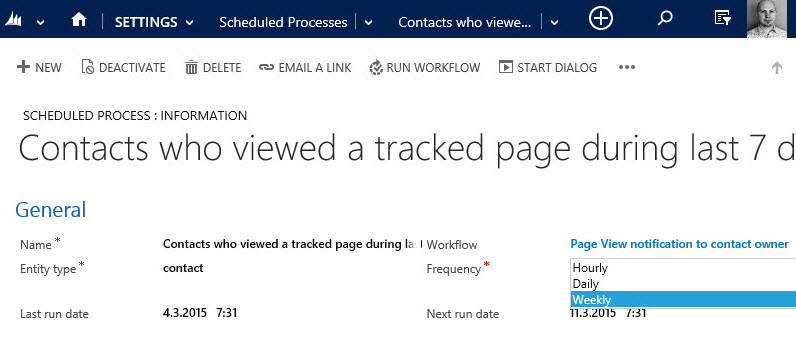
    The final step is to create a record for the new Scheduled Process entity, which has been added to CRM in the solution packaged developed by Lucas. On this form I’ll first give a descriptive name to the Scheduled Process and then define it to be related to the contact entity. In the Workflow lookup field I’ll pick the workflow process you see above, and for the Query field I’ll paste in the FetchXML we grabbed from our Advanced Find.

    CRM_scheduled_process_page_view_small

    All that’s left for us to do is setting the actual schedule for this process. The weekly option in the dropdown menu suits our purpose best in this scenario. By adjusting the Next Run Date I can configure the email notifications to go out in the morning, so that they reach the inbox at an optimal time.

    CRM_notification_website_visit

    Alright, that concludes our scenario for using CRM 2015 Rollup Fields together with workflow processes to deliver actionable insights to our CRM users on how customers are responding to our marketing activities. What I personally find very interesting in this example is the ability to take a piece of existing data that’s sitting inside our CRM database and first turn it into a metric that’s easily viewable in the CRM UI, then further amplify its business impact by configuring conditional processes to deliver it as a notification to the user who should become aware of it.

    None of this required a huge technical development effort or investments into separate reporting systems. All we needed was to take a new feature that was added to the Dynamics CRM platform as a part of the 2015 version rollout (this being a CRM Online environment there wasn’t even an upgrade project to worry about), combine that with an excellent open source enhancement to the platform’s workflow functionality, then just design a solution that delivers new business value from existing data. If you look at your own Dynamics CRM system and the data that’s being collected into it as a part of your business processes, then I’m pretty sure you could also identify potential use cases for similar type of enhancements, built with CRM’s ever evolving process automation toolkit.

  • CRM 2015 Rollup Fields: The Gotchas

    CRM 2015 Rollup Fields: The Gotchas

    In an earlier blog post in December, I described one use case for the new Rollup Fields feature introduced in Microsoft Dynamics CRM 2015. This example involved rolling up data from email events tracked via ClickDimensions and summarizing this on the contact’s form, so you’ll want to check out the steps listed there if you don’t have any hands-on experience about this new feature yet. In this post I’m going to dig deeper into the details about how Rollup Fields actually work behind the scenes and what limitations you should be aware of when considering whether they are the right tool for the job in your own use cases.

    Rollup Schedules

    The first thing you need to understand about Rollup Fields is that they are not updated in real time. If you’re familiar with the difference between the real time workflows introduced in CRM 2013 and the asynchronous versions that were available in earlier versions, then this is something a bit like that, but not quite. As you might know, the traditional background workflows were triggered by an event that took place on a CRM record and the resulting workflow instance was scheduled to be executed by the asynchronous process running on the CRM server at the earliest possible date (depending on the overall workload on the server). Whereas this usually meant a delay of perhaps a minute or two at most, the new Rollup Fields are even further from real time than this.

    As we saw in my earlier post, when you create a new Rollup Field, a new mass calculation job will be created for the field in question. This will be scheduled 12 hours into the future, based on the assumption that this will most likely fall outside the office hours when actual CRM end users are working with the system. (Because us CRM customizers or system admins never work during the night, right? Yeah, what a funny assumption that is, but anyway…) The reason for such precaution is that the very first calculation job will have to populate each and every record that exists for that entity, which could be up into the millions, depending on what type of data you manage in your CRM.

    CRM_2015_rollup_system_job

    So, does this mean the Rollup Fields only get updated once per day, during that nocturnal schedule? No, actually they get updated once every hour. If you go to the Settings – System Jobs menu you’ll see that there are jobs of type “calculate rollup field” type running for each of your entities that have one or more Rollup Fields defined for them. They are not scheduled to start at exactly the same time, but they all run at one hour intervals. Another thing worth noting in the Rollup Field implementation architecture is that these calculation jobs are only applied to records that were created, updated or deleted after the last job finished. No point in processing a million records if only a handful of them could possibly have new values to be calculated, right? This is why the initial rollup and the recurring rollup requests are handled by different system jobs in the CRM platform.

    Rollups and Workflows

    Now that we know the Rollup Fields may not show a current values in the UI for quite some time, the next logical question to ask is: anything we can do to speed the calculations up? As an end user, you could go and look at any Rollup Fields that have been added onto an entity form which you have the necessary rights to view, then hover over the field and click the “recycle” icon to force the recalculation of the Rollup Field value. As a developer, you also have the option to force a Rollup Field to be recalculated on demand via a plugin, by using the CalculateRollupField message. As a system customizer… Well, there’s not much you can do, at least in the CRM 2015 version. (more…)

  • Analyzing Customer Behavior Data with CRM 2015 Rollup Fields

    CRM_2015_field_type_rollupFrom a system customizer perspective, one of the most intriguing new features in Dynamics CRM 2015 is the addition of two new  field types. Alongside the traditional “simple” fields we can now define our custom attributes to be somewhat more “complex”, by choosing to create them as either calculated fields or rollup fields. These new field type options allow us to create point & click solutions to cover scenarios that would have previously required custom code.

    Microsoft haven’t been advertising this feature much in their “what’s new” materials for the CRM 2015 version release, but great blog articles have already been written on the topic, like this one by Peter Majer on the Sonoma Partners blog. There are also articles on Technet for both rollup fields and calculated fields, which provide all the details you need for getting the new feature implemented in you CRM Online or CRM 2015 on-premises organization.

    Rather than repeating this documentation, I’ll be exploring the different scenarios where the new complex field types can be leveraged, as well as the considerations and limitations to be aware of. In this first blog post I’ll demonstrate how the rollup fields can give us better insights on how our customers are reacting to email marketing campaigns sent to them.

    Summarize Marketing Automation Data for Contacts

    When our own CRM Online production organization received the 2015 update, the first use case I had on my mind for the shiny new features was to apply the rollup field functionality to the online marketing data that our ClickDimensions solution has been storing into the CRM database. If you’re not familiar with ClickDimensions, it’s a marketing automation service that allows you to send and track email campaigns, collect website visitor data, publish web forms integrated with CRM fields, configure automatic nurture programs for new leads, among other things (see this page for a detailed feature listing).

    What makes ClickDimensions particularly interesting in this case is that all of the behavior data is available inside the CRM application, in the dedicated custom entities contained in the managed CD solution package. For example, a page view transaction from a website with the CD tracking script deployed will be stored as a record for the Page View entity and then linked to either an anonymous visitor or an existing lead or contact record in CRM. Since it’s an “XRM” solution that you install as an add-in to Dynamics CRM, rather than an external marketing database that would be just synchronized with CRM, we can leverage all of the CRM platform functionality for showing and analyzing the data, automating related business processes with workflows and so on.

    Now with CRM 2015, the rollup and calculated fields have been added to our marketing automation toolkit. So, what do they allow us to do that would have previously been difficult/expensive to implement? As mentioned, all of the events tracked by ClickDimensions are linked to a CRM contact or lead record when the person performing the actions can be identified from browser cookies, unique id’s in links or submitted form data. If we would now like to view this data from the perspective of an individual contact, the rollup fields provide a way to summarize the data from related entities into fields available directly on the contact form.

    Creating Rollup Fields for Contact’s Email Link Clicks

    Let’s go ahead and add a new field for the contact entity. Yes, it must be a completely new field as you cannot convert existing standard or custom fields into calculated or rollup fields. Not a problem in our scenario, as we’re building a brand new feature into our CRM organization. The first field will be called Total Clicks and we’ll use it to count the number of related records found, so whole number is a suitable data type for us. By setting the field type as “Rollup” we’re given the option to edit the rollup formula.

    CRM_2015_rollup_field_Clicks_1

    In the rollup field definition editor we must now choose the related entity from which we wish to roll the data up to the contact entity. As we’re dealing with email link clicks, these are stored in the Email Event entity in the ClickDimensions solution, so that will be our choice. However, since the entity also contains data about events other than link clicks, we’ll need to add a filter into the related entity section and define that only email events where the field “type” equals “click” should be included in our rollup. As a final step, in the aggregation section we select “count” as the function that will provide the actual value for this new field on the contact record.

    CRM_2015_rollup_field_Clicks_2

    Let’s repeat the process for another new field: Latest Click. Instead of counting records, we’ll be looking at the date values on the related records, retrieving the highest date available and storing it into our rollup field. This means the data type should now be “date and time”. The rollup field definition is otherwise the same as with the first field, but in the aggregation section we’ll now have a different list of functions available for this data type. Let’s pick the Max function and apply it on the creation date of the email event records associated with the contact.

    CRM_2015_rollup_field_Clicks_3

    Alright, let’s save these fields and get them published! Oh, by the way, did you notice the yellow notification bar down in the rollup field definition editor window? That’s actually very useful information to be aware of once we move on to the next stage of our customization process.

    Displaying the Rollup Field Data for Contacts

    There are two main places where fields are presented in Dynamics CRM: forms and views. Let’s start from the contact form and include our new rollup fields there. In my scenario, we already have a suitable custom form available for the contact entity, which has been used for summarizing all the ClickDimensions data related to an individual contact record. Notice those fancy embedded charts and subgrids showing the email events for this test contact record of mine? That’s actually something you’ve been able to do already since the CRM 2011 version, so not exactly related to our agenda of the day, but a good reminder about how you can leverage the XRM capabilities of the Dynamics CRM platform to present data in a format that’s easier for end users to consume. (Check out my 10 tips for better CRM user experience for more discussion on that topic.)

    CRM_2015_rollup_field_Clicks_4

    I’ve added the Latest Clicks and Total Clicks on the contact form, below the existing chart and subgrid. But wait a minute: why are they empty? Did we do a mistake in the rollup field definitions? Don’t worry, this is exactly the expected result after creating a rollup field. If you took a moment to read that yellow notification bar I mentioned earlier, you’ll know that a mass calculation job was created by the CRM system after you added the rollup fields for the contact entity. Also, since it was by default scheduled to be run 12 hours after the field creation, we’re not going to see the whole magic until the next day in many cases.

    If you’d rather validate that the new customizations you’ve created are working as planned, instead of just taking my word for it, open up a contact record form and hover over the rollup field. You’ll see a “recycle” icon that you can click on, after which CRM will perform the rollup calculation for that field, for only the currently selected record. (more…)