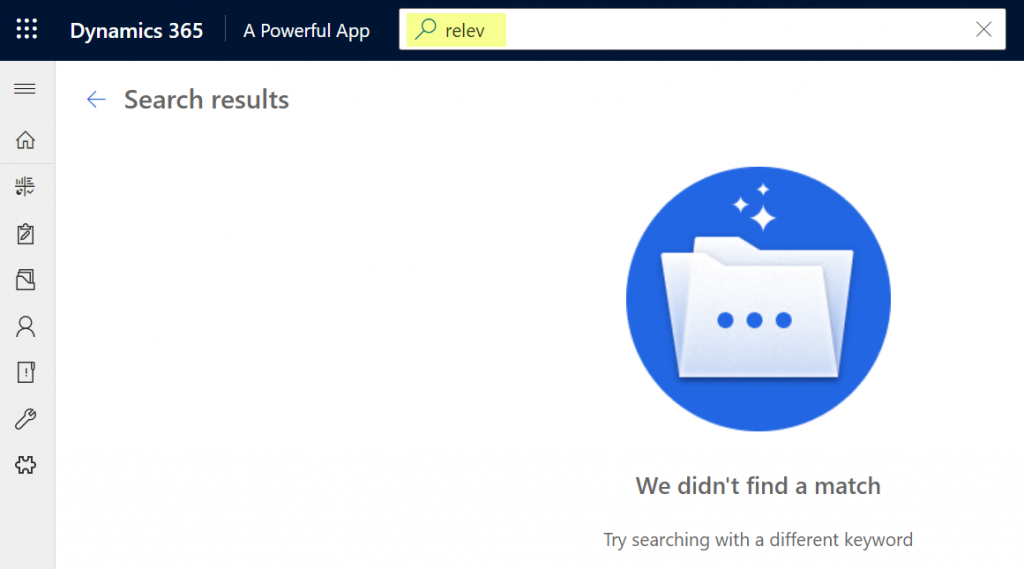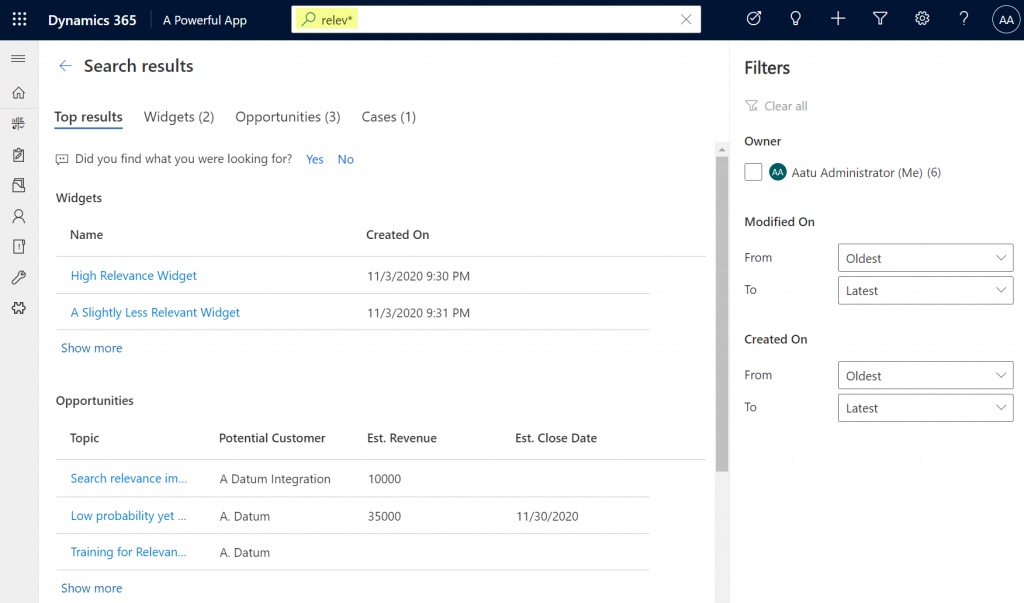
Whether you are configuring Dynamics 365 Customer Engagement apps from Microsoft or building custom applications with Power Apps, often the solution design and implementation focuses too much on the data entry experience and not enough on data discovery. Yet it’s the process of searching for information rather than entering new records that consumes far more time in the lives of information workers.
Throughout the history of my blog (originally “Surviving CRM”), topics such as the Advanced Find feature or configuration of views in XRM/CDS/Dataverse have been the most popular ones. To put it another way: a lot of people search for information on how to make search better in Microsoft business apps.
While they are nothing like Google, Microsoft still has a wealth of R&D budget spent on search related services. Just because Bing isn’t what you’re likely using in your private life, that doesn’t mean you couldn’t benefit from the Microsoft Search infrastructure. Today we’ll explore how data from Dataverse environments can now be exposed in Microsoft Search.
Enabling Dynamics 365 results in Microsoft Search
The feature for showing Dataverse results in Microsoft Search was originally promised at Ignite 2021 in November, but on the release plans it has been postponed a few times. Now the ability for enabling search federation has appeared and the roadmap item for it says “GA in June 2022”. The feature appeared in a couple of tenants, so it’s time for a test drive.
First you should ensure that these prerequisites for configuration are met. The modern Dataverse search needs to be enabled for the environment you want to target. Second, the search admin user account that you’re using to run the configuration must have both admin access and a valid Dynamics 365 license for the environment.
Next you can proceed to Microsoft 365 Admin center. Go to “All admin centers”, choose “Search & Intelligence” and select the “Data sources” tab. You should see the section “Microsoft apps and services” that allows you to add a new app for search federation.
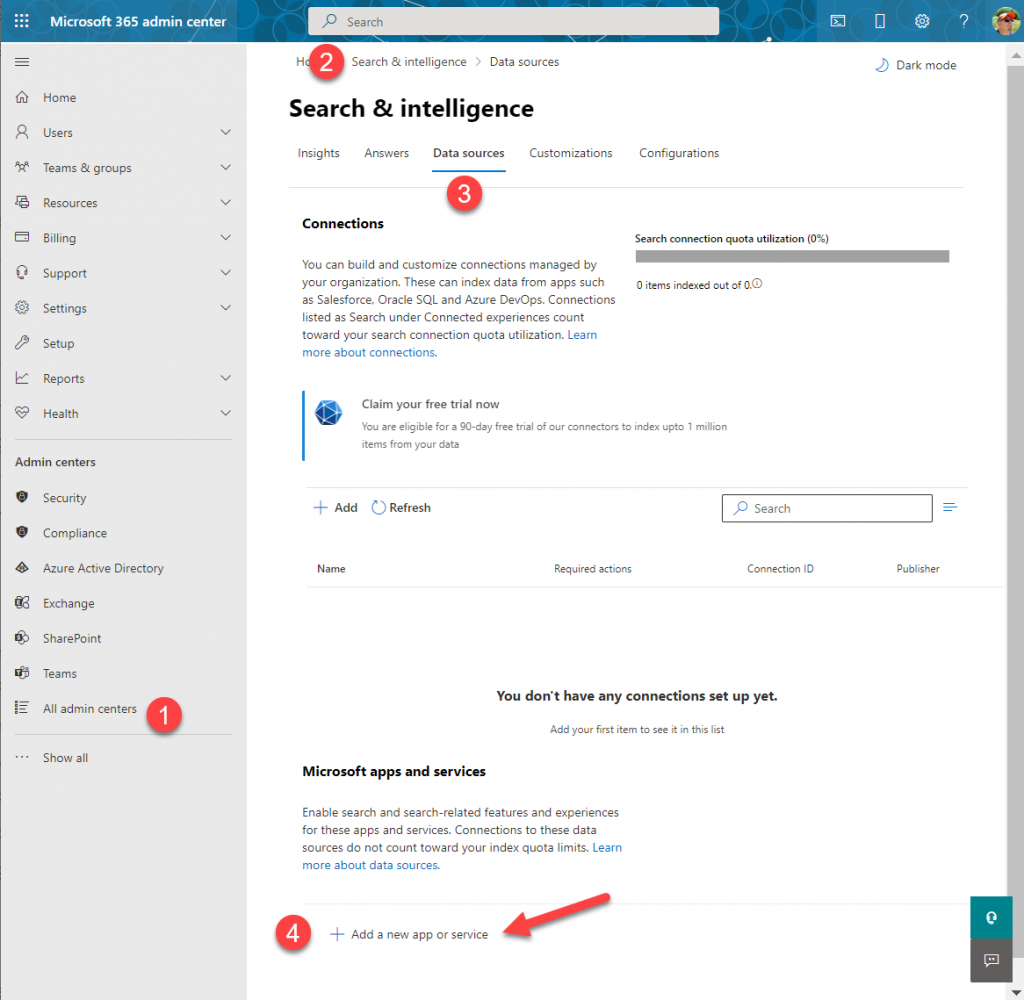
What if that section does not appear? It may be that you don’t have a paid Dynamics 365 subscription in the tenant. The detailed requirements haven’t been documented by Microsoft yet, but based on my experiments, having just Dataverse with Power Apps premium licensing is not enough. Neither is a trial subscription for Dynamics 365.
In the configuration section for Microsoft apps and services, it says that “connections to these data sources do not count toward your index quota limits.” If you’re not familiar with Microsoft Search, then the data sources accessible via Microsoft Graph connectors are indeed a paid service. With Dynamics 365 we’re seeing the search capability bundled into the product, but for things like Azure Data Lake, Azure DevOps or third party services like Salesforce or ServiceNow, you’ll need a Microsoft Search paid license.
If we were to use the paid features, how much would it cost? The required product can be found under “purchase services” in the M365 admin center – although not with any generic term like “search”, of course. You’ll need to know that SKU name is “Extra Graph Connector Capacity”. The minimum purchase is 1 million items and that would be around $1.000 per month, or in euro prices these sums below:
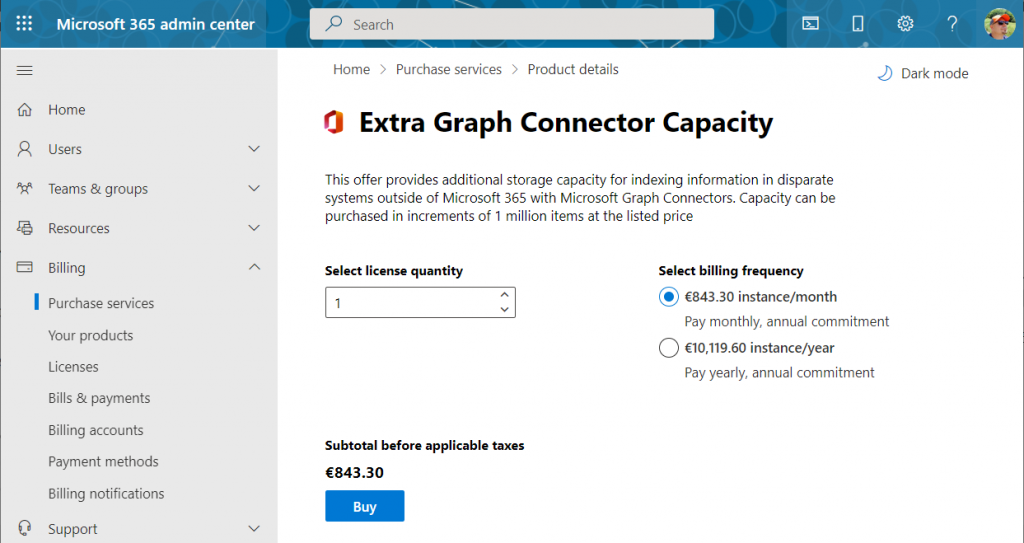
If you had Microsoft 365 E5 or Office 365 E5 licenses, those would also accrue some index quota per each licensed seat, as shown here.
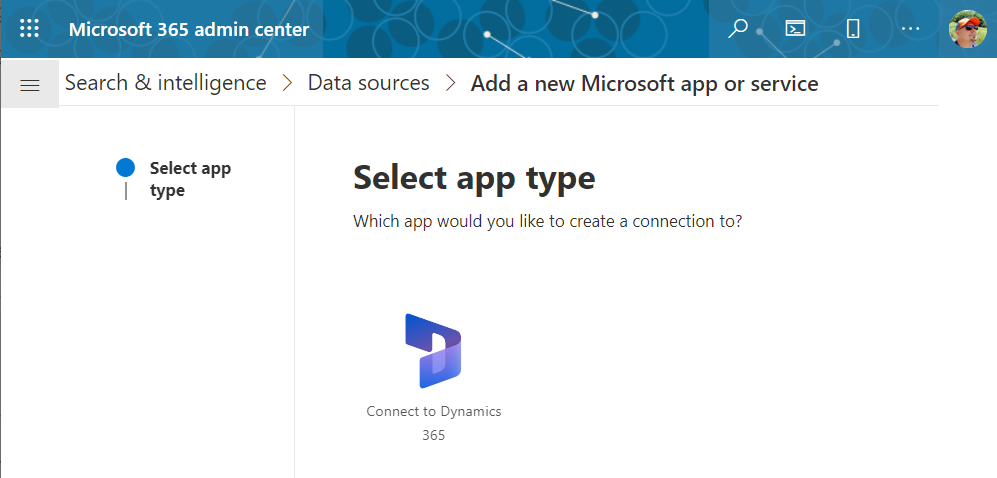
Luckily we don’t need to make purchases since our tenant has Dynamics 365 Customer Engagement licenses in place. We can proceed to adding a new app under the Search & Intelligence data sources, by selecting the only supported MS app at this time: Dynamics 365.
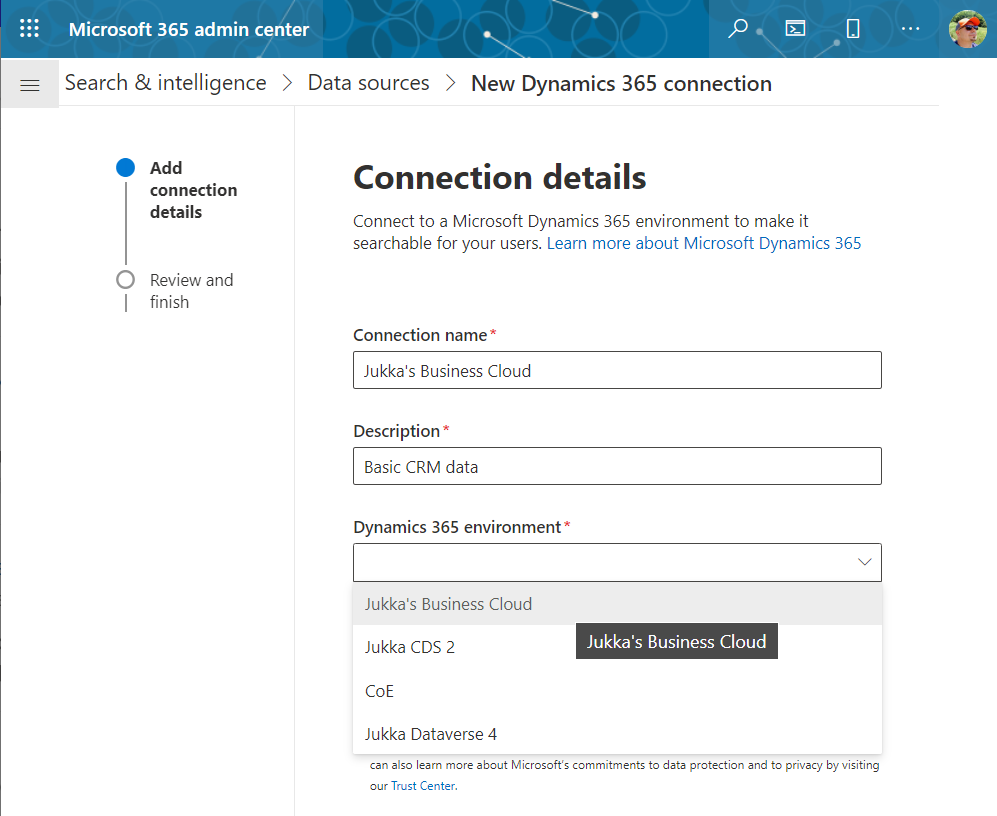
Next we get to choose the Dataverse environment. Except not all your environments may be listed here. Why? I did not discover a valid explanation for it in my initial tests. Neither the environment type (sandbox/production) nor existence of Dynamics 365 apps was the reason why environments didn’t always show up. Oh well, let’s proceed with what we’ve got and pick “Jukka’s Business Cloud” that contains the core CRM data in this tenant.
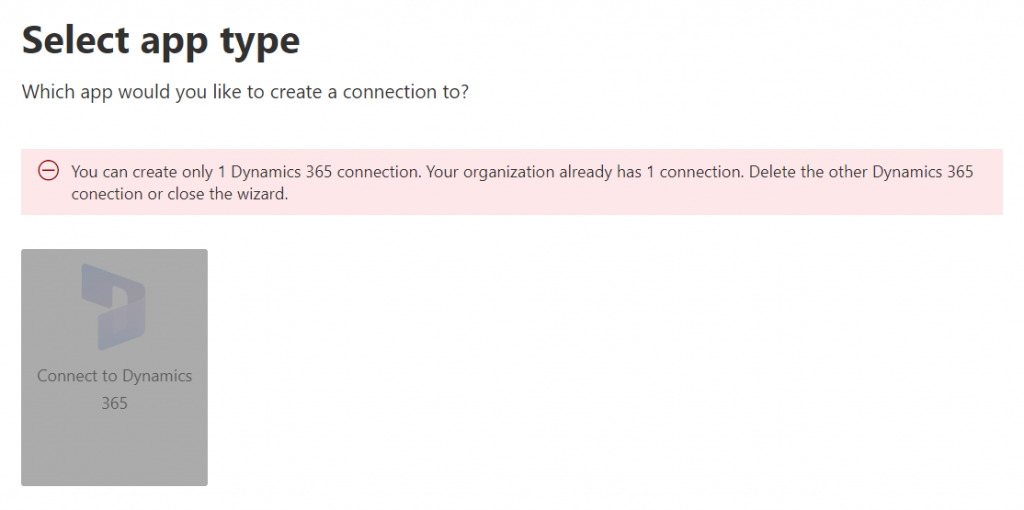
If you’re wondering whether you could configure data from multiple Dataverse environments from your tenant to show up in the Microsoft Search results, the answer currently is: no.
Once you’ve added the data source, it can take a while before the results will appear in the search experience. In our production tenant this took less than 30 minutes, in my personal tenant it’s been ~2h and nothing yet. MS says it can take 24 hours before the indexing is complete. Patience is a virtue – if you’ve got some to spare. I’ll just hop over to the production tenant now and explore the end user experience.
How Dataverse records show up in Microsoft Search
The users will discover the results from the previously configured Dynamics 365 connection when they access search either in Office.com, SharePoint Online or Bing. The UI to get to those results varies slightly, but the listed results from the Microsoft Graph connector seem to be identical.
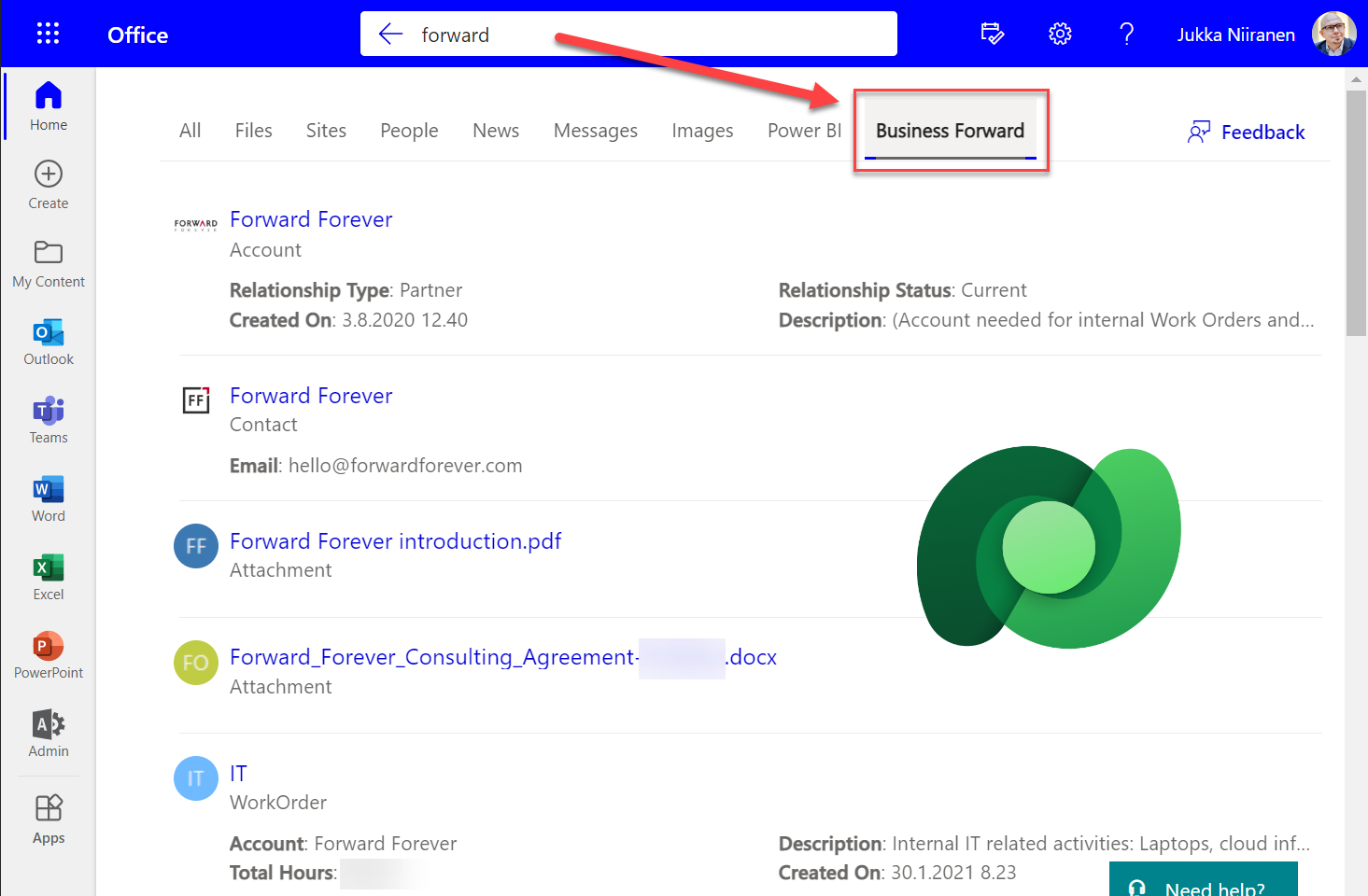
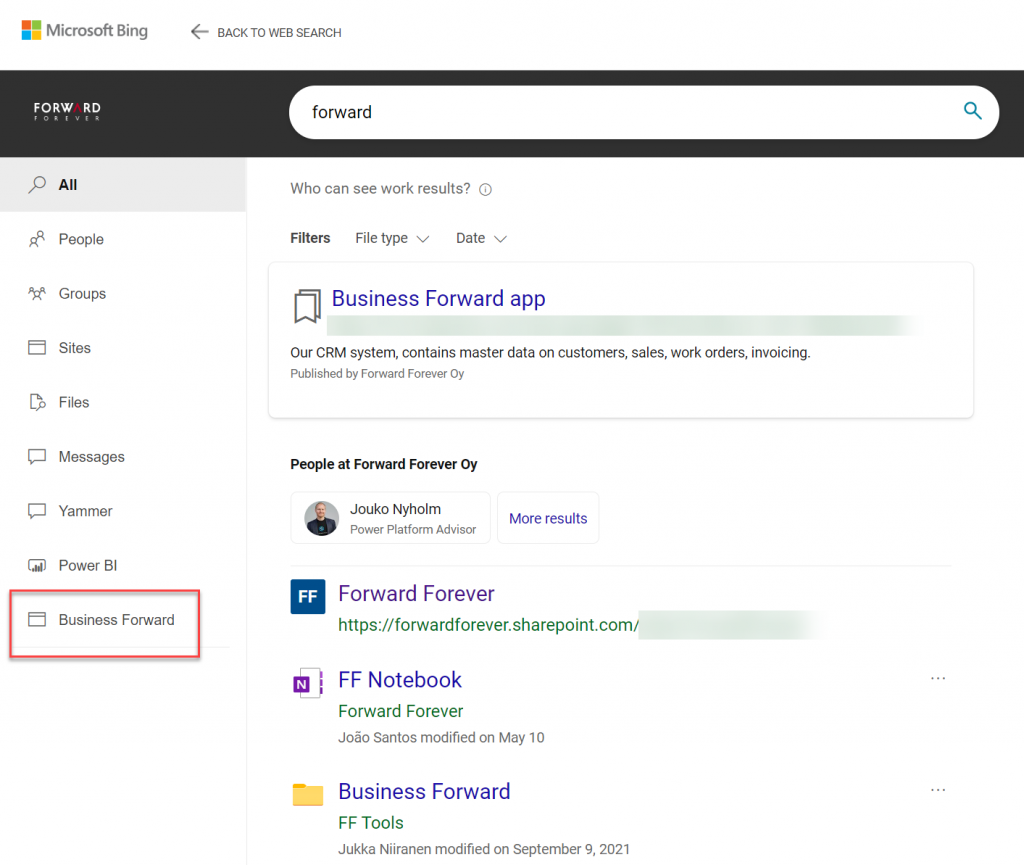
Obviously in Bing you need to be signed in and access the Work tab that switches you from the public web search to the internal results from your work tenant. In addition to all the regular results, plus custom search bookmarks like the one you see below, there will be a new tab to represent the “search vertical”. In the case of our production tenant, I named it “Business Forward” as it is the primary app used in our production Dataverse environment.
I personally am more likely to leverage these search results from under Office.com. Here’s an example of what data is pulled from the Dataverse environment for a basic query term “forward”:
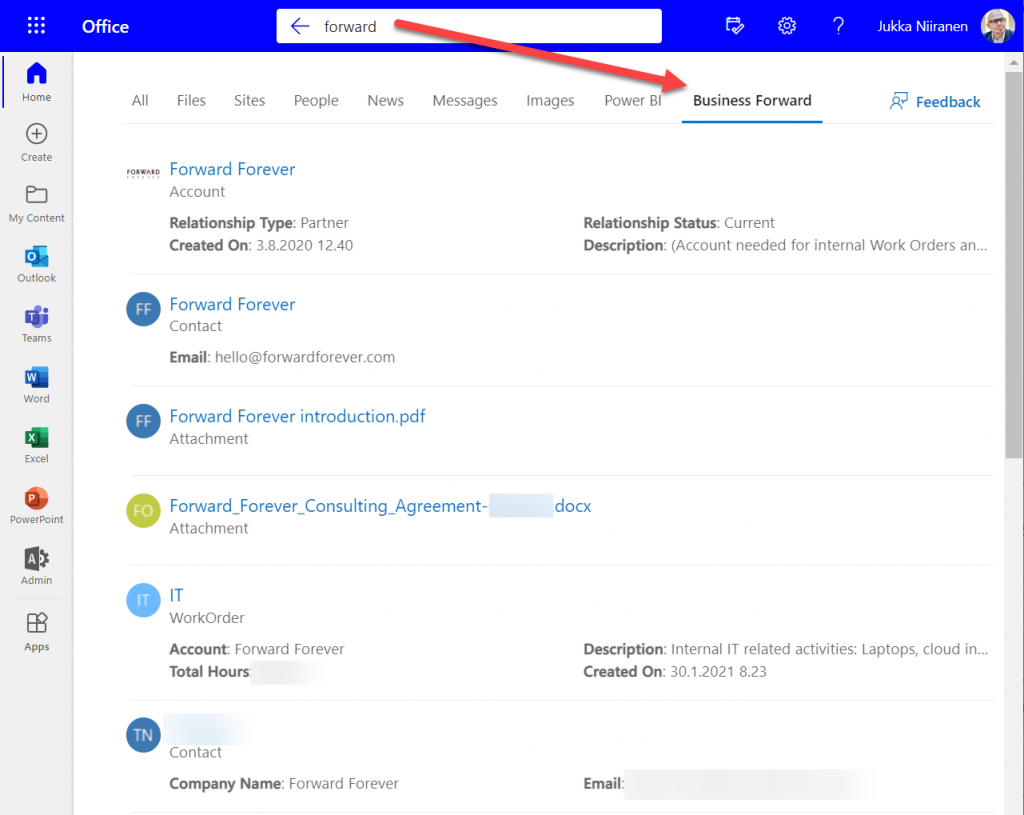
We immediately see that the results cover both standard tables from CDM like accounts and contacts, but also custom tables like our work orders that are managed in Dataverse. We see a preview of fields from the matching records, which varies based on what columns are non-empty for each row in the corresponding Quick Find View.
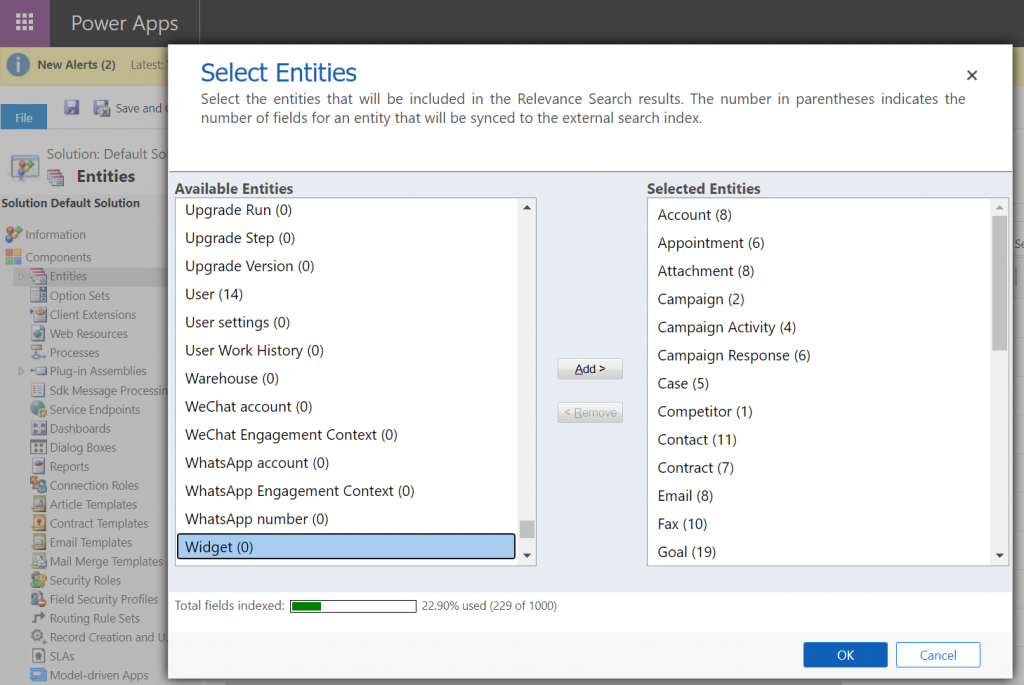
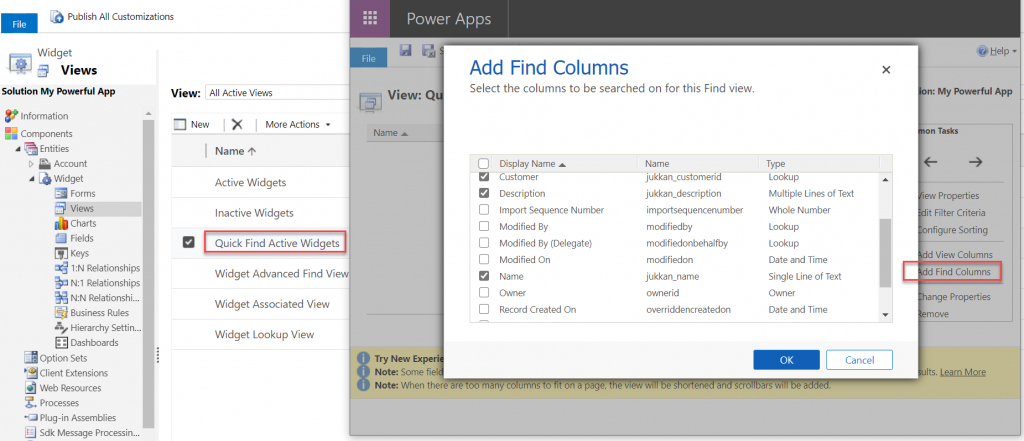
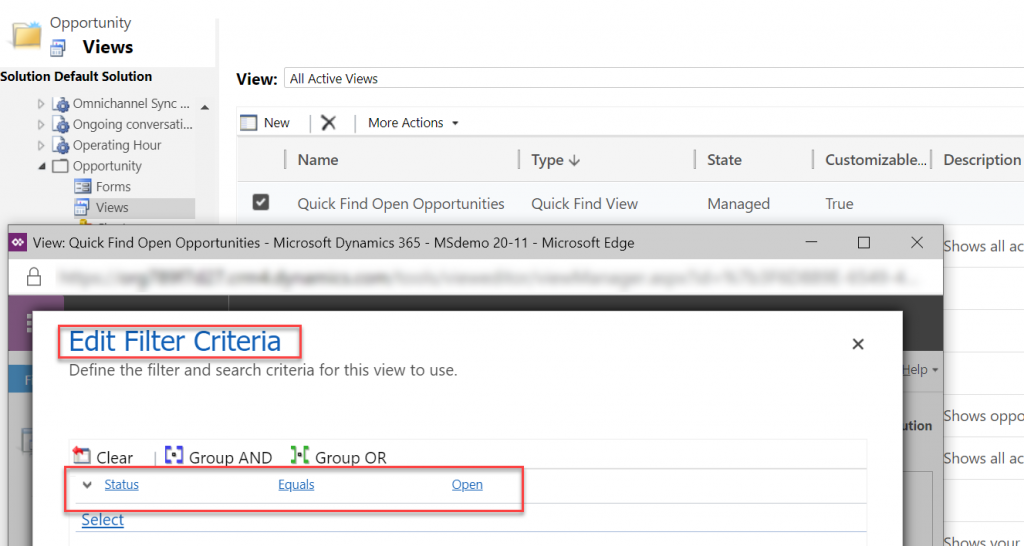
Configuration of the searchable fields is done in the Dataverse search settings, which the Microsoft Graph connector for Dynamics 365 then respects for each table. This means there’s very little to be configured on the Microsoft Search experience specifically. You really only decide A) which 1 environment to point it at, and B) what name do you want to show in the search vertical in Office.com, SharePoint, Bing.
Dataverse in-app search vs. Microsoft Search experience
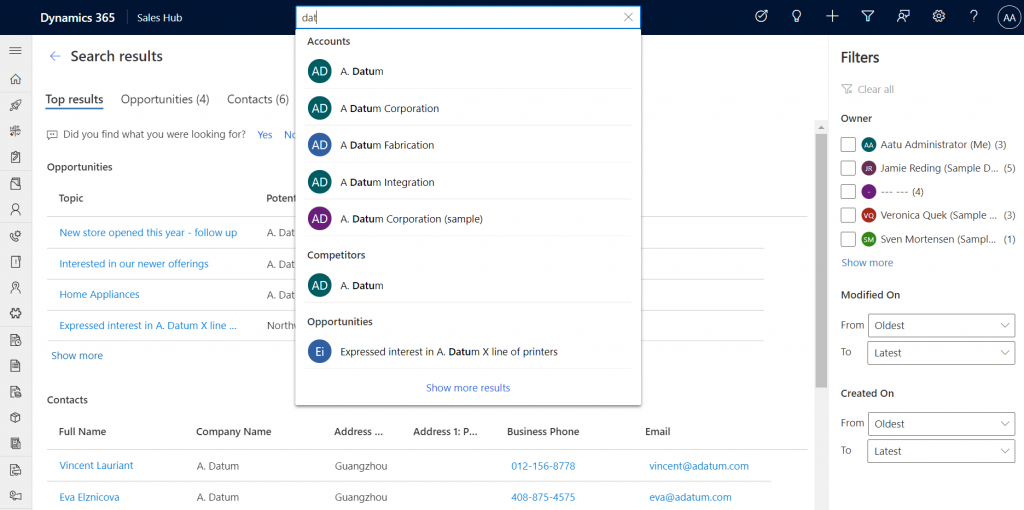
Now that we have enabled the discovery of Dataverse data from within Microsoft Search, should that become the recommended entry point for all your business data searching needs? The answer to this is: through Microsoft Search you’ll only get a subset of search features that are available in a full model-driven Power App. Whereas with Microsoft Search you may well get close enough results, the detailed search capabilities are better within Power Apps native Dataverse search.
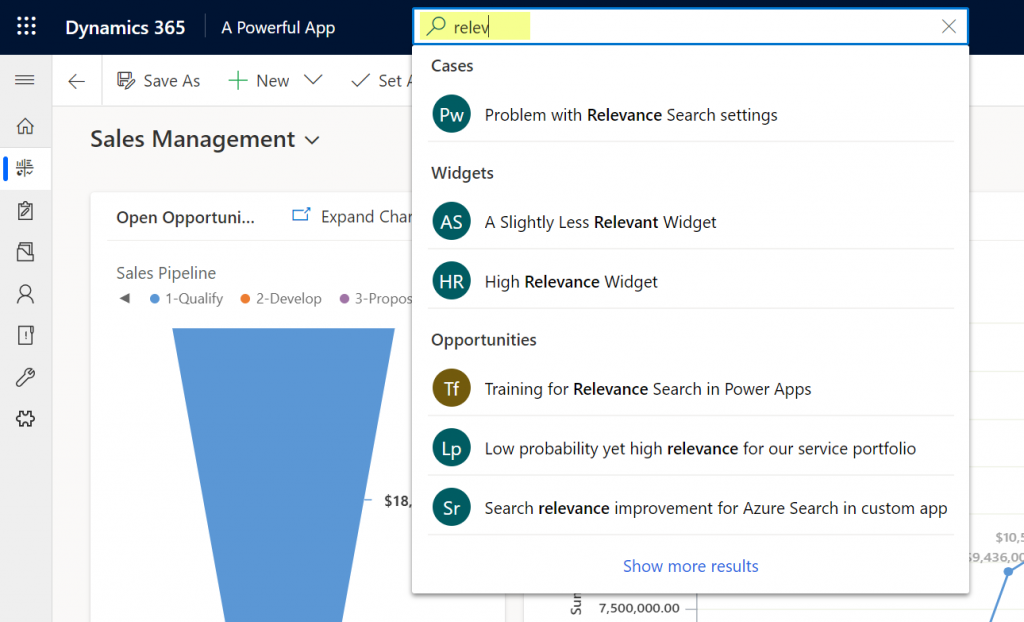
If I enter a search term like “governance” into Office.com search bar, I’ll get a long list of results that I can not filter nor sort in any way. When I do the same search inside our Business Forward app (a model-driven Power App on Dataverse), I get the results tabbed per specific tables that allow me to narrow the query by record type. Also the filter pane gives access to owner and date filters, which get even more detailed as I select one specific table from the results.
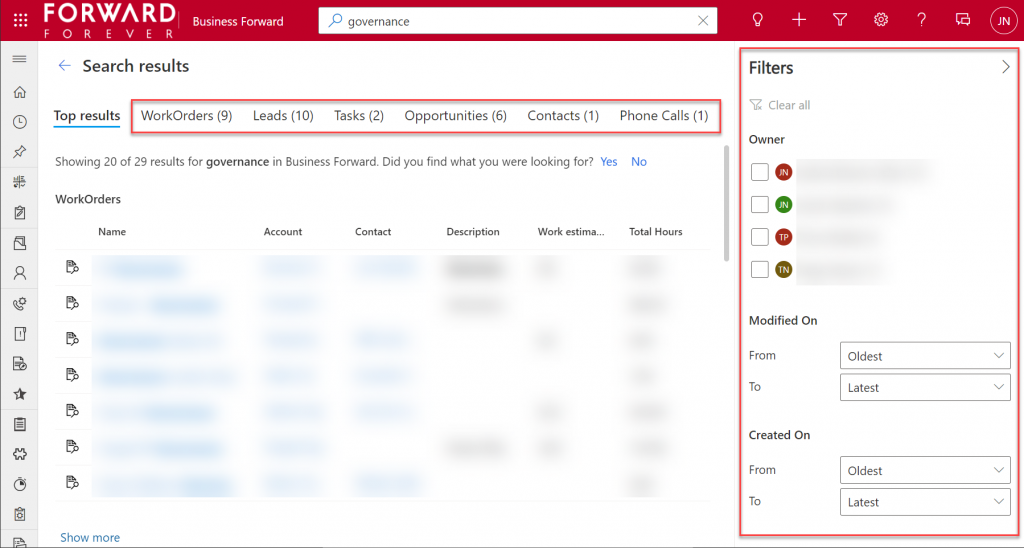
Another feature that can be a welcome addition is that the Dataverse search within the app UI covers only the tables included in that app. This can lead to search challenges in a larger Dynamics 365 environment that covers multiple different processes.
For example, our production environment covers not only our CRM info on customers, sales etc. but it also hosts our internal IT Asset Management solution and its data. Now, if I search for “Nokia”, the results could include both the account management data related to Nokia Corporation as well as Nokia smartphones (from HMD Global) that our team members have registered as their IT assets. Sure, all results are filtered based on security roles and won’t reveal any data to unauthorized users, but anyone with broader access to Dataverse will also get broader, nonfilterable results with Microsoft Search.
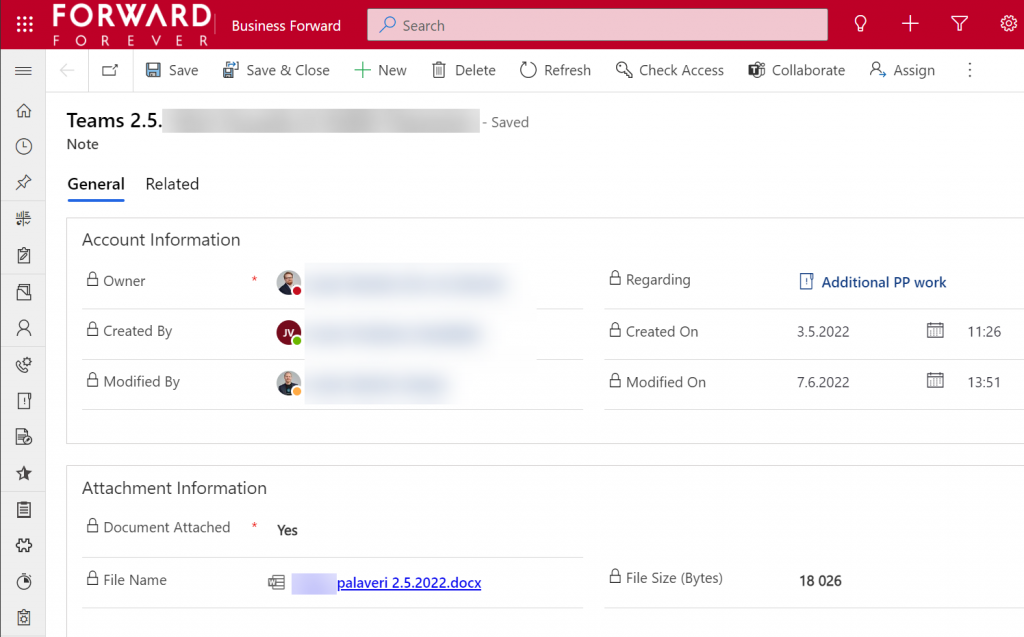
Sometimes you may get more results from Microsoft Search than from within Power Apps, because of the way documents stored in notes and attachments get indexed. I even discovered that the note record (annotation) which traditionally hasn’t had any user accessible table form in the native UI can actually be opened independent of the parent record. The form of a note is very nice and readable, providing a link to the related document:
Things aren’t quite as awesome when it comes to attachments of email records. While these also open a form within a model-driven app, the attachment table form doesn’t offer any link to either the document or the related email message from where the file could be opened.
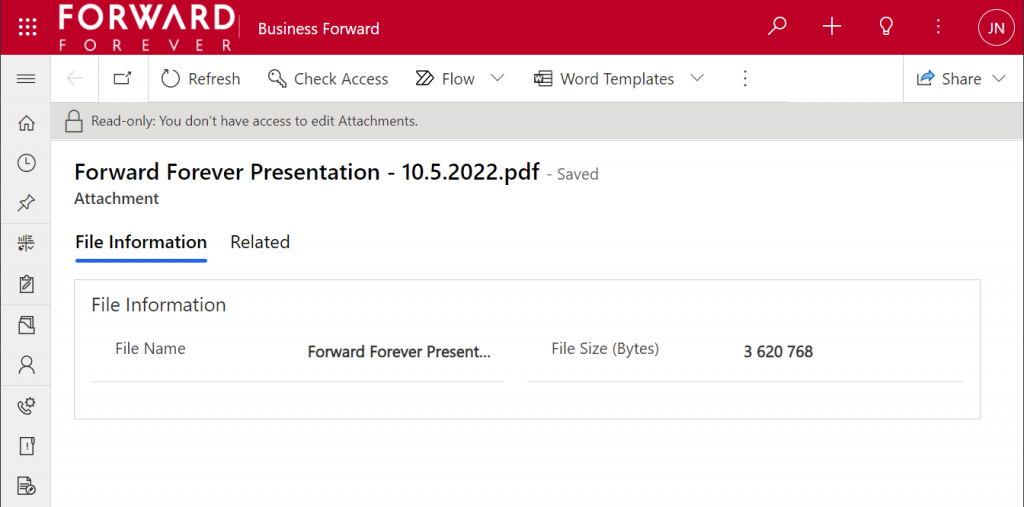
The many faces of Dataverse search experiences
It’s really awesome that we’re now seeing the mainstream search capabilities in Microsoft cloud services reaching into the domain of business applications with these out-of-the-box capabilities. The investments that Microsoft has made into Dataverse Search as a service that isn’t just for doing freetext search inside your CRM system is starting to pay off. Just like makers can tap into Dataverse Search from within Power Automate actions, now information workers can do simple queries into enterprise systems from within Office experiences.
In its current state, with support only for Dynamics 365 customers and only a single environment per tenant, the Microsoft Search experience isn’t yet as powerful as it could become. Covering the Power Platform use cases where business data is managed in various environments and via specific custom apps would be a logical direction to broaden Microsoft Search with a true low-code platform story.
The way I see it, the search experiences for business data managed within Dataverse are being developed in three separate areas:
- Free text search: building search indexes that cover several sources/tables, with multiple entry points (in-app, Office, flow, APIs), evolving into support for natural language queries and supporting conversational UIs (Teams chatbots etc.). This is the area where Dataverse Search and Microsoft Search are operating.
- Structured queries: building complex query criteria to filter the rows in a specific Dataverse table. “Show accounts with orders in last X months and no activities from members of sales team Y”. The Advanced Find feature and the FetchXML query language have traditionally covered this front. The modern advanced find experience is making these filters easier for casual app users to approach, while FetchXML is still alive (now available for download in the UI) and can help flow makers design complex queries more efficiently, for example.
- References: the next generation of “set regarding” features are aiming to broaden the traditional scenario of associating emails in Outlook with records from CRM. If the MS vision for Context IQ comes to life, we should be able to at-mention basically any record from a Dataverse environment and collaborate interactively on it via Loop components. Similar to the Microsoft Search initial limitations, it will be interesting to see how the lookup field experience can be optimized with machine learning algorithms when all records in a large tenant are behind a single @ symbol…
Returning back to what I mentioned at the start of this blog post, as a solution designer it’s very important to understand all these different means through which users can search for your business application’s data. There’s a lot you can do by configuring the settings in Dataverse views to make the experience enjoyable for the user.
Studying the Dataverse search documentation is a good start. However, it’s all just theory until you have some actual data and real user interfaces to test the usability of your search configuration with. What this means is that you’re unlikely to ever get all the settings right in the V1 release of your app. In practice the user experience for business data search requires attention throughout the lifecycle of your app. Microsoft will continue to change and expand the ways in which search queries and results are handled, so you better keep up with these new features and explore what configuration options are being introduced in the future, too.