Tag: queue

  • CRM 2013 SP1: Case Creation and Routing – The Details

    In my previous post about the new functionality included in CRM 2013 SP1 / Spring ’14 release I laid out the big picture of how case creation and routing rules relate to cases and queues in Dynamics CRM. Now it’s time to take a more detailed look at how you would actually configure these rules to automate your case creation process. There are a few limitations that it’s good to be aware of before you jump into applying these new tools in your service management scenarios.

    Case Creation Rules

    As illustrated in the big picture of queue and case management in my previous article, Case Creation Rules are specific to a single queue. Also, you can only have one Case Creation Rule per queue – per channel. It is nevertheless a 1:N relationship between queues and rules, since a queue can have a Case Creation Rule both for email and social activities (the latter of which are not yet leveraged in this release). The Command Bar buttons on the updated queue form, labelled “Email To Case Settings” and “Social To Case Settings”, take you to the respective rule record.
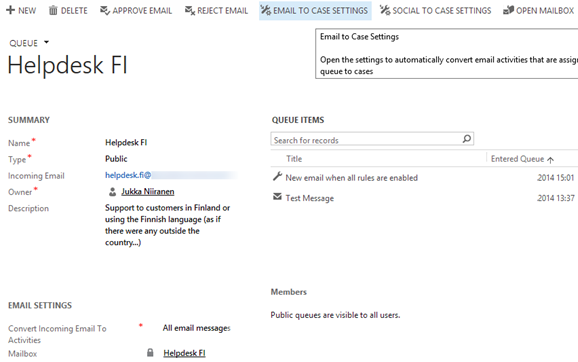
    CRM2013SP1_queue_settings

    The Case Creation Rule form allows you to configure predefined conditions for case creation. Emails from unknown senders can be filtered away from case creation. Also the existence of a valid entitlement for the sender (contact) or the senders company (parent account) can be used as a filter. Finally, email related to an already resolved case can be set to generate a new case record, with a configurable “quarantine” time period. So, if you resolve a case today and the customer replies “thanks for your help”, this probably shouldn’t generate a new case, but a reply sent after 3 days to the same email thread might warrant opening up a whole new case record.
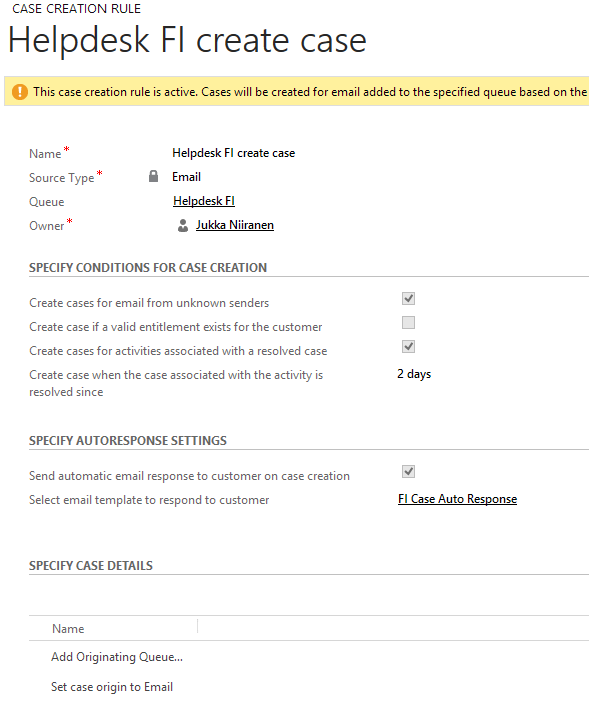
    CRM2013SP1_case_creation_rule

    That’s all the conditions you can apply for the automatic case creation. There’s an additional entity called Case Creation Rule Item that’s found in the “Specify Case Details” subgrid. What this feature allows you to do is specify a condition on the activity record (email or social activity) and set values for the newly created case’s fields. As an example, if the email subject contains word X, you could populate the case subject lookup field with value Y. So, you can’t use these Rule Items to determine whether a case will be created or not, but you can pass along some variables from the originating activity.
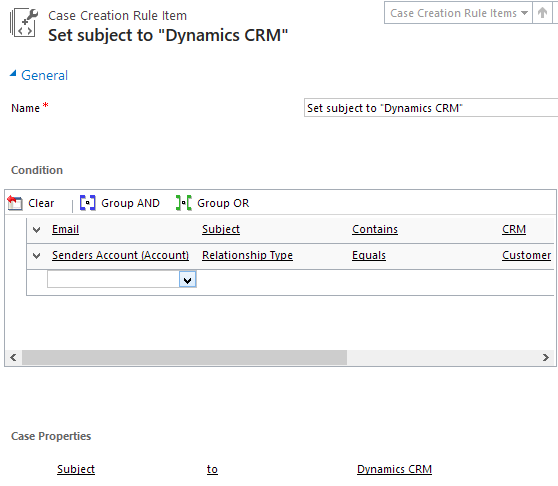
    CRM2013SP1_case_creation_rule_item

    The entity fields you can access in the Conditions box are limited to those directly related to the email (or social) activity. There is however one welcome exception and that is the Senders Account. This means that when the email is coming from a known contact, there’s a way to reach into the fields of the account related to the contact (related to the activity), to check variables like relationship status, customer category or other important pieces of information in a B2B service scenario. (more…)

  • CRM 2013 SP1: Case Creation and Routing – The Big Picture

    The latest Dynamics CRM Online Spring ’14 release is now rolling out to existing and new customers (starting from the US data centers) and the on-premises equivalent of CRM 2013 Service Pack 1 will soon follow is now available from MS Download Center (here’s the KB article for more details about SP1). The quickest way to check if your CRM Online organization is already updated to the latest release is on the About screen, accessible via the gear icon in the top right corner. If your version reads 6.1.0.575 (or 6.1.anything) then you’ve got the Spring ’14 release available and you can proceed to the Install Product Updates menu to enable the new features.

    CRM2013SP1_version

    This release, previously known by the codename “Leo”, focuses on enhancing the service management capabilities of Dynamics CRM. There’s a great “What’s New” page on CRM Customer Center that provides a detailed listing of the new features launched now, including an eBook of the changes in service management. Instead of repeating all of this information, I’ll try and provide an overview of how the features align with one another and specifically how they could be applied in real world scenarios for managing incoming service cases from customers.

    Enhancements in Case Creation and Queues

    I guess we’ll still need to first list the new options we need to be aware of when configuring the service module in CRM 2013 SP1 to handle emails and cases  via queues. First off, there is now support for server side synchronization of emails (and other activities) between CRM Online and Exchange Online, without having to use the old Email Router technology (no support for hybrid deployments, though). Then there’s a new feature called Case Creation Rule that allows you to automatically convert an email message or a social activity record placed in a queue into a new case record. Finally, we have Routing Rules that can be leveraged for moving items into queues.

    The following is my own interpretation of how these three areas are aligned in CRM 2013 Spring ´14 Update / Service Pack 1. The picture illustrates how an email message from the customer would flow through the system automatically based on the configuration of the aforementioned features. It also includes a few bullet points about the supported actions for each component. (Feel free to click on the image to view a bigger version that won’t stress your eyes so much.)

    CRM2013SP1_Queue_Case_Configuration_small

    When going through the Leo release features I found it a bit challenging to get a clear view of the logical order in which the different functional areas found under the new Service Management settings menu should be applied. Also the relationships between them and the restrictions imposed on the number of records was something I only learned through trial and error. Hopefully this illustration makes it easier to identify the roles of case creation rules and case routing rules in the new release.

    Rules vs. Workflows & Plugins

    Looking at the picture, someone who has previously configured Dynamics CRM to be used in an email, queue and case based support process will surely find many familiar actions from the list. At the end of the day, pretty much everything here has already been possible with previous CRM versions. With those you just needed to leverage the workflow engine in the CRM platform to configure the case creation and routing activities. So, what’s really new here and why has Microsoft built this into the latest product release?

    Behind the scenes, what the case creation and routing rules do is they create the workflow processes for you. This can be seen from the release documentation where the administrator of those rules is reminded about the requirement to have sufficient security roles for performing the corresponding actions via workflows. So, taking a very simplistic view, you could think of these new features available in the Service Management as a dedicated UI for configuring common process automation actions for customer service scenarios.

    There’s definitely value in having these new features available right inside the core product. In previous versions, it has been far from trivial to build the necessary functionality for frequently encountered requirements, such as “email to case”. Several ISV add-ons have been developed to deliver such functionality and system customizers have surely spent a ton of time pushing the CRM workflow editor to its limits in an effort to automate the common tasks that a service organization would need to perform when managing cases in Dynamics CRM. Now there’s a new standard way to implement these processes via a method that is fully supported by Microsoft, which in turn will lead to far more customers taking a serious look at these case management capabilities in their business application platform.

    CRM2013SP1_Service_Management_Settings

    It’s important to keep in mind that these new features don’t replace any of the existing CRM platform functionality. They offer a default method to configure common features, but they will not cover every possible scenario that you’ll come across in real life implementation scenarios. That means you can still use workflows and plugins to extend the process automation for service case management. For example, while a case creation rule provides the possibility to set an auto response email to be sent to the customer upon case creation, there’s nothing stopping you from doing this via familiar workflow process if more complex business logic is needed than what the new Service Management UI in CRM makes available.

    In the next blog post I will take a more detailed look at how the case creation and routing features can be leveraged in practice, so stay tuned!

  • Using the updated Activity Feeds to monitor Queues

    As a part of the CRM Online Polaris update and the on-premise Update Rollup 12, new functionality has been added to the Activity Feeds solution. In fact, it’s no longer a separate solution but rather converted into a part of the Default Solution during the upgrade to Polaris / UR12 (see this YouTube video for details). Yeah, I know you were thinking that Activity Feeds are on their way out as the Yammer integration arrives, but the reality is that the auto posts functionality will still remain a CRM platform component, although the data itself may be presented through the common Yammer UI.

    We’ll see how it goes in practice once the Yammer integration arrives in February (hopefully for on-prem, too, although no official info on that yet), but we’re already free to explore the enhancements of the updated Activity Feeds. In addition to the great new feature of being able to filter the records from where posts are shown in your feed instead of having to go and follow each and every interesting record, there’s also another important addition: the support for organization owned entities. Previously you couldn’t add the Record Wall onto entities like competitor but now such limitations have been lifted.

    Another interesting entity that could well benefit from the Activity Feeds style of presenting the latest updates is the queue entity. Although queues themselves are a useful feature for process automation and routing tasks between users, their usability in the out-of-the-box configuration of Dynamics CRM is fairly poor. Unless you’re a full time service rep working on queues, it’s not a very intuitive way for monitoring work to be done and who’s working on what, let alone getting notified of something added into a queue that you should do something about.

    UR12_ActivityFeeds_Queue1

    Enter Activity Feeds. With the ability of having the actions in queue item updates being reflected in a timeline that allows people to also comment on the progress of these items, all of a sudden the whole queue concept can become a lot more accessible to casual CRM users. Following the relevant queues you want to receive updates from is as easy as following your teams’ accounts, and with the new filters in Polaris/UR12 update there’s even more possibilities for creating views of only specific types of queue items.

    There are no standard post configuration rules available for the queue or queue item entity, so you’ll have to build the auto post rules by using workflow processes. Although the users will prefer to follow queues and not queue items, what you as a system administrator or customizer will want to do is create workflow rules for queue items and reference the related queue as a regarding object. This will allow users to see Activity Feed posts when new items are added into queues they are following, when their “worked by” information changes etc.

    UR12_ActivityFeeds_Queue2

    With the new social dashboards introduced in Polaris, it’s ever more likely that users will encounter the What’s New section when logging into CRM. Why not make the most of this and configure a few new rules for creating auto posts that surface relevant and interesting information to the users on what’s happening with the various processes that Dynamics CRM is used for managing?

    UR12_ActivityFeeds_Queue3