Tag: Power View

  • Previewing the New Power BI Experience with Dynamics CRM

    Previewing the New Power BI Experience with Dynamics CRM

    Around one year ago Microsoft introduced the capability to access CRM Online data via Power Query, one of the client side components of the Power BI suite. More precisely, the capability to authenticate with the already existing CRM OData feeds via Office 365 credentials was introduced into PQ, which then allowed us to use CRM Online as one data source in our Power Pivot data models driving Power View visualizations. No Dynamics CRM specific feature had really been developed, but it was the first step on the road of unlocking the cloud data from the analysis limitations that the previous tools (CRM charts & dashboards, SQL Server Reporting Services reports with Fetch XML queries) had imposed on CRM Online customers.

    There was a lot left to be desired still. Building reports from the raw OData feeds can be a cumbersome process, since no built-in tools existed for filtering the amount of data pulled from the entity tables. Also, not all the components needed in basic reports, such as optionset labels, were available to be retrieved dynamically from the OData feed. The biggest gap, however, has been the inability to automatically refresh the reports published onto Power BI portal, which means that each report end users would have needed to perform this refresh manually. As a result, Power BI has so far not been a something that I would have suggested to CRM Online customers as a company wide reporting solution, since it’s mainly been suitable for fairly advanced CRM power users building their own reports via Excel 2013.

    The Next Generation of Power BI

    Just before Christmas Microsoft announced the new Power BI Public Preview, which has a number of impressive looking enhancements to the service offering:

    Include in this announcement was also the statement: “In addition to the existing seamless connection with Microsoft Dynamics CRM Online, with today’s release customers can also connect to their data in Salesforce, Zendesk, Marketo, SendGrid, and GitHub with many more to come in the months ahead.” Upon first read, it was easy to interpret it as “nothing new for you Dynamics CRM folks out there right now, better luck in the next update!” This, however, isn’t the case.

    PowerBI_Preview_CRM_app

    When browsing through the new support site for Power BI I came across a posted idea on supporting Dynamics CRM as a data source, and a very recent comment from a Power BI product manager that the new Public Preview actually included native support for Dynamics CRM. Here’s the article where you can find the exact steps needed for connecting your Power BI Preview instance to Dynamics CRM. As this Preview is only available in the US for now, I decided to spin up a new CRM Online trial org from across the pond and try it out.

    What’s in Store for Dynamics CRM Cloud BI?

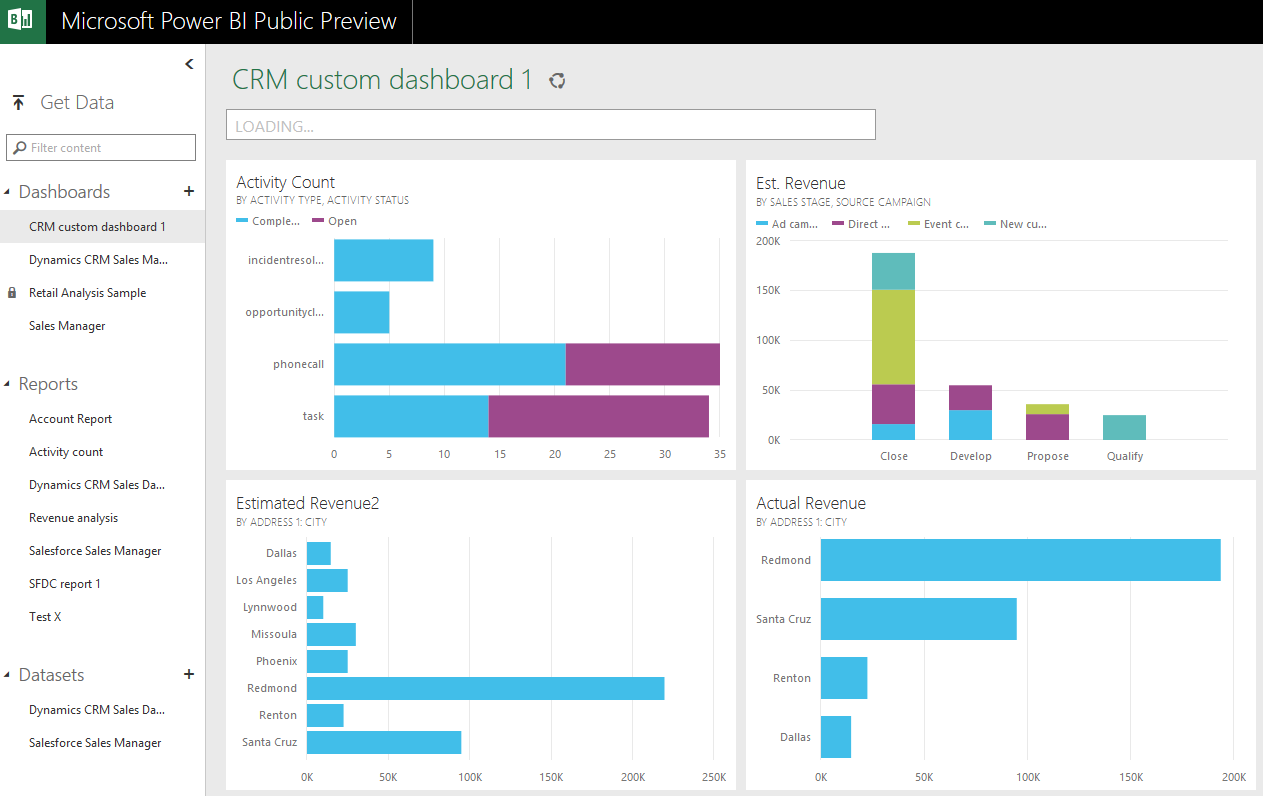
    After going through the process of enrolling for the Power BI Public Preview program with my Office 365 US trial tenant, I completed the steps for connecting to CRM Online. This really is quite a simple process with not too many options. You only have to dig up the OData feed URL from your CRM Online instance. After you’ve added this Microsoft Dynamics CRM app into your Power BI environment, the data retrieval process will start uploading your CRM Online records from one cloud to another. (more…)


  • Access Option Set Labels in Dynamics CRM OData Feeds via Power Query

    Access Option Set Labels in Dynamics CRM OData Feeds via Power Query

    If you’re using Dynamics CRM Online without direct access to the underlying SQL Server database, there may have been a few occasions when you’ve wished for more flexible options for reporting and customer data analytics than what is possible via configuring CRM charts or developing Fetch XML based reports in Visual Studio. Late last year Microsoft enabled support for accessing the secured OData feeds from CRM Online via the Excel Power Query tool, which opened up some interesting options for building modern BI solutions on top of the CRM data up in the Microsoft cloud.

    CRM_OData_Excel

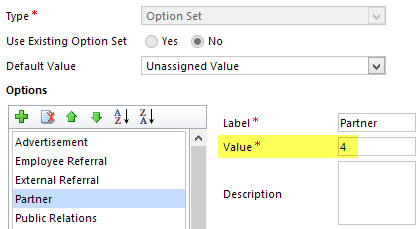
    For a non-developer who hasn’t leveraged OData before it might come as a bit of a surprise that not all of the business data is necessarily readily available via the feeds when examining a particular CRM entity. One crucial thing that’s missing is the option set values. More specifically, it’s the label values that are not accessible via the entity tables retrieved via the OData feed, as all we have access to are the numerical values representing the labels (1, 2, 3, 4… 10001), but not the human readable versions.

    CRM_OptionSet_Value_Label

    From a reporting perspective, it’s very likely that any chart or table that you wish to build is going to leverage one or more option set fields. Formerly known as picklists, these are basically the dropdown fields on CRM entity forms that allow the user to select one value from a list of predefined values. Much more convenient for reporting purposes than free text fields, as I’m sure you’d agree.

    So, what are our options then? We could of course manually create new tables into the Excel workbook that store the mapping of ID values and labels, but that just doesn’t sound like a fun exercise at all. More importantly, that would only give us a static list of option set values that couldn’t adapt to the changes in CRM customizations. Nope, not a good approach from report maintenance perspective, so let’s not go there.

    As a bit more efficient workaround we could be adventurous and import a copy of the CRM solution file containing the entity customizations as an XML data source into Power Query and then pick out the necessary mappings from there. Due to the power of Power Query, this would actually technically work, and we could even set it to reference a file location from where the latest customizations would dynamically be imported upon workbook refresh. Still, that would leave us the burden of setting up an automated export system that would produce the customizations.xml file to reflect the latest changes.

    After a bit of poking around in the OData feed data source, it turns out the optionset labels are actually included there. The tricky part is that they’re not simply a [Record] link that you can drill into and expose the values from your existing entity data set. Nope, they reside in a specific table of their own, called PicklistMappingSet. In this tutorial I’ll show you how to retrieve the data for a “Leads by Source” chart created with Power View, taken from an OData feed data source pointing to Dynamics CRM Online, using Power Query to pull the data into a data model built with Power Pivot.

    1. The Data Source: Power Query

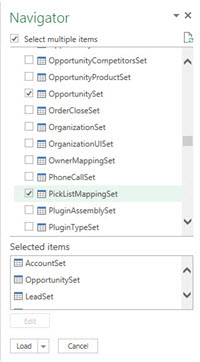
    PowerBI_CRM_Odata_1To follow the steps you should have the latest Power Query version installed in your Excel client. I’ve already covered how to access CRM OData feeds from Power Query in a previous article, so please refer to that one if you haven’t done the exercise before. After connecting to the OData feed URL we should select the tables that we want to work with from the data source navigator pane. By minimum you should grab the LeadSet and PicklistMappingSet to build the chart.

    The problem with CRM and OData is that by default the feed will pull down each and every record in the table. The query performance is less than stellar with CRM Online and if you have a high number of leads (status doesn’t matter, also the closed ones will get downloaded), you might be waiting for a while before the query is completed. If you want to move on a bit faster then check out this great tip by Andre Margono on how to set up a query filter for the Dynamics CRM OData query (for example, only active leads).

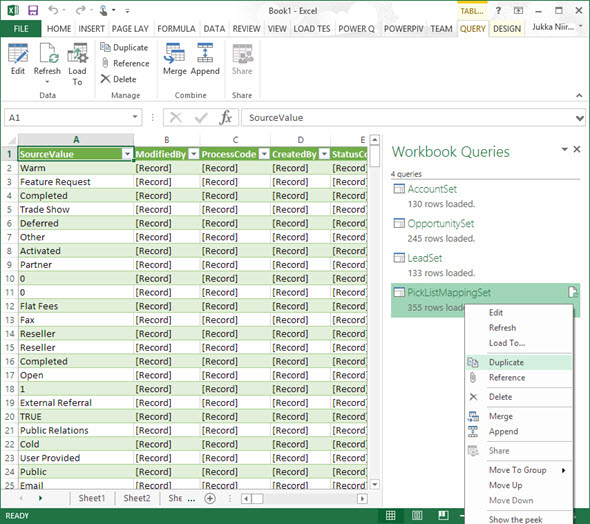
    The real beauty of Power Query is in the query steps you can use for manipulating the workbook queries. Before we go there, though, let’s create a duplicate of the PicklistMappingSet query. This will make it easier for us to map the values into our actual leads table later on, as well as preserve the original option set value table available for further queries.

    PowerBI_CRM_Odata_2

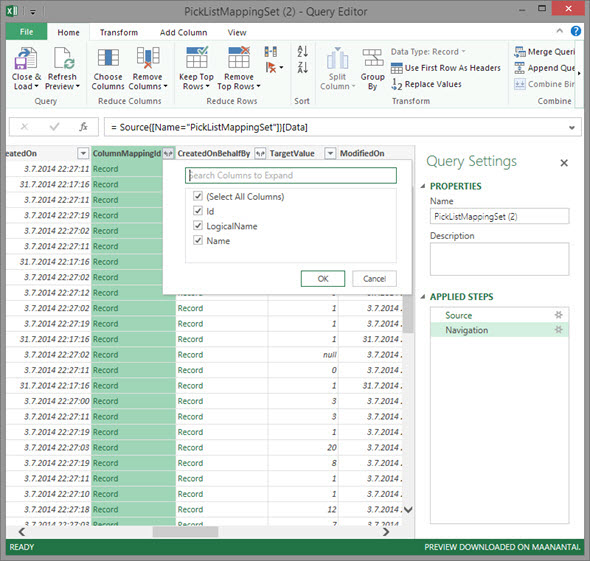
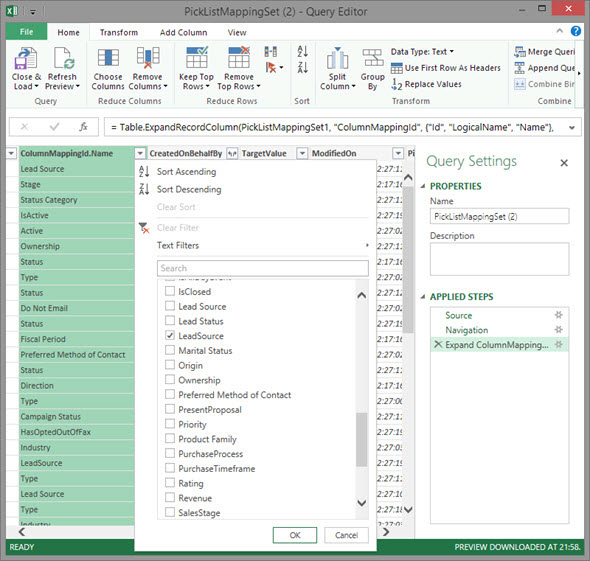
    Open up the new duplicate query you’ve added into the edit mode by double clicking on it, which launches the Power Query query editor (yes, query is the word of the day). The first step we’re going to add for the query involves expanding a column that only shows a green “Record” value by drilling into it from the small icon next to the column label. Do this to the ColumnMappingId column and just load up all the columns found from behind it.

    PowerBI_CRM_Odata_3

    You’ll see the Record column transformed into three new columns as a result of drilling down into the data. The column we’re interested in is ColumnMappingId.Name, which has the names for all option set fields in our source CRM system. For this example we want to see the LeadSource field, so add a new filter for this value, just as you would in a normal Excel data table.

    PowerBI_CRM_Odata_4

    By now you might have noticed that the Applied Steps box in the Query Settings pane is collecting all of the actions that we’re performing on the query and storing them as steps. If you make an error in your selection, just click the delete symbol next to the steps to get rid of it. (more…)

  • Dynamics CRM OData Feeds and Power Query: What’s the [Record]?

    Dynamics CRM OData Feeds and Power Query: What’s the [Record]?

    Now that Power BI has hit the GA milestone (general availability), I decided to spin up a trial subscription for it and get familiar with the tools that it offers. My previous experiment with connecting to CRM Online OData feed with Excel 2013 Power Query seemed to be one of the very few blog posts that come up when you search for information on the topic. In that article I never bothered to go deeper into actually working with the CRM data as the big news really was that the latest version of Power Query was finally able to access data from CRM Online, thanks to the added support for Office 365 authentication on the OData feed.

    I repeated the steps for connecting my Excel 2013 Power Query to a CRM 2013 organization hosted on CRM Online and started to think about a simple report I could build. Opportunities tend to be a nice entity for demonstrating your typical reporting needs on summing money values based on sales process stage, owner etc. so I selected the OpportunitySet to be included in my workbook query. Scanning through the columns showed that I had every field I needed, but there was one problem: I couldn’t see the actual data in them. Instead of the Estimated Revenue figures or Owner names all I had was a link that read “Record”.

    Dynamics_CRM_Odata_Reporting_1_small

    “Hmm, well, a link’s a link so let’s click on it then. (Click) Okay, so now I’ve drilled down into an individual value. I no longer have a grid of opportunity records and columns, which kinda sucks. Oh, and also I can’t see any Undo button to take me back.”

    Life would be so much easier if you just read the manual before starting to use new tools, but ain’t nobody got time for that in the fast paced IT consulting world, right? After a bit of trial and error I figured out what the procedure for turning that [Record] link into actual data values is. Since it’s not immediately obvious, I decided to write it down onto this blog post, so that anyone else experimenting with using Power Query and Dynamics CRM Odata feeds can move on faster than I did.

    In all the columns that display the record link you can see a small icon with two parting arrows on the right side of the column header. This is where you can drill down to the column contents and choose which attributes for that field you would like to include in your query data. For example, when I click on the CustomerId column on the OpportunitySet query, the following menu opens up:

    Dynamics_CRM_Odata_Reporting_2_small

    Once you click OK, the values for the chosen columns to expand will be shown on the query editor grid. Repeat this for each column you plan to leverage on your report. As you expand more columns, you’ll notice that the Applied Steps dialog in the query settings pane will list each of them as a step. You can also see that these fields will be included on the formula bar, which will read something like Table.ExpandRecordColumn and then a list of our chosen attributes.

    Dynamics_CRM_Odata_Reporting_4_small

    After we’ve expanded all the necessary columns, we can then proceed with using this data in our report. While Power Query is the component in Excel 2013 that pulls the data into our Data Model, it doesn’t necessarily offer all the tools that we’d want to use for working with the data set. Move over to Power Pivot instead to define relationships between different tables, rename the columns, create calculated columns and do any other manipulation with the data before presenting it on a report layout. Then finalize your work on the Power View canvas and design the report that you wanted.

    Dynamics_CRM_Odata_Reporting_5_small

    There’s an excellent tutorial available on the U2U Blog that covers all of the steps in more detail: Dynamics CRM 2013 and Power BI for Office 365 – Part 1 and Part 2. Wish I had also found that earlier on, but better late than never…

    There should also be a Part 3 coming up that will talk about how to upload the report onto Office 365 Power BI for publishing it to the end users. I’m quite interested in seeing what will be the procedure here, because I’ve not seen much information about how to consume OData feeds in the Power BI portal. In fact, this tweet by Jamie Thomson implies that some OData features would have been dropped from the product:

    PowerBI_OData_suppor

    When I click around in the Power BI Admin Center, I don’t see any options for adding a new data source that would be an OData feed. If I’d like my report contents to get updated after I’ve uploaded it, I’d need to set up the Scheduled Data Refresh feature. However, the list of supported data sources doesn’t mention anything about Dynamics CRM. This leads me to believe that the current version of Power BI doesn’t yet support using CRM OData feeds as data sources in reports published on the Power BI portal.

    With an on-premises Dynamics CRM instance you could of course set up a direct SQL Server data source and publish it to Power BI via the Data Management Gateway component. However, the much more interesting cloud scenario of building Power View reports that leverage data from CRM Online directly seems to be beyond the current feature set offered by Power BI, unless I’m mistaken. Let’s hope that we get more information about the possibilities of Power BI for CRM Online customers when Microsoft presents their latest Dynamics product roadmaps at Convergence 2014 in a few weeks time.

  • Dynamics CRM Data Visualization with Excel 2013 GeoFlow

    Excel_2013There are some great new features available in Excel 2013 that can take your Dynamics CRM data visualization onto a whole new level without the need to invest in new server infrastructure or build traditional OLAP cubes on your SQL Server. With the recent announcement of the GeoFlow Preview for Excel 2013, I decided to see what I could make of this tool when combined with some data pulled from CRM.
    Working with Cloud Data

    Although the feature parity of CRM Online and Dynamics CRM on-premises is on quite a high level these days in terms of the application platform capabilities, one unfortunate limitation has been that you can’t easily tap into the CRM Online data with analytical applications like Excel PowerPivot. Naturally the direct SQL database table connection is unavailable, but also the OData feeds that would be such a neat way for performing some pivot magic have been off limits, as PowerPivot doesn’t support the claims based authentication of CRM Online. Oh, and as far as I know, this also applies to an IFD configured on-premises server  (if anyone knows how to connect to the OData feed with AD authentication while using an IFD CRM, do leave a comment below).

    With the new capabilities of Excel 2013, there is now a workaround available that allows you to access OData feeds from CRM that require Windows Live ID / Microsoft Account / Office 365 authentication. You’ll also need the CRM Outlook client on your workstation to facilitate the initial connection, although with another workaround for the sign-in prompt on the Excel sheet you might be able to do without one.

    Here’s a great video from former Dynamics CRM Team member Ed Martinez that walks you through the steps needed in order to connect your Excel 2013 (note: Excel 2010 is not supported AFAIK) to a Dynamics CRM Online OData feed:

    (For all the Finnish speaking CRM folks out there, you can also check out this video clip by Sulava’s Markku Suominen.)

    As a summary, what you need to do is:

    • Copy the OData feed address from the developer resources menu of your CRM
    • Export any set of data from CRM to a dynamic Excel sheet
    • Open the file and refresh the data (thus establishing the authenticated connection), the save it in .xlsx format
    • Add a new data source by clicking on “Get External Data, From OData Data Feed”
    • Paste in the address you previously copied from CRM

    That’s it. Now you can connect an Excel sheet to a CRM Online (or IFD) data source through OData and refresh the content to reflect the live data as your CRM source system gets updated.

    Power View in Action

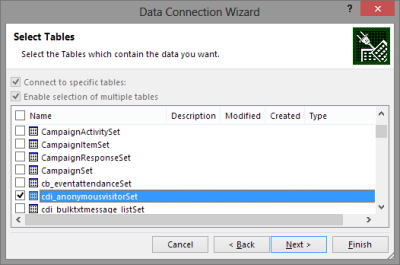
    For my own lil’ “Big Data” scenario I decided to point my OData enabled Excel 2013 towards a Dynamics CRM instance where ClickDimensions is storing the website visitor data from this blog (sorry, you’re being tracked, but it’s all for a noble cause, trust me). I proceeded by following the instructions above, adding a new OData data source into a dynamic Excel sheet, selecting the entities (“sets”) that I wanted to use in my analysis. Then I waited… and waited… and waited some more.

    OData_data_feed_connection_wizard_CRM

    A word of warning: OData data feeds can be slow. It’s nothing like using a direct database connection, and not even the type of performance you get with a dynamic Excel in an IFD environment that uses an Excel Web Query to “screen scrape” the data over http. My data set was retrieving around 100,000 records and I saw the counter ticking on the bottom right corner of the Excel sheet at a rate of roughly 200 rows per second, which translates into some 10 minutes of waiting before the download from CRM is complete. Oh well, it’s not like we’re in a rush to create a real life report for the boss who wants to have it in his inbox within 15 minutes. Let’s be grateful that we can at least retrieve more rows in one go than the default MaxRecordsForExportToExcel setting for this CRM organization would otherwise allow (which is 10,000). (more…)