Tag: Playbooks

  • Playbooks for Dynamics 365 Activity Templates

    Playbooks for Dynamics 365 Activity Templates

    In my previous post I explored the current Dynamics 365 Customer Engagement solution update practices and used the Playbooks feature as an example. Here’s a quick overview of what the actual Playbooks offer.

    The official MS documentation, “enforce best practices with playbooks”, gives you a list of what the initial October ’18 release of Playbooks contains. The feature is essentially a way for a sales manager to determine a set of activities that sales users should perform when a real life event takes place that the playbook contents has been designed for. A checklist, if you will.

    To get started, you’ll need to have the Sales app upgraded to a recent enough version, so that the Sales Hub UCI app displays Playbook Templates under the App Settings:

    Notice that you won’t find these anywhere in the legacy web client (“classic UI”). One thing you might want to do first via that legacy client, though, is to ensure that the associated roles for Playbook Manager and Playbook User are assigned to the required user accounts.

    To kick things off, you could create examples of Playbook Categories for grouping your playbooks, since that’s a compulsory lookup on the Playbook Template form. The actual configuration work will all take place on the template, where you’ll first of all specify the record types that the playbook applies for. Right now it’s only lead, opportunity, quote, order, invoice, so don’t plan on using playbooks for any custom entities or other Dynamics 365 Apps than Sales.

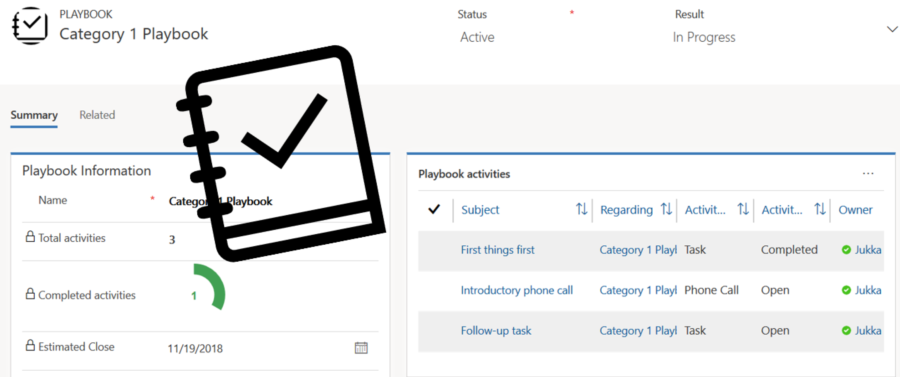
    The template shows a subgrid of Playbook Activities, which look pretty much like your regular activities on the surface. They are a separate entity, however, as this is how you define the parameters for an activity (task, phone call or appointment). You have the usual subject, description, duration etc. fields you’d find on a normal activity, but instead of fixed dates you give them relative due dates, calculated from when the playbook is launched.

    (more…)
  • Keeping Dynamics 365 Apps Up to Date

    Keeping Dynamics 365 Apps Up to Date

    We’re living in the “post-October” era where many of the new Dynamics 365 Customer Engagement features promised in the Oct ’18 Release are materializing into the live environments. Not all of them, though, since that space train carrying the Business Applications release bits has been scheduled to run from October 2018 to March 2019, as you can clearly see: 

    While some features arrive in preview and only for a specific geographic region, there is plenty of stuff that’s being deployed to nearly all Dynamics 365 CE online orgs. While we’re not quite yet at the target state of having every customer running the same version of the application, there’s no longer a process for scheduling the update for your own environments on a particular date in the distant future. v9.1 has most likely now been rolled out in all but the most exotic geos.

    This lack of CDU calendars to pick the dates from doesn’t mean that everything would automatically get switched to the latest version. Remember that in addition to the underlying platform (now called Common Data Service for Apps, CDS) there are also the actual Apps to update. For example, if you’re running the Sales Hub a.k.a. the Unified Interface app for Dynamics 365 for Sales, the menu items in the App Settings section might look like the following:

    Whereas what you should be seeing in the latest version currently is this:

    How do we get there? Let’s dive into the world of solutions and find out.

    Applying Solution Updates

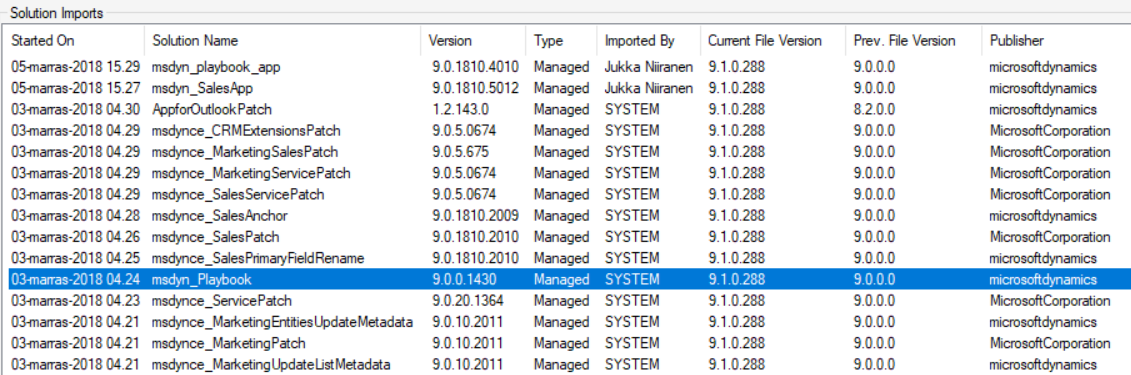
    How do we know which solution versions carry which new features? We don’t have a central place for such information right now, since the Microsoft Dynamics 365 Online releases page only lists fixes and changes to existing functionality (in theory at least). When we browse the documentation for specific features like Playbooks for example, we may see details like this:

    OK, that gives us a hint about what versions we should be seeing inside Dynamics 365. Getting the platform version is easy enough via the About menu behind the configuration cog, and everyone who’s customized Dynamics CRM should know where to look for the solution version number.

    (more…)