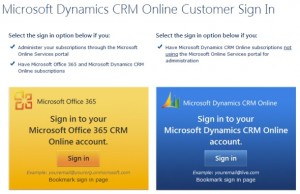
Starting from July 19th, you no longer can/need to use a Windows Live ID to sign up for a 30 day trial of Microsoft Dynamics CRM Online. Instead you’re directed to the Microsoft Online Services Portal (a.k.a. MOP) to follow the same registration steps as you would when starting an Office 365 trial subscription. So, how does it work in practice then? Let’s sign up and see.
There are a few additional steps in the registration process now. In addition to specifying the name of your company, you also need to select a new domain name, such as “yourcompany.onmicrosoft.com”. You’re given the chance to check for domain name availability, but it’s important to note that this only checks the .onmicrosoft.com domain. Your actual CRM Online organization will still be at yourcompany.crm.dynamics.com (depending on the region) and if the name given already exists on that side, the CRM provisioning process will automatically adjust the URL (I sure hope it’s better than those org85fs321nad type of CRM organization name monsters we had before). Additionally, since we don’t yet have a Microsoft Online user account in this case (if we did, the process would be somewhat easier), we’ll need to provide a user name and password.

Once the data input has been accepted, we’re greeted with the administration portal that’s familiar to anyone who’s been managing an Office 365 subscription. Instead of the Exchange, Lync and SharePoint services we’ll see Dynamics CRM as the only available option. The actual provisioning process can take a while, so you may need to keep your eye on the spinner and refresh the screen quite a few times. In the US data centers the process took just a couple of minutes, but in EMEA I had to wait for half an hour before CRM was enabled in the Microsoft Online trial subscription. Presumably things will speed up as CRM becomes an everyday part of the Online portal.

Under Dynamics CRM there’s a Manage link, so let’s click on that and off we go… Ouch, grey screen! You weren’t using a non-IE browser, now were you? Just because Office 365 web apps are compatible with most browsers, doesn’t mean Dynamics CRM would be. Remember how that cross-browser support was re-scheduled to Q4 2012? That’s ok, it’s easy to forget such minor details. Also, since Microsoft still doesn’t want to make it clear to the potential customer what the system requirements for Dynamics CRM are, many of them will surely be greeted with the below screen once they login to their CRM Online trial with Chrome, Firefox or Safari, puzzled about why they’re seeing this mobile UI instead of the pretty charts and familiar Office experience they were promised.

After we click on the CRM link inside MOP with Internet Explorer, we get an additional dialog that used to be a part of the CRM Online sign-up form: selecting the base currency for the CRM organization. Once done, the familiar CRM provisioning screen is presented, alongside the promotional WMV video telling us how Dynamics CRM will improve your productivity etc. Wait a couple of minutes and you’re given the button to launch CRM Online.
From this point onward the user experience is exactly the way it used to be back in the Windows Live ID days. Once you go to add more users into your CRM Online subscription there is however something new in the UI: instead of allowing you to add new CRM user records, a popup window will instruct you that in order to add more users to Microsoft Dynamics CRM Online, you’ll need to go to the Microsoft Office 365 Admin Portal.

Ok, let’s click on the Add and Licenses Users button. We’re taken to the Online Services portal and get to specify a name for the new user. There’s also a “bulk add” option available, but since that would require creating and uploading a CSV file, we’ll skip that for now. Similarly to the subscription administrator (the first CRM user you created), the new users will be given a user@yourcompany.onmicrosoft.com user name. You can enter more details for the user, but not an email address (more on that later).

Moving forward, we’re given the option to grant a CRM user license to the user. However, unlike the native CRM dialog windows for adding users, the MOP dialogs won’t allow you to assign any CRM security roles to the new users. Instead, you’ll need to go back to the Dynamics CRM administration menus to perform this operation. Don’t forget this part, as otherwise your users will have a user account but no access rights to CRM.

Ok, we’re now almost done and are presented with the option of sending details of the new user name and temporary password by email. By default the recipient will be the admin user. Don’t send it there. Why? Because even though it looks like an email address and MOP considers it to be one, there is no email service available for you to access this inbox. Remember: you’re just configuring a CRM Online trial, not Exchange Online. So put a real email address in there, or then just copy & paste the data from the next screen.

Once the new user account becomes available in the CRM users view (it can take a couple of minutes), you can open up the record and assign the required security roles to the user. Another thing you should do is to specify the real email address of the new user, so replace the @onmicrosoft address with a proper business email. While you’re at it, you may notice that not all user profile fields are available for editing on the CRM user form like they would normally be. Changing details like job title, main phone, mobile phone etc. needs to be done in the Microsoft Online Services portal and not CRM, as these are part of the user information maintained in MOP’s directory. Unlike in a traditional on-premises implementation with Active Directory, changes to the user profile fields will actually be updated onto the corresponding CRM user record after it has been created. See the following MSDN article for details: Sychronized Users in Microsoft Dynamics CRM Online and Office 365.

In addition to user management, also the subscription management for CRM Online now utilizes the Office 365 platform capabilities rather than the old system that was used for billing Xbox Live credits and other consumer services. What this means is that a potential customer might as well go and sign up for an Office 365 trial to go alongside their CRM Online trial. All it takes is finding the link under Subscriptions – Purchase – Microsoft Office 365 (Plan E3) – Trial and they can take the Exchange, SharePoint and Lync functionality for a test drive. Cross-sell opportunities galore!

Are there any benefits then for a customer who just wants CRM from the public cloud and not Office 365? Yes, because the new Microsoft Online based authentication allows setting up an integration with the existing Active Directory that the customer has. No need to manage separate credentials for CRM Online anymore if you configure AD federation between your domain and the cloud services hosted in Microsoft’s data centers to offer the users a single sign-on (SSO) experience. It requires some level of effort, though, so start by getting to know the following article: Plan for and deploy AD FS 2.0 for use with single sign-on.

Another nice addition is the access to a CRM Online Service Health dashboard. Similar to what Office 365 has offered, you can now also see information about the current status and pas issues related to various CRM Online service components. While Microsoft has actively promoted the new CRM Online Trust Center, effectively it’s just a static page with information regarding security policies and certifications. In comparison, the Office 365 (and now CRM Online) Service Health dashboard will tell you what’s going on with the service right now and what maintenance breaks are planned. Compared to, say, trust.salesforce.com, it’s less transparent due to the requirement of having an administrator login to access the information, but it’s a good start.

What if you’ve already implemented CRM Online and want to take advantage of the integration with Office 365 user accounts or on-premises AD? At the moment, there’s not much you can do. The changes introduced on July 19th only apply to new CRM Online organizations, which will now be provisioned onto the Online Services Delivery Platform (OSDP). Existing organizations on the old Commerce Transaction Platform (CTP) will eventually be migrated, but there is no official schedule for this yet.
My guess would be that we’re not going to see any updates for existing CRM Online customers until the Office 2013 wave of updates rolls out to Office 365 customers, as Microsoft will surely put all its resources behind ensuring the Windows 8 launch with the accompanying business apps is a success. With plenty of other things on the Dynamics CRM development roadmap, it may take another year before we can finally say goodbye to the Windows Live ID based authentication in CRM Online. In the meantime, why not sign up for an Office 365 Enterprise Preview to see what the 2013 wave has to offer on SharePoint, Office and other products?
Edit 2012-07-31: here’s a list of a few Office 365 issues that can cause problems for new CRM Online organizations:
- Setting an integration user account to Non-Interactive access mode doesn’t reduce the count of assigned CRM licenses in MOP, as there are no free service accounts on Office 365 at the moment. In the past CRM Online allowed 5 free non-interactive user accounts. This is no longer the case, so any integrated application with its dedicated credentials will consume a full license on CRM Online. Unless this policy changes, it will increase the license cost for existing customers when they are eventually migrated from CTP to the new OSDP environment.
- Developer toolkit and plugin registration tool cannot connect to CRM Online, default discovery service URL has changed from dev.crm.dynamics.com to disco.crm.dynamics.com (see thread on CRM forum)
- Internet Lead Capture functionality is currently unavailable for new organizations in US (other regions have never had this functionality to begin with)
- Instead of *.live.com, now you’ll need to add *.microsoftonline.com and *.accesscontrol.windows.net into IE Trusted Sites alongside *.dynamics.com to avoid prompts during the authentication process







 Basically you’ll need to run a repari install on the Windows Live ID Sign-in assistant or Windows Live Essentials 2011 to make it compatible with the Outlook client for CRM Online, which is also using Windows Live ID to connect you to the CRM server. That should do the trick.