Tag: installation

  • Our New Book: CRM 2013 QuickStart

    A few people have asked me for recommendations on what books they should get if they want to learn about the ins & outs of the current Microsoft Dynamics CRM 2013 version. Even though there’s a wealth of blog articles out there that study specific features and an ever growing library of content produced by Microsoft themselves, there’s not been a whole lot of material in traditional book format that would have covered the latest CRM 2013 functionality. Well, now there is a great title available that I can recommend: the CRM 2013 QuickStart.

    CRM_2013_QuickStart_cover_smallHow do I know the book is any good? Because I wrote a part of it! Aside from shameless self promotion, I can honestly say that the writing team behind this book is quite an extraordinary league of CRM experts:

    If that’s not a group of CRM MVP’s you’d trust for advice on how to work with the platform then I don’t know who you would!

    What exactly does the book cover then? As the title suggests, it’s not a complete A-Z of each individual feature included in the Dynamics CRM 2013 platform. Neither is it meant to be “my first Dynamics CRM manual” for people who are unfamiliar with any version of the product. Let me borrow some of the official intro text for the book here to explain the reason for its existence:

    The CRM 2013 Quick Start is a first look at Microsoft Dynamics CRM 2013 and all the new features that have been included.

    In the CRM 2013 Quick Start you will find details that can help administrators, customizers (functional consultants) and developers; not to mention power business users wanting to know all the details the admin never tells them. If you run CRM in the cloud or sitting in a server room at your office the information is useful.

    This book is targeted to someone who has some CRM prior experience. By that we simply don’t spend any time explaining the basics of Microsoft Dynamics CRM from a beginner’s point of view. That said, the information in this book would still be useful on your journey to become proficient.

    Imagine that you’re someone who’s started their Dynamics CRM journey with an earlier version like 4.0 or 2011 and you’re now faced with the upgrade project for moving the solutions onto the latest CRM 2013 version. Is this the right book for you to gain an understanding of what’s new & what has changed in the platform? Absolutely! How about if you’re a system administrator or a customizer that has some exposure to the new version (via CRM Online perhaps) but are looking to ramp up your knowledge about the platform for future projects, enhancements or admin tasks. Will the CRM 2013 QuickStart help you get up to speed faster than searching for random articles online? You bet!

    Now, this is actually the first book that I have ever written content for and it makes me immensely proud to have managed to make my debut in such a prestigious crowd of co-authors. My personal contribution to this title focused on describing the founding principles of how to design a great user experience for the CRM solution that you wish to deliver to your end users. While some of the topics I covered in the book are specific to the latest CRM 2013 version, many of the solution design guidelines are actually universally applicable to any Dynamics CRM version, representing best practices that I’ve personally learned over the past decade of working with the product. I’m really glad to have been given the opportunity to present them in a format that allows for a different type of discussion than your typical blog post.

    Being a newbie in authoring content for books, it was also a valuable learning experience for me. Although I’ve been writing down my thoughts  on all things Dynamics CRM on this blog for six years now, the project of producing close to 50 pages of content on a given topic to create a coherent book chapter that can stand on its own was still a very different kind of assignment. Let’s just say that I have new found respect for authors that have managed to create entire books for new software products on their own.

    The great thing about my writing project was that it provided me a really concrete reason to dig into the details of the various new customization options that Dynamics CRM 2013 offers and experiment with different scenarios that I’m likely to encounter in real life customer projects. As they say, the best way to learn a new topic is to teach it to someone else. If this content that I’ve put together as a part of my own learning process then ends up helping also other members of the Dynamics CRM community to discover better ways to solve customers’ problems with the application, then I consider that a win-win result.

  • Setting up a Microsoft Dynamics CRM 2013 development server on Windows Azure

    Setting up a Microsoft Dynamics CRM 2013 development server on Windows Azure

    First the great news: Microsoft Dynamics CRM 2013 has been officially released today, on October 8th 2013! Not only can you sign up for a brand new Fall ’13 trial environment in CRM Online but you can also download the on-premises bits for the RTM release (build number 06.00.0000.0809). Here are the download links:

    Microsoft Dynamics CRM Server 2013
    http://www.microsoft.com/en-us/download/details.aspx?id=40341

    Microsoft Dynamics CRM 2013 Language Packs
    http://www.microsoft.com/en-us/download/details.aspx?id=40340

    Microsoft Dynamics CRM 2013 Email Router
    http://www.microsoft.com/en-us/download/details.aspx?id=40342

    Microsoft Dynamics CRM 2013 Report Authoring Extension (with SQL Server Data Tools support)
    http://www.microsoft.com/en-us/download/details.aspx?id=40343

    Microsoft Dynamics CRM 2013 for Microsoft Office Outlook (Outlook Client)
    http://www.microsoft.com/en-us/download/details.aspx?id=40344

    Microsoft Dynamics CRM 2013 List Component for Microsoft SharePoint Server 2010 and Microsoft SharePoint Server 2013 (for multiple browsers)
    http://www.microsoft.com/en-us/download/details.aspx?id=40345

    Servers in the cloud

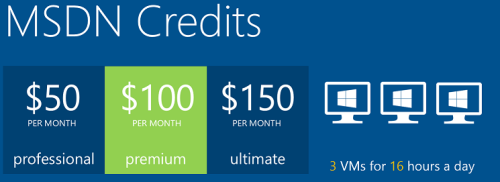
    Now then, what should we do with these shiny new CRM 2013 bits? If you haven’t got any spare hardware lying around but you do have an active MSDN subscription, then why not leverage the subscriber benefits and set up a development/test server in Windows Azure? It’s easy, it’s fast, and if you have the MSDN credits, it’s also FREE!

    Azure_MSDN_benefit

    The discounted rates for MSDN subscribers make it up to 97% cheaper to run a virtual machine on Azure compared to the standard rates, leaving the cost at only $0.06 per hour for a VM (small instance). Combine this with the fact that Azure VM’s are nowadays charged by the minute and they incur no charges when the VM is stopped, you can stretch a few $ worth of Azure credits for quite a long period of testing. If you haven’t yet looked into the MSDN benefits, go and read this article on Scott Guthrie’s blog for all the details.

    Not only does MSDN provide you with free credits to spend on your favorite Azure service, you can also leverage the MSDN usage rights for software running on a Windows Azure virtual machine. For a great review of the licensing options for setting up Dynamics CRM development and test environments by using MSDN, look no further than this recent blog post by Leon Tribe.

    Preparing a development server for CRM 2013

    While you can’t just directly provision an Azure VM image pre-configured with CRM 2013 (at least not yet), you can skip a few steps by starting with an image from the Azure VM Gallery that comes with SQL Server 2012. You will need to setup Active Directory and IIS before starting the CRM 2013 server installation, which requires a set of clicks and a couple of reboots.

    To make this process faster, I decided to take notes of the steps needed in installing the required components for CRM 2013 and share them with anyone who’s interested in doing the same. So, here’s a 50 slide presentation with screenshots of the configuration tasks and options to install a working CRM 2013 dev/test/demo server on a Windows Azure VM:

    Do take note of this fact before proceeding any further: this is NOT the “how to” of deploying a live CRM 2013 server. These are the minimum steps needed to get the Dynamics CRM server installation process to complete without errors – nothing more. When considering setting up a proper test and production environment, the first thing you need to do is read the Microsoft Dynamics CRM 2013 Implementation Guide.

    For taking CRM 2013 on a casual test drive and seeing what your current CRM 2011 organization looks like when imported into the latest server version, the steps outlined in the presentation are all you need to get started. I’ve timed the process and the last time it took around 1.5 hours from provisioning a new VM from the Azure Gallery to having a fully working test instance of CRM 2013 in the cloud. Not quite the couple of minutes that spinning up a new CRM Online organization takes, but short enough to set up an ad-hoc test environment for development and configuration tasks that are more easily accomplished with full CRM server and SQL database access.

  • Dynamics CRM 2011 on Windows Server 2012

    In addition to the shared development and test CRM servers at the office, I like to run my own personal CRM sandbox that allows me to test any applications, configurations and updates without having to worry about affecting any of my colleagues’ work. I’ve been running a VirtualBox server image on my desktop PC and standard hard drives, but even in a single user test environment, you can never have too much performance for your own needs.

    SanDisk_ExtremeAfter reading this blog post from Jeff Atwood, I couldn’t help but to shop around for an “SSD in your pocket”, meaning a super fast USB flash drive that would have sufficient storage space for hosting a CRM 2011 development server image. I decided to grab the SanDisk SDCZ80-064G-X46 64GB Extreme USB 3.0 Flash Drive from Amazon.co.uk for €60 and test it out as a portable CRM sandbox. 190 MB/s read and 170 MB/s write should provide a nice performance boost compared to my old spinning HDD’s.

    Since shrinking my existing VirtualBox image down to the 60Gb available on the flash drive would have meant giving up on a lot of things I had installed there, I decided this was a good moment for building a brand new virtual server. During the fall I had already attempted a few times to deploy CRM 2011 on Windows Server 2012, even though it has been unsupported. Unfortunately none of the workarounds published by Daniel Cai had done the trick for me, so I decided to wait for the official support.

    With Update Rollup 13 Microsoft Dynamics CRM 2011 Server finally became officially supported to be run on Windows Server 2012. However, there was one catch: you could only upgrade an existing Windows Server 2008 deployment with CRM 2011 onto Windows Server 2012. For a brand new deployment there was a disclaimer included with UR13 release notes:

    The Self-Healing Setup (SHS) that is required to install Update Rollup 13 for Microsoft Dynamics CRM 2011 on Windows Server 2012 will be published on Microsoft Update alongside the update rollup in mid-to-late April, 2013.

    Ok, it’s 1st of May now, so where are these SHS files? Well, they are available, but not quite in the kind of format you would expect. You can’t simply download an updated version of the Dynamics CRM Server installer, as the one available on Microsoft Download is still the old version with Update Rollup 6 that was released in January 2012.

    There’s a thread over at Dynamics Community CRM Forum that discusses the Windows Server 2012 installation procedure, but I’ll summarize how I managed to get CRM installed on such an environment. There were a few puzzling gotchas that no one else should spend their time on pondering.

    Get the update files

    The KB article 2434455, “How to obtain the setup updates for Microsoft Dynamics CRM 2011”, gives you the steps you need to follow. Instead of heading to Microsoft Download, you’ll need to visit the Microsoft Update catalog website (which only supports IE, by the way, so don’t click the link on Chrome or anything). From there you’ll be able to obtain a file called Setup Update for Microsoft Dynamics CRM Server 2011. The fun part about this is that the size of the file is 1.5 GB.

    Setup_update_for_CRM_2011_server

    Why is the file so huge, with the actual CRM 2011 Server installer being only 120 MB? The reason is that this file contains all 25 language versions for the update file. If you’re installing the English version, you’ll only need the en-server_kb2434455_amd64_1033 cab file. Oh well, the Internet is fast nowadays and hard drives are infinite, so let’s get on with it.

    Prepare for installation

    The cab file won’t be the installer itself, rather it’s a collection of updates that needs to be references while running the actual server installer. How do you do that then? By creating a config.xml file following the example given in the KB article above and dropping it into the same folder as installer and the cab file.

    Then we can proceed with starting the installation. Only there’s one more catch which isn’t included in the KB article: you’ll need to start the installation process from the command line in order to be able to tell that there’s a config file pointing to a cab file that contains the updates necessary for CRM 2011 to run on Windows Server 2012. You can read through the TechNet article “Use the Command Prompt to Install Microsoft Dynamics CRM 2011” if you’re interested in the finer details of parameterizing your CRM server deployments, but if you’re like me, you’ll just want to copy-paste the required bits onto the prompt to move on with the process.

    1. Put the cab and config.xml in C:\Temp
    2. Download the UR6 version of CRM 2011 Server installer and put the CRM2011-Server-ENU-amd64.exe file in the same folder
    3. Run the file, point it to extract the files onto the very same C:\Temp directory
    4. Cancel any further setup screens that may be launched, as you’ll still need to provide the pointer to the cab file
    5. Open the command prompt, go to C:\Temp directory and type: setupserver.exe /config C:\Temp\config.xml

    This process will make the installer skip the question of “do you want to download updates from Microsoft Update” and use the SHS cab file directly. This is the whole point of our exercise, as Microsoft Update for one reason or another cannot provide the necessary updates for Windows Server 2012 compatibility for the CRM 2011 Server installer.

    After this part, you can follow the standard steps for installing CRM. You may get an error screen saying “Action Microsoft.Crm.Setup.Common.InstallWindowsSearchAction failed. Class not registered (Exception from HRESULT: 0x80040154 (REGDB_E_CLASSNOTREG))”, but just click Ignore on it as that issue is most likely just about the indexing service for the CRM help files.

    Validate and update once more

    Once you’re done and have rebooted the server, you’ll be able to launch CRM. From those oldskool icons in the Wunderbar area you’ll quickly notice that this deployment is still running a pre-cross-browser era version of Dynamics CRM. The build numbers 5.0.9690.2015 and 5.0.9690.1992 indicate that it is in fact a UR6 organization still. (Hmm, was there ever any need for UR13 to support installation on Windows Server 2012 then?) Before you start working on your environment, download and install Update Rollup 13 to make CRM support the IE10 running on your Windows Server 2012, unless you enjoy using the IE7 Compatibility View.

    Windows_Server_2012_CRM_2011_small

    There we have it. A nice and fast CRM 2011 sandbox image running Windows Server 2012 and SQL Server 2012 in a 36 GB image stored on a very fast thumb drive. I’m sure I’ll be struggling with keeping the image small enough with all the updates, service packs, Office, Visual Studio and other bloat that’s bound to end up there. On the plus side I’ll be able to carry the sandbox on my keychain and plug it into any PC with sufficient memory to run the environment (3.5 GB & 2 CPU reserved for it currently) and enjoy SSD level disk I/O performance. We’ll see if it was worth all the trouble at the end, but hey – don’t we all just enjoy fiddling with the latest software and fastest hardware?

    Edit 2013-05-04: For anyone looking to move completely towards developing for Dynamics CRM on top of Windows Server 2012, please note that the Dynamics CRM Outlook client does not support Windows Server 2012 yet. If you try to run the setup, all you will get is the following message: “Cannot install Microsoft Dynamics CRM for Outlook. Install Windows Server 2008 Service Pack 2, and then try again.”

    Edit 2013-05-04, Part 2: If you’re interested in the detailed steps for building a Dynamics CRM sandbox, please refer to articles like Creating a MS CRM 2011 VM by Mark Kovalcson or Setting up a CRM demo environment in Windows Azure Virtual Machines by Shan McArthur (unfortunately the images on this post no longer work). It doesn’t really matter on which virtualization platform you’re building your sandbox on. I’m using VirtualBox simply because I have other existing virtual machines on it, but with Windows 8 built-in Hyper-V support you don’t necessarily need any additional software. Also, as you can see from Shan’s post, running these environments in Azure is also a perfectly viable option.

  • CRM Anywhere not here yet, Q2 2012 Service Update functionality delayed until Q4 2012

    The big question on the minds of many Dynamics CRM customers and consultants has lately been: when is the Q2 2012 Service Update / R8 / Update Rollup 9 / “CRM Anywhere” update going to be released? Even though Microsoft has a policy of not announcing any official dates for new software releases beforehand, the agile release policy they announced back in Q2 2011 as well as the name of the update announced in February 2012 were all indicating that a release was imminent before the end of Q2 2012. Since then, we’ve seen Q2 turn into Q3 and no news has been shared regarding the planned schedule for the release. Until now, that is. On July 6th 2012 we finally received an announcement on what’s going on. Let me quote the important bit for you:

    On July 19th, as we committed, our Q2 release will include Microsoft SQL Server 2012 support, Industry templates and certifications for our online service. After listening to the feedback from our customers and partners we are delaying availability of Microsoft Dynamics CRM Mobile and cross-browser support. These were previously scheduled to be delivered in the Q2 2012 Service Update, and we now plan to deliver them in the service update scheduled for Q4 2012.

    In short, “CRM Anywhere” has been postponed from Q2 2012 to Q4 2012. A six month delay on using Microsoft Dynamics CRM on Chrome, Firefox, Safari and any non-PC hardware. Well isn’t that just splendid. I’m sure none of the Microsoft partners had started selling the Dynamics CRM product to any Macintosh shops in preparation for Q2 2012…

    OK, I won’t bash MS about this any more than the above comment, because I fully understand the situation they are facing. To be honest, I’ve had some serious doubts about how the cross-browser support would have played out if delivered in Q2 as planned. Even though the standard UI of an out-of-the-box Dynamics CRM implementation can surely be transformed into a standards compliant version if given enough resources, it’s a very tricky situation when it comes to customizations and extensions created by the CRM ecosystem. VAR’s, ISV’s, sysadmins, basically anyone with access and know-how on tweaking Dynamics CRM to do what is required of it have been doing just that for several years now. As a result, there’s a huge amount of unsupported scripts out there that simply would not work in the brave new cross-browser world.

    Sometime ago (2 weeks ago, actually), the CRM team released a Custom Code Validation Tool that was designed to help these same people to resolve breaking script issues when upgrading to the next release of Microsoft Dynamics CRM. That’s certainly a great help in proceeding with the task at hand, but unfortunately it was a bit too late when compared to the original target schedule of “CRM Anywhere”. If you run the tool on even the official CRM Demo Builder environment created by Microsoft, it won’t pass without “red” and “blue” errors either. In short, there are not very many environments out there right now that are capable of demonstrating Microsoft Dynamics CRM on an Apple OS X machine running Safari, at least with any impressive customizations and integrations to external data sources.

    Would you have felt comfortable with releasing an update into the wild that would have wreaked havoc in many customer and demo environments? Would that have really conveyed the proper image of “CRM Anywhere” to the potential and existing customers? Most likely it would have not. There are times when you need to be able to announce breaking changes (like with current Windows Phone 7 devices not being able to run Windows Phone 8 apps due to a shared Win8 core architecture, as we’ve recently discovered), but probably this was not one of those times really. Ultimately, I think the decision that Dennis Michalis and his team has made must be the right one, as they certainly would not have made it lightheartedly. The business benefits of a CRM system must triumph the technological benefit of cross-browser support and the customers would presumably agree. Could the announcement have become sooner? Definitely it should have, but it didn’t, and that’s what we now need to adjust to now.

    Still, one may ask how did we end up in this situations? It’s a design decision Microsoft has made back in the days (as I’ve blogged about earlier) and now they’re paying the price for it. So, that’s how it is and that’s just life. You could find some resemblance to the situation from Dynamics CRM ISV’s and VAR’s investing their efforts on developing Silverlight add-ons and then finding out last fall that Windows 8 Metro browser would not be supporting any plugins (including Silverlight, but excluding Adobe Flash). Life, as we know, goes on nonetheless as the ecosystem will find ways to route around the problems, much like the Internet as a fault-tolerant system was originally designed to do.

    What’s up with the mobile support delay then? After all, CWR Mobility has built clients for iPhone, Android iPad etc. and has been selling them throughout the whole 1H/2012. In fact, since the Microsoft Dynamics CRM Mobile product delivered and supported by Microsoft was only going to cover CRM Online customers, not on-premises or hosted environments, it’s perfectly justified to present the question “what do you mean it’s delayed until Q4”? What exactly did the mobile client announced in Q2 2012 Release Preview guide contain from a functional perspective that customers couldn’t already acquire directly from CWR Mobility? If you ask me, this is more about adjusting the commercial story of “CRM Anywhere” rather than physical limitations, but we can of course hope that the Q4 2102 launch will bring us significant functional improvements as well as a more coherent process for customers wishing to deploy the mobile clients.

    How about the rest of the mobile/social/local/etc. CRM market in general, will that just run over Dynamics CRM now as a result of this? I personally don’t think so. If you look at some of the competing CRM products out there, we’ve seen Salesforce.com announce their Touch client for mobile and tablet devices already last September, but it remains in beta as of now. After all, it’s quite easy to create great looking concepts of the way the social business of the future should operate, but very rarely is there a chance to start from a pure, clean slate. If you have no legacy processes and apps to worry about, you probably have no valuable, long lasting customer relationships either, which sort of undermines the whole effort.

    Let’s remember another important aspect here: Windows Reimagined a.k.a Windows 8 is one of the biggest gambles Microsoft has ever made and it’s due out in Q4 2012 (unconfirmed, as usual, but you get the drift). If the next Dynamics CRM Service Update is scheduled to be released in the same timeframe, then do you think that there would be any chance of receiving an actual Metro client for CRM at the same time? We can always hope of course, and the Worldwide Partner Conference 2012 to be held next week could well shed some light on this topic, one way or another. Personally I think it’s a bit of a long shot still to make it into the same time frame as Windows 8, but even a preview/beta would be way cool. I guess we’ll learn about that soon enough as WPC 12 kicks off.

    Finally, if cross-browser support has now been delayed to Q4 2012, then I think there’s one favor that we can ask from the Dynamics CRM product team: could you please enable also the customization part of the UI to be cross-browser by the time Q4 2012 Service Update rolls out? It’s not that I have anything against Internet Explorer as such, but I think the #MSDYNCRM community deserves a tiny little upside in all this, don’t you think?

  • CRM adventures in Azure: SQL Server 2012 updates

    CRM adventures in Azure: SQL Server 2012 updates

    Windows Azure Pricing Calculator for Virtual MachinesAfter Microsoft announced their latest enhancements to the Windows Azure service catalog in the beginning of June (although still in a preview phase), I wanted to test the Azure Virtual Machines for running a Microsoft Dynamics CRM 2011 server instance in the Microsoft hosted cloud. Since we now have an excellent step-by-step tutorial available from Shan McArthur / AdxStudio, it was a breeze to get going with the installation process. You should also check out the Gold Coast blog by @devkeydet for some really helpful articles, such as Building a CRM 2011 dev box using a Windows Azure Virtual Machine. With high quality community content like this available, who wouldn’t want to build a CRM server in Azure?

    Hopefully I’ll get a chance to write some of my own experiences on working with Windows Azure in the future, but the first issue I ran into is actually more related to SQL Server in general.

    Side-by-side was not on my side

    In addition to Azure, I also wanted to utilize the latest SQL Server 2012 version to investigate what new reporting capaibilities it might offer compared to the trusted old SQL 2008 R2. The SQL 2012 installation went through without any errors but after I tried to launch the CRM installation I discovered that Reporting Services was not running. In the application log I had the following errors:

    Service cannot be started. System.IO.FileLoadException: Could not load file or assembly ‘ReportingServicesNativeServer, Version=11.0.0.0, Culture=neutral, PublicKeyToken=89845dcd8080cc91’ or one of its dependencies. The application has failed to start because its side-by-side configuration is incorrect. Please see the application event log or use the command-line sxstrace.exe tool for more detail. (Exception from HRESULT: 0x800736B1)
    File name: ‘ReportingServicesNativeServer, Version=11.0.0.0, Culture=neutral, PublicKeyToken=89845dcd8080cc91’ —> System.Runtime.InteropServices.COMException (0x800736B1): The application has failed to start because its side-by-side configuration is incorrect. Please see the application event log or use the command-line sxstrace.exe tool for more detail. (Exception from HRESULT: 0x800736B1)
    at Microsoft.ReportingServices.Library.ServiceAppDomainController..ctor()
    at Microsoft.ReportingServices.Library.ReportService.OnStart(String[] args)
    at System.ServiceProcess.ServiceBase.ServiceQueuedM…

    Activation context generation failed for “F:\SQL\Microsoft SQL Server\MSRS11.MSSQLSERVER\Reporting Services\ReportServer\bin\ReportingServicesNativeServer.dll”.Error in manifest or policy file “C:\Windows\WinSxS\manifests\amd64_microsoft.vc80.atl_1fc8b3b9a1e18e3b_8.0.50727.4053_none_8a1a02152edb659b.manifest” on line 0. Invalid Xml syntax.

    After a bit of googling I landed on a blog post on SQL Server VC++ Installation voes, which seemed to describe the exact same issue I was facing. I tested the sxstrace tool and the System File Checker (SFC) referenced in the post, reproducing the same results as the author was getting. It turned out that this side-by-side (SXS) error was caused by a manifest file that was empty. A similar discussion was also found in the Windows Azure Virtual Machines for SQL Server MSDN forum, so figured I must be on to something.

    Just before I was about to start modifying the manifest file properties and copy pasting the content there, I noticed that there was one detail which stopped me from proceeding: both of the posts were referencing an x86 processor architecture file (x86_microsoft.vc80.atl_1fc8b3b9a1e18e3b_8.0.50727.4053_none_d1c738ec43578ea1.manifest), whereas my error was related to the amd64 version (amd64_microsoft.vc80.atl_1fc8b3b9a1e18e3b_8.0.50727.4053_none_8a1a02152edb659b.manifest). So, I needed to hunt down the correct manifest file content for the 64-bit version with the proper hash value, but unfortunately this was where my googling came up short.

    After being a bit more creative with my search terms, I discovered the Microsoft knowledge base article 2688946: FIX: Error message when you install SQL Server 2012: “The identities of the manifests are identical but their contents are different”. The article also said that the fix for this issue was released in Cumulative Update 1 for SQL Server 2012. So, off to KB 2679368 then to request a download link for the CU1 file. Looks like MS doesn’t want just anyone installing these, so they make you fill in a form with your email address + captcha in order to get the file, but luckily that’s all there was to the process.

    I was a bit puzzled by the fact that the CU1 installer said “This installation provides updates for the Community Technology Preview (August CTP)“, but apparently it’s fully valid for the RTM version, too. I guess the components in SQL tend to be less strict about versions, since the SQL Server 2012 Reporting Services Configuration Tool still has “SQL Server 2008” in the process description… Anyway, after applying CU1 I was able to start the Reporting Services service and proceed with the CRM installation. Success!

    The lesson: there’s always an update hiding somewhere

    When building your development or demo environment, it’s important to be aware of the fact that what you get from the MSDN subscriber downloads site is mostly RTM bits. Especially when going for SQL Sever 2012 as the database for Dynamics CRM 2011, you should not use these files at all, because the installation won’t work. Just grab the product key from MSDN, but go to Microsoft Download Center here (direct download link to CRM 2011 Server) to get the new version that includes Update Rollup 6. Otherwise you won’t be able to configure the Reporting Extensions and will get the error “Unable to validate SQL Server Reporting Services Report Server installation. Please check that it is correctly installed on the local machine.” See this thread on the CRM Forum for some more info.

    Shortly after completing the CRM installation I discovered that there is in fact already a Cumulative Update 2 for SQL Server 2012, too. Wow, things move fast nowadays! Didn’t SQL 2012 get released just recently? Well, it turns out that actually the first cumulative update to SQL Server 2012 was released only 9 days after the general availability (GA) of SQL 2012. Let’s have a look at the Incremental Servicing Model of SQL Server in a bit more detail to understand what’s going on.

    It looks like also the SQL Server team have adopted a fairly agile release policy that mirrors the Dynamics CRM release roadmap concepts to some extent. What they call a Cumulative Update (CU) seems to correspond to the Update Rollup (UR) in the Dynamics CRM lingo, meaning they are both collections of hotfixes, released on a bi-monthly target schedule. However, unlike CRM Update Rollups that are nowadays delivered through Windows Update / Microsoft Update, the SQL CU’s won’t be delivered through this mechanism, because those updates need to fall into the General Distribution Release (GDR) category as defined by Microsoft (you didn’t think it was going to be that simple, now did you?). So, that’s why after installing SQL 2012 + CRM 2011 on a new Windows server you’ll automatically get Update Rollup 8 for CRM, but no updates for SQL. If you need the latest hotfixes, you should acquired the Cumulative Update package through the KB pages.

    Finally, yes, there will also be a Service Pack 1 for SQL Server 2012 released eventually, as many people will refrain from deploying a production database on a new version until this traditional MS software milestone has been reached. Whether the SP1 for SQL 2012 will be a similar release as the Q2 2012 Service Update for Dynamics CRM (to be released sometime in Q3) I’m not so sure, since in the world of CRM these Service Updates contain significant new functionality in addition to the previously released hotfixes. The latest information on SQL updates can be found from the SQL Release Serivces Blog. Note that there are no Service Packs available for Dynamics CRM, so the terminology used in describing the release policies will likely remain different from other Microsoft products like SQL or Windows. For a more detailed description of the CRM update terminology and delivery mechanisms, please see my previous post on the topic.