It’s the little things in a user interface that can drive me nuts – at least when I keep running into them repeatedly.
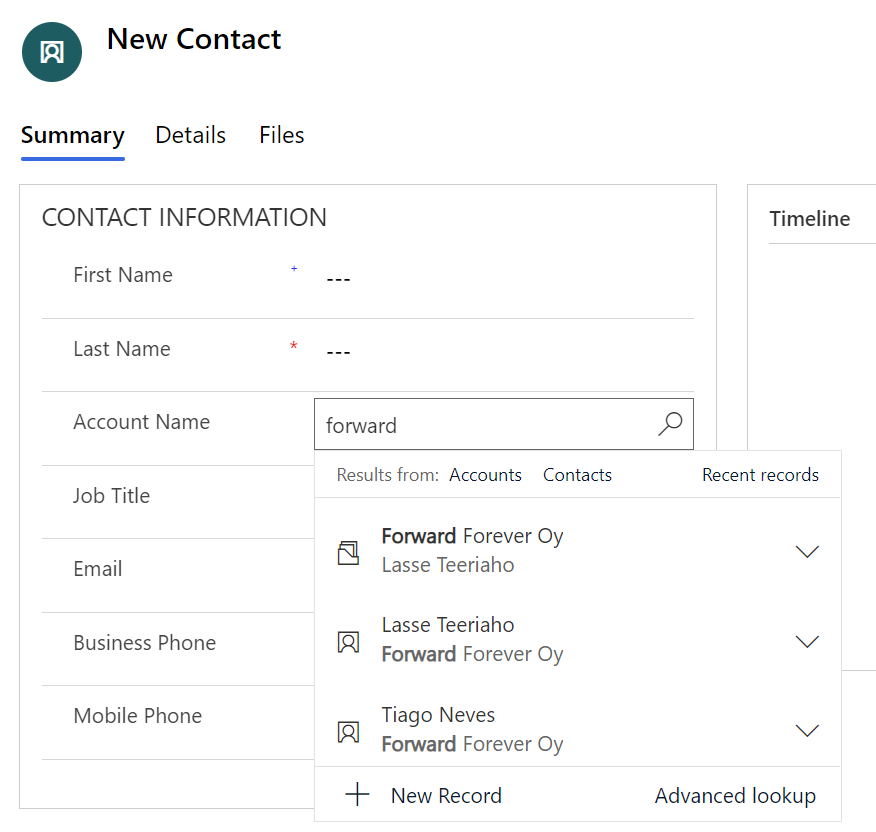
One such detail in Dynamics 365 CE apps / Model-driven Power Apps is the scenario where you’re creating a new contact record and linking it to a parent account. Filling in the lookup field gives a nice little preview of the matching records. Like this:
Now, look at the first two results: aren’t they actually saying the same thing, but in different order?
At least I have a hard time distinquishing which record I should pick when I want to link this new contact under the account Forward Forever Oy. So, why is row nr. 1 the right answer and row nr. 2 the absolutely wrong choice to pick here?
The underlying dilemma is that this lookup field is a customer field (column). It can reference either an account or a contact record (row). It’s one of those non-simple types of lookups that Dataverse has contained since forever, thanks to it being originally designed for the purpose of being a CRM database.
Now, in a B2B CRM scenario you would almost never want anyone to link child contacts under other contacts. Unfortunately, even after 2 decades of shipping a mighty fine CRM product, Microsoft still hasn’t considered it worthwhile to offer customer organizations a configuration option to force contacts to be linked only to parent accounts.
Being an extensible enterprise business application platform, you can of course get a developer to write some JavaScript to change the default behaviour of the lookups that bother you. As for me personally, I always like to explore if there are no-code ways that would allow me to achieve a similar result without adding even a few lines of script into the environment for the future me / someone else to manage.
In this case what I want to do is this: don’t show the Primary Contact field in the lookup view of an account. As we’ve seen, it can be highly confusing, since this very same contact itself can also show up in the list of results. For a contact, it’s very logical that the parent account should be shown in the lookup preview results. (and used as a search field). For accounts, the Primary Contact value would likely be irrelevant in 99% cases when looking up records.
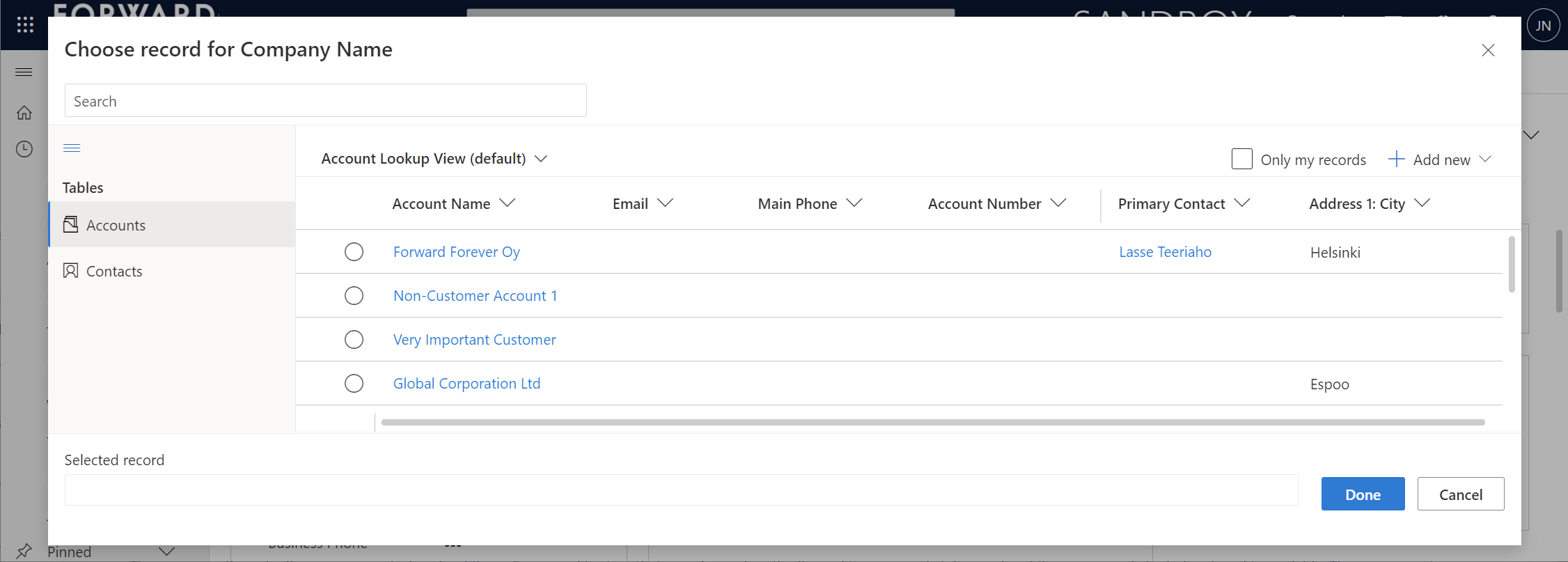
To give Microsoft some credit on the UX front, they have invested in developing a new Advanced Lookup feature that gives the end-users more filtering options to find the right record to link to. Opening up this modal dialog also gives us a way to examine why the previews behave the way they do.
Initially this lead me to scratch my bald head even more. Based on what the documentation says about lookup field behavior, I shouldn’t see the Primary Contact field value in the dropdown preview of the lookup, as there are columns like Account Number before it in the view.
“For system lookups that allow for multiple table types, the first two columns of the table lookup view are shown.”
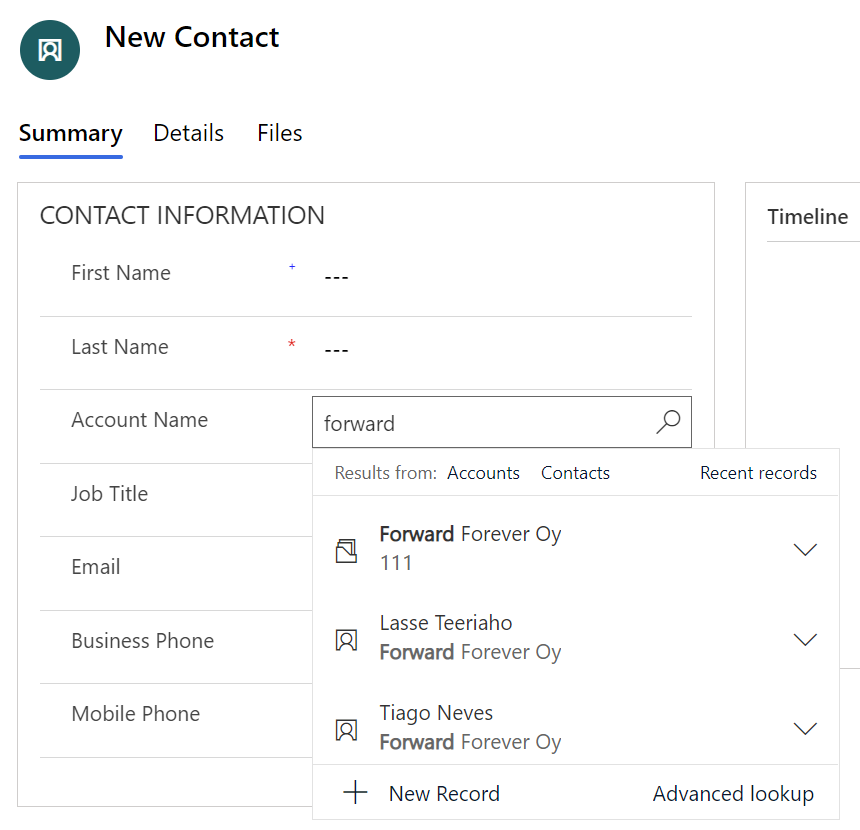
It turns out this is not true anymore. To demonsrate the real behavior, l added an Account Number “111” for Forward Forever Oy account record. This is what happens with the lookup preview:
Ah. The current lookup in the modern Unified Interface is so darn clever that it shows the first non-empty column from the lookup view.
The solution is simple then. You can just add columns at the beginning of the table’s lookup view that are always going to have data. These will then push further left the lookup fields that aren’t relevant in the dropdown preview. This means you can still keep the other fields visible by default when opening the Advanced Lookup dialog. Even that confusing Primary Contact field can be left there, just in case we need it.
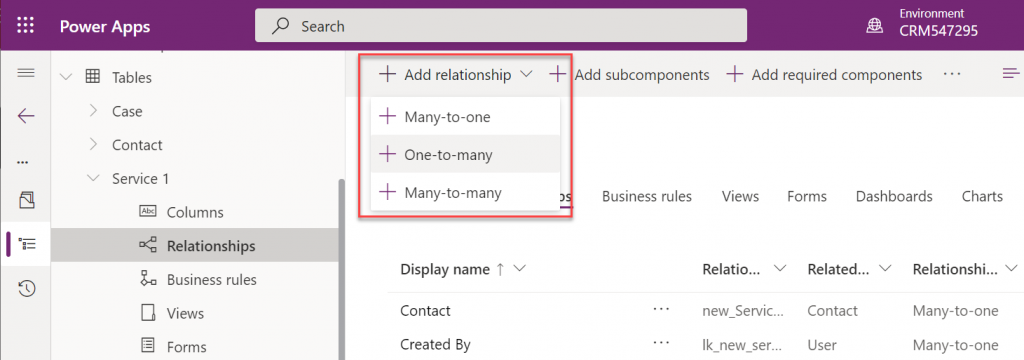
There’s no such thing as 1:1 relationship in Dataverse, and hence your Power Apps Model-driven apps or Dynamics 365 Customer Engagement apps can’t directly have such a data model. Only 1:N (one-to-many), N:1 (many-to-one) and N:N (many-to-many) relationships are available between tables, be it standard or custom ones.
In practice, even the N:N relationship doesn’t actually exist in the database. While the Dataverse table configuration UI allows you to create this relationship type, it actually consists of a hidden intersect table and two 1:N / N:1 relationships that connect the actual tables together (see Dataverse table relationships documentation). Seasoned XRM professionals may even discourage the use of native N:N relationships, as you lose some control and visibility to the relationship due to its hidden nature.
Just because it’s not available in the platform, doesn’t mean there aren’t many real life business scenarios where a requirement to have exactly one record per a record in another table. (OK, “rows” in the latest Dataverse terminology, but I prefer the business process lingo where “record” still is more appropriate.) Also, like with N:N relationships, just because it’s not directly possible to create one, doesn’t mean we couldn’t build the required functionality by using the no-code tools in Power Platform.
In this blog post I’ll demonstrate not only how to create a 1:1 relationship but also how you can offer a pretty nice user experience for working with related records – thanks to the new Form Component Control feature. I’ve covered the feature details in an earlier blog post (“Relational data on Model-driven forms, part 2: Form Component Control”) so please refer to that for more info.
Why would we need 1:1 relationships?
From a theoretical data modelling perspective, you probably shouldn’t be splitting data into multiple tables if there is only a single match expected from either side. On a practical level there can be reasons why it makes sense to not cram everything into a single table, though.
A common source of such requirements are the restrictions of access rights to data. Let’s say that the contact information of a person needs to be widely available to users of the application for various purposes (billing, marketing etc.). However, this contact also happens to be a patient, with details about his or her medical profile being recorded into the same system. Only the doctors should have access to this data. A single contact will match a single patient record (or none, if it has been created for other purposes). If these are in two separate tables, granting access rights can be easily achieved via standard Dataverse security roles: everyone sees the contact table data, but only doctors see the patient details.
“Couldn’t we just use field level security to hide the confidential stuff?” We could, but you have to evaluate whether the approach will really scale to how the system will be used. You see, in addition to security we’ll also need to consider if we’re overloading a single table with too much data. There are hard limits of the maximum number of columns that SQL Server supports for a single table. Thanks to the value-add provided by Dataverse, adding one column into the data model can create many columns in SQL. This means you don’t have anywhere near the 1024 columns per table at your disposal. Also, if you’re working with a standard CDM entity like contact, there will already be close to 300 attributes taking up space before you extend the data model for your specific needs.
I was recently working with a customer that is planning to use Dynamics 365 Customer Service for managing all their service requests in every department they have. This will mean that tens of different types of services will be creating case records into the system. The amount of service specific information that must be available to be captured on case records is easily hundreds, if not thousands of fields. Adding all of these to the case (incident) table wouldn’t be feasible, so instead the solution architecture was designed to incorporate “service detail” tables specific to each service. Each case will have one (or zero) of these records, so it’s a 1:1 relationship between the standard case table and these custom service detail tables.
Establishing 1:1 in the data model
In the scope of our example, the data model will consist of these main tables:
Service 1, Service 2, …, Service N: parental record under which the cases will be created. Think of these as service contracts that a contact person can have for one or more services.
Case: the standard Dataverse / Dynamics 365 table, with lookups to all of the aforementioned Service tables. No other service specific data is stored here.
Service 1 Detail, Service 2 Detail, …, Service N Detail: service specific information that should be found from under each Case, depending on which service it applies to.
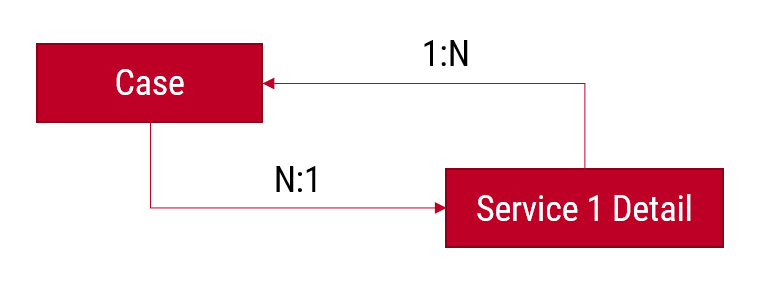
Just like the N:N relationships in Dataverse consist of two 1:N’s, the same applies to our manually created 1:1 relationship. Only this time we’re not going to need an intersect table, rather we’ll just link the two records together via the relationships like this:
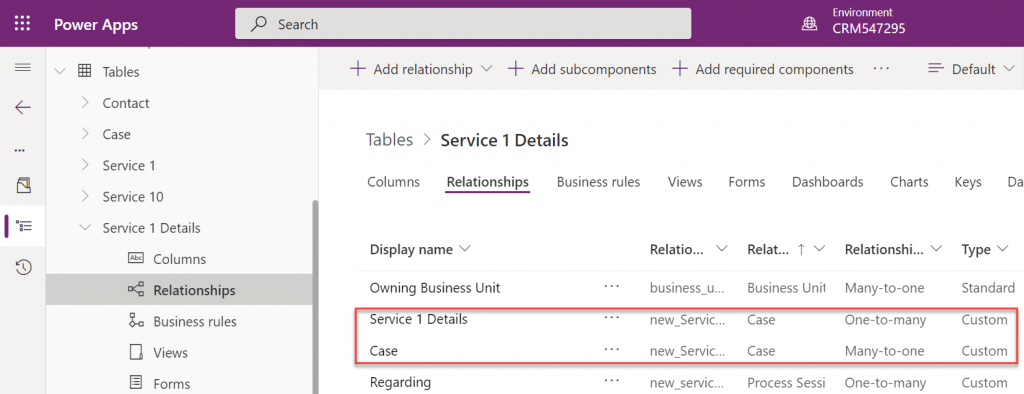
The Case record will be parental to the Service Detail record, but at the same time the Service Detail will be the Case’s parent. These will appear just as two custom relationships under our table:
Next, we’ll want to ensure that there is always one and only one Service Detail record for a case – IF the case is related to the delivery of the specific Service. Furthermore, we’ll want to get the Service Detail created automatically immediately after case creation, so that users can start entering data on it.
The real-time requirement rules out Power Automate that is asynchronous by nature, so we’ll use the classic XRM workflow engine instead. There will be two levels in the automation:
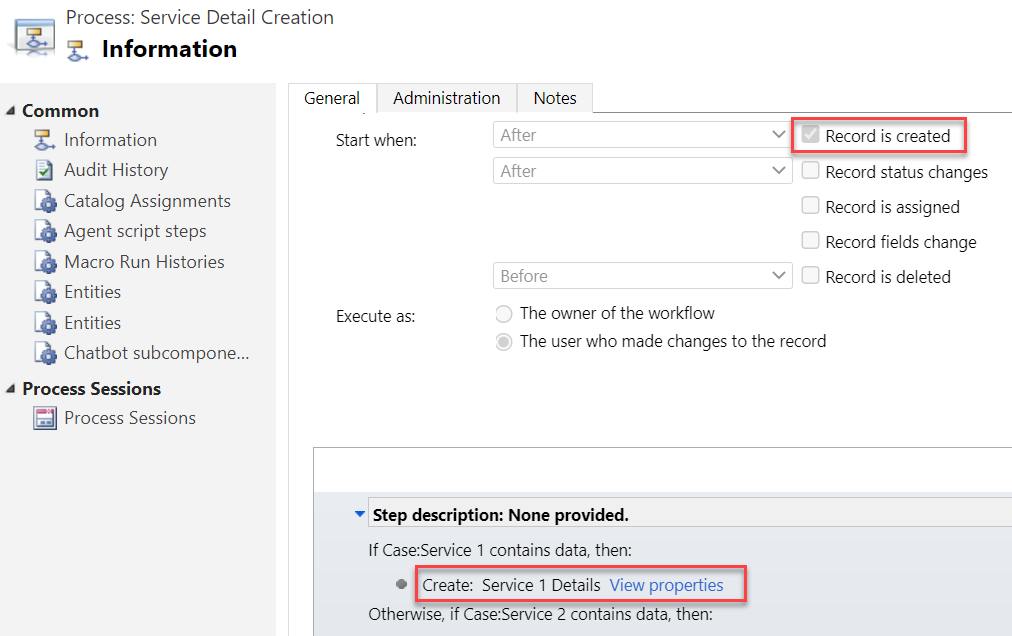
When a Case record is created, check which of the many Services it is linked to and create a record in the corresponding Service Detail table (establish 1:N relationship).
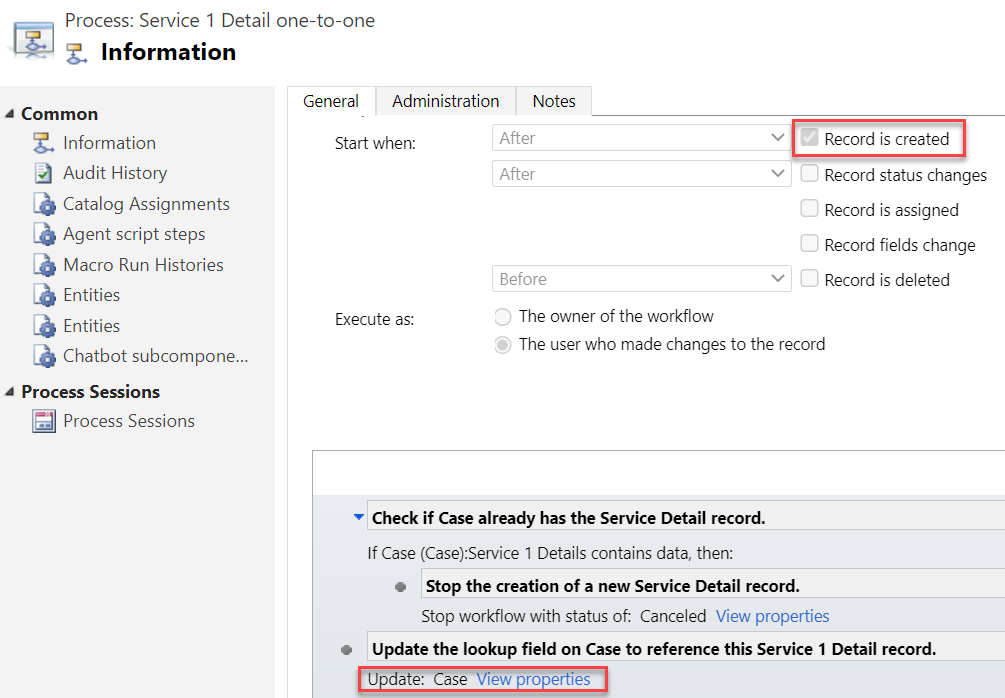
When a Service Detail record is created, update its parent Case with a reference that sets the Service Detail to also be the parent of that Case (establish N:1 relationship).
Workflow 1 looks like this:
It will then in turn trigger workflow 2:
Notice that we have a check in place that stops the creation of a Service 1 Detail record if one already exists for the Case. If the lookup to Service 1 Detail is empty, we put the reference to our newly created record there and establish the 1:1 relationship.
Working with 1:1 data in the user interface level
This is where the Form Component Control comes in handy. In short, the control is meant to allow both the display and inline editing of a parental record’s form, embedded inside another form. An example of the standard data model use cases would be to show the fields of a the customer contact on a Case form and allow the service representatives to update them without having to open the actual Contact form.
It works in our 1:1 scenario, whereby we can edit the Service Details fields directly on Case form. The reason is that not only is the Service Detail a child record of the Case, it is also the parent – thanks to what we’ve just built above.
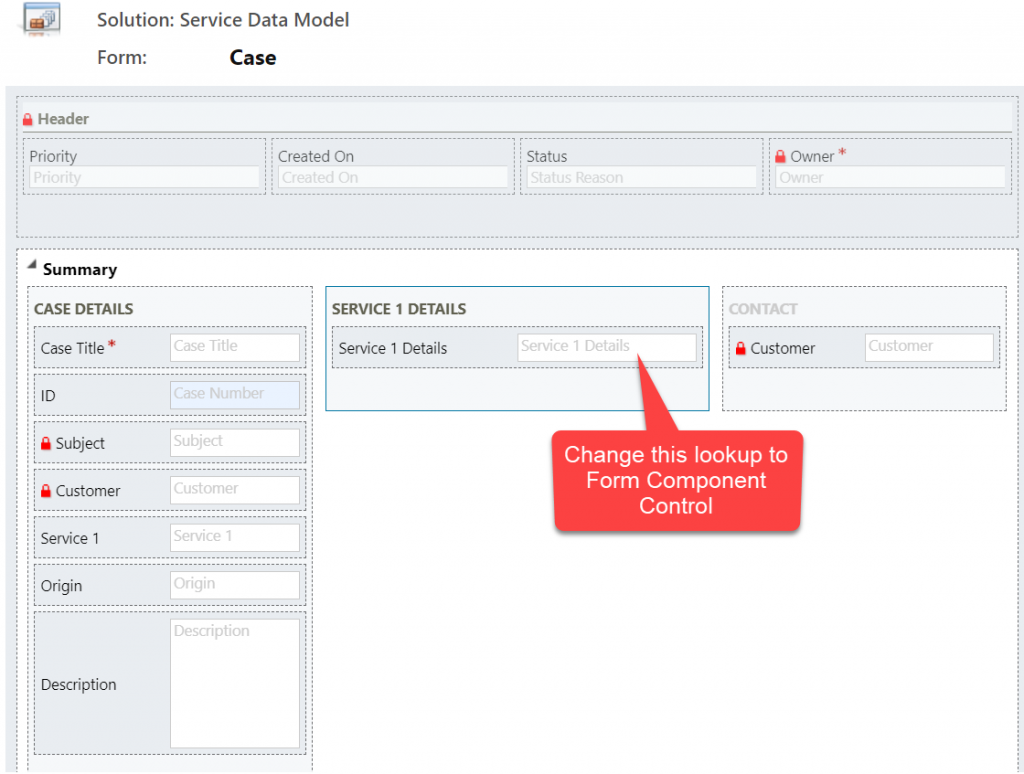
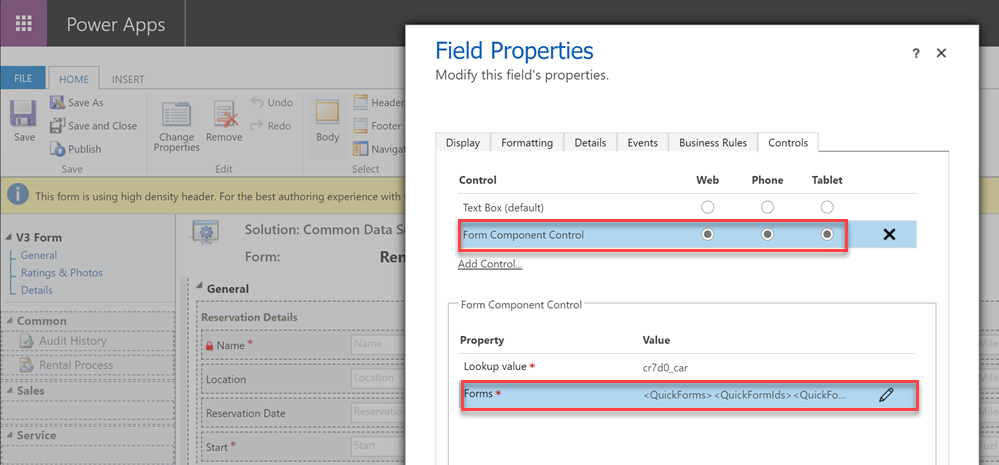
You’ll find the explanation of how to use Form Component Controls in my earlier blog post. For now you need to do the configuration in the legacy Solution Explorer side, by editing the form and setting one of the lookup fields to be rendered as Form Component Control:
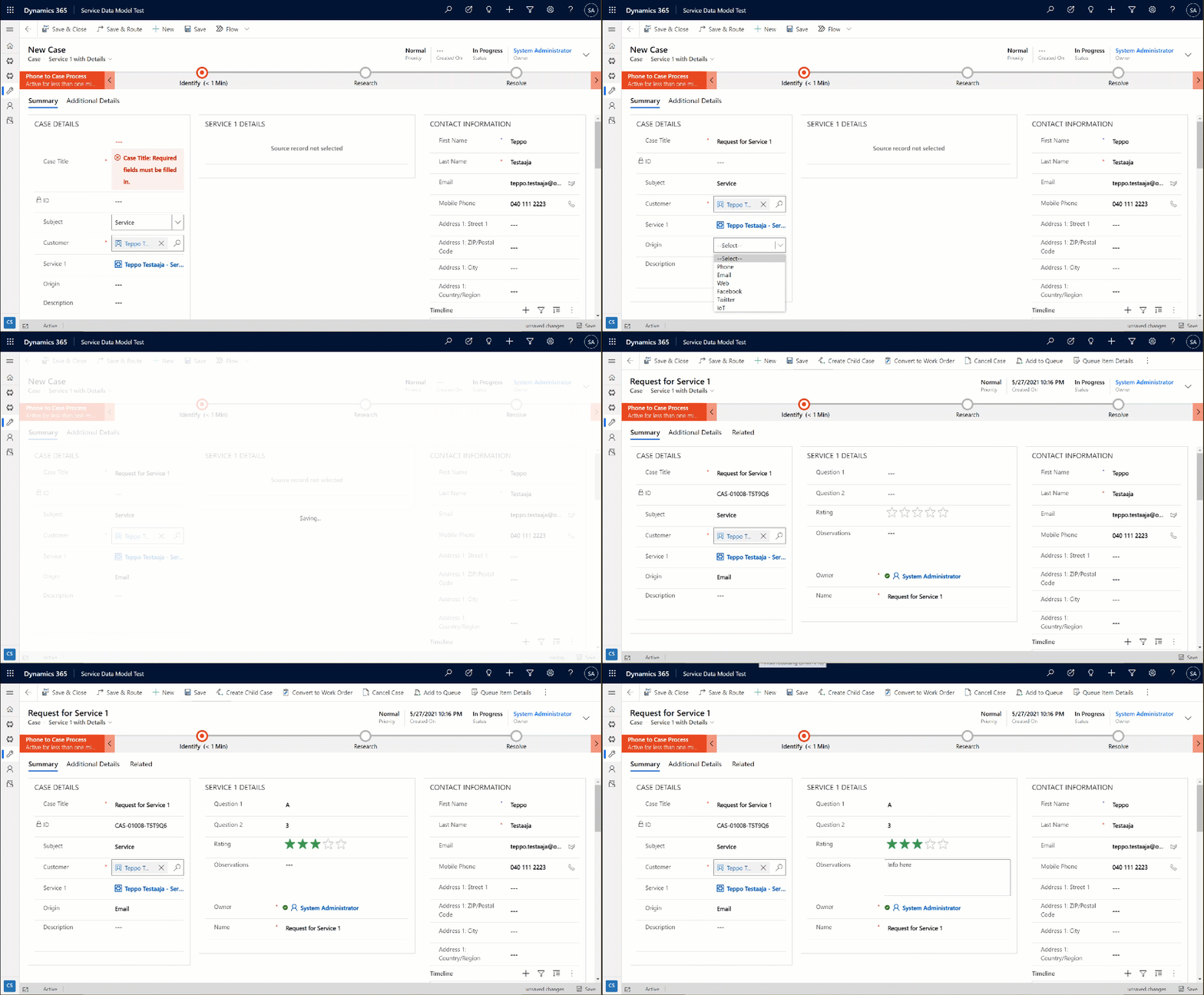
Now when we create a new Case record and have the Service 1 lookup value populated, after the first save the user can immediately continue to fill the Service 1 Detail values right within the same Case form:
The beauty here is that for the user who’s working with a Case record, they won’t need to know there are two different Dataverse tables used for storing the data. Both the Case record details, Service 1 Details and even the Contact record details are all editable on the single screen. The world looks flat, regardless of our data model with several relationships configured behind the scenes.
Conclusions
Dataverse offers you plenty of configuration tools to get creative with both the data model and the UI in Model-driven Power Apps. While the standard hierarchical structure of parent-child records and table (entity) specific forms is the most common pattern, there are alternatives that may be useful when faced with more complex business requirements.
Dividing the business data into multiple tables with 1:1 relationship may sometimes be perfectly justified, to accomodate the security and data storage requirements. The user interace of Model-driven apps today offers great tools like the Main Form Dialog and Form Component Control to simplify working with proecsses that span across different tables in the underlying database.
If you’d like to see Microsoft implement a native one-to-one feature for Dataverse, please vote on this idea.
Our quest for improving the user experience of Power Apps Model-driven app forms and multi-table data models continues with this part 2 blog post. We will explore how the brand new Form Component Control enables us to essentially blend the forms from two different tables (entities) onto a single form for the user to easily interact with.
In part 1 I laid out the example scenario of a Rental Car app where a single rental event record will always have a single related car record associated with it. Please go and have a look at the details in the earlier post if you want to understand the details.
Our approach was to leverage the Quick View Form to bring in fields from the related parental table (Car) onto the child table (Rental) form. To make the data entry and editing easier we enabled the Main Form Dialog feature for the Car lookup field, which then opens the form in a modal window.
While this UX is a lot nicer than navigating between full screen forms and page loads, it’s still not all that seamless. The user will be very much aware of the fact that he/she is working on two different tables, while ultimately we’d want to show just a single page that abstracts away all this complexity of the underlying relational data model.
What is the Form Component Control?
First of all, it doesn’t have a very sexy name, that’s for sure. During the past few days of exploring the feature, I’ve had to repeatedly go back to the documentation to see what the name was. Even the product team’s announcement “editing related records on a main form in a model driven app” doesn’t sound very exciting. There’s a lot easier way to describe it:
Forms within forms.
It’s simple, and it’s very powerful. Unlike the CRM 2013 era feature of Quick View Forms, there’s no requirement to keep the forms as “view only” , nor particularly “quick” in terms of their contents. It’s just regular forms, and they can be used within other regular forms – full edit capabilities included.
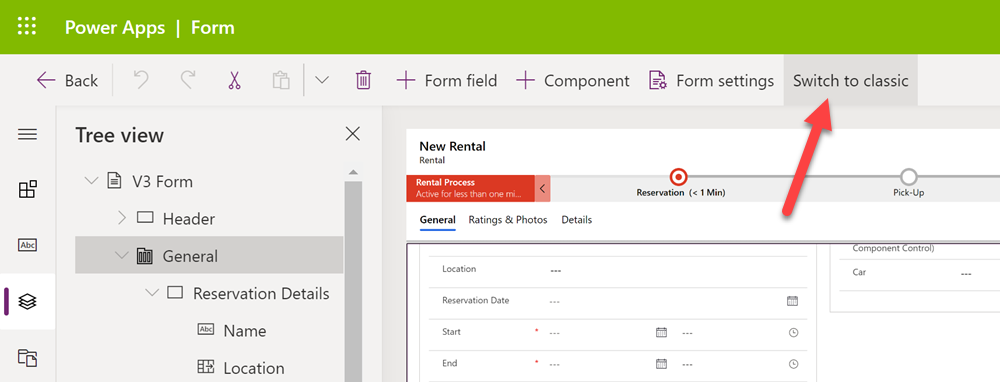
Let’s add a Form Component Control onto our form and see how it works. Unlike with the Main Form Dialog feature discussed in part 1, this Form Component Control feature is unfortunately not yet available in the modern Power Apps form editor. So, we start with what we still need to do very often in the world of Model-driven apps, meaning hit the “Switch to classic” button to launch the classic Solution Explorer that dates back to CRM 2011.
On the form where we have a lookup field (in our case the Car lookup on the Rental form), let’s open its properties dialog, go to the Controls tab and click “Add control”. We can see the MS provided PCF control “Form Component Control” in there. Adding it and setting it to be the default control for our web client is easy, but the configuration requires some additional information that doesn’t have a graphical UI (maybe in the modern form editor then once this feature is supported there).
See the MS documentation page for the detailed steps to take. In short, you’ll need an XML entry that contains the table name (entityname) and the form ID of the main form you want to show for the related table. My configuration looks like this:
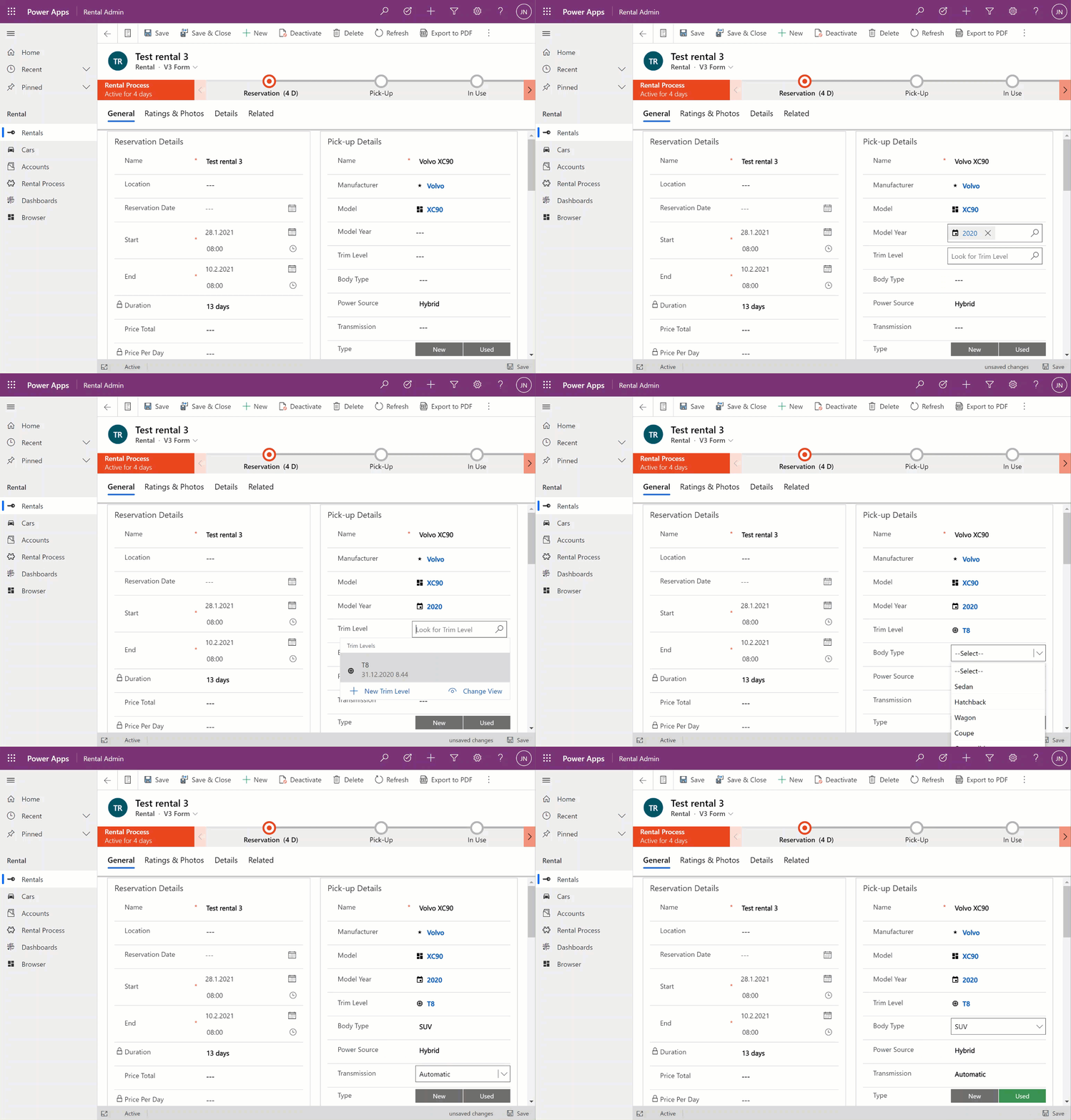
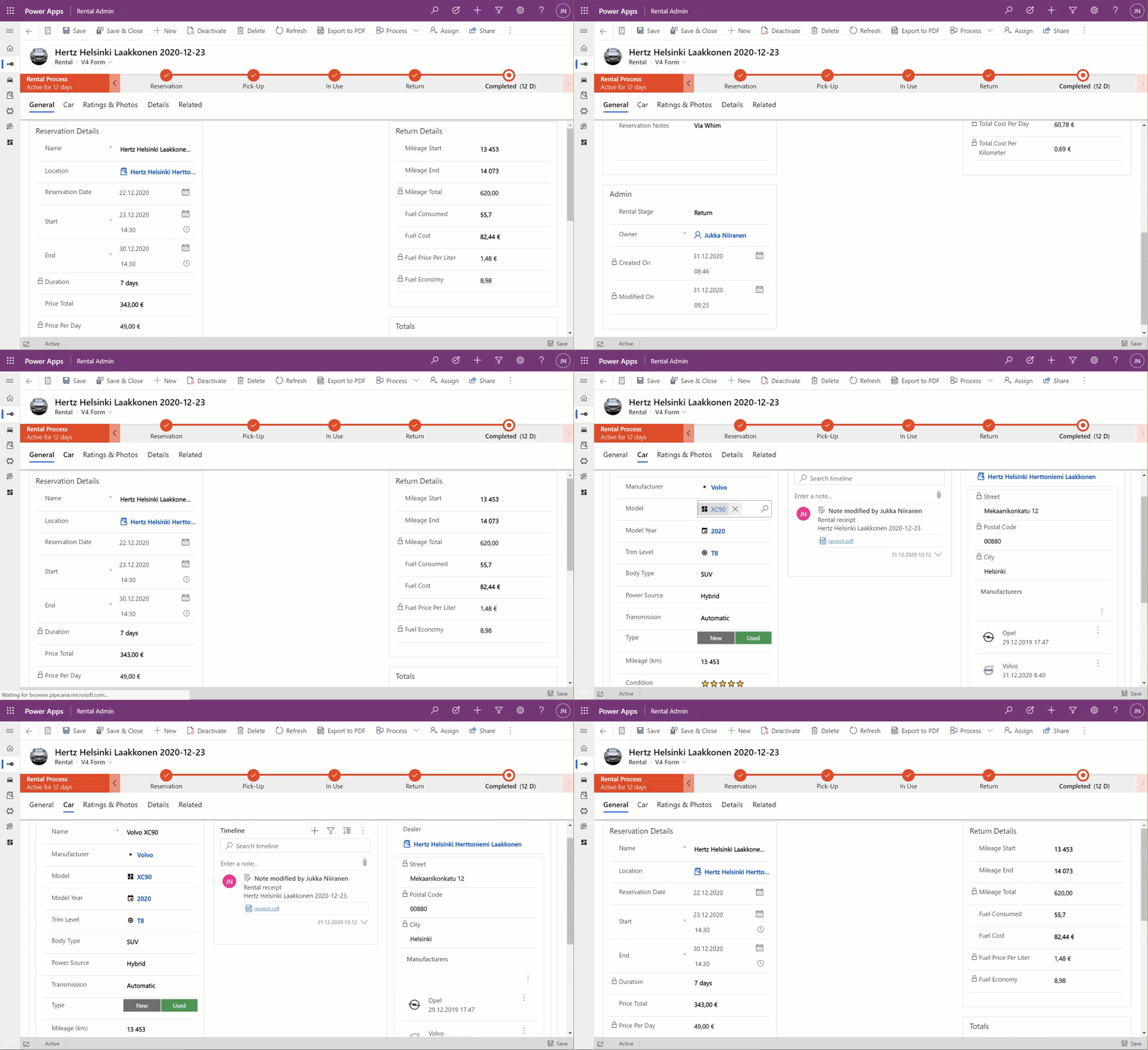
Let’s publish the changes and go test out the experience of editing an existing Rental record where the Car record’s fields have been partially populated. On the place where I previously had the Quick View Form with its locked fields, there are now fields coming from the Car table form. Text fields, lookups, choice fields – they all work exactly the way they would if I was editing data that’s natively stored on the Rental record, rather than the related Car record.
The save event happens as part of the hosting form, no additional tricks required. Field validation, notifications and error handling is also integrated, regardless of whether the business logic comes from the main form or the embedded form (details in the Docs).
All in all, this works incredibly well from a user experience perspective in my initial tests. Even if you’re a Dynamics 365 or Power Apps professional you might not realize that the form actually blends two different tables into a single form.
Main form rendering options via Form Component Control
With the old Quick View Form feature, there was a separate form type you had to create for the table for this specific purpose. It was far more limited in contents and layout than the full table forms, which kind of made sense for the purposes of bringing a few key fields in read-only mode onto a the actual main form of a different table. QVF allowed single column only + no other useful controls than the subgrid:
The Form Component Control knows no such boundaries. What you can use there are the existing or new main forms for any table. If you place them within a single narrow column on a multi-column form tab, then all of the form contents will be rendered within that column. Since the Unified Interface forms are inherently responsive by default (which is a big benefit compared to Canvas app screens), everything will just reflow into a layout that would resemble a phone screen – even if you’re viewing the form on a widescreen PC monitor.
What about if we give the Form Component Control a bit more space than a 1/3 of a typical Model-driven table form? The reflow also works the other way around, meaning all of the available screen space will be used. If the area given to FCC can accommodate more columns and the source form has them, they’ll be rendered just like on the “native” viewing experience of that form.
Below is an example of an alternative form design for the Rental table. Instead of having the related Car shown in the middle of the first form tab, I’ve added a second form tab “Car” and dedicated all the space available in it to a single lookup field that has the FCC control enabled. You’ll see from the static Business Process Flow and the form header that we’re firmly on the Rental form all the time, but the second Car tab shows things like the Timeline for that car record (with a note), further tabs for the car’s Dealer, even a Quick View Form referencing the dealer account related to the Car record – all within on FCC control.
This to me is just mind-blowing! We are reaching Inception level UX here, with the main forms embedded AND rendered as a full form tab within another form. I could be on the Rental record form, adding an activity via the Timeline control that’s actually linked to the parental Car record. Not the Rental record where the app navigation, form header, Command Bar and everything else visible on the screen is telling me I’m on. I’ve effectively built a form UI that defies the laws of nature I’ve come to expect from Model-driven apps.
Sure, embedded Canvas apps could do some magic like this already earlier. The big difference is that the user interface of those screens could never match exactly that of a Model-driven app. With FCC there are no visual clues distracting the UX, as everything looks and feels like it’s part of the native experience where Microsoft owns and manages the visual side.
What about record creation instead of edit?
The one gap that exists in the inline editing story for Microsoft’s controls like the Editable Grid or this new Form Component Control is that there’s no possibility to use them for adding new rows into a table. They offer the edit experience, but no create experience. Sure, we have the Quick Create Forms feature available for contextual data entry, but it’s not really optimal. The user shouldn’t have to think about if they are editing existing entries or creating new ones. Yes, the difference between these concepts matters to the platform on a technical level. Still, unless there’s a valid business process requirement for making the data entry experience different for create and update scenarios, it’s something I’d prefer to eliminate from the UI.
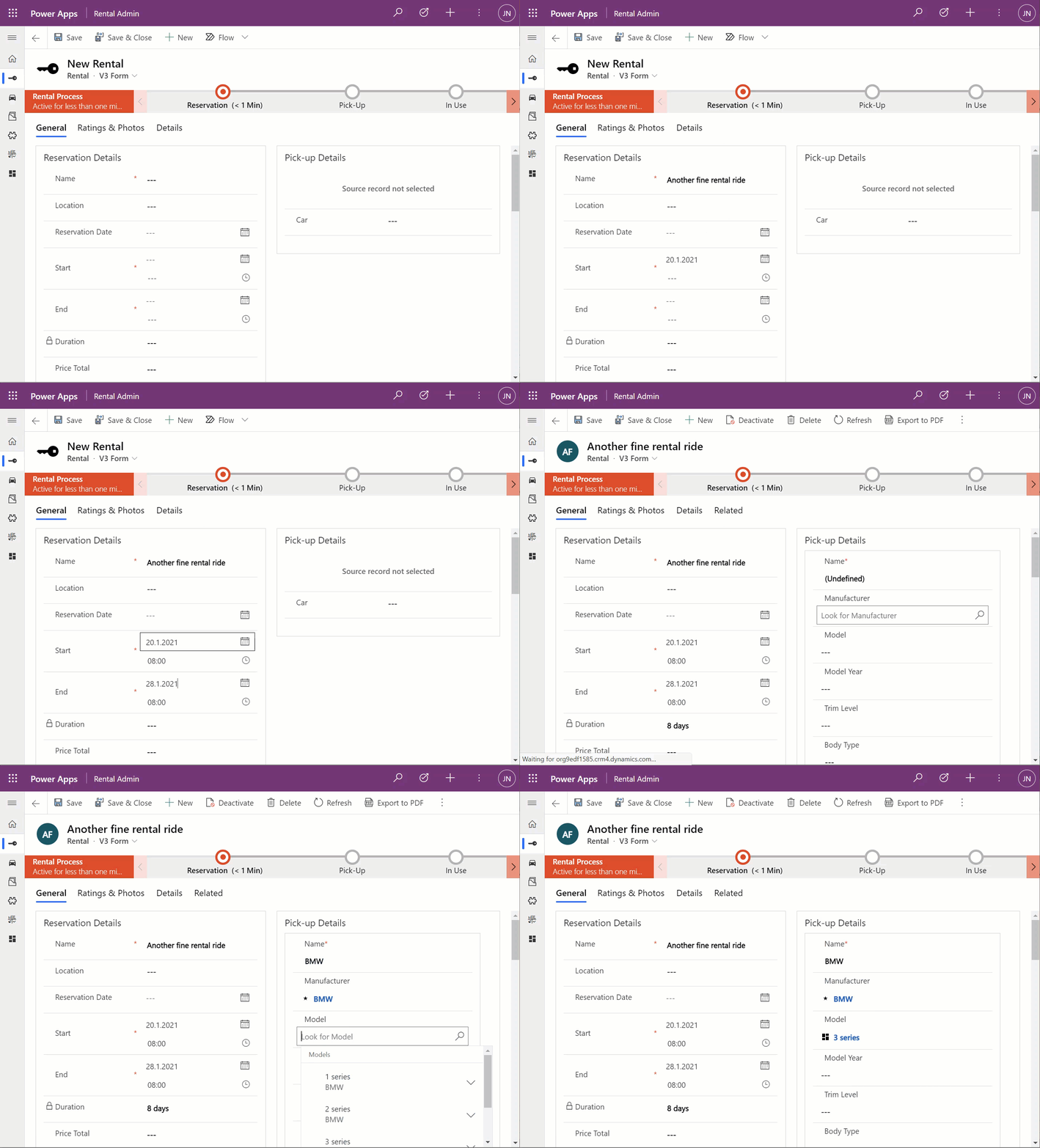
When there’s a scenario where we essentially have a one-to-one relationship between tables (no “real” 1:1 relationship exists in Dataverse, but there are ways to fake it), one option would be to automatically create the related parental record behind the scenes. With this approach, at the moment when the user will proceed to entering data via the Form Component Control, the lookup field will already be populated and the experience will look pretty seamless:
What I’ve done here is to create a classic XRM workflow that runs in real-time, triggered by the create event of the Rental record. (Power Automate can’t do real-time yet, so it’s a no go for flow in this case.) The workflow will create a Car record with a placeholder name “(Undefined)” and link it to the Rental record. By the time the first save event for the new Rental record takes place, the FCC can then render the fields from this placeholder Car record on the Rental form.
In the above example GIF animation you may also spot that the Car name changes transparently from “(Undefined)” to “BMW”, due to what has been selected in the Manufacturer field. This again is another real-time workflow that’s triggered by the update event of the Car record. The end user will not need to take any actions, it’s all just the native autosave feature of Model-driven apps that populates this name field while the user is still entering data into other fields further down the Car form.
Considerations
If the new Form Component Control gives us not just the read capabilities from Quick View Forms but also data edit support, then should we just stop using Quick View Forms altogether? Well, it certainly is a good question. Given that QVF dates back to the CRM 2013 era user interface technologies, FCC is much more in touch with how the modern Unified Interface client has been designed to work. It’s built using the Power Apps component framework (PCF) and should in theory be the most future proof choice for Model-driven app form design.
One downside is that the use of FCC for the pure view scenario is a bit more laborious. If we indeed would want to prevent the user from updating values from the parental record while on the child form, then these fields would need to be set as read-only on the main form itself. Which brings us to the challenge that you’ll need to keep more forms visible in the Model-driven app, whereas classic QVF’s are hidden behind the scenes and only applied as the definition when rendering the main form on which they are used.
The create scenario I talked about earlier is also a bit of challenge when analyzed deeper. If indeed the lookup from which the Form Component Control gets the related parental table record to show isn’t populated immediately, you’ll see a message saying “source record not selected”. In most cases that’s going to be quite a confusing message for the end user to encounter, given they are unlikely to have any idea about the forms magic and relational tables being used in to construct the app’s UI.
“Couldn’t we just hide that control until it the lookup has data?” Well, I can’t think of a no-code way to achieve this. You see, the problem is that the FCC essentially is the same field as the lookup field. Sure, you can have multiple instances of it on the same Model-driven app form. But you can’t use Business Rules to say “hide this field if this other field is empty”, because they are the one and the same. Quick View Forms handle this scenario much better, so let’s hope Microsoft will improve the functionality in FCC to accommodate this create/hide scenario better in future releases.
This first public preview release of the Form Component Control has a few limitations that you should be aware of. For instance, you can’t show more than a single tab from the form being rendered via FCC, which isn’t really a big issue unless you really are building an Inception app to confuse the hell out of the classic CRM users at least. Similarly, you can’t have FCC’s within FCC’s, which blocks some crazy recursion scenarios.
Model-driven Power Apps are built on top of the relational data model of Microsoft Dataverse (formerly CDS). Planning how you split your business data into different tables is a crucial step in ensuring that your app’s user experience (UX) is optimal for the data entry, consumption and update tasks that the users will need to live with. This is because unlike with Canvas Power Apps, the data model defines much of the user interface behaviour as well.
The key thing to keep in mind is that you’re not supposed to build the most normalized data model possible, where every concept in your business process is spun into its own little table. Yes, you do want to leverage the power of relationships (one-to-many, many-to-one, and on some rare occasions also many-to-many) to make the data more manageable than a single flat list structure would offer. No, you don’t want to make your users have to think about the Entity Relationship Diagram (ERD) of the system to know how to navigate within your app.
Despite of the tight coupling of the data model and the UI, there are plenty of things you can configure on Model-driven forms to improve usability. I’ll be drilling into a few recent features that can make it easier to work with related tables from within a single form.
The scenario: Rental Car app
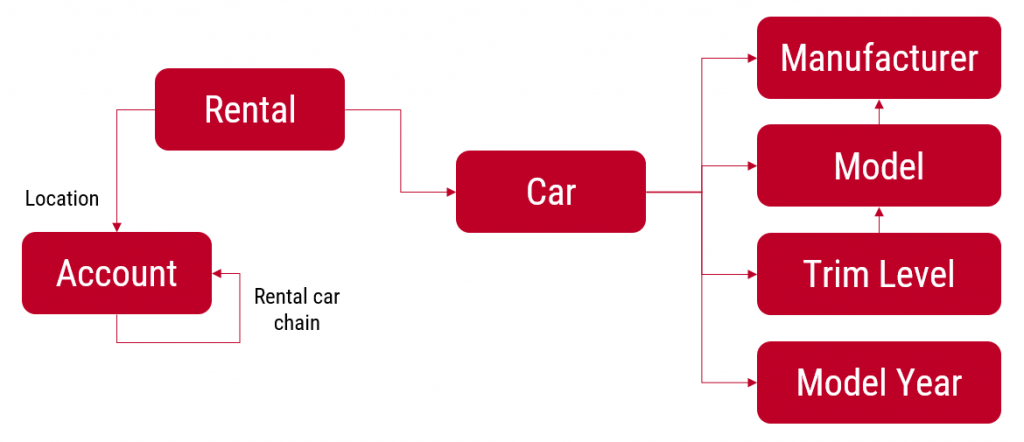
I’ll be using an example app that I’ve built for my own purposes: Rental Car App. It contains functionality that allows me to track and analyze information about the rental cars that I use, by adding new Rental records for each reservation I make and then tracking the process all the way until the final invoice and related costs. At the heart of the app there’s the Rental table, which has relationships to both the rental car company information (Account table) as well as the Car table, which again links to a few supporting tables like Manufacturer and Model.
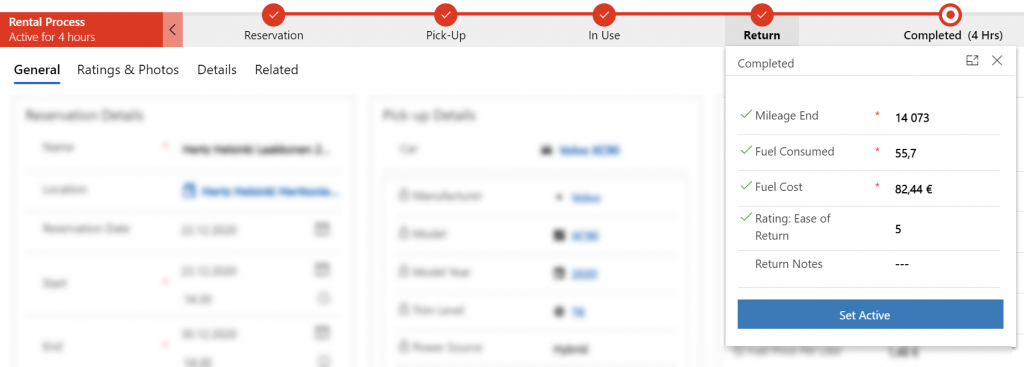
The rental process stages are modelled via the Business Process Flow feature of Power Apps Model-driven apps. We start with 1) the reservation, then proceed to 2) pick-up at the chosen location, 3) use the car we’ve been given, 4) return it and 5) finalize the process upon ensuring we’ve captured all the required data and that the invoice was what we expected to pay.
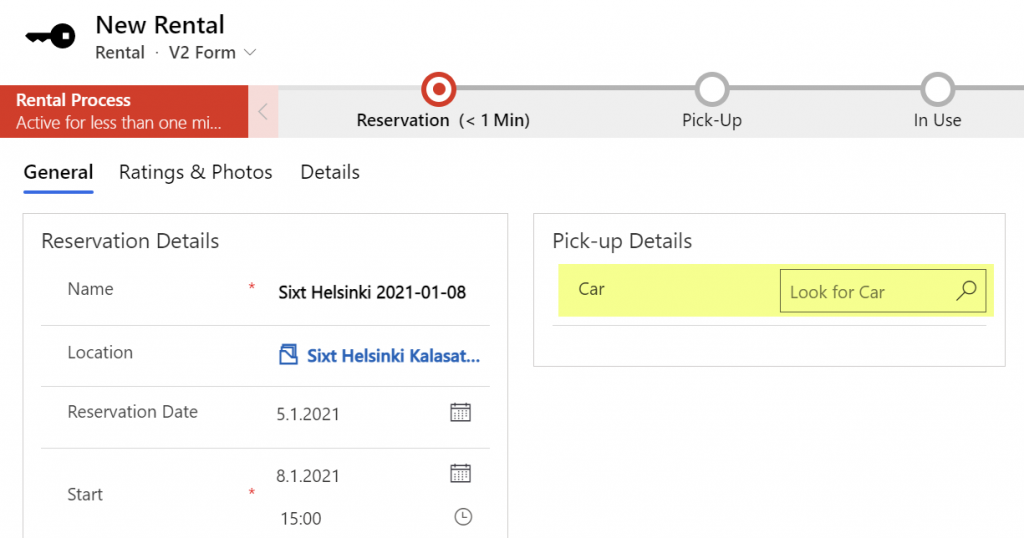
Each rental event will have one car associated with it. However, at the first step of the process, meaning reservation time, we won’t yet have any idea what specific vehicle that will be. (You’ll only know the ACRISS code that describes the level of the vehicle features, like “IWAR” for Intermediate, Wagon, Automatic, Air Conditioning.) Once we get to stage 2 of the process, the pick-up, we’ll be given a specific car that we can describe with properties like Manufacturer, Model, Model Year, Trim Level and so on.
Car is the parent table of Rental, since there can only ever be a single vehicle for one rental event (for now, let’s ignore the possibility of the car breaking down and getting exchanged during the rental period). A single car will of course be used in many, many rental events. However, since the app user is the customer who’s consuming the rental service from different car rental companies, we won’t have the fleet of vehicles defined in advance for our database. The data entry of the car’s details is therefore always a step within the context of the rental process.
So, we know that logically the car is a different type of object than the rental event, which is why it should have its own table. From a user experience perspective, though, filling in the details of the car should be just a similar task as describing the duration or price of the rental car reservation. Just a set of fields on the single form. Yet by default what the Model-driven app form will give us is a single lookup field to the related table’s car record, with the expectation that we’d go and work with the Car data on a different form than the Rental form where the rest of the details are.
Despite of the underlying 1-to-N relationship in the data model, we can improve the user experience by leveraging a couple of neat features in Model-driven apps.
Quick View Forms
Model-driven Power Apps have evolved from the XRM platform that Microsoft first used for builing a CRM product of their own in 2003. Around seven years ago when Dynamics CRM 2013 was launched, it introduced this new and exciting “flat UI”. Before that, the experience of using CRM was often a maze of popup windows since opening a new record always gave you a new browser window you now had to juggle on your desktop.
The boundaries of different entities (which is what tables were called for the first 17 years of the platform we now know as Dataverse) were therefore very tangible indeed. While form subgrids were launched in 2011 to offer some relief, it wasn’t until 2013 when we could start to make the users worry less about the data model and focus more on the business process and actual business data involved in it. A key element in this was the Quick View Form.
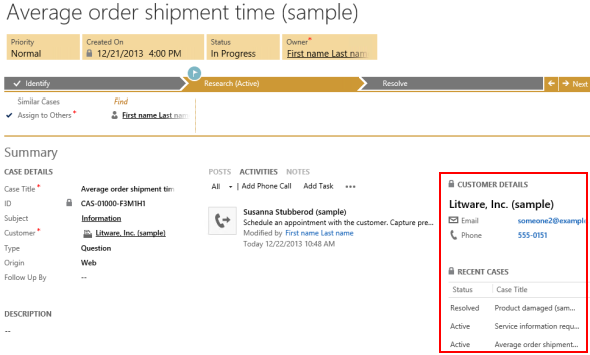
Above is a screenshot from seven years ago of a case entity form that included data from not just the child entities like activities, but also from the parental record of the customer, via a Quick View Form. We can see the email and phone number of the customer, event though they are physically stored on the account entity. It’s not limited to just that N:1 data from “case:account” either, as we can reach down to N:1:N of “case:account:case” by showing all the related cases that this customer has recently opened with our support department.
Quick View Forms were a seriously powerful feature back when they were released. I did some blogging to demonstrate the possibilities, like building a similar opportunity analytics feature that resembled (well, remotely at least) the concept of an ecommerce recommendation engine that shows “customers who bought this item also bought these other items”.
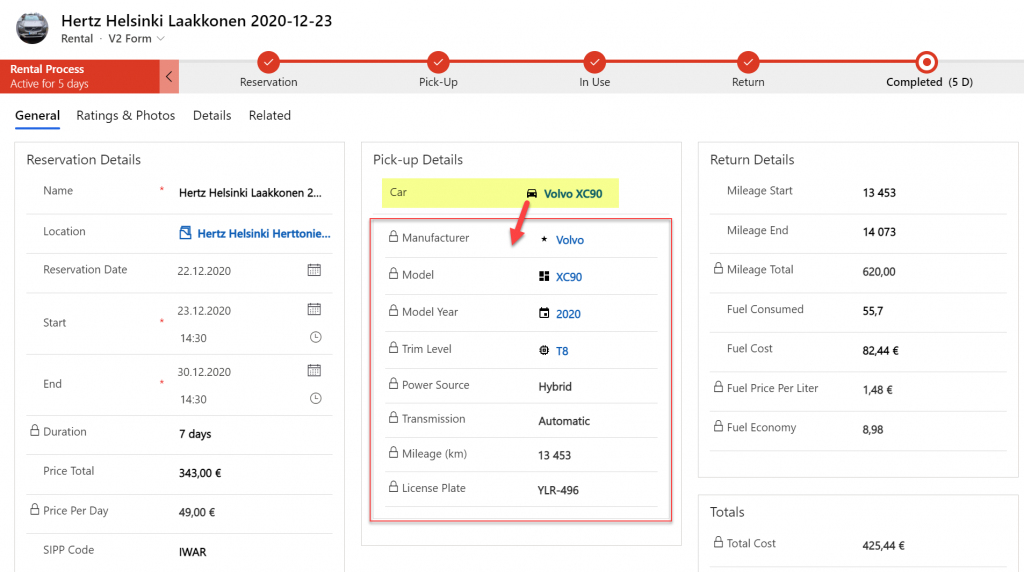
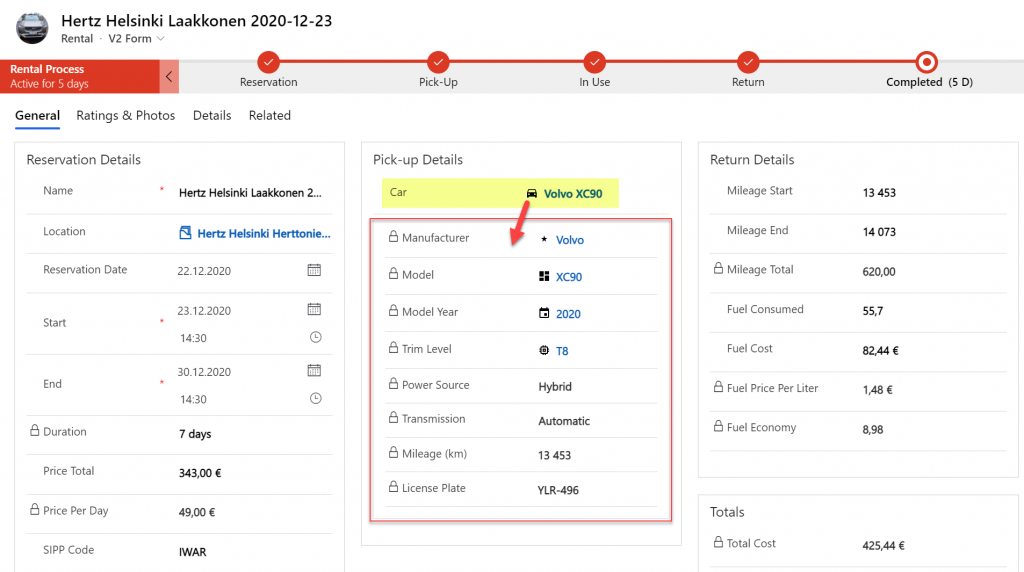
The scenario in our Rental Car app is a lot more straightforward. We want to display the key properties of the Car record associated with the Rental record within the form that drives the rental process. By having a lookup field for Car on the form, this allows us to add a Quick View Form control to show the Car table fields embedded on the Rental table form:
From this static screenshot it would seem like everything is in its right place and the user couldn’t be happier. Right? Well, the challenge here is that the Quick View Form really is just a view. It doesn’t allow editing any of the field values on the related parental table record, let alone creating new records. In short, it’s not as actionable as the data living natively in the Rental table.
Main Form Dialog (MFD)
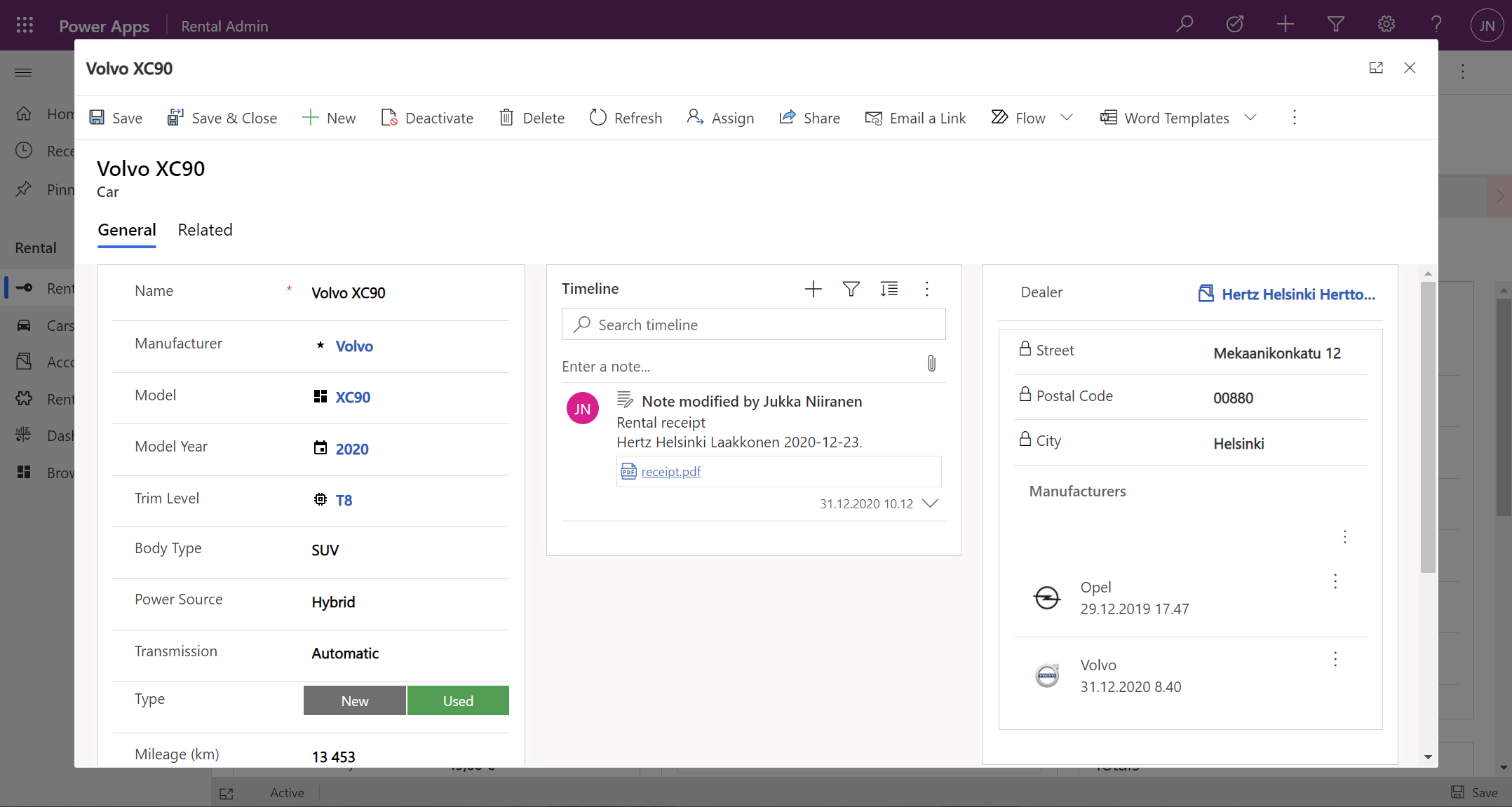
A much more recent entrant into our Power Platform low-code toolkit for designing Model-driven application UI’s is the Main Form Dialog feature. What this allows you to do is to launch a modal window from the lookup field on a Model-driven app form. The user interface doesn’t actually move you fully away from the original record, rather it just renders the (Main) Form of the chosen record from a different table in a Dialog window. It’s not like the CRM 2011 era popup windows, since you remain within the same browser window/tab. Once you’re done with looking at the related record, clicking “X” will return you to exactly same state where you were before clicking in the lookup field. It’s not as jarring an experience as if you’d have fully navigated away from the original form.
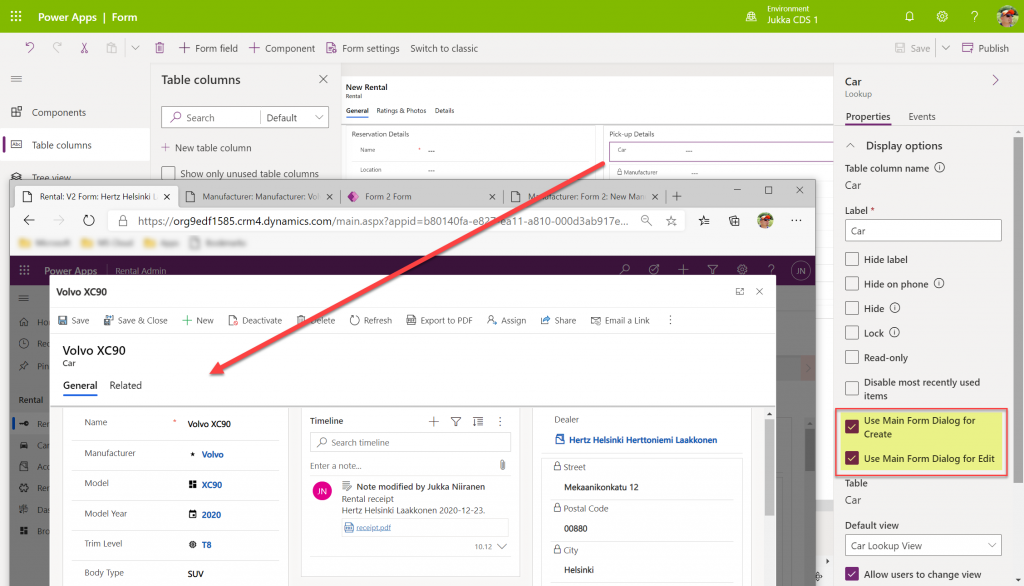
Originally launched as part of 2020 Release Wave 1, the MFD feature was initially available only via the API. At this moment that is still what the documentation says, but I recently discovered that the modern Power Apps form designer now has graphical tools to configure this feature:
When selecting a lookup field in the form editor, the properties dialog on the right now contains new options to check:
Use Main Form Dialog for Create
Use Main Form Dialog for Edit
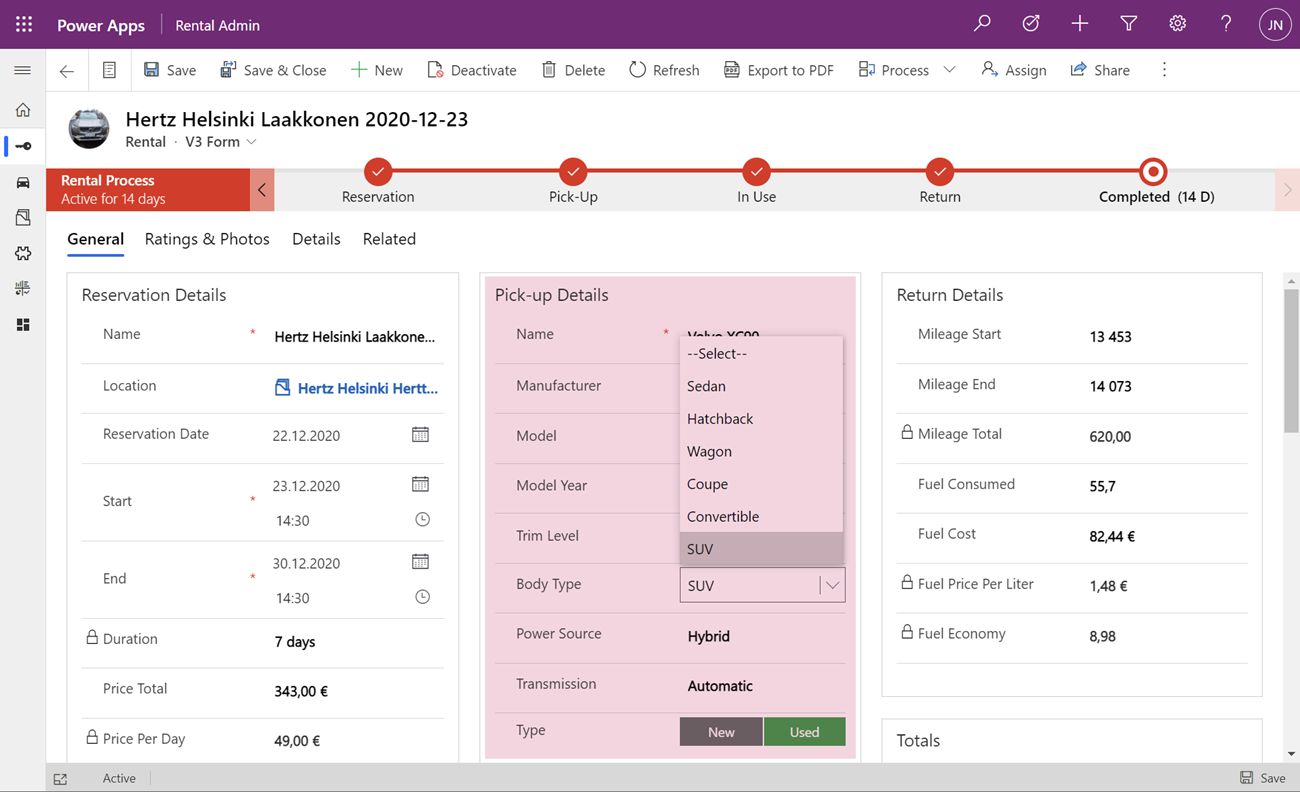
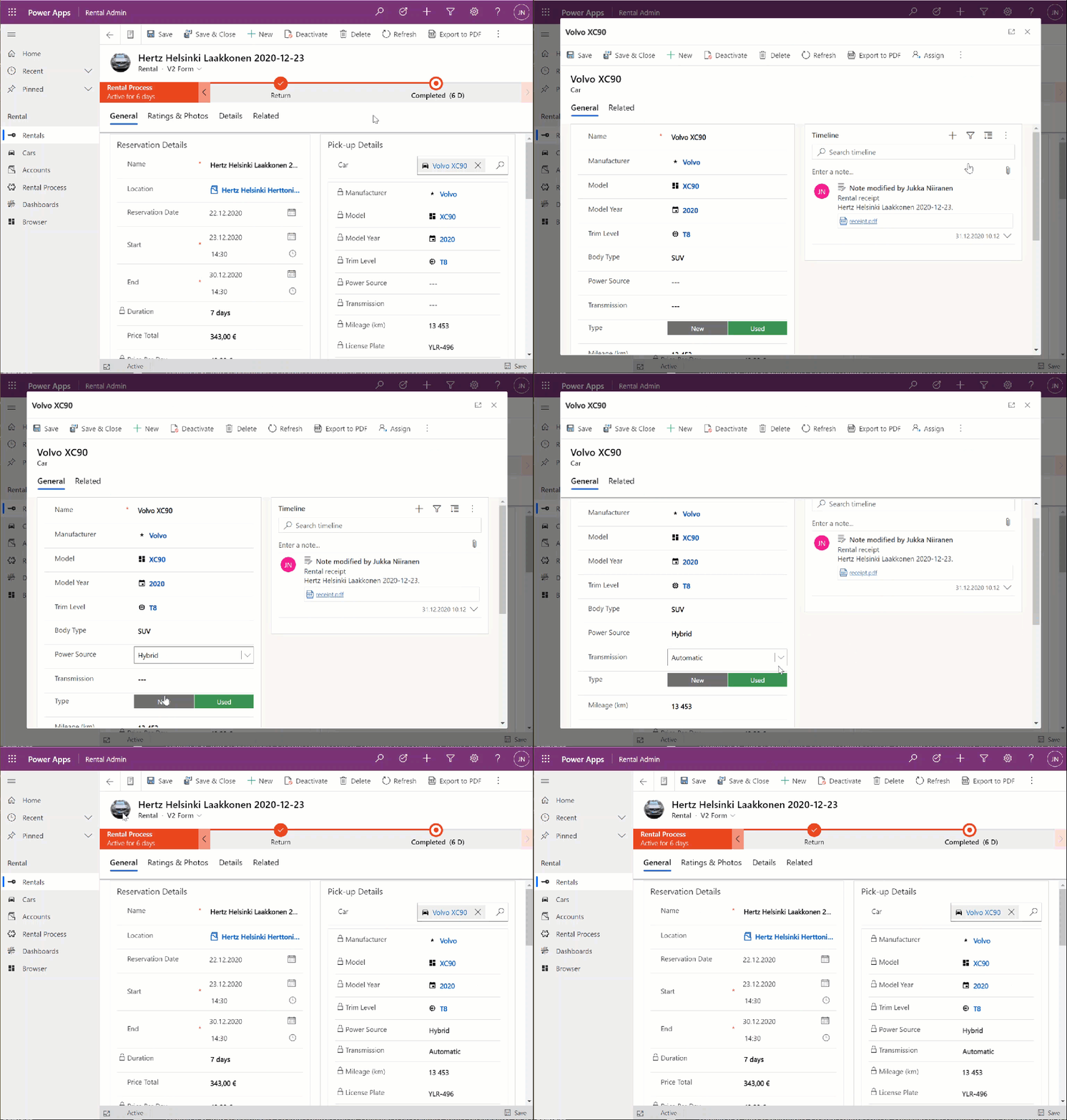
Oh yeah! We now have the power to keep the users from unintentionally navigating away from the “home” form that acts as the anchor for all relevant details concerning the business process. In the rental car example, the user can now safely click on the Car lookup, examine the available options for properties of the car, change the values, click “Save & Close”, then end up right back to where he or she started from:
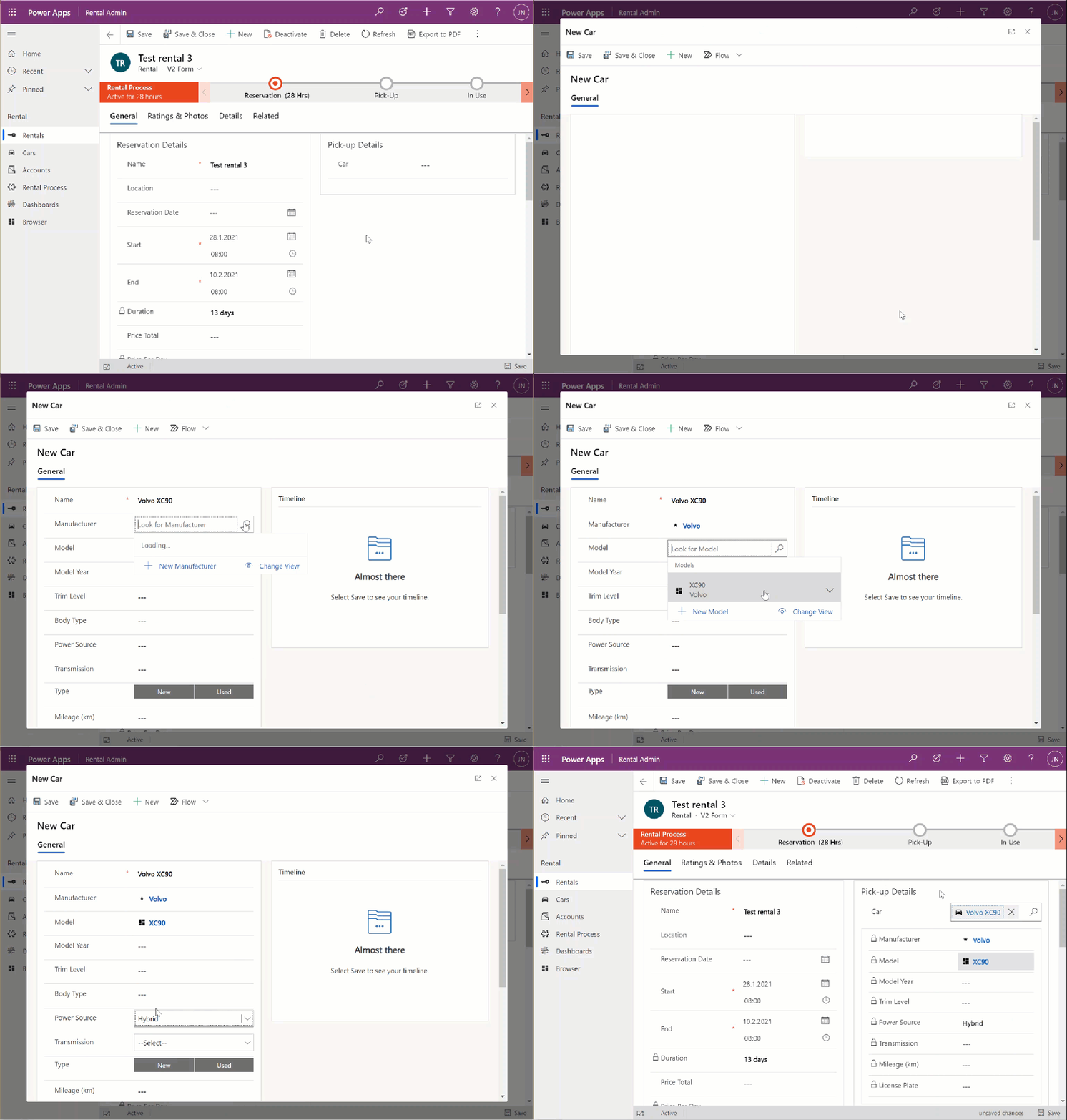
This also works for the experience of adding a new car record. Instead of having to offer a separate Quick Create Form experience for this step that would behave differently from any other occasion where the user interacts with car data, we can launch the full record form in the Main Form Dialog:
The key benefit with this modal window approach is that there’s almost zero chance of the user wondering into the wrong menu or page of the application after they’re done with creating, editing or just viewing the related record. There is no visible page load that would change the mental context away from the primary record, in this case the Rental event.
Considerations
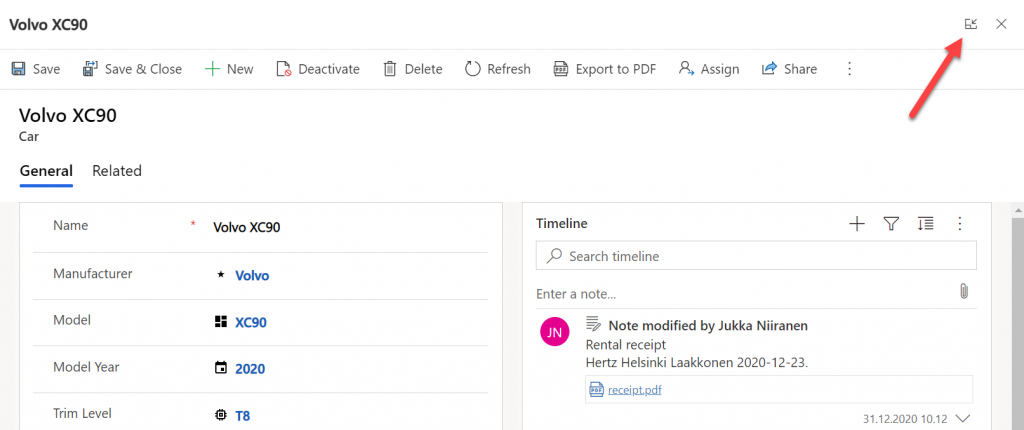
Should you enable the Main Form Dialog feature now on all your lookup fields? Probably not. There will be times when the user may prefer to actually move along in the process and change the context to the parental record. There is no navigation path available in MFD that would support this context change. The user has the option to launch the dialog in full screen mode, but that just expands it to cover the whole screen, rather than doing a page load that would change the navigation position in the sitemap.
There is currently no way to select which form specifically should be opened in MFD. Presumably the form will be determined by the table’s main form order, as well as the specific form the particular user has last viewed. Depending on the number of scenarios where the same table is leveraged, the forms shown by MFD can therefore be unnecessarily complex for the task at hand.
In part 2 I will explore the possibilities of how we can streamline this process even further and make the experience of working with related parental table data almost transparent to the user. We’ll be leveraging the brand new Form Component Control to essentially combine the features from the earlier Quick View Forms and Main Form Dialogs.
It’s been around a year since Microsoft announced that Dynamics 365 Customer Engagement would be moving from the world of separate web, mobile and Outlook clients into a single Unified Interface (or UCI, as in “Unified Client Infrastructure”). At that time I made a prediction that this level of shift in the client technology would be a long road, and to date that still pretty much holds true.
Although V9 has been available for quite some time for new cloud instances and also existing customers have been upgrading as the version has become available for them a bit later, the majority of current Dynamics 365 CE users won’t yet be on UCI – at least for the desktop usage. MoCA was already replaced with UCI in V9, so the mobile UI is now on the new infrastructure, no choices there. For the web, there’s still a fair bit of capabilities not yet on Unified Interface, which makes it hard for customers to move over to it.
Eventually everyone will need to migrate to UCI, though. It’s best to start exploring the scenarios where Unified Interface can fulfill the core needs and to gain the skills needed for designing great user experiences on this new client type. Even though the majority of the customizations will be rendered the same in UCI as on the current web client, there are still details that you should pay attention to. This is a collection of a few observations I’ve made when building a Dynamics 365 Customer Engagement App on UCI. Specifically, I’ll focus on the entity form rendering here, as a continuation of the previous post where I covered the new Card Form type.
The Header
Let’s start from the top. Form headers are where you would have previously placed up to 4 fields that you wanted to be always visible to the user when opening the form and scrolling down along it. Great for highlighting properties of the record that users needed to be aware of.
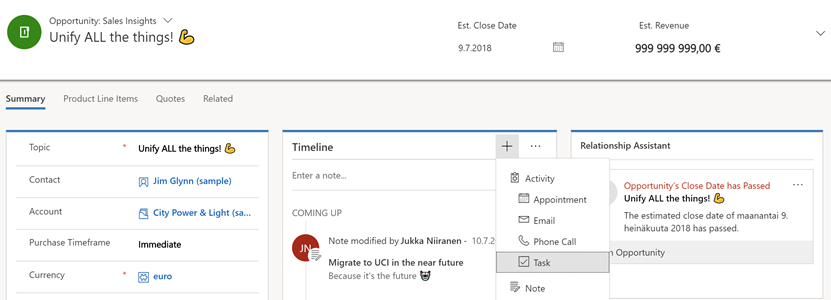
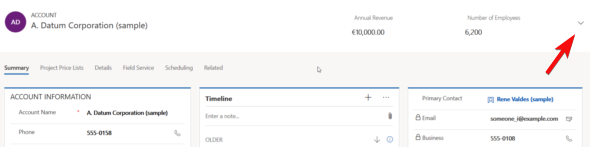
In UCI there can still be just as many fields on the form header, but unfortunately they won’t always be shown. Even on a 1920*1080 screen resolution you may only see the first 2 fields on the form. The rest are hidden behind a small downward arrow icon that the user would have to discover and the click on to see the remaining header fields. I’m pretty sure most will never even realize the fields’ existence.
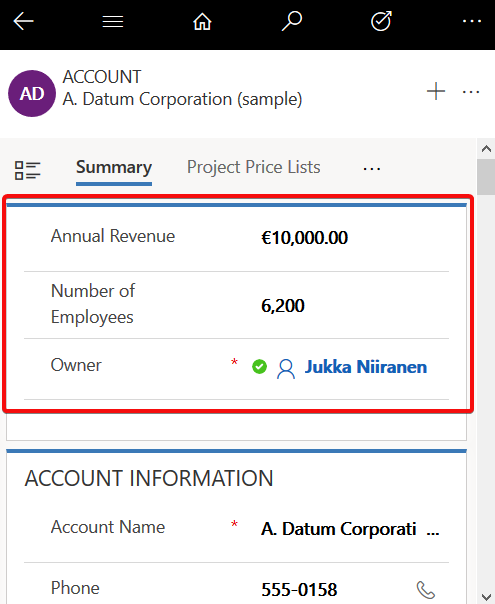
When using a smaller mobile device screen the rendering changes quite significantly. Since on a vertical screen there’s no space for showing a header next to the record primary field (the name), in this form factor the header actually becomes the very first form section to be shown to the user. The nice thing is that it’s really “in your face” for the user. The downside is that this may not be the most logical information to be shown at the start of the form – or at least it will differ from what the user might expect to find there. Especially when creating new records these header fields rarely are the ones where you’d start the data entry process.
For now, I don’t really have a good guidelince on how to consistently leverage the form header with UCI. You probably want to minimize the number of fields shown there, instead of capitalizing on the full 4 field opportunity, and stick to 1-2 fields max.
The Footer
Like the header fields, also the form footer has enjoyed a persistent presence on the XRM entity form. Now with UCI and Dynamics 365 CE, this is no longer the case. On a PC screen the fields do get shown, though, but not in a very nice way.
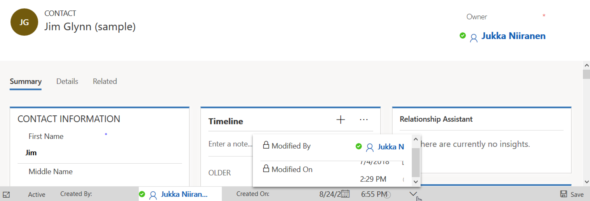
As an example, a fairly common use case for the footer has been to present a few entity default fields that were hidden in CRM 2013 upgrade when the record properties dialog was removed from the UI. I’m referring to the created/modified on/by information, which can be very useful in determining the validity of the CRM data and persons responsible of the updates. You can still put them there, but currently the rendering looks so messy that I’d prefer not to show that to customers:
The icons of these fields are often overlapping, even in full screen. This also highlights one of the current issues with UCI, meaning it doesn’t respect the user’s format settings and instead forces “AM” & “PM” upon users who live in a country where these concepts are never used. (Do also watch out for the date fields that sometimes reverse the order of day and month around, creating interesting results with things like appointment data entry.)
The upside of the new design is that the footer fields don’t add up an extra row at the bottom, instead they are incorporated into the gray bar containing the record status and update indicators. This is very welcome, since in the old web client with especially entities using the BPF control, you’d sometimes have barely any vertical space left for working on the actual record fields, thanks to all the padding at the top & the bottom. Striking a balance with these responsive screen layouts surely isn’t an easy task for the engineers, with requirements for both information density and touch friendliness being presented to them.
On a mobile screen you will not see the fields of the footer at all. It doesn’t appear to be rendered anywhere else on the form, so any information presented in this form section will be inaccessible in some scenarios. Much like the header, I would also advise not to put many fields in the footer if you plan on using Unified Interface (or if your users need them while out on the road).
The Tabs
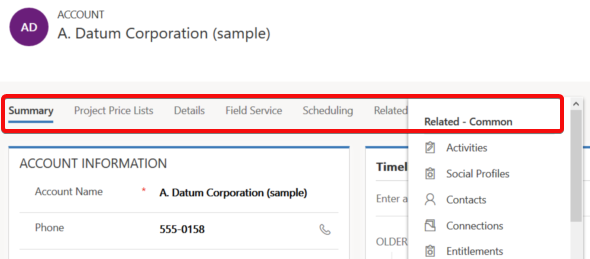
The return of the visible tabs is certainly one of the big UX improvements compared to the old web client. Having these anchors visible right at the start of the form’s loading is a great help especially with information heavy forms like what accounts tend to have. Adding the “Related” menu to the end of the tab list to reveal the child entities is also much better than the mystery arrow in the middle of the old Nav Bar at the top of the screen. Left navigation and Proper Tabs, woo-hoo! Go UCI!
Except that much like the header and footer, the tabs aren’t persistent either. The moment you start scrolling down the form, the tab labels get removed from the screen. Doh! Oh well, I guess we’ll just need to scroll down a bit further without the help of those anchors…
Except we can’t. Once we reach the end of the tab, it’s a hard stop. No matter how much you spin your mouse wheel or swipe your finger on a touch screen, there will be no more of the form revealed to you. You see, in order to go further DOWN on the form you’ll need to scroll all the way UP, reveal the tab labels and then click/press on them. The longer your forms are, especially when reflown as a single column view on a smartphone screen, the longer it will take for your users to reach the next tab.
Having the tabs as containers with hard boundaries might be an understandable design choice from a UX perspective. Getting lost on an endless list of scrolling fields and sections will not be fun for the users, so bringing some structure into this navigation experience is welcome. On the mobile form factor there’s also the Semantic Zoom option to help the user understand the form’s different tabs and sections. Just a shame that also the Semantic Zoom icon is hidden once move down an inch on the form…
Despite of these few challenges, there is a lot to like about the way Unified Interface changes the user experience of entity forms:
Quick View Forms truly blend into the native form fields in UCI, whereas with the legacy web client the rendering was always quite clumsy.
Timeline is far better at exposing related activities, notes, posts than the earlier tabbed UI hiding most of the content.
Subgrids are actually actionable, with access to full grid features like sorting, select multiple.
Subgrid content rendering can be customized via custom control configuration options like Card Forms.
Business Process Flow consumes less vertical space (although BPF stage fields being hidden by default may cause challenges).
Visual hierarchy is much more obvious than even with the web client “refresh UI”.
A big bonus is also the fact that by default you’ll get the same form customizations for desktop and for mobile users. It may or may not be suitable for real life mobile use cases, but at least you get the starting point for designing a mobile optimized UCI App to be targeted for specific scenarios that only need a subset of full form functionality.
The key thing to keep in mind when considering the choice between the classic web client and UCI is this, though: UCI is the future. It will be continuously updated with more supported features and optimized for the end user experience with the latest browsers and devices. These updates don’t even require the customer to schedule their version upgrades via the CDU calendar, since from V9 onward all the Dynamics 365 online updates will be deployed automatically to customer environments. See the new continuous deployment policy that Microsoft just announced for more details.
More and more areas of the classic XRM UI will be moved over to Unified Interface with every release. Although we don’t yet know any dates for end of support for the web client nor the target date for UCI’s full parity, the next wave of features in October 2018 release will be published as release notes on July 23rd at the Microsoft Business Application Summit. Better keep an eye on that one!
If you have been using Dynamics CRM before the 2013 version was released, you may have something in your system called “information forms”. This is not a very descriptive term for them, since of course all the entity forms are about presenting “information” to the end user. These forms actually date back to a time in the Dynamics CRM platform history when there was only a single form available per entity. Times have changed quite a lot since then, as entities can now have role based forms, mobile forms, quick create forms and quick view forms.
Although not a specific form type in itself, CRM 2013 introduced a whole new layout for the default entity forms as a part of the UI refresh. Instead of the traditional & boring two column layout, the new CRM 2013 forms are made up of three columns that can consist of not just entity fields but also related entity subgrids, the social pane, Bing Maps component and other exciting new features. Whereas the old default forms were called “Information”, the names of these new forms follow the entity names. So, the account entity will have a new form labelled “Account”, as an example. (By the way: check this tip for optimizing your form naming convention.)
Merge Forms Feature
Since the new forms are designed to make better use of the new navigation paradigm of CRM 2013 as well as present the data in a much richer way than the old “ERP style” forms of past CRM versions, customers who are upgrading their Dynamics CRM deployment to the latest version are advised to migrate into using these new forms. In fact, Microsoft has stated that the next major version (CRM 2015) would no longer support the use of the old “information forms”.
To make this transition easier, Microsoft has provided a feature called “Merge Forms”. This new button available on the form editor in the CRM customization UI (which still utilizes the old CRM 2011 style layout even in CRM 2015, by the way) is intended to be used for bringing the tabs, sections and fields from your old forms onto the new forms with as little clicks as possible.
Sounds like a handy feature, right? There’s only one slight problem with it: it doesn’t work.
Conflicting ID Values
“What do you mean it doesn’t work? I have used the button to bring in my custom fields and it did just what I expected.” Well, maybe I should rather say that it works partially. If you never export your CRM customizations into a solution file and move it to a different environment, you may not notice that anything is wrong with your forms. However, if you do want to move the customizations between development, test and production organizations, you might run into the below error message during the solution import process.
After the error, if you download the log file and open it, you’ll see a message like this:
What the system is telling us is that we’re trying to insert an item into the customization metadata that has a non-unique ID. Depending on the scenario, the item could be a field or section label. But how did the ID end up being a duplicate? After all, we don’t assign these GUID values in the customization UI, rather the CRM platform generates them. What could have caused the system to violate its own rules?
The answer can be found from this thread on the MSDN forums: CRM 2013 Solution Import. A Microsoft support engineer has confirmed that the error is caused by a design mistake in the Merge Forms feature. Apparently in the process of merging form content from the old form onto the new one there is more data carried over than is needed. Not only do you get the form components exactly the way they are configured in the original form, but you also get the same ID’s. Now, since the old form also exists in the system, this will cause an error message when you try to import your solution file from the source system to the target environment, like from development to test environment, for example.
The Workaround
The system where I ran into this problem was running Dynamics CRM 2013 Service Pack 1 (6.1.0.581) with no Update Rollups (see this earlier blog post for help on understanding the different updates and version numbering). The forum thread above does not indicate that a hotfix for the form merge bug would have been included in one of the released updates so far, so I’m assuming that all CRM 2013 environments are affected by it during the time of writing.
The suggested workaround in the forum discussion was basically “start all over”, meaning removing the merged content from the form and re-adding the components back there one by one. In the environment I was working on this would have required many hours of work with using the form editor on a number of entities , which I wasn’t too keen on spending there. I had just migrated a copy of the CRM 2011 production organization database onto a CRM 2013 test server and was in the process of testing the upgrade steps before the final go-live, so re-doing the customizations at this stage just sounded like both a schedule challenge as well as a potential source for new issues.
I extracted the CRM solution zip file and poked around the customization.xml file for a while, trying to think of a way out of this situation. After I realized that trying to edit the XML manually would only land me into a deeper hole, it occurred to me that there was another feature in CRM that performed something similar than the broken Merge Forms: the “Save As” button. Copying entity forms to create new variations was something that I had used many times with no issues, so perhaps I could rely on it here as well?
I proceeded with creating a copy of each of the entity forms where I had used the Merge Forms feature. Since the new form versions created via “Save As” are able to co-exist with the original forms without causing any conflicts, this must mean that the CRM platform assigns the required new ID’s to the form components. Based on this reasoning, I therefore assumed that once I deleted the original merged form and renamed the new copy (as well as configured the form order and security roles), I would have a clean solution file with unique ID values. After testing the solution import I was extremely glad to see that this was in fact the case, as no more error messages appeared during the import. Saved by the “Save As”!
Don’t Just Merge – Design
So, with the above workaround and a potential upcoming hotfix, is there any reason not to use the Merge Forms feature? In my humble opinion, the merge process is not a best practice but rather just a quick’n dirty way of getting the custom fields to appear on the entity forms. If you don’t in practice know how to customize your Dynamics CRM environment but need to cope with the updated UI of the new version, then the merge will technically make it possible to keep using your CRM data. What it will not do is produce a system that your end users will enjoy.
The merge will bring over a lot of duplicate content (all the default fields) that you may forget to clean away from the new form. It will also create very confusing components for the system administrators, such as the old “What’s New” section vs. the new Social Pane, which require a deeper understanding of the Dynamics CRM platform evolution to really figure out. The biggest risk is that the form content designed for the old version UI will end up living alongside the content that is specifically made for the post CRM 2013 world, creating a disconnected and illogical application that works differently depending on the area where the user navigates to.
Instead of taking the shortcut and doing a quick content merge, I recommend investing a bit more time and effort in planning what’s the best way to present the data and how to make it as easy as possible for the users to interact with it through the UI. If you need some ideas for improving the user experience of your Microsoft Dynamics CRM environment, take a look at my previous post that listed 10 tips for designing a great user experience in Dynamics CRM.
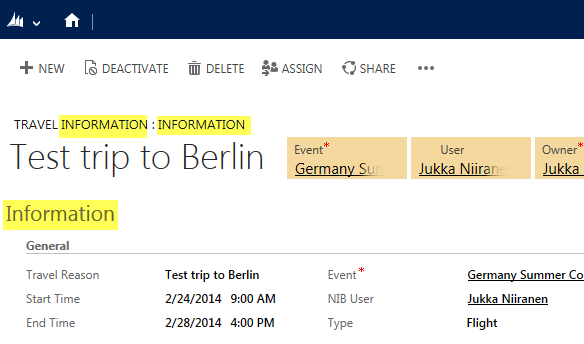
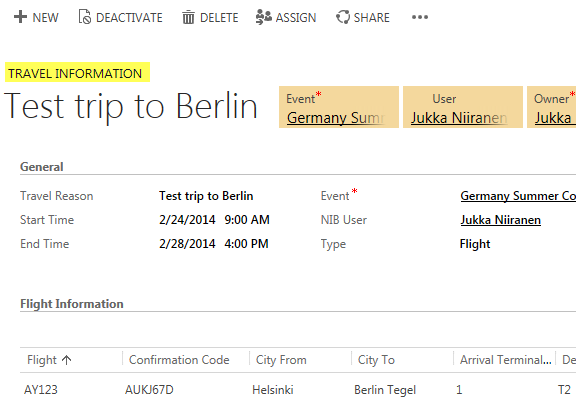
Today I was working on upgrading the customizations of a CRM 2011 org to CRM 2013 forms and restructuring the layouts to fit the new UI. This environment had a custom entity called “Travel Information”, which was used for storing details related to event travel for employees. Here’s what the form looked like when opening a test record:
Hmm, that’s three times the word “information” on the first few lines of the form. With further form sections for “Hotel information”, “Rental car information” etc. it seemed like there’s hardly any room for the actual information among all these labels claiming to be it. So, I decided to clean things up a bit.
Form Tab Label
When you create a new custom entity, you’ll get the first tab added on the form by default with the name “General” and quite often it remains the place where the commonly used and business required fields of the entity will get presented. It may be hard to come up with a very descriptive name for such a collection of fields, as was the case here with the “Information” label given to it.
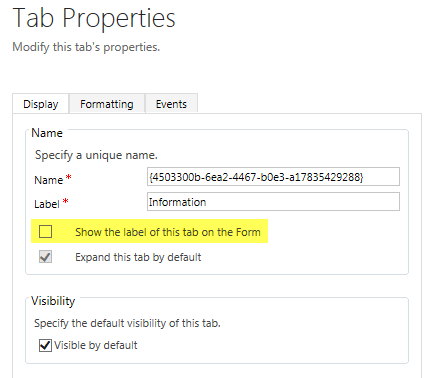
The form tabs can be used for expanding and collapsing the tabs to show/hide fields, but most of the times it will be unlikely that you’d want the first tab ever to be collapsed on the form. So why do we need the label there in the first place? Let’s navigate into the form customization UI and hide it.
By clearing the checkbox for “show the label of this tab on the Form” we can clean up unnecessary text away from the form and help the users focus on the actual field contents instead.
Form Name
In situations where there are more than one form for an entity (and the user has access to them), it’s necessary to show the form selector control at the top of the form. But in our example, there is only a single main form for this entity, so why does the form name “Information” still show up there?
With the default entities of CRM 2013 there has been a new naming convention introduced to distinguish between the legacy forms from CRM 2011 and the updated entity forms with the new layout and components. For example, the account entity will have a legacy form called “Information” and a new form called “Account”. If the user only has access to the latter one, then the name of the form will actually not be displayed there. Instead you’ll only see the name of the entity, thus avoiding unnecessary repetition like “Account: Account”.
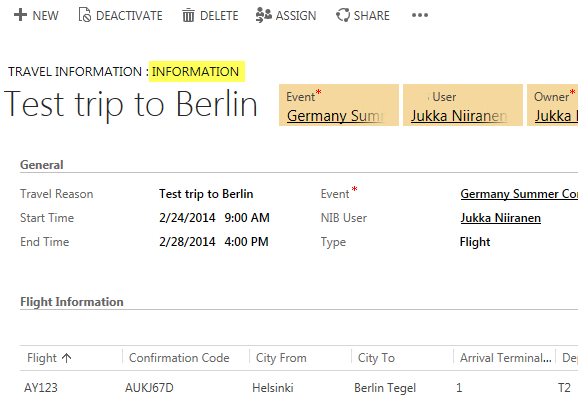
How could we achieve the same outcome with a custom entity? Simple: we’ll just have to do what the Dynamics CRM product team has done with their default entities and name the form exactly the same way as the entity. In this example, by updating the Form Name attribute found on the Form Properties dialog from “Information” to “Travel Information”, this same behavior should kick in when CRM loads up our custom entity form.
Yup, no more form names displaued on the form. As we can see from the end result, we’ve now managed to remove redundant labels from the form quite nicely, leaving only the entity name visible above the primary name field of the entity.
Last year the Microsoft Word Partner Conference gave us a first look at the Activity Feeds solution and other R7 feature enhancements. This year in WPC 2012 we got a taste of things to come in Dynamics CRM on not just one but two client UI’s. Although the Metro CRM app is surely a more significant step in the long run, the updated browser UI will initially have an impact on a much wider user base. That’s why I decided to blog about these news first before jumping into the world of Windows 8.
The screenshots in this post are taken from the recording of the WPC session titled Microsoft Dynamics CRM — Now and in the Future, in which Bill Patterson presented the future roadmap of Dynamics CRM. We’ll be getting an updated Release Preview Guide soon which hopefully goes into more detail about the changes and new features, so consider this just a sneak peak into what’s coming in the next Dynamics CRM update.
After the R8 / Q2 2012 release contents on the browser front were rescheduled, we’ll now be getting visible changes also on the Internet Explorer user experience in the Fall 2012 release (in practice the Q4 2012 Service Update). The new “Refresh” UI will take the classic browser experience closer to the Metro look & feel, but it is not the same thing as the Metro app. Point & click mouse interaction is still the focus here, although with cross-browser support you will at least theoretically be able to run this on a tablet with a touch UI.
The changes in the main screen of Dynamics CRM browser client do not appear to be functionally significant, rather just small tweaks in the colors, fonts and other details. We’re moving from the Vista style Aero UI into a simplified, flat Metro UI, which will be visible in all Microsoft products very shortly.
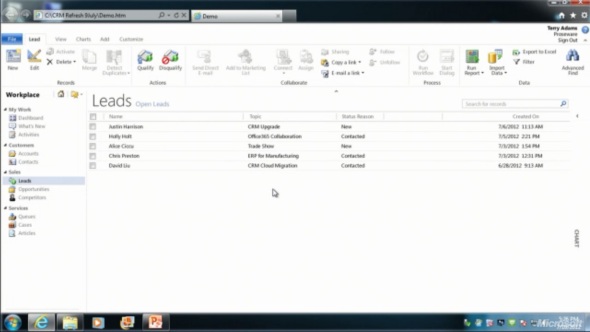
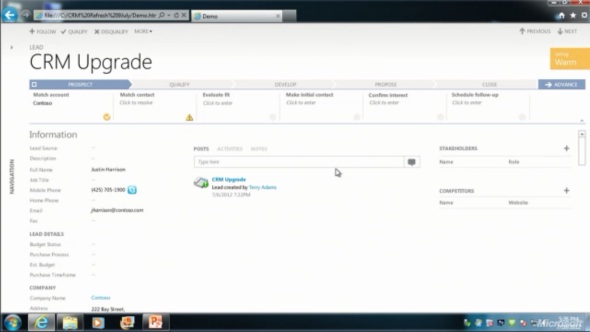
The entity form windows will experience a much more significant update. Please note that one of the focus areas in the Dynamics CRM roadmap for Fall 2012 is developing the application functionality specifically for opportunity and case management, so I expect these changes will not initially impact all the entities. The demo at WPC covered lead and opportunity forms, below is a screenshot of how the lead form appears in the “Refresh” UI:
Wow! We’ve come a long way from the CRM 2011 UI. Where should we start with going through the changes?
Let’s take the ribbon first, or more specifically the lack of it. Although the main window of CRM will still present the full application ribbon, at least on the lead & opportunity forms the ribbon will be minimized by default. Clicking the “More” button will presumably reveal the ribbon, but we didn’t see this in the demo, because the intention of Microsoft is to hide it away as much as possible.
“Hey, didn’t we just get the ribbon 1.5 years ago?” Yes, we did, but it doesn’t fit with the Metro design principles anymore, which state: only deliver the right information to the user at the right time, don’t overwhelm them. Touch UI on tablets and phones makes this even more important, which is quite easy to understand. For the power users (most of the readers of this blog, I’d imagine), the wealth of functionality presented on the ribbon must have felt like a welcome addition back in Office 2007 or CRM 2011, but this doesn’t necessarily mean it’s the right design choice for a CRM application. Results of the usability research Microsoft has conducted can be summarized in the following quote from Patterson:
“Ribbon is great for the power user, but the everyday user just wants the file menu back.”
Well, that’s it then. RIP ribbon 2011-2012, it was nice to know you. While the reality may not be quite as black & white, anyone designing solutions on top of the XRM platform should definitely take the inevitable fate of the ribbon into consideration.
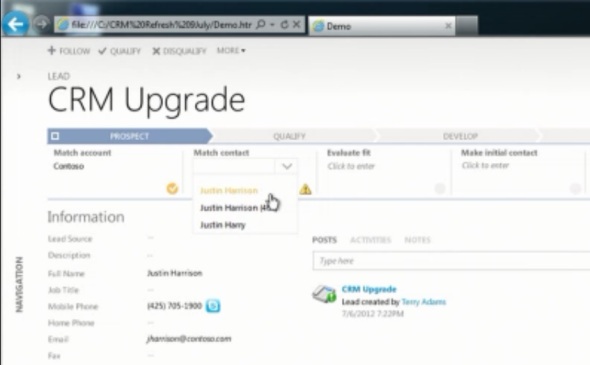
If we don’t have the ribbon there to guide the user anymore, then what can we use instead? The answer is: processes. What is called the Process Driven UI in the development roadmap will in practice manifest itself as a graphical, interactive process stage indicator on the top section of the entity form.
According to Patterson, the new UI is built on the Dialog Process foundation established in the original CRM 2011 release. Presumably the arrow titles will then come from process stage names. Each stage can contain multiple steps that the user needs to complete (although they don’t appear to be mandatory, at least in the lead qualification demo). Logically these would then be created with the Prompt and Response pairs available in current dialogs. The user can progress from one stage to another manually by clicking arrows on the far right corner of the process graph, but presumably there will also be support for creating conditions for automatic rules to update the stage of a record.
Without knowing much about the features and initial limitations yet, the Process Driven UI looks like an excellent addition to the Dynamics CRM application. Workflow and dialog processes have so far been almost invisible to the user, which has made CRM look like just a static place for entering, reading and updating fields on a form. By bringing the process thinking into the foreground, the barrier for using CRM to really automate business processes will become significantly lower, which in turn can make the application a much more valuable tool for the organization using it.
Moving on with the UI review, into the main form sections, we can see another welcome addition: the built-in follow-up activity functionality is back! When the form assistant was deprecated in CRM 2011 we lost the ability to quickly create follow-up actions from the previous activity form (unless you built a custom process for this, as I’m sure many organizations have), but now it returns into the core Dynamics CRM application.
These follow-ups, like any other related record presented on the form, are fully editable directly on the parent entity form instead of a separate pop-up window, which has been a paint point that Microsoft is working hard on trying to eliminate. Modern web apps don’t have popups and modern devices (tablets and smartphones) don’t support them, so inline editing is the only sensible way going forward.
Notice how the traditional form fields of a lead are all stacked up on the left side. With the related entities navigation collapsed by default, this single column approach actually looks pretty good. Must be because the iPad and Metro apps are teaching us that fields don’t exist side by side but on top of each other. But what do you then fill the rest of the screen with?
The answer: related records. In the opportunity form example there are subgrids of stakeholders (Connections), Competitors and pursuit team (possibly new team management related entity, or just a Connection type?), although they barely look like subgrids at all since the Metro style form design blends these seamlessly into the entity form. In the middle there’s a combined list that shows Activity Feed Posts, Activities or Notes, depending on the selected tab. Another design choice that sure feels better than spreading these records into a wall web resource, subgrid and a notes/attachments list as they are in the current CRM 2011 UI.
Also pay attention to the top right corner of the form, where there is a highlighted section of entity fields, in this case the opportunity probability, rating, estimated close date and estimated revenue. Whether these are business required or business recommended fields that get automatically promoted into this section of the UI remains to be seen. It’s like a form header section that is actually editable, which could be another possible implementation method. As you may or may not have noticed yet, the header and footer section of the lead and opportunity forms are now history, with no apparent way of bringing them back, unlike the ribbon with the “More” menu.
All in all, what the WPC 2012 demo showed us is almost like a whole new application. The way in which the lead-to-opportunity process now flows within the same window, without a single pop-up window is nothing short of revolutionary, if you compare it to the current Dynamics CRM UI logic. The navigation paths in the application have remained fairly static from v3.0 to 2011, with the latest major version adding a large amount of new UI components (ribbons, charts, subgrids, filters) into the mixture but not really changing the core concepts. Now with the Fall 2012 browser client update and the Metro CRM app looming in the horizon, all of a sudden the Dynamics CRM user experience is about to get redesigned in a major way.
Certain entities that contain the activity roll-up feature, namely accounts, contacts and opportunities, are also equipped with a date filter that allows you to choose whether you want to see all the activities related to the record or just a selected subset. By default this is “Next 30 days”, but you also can choose between “Overdue” or “Next 12 months”, or just go for “All”. That’s the good news.
The bad news is that this piece of helpful functionality has remained uncustomizable throughout different Dynamics CRM versions. A lot of users were annoyed with especially the same filter in the associated history view, nowadays known as Closed Activities view in CRM 2011, which used to default to “Last 30 days” and hide away all but the most recent email threads, appointments and other information that you might have been searching for. You always had to change the filter manually to “All” to uncover the historical information about the relationship with the account or contact. However, this has changed now in the latest version and “All” has become the default filter (or should I say the filter is off by default).
That’s definitely a step towards the right direction. It’s not exactly what the response on Microsoft Connect suggests, which claims that “we’ve allowed a user to change the default filter for associated views in CRM 2011”. I’ve yet run into such a setting and neither has The Great Internet, unless Google is hiding such instructions or blog posts. It would be useful to be able to configure or remove filters that the end users don’t want to deal with, without having to resort to unsupported customizations.
Open vs. closed activities
History is one thing but it’s the future actions that matter the most. Until very recently, I’d say up until Update Rollup 2 of CRM 2011 the filter functionality in the open activities associated views used to be such that the default “Next 30 days” would also show any activity that was missing a due date. By default the due dates are not a required field and sometimes they are not that practical for the CRM users, as many things in the daily life of a modern information worker don’t have strict deadlines. Also, there’s no out-of-the-box functionality in Dynamics CRM to set default values for date fields either, so setting the exact due date for every task or phone call you enter on your task list may feel too bureaucratic. An activity with a missing date should be considered as “do this as soon as you can, given all the surrounding factors”, in my personal opinion.
In the current version of Update Rollup 5 the “Filter on” value is applied in such a way that it by default hides away all activities that don’t meet the “Next 30 days” criteria. If the due date is blank, the activities won’t show under the account/contact/opportunity. This may seem quite confusing to the user, since any new activity that he or she creates for the record will appear to “vanish” into thin air after clicking “Save and close”. In the My Activities view they will still appear on the top of the list, as null values in the Due Date column are sorted on top.
What’s even more confusing is that CRM 2011 introduces two different ways for users to navigate to related activities on the account form: the familiar associated view and the new subgrid. If you’ve been reading my blog, you’ll know that subgrids ain’t exactly what associated views used to be. They don’t contain the activity roll-up feature, so you won’t see those activities that are set regarding a child record of an account (for example, opportunities) instead of the account record directly. Just like another filter, except you can’t even change it.
How to change the default filter value
There’s been numerous blog posts written on the topic of setting the filter defaults on CRM 4.0, but I was initially a bit surprised I couldn’t find a working piece of Javascript to achieve this on CRM 2011. Examples like this, this or this didn’t seem to be working for me, but luckily I ran into this post on the Microsoft Dynamics CRM German forum by Andreas Buchinger. To save you the trouble of Google Translate (well, it’s not much trouble at all when using Chrome’s built-in translation toolbar), here’s a walk through of the steps needed.








 Certain entities that contain the activity roll-up feature, namely accounts, contacts and opportunities, are also equipped with a date filter that allows you to choose whether you want to see all the activities related to the record or just a selected subset. By default this is “Next 30 days”, but you also can choose between “Overdue” or “Next 12 months”, or just go for “All”. That’s the good news.

